display MERCEDES-BENZ S-CLASS SEDAN 2013 Service Manual
[x] Cancel search | Manufacturer: MERCEDES-BENZ, Model Year: 2013, Model line: S-CLASS SEDAN, Model: MERCEDES-BENZ S-CLASS SEDAN 2013Pages: 536, PDF Size: 24.14 MB
Page 124 of 536
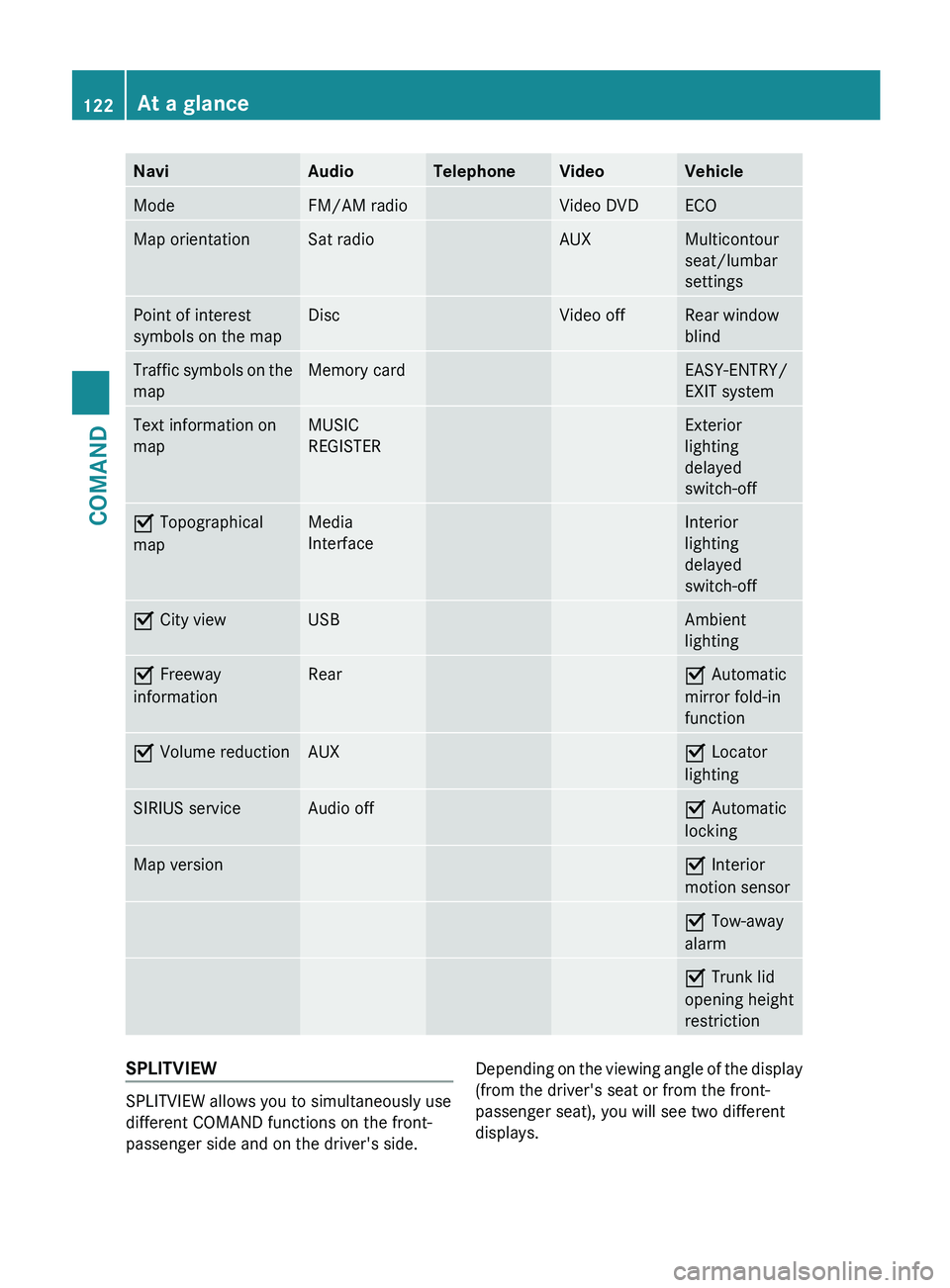
Navi Audio Telephone Video Vehicle
Mode FM/AM radio Video DVD ECO
Map orientation Sat radio AUX Multicontour
seat/lumbar
settings
Point of interest
symbols on the map Disc Video off Rear window
blind
Traffic symbols on the
map Memory card EASY-ENTRY/
EXIT system
Text information on
map MUSIC
REGISTER Exterior
lighting
delayed
switch-off
O Topographical
map Media
Interface Interior
lighting
delayed
switch-off
O City view USB Ambient
lighting
O Freeway
information Rear O Automatic
mirror fold-in
function
O Volume reduction AUX O Locator
lighting
SIRIUS service Audio off O Automatic
locking
Map version O Interior
motion sensor
O Tow-away
alarm
O Trunk lid
opening height
restriction
SPLITVIEW
SPLITVIEW allows you to simultaneously use
different COMAND functions on the front-
passenger side and on the driver's side.
Depending on the viewing angle of the display
(from the driver's seat or from the front-
passenger seat), you will see two different
displays.122
At a glanceCOMAND
Page 125 of 536
For example, the "Navi" function can be used
from the driver's side while the "Video"
function
is used on the front-passenger side.
Use the remote control to operate COMAND
from the front-passenger side with
SPLITVIEW.
Please bear the following in mind
R Your vehicle may be equipped with
SPLITVIEW, depending on its date of
production. The use of SPLITVIEW is
currently not permitted in the following
states: AL, AZ, CO, IL, LA, MA, MD, NH, PA,
VA, VT, WA, WI, and WV or in the Canadian
provinces of Manitoba, Newfoundland,
New Brunswick, and Prince Edward Island.
It is the driver's responsibility to observe
ALL regional legally prescribed regulations.
If your vehicle is registered in a state or
province in which SPLITVIEW is not
approved, this function must be
deactivated. Please contact an authorized
specialist dealer to check whether
SPLITVIEW is approved in your state or
province.
R Volume adjustment for the cordless
headphones can be carried out on the
headphones. Before putting on the
headphones, make sure that the volume
has not been set too high.
R The remote control can be used for the
volume adjustment of corded headphones.
R You can only use media from the driver's
and front-passenger sides separately if the
media are from different sources. Example:
on the driver's side, an audio CD is being
played by the DVD changer. This means
that on the front-passenger side, the DVD
changer cannot be used to play a different
disc type, for instance a video DVD.
However, other media can be used at the
same time on the front-passenger side,
including radio, memory card, MUSIC
REGISTER, Media Interface, USB or AUX.
R If you use the same medium on both sides,
settings for this medium can be carried out
from either side. R
There must be intervisibility between the
headphones and the display so that
COMAND
can optimally transmit music and
speech via the infrared signal on the front-
passenger's headphones. For this reason,
please also observe that the headphones
have left and right sides, and use them
correctly.
R Only entertainment functions, i.e. audio
and video, can be used separately via
SPLITVIEW.
R The multifunction steering wheel can only
be used for functions which relate to the
driver's side.
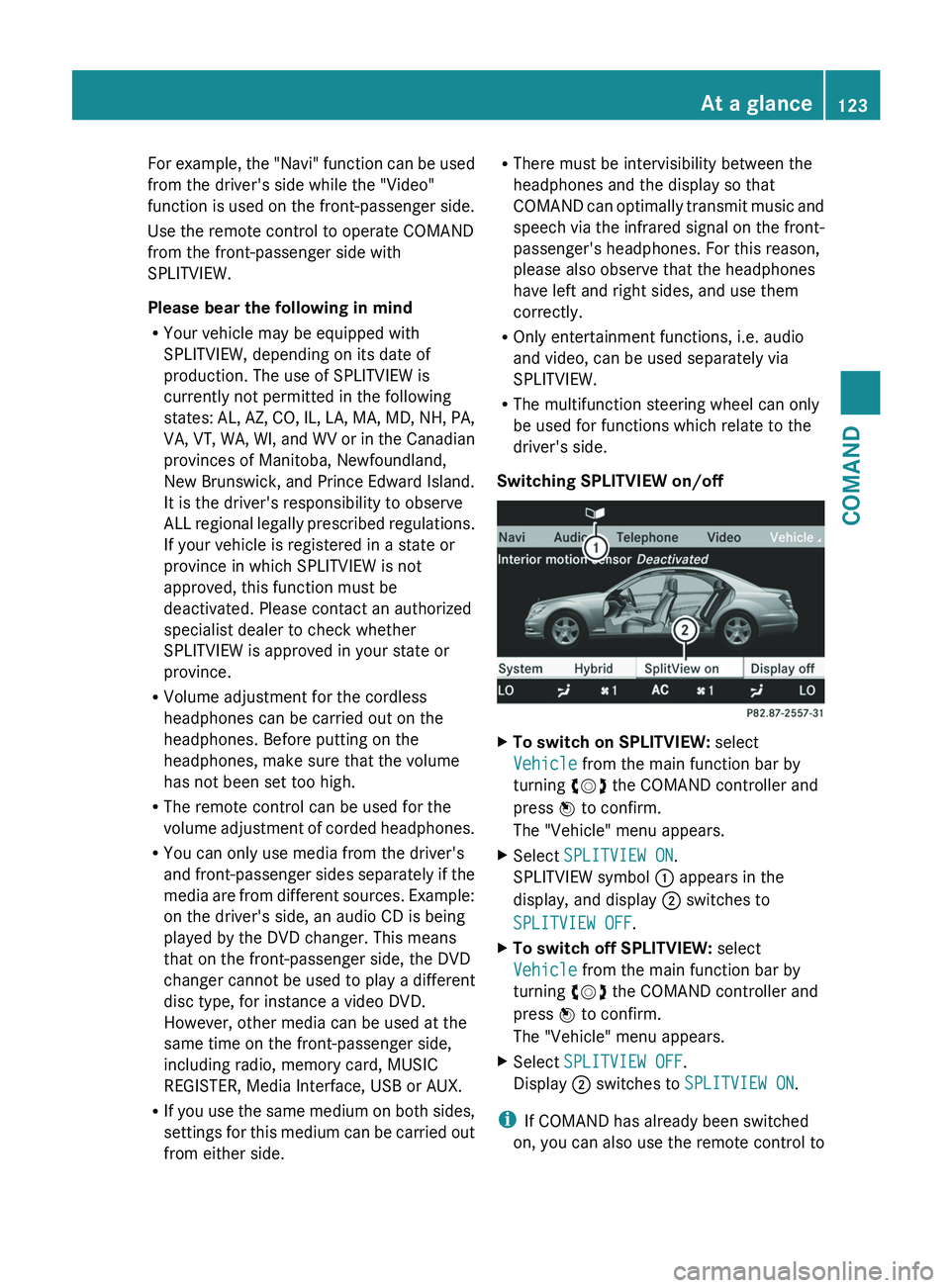
Switching SPLITVIEW on/off X
To switch on SPLITVIEW: select
Vehicle from the main function bar by
turning cVd the COMAND controller and
press W to confirm.
The "Vehicle" menu appears.
X Select SPLITVIEW ON.
SPLITVIEW symbol : appears in the
display, and display ; switches to
SPLITVIEW OFF.
X To switch off SPLITVIEW: select
Vehicle from the main function bar by
turning cVd the COMAND controller and
press W to confirm.
The "Vehicle" menu appears.
X Select SPLITVIEW OFF.
Display ; switches to SPLITVIEW ON.
i If COMAND has already been switched
on, you can also use the remote control to At a glance
123
COMAND Z
Page 126 of 536
switch SPLITVIEW on and off
(Y page 125).
The SPLITVIEW screen remains on for
approximately
30 minutes after the SmartKey
has been turned to position 0 in the ignition
lock. After this time or after the SmartKey has
been removed, the settings on the front-
passenger side are saved for approximately
30 minutes longer. After this period,
reactivation on the front-passenger side
means that the settings from the driver's side
will be used.
Cordless headphones for the front
passenger There are different cordless headphones for
the front passenger and the rear
compartment.
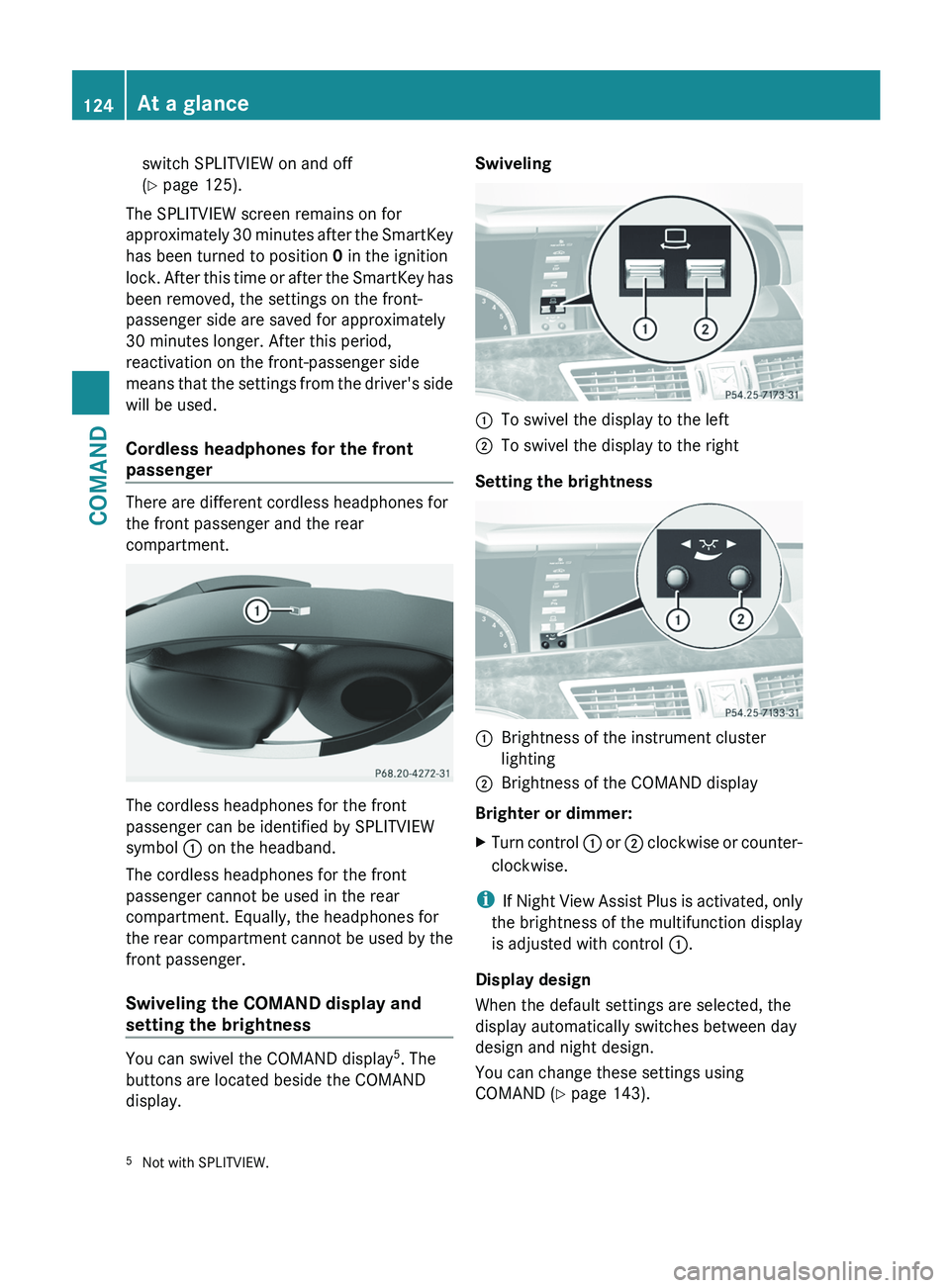
The cordless headphones for the front
passenger can be identified by SPLITVIEW
symbol
: on the headband.
The cordless headphones for the front
passenger cannot be used in the rear
compartment. Equally, the headphones for
the
rear compartment cannot be used by the
front passenger.
Swiveling the COMAND display and
setting the brightness You can swivel the COMAND display
5
. The
buttons are located beside the COMAND
display. Swiveling
:
To swivel the display to the left
; To swivel the display to the right
Setting the brightness :
Brightness of the instrument cluster
lighting
; Brightness of the COMAND display
Brighter or dimmer:
X Turn control :
or ; clockwise or counter-
clockwise.
i If
Night View Assist Plus is activated, only
the brightness of the multifunction display
is adjusted with control :.
Display design
When the default settings are selected, the
display automatically switches between day
design and night design.
You can change these settings using
COMAND (Y page 143).
5 Not with SPLITVIEW.124
At a glance
COMAND
Page 127 of 536
Cleaning instructions
!
Do not touch the COMAND display. The
display has a very sensitive high-gloss
surface;
there is a risk of scratching. If you
have to clean the screen, however, use a
mild cleaning agent and a soft, lint-free
cloth.
The display must be switched off and have
cooled down before you start cleaning. Clean
the display screen, when necessary, with a
commercially available microfiber cloth and
cleaning agent for TFT/LCD displays. Then,
dry the surface with a dry microfiber cloth.
Avoid using alcoholic thinners, gasoline or
abrasive cleaning agents. These could
damage the display surface. Do not apply
pressure to the display surface when cleaning
it, as this could cause irreversible damage. Remote control
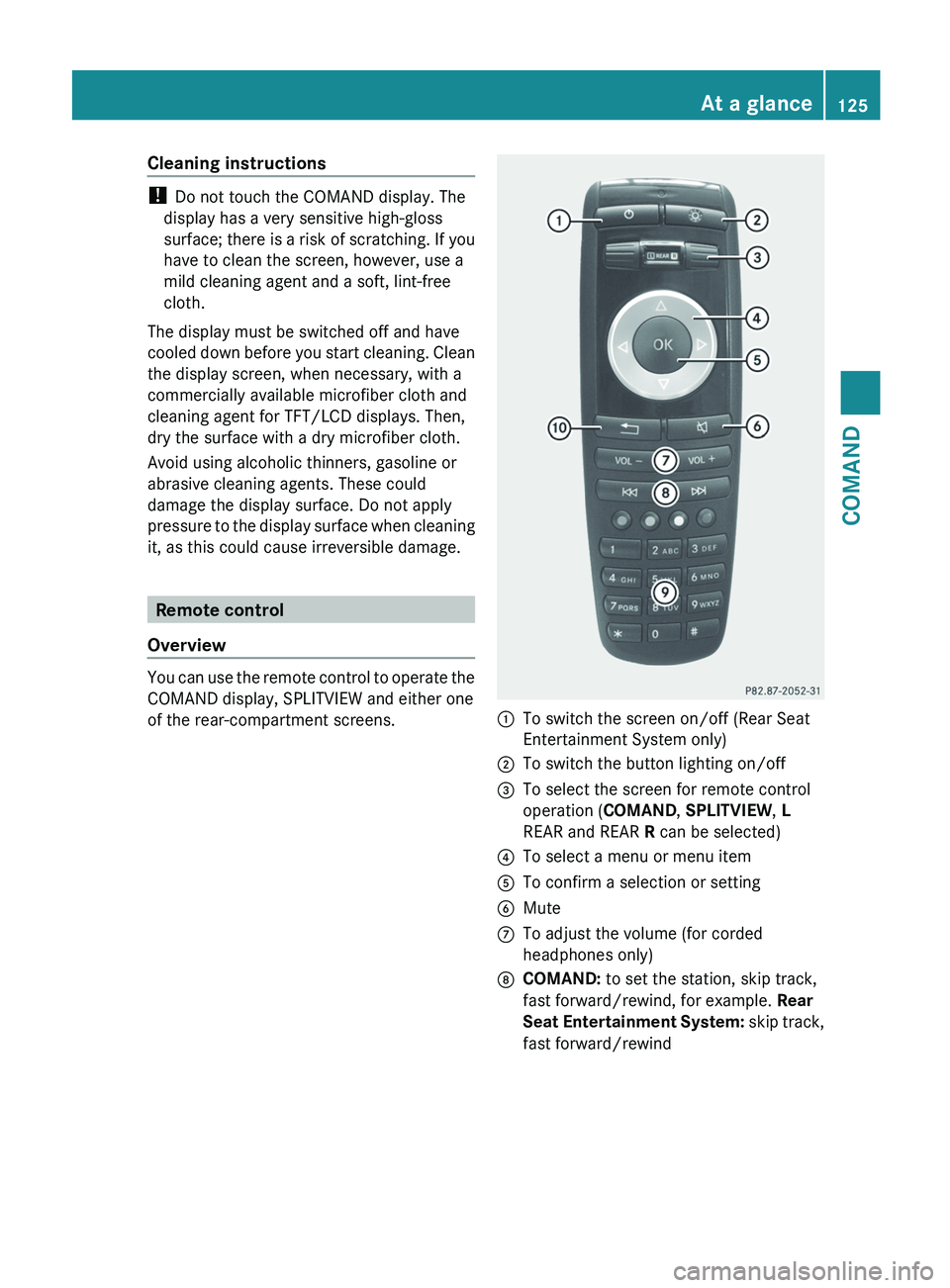
Overview You can use the remote control to operate the
COMAND display, SPLITVIEW and either one
of the rear-compartment screens.
:
To switch the screen on/off (Rear Seat
Entertainment System only)
; To switch the button lighting on/off
= To select the screen for remote control
operation (COMAND , SPLITVIEW, L
REAR and REAR R can be selected)
? To select a menu or menu item
A To confirm a selection or setting
B Mute
C To adjust the volume (for corded
headphones only)
D COMAND: to set the station, skip track,
fast forward/rewind, for example. Rear
Seat
Entertainment System: skip track,
fast forward/rewind At a glance
125
COMAND Z
Page 128 of 536
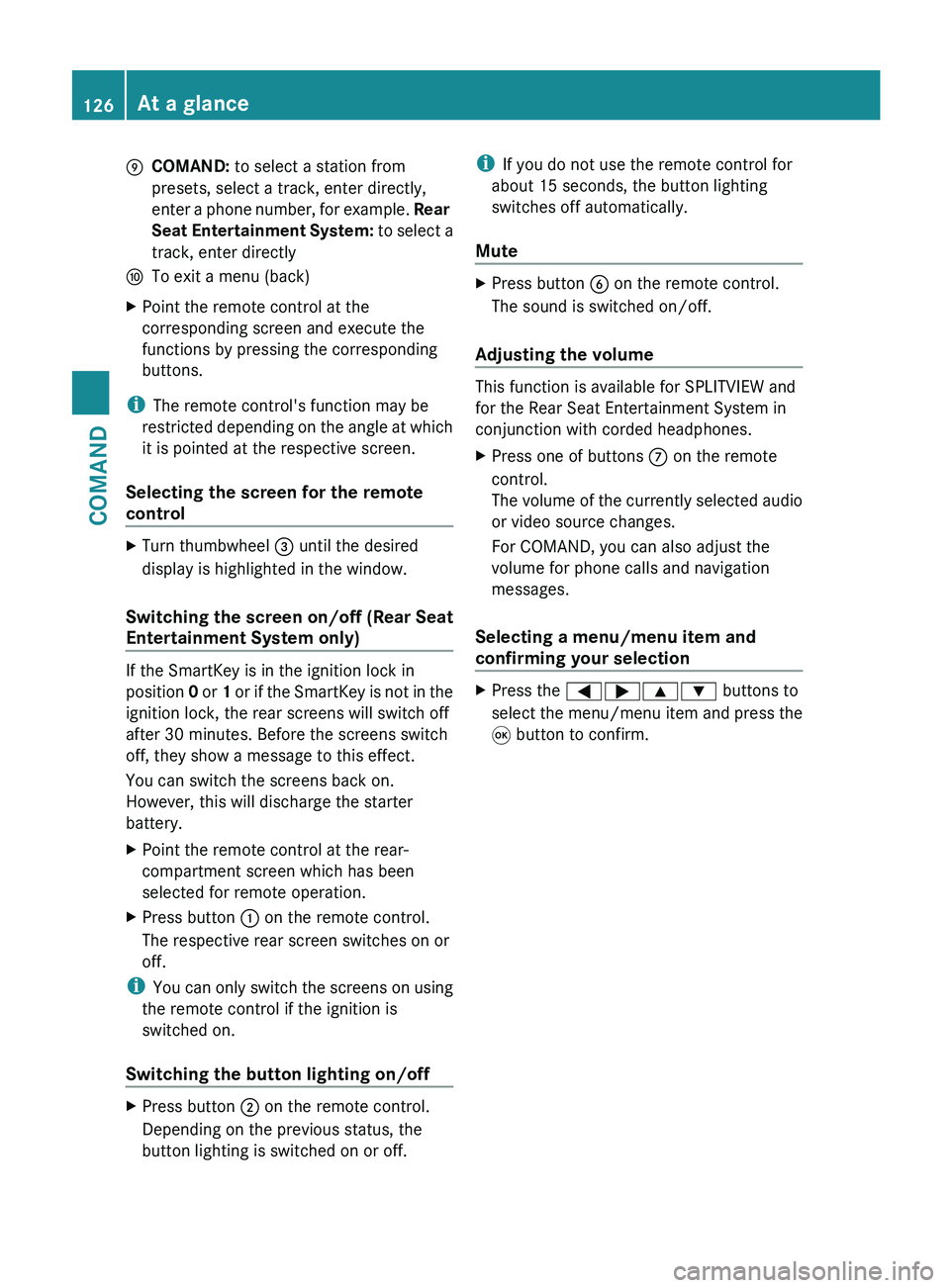
E
COMAND: to select a station from
presets, select a track, enter directly,
enter
a phone number, for example. Rear
Seat Entertainment System: to select a
track, enter directly
F To exit a menu (back)
X Point the remote control at the
corresponding screen and execute the
functions by pressing the corresponding
buttons.
i The remote control's function may be
restricted
depending on the angle at which
it is pointed at the respective screen.
Selecting the screen for the remote
control X
Turn thumbwheel = until the desired
display is highlighted in the window.
Switching the screen on/off (Rear Seat
Entertainment System only) If the SmartKey is in the ignition lock in
position
0
or 1 or if the SmartKey is not in the
ignition lock, the rear screens will switch off
after 30 minutes. Before the screens switch
off, they show a message to this effect.
You can switch the screens back on.
However, this will discharge the starter
battery.
X Point the remote control at the rear-
compartment screen which has been
selected for remote operation.
X Press button : on the remote control.
The respective rear screen switches on or
off.
i You
can only switch the screens on using
the remote control if the ignition is
switched on.
Switching the button lighting on/off X
Press button ; on the remote control.
Depending on the previous status, the
button lighting is switched on or off. i
If you do not use the remote control for
about 15 seconds, the button lighting
switches off automatically.
Mute X
Press button B on the remote control.
The sound is switched on/off.
Adjusting the volume This function is available for SPLITVIEW and
for the Rear Seat Entertainment System in
conjunction with corded headphones.
X
Press one of buttons C on the remote
control.
The
volume of the currently selected audio
or video source changes.
For COMAND, you can also adjust the
volume for phone calls and navigation
messages.
Selecting a menu/menu item and
confirming your selection X
Press the =;9: buttons to
select
the menu/menu item and press the
9 button to confirm. 126
At a glance
COMAND
Page 129 of 536
Functions with the
E and F buttonYou can use the remote control to execute the same functions as the COMAND control panel.
Mode Function
Audio mode Selects a station using the station search function (
Y page 212)Selects a track by skipping to a track (Y page 224)
Fast forward/rewind (
Y page 225)Video mode Selects a scene or chapter (video DVD mode) (Y page 243)
Fast-forward/rewind (video DVD mode) (
Y page 242)Functions of the number keypad
You can use the remote control to execute the same functions as the COMAND control panel.
Mode Function
Audio mode Selects stations via the station presets (Y page 212)
Sets stations by entering the frequency manually (
Y page 212)Stores stations manually (
Y page 213) Selects a track (Y page 224)
Selects a data medium via the media list (
Y page 224)Telephone mode Telephone number entry (
Y page 200)Character entry Enters characters (direct entry) (
Y page 130)Operating COMAND
Selecting a main function Initial situation
You
would like to change from the telephone
menu to the vehicle settings, for example.
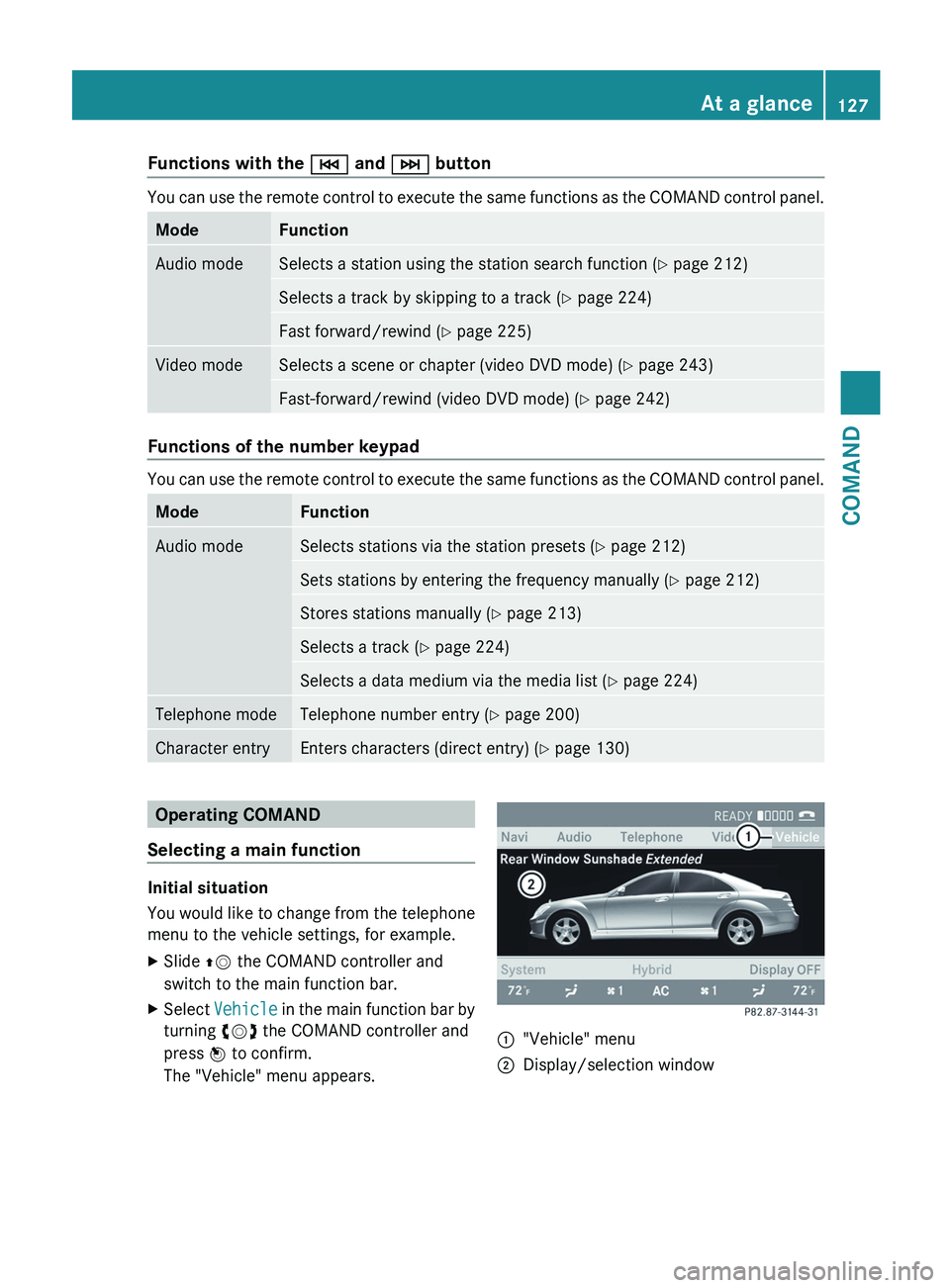
X Slide ZV the COMAND controller and
switch to the main function bar.
X Select Vehicle
in the main function bar by
turning cVd the COMAND controller and
press W to confirm.
The "Vehicle" menu appears. :
"Vehicle" menu
; Display/selection window At a glance
127
COMAND Z
Page 131 of 536
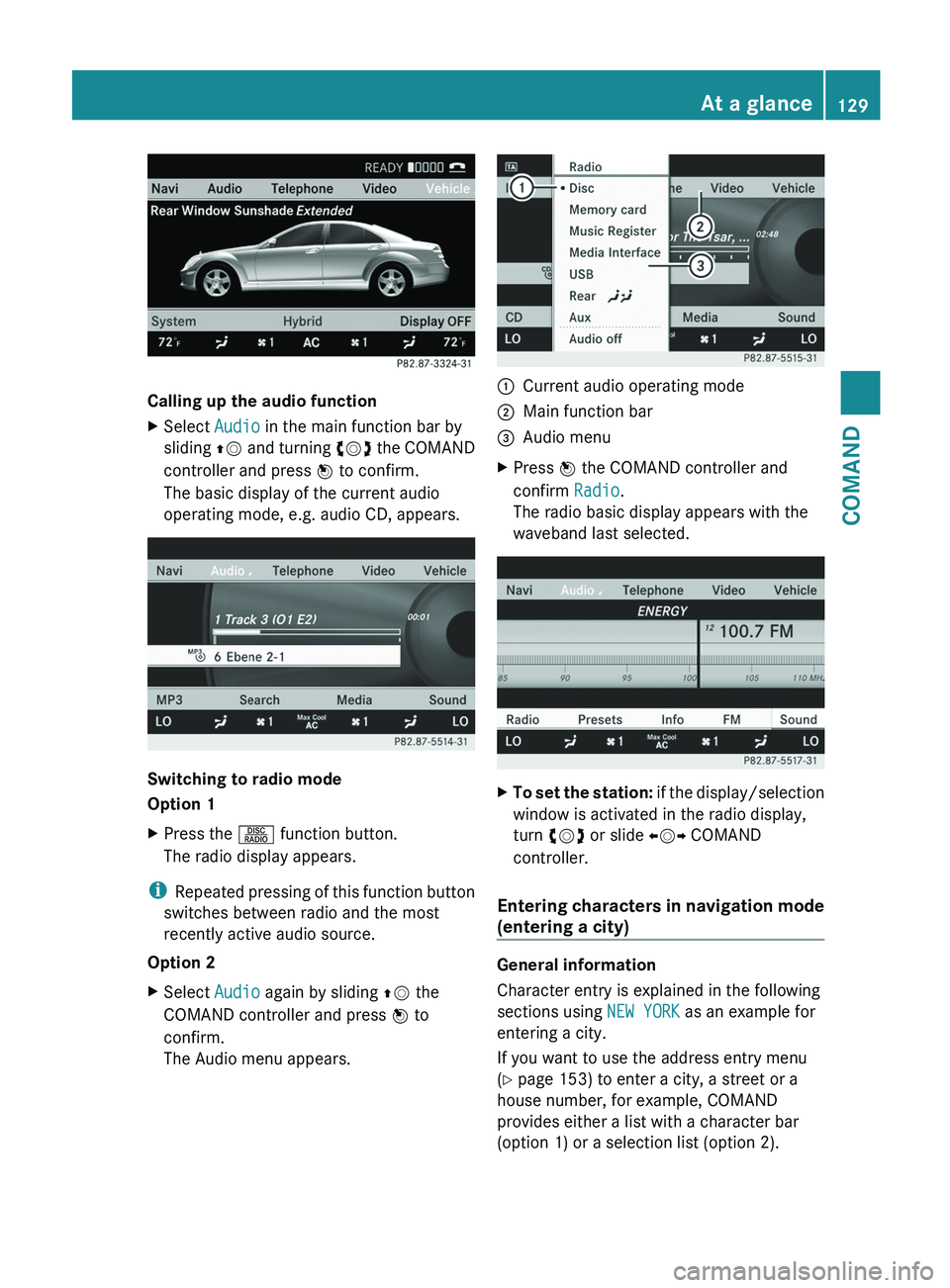
Calling up the audio function
X
Select Audio in the main function bar by
sliding ZV
and turning cVd the COMAND
controller and press W to confirm.
The basic display of the current audio
operating mode, e.g. audio CD, appears. Switching to radio mode
Option 1
X
Press the R function button.
The radio display appears.
i Repeated
pressing of this function button
switches between radio and the most
recently active audio source.
Option 2
X Select Audio again by sliding ZV the
COMAND controller and press W to
confirm.
The Audio menu appears. :
Current audio operating mode
; Main function bar
= Audio menu
X Press W the COMAND controller and
confirm Radio.
The radio basic display appears with the
waveband last selected. X
To set the station:
if the display/selection
window is activated in the radio display,
turn cVd or slide XVY COMAND
controller.
Entering characters in navigation mode
(entering a city) General information
Character entry is explained in the following
sections using NEW YORK as an example for
entering a city.
If you want to use the address entry menu
(Y page 153) to enter a city, a street or a
house number, for example, COMAND
provides either a list with a character bar
(option 1) or a selection list (option 2). At a glance
129
COMAND Z
Page 132 of 536
You can enter the characters using either the
character bar or the number keypad. In the
selection
list, you select an entry to copy it to
the address entry menu.
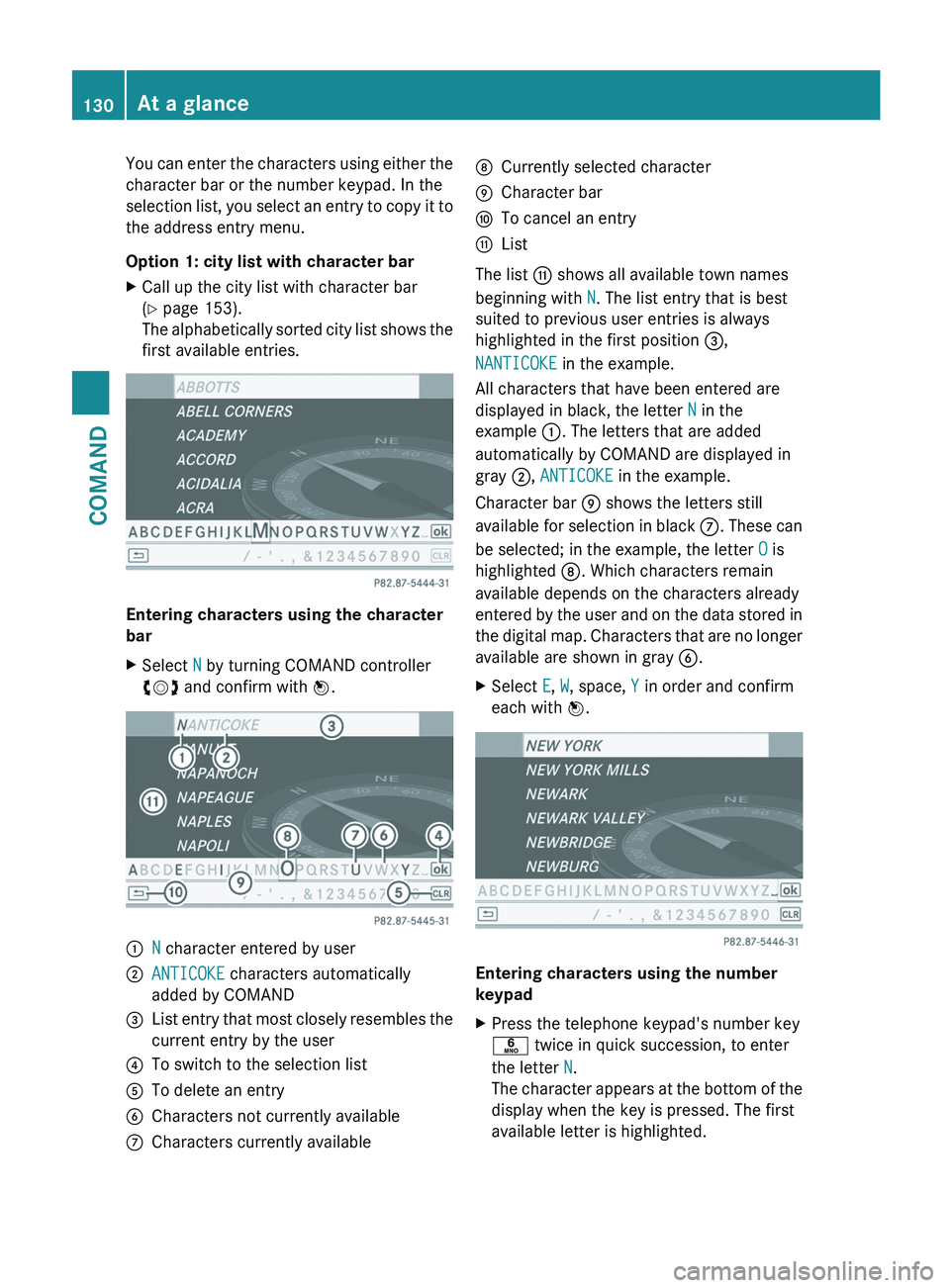
Option 1: city list with character bar
X Call up the city list with character bar
(Y page 153).
The
alphabetically sorted city list shows the
first available entries. Entering characters using the character
bar
X
Select N by turning COMAND controller
cVd and confirm with W. :
N character entered by user
; ANTICOKE characters automatically
added by COMAND
= List entry that most closely resembles the
current entry by the user
? To switch to the selection list
A To delete an entry
B Characters not currently available
C Characters currently available D
Currently selected character
E Character bar
F To cancel an entry
G List
The list G shows all available town names
beginning with N. The list entry that is best
suited to previous user entries is always
highlighted in the first position =,
NANTICOKE in the example.
All characters that have been entered are
displayed in black, the letter N in the
example :. The letters that are added
automatically by COMAND are displayed in
gray ;, ANTICOKE in the example.
Character bar E shows the letters still
available
for selection in black C. These can
be selected; in the example, the letter O is
highlighted D. Which characters remain
available depends on the characters already
entered by the user and on the data stored in
the digital map. Characters that are no longer
available are shown in gray B.
X Select E, W, space, Y in order and confirm
each with W. Entering characters using the number
keypad
X
Press the telephone keypad's number key
p twice in quick succession, to enter
the letter N.
The
character appears at the bottom of the
display when the key is pressed. The first
available letter is highlighted. 130
At a glance
COMAND
Page 133 of 536
You see which characters you can enter with
that key. Each time the key is pressed, the
next character is selected.
Example: key p:
R
press once = M
R press twice = N
R press three times = O
X Wait until the character display goes out.
The
entries matching your input are shown
in the list.
X Enter E, W,
space, Y with the corresponding
keys.
i The space is entered using number key
9.
Further functions in the list with
character bar
X To delete characters:
select F by sliding
VÆ and turning cVd the COMAND
controller and press W to confirm.
X To delete an entry: select F and press
and hold W the COMAND controller until
the entire entry has been deleted.
X To switch the character set: select
B and press W to confirm.
X To cancel an entry:
select the & symbol
in the bottom left of the character bar and
press W to confirm.
or
X Press the % back button.
The address entry menu appears.
X To accept the first list entry: press and
hold W the COMAND controller until the
address entry menu appears.
The accepted list entry is shown there.
Calling up the list as a selection list
Select
the desired city from the selection list.
If there are several entries for a city or if
several cities of the same name are stored,
then ¬ is highlighted in the character bar.
X Press W the COMAND controller. It is also possible to switch the city list to the
selection list at any time during character
input.
X
Slide W the COMAND controller
repeatedly until the city list appears as a
selection list.
or
X Select ¬
in the character bar by turning
cVd the COMAND controller and press
W to confirm.
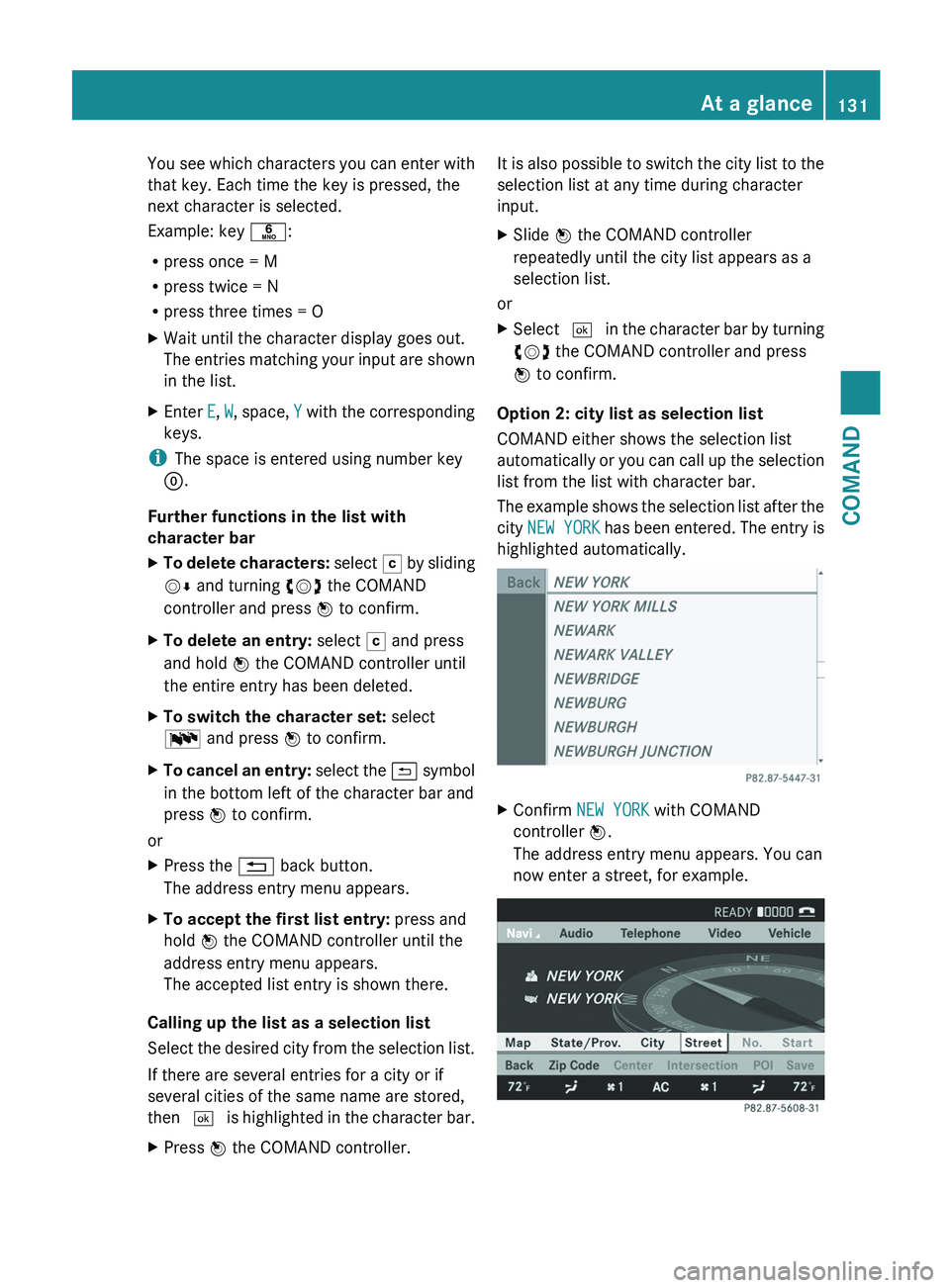
Option 2: city list as selection list
COMAND either shows the selection list
automatically
or you can call up the selection
list from the list with character bar.
The example shows the selection list after the
city NEW YORK has been entered. The entry is
highlighted automatically. X
Confirm NEW YORK with COMAND
controller W.
The address entry menu appears. You can
now enter a street, for example. At a glance
131
COMAND Z
Page 136 of 536
Mute
Switching audio and video sources on/off
X
Press the 8 button on the multifunction
steering wheel.
The sound from the respective audio or
video source is switched on or muted.
i When the sound is off, the system
displays the , symbol in the status line.
When you change the audio or video
source, or adjust the volume, sound
automatically switches on again.
i Even
if the sound is switched off, you will
still hear traffic and navigation system
announcements.
Switching off Traffic program and
navigation announcements completely
X Traffic program: press the 8 button
until
the . message disappears from the
status bar of the display.
A confirmation tone sounds.
X Navigation announcements: during an
announcement, press the 8 button on
the multifunction steering wheel.
Switching Traffic program and navigation
announcements on again
X Traffic program:
press and hold down the
8 button until the . display appears
in the status bar.
A confirmation tone sounds.
X Navigation messages: select the y
symbol in the navigation menu bar and
press W to confirm.
i The navigation announcements are
activated again if you switch COMAND off
and
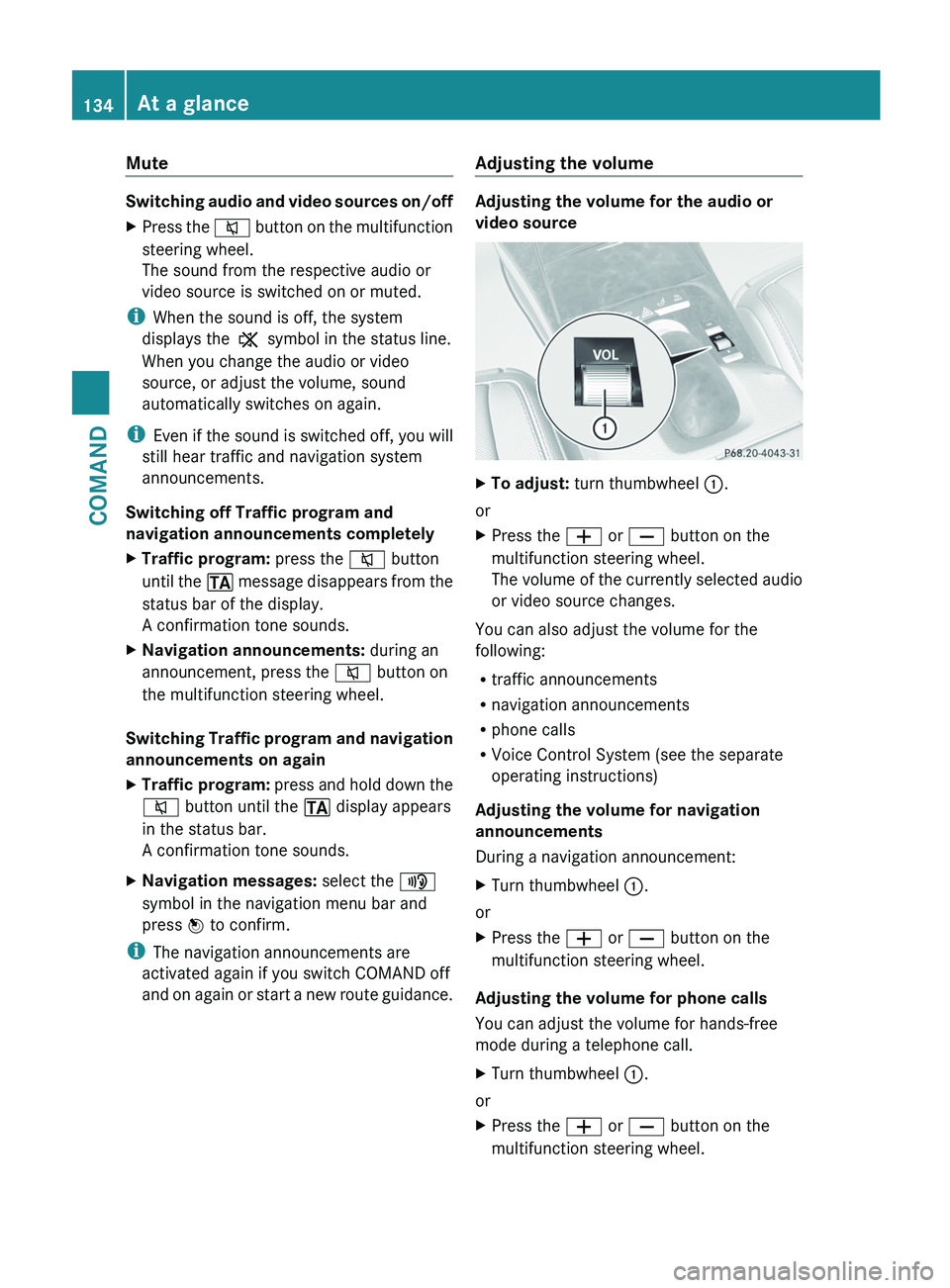
on again or start a new route guidance. Adjusting the volume Adjusting the volume for the audio or
video source
X
To adjust: turn thumbwheel :.
or
X Press the W or X button on the
multifunction steering wheel.
The
volume of the currently selected audio
or video source changes.
You can also adjust the volume for the
following:
R traffic announcements
R navigation announcements
R phone calls
R Voice Control System (see the separate
operating instructions)
Adjusting the volume for navigation
announcements
During a navigation announcement:
X Turn thumbwheel :.
or
X Press the W or X button on the
multifunction steering wheel.
Adjusting the volume for phone calls
You can adjust the volume for hands-free
mode during a telephone call.
X Turn thumbwheel :.
or
X Press the W or X button on the
multifunction steering wheel. 134
At a glanceCOMAND