wheel MERCEDES-BENZ S-COUPE 2016 Manual PDF
[x] Cancel search | Manufacturer: MERCEDES-BENZ, Model Year: 2016, Model line: S-COUPE, Model: MERCEDES-BENZ S-COUPE 2016Pages: 410, PDF Size: 8.62 MB
Page 208 of 410
Active Parking Assist can only assist you with
exiting a parking space if you have parked the
vehicle parallel to the direction of travel using
Active Parking Assist.
iIf PARKTRONIC detects obstacles, Active
Parking Assist brakes automatically whilst
the vehicle exits the parking space. You are
responsible for braking in good time.
XStart the engine.
XRelease the electric parking brake.
XSwitch on the turn signal in the direction
you are pulling away.
XShift the transmission to position Dor R.
The Start Park Assist? Yes: OK No:
message appears in the multifunction dis-
play %.
XTo cancel the procedure: press the%
button on the multifunction steering wheel
or pull away.
or
XTo exit a parking space using Active
Parking Assist: press theabutton on
the multifunction steering wheel.
The Park Assist Active Accelerate
andBrakeObserveSurroundingsmes-
sage appears in the multifunction display.
XLet go of the multifunction steering wheel.
XPull away, being ready to brake at all times. Do not exceed a maximum speed of
approximately 6 mph (10 km/h) when exit-
ing a parking space. Otherwise Active Park-
ing Assist will be canceled.
XShift the transmission to position Dor Ras
required or according to the message while
the vehicle is stationary.
Active Parking Assist immediately steers in
the other direction. The Park Assist
Active Accelerate and Brake
ObserveSurroundingsmessage appears
in the multifunction display.
iYou will achieve the best results by wait-
ing for the steering procedure to complete
before pulling away. If you back up after activation, the steering
wheel is moved to the straight-ahead posi-
tion.
XDrive forwards and back up as prompted by
the PARKTRONIC warning displays, several
times if necessary.
Once you have exited the parking space com-
pletely, the steering wheel is moved to the
straight-ahead position. You hear a tone and
the Park Assist Finished
message
appears in the multifunction display. You will
then have to steer and merge into traffic on
your own. PARKTRONIC is still available. You
can take over the steering, before the vehicle
has exited the parking space completely. This
is useful, for example when you recognize
that it is already possible to pull out of the
parking space.
Canceling Active Parking Assist
XStop the movement of the multifunction
steering wheel or steer yourself.
Active Parking Assist will be canceled at
once. The Park Assist Canceled
mes-
sage appears in the multifunction display.
or
XPress the PARKTRONIC button
(
Ypage 201).
PARKTRONIC is switched off and Active
Parking Assist is immediately canceled.
The Park Assist Canceled
message
appears in the multifunction display.
Active Parking Assist is canceled automati-
cally if:
Rthe electric parking brake is engaged
Rtransmission position Pis selected
Rparking using Active Parking Assist is no
longer possible
Ryou are driving faster than 6 mph (10 km/h)
Ra wheel spins, ESP®intervenes or fails. The
÷ warning lamp lights up in the instru-
ment cluster
A warning tone sounds. The parking symbol
disappears and the multifunction display
206Driving systems
Driving an d parking
Page 210 of 410
Activating/deactivating the rear view
camera
XTo activate:makesur ethat th eSmartKey
is in position 2in th eignition lock.
XMak esur ethat th eActivatio nby R
gearfunction is selected in COMAND (see
separat eoperating instructions).
XEngage revers egear .
The rear vie wcamera flap opens. The area
behind th evehicl eis shown in th e
COMAND display wit hguide lines.
The imag efrom th erear vie wcamera is
available throughout th emaneuverin g
process.
To deacti vate:therear vie wcamera deacti -
vates if you shif tth etransmission to Por after
driving forwards ashort distance.
Displays in the COMAND display
The rear vie wcamera may sho w adistorted
vie wof obstacles, sho wthem incorrectl yor
no tat all. The rear vie wcamera does no tsho w
objects in th efollowin gpositions:
Rver yclose to th erear bumper
Runder th erear bumper
Rin th earea immediately abov eth ebadge in
th etrunk lid
!Objects no tat ground level may appear to
be further away than they actually are, e.g. :
Rthebumper of aparked vehicl e
Rthedrawbar of atrailer
Rth eball couplin gof atrailer to whitch
Rtherear section of an HGV
Raslante dpos t
Use th eguidelines only for orientation .
Approach objects no further than th ebot -
tom-mos tguideline.
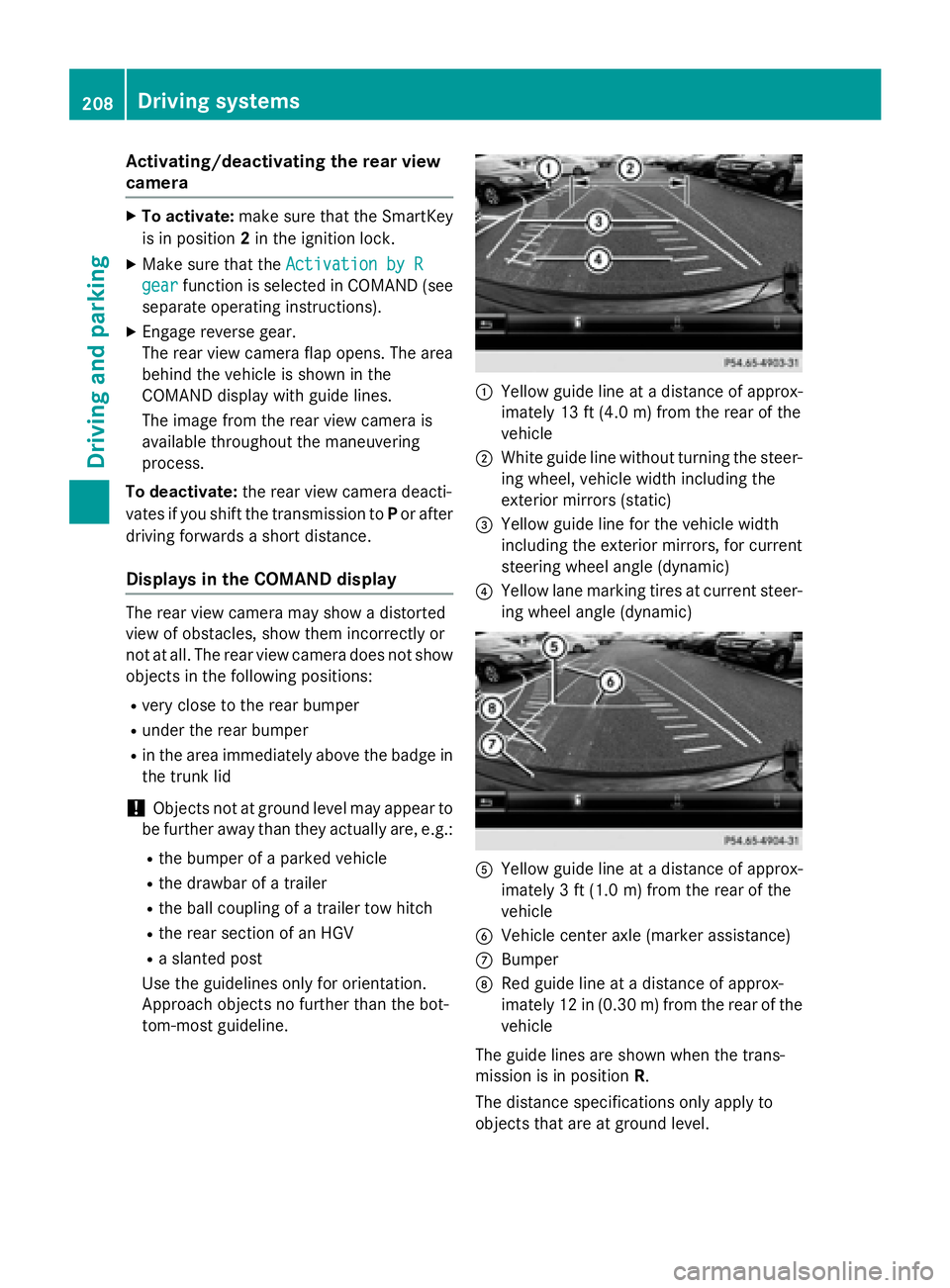
:Yello wguide lin eat adistanc eof approx -
imately 13 ft (4. 0m) from th erear of th e
vehicl e
;Whiteguide lin ewithout turnin gth e steer -
ing wheel, vehicl ewidt hincludin gth e
exterio rmirror s (static)
=Yellowguide lin efor th evehicl ewidt h
includin gth eexterio rmirrors, for curren t
steering whee langle (dynamic )
?Yellowlan emarking tires at curren tsteer -
ing whee langle (dynamic )
AYellowguide lin eat adistanc eof approx -
imately 3ft (1.0 m) from the rear of the
vehicle
BVehicle center axle (marker assistance)
CBumper
DRed guide line at a distance of approx-
imately 12 in (0.30 m) fromthe rear of the
vehicle
The guide lines are shown when the trans-
mission is in position R.
The distance specifications only apply to
objects that are at ground level.
208Driving system s
Driving an d parking
Page 211 of 410
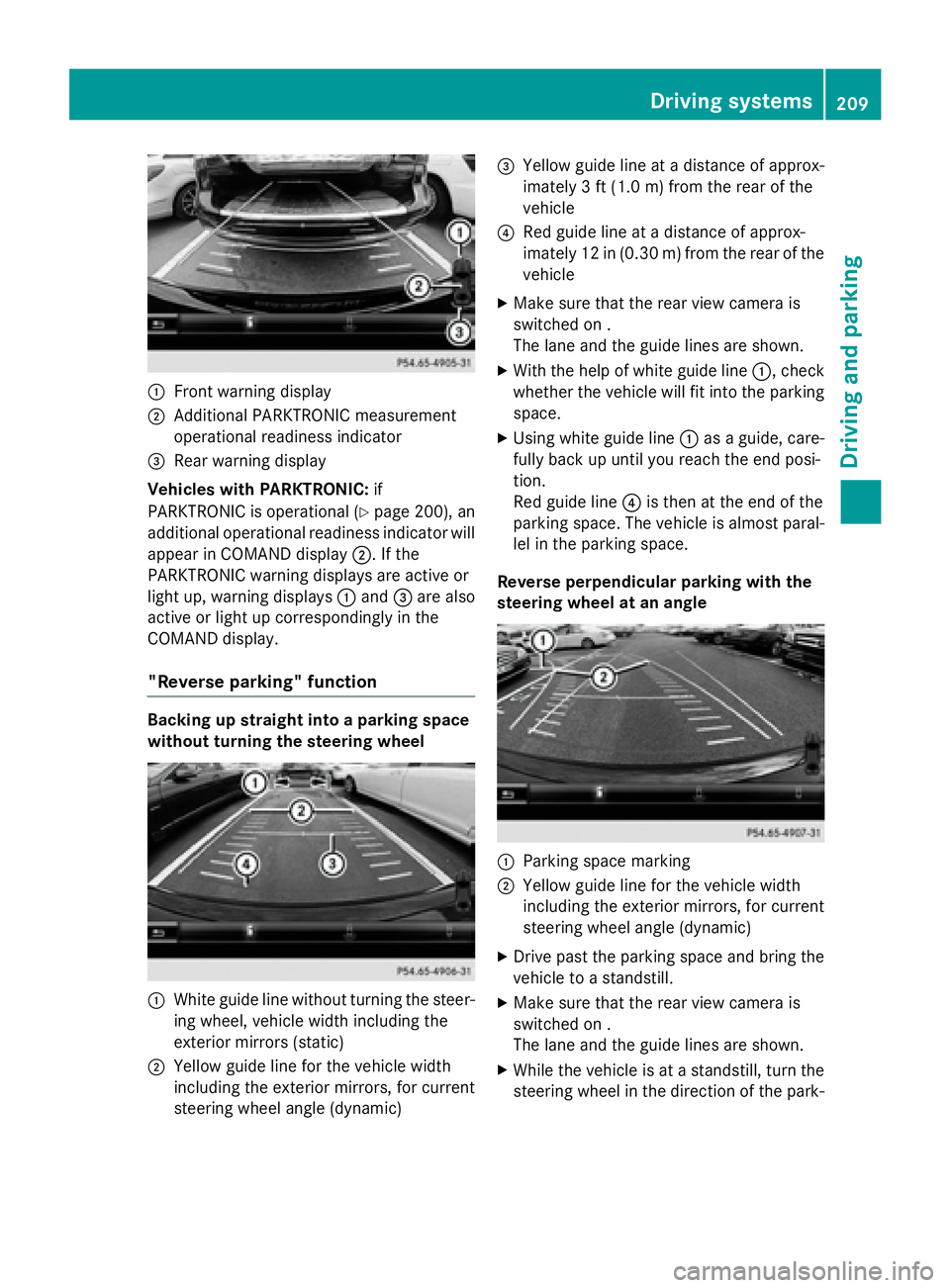
:Front warning display
;Additional PARKTRONIC measurement
operational readiness indicator
=Rear warning display
Vehicles with PARKTRONIC: if
PARKTRONIC is operational (
Ypage 200), an
additional operational readiness indicator will
appear in COMAND display ;. If the
PARKTRONIC warning displays are active or
light up, warning displays :and =are also
active or light up correspondingly in the
COMAND display.
"Reverse parking" function
Backing up straight into a parking space
without turning the steering wheel
:White guide line without turning the steer-
ing wheel, vehicle width including the
exterior mirrors (static)
;Yellow guide line for the vehicle width
including the exterior mirrors, for current
steering wheel angle (dynamic)
=Yellow guide line at a distance of approx-
imately 3 ft (1.0 m) fromthe rear of the
vehicle
?Red guide line at a distance of approx-
imately 12 in (0.30 m) fromthe rear of the
vehicle
XMake sure that the rear view camera is
switched on .
The lane and the guide lines are shown.
XWith the help of white guide line :, check
whether the vehicle will fit into the parking
space.
XUsing white guide line :as a guide, care-
fully back up until you reach the end posi-
tion.
Red guide line ?is then at the end of the
parking space. The vehicle is almost paral-
lel in the parking space.
Reverse perpendicular parking with the
steering wheel at an angle
:Parking space marking
;Yellow guide line for the vehicle width
including the exterior mirrors, for current
steering wheel angle (dynamic)
XDrive past the parking space and bring the vehicle to a standstill.
XMake sure that the rear view camera is
switched on .
The lane and the guide lines are shown.
XWhile the vehicle is at a standstill, turn the
steering wheel in the direction of the park-
Driving system s209
Driving an d parking
Z
Page 212 of 410
ing space until yellow guide line;reaches
parking space marking :.
XKeep the steering wheel in that position
and back up carefully.
:Yellow guide line for the vehicle width
including the exterior mirrors, for current
steering wheel angle (dynamic)
XStop the vehicle when it is almost exactly in
front of the parking space.
The white lane should be as close to parallel
with the parking space marking as possi-
ble.
:White guide line at current steering wheel
angle
;Parking space marking
XTurn the steering wheel to the center posi-
tion while the vehicle is stationary.
:Red guide line at a distance of approx-
imately 12 in (0.30 m) from the rear of the
vehicle
;White guide line without turning the steer- ing wheel
=End of parking space
XBack up carefully until you have reached
the final position.
Red guide line :is then at end of parking
space =. The vehicle is almost parallel in
the parking space.
180° view
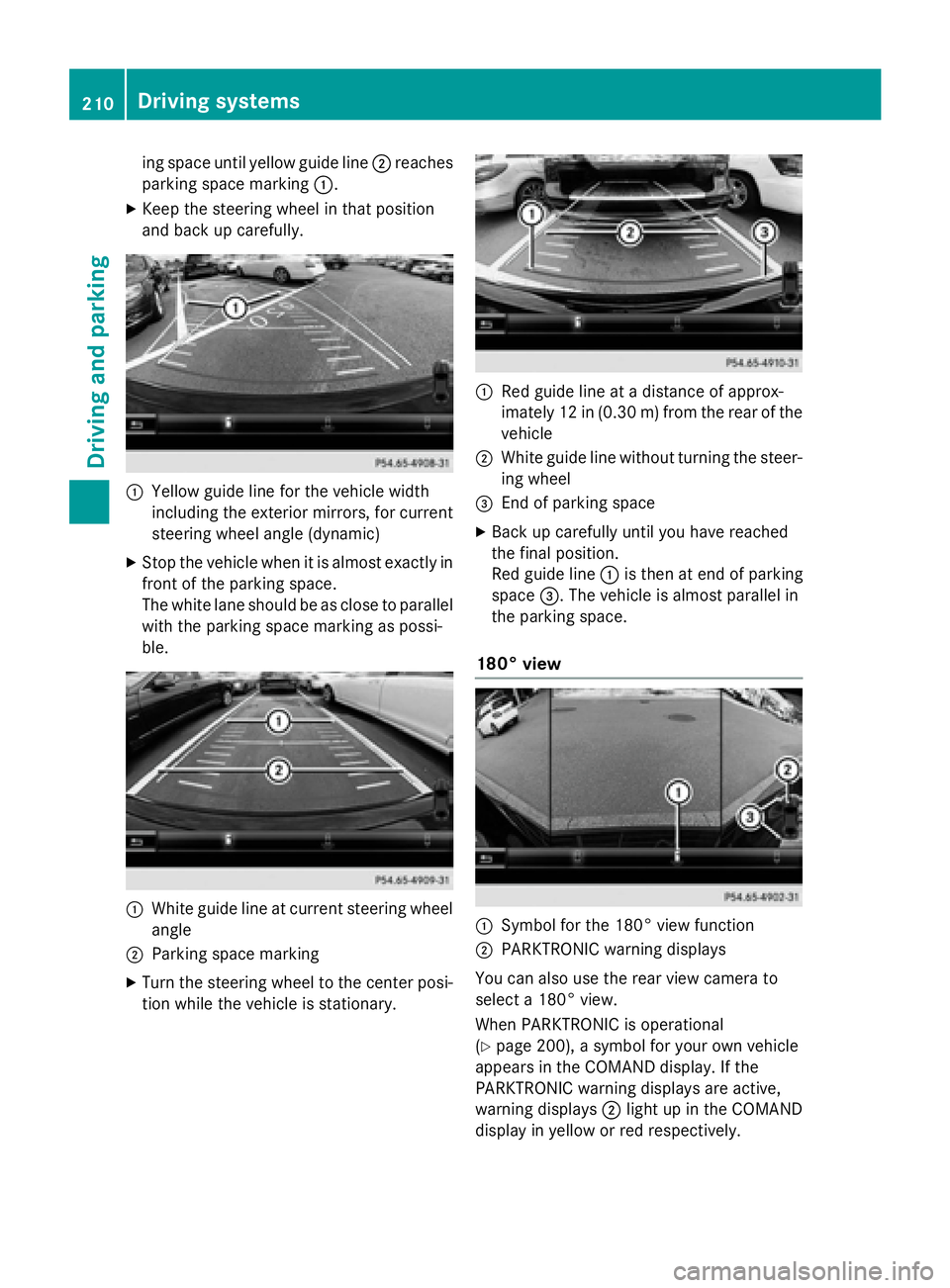
:Symbol for the 180° view function
;PARKTRONIC warning displays
You can also use the rear view camera to
select a 180° view.
When PARKTRONIC is operational
(
Ypage 200), a symbol for your own vehicle
appears in the COMAND display. If the
PARKTRONIC warning displays are active,
warning displays ;light up in the COMAND
display in yellow or red respectively.
210Driving systems
Driving and parking
Page 213 of 410
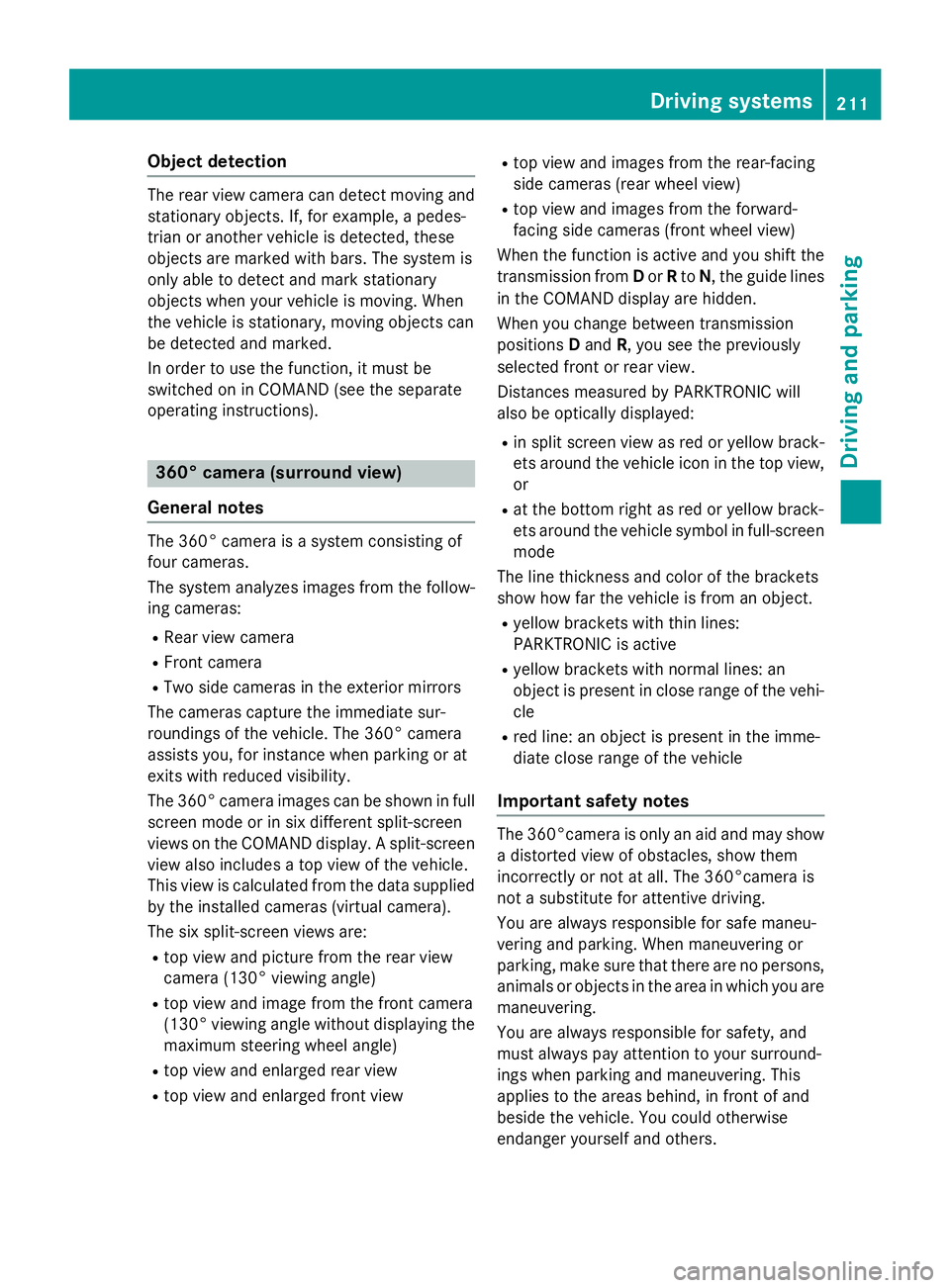
Object detection
The rear view camera can detect moving and
stationary objects. If, for example, a pedes-
trian or another vehicle is detected, these
objects are marked with bars. The system is
only able to detect and mark stationary
objects when your vehicle is moving. When
the vehicle is stationary, moving objects can
be detected and marked.
In order to use the function, it must be
switched on in COMAND (see the separate
operating instructions).
360° camera (surround view)
General notes
The 360° camera is a system consisting of
four cameras.
The system analyzes images from the follow-
ing cameras:
RRear view camera
RFront camera
RTwo side cameras in the exterior mirrors
The cameras capture the immediate sur-
roundings of the vehicle. The 360° camera
assists you, for instance when parking or at
exits with reduced visibility.
The 360° camera images can be shown in full screen mode or in six different split-screen
views on the COMAND display. A split-screen
view also includes a top view of the vehicle.
This view is calculated from the data supplied
by the installed cameras (virtual camera).
The six split-screen views are:
Rtop view and picture from the rear view
camera (130° viewing angle)
Rtop view and image from the front camera
(130° viewing angle without displaying the maximum steering wheel angle)
Rtop view and enlarged rear view
Rtop view and enlarged front view
Rtop view and images from the rear-facing
side cameras (rear wheel view)
Rtop view and images from the forward-
facing side cameras (front wheel view)
When the function is active and you shift the
transmission from Dor Rto N, the guide lines
in the COMAND display are hidden.
When you change between transmission
positions Dand R, you see the previously
selected front or rear view.
Distances measured by PARKTRONIC will
also be optically displayed:
Rin split screen view as red or yellow brack- ets around the vehicle icon in the top view,
or
Rat the bottom right as red or yellow brack-
ets around the vehicle symbol in full-screen
mode
The line thickness and color of the brackets
show how far the vehicle is from an object.
Ryellow brackets with thin lines:
PARKTRONIC is active
Ryellow brackets with normal lines: an
object is present in close range of the vehi-
cle
Rred line: an object is present in the imme-
diate close range of the vehicle
Important safety notes
The 360°camera is only an aid and may show
a distorted view of obstacles, show them
incorrectly or not at all. The 360°camera is
not a substitute for attentive driving.
You are always responsible for safe maneu-
vering and parking. When maneuvering or
parking, make sure that there are no persons,
animals or objects in the area in which you are
maneuvering.
You are always responsible for safety, and
must always pay attention to your surround-
ings when parking and maneuvering. This
applies to the areas behind, in front of and
beside the vehicle. You could otherwise
endanger yourself and others.
Driving systems211
Driving and parking
Z
Page 216 of 410
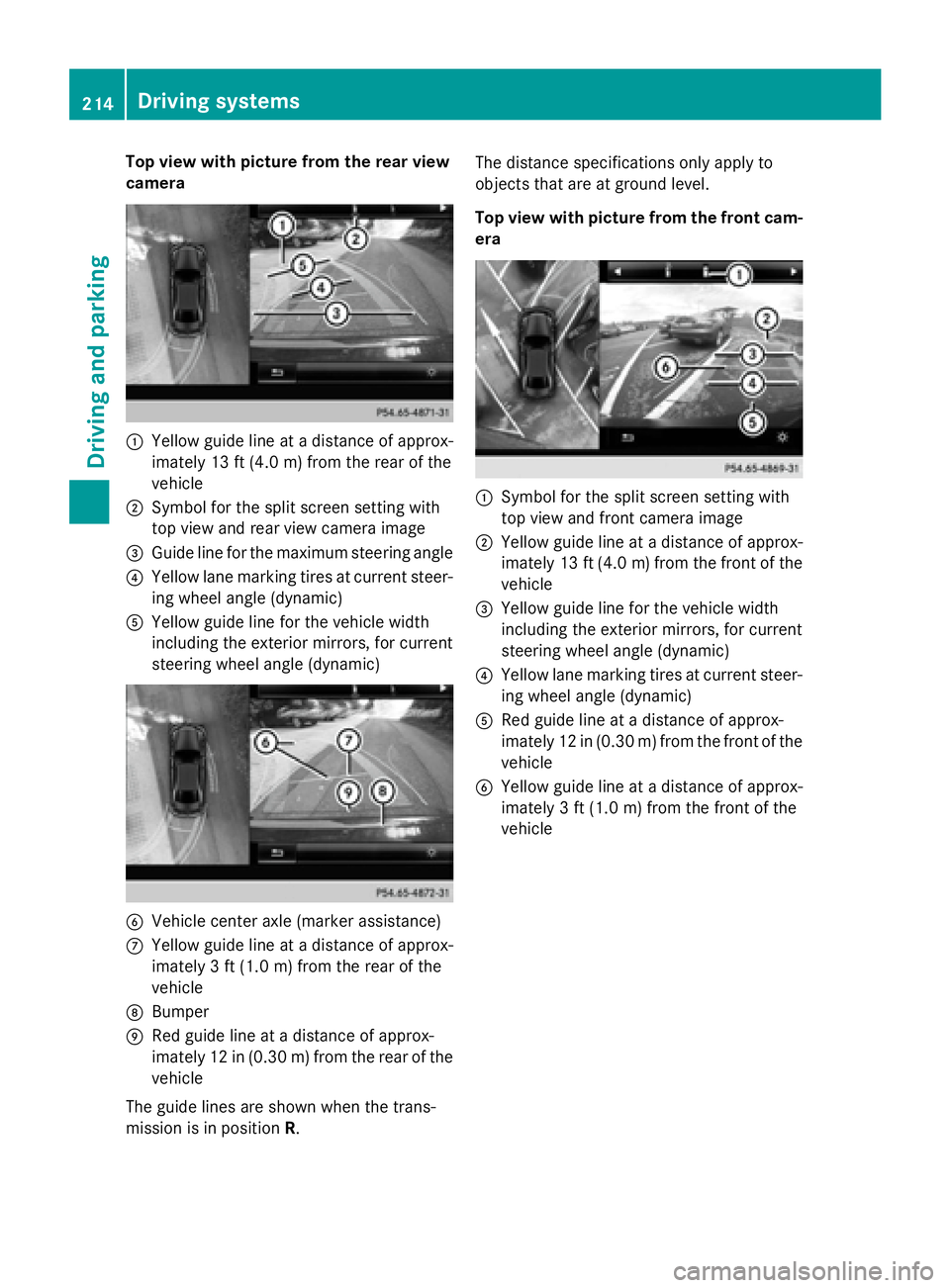
Top view with picture from the rear view
camera
:Yellow guide line at a distance of approx-
imately 13 ft (4.0 m) from the rear of the
vehicle
;Symbol for the split screen setting with
top view and rear view camera image
=Guide line for the maximum steering angle
?Yellow lane marking tires at current steer-
ing wheel angle (dynamic)
AYellow guide line for the vehicle width
including the exterior mirrors, for current
steering wheel angle (dynamic)
BVehicle center axle (marker assistance)
CYellow guide line at a distance of approx-
imately 3 ft (1.0m) fromthe rear of the
vehicle
DBumper
ERed guide line at a distance of approx-
imately 12 in (0.30 m) fromthe rear of the
vehicle
The guide lines are shown when the trans-
mission is in position R. The distance specifications only apply to
objects that are at ground level.
Top view with picture from the front cam-
era
:Symbol for the split screen setting with
top view and front camera image
;Yellow guide line at a distance of approx-
imately 13 ft (4.0
m)from the front of the
vehicle
=Yellow guide line for the vehicle width
including the exterior mirrors, for current
steering wheel angle (dynamic)
?Yellow lane marking tires at current steer-
ing wheel angle (dynamic)
ARed guide line at a distance of approx-
imately 12 in (0.30 m) from the front of the
vehicle
BYellow guide line at a distance of approx-
imately 3 ft (1.0 m) from the front of the
vehicle
214Driving systems
Driving and parking
Page 219 of 410
When ATTENTION ASSIST is deactivated, the
ésymbol appears in the multifunction
display in the assistance graphic display.
When ATTENTION ASSIST has been deactiva-
ted, it is automatically reactivated after the
engine has been stopped. The sensitivity
selected corresponds to the last selection
activated (standard/sensitive).
Warning in the multifunction display
If fatigue or increasing lapses in concentra-
tion are detected, a warning appears in the
multifunction display: Attention Assist:
Take a Break!
In addition to the message shown in the mul-
tifunction display, you will then hear a warn-
ing tone.
XIf necessary, take a break.
XConfirm the message by pressing the a
button on the steering wheel.
On long journeys, take regular breaks in good
time to allow yourself to rest properly. If you
do not take a break and ATTENTION ASSIST
continues to detect increasing lapses in con-
centration, you will be warned again after
15 minutes at the earliest. This will only hap-
pen if ATTENTION ASSIST still detects typical
indicators of fatigue or increasing lapses in
concentration.
If a warning is output in the multifunction dis-
play, COMAND performs a service station
search. You can select a service station and
navigation to this service station will then
begin. This function can be activated and
deactivated in COMAND.
Traffic Sign Assist
General notes
Traffic Sign Assist displays the maximum
speed permitted to the driver in the instru-
ment cluster. The data and general traffic reg-
ulations stored in the navigation system are
used to determine the current speed limit. As Traffic Sign Assist is a map-based system,
traffic signs put up temporarily (e.g. near
roadworks) are not detected.
If a traffic sign that is relevant to your vehicle
is passed, the display of the speed limits is
updated.
Traffic signs with a restriction indicated by an
additional sign (e.g. in wet conditions) are
also shown.
The traffic signs are only displayed with the
restrictions if:
Rthe regulation must be observed with the
restriction, or
RTraffic Sign Assist is unable to determine
whether the restriction applies
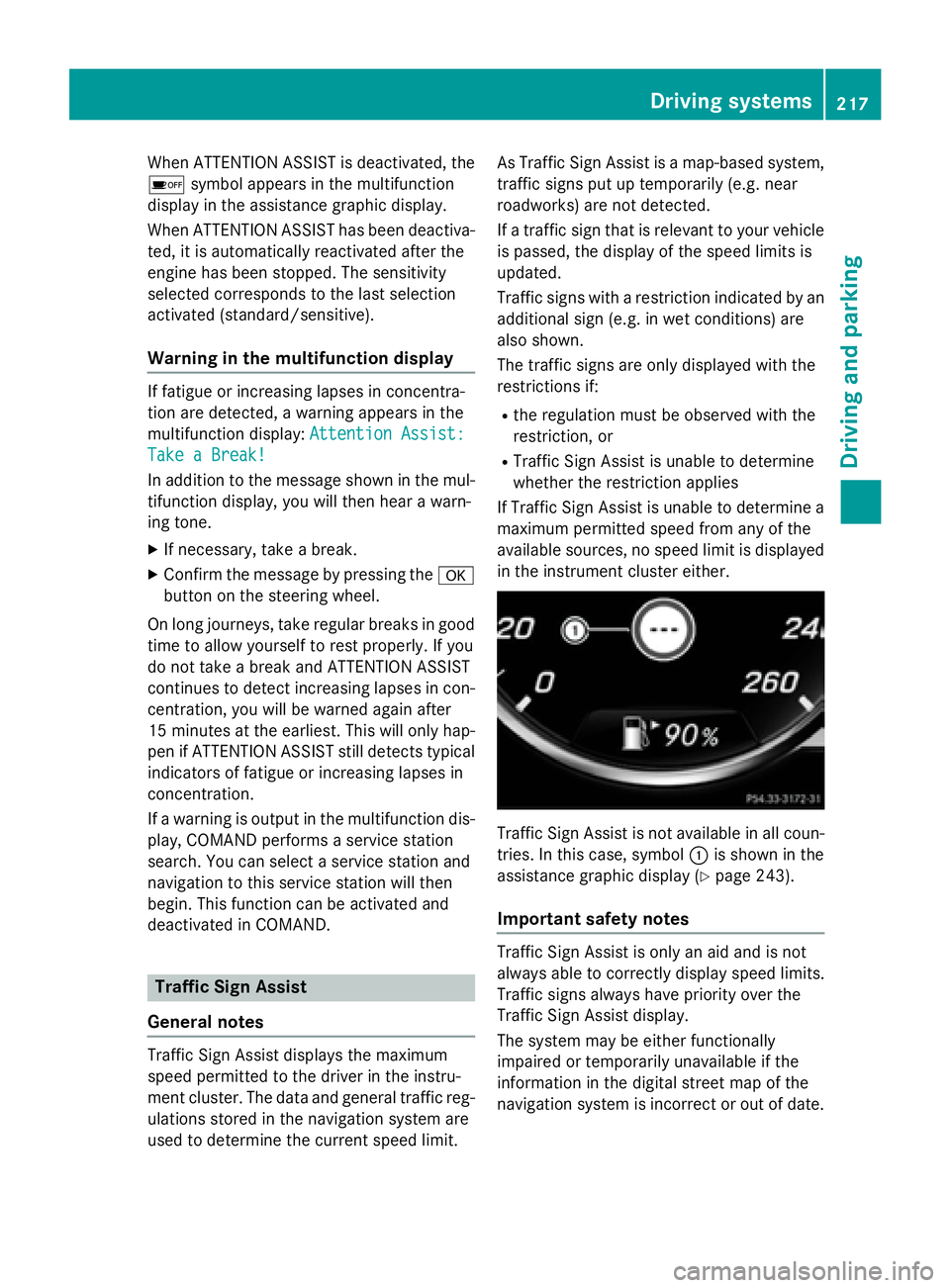
If Traffic Sign Assist is unable to determine a maximum permitted speed from any of the
available sources, no speed limit is displayed
in the instrument cluster either.
Traffic Sign Assist is not available in all coun-
tries. In this case, symbol :is shown in the
assistance graphic display (
Ypage 243).
Important safety notes
Traffic Sign Assist is only an aid and is not
always able to correctly display speed limits.
Traffic signs always have priority over the
Traffic Sign Assist display.
The system may be either functionally
impaired or temporarily unavailable if the
information in the digital street map of the
navigation system is incorrect or out of date.
Driving systems217
Driving and parking
Z
Page 228 of 410
In such cases, Active Lane Keeping Assist
can:
Rgive an unnecessary warning and then
make a course-correcting brake application
to the vehicle
Rnot give a warning or intervene
There is a risk of an accident.
Always pay particular attention to the traffic
situation and keep within the lane, especially
if Active Lane Keeping Assist alerts you. Ter-
minate the intervention in a non-critical driv-
ing situation.
The system may be impaired or may not func-
tion if:
Rthere is poor visibility, e.g. due to insuffi-
cient illumination of the road, or due to
snow, rain, fog or spray
Rthere is glare, e.g. from oncoming traffic,
the sun or reflections (e.g. when the road
surface is wet)
Rthe windshield is dirty, fogged up, damaged or covered, for instance by a sticker, in the
vicinity of the camera
Rthe radar sensors in the front or rear bump-
ers or the radiator trim are dirty, e.g.
obscured by snow
Rthere are no, several or unclear lane mark- ings for a lane, e.g. in areas with road con-
struction work
Rthe lane markings are worn away, dark or
covered up, e.g. by dirt or snow
Rthe distance to the vehicle in front is too
small and the lane markings thus cannot be
detected
Rthe lane markings change quickly, e.g.
lanes branch off, cross one another or
merge
Rthe road is narrow and winding
Rthere are strong shadows cast on the road
If no vehicle is detected in the adjacent lane
and broken lane markings are detected, no
lane-correcting brake application is made. Warning vibration in the steering wheel
A warning may be given if a front wheel
passes over a lane marking. It will warn you by
means of intermittent vibration in the steer-
ing wheel for up to 1.5 seconds.
In order that you are warned only when nec-
essary and in good time if you cross the lane
marking, the system recognizes certain con-
ditions and warns you accordingly.
The warning vibration occurs earlier if:
Ryou approach the outer lane marking on a
bend.
Rthe road has very wide lanes, e.g. a high-
way.
Rthe system recognizes solid lane markings.
The warning vibration occurs later if:
Rthe road has narrow lanes.
Ryou cut the corner on a bend.
Lane-correcting brake application
If you leave your lane, under certain circum-
stances the vehicle will brake briefly on one
side. This is meant to assist you in bringing
the vehicle back to the original lane.
GWARNING
A lane-correcting brake application cannot
always bring the vehicle back into the original lane. There is a risk of an accident.
Always steer, brake or accelerate yourself,
especially if Active Lane Keeping Assist warns
you or makes a lane-correcting brake appli-
cation.
GWARNING
Active Lane Keeping Assist does not detect
traffic conditions or road users. In very rare
cases, the system may make an inappropriate brake application, e.g. after intentionally driv-
ing over a solid lane marking. There is a risk of
an accident.
An inappropriate brake application may be
interrupted at any time if you steer slightly in
the opposite direction. Always make sure that
226Driving systems
Driving and parking
Page 229 of 410
there is sufficient distance on the side for
other traffic or obstacles.
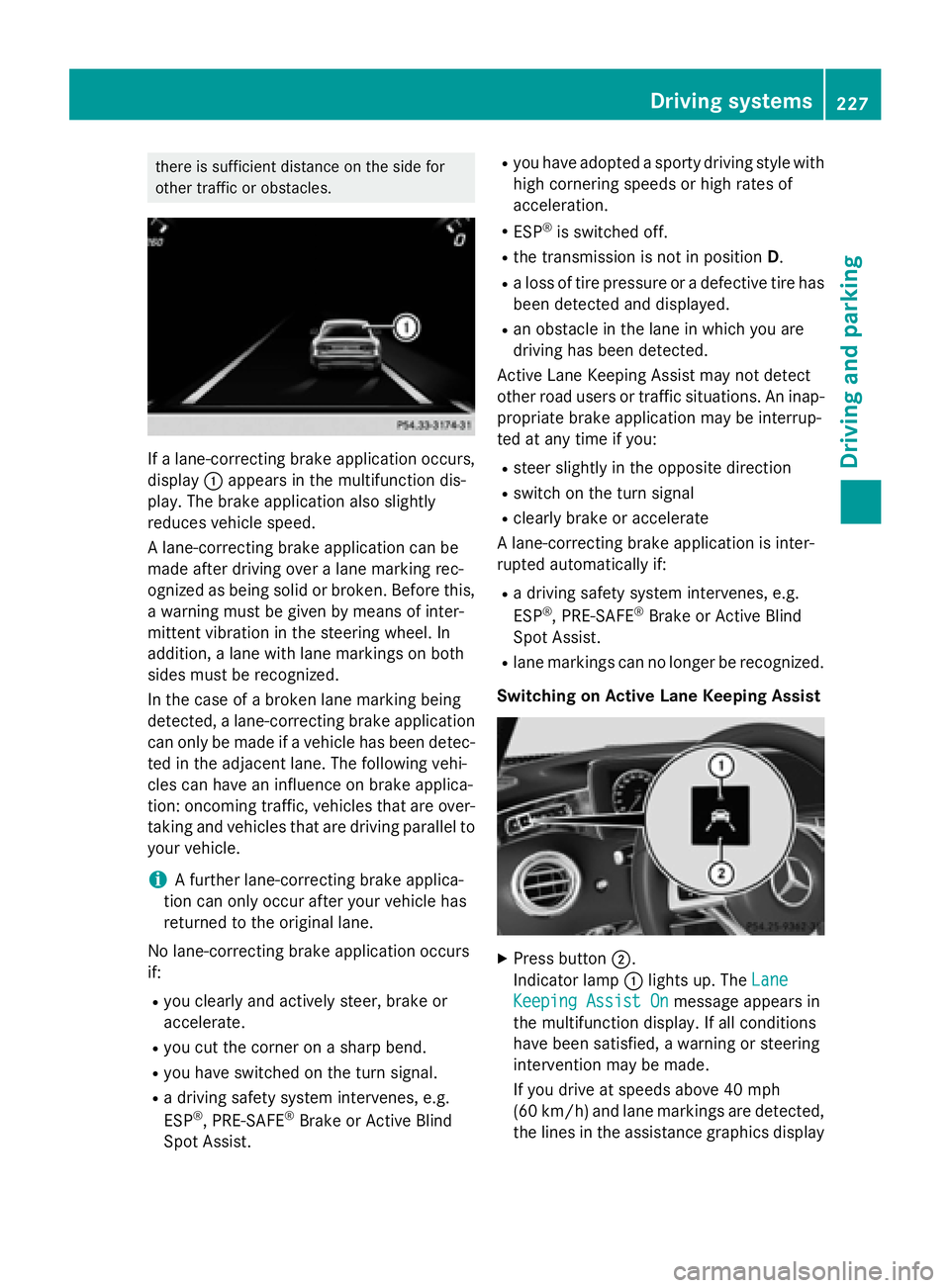
If a lane-correcting brake application occurs,
display:appears in the multifunction dis-
play. The brake application also slightly
reduces vehicle speed.
A lane-correcting brake application can be
made after driving over a lane marking rec-
ognized as being solid or broken. Before this,
a warning must be given by means of inter-
mittent vibration in the steering wheel. In
addition, a lane with lane markings on both
sides must be recognized.
In the case of a broken lane marking being
detected, a lane-correcting brake application
can only be made if a vehicle has been detec-
ted in the adjacent lane. The following vehi-
cles can have an influence on brake applica-
tion: oncoming traffic, vehicles that are over-
taking and vehicles that are driving parallel to
your vehicle.
iA further lane-correcting brake applica-
tion can only occur after your vehicle has
returned to the original lane.
No lane-correcting brake application occurs
if:
Ryou clearly and actively steer, brake or
accelerate.
Ryou cut the corner on a sharp bend.
Ryou have switched on the turn signal.
Ra driving safety system intervenes, e.g.
ESP®, PRE-SAFE®Brake or Active Blind
Spot Assist.
Ryou have adopted a sporty driving style with
high cornering speeds or high rates of
acceleration.
RESP®is switched off.
Rthe transmission is not in position D.
Ra loss of tire pressure or a defective tire has
been detected and displayed.
Ran obstacle in the lane in which you are
driving has been detected.
Active Lane Keeping Assist may not detect
other road users or traffic situations. An inap-
propriate brake application may be interrup-
ted at any time if you:
Rsteer slightly in the opposite direction
Rswitch on the turn signal
Rclearly brake or accelerate
A lane-correcting brake application is inter-
rupted automatically if:
Ra driving safety system intervenes, e.g.
ESP®, PRE-SAFE®Brake or Active Blind
Spot Assist.
Rlane markings can no longer be recognized.
Switching on Active Lane Keeping Assist
XPress button ;.
Indicator lamp :lights up. The Lane
Keeping Assist Onmessage appears in
the multifunction display. If all conditions
have been satisfied, a warning or steering
intervention may be made.
If you drive at speeds above 40 mph
(60 km/h) and lane markings are detected, the lines in the assistance graphics display
Driving system s227
Driving an d parking
Z
Page 233 of 410
The red band in the tachometer indicates the
engine's overrevving range.
The fuel supply is interrupted to protect the
engine when the red band is reached.
Outside temperature display
You should pay special attention to road con-
ditions when temperatures are around freez-
ing point.
Bear in mind that the outside temperature
display indicates the temperature measured
and does not record the road temperature.
The outside temperature display is in the mul-
tifunction display (
Ypage 232).
There is a short delay before a change in out-
side temperature is shown in the multifunc-
tion display.
Coolant temperature display
GWARNING
Opening the hood when the engine is over-
heated or when there is a fire in the engine
compartment could expose you to hot gases
or other service products. There is a risk of
injury.
Let an overheated engine cool down before
opening the hood. If there is a fire in the
engine compartment, keep the hood closed
and contact the fire department.
!A display message is shown if the coolant
temperature is too high.
If the coolant temperature is above 257 ‡
(125 †) do not drive any further. The
engine will otherwise be damaged.
The coolant temperature gauge is in the lower
section of the tachometer (
Ypage 33).
Under normal operating conditions and with
the specified coolant level, the coolant tem-
perature may rise to 255 ‡ (124 †).
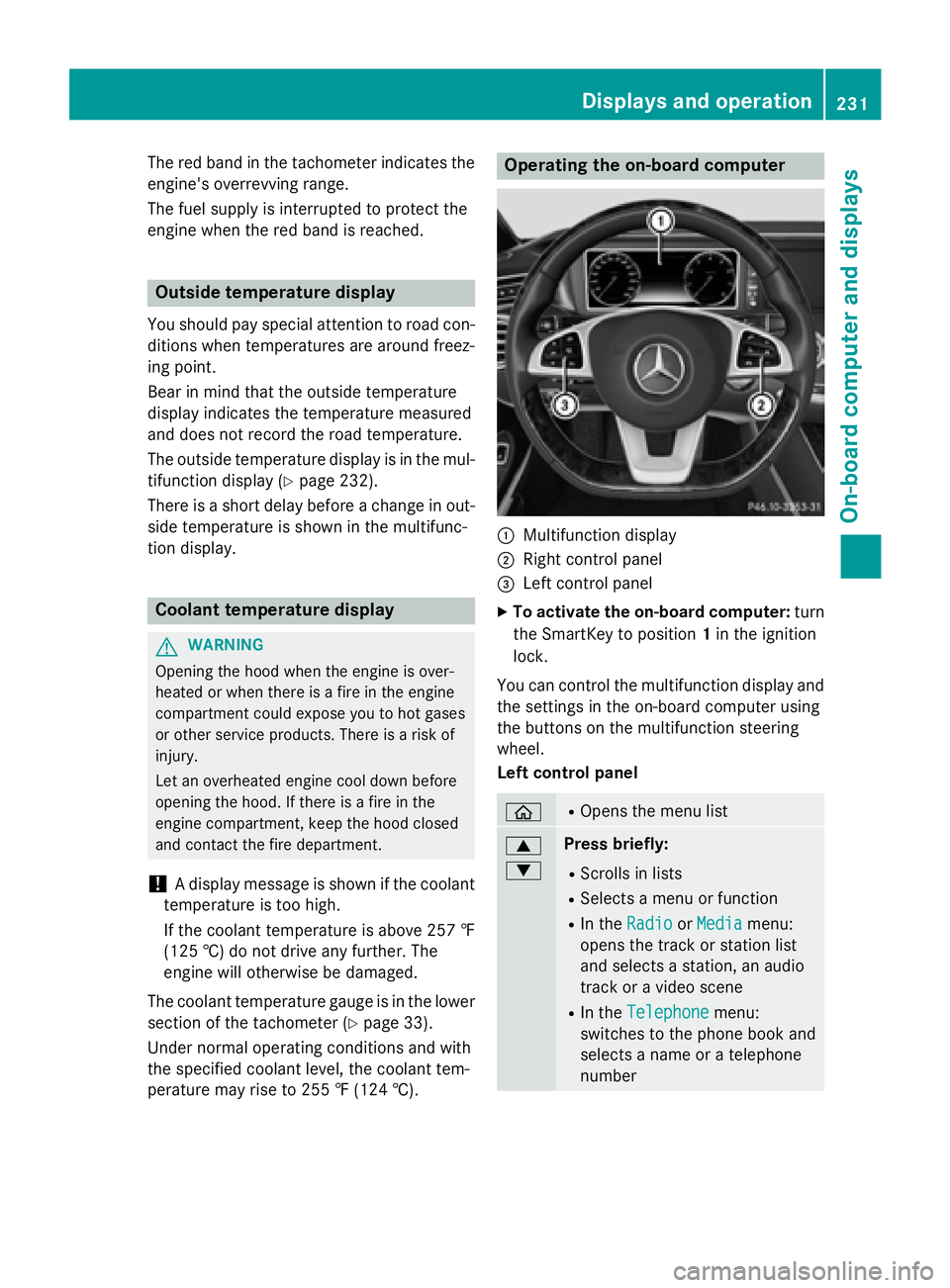
Operating the on-board computer
:Multifunction display
;Right control panel
=Left control panel
XTo activate the on-board computer: turn
the SmartKey to position 1in the ignition
lock.
You can control the multifunction display and
the settings in the on-board computer using
the buttons on the multifunction steering
wheel.
Left control panel
òROpens the menu list
9
:Press briefly:
RScrolls in lists
RSelects a menu or function
RIn the RadioorMediamenu:
opens the track or station list
and selects a station, an audio
track or a video scene
RIn the Telephonemenu:
switches to the phone book and
selects a name or a telephone
number
Displays and operation231
On-board computer and displays
Z