navigation MERCEDES-BENZ SL-Class 2015 R131 User Guide
[x] Cancel search | Manufacturer: MERCEDES-BENZ, Model Year: 2015, Model line: SL-Class, Model: MERCEDES-BENZ SL-Class 2015 R131Pages: 610, PDF Size: 12.21 MB
Page 227 of 610
0083
Time (Y page 307)
0084 Outside temperature or speed
(Ypage 232)
Text field 0087shows the selected menu or
submenu as well as display messages.
X To show menu bar 0085:press the 0059
or 0065 button on the steering wheel.
Menu bar 0085disappears after a few sec-
onds of inactivity.
The following messages may appear in the
multifunction display:
0097 Gearshift recommendation when
shifting manually (Y page 165)
0095005D0096 Active Parking Assist (Y page 202)
CRUISE
CRUISE Cruise control (Y
page 180)
00CE Adaptive Highbeam Assist
(Ypage 128)
00D6 ECO start/stop function
(Ypage 155)
00D9 HOLD function (Y page 191) Menus and submenus
Menu overview
Press the 0059or0065 button on the steer-
ing wheel to call up the menu bar and select a
menu.
Operating the on-board computer
(Y page 223).
Depending on the equipment installed in the
vehicle, you can call up the following menus:
R Trip Trip menu (Y page 225)
R Navi
Navi menu (navigation instructions)
(Y page 227)
R Audio
Audio menu (Y page 228)
R Tel
Tel menu (telephone) (Y page 229)
R DriveAssist
DriveAssist menu (assistance)
(Y page 230)
R Serv
Serv menu (Y page 231)
R Sett
Sett menu (settings) (Y page 232)
R AMG
AMG menu in AMG vehicles (Y page 236) Trip menu
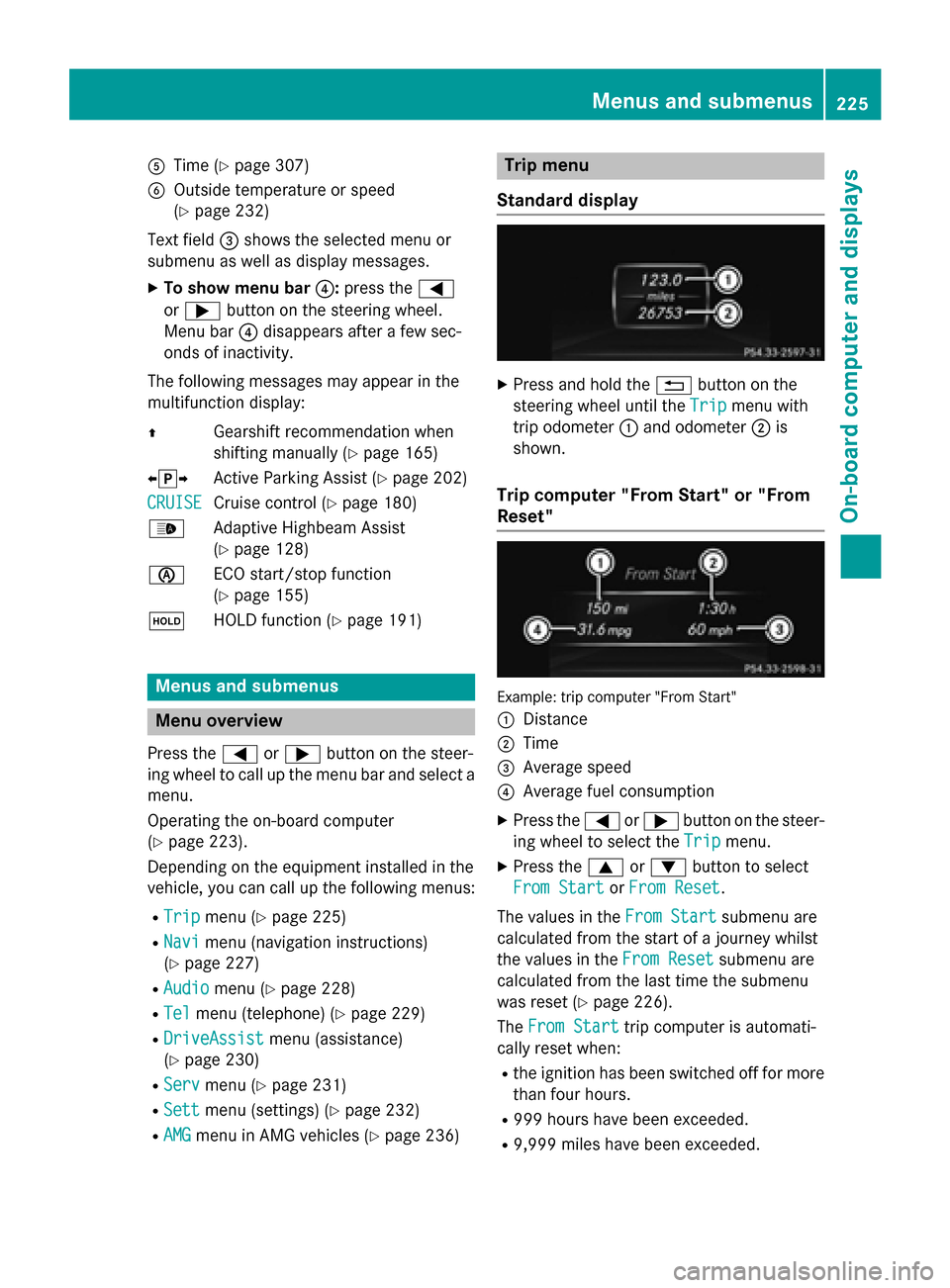
Standard display X
Press and hold the 0038button on the
steering wheel until the Trip
Tripmenu with
trip odometer 0043and odometer 0044is
shown.
Trip computer "From Start" or "From
Reset" Example: trip computer "From Start"
0043 Distance
0044 Time
0087 Average speed
0085 Average fuel consumption
X Press the 0059or0065 button on the steer-
ing wheel to select the Trip Tripmenu.
X Press the 0063or0064 button to select
From Start From Start orFrom Reset
From Reset.
The values in the From Start
From Startsubmenu are
calculated from the start of a journey whilst
the values in the From Reset From Resetsubmenu are
calculated from the last time the submenu
was reset (Y page 226).
The From Start From Start trip computer is automati-
cally reset when:
R the ignition has been switched off for more
than four hours.
R 999 hours have been exceeded.
R 9,999 miles have been exceeded. Menus and submenus
225On-board computer and displays Z
Page 229 of 610
"From start" trip computer, the values in
the ECO display are also reset. Navigation system menu
Displaying navigation instructions In the
Navi
Navimenu, the multifunction display
shows navigation instructions. For further
information on navigation, see (Y page 318).
X Switch on COMAND (Y page 295).
X Press the 0059or0065 button on the steer-
ing wheel to select the Navi Navimenu.
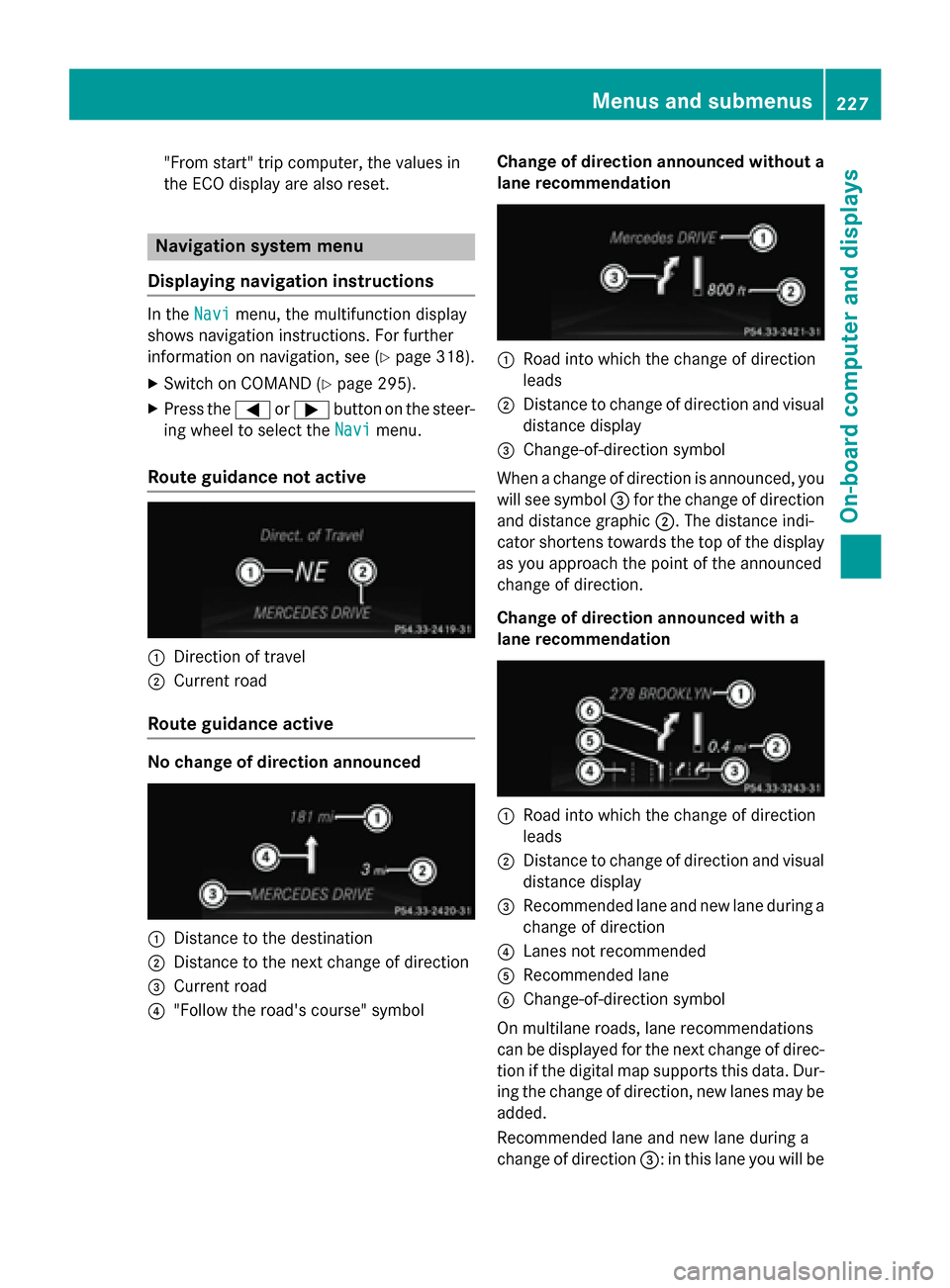
Route guidance not active 0043
Direction of travel
0044 Current road
Route guidance active No change of direction announced
0043
Distance to the destination
0044 Distance to the next change of direction
0087 Current road
0085 "Follow the road's course" symbol Change of direction announced without a
lane recommendation 0043
Road into which the change of direction
leads
0044 Distance to change of direction and visual
distance display
0087 Change-of-direction symbol
When a change of direction is announced, you
will see symbol 0087for the change of direction
and distance graphic 0044. The distance indi-
cator shortens towards the top of the display
as you approach the point of the announced
change of direction.
Change of direction announced with a
lane recommendation 0043
Road into which the change of direction
leads
0044 Distance to change of direction and visual
distance display
0087 Recommended lane and new lane during a
change of direction
0085 Lanes not recommended
0083 Recommended lane
0084 Change-of-direction symbol
On multilane roads, lane recommendations
can be displayed for the next change of direc-
tion if the digital map supports this data. Dur- ing the change of direction, new lanes may beadded.
Recommended lane and new lane during a
change of direction 0087: in this lane you will be Menus and submenus
227On-board computer and displays Z
Page 234 of 610
R
Calling up display messages
(Y page 239)
R Checking the tire pressure electronically
(Y page 575)
R Calling up the service due date
(Y page 539) Settings menu
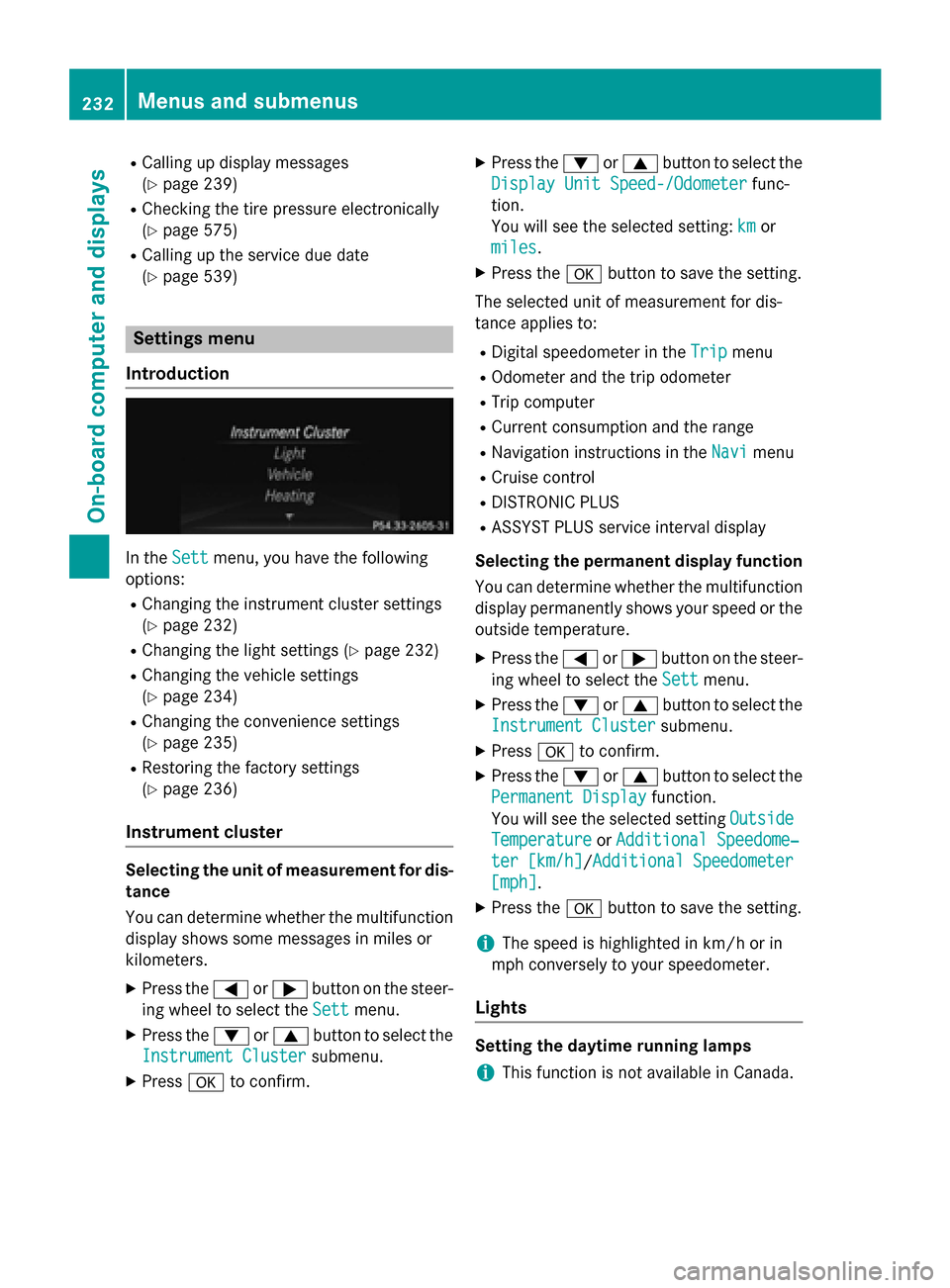
Introduction In the
Sett Settmenu, you have the following
options:
R Changing the instrument cluster settings
(Y page 232)
R Changing the light settings (Y page 232)
R Changing the vehicle settings
(Y page 234)
R Changing the convenience settings
(Y page 235)
R Restoring the factory settings
(Y page 236)
Instrument cluster Selecting the unit of measurement for dis-
tance
You can determine whether the multifunction display shows some messages in miles or
kilometers.
X Press the 0059or0065 button on the steer-
ing wheel to select the Sett
Sett menu.
X Press the 0064or0063 button to select the
Instrument Cluster
Instrument Cluster submenu.
X Press 0076to confirm. X
Press the 0064or0063 button to select the
Display Unit Speed-/Odometer Display Unit Speed-/Odometer func-
tion.
You will see the selected setting: km kmor
miles
miles.
X Press the 0076button to save the setting.
The selected unit of measurement for dis-
tance applies to: R Digital speedometer in the Trip
Trip menu
R Odometer and the trip odometer
R Trip computer
R Current consumption and the range
R Navigation instructions in the Navi Navimenu
R Cruise control
R DISTRONIC PLUS
R ASSYST PLUS service interval display
Selecting the permanent display function
You can determine whether the multifunction display permanently shows your speed or the
outside temperature.
X Press the 0059or0065 button on the steer-
ing wheel to select the Sett
Sett menu.
X Press the 0064or0063 button to select the
Instrument Cluster Instrument Cluster submenu.
X Press 0076to confirm.
X Press the 0064or0063 button to select the
Permanent Display
Permanent Display function.
You will see the selected setting Outside
Outside
Temperature
Temperature orAdditional Speedome‐
Additional Speedome‐
ter [km/h]
ter [km/h] /AdditionalAdditional Speedometer
Speedometer
[mph]
[mph].
X Press the 0076button to save the setting.
i The speed is highlighted in km/h or in
mph conversely to your speedometer.
Lights Setting the daytime running lamps
i This function is not available in Canada. 232
Menus and submenusOn-board computer and displays
Page 273 of 610
Safety systems
Problem
Possible causes/consequences and
0050
0050Solutions 0027
(USA only)
004D (Canada only)
The red brake system
warning lamp comes on while the engine is run-
ning. A warning tone
also sounds. There is not enough brake fluid in the brake fluid reservoir.
G WARNING
The braking effect may be impaired.
There is a risk of an accident. X Pull over and stop the vehicle safely as soon as possible, paying
attention to road and traffic conditions. Do not continue driving
under any circumstances.
X Secure the vehicle against rolling away (Y page 171).
X Do not add brake fluid. Adding more will not remedy the mal-
function.
X Consult a qualified specialist workshop.
X Observe the additional display messages in the multifunction
display. 0025
The yellow ABS warning
lamp is lit while the
engine is running. ABS (Anti-lock Braking System) is deactivated due to a malfunc-
tion. BAS (Brake Assist), BAS PLUS, ESP ®
(Electronic Stability
Program), PRE‑ SAFE®
, PRE‑SAFE ®
Brake, the HOLD function and
hill start assist are therefore also deactivated, for example.
ATTENTION ASSIST is deactivated.
G WARNING
The brake system continues to function normally, but without the functions listed above. The wheels could therefore lock if you
brake hard, for example.
The steerability and braking characteristics may be severely affec-ted. The braking distance in an emergency braking situation can
increase.
If ESP ®
is not operational, ESP ®
is unable to stabilize the vehicle.
There is an increased risk of skidding and an accident.
X Observe the additional display messages in the multifunction
display.
X Drive on carefully.
X Visit a qualified specialist workshop.
If the ABS control unit is faulty, there is also a possibility that other
systems, such as the navigation system or the automatic trans-
mission, will not be available. Warning and indicator lamps
271On-board computer and displays Z
Page 283 of 610
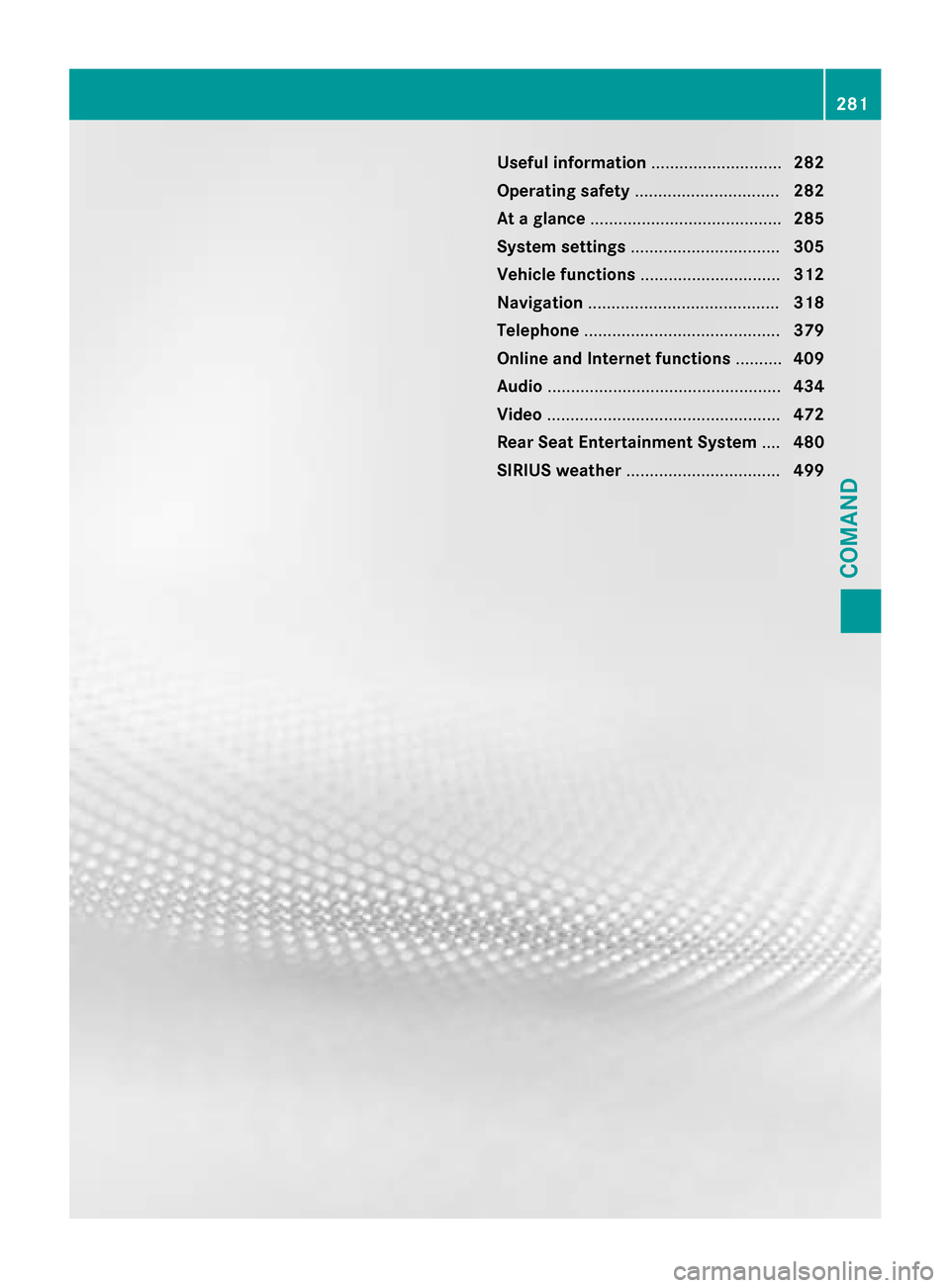
Useful information
............................282
Operating safety ............................... 282
At a glance ......................................... 285
System settings ................................ 305
Vehicle functions .............................. 312
Navigation ......................................... 318
Telephone .......................................... 379
Online and Internet functions ..........409
Audio .................................................. 434
Video .................................................. 472
Rear Seat Entertainment System ....480
SIRIUS weather ................................. 499 281COMAND
Page 284 of 610
Useful information
i These operating instructions describe all
the standard and optional equipment of
your COMAND system, as available at the
time of going to print. Country-specific dif- ferences are possible. Please note that
your COMAND system may not be equip-
ped with all the features described. This
also applies to safety-related systems and
functions.
i Read the information on qualified special-
ist workshops: (Y page 35). Operating safety
Important safety notes
G
WARNING
Modifications to electronic components, their software as well as wiring can impair their
function and/or the function of other net-
worked components. In particular, systems
relevant to safety could also be affected. As a
result, these may no longer function as inten-
ded and/or jeopardize the operating safety of
the vehicle. There is an increased risk of an
accident and injury.
Never tamper with the wiring as well as elec-
tronic components or their software. You
should have all work to electrical and elec-
tronic equipment carried out at a qualified
specialist workshop.
If you make any changes to the vehicle elec-
tronics, the general operating permit is ren-
dered invalid. G
WARNING
If you operate information systems and com-
munication equipment integrated in the vehi- cle while driving, you will be distracted from
traffic conditions. You could also lose control of the vehicle. There is a risk of an accident.
Only operate the equipment when the traffic
situation permits. If you are not sure that this is possible, park the vehicle paying attention
to traffic conditions and operate the equip-
ment when the vehicle is stationary.
You must observe the legal requirements for
the country in which you are currently driving when operating COMAND.
COMAND calculates the route to the destina-
tion without taking account of the following,
for example:
R traffic lights
R stop and yield signs
R merging lanes
R parking or stopping in a no parking/no
stopping zone
R other road and traffic rules and regulations
R narrow bridges
COMAND can give incorrect navigation com-
mands if the actual street/traffic situation
does not correspond with the digital map's
data. Digital maps do not cover all areas nor
all routes in an area. For example, a route may have been diverted or the direction of a one-
way street may have changed.
For this reason, you must always observe
road and traffic rules and regulations during
your journey. Road and traffic rules and reg-
ulations always have priority over the sys-
tem's driving recommendations.
Navigation announcements are intended to
direct you while driving without diverting your attention from the road and driving.
Please always use this feature instead of con-sulting the map display for directions. Look-
ing at the icons or map display can distract
you from traffic conditions and driving, and
increase the risk of an accident.
Bear in mind that at a speed of only 30 mph
(approximately 50 km/h) your vehicle covers
a distance of 44 feet (approximately 14 m)
per second.
This equipment complies with FCC radiation
exposure limits set forth for uncontrolled
equipment and meets the FCC radio fre- 282
Operating safetyCOMAND
Page 288 of 610
You can use COMAND to operate the follow-
ing main functions:
R the navigation system
R the audio function
R the telephone function
R the video function
R the system settings
R the online and Internet functions
R the Digital Operator's Manual
(available depending on the vehicle model)
You can call up the main functions:
R using the corresponding buttons
R using the main function bar in the COMAND
display
R using the remote control
COMAND display General notes
! Do not use the space in front of the dis-
play for storage. Objects placed here could damage the display or impair its function.
Avoid any direct contact with the display
surface. Pressure on the display surface
may result in impairments to the display,
which could be irreversible.
Wearing polarized sunglasses may impair
your ability to read the display.
The display has an automatic temperature-
controlled switch-off feature. The brightness
is automatically reduced if the temperature is
too high. The display may temporarily switch
off completely. 286
At a glanceCOMAND
Page 289 of 610
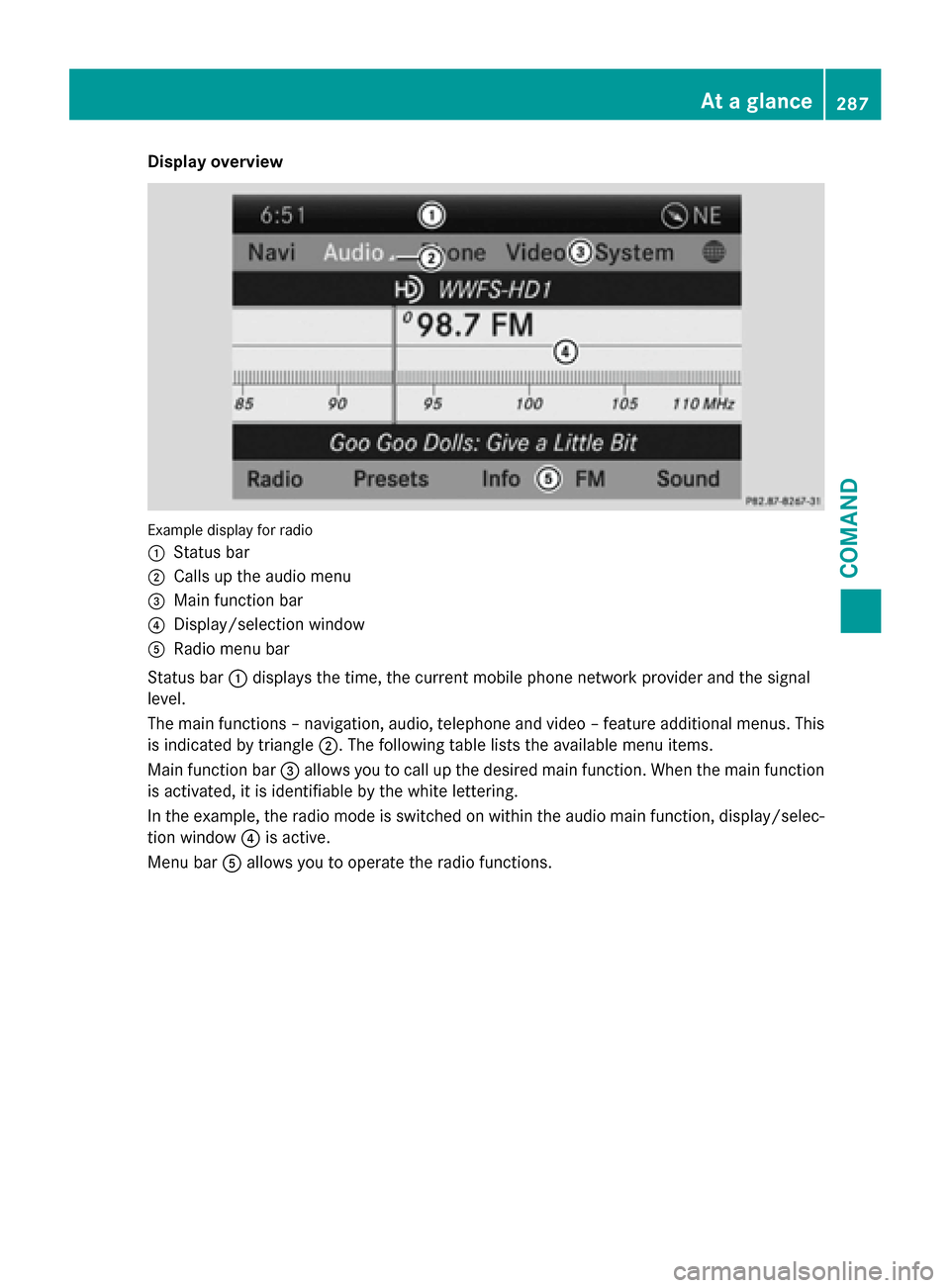
Display overview
Example display for radio
0043
Status bar
0044 Calls up the audio menu
0087 Main function bar
0085 Display/selection window
0083 Radio menu bar
Status bar 0043displays the time, the current mobile phone network provider and the signal
level.
The main functions – navigation, audio, telephone and video – feature additional menus. This
is indicated by triangle 0044. The following table lists the available menu items.
Main function bar 0087allows you to call up the desired main function. When the main function
is activated, it is identifiable by the white lettering.
In the example, the radio mode is switched on within the audio main function, display/selec-
tion window 0085is active.
Menu bar 0083allows you to operate the radio functions. At a glance
287COMAND Z
Page 293 of 610
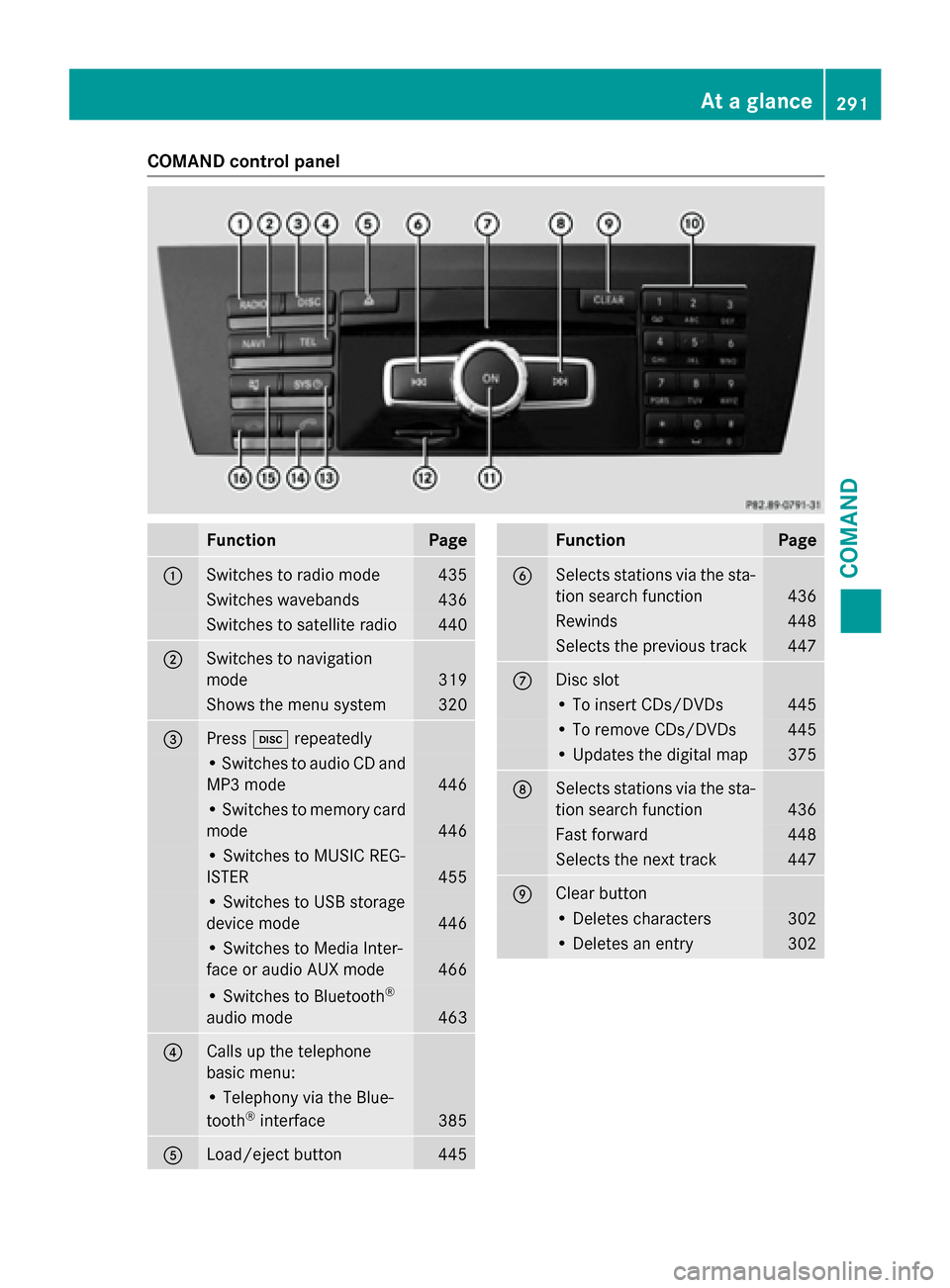
COMAND control panel
Function Page
0043
Switches to radio mode 435
Switches wavebands 436
Switches to satellite radio 440
0044
Switches to navigation
mode 319
Shows the menu system 320
0087
Press
003Arepeatedly • Switches to audio CD and
MP3 mode 446
• Switches to memory card
mode 446
• Switches to MUSIC REG-
ISTER
455
• Switches to USB storage
device mode
446
• Switches to Media Inter-
face or audio AUX mode
466
• Switches to Bluetooth
®
audio mode 463
0085
Calls up the telephone
basic menu: • Telephony via the Blue-
tooth ®
interface 385
0083
Load/eject button 445 Function Page
0084
Selects stations via the sta-
tion search function 436
Rewinds 448
Selects the previous track 447
006B
Disc slot
• To insert CDs/DVDs 445
• To remove CDs/DVDs 445
• Updates the digital map 375
006C
Selects stations via the sta-
tion search function 436
Fast forward 448
Selects the next track 447
006D
Clear button
• Deletes characters 302
• Deletes an entry 302At a glance
291COMAND Z
Page 294 of 610
Function Page
006E
Number pad
• Selects stations via the
station presets
436
• Stores stations manually 437
• Mobile phone authoriza-
tion 383
• Telephone number entry 387
• Sends DTMF tones 389
• Character entry 301
• Selects a location for the
weather forecast from the
memory 503
0090
Displays the current
track being played 450
007D
Selects stations by
entering the frequency
manually 437
007D
Selects a track 447
006F
Switches COMAND on/off 295
Adjusts the volume 295 Function Page
0070
SD memory card slot 445
0071
Calls up the system menu 306
0072
Accepts a call 387
Dials a number 387
Redials 388
Accepts a waiting call 389
0073
Switches the sound on or
off
295
Switches the microphone
on/off
388
Cancels the text message
read-aloud function
399
Switches off navigation
announcements
295
0074
Rejects a call 387
Ends an active call 390
Rejects a waiting call 389
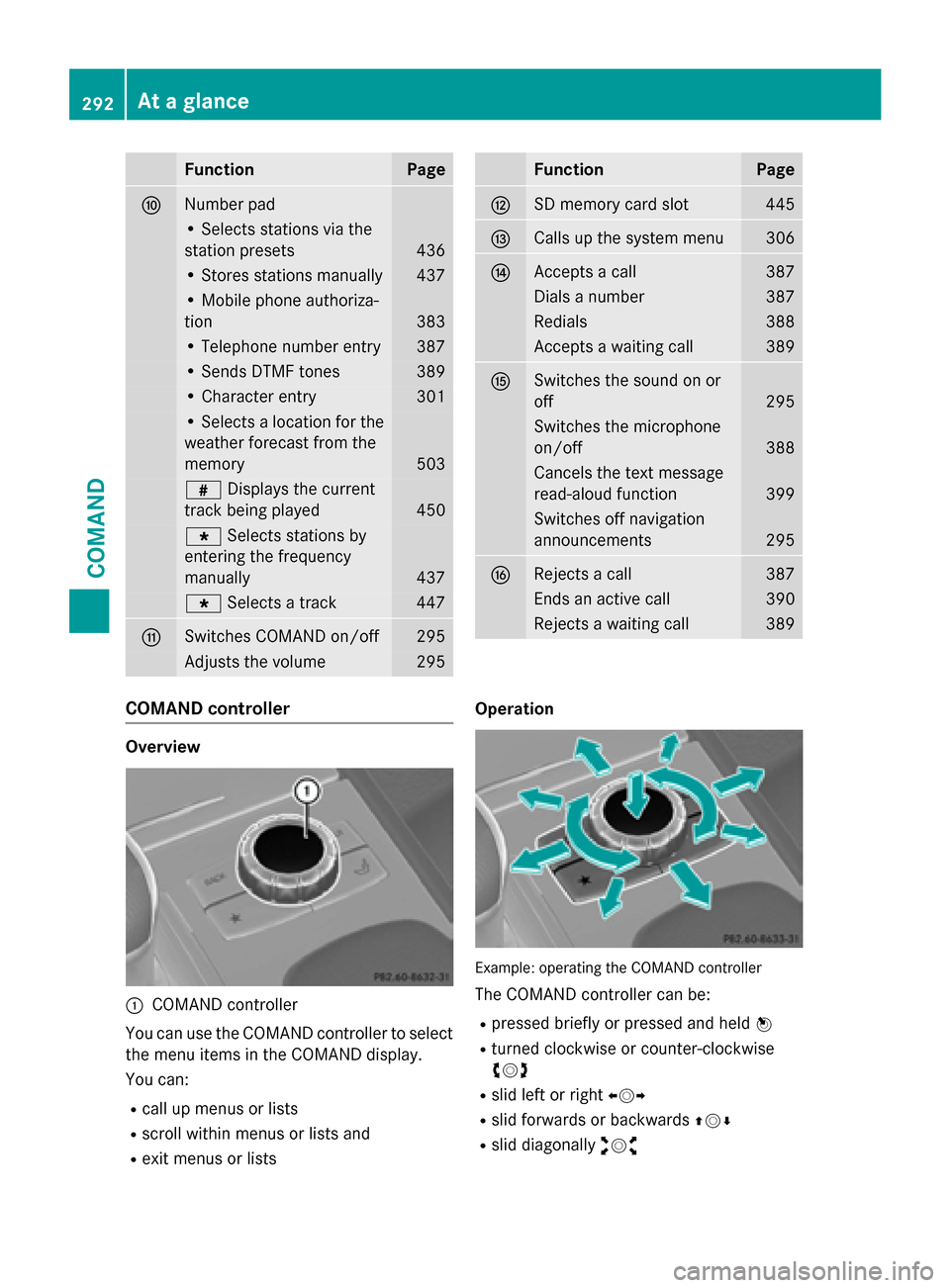
COMAND controller
Overview
0043
COMAND controller
You can use the COMAND controller to select the menu items in the COMAND display.
You can:
R call up menus or lists
R scroll within menus or lists and
R exit menus or lists Operation
Example: operating the COMAND controller
The COMAND controller can be:
R pressed briefly or pressed and held 0098
R turned clockwise or counter-clockwise
00790052007A
R slid left or right 009500520096
R slid forwards or backwards 009700520064
R slid diagonally 009100520078292
At a glanceCOMAND