clock MERCEDES-BENZ SL-CLASS ROADSTER 2013 User Guide
[x] Cancel search | Manufacturer: MERCEDES-BENZ, Model Year: 2013, Model line: SL-CLASS ROADSTER, Model: MERCEDES-BENZ SL-CLASS ROADSTER 2013Pages: 572, PDF Size: 9.23 MB
Page 275 of 572
have to clean the screen, however, use a
mild cleaning agent and a soft, lint-free
cloth.
The display must be switched off and have
cooled down
before you start cleaning. Clean
the display screen, when necessary, with a
commercially available microfiber cloth and
cleaning agent for TFT/LCD displays. Do not
apply pressure to the display surface when
cleaning it, as this could cause irreversible
damage. Then, dry the surface with a dry
microfiber cloth.
Avoid using alcoholic thinners, gasoline or
abrasive cleaning agents. These could
damage the display surface.
COMAND controller Overview
:
COMAND controller
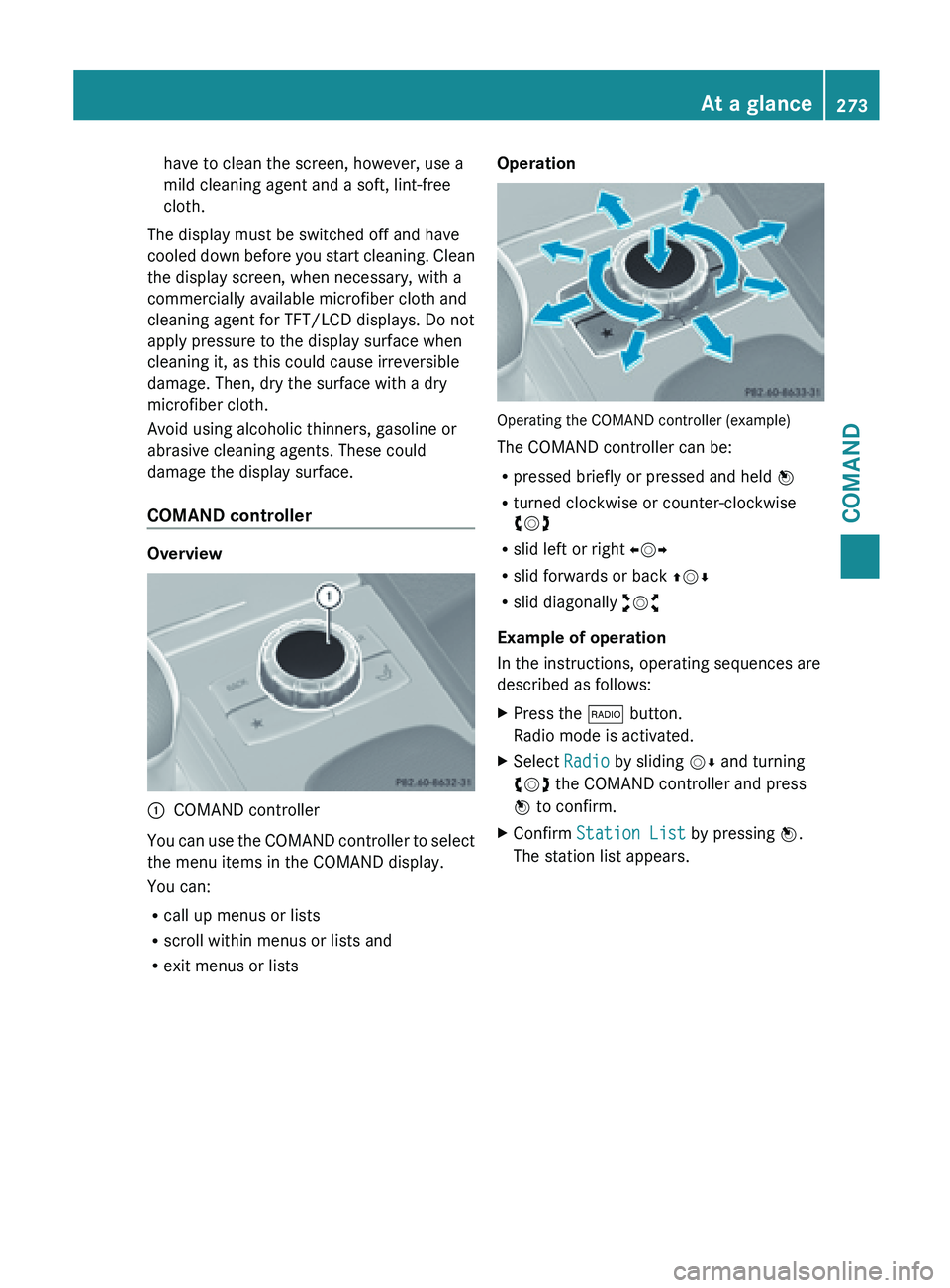
You can use the COMAND controller to select
the menu items in the COMAND display.
You can:
R call up menus or lists
R scroll within menus or lists and
R exit menus or lists Operation
Operating the COMAND controller (example)
The COMAND controller can be:
R
pressed briefly or pressed and held W
R turned clockwise or counter-clockwise
cVd
R slid left or right XVY
R slid forwards or back ZVÆ
R slid diagonally aVb
Example of operation
In the instructions, operating sequences are
described as follows:
X Press the $ button.
Radio mode is activated.
X Select Radio by sliding VÆ and turning
cVd the COMAND controller and press
W to confirm.
X Confirm Station List by pressing W.
The station list appears. At a glance
273
COMAND Z
Page 293 of 572
Calling up/exiting the display
X
To call up the full screen display: press
the W button.
X In the system menu, slide ZV the
COMAND controller up until the Full
Screen option is selected.
X Press W the COMAND controller.
The system display is shown as full screen
(without system menu).
X Slide XVY the COMAND controller
repeatedly until the fuel consumption
indicator appears.
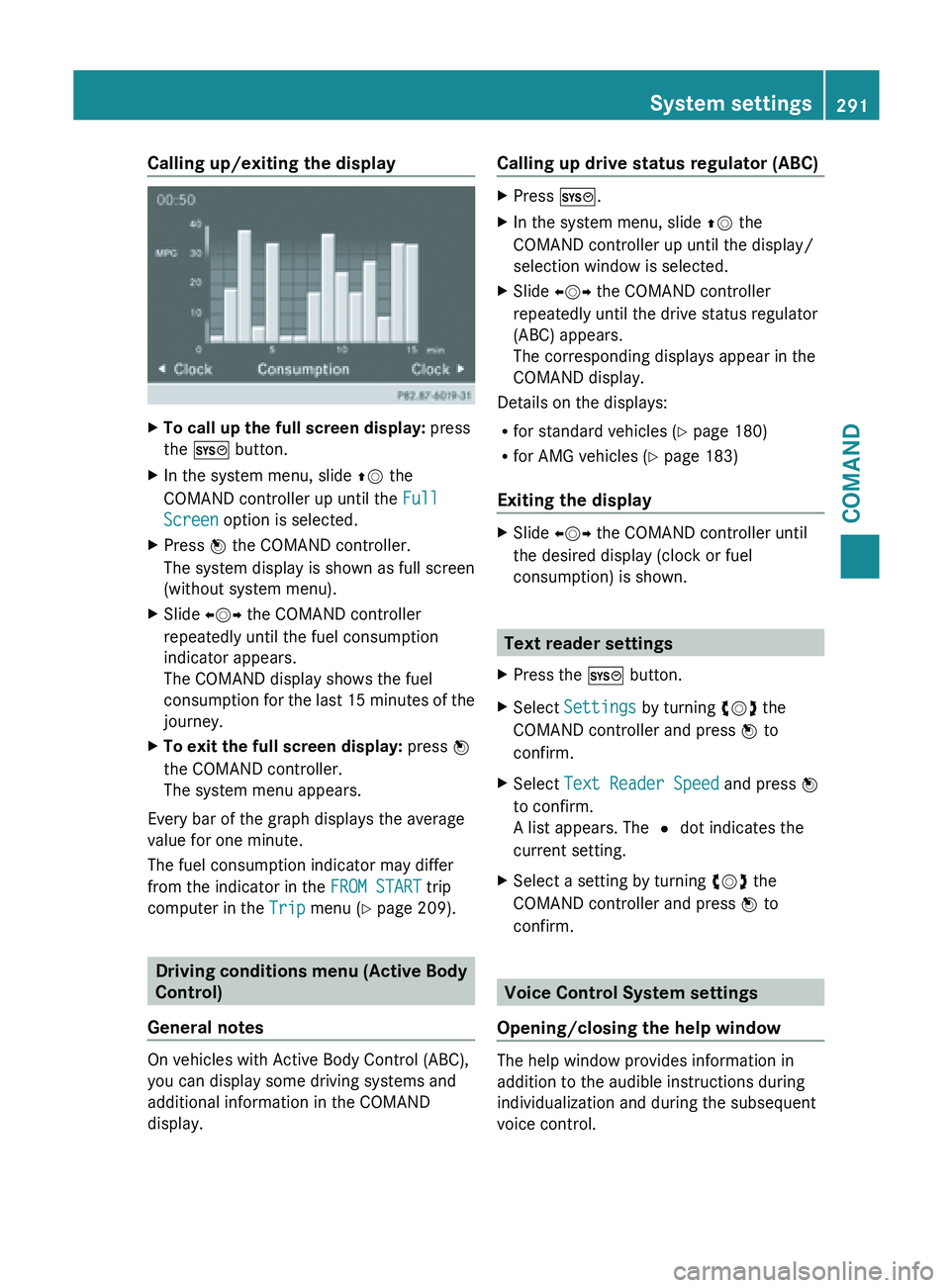
The COMAND display shows the fuel
consumption for
the last 15 minutes of the
journey.
X To exit the full screen display: press W
the COMAND controller.
The system menu appears.
Every bar of the graph displays the average
value for one minute.
The fuel consumption indicator may differ
from the indicator in the FROM START trip
computer in the Trip menu (Y page 209).Driving conditions menu (Active Body
Control)
General notes On vehicles with Active Body Control (ABC),
you can display some driving systems and
additional information in the COMAND
display. Calling up drive status regulator (ABC) X
Press W.
X In the system menu, slide ZV the
COMAND controller up until the display/
selection window is selected.
X Slide XVY the COMAND controller
repeatedly until the drive status regulator
(ABC) appears.
The corresponding displays appear in the
COMAND display.
Details on the displays:
R for standard vehicles ( Y page 180)
R for AMG vehicles ( Y page 183)
Exiting the display X
Slide XVY the COMAND controller until
the desired display (clock or fuel
consumption) is shown. Text reader settings
X Press the W button.
X Select Settings by turning cVd the
COMAND controller and press W to
confirm.
X Select Text Reader Speed and press W
to confirm.
A list appears. The # dot indicates the
current setting.
X Select a setting by turning cVd the
COMAND controller and press W to
confirm. Voice Control System settings
Opening/closing the help window The help window provides information in
addition to the audible instructions during
individualization and during the subsequent
voice control. System settings
291
COMAND Z
Page 295 of 572
X
Select the language by turning cVd the
COMAND controller and press W to
confirm.
COMAND loads
the selected language and
sets it. Assigning a favorites button
X To assign a favorites button: press the
W button.
X Select Settings by
sliding VÆ and turning
cVd the COMAND controller and press
W to confirm.
X Select Assign as Favorite and press
W to confirm.
The list of predefined functions appears.
The dot
#
indicates the currently selected
function.
X Select the function by turning cVd the
COMAND controller and press W to
confirm.
The favorites button is assigned the
selected function.
X Example: to call up a favorite: press the
g favorites button.
This calls up the predefined function.
You can select the following predefined
functions in a menu:
R Display On/Off: you can switch the
display off or on.
R Full Screen: 'Clock': you can call up
the full screen with clock.
R Full Screen: 'Map' : you
can call up the
full screen with map.
R Spoken Driving Tip : you can call up the
current driving recommendation.
R Display Traffic Messages : you can call
up traffic reports.
R Navigate Home: you can start route
guidance to your home address if you have
already entered and saved the address
(Y page 304). R
Detour Menu: you can call up the Detour
menu and
then avoid a section of the route
and recalculate the route ( Y page 326).
R Compass Screen: you can call up the
compass.
R Driver’s Seat Massage, Front-
Passenger's Seat Massage or
Massage: Both Front Seats: you can
start the massage function, depending on
which seats are selected (Y page 288). Importing/exporting data
! Never remove the stick or card when
writing data
to the USB stick or the memory
card. You may otherwise lose data.
Using this function, you can:
R transfer your personal COMAND data from
one system/vehicle to another
R make a backup copy of your personal data
(export data) and load it again (import
data).
You can either use an SD memory card or a
USB storage device (e.g. a USB stick) as
temporary storage. System settings
293
COMAND Z
Page 308 of 572
Entering a destination using the map
Calling up the map
X
To switch to navigation mode: press the
Ø function button.
X To show the menu:
press W the COMAND
controller.
X Select Destination in the navigation
system menu bar by turning cVd the
COMAND controller and pressing W to
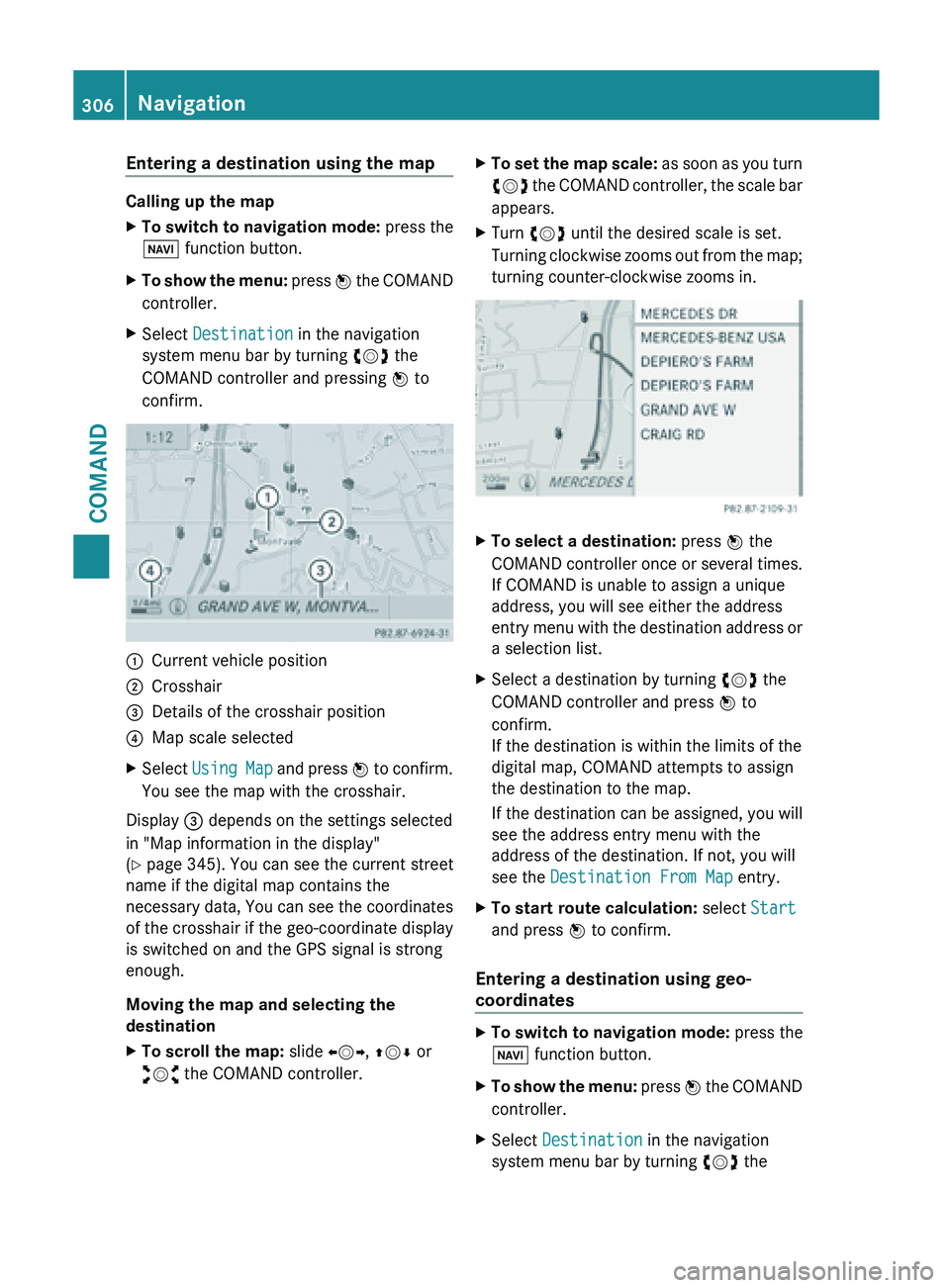
confirm. :
Current vehicle position
; Crosshair
= Details of the crosshair position
? Map scale selected
X Select Using Map
and press W to confirm.
You see the map with the crosshair.
Display = depends on the settings selected
in "Map information in the display"
(Y page 345). You can see the current street
name if the digital map contains the
necessary
data, You can see the coordinates
of the crosshair if the geo-coordinate display
is switched on and the GPS signal is strong
enough.
Moving the map and selecting the
destination
X To scroll the map: slide XVY, ZVÆ or
aVb the COMAND controller. X
To set the map scale: as
soon as you turn
cVd the COMAND controller, the scale bar
appears.
X Turn cVd until the desired scale is set.
Turning clockwise
zooms out from the map;
turning counter-clockwise zooms in. X
To select a destination: press W the
COMAND controller
once or several times.
If COMAND is unable to assign a unique
address, you will see either the address
entry menu with the destination address or
a selection list.
X Select a destination by turning cVd the
COMAND controller and press W to
confirm.
If the destination is within the limits of the
digital map, COMAND attempts to assign
the destination to the map.
If the
destination can be assigned, you will
see the address entry menu with the
address of the destination. If not, you will
see the Destination From Map entry.
X To start route calculation: select Start
and press W to confirm.
Entering a destination using geo-
coordinates X
To switch to navigation mode: press the
Ø function button.
X To show the menu: press W
the COMAND
controller.
X Select Destination in the navigation
system menu bar by turning cVd the306
Navigation
COMAND
Page 352 of 572
R
Destination memory ( Y page 304)
R List of categories for personal POIs
(Y page 319)
X Select the desired destination or personal
POI and press W to confirm.
X When the destination address is displayed,
select Continue and press W to confirm.
The map appears.
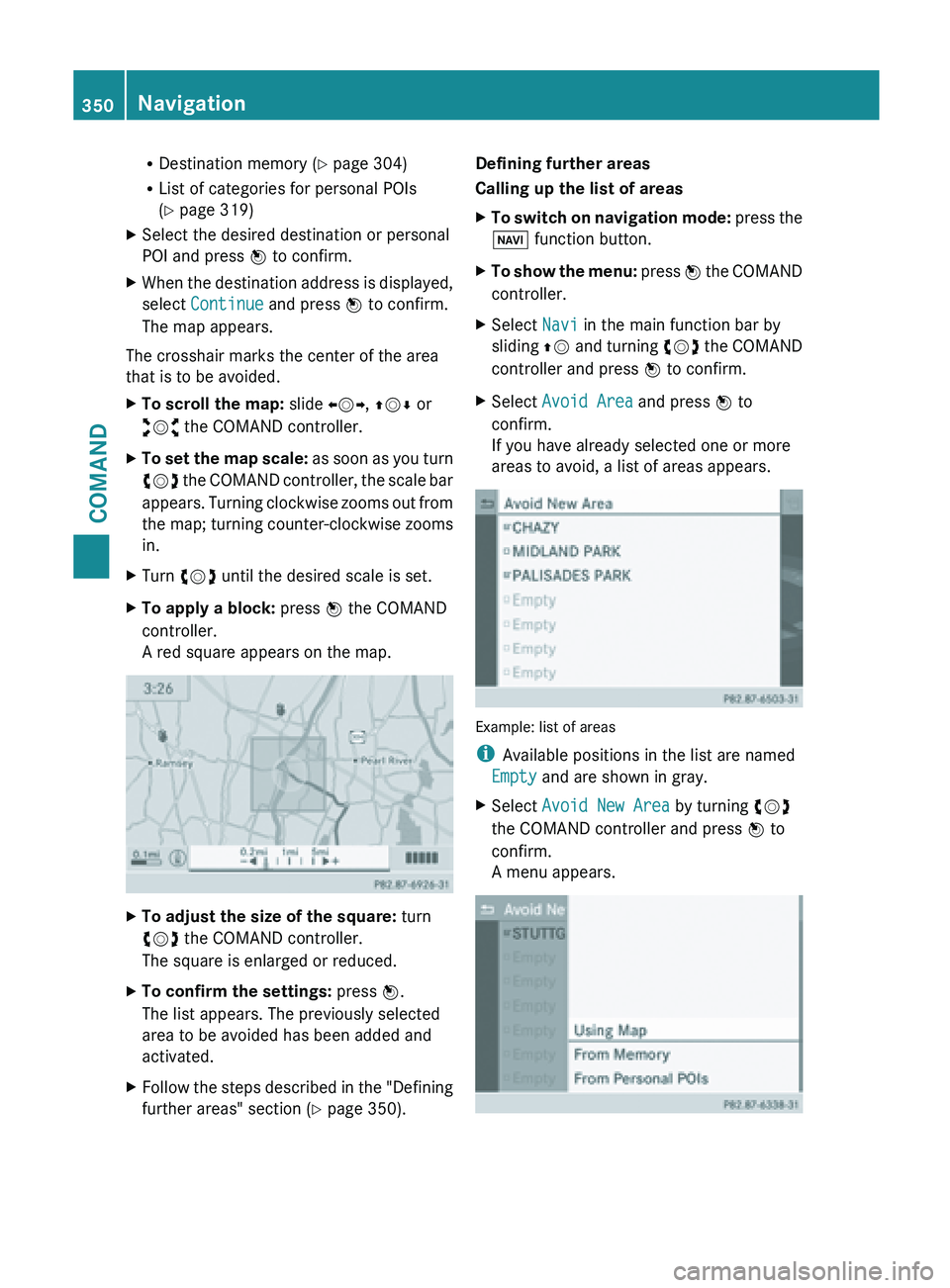
The crosshair marks the center of the area
that is to be avoided.
X To scroll the map: slide XVY, ZVÆ or
aVb the COMAND controller.
X To set the map scale: as
soon as you turn
cVd the COMAND controller, the scale bar
appears. Turning clockwise zooms out from
the map; turning counter-clockwise zooms
in.
X Turn cVd until the desired scale is set.
X To apply a block: press W the COMAND
controller.
A red square appears on the map. X
To adjust the size of the square: turn
cVd the COMAND controller.
The square is enlarged or reduced.
X To confirm the settings: press W.
The list appears. The previously selected
area to be avoided has been added and
activated.
X Follow the steps described in the "Defining
further areas" section ( Y page 350).Defining further areas
Calling up the list of areas
X
To switch on navigation mode: press
the
Ø function button.
X To show the menu:
press W
the COMAND
controller.
X Select Navi in the main function bar by
sliding ZV and
turning cVd the COMAND
controller and press W to confirm.
X Select Avoid Area and press W to
confirm.
If you have already selected one or more
areas to avoid, a list of areas appears. Example: list of areas
i
Available positions in the list are named
Empty and are shown in gray.
X Select Avoid New Area by turning cVd
the COMAND controller and press W to
confirm.
A menu appears. 350
Navigation
COMAND
Page 418 of 572
X
Select Info in the radio display by sliding
VÆ and turning cVd the COMAND
controller and press W to confirm.
Information on the currently selected
station is displayed. Content is dependent
on the station.
X To return to the radio display: confirm
Info by pressing W.
X Slide ZV the COMAND controller up. Satellite radio
Important notes i
The satellite
radio mode described below
requires optionally available satellite radio
equipment and registration with a satellite
radio provider.
i Note that the categories and channels
shown in the illustrations depend on the
program content offered by the provider.
The program content may vary. The
illustrations and descriptions in these
operating instructions may therefore differ
from the channels and categories offered
by the provider.
Satellite radio mode may be temporarily
unavailable or interrupted for a variety of
reasons. These reasons include
environmental or topographical conditions
as well as other issues beyond the control
of Mercedes-Benz USA, LLC. This means
operation may not be possible in certain
areas.
These include:
R tunnels
R parking garages
R locations inside or next to buildings
R locations in the vicinity of other
structures
i SIRIUS XM Radio offers more than 130
radio stations in digital quality, for example
100% commercial-free music, sports, news
and entertainment. SIRIUS XM Radio employs a fleet of high-
performance
satellites
to broadcast around
the clock throughout the USA and Canada.
The satellite radio program is available for
a monthly fee. Details are available from
the SIRIUS XM Service Center and at
http://www.sirius.com (USA) or
http://www.siriuscanada.com
(Canada).
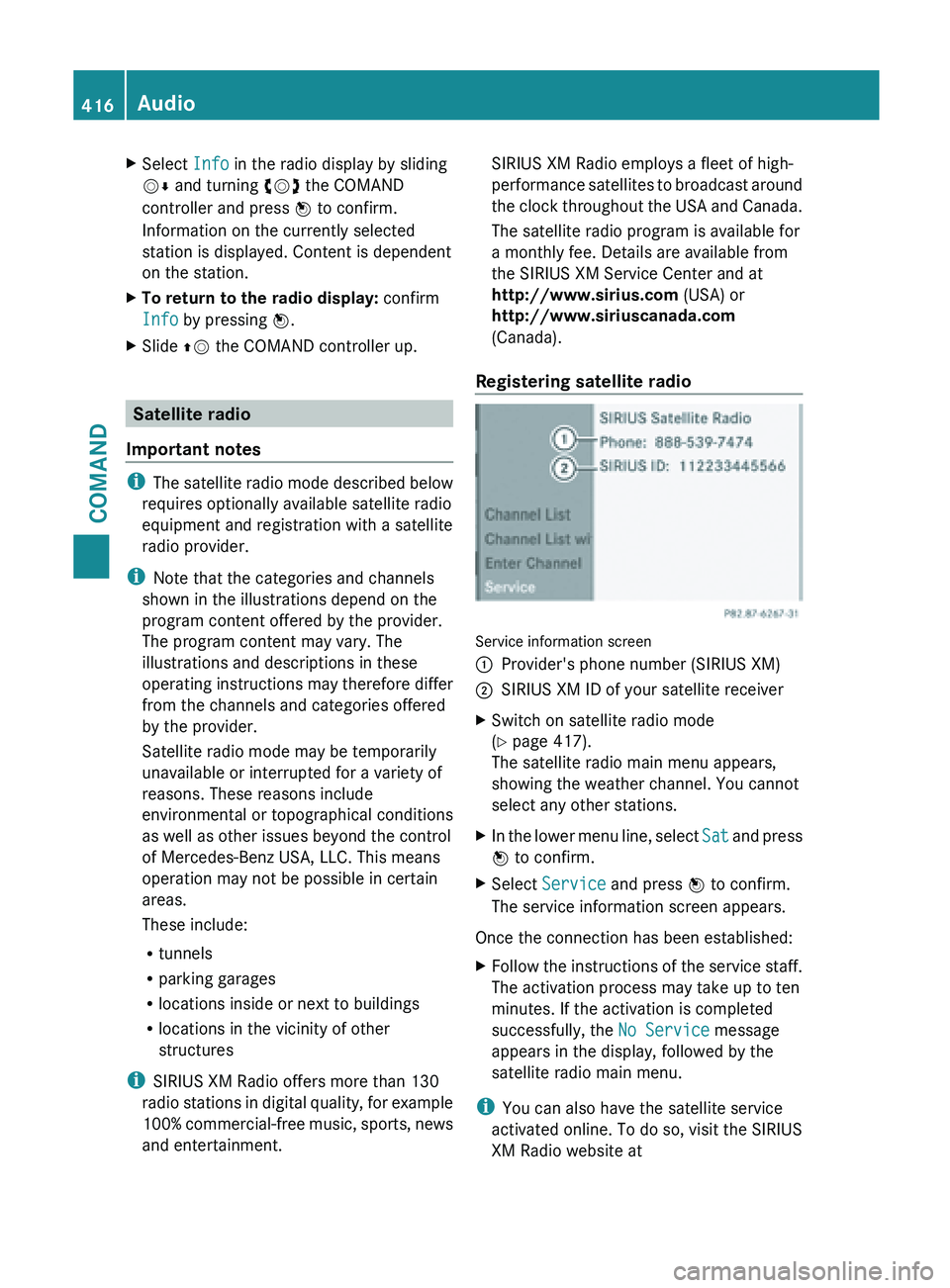
Registering satellite radio Service information screen
:
Provider's phone number (SIRIUS XM)
; SIRIUS XM ID of your satellite receiver
X Switch on satellite radio mode
(Y page 417).
The satellite radio main menu appears,
showing the weather channel. You cannot
select any other stations.
X In the lower menu line, select Sat and
press
W to confirm.
X Select Service and press W to confirm.
The service information screen appears.
Once the connection has been established:
X Follow the instructions of the service staff.
The activation process may take up to ten
minutes. If the activation is completed
successfully, the No Service message
appears in the display, followed by the
satellite radio main menu.
i You can also have the satellite service
activated online. To do so, visit the SIRIUS
XM Radio website at 416
Audio
COMAND
Page 462 of 572
Data medium Supported picture
formats
CD/DVD with
picture files jpeg, jpg
USB devices (sticks,
hard drives)
SD memory card jpeg, jpg
Calling up a category list
X
Select a data medium with pictures (e.g. a
memory card):
R
In the Audio menu (Y page 411)
R In the media list ( Y page 426)
X Select Search in the basic display by
sliding VÆ and
turning cVd the COMAND
controller and press W to confirm.
The category list appears ( Y page 433).
Displaying pictures X
Select (Y page 433)Photos in the category
list
by turning cVd the COMAND controller
and press W to confirm.
A folder directory appears.
X Select a folder with photos and press W to
confirm.
The
folder displays the existing picture files
(example). X
Select a photo and press W to confirm.
The photo is displayed and the music is
stopped. Changing the picture view
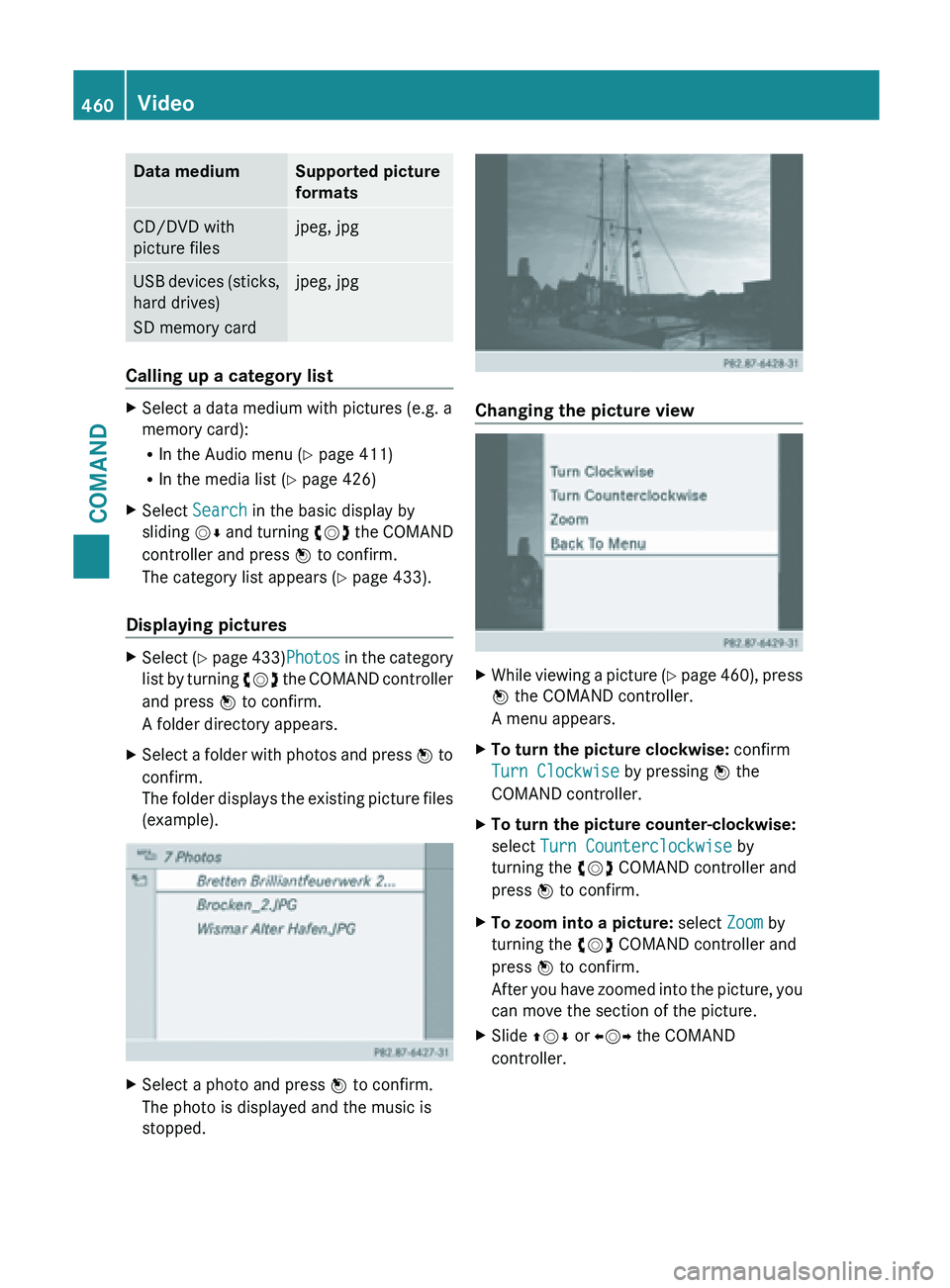
X
While viewing a picture (Y page
460), press
W the COMAND controller.
A menu appears.
X To turn the picture clockwise: confirm
Turn Clockwise by pressing W the
COMAND controller.
X To turn the picture counter-clockwise:
select Turn Counterclockwise by
turning the cVd COMAND controller and
press W to confirm.
X To zoom into a picture: select Zoom by
turning the cVd COMAND controller and
press W to confirm.
After you
have zoomed into the picture, you
can move the section of the picture.
X Slide ZVÆ or XVY the COMAND
controller. 460
Video
COMAND
Page 500 of 572
Adding engine oil
G
WARNING
If engine oil comes into contact with hot
engine parts,
it may ignite and you could burn
yourself. Do not spill any engine oil on hot
engine parts. H
Environmental note
When adding oil, take care not to spill any. If
oil enters the soil or waterways, it is harmful
to the environment.
! Use only engine oils and oil filters that
have been approved for vehicles equipped
with a service system. A list of the engine
oils and oil filters tested and approved in
accordance with the Mercedes-Benz
Specifications for Service Products can be
called up by visiting http://
www.mbusa.com (USA only). More
information about tested and approved
engine oils and oil filters is available from
any authorized Mercedes-Benz Center.
Damage to
the engine or exhaust system is
caused by the following:
R using engine oils and oil filters which
have not been specifically approved for
the service system.
R replacing the engine oil or oil filter after
the replacement interval required by the
service system has elapsed
R using engine oil additives.
! Do not add too much oil. If the oil level is
above the "max" mark on the dipstick, too
much oil has been added. This can lead to
damage to the engine or the catalytic
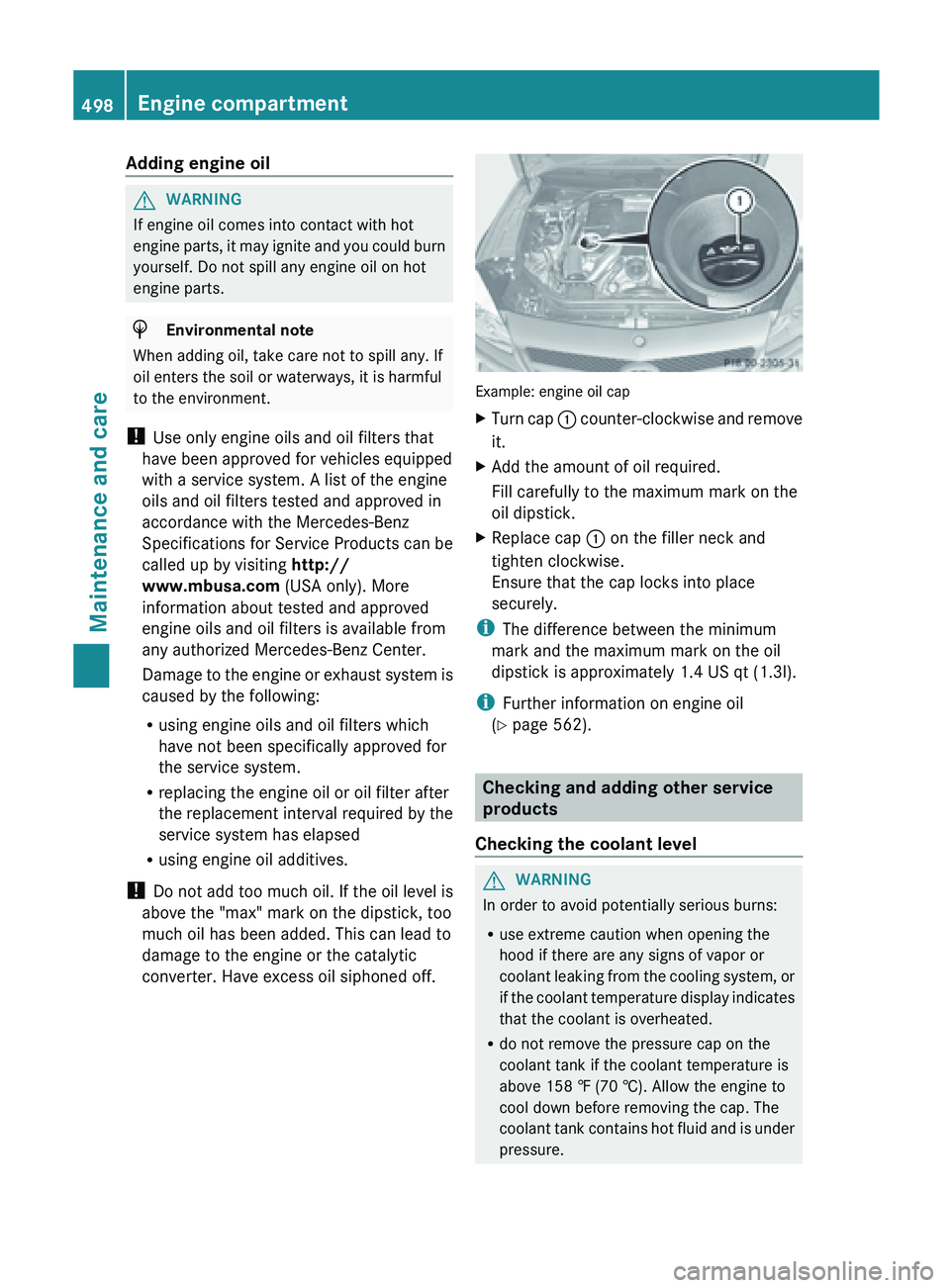
converter. Have excess oil siphoned off. Example: engine oil cap
X
Turn cap : counter-clockwise and remove
it.
X Add the amount of oil required.
Fill carefully to the maximum mark on the
oil dipstick.
X Replace cap :
on the filler neck and
tighten clockwise.
Ensure that the cap locks into place
securely.
i The difference between the minimum
mark and the maximum mark on the oil
dipstick is approximately 1.4 US qt (
1.3l).
i Further information on engine oil
(Y page 562). Checking and adding other service
products
Checking the coolant level G
WARNING
In order to avoid potentially serious burns:
R use extreme caution when opening the
hood if there are any signs of vapor or
coolant leaking
from the cooling system, or
if the coolant temperature display indicates
that the coolant is overheated.
R do not remove the pressure cap on the
coolant tank if the coolant temperature is
above 158 ‡ (70 †). Allow the engine to
cool down before removing the cap. The
coolant tank contains hot fluid and is under
pressure.498
Engine compartment
Maintenance and care
Page 501 of 572
R
using a cloth, slowly turn the cap
approximately Ö turn to relieve excess
pressure. If
you open the cap immediately,
pressurized scalding hot fluid and vapor will
be blown out.
R do not spill antifreeze on hot engine parts.
Antifreeze contains ethylene glycol which
may burn if it comes into contact with hot
engine parts. Example
X
Park the vehicle on a level surface.
Only check the coolant level when the
vehicle is
on a level surface and the engine
has cooled down.
X Turn the SmartKey to position 2 in the
ignition lock (Y page 135).
On vehicles with KEYLESS-GO, press the
Start/Stop button twice (
Y page 135).
X Check the coolant temperature display in
the instrument cluster.
The coolant temperature must be below
158 ‡ (70 †).
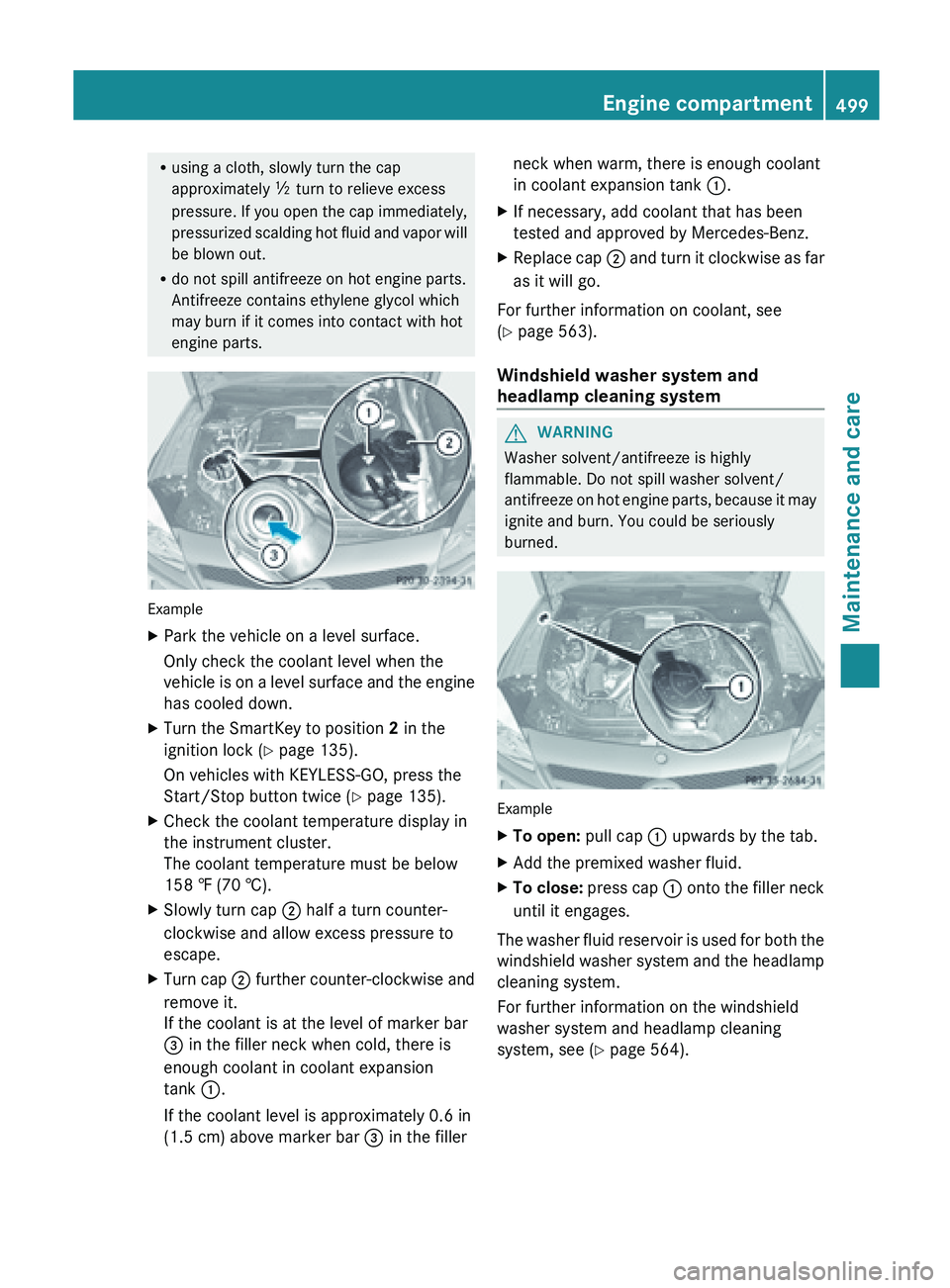
X Slowly turn cap ;
half a turn counter-
clockwise and allow excess pressure to
escape.
X Turn cap ; further
counter-clockwise and
remove it.
If the coolant is at the level of marker bar
= in the filler neck when cold, there is
enough coolant in coolant expansion
tank :.
If the coolant level is approximately 0.6 in
(1.5 cm) above marker bar = in the fillerneck when warm, there is enough coolant
in coolant expansion tank
:.
X If necessary, add coolant that has been
tested and approved by Mercedes-Benz.
X Replace cap ; and
turn it clockwise as far
as it will go.
For further information on coolant, see
(Y page 563).
Windshield washer system and
headlamp cleaning system G
WARNING
Washer solvent/antifreeze is highly
flammable. Do not spill washer solvent/
antifreeze on
hot engine parts, because it may
ignite and burn. You could be seriously
burned. Example
X
To open:
pull cap
: upwards by the tab.
X Add the premixed washer fluid.
X To close:
press cap :
onto the filler neck
until it engages.
The washer fluid reservoir is used for both the
windshield washer
system and the headlamp
cleaning system.
For further information on the windshield
washer system and headlamp cleaning
system, see ( Y page 564). Engine compartment
499
Maintenance and care Z
Page 517 of 572
clamp. Never swap the terminal clamps.
Otherwise, the vehicle's electronic
system may be damaged.
R in vehicles with automatic transmission,
the transmission is locked in position P
after disconnecting the battery. The
vehicle is secured against rolling away.
You can
then no longer move the vehicle.
The battery and the cover of the positive
terminal clamp must be installed securely
during operation.
In order for the battery to achieve the
maximum possible service life, it must always
be sufficiently charged.
The vehicle battery, like other batteries, can
discharge over time if you do not use the
vehicle. In this case, have the battery
disconnected at a qualified specialist
workshop. You can also charge the battery
with a charger recommended by Mercedes-
Benz. Contact a qualified specialist workshop
for further information.
Have the battery charge level checked more
frequently if you use the vehicle mainly for
short trips or if you leave it standing idle for
a lengthy period. Consult a qualified specialist
workshop if you wish to leave your vehicle
parked up for a long period of time.
Only replace a battery with a battery that has
been recommended by Mercedes-Benz.
i Remove the SmartKey if you park the
vehicle and do not require any electrical
consumers. The vehicle will then use very
little energy, thus conserving battery
power.
i After an interruption to the power supply,
e.g. due to a discharged battery, you must
reset the clock (Y page 289). Charging the battery
G
WARNING
Never charge a battery still installed in the
vehicle unless
a battery charger unit approved by Mercedes-Benz is being used. Gases may
escape
during
charging and cause explosions
that may result in paint damage, corrosion or
personal injury.
A battery charger unit specially adapted for
Mercedes-Benz vehicles and tested and
approved by Mercedes-Benz is available as an
accessory. It permits the charging of the
battery in its installed position. Contact an
authorized Mercedes-Benz Center for further
information and availability.
Charge the battery in accordance with the
separate instructions for the battery charger. G
WARNING
There is a risk of acid burns during the
charging process due to the gases which
escape from
the battery. Do not lean over the
battery during the charging process. G
WARNING
Battery acid is caustic. Avoid contact with the
skin, eyes or clothing.
! Only use battery chargers with a
maximum charging voltage of 14.8 V.
! Only charge the battery using the jump-
starting connection point.
The jump-starting connection point is in the
engine compartment.
Read the battery charger's operating
instructions before charging the battery.
X Open the hood (Y page 496).
X Connect the battery charger to the positive
terminal and ground point in the same
order as when connecting the donor
battery in the jump-starting procedure
(Y page 516). Battery
515
Roadside Assistance Z