navigation system MERCEDES-BENZ SL-CLASS ROADSTER 2013 Workshop Manual
[x] Cancel search | Manufacturer: MERCEDES-BENZ, Model Year: 2013, Model line: SL-CLASS ROADSTER, Model: MERCEDES-BENZ SL-CLASS ROADSTER 2013Pages: 572, PDF Size: 9.23 MB
Page 344 of 572
Storing the crosshair position in the list
of previous destinations
A crosshair appears on the map if you have
moved the map manually
(Y
page 343). You
can store the crosshair position as a
destination in the list of previous
destinations.
X To show the menu: press W
the COMAND
controller.
X Select Position in the navigation system
menu bar by turning cVd the COMAND
controller and press W to confirm.
X Select Save Crosshair Position and
press W to confirm.
Deleting one of the previous
destinations X
To switch on navigation mode: press
the
Ø function button.
X To show the menu:
press W
the COMAND
controller.
X Select Destination in the navigation
system menu bar by turning cVd the
COMAND controller and pressing W to
confirm.
X Select From Last Destinations and
press W to confirm.
The list of last destinations appears.
X Select the desired destination and press
W to confirm.
The destination address appears.
X Select Delete and press W to confirm.
A prompt
appears asking whether the entry
should be deleted.
X Select Yes or No and press W to confirm.
If you select Yes, the entry is deleted.
If you select No, the process will be
canceled. Map operation and map settings
General notes Company logos displayed on the map are
trademarks
of
the respective companies and
used solely for the purpose of indicating the
locations of these companies. The use of such
logos on the map does not indicate approval
of, support of or advertising by these
companies for the navigation system itself.
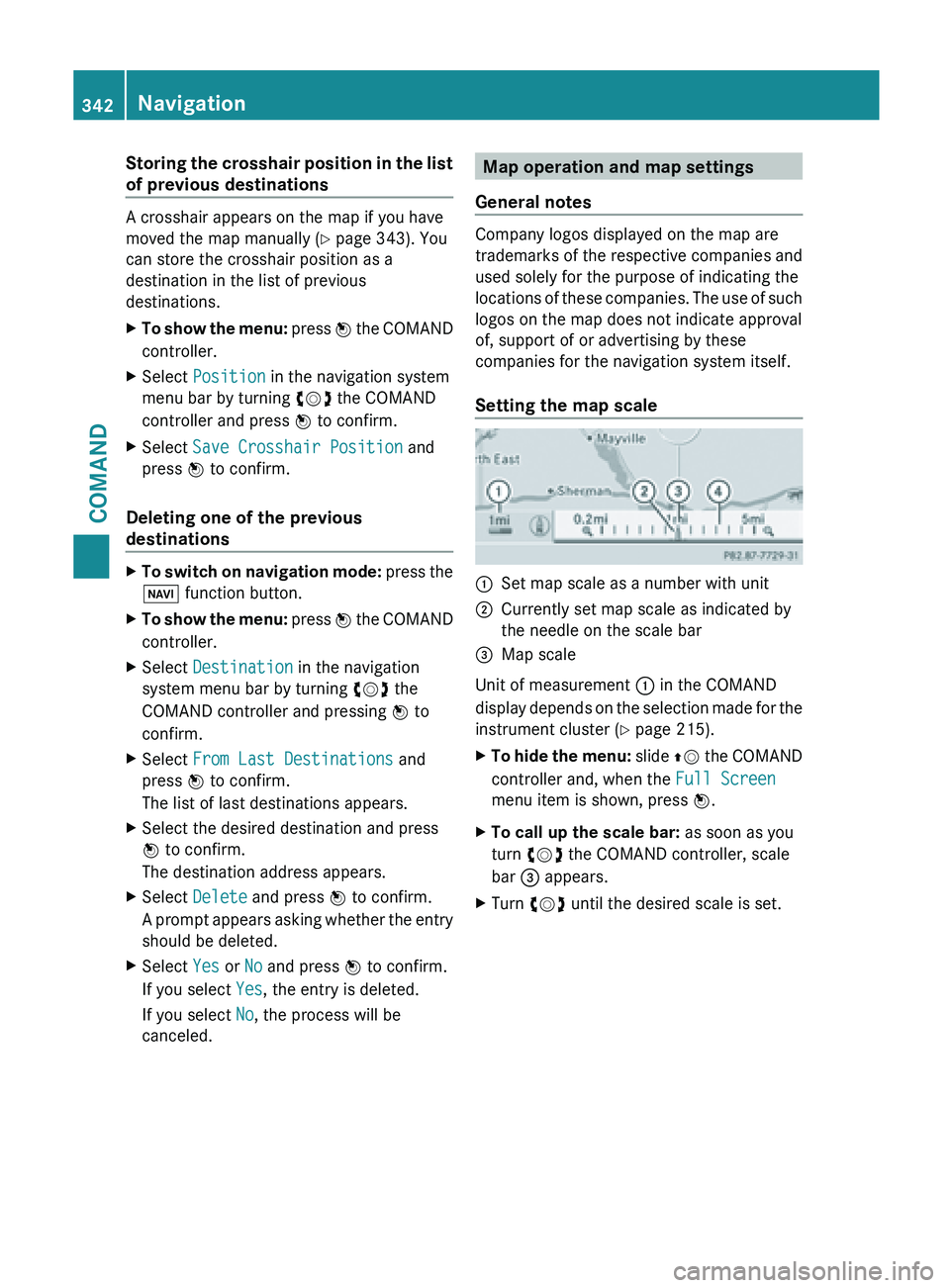
Setting the map scale :
Set map scale as a number with unit
; Currently set map scale as indicated by
the needle on the scale bar
= Map scale
Unit of measurement : in the COMAND
display depends
on the selection made for the
instrument cluster (Y page 215).
X To hide the menu: slide ZV
the COMAND
controller and, when the Full Screen
menu item is shown, press W.
X To call up the scale bar: as soon as you
turn cVd the COMAND controller, scale
bar = appears.
X Turn cVd until the desired scale is set.342
Navigation
COMAND
Page 345 of 572
Moving the map
Showing the crosshair
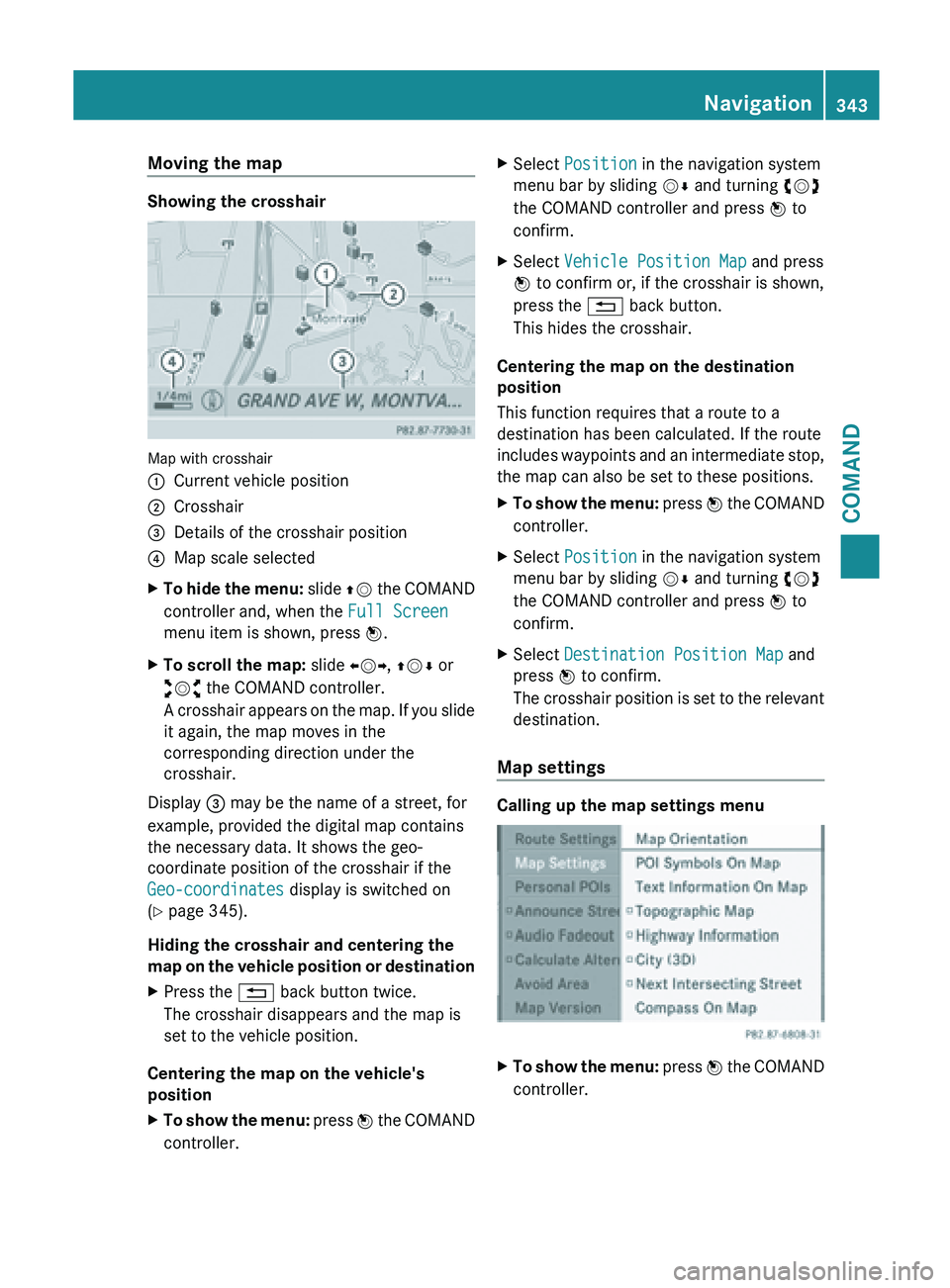
Map with crosshair
:
Current vehicle position
; Crosshair
= Details of the crosshair position
? Map scale selected
X To hide the menu: slide
ZV the COMAND
controller and, when the Full Screen
menu item is shown, press W.
X To scroll the map: slide XVY, ZVÆ or
aVb the COMAND controller.
A crosshair
appears on the map. If you slide
it again, the map moves in the
corresponding direction under the
crosshair.
Display = may be the name of a street, for
example, provided the digital map contains
the necessary data. It shows the geo-
coordinate position of the crosshair if the
Geo-coordinates display is switched on
(Y page 345).
Hiding the crosshair and centering the
map on
the vehicle position or destination
X Press the % back button twice.
The crosshair disappears and the map is
set to the vehicle position.
Centering the map on the vehicle's
position
X To show the menu: press W
the COMAND
controller. X
Select Position in the navigation system
menu bar by sliding VÆ and turning cVd
the COMAND controller and press W to
confirm.
X Select Vehicle Position Map and press
W to confirm or, if the crosshair is shown,
press the % back button.
This hides the crosshair.
Centering the map on the destination
position
This function requires that a route to a
destination has been calculated. If the route
includes waypoints
and an intermediate stop,
the map can also be set to these positions.
X To show the menu: press W
the COMAND
controller.
X Select Position in the navigation system
menu bar by sliding VÆ and turning cVd
the COMAND controller and press W to
confirm.
X Select Destination Position Map and
press W to confirm.
The crosshair
position is set to the relevant
destination.
Map settings Calling up the map settings menu
X
To show the menu:
press W
the COMAND
controller. Navigation
343
COMAND Z
Page 348 of 572
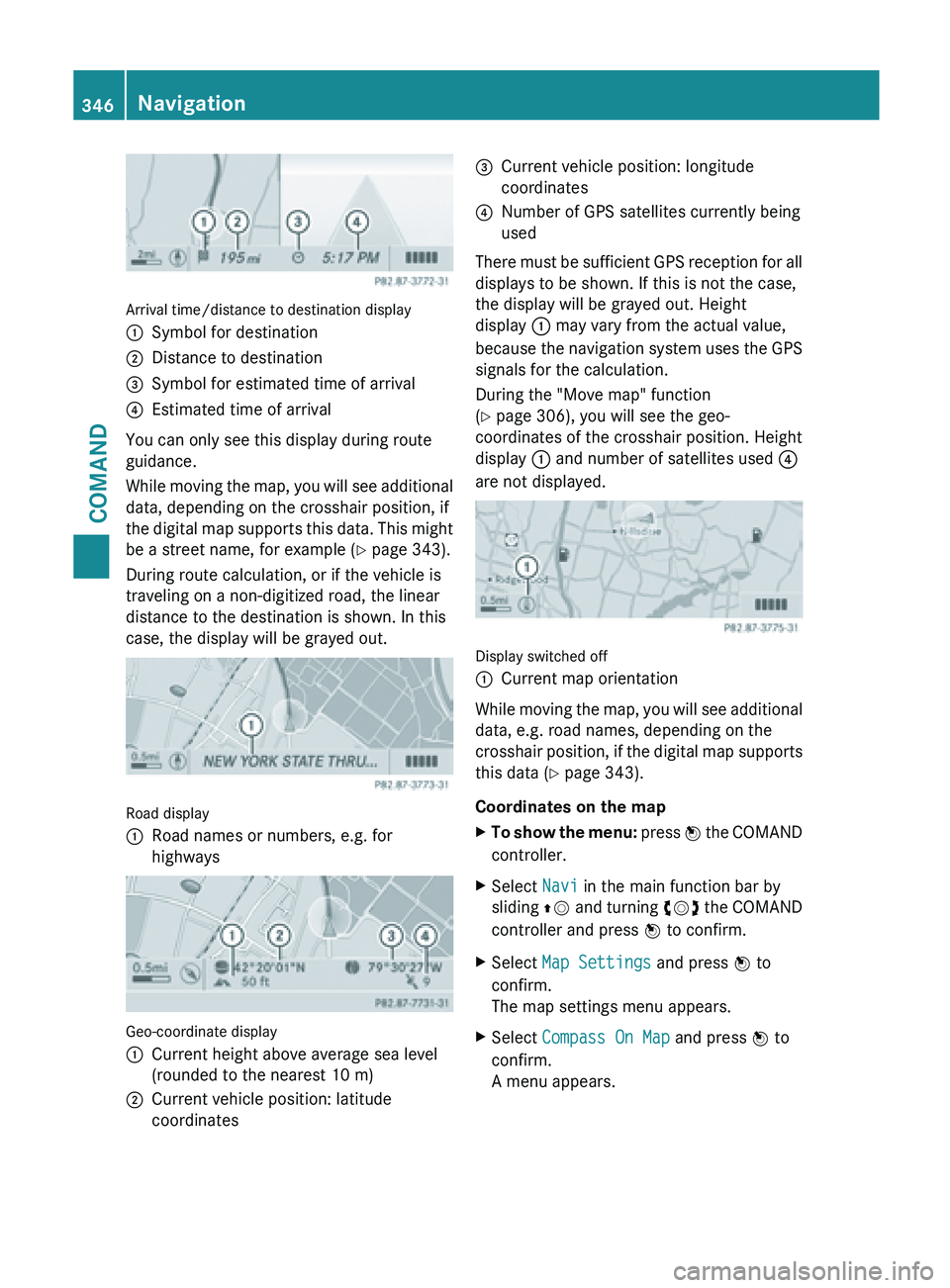
Arrival time/distance to destination display
:
Symbol for destination
; Distance to destination
= Symbol for estimated time of arrival
? Estimated time of arrival
You can only see this display during route
guidance.
While moving
the map, you will see additional
data, depending on the crosshair position, if
the digital map supports this data. This might
be a street name, for example ( Y page 343).
During route calculation, or if the vehicle is
traveling on a non-digitized road, the linear
distance to the destination is shown. In this
case, the display will be grayed out. Road display
:
Road names or numbers, e.g. for
highways Geo-coordinate display
:
Current height above average sea level
(rounded to the nearest 10 m)
; Current vehicle position: latitude
coordinates =
Current vehicle position: longitude
coordinates
? Number of GPS satellites currently being
used
There must be sufficient GPS reception for all
displays to be shown. If this is not the case,
the display will be grayed out. Height
display : may vary from the actual value,
because the
navigation system uses the GPS
signals for the calculation.
During the "Move map" function
(Y page 306), you will see the geo-
coordinates of the crosshair position. Height
display : and number of satellites used ?
are not displayed. Display switched off
:
Current map orientation
While moving the map, you will see additional
data, e.g. road names, depending on the
crosshair position,
if the digital map supports
this data ( Y page 343).
Coordinates on the map
X To show the menu: press W
the COMAND
controller.
X Select Navi in the main function bar by
sliding ZV and
turning cVd the COMAND
controller and press W to confirm.
X Select Map Settings and press W to
confirm.
The map settings menu appears.
X Select Compass On Map and press W to
confirm.
A menu appears. 346
Navigation
COMAND
Page 354 of 572
XM Radio website at
http://www.sirius.com (USA) or
http://www.siriuscanada.com
(Canada).
Once the connection has been established:
X Follow the instructions of the operator.
The activation process may take up to ten
minutes.
If registration is not included when
purchasing the system, your credit card
details will be required to activate your
account.
Compass function In the compass view, you can see the current
direction of travel, the current height above
sea level and the coordinates of the vehicle
position, for example.
X
To switch on navigation mode: press the
Ø function button.
X To show the menu:
press W
the COMAND
controller.
X Select Position in the navigation system
menu bar by sliding VÆ and turning cVd
the COMAND controller and press W to
confirm.
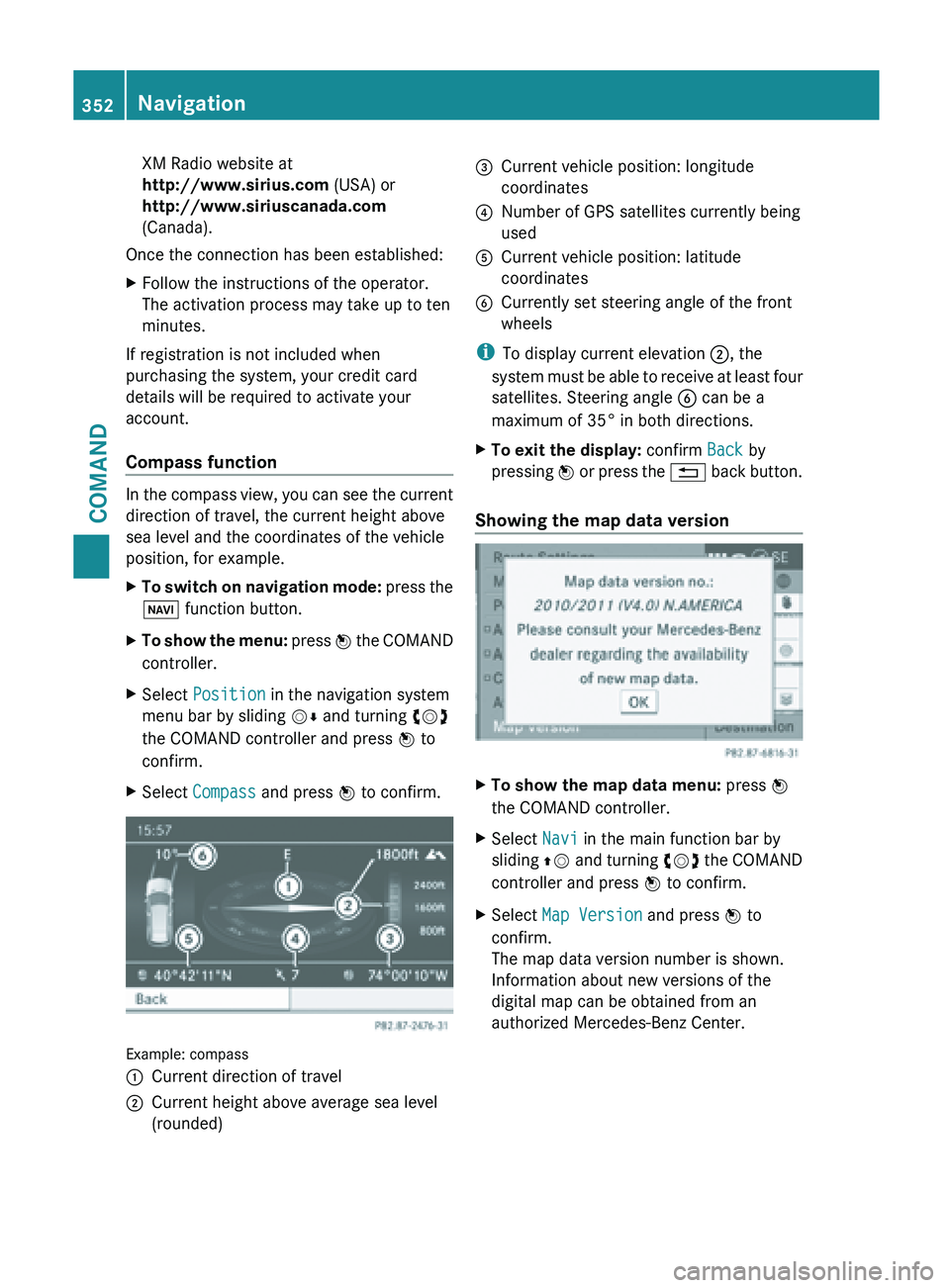
X Select Compass and press W to confirm. Example: compass
:
Current direction of travel
; Current height above average sea level
(rounded) =
Current vehicle position: longitude
coordinates
? Number of GPS satellites currently being
used
A Current vehicle position: latitude
coordinates
B Currently set steering angle of the front
wheels
i To display current elevation ;, the
system must
be able to receive at least four
satellites. Steering angle B can be a
maximum of 35° in both directions.
X To exit the display: confirm Back by
pressing W or
press the % back button.
Showing the map data version X
To show the map data menu: press W
the COMAND controller.
X Select Navi in the main function bar by
sliding ZV and
turning cVd the COMAND
controller and press W to confirm.
X Select Map Version and press W to
confirm.
The map data version number is shown.
Information about new versions of the
digital map can be obtained from an
authorized Mercedes-Benz Center. 352
Navigation
COMAND
Page 355 of 572
Updating the digital map
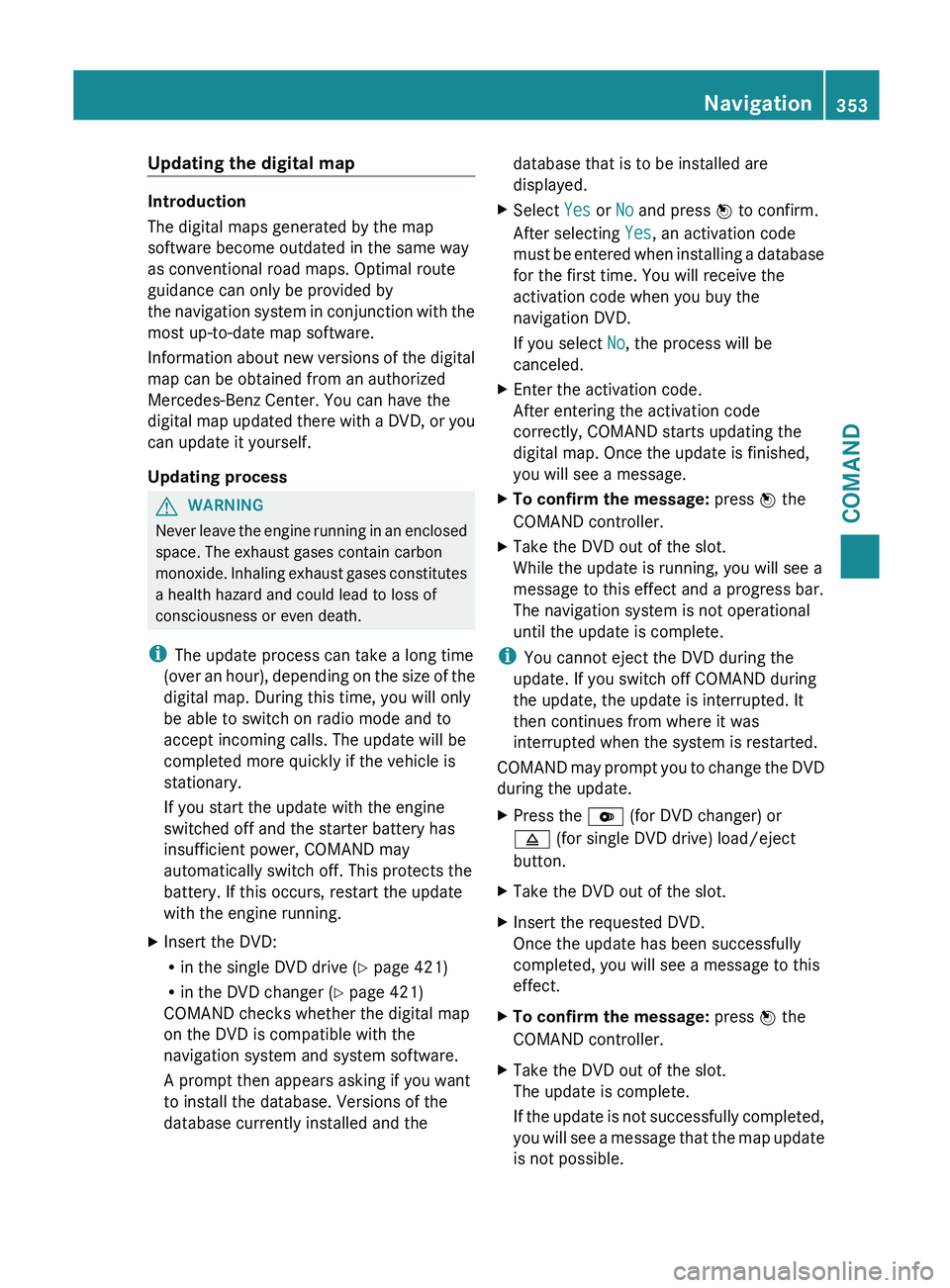
Introduction
The digital maps generated by the map
software become outdated in the same way
as conventional road maps. Optimal route
guidance can only be provided by
the
navigation
system in conjunction with the
most up-to-date map software.
Information about new versions of the digital
map can be obtained from an authorized
Mercedes-Benz Center. You can have the
digital map updated there with a DVD, or you
can update it yourself.
Updating process G
WARNING
Never leave the engine running in an enclosed
space. The exhaust gases contain carbon
monoxide. Inhaling
exhaust gases constitutes
a health hazard and could lead to loss of
consciousness or even death.
i The update process can take a long time
(over an hour), depending on the size of the
digital map. During this time, you will only
be able to switch on radio mode and to
accept incoming calls. The update will be
completed more quickly if the vehicle is
stationary.
If you start the update with the engine
switched off and the starter battery has
insufficient power, COMAND may
automatically switch off. This protects the
battery. If this occurs, restart the update
with the engine running.
X Insert the DVD:
R
in the single DVD drive (Y page 421)
R in the DVD changer (
Y page 421)
COMAND checks whether the digital map
on the DVD is compatible with the
navigation system and system software.
A prompt then appears asking if you want
to install the database. Versions of the
database currently installed and the database that is to be installed are
displayed.
X Select Yes or No and press W to confirm.
After selecting Yes, an activation code
must be
entered when installing a database
for the first time. You will receive the
activation code when you buy the
navigation DVD.
If you select No, the process will be
canceled.
X Enter the activation code.
After entering the activation code
correctly, COMAND starts updating the
digital map. Once the update is finished,
you will see a message.
X To confirm the message: press W the
COMAND controller.
X Take the DVD out of the slot.
While the update is running, you will see a
message to this effect and a progress bar.
The navigation system is not operational
until the update is complete.
i You cannot eject the DVD during the
update. If you switch off COMAND during
the update, the update is interrupted. It
then continues from where it was
interrupted when the system is restarted.
COMAND may
prompt you to change the DVD
during the update.
X Press the V (for DVD changer) or
8 (for single DVD drive) load/eject
button.
X Take the DVD out of the slot.
X Insert the requested DVD.
Once the update has been successfully
completed, you will see a message to this
effect.
X To confirm the message: press W the
COMAND controller.
X Take the DVD out of the slot.
The update is complete.
If the
update is not successfully completed,
you will see a message that the map update
is not possible. Navigation
353
COMAND Z
Page 357 of 572
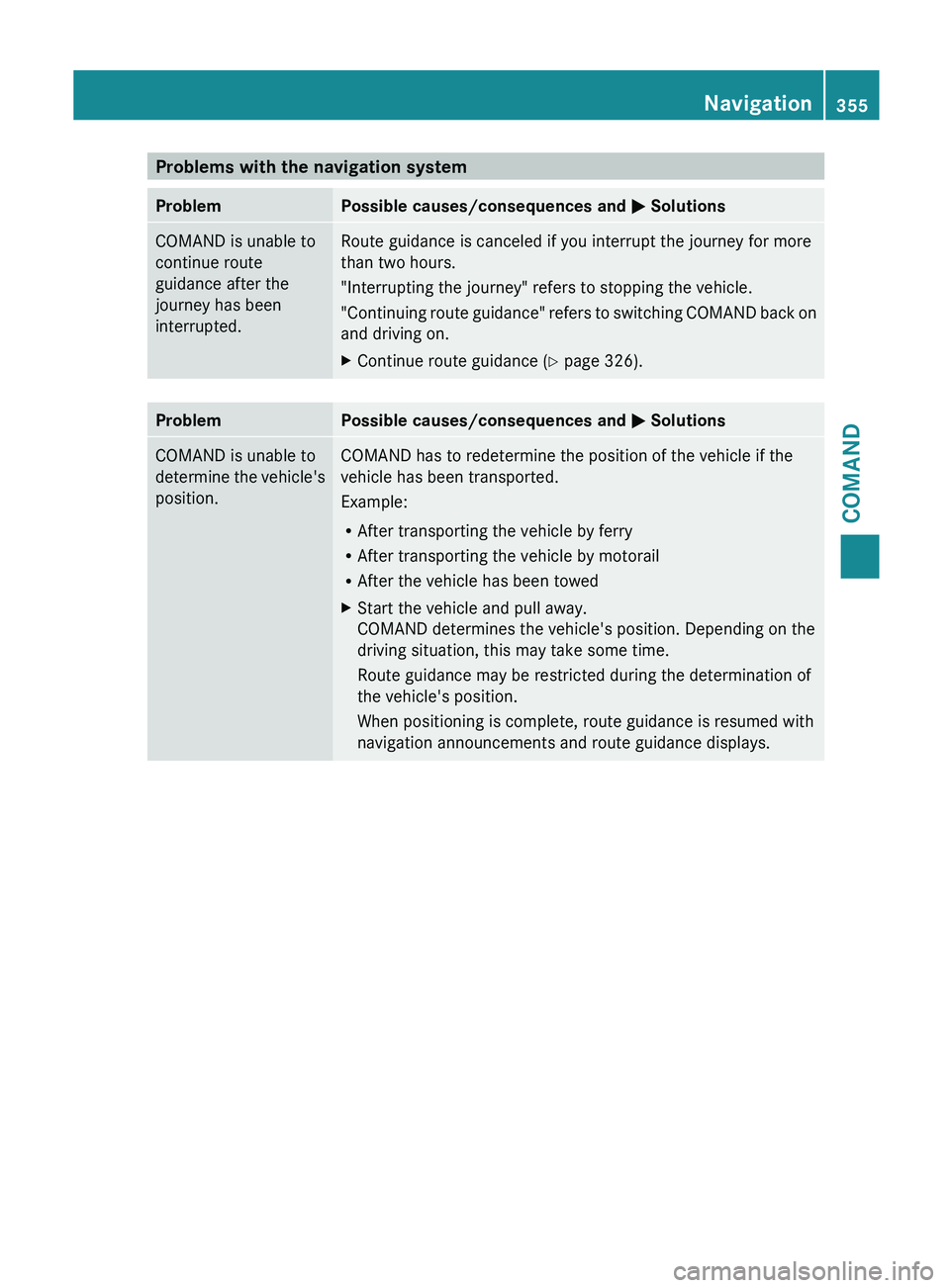
Problems with the navigation system
Problem Possible causes/consequences and
M Solutions
COMAND is unable to
continue route
guidance after the
journey has been
interrupted. Route guidance is canceled if you interrupt the journey for more
than two hours.
"Interrupting the journey" refers to stopping the vehicle.
"Continuing
route
guidance" refers to switching COMAND back on
and driving on.
X Continue route guidance (Y page 326). Problem Possible causes/consequences and
M
Solutions
COMAND is unable to
determine
the
vehicle's
position. COMAND has to redetermine the position of the vehicle if the
vehicle has been transported.
Example:
R
After transporting the vehicle by ferry
R After transporting the vehicle by motorail
R After the vehicle has been towed
X Start the vehicle and pull away.
COMAND determines the vehicle's position. Depending on the
driving situation, this may take some time.
Route guidance may be restricted during the determination of
the vehicle's position.
When positioning is complete, route guidance is resumed with
navigation announcements and route guidance displays. Navigation
355
COMAND Z
Page 358 of 572
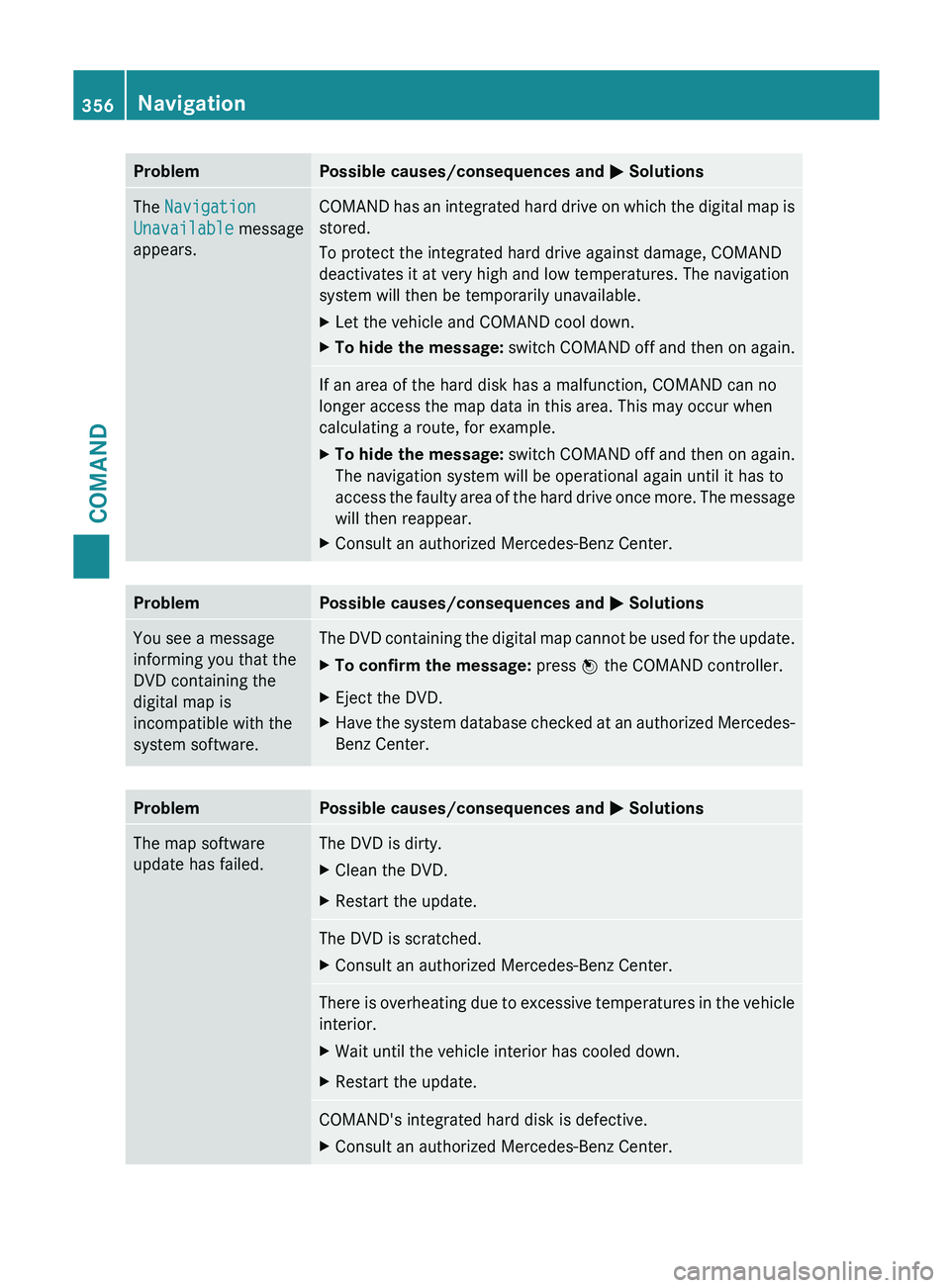
Problem Possible causes/consequences and
M SolutionsThe Navigation
Unavailable message
appears. COMAND has an integrated hard drive on which the digital map is
stored.
To protect the integrated hard drive against damage, COMAND
deactivates it at very high and low temperatures. The navigation
system will then be temporarily unavailable.
X
Let the vehicle and COMAND cool down.
X To hide the message:
switch COMAND off and then on again. If an area of the hard disk has a malfunction, COMAND can no
longer access the map data in this area. This may occur when
calculating a route, for example.
X
To hide the message: switch
COMAND off and then on again.
The navigation system will be operational again until it has to
access the faulty area of the hard drive once more. The message
will then reappear.
X Consult an authorized Mercedes-Benz Center. Problem Possible causes/consequences and
M SolutionsYou see a message
informing you that the
DVD containing the
digital map is
incompatible with the
system software. The DVD containing the digital map cannot be used for the update.
X
To confirm the message: press W the COMAND controller.
X Eject the DVD.
X Have the system database checked at an authorized Mercedes-
Benz Center. Problem Possible causes/consequences and
M SolutionsThe map software
update has failed. The DVD is dirty.
X
Clean the DVD.
X Restart the update. The DVD is scratched.
X
Consult an authorized Mercedes-Benz Center. There is overheating due to excessive temperatures in the vehicle
interior.
X
Wait until the vehicle interior has cooled down.
X Restart the update. COMAND's integrated hard disk is defective.
X
Consult an authorized Mercedes-Benz Center.356
Navigation
COMAND
Page 380 of 572
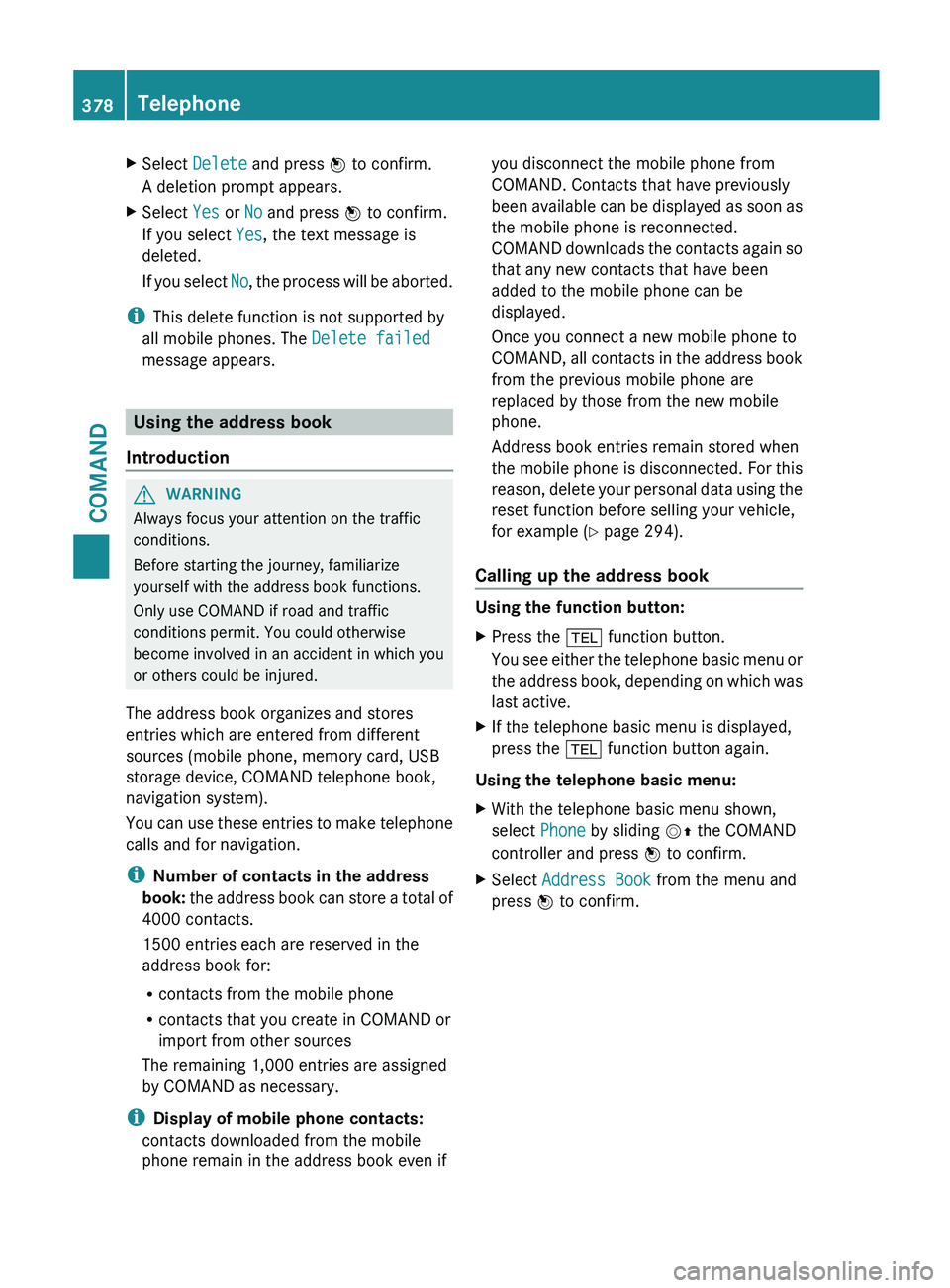
X
Select Delete and press W to confirm.
A deletion prompt appears.
X Select Yes or No and press W to confirm.
If you select Yes, the text message is
deleted.
If you
select No, the process will be aborted.
i This delete function is not supported by
all mobile phones. The Delete failed
message appears. Using the address book
Introduction G
WARNING
Always focus your attention on the traffic
conditions.
Before starting the journey, familiarize
yourself with the address book functions.
Only use COMAND if road and traffic
conditions permit. You could otherwise
become involved in an accident in which you
or others could be injured.
The address book organizes and stores
entries which are entered from different
sources (mobile phone, memory card, USB
storage device, COMAND telephone book,
navigation system).
You can
use these entries to make telephone
calls and for navigation.
i Number of contacts in the address
book: the address book can store a total of
4000 contacts.
1500 entries each are reserved in the
address book for:
R contacts from the mobile phone
R contacts that you create in COMAND or
import from other sources
The remaining 1,000 entries are assigned
by COMAND as necessary.
i Display of mobile phone contacts:
contacts downloaded from the mobile
phone remain in the address book even if you disconnect the mobile phone from
COMAND. Contacts that have previously
been
available
can be displayed as soon as
the mobile phone is reconnected.
COMAND downloads the contacts again so
that any new contacts that have been
added to the mobile phone can be
displayed.
Once you connect a new mobile phone to
COMAND, all contacts in the address book
from the previous mobile phone are
replaced by those from the new mobile
phone.
Address book entries remain stored when
the mobile phone is disconnected. For this
reason, delete your personal data using the
reset function before selling your vehicle,
for example ( Y page 294).
Calling up the address book Using the function button:
X
Press the % function button.
You see
either the telephone basic menu or
the address book, depending on which was
last active.
X If the telephone basic menu is displayed,
press the % function button again.
Using the telephone basic menu:
X With the telephone basic menu shown,
select Phone by sliding VZ the COMAND
controller and press W to confirm.
X Select Address Book from the menu and
press W to confirm. 378
Telephone
COMAND
Page 381 of 572
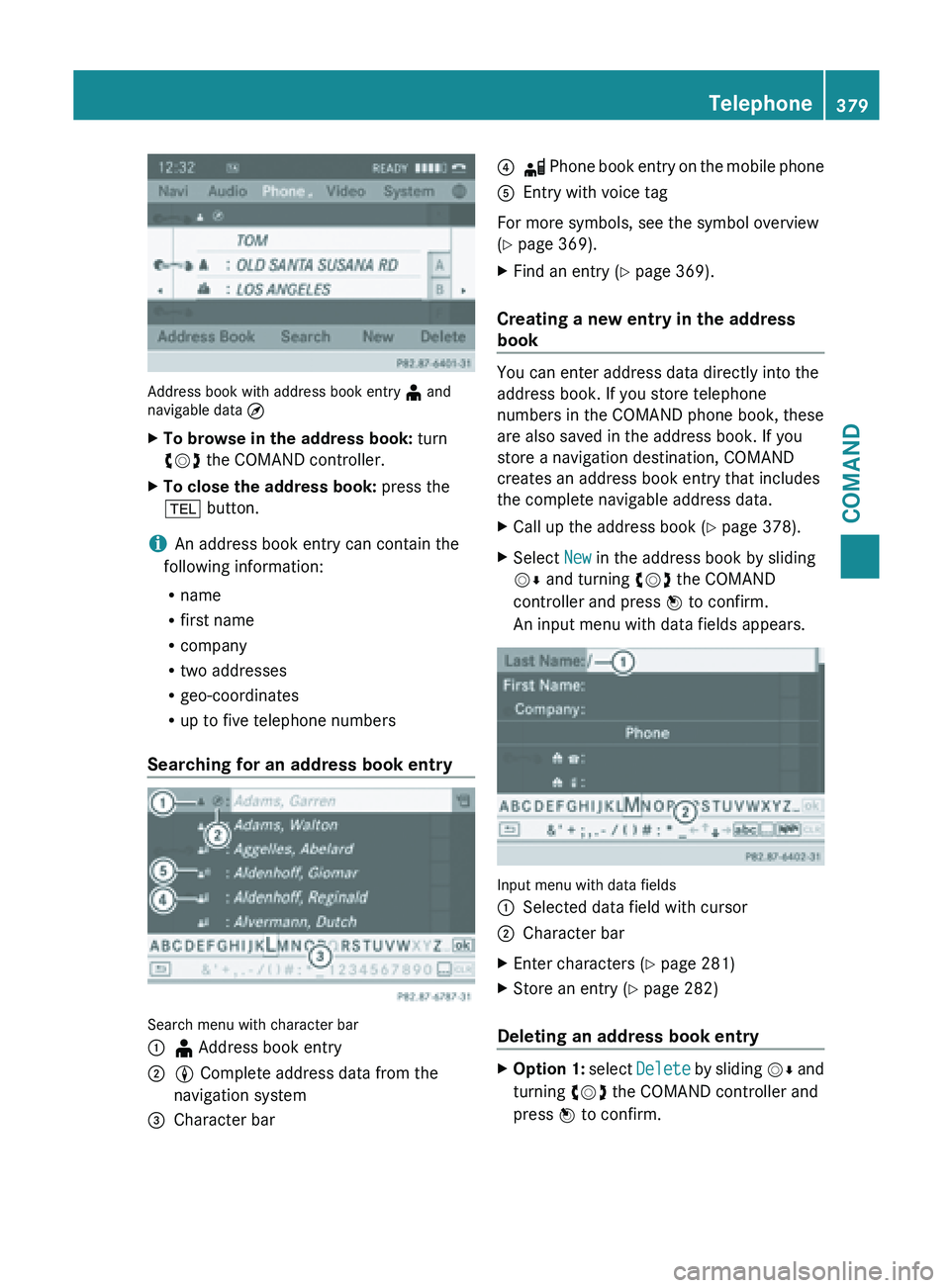
Address book with address book entry
¥ and
navigable data ¤
X To browse in the address book: turn
cVd the COMAND controller.
X To close the address book: press the
% button.
i An address book entry can contain the
following information:
R name
R first name
R company
R two addresses
R geo-coordinates
R up to five telephone numbers
Searching for an address book entry Search menu with character bar
:
¥ Address book entry
; L Complete address data from the
navigation system
= Character bar ?
d Phone book entry on the mobile phone
A Entry with voice tag
For more symbols, see the symbol overview
(
Y page 369).
X Find an entry ( Y page 369).
Creating a new entry in the address
book You can enter address data directly into the
address book. If you store telephone
numbers in the COMAND phone book, these
are also saved in the address book. If you
store a navigation destination, COMAND
creates an address book entry that includes
the complete navigable address data.
X
Call up the address book ( Y page 378).
X Select New in the address book by sliding
VÆ and turning cVd the COMAND
controller and press W to confirm.
An input menu with data fields appears. Input menu with data fields
:
Selected data field with cursor
; Character bar
X Enter characters ( Y page 281)
X Store an entry (Y page 282)
Deleting an address book entry X
Option 1: select Delete
by sliding VÆ and
turning cVd the COMAND controller and
press W to confirm. Telephone
379
COMAND Z
Page 432 of 572
updated. Optimum functionality can only be
attained with up-to-date Gracenote
®
music
recognition technology. Information about
new versions can be obtained from an
authorized Mercedes-Benz Center.
You can have your music recognition
software updated there with a DVD, or you
can update it yourself.
i The Gracenote Media Database is
updated in
conjunction with the navigation
system's digital map ( Y page 353).
Displaying the track and album X
Press z.
The current track and album are displayed
in a window.
Displaying metadata (MP3 mode) COMAND can also display the album name
and artist (metadata) during playback if this
information has been entered into the
system.
For
all
media that contain MP3 data (e.g. MP3
CD, SD memory card, MUSIC REGISTER), you
can determine whether:
R the metadata contained in the tags of the
encoded music data should be displayed
R the file and directory names should be
displayed during playback
X To display the album and artist name:
select MP3 or USB in the basic display by
sliding VÆ and
turning cVd the COMAND
controller and press W to confirm.
X Select Display Track Information and
press W to confirm.
Selecting a group The content of an audio DVD can be divided
into up to 9 groups. The availability and type
of group depends on the respective DVD.
A
group
can contain music in different sound
qualities (stereo and multichannel formats,
for example), or bonus tracks. Each group can contain up to 99 tracks.
If an audio DVD only contains one audio
format, the Group menu item(s) cannot be
selected.
X
Switch on audio DVD mode (Y page 424).
X Select DVD-A by sliding VÆ and turning
cVd the COMAND controller and press
W to confirm.
X Select Group by turning cVd and press
W to confirm.
The # dot indicates the group currently
selected.
X Select the desired group by turning cVd
and press W to confirm.
X To exit the menu: slide
XVY
the COMAND
controller or press the % back button.
Selecting an active partition (USB mass
storage devices only) You can select this function for USB mass
storage devices when the storage device is
partitioned. Up to 9 partitions (primary or
logical; FAT and FAT32) are supported.
X
Select MP3 in the basic display by sliding
VÆ and turning cVd the COMAND
controller and press W to confirm.
X Select Select Active Partition and
press W to confirm.
Playback options X
To select options: switch on audio CD/
DVD or MP3 mode ( Y page 424).
X Select CD, DVD-A or MP3
by sliding VÆ and
turning cVd the COMAND controller and
press W to confirm.
The options list appears. The # dot
indicates the option selected.
X Select an option by turning cVd and
press
W to confirm.
The option is switched on. For all options
except Normal Track Sequence, you will
see a corresponding display in the display/ 430
Audio
COMAND