navigation system MERCEDES-BENZ SL-CLASS ROADSTER 2013 Service Manual
[x] Cancel search | Manufacturer: MERCEDES-BENZ, Model Year: 2013, Model line: SL-CLASS ROADSTER, Model: MERCEDES-BENZ SL-CLASS ROADSTER 2013Pages: 572, PDF Size: 9.23 MB
Page 329 of 572
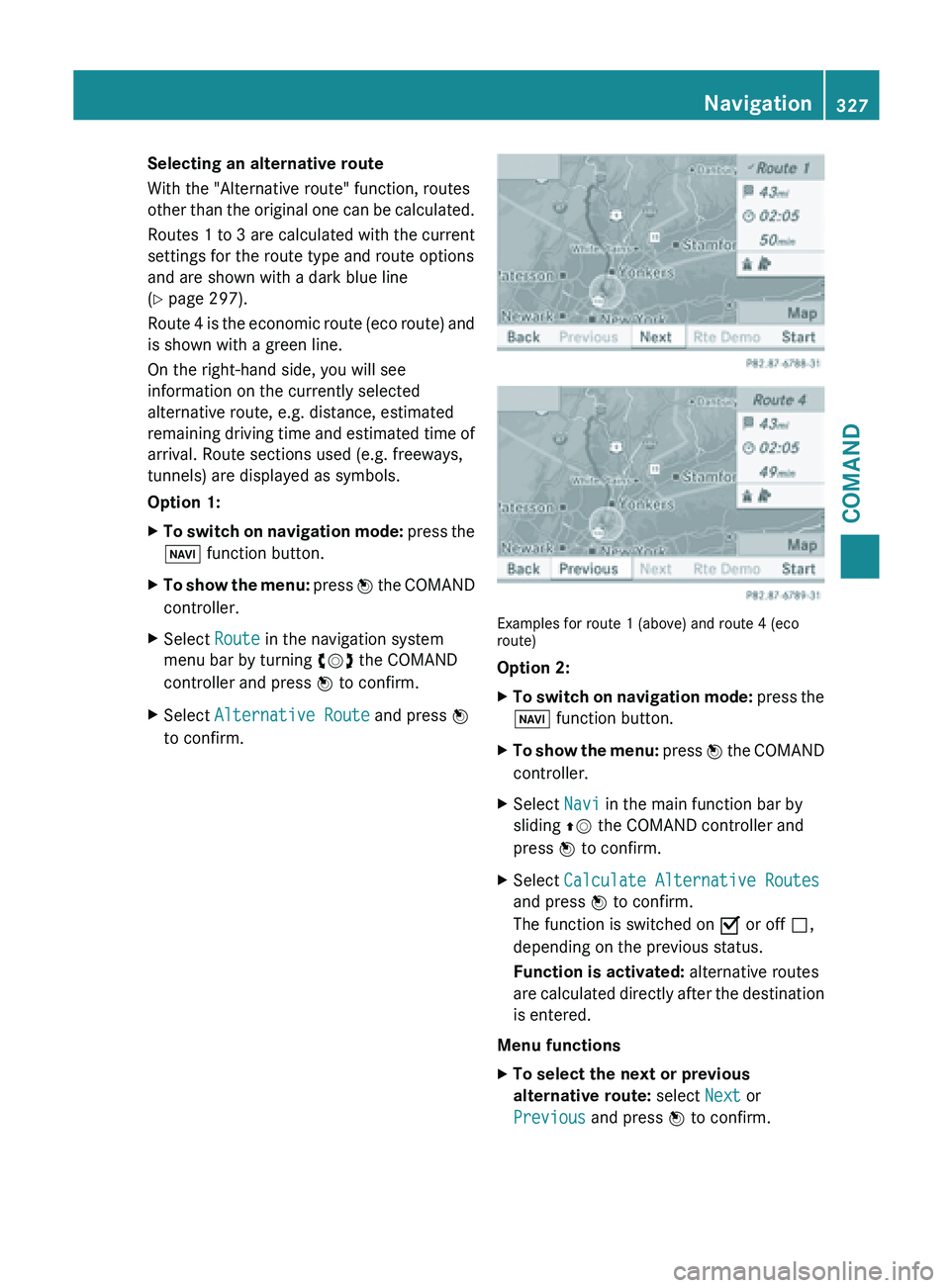
Selecting an alternative route
With the "Alternative route" function, routes
other
than
the original one can be calculated.
Routes 1 to 3 are calculated with the current
settings for the route type and route options
and are shown with a dark blue line
(Y page 297).
Route 4 is the economic route (eco route) and
is shown with a green line.
On the right-hand side, you will see
information on the currently selected
alternative route, e.g. distance, estimated
remaining driving time and estimated time of
arrival. Route sections used (e.g. freeways,
tunnels) are displayed as symbols.
Option 1:
X To switch on navigation mode: press
the
Ø function button.
X To show the menu:
press W
the COMAND
controller.
X Select Route in the navigation system
menu bar by turning cVd the COMAND
controller and press W to confirm.
X Select Alternative Route and press W
to confirm. Examples for route 1 (above) and route 4 (eco
route)
Option 2:
X
To switch on navigation mode: press
the
Ø function button.
X To show the menu:
press W
the COMAND
controller.
X Select Navi in the main function bar by
sliding ZV the COMAND controller and
press W to confirm.
X Select Calculate Alternative Routes
and press W to confirm.
The function is switched on O or off ª,
depending on the previous status.
Function is activated: alternative routes
are calculated
directly after the destination
is entered.
Menu functions
X To select the next or previous
alternative route: select Next or
Previous and press W to confirm. Navigation
327
COMAND Z
Page 330 of 572
X
To start route guidance using the
selected alternative route: select Start
and press W to confirm.
COMAND begins route guidance on the
selected alternative route.
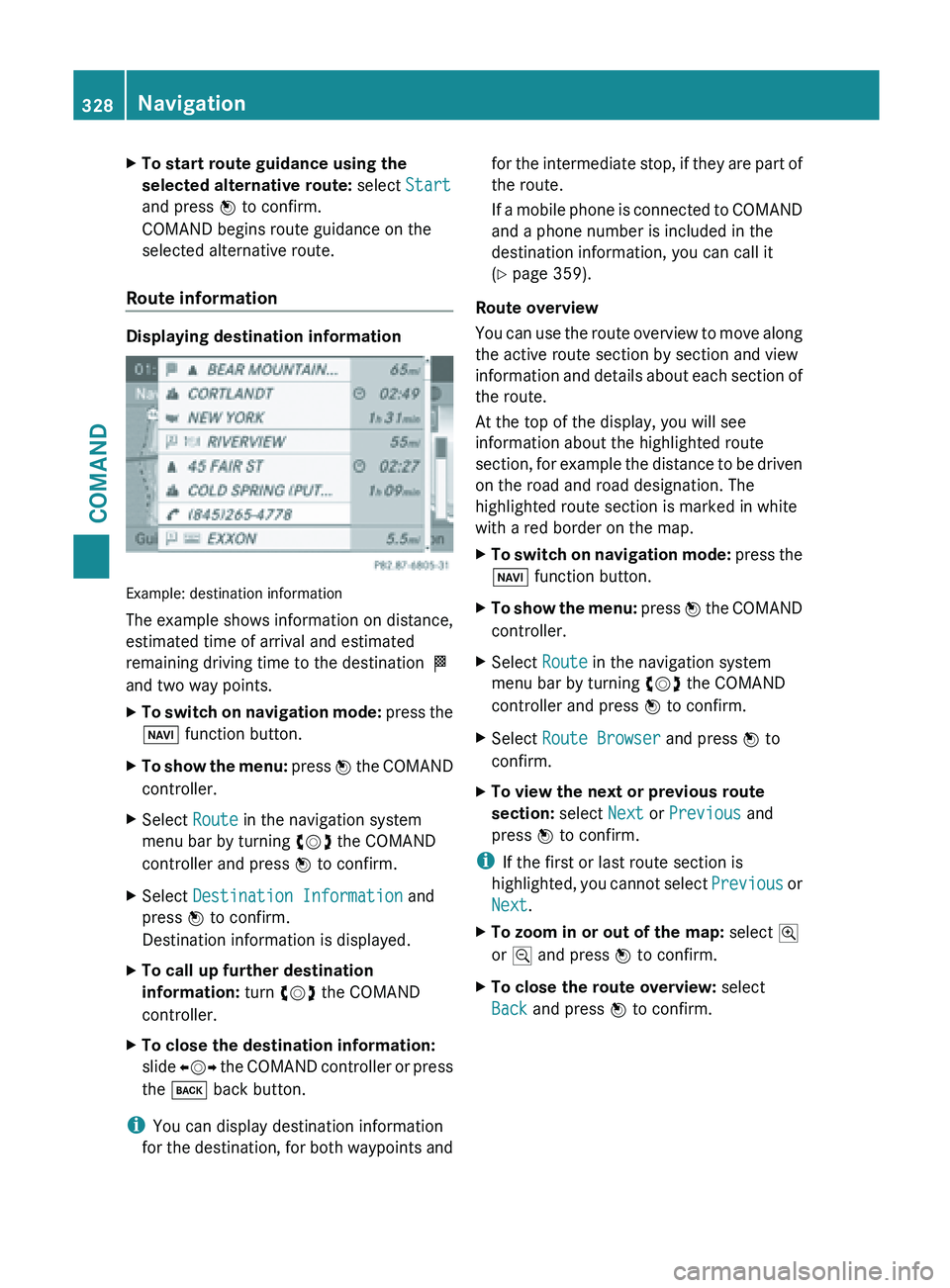
Route information Displaying destination information
Example: destination information
The example shows information on distance,
estimated time of arrival and estimated
remaining driving time to the destination
O
and two way points.
X To switch on navigation mode: press
the
Ø function button.
X To show the menu:
press W
the COMAND
controller.
X Select Route in the navigation system
menu bar by turning cVd the COMAND
controller and press W to confirm.
X Select Destination Information and
press W to confirm.
Destination information is displayed.
X To call up further destination
information: turn cVd the COMAND
controller.
X To close the destination information:
slide XVY the
COMAND controller or press
the k back button.
i You can display destination information
for the
destination, for both waypoints and for the intermediate stop, if they are part of
the route.
If
a
mobile phone is connected to COMAND
and a phone number is included in the
destination information, you can call it
(Y page 359).
Route overview
You can use the route overview to move along
the active route section by section and view
information and details about each section of
the route.
At the top of the display, you will see
information about the highlighted route
section, for example the distance to be driven
on the road and road designation. The
highlighted route section is marked in white
with a red border on the map.
X To switch on navigation mode: press
the
Ø function button.
X To show the menu:
press W
the COMAND
controller.
X Select Route in the navigation system
menu bar by turning cVd the COMAND
controller and press W to confirm.
X Select Route Browser and press W to
confirm.
X To view the next or previous route
section: select Next or Previous and
press W to confirm.
i If the first or last route section is
highlighted, you
cannot select Previous or
Next.
X To zoom in or out of the map: select N
or M and press W to confirm.
X To close the route overview: select
Back and press W to confirm. 328
Navigation
COMAND
Page 331 of 572
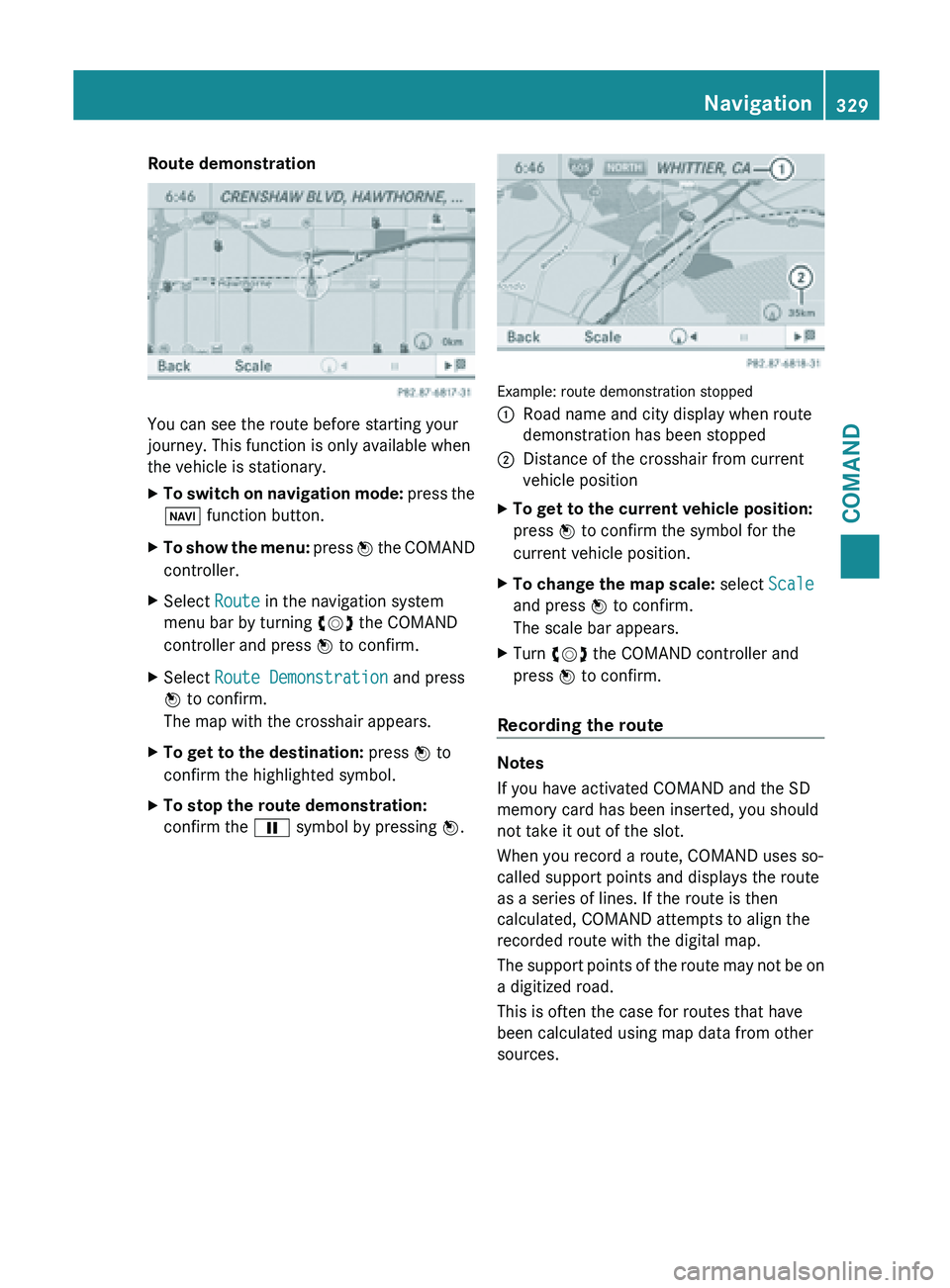
Route demonstration
You can see the route before starting your
journey. This function is only available when
the vehicle is stationary.
X
To switch on navigation mode: press the
Ø function button.
X To show the menu:
press W
the COMAND
controller.
X Select Route in the navigation system
menu bar by turning cVd the COMAND
controller and press W to confirm.
X Select Route Demonstration and press
W to confirm.
The map with the crosshair appears.
X To get to the destination: press W to
confirm the highlighted symbol.
X To stop the route demonstration:
confirm the Ë symbol by pressing W. Example: route demonstration stopped
:
Road name and city display when route
demonstration has been stopped
; Distance of the crosshair from current
vehicle position
X To get to the current vehicle position:
press W to confirm the symbol for the
current vehicle position.
X To change the map scale: select Scale
and press W to confirm.
The scale bar appears.
X Turn cVd the COMAND controller and
press W to confirm.
Recording the route Notes
If you have activated COMAND and the SD
memory card has been inserted, you should
not take it out of the slot.
When you record a route, COMAND uses so-
called support points and displays the route
as a series of lines. If the route is then
calculated, COMAND attempts to align the
recorded route with the digital map.
The
support
points of the route may not be on
a digitized road.
This is often the case for routes that have
been calculated using map data from other
sources. Navigation
329
COMAND Z
Page 332 of 572
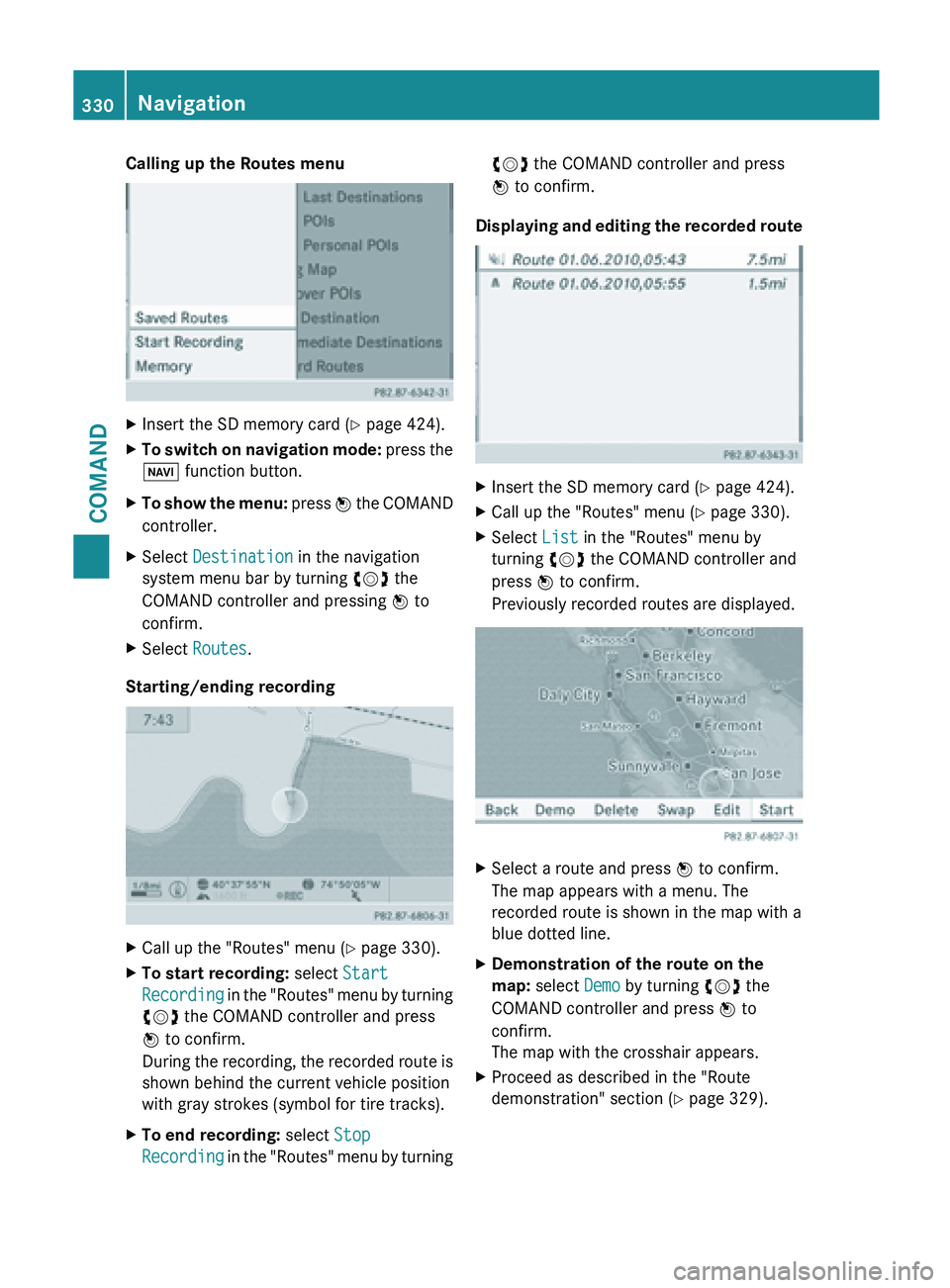
Calling up the Routes menu
X
Insert the SD memory card (Y page 424).
X To switch on navigation mode: press the
Ø function button.
X To show the menu:
press W
the COMAND
controller.
X Select Destination in the navigation
system menu bar by turning cVd the
COMAND controller and pressing W to
confirm.
X Select Routes.
Starting/ending recording X
Call up the "Routes" menu ( Y page 330).
X To start recording: select Start
Recording in
the "Routes" menu by turning
cVd the COMAND controller and press
W to confirm.
During the recording, the recorded route is
shown behind the current vehicle position
with gray strokes (symbol for tire tracks).
X To end recording: select Stop
Recording in
the "Routes" menu by turning cVd the COMAND controller and press
W to confirm.
Displaying and editing the recorded route X
Insert the SD memory card (Y page 424).
X Call up the "Routes" menu ( Y page 330).
X Select List in the "Routes" menu by
turning cVd the COMAND controller and
press W to confirm.
Previously recorded routes are displayed. X
Select a route and press W to confirm.
The map appears with a menu. The
recorded route is shown in the map with a
blue dotted line.
X Demonstration of the route on the
map: select Demo by turning cVd the
COMAND controller and press W to
confirm.
The map with the crosshair appears.
X Proceed as described in the "Route
demonstration" section (
Y page 329).330
Navigation
COMAND
Page 333 of 572
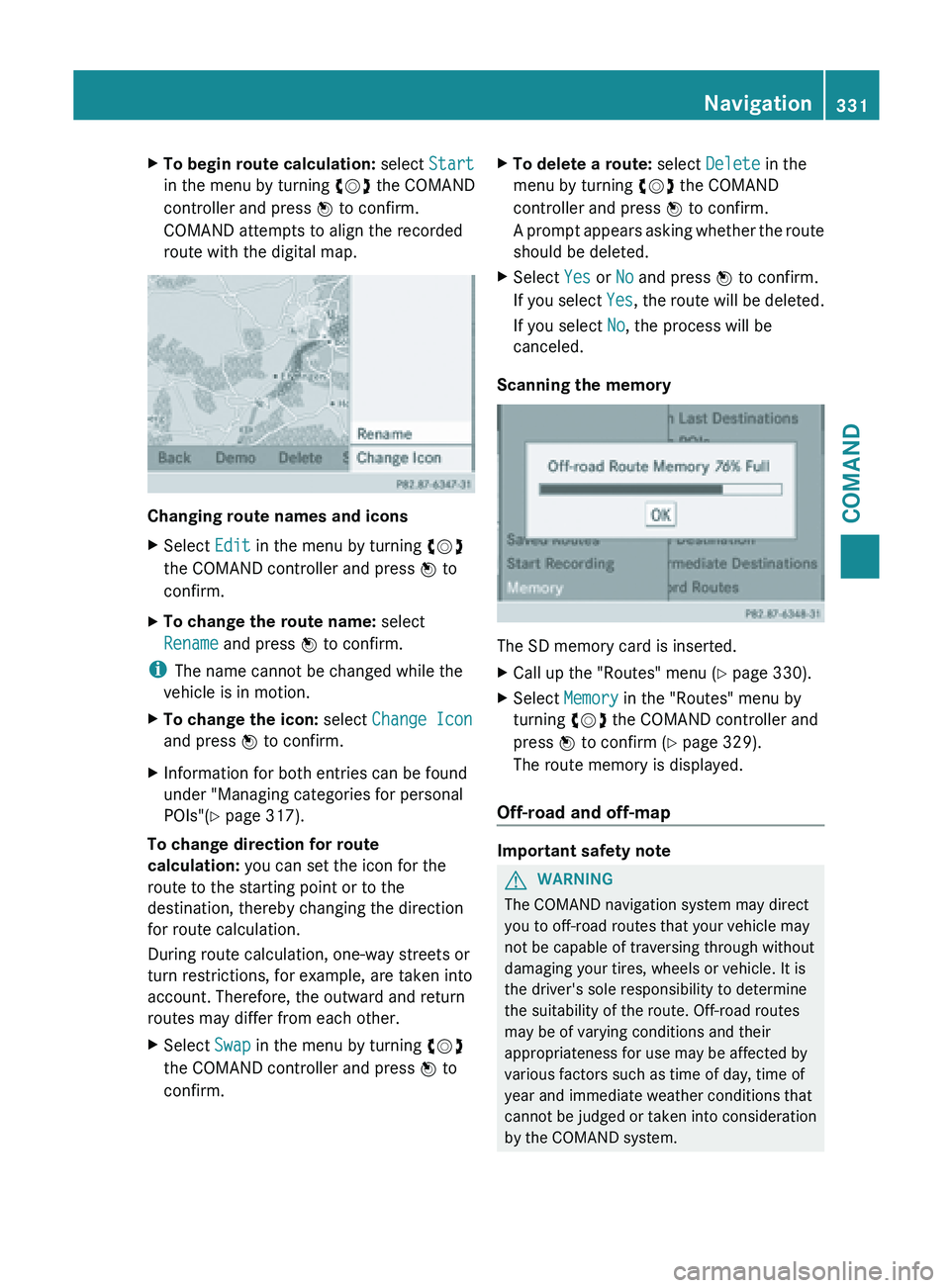
X
To begin route calculation: select Start
in the menu by turning cVd the COMAND
controller and press W to confirm.
COMAND attempts to align the recorded
route with the digital map. Changing route names and icons
X
Select Edit in the menu by turning cVd
the COMAND controller and press W to
confirm.
X To change the route name: select
Rename and press W to confirm.
i The name cannot be changed while the
vehicle is in motion.
X To change the icon: select Change Icon
and press W to confirm.
X Information for both entries can be found
under "Managing categories for personal
POIs"( Y page 317).
To change direction for route
calculation: you can set the icon for the
route to the starting point or to the
destination, thereby changing the direction
for route calculation.
During route calculation, one-way streets or
turn restrictions, for example, are taken into
account. Therefore, the outward and return
routes may differ from each other.
X Select Swap in the menu by turning cVd
the COMAND controller and press W to
confirm. X
To delete a route: select Delete in the
menu by turning cVd the COMAND
controller and press W to confirm.
A prompt
appears asking whether the route
should be deleted.
X Select Yes or No and press W to confirm.
If you
select Yes, the route will be deleted.
If you select No, the process will be
canceled.
Scanning the memory The SD memory card is inserted.
X
Call up the "Routes" menu ( Y page 330).
X Select Memory in the "Routes" menu by
turning cVd the COMAND controller and
press W to confirm (
Y page 329).
The route memory is displayed.
Off-road and off-map Important safety note
G
WARNING
The COMAND navigation system may direct
you to off-road routes that your vehicle may
not be capable of traversing through without
damaging your tires, wheels or vehicle. It is
the driver's sole responsibility to determine
the suitability of the route. Off-road routes
may be of varying conditions and their
appropriateness for use may be affected by
various factors such as time of day, time of
year and immediate weather conditions that
cannot be
judged or taken into consideration
by the COMAND system. Navigation
331
COMAND Z
Page 334 of 572
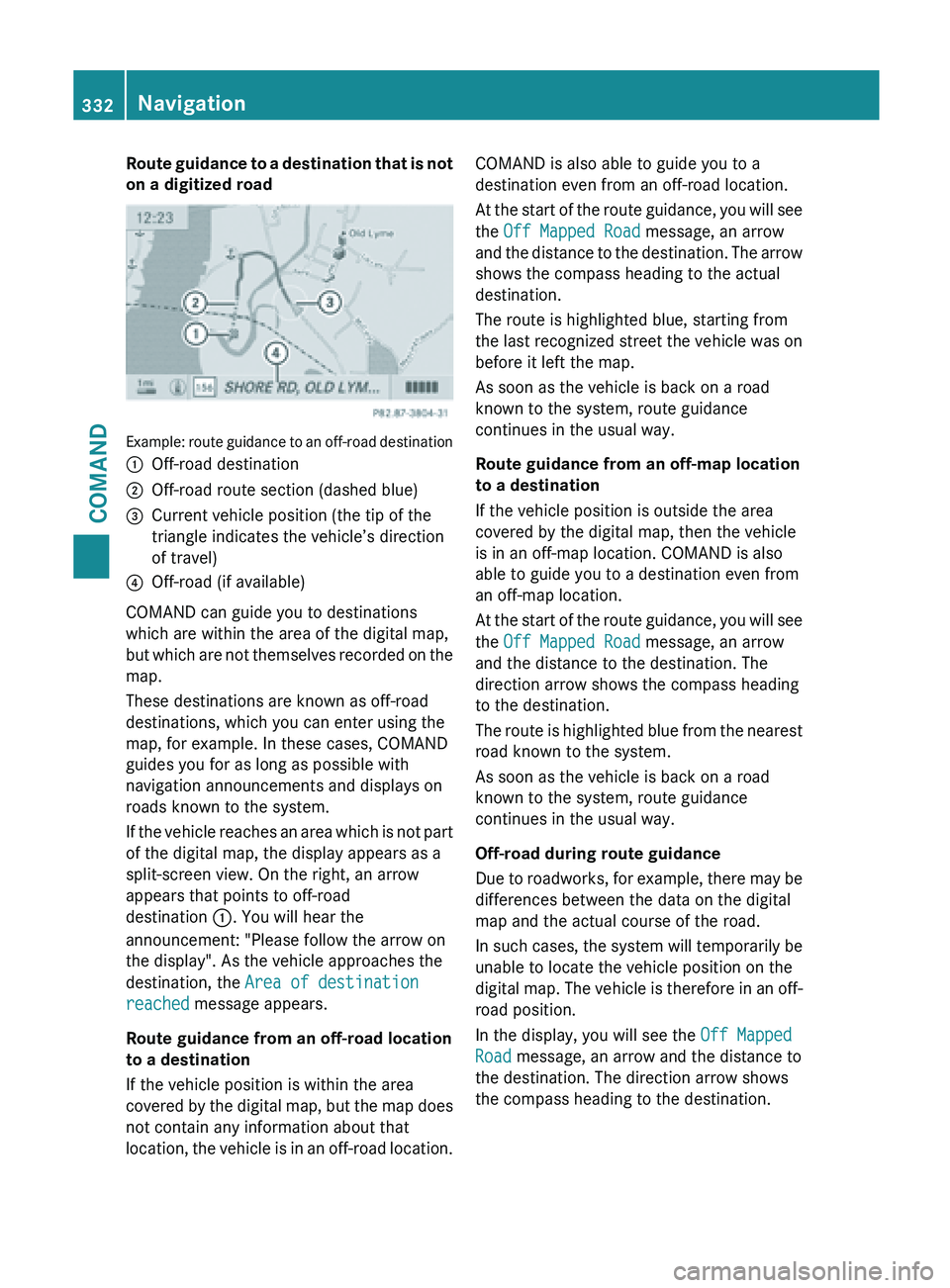
Route guidance to a destination that is not
on a digitized road
Example: route guidance to an off-road destination
:
Off-road destination
; Off-road route section (dashed blue)
= Current vehicle position (the tip of the
triangle indicates the vehicle’s direction
of travel)
? Off-road (if available)
COMAND can guide you to destinations
which are within the area of the digital map,
but which
are not themselves recorded on the
map.
These destinations are known as off-road
destinations, which you can enter using the
map, for example. In these cases, COMAND
guides you for as long as possible with
navigation announcements and displays on
roads known to the system.
If the vehicle reaches an area which is not part
of the digital map, the display appears as a
split-screen view. On the right, an arrow
appears that points to off-road
destination :. You will hear the
announcement: "Please follow the arrow on
the display". As the vehicle approaches the
destination, the Area of destination
reached message appears.
Route guidance from an off-road location
to a destination
If the vehicle position is within the area
covered by the digital map, but the map does
not contain any information about that
location, the vehicle is in an off-road location. COMAND is also able to guide you to a
destination even from an off-road location.
At
the
start of the route guidance, you will see
the Off Mapped Road message, an arrow
and the distance to the destination. The arrow
shows the compass heading to the actual
destination.
The route is highlighted blue, starting from
the last recognized street the vehicle was on
before it left the map.
As soon as the vehicle is back on a road
known to the system, route guidance
continues in the usual way.
Route guidance from an off-map location
to a destination
If the vehicle position is outside the area
covered by the digital map, then the vehicle
is in an off-map location. COMAND is also
able to guide you to a destination even from
an off-map location.
At the start of the route guidance, you will see
the Off Mapped Road message, an arrow
and the distance to the destination. The
direction arrow shows the compass heading
to the destination.
The route is highlighted blue from the nearest
road known to the system.
As soon as the vehicle is back on a road
known to the system, route guidance
continues in the usual way.
Off-road during route guidance
Due to roadworks, for example, there may be
differences between the data on the digital
map and the actual course of the road.
In such cases, the system will temporarily be
unable to locate the vehicle position on the
digital map. The vehicle is therefore in an off-
road position.
In the display, you will see the Off Mapped
Road message, an arrow and the distance to
the destination. The direction arrow shows
the compass heading to the destination. 332
Navigation
COMAND
Page 335 of 572
As soon as the system can assign the vehicle
position to the map again, route guidance
continues in the usual way.
Traffic reports
Conditions i
This function
is currently not available for
Canada.
To receive real-time traffic reports via
satellite radio, you require:
R optionally available satellite radio
equipment
R a subscription to SIRIUS XM Satellite Radio
Traffic Message Service
Further information on satellite radio
(Y page 416).
COMAND can receive traffic reports via
satellite radio and take account of these for
route guidance in the navigation system.
Received traffic reports are displayed on the
map either as text or as symbols.
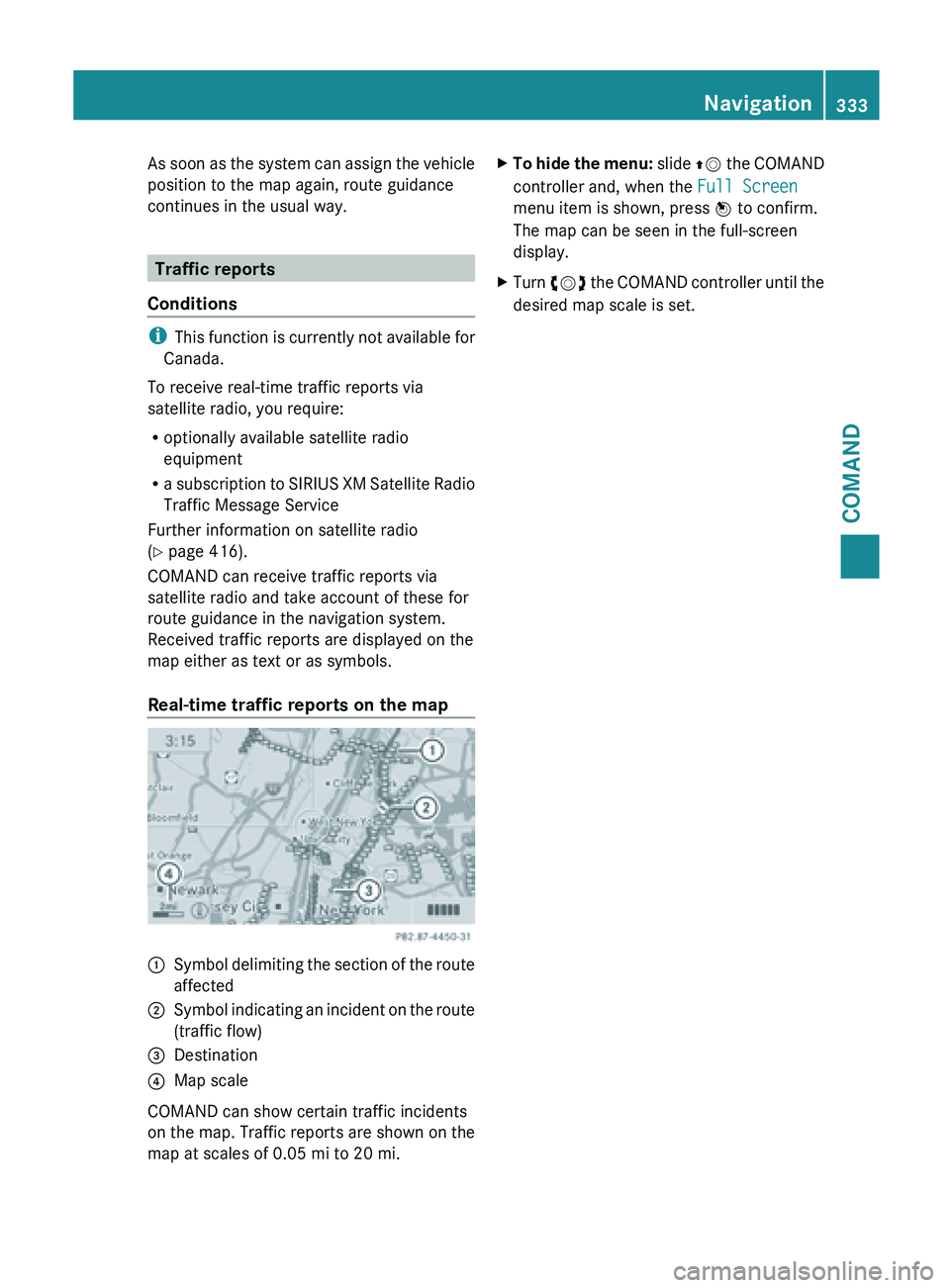
Real-time traffic reports on the map :
Symbol delimiting the section of the route
affected
; Symbol indicating an incident on the route
(traffic flow)
= Destination
? Map scale
COMAND can show certain traffic incidents
on the
map. Traffic reports are shown on the
map at scales of 0.05 mi to 20 mi. X
To hide the menu: slide ZV
the COMAND
controller and, when the Full Screen
menu item is shown, press W to confirm.
The map can be seen in the full-screen
display.
X Turn cVd the COMAND controller until the
desired map scale is set. Navigation
333
COMAND Z
Page 340 of 572
Adopting an address book entry as a
home address
X
To switch on navigation mode: press the
Ø function button.
X To show the menu:
press W
the COMAND
controller.
X Select Dest. in the navigation system
menu bar by turning cVd the COMAND
controller and pressing W to confirm.
X Select From Memory and press W to
confirm.
You will see the destination memory list
either with the character bar (option 1) or
as a selection list (option 2).
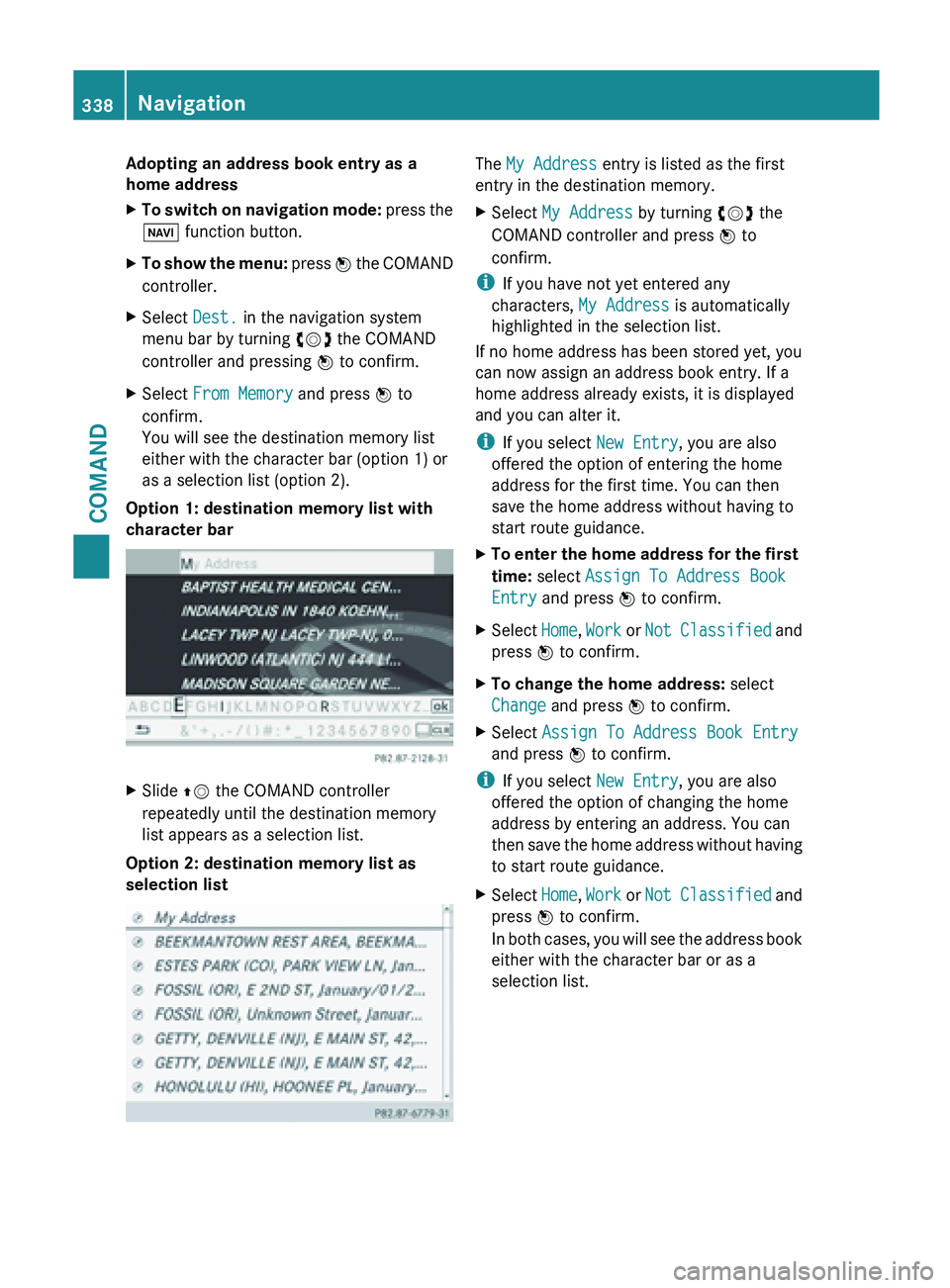
Option 1: destination memory list with
character bar X
Slide ZV the COMAND controller
repeatedly until the destination memory
list appears as a selection list.
Option 2: destination memory list as
selection list The My Address entry is listed as the first
entry in the destination memory.
X
Select My Address by turning cVd the
COMAND controller and press W to
confirm.
i If you have not yet entered any
characters, My Address is automatically
highlighted in the selection list.
If no home address has been stored yet, you
can now assign an address book entry. If a
home address already exists, it is displayed
and you can alter it.
i If you select New Entry, you are also
offered the option of entering the home
address for the first time. You can then
save the home address without having to
start route guidance.
X To
enter the home address for the first
time: select Assign To Address Book
Entry and press W to confirm.
X Select Home, Work or
Not
Classified and
press W to confirm.
X To change the home address: select
Change and press W to confirm.
X Select Assign To Address Book Entry
and press W to confirm.
i If you select New Entry, you are also
offered the option of changing the home
address by entering an address. You can
then save
the home address without having
to start route guidance.
X Select Home, Work or Not
Classified and
press W to confirm.
In both cases, you will see the address book
either with the character bar or as a
selection list. 338
Navigation
COMAND
Page 341 of 572
X
To select an address book entry:
proceed as described in "Searching for an
address book entry" ( Y page 379).
X To confirm the selection: press W the
COMAND controller.
If there is no existing home address,
COMAND saves the entry. You will see a
message and then the address menu with
the selected address. Start is highlighted
automatically.
If a
home address has already been stored,
you will see a prompt asking you whether
the My Address entry should be
overwritten.
X Select Yes or No and press W to confirm.
If you select Yes, COMAND overwrites the
destination. You will see a message and
then the address menu with the selected
address. Start is highlighted
automatically.
If you select No, the list will appear again.
Selecting the home address for route
guidance
X Proceed as described under "Selecting a
destination from the destination memory"
(Y page 304).
Storing a destination in the destination
memory General notes
This function also stores the destination in
the address book.
When
the
address book is full, no destinations
can be saved in the destination memory. You
must first delete address book entries
(Y page 379). After destination entry
X
The destination has been entered and is
shown in the address entry menu
(Y page 299).
X Select Save by sliding VÆ and turning
cVd the COMAND controller and press
W to confirm.
You can now select storing options
(Y page 340).
During route guidance
X To show the menu: press W
the COMAND
controller.
X Select Destination in the navigation
system menu bar by turning cVd the
COMAND controller and pressing W to
confirm.
X Select Save Destination
and press W to
confirm.
You can now select storing options
(Y page 340).
From the list of previous destinations
X To show the menu: press W
the COMAND
controller.
X Select Destination in the navigation
system menu bar by turning cVd the
COMAND controller and pressing W to
confirm.
X Select From Last Destinations and
press W to confirm.
The list of last destinations appears.
X Select a destination by turning cVd the
COMAND controller and press W to
confirm.
The destination address is shown.
X Select Save and press W to confirm.
You can now select storing options
(Y page 340). Navigation
339
COMAND Z
Page 343 of 572
If the selected address book entry already
contains
navigable
address data, a prompt
will appear asking whether you wish to
overwrite the existing data.
X Select Yes or No and press W to confirm.
If you
select Yes, COMAND stores the data.
You can start route guidance to this address
directly from the address book
(Y page 381).
Deleting a destination or the home
address X
To switch on navigation mode: press
the
Ø function button.
X To show the menu:
press W
the COMAND
controller.
X Select Destination in the navigation
system menu bar by turning cVd the
COMAND controller and pressing W to
confirm.
X Select From Memory and press W to
confirm.
You will see the destination memory list
either with the character bar (option 1) or
as a selection list (option 2).
X Option 1: destination memory list with
character bar: proceed as described
under "Entering characters using the
character bar" ( Y page 283).
X Option 2: destination memory list as
selection list: select a destination by
turning cVd the COMAND controller and
press W to confirm.
You see the address data of the selected
entry.
X Select Delete and press W to confirm.
A prompt
appears asking whether you wish
to delete the destination.
X Select Yes or No and press W to confirm.
If you select Yes, COMAND deletes the
destination. You
will see a message to this
effect. If you select
No, the process will be
canceled.
i If the navigable address data for the
destination being deleted is also assigned
to an address book entry, COMAND will
also delete this data from there. If the
corresponding address book entry does
not contain any further data, such as
telephone numbers, COMAND deletes the
entire address book entry. Previous destinations
Introduction COMAND automatically stores the previous
destinations for which route calculation has
been
started.
If the memory is full, COMAND
deletes the oldest destination. You can also
save a destination from the list of previous
destinations in the destination memory. It will
be stored there permanently.
Storing a destination permanently in
the destination memory X
Proceed as described in the "From the list
of previous destinations" section
(Y page 305).
Storing the vehicle position in the list of
previous destinations X
To switch on navigation mode: press
the
Ø function button.
X To show the menu: press W
the COMAND
controller.
X Select Position in the navigation system
menu bar by turning cVd the COMAND
controller and press W to confirm.
X Select Save Vehicle
Position and press
W to confirm.
COMAND stores the current vehicle
position as a destination in the list of
previous destinations. Navigation
341
COMAND Z