engine MERCEDES-BENZ SL ROADSTER 2012 Owners Manual
[x] Cancel search | Manufacturer: MERCEDES-BENZ, Model Year: 2012, Model line: SL ROADSTER, Model: MERCEDES-BENZ SL ROADSTER 2012Pages: 637, PDF Size: 20.68 MB
Page 285 of 637
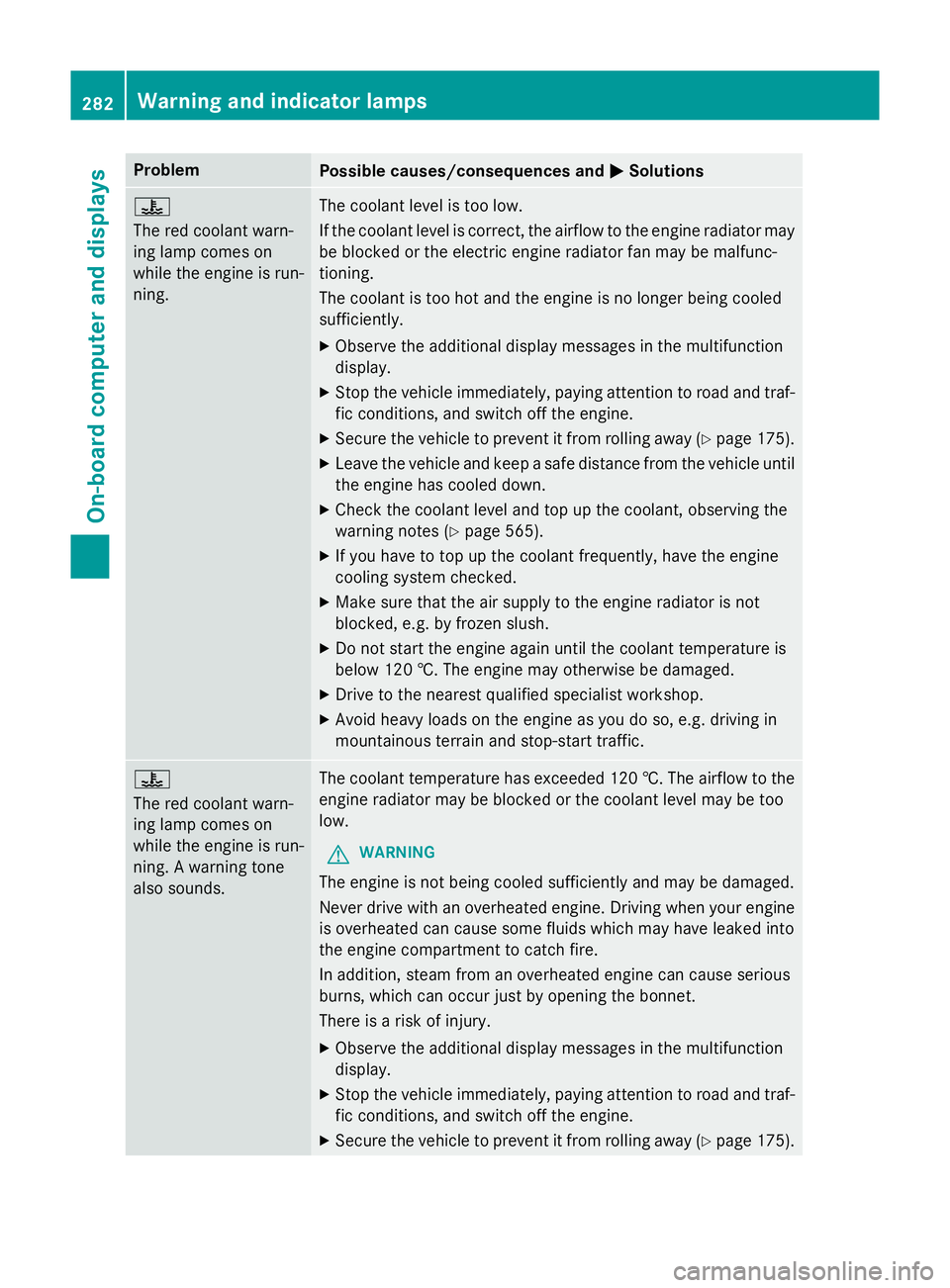
Problem
Possible causes/consequences and
M
MSolutions ?
The red coolant warn-
ing lamp comes on
while the engine is run-
ning.
The coolant level is too low.
If the coolant level is correct, the airflow to the engine radiator may
be blocked or the electric engine radiator fan may be malfunc-
tioning.
The coolant is too hot and the engine is no longer being cooled
sufficiently.
X Observe the additional display messages in the multifunction
display.
X Stop the vehicle immediately, paying attention to road and traf-
fic conditions, and switch off the engine.
X Secure the vehicle to prevent it from rolling away (Y page 175).
X Leave the vehicle and keep a safe distance from the vehicle until
the engine has cooled down.
X Check the coolant level and top up the coolant, observing the
warning notes (Y page 565).
X If you have to top up the coolant frequently, have the engine
cooling system checked.
X Make sure that the air supply to the engine radiator is not
blocked, e.g. by frozen slush.
X Do not start the engine again until the coolant temperature is
below 120 †. The engine may otherwise be damaged.
X Drive to the nearest qualified specialist workshop.
X Avoid heavy loads on the engine as you do so, e.g. driving in
mountainous terrain and stop-start traffic. ?
The red coolant warn-
ing lamp comes on
while the engine is run-
ning. A warning tone
also sounds.
The coolant temperature has exceeded 120 †. The airflow to the
engine radiator may be blocked or the coolant level may be too
low.
G WARNING
The engine is not being cooled sufficiently and may be damaged.
Never drive with an overheated engine. Driving when your engine is overheated can cause some fluids which may have leaked into
the engine compartment to catch fire.
In addition, steam from an overheated engine can cause serious
burns, which can occur just by opening the bonnet.
There is a risk of injury.
X Observe the additional display messages in the multifunction
display.
X Stop the vehicle immediately, paying attention to road and traf-
fic conditions, and switch off the engine.
X Secure the vehicle to prevent it from rolling away (Y page 175).282
Warning and indicator lampsOn-board computer and displays
Page 286 of 637
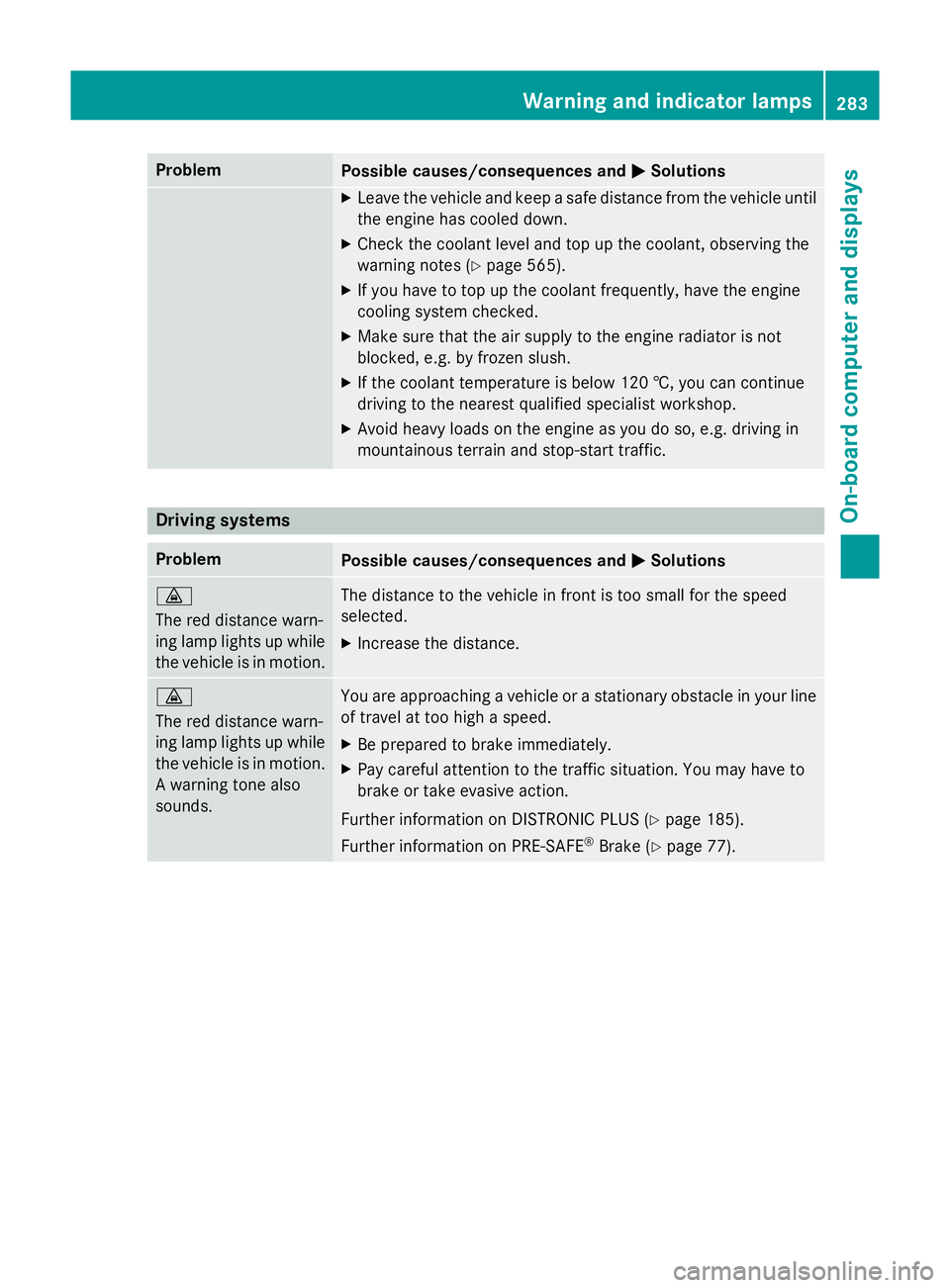
Problem
Possible causes/consequences and
M
MSolutions X
Leave the vehicle and keep a safe distance from the vehicle until
the engine has cooled down.
X Check the coolant level and top up the coolant, observing the
warning notes (Y page 565).
X If you have to top up the coolant frequently, have the engine
cooling system checked.
X Make sure that the air supply to the engine radiator is not
blocked, e.g. by frozen slush.
X If the coolant temperature is below 120 †, you can continue
driving to the nearest qualified specialist workshop.
X Avoid heavy loads on the engine as you do so, e.g. driving in
mountainous terrain and stop-start traffic. Driving systems
Problem
Possible causes/consequences and
M MSolutions ·
The red distance warn-
ing lamp lights up while
the vehicle is in motion. The distance to the vehicle in front is too small for the speed
selected.
X Increase the distance. ·
The red distance warn-
ing lamp lights up while
the vehicle is in motion. A warning tone also
sounds. You are approaching a vehicle or a stationary obstacle in your line
of travel at too high a speed.
X Be prepared to brake immediately.
X Pay careful attention to the traffic situation. You may have to
brake or take evasive action.
Further information on DISTRONIC PLUS (Y page 185).
Further information on PRE‑ SAFE®
Brake (Y page 77). Warning and indicator lamps
283On-board computer and displays Z
Page 305 of 637
i
Please note the following: for the opti-
mum audio experience for all passengers
when Logic7 ®
is switched on, the balance
should be set to the centre of the vehicle
interior.
You will achieve the best sound results by
playing high-quality audio and video DVDs.
MP3 tracks should have a bit rate of at least
128 kbit/ s.
Surround-sound playback does not func-
tion for mono signal sources, such as the
medium wave range (MW) in radio mode.
If radio reception is poor, e.g. in a tunnel,
you should switch off Logic 7 ®
, as it may
otherwise switch between stereo and
mono and cause temporary sound distor-
tions.
On some stereo recordings, the sound
characteristics may differ from conven-
tional stereo playback.
i The
Logic7
Logic7 ® ®
on
on function creates a sur-
round sound experience for every
passenger when playing stereo recordings, for example. It enables optimum playback
of music and films on CD, audio DVD or
video DVD with multichannel audio for-
mats, such as MLP, dts or Dolby Digital.
This results in sound characteristics as the
sound engineer intended when the original was recorded.
i If you select
Logic7 Logic7®
®
off
off , the sound sys-
tem plays the tracks as stored on the
medium. Due to the design of the
passenger compartment, an optimum
audio experience cannot be guaranteed for
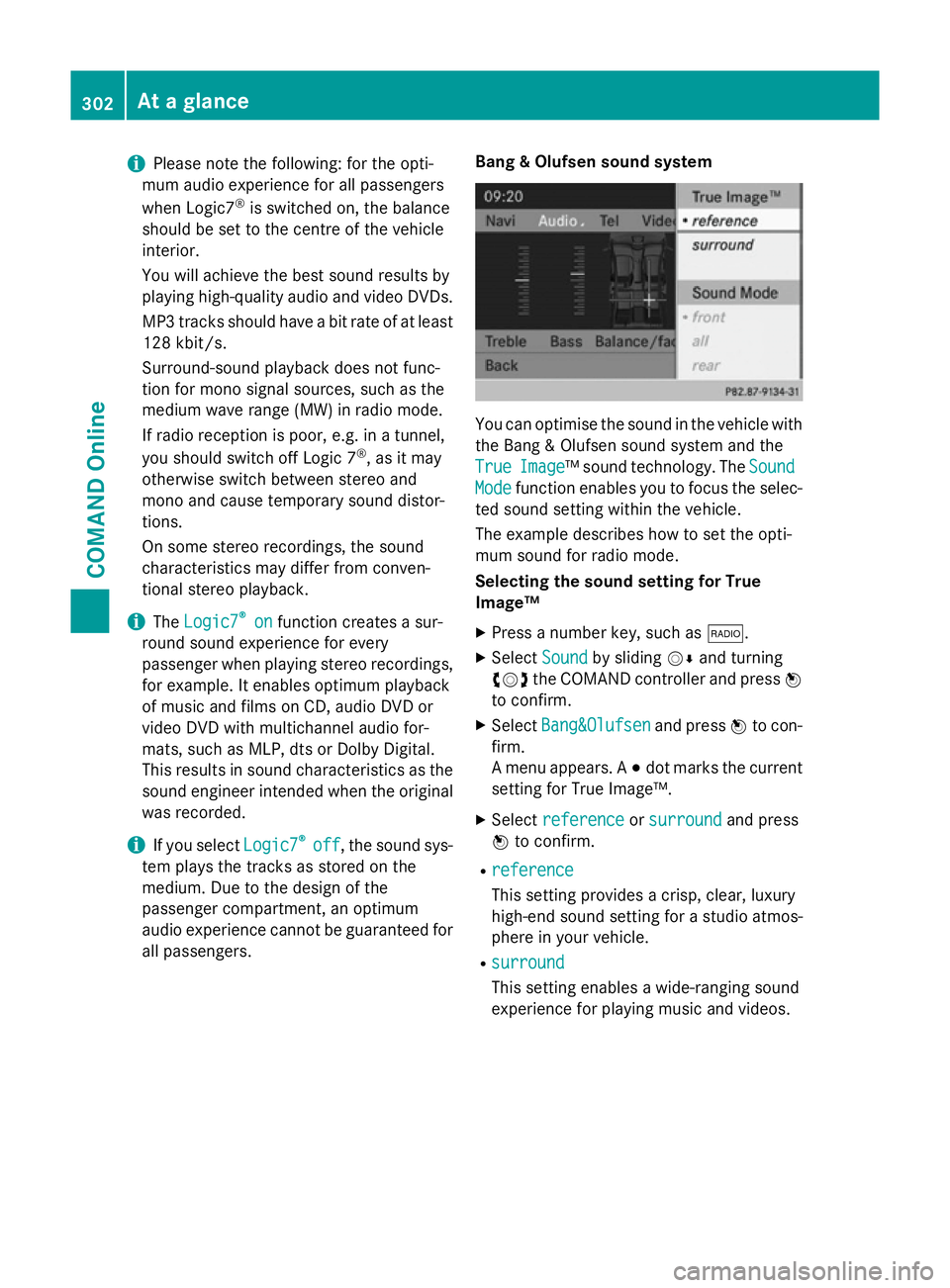
all passengers. Bang & Olufsen sound system You can optimise the sound in the vehicle with
the Bang & Olufsen sound system and the
True True Image
Image™ sound technology. The Sound
Sound
Mode
Mode function enables you to focus the selec-
ted sound setting within the vehicle.
The example describes how to set the opti-
mum sound for radio mode.
Selecting the sound setting for True
Image™
X Press a number key, such as $.
X Select Sound Soundby sliding VÆand turning
cVd the COMAND controller and press W
to confirm.
X Select Bang&Olufsen
Bang&Olufsen and pressWto con-
firm.
A menu appears. A #dot marks the current
setting for True Image™.
X Select reference reference orsurround
surround and press
W to confirm.
R reference
reference
This setting provides a crisp, clear, luxury
high-end sound setting for a studio atmos-
phere in your vehicle.
R surround surround
This setting enables a wide-ranging sound
experience for playing music and videos. 302
At a glanceCOMAND Online
Page 320 of 637
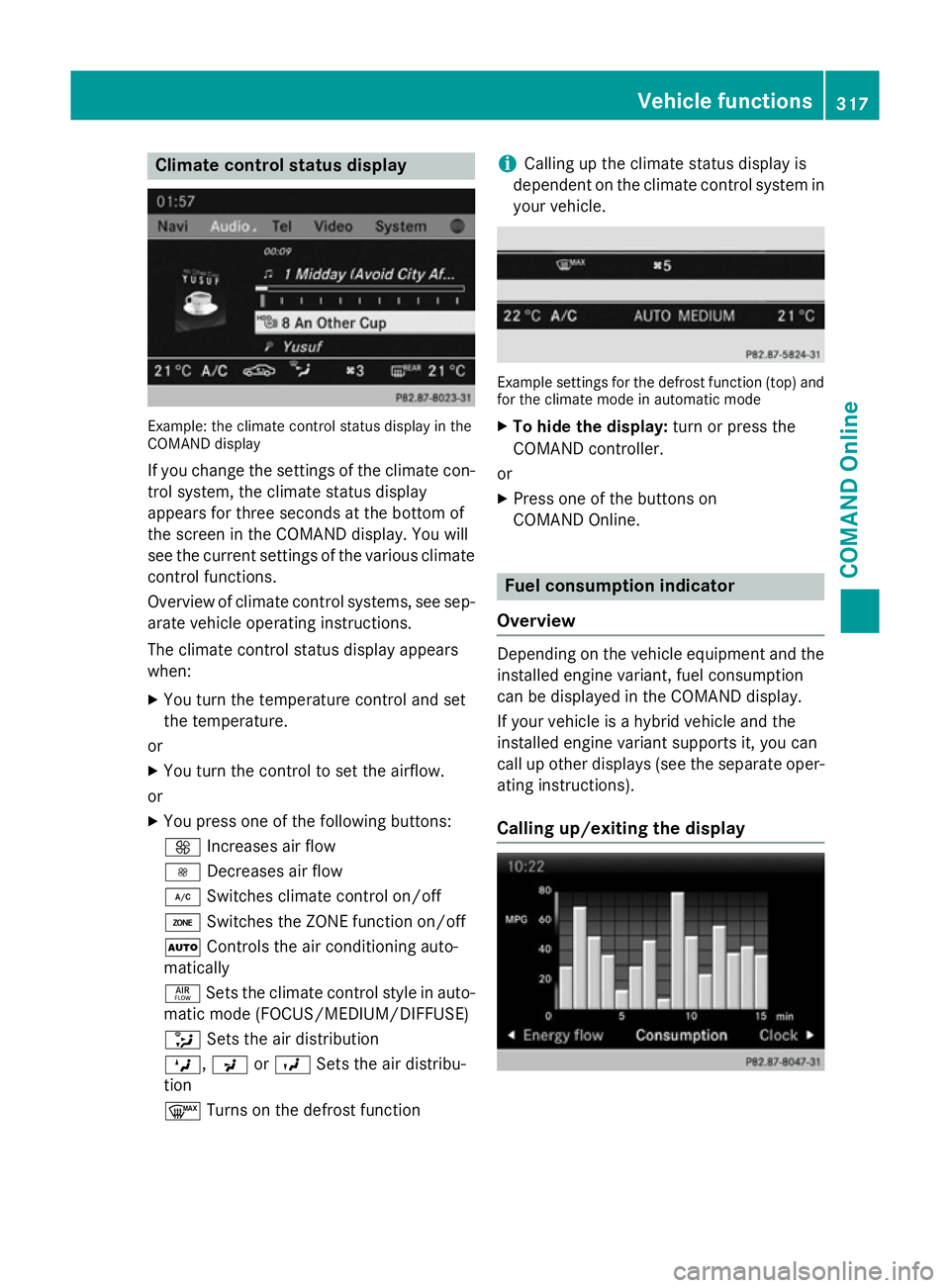
Climate control status display
Example: the climate control status display in the
COMAND display
If you change the settings of the climate con-
trol system, the climate status display
appears for three seconds at the bottom of
the screen in the COMAND display. You will
see the current settings of the various climate control functions.
Overview of climate control systems, see sep- arate vehicle operating instructions.
The climate control status display appears
when:
X You turn the temperature control and set
the temperature.
or
X You turn the control to set the airflow.
or X You press one of the following buttons:
K Increases air flow
I Decreases air flow
¿ Switches climate control on/off
á Switches the ZONE function on/off
à Controls the air conditioning auto-
matically
ñ Sets the climate control style in auto-
matic mode (FOCUS/MEDIUM/DIFFUSE)
_ Sets the air distribution
M, PorO Sets the air distribu-
tion
¬ Turns on the defrost function i
Calling up the climate status display is
dependent on the climate control system in your vehicle. Example settings for the defrost function (top) and
for the climate mode in automatic mode
X To hide the display: turn or press the
COMAND controller.
or
X Press one of the buttons on
COMAND Online. Fuel consumption indicator
Overview Depending on the vehicle equipment and the
installed engine variant, fuel consumption
can be displayed in the COMAND display.
If your vehicle is a hybrid vehicle and the
installed engine variant supports it, you can
call up other displays (see the separate oper-
ating instructions).
Calling up/exiting the display Vehicle functions
317COMAND Online Z
Page 358 of 637
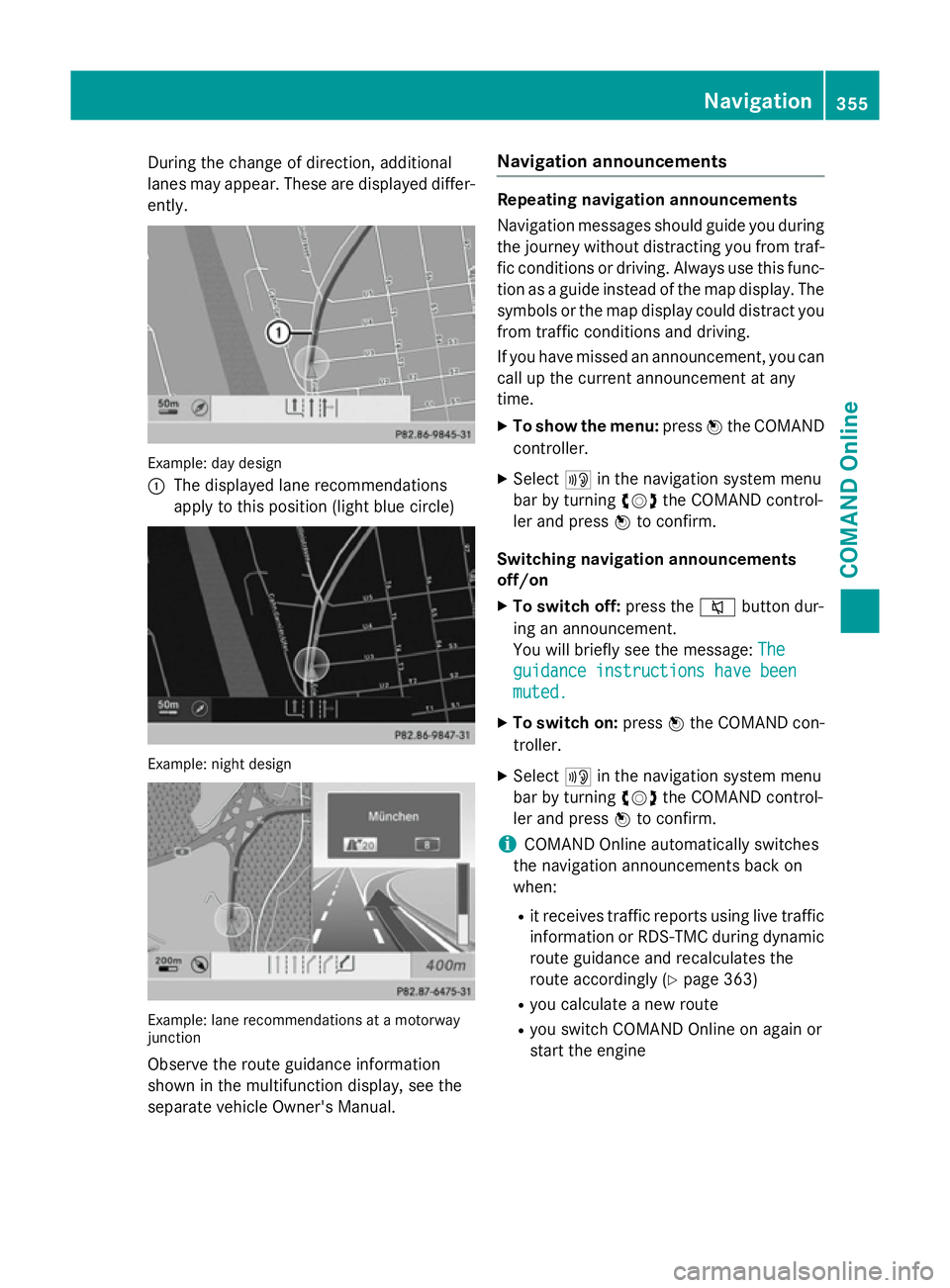
During the change of direction, additional
lanes may appear. These are displayed differ-
ently. Example: day design
:
The displayed lane recommendations
apply to this position (light blue circle) Example: night design
Example: lane recommendations at a motorway
junction
Observe the route guidance information
shown in the multifunction display, see the
separate vehicle Owner's Manual. Navigation announcements Repeating navigation announcements
Navigation messages should guide you during
the journey without distracting you from traf- fic conditions or driving. Always use this func-
tion as a guide instead of the map display. The
symbols or the map display could distract you from traffic conditions and driving.
If you have missed an announcement, you can call up the current announcement at any
time.
X To show the menu: pressWthe COMAND
controller.
X Select +in the navigation system menu
bar by turning cVdthe COMAND control-
ler and press Wto confirm.
Switching navigation announcements
off/on X To switch off: press the8button dur-
ing an announcement.
You will briefly see the message: The The
guidance instructions have been guidance instructions have been
muted. muted.
X To switch on: pressWthe COMAND con-
troller.
X Select +in the navigation system menu
bar by turning cVdthe COMAND control-
ler and press Wto confirm.
i COMAND Online automatically switches
the navigation announcements back on
when:
R it receives traffic reports using live traffic
information or RDS-TMC during dynamic
route guidance and recalculates the
route accordingly (Y page 363)
R you calculate a new route
R you switch COMAND Online on again or
start the engine Navigation
355COMAND Online Z
Page 385 of 637
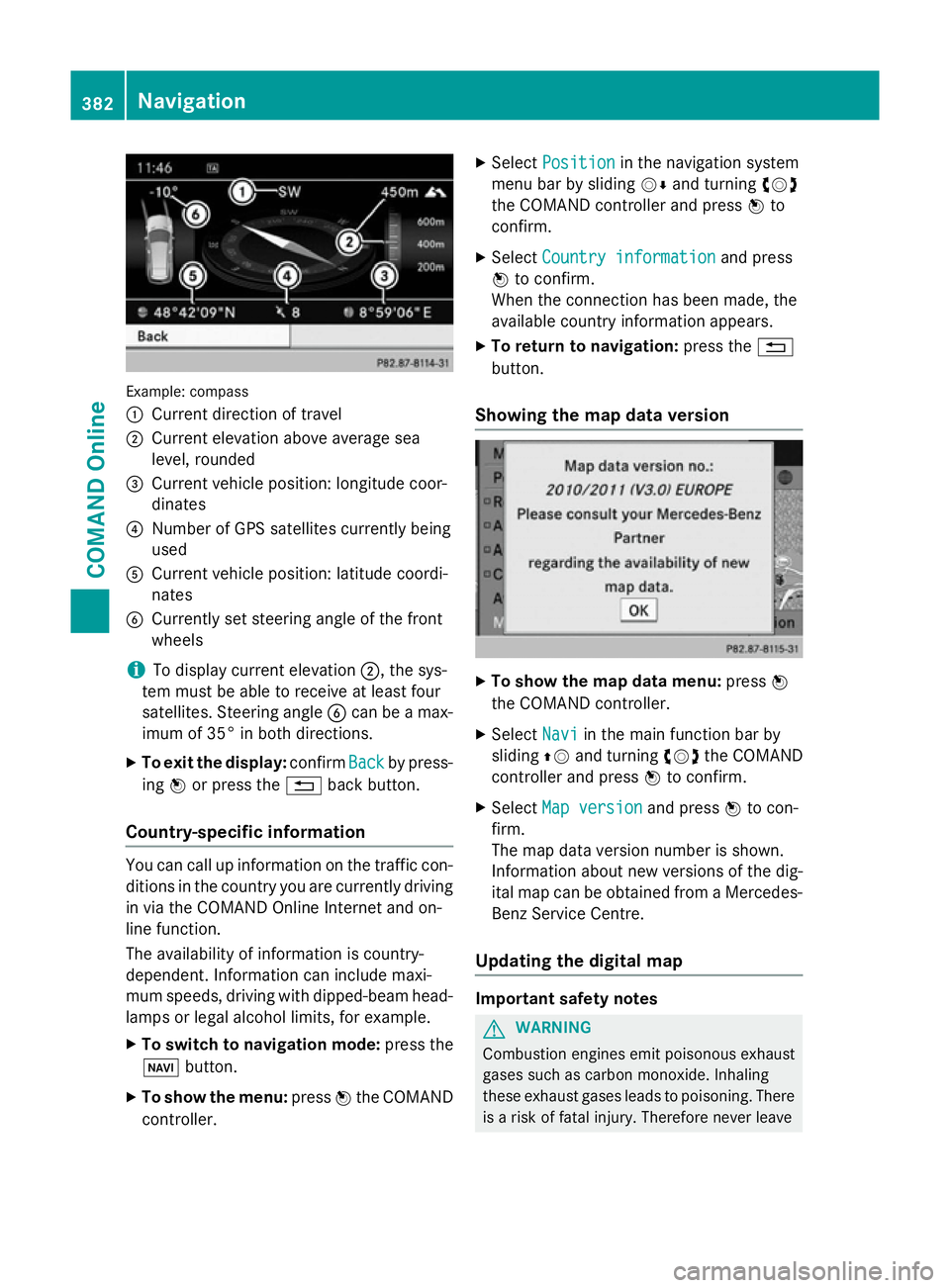
Example: compass
:
Current direction of travel
; Current elevation above average sea
level, rounded
= Current vehicle position: longitude coor-
dinates
? Number of GPS satellites currently being
used
A Current vehicle position: latitude coordi-
nates
B Currently set steering angle of the front
wheels
i To display current elevation
;, the sys-
tem must be able to receive at least four
satellites. Steering angle Bcan be a max-
imum of 35° in both directions.
X To exit the display: confirmBack
Back by press-
ing Wor press the %back button.
Country-specific information You can call up information on the traffic con-
ditions in the country you are currently driving
in via the COMAND Online Internet and on-
line function.
The availability of information is country-
dependent. Information can include maxi-
mum speeds, driving with dipped-beam head- lamps or legal alcohol limits, for example.
X To switch to navigation mode: press the
Ø button.
X To show the menu: pressWthe COMAND
controller. X
Select Position Position in the navigation system
menu bar by sliding VÆand turning cVd
the COMAND controller and press Wto
confirm.
X Select Country information
Country information and press
W to confirm.
When the connection has been made, the
available country information appears.
X To return to navigation: press the%
button.
Showing the map data version X
To show the map data menu: pressW
the COMAND controller.
X Select Navi Naviin the main function bar by
sliding ZVand turning cVdthe COMAND
controller and press Wto confirm.
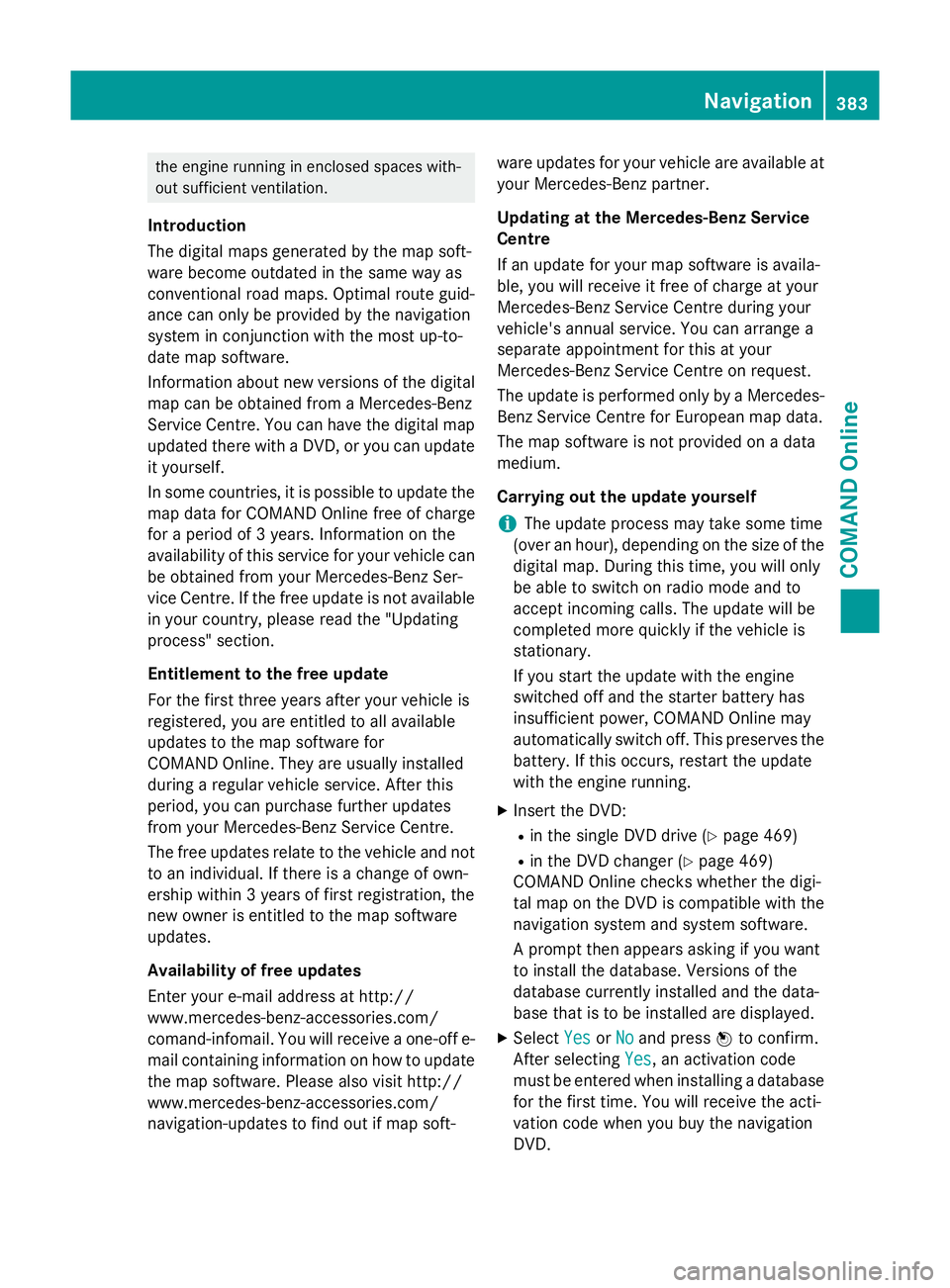
X Select Map version
Map version and pressWto con-
firm.
The map data version number is shown.
Information about new versions of the dig-
ital map can be obtained from a Mercedes- Benz Service Centre.
Updating the digital map Important safety notes
G
WARNING
Combustion engines emit poisonous exhaust
gases such as carbon monoxide. Inhaling
these exhaust gases leads to poisoning. There is a risk of fatal injury. Therefore never leave 382
NavigationCOMAND Online
Page 386 of 637
the engine running in enclosed spaces with-
out sufficient ventilation.
Introduction
The digital maps generated by the map soft-
ware become outdated in the same way as
conventional road maps. Optimal route guid-
ance can only be provided by the navigation
system in conjunction with the most up-to-
date map software.
Information about new versions of the digital map can be obtained from a Mercedes-Benz
Service Centre. You can have the digital mapupdated there with a DVD, or you can update
it yourself.
In some countries, it is possible to update the map data for COMAND Online free of charge
for a period of 3 years. Information on the
availability of this service for your vehicle can be obtained from your Mercedes-Benz Ser-
vice Centre. If the free update is not available
in your country, please read the "Updating
process" section.
Entitlement to the free update
For the first three years after your vehicle is
registered, you are entitled to all available
updates to the map software for
COMAND Online. They are usually installed
during a regular vehicle service. After this
period, you can purchase further updates
from your Mercedes-Benz Service Centre.
The free updates relate to the vehicle and not
to an individual. If there is a change of own-
ership within 3 years of first registration, the
new owner is entitled to the map software
updates.
Availability of free updates
Enter your e-mail address at http://
www.mercedes-benz-accessories.com/
comand-infomail. You will receive a one-off e- mail containing information on how to updatethe map software. Please also visit http://
www.mercedes-benz-accessories.com/
navigation-updates to find out if map soft- ware updates for your vehicle are available at
your Mercedes-Benz partner.
Updating at the Mercedes-Benz Service
Centre
If an update for your map software is availa-
ble, you will receive it free of charge at your
Mercedes-Benz Service Centre during your
vehicle's annual service. You can arrange a
separate appointment for this at your
Mercedes-Benz Service Centre on request.
The update is performed only by a Mercedes- Benz Service Centre for European map data.
The map software is not provided on a data
medium.
Carrying out the update yourself
i The update process may take some time
(over an hour), depending on the size of the
digital map. During this time, you will only
be able to switch on radio mode and to
accept incoming calls. The update will be
completed more quickly if the vehicle is
stationary.
If you start the update with the engine
switched off and the starter battery has
insufficient power, COMAND Online may
automatically switch off. This preserves the battery. If this occurs, restart the update
with the engine running.
X Insert the DVD:
R in the single DVD drive (Y page 469)
R in the DVD changer (Y page 469)
COMAND Online checks whether the digi-
tal map on the DVD is compatible with the
navigation system and system software.
A prompt then appears asking if you want
to install the database. Versions of the
database currently installed and the data-
base that is to be installed are displayed.
X Select Yes
Yes orNo No and press Wto confirm.
After selecting Yes
Yes, an activation code
must be entered when installing a database
for the first time. You will receive the acti-
vation code when you buy the navigation
DVD. Navigation
383COMAND Online Z
Page 553 of 637
X
To open: open stowage compartment :
(Y page 545).
X To remove the insert: pull insert;up in
the direction of the arrow, out of the cup
holder.
X To refit the insert: push insert;on the
left-hand side into the cup holder.
i Only refit insert
;on the left-hand side of
the cup holder. Cigarette lighter
G
WARNING
You can burn yourself if you touch the hot
heating element or the socket of the cigarette lighter.
In addition, flammable materials can ignite if:
R the hot cigarette lighter falls
R a child holds the hot cigarette lighter to
objects, for example
There is a risk of fire and injury.
Always hold the cigarette lighter by the knob.
Always make sure that the cigarette lighter is
out of reach of children. Never leave children unattended in the vehicle. Your attention must always be focused on the
traffic conditions. Only use the cigarette
lighter when road and traffic conditions per-
mit. X
Turn the key to position 2in the ignition
lock (Y page 155).
X To open: open stowage compartment :
under the armrest (Y page 545).
X Press in cigarette lighter ;.
Cigarette lighter ;will pop out automati-
cally when the heating element is red-hot. 12 V sockets
General notes X
Turn the key to position 1in the ignition
lock (Y page 155).
The sockets can be used for accessories with a maximum draw of 180 W(15 A). Accesso-
ries include such items as bulbs or chargers
for mobile phones.
If you use the sockets for long periods when
the engine is switched off, the battery may
discharge.
i An emergency cut-off ensures that the on-
board voltage does not drop too low. If the
on-board voltage is too low, the power to
the sockets is automatically cut. This
ensures that there is sufficient power to
start the engine.
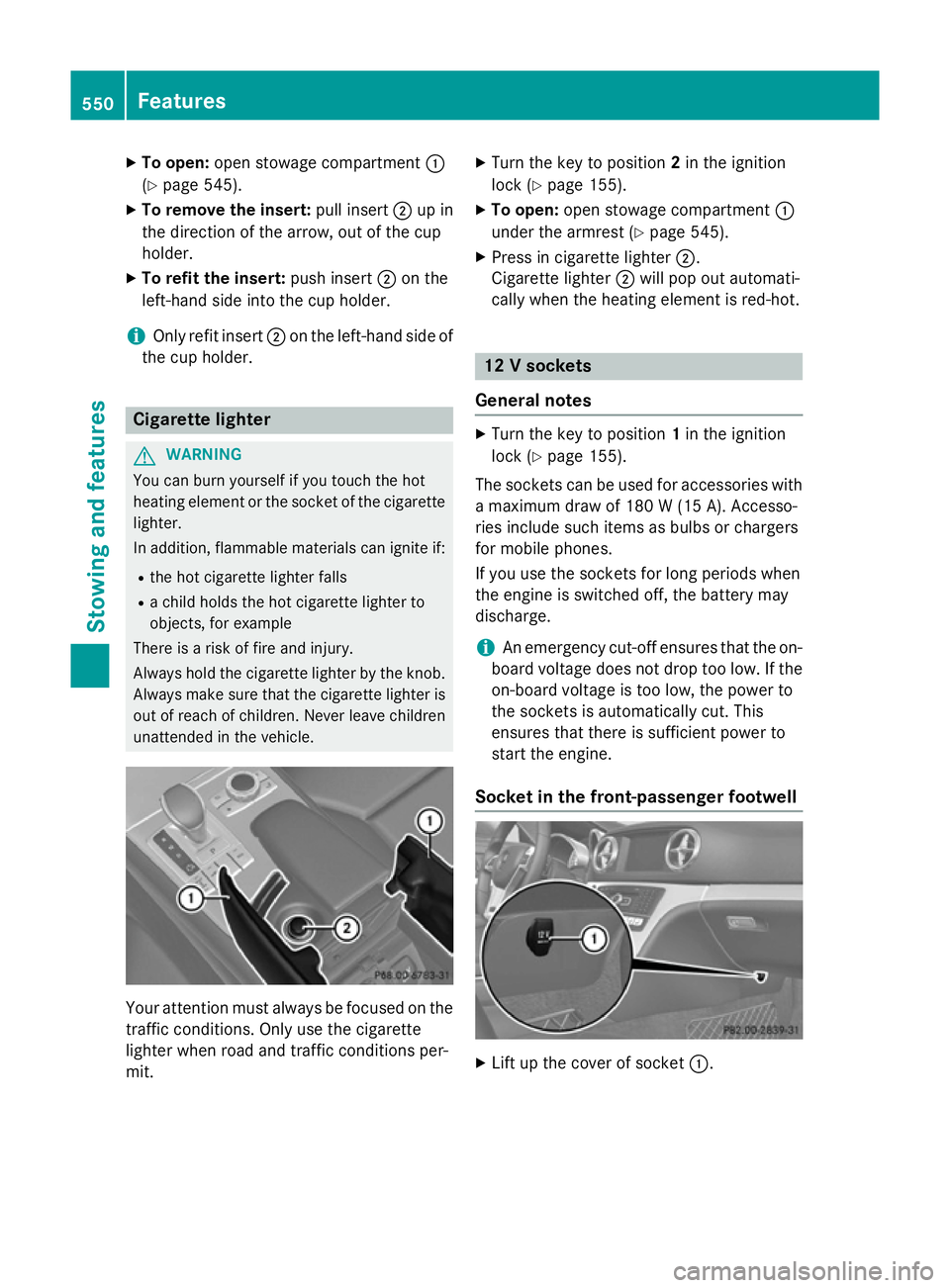
Socket in the front-passenger footwell X
Lift up the cover of socket :.550
FeaturesStowing and fea
tures
Page 556 of 637
will find further information on charging the
battery on (Y page 582). Garage door opener
General notes The HomeLink
®
garage door opener integra-
ted in the rear-view mirror allows you to oper- ate up to three different door and gate sys-
tems.
Once programmed, the integrated garage
door opener in the rear-view mirror will
assume the function of the garage door sys-
tem's remote control. Please also read the
operating instructions for the garage door
system.
When programming a garage door opener,
park the vehicle outside the garage. Do not
run the engine while programming.
The garage door opener is only available for
certain countries. Observe the legal require-
ments for each individual country.
The HomeLink ®
garage door opener is com-
patible with most European garage and gate
opener drives. More information on Home-
Link ®
and/or compatible products is availa-
ble:
R at a qualified specialised workshop
R via the HomeLink ®
Hotline
(0) 08000 466 354 65 or alternatively
+49 (0) 6838 907-277
R on the Internet at
http://www.homelink.com
Important safety notes G
WARNING
When you operate or program the garage door with the integrated garage door opener, per-
sons in the range of movement of the garage
door can become trapped or struck by the
garage door. There is a risk of injury.
When using the integrated garage door
opener, always make sure that nobody is within the range of movement of the garage
door.
G
WARNING
Combustion engines emit poisonous exhaust
gases such as carbon monoxide. Inhaling
these exhaust gases leads to poisoning. There is a risk of fatal injury. Therefore never leave
the engine running in enclosed spaces with-
out sufficient ventilation.
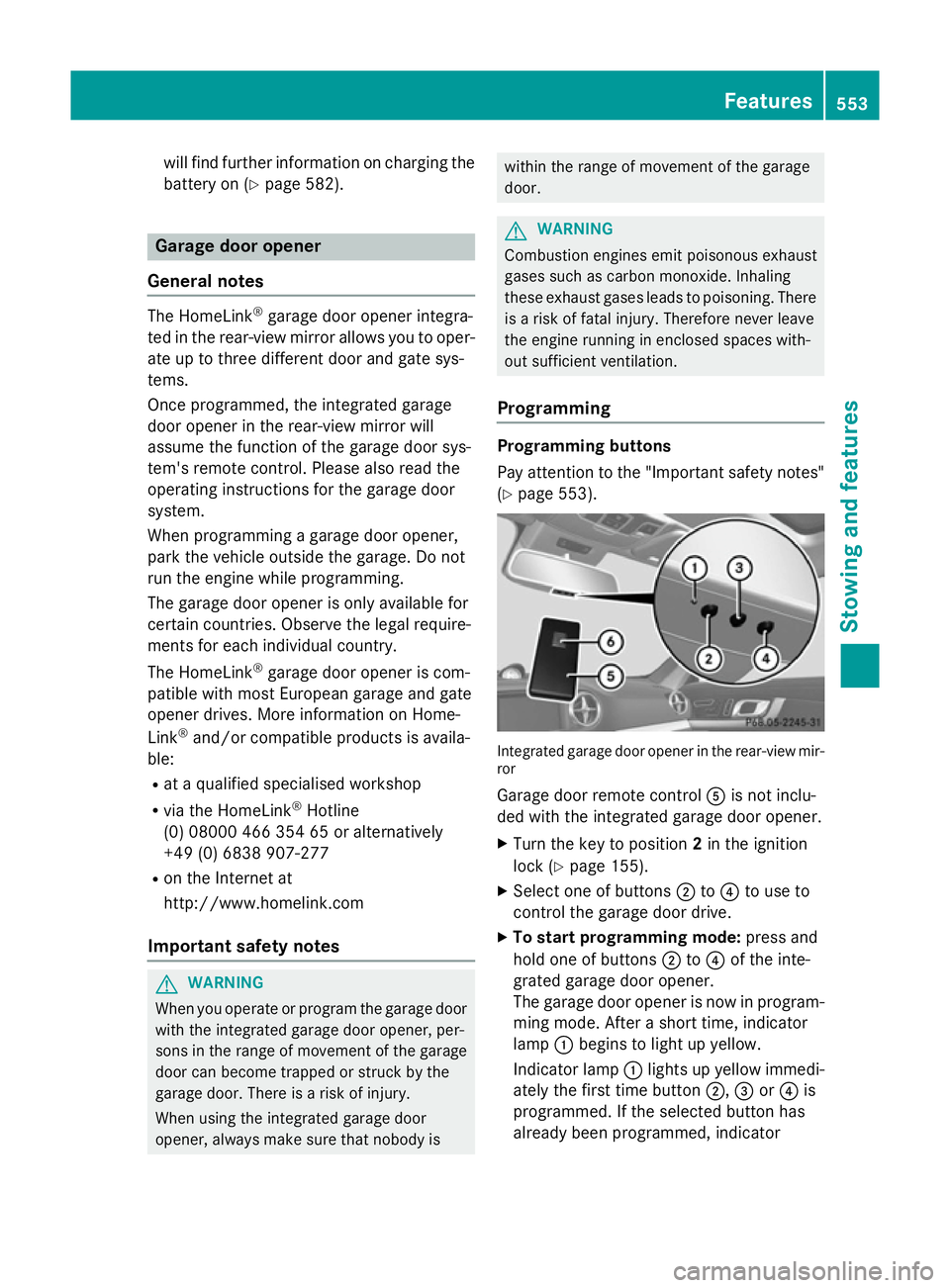
Programming Programming buttons
Pay attention to the "Important safety notes"
(Y page 553). Integrated garage door opener in the rear-view mir-
ror
Garage door remote control Ais not inclu-
ded with the integrated garage door opener.
X Turn the key to position 2in the ignition
lock (Y page 155).
X Select one of buttons ;to? to use to
control the garage door drive.
X To start programming mode: press and
hold one of buttons ;to? of the inte-
grated garage door opener.
The garage door opener is now in program-
ming mode. After a short time, indicator
lamp :begins to light up yellow.
Indicator lamp :lights up yellow immedi-
ately the first time button ;,=or? is
programmed. If the selected button has
already been programmed, indicator Features
553Stowing and features Z
Page 564 of 637
Useful information
............................562
Engine compartment ........................562
ASSYST PLUS .................................... 566
Care .................................................... 568 561Maintenance and care