Time MERCEDES-BENZ SLK-Class 2015 R172 Comand Manual
[x] Cancel search | Manufacturer: MERCEDES-BENZ, Model Year: 2015, Model line: SLK-Class, Model: MERCEDES-BENZ SLK-Class 2015 R172Pages: 270, PDF Size: 5.82 MB
Page 65 of 270
Carpool lanes may only be used under certain
conditions. They can normally be used when
there are two people in the vehicle. However, there are also carpool lanes which can only be
used when there are three or more people in
the vehicle. In California, lone drivers can use
a carpool lane if their vehicle's emission level or fuel consumption is below a fixed thresh-
old.
Carpool lanes may be reserved for specific
times (e.g. during the peak period).
Carpool lanes are identified by HOV symbols
on special road signs and by markings on the road. The road signs may also include the
designation CARPOOL CARPOOL. The lanes are arranged
as a separate lane next to the others or are
built as a physically separate lane.
Depending on the setting under Number of Number of
Occupants
Occupants in
inVehicle
Vehicle, COMAND uses car-
pool lanes when calculating the route.
COMAND then guides you in and out of car-
pool lanes using visual and acoustic driving
directions. X
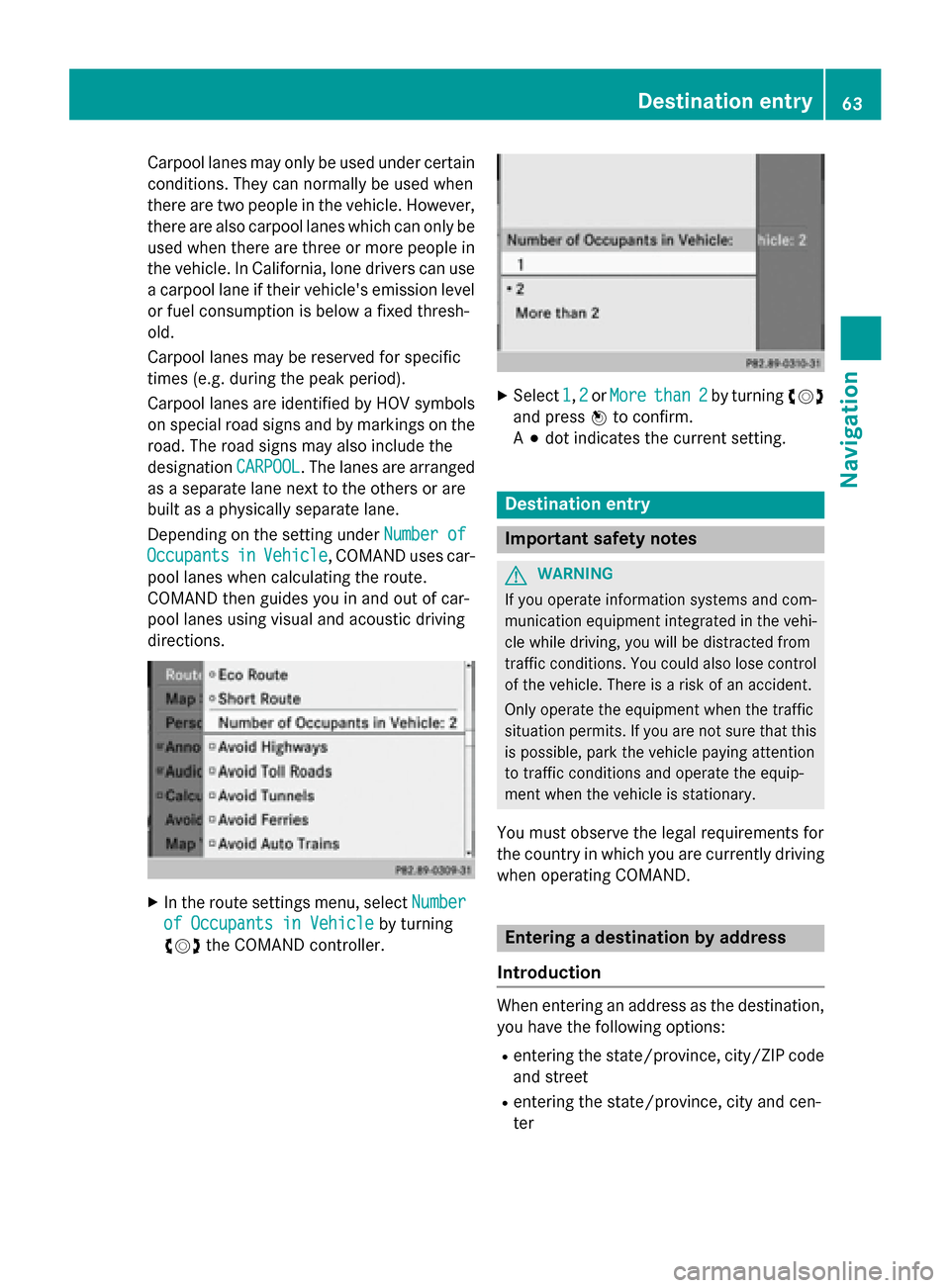
In the route settings menu, select Number Number
of Occupants in Vehicle
of Occupants in Vehicle by turning
00790052007A the COMAND controller. X
Select 1
1,2
2or More
More than 2
than 2 by turning 00790052007A
and press 0098to confirm.
A 003B dot indicates the current setting. Destination entry
Important safety notes
G
WARNING
If you operate information systems and com-
munication equipment integrated in the vehi- cle while driving, you will be distracted from
traffic conditions. You could also lose control of the vehicle. There is a risk of an accident.
Only operate the equipment when the traffic
situation permits. If you are not sure that this
is possible, park the vehicle paying attention
to traffic conditions and operate the equip-
ment when the vehicle is stationary.
You must observe the legal requirements for
the country in which you are currently driving when operating COMAND. Entering a destination by address
Introduction When entering an address as the destination,
you have the following options:
R entering the state/province, city/ZIP code
and street
R entering the state/province, city and cen-
ter Destination entry
63Navigation Z
Page 71 of 270

Starting route calculation
Address entry menu with destination address
0043 Destination address
0044 Starts route calculation
You can have COMAND calculate a route to
the destination address, or you can save the
destination address (for example, as your
home address (My address)) (Y page 69).
X Call up the address entry menu
(Y page 64).
X In the address entry menu, confirm Start Start
by pressing 0098.
If no other route has been calculated, route
calculation starts immediately (option 1). If
another route has already been calculated
(route guidance is active), a prompt
appears (option 2).
i The
Continue
Continue menu item is displayed
instead of Start StartifCalculate Alterna‐
Calculate Alterna‐
tive
tive Routes
Routes is activated in the navigation
menu (option 2) (Y page 93).
Option 1 – no route guidance active: route
calculation starts. While route calculation is in progress, an arrow will indicate the direction
to your destination. Below this, you will see a
message, e.g. Calculating Fast
Calculating Fast
Route...
Route....
Once the route has been calculated, route
guidance begins.
If the vehicle is not on a digitized road, the
following is displayed:
R the linear distance to the destination
R the direction to the destination
R the Off Mapped Road Off Mapped Road message Option 2 – route guidance is already
active:
if route guidance is already active, a
prompt will appear asking whether you wish
to terminate the currently active route guid-
ance.
X Select Yes YesorNo
No and press 0098to confirm.
If you select Yes
Yes, COMAND will stop route
guidance and start route calculation for the new destination.
If you select No No, COMAND will continue
with the active route guidance.
i Route calculation takes a certain amount
of time. The time depends on the distance
from the destination, for example.
COMAND calculates the route using the
digital map data.
The calculated route can differ from the
ideal route, for example because of incom-
plete map data. Please also refer to the
notes about the digital map (Y page 118).
Entering and saving your home address You can either enter your home address for
the first time (option 1) or edit a previously
stored home address (option 2).
X Option 1: enter the address, e.g. a city,
street and house number (Y page 64).
X After entering the address in the address
entry menu, select Save Saveby turning 00790052007A
and 009700520064sliding the COMAND controller
and press 0098to confirm.
X Select Save as "My Address" Save as "My Address" and press
0098 to confirm.
COMAND stores your home address as My My
Address
Address in the destination memory.
X Option 2: proceed as described under
"Option 1".
A prompt appears asking whether the cur-
rent home address should be overwritten.
X Select Yes Yesand press 0098to confirm.
After selecting Yes
Yes, theData
Datasaved.
saved. mes-
sage appears. Destination entry
69Navigation Z
Page 74 of 270
X
To select a destination: press0098the
COMAND controller once or several times. If COMAND is unable to assign a unique
address, you will see either the address
entry menu with the destination address or
a selection list.
X Select a destination by turning 00790052007Athe
COMAND controller and press 0098to con-
firm.
If the destination is within the limits of the
digital map, COMAND attempts to assign
the destination to the map.
If the destination can be assigned, you will see the address entry menu with the
address of the destination. If not, you will
see the Destination From Map
Destination From Map entry.
X To start route calculation: selectStart
Start
and press 0098to confirm. Entering a destination using geo-coor-
dinates
X To switch to navigation mode: press the
00BE button.
X To show the menu: press0098the COMAND
controller.
X Select Destination Destination in the navigation sys-
tem menu bar by turning 00790052007Athe
COMAND controller and press 0098to con-
firm. X
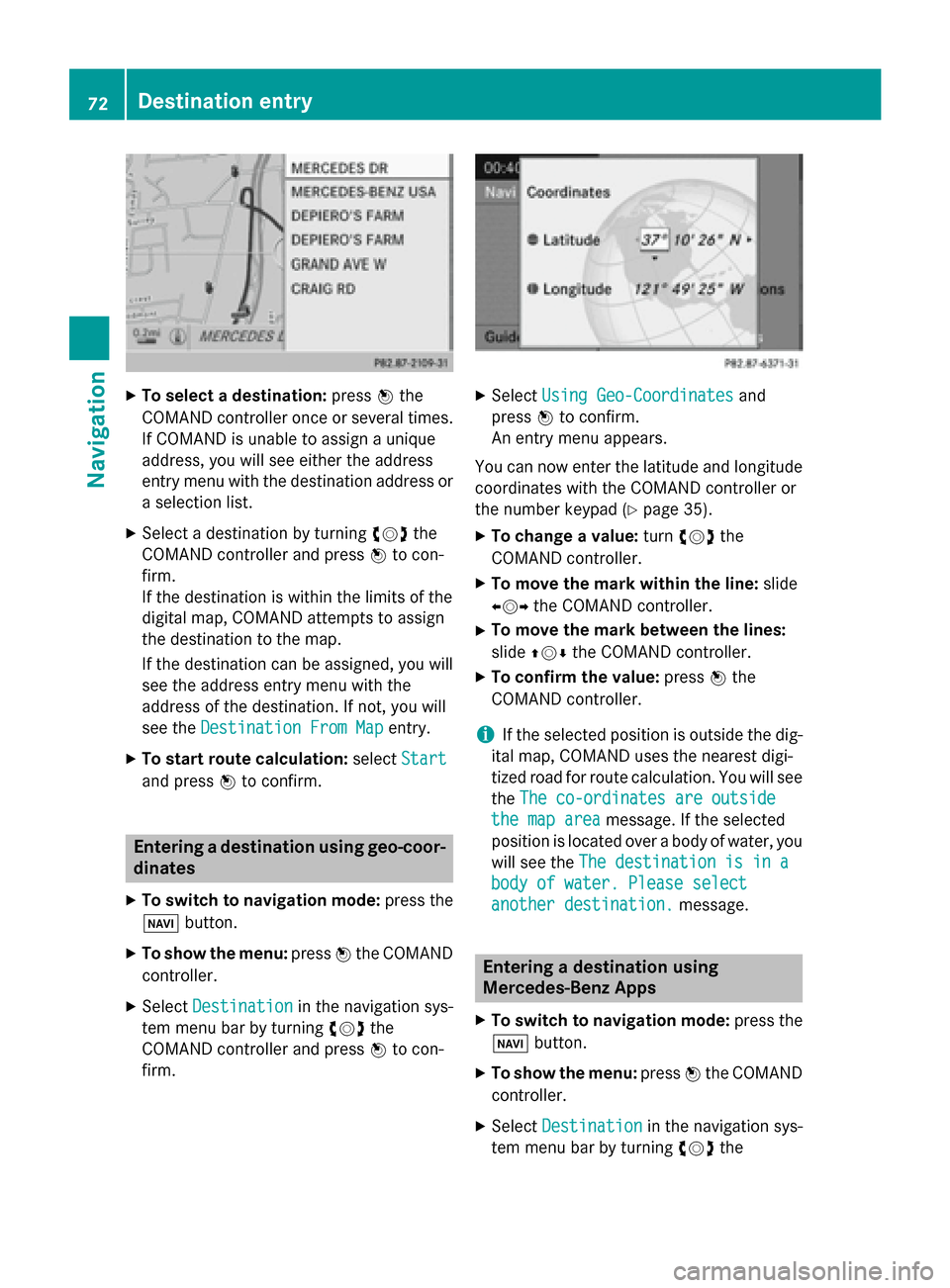
Select Using Geo-Coordinates Using Geo-Coordinates and
press 0098to confirm.
An entry menu appears.
You can now enter the latitude and longitude coordinates with the COMAND controller or
the number keypad (Y page 35).
X To change a value: turn00790052007A the
COMAND controller.
X To move the mark within the line: slide
009500520096 the COMAND controller.
X To move the mark between the lines:
slide 009700520064 the COMAND controller.
X To confirm the value: press0098the
COMAND controller.
i If the selected position is outside the dig-
ital map, COMAND uses the nearest digi-
tized road for route calculation. You will see
the The co-ordinates are outside
The co-ordinates are outside
the map area the map area message. If the selected
position is located over a body of water, you
will see the The destination is in a
The destination is in a
body of water. Please select body of water. Please select
another destination. another destination. message. Entering a destination using
Mercedes-Benz Apps
X To switch to navigation mode: press the
00BE button.
X To show the menu: press0098the COMAND
controller.
X Select Destination Destination in the navigation sys-
tem menu bar by turning 00790052007Athe 72
Destination entryNavigation
Page 75 of 270

COMAND controller and press
0098to con-
firm.
X Select Mercedes-Benz
Mercedes-Benz Apps
Appsand press 0098
to confirm.
If an Internet connection is established, you
will see the message: Do you want to Do you want to
accept the navigation data sent
accept the navigation data sent
via Mercedes-Benz Apps? via Mercedes-Benz Apps? Street View
X
To switch to navigation mode: press the
00BE button.
X To show the menu: press0098the COMAND
controller.
X Select Destination
Destination in the lower menu bar
by turning 00790052007Athe COMAND controller
and press 0098to confirm.
X Select Address Entry
Address Entry and press0098to
confirm.
X Select icon 0043in the address entry menu
and press 0098to confirm.
If an Internet connection is established, you
will see the Street View basic display.
X To explore the view of the street: turn
00790052007A or slide 009500520096,
009700520064 the COMAND controller.
X To return to navigation: press the003D
button. Entering way points
Introduction You can map the route yourself by entering up
to four way points. The sequence of the way
points can be changed at any time.
COMAND provides a selection of predefined
destinations in eight categories for this pur-
pose, e.g. GAS
GAS STATION STATION orCOFFEE
COFFEE SHOP
SHOP. You
can also use the destination entry options to
enter way points.
Creating way points Way point menu (with destination, without way
point)
X To switch to navigation mode: press the
00BE button.
X To show the menu: press0098the COMAND
controller.
X Select Destination
Destination in the navigation sys-
tem menu bar by turning 00790052007Athe
COMAND controller and press 0098to con-
firm.
X Select Intermediate Destinations Intermediate Destinations and
press 0098to confirm.
The destination is entered into the way
points menu. The way points are not yet
entered.
X Confirm Add: Add:by pressing 0098the COMAND
controller. Destination entry
73Navigation Z
Page 90 of 270

COMAND may give differing navigation com-
mands if the actual street/traffic situation
does not correspond with the digital map's
data. For example, if the road layout or the
direction of a one-way street has been
changed.
For this reason, you must always observe
road and traffic rules and regulations during
your journey. Road and traffic rules and reg-
ulations always have priority over the sys-
tem's driving recommendations.
Route guidance begins once a route has been calculated (Y page 69).
COMAND guides you to your destination by
means of navigation announcements in the
form of audible navigation announcements
and route guidance displays.
The route guidance displays can be seen if the
display is switched to navigation mode.
If you do not follow the navigation announce- ments or if you leave the calculated route,
COMAND automatically calculates a new
route to the destination.
If the digital map contains the corresponding
information, the following applies:
R during route guidance, COMAND tries to
avoid roads with restricted access. Those
roads, for example, that are closed to
through-traffic.
R roads that have time restrictions (e.g.
closed on Sundays and public holidays) are considered for route guidance on days
when they are open. For this purpose, the
relevant times must be correctly stored in
the database. Displays during route guidance
Change of direction Changes of direction have three phases:
R preparation phase
R announcement phase
R change-of-direction phase Example: preparation phase
0043
Next road
0044 Point at which the change of direction
takes place (light blue dot)
0087 Current vehicle position (the tip of the tri-
angle indicates the vehicle’s direction of
travel)
0085 Current road
Display 0085depends on the setting selected
for "Map information in the display"
(Y page 111).
COMAND prepares you for the upcoming
change of direction. Based on the example
display below, the change of direction is
announced by the Prepare to turn right Prepare to turn right
message. You see the full-screen map. Example: announcement phase
0043
Next road
0044 Change of direction (turn right here)
0087 Graphic representation of the distance to
the next change of direction
0085 Distance to the next change of direction 88
Route guidanceNavigation
Page 93 of 270
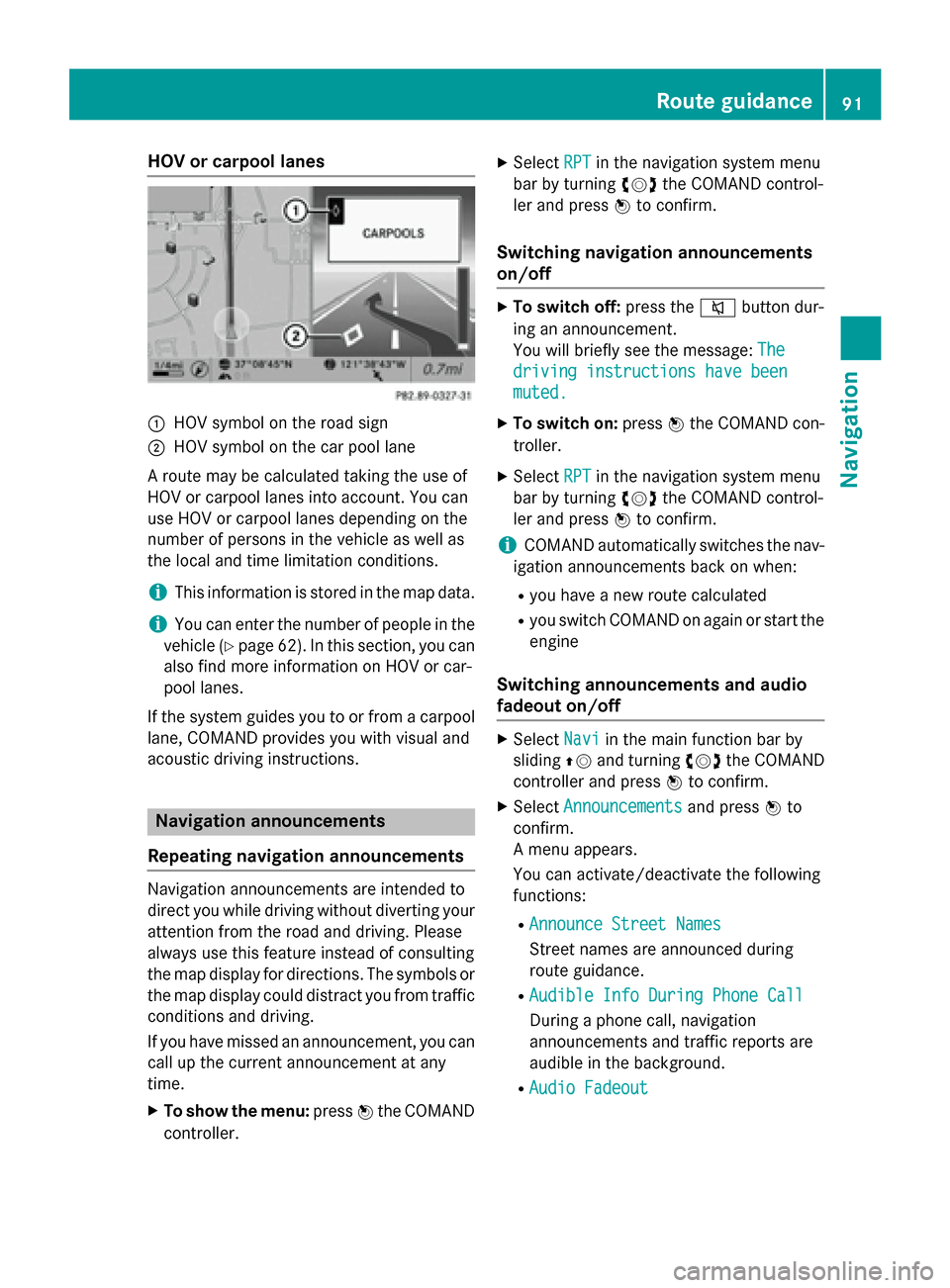
HOV or carpool lanes
0043
HOV symbol on the road sign
0044 HOV symbol on the car pool lane
A route may be calculated taking the use of
HOV or carpool lanes into account. You can
use HOV or carpool lanes depending on the
number of persons in the vehicle as well as
the local and time limitation conditions.
i This information is stored in the map data.
i You can enter the number of people in the
vehicle (Y page 62). In this section, you can
also find more information on HOV or car-
pool lanes.
If the system guides you to or from a carpool
lane, COMAND provides you with visual and
acoustic driving instructions. Navigation announcements
Repeating navigation announcements Navigation announcements are intended to
direct you while driving without diverting your attention from the road and driving. Please
always use this feature instead of consulting
the map display for directions. The symbols or the map display could distract you from traffic
conditions and driving.
If you have missed an announcement, you can call up the current announcement at any
time.
X To show the menu: press0098the COMAND
controller. X
Select RPT
RPT in the navigation system menu
bar by turning 00790052007Athe COMAND control-
ler and press 0098to confirm.
Switching navigation announcements
on/off X
To switch off: press the0063button dur-
ing an announcement.
You will briefly see the message: The The
driving instructions have been
driving instructions have been
muted. muted.
X To switch on: press0098the COMAND con-
troller.
X Select RPT
RPTin the navigation system menu
bar by turning 00790052007Athe COMAND control-
ler and press 0098to confirm.
i COMAND automatically switches the nav-
igation announcements back on when:
R you have a new route calculated
R you switch COMAND on again or start the
engine
Switching announcements and audio
fadeout on/off X
Select Navi Naviin the main function bar by
sliding 00970052and turning 00790052007Athe COMAND
controller and press 0098to confirm.
X Select Announcements Announcements and press0098to
confirm.
A menu appears.
You can activate/deactivate the following
functions:
R Announce Street Names Announce Street Names
Street names are announced during
route guidance.
R Audible Info During Phone Call Audible Info During Phone Call
During a phone call, navigation
announcements and traffic reports are
audible in the background.
R Audio Fadeout Audio Fadeout Route guidance
91Navigation Z
Page 95 of 270

X
Select Route
Routein the navigation system
menu bar by turning 00790052007Athe COMAND
controller and press 0098to confirm.
X Select Detour
Detour and press 0098to confirm.
X To block a section of the route: select
Longer
Longer orShorter
Shorter repeatedly and press
0098 to confirm until the desired section has
been selected.
i The total length of the section that can be
blocked is defined by the digital map. The
menu items are available accordingly.
X To start route calculation: selectStart
Start
and press 0098to confirm.
X To delete the blocked section: select
Delete Delete while the message is shown and
press 0098to confirm.
COMAND calculates the route without the
block.
Selecting an alternative route With the "Alternative Route" function, routes
other than the original one can be calculated.
Routes 1 to 3 are calculated with the current
settings for the route type and route options
and are shown with a dark blue line
(Y page 62).
Route 4 is the economic route (eco route) and
is shown with a green line.
On the right-hand side, you will see informa-
tion on the currently selected alternative
route, e.g. distance, estimated remaining
driving time and estimated time of arrival.
Route sections used (e.g. highways, tunnels)
are displayed as symbols.
Option 1
X To switch to navigation mode: press the
00BE button.
X To show the menu: press0098the COMAND
controller.
X Select Route Routein the navigation system
menu bar by turning 00790052007Athe COMAND
controller and press 0098to confirm. X
Select Alternative Route Alternative Route and press0098
to confirm. Examples for route 1 (above) and route 4 (eco
route)
Option 2
X To switch to navigation mode: press the
00BE button.
X To show the menu: press0098the COMAND
controller.
X Select Navi Naviin the main function bar by
sliding 00970052the COMAND controller and
press 0098to confirm.
X Select Calculate Alternative Route Calculate Alternative Route
and press 0098to confirm.
The function is switched on 0073or off 0053,
depending on the previous status.
Function is activated: alternative routes
are calculated directly after the destination
is entered. Route guidance
93Navigation Z
Page 96 of 270
Menu functions
X To select the next or previous alterna-
tive route: selectNext NextorPrevious
Previous and
press 0098to confirm.
X To start route guidance using the selec-
ted alternative route: selectStart
Start and
press 0098to confirm.
COMAND begins route guidance on the
selected alternative route. Route information
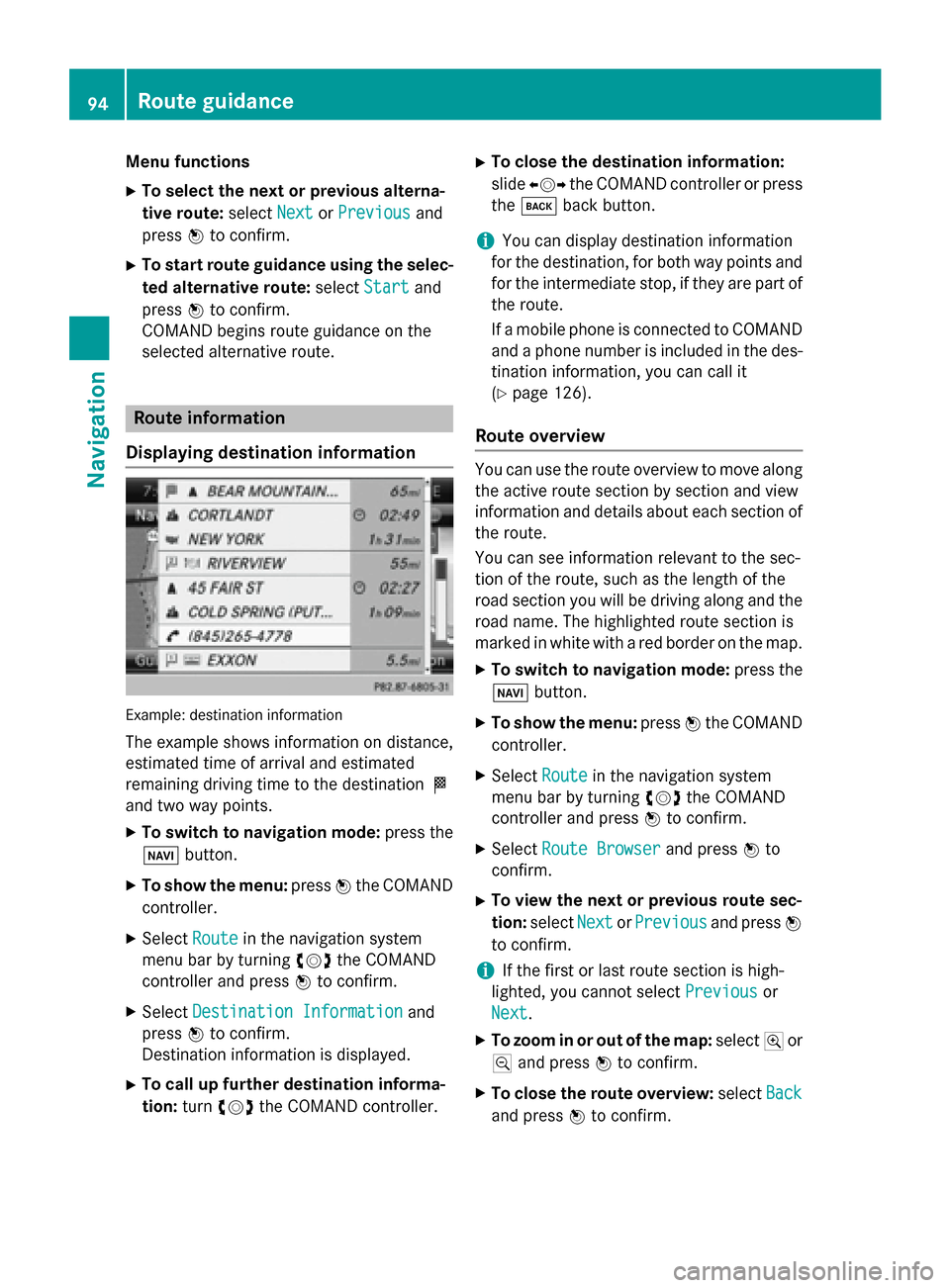
Displaying destination information Example: destination information
The example shows information on distance,
estimated time of arrival and estimated
remaining driving time to the destination 004B
and two way points.
X To switch to navigation mode: press the
00BE button.
X To show the menu: press0098the COMAND
controller.
X Select Route Routein the navigation system
menu bar by turning 00790052007Athe COMAND
controller and press 0098to confirm.
X Select Destination Information
Destination Information and
press 0098to confirm.
Destination information is displayed.
X To call up further destination informa-
tion: turn00790052007A the COMAND controller. X
To close the destination information:
slide 009500520096 the COMAND controller or press
the 003D back button.
i You can display destination information
for the destination, for both way points and
for the intermediate stop, if they are part of the route.
If a mobile phone is connected to COMANDand a phone number is included in the des- tination information, you can call it
(Y page 126).
Route overview You can use the route overview to move along
the active route section by section and view
information and details about each section of the route.
You can see information relevant to the sec-
tion of the route, such as the length of the
road section you will be driving along and the road name. The highlighted route section is
marked in white with a red border on the map.
X To switch to navigation mode: press the
00BE button.
X To show the menu: press0098the COMAND
controller.
X Select Route Routein the navigation system
menu bar by turning 00790052007Athe COMAND
controller and press 0098to confirm.
X Select Route Browser Route Browser and press0098to
confirm.
X To view the next or previous route sec-
tion: select Next NextorPrevious
Previous and press0098
to confirm.
i If the first or last route section is high-
lighted, you cannot select Previous
Previousor
Next
Next.
X To zoom in or out of the map: select004Aor
0049 and press 0098to confirm.
X To close the route overview: selectBack
Back
and press 0098to confirm. 94
Route guidanceNavigation
Page 99 of 270
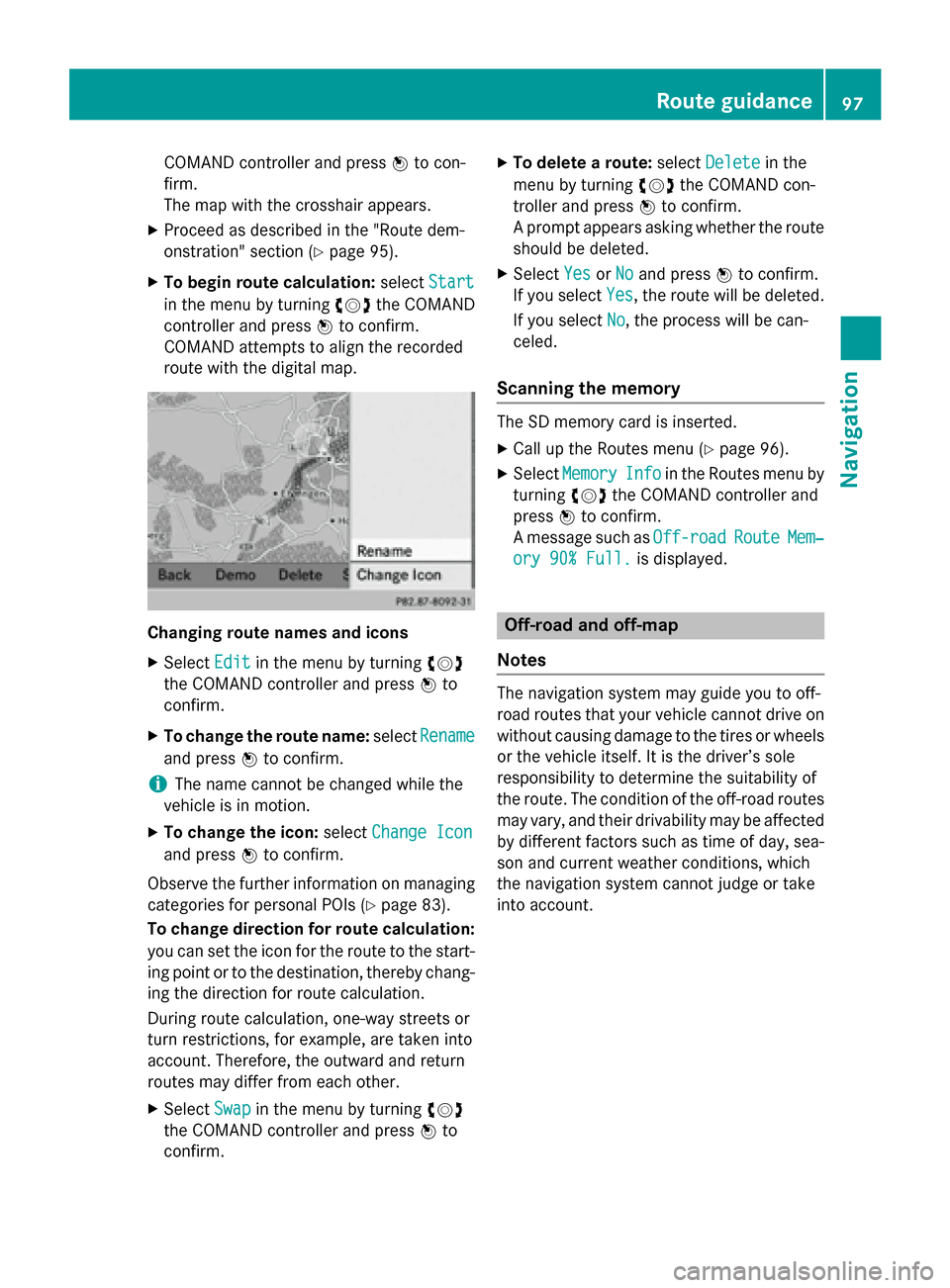
COMAND controller and press
0098to con-
firm.
The map with the crosshair appears.
X Proceed as described in the "Route dem-
onstration" section (Y page 95).
X To begin route calculation: selectStart
Start
in the menu by turning 00790052007Athe COMAND
controller and press 0098to confirm.
COMAND attempts to align the recorded
route with the digital map. Changing route names and icons
X
Select Edit Editin the menu by turning 00790052007A
the COMAND controller and press 0098to
confirm.
X To change the route name: selectRename
Rename
and press 0098to confirm.
i The name cannot be changed while the
vehicle is in motion.
X To change the icon: selectChange Icon
Change Icon
and press 0098to confirm.
Observe the further information on managing categories for personal POIs (Y page 83).
To change direction for route calculation: you can set the icon for the route to the start-
ing point or to the destination, thereby chang- ing the direction for route calculation.
During route calculation, one-way streets or
turn restrictions, for example, are taken into
account. Therefore, the outward and return
routes may differ from each other.
X Select Swap
Swap in the menu by turning 00790052007A
the COMAND controller and press 0098to
confirm. X
To delete a route: selectDelete Delete in the
menu by turning 00790052007Athe COMAND con-
troller and press 0098to confirm.
A prompt appears asking whether the route should be deleted.
X Select Yes YesorNo
No and press 0098to confirm.
If you select Yes
Yes, the route will be deleted.
If you select No
No, the process will be can-
celed.
Scanning the memory The SD memory card is inserted.
X Call up the Routes menu (Y page 96).
X Select Memory
Memory Info
Infoin the Routes menu by
turning 00790052007Athe COMAND controller and
press 0098to confirm.
A message such as Off-road Off-roadRoute RouteMem‐
Mem‐
ory 90% Full.
ory 90% Full. is displayed. Off-road and off-map
Notes The navigation system may guide you to off-
road routes that your vehicle cannot drive on
without causing damage to the tires or wheelsor the vehicle itself. It is the driver’s sole
responsibility to determine the suitability of
the route. The condition of the off-road routes
may vary, and their drivability may be affected by different factors such as time of day, sea-
son and current weather conditions, which
the navigation system cannot judge or take
into account. Route guidance
97Navigation Z
Page 101 of 270
As soon as the system can assign the vehicle
position to the map again, route guidance
continues in the usual way. Traffic reports
Prerequisites
i This function is currently not available for
Canada.
To receive real-time traffic reports via satel-
lite radio, you require:
R optional satellite radio equipment
R a subscription to SIRIUS XM Satellite Radio
Traffic Message Service
Further information on satellite radio
(Y page 190).
COMAND can receive traffic reports via sat-
ellite radio and take account of these for
route guidance in the navigation system.
Received traffic reports are displayed on the
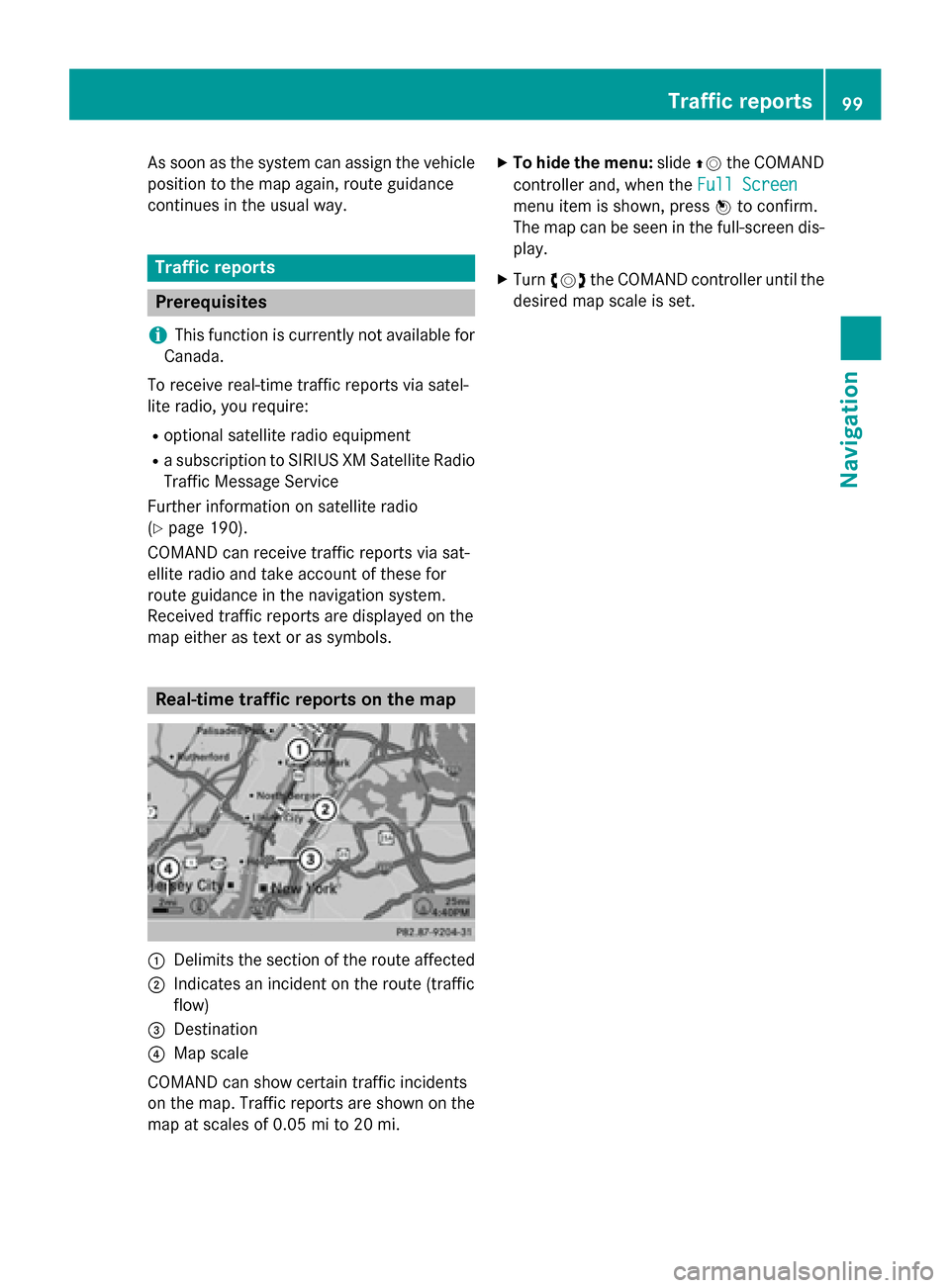
map either as text or as symbols. Real-time traffic reports on the map
0043
Delimits the section of the route affected
0044 Indicates an incident on the route (traffic
flow)
0087 Destination
0085 Map scale
COMAND can show certain traffic incidents
on the map. Traffic reports are shown on the map at scales of 0.05 mi to 20 mi. X
To hide the menu: slide00970052the COMAND
controller and, when the Full Screen Full Screen
menu item is shown, press 0098to confirm.
The map can be seen in the full-screen dis- play.
X Turn 00790052007A the COMAND controller until the
desired map scale is set. Traffic reports
99Navigation Z