Time MERCEDES-BENZ SLK-Class 2015 R172 Comand Manual
[x] Cancel search | Manufacturer: MERCEDES-BENZ, Model Year: 2015, Model line: SLK-Class, Model: MERCEDES-BENZ SLK-Class 2015 R172Pages: 270, PDF Size: 5.82 MB
Page 199 of 270
Connecting a USB device
The USB port is located in the stowage com-
partment in the center console.
Electrical consumption at this connection
must not exceed a continuous current of
500 mA. If the electrical consumption is
higher, use a separate source to provide
power for the USB device (e.g.
12 V power supply).
X Connect the USB device (e.g. USB stick) to
the USB port.
If no MP3 tracks can be found, you will seea message to this effect.
The first 100 MP3 tracks are loaded. The
first MP3 track is then played. Further
tracks are loaded in the background; this is
indicated by an hourglass symbol.
i Due to the wide range of USB devices
available on the market, playback cannot
be guaranteed for all brands of USB device.
Information about suitable USB devices
can be obtained from an authorized
Mercedes-Benz Center.
MP3 players must support Media Transfer
Protocol (MTP). The MTP mode must be
active. Switching to audio CD or MP3 mode
Inserting or connecting a medium X
Insert CDs (Y page 196)
or
X Insert an SD memory card (Y page 196)
or
X Connect a USB device (Y page 197).
COMAND loads the medium inserted and
starts to play it.
Switching on using the button X
Press the 003Abutton one or more times. By pressing the
003Abutton repeatedly, you
can switch modes in the following order:
R
R CD/video DVD/MP3 CD/MP3 DVD in the
single DVD drive (disc mode)
R Memory card mode
R MUSIC REGISTER
R USB storage device
R Media Interface or audio AUX mode
R Bluetooth ®
audio mode
X Select an audio medium from the media list
(Y page 198).
Switching modes via the audio menu X
Select Audio Audioin the main function bar by
sliding 00970052and turning 00790052007Athe COMAND
controller and press 0098to confirm.
The last active audio source is now activa-
ted.
You can activate a different audio source
using the audio menu.
X Select Audio Audioby sliding 00970052and turning
00790052007Athe COMAND controller and press 0098
to confirm.
The audio menu appears.
X Select Disc Disc,Memory
Memory Card
Card,Music
Music Regis‐
Regis‐
ter
ter ,USB Storage
USB Storage orMedia Interface
Media Interface
and press 0098to confirm.
This switches to the desired audio source.
X Select an audio medium from the media list
(Y page 198). Audio CD and MP3 mode
197Audio Z
Page 200 of 270
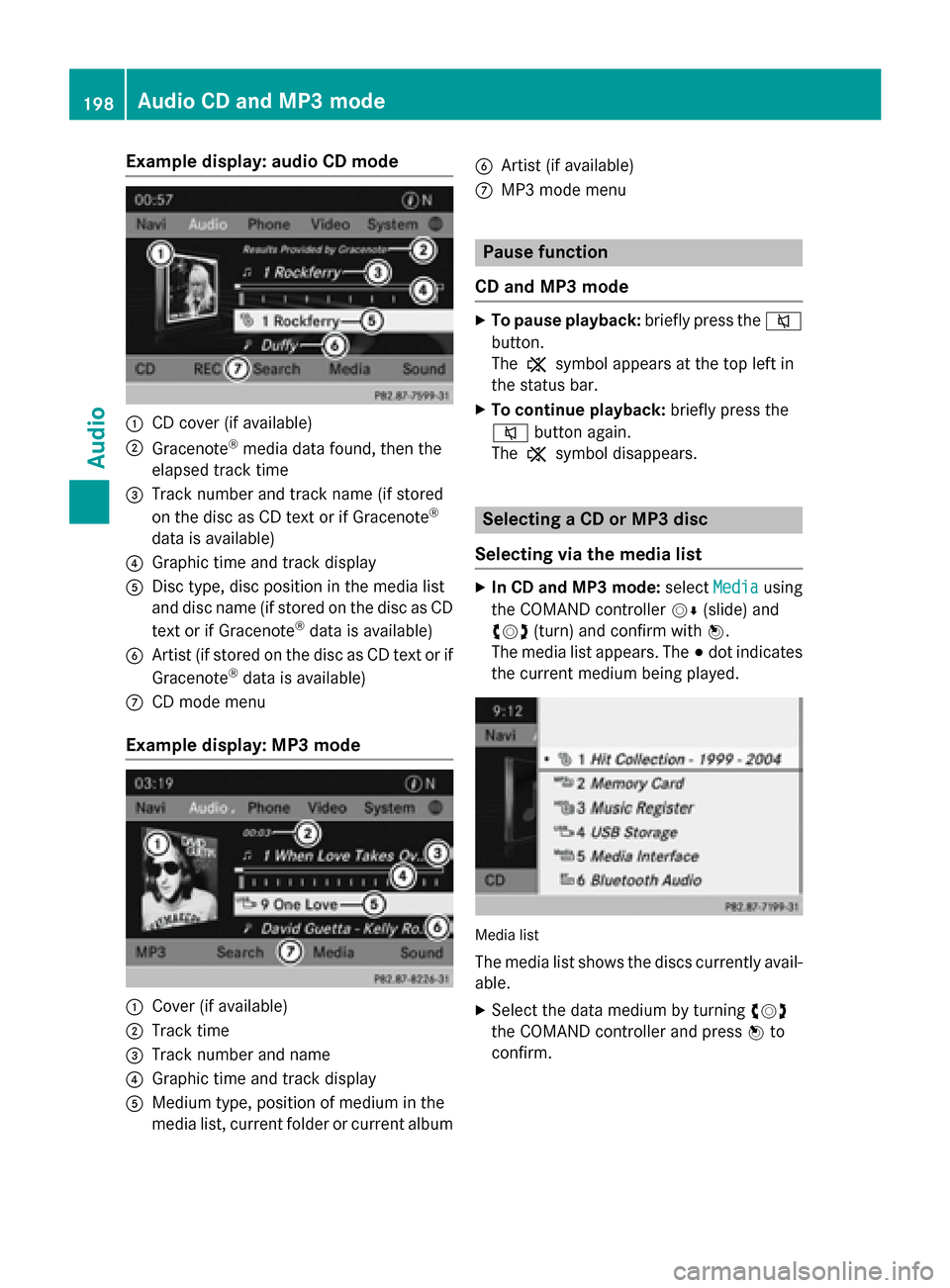
Example display: audio CD mode
0043
CD cover (if available)
0044 Gracenote ®
media data found, then the
elapsed track time
0087 Track number and track name (if stored
on the disc as CD text or if Gracenote ®
data is available)
0085 Graphic time and track display
0083 Disc type, disc position in the media list
and disc name (if stored on the disc as CD
text or if Gracenote ®
data is available)
0084 Artist (if stored on the disc as CD text or if
Gracenote ®
data is available)
006B CD mode menu
Example display: MP3 mode 0043
Cover (if available)
0044 Track time
0087 Track number and name
0085 Graphic time and track display
0083 Medium type, position of medium in the
media list, current folder or current album 0084
Artist (if available)
006B MP3 mode menu Pause function
CD and MP3 mode X
To pause playback: briefly press the0063
button.
The 006B symbol appears at the top left in
the status bar.
X To continue playback: briefly press the
0063 button again.
The 006B symbol disappears. Selecting a CD or MP3 disc
Selecting via the media list X
In CD and MP3 mode: selectMedia Media using
the COMAND controller 00520064(slide) and
00790052007A (turn) and confirm with 0098.
The media list appears. The 003Bdot indicates
the current medium being played. Media list
The media list shows the discs currently avail- able.
X Select the data medium by turning 00790052007A
the COMAND controller and press 0098to
confirm. 198
Audio CD and MP3 modeAudio
Page 204 of 270
For all media that contain MP3 data (e.g. MP3
CD, SD memory card, MUSIC REGISTER), you
can determine whether:
R the metadata contained in the tags of the
encoded music data should be displayed
R the file and directory names should be dis-
played during playback
X To display the album and artist name:
select MP3
MP3 orUSB USB in the basic display by
sliding 00520064and turning 00790052007Athe COMAND
controller and press 0098to confirm.
X Select Display Track Information
Display Track Information and
press 0098to confirm. Selecting an active partition (USB
mass storage devices only)
You can select this function for USB mass
storage devices when the storage device is
partitioned. Up to 5 partitions (primary or log- ical, FAT, FAT32 and NTFS) are supported.
X Select MP3
MP3 in the basic display by sliding
00520064 and turning 00790052007Athe COMAND con-
troller and press 0098to confirm.
X Select Select Active Partition
Select Active Partition and
press 0098to confirm. Playback options
X To select options: switch on audio CD or
MP3 mode (Y page 197).
X Select CD CDorMP3
MP3 mode by sliding 00520064and
turning 00790052007Athe COMAND controller and
then pressing 0098to confirm.
The options list appears. The 003Bdot indi-
cates the option selected.
X Select an option by turning 00790052007Aand press
0098 to confirm.
The option is switched on. For all options
except Normal Track Sequence
Normal Track Sequence , you will
see a corresponding display in the display/ selection window.
The following options are available to you:
R Normal Track Sequence
Normal Track Sequence The tracks are played in the normal order
(e.g. track 1, 2, 3, etc.).
In MP3 mode, the track order is determined
by the order in which the tracks are written to the MP3 data carrier when it is created.
Alphabetical order is the most common.
Once all the tracks in a folder have been
played, the tracks in the next folder are
played.
R Random Medium Random Medium
All the tracks on the medium are played in
random order (e.g. track 3, 8, 5 etc.).
R Random Track List Random Track List (MP3 mode only)
You will hear the tracks in the current play-
list or currently active folder (including all
subfolders) in random order.
i The
Normal Track Sequence Normal Track Sequence option is
automatically selected when you change
the disc you are currently listening to or
when you select a different medium. If an
option is selected, it remains selected after COMAND is switched on or off. Notes on MP3 mode
General notes Depending on the volume and format of the
MP3 data, the length of time required for
reading the data may increase.
Permissible data carriers R
CD-R and CD-RW
R DVD-R and DVD-RW
R DVD+R and DVD+RW
R SD memory card
R USB storage device
Permissible file systems R
ISO 9660/Joliet standard for CDs
R UDF for video DVDs
R FAT16, FAT32 and NTFS for SD memory
card and USB storage media 202
Audio CD and MP3 modeAudio
Page 205 of 270
Multisession CDs
For multisession CDs, the content of the first
session determines how COMAND will proc-
ess the CD. COMAND plays only one session
and gives priority to the audio CD session.
If possible, use COMAND to play only CDs
that have been written in one session.
File structure of a data carrier When you create a disc with compressed
music files, the tracks can be organized in
folders. A folder may also contain subfolders. The disc may contain no more than eight
directory levels. Files beyond the eighth level will not be recognized by the system.
i COMAND loads up to 15,000 tracks from
an SD memory card or USB storage
medium.
Track and file names When you create a disc with compressed
music files, you can assign names to the
tracks and folders.
COMAND uses these names accordingly for
the display. Folders that contain data other
than MP3 or WMA tracks are not displayed by
COMAND.
If MP3 or WMA files are stored in the root
directory itself, the root directory will also be
treated as a folder. COMAND will then show
the name of the root directory as the folder
name.
You should observe the following when
assigning track names:
R track names must have at least one char-
acter.
R track names must have the extension
"mp3" or "wma".
R there must be a dot between the track
name and the extension.
Example of a correct track name:
"Track1.mp3". Permissible formats COMAND supports the following formats:
R MPEG1 Audio Layer 3 (MP3)
R Microsoft Windows Media Audio V8 and V9
(WMA) without copy protection
Microsoft Windows Media Audio V2, V7, V8 and V9 (WMA)
R additional music files in AAC format with
the file extensions .aac, .mp4, .m4a
and .m4b, but not copy-protected iTunes
music files with the extension .m4p.
i If, in addition to MP3 files, there are other
music files in these audio formats stored on
the disc, the loading process may require a
longer time before the first track is played.
i The MP3 audio encoding method is under
license from Fraunhofer IIS (Institut Integ-
rierte Schaltungen – Institute for Integrated Circuits) and Thomson.
Permissible bit and sampling rates COMAND supports
MP3files of the following
types:
R fixed and variable bit rates from 32 kbit/s
to 320 kbit/s
R sampling rates of 8 kHz to 48 kHz
COMAND supports WMAfiles of the follow-
ing types:
R fixed bit rates from 5 kbit/s to 384 kbit/s
R sampling rates of 8 kHz to 48 kHz
COMAND does notsupport WMAfiles of the
following types:
R DRM (Digital Rights Management) encryp-
ted files
R variable bit rate
R WMA Pro
R 5.1 surround sound
i Only use tracks with a bit rate of at least
128 kbit/s and a sampling rate of at least
44.1 kHz. Lower rates can cause a notice-
able deterioration in quality. This is espe- Audio CD and MP3 mode
203Audio Z
Page 207 of 270
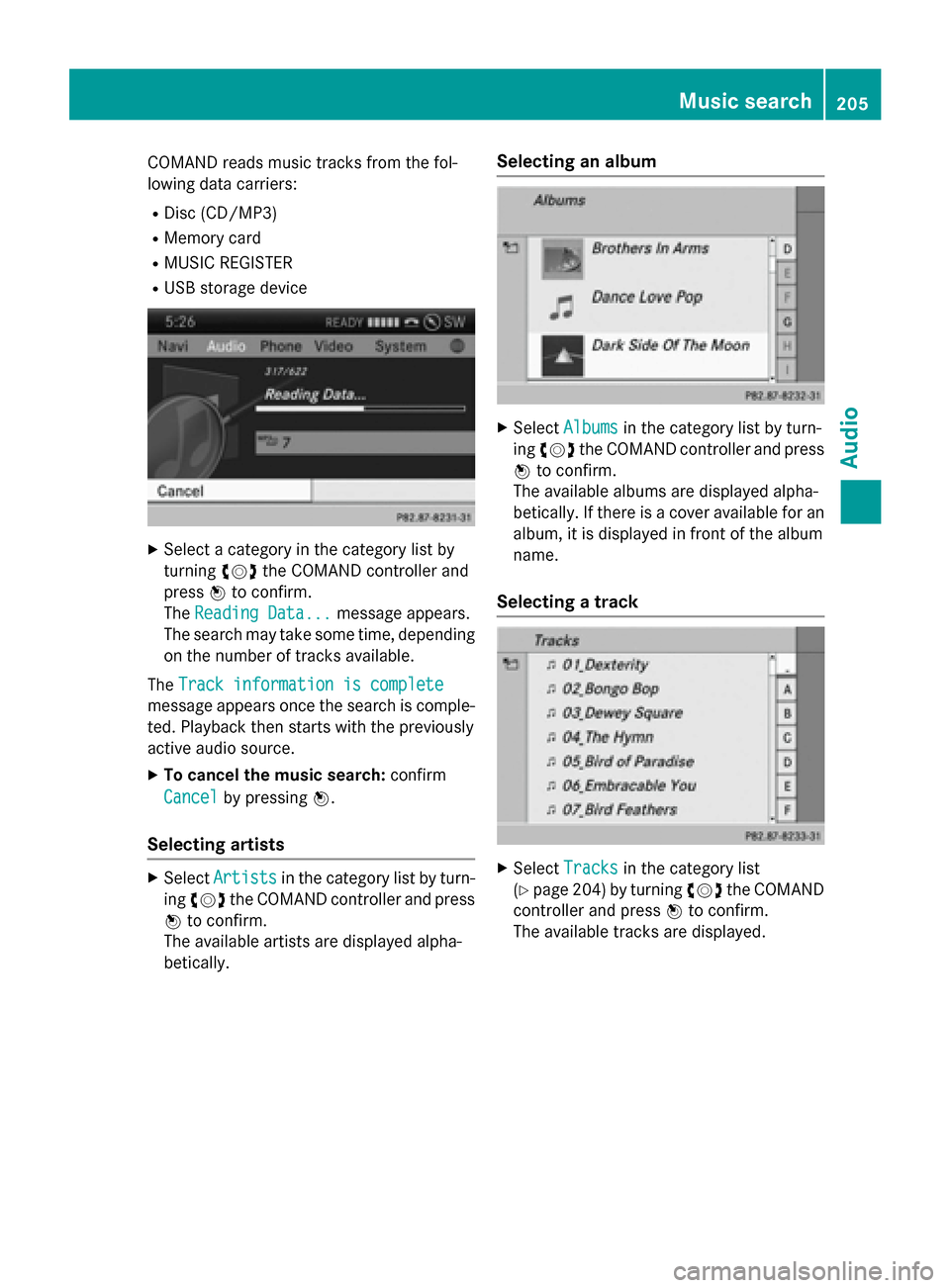
COMAND reads music tracks from the fol-
lowing data carriers:
R Disc (CD/MP3)
R Memory card
R MUSIC REGISTER
R USB storage device X
Select a category in the category list by
turning 00790052007Athe COMAND controller and
press 0098to confirm.
The Reading Data...
Reading Data... message appears.
The search may take some time, depending on the number of tracks available.
The Track information is complete
Track information is complete
message appears once the search is comple-
ted. Playback then starts with the previously
active audio source.
X To cancel the music search: confirm
Cancel
Cancel by pressing 0098.
Selecting artists X
Select Artists
Artists in the category list by turn-
ing 00790052007A the COMAND controller and press
0098 to confirm.
The available artists are displayed alpha-
betically. Selecting an album X
Select Albums
Albums in the category list by turn-
ing 00790052007A the COMAND controller and press
0098 to confirm.
The available albums are displayed alpha-
betically. If there is a cover available for an
album, it is displayed in front of the album
name.
Selecting a track X
Select Tracks Tracks in the category list
(Y page 204) by turning 00790052007Athe COMAND
controller and press 0098to confirm.
The available tracks are displayed. Music search
205Audio Z
Page 209 of 270
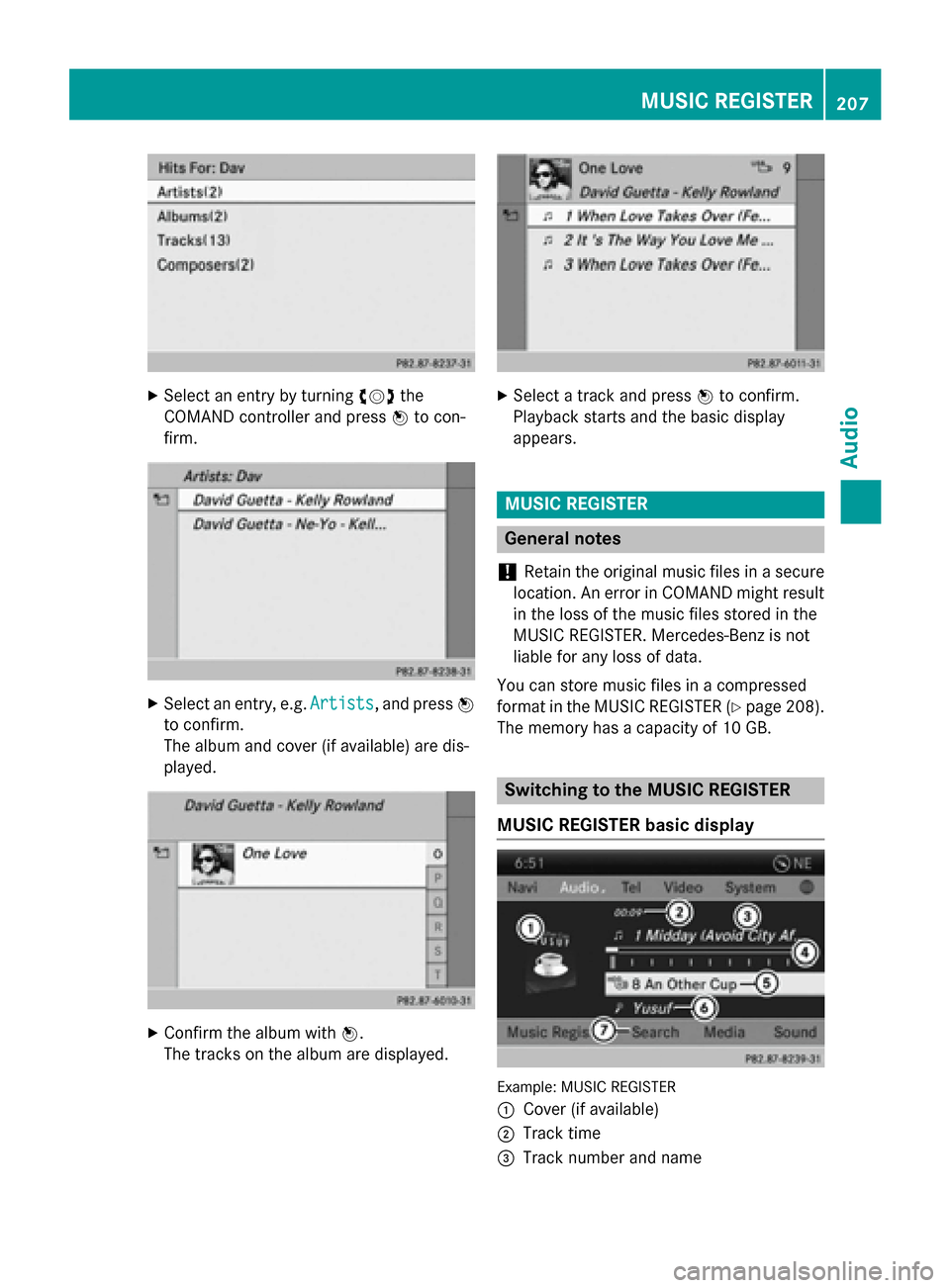
X
Select an entry by turning 00790052007Athe
COMAND controller and press 0098to con-
firm. X
Select an entry, e.g. Artists
Artists, and press0098
to confirm.
The album and cover (if available) are dis-
played. X
Confirm the album with 0098.
The tracks on the album are displayed. X
Select a track and press 0098to confirm.
Playback starts and the basic display
appears. MUSIC REGISTER
General notes
! Retain the original music files in a secure
location. An error in COMAND might result
in the loss of the music files stored in the
MUSIC REGISTER. Mercedes-Benz is not
liable for any loss of data.
You can store music files in a compressed
format in the MUSIC REGISTER (Y page 208).
The memory has a capacity of 10 GB. Switching to the MUSIC REGISTER
MUSIC REGISTER basic display Example: MUSIC REGISTER
0043
Cover (if available)
0044 Track time
0087 Track number and name MUSIC REGISTER
207Audio Z
Page 210 of 270
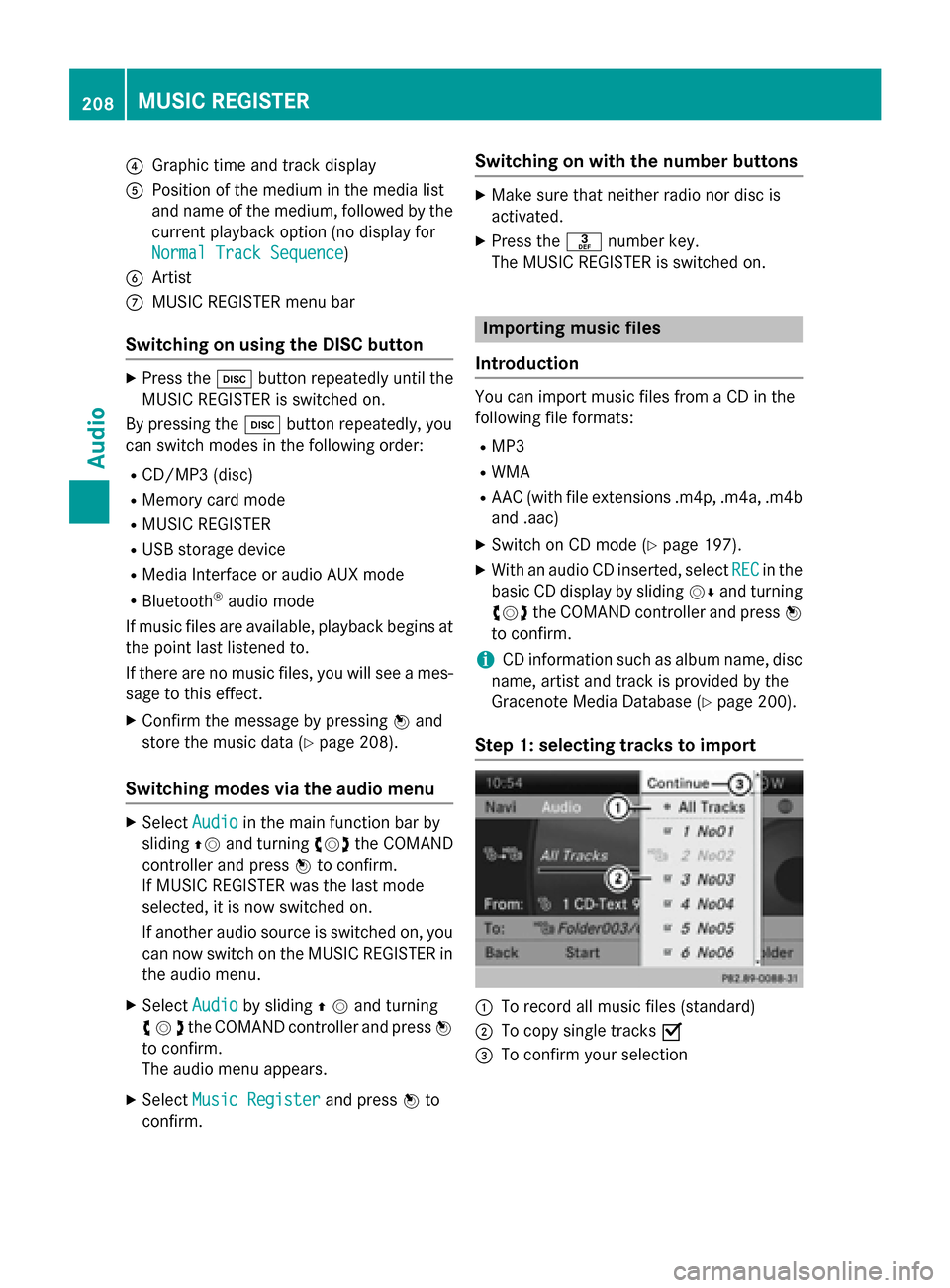
0085
Graphic time and track display
0083 Position of the medium in the media list
and name of the medium, followed by the
current playback option (no display for
Normal Track Sequence
Normal Track Sequence)
0084 Artist
006B MUSIC REGISTER menu bar
Switching on using the DISC button X
Press the 003Abutton repeatedly until the
MUSIC REGISTER is switched on.
By pressing the 003Abutton repeatedly, you
can switch modes in the following order:
R CD/MP3 (disc)
R Memory card mode
R MUSIC REGISTER
R USB storage device
R Media Interface or audio AUX mode
R Bluetooth ®
audio mode
If music files are available, playback begins at the point last listened to.
If there are no music files, you will see a mes- sage to this effect.
X Confirm the message by pressing 0098and
store the music data (Y page 208).
Switching modes via the audio menu X
Select Audio Audioin the main function bar by
sliding 00970052and turning 00790052007Athe COMAND
controller and press 0098to confirm.
If MUSIC REGISTER was the last mode
selected, it is now switched on.
If another audio source is switched on, you
can now switch on the MUSIC REGISTER in
the audio menu.
X Select Audio
Audio by sliding 00970052and turning
00790052007Athe COMAND controller and press 0098
to confirm.
The audio menu appears.
X Select Music Register
Music Register and press0098to
confirm. Switching on with the number buttons X
Make sure that neither radio nor disc is
activated.
X Press the 0083number key.
The MUSIC REGISTER is switched on. Importing music files
Introduction You can import music files from a CD in the
following file formats:
R MP3
R WMA
R AAC (with file extensions .m4p, .m4a, .m4b
and .aac)
X Switch on CD mode (Y page 197).
X With an audio CD inserted, select REC RECin the
basic CD display by sliding 00520064and turning
00790052007A the COMAND controller and press 0098
to confirm.
i CD information such as album name, disc
name, artist and track is provided by the
Gracenote Media Database (Y page 200).
Step 1: selecting tracks to import 0043
To record all music files (standard)
0044 To copy single tracks 0073
0087 To confirm your selection 208
MUSIC REGISTERAudio
Page 211 of 270
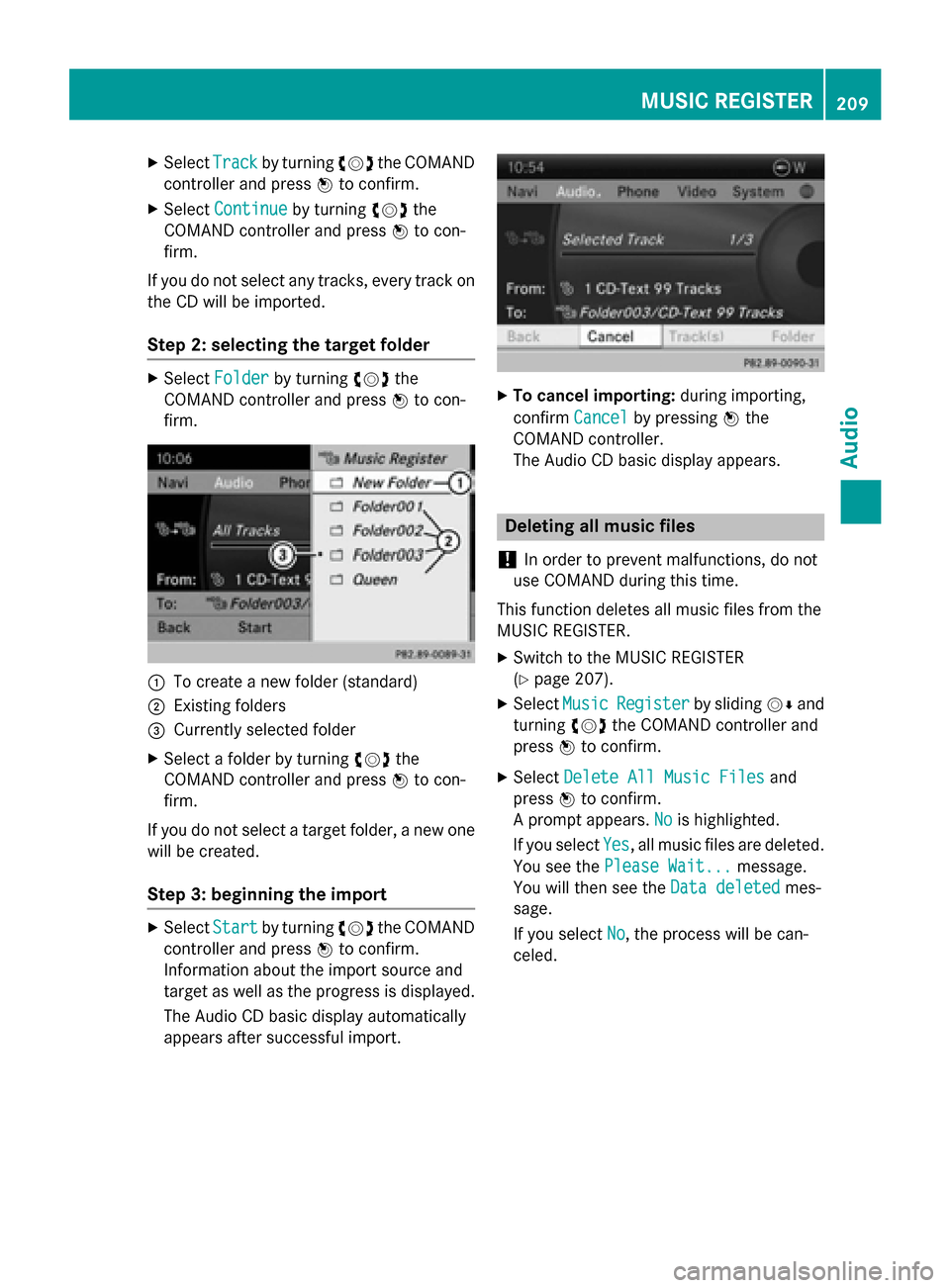
X
Select Track
Trackby turning 00790052007Athe COMAND
controller and press 0098to confirm.
X Select Continue
Continue by turning 00790052007Athe
COMAND controller and press 0098to con-
firm.
If you do not select any tracks, every track on
the CD will be imported.
Step 2: selecting the target folder X
Select Folder
Folder by turning 00790052007Athe
COMAND controller and press 0098to con-
firm. 0043
To create a new folder (standard)
0044 Existing folders
0087 Currently selected folder
X Select a folder by turning 00790052007Athe
COMAND controller and press 0098to con-
firm.
If you do not select a target folder, a new one will be created.
Step 3: beginning the import X
Select Start
Startby turning 00790052007Athe COMAND
controller and press 0098to confirm.
Information about the import source and
target as well as the progress is displayed.
The Audio CD basic display automatically
appears after successful import. X
To cancel importing: during importing,
confirm Cancel
Cancelby pressing 0098the
COMAND controller.
The Audio CD basic display appears. Deleting all music files
! In order to prevent malfunctions, do not
use COMAND during this time.
This function deletes all music files from the
MUSIC REGISTER.
X Switch to the MUSIC REGISTER
(Y page 207).
X Select Music
Music Register Register by sliding00520064and
turning 00790052007Athe COMAND controller and
press 0098to confirm.
X Select Delete All Music Files
Delete All Music Files and
press 0098to confirm.
A prompt appears. No
Nois highlighted.
If you select Yes
Yes, all music files are deleted.
You see the Please Wait...
Please Wait... message.
You will then see the Data deleted
Data deletedmes-
sage.
If you select No No, the process will be can-
celed. MUSIC REGISTER
209Audio Z
Page 214 of 270
X
Activate Bluetooth ®
and Bluetooth ®
visibil-
ity on the Bluetooth ®
audio device. Preconditions in COMAND
X Activate the Bluetooth ®
function in
COMAND (Y page 45). Connecting Bluetooth
®
audio devices
General information Before using your Bluetooth
®
audio device
with COMAND for the first time, you will need to authorize it.
When you authorize a new Bluetooth ®
audio
device, it is connected automatically. Con-
nection involves first searching for a Blue-
tooth ®
audio device and then authorizing it.
You can authorize up to fifteen Bluetooth ®
devices.
i If you authorize a mobile phone that sup-
ports Bluetooth ®
audio, the A2DP and
AVRCP Bluetooth ®
audio profiles are con-
nected automatically.
The mobile phone is then entered:
R in the Bluetooth ®
telephone list
(Y page 128)
R in the Bluetooth ®
device list
(Y page 212).
Mercedes-Benz recommends authorizing a
mobile phone in Bluetooth ®
telephony
(Y page 128). Searching for and authorizing a Blue-
tooth
®
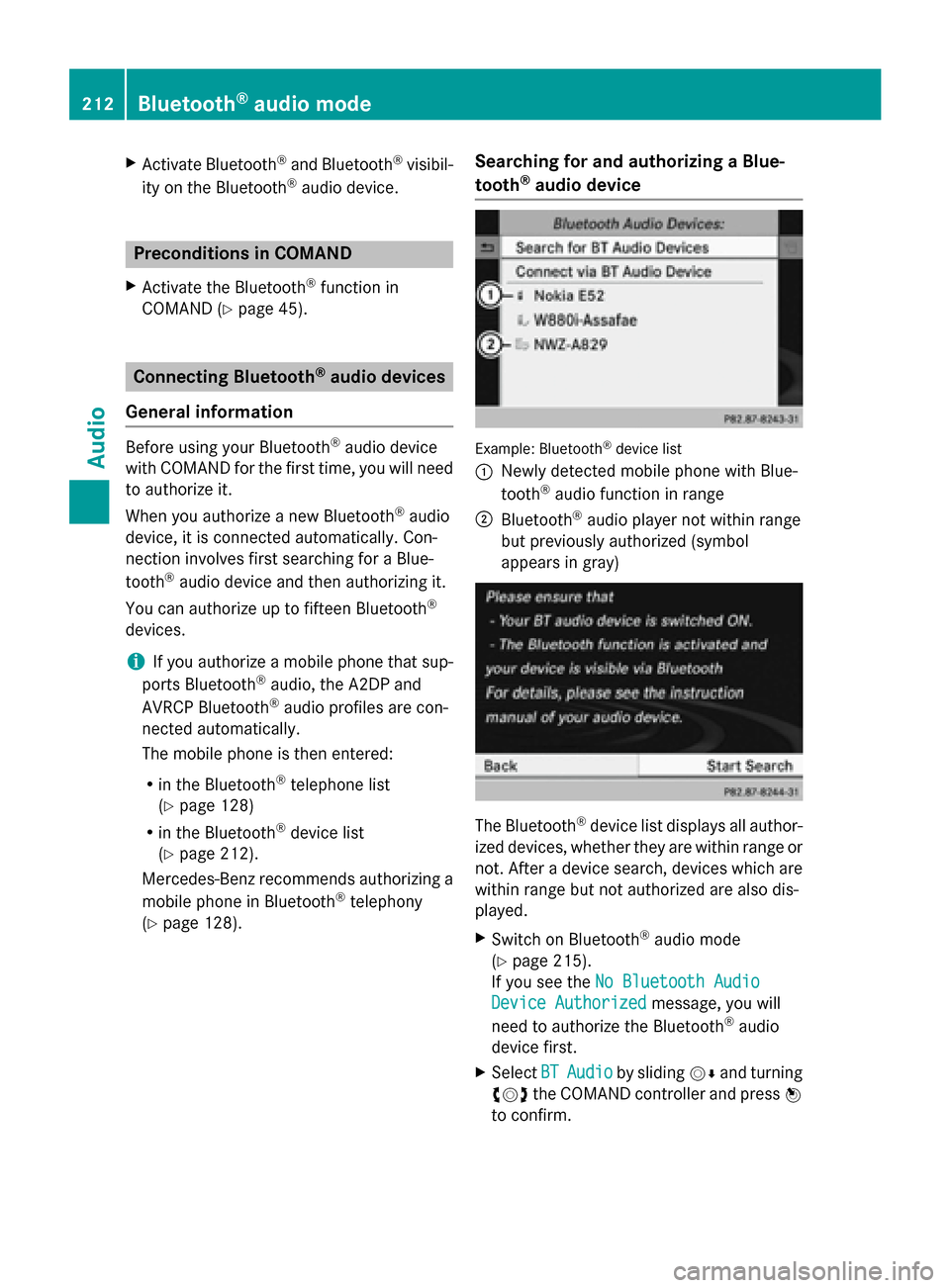
audio device Example: Bluetooth
®
device list
0043 Newly detected mobile phone with Blue-
tooth ®
audio function in range
0044 Bluetooth ®
audio player not within range
but previously authorized (symbol
appears in gray) The Bluetooth
®
device list displays all author-
ized devices, whether they are within range or
not. After a device search, devices which are within range but not authorized are also dis-
played.
X Switch on Bluetooth ®
audio mode
(Y page 215).
If you see the No Bluetooth Audio No Bluetooth Audio
Device Authorized
Device Authorized message, you will
need to authorize the Bluetooth ®
audio
device first.
X Select BT
BTAudio
Audio by sliding 00520064and turning
00790052007A the COMAND controller and press 0098
to confirm. 212
Bluetooth ®
audio modeAudio
Page 217 of 270
X
Select Delete
Delete and press 0098to confirm.
A prompt appears asking whether you
really wish to deauthorize this device.
X Select Yes
YesorNo
No.
If you select Yes
Yes, the device will be deleted
from the Bluetooth ®
device list.
If you select No
No, the process will be can-
celed.
i Before re-authorizing the Bluetooth ®
audio device, you should also delete the
device name MB Bluetooth
MB Bluetooth from your
Bluetooth ®
audio device's Bluetooth ®
list.
See the Bluetooth ®
audio device's operat-
ing instructions. Switching to Bluetooth
®
audio mode
The Bluetooth ®
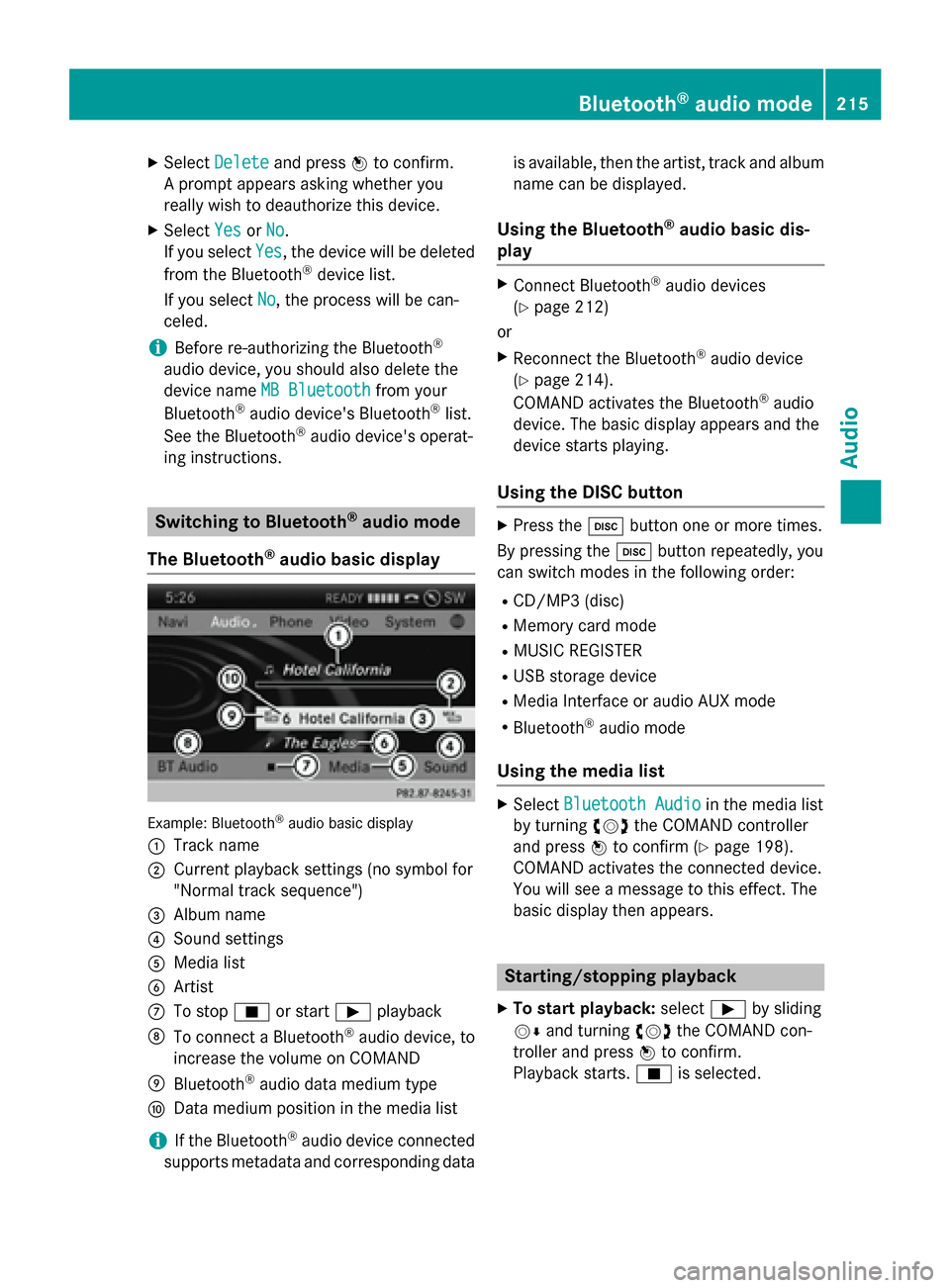
audio basic display Example: Bluetooth
®
audio basic display
0043 Track name
0044 Current playback settings (no symbol for
"Normal track sequence")
0087 Album name
0085 Sound settings
0083 Media list
0084 Artist
006B To stop 00DBor start 00D0playback
006C To connect a Bluetooth ®
audio device, to
increase the volume on COMAND
006D Bluetooth ®
audio data medium type
006E Data medium position in the media list
i If the Bluetooth ®
audio device connected
supports metadata and corresponding data is available, then the artist, track and album
name can be displayed.
Using the Bluetooth ®
audio basic dis-
play X
Connect Bluetooth ®
audio devices
(Y page 212)
or X Reconnect the Bluetooth ®
audio device
(Y page 214).
COMAND activates the Bluetooth ®
audio
device. The basic display appears and the
device starts playing.
Using the DISC button X
Press the 003Abutton one or more times.
By pressing the 003Abutton repeatedly, you
can switch modes in the following order:
R CD/MP3 (disc)
R Memory card mode
R MUSIC REGISTER
R USB storage device
R Media Interface or audio AUX mode
R Bluetooth ®
audio mode
Using the media list X
Select Bluetooth Audio Bluetooth Audio in the media list
by turning 00790052007Athe COMAND controller
and press 0098to confirm (Y page 198).
COMAND activates the connected device.
You will see a message to this effect. The
basic display then appears. Starting/stopping playback
X To start playback: select00D0by sliding
00520064 and turning 00790052007Athe COMAND con-
troller and press 0098to confirm.
Playback starts. 00DBis selected. Bluetooth
®
audio mode 215Audio Z