light MERCEDES-BENZ SLS AMG 2011 Owner's Guide
[x] Cancel search | Manufacturer: MERCEDES-BENZ, Model Year: 2011, Model line: SLS AMG, Model: MERCEDES-BENZ SLS AMG 2011Pages: 436, PDF Size: 17.73 MB
Page 140 of 436
XTo set the length of block: Select
Longer or Shorter repeatedly until the
required length is set.
The blocked segment is highlighted in red/
white on the map. Shown at the top of the
display is the length of the blocked
segment and the route segment to which
the block goes.XTo cancel the function: Select Back.XTo start route calculation: Select Start,
see also ( Y page 121).XTo delete block: In map view with the
menu system displayed, select Route £
Detour £ Delete .
Alternative Route
i You can have other routes calculated for
the original route guidance using the
Alternative Route function.
XIn the map display with the menu system
displayed ( Y page 106) select Route £
Alternative Route .
The display is split into two halves. On the
left is the map, which displays one or more
alternative routes between the start and
the destination. The current route is
highlighted in dark blue, other alternative
routes are light blue (day mode). If the
display is in night mode, the representation
is inverse.
The right side of the display shows
information on the active alternative route,
e.g. length of the segment and the
estimated time of arrival.XTo select next or previous alternative
route: Select Next or Previous .
The selected route is now highlighted in
dark blue.XTo return to the original route guidance:
Select Back.XTo start route guidance with the
selected alternative route guidance:
Select Start.Route Browser
i The route browser provides an overview
of the route. You can move along the route
segment by segment using the route
browser and view information and details
about the route segments.XIn the map display with the menu system
displayed, select Route £ Route
Browser .
The route browser is in the display.
The top of the display shows information on
the highlighted route segment, e.g. the
road name or number and the segment
length of the road to be driven.
The highlighted route segment is identified
on the map by its white color and red edge.XTo display next or previous route
segment: Select Next or Previous .XTo enlarge or reduce the map display:
Select ; or :.XTo close route browser: Select Back.
Displaying Destination Information
XIn the map display with the menu system
( Y page 106) shown, select Route £
Destination Information .
The destination information is given in the
display.138Navigation (Route Guidance)COMAND APS
BA 197 USA, CA Edition A 2011; 1; 27, en-UShereepeVersion: 3.0.3.52010-03-24T15:31:10+01:00 - Seite 138
Page 141 of 436
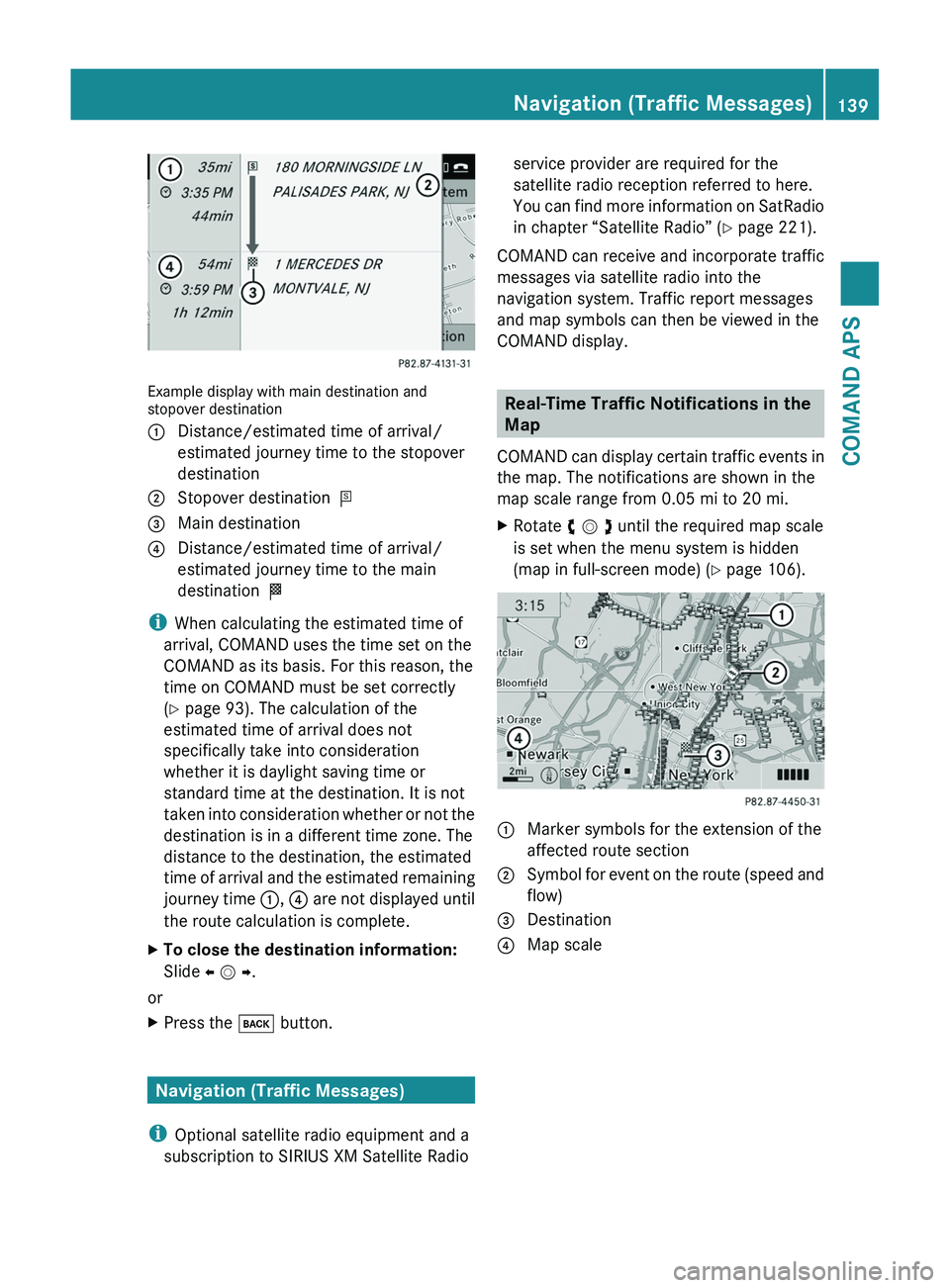
Example display with main destination andstopover destination
1 Distance/estimated time of arrival/
estimated journey time to the stopover
destination
2 Stopover destination =3 Main destination4 Distance/estimated time of arrival/
estimated journey time to the main
destination <
iWhen calculating the estimated time of
arrival, COMAND uses the time set on the
COMAND as its basis. For this reason, the
time on COMAND must be set correctly
(Y page 93). The calculation of the
estimated time of arrival does not
specifically take into consideration
whether it is daylight saving time or
standard time at the destination. It is not
taken into consideration whether or not the
destination is in a different time zone. The
distance to the destination, the estimated
time of arrival and the estimated remaining
journey time 1, 4 are not displayed until
the route calculation is complete.
XTo close the destination information:
Slide o m p.
or
XPress the \000= button.
Navigation (Traffic Messages)
iOptional satellite radio equipment and a
subscription to SIRIUS XM Satellite Radio
service provider are required for the
satellite radio reception referred to here.
You can find more information on SatRadio
in chapter “Satellite Radio” (Y page 221).
COMAND can receive and incorporate traffic
messages via satellite radio into the
navigation system. Traffic report messages
and map symbols can then be viewed in the
COMAND display.
Real-Time Traffic Notifications in the
Map
COMAND can display certain traffic events in
the map. The notifications are shown in the
map scale range from 0.05 mi to 20 mi.
XRotate y m z until the required map scale
is set when the menu system is hidden
(map in full-screen mode) (Y page 106).
1 Marker symbols for the extension of the
affected route section
2 Symbol for event on the route (speed and
flow)
3 Destination4 Map scaleNavigation (Traffic Messages)139COMAND APSBA 197 USA, CA Edition A 2011; 1; 27, en-UShereepeVersion: 3.0.3.52010-03-24T15:31:10+01:00 - Seite 139Z
Page 144 of 436
XTo display a traffic message: Select a
road, area or region from the list.
XTo close the list: Slide o m p once or
repeatedly.
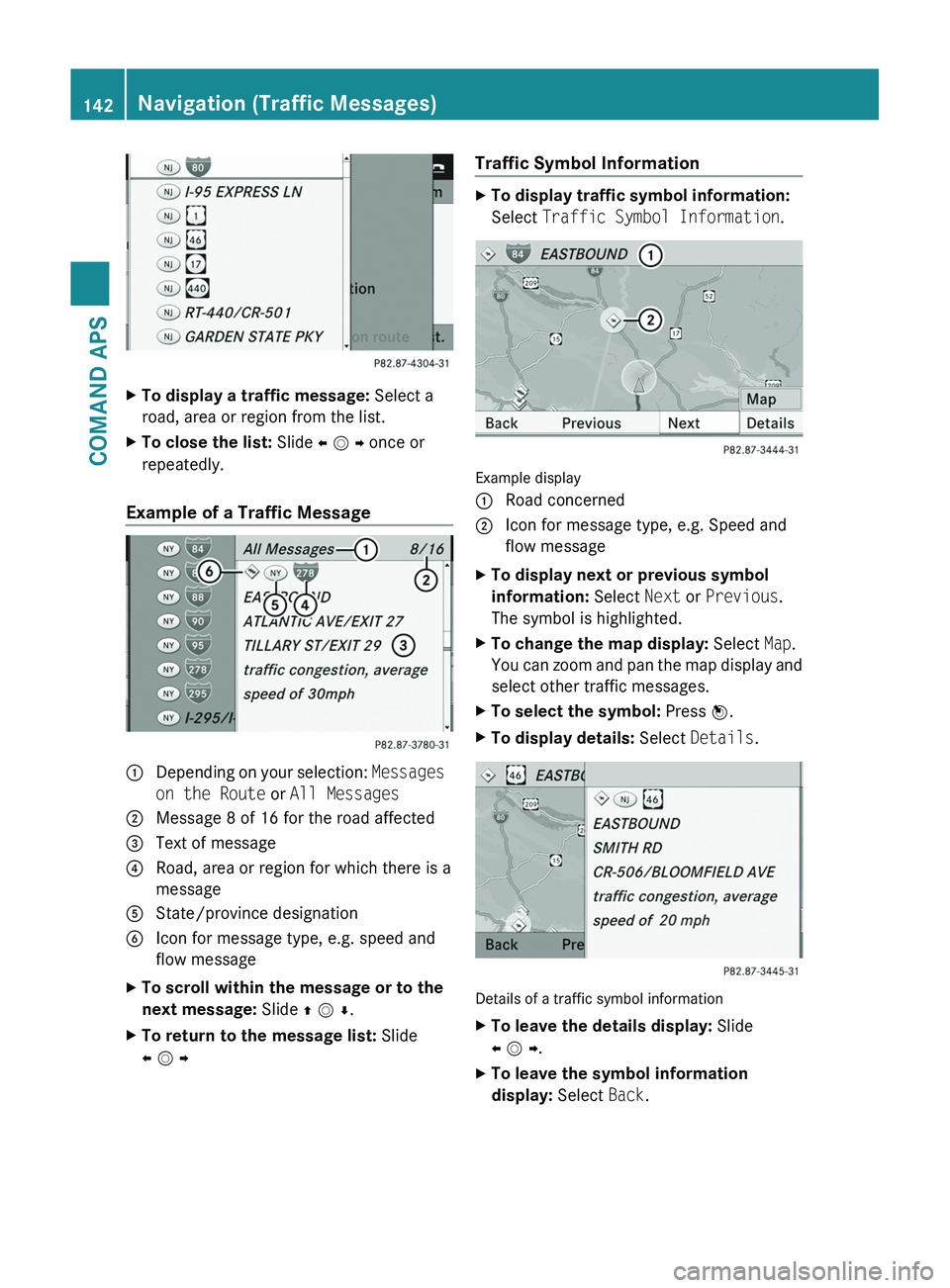
Example of a Traffic Message
1 Depending on your selection: Messages
on the Route or All Messages
2 Message 8 of 16 for the road affected3 Text of message4 Road, area or region for which there is a
message
5 State/province designation6 Icon for message type, e.g. speed and
flow message
XTo scroll within the message or to the
next message: Slide q m r.
XTo return to the message list: Slide
o m p
Traffic Symbol InformationXTo display traffic symbol information:
Select Traffic Symbol Information.
Example display
1 Road concerned2 Icon for message type, e.g. Speed and
flow message
XTo display next or previous symbol
information: Select Next or Previous.
The symbol is highlighted.
XTo change the map display: Select Map.
You can zoom and pan the map display and
select other traffic messages.
XTo select the symbol: Press n.XTo display details: Select Details.
Details of a traffic symbol information
XTo leave the details display: Slide
o m p.
XTo leave the symbol information
display: Select Back.
142Navigation (Traffic Messages)COMAND APS
BA 197 USA, CA Edition A 2011; 1; 27, en-UShereepeVersion: 3.0.3.52010-03-24T15:31:10+01:00 - Seite 142
Page 145 of 436
Read-aloud Function
The read-aloud function is only available
when route guidance is active. It can read out
traffic reports on the route. You can set the
language (Y page 99) and the read-aloud
speed (Y page 94).
If the automatic reading function of traffic
messages is activated, incoming traffic
messages are read aloud automatically
(Y page 112).
XIf necessary, switch to navigation mode
and show the menu system (Y page 106).
XSelect Traffic £ Read out all
messages on route.
COMAND reads out the messages in
sequence.
iThe Messages on the Route menu item
has no function if there are no messages
relating to the route.
XTo cancel read-out of current message:
Select Cancel Read-aloud Function.
or
XPress the F button.
COMAND reads the current message aloud
and then ends the read-aloud function.
Dynamic Rerouting
COMAND can recalculate the route by taking
into account traffic messages received along
the route.
You can set the options for dynamic rerouting
in the Navi menu (Y page 107).
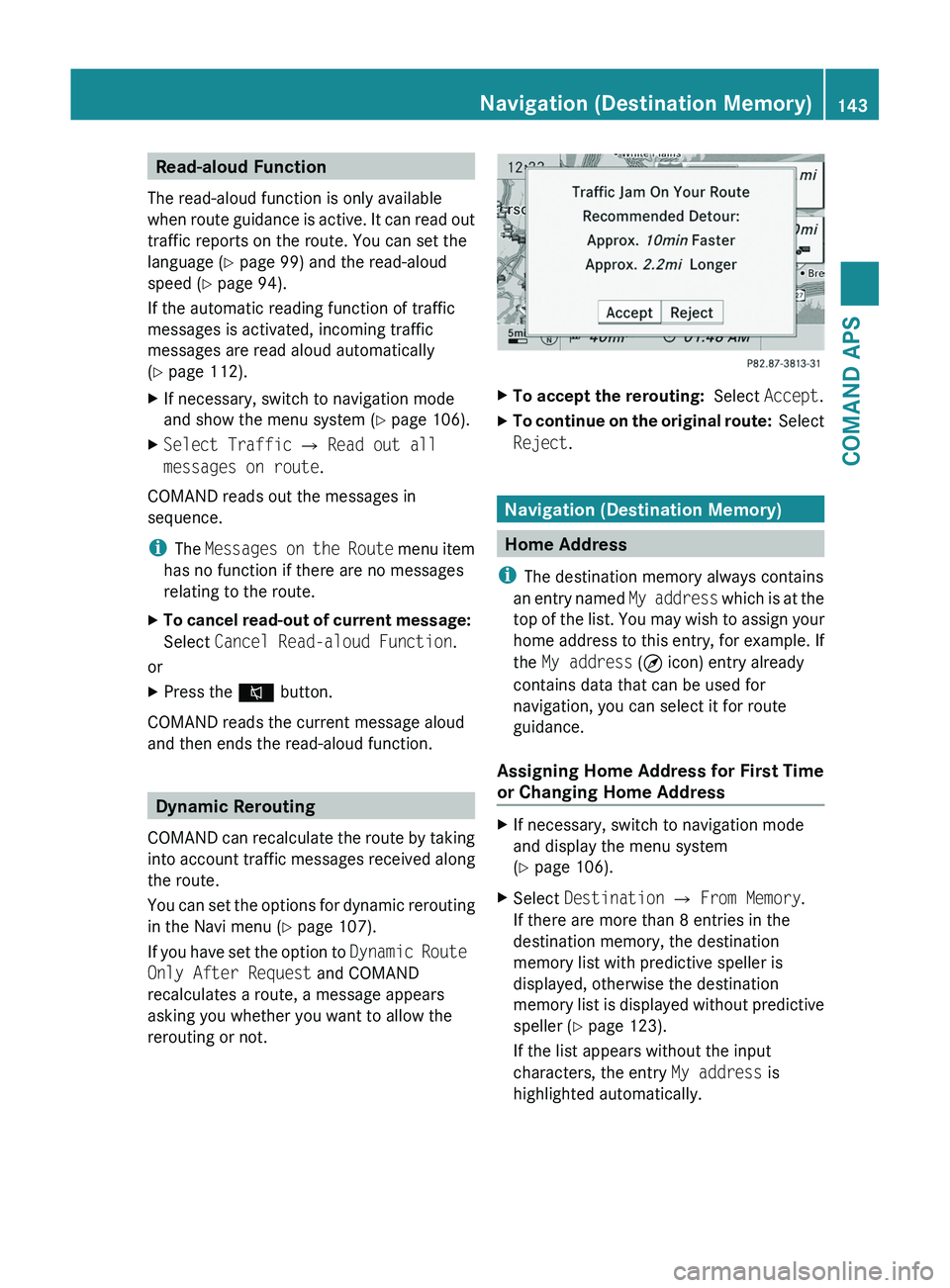
If you have set the option to Dynamic Route
Only After Request and COMAND
recalculates a route, a message appears
asking you whether you want to allow the
rerouting or not.
XTo accept the rerouting: Select Accept.XTo continue on the original route: Select
Reject.
Navigation (Destination Memory)
Home Address
iThe destination memory always contains
an entry named My address which is at the
top of the list. You may wish to assign your
home address to this entry, for example. If
the My address (¤ icon) entry already
contains data that can be used for
navigation, you can select it for route
guidance.
Assigning Home Address for First Time
or Changing Home Address
XIf necessary, switch to navigation mode
and display the menu system
(Y page 106).
XSelect Destination £ From Memory.
If there are more than 8 entries in the
destination memory, the destination
memory list with predictive speller is
displayed, otherwise the destination
memory list is displayed without predictive
speller (Y page 123).
If the list appears without the input
characters, the entry My address is
highlighted automatically.
Navigation (Destination Memory)143COMAND APSBA 197 USA, CA Edition A 2011; 1; 27, en-UShereepeVersion: 3.0.3.52010-03-24T15:31:10+01:00 - Seite 143Z
Page 146 of 436
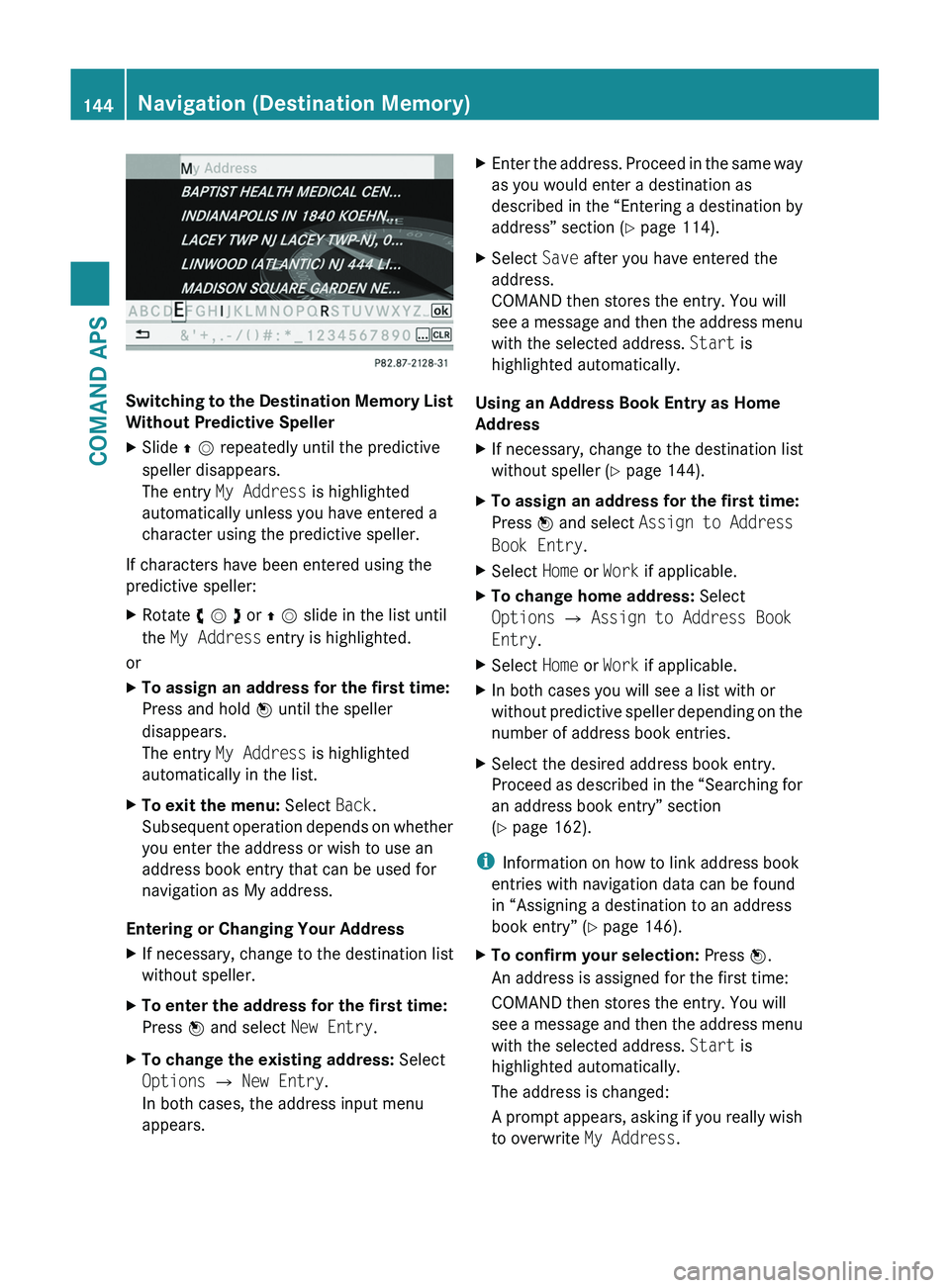
Switching to the Destination Memory List
Without Predictive Speller
XSlide q m repeatedly until the predictive
speller disappears.
The entry My Address is highlighted
automatically unless you have entered a
character using the predictive speller.
If characters have been entered using the
predictive speller:
XRotate y m z or q m slide in the list until
the My Address entry is highlighted.
or
XTo assign an address for the first time:
Press and hold n until the speller
disappears.
The entry My Address is highlighted
automatically in the list.
XTo exit the menu: Select Back.
Subsequent operation depends on whether
you enter the address or wish to use an
address book entry that can be used for
navigation as My address.
Entering or Changing Your Address
XIf necessary, change to the destination list
without speller.
XTo enter the address for the first time:
Press n and select New Entry.
XTo change the existing address: Select
Options £ New Entry.
In both cases, the address input menu
appears.
XEnter the address. Proceed in the same way
as you would enter a destination as
described in the “Entering a destination by
address” section (Y page 114).
XSelect Save after you have entered the
address.
COMAND then stores the entry. You will
see a message and then the address menu
with the selected address. Start is
highlighted automatically.
Using an Address Book Entry as Home
Address
XIf necessary, change to the destination list
without speller (Y page 144).
XTo assign an address for the first time:
Press n and select Assign to Address
Book Entry.
XSelect Home or Work if applicable.XTo change home address: Select
Options £ Assign to Address Book
Entry.
XSelect Home or Work if applicable.XIn both cases you will see a list with or
without predictive speller depending on the
number of address book entries.
XSelect the desired address book entry.
Proceed as described in the “Searching for
an address book entry” section
(Y page 162).
iInformation on how to link address book
entries with navigation data can be found
in “Assigning a destination to an address
book entry” (Y page 146).
XTo confirm your selection: Press n.
An address is assigned for the first time:
COMAND then stores the entry. You will
see a message and then the address menu
with the selected address. Start is
highlighted automatically.
The address is changed:
A prompt appears, asking if you really wish
to overwrite My Address.
144Navigation (Destination Memory)COMAND APS
BA 197 USA, CA Edition A 2011; 1; 27, en-UShereepeVersion: 3.0.3.52010-03-24T15:31:10+01:00 - Seite 144
Page 147 of 436
XSelect Yes or No.
If you select Yes, COMAND overwrites the
destination. You will see a message and
then the address menu with the selected
address. Start is highlighted
automatically.
If you select No, the list will reappear.
Selecting Home Address for Route
Guidance
iIf the My Address (¤ icon) entry already
contains data that can be used for
navigation, you can select it for route
guidance. If not, then first assign a
destination to this entry (Y page 143).
XIf necessary, switch to navigation mode
and display the menu system
(Y page 106).
XSelect Destination £ From Memory.
You will see a list with or without predictive
speller depending on how many entries
exist in the address book.
XDestination memory with predictive
speller: Slide q m repeatedly until the list
appears without the predictive speller.
or
XSelect d at the bottom right in the
predictive speller.
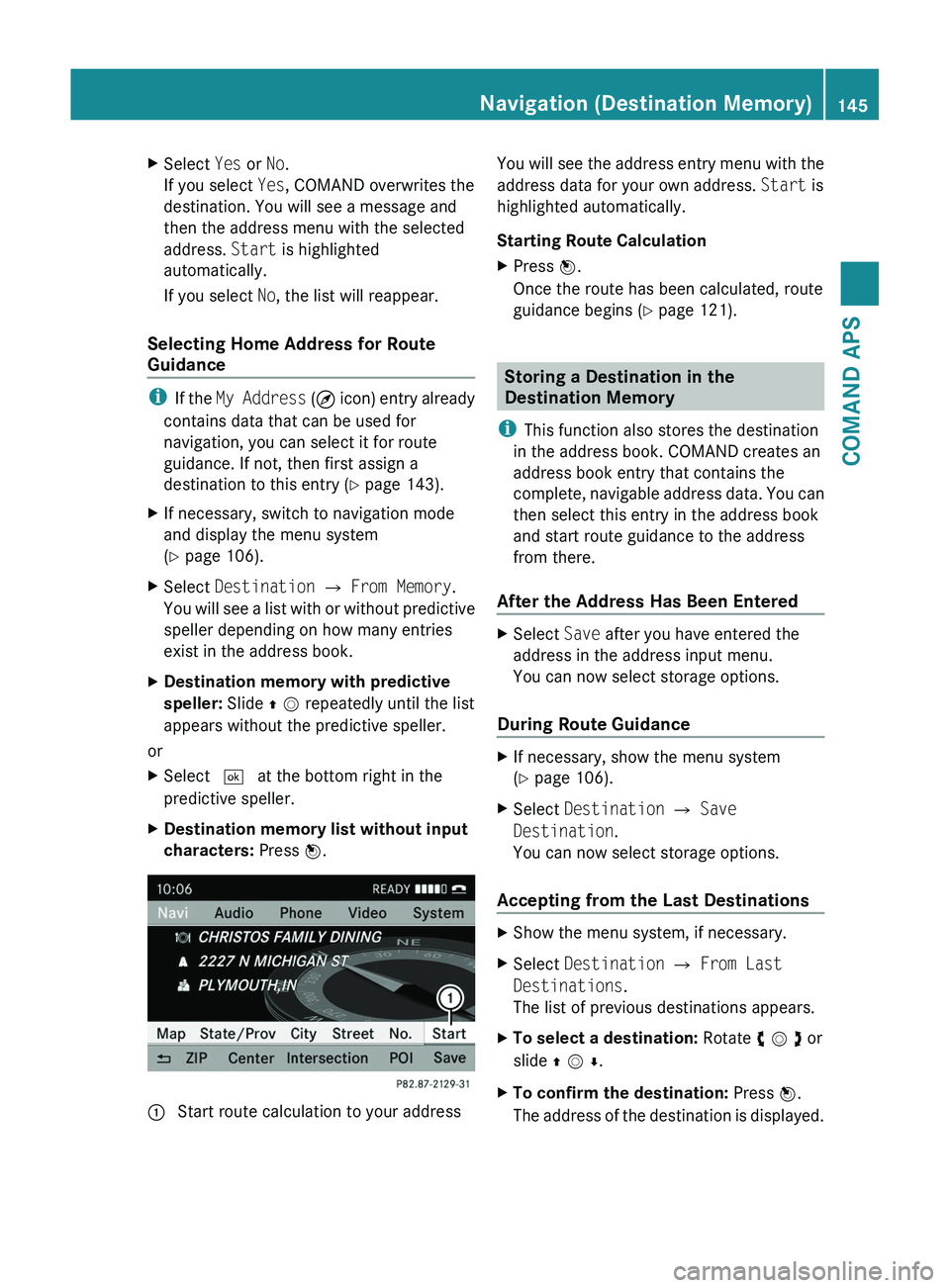
XDestination memory list without input
characters: Press n.1 Start route calculation to your addressYou will see the address entry menu with the
address data for your own address. Start is
highlighted automatically.
Starting Route Calculation
XPress n.
Once the route has been calculated, route
guidance begins (Y page 121).
Storing a Destination in the
Destination Memory
iThis function also stores the destination
in the address book. COMAND creates an
address book entry that contains the
complete, navigable address data. You can
then select this entry in the address book
and start route guidance to the address
from there.
After the Address Has Been Entered
XSelect Save after you have entered the
address in the address input menu.
You can now select storage options.
During Route Guidance
XIf necessary, show the menu system
(Y page 106).
XSelect Destination £ Save
Destination.
You can now select storage options.
Accepting from the Last Destinations
XShow the menu system, if necessary.XSelect Destination £ From Last
Destinations.
The list of previous destinations appears.
XTo select a destination: Rotate y m z or
slide q m r.
XTo confirm the destination: Press n.
The address of the destination is displayed.
Navigation (Destination Memory)145COMAND APSBA 197 USA, CA Edition A 2011; 1; 27, en-UShereepeVersion: 3.0.3.52010-03-24T15:31:10+01:00 - Seite 145Z
Page 155 of 436
COMAND Phone Book
The COMAND phone book is an extract of
entries from the address book. All the
COMAND address book entries having at
least one phone number can be found in the
COMAND phone book.
iFor many operating functions you can
also use the buttons on the multifunction
steering wheel, e.g. the \000@, \000>,
\000<, \000=, \000d, \000j or \000 buttons,
for selecting a menu, scrolling through lists
or initiating or ending a call (Y page 84).
Opening COMAND Phone Book
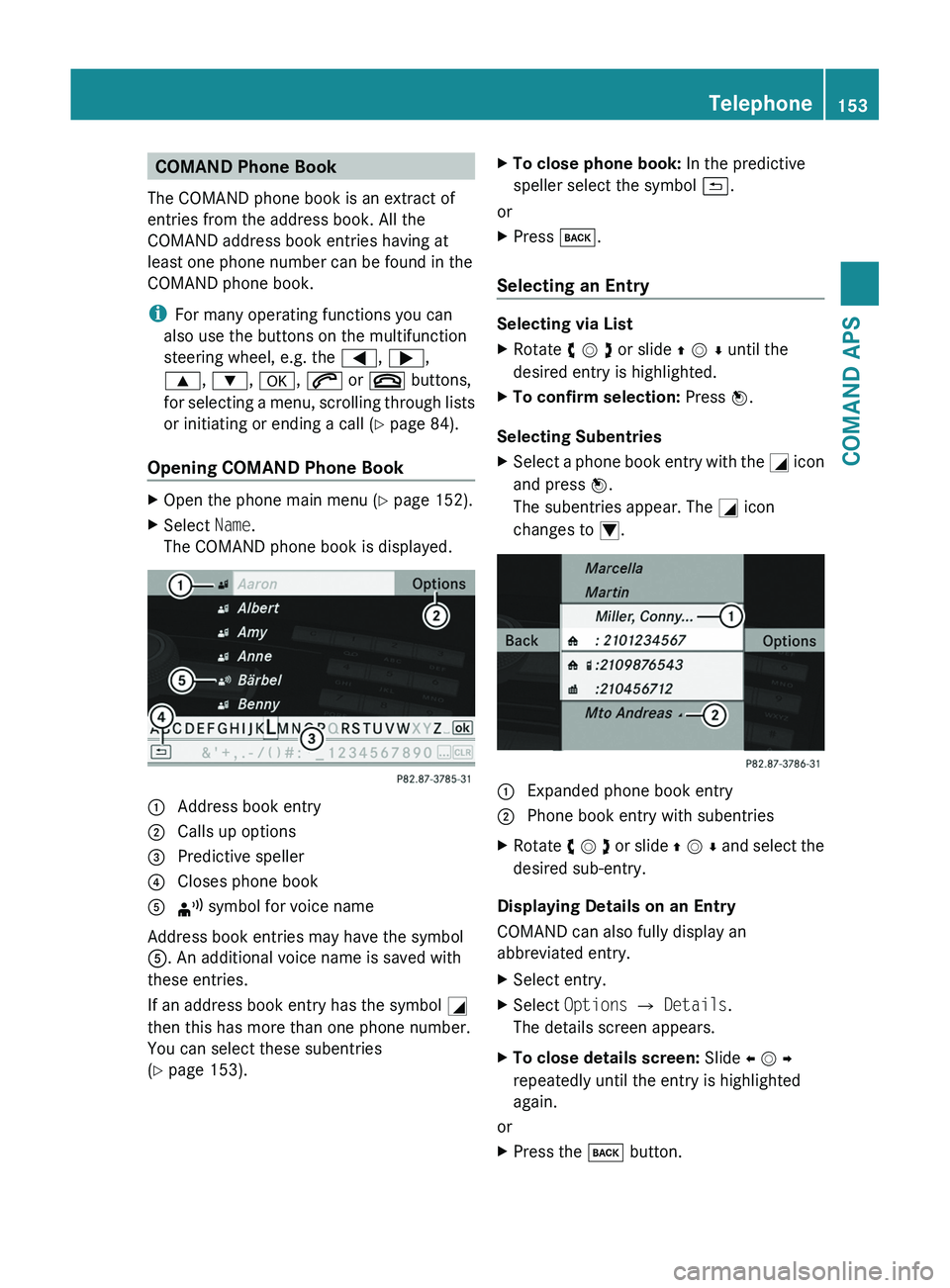
XOpen the phone main menu (Y page 152).XSelect Name.
The COMAND phone book is displayed.1 Address book entry2 Calls up options3 Predictive speller4 Closes phone book5 ¦ symbol for voice name
Address book entries may have the symbol
5. An additional voice name is saved with
these entries.
If an address book entry has the symbol +
then this has more than one phone number.
You can select these subentries
(Y page 153).
XTo close phone book: In the predictive
speller select the symbol á.
or
XPress \000=.
Selecting an Entry
Selecting via List
XRotate y m z or slide q m r until the
desired entry is highlighted.
XTo confirm selection: Press n.
Selecting Subentries
XSelect a phone book entry with the + icon
and press n.
The subentries appear. The + icon
changes to /.
1 Expanded phone book entry2 Phone book entry with subentriesXRotate y m z or slide q m r and select the
desired sub-entry.
Displaying Details on an Entry
COMAND can also fully display an
abbreviated entry.
XSelect entry.XSelect Options £ Details.
The details screen appears.
XTo close details screen: Slide o m p
repeatedly until the entry is highlighted
again.
or
XPress the \000= button.Telephone153COMAND APSBA 197 USA, CA Edition A 2011; 1; 27, en-UShereepeVersion: 3.0.3.52010-03-24T15:31:10+01:00 - Seite 153Z
Page 156 of 436
Initiating Call to an EntryXSelect entry (Y page 153).XPress n
or
XPress the \000j button on the COMAND
control unit.
Creating a New Entry
iWhen a new entry is added through the
COMAND phone book, it is saved to the
address book.
XSelect Options £ New Entry in the
COMAND phone book.
XSelect a number category, e.g. Home.XSelect a telephone category, e.g. Mobile
Phone.
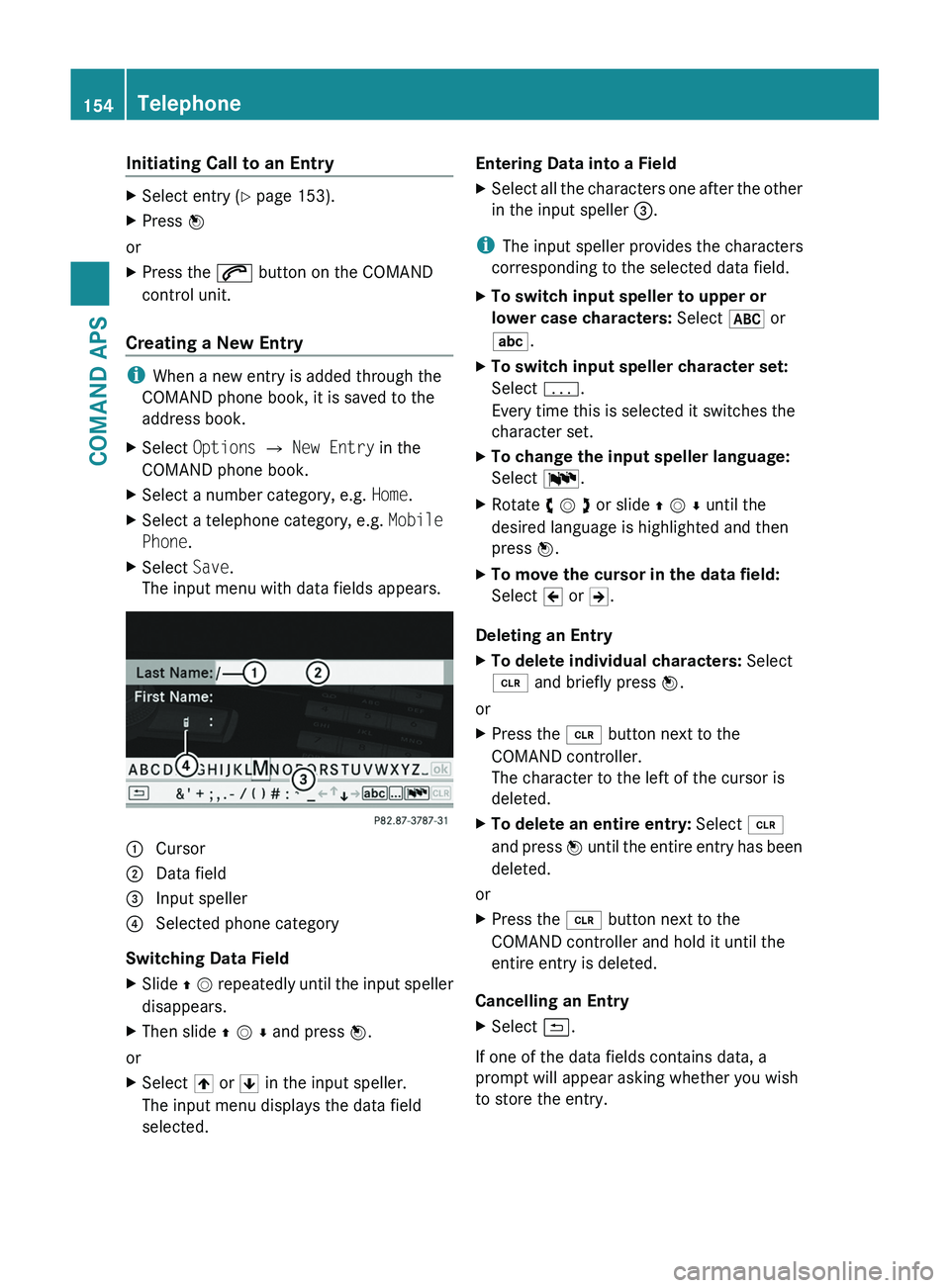
XSelect Save.
The input menu with data fields appears.1 Cursor2 Data field3 Input speller4 Selected phone category
Switching Data Field
XSlide q m repeatedly until the input speller
disappears.
XThen slide q m r and press n.
or
XSelect [ or ] in the input speller.
The input menu displays the data field
selected.
Entering Data into a FieldXSelect all the characters one after the other
in the input speller 3.
iThe input speller provides the characters
corresponding to the selected data field.
XTo switch input speller to upper or
lower case characters: Select & or
(.
XTo switch input speller character set:
Select k.
Every time this is selected it switches the
character set.
XTo change the input speller language:
Select !.
XRotate y m z or slide q m r until the
desired language is highlighted and then
press n.
XTo move the cursor in the data field:
Select Y or Z.
Deleting an Entry
XTo delete individual characters: Select
õ and briefly press n.
or
XPress the \000
Page 158 of 436
made during phone mode when a mobile
phone is connected to COMAND.
The particular menu item can only be
selected if calls have already been received
or made from COMAND.
The display of missed calls in the COMAND
display is not possible with all mobile
phones.
iThe menu item Call lists is not active
if no mobile phone is connected to
COMAND.
iIf the mobile phone does not support
PBAP, COMAND automatically deletes the
call lists if a mobile phone other than the
last used is connected.
iThe instrument cluster control system
displays a list of the last dialed calls.
iFor many operating functions you can
also use the buttons on the multifunction
steering wheel, e.g. the \000@, \000>,
\000<, \000=, \000d, \000j or \000 buttons,
for selecting a menu, scrolling through lists
or initiating or ending a call (Y page 84).
Calling up the List
XIn the phone main menu select Call
Lists.
A menu appears.
XSelect Calls Received or Calls
Dialed.
The appropriate list appears.
or
XWhen the main telephone menu is
displayed, press the \000o button on
COMAND or the \000j button on the multi-
function steering wheel.
A list of the last dialed calls appears.
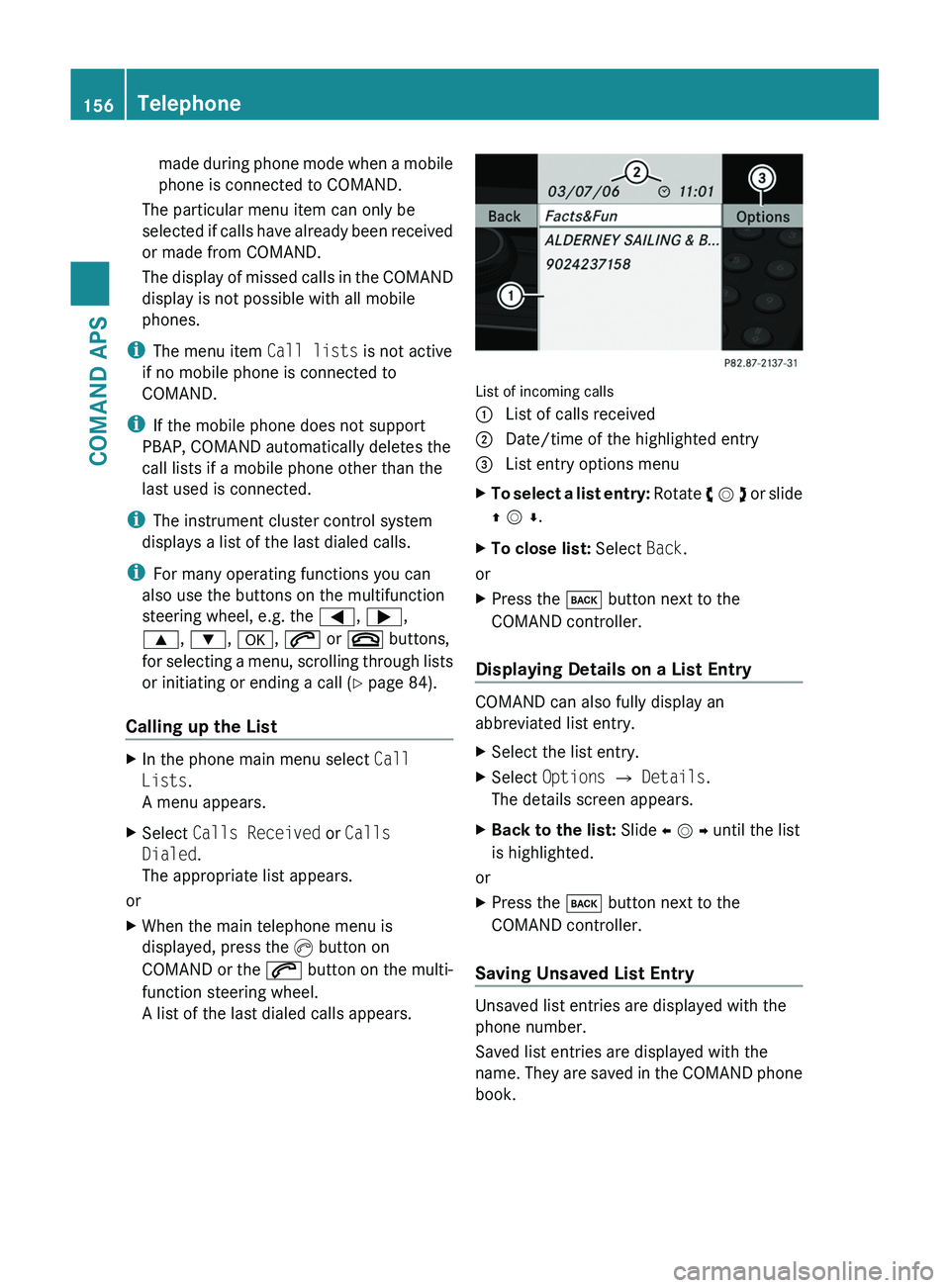
List of incoming calls
1 List of calls received2 Date/time of the highlighted entry3 List entry options menuXTo select a list entry: Rotate y m z or slide
q m r.
XTo close list: Select Back.
or
XPress the \000= button next to the
COMAND controller.
Displaying Details on a List Entry
COMAND can also fully display an
abbreviated list entry.
XSelect the list entry.XSelect Options £ Details.
The details screen appears.
XBack to the list: Slide o m p until the list
is highlighted.
or
XPress the \000= button next to the
COMAND controller.
Saving Unsaved List Entry
Unsaved list entries are displayed with the
phone number.
Saved list entries are displayed with the
name. They are saved in the COMAND phone
book.
156TelephoneCOMAND APS
BA 197 USA, CA Edition A 2011; 1; 27, en-UShereepeVersion: 3.0.3.52010-03-24T15:31:10+01:00 - Seite 156
Page 159 of 436
Saving in the Address Book as a New EntryXSelect the list entry.XSelect Options £ Save £ New Entry.
i Save has no function if the selected list
entry is already stored in the address book.
XSelect a number category, e.g. Home.XSelect a telephone category, e.g. Mobile
Phone.
Number categoryDisplay (phone
and address book)
Not classified°Home@Work\Phone categoryDisplay (phone
and address book)
Not classified°Mobile¢Car^PagerïXSelect Save.
An input menu with data fields will appear.
The data field for the phone number is
completed automatically.
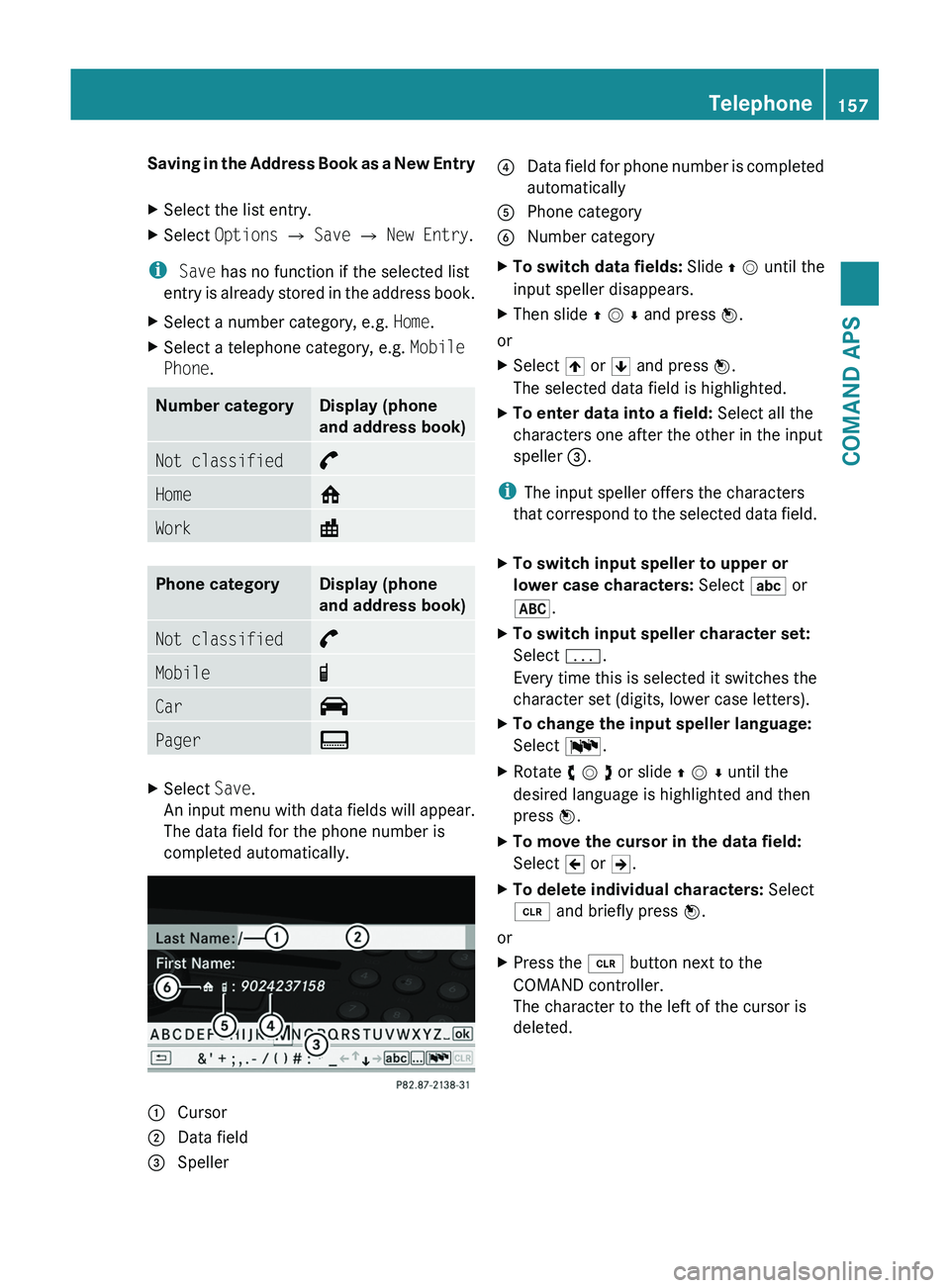
1 Cursor2 Data field3 Speller4 Data field for phone number is completed
automatically
5 Phone category6 Number categoryXTo switch data fields: Slide q m until the
input speller disappears.
XThen slide q m r and press n.
or
XSelect [ or ] and press n.
The selected data field is highlighted.
XTo enter data into a field: Select all the
characters one after the other in the input
speller 3.
iThe input speller offers the characters
that correspond to the selected data field.
XTo switch input speller to upper or
lower case characters: Select ( or
&.
XTo switch input speller character set:
Select k.
Every time this is selected it switches the
character set (digits, lower case letters).
XTo change the input speller language:
Select !.
XRotate y m z or slide q m r until the
desired language is highlighted and then
press n.
XTo move the cursor in the data field:
Select Y or Z.
XTo delete individual characters: Select
õ and briefly press n.
or
XPress the \000