light MERCEDES-BENZ SLS AMG 2011 Owner's Manual
[x] Cancel search | Manufacturer: MERCEDES-BENZ, Model Year: 2011, Model line: SLS AMG, Model: MERCEDES-BENZ SLS AMG 2011Pages: 436, PDF Size: 17.73 MB
Page 95 of 436
SettingsDisplay OffDisplay
(Y page 93)
Time (Y page 93)
Text reader speed
(Y page 94)
Voice
Control(Y page
95)
Setting the language
(Y page 99)
Bluetooth®
(Y page 96)
Rear View Camera
(Y page 99)
Reset COMAND
(Y page 99)
iUse this function
to delete your
personal data,
e.g. before selling
your vehicle.
Display Settings
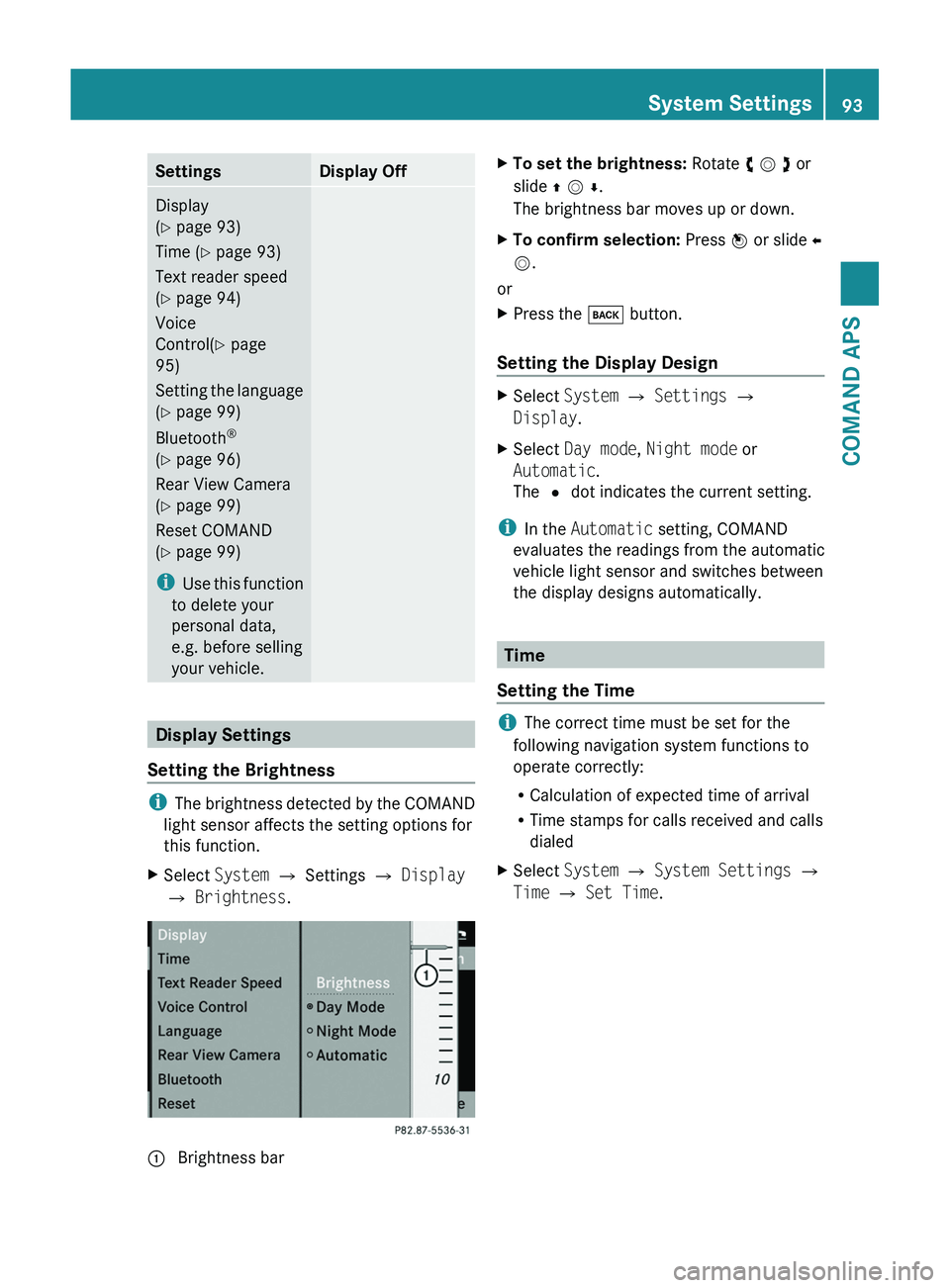
Setting the Brightness
iThe brightness detected by the COMAND
light sensor affects the setting options for
this function.
XSelect System £ Settings £ Display
£ Brightness.
1 Brightness barXTo set the brightness: Rotate y m z or
slide q m r.
The brightness bar moves up or down.
XTo confirm selection: Press n or slide o
m.
or
XPress the \000= button.
Setting the Display Design
XSelect System £ Settings £
Display.
XSelect Day mode, Night mode or
Automatic.
The R dot indicates the current setting.
iIn the Automatic setting, COMAND
evaluates the readings from the automatic
vehicle light sensor and switches between
the display designs automatically.
Time
Setting the Time
iThe correct time must be set for the
following navigation system functions to
operate correctly:
RCalculation of expected time of arrival
RTime stamps for calls received and calls
dialed
XSelect System £ System Settings £
Time £ Set Time.
System Settings93COMAND APSBA 197 USA, CA Edition A 2011; 1; 27, en-UShereepeVersion: 3.0.3.52010-03-24T15:31:10+01:00 - Seite 93Z
Page 96 of 436
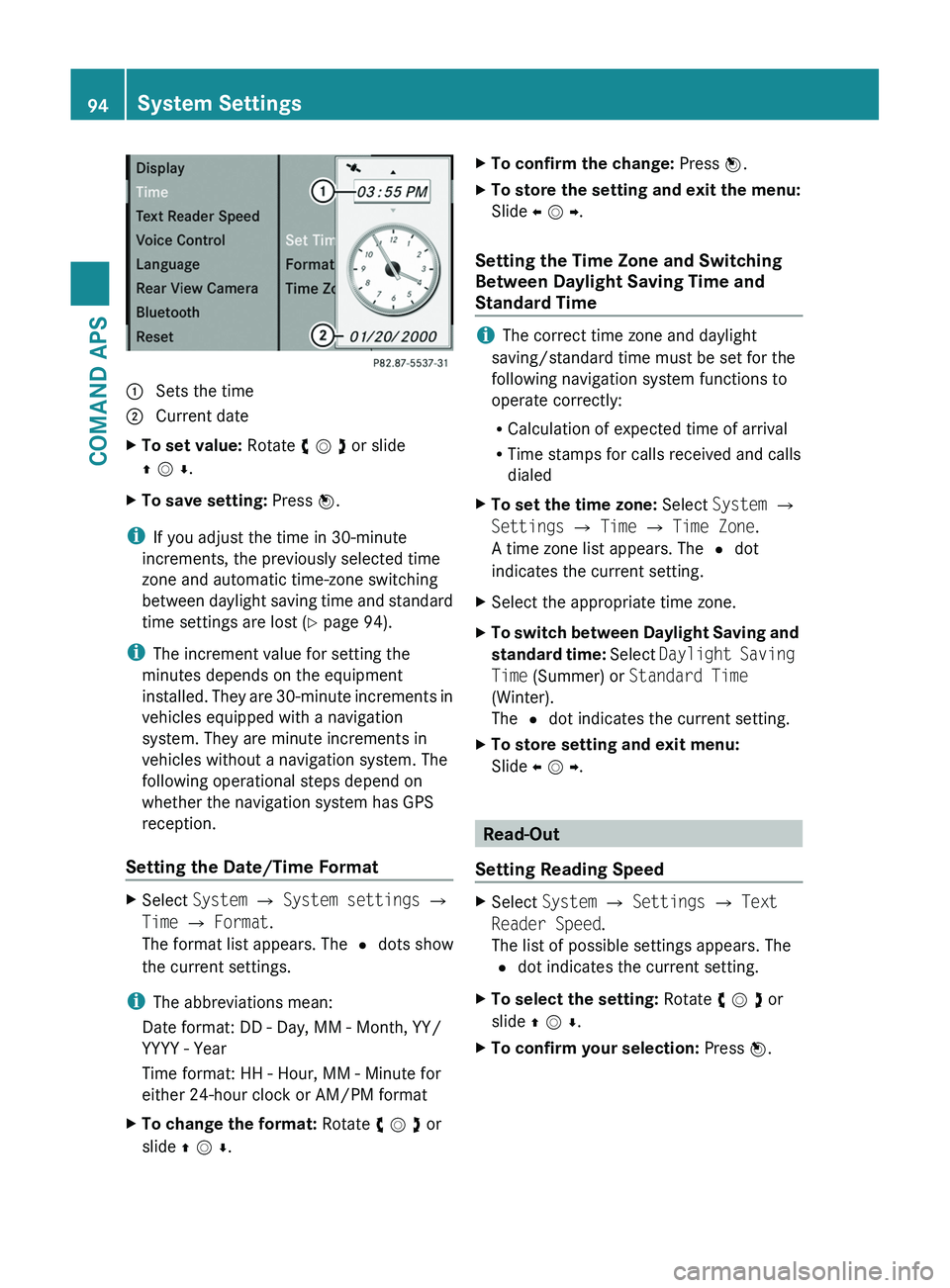
1 Sets the time2 Current dateXTo set value: Rotate y m z or slide
q m r.
XTo save setting: Press n.
iIf you adjust the time in 30-minute
increments, the previously selected time
zone and automatic time-zone switching
between daylight saving time and standard
time settings are lost (Y page 94).
iThe increment value for setting the
minutes depends on the equipment
installed. They are 30-minute increments in
vehicles equipped with a navigation
system. They are minute increments in
vehicles without a navigation system. The
following operational steps depend on
whether the navigation system has GPS
reception.
Setting the Date/Time Format
XSelect System £ System settings £
Time £ Format.
The format list appears. The R dots show
the current settings.
iThe abbreviations mean:
Date format: DD - Day, MM - Month, YY/
YYYY - Year
Time format: HH - Hour, MM - Minute for
either 24-hour clock or AM/PM format
XTo change the format: Rotate y m z or
slide q m r.
XTo confirm the change: Press n.XTo store the setting and exit the menu:
Slide o m p.
Setting the Time Zone and Switching
Between Daylight Saving Time and
Standard Time
iThe correct time zone and daylight
saving/standard time must be set for the
following navigation system functions to
operate correctly:
RCalculation of expected time of arrival
RTime stamps for calls received and calls
dialed
XTo set the time zone: Select System £
Settings £ Time £ Time Zone.
A time zone list appears. The R dot
indicates the current setting.
XSelect the appropriate time zone.XTo switch between Daylight Saving and
standard time: Select Daylight Saving
Time (Summer) or Standard Time
(Winter).
The R dot indicates the current setting.
XTo store setting and exit menu:
Slide o m p.
Read-Out
Setting Reading Speed
XSelect System £ Settings £ Text
Reader Speed.
The list of possible settings appears. The
R dot indicates the current setting.
XTo select the setting: Rotate y m z or
slide q m r.
XTo confirm your selection: Press n.94System SettingsCOMAND APS
BA 197 USA, CA Edition A 2011; 1; 27, en-UShereepeVersion: 3.0.3.52010-03-24T15:31:10+01:00 - Seite 94
Page 102 of 436
Safety InstructionsGWarning
For safety reasons, only enter a destination
when the vehicle is stationary. When the
vehicle is in motion, a passenger should enter
the destination. Study manual and select
route before driving.
Bear in mind that at a speed of just 30 mph
(approximately 50 km/h), your vehicle is
covering a distance of 44 feet (approximately
14 m) every second.
COMAND calculates the route to the
destination without taking account of the
following:
R Traffic lights
R Stop and right-of-way-signs
R Lane merging
R Parking or stopping prohibited areas
R Other road and traffic rules and regulations
R Narrow bridges
GWarning
COMAND may give incorrect navigation
commands if the data in the digital map does
not correspond with the actual road/traffic
situation. Digital maps do not cover all areas
nor all routes within an area. For example, if
the traffic routing has been changed or the
direction of a one-way road has been
reversed.
For this reason, you must always observe
applicable road and traffic rules and
regulations during your journey. Road and
traffic rules and regulations always have
priority over the navigation commands
generated by the system.
GWarning
Navigation announcements are intended to
direct you while driving without diverting your
attention from the road and driving.
Please always use this feature instead of
consulting the map display for directions.
Consulting the symbols or map display for
directions may cause you to divert your
attention from driving and increase your risk
of an accident.
Updating the Map Software
The digital data for the map software will
become obsolete, just like conventional road
maps. Optimum route guidance by the
navigation system is only achieved with up-
to-date map software. Information on new
map software versions is available from an
authorized Mercedes-Benz Center.
You can have the map software updated there
by means of a DVD or perform the update
process yourself.
Notes on DVD Discs
R Only touch the discs at the edges.
R Handle the discs with care in order to
prevent reading errors.
R Avoid scratching, leaving fingerprints and
dust on the discs.
R Use a commercially available cleaning cloth
to clean discs. Always wipe in a straight line
from the inside outwards, never in a circular
motion.
R After use, put the discs back into the box.
R Protect the discs from heat and direct
sunlight.
Update Sequence
The sequence includes the following stages:
R Loading DVD into the DVD changer
R Update process
i The update process may take between 60
and 150 minutes, depending on the size of
the map software.
If possible, perform the update when the
vehicle is stationary. The DVD read speed
is faster when the vehicle is stationary than
when the vehicle is moving and the update
therefore takes less time. If you perform
the update with the engine off and the
100Navigation (Introduction)COMAND APS
BA 197 USA, CA Edition A 2011; 1; 27, en-UShereepeVersion: 3.0.3.52010-03-24T15:31:10+01:00 - Seite 100
Page 104 of 436
Map Data is not yet installed
The version release and a query as to whether
the update should be carried out will be given
on the display.XSelect Yes or No.
If No is selected, COMAND ejects the DVD
automatically and the map data is not
updated.XRemove the DVD from the slot.
If Yes is selected, the map data is updated.
Updating the Map Data
While the update is in progress, a
corresponding message and a progress bar
are displayed. The progress bar fills from left
to right over the course of the update. The
navigation system is not functional until the
update is complete.
You cannot eject the DVD during the update.
If you switch COMAND off during the update,
this will interrupt the update and the update
will resume at the point of interruption when
the system is restarted.
While updating, COMAND may prompt you to
change the DVD. A corresponding message
is then displayed.
XPress the Load button 003B.
The magazine menu appears. The magazine
compartment containing the current disc is
highlighted.XPress 008B.
COMAND ejects the DVD.XRemove the DVD from the slot.XInsert the DVD requested by COMAND.
If the update has been completed
successfully, a corresponding message is
displayed.XTo confirm message: Press n.
COMAND ejects the DVD.XRemove the DVD from the slot.
The update is complete.
If the update has not been completed
successfully, a message is displayed
indicating that the map update is not
possible.
XTo confirm message: Press n.
COMAND ejects the DVD.XRemove the DVD from the slot.
An unsucessful update may be caused by one
of the following:
R DVD dirty or scratched.
R Overheating as a result of excessively high
temperatures in the passenger
compartment.
Input Restriction
There is an input restriction for vehicles in
certain countries.
The restriction is active for vehicle speeds
above approx. 3 mph. The restriction is
deactivated as soon as the speed falls below
approx. 2 mph.
Certain entries cannot be made when the
restriction is active, e.g. a city or road entry.
This is indicated by the fact that certain menu
items cannot be selected.
General Information
Operational Readiness of the
Navigation System after the System
Software Update
Sometimes the installed map software is no
longer compatible following a system
software update by an authorized Mercedes-
Benz Center. In this case, the navigation
system is not operational.
XTo update map software: Proceed as
described in the “Update Process” section
( Y page 101). Use map software
compatible with the system software.
i Please note that in this case the update
must run through right to the end. If you
cancel beforehand, the navigation system
will still not be ready for operation.
After start-up or initial start-up, the navigation
system must perform a position finding
102Navigation (Introduction)COMAND APS
BA 197 USA, CA Edition A 2011; 1; 27, en-UShereepeVersion: 3.0.3.52010-03-24T15:31:10+01:00 - Seite 102
Page 117 of 436
RLast States/Provinces
RStates (U.S.A.) or
RProvinces (Canada).
XTo select a list: Rotate y m z or slide
q m r.
XPress n.
The selected state/province list appears.
XTo selected a state/province: Rotate
y m z or slide q m r.
XPress n.
The Enter Destination menu appears again.
The selected state/province has been
entered automatically.
Entering a City
iYou can only enter those cities that are
stored in the digital map. Any zip code that
has already been entered is deleted when
a city is entered.
XIn the Enter Destination menu, select
City.
The city list is displayed with or without
predictive speller. The display of the
predictive speller depends on how many
cities are available for the selected state/
province.
City List with Predictive Speller
If this list is given in the display, the predictive
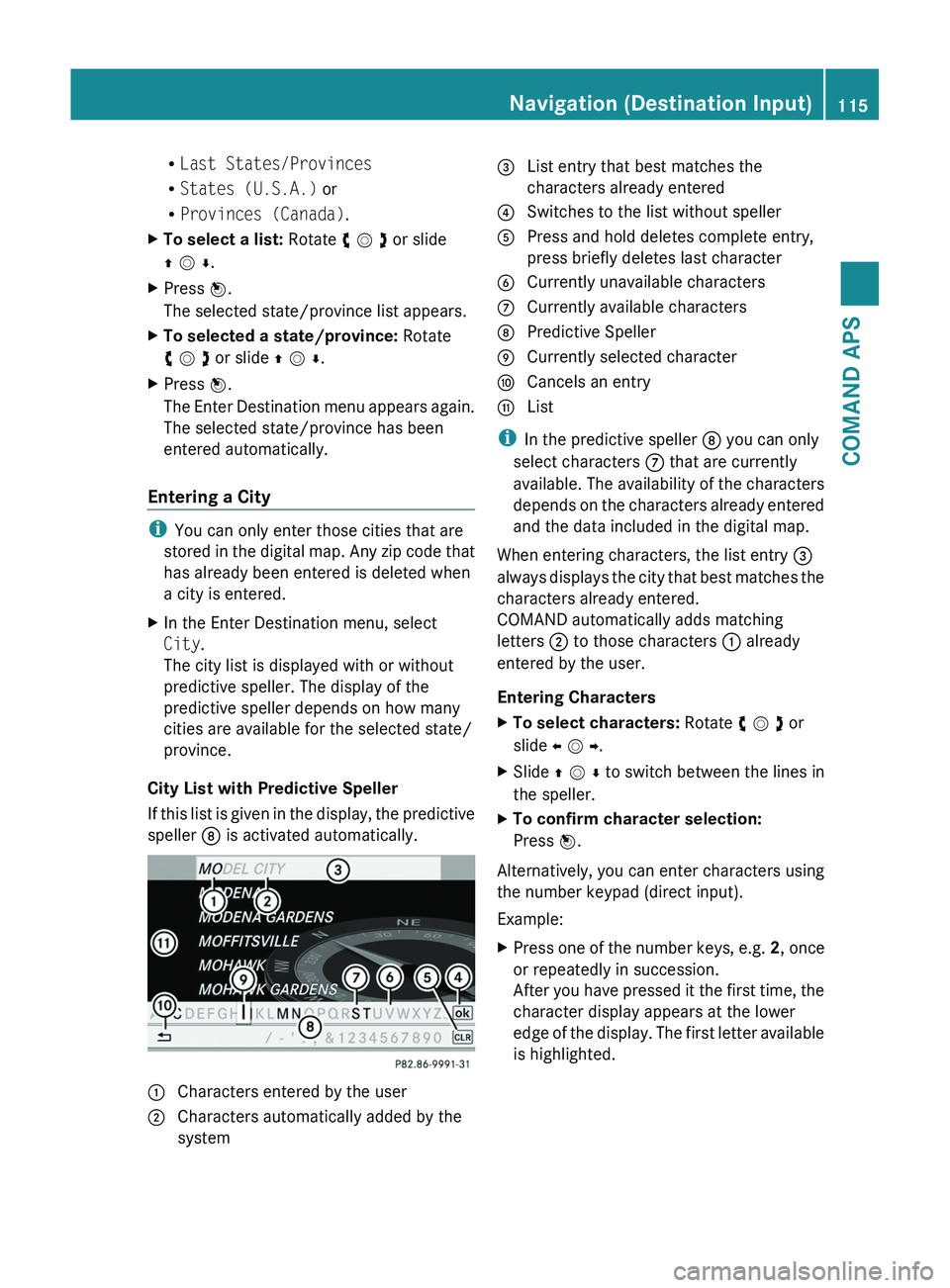
speller 8 is activated automatically.
1 Characters entered by the user2 Characters automatically added by the
system
3 List entry that best matches the
characters already entered
4 Switches to the list without speller5 Press and hold deletes complete entry,
press briefly deletes last character
6 Currently unavailable characters7 Currently available characters8 Predictive Speller9 Currently selected charactera Cancels an entryb List
iIn the predictive speller 8 you can only
select characters 7 that are currently
available. The availability of the characters
depends on the characters already entered
and the data included in the digital map.
When entering characters, the list entry 3
always displays the city that best matches the
characters already entered.
COMAND automatically adds matching
letters 2 to those characters 1 already
entered by the user.
Entering Characters
XTo select characters: Rotate y m z or
slide o m p.
XSlide q m r to switch between the lines in
the speller.
XTo confirm character selection:
Press n.
Alternatively, you can enter characters using
the number keypad (direct input).
Example:
XPress one of the number keys, e.g. 2, once
or repeatedly in succession.
After you have pressed it the first time, the
character display appears at the lower
edge of the display. The first letter available
is highlighted.
Navigation (Destination Input)115COMAND APSBA 197 USA, CA Edition A 2011; 1; 27, en-UShereepeVersion: 3.0.3.52010-03-24T15:31:10+01:00 - Seite 115Z
Page 118 of 436
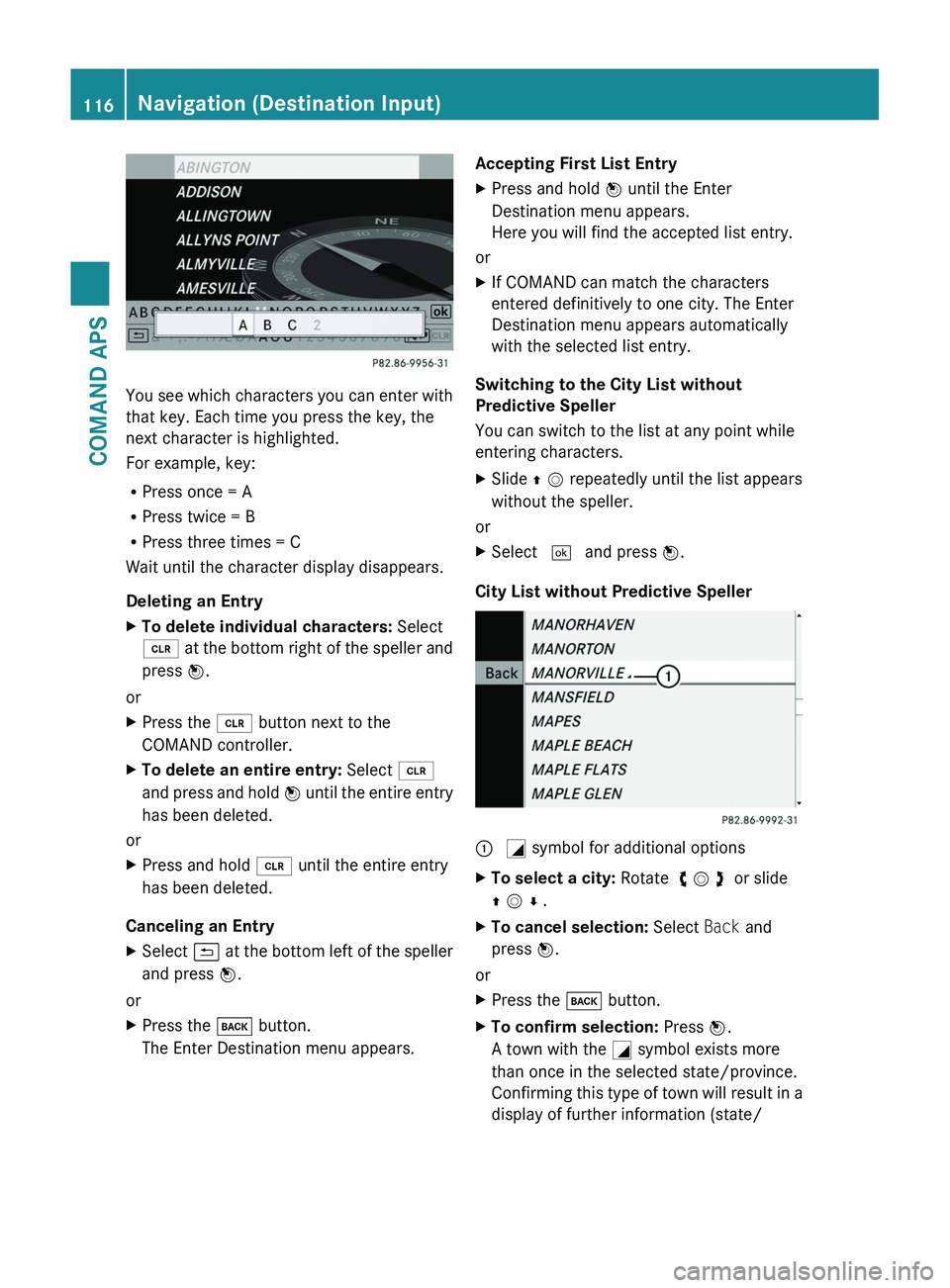
You see which characters you can enter with
that key. Each time you press the key, the
next character is highlighted.
For example, key:
RPress once = A
RPress twice = B
RPress three times = C
Wait until the character display disappears.
Deleting an Entry
XTo delete individual characters: Select
õ at the bottom right of the speller and
press n.
or
XPress the \000
Page 119 of 436
province/region) on the towns. The \000L
symbol then switches to \000N.
If no other options exist, the Enter Destination
menu appears again in the display.
COMAND has accepted the selected city and
entered it automatically in the Enter
Destination menu.
Entering a Zip Code
iYou can only enter those zip codes that
are stored in the digital map. For some
countries it is not possible to enter any zip
code.
XIn the Enter Destination menu select ZIP.
The zip code list is displayed with or without
predictive speller (Y page 115). The display
of the predictive speller depends on how
many zip codes are available for the
selected state/province.
Zip Code List with Predictive Speller
If this list is given in the display, the predictive
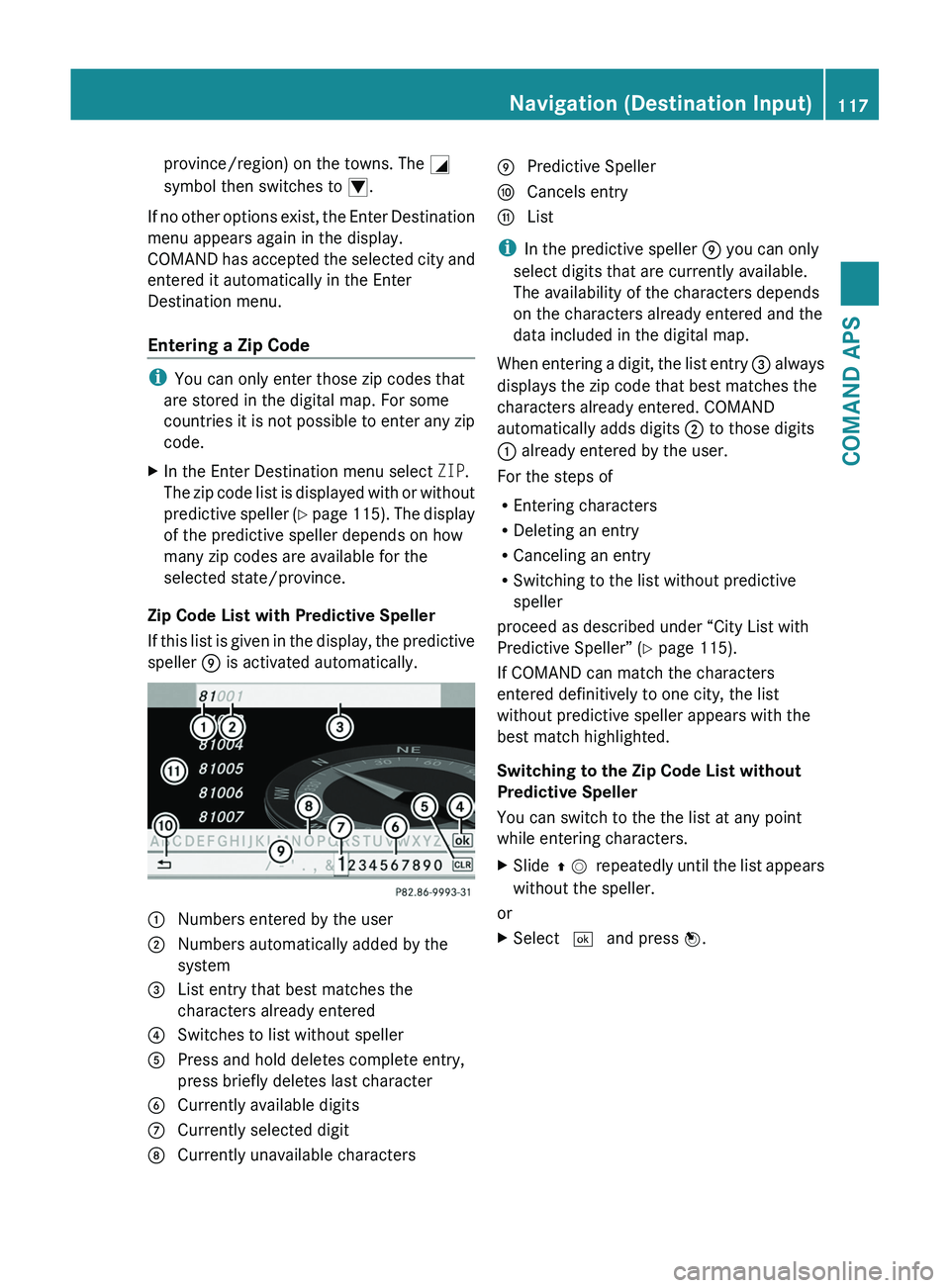
speller 9 is activated automatically.
1 Numbers entered by the user2 Numbers automatically added by the
system
3 List entry that best matches the
characters already entered
4 Switches to list without speller5 Press and hold deletes complete entry,
press briefly deletes last character
6 Currently available digits7 Currently selected digit8 Currently unavailable characters9 Predictive Spellera Cancels entryb List
iIn the predictive speller 9 you can only
select digits that are currently available.
The availability of the characters depends
on the characters already entered and the
data included in the digital map.
When entering a digit, the list entry 3 always
displays the zip code that best matches the
characters already entered. COMAND
automatically adds digits 2 to those digits
1 already entered by the user.
For the steps of
REntering characters
RDeleting an entry
RCanceling an entry
RSwitching to the list without predictive
speller
proceed as described under “City List with
Predictive Speller” (Y page 115).
If COMAND can match the characters
entered definitively to one city, the list
without predictive speller appears with the
best match highlighted.
Switching to the Zip Code List without
Predictive Speller
You can switch to the the list at any point
while entering characters.
XSlide q m repeatedly until the list appears
without the speller.
or
XSelect d and press n.Navigation (Destination Input)117COMAND APSBA 197 USA, CA Edition A 2011; 1; 27, en-UShereepeVersion: 3.0.3.52010-03-24T15:31:10+01:00 - Seite 117Z
Page 133 of 436
iIn the predictive speller 3 you can only
select characters that are currently
available. The set of characters that is
available depends on those already entered
and the data included in the digital map.
For the steps of
REntering characters
RDeleting an entry
RAccepting first list entry
RCanceling an entry
proceed as described under “Main category
list with predictive speller” (Y page 128).
Selecting a POI
To accept first list entry:
XPress and hold n until the list appears
without speller.
or
If COMAND can match the characters
entered definitively to one entry, the list is
displayed without predictive speller with the
matching entry highlighted.(Y page 130).
You can switch to the list at any point while
entering characters.
XSlide q m repeatedly until the list appears
without the speller.
or
XSelect d and press n.XTo display the full address of the POI:
Select ? and press n.
XTo cancel selection: Press the \000=
button.
or
XSelect Back.
The POI list appears.
XTo start route calculation: Select Start.
ZAGAT® Rating Service
Entries with the Z symbol contain additional
ZAGAT information. ZAGAT is a service that
evaluates restaurants, for example, in
different categories like food, decor, service
etc., supplies the average price level (cost)
and a general description.
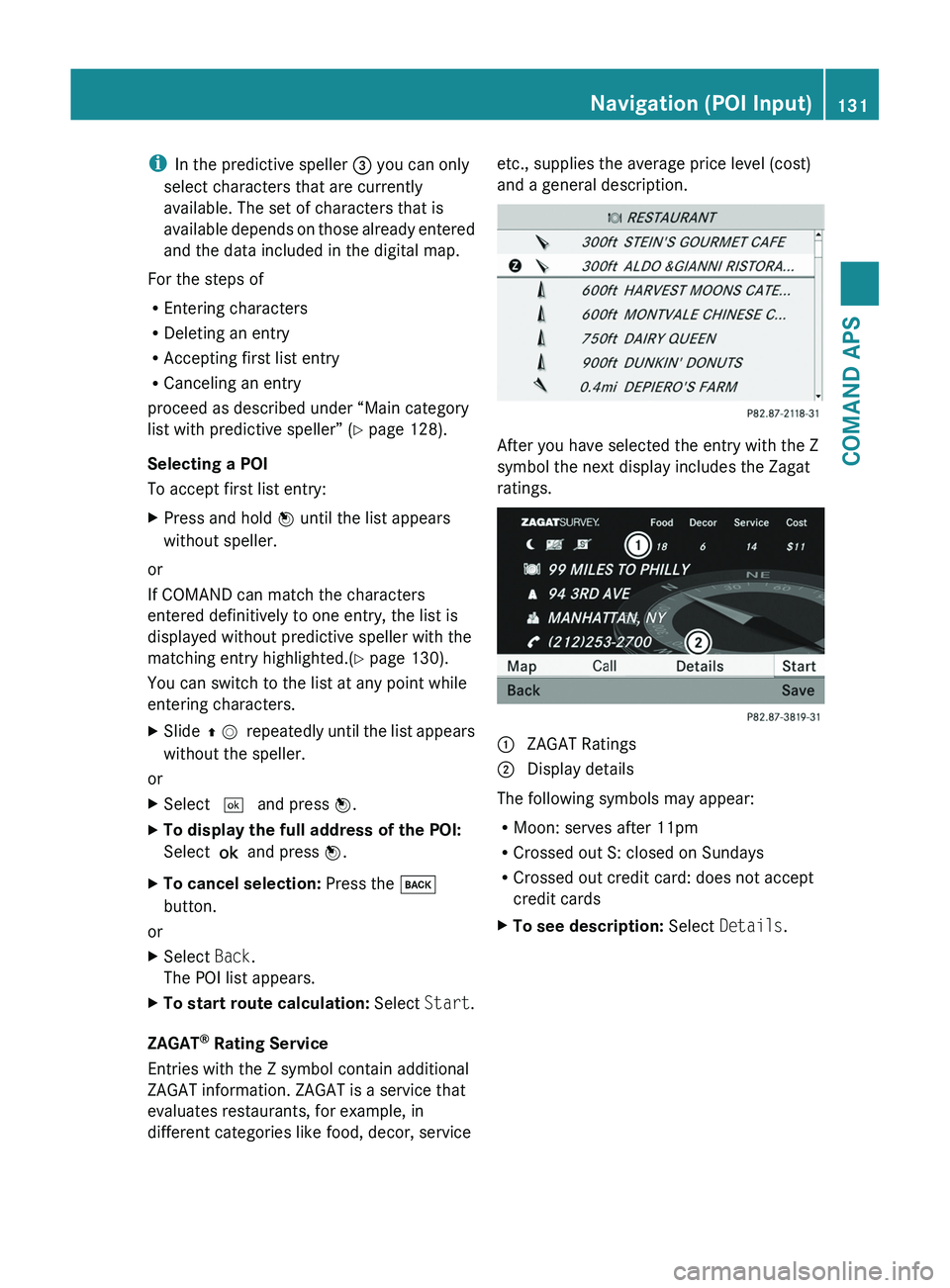
After you have selected the entry with the Z
symbol the next display includes the Zagat
ratings.
1 ZAGAT Ratings2 Display details
The following symbols may appear:
RMoon: serves after 11pm
RCrossed out S: closed on Sundays
RCrossed out credit card: does not accept
credit cards
XTo see description: Select Details.Navigation (POI Input)131COMAND APSBA 197 USA, CA Edition A 2011; 1; 27, en-UShereepeVersion: 3.0.3.52010-03-24T15:31:10+01:00 - Seite 131Z
Page 134 of 436
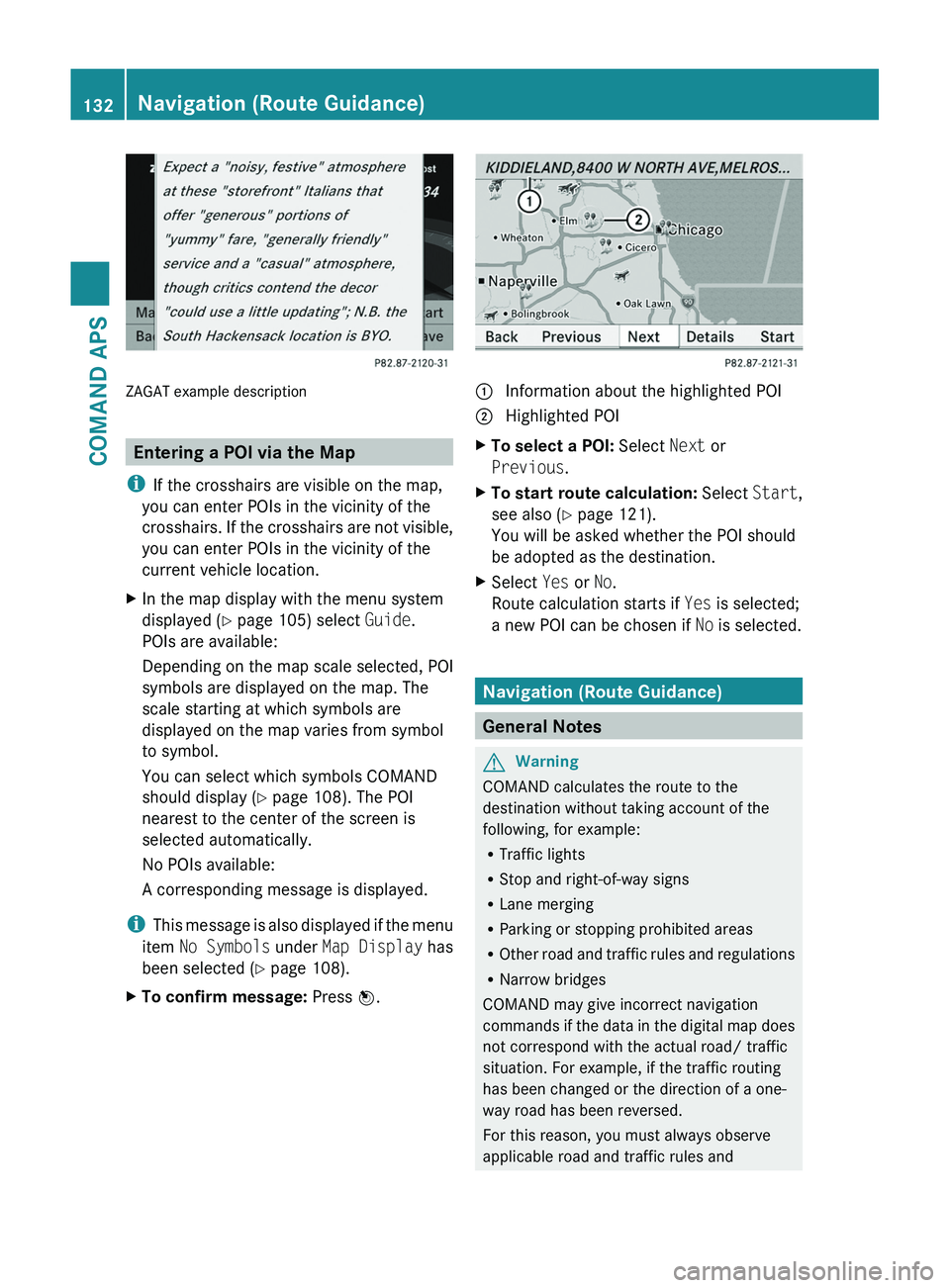
ZAGAT example description
Entering a POI via the Map
iIf the crosshairs are visible on the map,
you can enter POIs in the vicinity of the
crosshairs. If the crosshairs are not visible,
you can enter POIs in the vicinity of the
current vehicle location.
XIn the map display with the menu system
displayed (Y page 105) select Guide.
POIs are available:
Depending on the map scale selected, POI
symbols are displayed on the map. The
scale starting at which symbols are
displayed on the map varies from symbol
to symbol.
You can select which symbols COMAND
should display (Y page 108). The POI
nearest to the center of the screen is
selected automatically.
No POIs available:
A corresponding message is displayed.
iThis message is also displayed if the menu
item No Symbols under Map Display has
been selected (Y page 108).
XTo confirm message: Press n.1 Information about the highlighted POI2 Highlighted POIXTo select a POI: Select Next or
Previous.
XTo start route calculation: Select Start,
see also (Y page 121).
You will be asked whether the POI should
be adopted as the destination.
XSelect Yes or No.
Route calculation starts if Yes is selected;
a new POI can be chosen if No is selected.
Navigation (Route Guidance)
General Notes
GWarning
COMAND calculates the route to the
destination without taking account of the
following, for example:
RTraffic lights
RStop and right-of-way signs
RLane merging
RParking or stopping prohibited areas
ROther road and traffic rules and regulations
RNarrow bridges
COMAND may give incorrect navigation
commands if the data in the digital map does
not correspond with the actual road/ traffic
situation. For example, if the traffic routing
has been changed or the direction of a one-
way road has been reversed.
For this reason, you must always observe
applicable road and traffic rules and
132Navigation (Route Guidance)COMAND APS
BA 197 USA, CA Edition A 2011; 1; 27, en-UShereepeVersion: 3.0.3.52010-03-24T15:31:10+01:00 - Seite 132
Page 137 of 436
Traffic Lane Recommendations
On multi-lane roads, COMAND may display
traffic lane recommendations. For this there
must be corresponding data available on the
digital map.
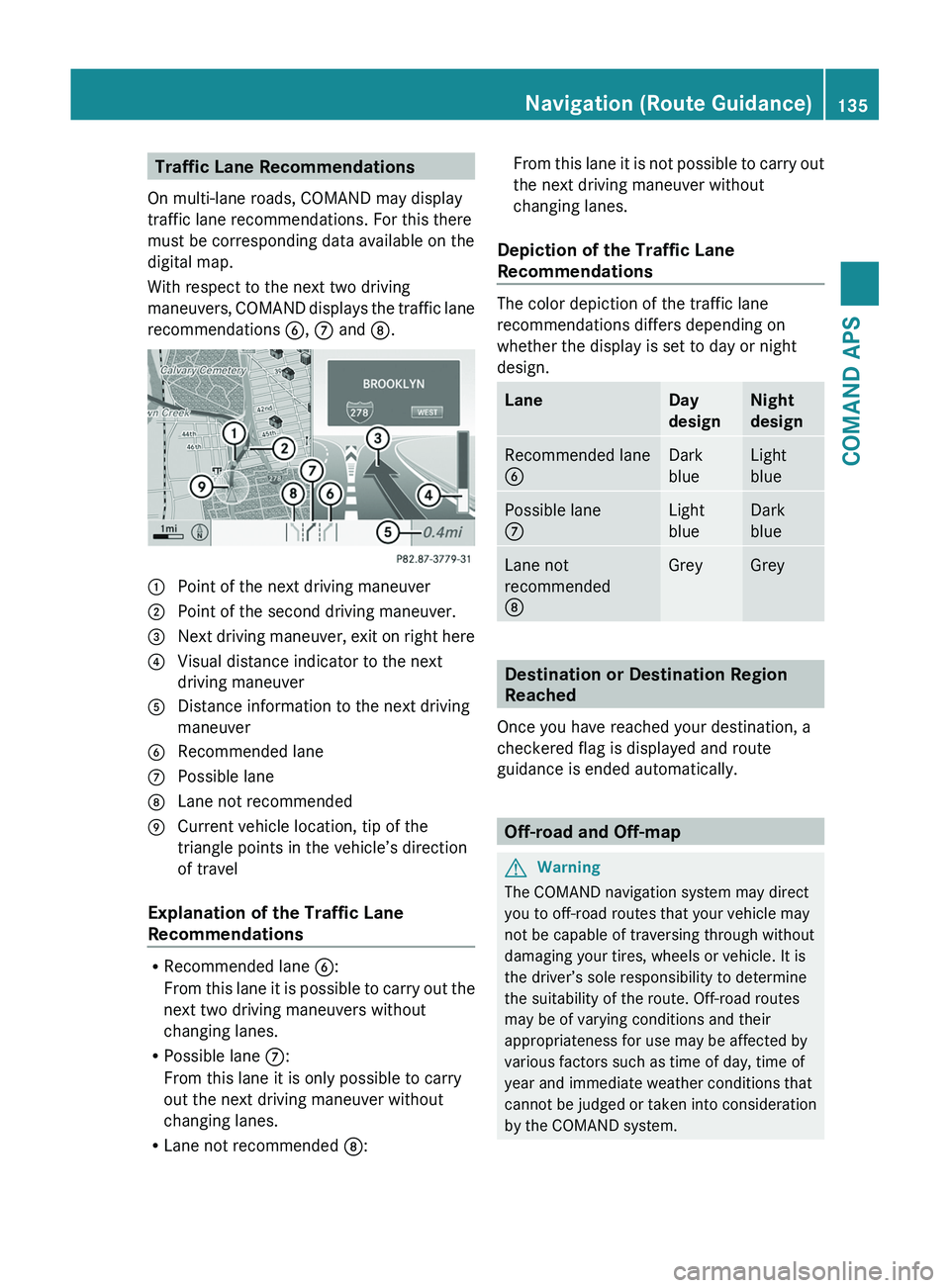
With respect to the next two driving
maneuvers, COMAND displays the traffic lane
recommendations 6, 7 and 8.
1 Point of the next driving maneuver2 Point of the second driving maneuver.3 Next driving maneuver, exit on right here4 Visual distance indicator to the next
driving maneuver
5 Distance information to the next driving
maneuver
6 Recommended lane7 Possible lane8 Lane not recommended9 Current vehicle location, tip of the
triangle points in the vehicle’s direction
of travel
Explanation of the Traffic Lane
Recommendations
RRecommended lane 6:
From this lane it is possible to carry out the
next two driving maneuvers without
changing lanes.
RPossible lane 7:
From this lane it is only possible to carry
out the next driving maneuver without
changing lanes.
RLane not recommended 8:
From this lane it is not possible to carry out
the next driving maneuver without
changing lanes.
Depiction of the Traffic Lane
Recommendations
The color depiction of the traffic lane
recommendations differs depending on
whether the display is set to day or night
design.
LaneDay
design
Night
design
Recommended lane
6
Dark
blue
Light
blue
Possible lane
7
Light
blue
Dark
blue
Lane not
recommended
8
GreyGrey
Destination or Destination Region
Reached
Once you have reached your destination, a
checkered flag is displayed and route
guidance is ended automatically.
Off-road and Off-map
GWarning
The COMAND navigation system may direct
you to off-road routes that your vehicle may
not be capable of traversing through without
damaging your tires, wheels or vehicle. It is
the driver’s sole responsibility to determine
the suitability of the route. Off-road routes
may be of varying conditions and their
appropriateness for use may be affected by
various factors such as time of day, time of
year and immediate weather conditions that
cannot be judged or taken into consideration
by the COMAND system.
Navigation (Route Guidance)135COMAND APSBA 197 USA, CA Edition A 2011; 1; 27, en-UShereepeVersion: 3.0.3.52010-03-24T15:31:10+01:00 - Seite 135Z