steering MERCEDES-BENZ SLS-CLASS 2013 Owner's Guide
[x] Cancel search | Manufacturer: MERCEDES-BENZ, Model Year: 2013, Model line: SLS-CLASS, Model: MERCEDES-BENZ SLS-CLASS 2013Pages: 286, PDF Size: 3.6 MB
Page 136 of 286
such as carbon monoxide (CO) may enter the
vehicle. This is the case, e.g. if the vehicle
becomes trapped in snow. There is a risk of
fatal injury.
If you leave the engine or the auxiliary heating
running, make sure the exhaust pipe and area
around the vehicle are clear of snow. To
ensure an adequate supply of fresh air, open
a window on the side of the vehicle that is not
facing into the wind.
At the onset of winter, have your vehicle
winterized at a qualified specialist workshop,
e.g. at an authorized Mercedes-Benz Center.
Observe the notes in the "Winter operation"
section (Y page 250).
Summer tires Observe the notes in the "Winter operation"
section (Y
page 250).
Slippery road surfaces G
WARNING
If you shift down on a slippery road surface in
an attempt to increase the engine's braking
effect, the drive wheels could lose their grip.
There is an increased danger of skidding and
accidents.
Do not shift down for additional engine
braking on a slippery road surface.
Drive particularly carefully on slippery road
surfaces. Avoid sudden acceleration, steering
and braking maneuvers. Do not use cruise
control.
If the vehicle threatens to skid or cannot be
stopped when moving at low speed:
X Shift the transmission to position N.
The outside temperature indicator is not
designed to serve as an ice-warning device
and is therefore unsuitable for that purpose.
Changes in the outside temperature are
displayed after a short delay.
Indicated temperatures just above the
freezing point do not guarantee that the road surface is free of ice. The road may still be icy,
especially in wooded areas or on bridges. You
should pay special attention to road
conditions when temperatures are around
freezing point.
i
For more information on driving with
snow chains, see (Y page 250). Driving systems
Cruise control
Important safety notes Cruise control maintains a constant road
speed for you. It brakes automatically in order
to avoid exceeding the set speed. On long and
steep downhill gradients, especially if the
vehicle is laden, you must select shift range
1, 2or 3in good time (Y page 122). By doing
so, you will make use of the braking effect of
the engine, This relieves the load on the brake
system and prevents the brakes from
overheating and wearing too quickly.
If you fail to adapt your driving style, cruise
control can neither reduce the risk of an
accident nor override the laws of physics.
Cruise control cannot take into account the
road, traffic and weather conditions. Cruise
control is only an aid. You are responsible for
the distance to the vehicle in front, for vehicle
speed, for braking in good time and for
staying in lane.
Use cruise control only if road and traffic
conditions make it appropriate to maintain a
steady speed for a prolonged period. You can
set any road speed above 20 mph
(30 km/h).
Do not use cruise control:
R in road and traffic conditions which do not
allow you to maintain a constant speed, e.g.
in heavy traffic or on winding roads
R on slippery road surfaces. Braking or
accelerating could cause the drive wheels 134
Driving systemsDriving and parking
ProCarManuals.com
Page 148 of 286
Useful information
i This Operator's Manual describes all
models and all standard and optional
equipment of your vehicle available at the
time of publication of the Operator's
Manual. Country-specific differences are
possible. Please note that your vehicle may
not be equipped with all features
described. This also applies to safety-
related systems and functions.
i Please read the information on qualified
specialist workshops (Y page 22).Important safety notes
You will find an illustration of the instrument
cluster in the "At a glance" section
(Y page 27). G
WARNING
A driver's attention to the road and traffic
conditions must always be his/her primary
focus when driving.
For your safety and the safety of others,
selecting features through the multifunction
steering wheel should only be done by the
driver when traffic and road conditions permit
it to be done safely.
Bear in mind that at a speed of just 30 mph
(approximately 50 km/h ), your vehicle is
covering a distance of 44 feet (approximately
14 m) every second. G
WARNING
No messages will be displayed if either the
instrument cluster or the multifunction
display is inoperative.
As a result, you will not be able to see
information about your driving conditions,
such as
R speed
R outside temperature
R warning/indicator lamps R
malfunction/warning messages
R failure of any systems
Driving characteristics may be impaired.
If you must continue to drive, do so with added
caution. Contact an authorized Mercedes-
Benz Center as soon as possible. G
WARNING
Malfunction and warning messages are only
indicated for certain systems and are
intentionally not very detailed. The
malfunction and warning messages are
simply a reminder with respect to the
operation of certain systems. They do not
replace the owner's and/or driver's
responsibility to maintain the vehicle's
operating safety. Have all required
maintenance and safety checks performed on
the vehicle. Bring the vehicle to an authorized
Mercedes-Benz Center to address the
malfunction and warning messages. Displays and operation
Engine oil temperature display
The engine oil temperature gauge is in the
instrument cluster on the right-hand side.
Under normal operating conditions, the
temperature may rise to 140 †.
The transmission fluid temperature and the
coolant temperature are displayed in the
AMG menu (Y page 157). Tachometer
The red band in the tachometer indicates the
engine's overrevving range.
! Do not drive in the overrevving range, as
this could damage the engine.
The fuel supply is interrupted to protect the
engine when the red band is reached. 146
Displays and operationOn-board computer and displays
ProCarManuals.com
Page 149 of 286
Outside temperature display
G
WARNING
The outside temperature indicator is not
designed to serve as an ice-warning device
and is therefore unsuitable for that purpose.
Indicated temperatures just above the
freezing point do not guarantee that the road
surface is free of ice. The road may still be icy,
especially in wooded areas or on bridges.
The outside temperature display is in the
multifunction display (Y page 147).
Changes in the outside temperature are
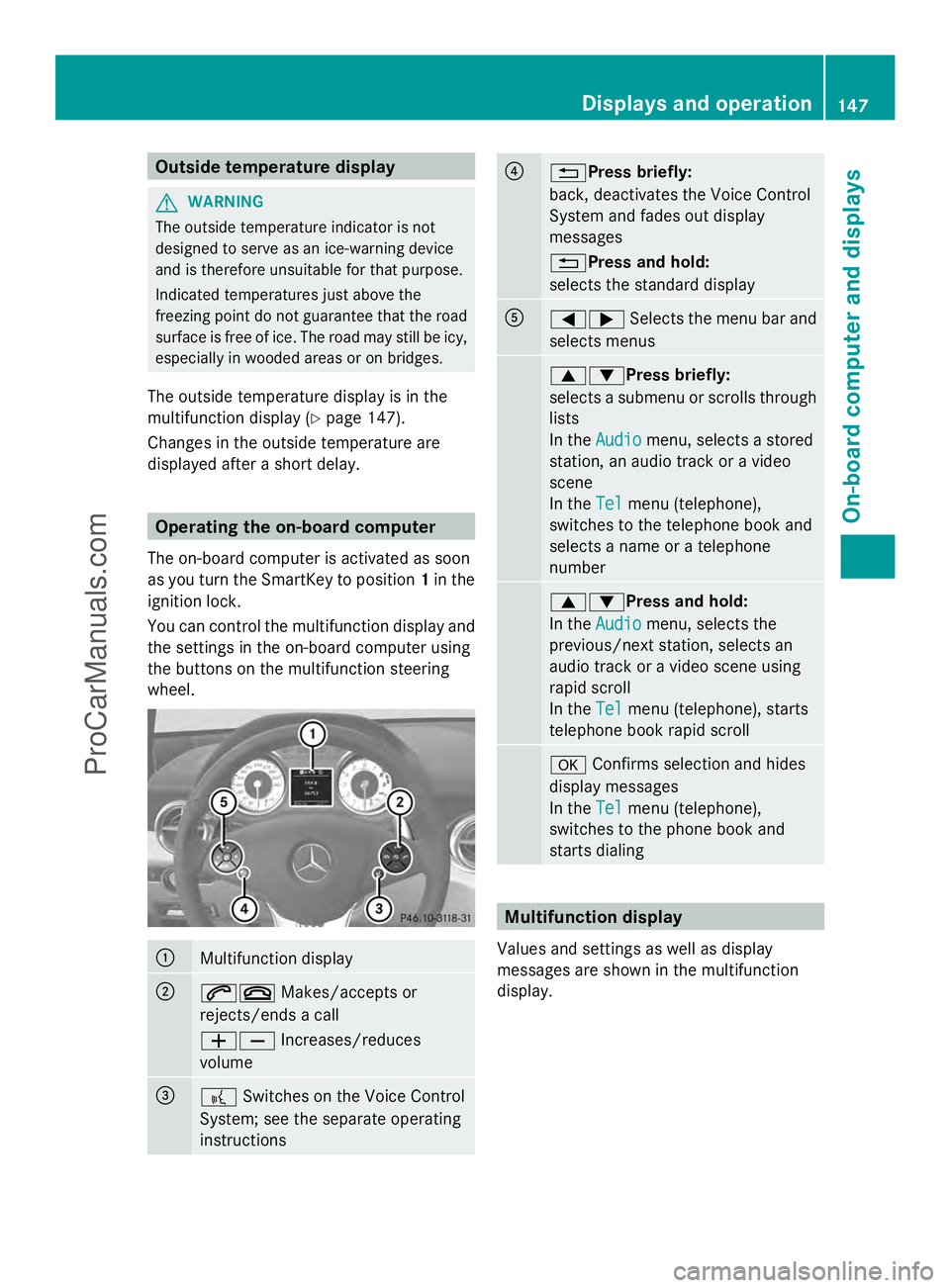
displayed after a short delay. Operating the on-board computer
The on-board computer is activated as soon
as you turn the SmartKey to position 1in the
ignition lock.
You can control the multifunction display and
the settings in the on-board computer using
the buttons on the multifunction steering
wheel. :
Multifunction display
;
6~
Makes/accepts or
rejects/ends a call
WX Increases/reduces
volume =
?
Switches on the Voice Control
System; see the separate operating
instructions ?
%Press briefly:
back, deactivates the Voice Control
System and fades out display
messages
%Press and hold:
selects the standard display
A
=;
Selects the menu bar and
selects menus 9:Press briefly:
selects a submenu or scrolls through
lists
In the
Audio Audio menu, selects a stored
station, an audio track or a video
scene
In the Tel Telmenu (telephone),
switches to the telephone book and
selects a name or a telephone
number 9:Press and hold:
In the
Audio Audio menu, selects the
previous/next station, selects an
audio track or a video scene using
rapid scroll
In the Tel Telmenu (telephone), starts
telephone book rapid scroll a
Confirms selection and hides
display messages
In the Tel
Tel menu (telephone),
switches to the phone book and
starts dialing Multifunction display
Values and settings as well as display
messages are shown in the multifunction
display. Displays and operation
147On-board computer and displays Z
ProCarManuals.com
Page 150 of 286
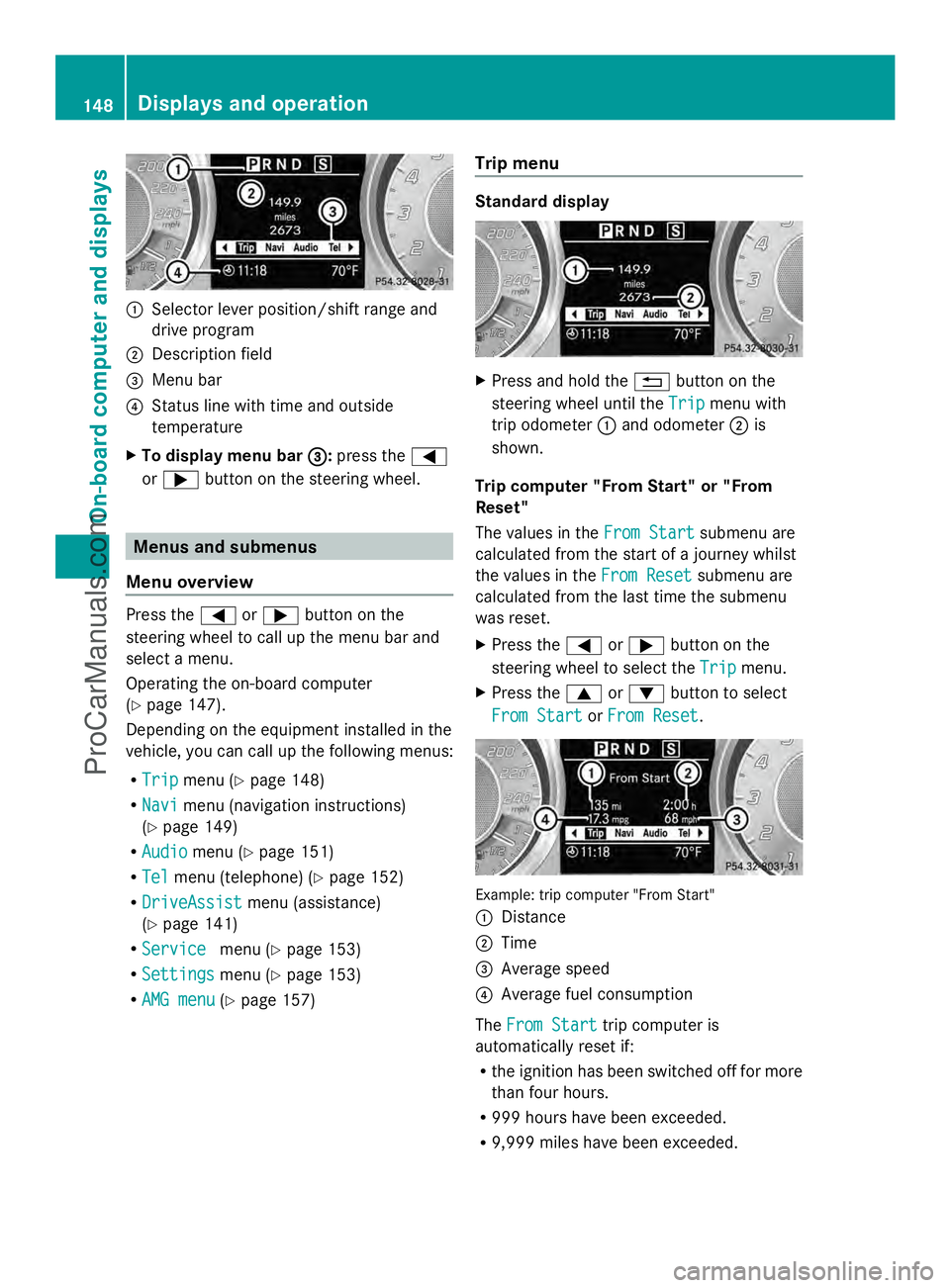
:
Selector lever position/shift range and
drive program
; Description field
= Menu bar
? Status line with time and outside
temperature
X To display menu bar = =:press the =
or ; button on the steering wheel. Menus and submenus
Menu overview Press the
=or; button on the
steering wheel to call up the menu bar and
select a menu.
Operating the on-board computer
(Y page 147).
Depending on the equipment installed in the
vehicle, you can call up the following menus:
R Trip Trip menu (Y page 148)
R Navi
Navi menu (navigation instructions)
(Y page 149)
R Audio Audio menu (Y page 151)
R Tel Tel menu (telephone) (Y page 152)
R DriveAssist
DriveAssist menu (assistance)
(Y page 141)
R Service
Service menu (Ypage 153)
R Settings Settings menu (Ypage 153)
R AMG menu AMG menu (Ypage 157) Trip menu Standard display
X
Press and hold the %button on the
steering wheel until the Trip
Tripmenu with
trip odometer :and odometer ;is
shown.
Trip computer "From Start" or "From
Reset"
The values in the From Start From Startsubmenu are
calculated from the start of a journey whilst
the values in the From Reset
From Reset submenu are
calculated from the last time the submenu
was reset.
X Press the =or; button on the
steering wheel to select the Trip Tripmenu.
X Press the 9or: button to select
From Start
From Start orFrom Reset
From Reset . Example: trip computer "From Start"
:
Distance
; Time
= Average speed
? Average fuel consumption
The From Start From Start trip computer is
automatically reset if:
R the ignition has been switched off for more
than four hours.
R 999 hours have been exceeded.
R 9,999 miles have been exceeded. 148
Displays and operationOn-board computer and displays
ProCarManuals.com
Page 151 of 286
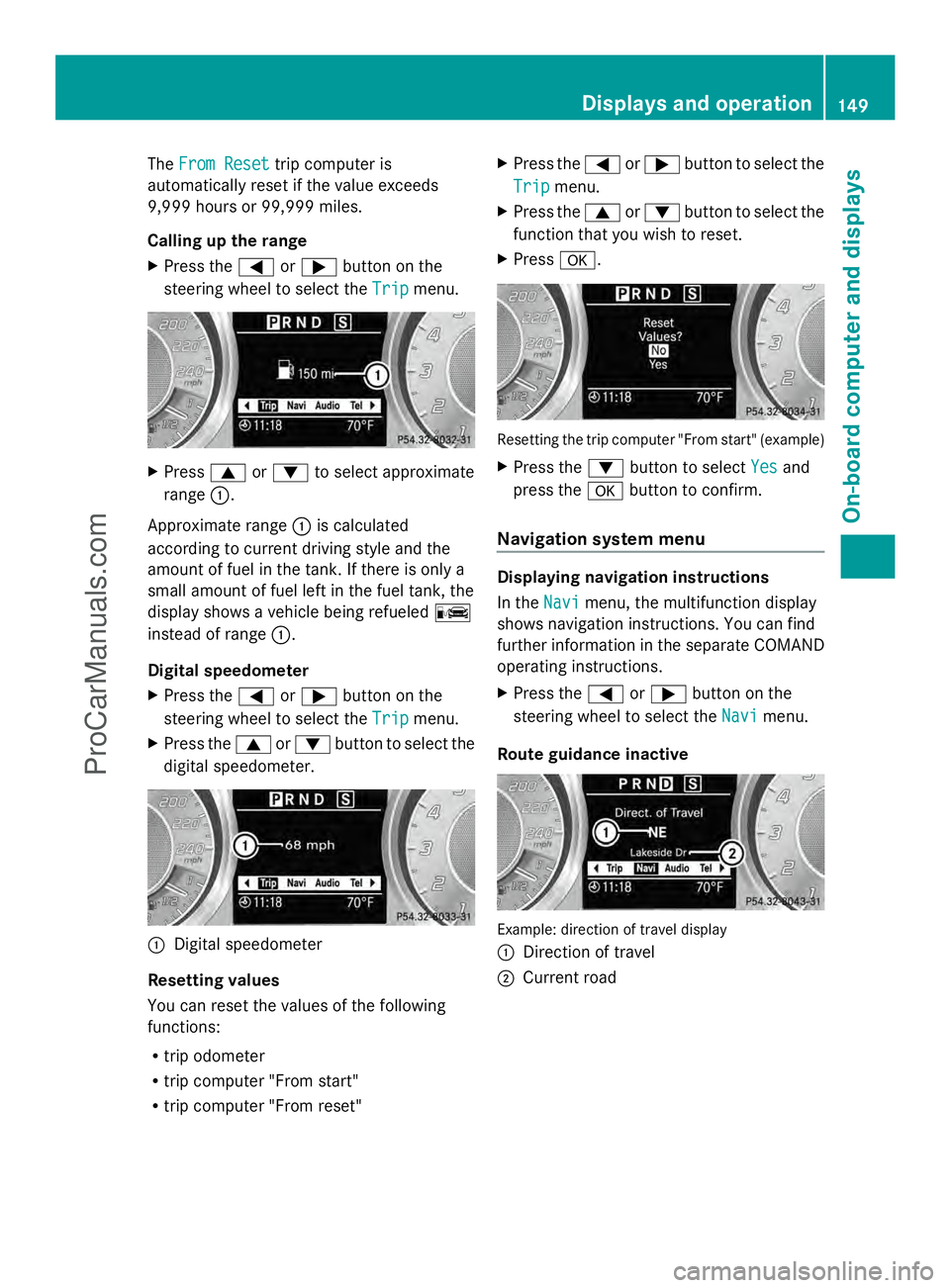
The
From Reset
From Reset trip computer is
automatically reset if the value exceeds
9,999 hours or 99,999 miles.
Calling up the range
X Press the =or; button on the
steering wheel to select the Trip Tripmenu. X
Press 9or: to select approximate
range :.
Approximate range :is calculated
according to current driving style and the
amount of fuel in the tank. If there is only a
small amount of fuel left in the fuel tank, the
display shows a vehicle being refueled C
instead of range :.
Digital speedometer
X Press the =or; button on the
steering wheel to select the Trip
Trip menu.
X Press the 9or: button to select the
digital speedometer. :
Digital speedometer
Resetting values
You can reset the values of the following
functions:
R trip odometer
R trip computer "From start"
R trip computer "From reset" X
Press the =or; button to select the
Trip Trip menu.
X Press the 9or: button to select the
function that you wish to reset.
X Press a. Resetting the trip computer "From start" (example)
X
Press the :button to select Yes Yesand
press the abutton to confirm.
Navigation system menu Displaying navigation instructions
In the
Navi Navimenu, the multifunction display
shows navigation instructions. You can find
further information in the separate COMAND
operating instructions.
X Press the =or; button on the
steering wheel to select the Navi
Navi menu.
Route guidance inactive Example: direction of travel display
:
Direction of travel
; Current road Displays and operation
149On-board computer and displays Z
ProCarManuals.com
Page 153 of 286
You can find further information on status
indicators in the separate COMAND
operating instructions.
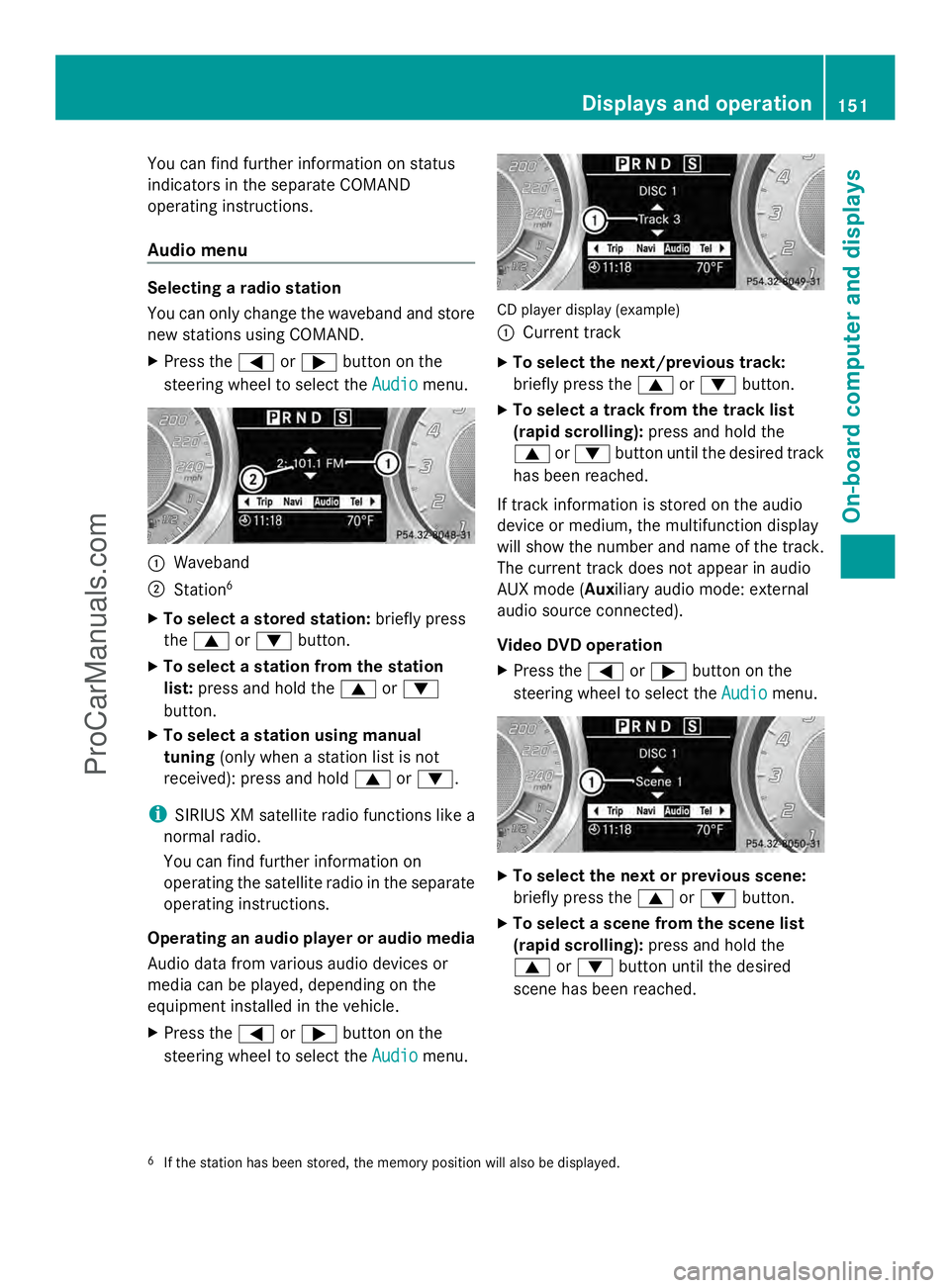
Audio menu Selecting a radio station
You can only change the waveband and store
new stations using COMAND.
X Press the =or; button on the
steering wheel to select the Audio Audiomenu. :
Waveband
; Station 6
X To select a stored station: briefly press
the 9 or: button.
X To select a station from the station
list: press and hold the 9or:
button.
X To select a station using manual
tuning (only when a station list is not
received): press and hold 9or:.
i SIRIUS XM satellite radio functions like a
normal radio.
You can find further information on
operating the satellite radio in the separate
operating instructions.
Operating an audio player or audio media
Audio data from various audio devices or
media can be played, depending on the
equipment installed in the vehicle.
X Press the =or; button on the
steering wheel to select the Audio
Audio menu. CD player display (example)
:
Current track
X To select the next/previous track:
briefly press the 9or: button.
X To select a track from the track list
(rapid scrolling): press and hold the
9 or: button until the desired track
has been reached.
If track information is stored on the audio
device or medium, the multifunction display
will show the number and name of the track.
The current track does not appear in audio
AUX mode (Auxiliary audio mode: external
audio source connected).
Video DVD operation
X Press the =or; button on the
steering wheel to select the Audio
Audio menu. X
To select the next or previous scene:
briefly press the 9or: button.
X To select a scene from the scene list
(rapid scrolling): press and hold the
9 or: button until the desired
scene has been reached.
6 If the station has been stored, the memory position will also be displayed. Displays and operation
151On-board computer and displays Z
ProCarManuals.com
Page 154 of 286
Telephone menu
Introduction
G
WARNING
A driver's attention to the road must always
be his/her primary focus when driving. For
your safety and the safety of others, we
recommend that you pull over to a safe
location and stop before placing or taking a
telephone call. If you choose to use the
telephone while driving, please use the hands-
free device and only use the telephone when
weather, road and traffic conditions permit.
Some jurisdictions prohibit the driver from
using a mobile phone while driving a vehicle.
Bear in mind that at a speed of just 30 mph
(approximately 50 km/h ), your vehicle is
covering a distance of 44 feet (approximately
14 m) every second.
Functions and displays are dependent on the
optional equipment installed in your vehicle.
You can establish a Bluetooth ®
connection to
COMAND (see the separate operating
instructions).
X Switch on the mobile phone and COMAND.
X Press the =or; button on the
steering wheel to select the Tel
Tel menu.
You will see one of the following display
messages in the multifunction display:
R Enter PIN Enter PIN : the mobile phone has been
placed in the mobile phone bracket and the
PIN has not been entered.
X Enter the PIN using the mobile phone,
Voice Control System or COMAND.
The mobile phone will search for a network.
In the meantime, the Phone No Service Phone No Service
display message appears in the
multifunction display.
R Phone Ready Phone Ready or the name of the network
provider: the mobile phone has found a
network and is ready to receive.
R Phone No Service Phone No Service: there is no network
available or the mobile phone is searching
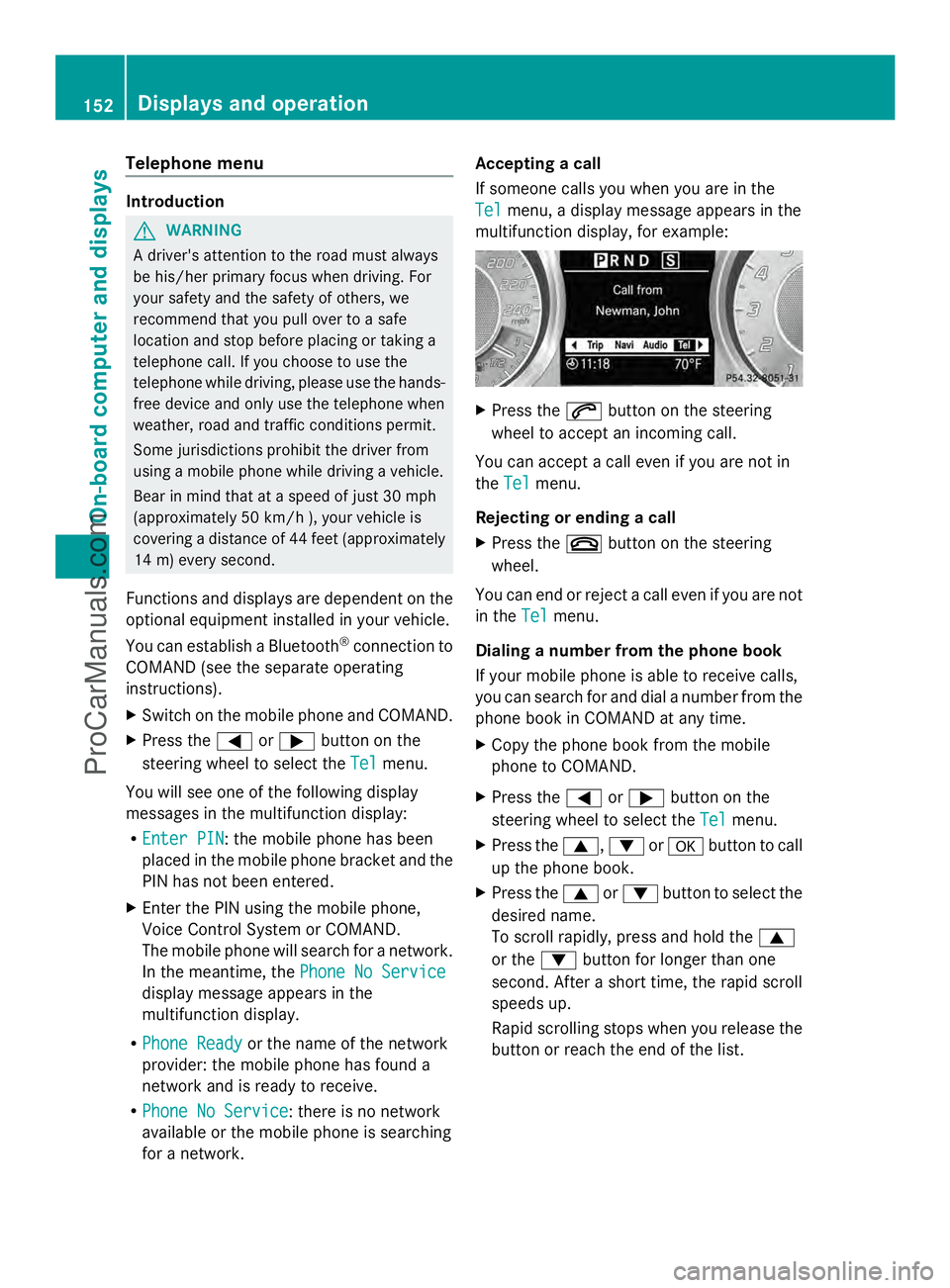
for a network. Accepting a call
If someone calls you when you are in the
Tel Tel
menu, a display message appears in the
multifunction display, for example: X
Press the 6button on the steering
wheel to accept an incoming call.
You can accept a call even if you are not in
the Tel Tel menu.
Rejecting or ending a call
X Press the ~button on the steering
wheel.
You can end or reject a call even if you are not
in the Tel Telmenu.
Dialing a number from the phone book
If your mobile phone is able to receive calls,
you can search for and dial a number from the
phone book in COMAND at any time.
X Copy the phone book from the mobile
phone to COMAND.
X Press the =or; button on the
steering wheel to select the Tel Telmenu.
X Press the 9,:ora button to call
up the phone book.
X Press the 9or: button to select the
desired name.
To scroll rapidly, press and hold the 9
or the :button for longer than one
second. After a short time, the rapid scroll
speeds up.
Rapid scrolling stops when you release the
button or reach the end of the list. 152
Displays and operationOn-boa
rdcompu ter and displays
ProCarManuals.com
Page 155 of 286
X
If only one telephone number is stored
for a name: press the6ora button
to start dialing.
or
X If there is more than one number for a
particular name: press the6ora
button to display the numbers.
X Press the 9or: button to select the
number you want to dial.
X Press the 6ora button to start
dialing.
or
X If you do not want to make a call: press
the ~ button.
Redialing
The on-board computer saves the last names
or numbers dialed in the redial memory.
X Press the =or; button on the
steering wheel to select the Tel Telmenu.
X Press the 6button to switch to the
redial memory.
X Press the 9or: button to select the
desired name or number.
X Press the 6ora button to start
dialing.
Assistance menu Activating/deactivating Blind Spot Assist
You can use the Blind
Blind Spot SpotAsst.
Asst. function
to activate or deactivate Blind Spot Assist
(Y page 141).
X Press the =or; button on the
steering wheel to select the DriveAssist
DriveAssist
menu.
X Press a.
The current selection is displayed.
X To activate/deactivate: pressa
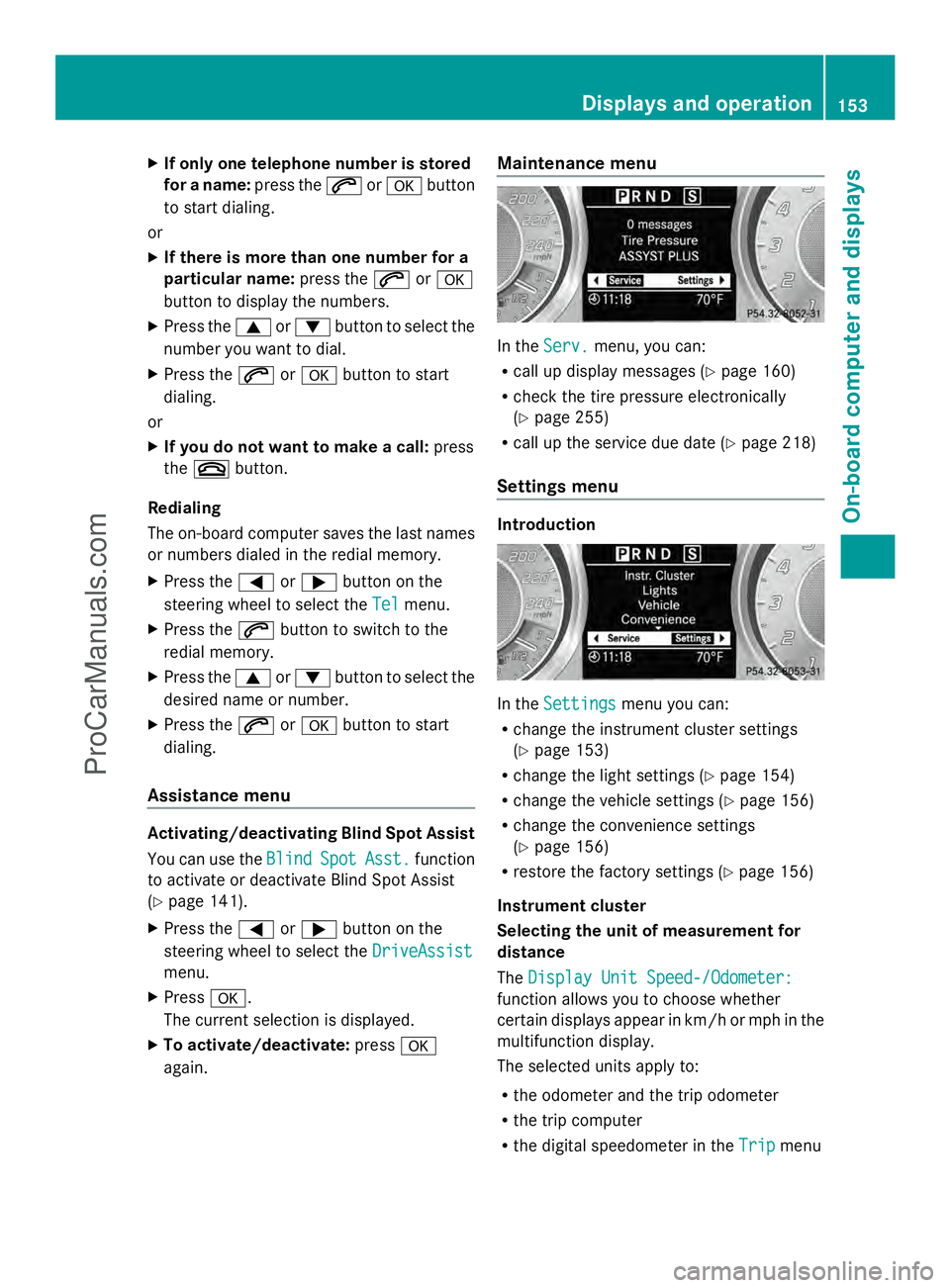
again. Maintenance menu In the
Serv.
Serv. menu, you can:
R call up display messages ( Ypage 160)
R check the tire pressure electronically
(Y page 255)
R call up the service due date (Y page 218)
Settings menu Introduction
In the
Settings Settings menu you can:
R change the instrument cluster settings
(Y page 153)
R change the light settings (Y page 154)
R change the vehicle settings (Y page 156)
R change the convenience settings
(Y page 156)
R restore the factory settings (Y page 156)
Instrument cluster
Selecting the unit of measurement for
distance
The Display Unit Speed-/Odometer: Display Unit Speed-/Odometer:
function allows you to choose whether
certain displays appear in km/h or mph in the
multifunction display.
The selected units apply to:
R the odometer and the trip odometer
R the trip computer
R the digital speedometer in the Trip Tripmenu Displays and operation
153On-board computer and displays Z
ProCarManuals.com
Page 156 of 286
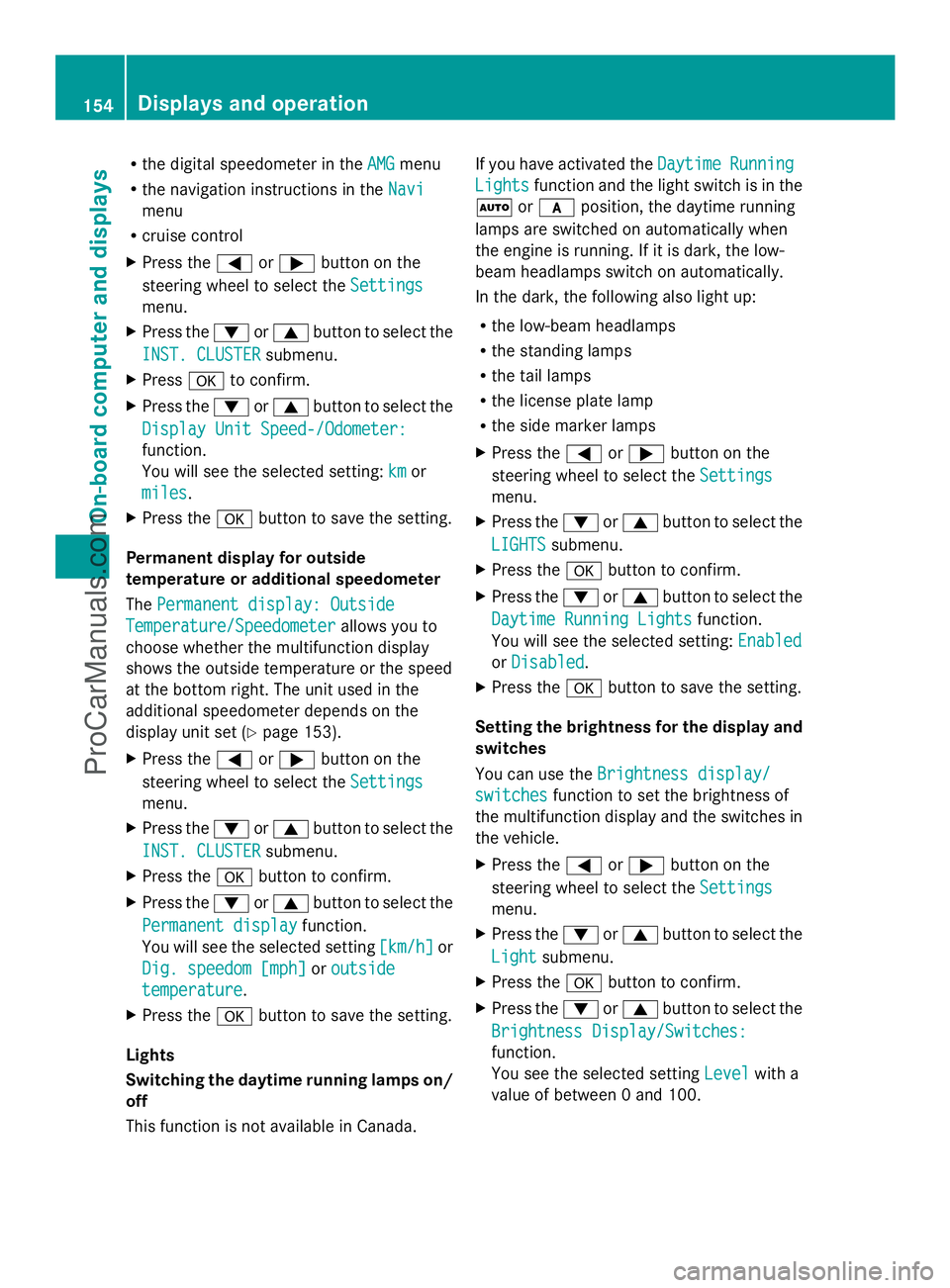
R
the digital speedometer in the AMG
AMGmenu
R the navigation instructions in the Navi
Navi
menu
R cruise control
X Press the =or; button on the
steering wheel to select the Settings
Settings
menu.
X Press the :or9 button to select the
INST. CLUSTER
INST. CLUSTER submenu.
X Press ato confirm.
X Press the :or9 button to select the
Display Unit Speed-/Odometer:
Display Unit Speed-/Odometer:
function.
You will see the selected setting: km kmor
miles
miles .
X Press the abutton to save the setting.
Permanent display for outside
temperature or additional speedometer
The Permanent display: Outside Permanent display: Outside
Temperature/Speedometer
Temperature/Speedometer allows you to
choose whether the multifunction display
shows the outside temperature or the speed
at the bottom right. The unit used in the
additional speedometer depends on the
display unit set (Y page 153).
X Press the =or; button on the
steering wheel to select the Settings
Settings
menu.
X Press the :or9 button to select the
INST. CLUSTER
INST. CLUSTER submenu.
X Press the abutton to confirm.
X Press the :or9 button to select the
Permanent display
Permanent display function.
You will see the selected setting [km/h]
[km/h]or
Dig. speedom [mph]
Dig. speedom [mph] oroutside
outside
temperature
temperature .
X Press the abutton to save the setting.
Lights
Switching the daytime running lamps on/
off
This function is not available in Canada. If you have activated the
Daytime
Daytime Running Running
Lights
Lights function and the light switch is in the
à orc position, the daytime running
lamps are switched on automatically when
the engine is running. If it is dark, the low-
beam headlamps switch on automatically.
In the dark, the following also light up:
R the low-beam headlamps
R the standing lamps
R the tail lamps
R the license plate lamp
R the side marker lamps
X Press the =or; button on the
steering wheel to select the Settings
Settings
menu.
X Press the :or9 button to select the
LIGHTS LIGHTS submenu.
X Press the abutton to confirm.
X Press the :or9 button to select the
Daytime Running Lights
Daytime Running Lights function.
You will see the selected setting: Enabled
Enabled
or Disabled
Disabled .
X Press the abutton to save the setting.
Setting the brightness for the display and
switches
You can use the Brightness display/ Brightness display/
switches
switches function to set the brightness of
the multifunction display and the switches in
the vehicle.
X Press the =or; button on the
steering wheel to select the Settings Settings
menu.
X Press the :or9 button to select the
Light
Light submenu.
X Press the abutton to confirm.
X Press the :or9 button to select the
Brightness Display/Switches:
Brightness Display/Switches:
function.
You see the selected setting Level Levelwith a
value of between 0 and 100. 154
Displays and operationOn-boa
rdcompu ter and displays
ProCarManuals.com
Page 157 of 286
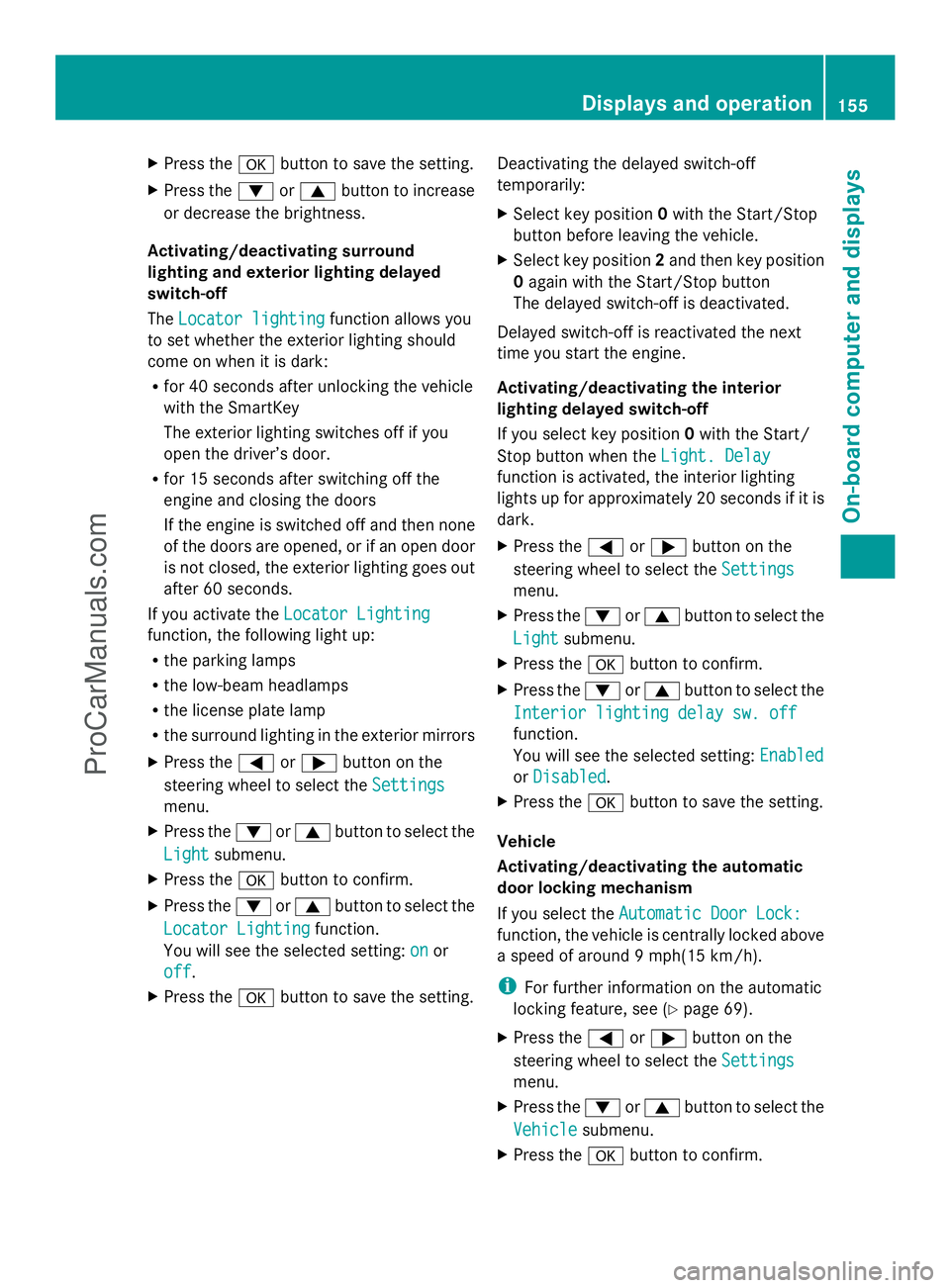
X
Press the abutton to save the setting.
X Press the :or9 button to increase
or decrease the brightness.
Activating/deactivating surround
lighting and exterior lighting delayed
switch-off
The Locator lighting
Locator lighting function allows you
to set whether the exterior lighting should
come on when it is dark:
R for 40 seconds after unlocking the vehicle
with the SmartKey
The exterior lighting switches off if you
open the driver’s door.
R for 15 seconds after switching off the
engine and closing the doors
If the engine is switched off and then none
of the doors are opened, or if an open door
is not closed, the exterior lighting goes out
after 60 seconds.
If you activate the Locator Lighting
Locator Lighting
function, the following light up:
R the parking lamps
R the low-beam headlamps
R the license plate lamp
R the surround lighting in the exterior mirrors
X Press the =or; button on the
steering wheel to select the Settings
Settings
menu.
X Press the :or9 button to select the
Light
Light submenu.
X Press the abutton to confirm.
X Press the :or9 button to select the
Locator Lighting
Locator Lighting function.
You will see the selected setting: on onor
off
off.
X Press the abutton to save the setting. Deactivating the delayed switch-off
temporarily:
X
Select key position 0with the Start/Stop
button before leaving the vehicle.
X Select key position 2and then key position
0 again with the Start/Stop button
The delayed switch-off is deactivated.
Delayed switch-off is reactivated the next
time you start the engine.
Activating/deactivating the interior
lighting delayed switch-off
If you select key position 0with the Start/
Stop button when the Light. Delay
Light. Delay
function is activated, the interior lighting
lights up for approximately 20 seconds if it is
dark.
X Press the =or; button on the
steering wheel to select the Settings
Settings
menu.
X Press the :or9 button to select the
Light Light submenu.
X Press the abutton to confirm.
X Press the :or9 button to select the
Interior lighting delay sw. off
Interior lighting delay sw. off
function.
You will see the selected setting: Enabled Enabled
or Disabled
Disabled .
X Press the abutton to save the setting.
Vehicle
Activating/deactivating the automatic
door locking mechanism
If you select the Automatic Door Lock: Automatic Door Lock:
function, the vehicle is centrally locked above
a speed of around 9 mph(15 km/h).
i For further information on the automatic
locking feature, see (Y page 69).
X Press the =or; button on the
steering wheel to select the Settings
Settings
menu.
X Press the :or9 button to select the
Vehicle Vehicle submenu.
X Press the abutton to confirm. Displays and operation
155On-board computer and displays Z
ProCarManuals.com