light MERCEDES-BENZ SPRINTER 2012 MY12 Operator’s Manual
[x] Cancel search | Manufacturer: MERCEDES-BENZ, Model Year: 2012, Model line: SPRINTER, Model: MERCEDES-BENZ SPRINTER 2012Pages: 292, PDF Size: 6.75 MB
Page 124 of 292
Roll-back warning
PARKTRONIC automatically monitors the
area behind the vehicle if the vehicle begins
to roll backwards without reverse gear
engaged, e.g. after stopping on an uphill
gradient.
If PARKTRONIC recognizes an obstacle at a
distance of at most 31 in (80 cm), all the
segments in the warning display light up. A
continuous warning tone also sounds as the
vehicle approaches the obstacle and for a
further two seconds after the vehicle has
come to a halt.
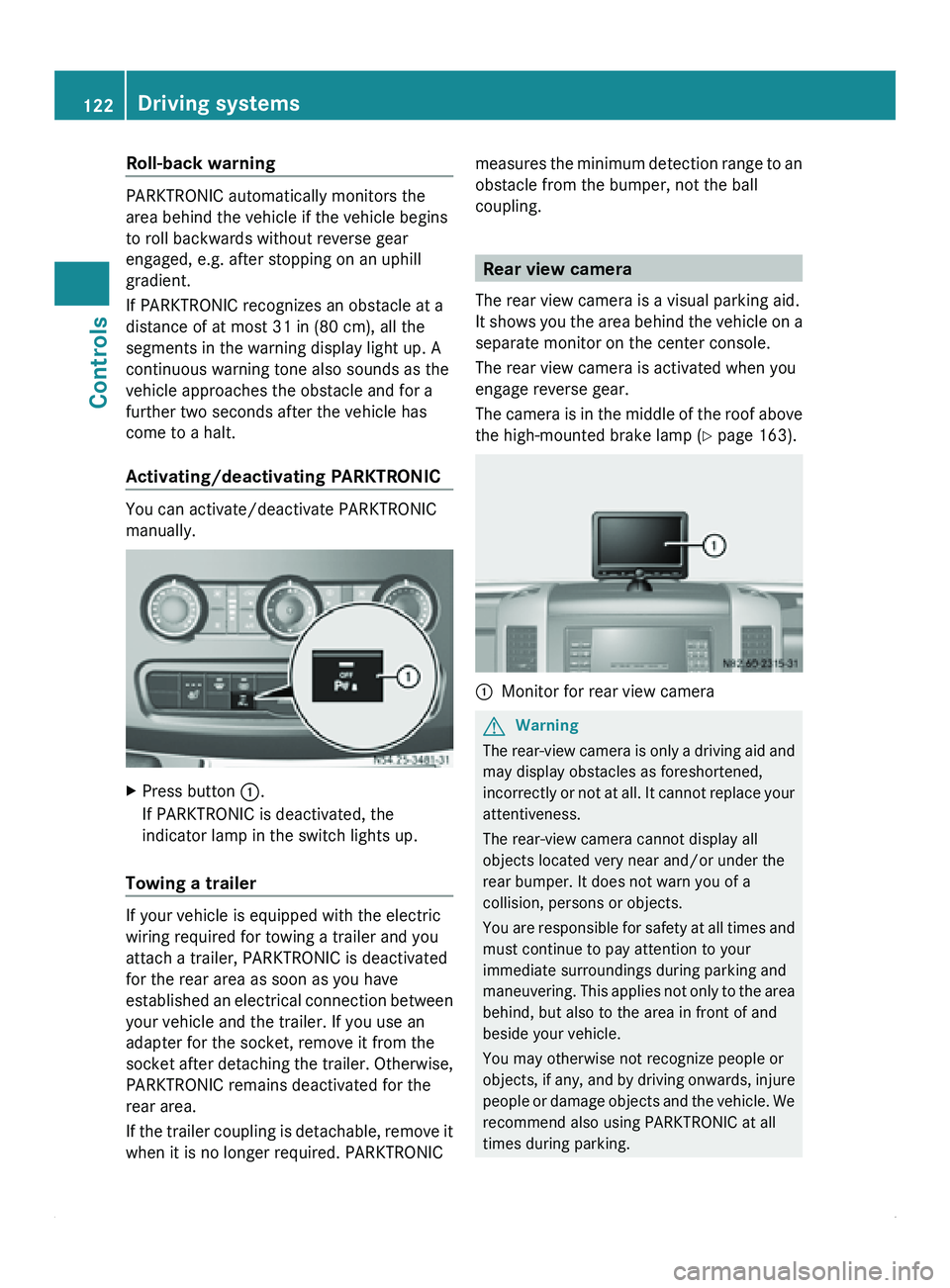
Activating/deactivating PARKTRONIC You can activate/deactivate PARKTRONIC
manually.
X
Press button 0046.
If PARKTRONIC is deactivated, the
indicator lamp in the switch lights up.
Towing a trailer If your vehicle is equipped with the electric
wiring required for towing a trailer and you
attach a trailer, PARKTRONIC is deactivated
for the rear area as soon as you have
established an
electrical
connection between
your vehicle and the trailer. If you use an
adapter for the socket, remove it from the
socket after detaching the trailer. Otherwise,
PARKTRONIC remains deactivated for the
rear area.
If the trailer coupling is detachable, remove it
when it is no longer required. PARKTRONIC measures the minimum detection range to an
obstacle from the bumper, not the ball
coupling.
Rear view camera
The rear view camera is a visual parking aid.
It shows you
the area behind the vehicle on a
separate monitor on the center console.
The rear view camera is activated when you
engage reverse gear.
The camera is in the middle of the roof above
the high-mounted brake lamp ( Y page 163). 0046
Monitor for rear view camera G
Warning
The rear-view camera is only a driving aid and
may display obstacles as foreshortened,
incorrectly or not
at all. It cannot replace your
attentiveness.
The rear-view camera cannot display all
objects located very near and/or under the
rear bumper. It does not warn you of a
collision, persons or objects.
You are responsible for safety at all times and
must continue to pay attention to your
immediate surroundings during parking and
maneuvering. This applies not only to the area
behind, but also to the area in front of and
beside your vehicle.
You may otherwise not recognize people or
objects, if any, and by driving onwards, injure
people or damage objects and the vehicle. We
recommend also using PARKTRONIC at all
times during parking. 122
Driving systems
Controls
Page 125 of 292
G
Warning
Make sure that no persons or animals are in
the maneuvering range. Otherwise, they
could be injured. G
Warning!
The rear-view camera could either stop
functioning or function incorrectly if:
R it is raining very heavily or snowing, or it is
foggy.
R the parking space is located in a very dark
place.
R the camera is
exposed to very strong white
light. White stripes may appear on the
display.
R the surrounding area is illuminated with
fluorescent light. The display may flicker.
R there is a rapid change in temperature, e.g.
if you drive out of the cold during winter into
a heated garage.
R ambient temperatures are very high.
R the camera lens is dirty or obstructed.
R the rear of the vehicle is damaged. In this
case, have the position and setting checked
at a qualified specialist workshop that has
the necessary specialist knowledge and
tools to carry out the work required. For this
reason, we recommend an authorized
Sprinter Dealer.
You will find information about cleaning the
camera in the "Operation" section
(Y page 163).
Switching on the rear view camera X
Make sure
that the ignition is switched on.
X Engage reverse gear.
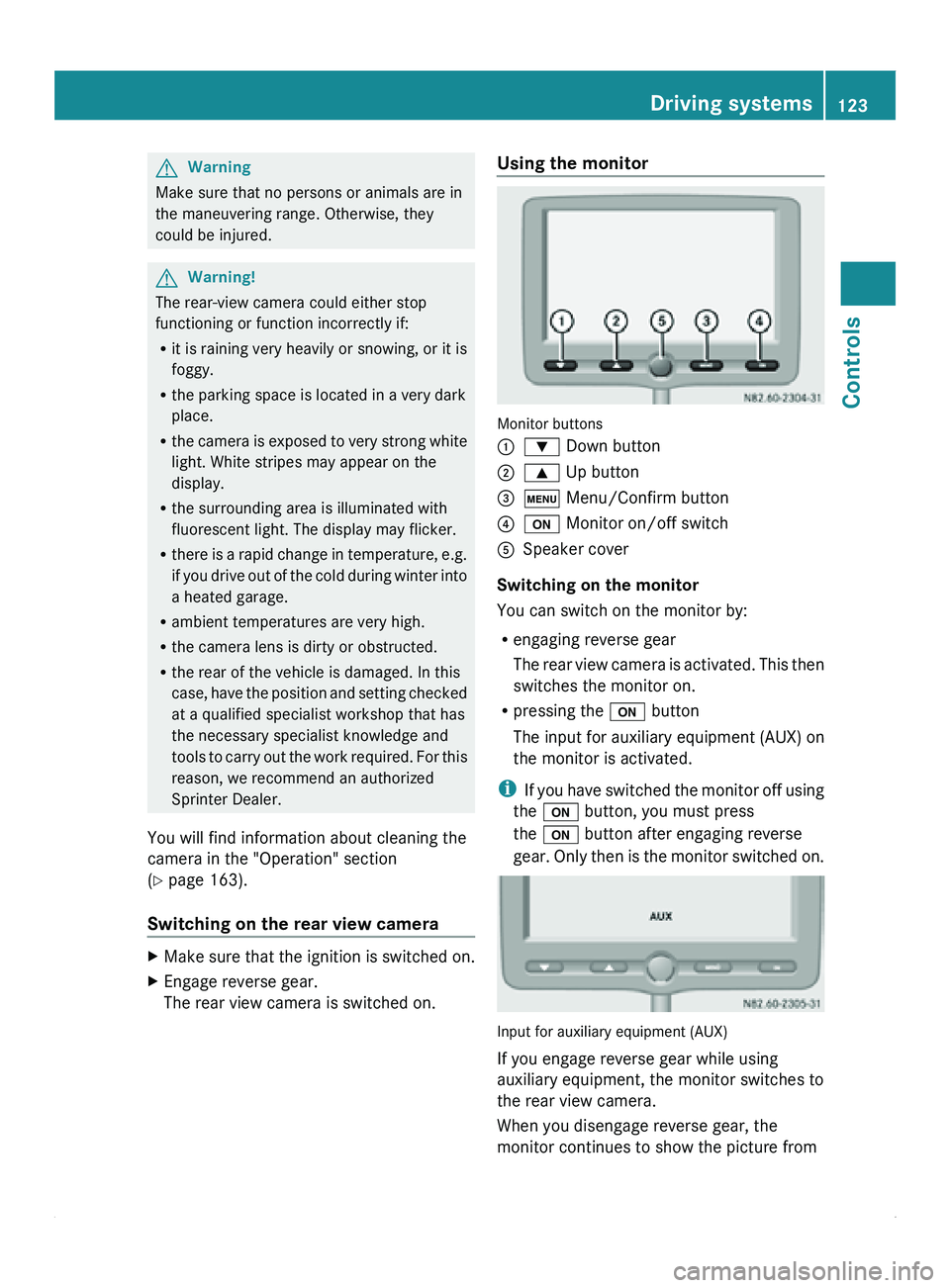
The rear view camera is switched on. Using the monitor
Monitor buttons
0046
003D Down button
0047 003C Up button
008A 0093 Menu/Confirm button
0088 0094 Monitor on/off switch
0086 Speaker cover
Switching on the monitor
You can switch on the monitor by:
R engaging reverse gear
The rear
view
camera is activated. This then
switches the monitor on.
R pressing the 0094 button
The input for auxiliary equipment (AUX) on
the monitor is activated.
i If you have switched the monitor off using
the 0094 button, you must press
the 0094 button after engaging reverse
gear. Only then is the monitor switched on. Input for auxiliary equipment (AUX)
If you engage reverse gear while using
auxiliary equipment, the monitor switches to
the rear view camera.
When you disengage reverse gear, the
monitor continues to show the picture from Driving systems
123
Controls Z
Page 126 of 292
the rear view camera for around 15 seconds
before switching back to the auxiliary device
input (AUX).
Switching off the monitor
If the monitor was switched on by engaging
reverse gear, it switches off automatically
15 seconds
after
you disengage reverse gear.
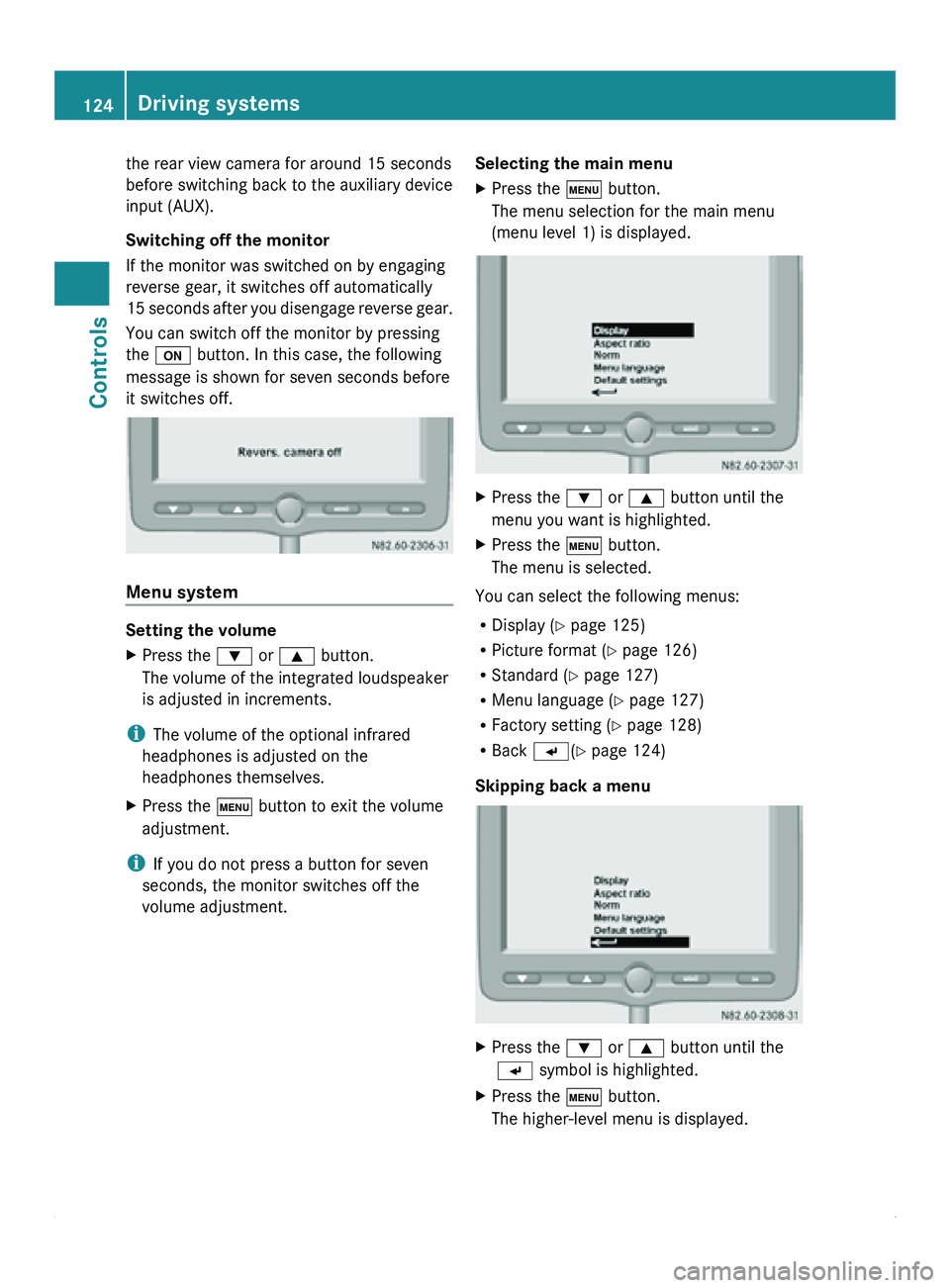
You can switch off the monitor by pressing
the 0094 button. In this case, the following
message is shown for seven seconds before
it switches off. Menu system
Setting the volume
X
Press the 003D or 003C button.
The volume of the integrated loudspeaker
is adjusted in increments.
i The volume of the optional infrared
headphones is adjusted on the
headphones themselves.
X Press the 0093 button to exit the volume
adjustment.
i If you do not press a button for seven
seconds, the monitor switches off the
volume adjustment. Selecting the main menu
X
Press the 0093 button.
The menu selection for the main menu
(menu level 1) is displayed. X
Press the 003D or 003C button until the
menu you want is highlighted.
X Press the 0093 button.
The menu is selected.
You can select the following menus:
R Display ( Y page 125)
R Picture format (
Y page 126)
R Standard (Y page 127)
R Menu language ( Y page 127)
R Factory setting (Y page 128)
R Back 0056(Y page 124)
Skipping back a menu X
Press the 003D or 003C button until the
0056 symbol is highlighted.
X Press the 0093 button.
The higher-level menu is displayed.124
Driving systems
Controls
Page 127 of 292
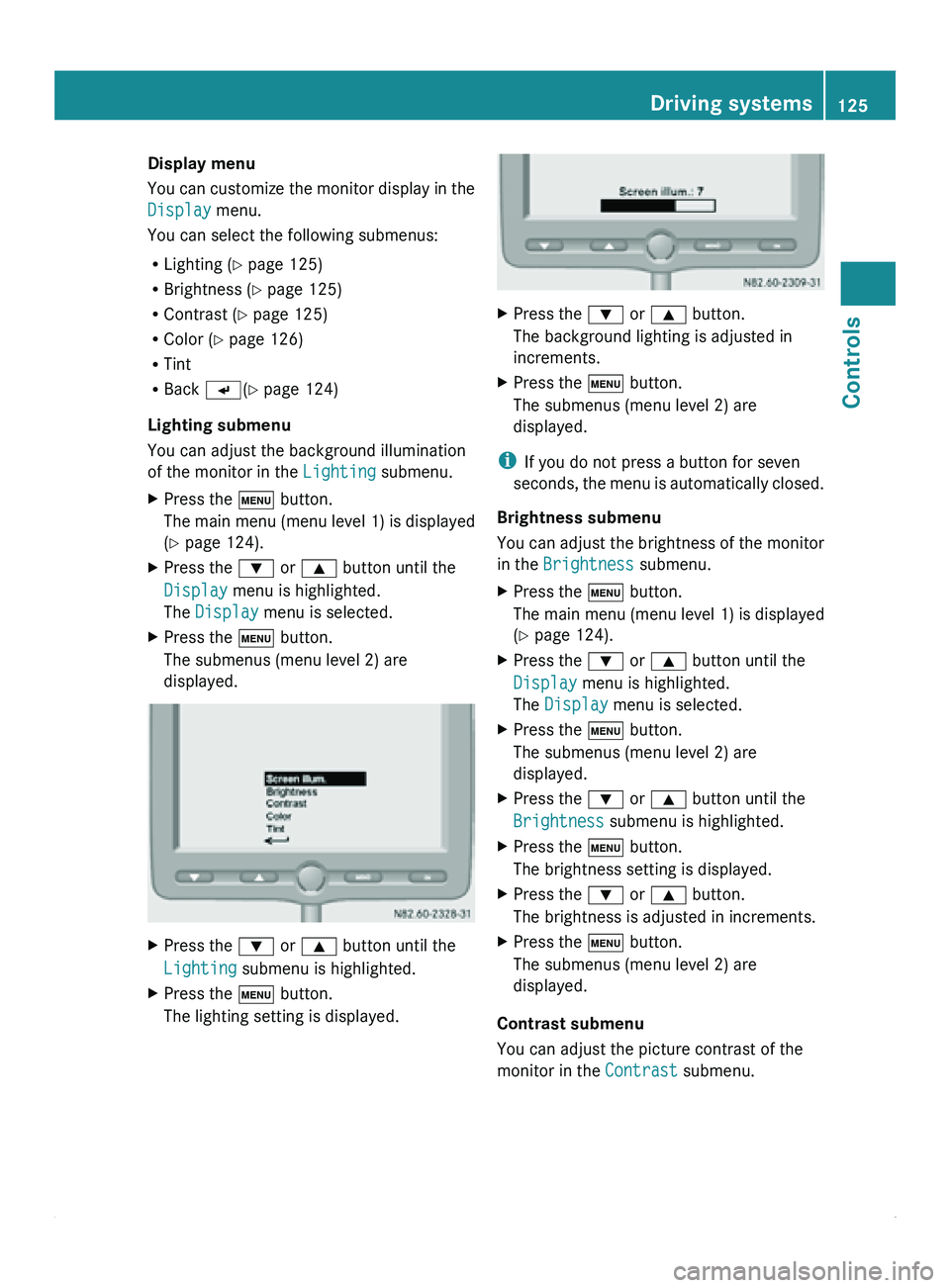
Display menu
You can
customize
the monitor display in the
Display menu.
You can select the following submenus:
R Lighting (Y page 125)
R Brightness ( Y page 125)
R Contrast (Y page 125)
R Color ( Y page 126)
R Tint
R Back 0056(Y page 124)
Lighting submenu
You can adjust the background illumination
of the monitor in the Lighting submenu.
X Press the 0093 button.
The main
menu
(menu level 1) is displayed
(Y page 124).
X Press the 003D or 003C button until the
Display menu is highlighted.
The Display menu is selected.
X Press the 0093 button.
The submenus (menu level 2) are
displayed. X
Press the 003D or 003C button until the
Lighting submenu is highlighted.
X Press the 0093 button.
The lighting setting is displayed. X
Press the 003D or 003C button.
The background lighting is adjusted in
increments.
X Press the 0093 button.
The submenus (menu level 2) are
displayed.
i If you do not press a button for seven
seconds, the menu
is automatically closed.
Brightness submenu
You can adjust the brightness of the monitor
in the Brightness submenu.
X Press the 0093 button.
The main menu
(menu level 1) is displayed
(Y page 124).
X Press the 003D or 003C button until the
Display menu is highlighted.
The Display menu is selected.
X Press the 0093 button.
The submenus (menu level 2) are
displayed.
X Press the 003D or 003C button until the
Brightness submenu is highlighted.
X Press the 0093 button.
The brightness setting is displayed.
X Press the 003D or 003C button.
The brightness is adjusted in increments.
X Press the 0093 button.
The submenus (menu level 2) are
displayed.
Contrast submenu
You can adjust the picture contrast of the
monitor in the Contrast submenu. Driving systems
125
Controls Z
Page 128 of 292
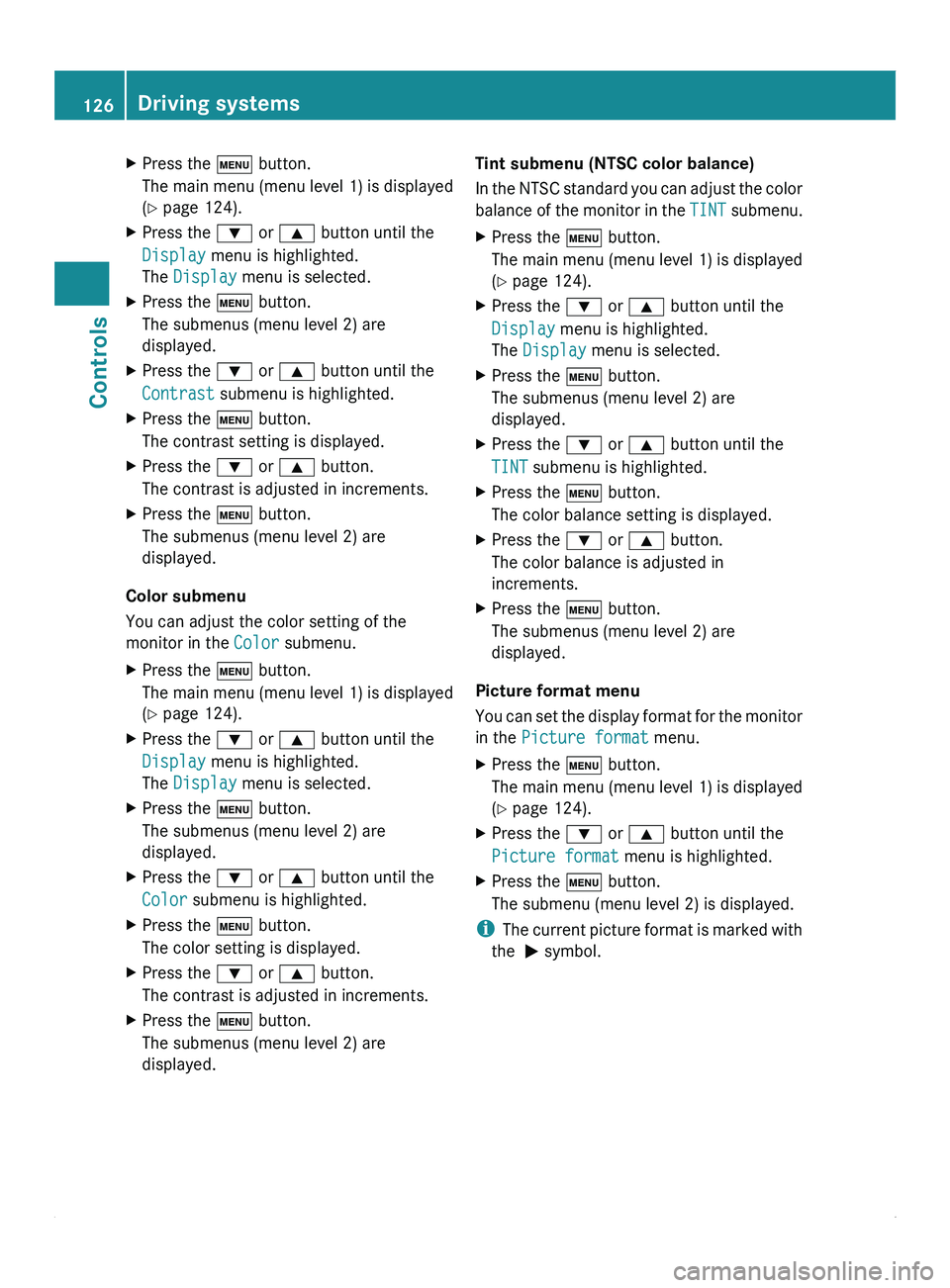
X
Press the 0093 button.
The main menu
(menu level 1) is displayed
(Y page 124).
X Press the 003D or 003C button until the
Display menu is highlighted.
The Display menu is selected.
X Press the 0093 button.
The submenus (menu level 2) are
displayed.
X Press the 003D or 003C button until the
Contrast submenu is highlighted.
X Press the 0093 button.
The contrast setting is displayed.
X Press the 003D or 003C button.
The contrast is adjusted in increments.
X Press the 0093 button.
The submenus (menu level 2) are
displayed.
Color submenu
You can adjust the color setting of the
monitor in the Color submenu.
X Press the 0093 button.
The main
menu
(menu level 1) is displayed
(Y page 124).
X Press the 003D or 003C button until the
Display menu is highlighted.
The Display menu is selected.
X Press the 0093 button.
The submenus (menu level 2) are
displayed.
X Press the 003D or 003C button until the
Color submenu is highlighted.
X Press the 0093 button.
The color setting is displayed.
X Press the 003D or 003C button.
The contrast is adjusted in increments.
X Press the 0093 button.
The submenus (menu level 2) are
displayed. Tint submenu (NTSC color balance)
In
the NTSC
standard you can adjust the color
balance of the monitor in the TINT submenu.
X Press the 0093 button.
The main menu
(menu level 1) is displayed
(Y page 124).
X Press the 003D or 003C button until the
Display menu is highlighted.
The Display menu is selected.
X Press the 0093 button.
The submenus (menu level 2) are
displayed.
X Press the 003D or 003C button until the
TINT submenu is highlighted.
X Press the 0093 button.
The color balance setting is displayed.
X Press the 003D or 003C button.
The color balance is adjusted in
increments.
X Press the 0093 button.
The submenus (menu level 2) are
displayed.
Picture format menu
You can
set
the display format for the monitor
in the Picture format menu.
X Press the 0093 button.
The main menu
(menu level 1) is displayed
(Y page 124).
X Press the 003D or 003C button until the
Picture format menu is highlighted.
X Press the 0093 button.
The submenu (menu level 2) is displayed.
i The current
picture
format is marked with
the 0050 symbol. 126
Driving systems
Controls
Page 129 of 292
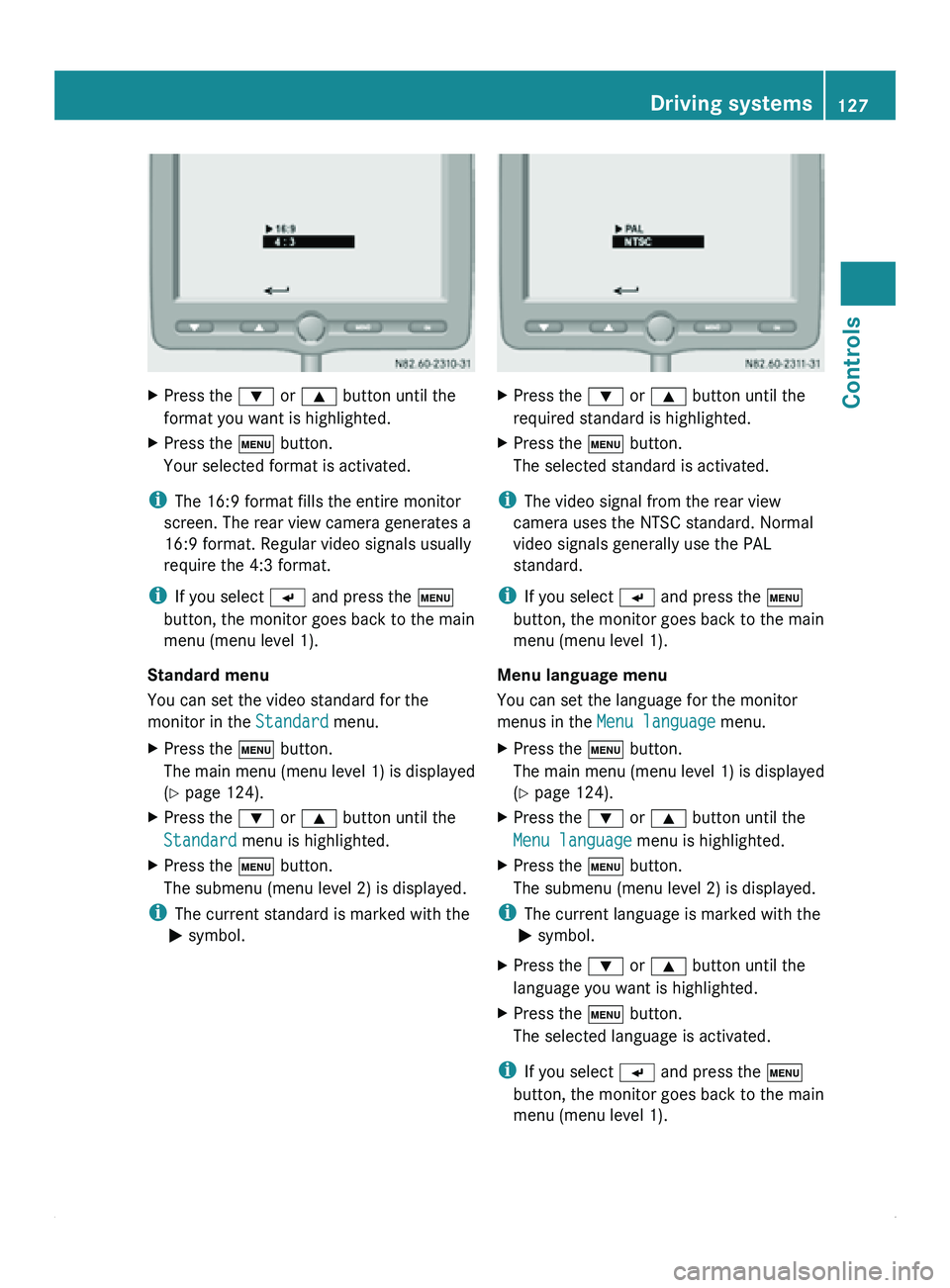
X
Press the 003D or 003C button until the
format you want is highlighted.
X Press the 0093 button.
Your selected format is activated.
i The 16:9 format fills the entire monitor
screen. The rear view camera generates a
16:9 format. Regular video signals usually
require the 4:3 format.
i If you select 0056 and press the 0093
button, the monitor goes back to the main
menu (menu level 1).
Standard menu
You can set the video standard for the
monitor in the Standard menu.
X Press the 0093 button.
The main
menu
(menu level 1) is displayed
(Y page 124).
X Press the 003D or 003C button until the
Standard menu is highlighted.
X Press the 0093 button.
The submenu (menu level 2) is displayed.
i The current standard is marked with the
0050 symbol. X
Press the 003D or 003C button until the
required standard is highlighted.
X Press the 0093 button.
The selected standard is activated.
i The video signal from the rear view
camera uses the NTSC standard. Normal
video signals generally use the PAL
standard.
i If you select 0056 and press the 0093
button, the monitor goes back to the main
menu (menu level 1).
Menu language menu
You can set the language for the monitor
menus in the Menu language menu.
X Press the 0093 button.
The main
menu
(menu level 1) is displayed
(Y page 124).
X Press the 003D or 003C button until the
Menu language menu is highlighted.
X Press the 0093 button.
The submenu (menu level 2) is displayed.
i The current language is marked with the
0050 symbol.
X Press the 003D or 003C button until the
language you want is highlighted.
X Press the 0093 button.
The selected language is activated.
i If you select 0056 and press the 0093
button, the monitor goes back to the main
menu (menu level 1). Driving systems
127
Controls Z
Page 130 of 292
Factory setting menu
You can reset the monitor to the factory
settings in the
Factory setting menu.
X Press the 0093 button.
The main menu
(menu level 1) is displayed
(Y page 124).
X Press the 003D or 003C button until the
Factory setting menu is highlighted.
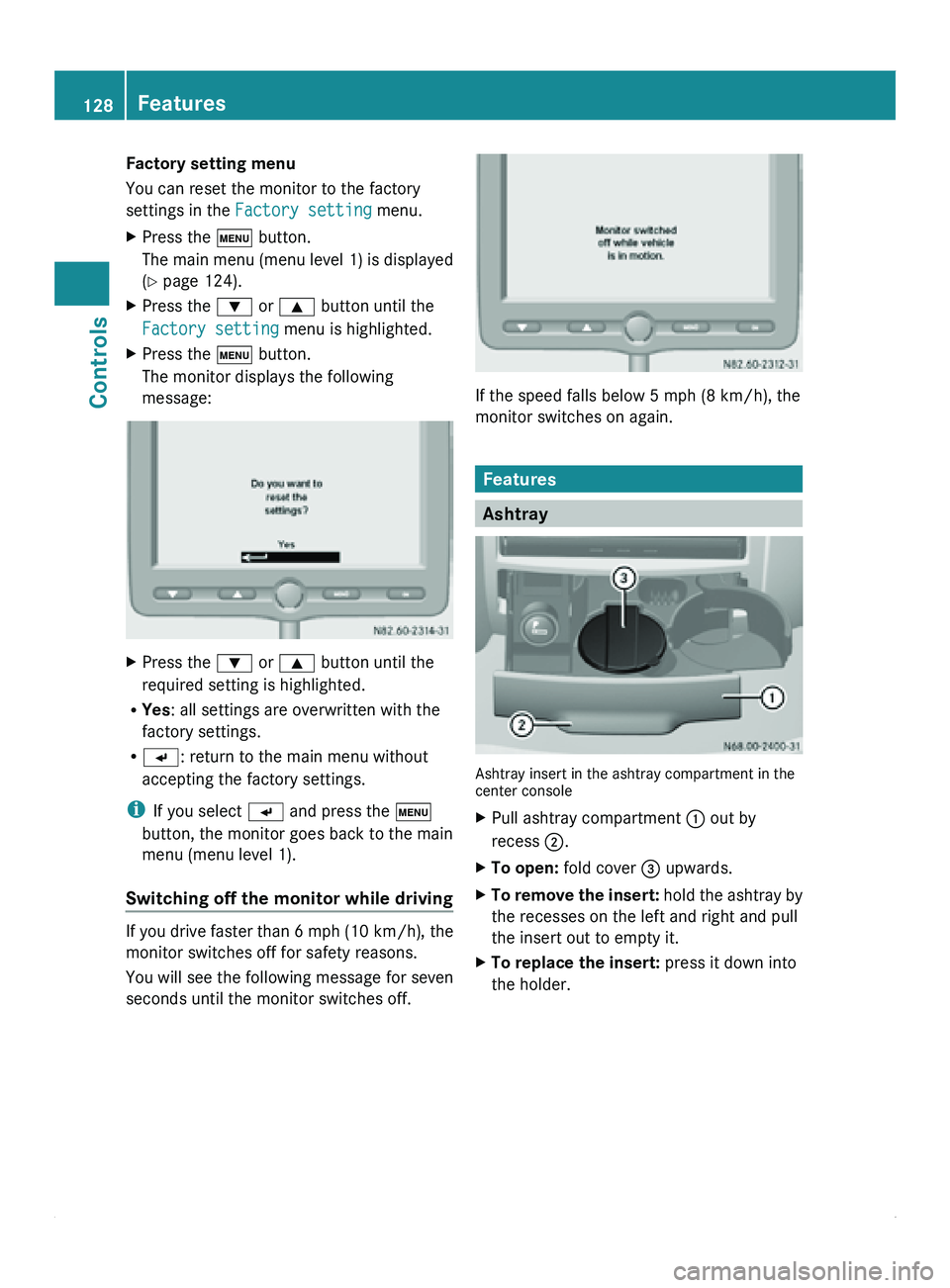
X Press the 0093 button.
The monitor displays the following
message: X
Press the 003D or 003C button until the
required setting is highlighted.
R Yes : all settings are overwritten with the
factory settings.
R 0056: return to the main menu without
accepting the factory settings.
i If you select 0056 and press the 0093
button, the monitor goes back to the main
menu (menu level 1).
Switching off the monitor while driving If you drive faster than 6 mph (10 km/h)
, the
monitor switches off for safety reasons.
You will see the following message for seven
seconds until the monitor switches off. If the speed falls below 5 mph (8 km/h), the
monitor switches on again.
Features
Ashtray
Ashtray insert in the ashtray compartment in the
center console
X
Pull ashtray compartment 0046 out by
recess 0047.
X To open: fold cover 008A upwards.
X To remove the insert: hold the
ashtray by
the recesses on the left and right and pull
the insert out to empty it.
X To replace the insert: press it down into
the holder.128
Features
Controls
Page 131 of 292
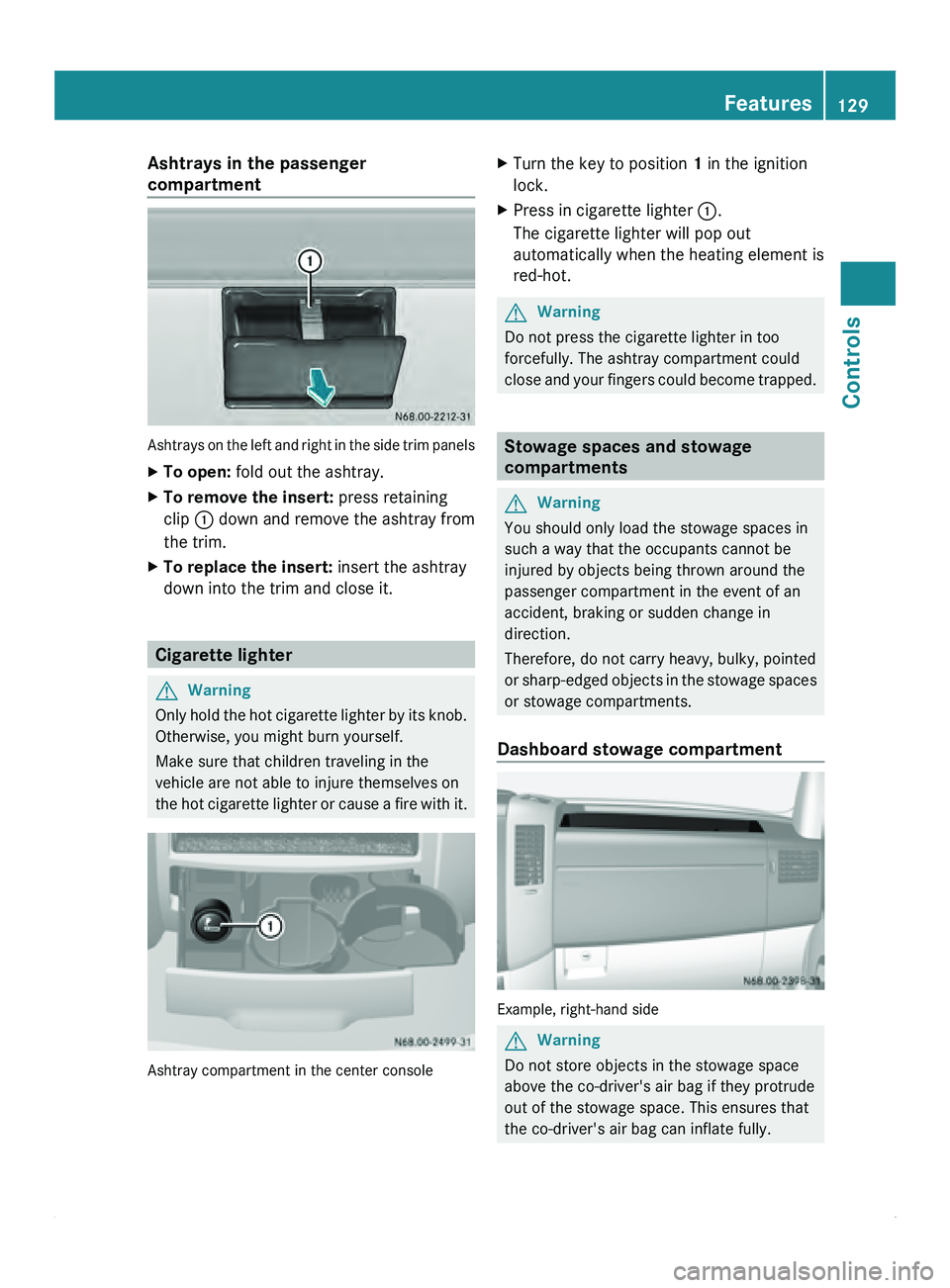
Ashtrays in the passenger
compartment
Ashtrays on the left and right in the side trim panels
X
To open: fold out the ashtray.
X To remove the insert: press retaining
clip 0046 down and
remove the ashtray from
the trim.
X To replace the insert: insert the ashtray
down into the trim and close it. Cigarette lighter
G
Warning
Only hold the hot cigarette lighter by its knob.
Otherwise, you might burn yourself.
Make sure that children traveling in the
vehicle are not able to injure themselves on
the hot cigarette
lighter or cause a fire with it.Ashtray compartment in the center console X
Turn the key to position 1 in the ignition
lock.
X Press in cigarette lighter 0046.
The cigarette lighter will pop out
automatically when the heating element is
red-hot. G
Warning
Do not press the cigarette lighter in too
forcefully. The ashtray compartment could
close and your
fingers could become trapped. Stowage spaces and stowage
compartments
G
Warning
You should only load the stowage spaces in
such a way that the occupants cannot be
injured by objects being thrown around the
passenger compartment in the event of an
accident, braking or sudden change in
direction.
Therefore, do not carry heavy, bulky, pointed
or sharp-edged objects
in the stowage spaces
or stowage compartments.
Dashboard stowage compartment Example, right-hand side
G
Warning
Do not store objects in the stowage space
above the co-driver's air bag if they protrude
out of the stowage space. This ensures that
the co-driver's air bag can inflate fully. Features
129
Controls Z
Page 132 of 292
!
The right and left storage spaces may be
loaded with a maximum of 11 lbs (5 kg)
each.
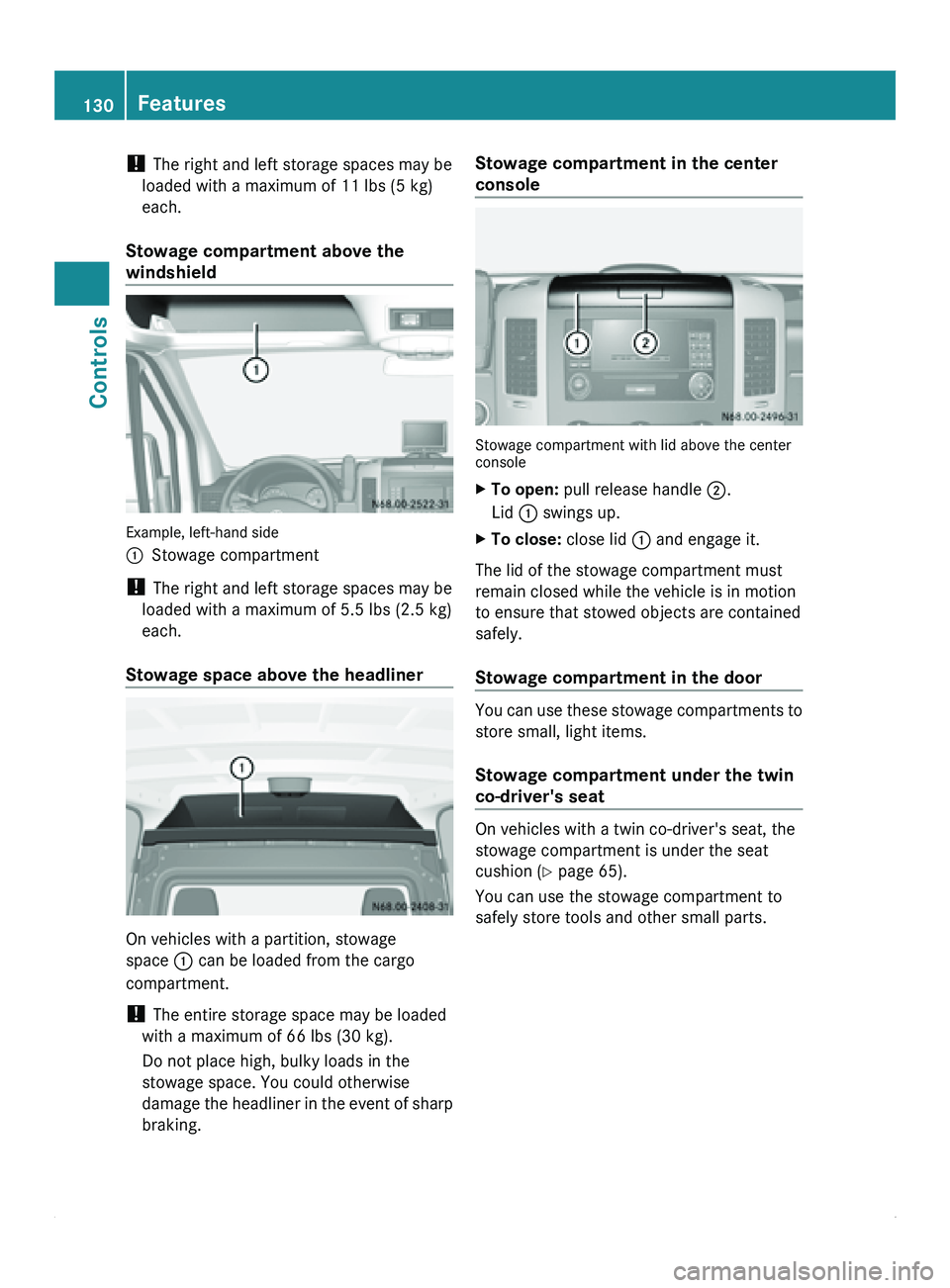
Stowage compartment above the
windshield Example, left-hand side
0046
Stowage compartment
! The right and left storage spaces may be
loaded with a maximum of 5.5 lbs (2.5 kg)
each.
Stowage space above the headliner On vehicles with a partition, stowage
space 0046 can be loaded from the cargo
compartment.
!
The entire storage space may be loaded
with a maximum of 66 lbs (30 kg).
Do not place high, bulky loads in the
stowage space. You could otherwise
damage the headliner
in the event of sharp
braking. Stowage compartment in the center
console
Stowage compartment with lid above the center
console
X
To open: pull release handle 0047.
Lid 0046 swings up.
X To close: close lid 0046 and engage it.
The lid of the stowage compartment must
remain closed while the vehicle is in motion
to ensure that stowed objects are contained
safely.
Stowage compartment in the door You can use these stowage compartments to
store small, light items.
Stowage compartment under the twin
co-driver's seat
On vehicles with a twin co-driver's seat, the
stowage compartment is under the seat
cushion (
Y page 65).
You can use the stowage compartment to
safely store tools and other small parts. 130
Features
Controls
Page 136 of 292
A navigation system does not supply
information on the load-bearing capacity of
bridges or the overhead clearance of
underpasses.
The driver remains responsible for the safety
of the vehicle at all times.
Observe legal requirements.
Telephones, two-way
radios
and fax machines
without an exterior antenna could interfere
with the vehicle electronics and thus
compromise the operational safety of the
vehicle. There is an increased risk of accident.
Do not use this equipment while the vehicle
is in motion.
Failure to observe the Sprinter installation
specifications can result in the invalidation of
your vehicle's operating permit.
You will find information on retrofitting
electrical or electronic equipment in the
"Technical data" section ( Y page 277).Telephone
G
Warning
A driver's attention to the road must always
be his/her primary focus when driving. For
your safety and the safety of others, we
recommend that you pull over to a safe
location and stop before placing or taking a
telephone call. If you choose to use the
telephone while driving,
please use the hands-
free device and only use the telephone when
weather, road and traffic conditions permit.
Some jurisdictions prohibit the driver from
using a mobile phone while driving a vehicle.
Bear in mind that at a speed of just 30 mph
(approximately 50 km/h ), your vehicle is
covering a distance of 44 feet (approximately
14 m) every second. G
Warning
Excessive electromagnetic radiation may
constitute a health hazard to yourself and
others. Use of an exterior antenna gives consideration to scientific discussion
surrounding the
possible
health risk posed by
electromagnetic fields.
The exterior antenna should only be installed
at a qualified specialist workshop which has
the necessary specialist knowledge and tools
to carry out the work required. We
recommend that you use an authorized
Sprinter Dealer for this purpose. In particular,
work relevant to safety or on safety-related
systems must be carried out at a qualified
specialist workshop.
We recommend the use of an approved
exterior antenna for operating the mobile
phone. Only in this way can optimal mobile
phone reception quality in the vehicle be
ensured and mutual interference between the
vehicle electronics and mobile phones
minimized.
Observe the legal requirements for each
individual country.
The mobile phone fitting includes a hands-
free system integrated into the vehicle. The
microphone for the hands-free system is
installed in the overhead control panel or in
the overhead stowage compartment together
with the front interior light.
In order to use the hands-free system, you will
need a special bracket. The Sprinter range of
accessories includes brackets for various
mobile phone models.
i Mobile phone brackets which are
available from various manufacturers on
the open market are not compatible with
the Sprinter telephone system. You can
recognize suitable phone brackets for your
mobile, by the printed star and the B6 in the
part number on the rear of the phone
bracket.
Detailed instructions for use can be found in
the operating instructions for the mobile
phone bracket and in the separate operating
instructions for the mobile phone fittings.
i The mobile phone battery is charged
depending on the condition of charge 134
Communications
Controls