display MERCEDES-BENZ SPRINTER 2014 MY 14 Audio Manual
[x] Cancel search | Manufacturer: MERCEDES-BENZ, Model Year: 2014, Model line: SPRINTER, Model: MERCEDES-BENZ SPRINTER 2014Pages: 50, PDF Size: 3.41 MB
Page 2 of 50
Publication details
Internet
Further information on Mercedes-Benz
vehicles can be obtained on the Internet at
http://www.mercedes-benz.com
http://www.mbusa.com (USA only)
http://www.mercedes-benz.ca (Canada
only) Editorial office
You are welcome to forward any queries or
suggestions you may have regarding this
Operator's Manual to the technical
documentation team at the address on the
inside of the front cover.
© Mercedes-Benz USA, LLC
© Mercedes-Benz Canada, Inc.
Mercedes-Benz USA, LLC and Mercedes-
Benz Canada Inc. are Daimler companies.
Not to be reprinted, translated, or otherwise
reproduced, in whole or in part, without
written permission. Vehicle manufacturer
Daimler AG
Mercedesstraße 137
70327 Stuttgart
Germany Symbols
G
WARNING
Warning notes make you aware of dangers
which could pose a threat to your health or
life, or to the health and life of others. H
Environmental note
Environmental notes provide you with
information on environmentally aware actions
or disposal.
! Notes on material damage alert you to
dangers that could lead to damage to your
vehicle.
i These symbols indicate useful
instructions or further information that
could be helpful to you.
X This symbol designates an
instruction you must follow.
X Several consecutive symbols
indicate an instruction with several
steps.
(Y page) This symbol tells you where you
can find further information on a
topic.
YY This symbol indicates a warning or
an instruction that is continued on
the next page.
Display Display This text indicates a message on
the display. Vehicle distributor
In the USA:
Mercedes-Benz USA, LLC
One Mercedes Drive
Montvale, NJ 07645-0350
www.mbusa.com
www.mbsprinterusa.com
Customer Assistance Center:
1-877-762-8267
In Canada:
Mercedes-Benz Canada, Inc.
98 Vanderhoof Avenue
Toronto, ON M4G 4C9
www.mercedes-benz.ca
Customer Relations Department:
1-800-387-0100
Mercedes-Benz USA, LLC and Mercedes-
Benz Canada Inc. are Daimler companies.
Canada only:
"Authorized Sprinter Dealer" is defined as an
authorized Mercedes-Benz Sprinter Dealer.
As at 22.02.2013
Page 6 of 50
A
Authorizing Mobile phon e................................... 31
AUX function
Connecting a device ........................44
Increasing the volume ..................... .44
Selecting .......................................... 44 B
Basic functions .................................... 13
Bluetooth ®
Activating/deactivating ...................30
Conditions ....................................... 30
Connecting another mobile phone ...33
De-authorizing (de-registering) a
device .............................................. 40
Displaying details ............................. 33
Operating using the multifunction
steering wheel ................................. 41
Pairing a mobile phone ....................31
Playing an MP3 ................................ 41
Bluetooth ®
Audio
Connecting an audio device .............38
Increasing the volume ..................... .41
Pairing an audio device ....................38
Pairing an audio device (external) ....39
Bluetooth ®
audio device
Reconnecting ................................... 40C
Call Accepting ......................................... 34
Connecting ...................................... 34
Ending .............................................. 34
Rejecting .......................................... 34
Calling .................................................. 34
Using Bluetooth ®
............................. 34
Call lists ................................................ 37
Call waiting Accepting ......................................... 36
Changing folders ................................. 25
Cleaning ................................................. 8
Copyright ................................................ 8
Correct use ............................................ 7 D
Declaration of conformity .....................7
Display Adjusting the brightness ..................14
On-board computer .........................13
Overview .......................................... 11
Switching on/off .............................. 14 E
Equipment .............................................. 8
Ex ternal devices .................................. 44 F
Factory settings .................................. 15
Frequencies Adjusting for radio stations ..............18 H
Hands-free system Switching on/off .............................. 36 I
Interrupting a traffic report ................ 20 L
Language Setting ............................................. 15 M
Media Interface Supported file formats .....................48
Metadata
Displaying ........................................ 26
Mobile phone
Authorizing ....................................... 31
Disconnecting .................................. 33
Pairing ............................................. 31
Pairing (external) .............................. 32
Selecting .......................................... 33
Mobile telephone
see Mobile phone ............................ 30
MP3
Changing folders .............................. 25
Selecting a track .............................. 254
Index
Page 7 of 50
Multifunction steering wheel
Operating the radio ..........................20
Overview .......................................... 13
Using the telephone .........................37
Mute function ...................................... 14O
On-board computer Overview .......................................... 13
Operating the radio
Using the multifunction steering
wheel ............................................... 20
Operator's Manual
General notes .................................... 7
Overview of controls ...........................10 P
Pairing ............................................ 31, 38
Phone book Calling an entry ................................ 35
Downloading (from mobile phone )... 37
Playback options ................................. 26Q
Qualified specialist workshop .............. 7R
Radio Calling up stored stations ................19
Entering a frequency ........................18
Searching for a station ..................... 18
Setting a statio n.............................. 18
Setting stations manually ................18
Sound settings (balance, bass,
fader, treble ).................................... 15
Storing stations ............................... 18
Storing stations automatically .........18
Storing stations manually ................18
Switching wavebands ......................19
Traffic program ................................ 20
Redial .................................................... 35
Reset .................................................... 15
Resetting Factory settings ............................... 15 S
SD function Displaying metadata ........................26
Displaying track information ............26
Inserting a memory card ..................24
Selecting .......................................... 24
Selecting playback options ..............26
Switching folders ............................. 25
SD memory card
Ejecting ............................................ 24
Inserting .......................................... 24
Setting
Stations ........................................... 18
Volume ............................................ 14
Volume boost for traffic
announcements ............................... 20
Settings
Adjusting the display .......................14
Language ......................................... 15
Sound settings ................................. 15
Specialist workshop .............................. 7
Stations Calling up ........................................ .19
Saving manually ............................... 18
Selecting .......................................... 18
Setting manually .............................. 18
Storing ............................................. 18
Storing automatically .......................18
Station search ..................................... 18
Switching on/off ................................. 13
Switching wavebands (radio) .............19 T
Telephone Accepting/ending a call ................... 34
Making a call ................................... .34
Redialing .......................................... 35
Rejecting/ending a call ...................34
Rejecting or accepting a waiting
call ................................................... 36
Selecting .......................................... 30 Index
5
Page 8 of 50
Setting the reception and
transmission volume ........................36
Switching hands-free system on/
off .................................................... 36
Track
Selecting .......................................... 25
Selecting by skipping to a track .......25
Selecting by track number ...............25
Selecting from a track lis t................ 25
Track list .............................................. 25
Traffic announcements (TA) Interrupting a traffic report ..............20
Setting the volume ........................... 20
Traffic program (TA)
Activating/deactivating priority .......20 U
USB (Audio) Connecting a device ........................24
Displaying metadata ........................26
Displaying track information ............26
File structure ................................... 48
Operating with the multifunction
steering wheel ................................. 27
Requirements .................................. 48
Selecting .......................................... 24
Selecting a track .............................. 25
Selecting playback options ..............26
Switching folders ............................. 25V
Volume Setting ............................................. 146
Index
Page 10 of 50
Information on copyright
Registered trademarks Bluetooth
®
technology is the standard for
short-range wireless data transmission of up
to approximately 10 meters.
Bluetooth ®
is a registered trademark of
Bluetooth Special Interest Group (SIG) Inc. An SD memory card is a digital storage
medium.
SD memory cards carry the logo displayed
above. This logo is a registered trademark of
SanDisk Corporation. Cleaning
To clean, use a slightly damp cloth. The cloth
must be soft and lint-free. For stubborn dirt,
you can use a mild cleaning agent. In
particular, never clean the display with
alcohol, acid or an abrasive cleaning agent. Equipment
With Audio 10, the following functions are
available:
R radio reception in wavebands FM and AM
(SW, MW, LW)
R playback of files stored on SD memory
cards R
playback of files stored on USB devices
R playback on external devices via the AUX
jack
R connection of a personal mobile phone via
Bluetooth ®
to call using the hands-free
system
R connection and playback of your personal
audio equipment via Bluetooth ®
(if
supported by your audio device) 8
Introduction
Page 12 of 50
Familiarizing yourself with your product
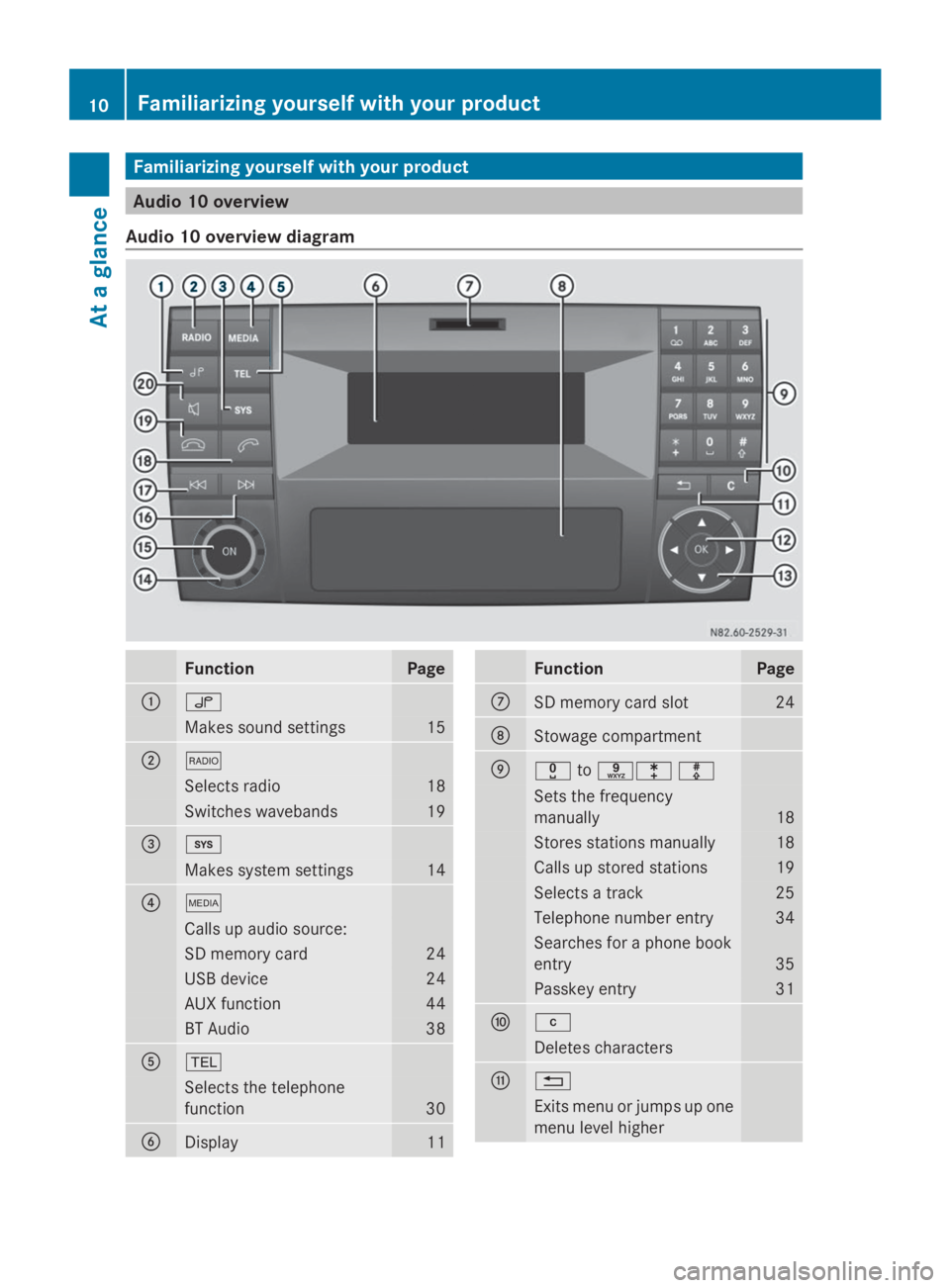
Audio 10 overview
Audio 10 overview diagram Function Page
0043
0047
Makes sound settings 15
0044
002A
Selects radio 18
Switches wavebands 19
0087
003B
Makes system settings 14
0085
00FD
Calls up audio source:
SD memory card 24
USB device 24
AUX function 44
BT Audio 38
0083
002B
Selects the telephone
function
30
0084
Display 11 Function Page
006B
SD memory card slot 24
006C
Stowage compartment
006D
004A
to0089003E003F Sets the frequency
manually 18
Stores stations manually 18
Calls up stored stations 19
Selects a track 25
Telephone number entry 34
Searches for a phone book
entry
35
Passkey entry 31
006E
003C
Deletes characters
006F
0038
Exits menu or jumps up one
menu level higher 10
Familiarizing yourself with your productAt a glance
Page 13 of 50
Function Page
0070
008B
Confirms the selection/
entry
0071
0063006400590065
Navigates within the menus
0072
0041
Sets the volume 14
0073
0043
Switches on/off 13
0074
0049
Selects a station 18
Skips forward 25
Fast forward 25
0075
0048
Selects a station 18
Skips back 25
Rewinds
25 Function Page
0076
0061
Accepts a call 34
Makes a call 34
Redials 35
Accepts a waiting call 36
0077
0076
Ends a call 34
Rejects a call 34
Rejects a waiting call 36
0078
0063
Mutes audio source 14
Pauses SD memory card/
USB device/BT-audio
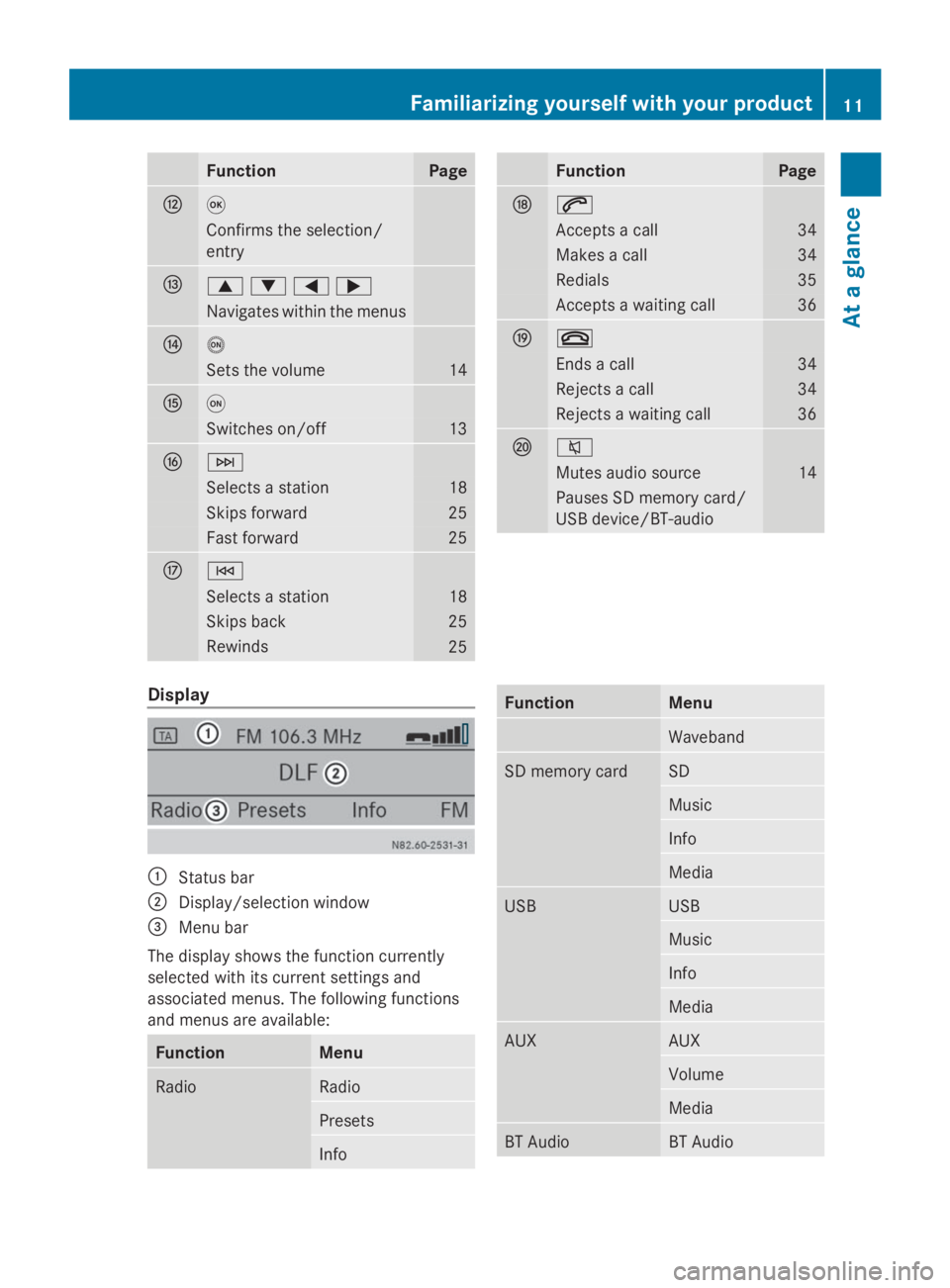
Display
0043
Status bar
0044 Display/selection window
0087 Menu bar
The display shows the function currently
selected with its current settings and
associated menus. The following functions
and menus are available: Function Menu
Radio Radio
Presets
Info Function Menu
Waveband
SD memory card SD
Music
Info
Media
USB USB
Music
Info
Media
AUX AUX
Volume
Media
BT Audio BT AudioFamiliarizing yourself with your product
11At a glance
Page 14 of 50
Function Menu
Playback/stop
playback
Media
Telephone Telephone
Name
Calls list
System System
Display off
Entry routines
Buttons and their functions
Use the
0063,0064,0059,0065and008B
buttons to navigate within the menus. Button Operation
0063
To exit the menu bar
To select the previous line in
the menu
0064
To jump to the menu bar
To select the next line in the
menu
0059
To jump to the left in the menu
bar
To jump up one menu level
higher
To lower the level in the menu
0065
To jump to the right in the
menu bar
To jump back to the main
menu
To raise the level in the menu
008B
To confirm the selection/
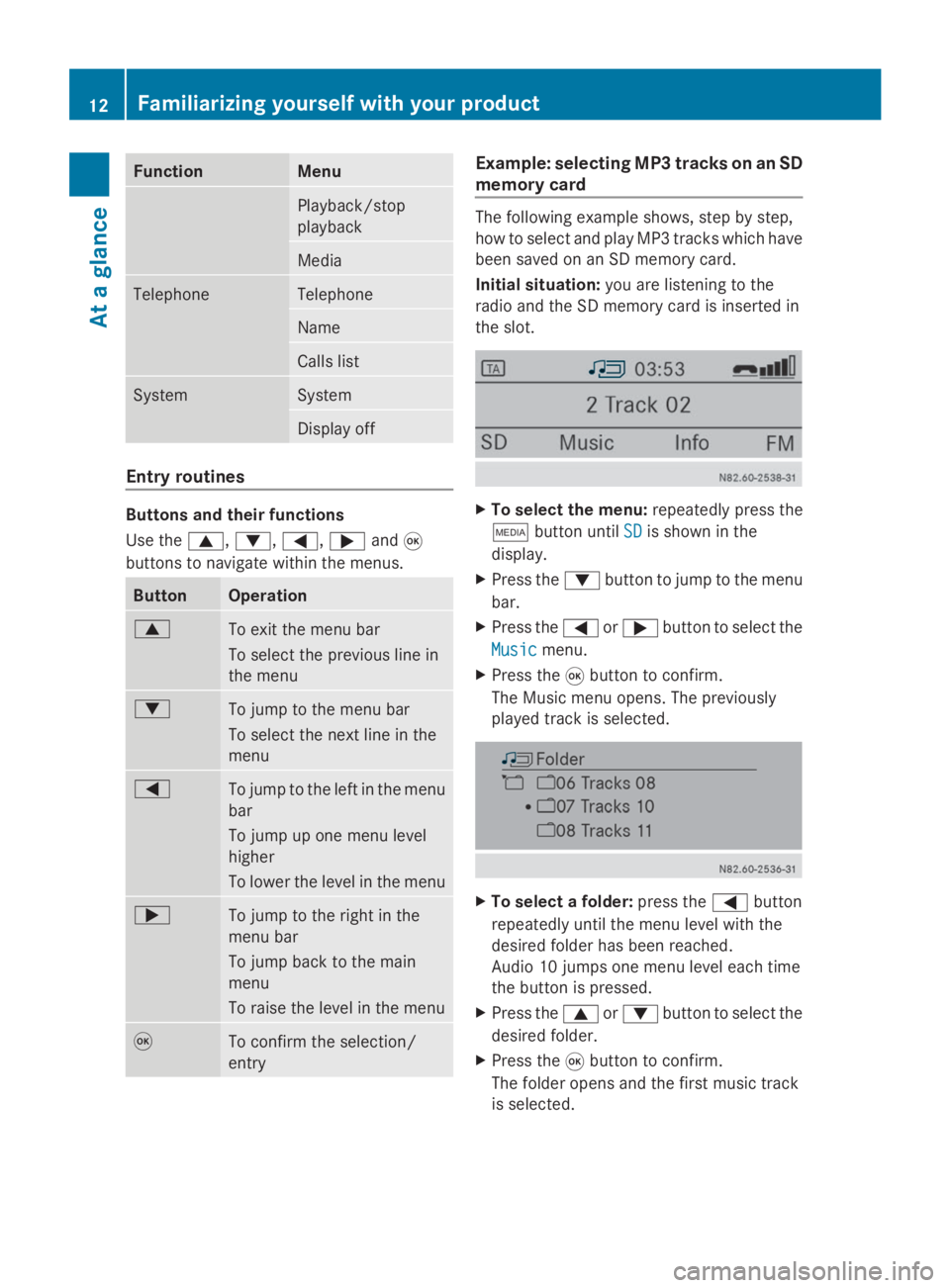
entry Example: selecting MP3 tracks on an SD
memory card
The following example shows, step by step,
how to select and play MP3 tracks which have
been saved on an SD memory card.
Initial situation:
you are listening to the
radio and the SD memory card is inserted in
the slot. X
To select the menu: repeatedly press the
00FD button until SD SDis shown in the
display.
X Press the 0064button to jump to the menu
bar.
X Press the 0059or0065 button to select the
Music
Music menu.
X Press the 008Bbutton to confirm.
The Music menu opens. The previously
played track is selected. X
To select a folder: press the0059button
repeatedly until the menu level with the
desired folder has been reached.
Audio 10 jumps one menu level each time
the button is pressed.
X Press the 0063or0064 button to select the
desired folder.
X Press the 008Bbutton to confirm.
The folder opens and the first music track
is selected. 12
Familiarizing yourself with your productAt a glance
Page 15 of 50
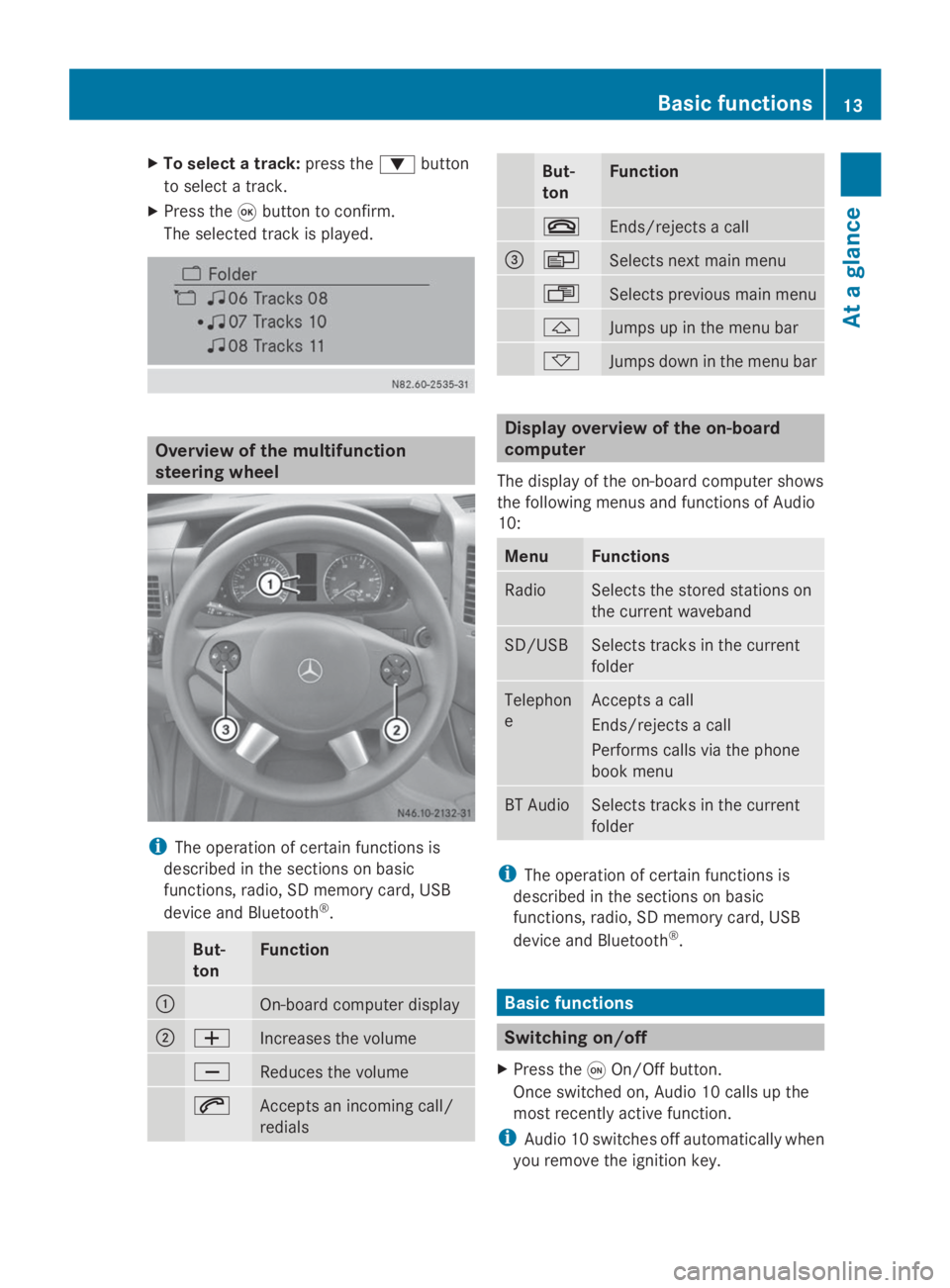
X
To select a track: press the0064button
to select a track.
X Press the 008Bbutton to confirm.
The selected track is played. Overview of the multifunction
steering wheel
i
The operation of certain functions is
described in the sections on basic
functions, radio, SD memory card, USB
device and Bluetooth ®
. But-
ton Function
0043
On-board computer display
0044
0081
Increases the volume
0082
Reduces the volume
0061
Accepts an incoming call/
redials But-
ton Function
0076
Ends/rejects a call
0087
0080
Selects next main menu
007F
Selects previous main menu
0041
Jumps up in the menu bar
0068
Jumps down in the menu bar
Display overview of the on-board
computer
The display of the on-board computer shows
the following menus and functions of Audio
10: Menu Functions
Radio Selects the stored stations on
the current waveband
SD/USB Selects tracks in the current
folder
Telephon
e Accepts a call
Ends/rejects a call
Performs calls via the phone
book menu
BT Audio Selects tracks in the current
folder
i
The operation of certain functions is
described in the sections on basic
functions, radio, SD memory card, USB
device and Bluetooth ®
. Basic functions
Switching on/off
X Press the 0043On/Off button.
Once switched on, Audio 10 calls up the
most recently active function.
i Audio 10 switches off automatically when
you remove the ignition key. Basic functions
13At a glance
Page 16 of 50
i
Audio 10 switches off automatically when
the condition of charge of the battery is
low.
i If Audio 10 is running while the ignition is
switched off, it will switch off automatically
after approximately one hour to preserve
the vehicle battery. Setting the volume
X Turn the volume control 0041during
playback.
Or
X Press the 0081or0082 button on the
multifunction steering wheel. Activating/deactivating the mute
function
X Press the 0063mute button.
The sound from the audio source is
switched on or off. When the sound has
been muted, the 008Esymbol is shown in
the status bar.
i If you change the audio source or adjust
the volume, the sound switches on again
automatically.
i When the mute function is active,
playback from the SD memory card, USB
device and BT audio is paused. When you
deactivate the mute function, playback will
resume from the position where it was
paused.
i When the TA function is activated, you
hear traffic reports even when the sound is
muted (Y page 20). Adjusting the display
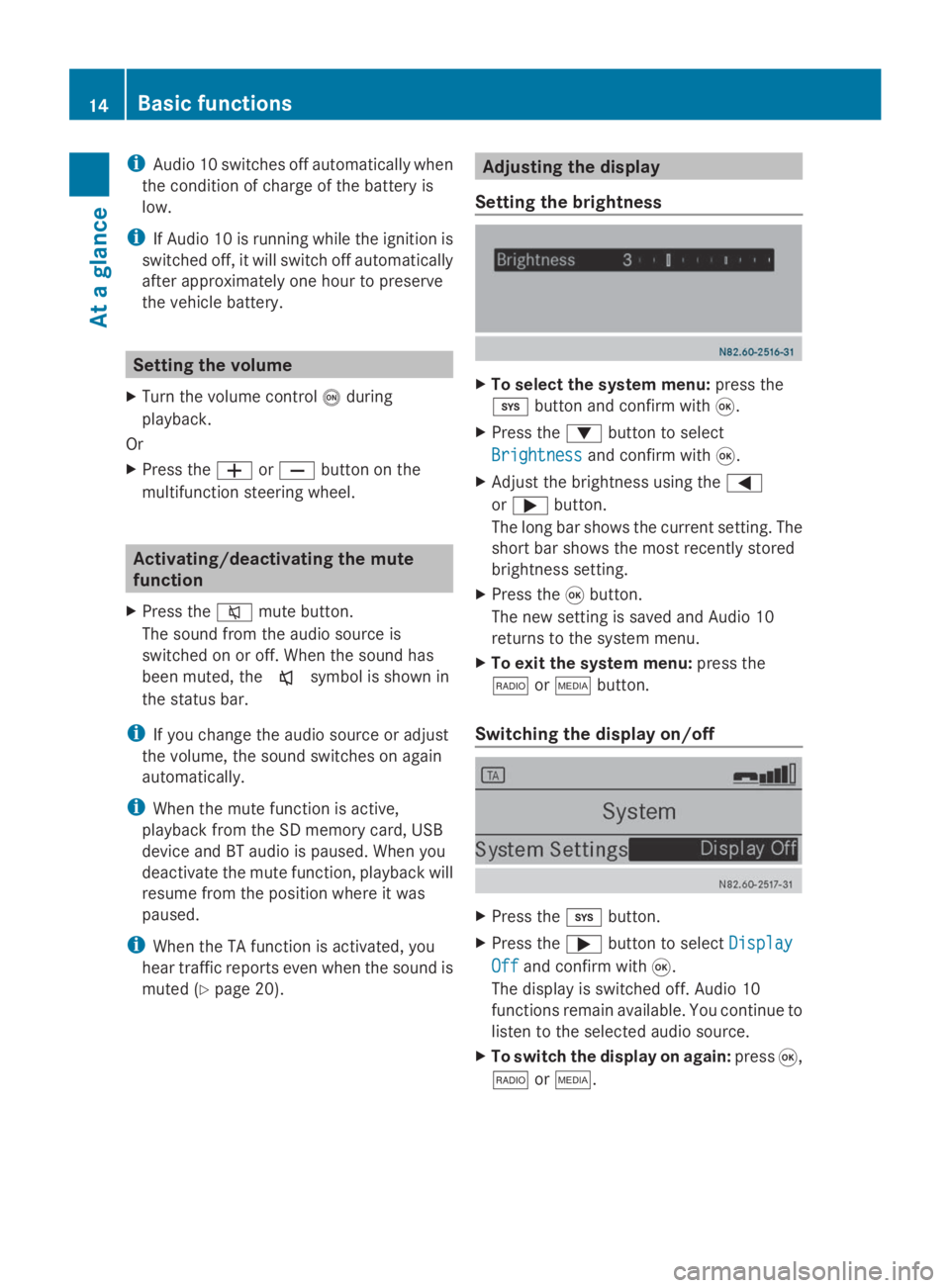
Setting the brightness X
To select the system menu: press the
003B button and confirm with 008B.
X Press the 0064button to select
Brightness Brightness and confirm with 008B.
X Adjust the brightness using the 0059
or 0065 button.
The long bar shows the current setting. The
short bar shows the most recently stored
brightness setting.
X Press the 008Bbutton.
The new setting is saved and Audio 10
returns to the system menu.
X To exit the system menu: press the
002A or00FD button.
Switching the display on/off X
Press the 003Bbutton.
X Press the 0065button to select Display Display
Off
Off and confirm with 008B.
The display is switched off. Audio 10
functions remain available. You continue to
listen to the selected audio source.
X To switch the display on again: press008B,
002A or00FD. 14
Basic functionsAt a glance