bluetooth MERCEDES-BENZ SPRINTER 2015 MY15 Audio Manual
[x] Cancel search | Manufacturer: MERCEDES-BENZ, Model Year: 2015, Model line: SPRINTER, Model: MERCEDES-BENZ SPRINTER 2015Pages: 54, PDF Size: 1.14 MB
Page 6 of 54
1, 2, 3 ...
911 emergency call .............................30A
Audio fadeout ...................................... 20
Authorized Mercedes-Benz Center
see Qualified specialist workshop
AUX function
Connecting a device ........................ 47
Important safety notes .................... 38
Increasing the volume ...................... 48
Selecting .......................................... 47 B
Balance Setting ............................................ .20
Basic functions .................................... 14
Bass
Setting ............................................. 20
Becker ®
MAP PILOT
see Navigation
Bluetooth ®
Activating/deactivating ................... 21
Conditions ....................................... 20
Connecting another mobile
phone .............................................. 24
De-authorizing (de-registering) a
device .............................................. 25
Displaying details ............................. 24
Pairing a mobile phone .................... 21
Playing an MP3 ................................ 46
Selecting a playback option ............. 46
Selecting a track .............................. 46
Setting s........................................... 20
Starting and stopping playback ....... 46
Unpairing ......................................... 25
Bluetooth ®
Audio ................................. 45
Connecting an audio device ............. 21
Connecting another audio device .... 24
Increasing the volume ...................... 47
Interrupting playback ....................... 46
Pairing an audio device .................... 22
Pairing an audio device (external) .... 23
Reconnecting an audio device ......... 24
Selecting .......................................... 45
Unpairing an audio device ................ 25 C
Call Accepting ......................................... 30
Ending .............................................. 30
Making ............................................. 31
Rejecting .......................................... 31
Call lists
Calling up an entry ........................... 34
Call waiting
Accepting ......................................... 33
Calling .................................................. 31
Using Bluetooth ®
............................. 30
Changing folders ................................. 43
Cleaning ................................................. 8
Copyright ................................................ 8
Correct use ............................................ 7 D
Day design ........................................... 18
Declarations of conformity ................... 7
Deleting
Call lists ........................................... 35
Display
On-board computer ......................... 14
Overview .......................................... 11
Selecting the design ........................ 18
Setting the brightness ..................... 18
Switching on/of f.............................. 19 E
Equipment .............................................. 7
Example of operation .......................... 12
External devices .................................. 47 F
Factory settings .................................. 26
Fader
Setting ............................................. 20
Fast forward/rewind .......................... 43
Frequencies
Adjusting for radio stations .............. 38
Frequency input
Manual ............................................. 38 4
Index
Page 7 of 54
G
GPS reception ...................................... 28 H
Hands-free system Switching on/off .............................. 32 L
Language Setting ............................................. 25 M
Media Interface Supported file formats .................... .50
Metadata
Displaying ........................................ 44
Mobile phone
Connecting ...................................... 21
Disconnecting .................................. 25
Displaying Bluetooth ®
details .......... 24
Pairing ....................................... 21, 22
Pairing (external) .............................. 23
Reconnecting ................................... 23
Selecting .......................................... 30
MP3
Changing folders .............................. 43
Selecting a track .............................. 42
Mute function ...................................... 14 N
Navigation Becker ®
MAP PILOT ......................... 28
GPS reception .................................. 28
Switching to ..................................... 28
Night design ........................................ 18 O
On-board computer Overview .......................................... 14
Operating safety ................................... .7
Overview of controls ........................... 10 P
Pairing ............................................ 21, 22
Phone book .......................................... 34
Calling an entry ................................ 35
Calling up ......................................... 35
Deleting an entry ............................. 36
Displaying details ............................. 35
Phone call
Dialing ..............................................31
Playback options ................................. 44
Playlists
Playing back .....................................43
Protection against theft ........................ 8 Q
Qualified specialist workshop .............. 8 R
Radio Calling up stored stations ................39
Entering a frequency ........................ 38
Searching for a station ..................... 38
Selecting .......................................... 38
Setting a station .............................. 38
Setting stations manually ................ 38
Station list ....................................... 39
Storing stations ............................... 39
Storing stations automatically ......... 39
Storing stations manually ................ 39
Switching wavebands ...................... 40
Rear view camera
Operation ......................................... 14
Redial .................................................... 32
Reset .................................................... 26
Resetting
Factory setting s............................... 26 S
SD function Displaying metadata ........................ 44
Displaying track information ............ 45
Important safety notes .................... 40
Inserting a memory card .................. 40
Selecting .......................................... 41
Selecting a track .............................. 42 Index
5
Page 9 of 54
Operating safety
Important safety notes
G
WARNING
If you operate information systems and com-
munication equipment integrated in the vehi- cle while driving, you will be distracted from
traffic conditions. You could also lose control of the vehicle. There is a risk of an accident.
Only operate the equipment when the traffic
situation permits. If you are not sure that this
is possible, park the vehicle paying attention
to traffic conditions and operate the equip-
ment when the vehicle is stationary.
Observe the legal requirements of the coun-
try in which you are currently driving.
Bear in mind that, at a speed of only 50 km/h, your vehicle covers a distance of nearly 14 m
per second.
When using the device please follow:
R the safety information in these instructions
R traffic rules and regulations
R motor vehicle laws and safety standards
i Improper work on electronic components
or other systems (such as the radio and
disc slot) and their software may result in
malfunction or failure. Even systems that
have not been modified could be affected
because the electronic systems are con-
nected. Electronic malfunctions can seri-
ously jeopardize the operational safety of
your vehicle.
Always have all work on or modifications to electronic components carried out at a
qualified specialist workshop. Proper use
Audio 15 can be used to receive radio sta-
tions, to play back SD memory cards and
other data carriers and to make calls via the
Bluetooth ®
function. Audio 15 can also be
used for the playback of the image from the rear view camera and as a navigation system
in conjunction with the Becker ®
MAP PILOT
(optional).
Observe the specified requirements for data
carriers and permissible formats. Equipment
This Supplement describes Audio 15 with all
standard and optional equipment available at
the time of this Supplement going to print.
Country-specific variations are possible.
Please note that your Audio 15 system may
not be equipped with all the features descri-
bed. This also applies to systems and func-
tions relevant to safety. Therefore, your Audio
15 equipment may differ from certain
descriptions and illustrations. Should you
have any questions concerning equipment
and operation, consult any authorized
Mercedes-Benz Center.
This supplement is an integral part of the
vehicle. Keep it in the vehicle together with
the Operating Instructions. Declaration of conformity
Radio-based vehicle components
i USA only:
The wireless devices of this
vehicle comply with Part 15 of the FCC
Rules. Operation is subject to the following two conditions:
1. These devices may not cause interfer-
ence, and
2. These devices must accept any interfer-
ence, including interference that may
cause undesired operation of the device.
Changes or modifications not expressly
approved by the party responsible for com-
pliance could void the user’s authority to
operate the equipment.
i Canada only:
The wireless devices of this
vehicle comply with Industry Canada Int
roduction
7 Z
Page 10 of 54
RSS-210 standard. Operation is subject to
the following two conditions:
1. These devices may not cause interfer-
ence, and
2. These devices must accept any interfer-
ence, including interference that may
cause undesired operation of the device. Information on copyright
Registered trademarks
Bluetooth
®
technology is the standard for
short-range wireless data transmission of up
to approximately 10 meters.
Bluetooth ®
is a registered trademark of Blue-
tooth Special Interest Group (SIG) Inc. An SD memory card is a digital storage
medium.
SD memory cards carry the logo displayed
above. This logo is a registered trademark of
SanDisk Corporation. Qualified specialist workshops
Always have all work on or modifications to
electronic components carried out at a quali- fied specialist workshop. This workshop has
the necessary specialist knowledge and tools
to carry out the work required. In particular,
work relevant to safety or on safety-related systems must be carried out at a qualified
specialist workshop.
An authorized Mercedes-Benz Center is a
qualified specialist workshop. Protection against theft
This device is equipped with technical meas-
ures to protect it against theft.
i You can obtain further information from
an authorized Mercedes-Benz Center. Cleaning
To clean, use a slightly damp cloth. The cloth must be soft and lint-free. For stubborn dirt,
you can use a mild cleaning agent. In partic-
ular, do not clean the display with alcohol,
acid or an abrasive cleaning agent. 8
Int
roduction
Page 16 of 54
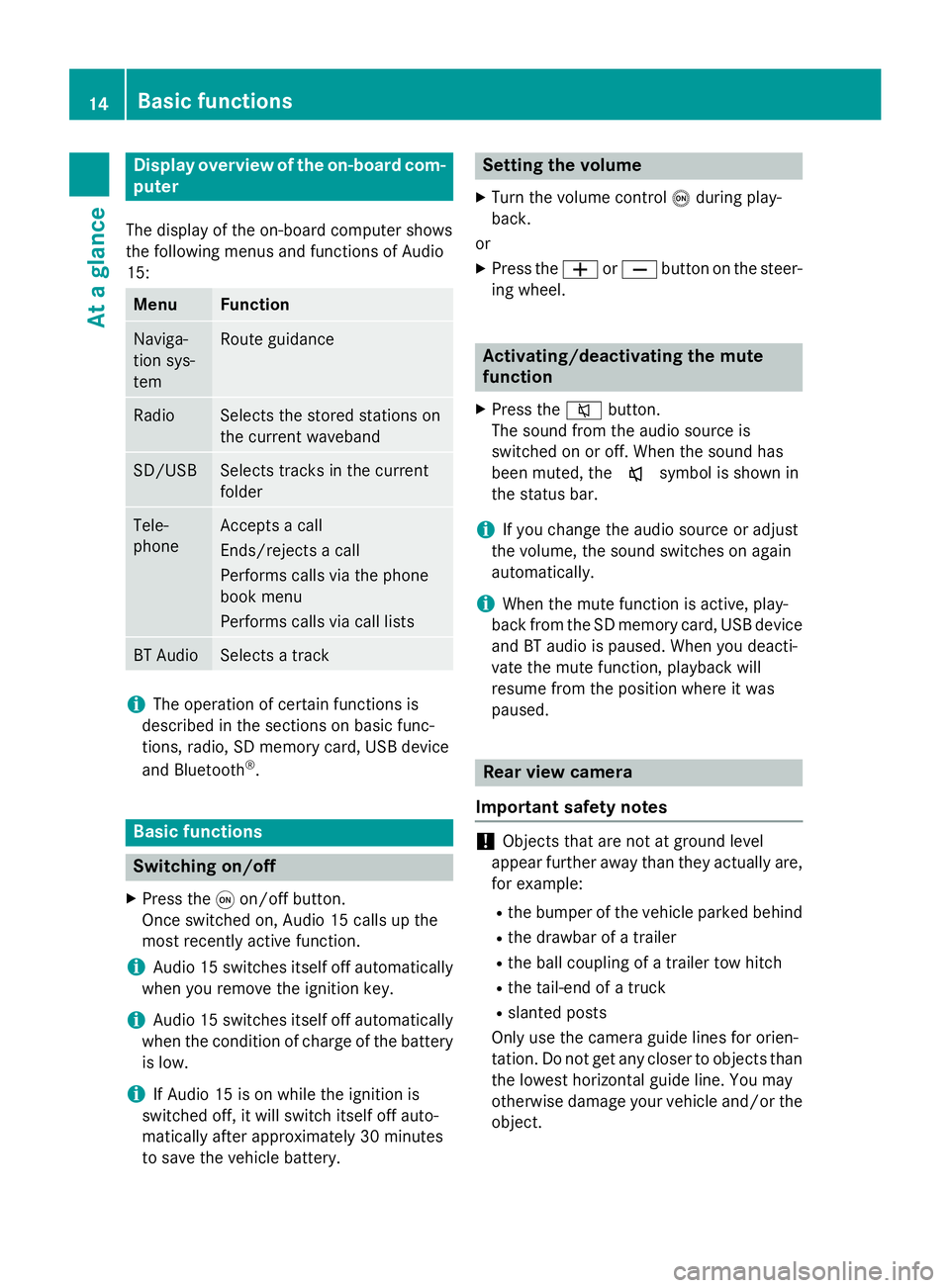
Display overview of the on-board com-
puter
The display of the on-board computer shows
the following menus and functions of Audio
15: Menu Function
Naviga-
tion sys-
tem Route guidance
Radio Selects the stored stations on
the current waveband
SD/USB Selects tracks in the current
folder
Tele-
phone Accepts a call
Ends/rejects a call
Performs calls via the phone
book menu
Performs calls via call lists
BT Audio Selects a track
i
The operation of certain functions is
described in the sections on basic func-
tions, radio, SD memory card, USB device
and Bluetooth ®
. Basic functions
Switching on/off
X Press the 0043on/off button.
Once switched on, Audio 15 calls up the
most recently active function.
i Audio 15 switches itself off automatically
when you remove the ignition key.
i Audio 15 switches itself off automatically
when the condition of charge of the battery
is low.
i If Audio 15 is on while the ignition is
switched off, it will switch itself off auto-
matically after approximately 30 minutes
to save the vehicle battery. Setting the volume
X Turn the volume control 0041during play-
back.
or X Press the 0081or0082 button on the steer-
ing wheel. Activating/deactivating the mute
function
X Press the 0063button.
The sound from the audio source is
switched on or off. When the sound has
been muted, the 008Esymbol is shown in
the status bar.
i If you change the audio source or adjust
the volume, the sound switches on again
automatically.
i When the mute function is active, play-
back from the SD memory card, USB device and BT audio is paused. When you deacti-
vate the mute function, playback will
resume from the position where it was
paused. Rear view camera
Important safety notes !
Objects that are not at ground level
appear further away than they actually are,
for example:
R the bumper of the vehicle parked behind
R the drawbar of a trailer
R the ball coupling of a trailer tow hitch
R the tail-end of a truck
R slanted posts
Only use the camera guide lines for orien-
tation. Do not get any closer to objects than the lowest horizontal guide line. You may
otherwise damage your vehicle and/or the
object. 14
Basic functionsAt a glance
Page 19 of 54
Display settings
................................... 18
Sound settings .................................... 19
Bluetooth ®
settings ............................ 20
System language ................................. 25
Resetting to factory settings .............26 17Sys
tem settings
Page 21 of 54
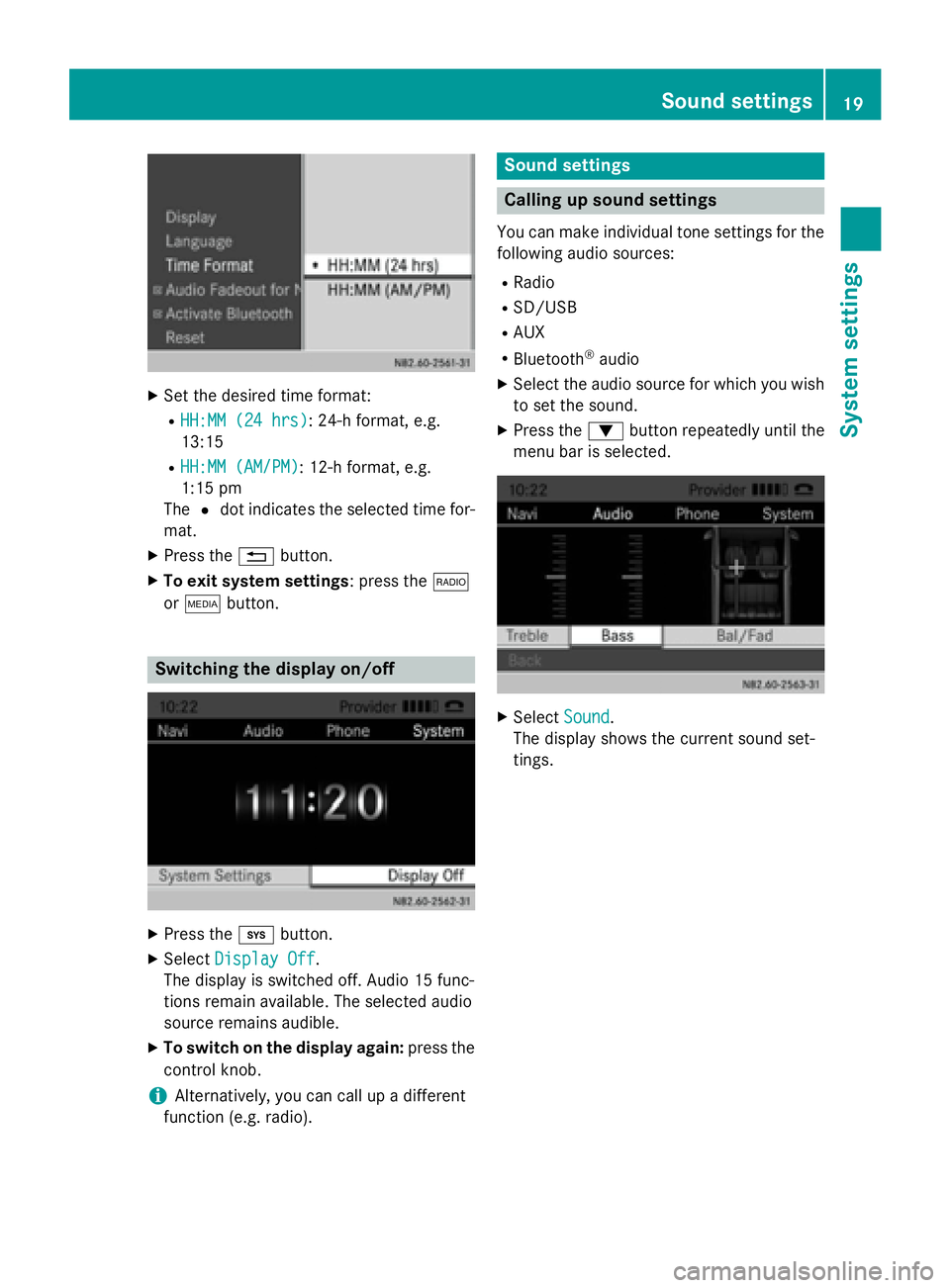
X
Set the desired time format:
R HH:MM (24 hrs)
HH:MM (24 hrs): 24-h format, e.g.
13:15
R HH:MM (AM/PM)
HH:MM (AM/PM): 12-h format, e.g.
1:15 pm
The 0036dot indicates the selected time for-
mat.
X Press the 0038button.
X To exit system settings: press the 002A
or 00FD button. Switching the display on/off
X
Press the 003Bbutton.
X Select Display Off Display Off .
The display is switched off. Audio 15 func-
tions remain available. The selected audio
source remains audible.
X To switch on the display again: press the
control knob.
i Alternatively, you can call up a different
function (e.g. radio). Sound settings
Calling up sound settings
You can make individual tone settings for the following audio sources:
R Radio
R SD/USB
R AUX
R Bluetooth ®
audio
X Select the audio source for which you wish
to set the sound.
X Press the 0064button repeatedly until the
menu bar is selected. X
Select Sound
Sound.
The display shows the current sound set-
tings. Sound settings
19System settings
Page 22 of 54
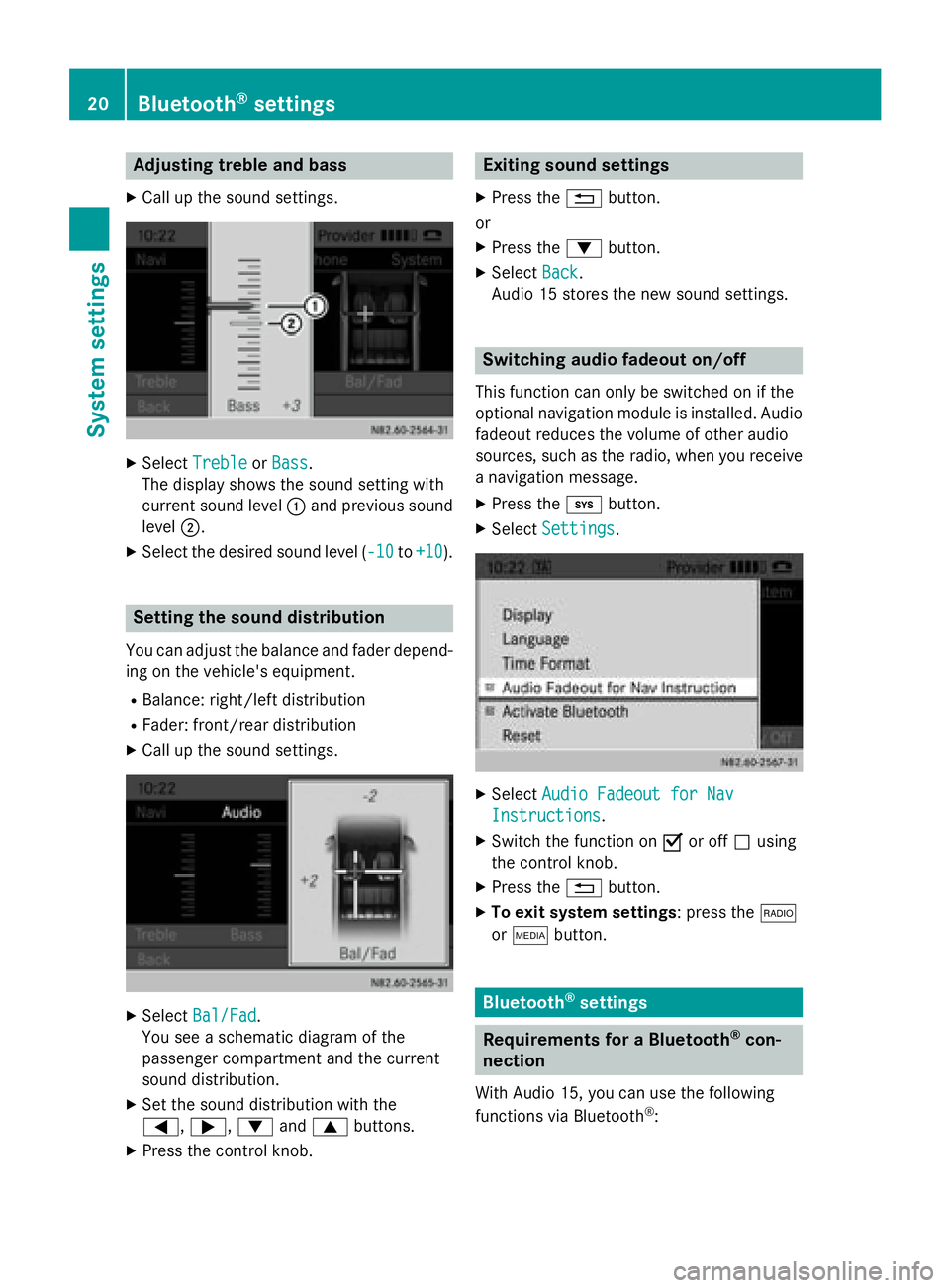
Adjusting treble and bass
X Call up the sound settings. X
Select Treble
Treble orBass
Bass.
The display shows the sound setting with
current sound level 0043and previous sound
level 0044.
X Select the desired sound level ( -10 -10to+10
+10 ). Setting the sound distribution
You can adjust the balance and fader depend-
ing on the vehicle's equipment.
R Balance: right/left distribution
R Fader: front/rear distribution
X Call up the sound settings. X
Select Bal/Fad Bal/Fad.
You see a schematic diagram of the
passenger compartment and the current
sound distribution.
X Set the sound distribution with the
0059, 0065,0064and0063 buttons.
X Press the control knob. Exiting sound settings
X Press the 0038button.
or
X Press the 0064button.
X Select Back Back.
Audio 15 stores the new sound settings. Switching audio fadeout on/off
This function can only be switched on if the
optional navigation module is installed. Audio
fadeout reduces the volume of other audio
sources, such as the radio, when you receive a navigation message.
X Press the 003Bbutton.
X Select Settings Settings. X
Select Audio Fadeout for Nav
Audio Fadeout for Nav
Instructions
Instructions .
X Switch the function on 0073or off 0053using
the control knob.
X Press the 0038button.
X To exit system settings: press the 002A
or 00FD button. Bluetooth
®
settings Requirements for a Bluetooth
®
con-
nection
With Audio 15, you can use the following
functions via Bluetooth ®
: 20
Bluetooth ®
settingsSystem settings
Page 23 of 54
R
make a phone call using a mobile phone
R play an audio file via an audio device
To do so, the following conditions must be
met:
R you require a mobile phone with Blue-
tooth ®
or an audio device with Bluetooth ®
(Bluetooth ®
device).
R the Bluetooth ®
device must be located
inside the vehicle in the vicinity of Audio 15.
R the Bluetooth ®
function of Audio 15 is acti-
vated (Y page 21).
R the Bluetooth ®
function of the Bluetooth ®
device is activated.
R the device must support the A2DP and
AVRCP audio profiles.
i Information on the Bluetooth ®
mobile
phones and audio devices recommended
by Mercedes-Benz is available from quali-
fied specialist workshops. Activating/deactivating the Blue-
tooth
®
function
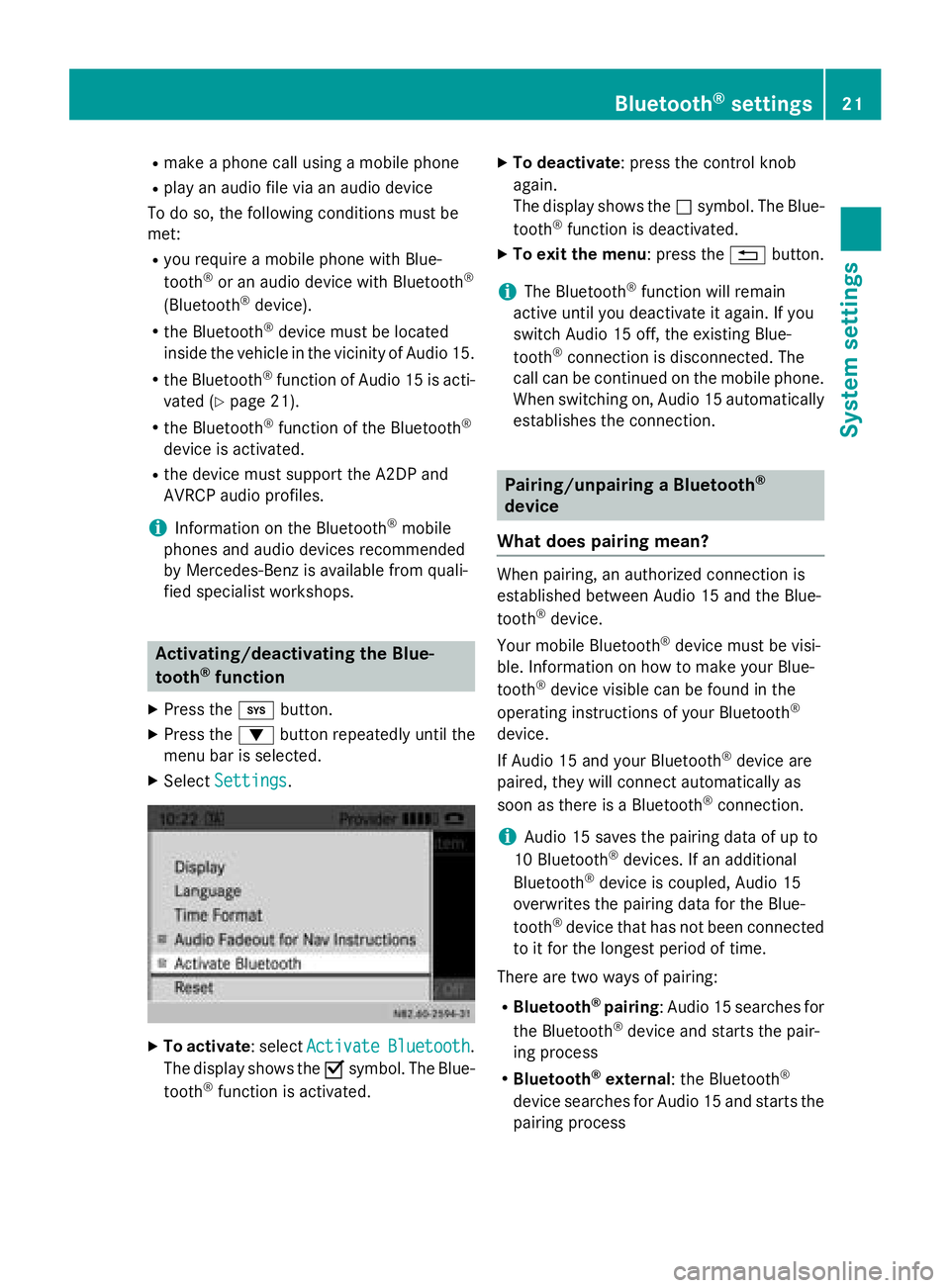
X Press the 003Bbutton.
X Press the 0064button repeatedly until the
menu bar is selected.
X Select Settings
Settings . X
To activate : selectActivate Activate Bluetooth
Bluetooth.
The display shows the 0073symbol. The Blue-
tooth ®
function is activated. X
To deactivate : press the control knob
again.
The display shows the 0053symbol. The Blue-
tooth ®
function is deactivated.
X To exit the menu : press the0038button.
i The Bluetooth ®
function will remain
active until you deactivate it again. If you
switch Audio 15 off, the existing Blue-
tooth ®
connection is disconnected. The
call can be continued on the mobile phone.
When switching on, Audio 15 automatically establishes the connection. Pairing/unpairing a Bluetooth
®
device
What does pairing mean? When pairing, an authorized connection is
established between Audio 15 and the Blue-
tooth
®
device.
Your mobile Bluetooth ®
device must be visi-
ble. Information on how to make your Blue-
tooth ®
device visible can be found in the
operating instructions of your Bluetooth ®
device.
If Audio 15 and your Bluetooth ®
device are
paired, they will connect automatically as
soon as there is a Bluetooth ®
connection.
i Audio 15 saves the pairing data of up to
10 Bluetooth ®
devices. If an additional
Bluetooth ®
device is coupled, Audio 15
overwrites the pairing data for the Blue-
tooth ®
device that has not been connected
to it for the longest period of time.
There are two ways of pairing:
R Bluetooth ®
pairing: Audio 15 searches for
the Bluetooth ®
device and starts the pair-
ing process
R Bluetooth ®
external : the Bluetooth ®
device searches for Audio 15 and starts the pairing process Bluetooth
®
settings 21System settings
Page 24 of 54
i
If you pair a mobile phone as an audio
device, it is automatically paired as a
mobile phone as well, as long as your
mobile phone supports this.
Pairing a Bluetooth ®
device (mobile
phone/audio device) using Bluetooth ®
pairing X
Press the 002Bbutton.
or X Select the Bluetooth ®
audio function.
X Press the 0064button repeatedly until the
menu bar is selected.
X Select Telephone Telephone/BT Audio BT Audio.
X Connect Phones
Connect Phones/Bluetooth Device Bluetooth Device
List
List.
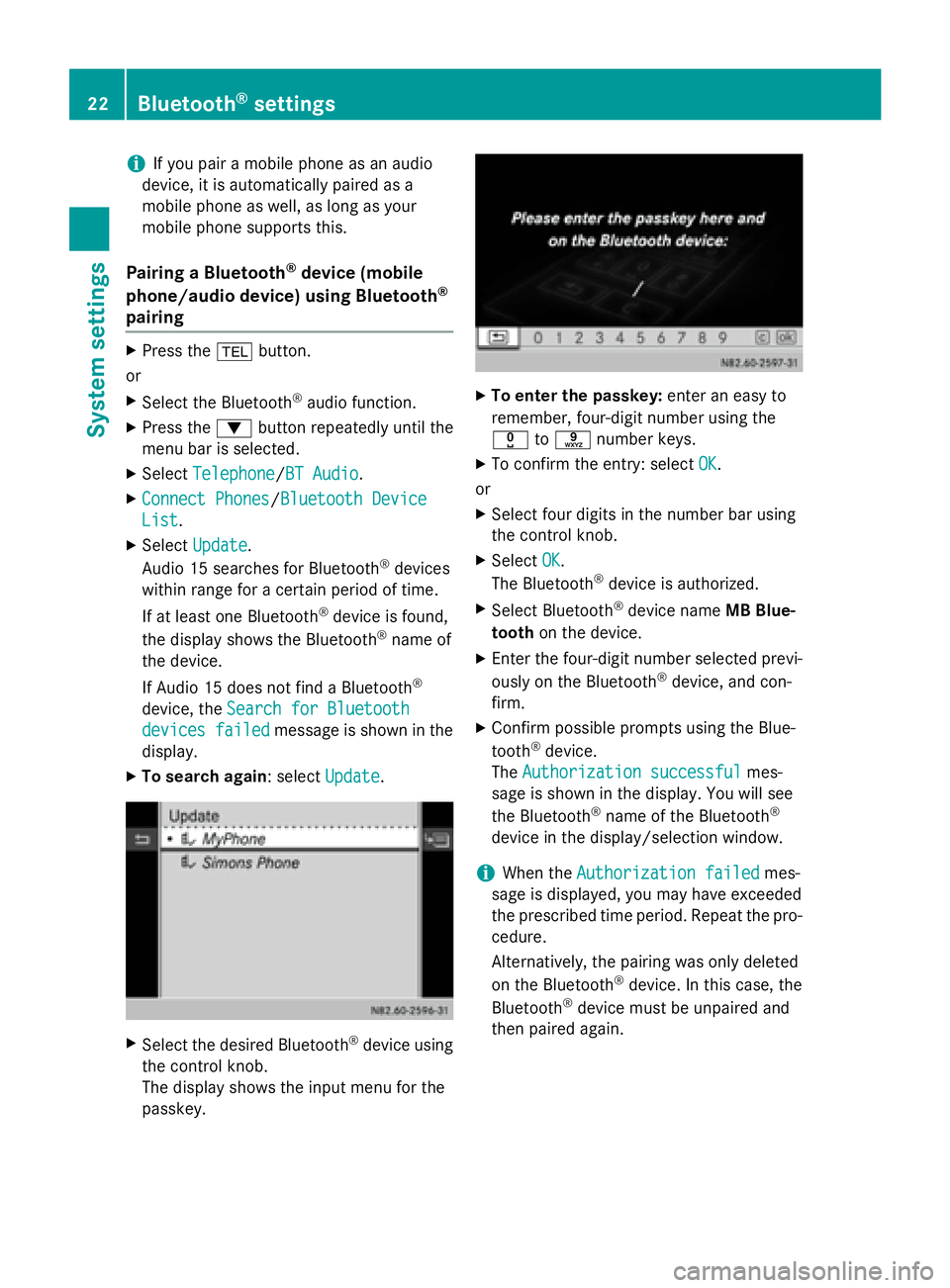
X Select Update
Update.
Audio 15 searches for Bluetooth ®
devices
within range for a certain period of time.
If at least one Bluetooth ®
device is found,
the display shows the Bluetooth ®
name of
the device.
If Audio 15 does not find a Bluetooth ®
device, the Search for Bluetooth
Search for Bluetooth
devices failed devices failed message is shown in the
display.
X To search again: select Update
Update.X
Select the desired Bluetooth ®
device using
the control knob.
The display shows the input menu for the
passkey. X
To enter the passkey: enter an easy to
remember, four-digit number using the
004A to0089 number keys.
X To confirm the entry: select OK OK.
or
X Select four digits in the number bar using
the control knob.
X Select OK
OK.
The Bluetooth ®
device is authorized.
X Select Bluetooth ®
device name MB Blue-
tooth on the device.
X Enter the four-digit number selected previ-
ously on the Bluetooth ®
device, and con-
firm.
X Confirm possible prompts using the Blue-
tooth ®
device.
The Authorization successful Authorization successful mes-
sage is shown in the display. You will see
the Bluetooth ®
name of the Bluetooth ®
device in the display/selection window.
i When the
Authorization failed Authorization failed mes-
sage is displayed, you may have exceeded
the prescribed time period. Repeat the pro-
cedure.
Alternatively, the pairing was only deleted
on the Bluetooth ®
device. In this case, the
Bluetooth ®
device must be unpaired and
then paired again. 22
Bluetooth ®
settingsSystem settings