bluetooth MERCEDES-BENZ SPRINTER 2015 MY15 Audio Manual
[x] Cancel search | Manufacturer: MERCEDES-BENZ, Model Year: 2015, Model line: SPRINTER, Model: MERCEDES-BENZ SPRINTER 2015Pages: 54, PDF Size: 1.14 MB
Page 25 of 54
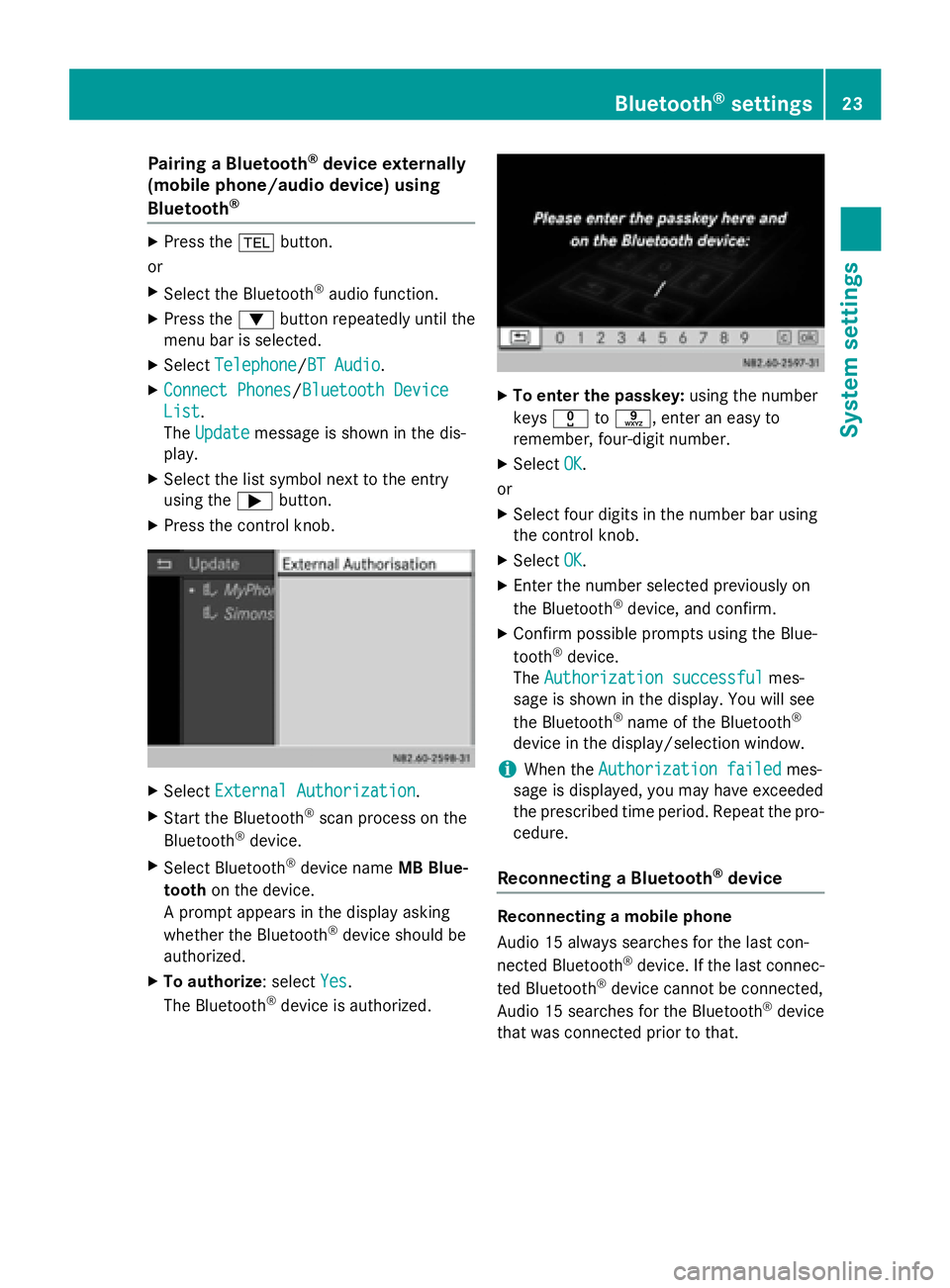
Pairing a Bluetooth
®
device externally
(mobile phone/audio device) using
Bluetooth ® X
Press the 002Bbutton.
or
X Select the Bluetooth ®
audio function.
X Press the 0064button repeatedly until the
menu bar is selected.
X Select Telephone
Telephone/BT Audio BT Audio.
X Connect Phones
Connect Phones/Bluetooth Device Bluetooth Device
List
List.
The Update Update message is shown in the dis-
play.
X Select the list symbol next to the entry
using the 0065button.
X Press the control knob. X
Select External Authorization External Authorization.
X Start the Bluetooth ®
scan process on the
Bluetooth ®
device.
X Select Bluetooth ®
device name MB Blue-
tooth on the device.
A prompt appears in the display asking
whether the Bluetooth ®
device should be
authorized.
X To authorize: select Yes
Yes.
The Bluetooth ®
device is authorized. X
To enter the passkey: using the number
keys 004A to0089, enter an easy to
remember, four-digit number.
X Select OK OK.
or
X Select four digits in the number bar using
the control knob.
X Select OK OK.
X Enter the number selected previously on
the Bluetooth ®
device, and confirm.
X Confirm possible prompts using the Blue-
tooth ®
device.
The Authorization successful Authorization successful mes-
sage is shown in the display. You will see
the Bluetooth ®
name of the Bluetooth ®
device in the display/selection window.
i When the
Authorization failed Authorization failed mes-
sage is displayed, you may have exceeded
the prescribed time period. Repeat the pro-
cedure.
Reconnecting a Bluetooth ®
device Reconnecting a mobile phone
Audio 15 always searches for the last con-
nected Bluetooth
®
device. If the last connec-
ted Bluetooth ®
device cannot be connected,
Audio 15 searches for the Bluetooth ®
device
that was connected prior to that. Bluetooth
®
settings 23System settings
Page 26 of 54
Reconnecting an audio device
Audio 15 connects automatically to a Blue-
tooth ®
audio device in the following cases:
R both previously connected mobile phones
were used as audio devices
R the mobile phones establishes the connec-
tion automatically
i Audio 15 does not connect automatically
to an audio device that does not have a
telephone function, even if this was the last
Bluetooth ®
device connected.
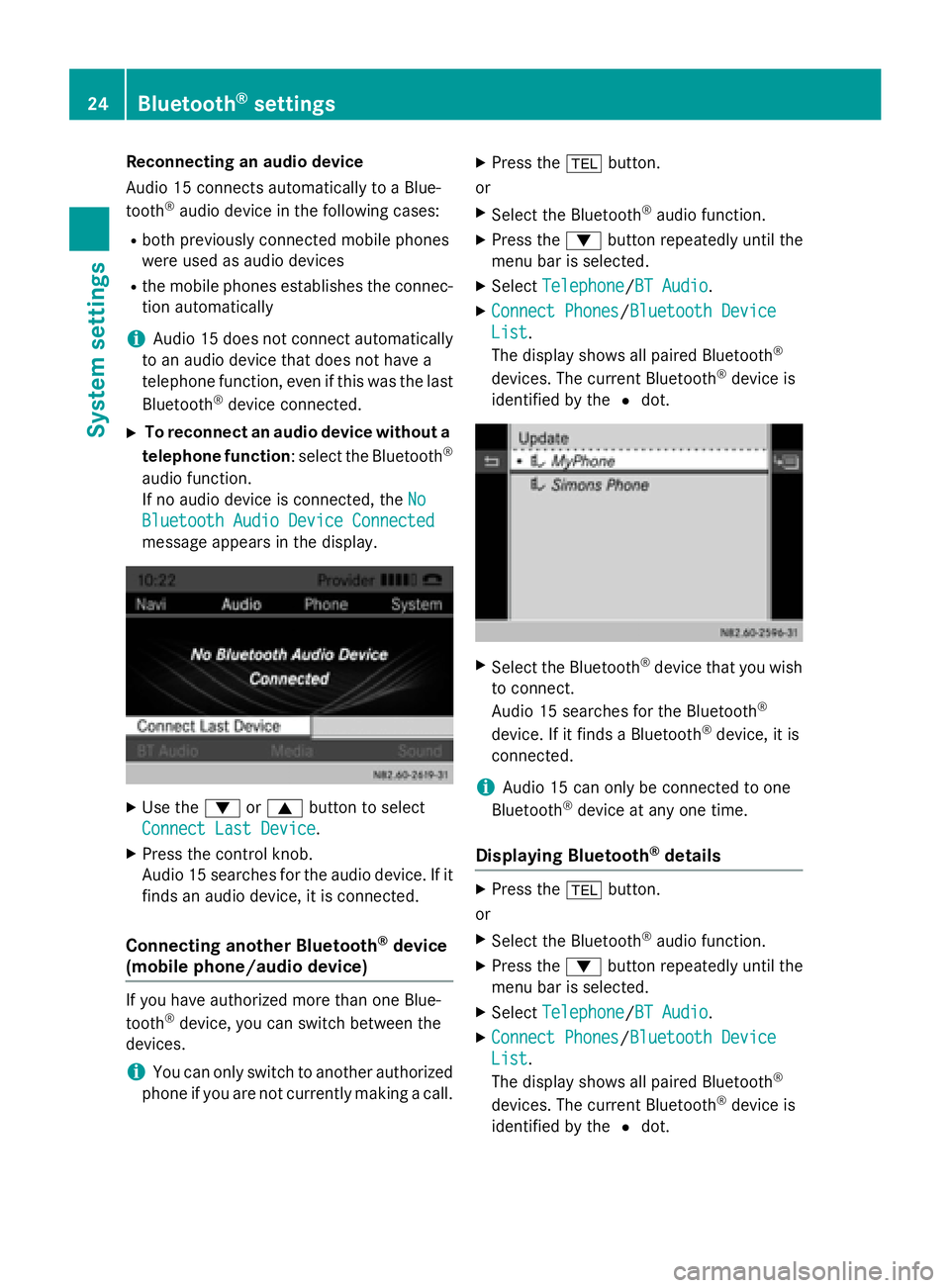
X To reconnect an audio device without a
telephone function : select the Bluetooth ®
audio function.
If no audio device is connected, the No
No
Bluetooth Audio Device Connected Bluetooth Audio Device Connected
message appears in the display. X
Use the 0064or0063 button to select
Connect Last Device
Connect Last Device.
X Press the control knob.
Audio 15 searches for the audio device. If it
finds an audio device, it is connected.
Connecting another Bluetooth ®
device
(mobile phone/audio device) If you have authorized more than one Blue-
tooth ®
device, you can switch between the
devices.
i You can only switch to another authorized
phone if you are not currently making a call. X
Press the 002Bbutton.
or
X Select the Bluetooth ®
audio function.
X Press the 0064button repeatedly until the
menu bar is selected.
X Select Telephone
Telephone/BT Audio BT Audio.
X Connect Phones Connect Phones/Bluetooth Device Bluetooth Device
List
List .
The display shows all paired Bluetooth ®
devices. The current Bluetooth ®
device is
identified by the 0036dot. X
Select the Bluetooth ®
device that you wish
to connect.
Audio 15 searches for the Bluetooth ®
device. If it finds a Bluetooth ®
device, it is
connected.
i Audio 15 can only be connected to one
Bluetooth ®
device at any one time.
Displaying Bluetooth ®
details X
Press the 002Bbutton.
or
X Select the Bluetooth ®
audio function.
X Press the 0064button repeatedly until the
menu bar is selected.
X Select Telephone Telephone/BT Audio BT Audio.
X Connect Phones Connect Phones/Bluetooth Device Bluetooth Device
List List .
The display shows all paired Bluetooth ®
devices. The current Bluetooth ®
device is
identified by the 0036dot. 24
Bluetooth ®
settingsSystem settings
Page 27 of 54
X
Select the Bluetooth ®
device whose details
you wish to see.
X Use the 0065button to select the icon next
to the entry. X
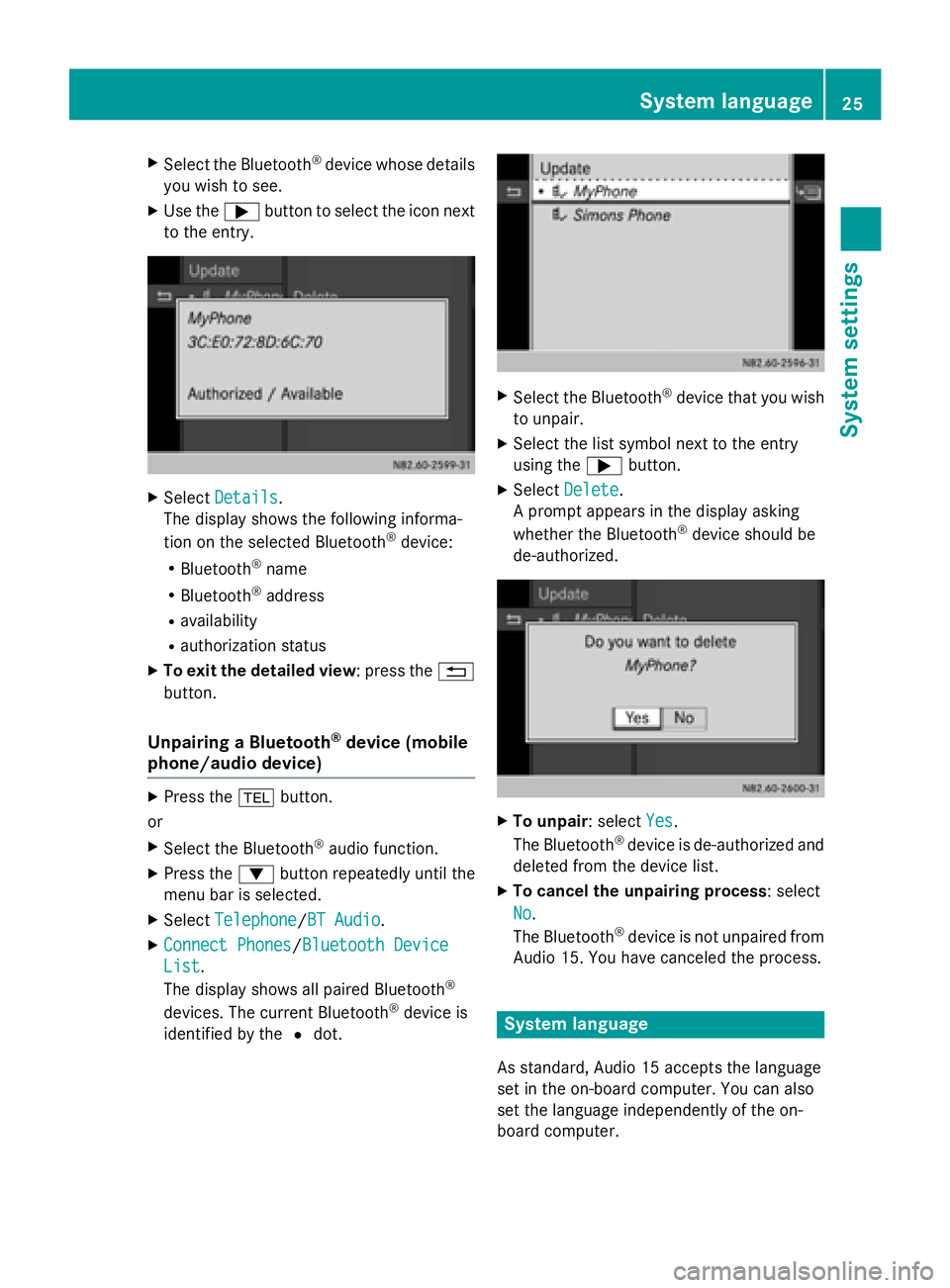
Select Details
Details.
The display shows the following informa-
tion on the selected Bluetooth ®
device:
R Bluetooth ®
name
R Bluetooth ®
address
R availability
R authorization status
X To exit the detailed view : press the0038
button.
Unpairing a Bluetooth ®
device (mobile
phone/audio device) X
Press the 002Bbutton.
or X Select the Bluetooth ®
audio function.
X Press the 0064button repeatedly until the
menu bar is selected.
X Select Telephone Telephone /BT AudioBT Audio.
X Connect Phones
Connect Phones /Bluetooth DeviceBluetooth Device
List
List.
The display shows all paired Bluetooth ®
devices. The current Bluetooth ®
device is
identified by the 0036dot. X
Select the Bluetooth ®
device that you wish
to unpair.
X Select the list symbol next to the entry
using the 0065button.
X Select Delete Delete .
A prompt appears in the display asking
whether the Bluetooth ®
device should be
de-authorized. X
To unpair: select Yes Yes.
The Bluetooth ®
device is de-authorized and
deleted from the device list.
X To cancel the unpairing process: select
No No.
The Bluetooth ®
device is not unpaired from
Audio 15. You have canceled the process. System language
As standard, Audio 15 accepts the language
set in the on-board computer. You can also
set the language independently of the on-
board computer. System language
25System settings
Page 32 of 54
General notes
Important safety notes
G
WARNING
If you operate mobile communication equip-
ment while driving, you will be distracted from traffic conditions. You could also lose controlof the vehicle. There is a risk of an accident.
Only operate this equipment when the vehicle is stationary.
Observe the legal requirements of the coun-
try in which you are currently driving. Call disconnection while the vehicle is
in motion
A call may be disconnected if: R there is insufficient GSM network coverage
in certain areas.
R you move from one GSM or UMTS trans-
mitter/receiver area (GSM/UMTS cell) into
another and no channels are free.
R you use a SIM card which is not compatible
with the network available.
R you are using a mobile phone with "Twin-
card" and the mobile phone with the sec-
ond SIM card is already logged into the net- work. "911" emergency call
Making emergency calls without entering a
PIN is only possible using the mobile phone.
The 911 emergency call number is a public
service. Any misuse is punishable by law. Using the telephone
Conditions
The following requirements must be met in
order to make calls using Audio 15: R
The Bluetooth ®
function of Audio 15 is acti-
vated (Y page 21).
R The Bluetooth ®
function of the mobile
phone is activated.
R The mobile phone is paired and connected
to Audio 15 (Y page 21). Selecting the telephone function
X Press the 002Bbutton.
or
X Press the 0061button.
or
X Press the 0063button repeatedly until the
main menu bar is selected
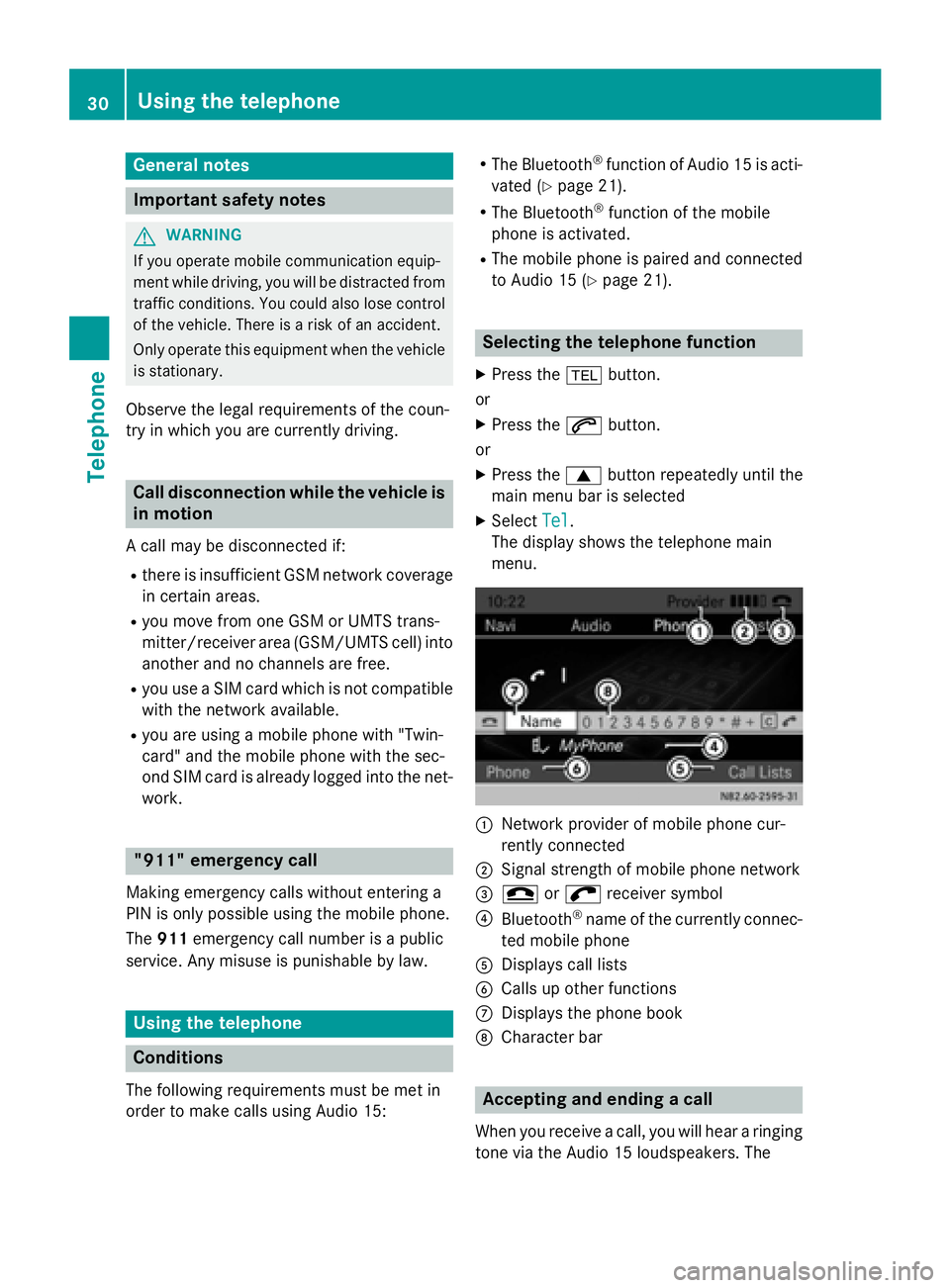
X Select Tel Tel.
The display shows the telephone main
menu. 0043
Network provider of mobile phone cur-
rently connected
0044 Signal strength of mobile phone network
0087 005A or0066 receiver symbol
0085 Bluetooth ®
name of the currently connec-
ted mobile phone
0083 Displays call lists
0084 Calls up other functions
006B Displays the phone book
006C Character bar Accepting and ending a call
When you receive a call, you will hear a ringing
tone via the Audio 15 loudspeakers. The 30
Using the telephoneTelephone
Page 36 of 54
X
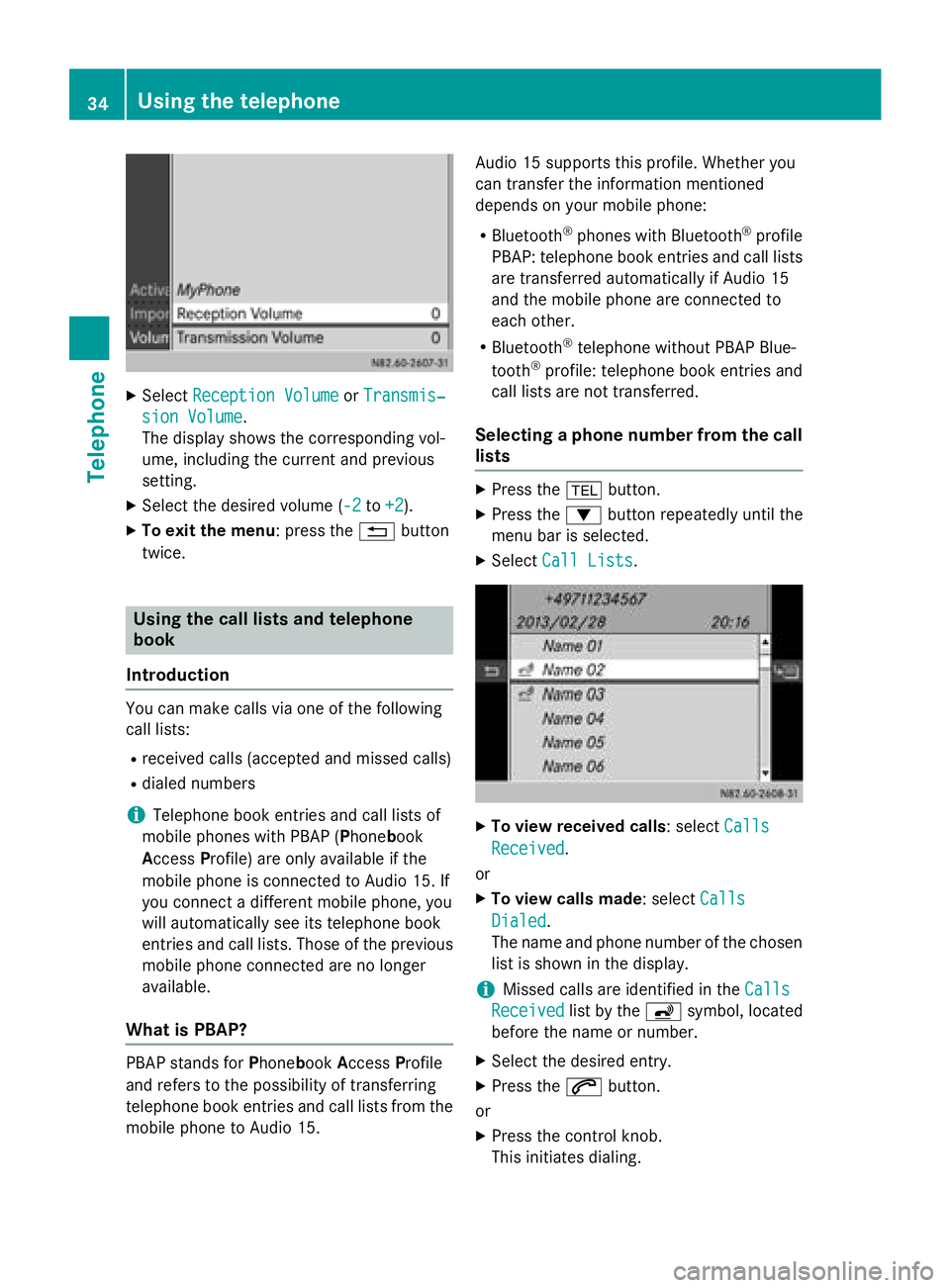
Select Reception Volume
Reception Volume orTransmis‐
Transmis‐
sion Volume
sion Volume .
The display shows the corresponding vol-
ume, including the current and previous
setting.
X Select the desired volume (-2 -2to+2
+2).
X To exit the menu: press the 0038button
twice. Using the call lists and telephone
book
Introduction You can make calls via one of the following
call lists:
R received calls (accepted and missed calls)
R dialed numbers
i Telephone book entries and call lists of
mobile phones with PBAP (Phone book
Access Profile) are only available if the
mobile phone is connected to Audio 15. If
you connect a different mobile phone, you
will automatically see its telephone book
entries and call lists. Those of the previous
mobile phone connected are no longer
available.
What is PBAP? PBAP stands for
PhonebookAccess Profile
and refers to the possibility of transferring
telephone book entries and call lists from the mobile phone to Audio 15. Audio 15 supports this profile. Whether you
can transfer the information mentioned
depends on your mobile phone:
R Bluetooth ®
phones with Bluetooth ®
profile
PBAP: telephone book entries and call lists
are transferred automatically if Audio 15
and the mobile phone are connected to
each other.
R Bluetooth ®
telephone without PBAP Blue-
tooth ®
profile: telephone book entries and
call lists are not transferred.
Selecting a phone number from the call
lists X
Press the 002Bbutton.
X Press the 0064button repeatedly until the
menu bar is selected.
X Select Call Lists
Call Lists. X
To view received calls: select Calls Calls
Received
Received.
or X To view calls made: select Calls
Calls
Dialed
Dialed .
The name and phone number of the chosen list is shown in the display.
i Missed calls are identified in the
Calls
Calls
Received
Received list by the00D1symbol, located
before the name or number.
X Select the desired entry.
X Press the 0061button.
or
X Press the control knob.
This initiates dialing. 34
Using the telephoneTelephone
Page 39 of 54
Important safety notes
.......................38
Radio mode .......................................... 38
SD memory card and USB device ......40
Bluetooth ®
audio ................................. 45
AUX function ....................................... 47 37Audio
Page 47 of 54
X
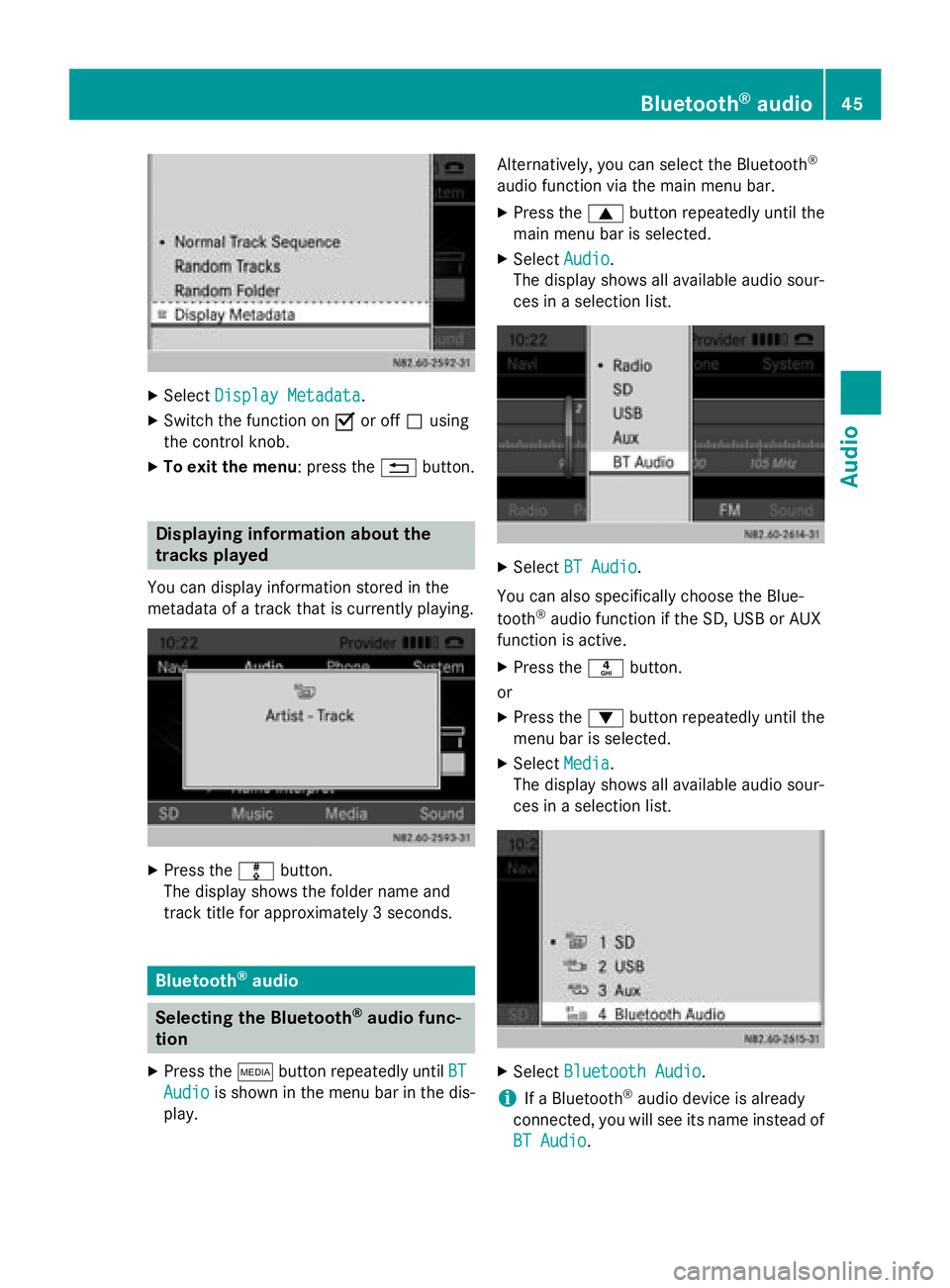
Select Display Metadata
Display Metadata.
X Switch the function on 0073or off 0053using
the control knob.
X To exit the menu : press the0038button. Displaying information about the
tracks played
You can display information stored in the
metadata of a track that is currently playing. X
Press the 003Fbutton.
The display shows the folder name and
track title for approximately 3 seconds. Bluetooth
®
audio Selecting the Bluetooth
®
audio func-
tion
X Press the 00FDbutton repeatedly until BT
BT
Audio Audio is shown in the menu bar in the dis-
play. Alternatively, you can select the Bluetooth
®
audio function via the main menu bar. X Press the 0063button repeatedly until the
main menu bar is selected.
X Select Audio Audio.
The display shows all available audio sour-
ces in a selection list. X
Select BT Audio BT Audio.
You can also specifically choose the Blue-
tooth ®
audio function if the SD, USB or AUX
function is active.
X Press the 0084button.
or X Press the 0064button repeatedly until the
menu bar is selected.
X Select Media Media.
The display shows all available audio sour-
ces in a selection list. X
Select Bluetooth Audio
Bluetooth Audio.
i If a Bluetooth ®
audio device is already
connected, you will see its name instead of
BT Audio
BT Audio. Bluetooth
®
audio 45Audio Z
Page 48 of 54
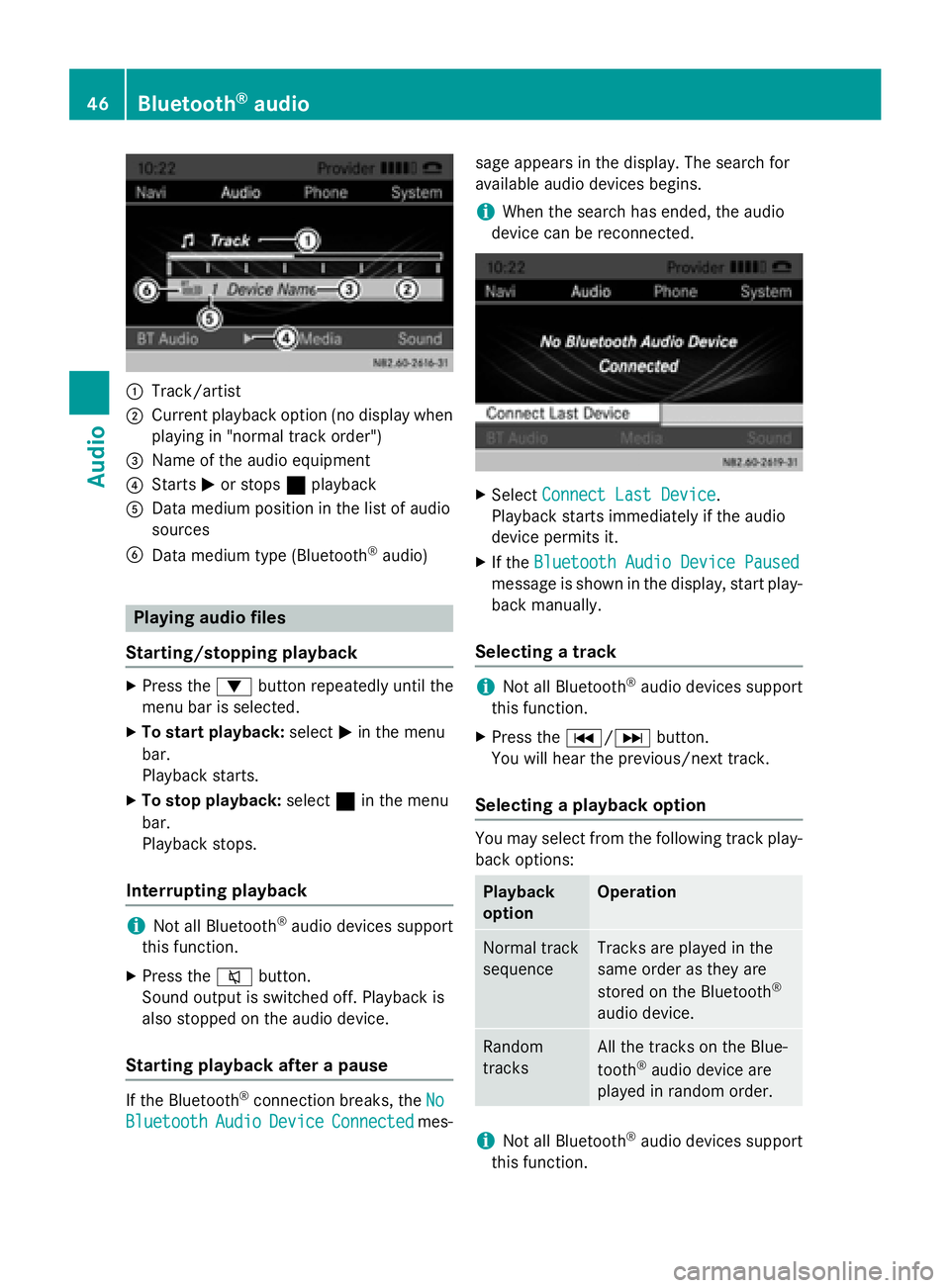
0043
Track/artist
0044 Current playback option (no display when
playing in "normal track order")
0087 Name of the audio equipment
0085 Starts 0050or stops 00A1playback
0083 Data medium position in the list of audio
sources
0084 Data medium type (Bluetooth ®
audio) Playing audio files
Starting/stopping playback X
Press the 0064button repeatedly until the
menu bar is selected.
X To start playback: select0050in the menu
bar.
Playback starts.
X To stop playback: select00A1in the menu
bar.
Playback stops.
Interrupting playback i
Not all Bluetooth ®
audio devices support
this function.
X Press the 0063button.
Sound output is switched off. Playback is
also stopped on the audio device.
Starting playback after a pause If the Bluetooth
®
connection breaks, the No No
Bluetooth
Bluetooth Audio
AudioDevice
Device Connected
Connected mes-sage appears in the display. The search for
available audio devices begins.
i When the search has ended, the audio
device can be reconnected. X
Select Connect Last Device
Connect Last Device.
Playback starts immediately if the audio
device permits it.
X If the Bluetooth Audio Device Paused Bluetooth Audio Device Paused
message is shown in the display, start play-
back manually.
Selecting a track i
Not all Bluetooth ®
audio devices support
this function.
X Press the 0054/0055 button.
You will hear the previous/next track.
Selecting a playback option You may select from the following track play-
back options: Playback
option Operation
Normal track
sequence Tracks are played in the
same order as they are
stored on the Bluetooth
®
audio device. Random
tracks All the tracks on the Blue-
tooth
®
audio device are
played in random order. i
Not all Bluetooth ®
audio devices support
this function. 46
Bluetooth ®
audioAudio
Page 49 of 54
X
Press the 0064button repeatedly until the
menu bar is selected.
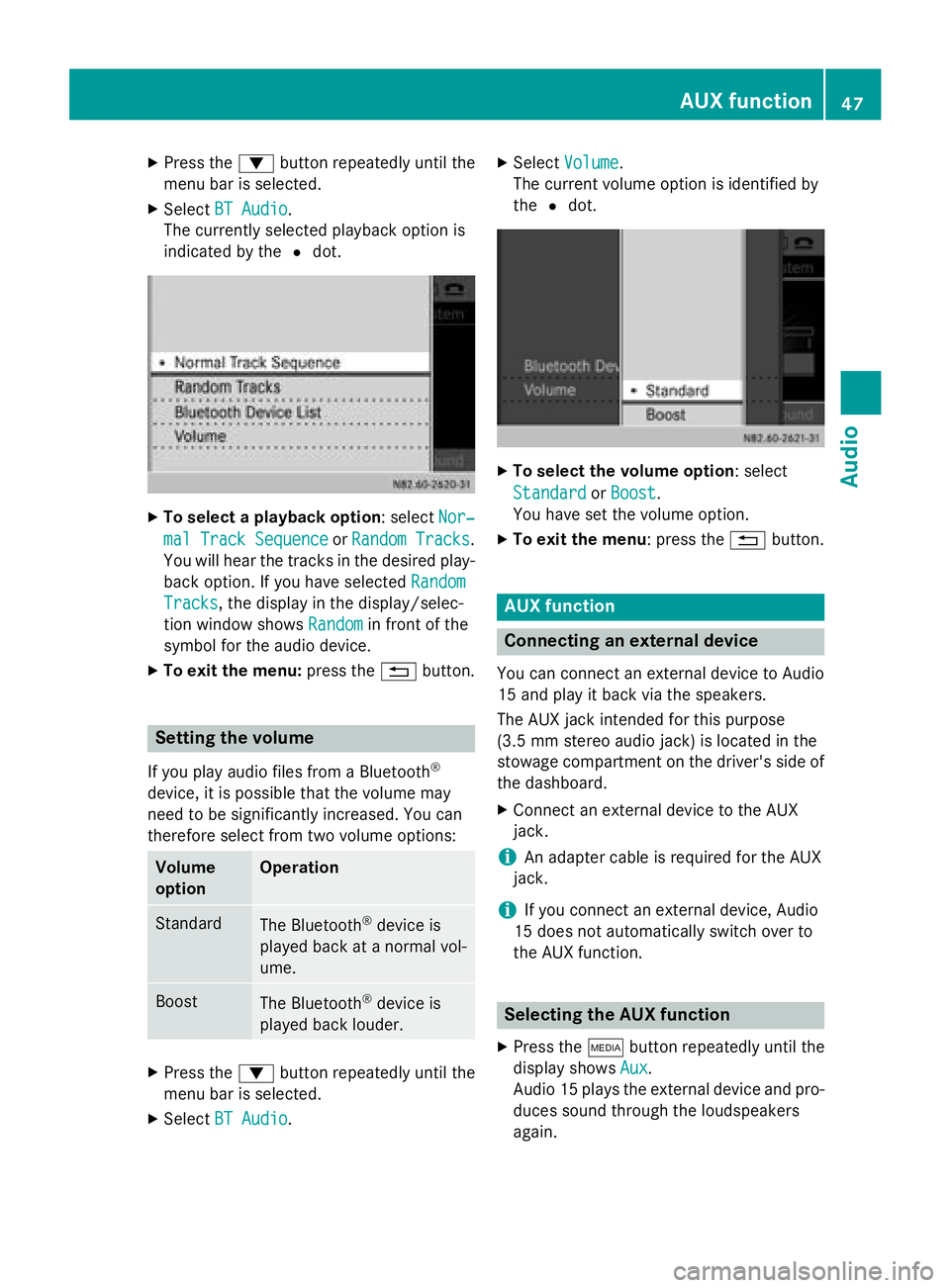
X Select BT Audio
BT Audio.
The currently selected playback option is
indicated by the 0036dot. X
To select a playback option : selectNor‐ Nor‐
mal Track Sequence
mal Track Sequence orRandom Tracks
Random Tracks .
You will hear the tracks in the desired play-
back option. If you have selected Random
Random
Tracks
Tracks, the display in the display/selec-
tion window shows Random Randomin front of the
symbol for the audio device.
X To exit the menu: press the0038button. Setting the volume
If you play audio files from a Bluetooth ®
device, it is possible that the volume may
need to be significantly increased. You can
therefore select from two volume options: Volume
option Operation
Standard
The Bluetooth
®
device is
played back at a normal vol-
ume. Boost
The Bluetooth
®
device is
played back louder. X
Press the 0064button repeatedly until the
menu bar is selected.
X Select BT Audio
BT Audio. X
Select Volume Volume.
The current volume option is identified by
the 0036dot. X
To select the volume option : select
Standard Standard orBoost
Boost.
You have set the volume option.
X To exit the menu : press the0038button. AUX function
Connecting an external device
You can connect an external device to Audio
15 and play it back via the speakers.
The AUX jack intended for this purpose
(3.5 mm stereo audio jack) is located in the
stowage compartment on the driver's side of
the dashboard.
X Connect an external device to the AUX
jack.
i An adapter cable is required for the AUX
jack.
i If you connect an external device, Audio
15 does not automatically switch over to
the AUX function. Selecting the AUX function
X Press the 00FDbutton repeatedly until the
display shows Aux Aux.
Audio 15 plays the external device and pro-
duces sound through the loudspeakers
again. AUX function
47Audio Z