audio MERCEDES-BENZ SPRINTER 2019 MY19 with 7” screen
[x] Cancel search | Manufacturer: MERCEDES-BENZ, Model Year: 2019, Model line: SPRINTER, Model: MERCEDES-BENZ SPRINTER 2019Pages: 354, PDF Size: 6.15 MB
Page 214 of 354
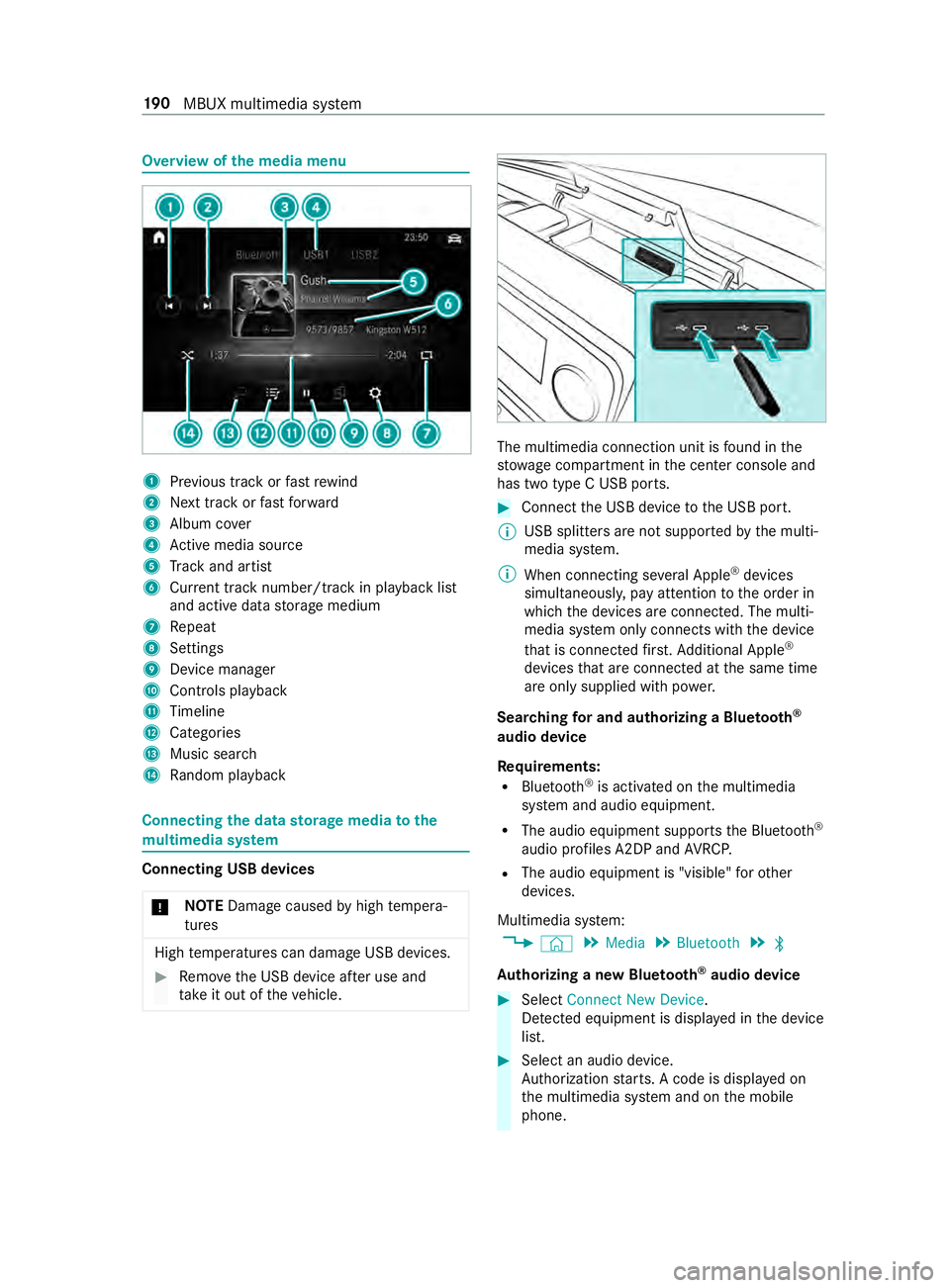
Overview of
the media menu 1
Prev ious track or fastrewind
2 Next track or fastforw ard
3 Album co ver
4 Active media sou rce
5 Track and artist
6 Current track number/track in pl ayback list
and active data storage medium
7 Repeat
8 Settings
9 Device manager
A Controls playback
B Timeline
C Categories
D Music search
E Random pl ayback Connecting
the data storage media tothe
mu ltimedia sy stem Connecting USB devices
* NO
TEDama gecaused byhigh temp era‐
tures High
temp eratures can damage USB devices. #
Remo vethe USB device af ter use and
ta ke it out of theve hicle. The multimedia connection unit is
found in the
stow age compartment in the center console and
has two type C USB ports. #
Connect the USB device tothe USB port.
% USB splitters are not suppor
tedby the multi‐
media sy stem.
% When connecting se veral Apple ®
devices
simultaneousl y,pay attention tothe order in
which the devices are connected. The multi‐
media sy stem only connects with the device
th at is connec tedfirs t. Ad ditional Apple ®
devices that are connec ted at the same time
are only supplied with po wer.
Sear ching for and authorizing a Blue tooth ®
audio device
Requ irements:
R Blue tooth ®
is activated on the multimedia
sy stem and audio equipment.
R The audio equipment supports the Blue tooth ®
audio profiles A2DP and AVRC P.
R The audio equipment is "visible" forot her
devices.
Multimedia sy stem:
4 © 5
Media 5
Bluetooth 5
00A5
Au thorizing a new Blu etoo th®
audio device #
Select Connect New Device.
De tected equipment is displa yed in the device
list. #
Select an audio device.
Auth orization starts. A code is displa yed on
th e multimedia sy stem and on the mobile
phone. 19 0
MBUX multimedia sy stem
Page 215 of 354
#
Ifth e codes are identical, confirm on the
audio equipment. #
Select Only as Bluetooth Audio Device .
The Blue tooth®
audio equipment is connec ted
with the multimedia sy stem.
Connecting pr eviously authorized Blue tooth ®
audio equipment #
Select a Blue tooth®
audio device from the
list.
The connection is es tablished. St
arting media playback A data
storage medium is connected tothe multi‐
media sy stem.
Multimedia sy stem:
4 © 5
Media #
Select USBorBluetooth asthe media source. Controlling media playback
Multimedia sy
stem:
4 © 5
Media #
Topause playback: select00CF. #
Tocontinue playba ck:select X. #
Torepeat a track: select:.
Fo rth ere peat function there are thefo llowing
settings:
R Select once: the active pla ylist is repea‐
te d.
R Select twice: the cur rent track is repea‐
te d.
R Select three times: there peat function
is deactivated. #
Toplay back trac ksinrandom order:
select 9. #
Towind a track forw ards or backwards:
ta p on the desired point on the timeline. #
Toselect the next track: select00F6. #
Toselect the pr evious track: select00F5. #
Toscroll through trac ksquickl y:press and
hold 00F5 or00F6. #
Toshow the cur rent track lis t:select the
track ima geshown. Ad
ditional options for setting media playba ck Multimedia sy
stem:
4 © 5
Media
Calling up additional options #
Select 004B.
The additional options are shown.
The following options are available:
R Surprise Mix
A pla ylist with random lyselected trac ksis
created.
R Add to Favorite Songs
The cur rent track is added tothefa vo rite
songs.
R Remove from Favorite Songs
The cur rent track is remo ved from thefa vo rite
songs. #
Select an option. Media sear
ch Information about
the sear chfunction in cat‐
egori es
Under 5you can sear chthro ugh all available
media files. There are se veral categories available
fo r selection. The categories shown depend on
th e connected device and data form at.
Av ailable categories with Blue tooth ®
audio equip‐
men t:
R Current Tracklist
The folders and categories of the connected
device are shown.
Av ailable categories with audio files:
R Current Tracklist
R Playlists
R Folder
R Albums
R Artists
R Tracks
R Often Played
R Most Recently Added
R Mood
R Music Genres
R Year
R Composers MBUX multimedia sy
stem 191
Page 216 of 354
R
Podcasts (Apple®
devices)
R Audiobooks (Apple®
devices)
% The categories are
available as soon as the
entire media content has been read in and
analyzed.
St arting a sear chin categories
Multimedia sy stem:
4 © 5
Media 5
5 #
Select a categor y.
The media files are shown cor responding to
th e selected categor y,e.g. all albums will be
shown forth eAlbums category.
Sorting results shown or playing back all
media found #
Select 0062. #
Toplay back all results found in the cate‐
gor y:select Play All.
If, forex ample, the album category is active,
all albums found bythe desired artist will be
pla yed bac k. #
Tosort results alphabeticall y:select Sort
from A-Z. #
Tosort results in reve rse alphab etical
order: selectSort from Z-A.
% The
available options depend on the selected
category and the connected device.
Using theke yword sear ch
Multimedia sy stem:
4 © 5
Media 5
5
In the categories under 5you can use the
ke yword sear chwith free text input tolook for
content. #
Select a catego ry. #
Select Search.
A ke yboard forch aracter ent ryappears. #
Enterth ete rm sear ched for.
% The sear
chbegins with thefirs tch aracter
entered. The more characters entered the
more concr eteth e sear chresults become. #
Select the desired entry fromthere sult list.
If th e selected result is an album, song or a
playback list then playback is star ted. If the
selected result is a new category then this is
opened in the sear ch. Ra
dio Switching on the
radio Multimedia sy
stem:
4 © 5
Radio #
Alternatively: press the| button.
The radio display appears. You will hear the
last station pla yed on the last frequency band
selected. Ra
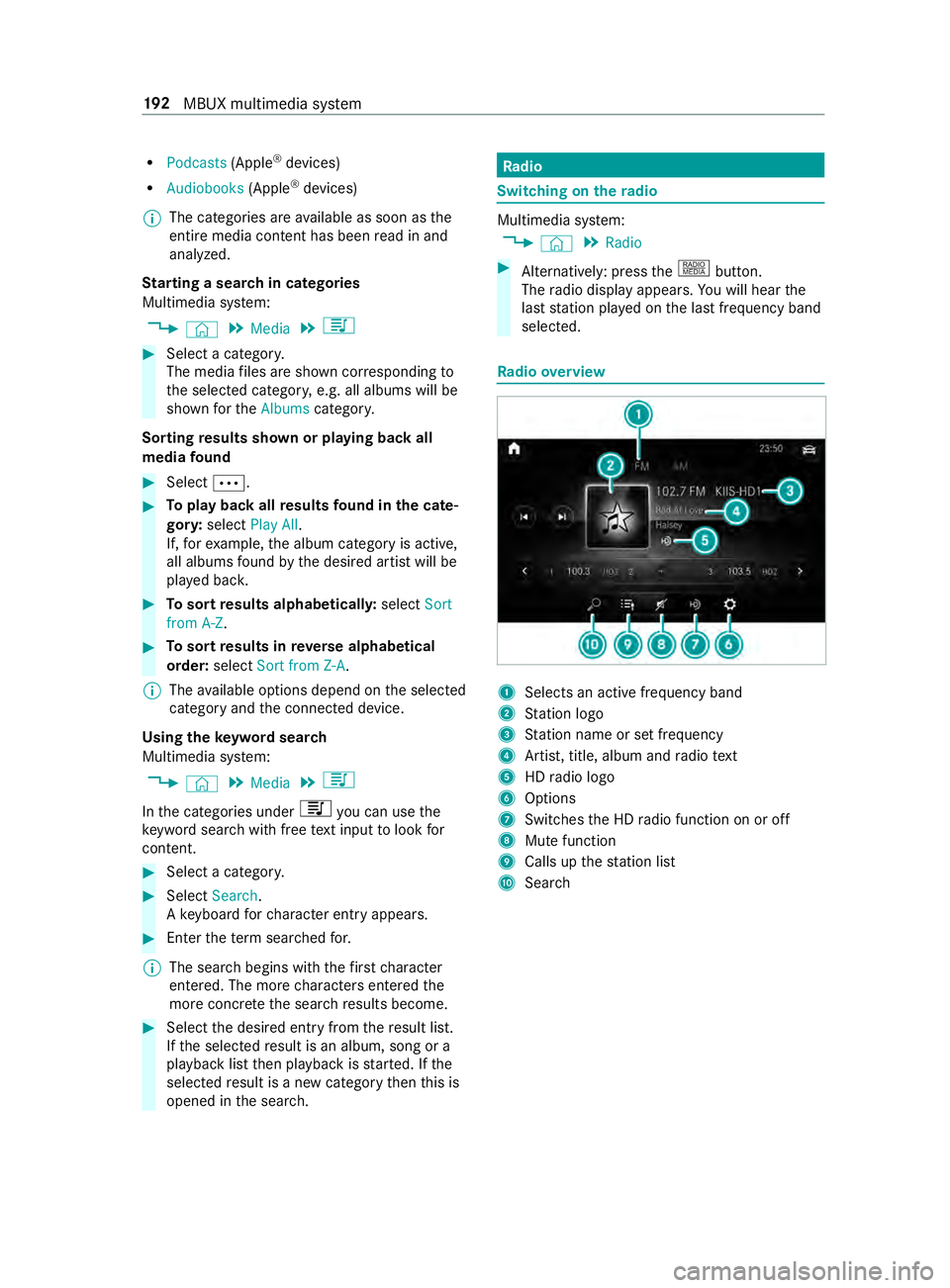
dio overview 1
Selects an active frequency band
2 Station logo
3 Station name or set frequency
4 Artist, title, album and radio text
5 HDradio logo
6 Options
7 Switches the HD radio function on or off
8 Mute function
9 Calls up thest ation list
A Sear ch 19 2
MBUX multimedia sy stem
Page 218 of 354
Showing accident
reports Multimedia sy
stem:
4 © 5
Radio 5
Z
% The
availability of the function is dependent
on the count ry. #
Switch Display Emergency Warnings on or
off. Displaying
radio text Multimedia sy
stem:
4 © 5
Radio 5
Z #
Switch Display Radio Text Information on or
off. Sound
Sound settings
Information about
the sound sy stem
The sound sy stem is available for all functions in
th era dio and media modes. The settings, for
ex ample forth e equalizer, ef fect the playback of
all media sources.
Calling up the sound menu
Multimedia sy stem:
4 © 5
Media 5
Z 5
Sound
The following functions are available:
R Equalizer
R Balance and Fader
R Autom. Volume Adjustment #
Select a sound menu.
Ad justing treble, mid-range and bass settings
Multimedia sy stem:
4 © 5
Media 5
Z 5
Sound #
Set TREBLE, MIDorBASS .
Ac tivating/deactivating automatic volume
adjustment
Multimedia sy stem:
4 © 5
Media 5
Z 5
Sound
Au tomatic volume adjustment compensates for
dif fering volumes when changing between audio
sources. #
Swit chAutom. Volume Adjustment on or off.
Ad justing the balance/ fader
The availability of this function depends on the
ve hicle equipment. Multimedia sy
stem:
4 © 5
Media 5
Z 5
Sound #
Adjust the balance and fader. 194
MBUX multimedia sy stem
Page 341 of 354
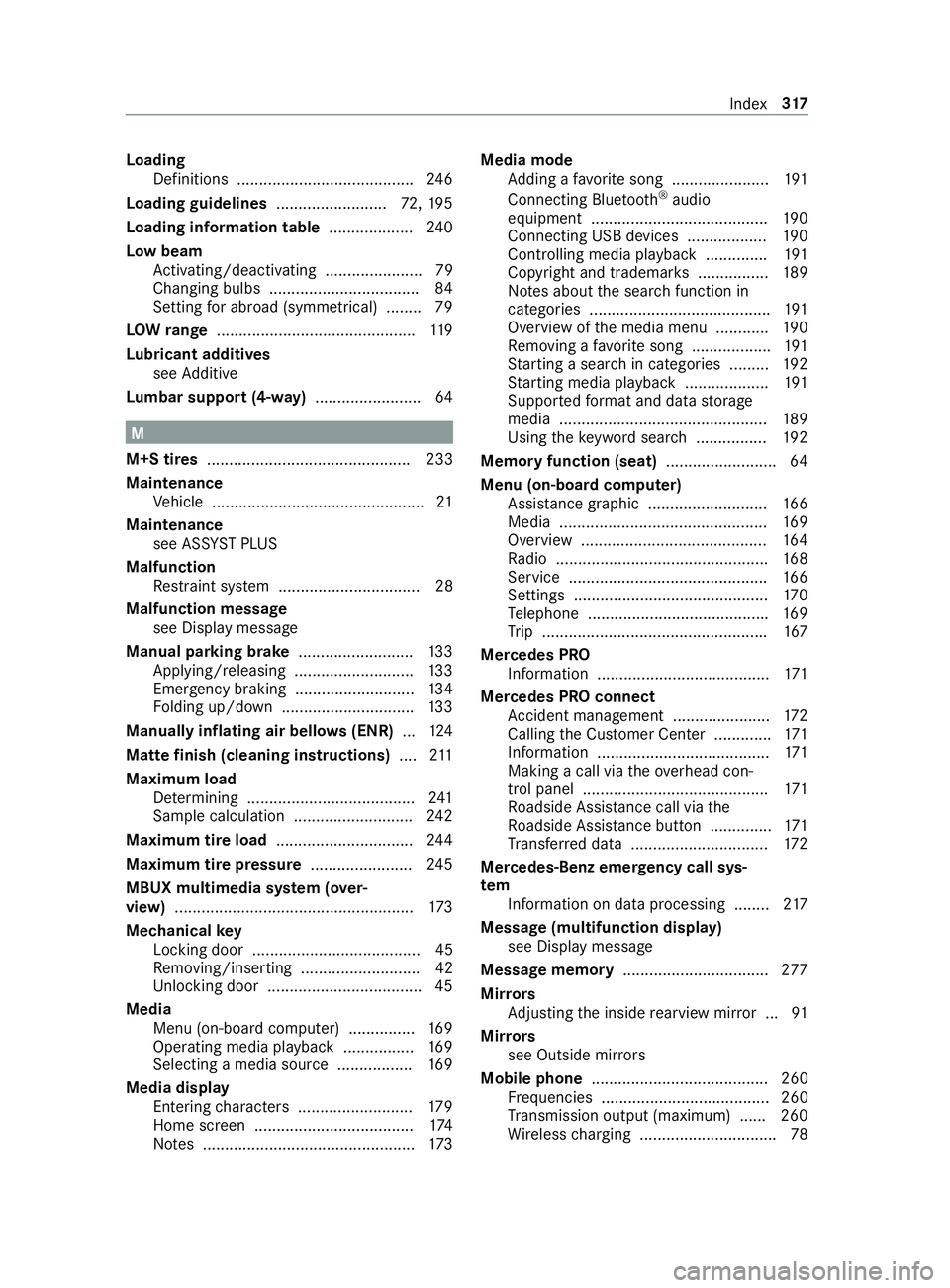
Loading
Definitions ........................................ 24 6
Loading guidelines .........................72,19 5
Loading information table ...................240
Low beam Activating/deactivating ...................... 79
Changing bulbs ................................. .84
Setting for abroad (symmetrical) ........ 79
LO Wrange ............................................. 11 9
Lu bricant additives
see Additive
Lu mbar support (4-w ay)........................ 64 M
M+S tires .............................................. 233
Maintenance Vehicle ................................................ 21
Maintenance see ASS YST PLUS
Malfunction Restra int sy stem ................................ 28
Malfunction message see Display message
Manual parking brake ..........................13 3
App lying/ releasing .......................... .133
Emer gency braking ........................... 13 4
Fo lding up/down .............................. 13 3
Manually inflating air bello ws(ENR) ...1 24
Matte finish (cleaning instructions) ....211
Maximum load Determ ining ...................................... 241
Sample calculation ........................... 24 2
Maximum tire load ...............................244
Maximum tire pressure .......................24 5
MBUX multimedia sy stem (o ver‐
vi ew )...................................................... 173
Mechanical key
Locking door ...................................... 45
Re moving/inserting ........................... 42
Un locking door .................................. .45
Media Menu (on-boa rdcompu ter) ............... 16 9
Operating media playback ................1 69
Selecting a media sou rce ................. 16 9
Media display Entering characters .......................... 17 9
Home screen .................................... 174
No tes ................................................ 173Media mode
Adding a favo rite song ......................1 91
Connecting Blue tooth®
audio
equipment ........................................ 19 0
Connecting USB devices .................. 19 0
Controlling media playback .............. 191
Copyright and trademar ks................ 189
No tes about the sear chfunction in
categories ......................................... 191
Overview of the media menu ............ 19 0
Re moving a favo rite song .................. 191
St arting a sear chin categories ........ .192
St arting media playback .................. .191
Suppor tedfo rm at and data storage
media ............................................... 189
Using theke yword sear ch................ 19 2
Memory function (seat) .........................64
Menu (on-board computer) Assis tance graphic ........................... 16 6
Media ............................................... 16 9
Overview .......................................... 16 4
Ra dio ................................................ 16 8
Service ............................................. 16 6
Settings ............................................ 17 0
Te lephone ........................................ .169
Tr ip .................................................. .167
Mercedes PRO Information ....................................... 171
Mercedes PRO connect Accident mana gement ...................... 172
Calling the Cus tomer Center ............. 171
Information .......................................1 71
Making a call via theov erhead con‐
trol panel .......................................... 171
Ro adside Assis tance call via the
Ro adside Assis tance button .............. 171
Tr ans ferred data ...............................1 72
Mercedes-Benz emer gency call sys‐
tem
Information on data processing ........ 217
Message (multifunction display) see Display messa ge
Message memory ................................. 277
Mir rors
Ad justing the inside rearview mir ror ... 91
Mir rors
see Outside mir rors
Mobile phone ........................................ 260
Fr equencies ...................................... 260
Tr ansmission output (maximum) ...... 260
Wi reless charging .............................. .78 Index
317