radio MINI 3 door 2013 Owner's Guide
[x] Cancel search | Manufacturer: MINI, Model Year: 2013, Model line: 3 door, Model: MINI 3 door 2013Pages: 233, PDF Size: 17.19 MB
Page 85 of 233
located within the detection range of the sys‐
tem.
At a glance
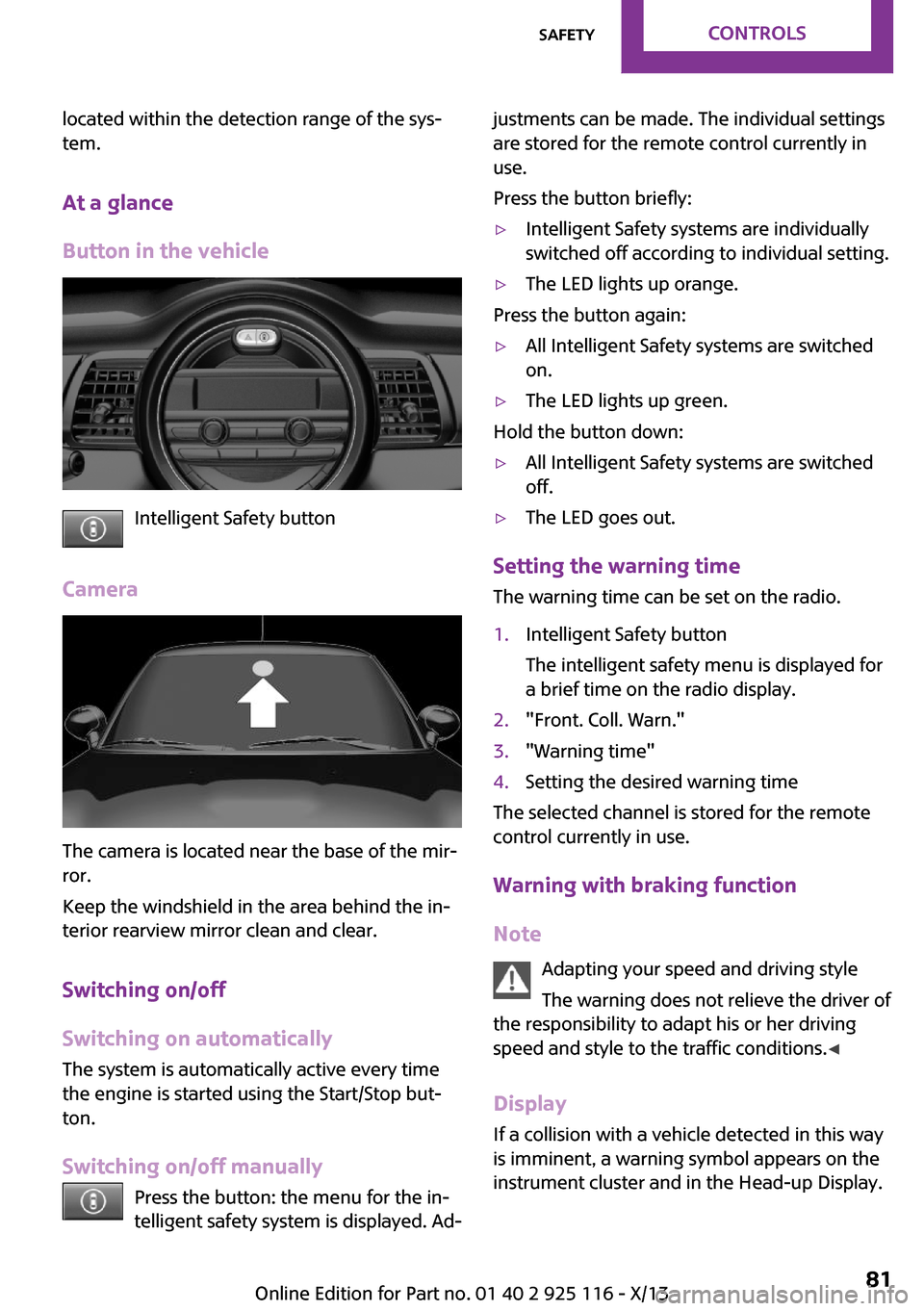
Button in the vehicle
Intelligent Safety button
Camera
The camera is located near the base of the mir‐
ror.
Keep the windshield in the area behind the in‐
terior rearview mirror clean and clear.
Switching on/off
Switching on automatically
The system is automatically active every time
the engine is started using the Start/Stop but‐
ton.
Switching on/off manually Press the button: the menu for the in‐
telligent safety system is displayed. Ad‐
justments can be made. The individual settings
are stored for the remote control currently in
use.
Press the button briefly:▷Intelligent Safety systems are individually
switched off according to individual setting.▷The LED lights up orange.
Press the button again:
▷All Intelligent Safety systems are switched
on.▷The LED lights up green.
Hold the button down:
▷All Intelligent Safety systems are switched
off.▷The LED goes out.
Setting the warning time
The warning time can be set on the radio.
1.Intelligent Safety button
The intelligent safety menu is displayed for
a brief time on the radio display.2."Front. Coll. Warn."3."Warning time"4.Setting the desired warning time
The selected channel is stored for the remote
control currently in use.
Warning with braking function Note Adapting your speed and driving style
The warning does not relieve the driver of
the responsibility to adapt his or her driving
speed and style to the traffic conditions. ◀
Display If a collision with a vehicle detected in this way
is imminent, a warning symbol appears on the
instrument cluster and in the Head-up Display.
Seite 81SafetyControls81
Online Edition for Part no. 01 40 2 925 116 - X/13
Page 92 of 233
Programs
The system offers several different programs.
The programs can be selected via the Driving
Dynamics Control, refer to page 88.
MID/GREEN Balanced control of the vehicle.
SPORT Consistently sporty control of the shock absorb‐
ers for greater driving agility.
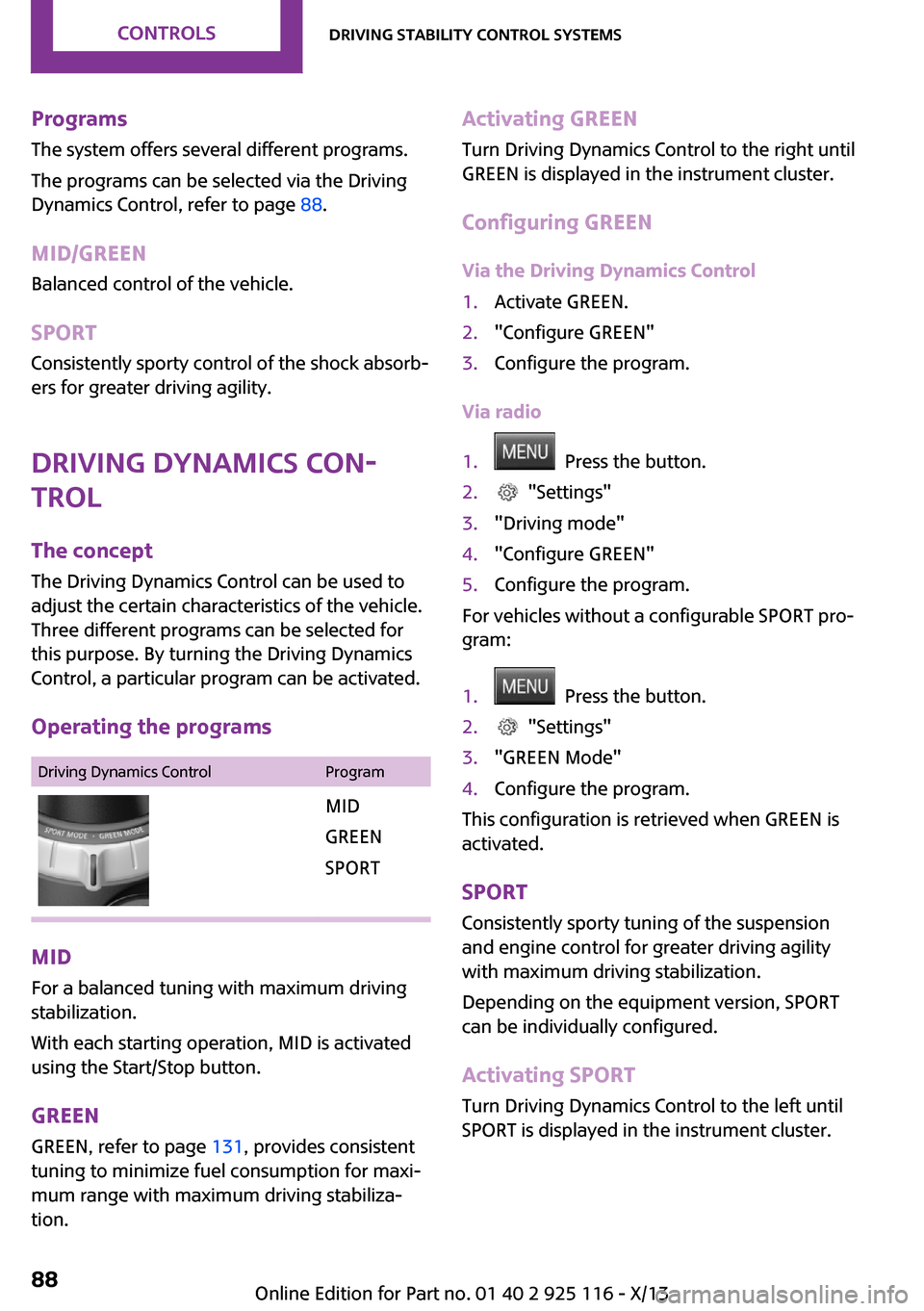
Driving Dynamics Con‐
trol
The concept
The Driving Dynamics Control can be used to
adjust the certain characteristics of the vehicle.
Three different programs can be selected for
this purpose. By turning the Driving Dynamics
Control, a particular program can be activated.
Operating the programsDriving Dynamics ControlProgramMID
GREEN
SPORT
MID For a balanced tuning with maximum driving
stabilization.
With each starting operation, MID is activated
using the Start/Stop button.
GREEN GREEN, refer to page 131, provides consistent
tuning to minimize fuel consumption for maxi‐
mum range with maximum driving stabiliza‐
tion.
Activating GREEN
Turn Driving Dynamics Control to the right until
GREEN is displayed in the instrument cluster.
Configuring GREEN Via the Driving Dynamics Control1.Activate GREEN.2."Configure GREEN"3.Configure the program.
Via radio
1. Press the button.2. "Settings"3."Driving mode"4."Configure GREEN"5.Configure the program.
For vehicles without a configurable SPORT pro‐
gram:
1. Press the button.2. "Settings"3."GREEN Mode"4.Configure the program.
This configuration is retrieved when GREEN is
activated.
SPORT
Consistently sporty tuning of the suspension
and engine control for greater driving agility
with maximum driving stabilization.
Depending on the equipment version, SPORT
can be individually configured.
Activating SPORT
Turn Driving Dynamics Control to the left until
SPORT is displayed in the instrument cluster.
Seite 88ControlsDriving stability control systems88
Online Edition for Part no. 01 40 2 925 116 - X/13
Page 93 of 233
Configuring SPORT
Depending on the equipment version, SPORT
can be individually configured.
Activating SPORT.
Select "Driving mode".
Configure the program.
Operation takes place via the radio.1. Press the button.2. "Settings"3."Driving mode"4."Configure SPORT"5.Make the desired settings.
This configuration is retrieved when SPORT is
activated.
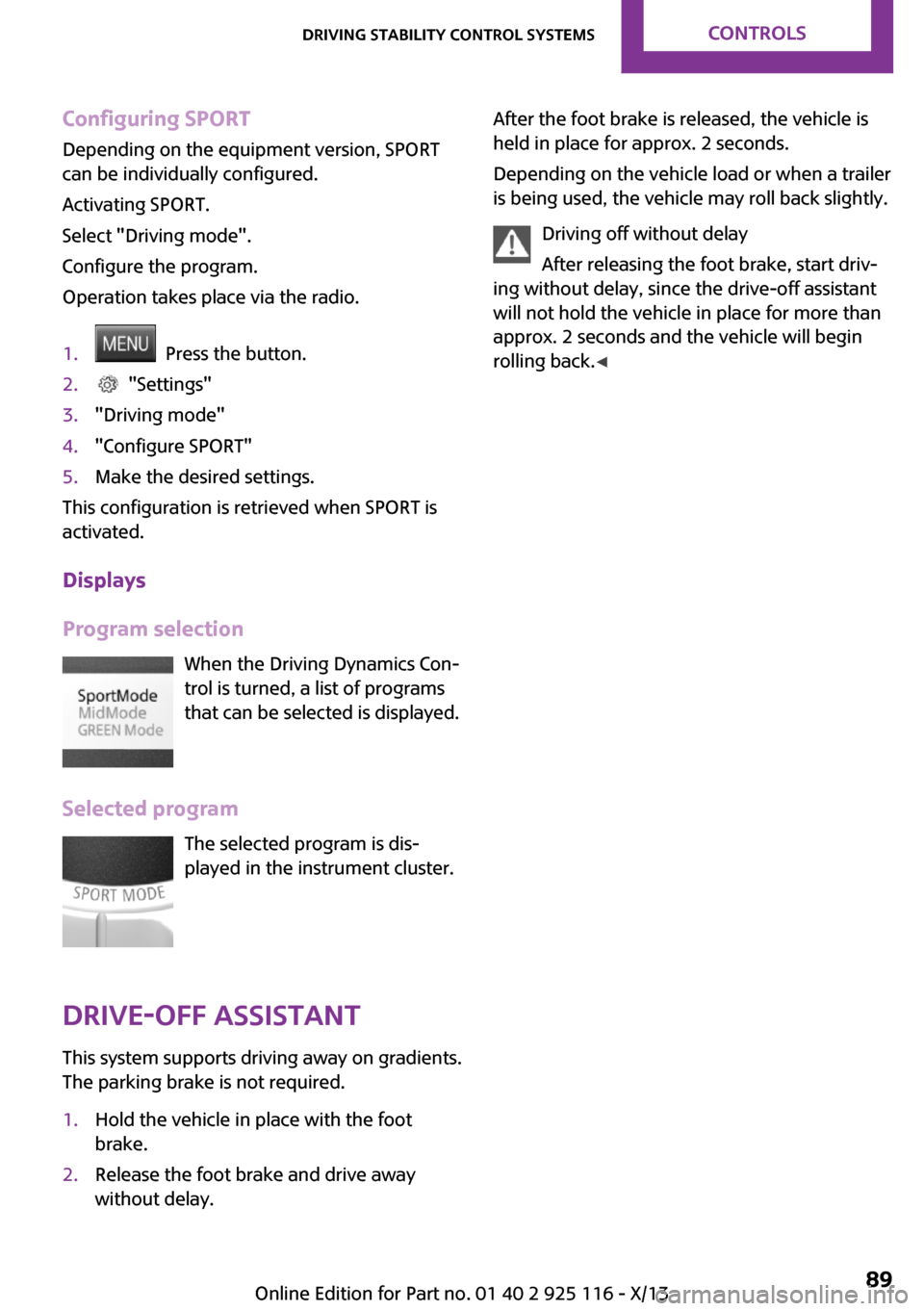
Displays
Program selection When the Driving Dynamics Con‐
trol is turned, a list of programs
that can be selected is displayed.
Selected program The selected program is dis‐
played in the instrument cluster.
Drive-off assistant
This system supports driving away on gradients.
The parking brake is not required.
1.Hold the vehicle in place with the foot
brake.2.Release the foot brake and drive away
without delay.After the foot brake is released, the vehicle is
held in place for approx. 2 seconds.
Depending on the vehicle load or when a trailer
is being used, the vehicle may roll back slightly.
Driving off without delay
After releasing the foot brake, start driv‐
ing without delay, since the drive-off assistant
will not hold the vehicle in place for more than
approx. 2 seconds and the vehicle will begin
rolling back. ◀Seite 89Driving stability control systemsControls89
Online Edition for Part no. 01 40 2 925 116 - X/13
Page 102 of 233
PDC Park Distance Con‐
trol
The concept
PDC supports you when parking. Slowly ap‐
proaching an object behind or, with the appro‐ priate equipment, also in front of your vehicle issignaled by signal tones:
General information Measurements are made by ultrasound sensors
in the bumpers.
The range, depending on the environment, is
approx. 6 ft/2 m.
An acoustic warning is first given:▷By the front middle sensors and the two
corner sensors at approx. 24 in/60 cm.▷By the rear middle sensors at approx.
5 ft/1.50 m.
Hints
Check the traffic situation as well
PDC cannot serve as a substitute for the
driver's personal judgment of the traffic situa‐
tion. Check the traffic situation around the ve‐
hicle with your own eyes. Otherwise, an acci‐
dent could result from road users or objects
located outside of the PDC detection range.
Loud noises from outside and inside the vehicle
may prevent you from hearing the PDC's signal tone. ◀
Avoid driving quickly with PDC
Avoid approaching an object quickly.
Avoid driving away quickly while PDC is not yet
active.
For technical reasons, the system may other‐
wise be too late in issuing a warning. ◀
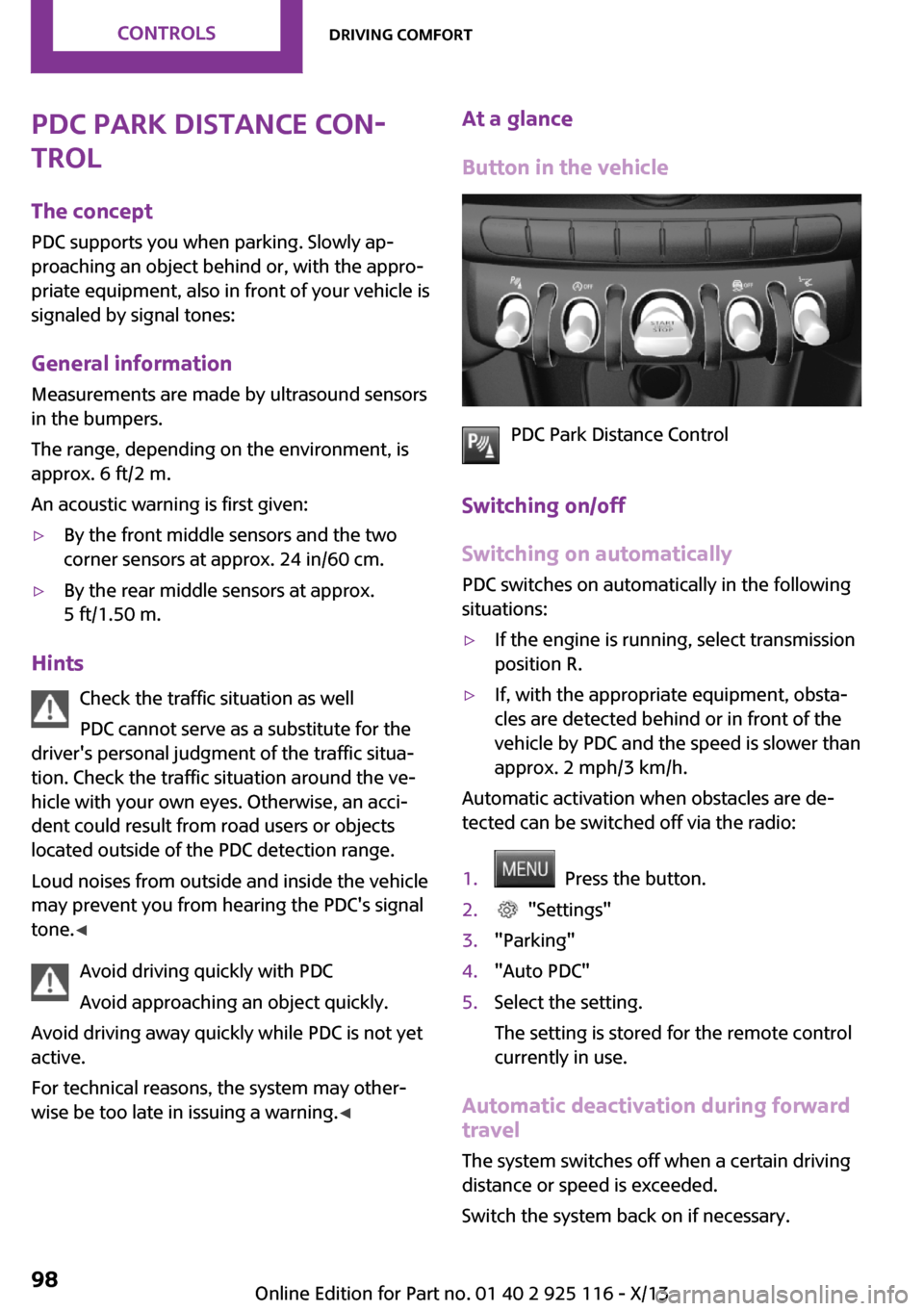
At a glance
Button in the vehicle
PDC Park Distance Control
Switching on/off
Switching on automatically
PDC switches on automatically in the following
situations:
▷If the engine is running, select transmission
position R.▷If, with the appropriate equipment, obsta‐
cles are detected behind or in front of the
vehicle by PDC and the speed is slower than
approx. 2 mph/3 km/h.
Automatic activation when obstacles are de‐
tected can be switched off via the radio:
1. Press the button.2. "Settings"3."Parking"4."Auto PDC"5.Select the setting.
The setting is stored for the remote control
currently in use.
Automatic deactivation during forward
travel
The system switches off when a certain driving
distance or speed is exceeded.
Switch the system back on if necessary.
Seite 98ControlsDriving comfort98
Online Edition for Part no. 01 40 2 925 116 - X/13
Page 105 of 233
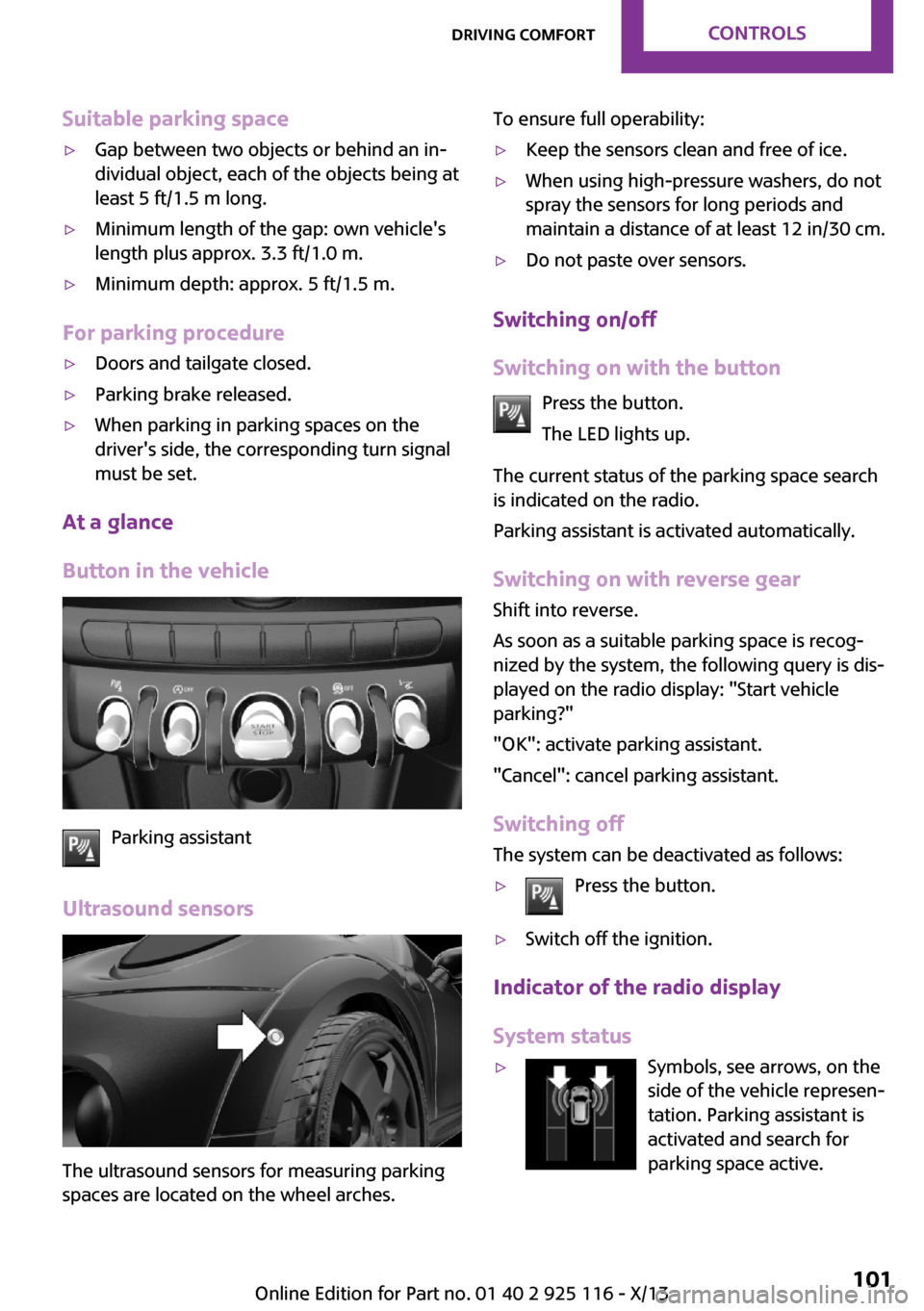
Suitable parking space▷Gap between two objects or behind an in‐
dividual object, each of the objects being at
least 5 ft/1.5 m long.▷Minimum length of the gap: own vehicle's
length plus approx. 3.3 ft/1.0 m.▷Minimum depth: approx. 5 ft/1.5 m.
For parking procedure
▷Doors and tailgate closed.▷Parking brake released.▷When parking in parking spaces on the
driver's side, the corresponding turn signal
must be set.
At a glance
Button in the vehicle
Parking assistant
Ultrasound sensors
The ultrasound sensors for measuring parking
spaces are located on the wheel arches.
To ensure full operability:▷Keep the sensors clean and free of ice.▷When using high-pressure washers, do not
spray the sensors for long periods and
maintain a distance of at least 12 in/30 cm.▷Do not paste over sensors.
Switching on/off
Switching on with the button Press the button.
The LED lights up.
The current status of the parking space search
is indicated on the radio.
Parking assistant is activated automatically.
Switching on with reverse gear
Shift into reverse.
As soon as a suitable parking space is recog‐ nized by the system, the following query is dis‐
played on the radio display: "Start vehicle
parking?"
"OK": activate parking assistant.
"Cancel": cancel parking assistant.
Switching off The system can be deactivated as follows:
▷Press the button.▷Switch off the ignition.
Indicator of the radio display
System status
▷Symbols, see arrows, on the
side of the vehicle represen‐
tation. Parking assistant is
activated and search for
parking space active.Seite 101Driving comfortControls101
Online Edition for Part no. 01 40 2 925 116 - X/13
Page 106 of 233
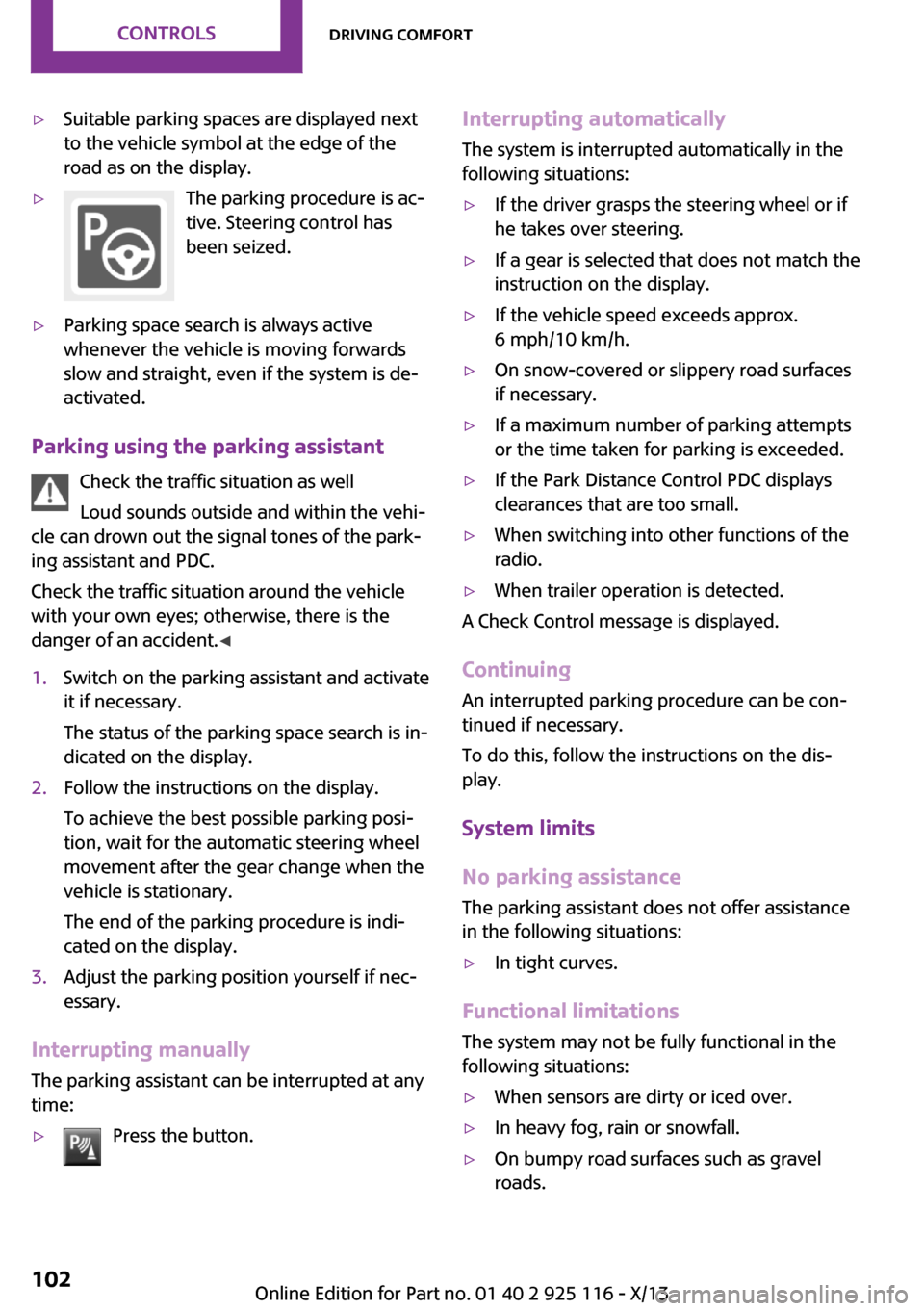
▷Suitable parking spaces are displayed next
to the vehicle symbol at the edge of the
road as on the display.▷The parking procedure is ac‐
tive. Steering control has
been seized.▷Parking space search is always active
whenever the vehicle is moving forwards
slow and straight, even if the system is de‐
activated.
Parking using the parking assistant
Check the traffic situation as well
Loud sounds outside and within the vehi‐
cle can drown out the signal tones of the park‐
ing assistant and PDC.
Check the traffic situation around the vehicle
with your own eyes; otherwise, there is the
danger of an accident. ◀
1.Switch on the parking assistant and activate
it if necessary.
The status of the parking space search is in‐
dicated on the display.2.Follow the instructions on the display.
To achieve the best possible parking posi‐
tion, wait for the automatic steering wheel
movement after the gear change when the
vehicle is stationary.
The end of the parking procedure is indi‐
cated on the display.3.Adjust the parking position yourself if nec‐
essary.
Interrupting manually
The parking assistant can be interrupted at any
time:
▷Press the button.Interrupting automatically
The system is interrupted automatically in the
following situations:▷If the driver grasps the steering wheel or if
he takes over steering.▷If a gear is selected that does not match the
instruction on the display.▷If the vehicle speed exceeds approx.
6 mph/10 km/h.▷On snow-covered or slippery road surfaces
if necessary.▷If a maximum number of parking attempts
or the time taken for parking is exceeded.▷If the Park Distance Control PDC displays
clearances that are too small.▷When switching into other functions of the
radio.▷When trailer operation is detected.
A Check Control message is displayed.
Continuing
An interrupted parking procedure can be con‐
tinued if necessary.
To do this, follow the instructions on the dis‐
play.
System limits
No parking assistance The parking assistant does not offer assistance
in the following situations:
▷In tight curves.
Functional limitations
The system may not be fully functional in the
following situations:
▷When sensors are dirty or iced over.▷In heavy fog, rain or snowfall.▷On bumpy road surfaces such as gravel
roads.Seite 102ControlsDriving comfort102
Online Edition for Part no. 01 40 2 925 116 - X/13
Page 136 of 233
idling to reduce fuel consumption. Transmission
position D remains engaged. An indicator pro‐
vides information about the distance traveled
in Coasting mode.
In addition, context-sensitive instructions can
be displayed that assist in driving in a manner
that optimizes fuel consumption.
The extension of the range that is achieved as a
result can be displayed in the instrument clus‐
ter.
At a glance
The system includes the following MINIMALISM
functions and displays:▷GREEN bonus range, refer to page 132▷GREEN tips driving instruction, refer to
page 133▷GREEN climate control, refer to page 132▷Coasting driving condition, refer to
page 133
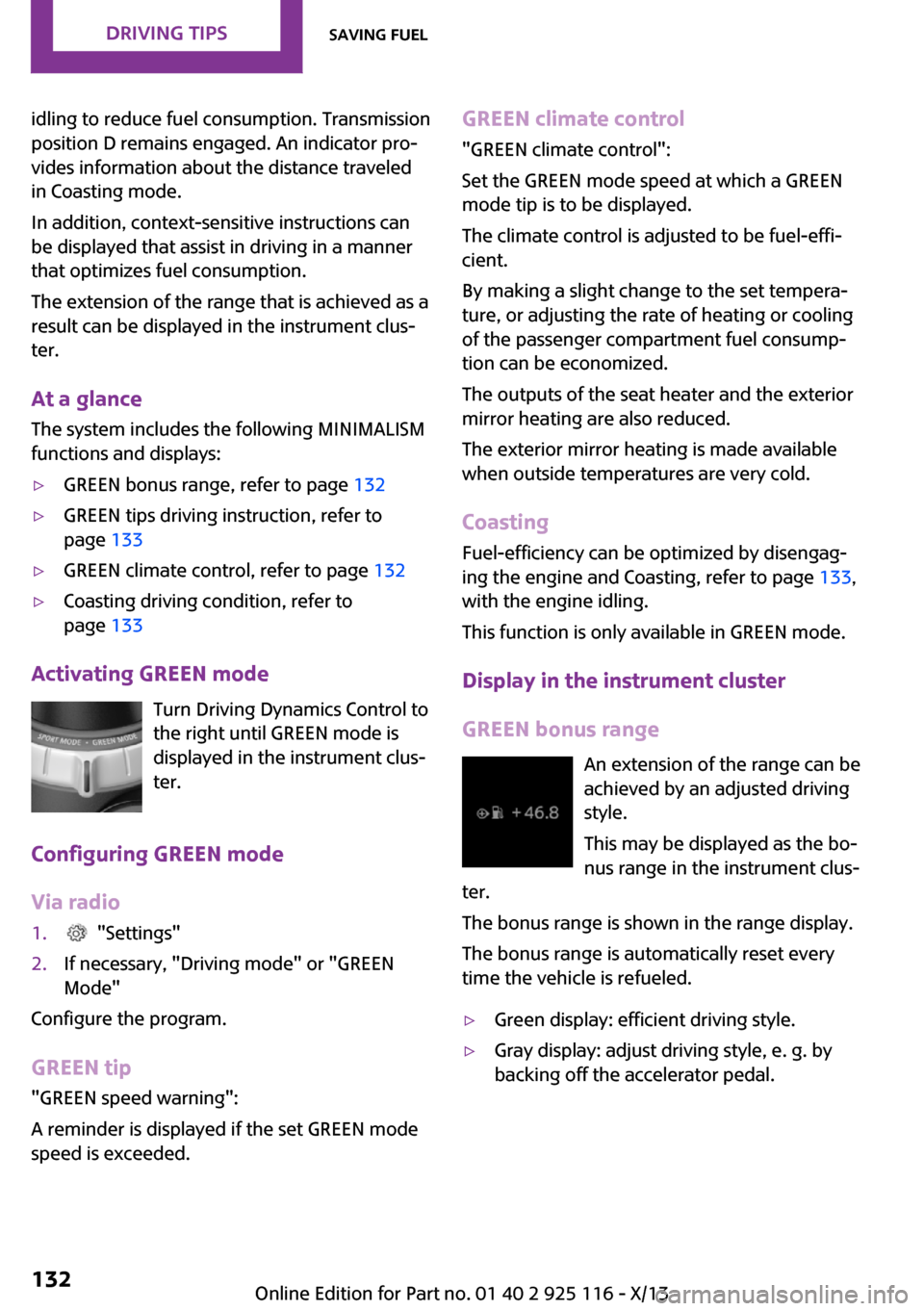
Activating GREEN mode
Turn Driving Dynamics Control to
the right until GREEN mode is
displayed in the instrument clus‐
ter.
Configuring GREEN mode
Via radio
1. "Settings"2.If necessary, "Driving mode" or "GREEN
Mode"
Configure the program.
GREEN tip
"GREEN speed warning":
A reminder is displayed if the set GREEN mode
speed is exceeded.
GREEN climate control
"GREEN climate control":
Set the GREEN mode speed at which a GREEN
mode tip is to be displayed.
The climate control is adjusted to be fuel-effi‐
cient.
By making a slight change to the set tempera‐
ture, or adjusting the rate of heating or cooling
of the passenger compartment fuel consump‐
tion can be economized.
The outputs of the seat heater and the exterior
mirror heating are also reduced.
The exterior mirror heating is made available
when outside temperatures are very cold.
Coasting Fuel-efficiency can be optimized by disengag‐
ing the engine and Coasting, refer to page 133,
with the engine idling.
This function is only available in GREEN mode.
Display in the instrument cluster
GREEN bonus range An extension of the range can be
achieved by an adjusted driving
style.
This may be displayed as the bo‐
nus range in the instrument clus‐
ter.
The bonus range is shown in the range display.
The bonus range is automatically reset every
time the vehicle is refueled.▷Green display: efficient driving style.▷Gray display: adjust driving style, e. g. by
backing off the accelerator pedal.Seite 132Driving tipsSaving fuel132
Online Edition for Part no. 01 40 2 925 116 - X/13
Page 138 of 233
Coasting is automatically activated when
GREEN mode is called via the Driving Dynamics
Control, refer to page 88.
The function is available in a certain speed
range.
A forward-looking driving style helps the driver
to use the function as often as possible and
supports the fuel-conserving effect of coasting.
Safety mode
The function is not available if one of the fol‐
lowing conditions is satisfied.▷DSC OFF or TRACTION activated.▷Driving in the dynamic limit range and on
steep uphill or downhill grades.▷Battery charge status temporarily too low
or vehicle electrical system drawing exces‐
sive current.▷Cruise control activated.
Functional requirements
In GREEN mode, this function is available in a
speed range from approximately 30 mph, ap‐
prox. 50 km/h to 100 mph, approx. 160 km/h,
if the following conditions are satisfied:
▷Accelerator pedal and brake pedal are not
operated.▷The selector lever is in transmission position
D.▷Engine and transmission are at operating
temperature.
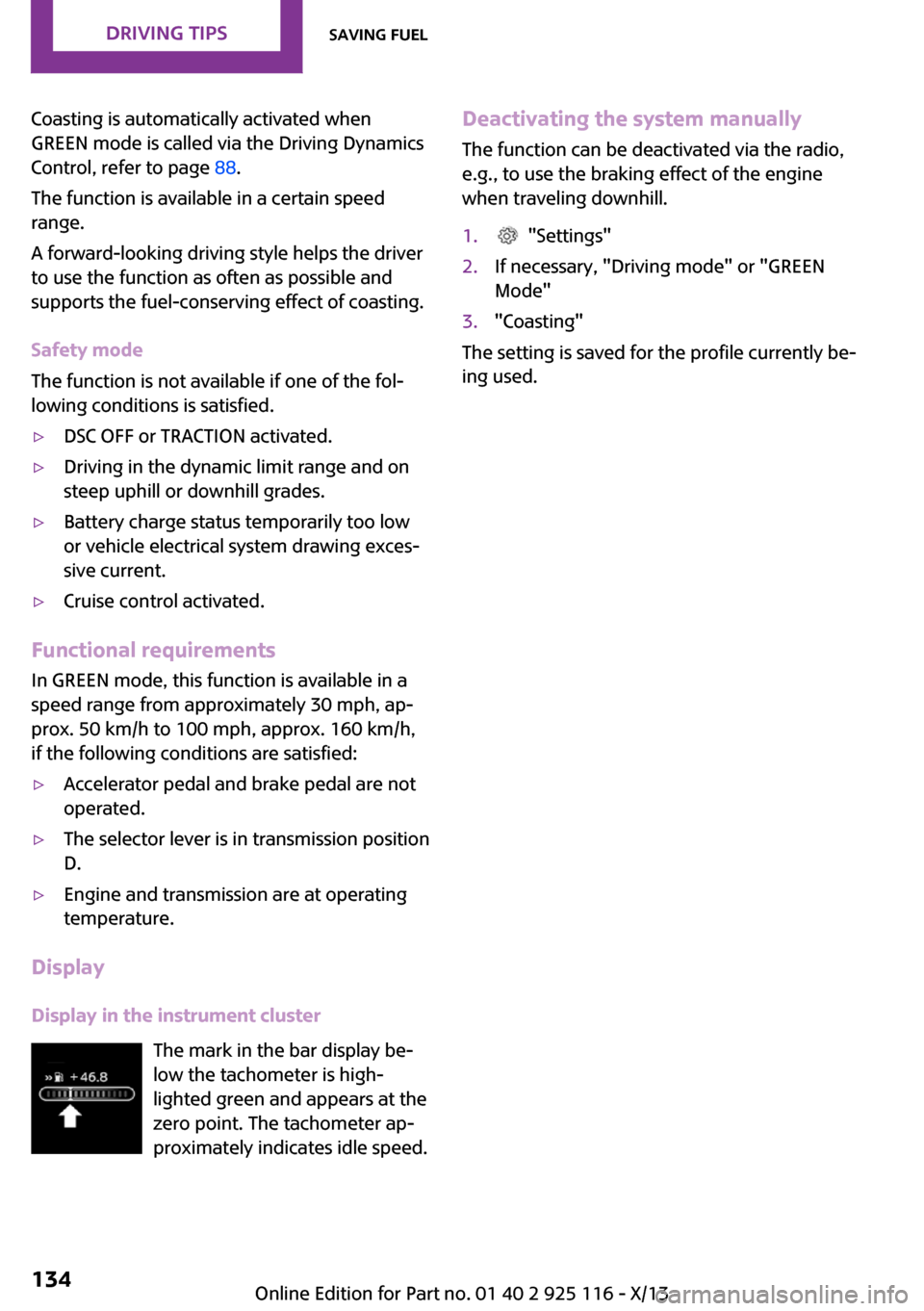
Display
Display in the instrument cluster The mark in the bar display be‐
low the tachometer is high‐
lighted green and appears at the
zero point. The tachometer ap‐
proximately indicates idle speed.
Deactivating the system manually
The function can be deactivated via the radio,
e.g., to use the braking effect of the engine
when traveling downhill.1. "Settings"2.If necessary, "Driving mode" or "GREEN
Mode"3."Coasting"
The setting is saved for the profile currently be‐
ing used.
Seite 134Driving tipsSaving fuel134
Online Edition for Part no. 01 40 2 925 116 - X/13
Page 142 of 233
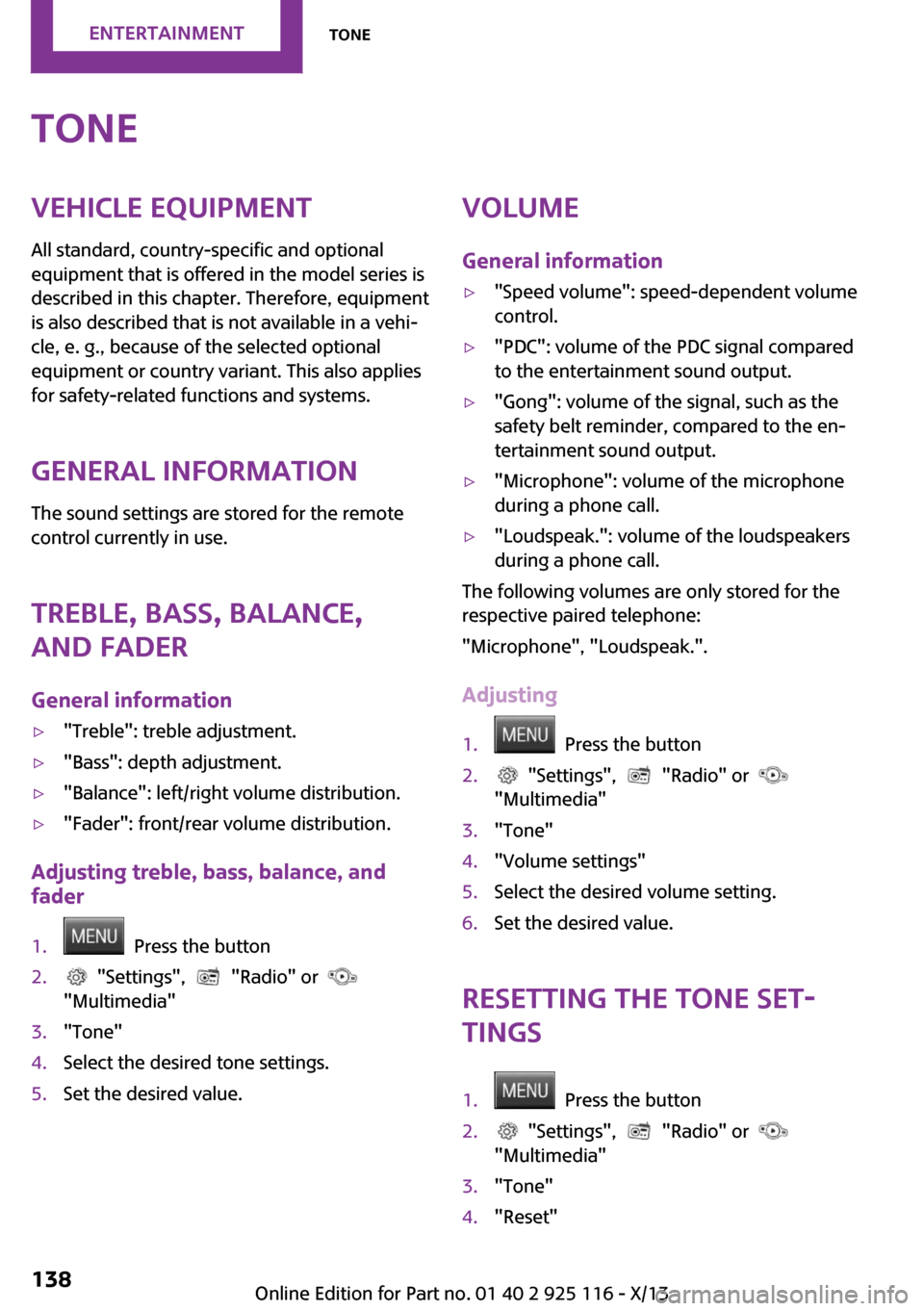
ToneVehicle equipmentAll standard, country-specific and optional
equipment that is offered in the model series is
described in this chapter. Therefore, equipment
is also described that is not available in a vehi‐
cle, e. g., because of the selected optional
equipment or country variant. This also applies
for safety-related functions and systems.
General information
The sound settings are stored for the remote
control currently in use.
Treble, bass, balance,
and fader
General information▷"Treble": treble adjustment.▷"Bass": depth adjustment.▷"Balance": left/right volume distribution.▷"Fader": front/rear volume distribution.
Adjusting treble, bass, balance, and
fader
1. Press the button2. "Settings", "Radio" or
"Multimedia"3."Tone"4.Select the desired tone settings.5.Set the desired value.Volume
General information▷"Speed volume": speed-dependent volume
control.▷"PDC": volume of the PDC signal compared
to the entertainment sound output.▷"Gong": volume of the signal, such as the
safety belt reminder, compared to the en‐
tertainment sound output.▷"Microphone": volume of the microphone
during a phone call.▷"Loudspeak.": volume of the loudspeakers
during a phone call.
The following volumes are only stored for the
respective paired telephone:
"Microphone", "Loudspeak.".
Adjusting
1. Press the button2. "Settings", "Radio" or
"Multimedia"3."Tone"4."Volume settings"5.Select the desired volume setting.6.Set the desired value.
Resetting the tone set‐
tings
1. Press the button2. "Settings", "Radio" or
"Multimedia"3."Tone"4."Reset"Seite 138EntertainmentTone138
Online Edition for Part no. 01 40 2 925 116 - X/13
Page 143 of 233
RadioVehicle equipment
All standard, country-specific and optional
equipment that is offered in the model series is
described in this chapter. Therefore, equipment
is also described that is not available in a vehi‐
cle, e. g., because of the selected optional
equipment or country variant. This also applies
for safety-related functions and systems.
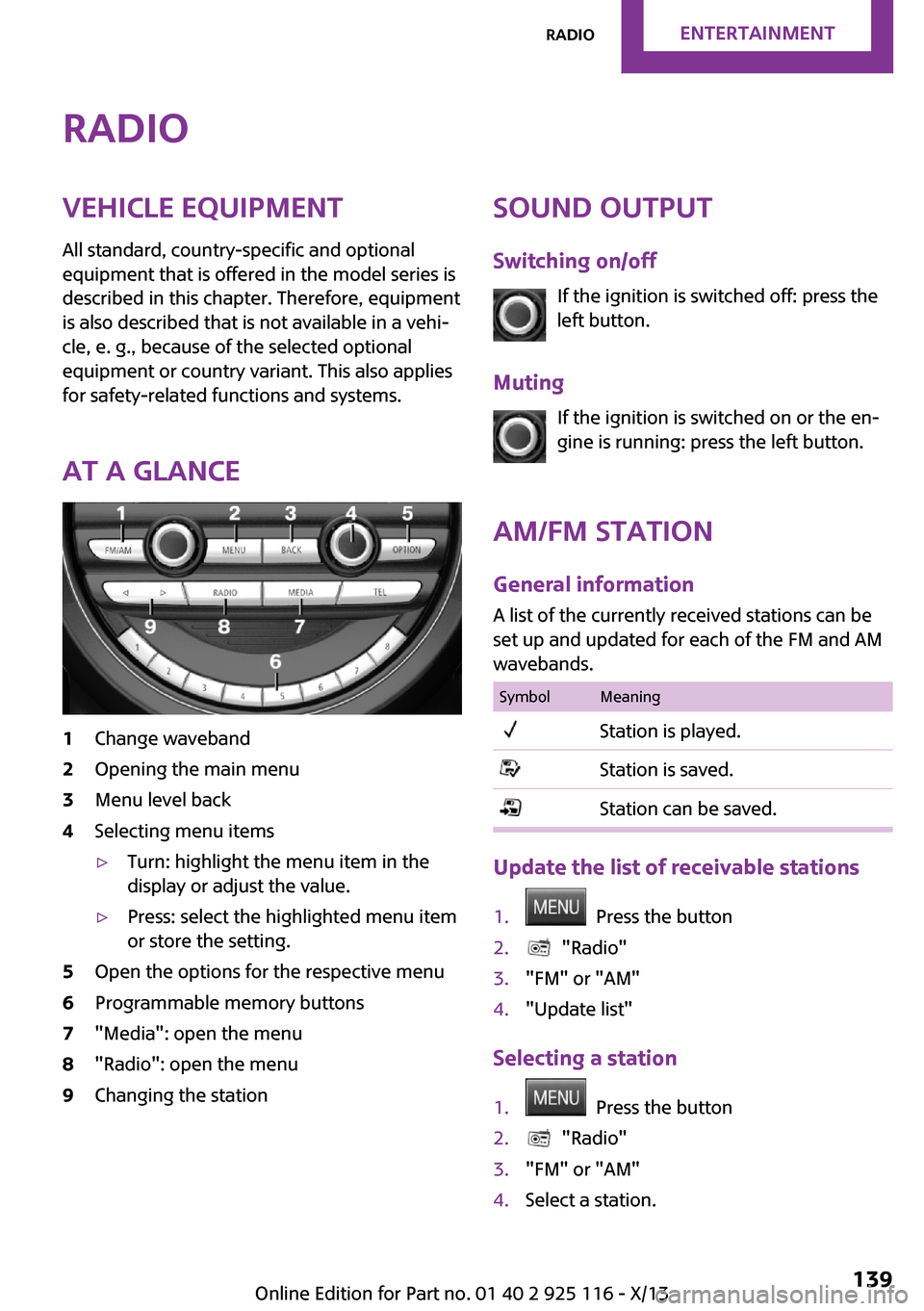
At a glance1Change waveband2Opening the main menu3Menu level back4Selecting menu items▷Turn: highlight the menu item in the
display or adjust the value.▷Press: select the highlighted menu item
or store the setting.5Open the options for the respective menu6Programmable memory buttons7"Media": open the menu8"Radio": open the menu9Changing the stationSound output
Switching on/off If the ignition is switched off: press the
left button.
Muting If the ignition is switched on or the en‐
gine is running: press the left button.
AM/FM station General information
A list of the currently received stations can be
set up and updated for each of the FM and AM
wavebands.SymbolMeaningStation is played.Station is saved.Station can be saved.
Update the list of receivable stations
1. Press the button2. "Radio"3."FM" or "AM"4."Update list"
Selecting a station
1. Press the button2. "Radio"3."FM" or "AM"4.Select a station.Seite 139RadioEntertainment139
Online Edition for Part no. 01 40 2 925 116 - X/13