radio MINI COOPER CONVERTIBLE 2011 User Guide
[x] Cancel search | Manufacturer: MINI, Model Year: 2011, Model line: COOPER CONVERTIBLE, Model: MINI COOPER CONVERTIBLE 2011Pages: 186, PDF Size: 3.25 MB
Page 74 of 186
Technology for driving comfort and safety
72
The front and side airbags for the front pas-
senger are not activated.
Most child seats are detected by the
system. This particularly applies to
child seats that were required by NHTSA at
the time of manufacture of the vehicle. After
installing a child seat, check that the indica-
tor lamp for the front passenger airbags
comes on. It indicates that the child seat has
been detected and that the front passenger
airbags are deactivated.<
>T h e i n d i c a t o r l a m p d o e s n o t c o m e o n a s l o n g
as a person of sufficient size and in a correct
sitting position is detected on the seat.
The front and side airbags for the front pas-
senger are activated.
>The indicator lamp does not come on if the
seat is empty.
The front and side airbags for the front pas-
senger are not activated.
Operational readiness of airbag system
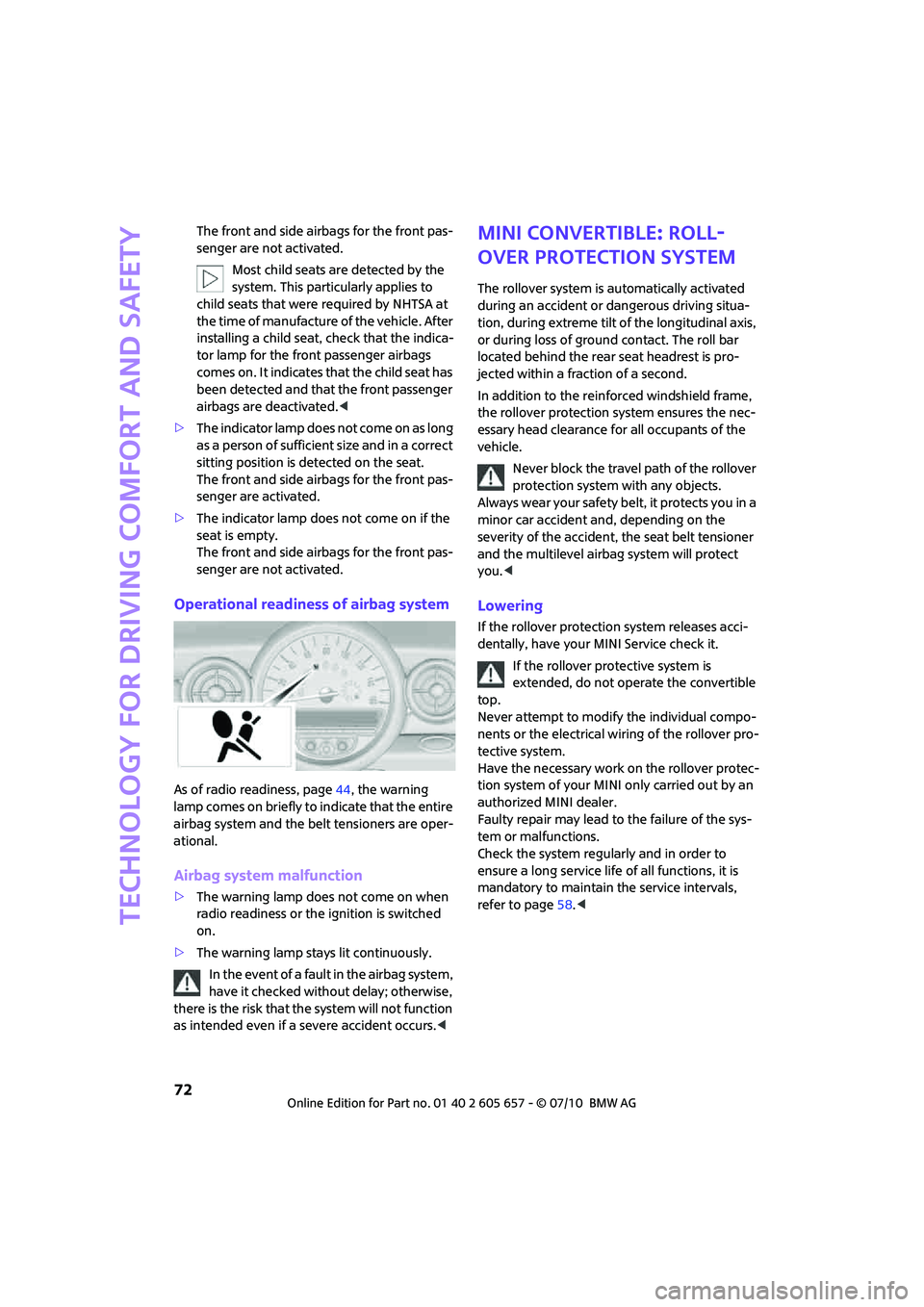
As of radio readiness, page44, the warning
lamp comes on briefly to indicate that the entire
airbag system and the belt tensioners are oper-
ational.
Airbag system malfunction
>The warning lamp does not come on when
radio readiness or the ignition is switched
on.
>The warning lamp stays lit continuously.
In the event of a fault in the airbag system,
have it checked without delay; otherwise,
there is the risk that the system will not function
as intended even if a severe accident occurs.<
MINI Convertible: Roll-
over protection system
The rollover system is automatically activated
during an accident or dangerous driving situa-
tion, during extreme tilt of the longitudinal axis,
or during loss of ground contact. The roll bar
located behind the rear seat headrest is pro-
jected within a fraction of a second.
In addition to the reinforced windshield frame,
the rollover protection system ensures the nec-
essary head clearance for all occupants of the
vehicle.
Never block the travel path of the rollover
protection system with any objects.
Alwa ys wea r your safe ty belt , it protects you in a
minor car accident and, depending on the
severity of the accident, the seat belt tensioner
and the multilevel airbag system will protect
you.<
Lowering
If the rollover protection system releases acci-
dentally, have your MINI Service check it.
If the rollover protective system is
extended, do not operate the convertible
top.
Never attempt to modify the individual compo-
nents or the electrical wiring of the rollover pro-
tective system.
Have the necessary work on the rollover protec-
tion system of your MINI only carried out by an
authorized MINI dealer.
Faulty repair may lead to the failure of the sys-
tem or malfunctions.
Check the system regularly and in order to
ensure a long service life of all functions, it is
mandatory to maintain the service intervals,
refer to page58.<
Page 85 of 186
83
AT A GLANCE REFERENCE MOBILITYCONTROLS DRIVING TIPS COMMUNICATIONS
Practical interior accessories
Integrated universal
remote control*
The concept
The integrated universal remote control can
replace as many as three hand-held transmitters
for various remote-controlled devices, such as
garage and gate openers and lighting systems.
The integrated universal remote control regis-
ters and stores signals from the original hand-
held transmitters.
The signal of an original hand-held transmitter
can be programmed on one of the three mem-
ory buttons1. The system in question can then
be operated by means of the programmed
memory button1. The LED2 flashes to confirm
transmission of the signal.
If you decide to sell your vehicle one day, in the
interest of your own security, remember to clear
the stored programs before the vehicle leaves
your possession, page84.
To prevent possible damage or injury,
before programming or using the inte-
grated universal remote control, always inspect
the immediate area to make certain that no
people, animals or objects are within the pivot-
ing or travel range of the device being operated.
Comply also with the safety instructions supplied
with the original hand-held transmitter.<
Checking compatibility
If this symbol appears on the package
or in the instructions supplied with the
original hand-held transmitter, you can
assume that the radio remote control device is
compatible with the integrated universal remote
control.
For additional information, please contact your
MINI dealer or call: 1-800-355-3515.You can also obtain information on the Internet
at:
www.MINI.com or
www.homelink.com
HomeLink is a registered trademark of Johnson
Controls, Inc.
Programming
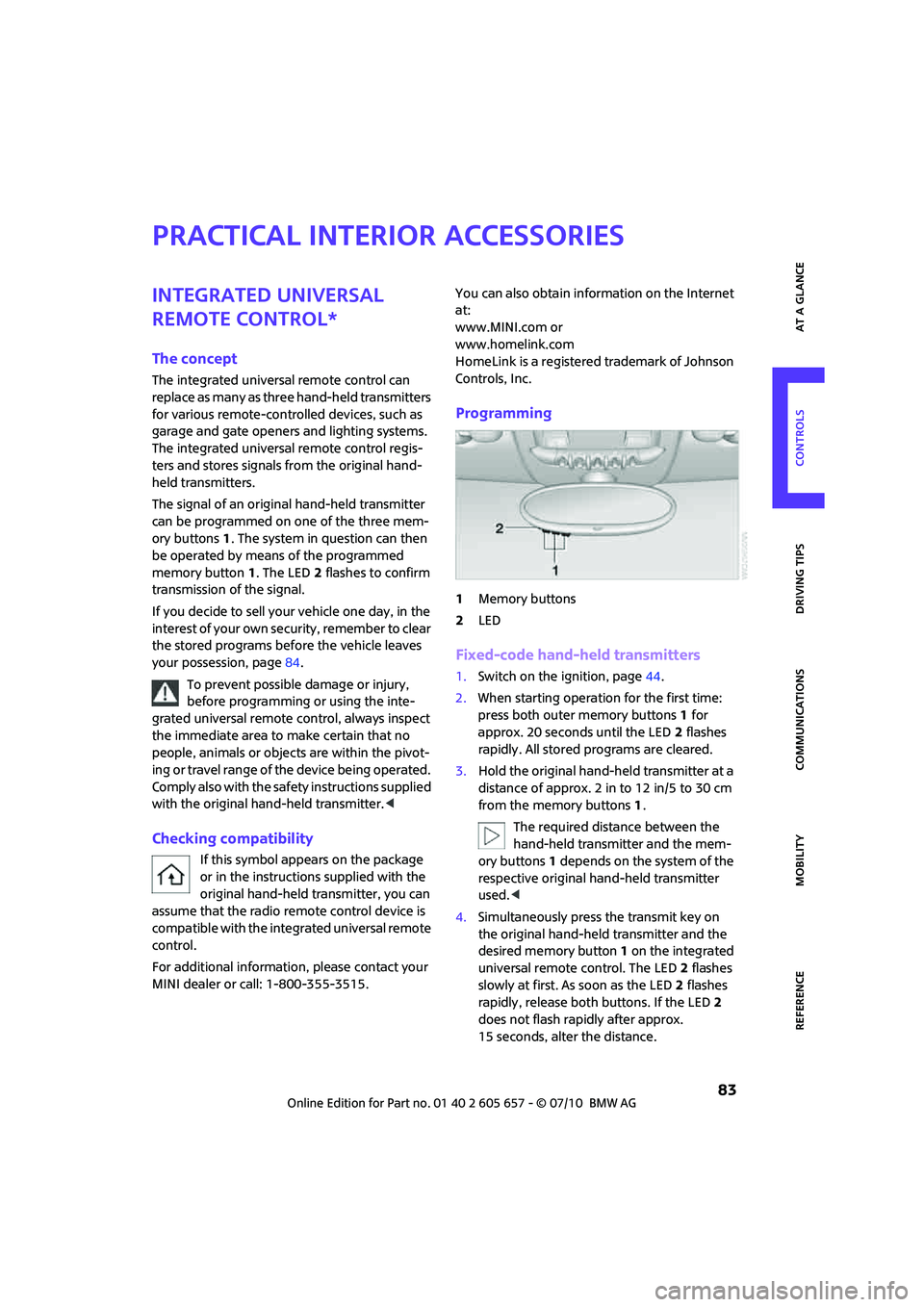
1Memory buttons
2LED
Fixed-code hand-held transmitters
1.Switch on the ignition, page44.
2.When starting operation for the first time:
press both outer memory buttons1 for
approx. 20 seconds until the LED2 flashes
rapidly. All stored programs are cleared.
3.Hold the original hand-held transmitter at a
distance of approx. 2 in to 12 in/5 to 30 cm
from the memory buttons1.
The required distance between the
hand-held transmitter and the mem-
ory buttons1 depends on the system of the
respective original hand-held transmitter
used.<
4.Simultaneously press the transmit key on
the original hand-held transmitter and the
desired memory button 1 on the integrated
universal remote control. The LED 2 flashes
slowly at first. As soon as the LED2 flashes
rapidly, release both buttons. If the LED2
does not flash rapidly after approx.
15 seconds, alter the distance.
Page 86 of 186
Practical interior accessories
84
5.To program other original hand-held trans-
mitters, repeat steps 3 and 4.
The corresponding memory button 1 is now
programmed with the signal of the original
hand-held transmitter.
You can operate the system with the engine
running or with the ignition switched on.
If the system fails to function even after
repeated programming, check whether
the original hand-held transmitter uses an alter-
nating-code system. To do so, either read the
instructions for the original hand-held transmit-
ter or hold down the programmed memory
button1 of the integrated universal remote con-
trol. If the LED2 on the integrated universal
remote control flashes rapidly and then remains
lit for about two seconds, the original hand-held
transmitter uses an alternating-code system. If it
uses an alternating-code system, program the
memory buttons1 as described under Alternat-
ing-code hand-held transmitters.<
Alternating-code hand-held
transmitters
To program the integrated universal remote
control, consult the operating instructions for
the device to be set. You will find information
there on the possibilities for synchronization or
programming of additional hand-held transmit-
ters.
When programming hand-held transmitters that
employ an alternating code, please observe the
following supplementary instructions:
Programming will be easier with the aid of
a second person.<
1.Park your vehicle within the range of the
remote-controlled device.
Do not exceed a distance of 50 m from
the radio remote controlled device.
2.Program the integrated universal remote
control as described above in the section
Fixed-code hand-held transmitters.
3.Locate the button on the receiver of the
device to be set, e.g. on the drive unit.4.Press the button on the receiver of the
device to be set. After step 4, you have
approx. 30 seconds for the next step 5.
5.Press the programmed memory button1 of
the integrated universal remote control
three times.
The corresponding memory button 1 is now
programmed with the signal of the original
hand-held transmitter.
Clearing stored programs
Press both outer memory buttons1 for approx.
20 seconds until the LED2 flashes: all stored
programs are cleared.
It is not possible to clear individual programs.
Reassigning individual programs
1.Hold the original hand-held transmitter at a
distance of approx. 2 in to 12 in/5 to 30 cm
from the memory buttons1.
The required distance between the
hand-held transmitter and the mem-
ory buttons1 depends on the system of the
respective original hand-held transmitter
used.<
2.Press the desired memory button1 of the
integrated universal remote control.
3.If the LED 2 flashes slowly after approx.
20 seconds, press the transmit key of the
original hand-held transmitter and release
both buttons as soon as the LED2 flashes
rapidly.
If the LED 2 does not flash rapidly after
approx. 15 seconds, alter the distance and
repeat this step.
Page 88 of 186
Practical interior accessories
86
>When connecting two Apple devices such as
an iPod via the USB audio interface and an
iPhone via the snap-in adapter
*, one of the
respective devices will be supported for
audio playback.
Connecting via the USB audio interface
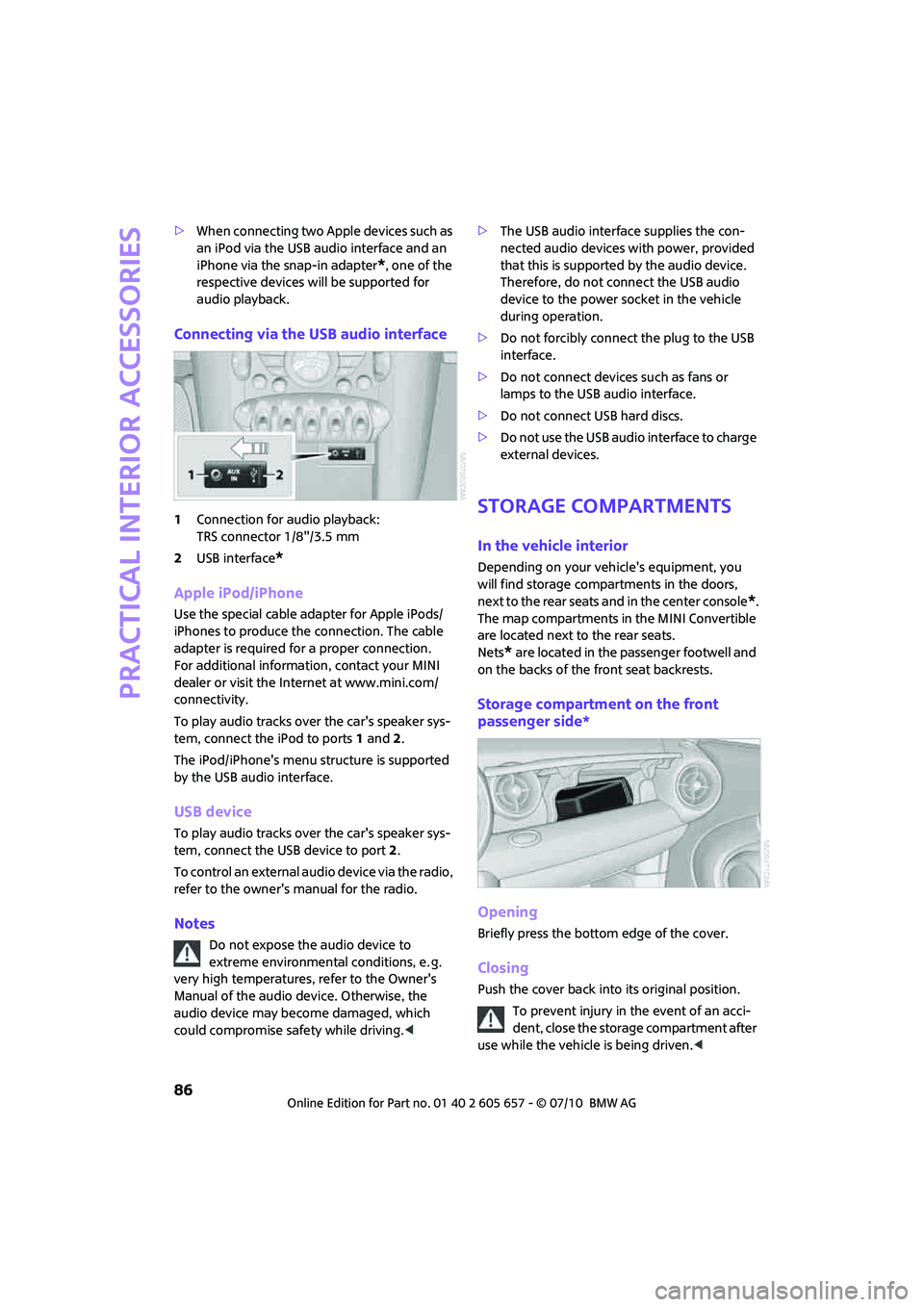
1Connection for audio playback:
TRS connector 1/8"/3.5 mm
2USB interface
*
Apple iPod/iPhone
Use the special cable adapter for Apple iPods/
iPhones to produce the connection. The cable
adapter is required for a proper connection.
For additional information, contact your MINI
dealer or visit the Internet at www.mini.com/
connectivity.
To play audio tracks over the car's speaker sys-
tem, connect the iPod to ports 1 and 2.
The iPod/iPhone's menu structure is supported
by the USB audio interface.
USB device
To play audio tracks over the car's speaker sys-
tem, connect the USB device to port2.
To control an external audio device via the radio,
refer to the owner's manual for the radio.
Notes
Do not expose the audio device to
extreme environmental conditions, e. g.
very high temperatures, refer to the Owner's
Manual of the audio device. Otherwise, the
audio device may become damaged, which
could compromise safety while driving.<>The USB audio interface supplies the con-
nected audio devices with power, provided
that this is supported by the audio device.
Therefore, do not connect the USB audio
device to the power socket in the vehicle
during operation.
>Do not forcibly connect the plug to the USB
interface.
>Do not connect devices such as fans or
lamps to the USB audio interface.
>Do not connect USB hard discs.
>Do not use the USB audio interface to charge
external devices.
Storage compartments
In the vehicle interior
Depending on your vehicle's equipment, you
will find storage compartments in the doors,
next to the rear seats and in the center console
*.
The map compartments in the MINI Convertible
are located next to the rear seats.
Nets
* are located in the passenger footwell and
on the backs of the front seat backrests.
Storage compartment on the front
passenger side*
Opening
Briefly press the bottom edge of the cover.
Closing
Push the cover back into its original position.
To prevent injury in the event of an acci-
dent, close the storage compartment after
use while the vehicle is being driven.<
Page 104 of 186
Telephone
102
Telephone
Overview
The concept
Mobile phones or other external devices, e.g.
audio players, can be connected to the vehicle
via Bluetooth.
Your MINI is equipped with a complete mobile
phone preparation. After a suitable mobile
phone is paired with the vehicle once, the
mobile phone can be controlled via the radio,
the buttons
* on the steering wheel, and by
voice
*.
It may be necessary for some functions to be
activated by the mobile phone provider.
Only make entries when traffic conditions
permit. Do not hold the mobile phone in
your hand while you are driving; use the hands-
free system instead. If you do not observe this
precaution, your being distracted can endanger
vehicle occupants and other road users.<
Snap-in adapter*
The snap-in adapter, refer to page113, makes it
possible to:
>Accommodate the mobile phone.
>Recharge its battery.
>Connect it to an external antenna of the
vehicle.
This assures a better network connection
and constant sound quality.
A mobile phone that is connected to the vehicle
should not be operated via the mobile phone
keypad; otherwise, malfunctions may occur.
Suitable mobile phones
For precise information about which mobile
phones and external devices can be with a Blue-
tooth interface are supported by the complete
mobile phone preparation, go to
www.mini.com/connectivity.
*
Page 105 of 186
103
AT A GLANCE REFERENCE MOBILITYCONTROLS DRIVING TIPS COMMUNICATIONS
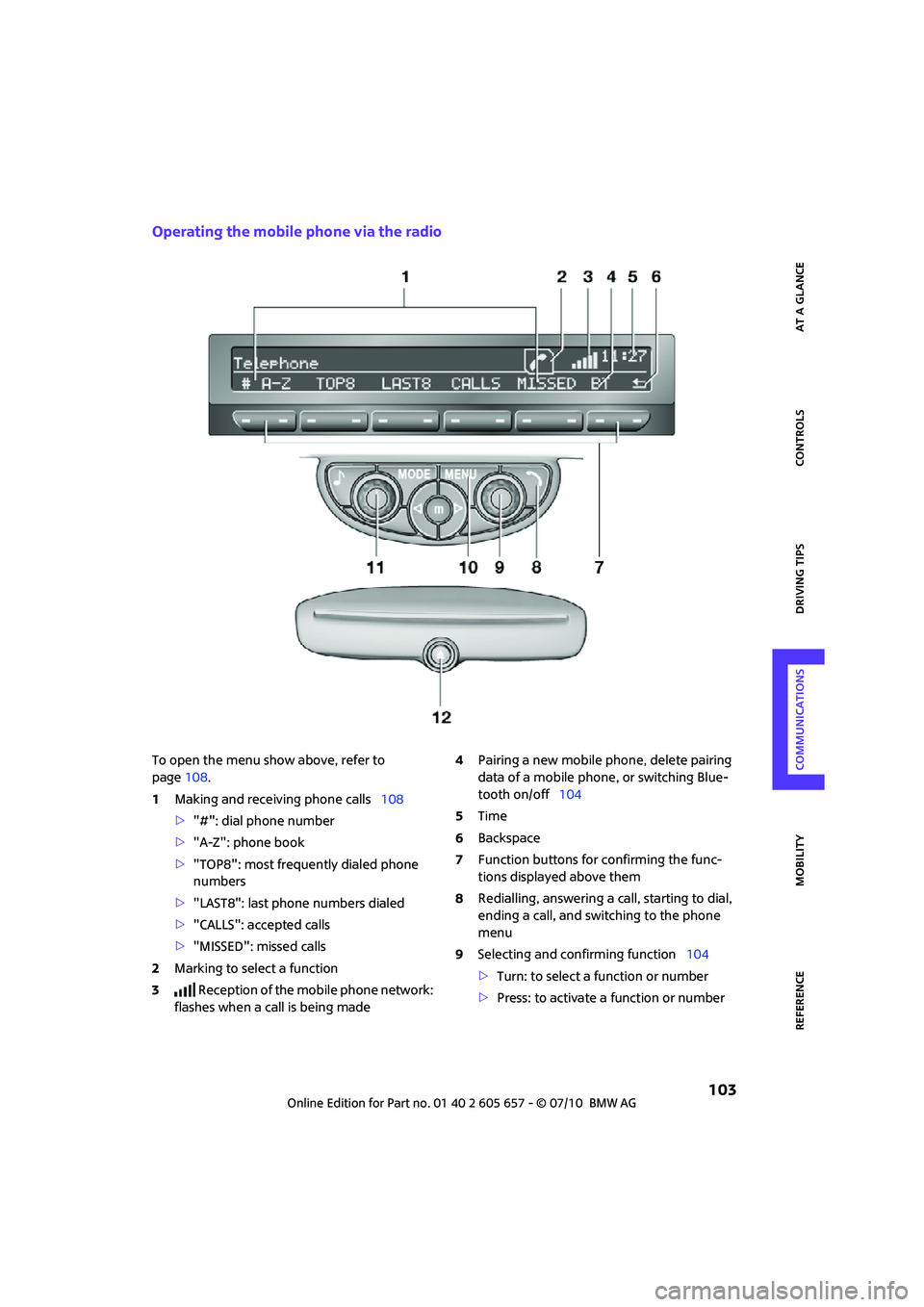
Operating the mobile phone via the radio
To open the menu show above, refer to
page108.
1Making and receiving phone calls108
>"#": dial phone number
>"A-Z": phone book
>"TOP8": most frequently dialed phone
numbers
>"LAST8": last phone numbers dialed
>"CALLS": accepted calls
>"MISSED": missed calls
2Marking to select a function
3 Reception of the mobile phone network:
flashes when a call is being made4Pairing a new mobile phone, delete pairing
data of a mobile phone, or switching Blue-
tooth on/off104
5Time
6Backspace
7Function buttons for confirming the func-
tions displayed above them
8Redialling, answering a call, starting to dial,
ending a call, and switching to the phone
menu
9Selecting and confirming function104
>Turn: to select a function or number
>Press: to activate a function or number
Page 106 of 186
Telephone
104
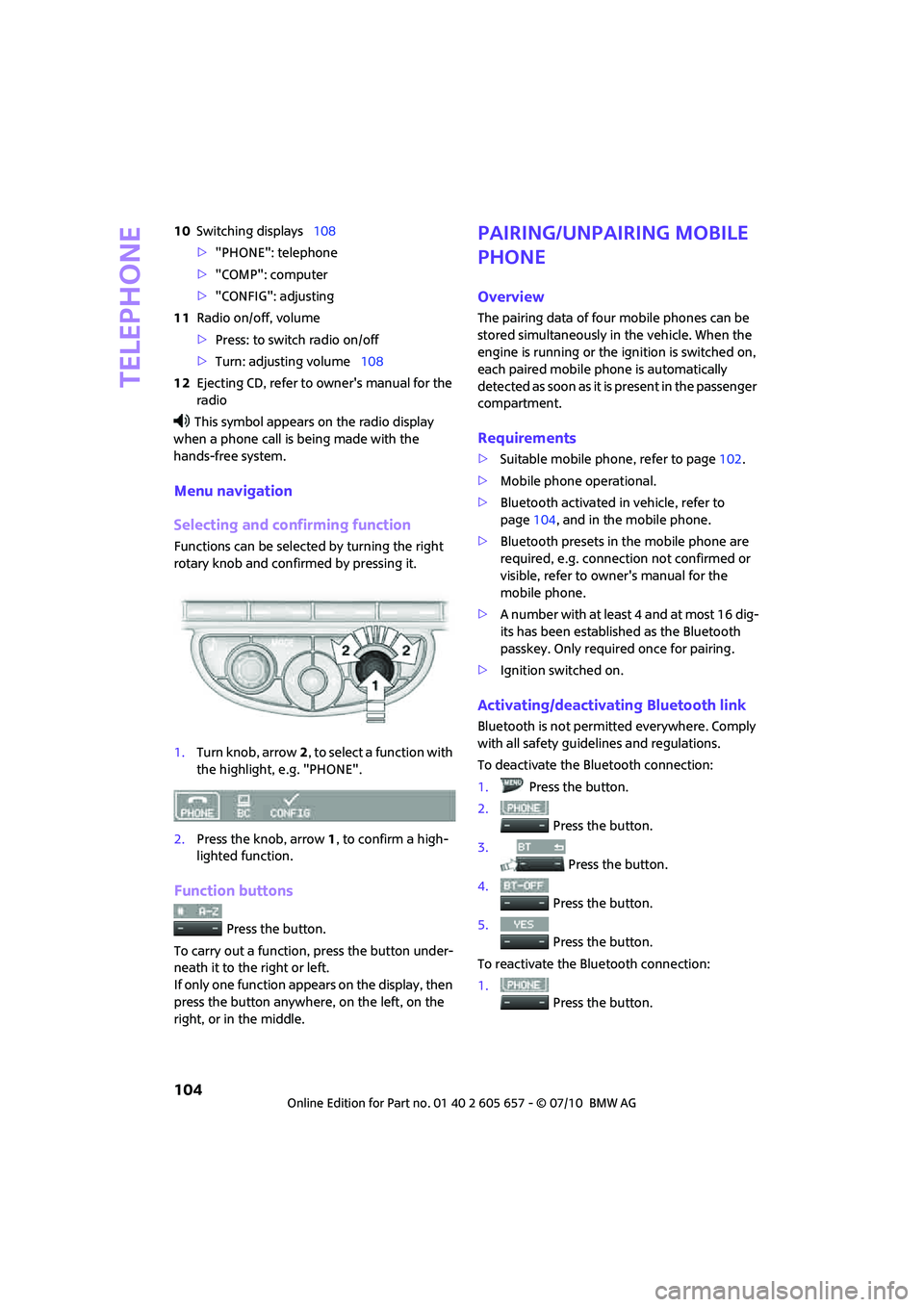
10Switching displays108
>"PHONE": telephone
>"COMP": computer
>"CONFIG": adjusting
11Radio on/off, volume
>Press: to switch radio on/off
>Turn: adjusting volume108
12Ejecting CD, refer to owner's manual for the
radio
This symbol appears on the radio display
when a phone call is being made with the
hands-free system.
Menu navigation
Selecting and confirming function
Functions can be selected by turning the right
rotary knob and confirmed by pressing it.
1.Turn knob, arrow2, to select a function with
the highlight, e.g. "PHONE".
2.Press the knob, arrow1, to confirm a high-
lighted function.
Function buttons
Press the button.
To carry out a function, press the button under-
neath it to the right or left.
If only one function appears on the display, then
press the button anywhere, on the left, on the
right, or in the middle.
Pairing/unpairing mobile
phone
Overview
The pairing data of four mobile phones can be
stored simultaneously in the vehicle. When the
engine is running or the ignition is switched on,
each paired mobile phone is automatically
detected as soon as it is present in the passenger
compartment.
Requirements
>Suitable mobile phone, refer to page102.
>Mobile phone operational.
>Bluetooth activated in vehicle, refer to
page104, and in the mobile phone.
>Bluetooth presets in the mobile phone are
required, e.g. connection not confirmed or
visible, refer to owner's manual for the
mobile phone.
>A number with at least 4 and at most 16 dig-
its has been established as the Bluetooth
passkey. Only required once for pairing.
>Ignition switched on.
Activating/deactivating Bluetooth link
Bluetooth is not permitted everywhere. Comply
with all safety guidelines and regulations.
To deactivate the Bluetooth connection:
1.Press the button.
2.
Press the button.
3.
Press the button.
4.
Press the button.
5.
Press the button.
To reactivate the Bluetooth connection:
1.
Press the button.
Page 107 of 186

105
AT A GLANCE REFERENCE MOBILITYCONTROLS DRIVING TIPS COMMUNICATIONS
2.
Press the button.
Pairing and connecting
Only pair the mobile phone when the
vehicle is stopped; otherwise, inattention
may lead to endangerment of passengers or
other road users.<
Switching on ignition
1.Insert the remote control as far as possible
into the ignition lock.
2.Switch on the ignition; to do so, press the
start/stop button without stepping on the
brake or clutch pedal.
Preparation on the radio display
3.Press the button.
4.
Press the button.
5.
Press the button.
6.
Press the button.
Press the right rotary knob to display the Blue-
tooth name of your vehicle on the display.
Preparation with mobile phone
7.Other operations must be performed on the
mobile phone and differ depending on the
type of mobile phone, refer to owner's man-
ual of the mobile phone, e.g. under Con-necting or coupling Bluetooth device. The
Bluetooth name of the vehicle appears on
the mobile phone display.
8.Select the Bluetooth name of the vehicle on
the mobile phone display.
Pairing
The mobile phone or the radio display will
prompt you to enter the same Bluetooth pass-
key.
Depending on the mobile phone, you have
approx. 30 seconds to enter the Bluetooth pass-
key using the mobile phone and the radio dis-
play.
If the Bluetooth passkey can be entered using
the radio, then the following appears on the dis-
play:
:
9.Enter the Bluetooth passkey using the num-
ber buttons of the mobile phone.
10.
Press the button to enter the Blue-
tooth passkey using the radio.
11.Using the function buttons 0-9, enter the
same Bluetooth passkey that was entered
into the mobile phone.
To delete the last digit:
Press the button.
12.
Press the button to confirm the
Bluetooth passkey.
The following display will appear after a few
seconds:
Page 108 of 186
Telephone
106
13.
Press the button if necessary.
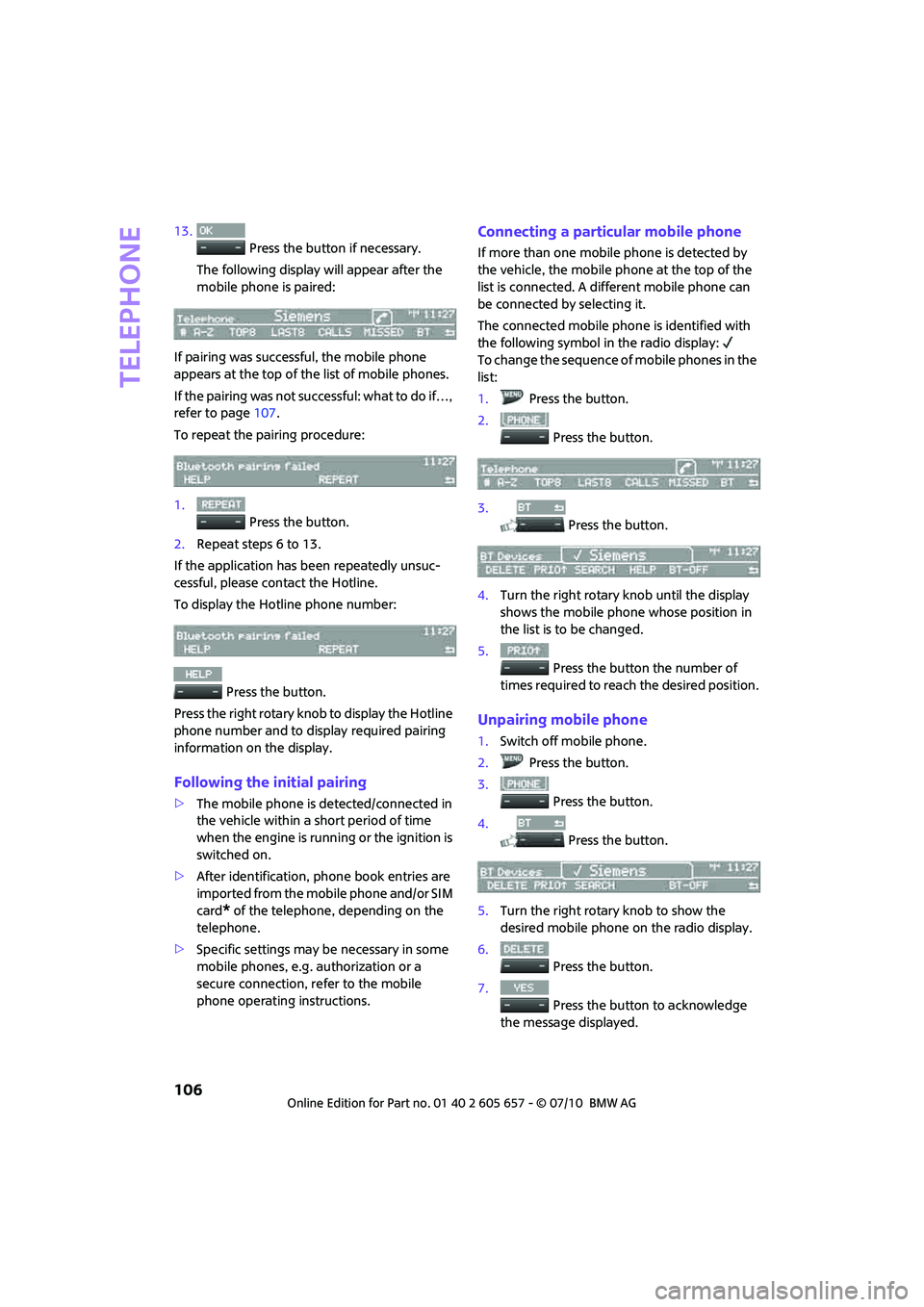
The following display will appear after the
mobile phone is paired:
If pairing was successful, the mobile phone
appears at the top of the list of mobile phones.
If the pairing was not successful: what to do if…,
refer to page107.
To repeat the pairing procedure:
1.
Press the button.
2.Repeat steps 6 to 13.
If the application has been repeatedly unsuc-
cessful, please contact the Hotline.
To display the Hotline phone number:
Press the button.
Press the right rotary knob to display the Hotline
phone number and to display required pairing
information on the display.
Following the initial pairing
>The mobile phone is detected/connected in
the vehicle within a short period of time
when the engine is running or the ignition is
switched on.
>After identification, phone book entries are
imported from the mobile phone and/or SIM
card
* of the telephone, depending on the
telephone.
>Specific settings may be necessary in some
mobile phones, e.g. authorization or a
secure connection, refer to the mobile
phone operating instructions.
Connecting a particular mobile phone
If more than one mobile phone is detected by
the vehicle, the mobile phone at the top of the
list is connected. A different mobile phone can
be connected by selecting it.
The connected mobile phone is identified with
the following symbol in the radio display:
To change the sequence of mobile phones in the
list:
1.Press the button.
2.
Press the button.
3.
Press the button.
4.Turn the right rotary knob until the display
shows the mobile phone whose position in
the list is to be changed.
5.
Press the button the number of
times required to reach the desired position.
Unpairing mobile phone
1.Switch off mobile phone.
2.Press the button.
3.
Press the button.
4.
Press the button.
5.Turn the right rotary knob to show the
desired mobile phone on the radio display.
6.
Press the button.
7.
Press the button to acknowledge
the message displayed.
Page 109 of 186
107
AT A GLANCE REFERENCE MOBILITYCONTROLS DRIVING TIPS COMMUNICATIONS
What to do if…
For information on suitable mobile phones, refer
to page102.
The mobile phone could not be paired or con-
nected.
>Is Bluetooth activated in the vehicle and in
the mobile phone? Activate Bluetooth in the
vehicle and in the mobile phone.
>Do the Bluetooth passkeys on the mobile
phone and the vehicle match? Enter the
same passkey on the mobile phone and via
the radio.
>Is the passkey input taking longer than 30
seconds? Repeat the pairing procedure.
>Are too many Bluetooth devices connected
to the mobile phone? If so, delete the con-
nections with other devices on the mobile
phone.
>Is the mobile phone in power economy
m o d e o r d o e s i t o n l y h a v e a s m a l l a m o u n t o f
battery charge remaining? Charge the
mobile phone in the snap-in adapter
* or via
a charging cable.
>Depending on the mobile phone, it may only
be possible to connect one device to the
vehicle. Unpair the connected device from
the vehicle and only pair and connect one
device.
>Is the mobile phone no longer responding?
Switch the mobile phone off and back on
again. Repeat the pairing procedure.
Phone book entries are not displayed, not all of
them are displayed, or they are displayed
incompletely.
>The transfer of phone book entries has not
yet completed.
>It is possible that only the phone book
entries of the mobile phone or the SIM card
*
are transferred.
>It may not be possible to display phone book
entries with special characters.
>The number of phone book entries to be
stored is too high.
>The data volume of the phone book entry is
too great, e.g. due to additionally stored information such as notes? Reduce the data
volume.
The telephone connection quality is low.
>Depending on the mobile phone, it is possi-
ble to adjust the strength of the Bluetooth
signal.
>Insert the mobile phone into the snap-in
adapter
* o r p la ce it in t h e v ic in it y o f t h e ce n -
ter console.
>Adjust the volume of the microphone and
speaker separately.
If you have gone through all items in the list and
still cannot activate the desired function please
contact the Hotline or your MINI center.
Operation
Overview
The following functions can be operated using
the radio:
>Accepting/refusing a call
>Dialing phone numbers
>Dialing a phone number from the phone
book
>Dialing a stored phone number, e.g. from
the list of accepted calls
>Ending a call
When the ignition is switched off and in radio-
ready mode, e.g. after removal of the infrared
remote control, an ongoing conversation can be
continued for a maximum of 25 minutes using
the hands-free system.