light MINI Countryman 2011 (Mini Connected) Repair Manual
[x] Cancel search | Manufacturer: MINI, Model Year: 2011, Model line: Countryman, Model: MINI Countryman 2011Pages: 254, PDF Size: 3.84 MB
Page 161 of 254
Hands-free device BluetoothCommunications
159
Keypad dialing
Use keypad dialing to gain access to network
services or to control de vices, e.g. to remotely
access an answering machine. This requires the
DTMF code.
1. "Telephone"
2. Select contact from a list or
"Dial number"
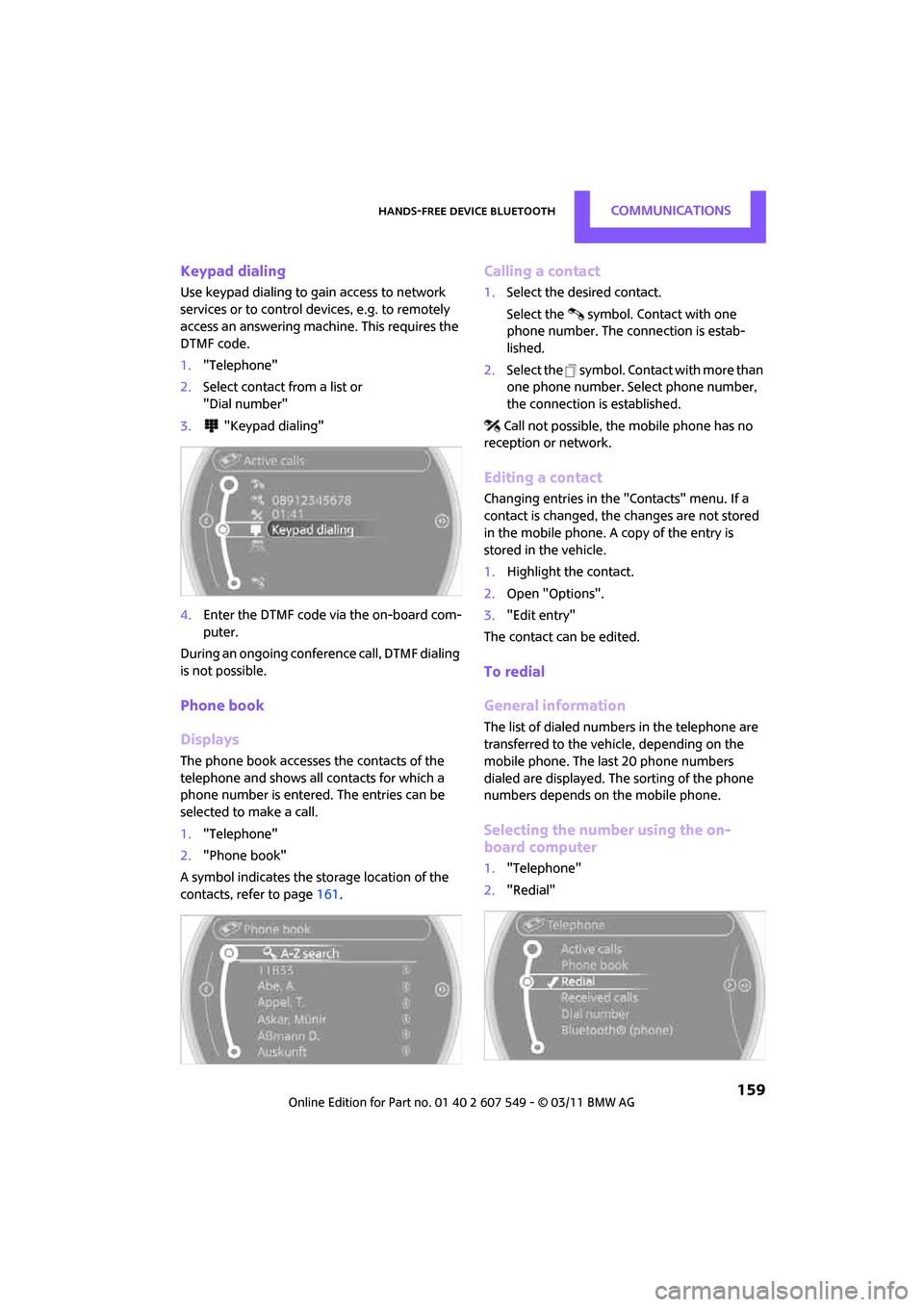
3. "Keypad dialing"
4. Enter the DTMF code via the on-board com-
puter.
During an ongoing confer ence call, DTMF dialing
is not possible.
Phone book
Displays
The phone book accesses the contacts of the
telephone and shows all contacts for which a
phone number is entered. The entries can be
selected to make a call.
1. "Telephone"
2. "Phone book"
A symbol indicates the storage location of the
contacts, refer to page 161.
Calling a contact
1.Select the desired contact.
Select the symbol. Contact with one
phone number. The connection is estab-
lished.
2. Select the symbol. Contact with more than
one phone number. Select phone number,
the connection is established.
Call not possible, the mobile phone has no
reception or network.
Editing a contact
Changing entries in the "Contacts" menu. If a
contact is changed, the changes are not stored
in the mobile phone. A copy of the entry is
stored in the vehicle.
1. Highlight the contact.
2. Open "Options".
3. "Edit entry"
The contact can be edited.
To redial
General information
The list of dialed numbers in the telephone are
transferred to the vehicle, depending on the
mobile phone. The last 20 phone numbers
dialed are displayed. The sorting of the phone
numbers depends on the mobile phone.
Selecting the number using the on-
board computer
1. "Telephone"
2. "Redial"
Page 162 of 254
CommunicationsHands-free device Bluetooth
160
3.Select the desired entry and phone number,
if necessary.
The connection is established.
Deleting a single entry or all entries*
1. Highlight the entry.
2. Open "Options".
3. "Delete entry" or "Delete list".
Saving an entry in the contacts
1.Highlight the entry.
2. Open "Options".
3. "Store as new contact" or "Add to existing
contact".
4. Select the type of number: "Home", "Busi-
ness", "Mobile" or "Other".
5. Complete the entries if necessary.
6. "Store contact" if necessary
Received calls
Displaying calls
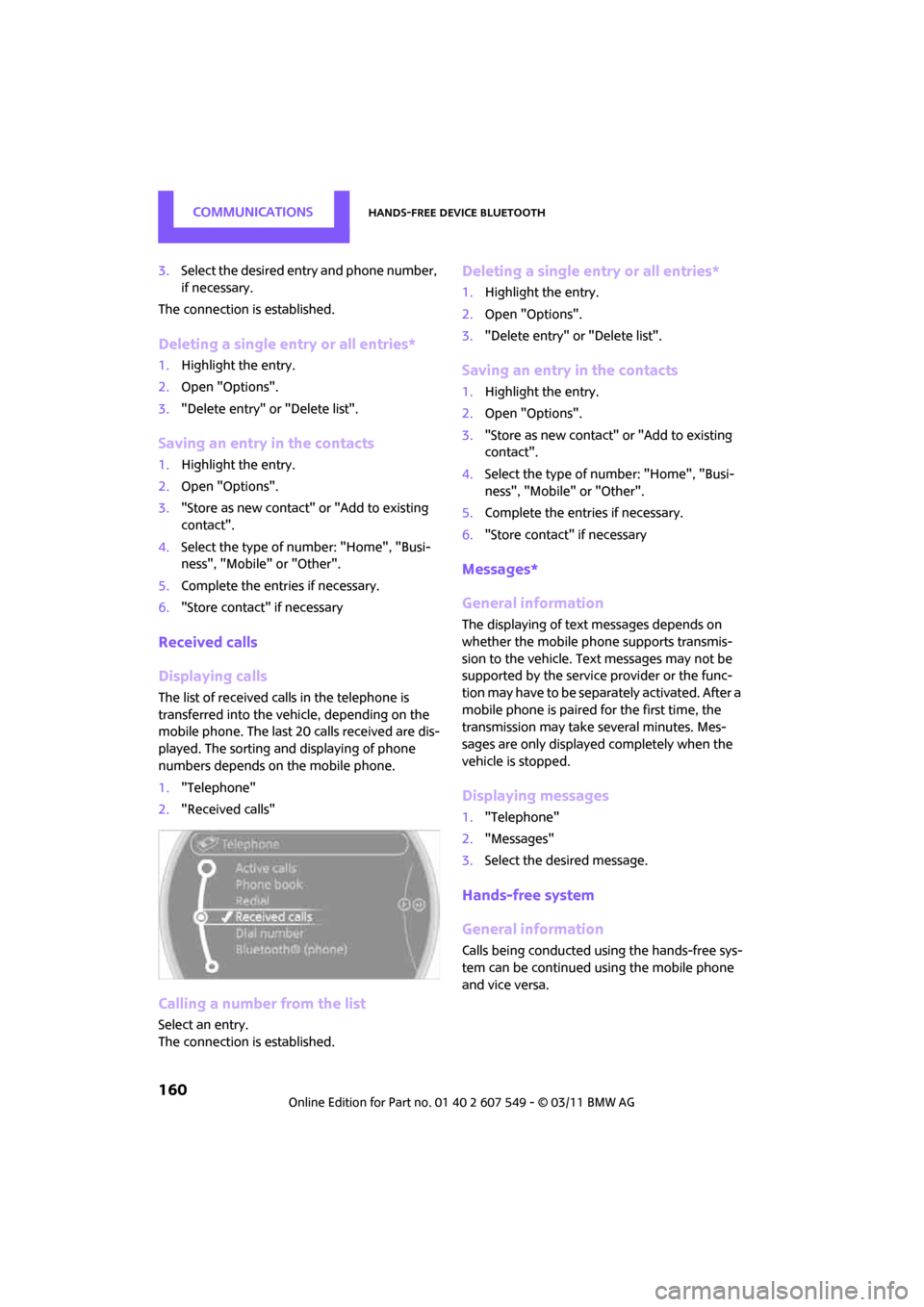
The list of received calls in the telephone is
transferred into the vehi cle, depending on the
mobile phone. The last 20 calls received are dis-
played. The sorting and displaying of phone
numbers depends on the mobile phone.
1. "Telephone"
2. "Received calls"
Calling a number from the list
Select an entry.
The connection is established.
Deleting a single entry or all entries*
1.Highlight the entry.
2. Open "Options".
3. "Delete entry" or "Delete list".
Saving an entry in the contacts
1.Highlight the entry.
2. Open "Options".
3. "Store as new contact" or "Add to existing
contact".
4. Select the type of number: "Home", "Busi-
ness", "Mobile" or "Other".
5. Complete the entries if necessary.
6. "Store contact" if necessary
Messages*
General information
The displaying of text messages depends on
whether the mobile phone supports transmis-
sion to the vehicle. Te xt messages may not be
supported by the service provider or the func-
tion may have to be separately activated. After a
mobile phone is paired for the first time, the
transmission may take several minutes. Mes-
sages are only displayed completely when the
vehicle is stopped.
Displaying messages
1. "Telephone"
2. "Messages"
3. Select the desired message.
Hands-free system
General information
Calls being conducted using the hands-free sys-
tem can be continued using the mobile phone
and vice versa.
Page 164 of 254
CommunicationsHands-free device Bluetooth
162
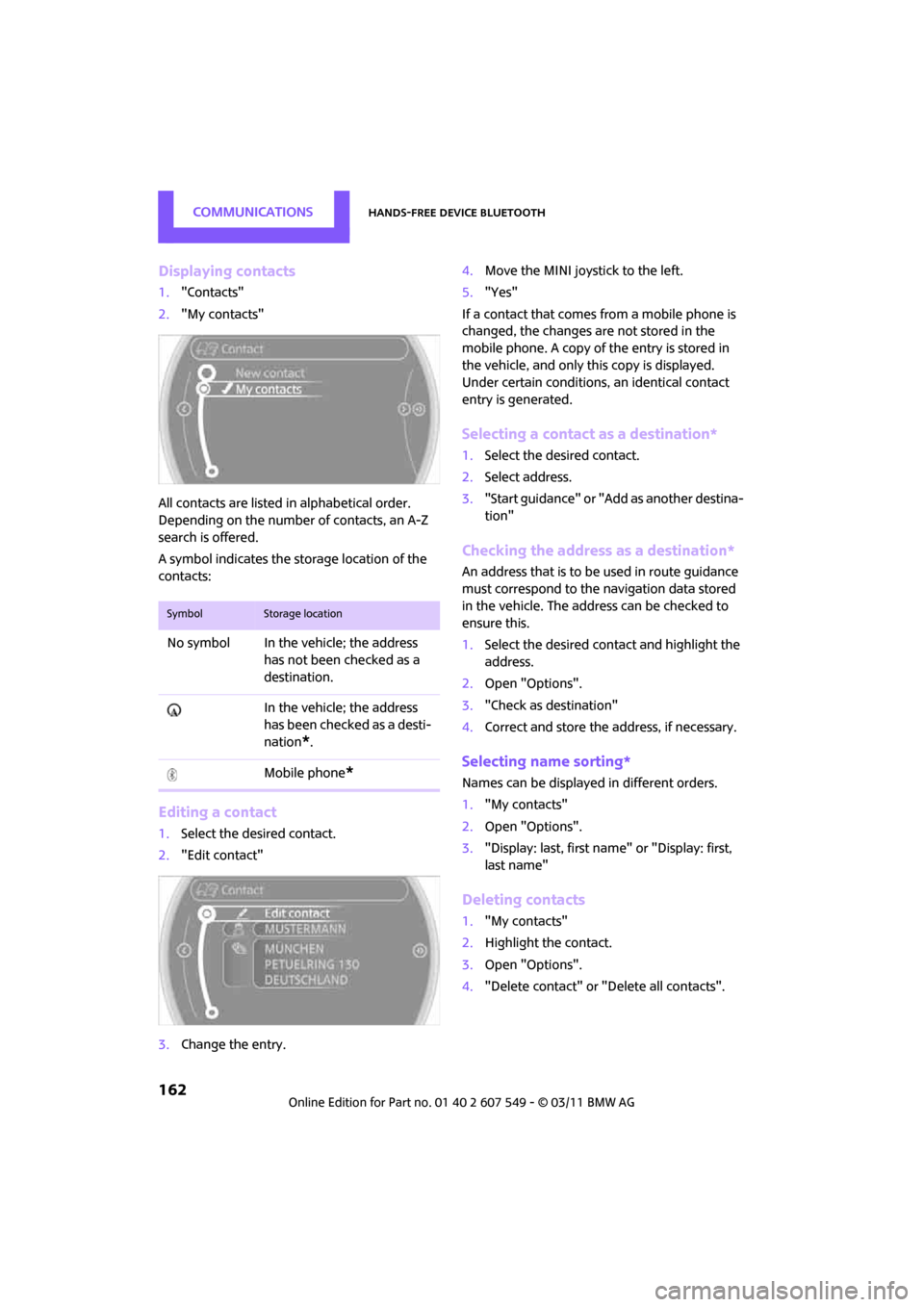
Displaying contacts
1."Contacts"
2. "My contacts"
All contacts are listed in alphabetical order.
Depending on the number of contacts, an A-Z
search is offered.
A symbol indicates the st orage location of the
contacts:
Editing a contact
1. Select the desired contact.
2. "Edit contact"
3. Change the entry. 4.
Move the MINI joystick to the left.
5. "Yes"
If a contact that comes from a mobile phone is
changed, the changes are not stored in the
mobile phone. A copy of the entry is stored in
the vehicle, and only th is copy is displayed.
Under certain conditions, an identical contact
entry is generated.
Selecting a contact as a destination*
1. Select the desired contact.
2. Select address.
3. "Start guidance" or "Add as another destina-
tion"
Checking the address as a destination*
An address that is to be used in route guidance
must correspond to the navigation data stored
in the vehicle. The address can be checked to
ensure this.
1. Select the desired contact and highlight the
address.
2. Open "Options".
3. "Check as destination"
4. Correct and store the address, if necessary.
Selecting name sorting*
Names can be displayed in different orders.
1."My contacts"
2. Open "Options".
3. "Display: last, first name" or "Display: first,
last name"
Deleting contacts
1."My contacts"
2. Highlight the contact.
3. Open "Options".
4. "Delete contact" or "Delete all contacts".
SymbolStorage location
No symbol In the vehicle; the address
has not been checked as a
destination.
In the vehicle; the address
has been checked as a desti-
nation
*.
Mobile phone
*
Page 168 of 254

CommunicationsMobile phone preparation Bluetooth
166
Connecting a particular mobile phone
If more than one mobile phone is detected by
the vehicle, the mobile phone at the top of the
list is connected. A different mobile phone can
be connected by selecting it.
1."Telephone"
2. "Bluetooth® (phone)"
All paired mobile phones are listed.
3. Select the mobile phone to be connected.
The assigned functions be fore the unpairing of
the mobile phone are assigned to the mobile
phone when it is reconnected. If a mobile phone
is already connected, then these functions are
deactivated if necessary.
Device options*
Device options in device s that are paired and
connected can be activated or deactivated.
Configuring device
1. "Telephone"
2. "Bluetooth® (phone)"
3. Highlight the device to be configured.
4. Open "Options". 5.
"Configure phone"
6. Activate/deactivate func tions. At least one
function must be selected.
> "Telephone"
> "Additional telephone"
> "Audio"
7. "OK"
If a device is assigned a function, this may deac-
tivate the function in an already connected
device and cause the other device to be
unpaired.
Exchanging the telephone and auxiliary
phone
If the telephone and auxiliary phone are con-
nected to the vehicle, the function can be
swapped between the two devices.
1. "Telephone"
2. "Bluetooth® (phone)"
3. "Swap phone/addit. phone"
Using the mobile phone as an audio
source
Using the audio-capable mobile phone as an
audio source. Activate Bluetooth audio, refer to
page 164.
Activating and connecting mobile phone in vehi-
cle, refer to page 165.
The mobile phone is used as an audio source if
no other device is connected as an audio source.
If a device is already connected as an audio
source:
Page 169 of 254
Mobile phone preparation BluetoothCommunications
167
1.Activating and connecting mobile phone in
vehicle, refer to page 165.
2. "Use for audio"
The mobile phone is connected as an audio
source. The previous audio source is no
longer connected to the vehicle.
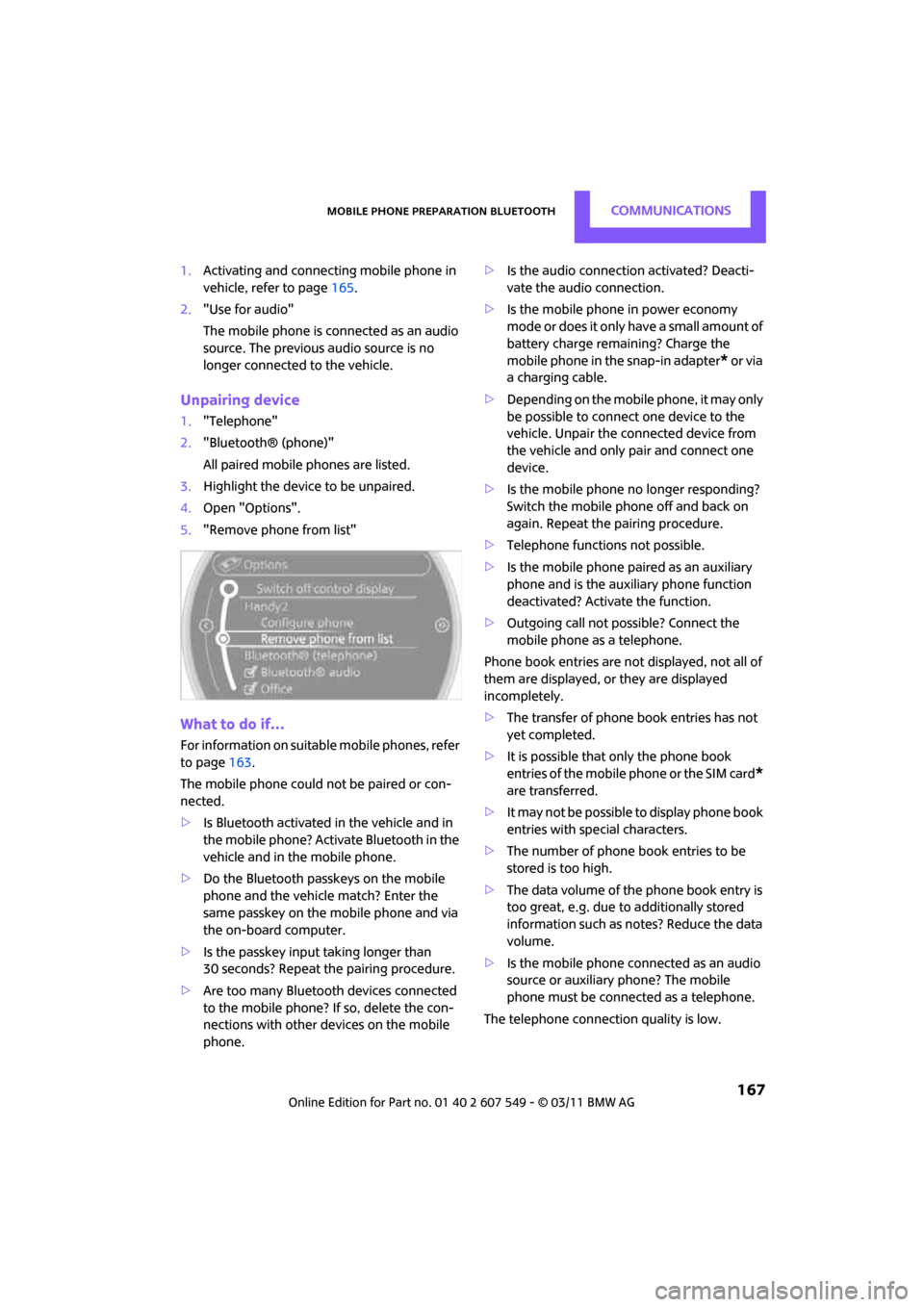
Unpairing device
1."Telephone"
2. "Bluetooth® (phone)"
All paired mobile phones are listed.
3. Highlight the device to be unpaired.
4. Open "Options".
5. "Remove phone from list"
What to do if…
For information on suitable mobile phones, refer
to page 163.
The mobile phone could not be paired or con-
nected.
> Is Bluetooth activated in the vehicle and in
the mobile phone? Activate Bluetooth in the
vehicle and in the mobile phone.
> Do the Bluetooth passkeys on the mobile
phone and the vehicle match? Enter the
same passkey on the mobile phone and via
the on-board computer.
> Is the passkey input taking longer than
30 seconds? Repeat the pairing procedure.
> Are too many Bluetooth devices connected
to the mobile phone? If so, delete the con-
nections with other devices on the mobile
phone. >
Is the audio connection activated? Deacti-
vate the audio connection.
> Is the mobile phone in power economy
m o d e o r d o e s i t o n l y h av e a s m a l l am o u n t o f
battery charge remaining? Charge the
mobile phone in the snap-in adapter
* or via
a charging cable.
> Depending on the mobile phone, it may only
be possible to connect one device to the
vehicle. Unpair the connected device from
the vehicle and only pair and connect one
device.
> Is the mobile phone no longer responding?
Switch the mobile phone off and back on
again. Repeat the pairing procedure.
> Telephone functions not possible.
> Is the mobile phone paired as an auxiliary
phone and is the auxiliary phone function
deactivated? Activate the function.
> Outgoing call not possible? Connect the
mobile phone as a telephone.
Phone book entries are not displayed, not all of
them are displayed, or they are displayed
incompletely.
> The transfer of phone book entries has not
yet completed.
> It is possible that only the phone book
entries of the mobile phone or the SIM card
*
are transferred.
> It may not be possible to display phone book
entries with special characters.
> The number of phone book entries to be
stored is too high.
> The data volume of the phone book entry is
too great, e.g. due to additionally stored
information such as notes? Reduce the data
volume.
> Is the mobile phone connected as an audio
source or auxiliary phone? The mobile
phone must be connected as a telephone.
The telephone connection quality is low.
Page 171 of 254

Mobile phone preparation BluetoothCommunications
169
1."Telephone"
2. "Active calls"
3. "End call"
Entering phone numbers
Dialing a number
1."Telephone"
2. "Dial number"
3. Select the digits individually.
4. Select the symbol.
It is also possible to enter phone numbers by
voice.
Calls with multiple parties
General information
It is possible to switch between two calls and to
connect two call s to form a conference call.
These functions must be supported by the
mobile phone and by the service provider.
Accepting a call while speaking to
another party
This function may have to be activated by the
service provider and the mobile phone may
need to be adjusted for this.
When a second call come s in during an ongoing
call, a call-waiting signal sounds.
"Accept"
The call is accepted and the existing call is put on
hold.
Establishing a second call
Establish another call during an active call.
1. "Telephone"
2. "Active calls"
3. "Hold"
The existing call is put on hold.
4. Dial the new phone number or select it from
a list.
Switching between two calls, toggling
Active call: highlighted.
The call on hold is identified with:
"on hold...".
Select the symbol to switch to the call on
hold
Establishing a conference call
Two calls can be connected to a single tele-
phone conference call.
Page 173 of 254
Mobile phone preparation BluetoothCommunications
171
Call not possible, the mobile phone has no
reception or network.
Editing a contact
Changing entries in the "Contacts" menu. If a
contact is changed, the changes are not stored
in the mobile phone. A copy of the entry is
stored in the vehicle.
1. Highlight the contact.
2. Open "Options".
3. "Edit entry"
The contact can be edited.
To redial
General information
The list of dialed numbers in the telephone are
transferred to the vehicle, depending on the
mobile phone. The last 20 phone numbers
dialed are displayed. The sorting of the phone
numbers depends on the mobile phone.
Selecting the number using the on-
board computer
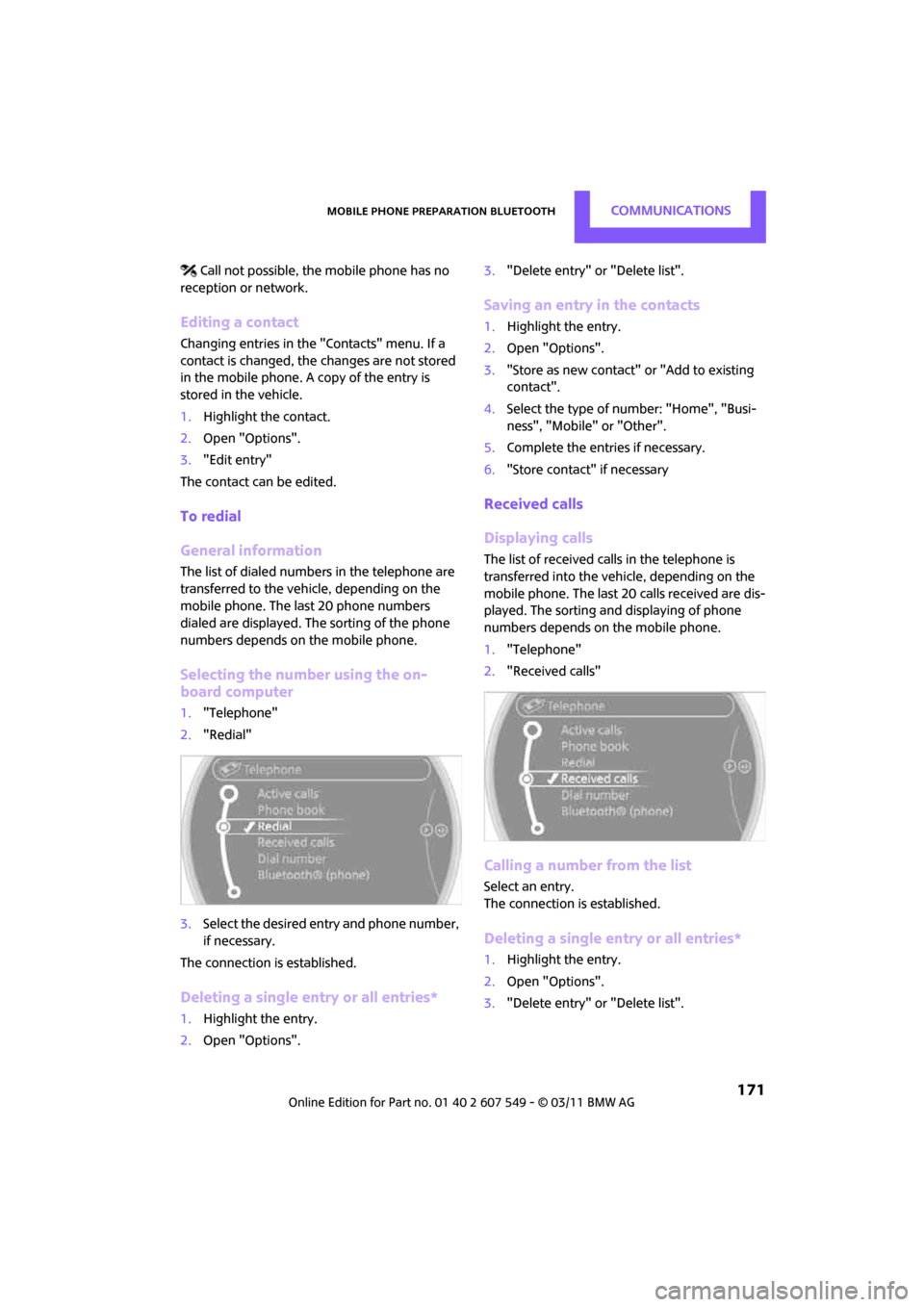
1. "Telephone"
2. "Redial"
3. Select the desired entry and phone number,
if necessary.
The connection is established.
Deleting a single entry or all entries*
1. Highlight the entry.
2. Open "Options". 3.
"Delete entry" or "Delete list".
Saving an entry in the contacts
1.Highlight the entry.
2. Open "Options".
3. "Store as new contact" or "Add to existing
contact".
4. Select the type of number: "Home", "Busi-
ness", "Mobile" or "Other".
5. Complete the entries if necessary.
6. "Store contact" if necessary
Received calls
Displaying calls
The list of received calls in the telephone is
transferred into the vehicle, depending on the
mobile phone. The last 20 calls received are dis-
played. The sorting and displaying of phone
numbers depends on the mobile phone.
1. "Telephone"
2. "Received calls"
Calling a number from the list
Select an entry.
The connection is established.
Deleting a single entry or all entries*
1.Highlight the entry.
2. Open "Options".
3. "Delete entry" or "Delete list".
Page 174 of 254
CommunicationsMobile phone preparation Bluetooth
172
Saving an entry in the contacts
1.Highlight the entry.
2. Open "Options".
3. "Store as new contact" or "Add to existing
contact".
4. Select the type of number: "Home", "Busi-
ness", "Mobile" or "Other".
5. Complete the entries if necessary.
6. "Store contact" if necessary
Hands-free system
General information
Calls being conducted using the hands-free sys-
tem can be continued using the mobile phone
and vice versa.
From the mobile phone to the hands-
free system
Calls that have been initiated from outside the
Bluetooth range of the ve hicle can be continued
using the hands-free system if the ignition is
switched on.
Depending on the mobile phone, the call is
automatically switched to hands-free mode.
If the switch does not occur automatically, then
follow the instructions that appear on the dis-
play of the mobile phone, also refer to the
Owner's Manual for the mobile phone.
From hands-free system to mobile
phone
Calls being conducted using the hands-free sys-
tem can also be continued using the mobile
phone if so desired, depending on the mobile
phone.
At this point, follow the instructions that appear
on the display of the mobile phone, also refer to
the Owner's Manual for the mobile phone.
Operation by voice*
Equipped with voice activation system: opera-
tion, refer to page 21. For the list with the short
commands, refer to page 227, does not apply
for this type of voice operation.
Without voice activation system: depending
upon the equipment, the mobile phone can be
voice-operated as described below.
The concept
> The mobile phone can be operated without
removing your hand from the steering
wheel.
> In many cases, the entry process is sup-
ported by means of announcements or
questions.
> {... } Verbal instructions to use with the voice
activation system.
> {{...}} Indicates responses of the voice acti-
vation system.
Voice commands
Activating voice activation system
1. Briefly press the button on the steering
wheel.
2. Say the command.
Finishing voice input
Press the button on the steering wheel
briefly
or
Possible commands
Having possible commands read aloud
Press the button on the steering wheel.
Possible commands are read aloud. {
Cancel }.
{ Help }.
Page 180 of 254
CommunicationsOffice
178
in the vehicle. The address can be checked to
ensure this.
1.Select the desired contact and highlight the
address.
2. Open "Options".
3. "Check as destination"
4. Correct and store the a ddress, if necessary.
If the address is corrected and stored, a copy of
it is stored in the vehi cle. The address is not
changed on the mobile phone.
New contact
A contact can be associated with up to 8 phone
numbers, 2 addresses, 3 email addresses, and
one Internet address.
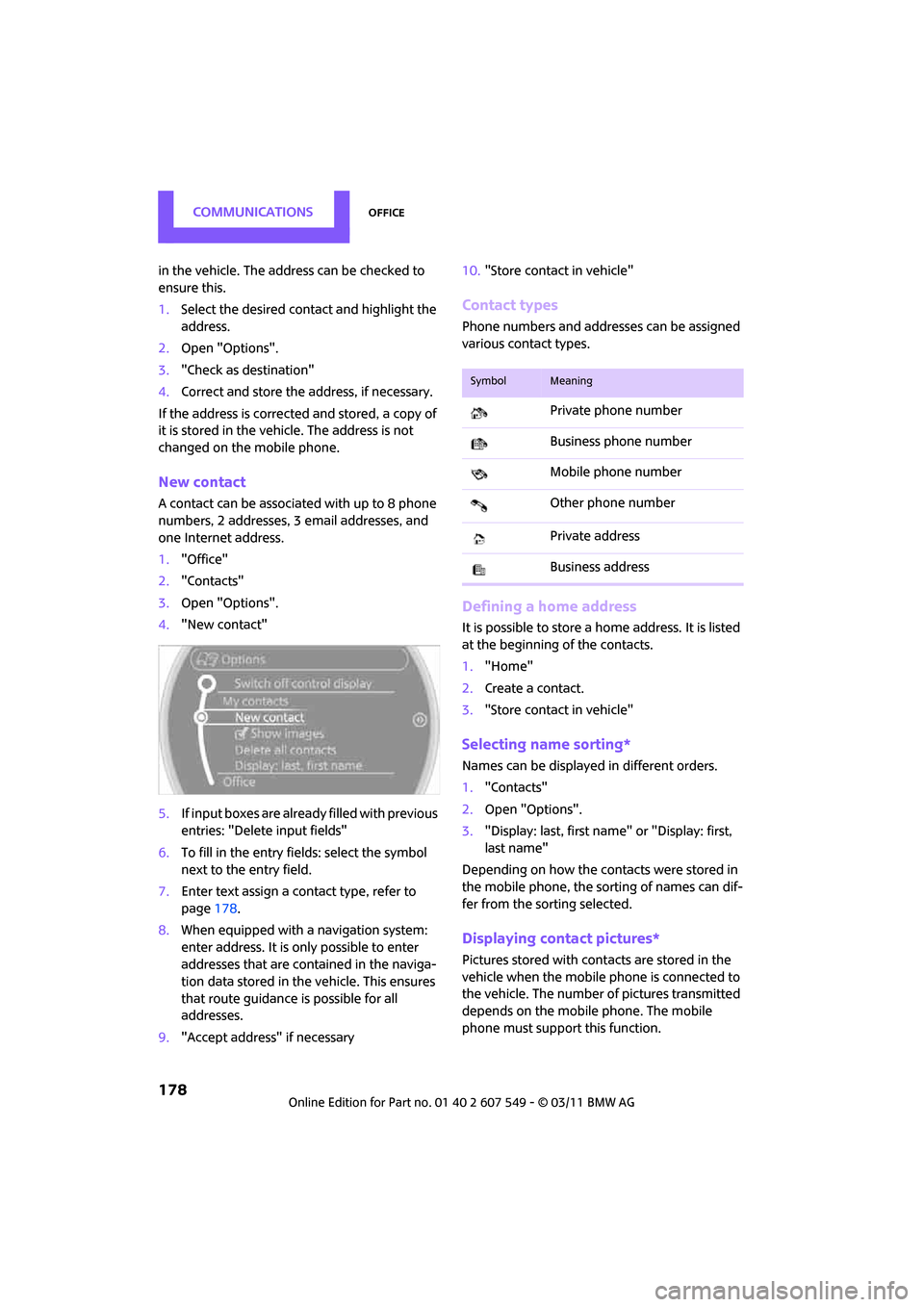
1. "Office"
2. "Contacts"
3. Open "Options".
4. "New contact"
5. If input boxes are already filled with previous
entries: "Delete input fields"
6. To fill in the entry fields: select the symbol
next to the entry field.
7. Enter text assign a contact type, refer to
page 178.
8. When equipped with a navigation system:
enter address. It is only possible to enter
addresses that are cont ained in the naviga-
tion data stored in the vehicle. This ensures
that route guidance is possible for all
addresses.
9. "Accept address" if necessary 10.
"Store contact in vehicle"
Contact types
Phone numbers and addresses can be assigned
various contact types.
Defining a home address
It is possible to store a ho me address. It is listed
at the beginning of the contacts.
1. "Home"
2. Create a contact.
3. "Store contact in vehicle"
Selecting name sorting*
Names can be displayed in different orders.
1."Contacts"
2. Open "Options".
3. "Display: last, first name" or "Display: first,
last name"
Depending on how the contacts were stored in
the mobile phone, the sorting of names can dif-
fer from the sorting selected.
Displaying contact pictures*
Pictures stored with cont acts are stored in the
vehicle when the mobile phone is connected to
the vehicle. The number of pictures transmitted
depends on the mobile phone. The mobile
phone must support this function.
SymbolMeaning
Private phone number
Business phone number
Mobile phone number
Other phone number
Private address
Business address
Page 181 of 254
OfficeCommunications
179
1."Contacts"
2. Open "Options".
3. "Show images"
The display of all contact pictures is activated or
deactivated.
Exporting/importing contacts*
Contacts can be exported and imported using
Personal Profile, refer to page 26. Depending on
which ignition key is in use, only contacts that
are stored in the vehicle are stored.
Deleting contacts
Only contacts that are st ored in the vehicle are
deleted. The contacts on the mobile phone
*
cannot be deleted.
1. "Contacts"
2. Highlight the contact.
3. "Options"
4. "Delete contact" or "Delete all contacts".
Messages
General information
The displaying of text messages depends on
whether the mobile phone supports transmis-
sion to the vehicle. Text messages may not be
supported by the service provider or the func-
tion may have to be separately activated. After a
mobile phone is paired for the first time, the
transmission may take several minutes. Mes-
sages are only displayed completely when the
vehicle is stopped. Messa ges from the auxiliary
phone are not transmitted.
Displaying messages
1. "Office"
2. "Messages"
Message type
A symbol indicates the type of message.
Read message.
Unread message.
Reading message aloud
Reading text messages aloud, refer to page182.
Text message
Calling a text message sender
1. Select the desired message.
2. Select the symbol.
Saving sender in the contacts
1.Highlight the desired message.
2. Open "Options".
3. "Store as new contact" or "Add to existing
contact"
Calendar
Displaying calendar
Appointments from the last 20 days and the
next 50 days can be displayed.
1."Office"
2. "Calendar"
Appointments of the current day are dis-
played.
SymbolMessage type
Text message