buttons MINI Countryman 2011 User Guide
[x] Cancel search | Manufacturer: MINI, Model Year: 2011, Model line: Countryman, Model: MINI Countryman 2011Pages: 196, PDF Size: 3.06 MB
Page 109 of 196
Radio MINI Boost CDEntertainment
107
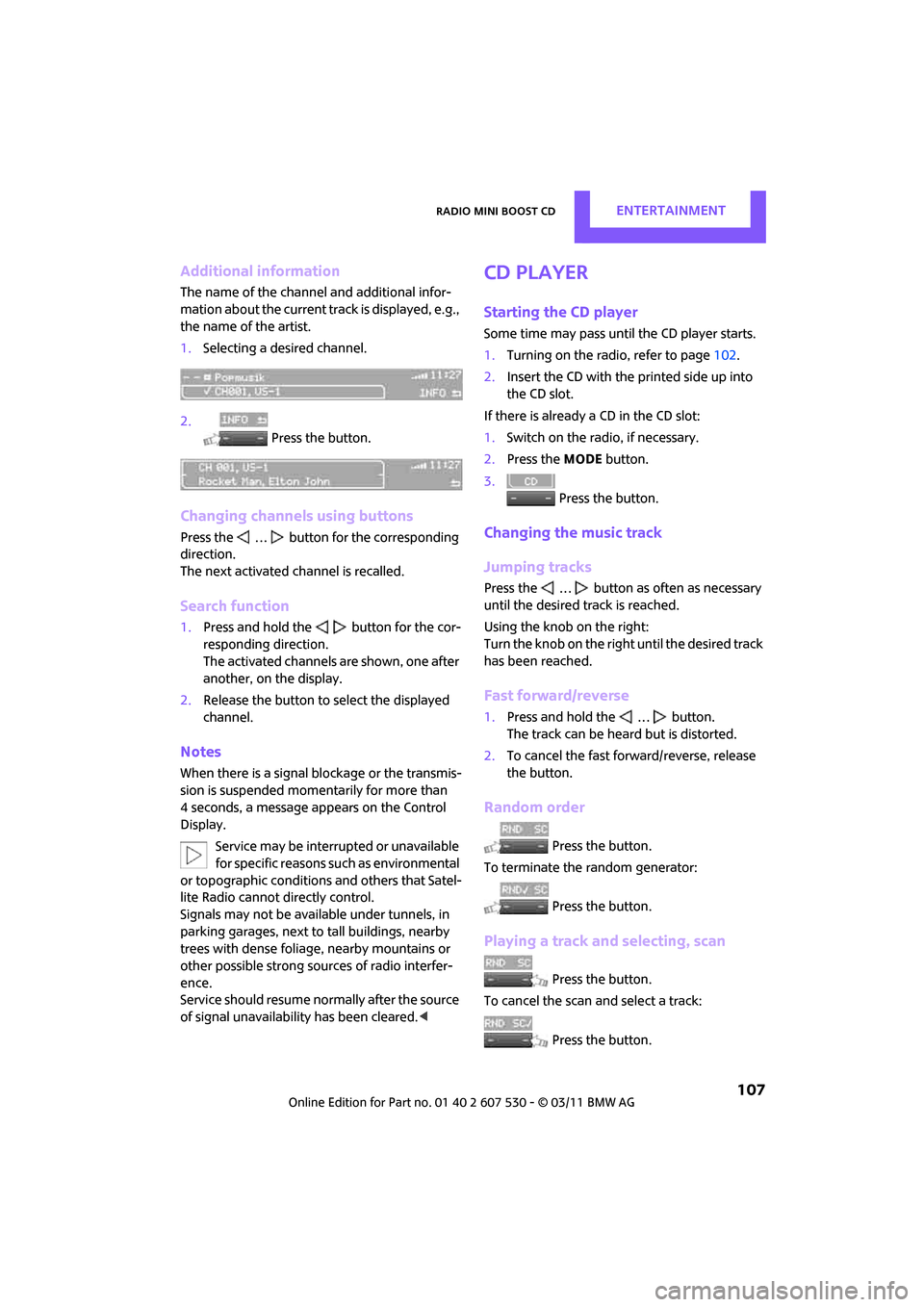
Additional information
The name of the channel and additional infor-
mation about the current track is displayed, e.g.,
the name of the artist.
1.Selecting a desired channel.
2. Press the button.
Changing channels using buttons
Press the … button for the corresponding
direction.
The next activated channel is recalled.
Search function
1.Press and hold the button for the cor-
responding direction.
The activated channels are shown, one after
another, on the display.
2. Release the button to select the displayed
channel.
Notes
When there is a signal blockage or the transmis-
sion is suspended mome ntarily for more than
4 seconds, a message appears on the Control
Display.
Service may be interrupted or unavailable
for specific reasons such as environmental
or topographic conditions and others that Satel-
lite Radio cannot directly control.
Signals may not be available under tunnels, in
parking garages, next to tall buildings, nearby
trees with dense foliage, nearby mountains or
other possible stro ng sources of radio interfer-
ence.
Service should resume no rmally after the source
of signal unavailabil ity has been cleared.<
CD player
Starting the CD player
Some time may pass until the CD player starts.
1.Turning on the radio, refer to page 102.
2. Insert the CD with the printed side up into
the CD slot.
If there is already a CD in the CD slot:
1. Switch on the radio, if necessary.
2. Press the MODE button.
3. Press the button.
Changing the music track
Jumping tracks
Press the … button as often as necessary
until the desired track is reached.
Using the knob on the right:
Turn the knob on the right until the desired track
has been reached.
Fast forward/reverse
1.Press and hold the … button.
The track can be heard but is distorted.
2. To cancel the fast fo rward/reverse, release
the button.
Random order
Press the button.
To terminate the random generator:
Press the button.
Playing a track and selecting, scan
Press the button.
To cancel the scan and select a track:
Press the button.
Page 116 of 196
CommunicationsTelephone
114
Telephone
Overview
The concept
Mobile phones or other external devices, e.g.
audio players, can be connected to the vehicle
via Bluetooth.
Bluetooth® is a registered trademark of Blue-
tooth® SIG, Inc.
Your MINI is equipped with a complete mobile
phone preparation. After a suitable mobile
phone is paired with the vehicle once, the
mobile phone can be controlled via the radio,
the buttons
* on the steering wheel, and by
voice
*.
It may be necessary for some functions to be
activated by the mobile phone provider. Only make entries when traffic conditions
permit. Do not hold the mobile phone in
your hand while you are driving; use the hands-
free system instead. If you do not observe this
precaution, your being distracted can endanger
vehicle occupants and other road users. <
Snap-in adapter*
The snap-in adapter, refer to page124, makes it
possible to:
> Accommodate the mobile phone.
> Recharge its battery.
> Connect it to an exte rnal antenna of the
vehicle.
This assures a better network connection
and constant sound quality.
A mobile phone that is connected to the vehicle
should not be operated via the mobile phone
keypad; otherwise, ma lfunctions may occur.
Suitable mobile phones
For precise information as to which mobile
phones and external devices with Bluetooth
interfaces are supported by the mobile phone
preparation, go to ww w.mini.com/connectivity.
*
Page 117 of 196
TelephoneCommunications
115
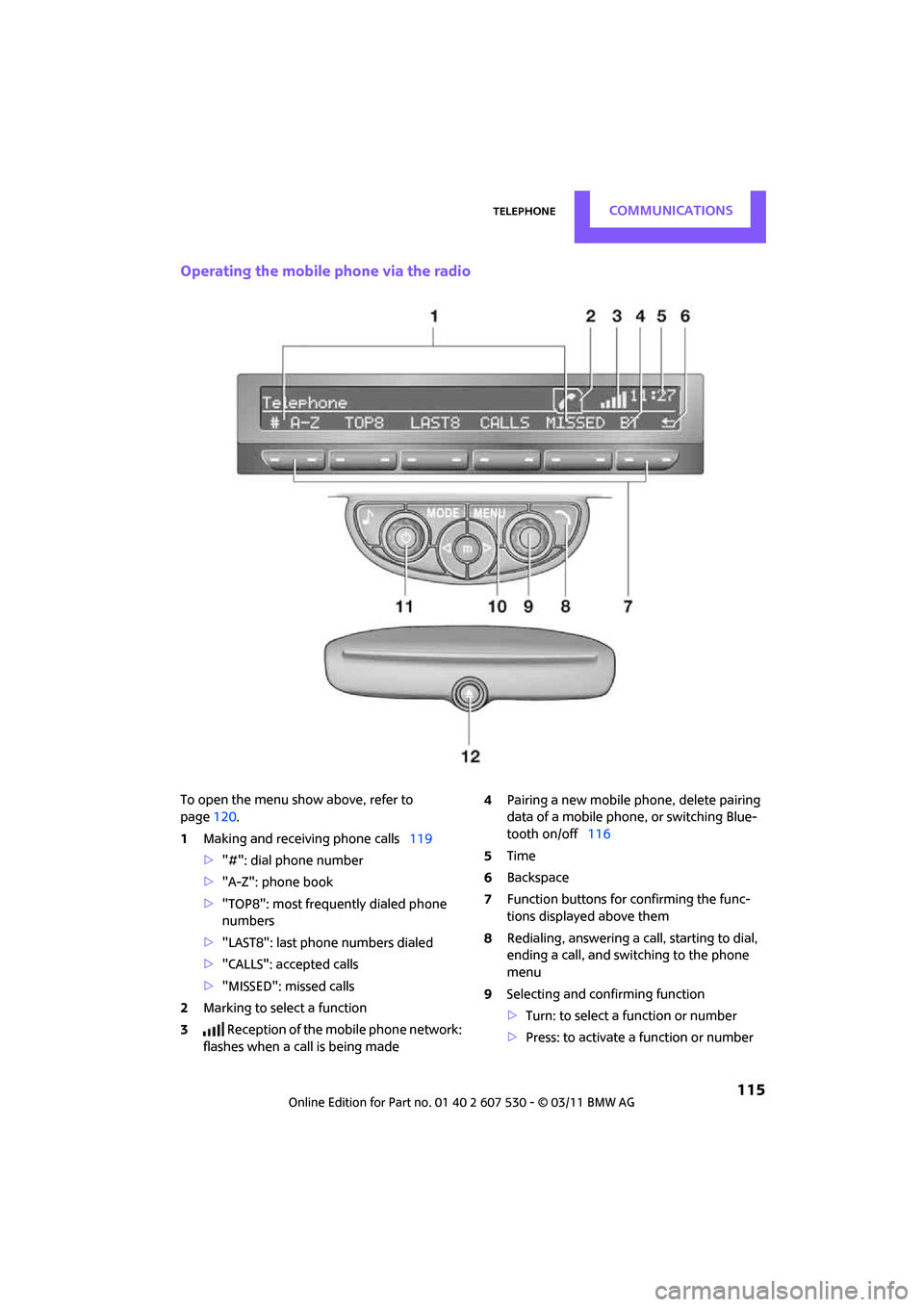
Operating the mobile phone via the radio
To open the menu show above, refer to
page120.
1 Making and receiving phone calls 119
> "#": dial phone number
> "A-Z": phone book
> "TOP8": most frequently dialed phone
numbers
> "LAST8": last phone numbers dialed
> "CALLS": accepted calls
> "MISSED": missed calls
2 Marking to select a function
3 Reception of the mobile phone network:
flashes when a call is being made 4
Pairing a new mobile phone, delete pairing
data of a mobile phon e, or switching Blue-
tooth on/off 116
5 Time
6 Backspace
7 Function buttons for confirming the func-
tions displayed above them
8 Redialing, answering a ca ll, starting to dial,
ending a call, and switching to the phone
menu
9 Selecting and confirming function
>Turn: to select a function or number
> Press: to activate a function or number
Page 119 of 196
TelephoneCommunications
117
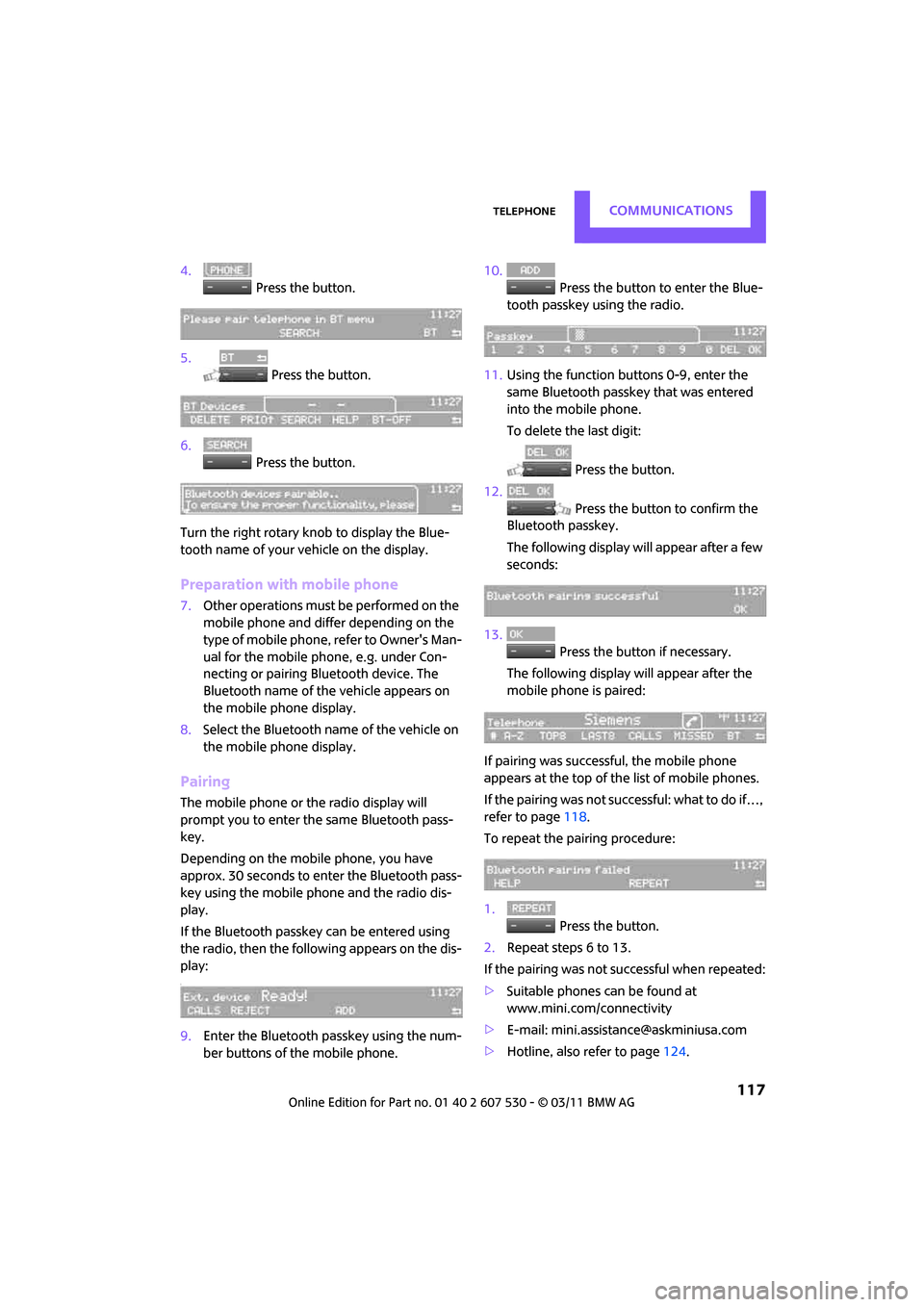
4. Press the button.
5. Press the button.
6. Press the button.
Turn the right rotary knob to display the Blue-
tooth name of your vehicle on the display.
Preparation with mobile phone
7. Other operations must be performed on the
mobile phone and differ depending on the
type of mobile phone, refer to Owner's Man-
ual for the mobile phone, e.g. under Con-
necting or pairing Bluetooth device. The
Bluetooth name of the vehicle appears on
the mobile phone display.
8. Select the Bluetooth name of the vehicle on
the mobile phone display.
Pairing
The mobile phone or the radio display will
prompt you to enter the same Bluetooth pass-
key.
Depending on the mobile phone, you have
approx. 30 seconds to enter the Bluetooth pass-
key using the mobile phone and the radio dis-
play.
If the Bluetooth passkey can be entered using
the radio, then the following appears on the dis-
play:
:
9.Enter the Bluetooth passkey using the num-
ber buttons of the mobile phone. 10.
Press the button to enter the Blue-
tooth passkey using the radio.
11. Using the function buttons 0-9, enter the
same Bluetooth passke y that was entered
into the mobile phone.
To delete the last digit:
Press the button.
12. Press the button to confirm the
Bluetooth passkey.
The following display will appear after a few
seconds:
13. Press the button if necessary.
The following display will appear after the
mobile phone is paired:
If pairing was successful, the mobile phone
appears at the top of the list of mobile phones.
If the pairing was not succ essful: what to do if…,
refer to page 118.
To repeat the pairing procedure:
1. Press the button.
2. Repeat steps 6 to 13.
If the pairing was not successful when repeated:
> Suitable phones can be found at
www.mini.com/connectivity
> E-mail: [email protected]
> Hotline, also refer to page 124.
Page 122 of 196
CommunicationsTelephone
120
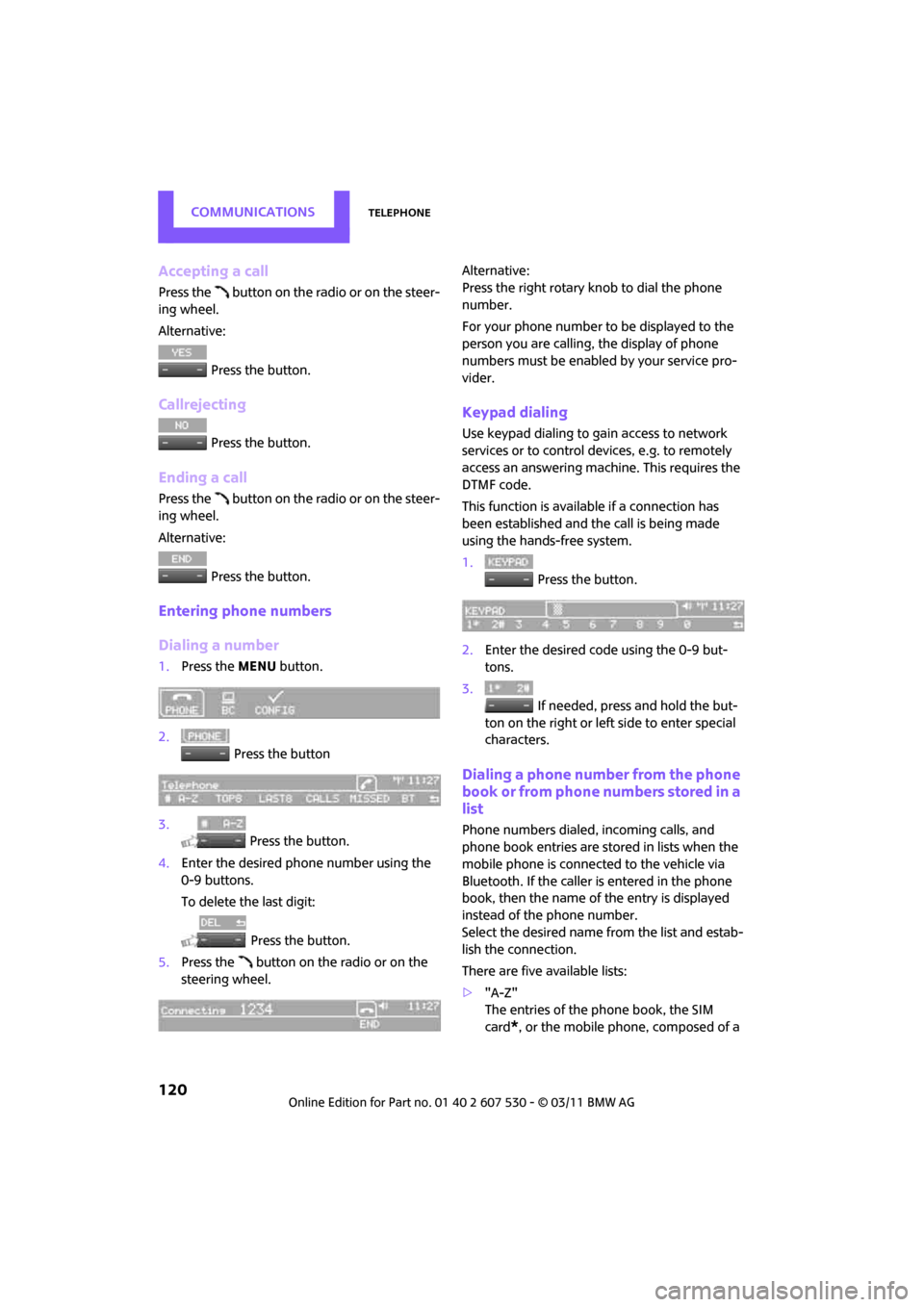
Accepting a call
Press the button on the radio or on the steer-
ing wheel.
Alternative: Press the button.
Callrejecting
Press the button.
Ending a call
Press the button on the radio or on the steer-
ing wheel.
Alternative: Press the button.
Entering phone numbers
Dialing a number
1.Press the MENU button.
2. Press the button
3. Press the button.
4. Enter the desired phone number using the
0-9 buttons.
To delete the last digit:
Press the button.
5. Press the button on the radio or on the
steering wheel. Alternative:
Press the right rotary knob to dial the phone
number.
For your phone number to be displayed to the
person you are calling, the display of phone
numbers must be enabled by your service pro-
vider.
Keypad dialing
Use keypad dialing to gain access to network
services or to control de
vices, e.g. to remotely
access an answering machine. This requires the
DTMF code.
This function is available if a connection has
been established and the call is being made
using the hands-free system.
1. Press the button.
2. Enter the desired code using the 0-9 but-
tons.
3.
If needed, press and hold the but-
ton on the right or left side to enter special
characters.
Dialing a phone number from the phone
book or from phone numbers stored in a
list
Phone numbers dialed, incoming calls, and
phone book entries are stored in lists when the
mobile phone is connected to the vehicle via
Bluetooth. If the caller is entered in the phone
book, then the name of the entry is displayed
instead of the phone number.
Select the desired name from the list and estab-
lish the connection.
There are five available lists:
> "A-Z"
The entries of the phone book, the SIM
card
*, or the mobile phone, composed of a
Page 123 of 196
TelephoneCommunications
121
name and phone number, are sorted alpha-
betically.
> "TOP8"
The Top 8 list automatically stores the eight
phone numbers of the phone book that are
dialed the most frequently.
> "LAST8"
The last eight phone numbers you have
dialed are stored automatically. The phone
number dialed last appears at the top of the
list.
> "CALLS"
The phone numbers of the last eight
accepted calls are stored. This requires the
phone number of the caller to have been
transmitted.
> "MISSED"
The phone numbers of the last eight calls
that were not accepted are stored. This
requires the phone number of the caller to
have been transmitted.
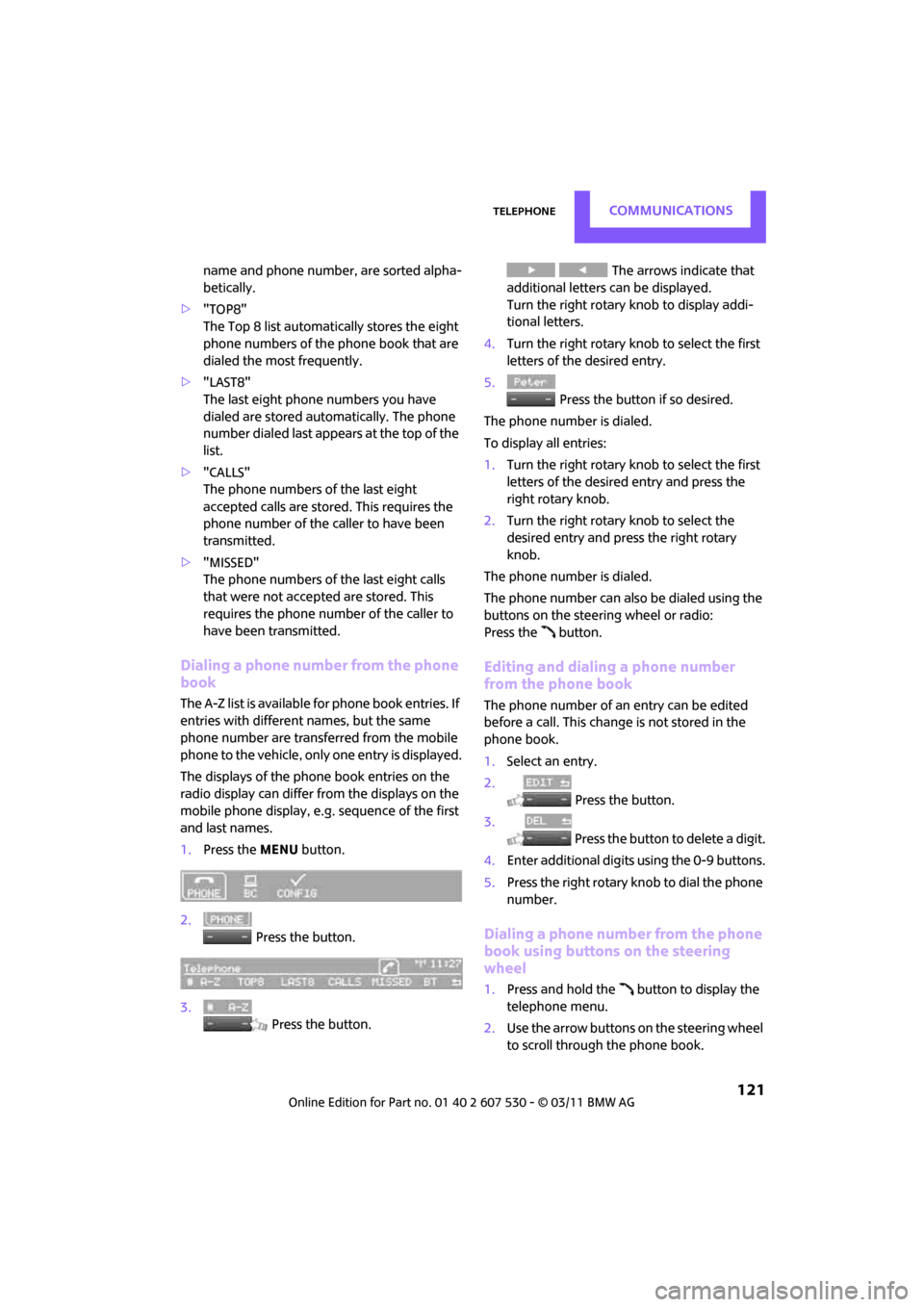
Dialing a phone number from the phone
book
The A-Z list is available fo r phone book entries. If
entries with different names, but the same
phone number are transferred from the mobile
phone to the vehicle, only one entry is displayed.
The displays of the phone book entries on the
radio display can differ fr om the displays on the
mobile phone display, e.g. sequence of the first
and last names.
1. Press the MENU button.
2. Press the button.
3. Press the button. The arrows indicate that
additional letters can be displayed.
Turn the right rotary knob to display addi-
tional letters.
4. Turn the right rotary knob to select the first
letters of the desired entry.
5. Press the button if so desired.
The phone number is dialed.
To display all entries:
1. Turn the right rotary knob to select the first
letters of the desired entry and press the
right rotary knob.
2. Turn the right rotary knob to select the
desired entry and pre ss the right rotary
knob.
The phone number is dialed.
The phone number can also be dialed using the
buttons on the steering wheel or radio:
Press the button.
Editing and dialing a phone number
from the phone book
The phone number of an entry can be edited
before a call. This change is not stored in the
phone book.
1. Select an entry.
2. Press the button.
3. Press the button to delete a digit.
4. Enter additional digits using the 0-9 buttons.
5. Press the right rotary knob to dial the phone
number.
Dialing a phone number from the phone
book using buttons on the steering
wheel
1.Press and hold the button to display the
telephone menu.
2. Use the arrow buttons on the steering wheel
to scroll through the phone book.
Page 127 of 196
TelephoneCommunications
125
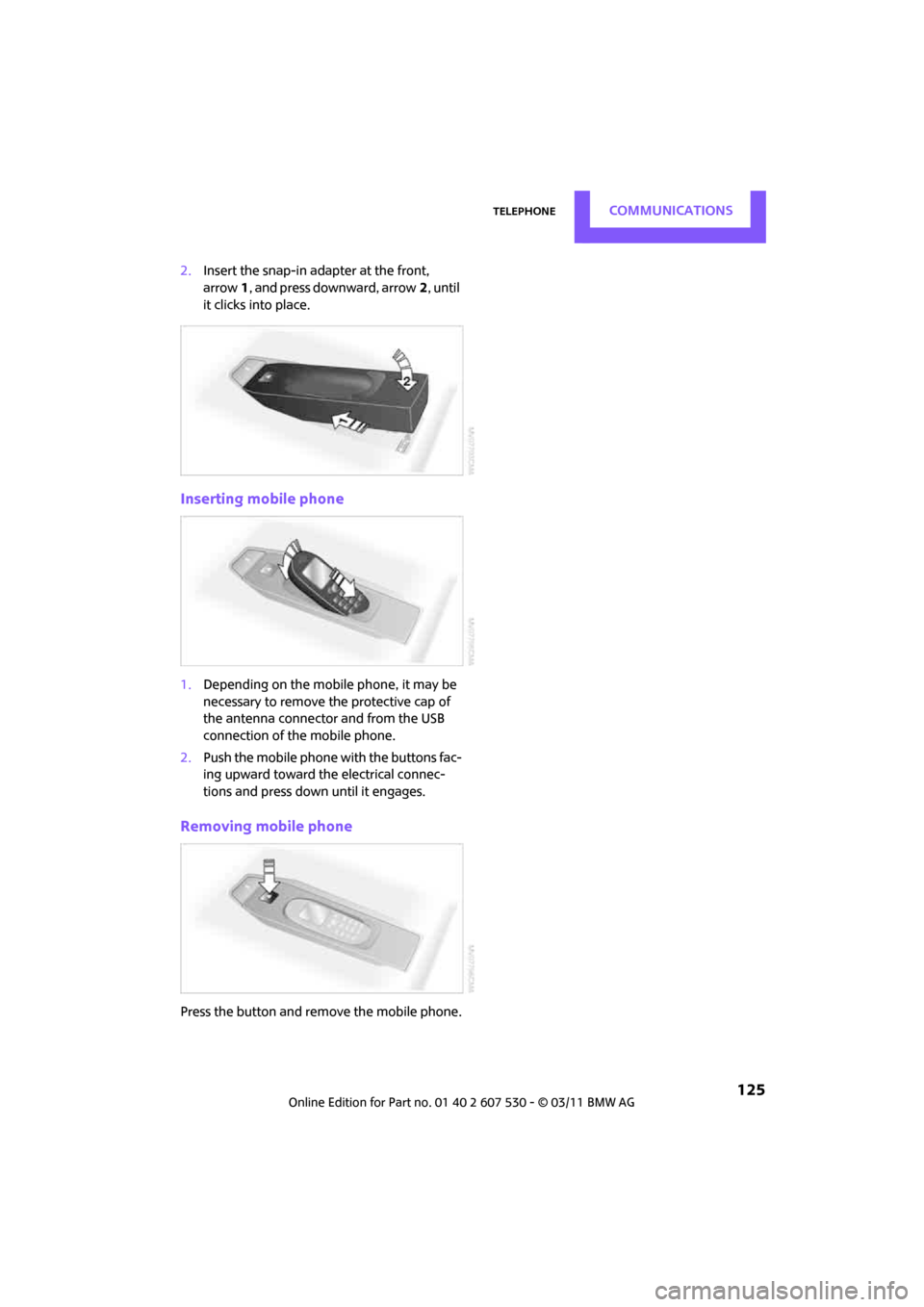
2.Insert the snap-in adapter at the front,
arrow 1, and press downward, arrow 2, until
it clicks into place.
Inserting mobile phone
1. Depending on the mobile phone, it may be
necessary to remove the protective cap of
the antenna connector and from the USB
connection of the mobile phone.
2. Push the mobile phone with the buttons fac-
ing upward toward the electrical connec-
tions and press down until it engages.
Removing mobile phone
Press the button and remove the mobile phone.
Page 183 of 196
Everything from A to ZReference
181
Battery156
– charging 156
– disposal 29,156
– jump-starting 158
– temporary power failure 156
Battery renewal
– remote control 29
Being towed 160
Bell
– volume 102
Belt tensioner, refer to Safety belts 35
Belts, refer to Safety belts 35
Beverage holders, refer to Cupholders 85
Black ice, refer to External
temperature warning 52
Blower, refer to Air flow rate 77,79
Bluetooth, activating/ deactivating 116
Bottle holders, refer to
Cupholders 85
Brake Assist 60
Brake fluid, refer to Service
requirements 55
Brake lamps
– replacing bulbs 151
Brake pads, breaking in 90
Brake rotors 91
– brakes 90
– breaking in 90
Brake system 90
– breaking in 90
– disc brakes 91
– MINI Maintenance
System 142
Brakes
– ABS 60
– breaking in 90
– MINI Maintenance System 142
– parking brake 43
– service requirements 55
Brakes, refer to Braking
safely 91 Breakdown service, refer to
Roadside Assistance 158
Break-in period 90
Breaking in the clutch 90
Bulb changing, refer to Lamps and bulbs 148
Button for starting the
engine 41
Buttons on the steering wheel 11
C
California Proposition 65
warning 5
Call
– accepting 119
– ending 120
– rejecting 120
Calling, refer to Phone numbers, dialing 120
Can holders, refer to
Cupholders 85
Capacities 179
Car battery, refer to Vehicle
battery 156
Car care 144
Car key, refer to Keys/remote
controls 20
Car phone
– installation location, refer to Center armrest 83
Car phone, refer to
Telephone 114
Car wash
– before driving in 43
Car wash, care 144
Car washes 144 Care
144
– car washes 144
– car-care products 144
– CD/DVD drives 147
– external 144
– high-pressure washers 145
– internal 146
– leather 146
– manual washing 145
– upholstery and fabrics 146
– windows 145
– wiper blades 145
Cargo area 92
– capacity 178
– Comfort Access 28
– lamp 75
– opening from outside 25
– trunk lid, refer to Liftgate 25
Cargo area, expanding 92
Cargo area lamp 75
Cargo area lid, refer to Liftgate 25
Cargo area partition net, refer to Cargo net 94
Cargo loading 95
– securing cargo 96
– stowing cargo 96
– vehicle 92
Cargo net 94
Cargo, securing 96
Carpets, care 146
Catalytic converter, refer to Hot exhaust system 90
CD
player 107
– changing the track 107
– fast forward/reverse 107
– playing a track 107
– random order 107
– starting 107
– volume 102
Center armrest 83
Center brake lamp 152
Center console, refer to Around the center
console 14
Center Rail 84
Page 187 of 196
Everything from A to ZReference
185
Ignition key position 1, refer to Radio readiness 41
Ignition key position 2, refer to Ignition on 41
Ignition key, refer to Integrated key/remote
control 20
Ignition lock 41
Imprint 2
Incoming call 119
Indicator and warning lamps 13,162
– Tire Pressure Monitor TPM 65
Indicator lighting, refer to Instrument lighting 74
Individual air distribution 78
Individual settings, refer to Personal Profile 20
Inflation pressure monitoring,
refer to Tire Pressure Monitor
TPM 64
Initializing
– Flat Tire Monitor FTM 63
– glass roof, electric 30
Instrument cluster, refer to
Displays 12
Instrument lighting 74
Instrument panel, refer to
Cockpit 10
Instrument panel, refer to
Displays 12
Integrated key 20
Integrated universal remote
control 81
Interior lamps 75
– remote control 23
Interior rearview mirror 36
– automatic dimming feature 37
Interlock 44
Intermittent mode of the wipers 47
Internet page 4J
Jacking points 155
Jets, refer to Window washer
nozzles 48
Jumpering, refer to Jump-starting 158
Jump-starting 158
K
Key Memory, refer to Personal
Profile 20
Key, refer to Keys/remote controls 20
Keyless opening and closing,
refer to Comfort Access 27
Keyless-Go, refer to Comfort Access 27
Keypad dialing 120
Kickdown 44
– automatic transmission with
Steptronic 44
Knock control 129
L
Lamps and bulbs, replacing
bulbs 148
Lamps, refer to Parking lamps/
Low beams 71
Lashing eyes, refer to Securing cargo 96
LATCH child restraint fixing system 39
Leather care 146
LEDs light-emitting diodes 148
Length, refer to Dimensions 177
License plate lamp
– bulb replacement 152
Liftgate 25
– Comfort Access 28
– opening from outside 25
– opening/closing 25
– unlocking with remote control 23 Light
– automatic headlamp
control 71
Light alloy wheels, care 146
Light switch 71
Light-emitting diodes LEDs 148
Lighter 85
– socket 86
Lighting
– lamps and bulbs 148
– of the instruments 74
– of vehicle, refer to Lamps 71
Limit 173
Listening to test scan
– Radio MINI Boost CD 104
Load 95
Load securing equipment, refer to Securing cargo 96
Lock buttons of doors, refer to
Locking 24
Locking
– adjusting confirmation signal 22
– from inside 24
– from outside 22
– without remote control, refer
to Comfort Access 27
Locking and unlocking doors
– confirmation signals 22
– from inside 24
– from outside 21
Longlife oils
– approved motor oils 140
Low beams 71
– automatic 71
– replacing bulb 149
Lower back suppo rt, refer to
Lumbar support 33
Luggage compartment
– doors, refer to Liftgate 25
Lug
gage compartment
partition net, refer to Cargo
net 94
Luggage rack, re fer to Roof-
mounted luggage rack 97
Page 188 of 196
ReferenceEverything from A to Z
186
Luggage rack, refer to Roof-mounted luggage
rack 97
Lumbar support 33
M
M+S tires, refer to Winter
tires 137
Maintenance, refer to Service
and Warranty Information
Booklet for US models and
Service Guide Booklet for
Canadian models
Maintenance system 142
Malfunction warn ings, refer to
Check Control 57
Manual air distribution 78
Manual mode
– automatic transmission with Steptronic 45
Manual operation
– door lock 24
– fuel filler flap 128
– transmission lock, automatic
transmission 45
Manual station search 103
Manual transmission 43
Manual washing 145
Master key, refer to Integrated
key/remote control 20
Maximum cooling 79
Maximum speed
– with winter tires 137
Medical assistance, refer to First aid pouch 158
Microfilter
– for air conditioner 78
– for automatic climate
control 80
– MINI Maintenance System 142 Microfilter/activated-charcoal
filter
– MINI Maintenance System 142
Microphone for telephone 14
MINI Internet page 4
MINI Maintenance System 142
Mirror dimming feature 37
Mirrors 36
– exterior mirrors 36
– heating 36
– interior rearview mirror 36
Mobile phone
– adjusting volume 119
– connecting, refer to Mobile phone, pairing 116
– installation location, refer to Center armrest 83
– pairing 116
– what to do if…. 118
Mobile phone, installation location, refer to Center
armrest 83
Mobility System 152
Modifications, technical, refer
to For your own safety 5
Monitoring syst em for tire
pressures, refer to Flat Tire
Monitor 62
MP3 107
Mu
ltifunction switch
– refer to Turn signals/ headlamp flasher 46
– refer to Wiper system 47
Multifunctional steering wheel, refer to Buttons on
the steering wheel 11
Music tracks
– playing a track 107
– random order 107
N
Neck support, refer to Head
restraints 34
Nets, refer to Storage compartments 84
New tires 136
Number of cylinders, refer to Engine data 176
Number of safety belts 32
Nylon rope, refer to Tow rope 161
O
OBD socket, refer to Socket for
On-Board Diagnosis 143
Octane ratings, refer to Fuel specifications 129
Odometer 51
Oil consumption 139
Oil level 139
Oil, refer to Engine oil 139
Oil types 140
Old batteries, refer to
Disposal 156
Opening and closing
– Comfort Access 27
– from inside 24
– from outside 21
– using the door lock 24
– using the remote control 21
Opening and unlocking
– from inside 24
Outlets
– refer to Ventilation 80
Outlets, refer to Air vents 76
Output, refer to Engine data 176
Outside-air mode
– automatic climate control 79
Overheated engine, refer to
Coolant temperature 141