reset MINI Countryman 2015 (Mini Connected) User Guide
[x] Cancel search | Manufacturer: MINI, Model Year: 2015, Model line: Countryman, Model: MINI Countryman 2015Pages: 283, PDF Size: 6.76 MB
Page 91 of 283

Continued driving with a flat tire
Drive moderately and do not exceed a
speed of 50 mph/80 km/h.
A loss of tire inflation pressure results in a
change in the handling characteristics, e.g., re‐
duced lane stability during braking, a longer
braking distance and altered self-steering prop‐
erties. ◀
Final tire failure
Vibrations or loud noises while driving
can indicate the final failure of the tire. Reduce
speed and stop; otherwise, pieces of the tire
could come loose and cause an accident. Do
not continue driving, and contact your service
center. ◀
Message indicating that the inflation
pressure needs to be checked
The yellow warning light lights up.
A Check Control message is displayed.
An additional message is displayed on
the onboard monitor.▷The system has detected that a wheel was
changed but a reset was not performed.▷The tire was not inflated according to speci‐
fications.▷The tire pressure has dropped since the last
confirmation.
In this case:
▷Check the tire inflation pressure and correct
it if necessary.▷After changing a wheel, reset the system.
System limits
The system will not function properly if a reset
was not performed, e.g., it may identify a tire as
flat although the tire is filled to the correct infla‐
tion pressure.
The tire pressure depends on the temperature
of the tire. An increase in the tire temperature,
e.g., while driving or due to sunlight, increases
the tire inflation pressure. The tire pressure de‐
creases when the tire temperature drops. In
case of severe temperature drops, this behavior
may lead to a warning on account of the de‐
fined warning limits.
Malfunction The yellow warning light flashes yellow
and then lights up continuously.
A Check Control message is displayed.
An additional message is displayed on
the onboard monitor.
A flat tire or tire inflation pressure loss cannot
be detected.
Display in the following situations:▷A wheel without TPM electronics is
mounted, e.g., a compact wheel:
Have the system checked by the service
center if necessary.▷Malfunction:
Have the system checked by the service
center.▷TPM was unable to complete the reset.
Reset the system again.
The yellow warning light flashes and
then lights up continuously.
A Check Control message is displayed.
An additional message is displayed on
the onboard monitor.
A flat tire or tire inflation pressure loss cannot
be detected.
Display in the following situation:
▷Disturbance by other systems or devices
with the same radio frequency:
After leaving the area of the disturbance,
the system automatically becomes active
again.Seite 89SafetyCONTROLS89
Online Edition for Part no. 01 40 2 961 110 - II/15
Page 157 of 283

4.Select the desired volume setting.5.To set: turn the MINI joystick.6.To save: press the MINI joystick.
Resetting the tone set‐
tings
All tone settings can be reset to the default set‐
ting.
1."CD/Multimedia", "Radio" or "Settings"2."Tone"3."Reset"Seite 155ToneENTERTAINMENT155
Online Edition for Part no. 01 40 2 961 110 - II/15
Page 165 of 283
Select one of the symbols to deactivate Traffic
Jump.
Automatic update About twice a year, Sirius performs an update
of the channel names and positions. The up‐
date takes place automatically and may take
several minutes.
Notes▷Reception may not be available in some sit‐
uations, such as under certain environmen‐
tal or topographic conditions. The satellite
radio has no influence on this.▷The signal may not be available in tunnels
or underground garages; next to tall build‐
ings; or near trees, mountains or other
powerful sources of radio interference.
Stored stations
General information
It is possible to store up to 40 stations.
Calling up a station
1."Radio"2."Presets"3.Select the desired station.
Storing a stationThe station currently selected is stored.
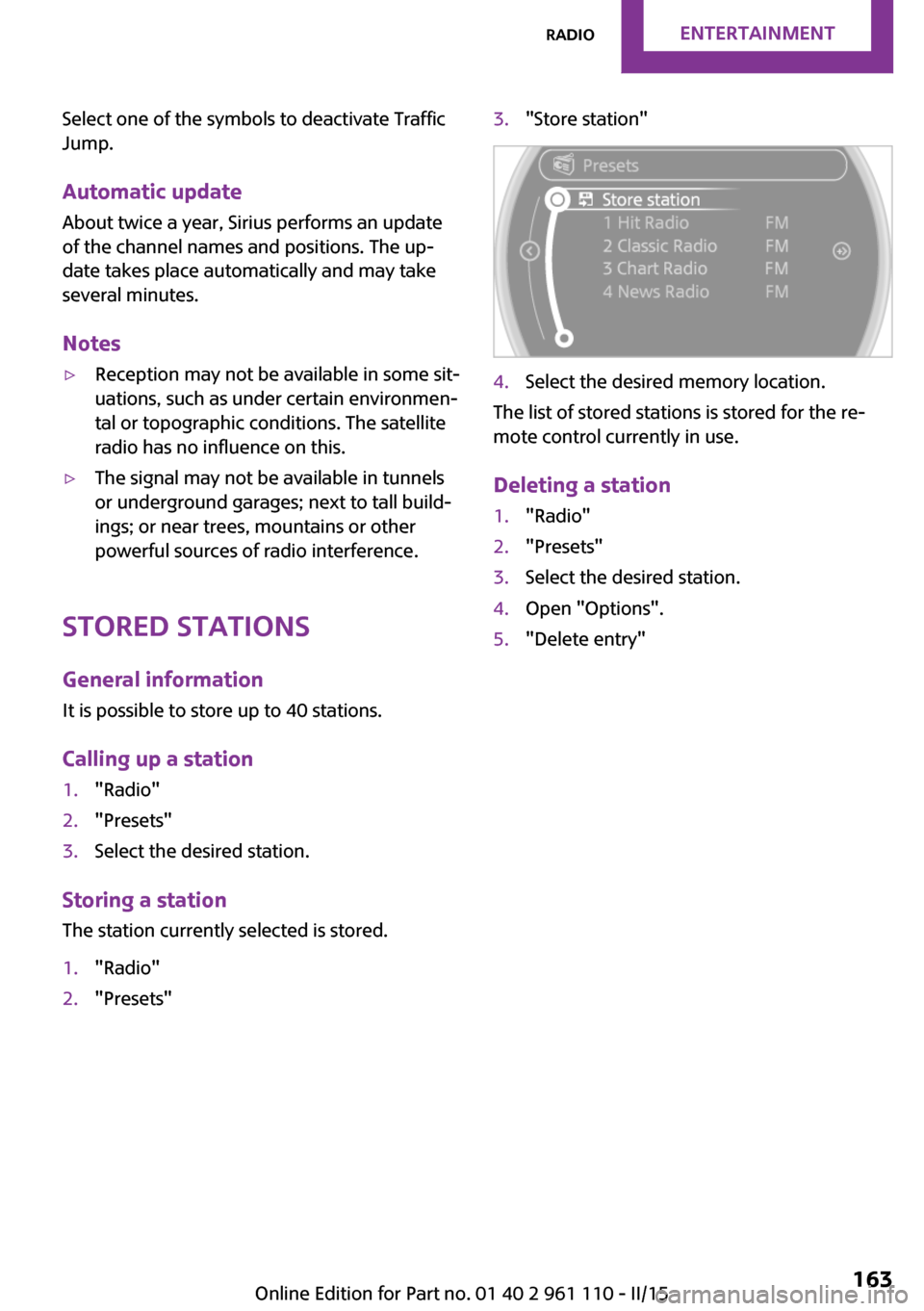
1."Radio"2."Presets"3."Store station"4.Select the desired memory location.
The list of stored stations is stored for the re‐
mote control currently in use.
Deleting a station
1."Radio"2."Presets"3.Select the desired station.4.Open "Options".5."Delete entry"Seite 163RadioENTERTAINMENT163
Online Edition for Part no. 01 40 2 961 110 - II/15
Page 173 of 283
Information on connection▷The connected audio device is supplied
with a max. power of 500 mA if supported
by the device. Therefore, do not addition‐
ally connect the device to a socket in the
vehicle; otherwise, playback may be com‐
promised.▷Do not use force when plugging the con‐
nector into the USB interface.▷Do not connect devices such as fans or
lamps to the USB audio interface.▷Do not connect USB hard drives.▷Do not use the USB audio interface to re‐
charge external devices.
Bluetooth audio
At a glance
▷Music files on external devices such as au‐
dio devices or mobile phones can be played
back via Bluetooth.
Use of a mobile phone as an audio source,
refer to page 190.▷Bluetooth® is a registered trademark of
Bluetooth® SIG, Inc.▷The sound is output on the vehicle loud‐
speakers.▷The volume of the sound output is depend‐
ent on the device. If necessary, adjust the
volume on the device.▷Up to four external devices can be paired
with the vehicle.
Requirements
▷The device is suitable. Information under
www.mini.com/connectivity.▷The device is ready for operation.▷The ignition is switched on.▷Bluetooth is activated on the vehicle, refer
to page 189, and on the device.▷Bluetooth presettings must be made on the
device, such as for a connection withoutconfirmation or visibility; refer to the device
operating instructions.▷A number with at least four and a maxi‐
mum of 16 digits is defined as the Blue‐
tooth passkey. It is only required once for
pairing.
Pairing and connecting
Pairing a device
To avoid becoming distracted and posing
an unnecessary hazard both to your own vehi‐
cle's occupants and to other road users, only
pair the device while the vehicle is stationary. ◀
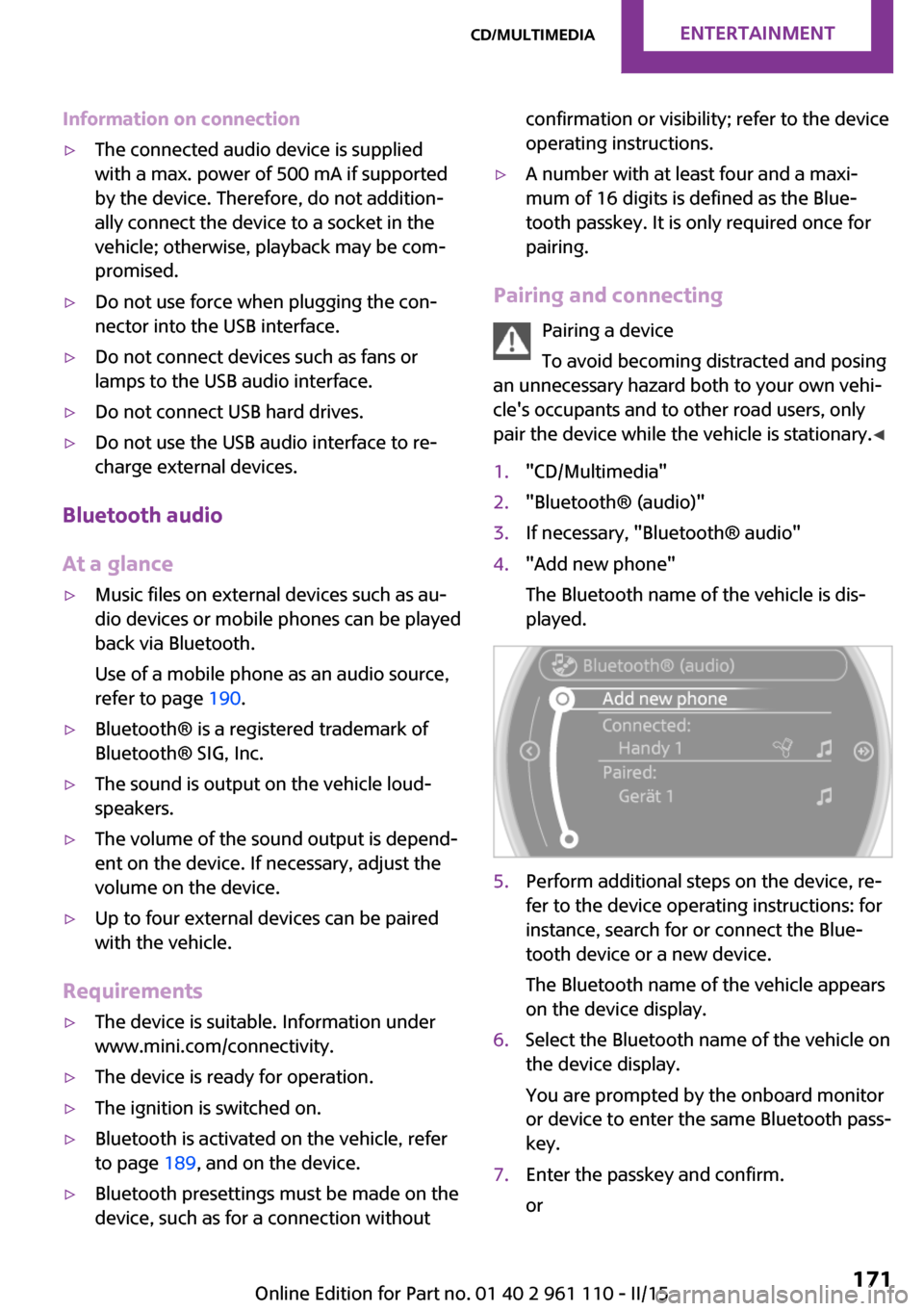
1."CD/Multimedia"2."Bluetooth® (audio)"3.If necessary, "Bluetooth® audio"4."Add new phone"
The Bluetooth name of the vehicle is dis‐
played.5.Perform additional steps on the device, re‐
fer to the device operating instructions: for
instance, search for or connect the Blue‐
tooth device or a new device.
The Bluetooth name of the vehicle appears
on the device display.6.Select the Bluetooth name of the vehicle on
the device display.
You are prompted by the onboard monitor
or device to enter the same Bluetooth pass‐
key.7.Enter the passkey and confirm.
orSeite 171CD/multimediaENTERTAINMENT171
Online Edition for Part no. 01 40 2 961 110 - II/15
Page 181 of 283
Pairing/unpairing the
mobile phone
Requirements▷The mobile phone is suitable, refer to
page 178.▷The mobile phone is ready for operation.▷Bluetooth is activated in the vehicle and on
the mobile phone.▷Bluetooth presettings may need to be
made on the mobile phone, e.g., for a con‐
nection without confirmation or visibility,
refer to the mobile phone operating in‐
structions.▷Deactivate Bluetooth audio if necessary.▷A number with at least four and a maxi‐
mum of 16 digits was defined as the Blue‐
tooth passkey. It is only required once for
pairing.▷Compare the control number on the Control
Display with the control number on the mo‐
bile phone display. Confirm the control
number on the mobile phone and in the
vehicle.▷The radio ready state is switched on.
Activating/deactivating Bluetooth
Bluetooth is not permitted everywhere. Comply
with all safety guidelines and regulations.
1."Telephone"2.Open "Options".3."Bluetooth®"Pairing and connecting a mobile phone
Pairing the mobile phone
To avoid becoming distracted and posing
an unnecessary hazard both to your own vehi‐
cle's occupants and to other road users, only
pair the mobile phone while the vehicle is sta‐
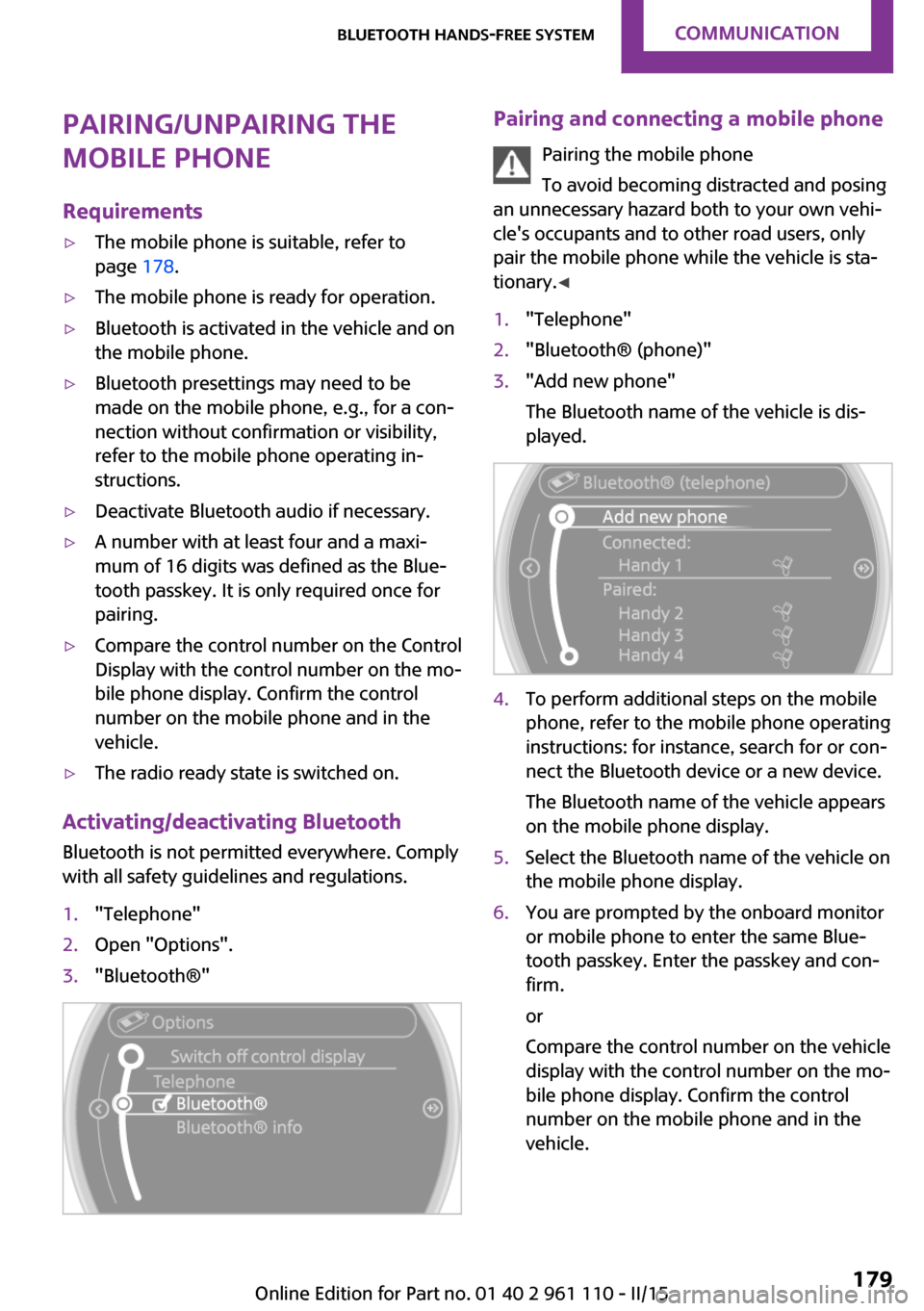
tionary. ◀1."Telephone"2."Bluetooth® (phone)"3."Add new phone"
The Bluetooth name of the vehicle is dis‐
played.4.To perform additional steps on the mobile
phone, refer to the mobile phone operating
instructions: for instance, search for or con‐
nect the Bluetooth device or a new device.
The Bluetooth name of the vehicle appears
on the mobile phone display.5.Select the Bluetooth name of the vehicle on
the mobile phone display.6.You are prompted by the onboard monitor
or mobile phone to enter the same Blue‐
tooth passkey. Enter the passkey and con‐
firm.
or
Compare the control number on the vehicle
display with the control number on the mo‐
bile phone display. Confirm the control
number on the mobile phone and in the
vehicle.Seite 179Bluetooth hands-free systemCOMMUNICATION179
Online Edition for Part no. 01 40 2 961 110 - II/15
Page 191 of 283
Do not operate a mobile phone that is con‐
nected to the vehicle on the mobile phone key‐
pad, as this may lead to a malfunction.
Notes
At high temperatures, the charging function of
the mobile phone may be limited and functions
may not be executed.
When using the mobile phone via the vehicle,
note the operating instructions of the mobile
phone.
Pairing/unpairing the
mobile phone
General information The following functions are available:▷Use of a mobile phone as a telephone.▷Use of a mobile phone as an additional te‐
lephone.▷Use of a mobile phone as an audio source.▷Use of an audio device as an audio source,
refer to page 171.
Requirements
▷The mobile phone is suitable, refer to
page 188.▷The mobile phone is ready for operation.▷Bluetooth is activated in the vehicle and on
the mobile phone.▷Bluetooth presettings may need to be
made on the mobile phone, e.g., for a con‐
nection without confirmation or visibility,
refer to the mobile phone operating in‐
structions.▷Deactivate Bluetooth audio if necessary.▷Compare the control number on the Control
Display with the control number on the mo‐
bile phone display. Confirm the control
number on the mobile phone and in the
vehicle.▷A number with at least four and a maxi‐
mum of 16 digits was defined as the Blue‐
tooth passkey. It is only required once for
pairing.▷The radio ready state is switched on.
Activating/deactivating Bluetooth
Bluetooth is not permitted everywhere. Comply
with all safety guidelines and regulations.
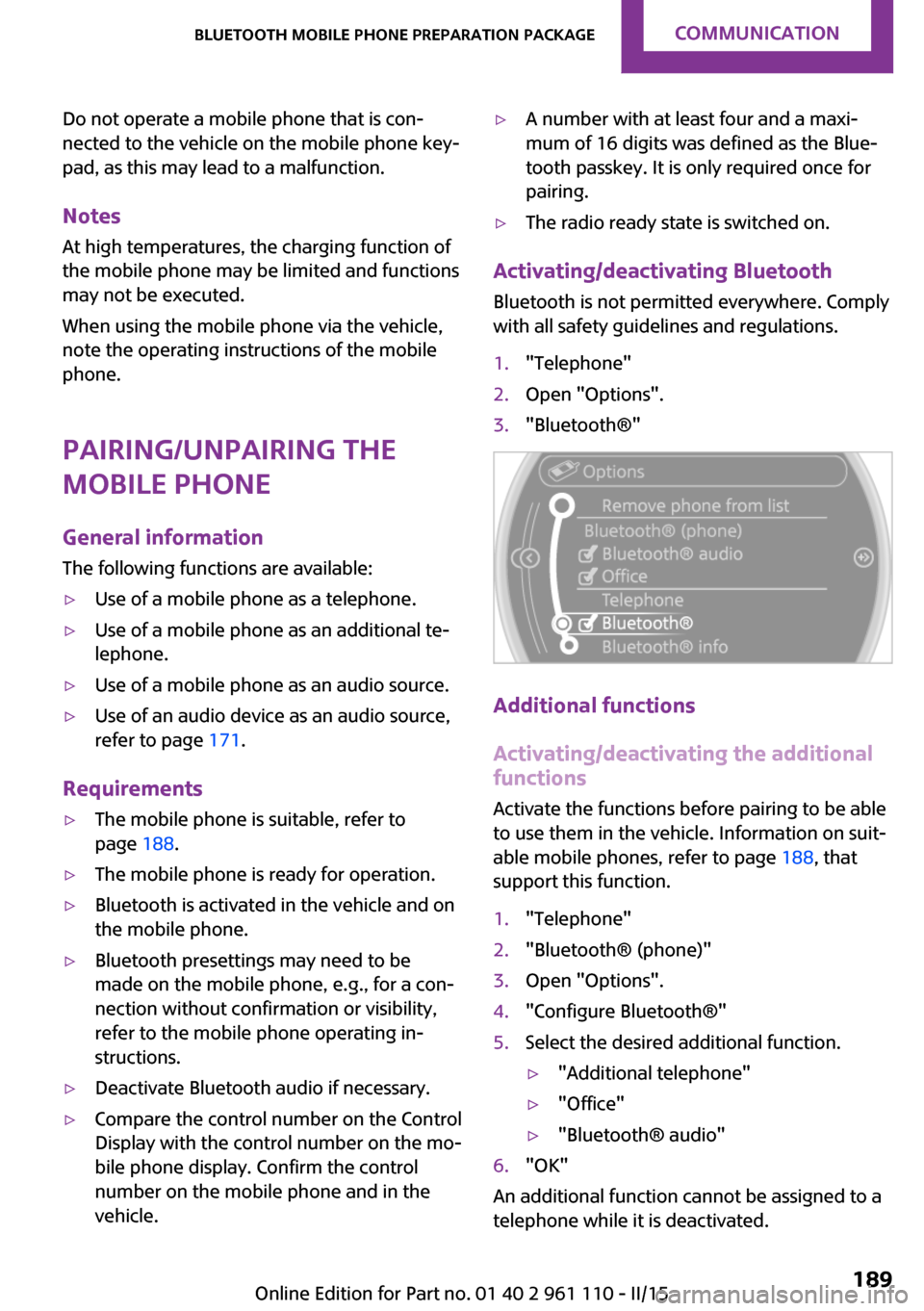
1."Telephone"2.Open "Options".3."Bluetooth®"
Additional functions
Activating/deactivating the additional functions
Activate the functions before pairing to be able
to use them in the vehicle. Information on suit‐
able mobile phones, refer to page 188, that
support this function.
1."Telephone"2."Bluetooth® (phone)"3.Open "Options".4."Configure Bluetooth®"5.Select the desired additional function.▷"Additional telephone"▷"Office"▷"Bluetooth® audio"6."OK"
An additional function cannot be assigned to a
telephone while it is deactivated.
Seite 189Bluetooth mobile phone preparation packageCOMMUNICATION189
Online Edition for Part no. 01 40 2 961 110 - II/15
Page 218 of 283
Wheels and tiresVehicle equipment
This chapter describes all series equipment as
well as country-specific and special equipment
offered for this model series. Therefore, it also
describes equipment that may not be found in
your vehicle, for instance due to the selected
special equipment or the country version. This
also applies to safety-related functions and sys‐
tems.
When using the features and systems described
here, adhere to local regulations.
Tire inflation pressure
Safety information It is not merely the tires' service life, but also
driving comfort and, to a great extent, driving
safety that depend on the condition of the tires
and the maintenance of the specified tire pres‐
sure.
Checking the pressure Tires naturally lose pressure uniformly across all
four tires.
Check the tire inflation pressure regularly
Regularly check the tire inflation pressure
and correct it as needed: at least twice a month
and before a long trip. If you fail to observe this
precaution, you may be driving on tires with in‐
correct tire pressures, a condition that may not
only compromise your vehicle's driving stabil‐
ity, but also lead to tire damage and the risk of
an accident.
Do not drive with depressurized or flat tires, ex‐
cept for run-flat tires. A flat tire will seriously
impair your vehicle's handling and braking re‐
sponse. Attempts to drive on a flat tire can lead
to a loss of control over the vehicle. ◀Tires warm up during driving and the tire infla‐
tion pressure increases as the temperature
rises. The tire inflation pressure specifications
apply to cold tires or tires at ambient tempera‐
ture.
Only check the tire inflation pressure when the
tires are cold. This means after a maximum of
1.25 miles/2 km driving or when the vehicle
has been parked for at least 2 hours. When the
tires are warm, the tire inflation pressure is
higher.
After correcting the tire inflation pressure, reset
the Tire Pressure Monitor, refer to page 87
or reinitialize the Flat Tire Monitor, refer to
page 85.
Pressure specifications
The tables below provide all the correct infla‐
tion pressures for the specified tire sizes at am‐
bient temperature.
The inflation pressures apply to the tire sizes
approved and tire brands recommended by the
manufacturer of the MINI; a list of these is
available from the service center.
For correct identification of the right tire infla‐
tion pressures, observe the following:▷Tire sizes of your vehicle▷Maximum allowable driving speed
Tire inflation pressures for driving up to
100 mph or 160 km/h
For normal driving up to 100 mph/160 km/h,
adjust pressures to the respective tire inflation
pressures listed on the following pages in the
column for traveling speeds up to 100 mph/
160 km/h to achieve optimum driving comfort.
These tire inflation pressures can also be found
on the driver's side door pillar when the driver's
door is open.
Seite 216MOBILITYWheels and tires216
Online Edition for Part no. 01 40 2 961 110 - II/15
Page 267 of 283
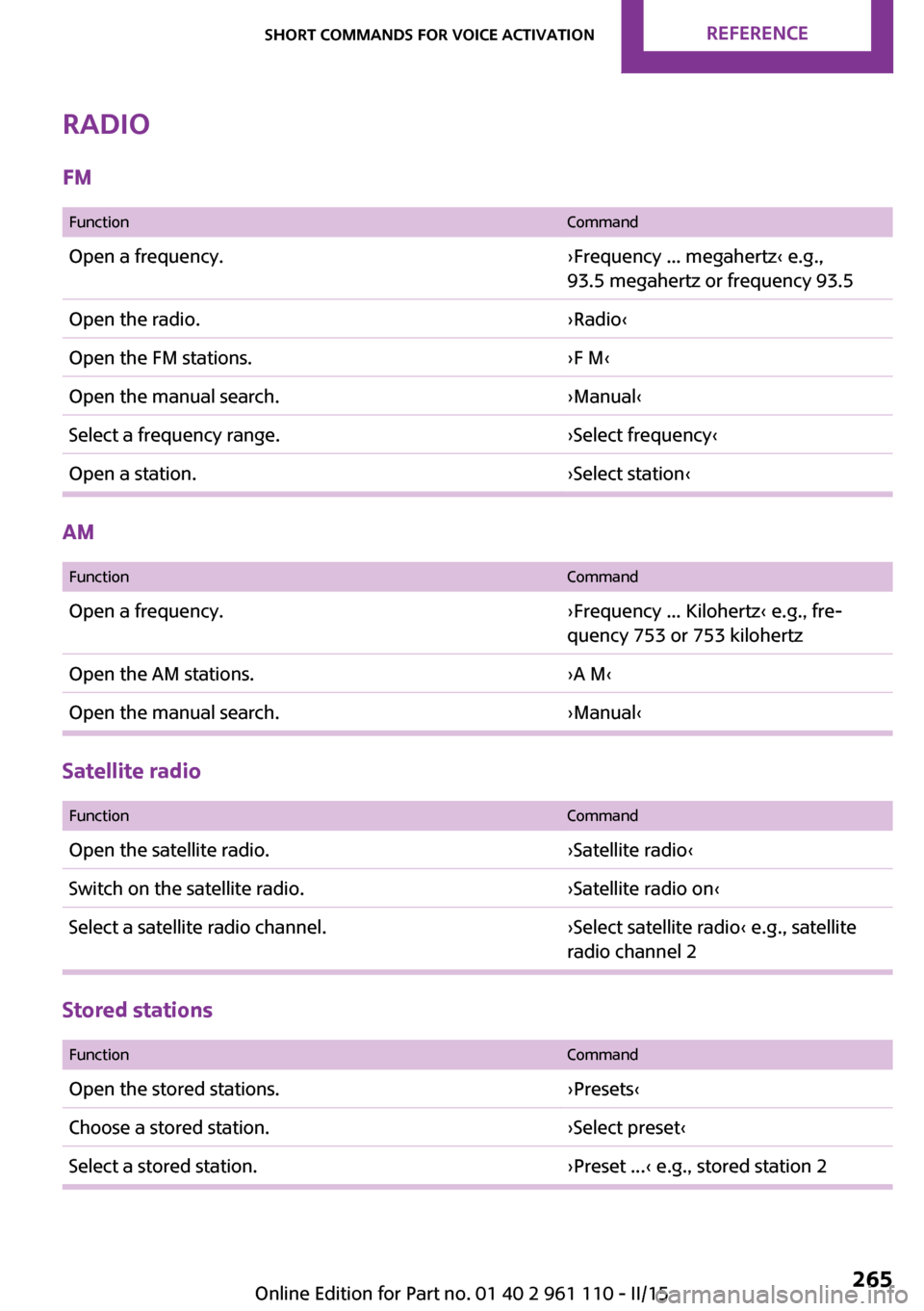
Radio
FM
FunctionCommandOpen a frequency.›Frequency ... megahertz‹ e.g.,
93.5 megahertz or frequency 93.5Open the radio.›Radio‹Open the FM stations.›F M‹Open the manual search.›Manual‹Select a frequency range.›Select frequency‹Open a station.›Select station‹
AM
FunctionCommandOpen a frequency.›Frequency ... Kilohertz‹ e.g., fre‐
quency 753 or 753 kilohertzOpen the AM stations.›A M‹Open the manual search.›Manual‹
Satellite radio
FunctionCommandOpen the satellite radio.›Satellite radio‹Switch on the satellite radio.›Satellite radio on‹Select a satellite radio channel.›Select satellite radio‹ e.g., satellite
radio channel 2
Stored stations
FunctionCommandOpen the stored stations.›Presets‹Choose a stored station.›Select preset‹Select a stored station.›Preset ...‹ e.g., stored station 2Seite 265Short commands for voice activationREFERENCE265
Online Edition for Part no. 01 40 2 961 110 - II/15
Page 279 of 283

Spoken instructions, naviga‐tion 145
Sport button 94
Sport program, Steptronic transmission 65
Stability control systems 92
Start/Stop button 57
Start/Stop button, starting the engine 58
Start/Stop button, switching off the engine 59
Starting the engine 58
Start problems, refer to Jump- starting 245
State/province, selecting for navigation 134
Stations, stored 163
Station, storing 157
Status information, onboard monitor 21
Steering wheel 51
Steering wheel, adjusting 51
Steering wheel lock 57
Steering wheel, shift pad‐ dles 65
Steptronic transmission 64
Steptronic transmission, kick‐ down 65
Steptronic transmission, over‐ riding the selector lever
lock 66
Stopping, engine 59
Storage, tires 224
Storing the vehicle 254
Street, entering for naviga‐ tion 135
Summer tires, refer to Wheels and tires 216
Summer tires, tread 221
Sun visor 107
Switches, refer to Cockpit 12
Switching off, engine 59
Switching off, vehicle 59
Symbols 6 T
Tachometer 68
Tailgate 35
Tailgate, Comfort Access 37
Tailgate, opening/closing 35
Tailgate, opening from the outside 35
Tail lights 240
Tank gauge, refer to Fuel gauge 68
Tasks 204
Technical changes, refer to Safety 6
Telephone, adjusting the vol‐ ume, hands-free system 181
Telephone, adjusting the vol‐ ume, mobile phone prepara‐
tion package 193
Telephone, hands-free sys‐ tem 178
Telephone, mobile phone preparation 188
Temperature, air condi‐ tioner 100
Temperature, automatic cli‐ mate control 103
Temperature, changing the unit of measure 71
Temperature, coolant, refer to Coolant temperature 68
Temperature display– External temperature warn‐
ing 67
Temperature display, external
temperature 67
Temperature display, setting the units 71
Temperature warning 67
Text messages 202
Theft alarm system, refer to Alarm system 39
Tilt alarm sensor 40
Time, setting the time 71
Tire age 222
Tire, flat tire 85
Tire identification marks 220
Tire inflation pressure 216
Tire inflation pressure, pres‐ sure loss, FTM 85
Tire pressure loss, RDC 87
Tire, pressure monitoring, re‐ fer to Tire Pressure Monitor
TPM 86
Tire pressure monitor, refer to Flat Tire Monitor 84
Tire Pressure Monitor TPM 86
Tire Pressure Monitor TPM, system limits 89
Tire Pressure Monitor TPM, system reset 87
Tire Pressure Monitor TPM, warning lamp 87
Tire Quality Grading 220
Tires, breaking in 120
Tires, changing 223
Tires, condition 221
Tires, damage 222
Tire size 220
Tires, minimum tread 222
Tires, retreaded tires 223
Tires, storage 224
Tire tread 221
Toll roads, route 143
Tone 154
Towing another vehicle 247
Towing, being towed 247
Town/city, navigation 134
Tow-starting 247
TPM, refer to Tire Pressure Monitor 86
Traction control 93
Traffic bulletins, naviga‐ tion 147
Transmission lock, refer to Changing the selector lever
positions 64
Transmission, overriding the selector lever lock with Step‐
tronic transmission 66
Transmission, refer to Manual transmission 63 Seite 277Everything from A to ZREFERENCE277
Online Edition for Part no. 01 40 2 961 110 - II/15