light MINI COUPE ROADSTER CONVERTIBLE 2012 Service Manual
[x] Cancel search | Manufacturer: MINI, Model Year: 2012, Model line: COUPE ROADSTER CONVERTIBLE, Model: MINI COUPE ROADSTER CONVERTIBLE 2012Pages: 283, PDF Size: 9.38 MB
Page 111 of 283
CONTROLSPractical interior accessories
110
Connecting electrical
appliances
In your MINI, when the engine is running or if the
ignition is switched on, you can use electrical
devices such as flashlights, car vacuum cleaners,
etc., up to approx. 140 watts at 12 volts, as long
as one of the following sockets is available.
Avoid damaging the sockets by attempting to
insert plugs of unsuitable shape or size.
Do not connect battery chargers to the
sockets installed in the vehicle at the
factory; otherwise you may cause damage to
the vehicle.<
Cigarette lighter socket
Remove the lighter or cover from the socket.
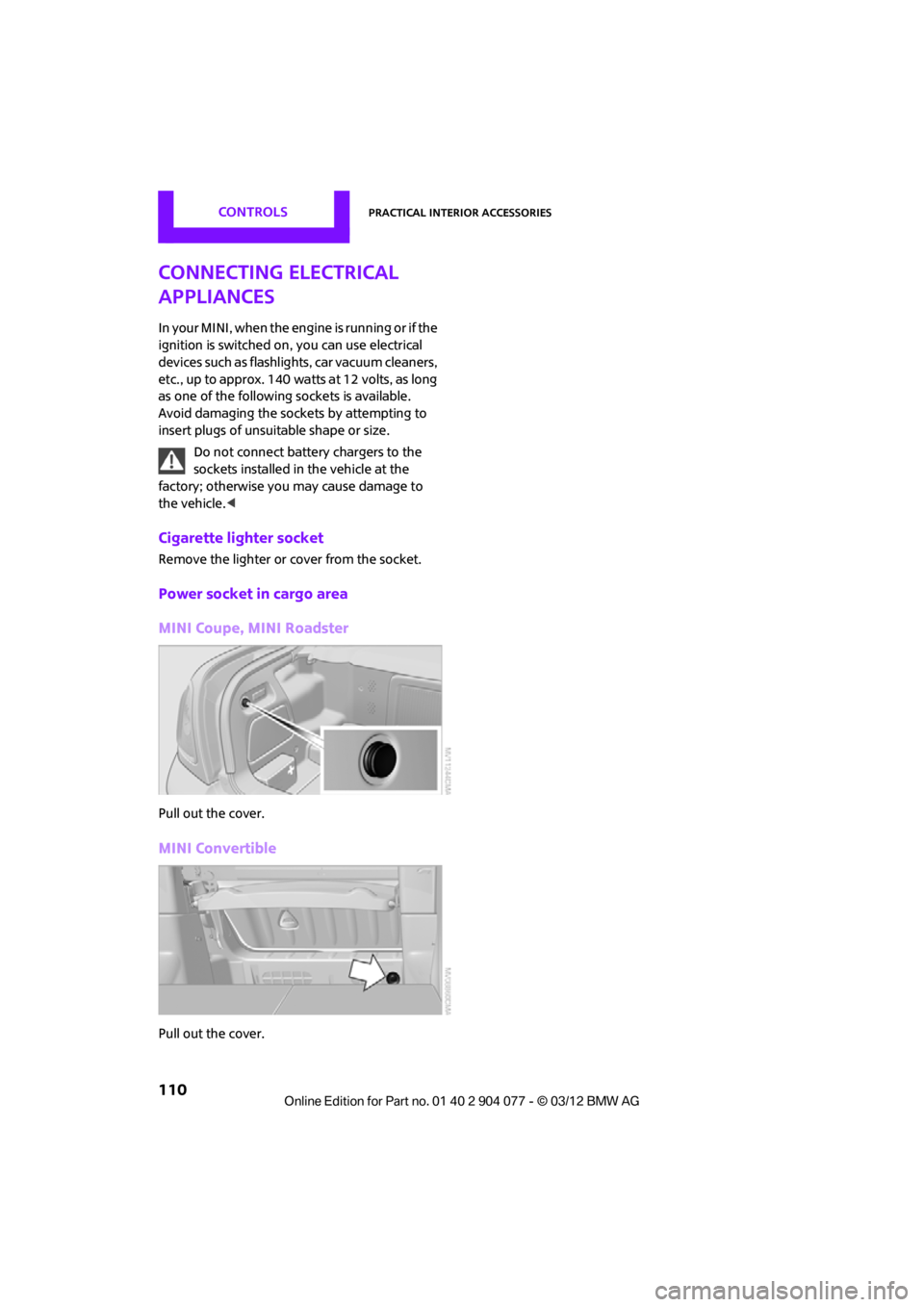
Power socket in cargo area
MINI Coupe, MINI Roadster
Pull out the cover.
MINI Convertible
Pull out the cover.
00320051004F004C00510048000300280047004C0057004C005200510003
Page 116 of 283
Things to remember when drivingDRIVING TIPS
115
Hot exhaust system
As in all vehicles, extremely high tempera-
tures are generated on the exhaust sys-
tem. Do not remove the heat shields installed
adjacent to various se ctions of the exhaust
system, and never apply undercoating to them.
Make sure that when driving, idling or when
parking, no easily flamma ble materials, such as
hay, leaves, grass, etc. come into contact with
the hot exhaust system. Such contact could lead
to a fire, with the risk of serious personal injuries
and property damage. Do not touch hot exhaust
tail pipes. Otherwise, there is a risk of burns. <
Hydroplaning
When driving on wet or slushy roads,
reduce road speed. If you do not, a wedge
of water can form betw een tires and road sur-
face. This situation, known as hydroplaning, can
cause partial or complete loss of tire contact
with the road surface, so that the car cannot be
steered or braked properly. <
The risk of hydroplaning increases with declining
tread depth on the tires, refer also to Tread
depth on page 218.
Driving through water
Drive through water on the road only if it is
not deeper than 1 ft/30 cm, and then only
at walking speed at the most. Otherwise, the
vehicle's engine, the electrical systems and the
transmission may be damaged. <
Parking brake on inclines
On inclines, do not hold the vehicle with
the clutch; use the parking brake. Other-
wise, greater clutch wear will result. <
For information on drivin g off using Hill Assist,
refer to page 85.
Braking safely
Your MINI is equipped with ABS. If you are in a
situation which requires full braking, it is best to
brake using maximum brake pressure. Since the vehicle maintains stee
ring responsiveness,
you can still avoid possi ble obstacles with a
minimum of steering effort.
The pulsation of the brake pedal, together with
the sound of hydraulic regulation, indicates that
ABS is functioning properly.
Objects in the movement range of
the pedals
Keep floor mats, carp et, and other objects
out of the movement range of the pedals;
otherwise, they may inhi bit the function of the
pedals during driving.
Do not place additional floor mats onto an
existing one or onto other objects.
Only use floor mats that have been approved for
the vehicle and can be appropriately fastened.
Make sure that the floo r mats are securely fas-
tened again after they have been removed, e.g.
for cleaning.<
Driving in wet conditions
When roads are wet or ther e is heavy rain, briefly
exert gentle pressure on the brake pedal every
few miles. Monitor traffic conditions to ensure
that this maneuver does not endanger other
road users. The heat generated in this process
helps dry the pads and rotors to ensure that.
Then full braking force will be immediately
available when it is needed.
Hills
To prevent overheatin g and the resulting
reduced efficiency of the brake system,
drive long or steep downhill gradients in the
gear in which the least braking is required. Even
light but consistent brake pressure can lead to
high temperatures, brake wear and possibly
even brake failure. <
You can increase the engine's braking effect by
shifting down, all the way to first gear if neces-
sary. This strategy helps you avoid placing
excessive loads on the brake system. Downshift-
ing in manual mo de of the automatic transmis-
sion, page 64.
00320051004F004C00510048000300280047004C0057004C005200510003
Page 120 of 283
Things to remember when drivingDRIVING TIPS
119
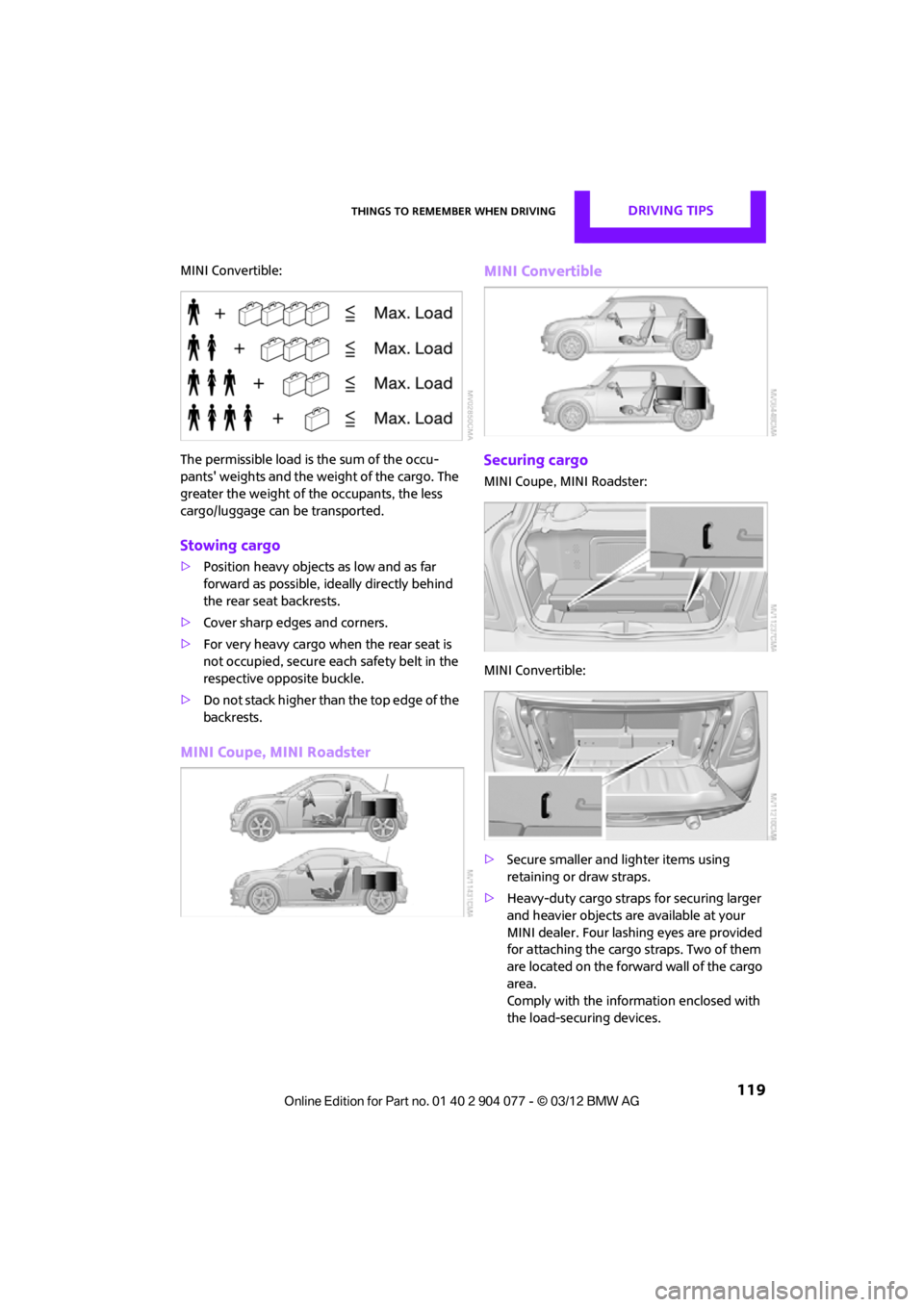
MINI Convertible:
The permissible load is the sum of the occu-
pants' weights and the weight of the cargo. The
greater the weight of the occupants, the less
cargo/luggage can be transported.
Stowing cargo
>Position heavy objects as low and as far
forward as possible, id eally directly behind
the rear seat backrests.
> Cover sharp edges and corners.
> For very heavy cargo when the rear seat is
not occupied, secure each safety belt in the
respective opposite buckle.
> Do not stack higher than the top edge of the
backrests.
MINI Coupe, MINI Roadster MINI Convertible
Securing cargo
MINI Coupe, MINI Roadster:
MINI Convertible:
>
Secure smaller and lighter items using
retaining or draw straps.
> Heavy-duty cargo straps for securing larger
and heavier objects ar e available at your
MINI dealer. Four lashing eyes are provided
for attaching the cargo straps. Two of them
are located on the forward wall of the cargo
area.
Comply with the information enclosed with
the load-securing devices.
00320051004F004C00510048000300280047004C0057004C005200510003
Page 122 of 283
Things to remember when drivingDRIVING TIPS
121
Avoid high engine speeds
Use first gear only for driving off. In second and
higher gears, accelerate smoothly to a suitable
engine and road speed. In doing so, avoid high
engine speeds and shift up early.
When you reach your desired traveling speed,
shift to the highest suitable gear and drive at
constant speed.
As a rule: driving at lo w engine speeds lowers
fuel consumption and reduces wear.
Coasting
When approaching a red traffic light, take your
foot off the accelerator and let the car roll to a
stop in the highest gear possible.
On a downhill gradient, take your foot off the
accelerator and let the vehi cle coast in a suitable
gear.
Fuel supply is shut off automatically when the
vehicle is coasting.
Switch off the engine during lengthy
stops
Switch off the engine when stopping for lengthy
periods, e.g. at traffic lights, railroad crossings or
in traffic jams.
Switch off any features that are not
currently required
Features such as air conditioning, seat heaters
and the rear window defroster require a great
deal of energy and result in greater fuel con-
sumption, especially in city driving and during
Stop & Go operation. For this reason, switch off
these features if they are not really needed.
Have the vehicle serviced
Have your vehicle serviced regularly to achieve
good economy and a long vehicle life. The man-
ufacturer of your MINI recommends having the
vehicle serviced by a MINI dealer. Also note the
MINI Maintenance System, page 225.
00320051004F004C00510048000300280047004C0057004C005200510003
Page 127 of 283
NAVIGATIONDestination entry
126
Destination entry
General information
In entering your destination you can select from
among the following options:
>Manual destination entry, see below
> Selecting destination from address book,
page 128
> Last destin ations, page 129
> Special destinations, refer to page 130
> Entering the destinatio n via map, refer to
page 131
> Selecting home address, refer to page 129
> Entering destinatio n via voice, page132
After selecting your dest ination you can proceed
to start the route guidance, page 135.
Manual destination
entry
To make it easier to enter town/city names and
street names, you are supported with the word-
match principle, refer to page134. This makes it
possible to enter different spellings and com-
pletes your entry automatically so that stored
town/city names and st reet names can be
accessed quickly.
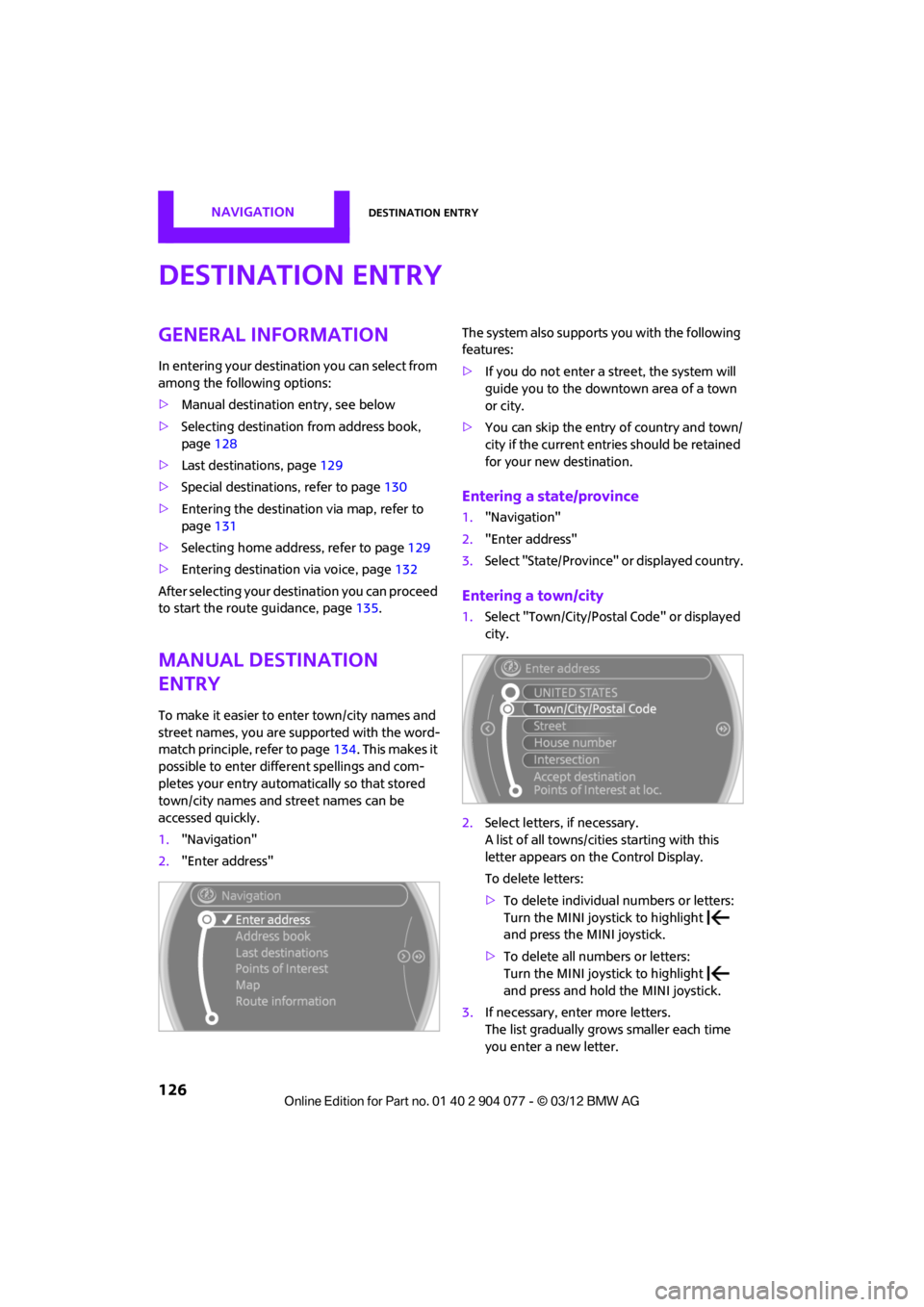
1. "Navigation"
2. "Enter address" The system also supports
you with the following
features:
> If you do not enter a street, the system will
guide you to the downtown area of a town
or city.
> You can skip the entry of country and town/
city if the current entries should be retained
for your new destination.
Entering a state/province
1."Navigation"
2. "Enter address"
3. Select "State/Province" or displayed country.
Entering a town/city
1.Select "Town/City/Postal Code" or displayed
city.
2. Select letters, if necessary.
A list of all towns/cities starting with this
letter appears on the Control Display.
To delete letters:
>To delete individual numbers or letters:
Turn the MINI joystick to highlight
and press the MINI joystick.
> To delete all numbers or letters:
Turn the MINI joystick to highlight
and press and hold the MINI joystick.
3. If necessary, enter more letters.
The list gradually grow s smaller each time
you enter a new letter.
00320051004F004C00510048000300280047004C0057004C005200510003
Page 128 of 283
Destination entryNAVIGATION
127
To enter spaces, if necessary:
Select the symbol.
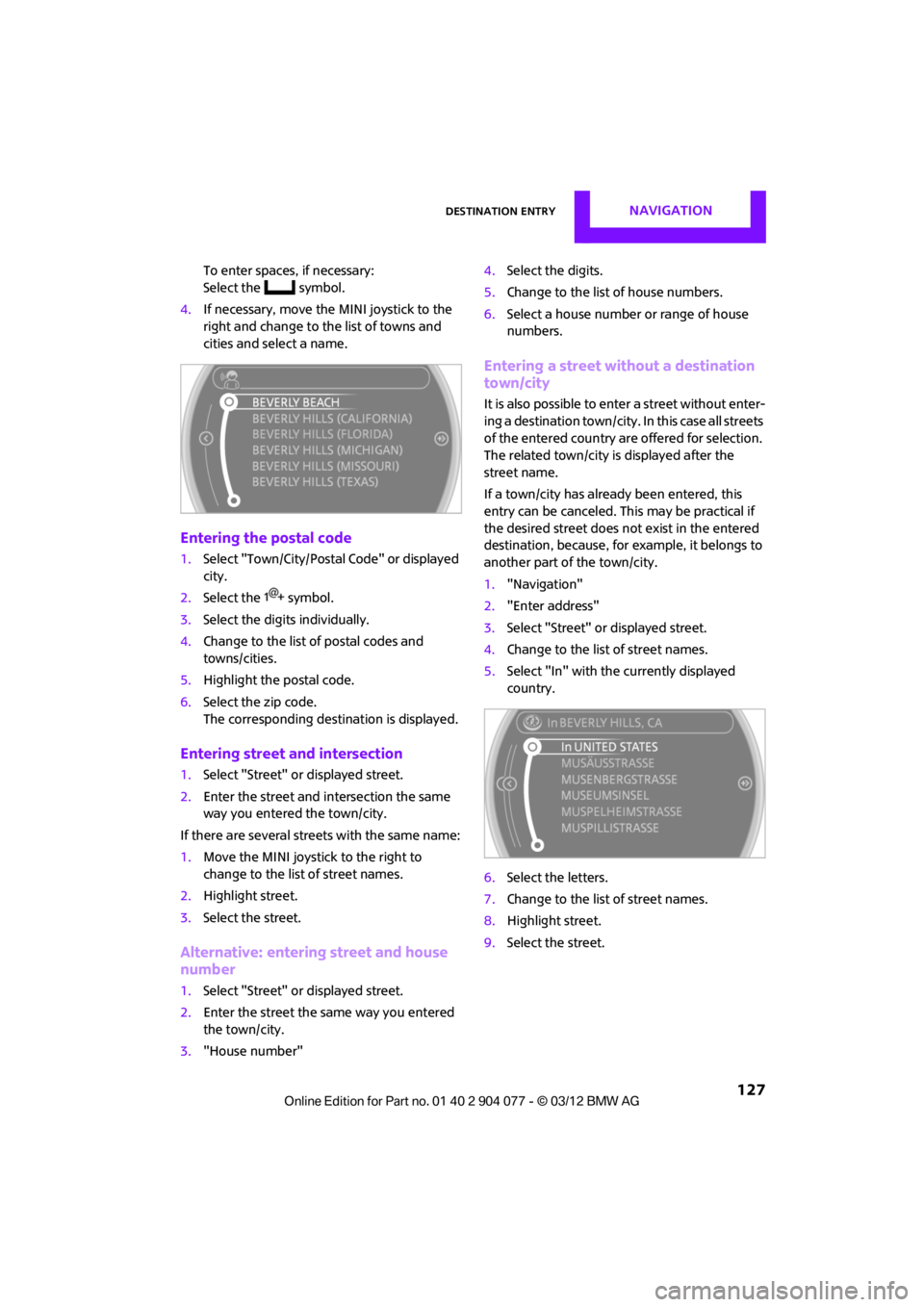
4. If necessary, move the MINI joystick to the
right and change to the list of towns and
cities and select a name.
Entering the postal code
1.Select "Town/City/Postal Code" or displayed
city.
2. Select the symbol.
3. Select the digits individually.
4. Change to the list of postal codes and
towns/cities.
5. Highlight the postal code.
6. Select the zip code.
The corresponding dest ination is displayed.
Entering street and intersection
1.Select "Street" or displayed street.
2. Enter the street and intersection the same
way you entered the town/city.
If there are several streets with the same name:
1. Move the MINI joystick to the right to
change to the list of street names.
2. Highlight street.
3. Select the street.
Alternative: entering street and house
number
1.Select "Street" or displayed street.
2. Enter the street the same way you entered
the town/city.
3. "House number" 4.
Select the digits.
5. Change to the list of house numbers.
6. Select a house number or range of house
numbers.
Entering a street without a destination
town/city
It is also possible to enter a street without enter-
ing a destination town/city. In this case all streets
of the entered country are offered for selection.
The related town/city is displayed after the
street name.
If a town/city has already been entered, this
entry can be canceled. Th is may be practical if
the desired street does not exist in the entered
destination, because, for example, it belongs to
another part of the town/city.
1. "Navigation"
2. "Enter address"
3. Select "Street" or displayed street.
4. Change to the list of street names.
5. Select "In" with the currently displayed
country.
6. Select the letters.
7. Change to the list of street names.
8. Highlight street.
9. Select the street.
00320051004F004C00510048000300280047004C0057004C005200510003
Page 130 of 283
Destination entryNAVIGATION
129
Storing the position
Your current position can be stored in the
address book.
1."Navigation"
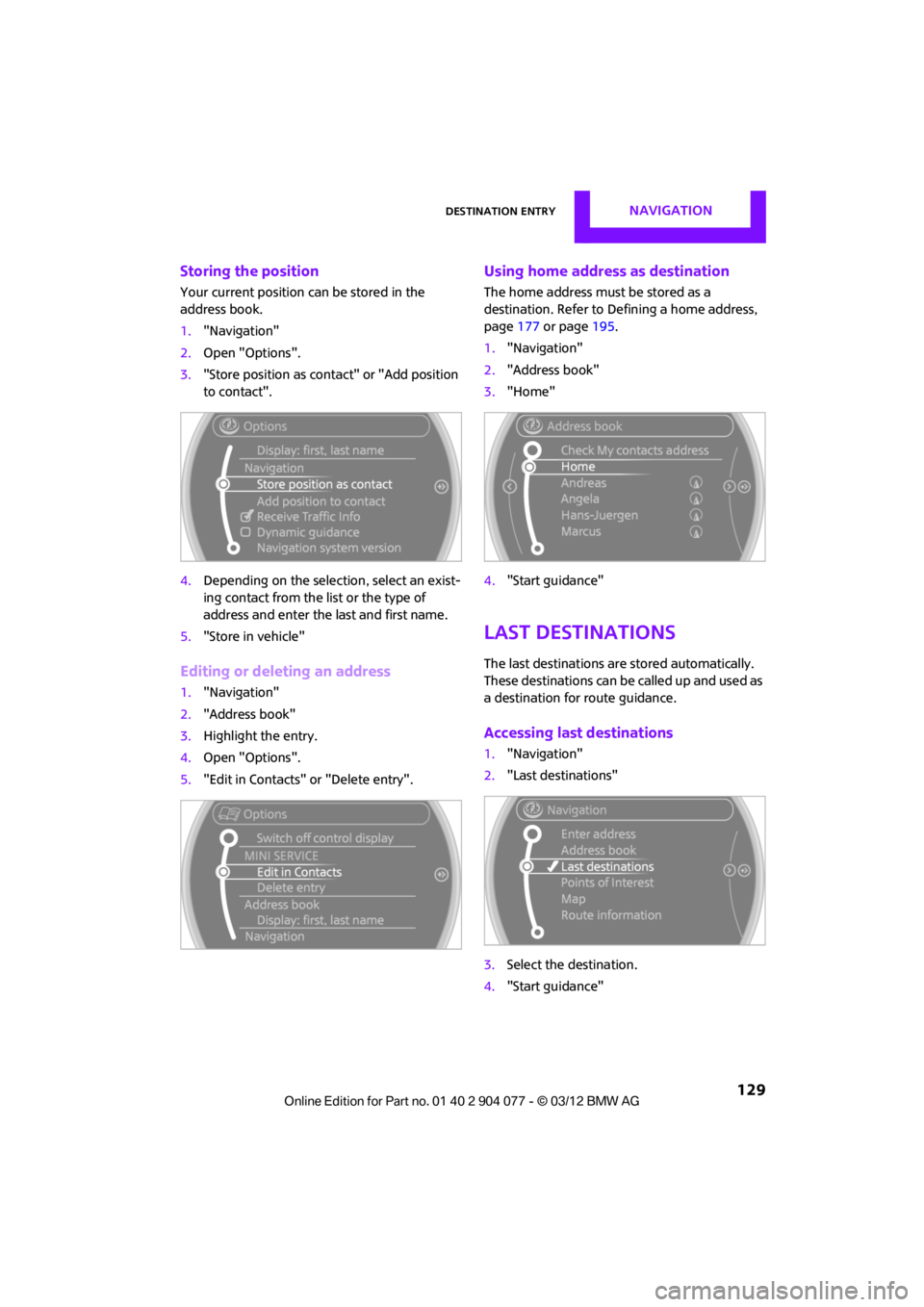
2. Open "Options".
3. "Store position as cont act" or "Add position
to contact".
4. Depending on the select ion, select an exist-
ing contact from the list or the type of
address and enter the last and first name.
5. "Store in vehicle"
Editing or deleting an address
1."Navigation"
2. "Address book"
3. Highlight the entry.
4. Open "Options".
5. "Edit in Contacts" or "Delete entry".
Using home address as destination
The home address must be stored as a
destination. Refer to Defining a home address,
page 177 or page 195.
1. "Navigation"
2. "Address book"
3. "Home"
4. "Start guidance"
Last destinations
The last destinations ar e stored automatically.
These destinations can be called up and used as
a destination for route guidance.
Accessing last destinations
1. "Navigation"
2. "Last destinations"
3. Select the destination.
4. "Start guidance"
00320051004F004C00510048000300280047004C0057004C005200510003
Page 131 of 283
NAVIGATIONDestination entry
130
Editing a destination
Destinations can be edited, for example, to
change the house number of an existing entry.
1. "Navigation"
2. "Last destinations"
3. Highlight the destination.
4. Open "Options".
5. "Edit destination"
Deleting the last destinations
1."Navigation"
2. "Last destinations"
3. Highlight the destination.
4. Open "Options".
5. "Delete entry" or "Delete all last des-
tinations".
Special destinations
You can search for a special destination, e.g. a
hotel or place of interest, and start route guid-
ance to the corresponding location.
The scope of information provided
depends on the particular set of naviga-
tion data you are using. <
Accessing search for special
destinations
1."Navigation"
2. Select "Points of Interest"
search.
A-Z search
1."A-Z search"
2. "Town/City"
3. "Category"
4. "Category details"
For some special destinations, it is possible
to select several catego ry details. Move the
MINI joystick to the left to exit category
details. 5.
"Keyword"
6. Enter keyword.
A list of the special destinations is displayed.
7. Select the special destination.
8. Select the symbol.
9. "Start guidance" or "Add as another
destination".
If several details are stored, then you can
scroll through the pages.
If a phone number is available, a connection
can be established, if desired.
Category search
1."Category search"
2. "Search destination"
3. Select or enter town/city.
4. "Category"
5. Select category.
6. "Category details"
For some special destinations, it is possible
to select several catego ry details. Move the
MINI joystick to the left to exit category
details.
7. "Start search"
A list of the special destinations is displayed.
8. Select the special destination.
Details are displayed.
9. Select the symbol.
10. "Start guidance" or "Add as another
destination".
If several details are stored, then you can scroll
through the pages. If a phone number is avail-
able, a connection can be established, if desired.
Special destination location
As you input the search destination, you can
select from among various options.
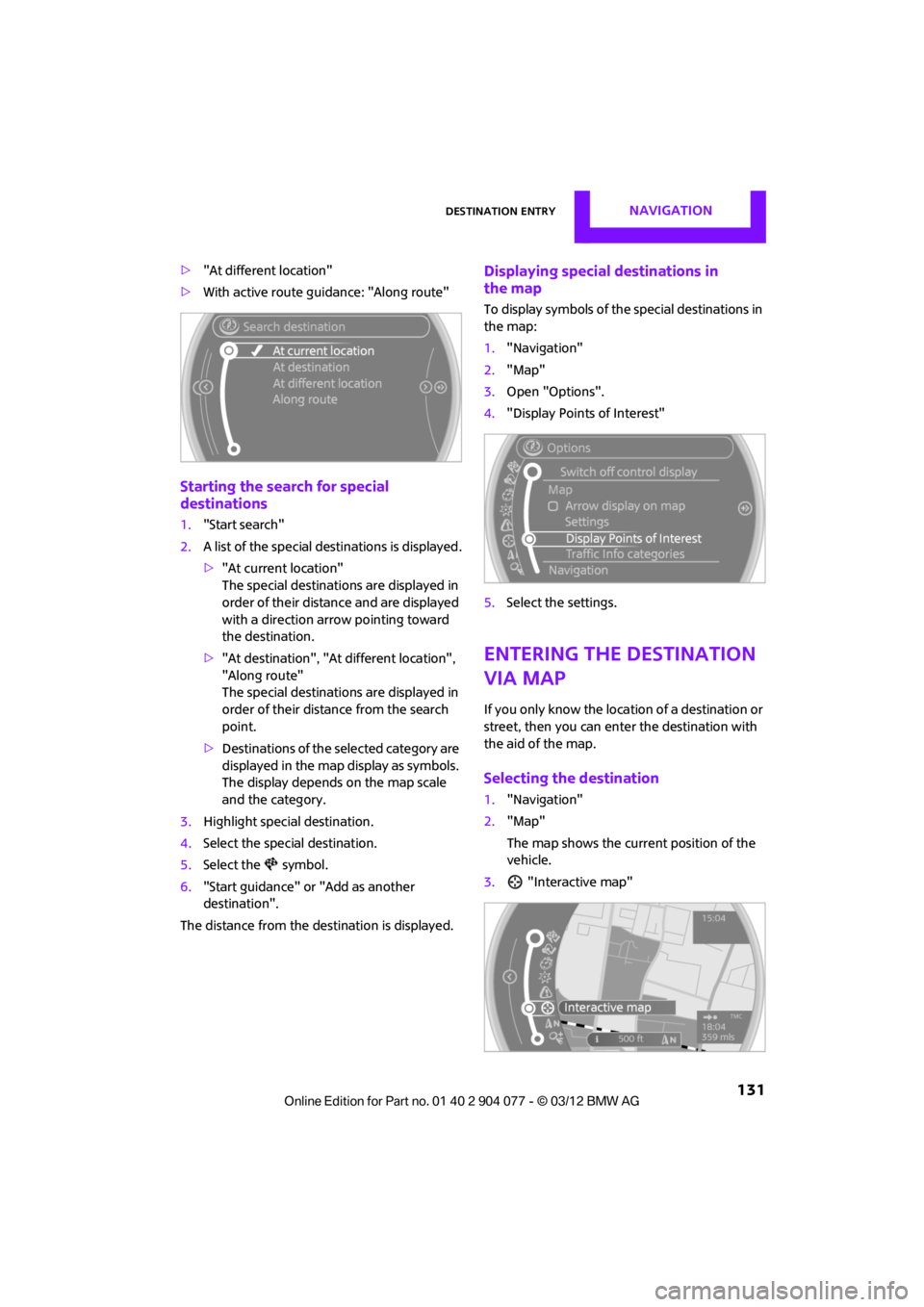
> "At current location"
> "At destination"
00320051004F004C00510048000300280047004C0057004C005200510003
Page 132 of 283
Destination entryNAVIGATION
131
>"At different location"
> With active route guidance: "Along route"
Starting the search for special
destinations
1."Start search"
2. A list of the special destinations is displayed.
>"At current location"
The special destinations are displayed in
order of their distance and are displayed
with a direction arro w pointing toward
the destination.
> "At destination", "At different location",
"Along route"
The special destinations are displayed in
order of their distance from the search
point.
> Destinations of the se lected category are
displayed in the map display as symbols.
The display depends on the map scale
and the category.
3. Highlight special destination.
4. Select the special destination.
5. Select the symbol.
6. "Start guidance" or "Add as another
destination".
The distance from the de stination is displayed.
Displaying special destinations in
the map
To display symbols of the special destinations in
the map:
1. "Navigation"
2. "Map"
3. Open "Options".
4. "Display Points of Interest"
5. Select the settings.
Entering the destination
via map
If you only know the loca tion of a destination or
street, then you can enter the destination with
the aid of the map.
Selecting the destination
1. "Navigation"
2. "Map"
The map shows the curre nt position of the
vehicle.
3. "Interactive map"
00320051004F004C00510048000300280047004C0057004C005200510003
Page 137 of 283
NAVIGATIONRoute guidance
136
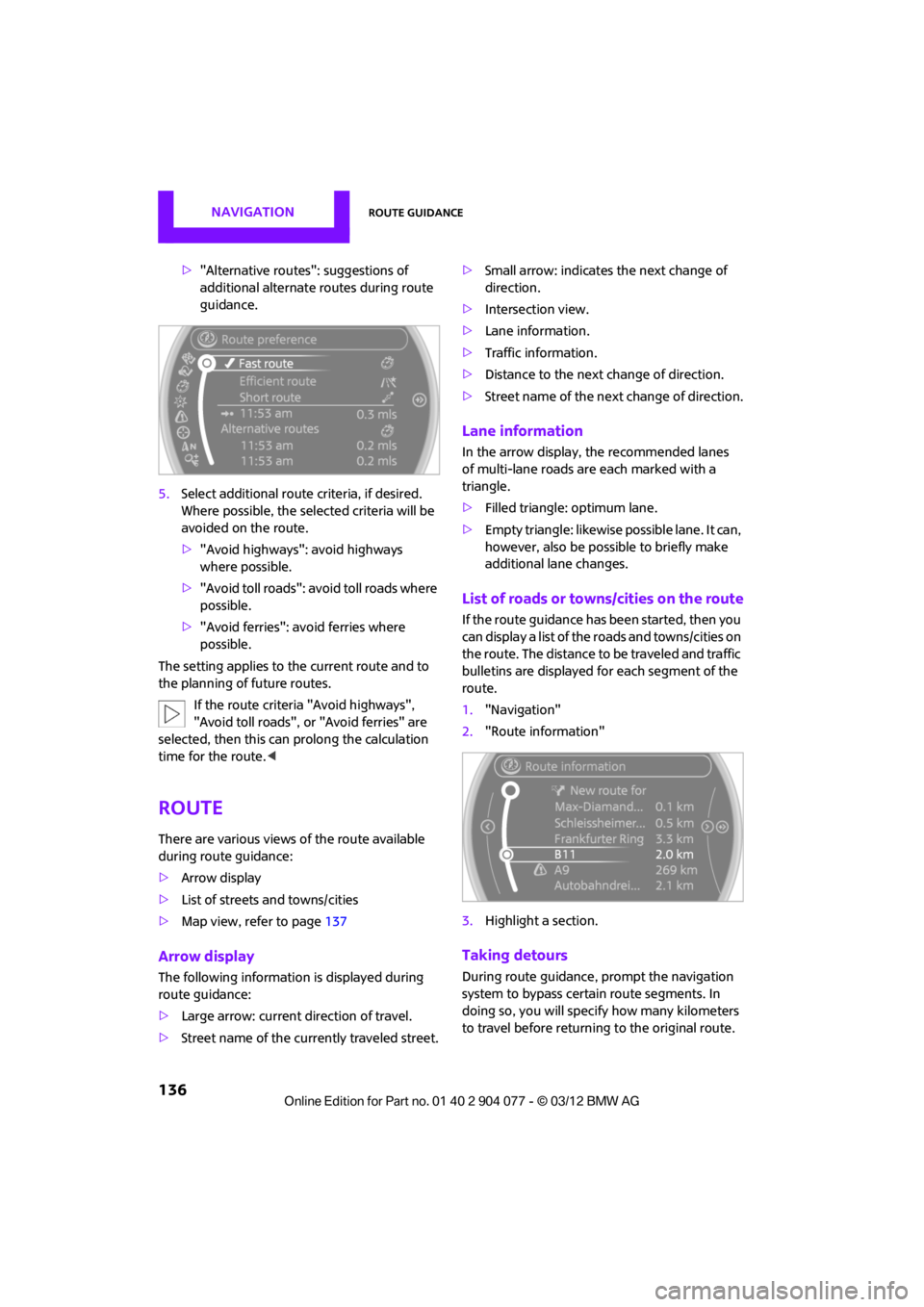
>"Alternative routes": suggestions of
additional alternate routes during route
guidance.
5. Select additional route criteria, if desired.
Where possible, the selected criteria will be
avoided on the route.
>"Avoid highways": avoid highways
where possible.
> "Avoid toll roads": avoid toll roads where
possible.
> "Avoid ferries": avoid ferries where
possible.
The setting applies to the current route and to
the planning of future routes.
If the route criteria "Avoid highways",
"Avoid toll roads", or "Avoid ferries" are
selected, then this can prolong the calculation
time for the route. <
Route
There are various views of the route available
during route guidance:
>Arrow display
> List of streets and towns/cities
> Map view, refer to page 137
Arrow display
The following information is displayed during
route guidance:
>Large arrow: current direction of travel.
> Street name of the currently traveled street. >
Small arrow: indicates the next change of
direction.
> Intersection view.
> Lane information.
> Traffic information.
> Distance to the next change of direction.
> Street name of the next change of direction.
Lane information
In the arrow display, the recommended lanes
of multi-lane roads are each marked with a
triangle.
>Filled triangle: optimum lane.
> Empty triangle: likewise possible lane. It can,
however, also be possi ble to briefly make
additional lane changes.
List of roads or towns/cities on the route
If the route guidance has been started, then you
can display a list of the roads and towns/cities on
the route. The distance to be traveled and traffic
bulletins are displayed fo r each segment of the
route.
1. "Navigation"
2. "Route information"
3. Highlight a section.
Taking detours
During route guidance, prompt the navigation
system to bypass certai n route segments. In
doing so, you will specif y how many kilometers
to travel before returning to the original route.
00320051004F004C00510048000300280047004C0057004C005200510003