ESP MITSUBISHI ASX 2012 (in English) Owner's Guide
[x] Cancel search | Manufacturer: MITSUBISHI, Model Year: 2012, Model line: ASX, Model: MITSUBISHI ASX 2012Pages: 378, PDF Size: 18.2 MB
Page 193 of 378
Anti-lock brake system (ABS)
E00607101046
The
anti-lock brake system (ABS) helps prevent
the wheels from locking up when braking. This
helps maintain vehicle drivability and steering
wheel handling.
Driving hints
l Always keep a safe distance from the vehicle
in front of you. Even if your vehicle is equip-
ped with ABS, leave a greater braking dis-
tance when:
• Driving on gravel or snow-covered roads.
• Driving with tyre chains installed.
• Driving on uneven road surfaces.
l Operation of ABS is not restricted to situa-
tions where brakes are applied suddenly.
This system may also prevent the wheels
from locking when you drive over manholes,
steel roadwork plates, road markings, or any
uneven road surface.
l When the ABS is activated, you may feel the
brake pedal pulsation and the vibrations of
the vehicle body and steering wheel. It may
also feel as if the pedal resists being pressed.
In this situation, simply hold the brake ped-
al down firmly. Do not pump the brake,
which will result in reduced braking per-
formance.
l An operation noise is emitted from the en-
gine compartment or you can feel a shock
from the brake pedal when start driving im-
mediately after starting the engine. These are
normal sounds or operations that the ABS
makes when performing a self-check. It does
not indicate a malfunction. l
The ABS can be used after the vehicle has
reached a speed over approximately 10 km/h
(6 mph). It stops working when the vehicle
slows below approximately 5 km/h (3 mph). CAUTION
l
The
ABS cannot prevent accidents. It is
your responsibility to take safety precau-
tions and to drive carefully.
l To prevent failure of the ABS, be sure all
4 wheels and tyres are the same size and
the same type.
l Do not install any aftermarket limited-
slip differential (LSD) on your vehicle.
The ABS may stop functioning properly. ABS warning lamp/display
E00607201135
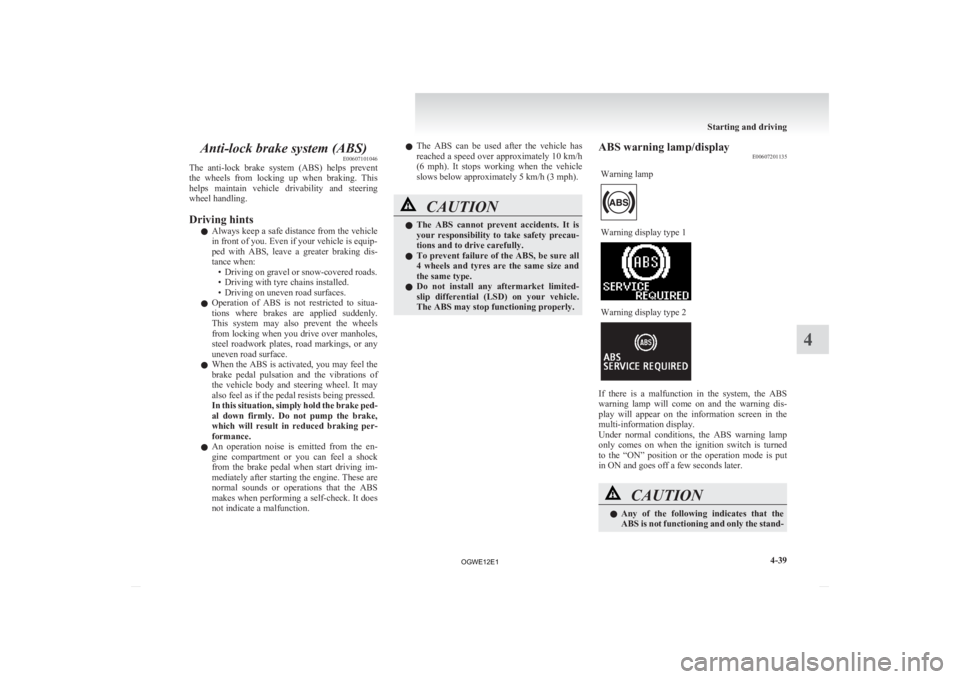
Warning lamp Warning display type 1
Warning display type 2
If there is a malfunction in the system, the ABS
warning
lamp will come on and the warning dis-
play will appear on the information screen in the
multi-information display.
Under normal conditions, the ABS warning lamp
only comes on when the ignition switch is turned
to the “ON” position or the operation mode is put
in ON and goes off a few seconds later. CAUTION
l
Any
of the following indicates that the
ABS is not functioning and only the stand- Starting and driving
4-39 4
OGWE12E1
Page 196 of 378
Active stability control (ASC)*
E00616700331
The
Active Stability Control (ASC) takes overall
control of the anti-lock brake system, traction con-
trol function and stability control function to help
maintain the vehicle’s control and traction. Please
read this section in conjunction with the page on
the anti-lock brake system, traction control func-
tion and stability control function.
Anti-lock brake system (ABS) ® p. 4-39
Traction control function ® p. 4-42
Stability control function ® p. 4-42CAUTION
l
Do
not over-rely on the ASC. Even the
ASC cannot prevent the natural laws of
physics from acting on the vehicle.
This system, like any other system, has
limits and cannot help you to maintain
traction and control of the vehicle in all
circumstances. Reckless driving may lead
to accidents. It is the driver’s responsibil-
ity to drive carefully. This means taking
into account the traffic, road and environ-
mental conditions.
l Be sure to use the same specified type and
size of tyre on all 4 wheels. Otherwise, the
ASC may not work properly.
l Do not install any aftermarket limited-
slip differential (LSD) on your vehicle.
The ASC may stop functioning properly. NOTE
l An
operation noise may be emitted from the
engine compartment in the following situa-
tions. The sound is associated with checking
the operations of the ASC. At this time, you
may feel a shock from the brake pedal if you
depress it. These do not indicate a malfunc-
tion. • When the ignition switch is turned to the“ON” position or the operation mode is
put in ON.
• When the vehicle is driven for a while af- ter the engine is turned on.
l When the ASC is activated, you may feel a
vibration in the vehicle body or hear a whin-
ing sound from the engine compartment.
This indicates that the system is operating nor-
mally. It does not indicate a malfunction.
l When the anti-lock brake system warning
lamp is illuminated, the ASC is not active.
Traction control function E00619000087
On slippery surfaces, the traction control function
prevents
the drive wheels from spinning excessive,
thus helping the vehicle to start moving from a stop-
ped condition. It also provides sufficient driving
force and steering performance as the vehicle turns
while pressing the acceleration pedal. CAUTION
l
When
driving a vehicle on a snowy or icy
road, be sure to install snow tyres and
drive the vehicle at moderate speeds. Stability control function
E00619100017
The
stability control function is designed to help
the driver maintain control of the vehicle on slip-
pery roads or during rapid steering manoeuvres. It
works by controlling the engine output and brake
on each wheel.
NOTE
l The stability control function operates at
speeds of about 15 km/h (9 mph) or higher.
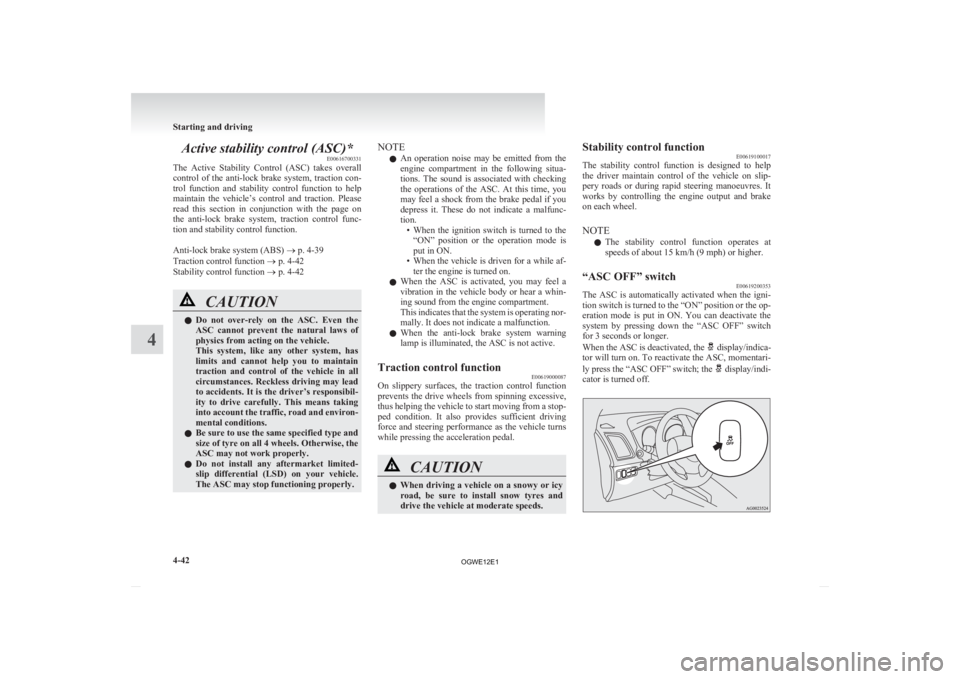
“ASC OFF” switch E00619200353
The ASC is automatically activated when the igni-
tion
switch is turned to the “ON” position or the op-
eration mode is put in ON. You can deactivate the
system by pressing down the “ASC OFF” switch
for 3 seconds or longer.
When the ASC is deactivated, the display/indica-
tor
will turn on. To reactivate the ASC, momentari-
ly press the “ASC OFF” switch; the display/indi-
cator is turned off. Starting and driving
4-42
4
OGWE12E1
Page 219 of 378
NOTE
l When
the air conditioning operates with the
selection switch in the outside position, the
system automatically determines whether to
continue using outside air or to perform recir-
culation. If the outside air temperature is
high, the system selects recirculation to ach-
ieve rapid cooling and causes the indication
lamp in the switch to illuminate. Press the se-
lection switch to return to outside air intro-
duction.
Combination of unheated air and heated air (Heat-
er/Manual air conditioning) E00702000435
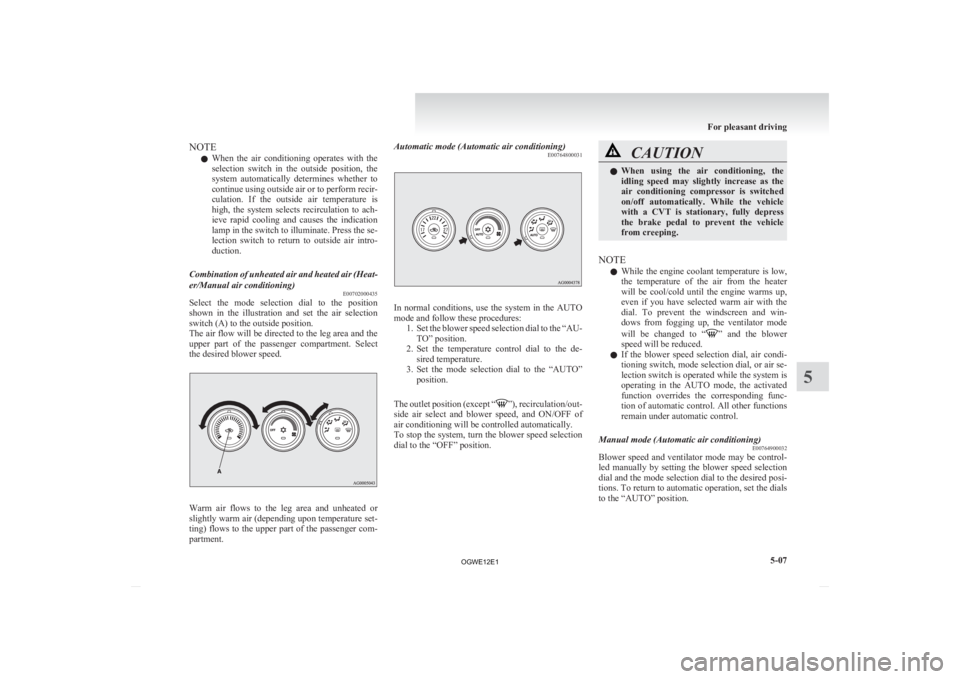
Select the mode selection dial to the position
shown
in the illustration and set the air selection
switch (A) to the outside position.
The air flow will be directed to the leg area and the
upper part of the passenger compartment. Select
the desired blower speed. Warm air flows to the leg area and unheated or
slightly
warm air (depending upon temperature set-
ting) flows to the upper part of the passenger com-
partment. Automatic mode (Automatic air conditioning)
E00764800031 In normal conditions, use the system in the AUTO
mode and follow these procedures:
1. Set
the blower speed selection dial to the “AU-
TO” position.
2. Set the temperature control dial to the de- sired temperature.
3. Set the mode selection dial to the “AUTO” position.
The outlet position (except “ ”),
recirculation/out-
side air select and blower speed, and ON/OFF of
air conditioning will be controlled automatically.
To stop the system, turn the blower speed selection
dial to the “OFF” position. CAUTION
l
When
using the air conditioning, the
idling speed may slightly increase as the
air conditioning compressor is switched
on/off automatically. While the vehicle
with a CVT is stationary, fully depress
the brake pedal to prevent the vehicle
from creeping.
NOTE l While
the engine coolant temperature is low,
the temperature of the air from the heater
will be cool/cold until the engine warms up,
even if you have selected warm air with the
dial. To prevent the windscreen and win-
dows from fogging up, the ventilator mode
will be changed to “ ”
and the blower
speed will be reduced.
l If the blower speed selection dial, air condi-
tioning switch, mode selection dial, or air se-
lection switch is operated while the system is
operating in the AUTO mode, the activated
function overrides the corresponding func-
tion of automatic control. All other functions
remain under automatic control.
Manual mode (Automatic air conditioning) E00764900032
Blower speed and ventilator mode may be control-
led
manually by setting the blower speed selection
dial and the mode selection dial to the desired posi-
tions. To return to automatic operation, set the dials
to the “AUTO” position. For pleasant driving
5-07 5
OGWE12E1
Page 227 of 378
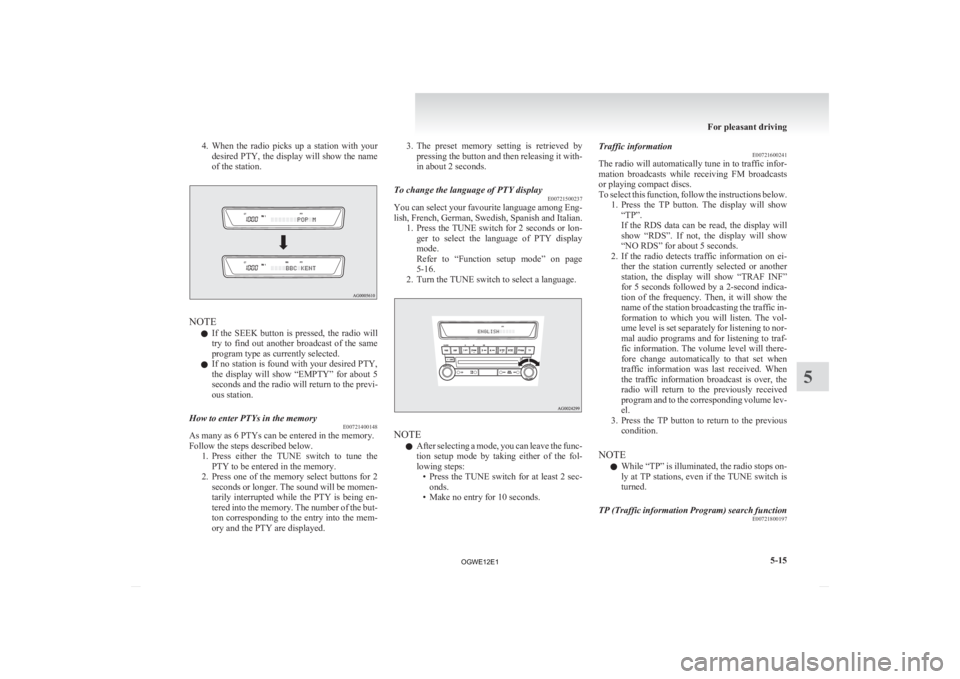
4. When the radio picks up a station with your
desired PTY, the display will show the name
of the station. NOTE
l If
the SEEK button is pressed, the radio will
try to find out another broadcast of the same
program type as currently selected.
l If no station is found with your desired PTY,
the display will show “EMPTY” for about 5
seconds and the radio will return to the previ-
ous station.
How to enter PTYs in the memory E00721400148
As many as 6 PTYs can be entered in the memory.
Follow the steps described below.
1. Press
either the TUNE switch to tune the
PTY to be entered in the memory.
2. Press one of the memory select buttons for 2 seconds or longer. The sound will be momen-
tarily interrupted while the PTY is being en-
tered into the memory. The number of the but-
ton corresponding to the entry into the mem-
ory and the PTY are displayed. 3. The
preset memory setting is retrieved by
pressing the button and then releasing it with-
in about 2 seconds.
To change the language of PTY display E00721500237
You can select your favourite language among Eng-
lish,
French, German, Swedish, Spanish and Italian.
1. Press the TUNE switch for 2 seconds or lon- ger to select the language of PTY display
mode.
Refer to “Function setup mode” on page
5-16.
2. Turn the TUNE switch to select a language. NOTE
l After
selecting a mode, you can leave the func-
tion setup mode by taking either of the fol-
lowing steps: • Press the TUNE switch for at least 2 sec-onds.
• Make no entry for 10 seconds. Traffic information
E00721600241
The
radio will automatically tune in to traffic infor-
mation broadcasts while receiving FM broadcasts
or playing compact discs.
To select this function, follow the instructions below. 1. Press the TP button. The display will show“TP”.
If the RDS data can be read, the display will
show “RDS”. If not, the display will show
“NO RDS” for about 5 seconds.
2. If the radio detects traffic information on ei- ther the station currently selected or another
station, the display will show “TRAF INF”
for 5 seconds followed by a 2-second indica-
tion of the frequency. Then, it will show the
name of the station broadcasting the traffic in-
formation to which you will listen. The vol-
ume level is set separately for listening to nor-
mal audio programs and for listening to traf-
fic information. The volume level will there-
fore change automatically to that set when
traffic information was last received. When
the traffic information broadcast is over, the
radio will return to the previously received
program and to the corresponding volume lev-
el.
3. Press the TP button to return to the previous condition.
NOTE l While “TP” is illuminated, the radio stops on-
ly at TP stations, even if the TUNE switch is
turned.
TP (Traffic information Program) search function E00721800197
For pleasant driving
5-15 5
OGWE12E1
Page 228 of 378
The traffic information program standby function
is
turned on (with the TP indicator shown on the dis-
play) and after about 45 seconds since the RDS in-
dicator turns off due to weak signal or the tuning
station is changed over from a TP station to a sta-
tion which does not broadcast traffic information,
the sound will beep 5 times and seeks out a TP sta-
tion in all frequencies automatically.
The TP search function can be turned ON and OFF.
Refer to “Function setup mode” on page 5-16.
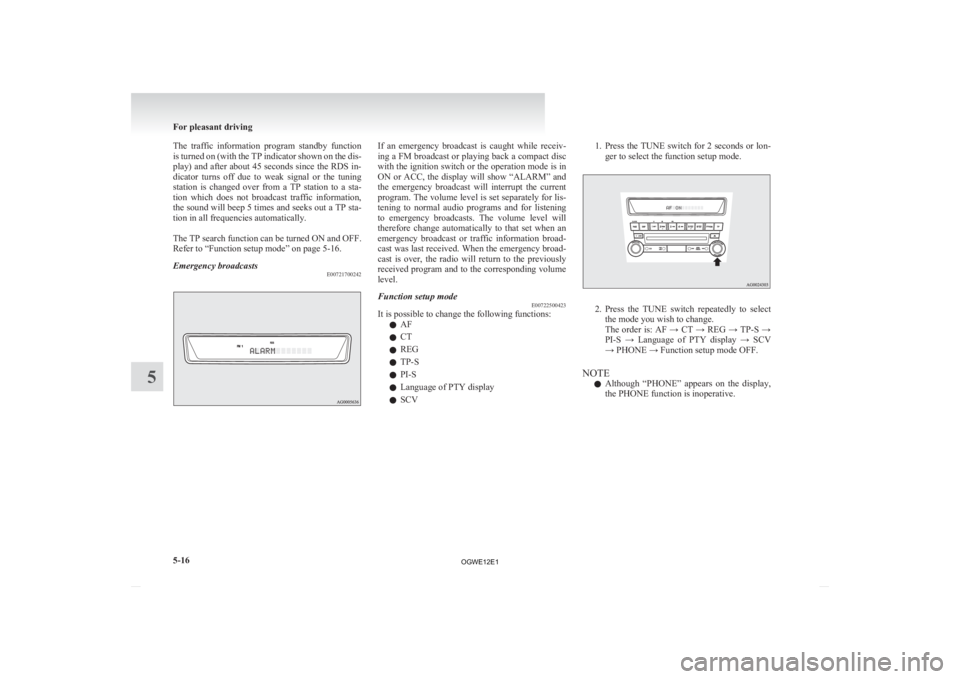
Emergency broadcasts E00721700242 If an emergency broadcast is caught while receiv-
ing
a FM broadcast or playing back a compact disc
with the ignition switch or the operation mode is in
ON or ACC, the display will show “ALARM” and
the emergency broadcast will interrupt the current
program. The volume level is set separately for lis-
tening to normal audio programs and for listening
to emergency broadcasts. The volume level will
therefore change automatically to that set when an
emergency broadcast or traffic information broad-
cast was last received. When the emergency broad-
cast is over, the radio will return to the previously
received program and to the corresponding volume
level.
Function setup mode E00722500423
It is possible to change the following functions:
l AF
l CT
l REG
l TP-S
l PI-S
l Language of PTY display
l SCV 1. Press the TUNE switch for 2 seconds or lon-
ger to select the function setup mode. 2. Press
the TUNE switch repeatedly to select
the mode you wish to change.
The order is: AF → CT → REG → TP-S →
PI-S → Language of PTY display → SCV
→ PHONE → Function setup mode OFF.
NOTE l Although “PHONE” appears on the display,
the PHONE function is inoperative. For pleasant driving
5-16
5
OGWE12E1
Page 257 of 378
5. When the disabling of the password is
completed, the voice guide will say “Pass-
word is disabled” and the system will re-
turn to the main menu.
Speaker enrollment function E00727400238
The Bluetooth ®
2.0 interface can use the speaker en-
rollment function to create a voice model for one
person per language.
This makes it easier for the Bluetooth ®
2.0 inter-
face to recognise voice commands said by you.
You can turn a voice model registered with the
speaker enrollment function on and off whenever
you want.
Speaker enrollment E00727500200
It takes about 2 to 3 minutes to complete the speak-
er enrollment process.
To
ensure the best results, run through the process
while in the driver’s seat, in an environment that is
as quiet as possible (when there is no rain or strong
winds and the vehicle windows are closed). Please
turn off your phone while in speaker enrollment to
prevent interruption of the process.
Use the following procedure for speaker enrollment. 1. Stop your vehicle in a safe area, put the gear-shift lever in the “N” (Neutral) position
(M/T), or the selector lever in the “P”
(PARK) position (CVT), and pull the park-
ing brake lever.
NOTE l Speaker enrollment is not possible unless the
vehicle is parked. Make sure you park the ve-
hicle in a safe area before attempting speaker
enrollment. 2. Press the SPEECH button.
3.
Say “Voice training”.
4. The voice guide will say “This operation must be performed in a quiet environment
while the vehicle is stopped. See the owner’s
manual for the list of required training phra-
ses. Press and release the SPEECH button
when you are ready to begin. Press the HANG-
UP button to cancel at any time”.
Press the SPEECH button to start the speaker
enrollment process.
NOTE l If you do not start the speaker enrollment proc-
ess within 3 minutes of pressing the
SPEECH button, the speaker enrollment func-
tion will time out.
The voice guide will say “Speaker Enroll-
ment has timed out”. The system will then
beep and the voice recognition mode will be
deactivated.
5. The voice guide will prompt for phrase 1. Re- peat the corresponding phrase listed in table
“Enrollment commands” on page 5-56.
The system will register your voice and then
move on to the registration of the next com-
mand. Continue the process until all phrases
have been registered.
NOTE l To repeat the most recent voice training com-
mand, press and release the SPEECH button.
l If you press the HANG-UP button anytime
during the process, the system will beep and
stop the speaker enrollment process. 6. When all enrollment commands have been
read out, the voice guide will say “Speaker
enrollment is complete”.
The system will then end the speaker enroll-
ment process and return to the main menu.
NOTE l Completing the speaker enrollment process
will turn on the voice model automatically.
l The commands “Help” and “Cancel” will not
work in this mode.
Enabling and disabling the voice model and re-
training E00727600100
You can turn a voice model registered with the
speaker
enrollment function on and off whenever
you want.
You can also retrain the system.
Use the following procedure to perform these ac-
tions. 1. Press the SPEECH button.
2. Say “Voice training”.
3. If you have completed a speaker enrollmentprocess once already, the voice guide will
say either “Enrollment is enabled. Would
you like to disable or retrain?” or “Enroll-
ment is disabled. Would you like to enable
or retrain?”
4. When enrollment is “enabled”, the voice mod- el is on; when enrollment is “disabled”, the
voice model is off. Say the command that
fits your needs.
Say “Retrain” to start the speaker enrollment
process and recreate a new voice model. (Re-
fer to “Speaker enrollment” on page 5-45.) For pleasant driving
5-45 5
OGWE12E1
Page 258 of 378
Connecting the Bluetooth
®
2.0 inter-
face and Bluetooth ®
device
E00760600262
Before
you can make or receive hands-free calls or
play music using the Bluetooth ®
2.0 interface func-
tion, you must pair the Bluetooth ®
device and Blue-
tooth ®
2.0 interface.
NOTE l Pairing is required only when the device is
used for the first time. Once the device has
been paired with the Bluetooth ®
2.0 inter-
face, you only need to bring the device into
the vehicle next time and the device will au-
tomatically connect to the Bluetooth ®
2.0 in-
terface (if supported by the device). The de-
vice must have Bluetooth ®
turned ON to con-
nect.
Up to 7 Bluetooth ®
devices can be paired with the
Bluetooth ®
2.0 interface.
If multiple paired Bluetooth ®
devices are available
in the vehicle, the cellular phone or music player
most recently connected is automatically connected
to the Bluetooth ®
2.0 interface.
You can also change a Bluetooth ®
device to be con-
nected.
To pair
To pair a Bluetooth ®
device with the Bluetooth ®
2.0 interface, follow the steps below. 1. Stop your vehicle in a safe area, put the gear-shift lever in the “N” (Neutral) position
(M/T) or the selector lever in the “P”
(PARK) position (CVT) and pull the parking
brake lever. NOTE
l You
cannot pair Bluetooth ®
devices with the
Bluetooth ®
2.0 interface unless the vehicle is
parked. Before pairing a Bluetooth ®
device
with the Bluetooth ®
2.0 interface, confirm
that the vehicle is parked in a safe location.
2. Press the SPEECH button.
3. Say “Setup”.
4. Say “Pairing options.”
5. The voice guide will say “Select one of the following: pair, edit, delete, or list.” Say
“Pair.”
NOTE l If 7 devices have already been paired, the
voice guide will say “Maximum devices
paired” and then the system will end the pair-
ing process. To register a new device, delete
one device and then repeat the pairing process.
(Refer to “Selecting a device: Deleting a de-
vice” on page 5-47.)
6. The voice guide will say “Please say a 4-dig- it pairing code.” Say a 4-digit number.
When the confirmation function is on, the sys-
tem will confirm whether the number said is
acceptable. Answer “Yes.”
Answer “No” to return to pairing code selec-
tion.
NOTE l Some Bluetooth ®
devices require a specific
pairing code.
Please refer to the device manual for pairing
code requirements. l
The pairing code entered here is only used
for the Bluetooth ®
connection certification.
It is any 4-digit number the user would like
to select.
Remember the pairing code as it needs to be
keyed into the Bluetooth ®
device later in the
pairing process.
Depending on the connection settings of the
Bluetooth ®
device, this code may have to be
entered each time you connect the Blue-
tooth ®
device to the Bluetooth ®
2.0 inter-
face. For the default connection settings, re-
fer to the instructions for the device.
7. The voice guide will say “Start pairing proce- dure on the device. See the device manual
for instructions.” Enter in the Bluetooth ®
de-
vice the 4-digit number you have registered
in Step 6.
NOTE l According to the corresponding device to
Bluetooth ®
, it might take a few minutes to
pair the Bluetooth ®
device with the Blue-
tooth ®
2.0 interface.
l If the Bluetooth ®
2.0 interface cannot recog-
nize the Bluetooth ®
device, the voice guide
will say “Pairing has timed out” and the pair-
ing process will be cancelled.
Confirm that the device you are pairing sup-
ports Bluetooth ®
, and try pairing it again.
l If you enter the wrong number, the voice
guide will say “Pairing failed” and the pair-
ing process will be cancelled.
Confirm the number is right, and try pairing
it again. For pleasant driving
5-46
5
OGWE12E1
Page 259 of 378
8. The voice guide will say “Please say the
name of the device after the beep.” You can
assign a desired name for the Bluetooth ®
de-
vice and register it as a device tag. Say the
name you want to register after the beep.
NOTE l When the confirmation function is on, after
repeating the device tag you have said, the
voice guide will ask “Is this correct?” An-
swer “Yes.”
To change the device tag, answer “No” and
then say the device tag again.
9. The voice guide will say “Pairing complete,” after which a beep will be played and the pair-
ing process will end.
Selecting a device E00760700032
If multiple paired Bluetooth ®
devices are available
in the vehicle, the cellular phone or music player
most recently connected is automatically connected
to the Bluetooth ®
2.0 interface.
You can connect to the other cellular phone or mu-
sic player by following setting change procedures.
To select a cellular phone
1. Press the SPEECH button.
2. Say “Setup”.
3. Say “Select phone.”
4. After the voice guide says “Please say,” thenumbers of the cellular phones and device
tags of corresponding cellular phones will be
read out in order, starting with the cellular
phone that has been most recently connected.
Say the number of the cellular phone that
you want to connect to. When the confirmation function is on, the sys-
tem
will ask you again whether the phone
that you want to connect to is correct. An-
swer “Yes” to continue and connect to the cel-
lular phone.
Answer “No,” and the voice guide will say
“Please say.”
Say the number of the phone that you want
to connect to.
NOTE l You can connect to a phone at any time by
pressing the SPEECH button and saying the
number, even before all of the paired num-
bers and device tags of corresponding cellu-
lar phones are read out by the system.
5. The selected phone will be connected to the Bluetooth ®
2.0 interface. The voice guide
will say “
system will return to the main menu.
To select a music player 1. Press the SPEECH button.
2. Say “Setup”.
3. Say “Select music player.”
4. After the voice guide says “Please say,” thenumbers of the music players and device tags
of corresponding music players will be read
out in order, starting with the music player
that has been most recently connected.
Say the number of the music player that you
want to connect to.
When the confirmation function is on, the sys-
tem will ask you again whether the music
player that you want to connect to is correct.
Answer “Yes” to continue and connect to the
music player. Answer “No,” and the voice guide will say
“Please say.”
Say
the number of the music player that you
want to connect to.
NOTE l You can connect to a music player at any
time by pressing the SPEECH button and say-
ing the number, even before all of the paired
numbers and device tags of corresponding mu-
sic players are read out by the system.
5. The selected music player will be connected to the Bluetooth ®
2.0 interface.
The voice guide will say “
ted” and then the system will return to the
main menu.
Deleting a device
Use the following procedure to delete a paired Blue-
tooth ®
device from the Bluetooth ®
2.0 interface.
1. Press the SPEECH button.
2. Say “Setup”.
3. Say “Pairing options.”
4. The voice guide will say “Select one of the following: pair, edit, delete, or list.” Say “De-
lete.”
5. After the voice guide says “Please say,” the numbers of the devices and device tags of cor-
responding devices will be read out in order,
starting with the device that has been most re-
cently connected. After it completes reading
all pairs, the voice guide will say “or all.”
Say the number of the device that you want
to delete from the system.
If you want to delete all paired phones from
the system, say “All.” For pleasant driving
5-47 5
OGWE12E1
Page 260 of 378
6. For confirmation purposes, the voice guide
will say “Deleting
Is this correct?” or “Deleting all devices. Is
this correct?”
Answer “Yes” to delete the phone(s).
Answer “No” to return to Step 4.
7. The voice guide will say “Deleted,” and then the system will end the device deletion proc-
ess.
NOTE l If the device deletion process fails for some
reason, the voice guide will say “Delete
failed” and then the system will cancel delet-
ing the device.
To check a paired Bluetooth ®
device
E00760800017
You can check a paired Bluetooth ®
device by fol-
lowing the steps below. 1. Press the SPEECH button.
2. Say “Setup”.
3. Say “Pairing options.”
4. The voice guide will say “Select one of thefollowing: pair, edit, delete, or list.” Say
“List.”
5. The voice guide will read out device tags of corresponding devices in order, starting with
the Bluetooth ®
device that has been connec-
ted most recently.
6. After the device tags of all paired Bluetooth ®
devices have been read, the system will say
“End of list, would you like to start from the
beginning?”
To hear the list again from the beginning , an-
swer “Yes.” When you are done, answer
“No” to return to the main menu. NOTE
l If
you press and release the SPEECH button
and say “Continue” or “Previous” while the
list is being read, the system will advance or
rewind the list.
Say “Continue” to proceed to the device with
the next highest number or “Previous” to re-
turn to the phone with the previous number.
l You can change the device tag by pressing
and releasing the SPEECH button and then
saying “Edit” while the list is being read.
l You can change the phone to be connected
by pressing and releasing the SPEECH but-
ton and then saying “Select phone” while the
list is being read.
l You can change the music player to be con-
nected by pressing and releasing the
SPEECH button and then saying “Select mu-
sic player” while the list is being read.
Changing a device tag E00760900018
You can change the device tag of a paired cellular
phone or music player.
Follow the steps below to change a device tag.
1.
Press the SPEECH button.
2. Say “Setup”.
3. Say “Pairing options.”
4. The voice guide will say “Select one of the following: pair, edit, delete, or list.” Say “Ed-
it.”
5. The voice guide will say “Please say,” and
read out the numbers of the Bluetooth ®
devi-
ces and device tags of corresponding devices
in order, starting with the Bluetooth ®
that
has been most recently connected.
After all paired device tags have been read,
the voice guide will say “Which device, please?” Say the number of the device tag
you want to change.
NOTE l You
can press and release the SPEECH but-
ton while the list is being read, and immedi-
ately say the number of the device tag you
want to change.
6. The voice guide will say “New name, please.” Say the name you want to register as
a new device tag.
When the confirmation function is on, the
voice guide will say “
this correct?” Answer “Yes.”
Answer “No,” to say the new device tag you
want to register again.
7. The device tag is changed. When the change is complete, the voice
guide will say “New name saved” and then
the system will return to the main menu.
Operating a music player connected
via Bluetooth ®
E00761000032
For the operation of a music player connected via
Bluetooth ®
,
refer to “To play tracks from a Blue-
tooth ®
device” on page 5-30.
How to make or receive hands-free calls E00761100059
You can make or receive hands-free calls using a
Bluetooth ®
compatible cellular phone connected to
the Bluetooth ®
2.0 interface.
You can also use the phone books in the Blue-
tooth ®
2.0 interface to make calls without dialling
telephone numbers.
“To make a call” on page 5-49 For pleasant driving
5-48
5
OGWE12E1
Page 262 of 378
l
If the name you selected has matching data
in the mobile phone book but no telephone
number is registered under the selected loca-
tion, the voice guide will say “{home/work/
mobile/other} not found for
you like to try again?”
Answer “Yes,” and the system will return to
Step 3.
Answer “No,” and the call will be cancelled.
Start over again from Step 1.
6. The voice guide will say “Calling
telephone number.
NOTE l When the confirmation function is on, the sys-
tem will ask if the name and location of the
receiver are correct.
If the name is correct, answer “Yes.”
If you want to change the name or location to
call, answer “No.” The system will return to
Step 3.
Redialing
You can redial the last number called, based on the
history of dialed calls in the paired cellular phone.
Use the following procedure to redial. 1. Press the SPEECH button.
2. Say “Redial.”
SEND function E00761300035
During a call, press the SPEECH button to enter
voice
recognition mode, then say “
SEND” to generate DTMF tones. For example, if during a call you need to simulate
the
press of a phone button as a response to an auto-
mated system, press the SPEECH button and speak
“1 2 3 4 pound SEND” and the 1234# will be sent
on your cellular phone.
Receiving calls E00761600025
If an incoming phone call is received while the ig-
nition
switch or the operation mode is in ON or
ACC, the audio system will be automatically
turned on and switched to the incoming call, even
when the audio system was originally off.
The voice guide announcement for the incoming
call will be output from the front passenger’s seat
speaker.
If the CD player or radio was playing when the in-
coming call was received, the audio system will
mute the sound from the CD player or radio and out-
put only the incoming call.
To receive the call, press the PICK-UP button on
the steering wheel control switch.
When the call is over, the audio system will return
to its previous state.
MUTE function E00760300054
At any time during a call, you can mute the vehicle
microphone.
Pressing
the SPEECH button and then saying
“Mute” during a call will turn ON the MUTE func-
tion and mute the microphone.
Saying “Mute off” in the same way will turn off
the MUTE function and cancel the mute on the mi-
crophone. Switching between hands-free mode and private
mode
E00761400036
The
Bluetooth ®
2.0 interface can switch between
Hands-free mode (Hands-free calls) and private
mode (calls using cellular phone).
If you press the SPEECH button and say “Transfer
call” during a Hands-free call, you can stop the
Hands-free mode and talk in private mode.
To return to Hands-free mode, press the SPEECH
button again and say “Transfer call”.
Phone book function E00763700020
The Bluetooth ®
2.0 interface has 2 types of unique
phone books that are different from the phone book
stored in the cellular phone. They are the vehicle
phone book and the mobile phone book.
These phone books are used to register telephone
numbers and to make calls to desired numbers via
the voice recognition function.
NOTE
l Disconnecting the battery cable will not de-
lete information registered in the phone book.
Vehicle phone book E00763800050
This phone book is used when making calls with
the voice recognition function.
Up
to 32 names can be registered in the vehicle
phone book per language.
Also, each entry has 4 locations associated with:
home, work, mobile and other. You can register
one telephone number for each location.
You can register a desired name as a name for any
phone book entry registered in the vehicle phone
book. For pleasant driving
5-50
5
OGWE12E1