reset MITSUBISHI ASX 2018 (in English) Owner's Guide
[x] Cancel search | Manufacturer: MITSUBISHI, Model Year: 2018, Model line: ASX, Model: MITSUBISHI ASX 2018Pages: 514, PDF Size: 34.89 MB
Page 285 of 514
NOTElThis switches in the order FM1, FM2, FM3,
DAB1, DAB2, DAB3, MW, and LW.
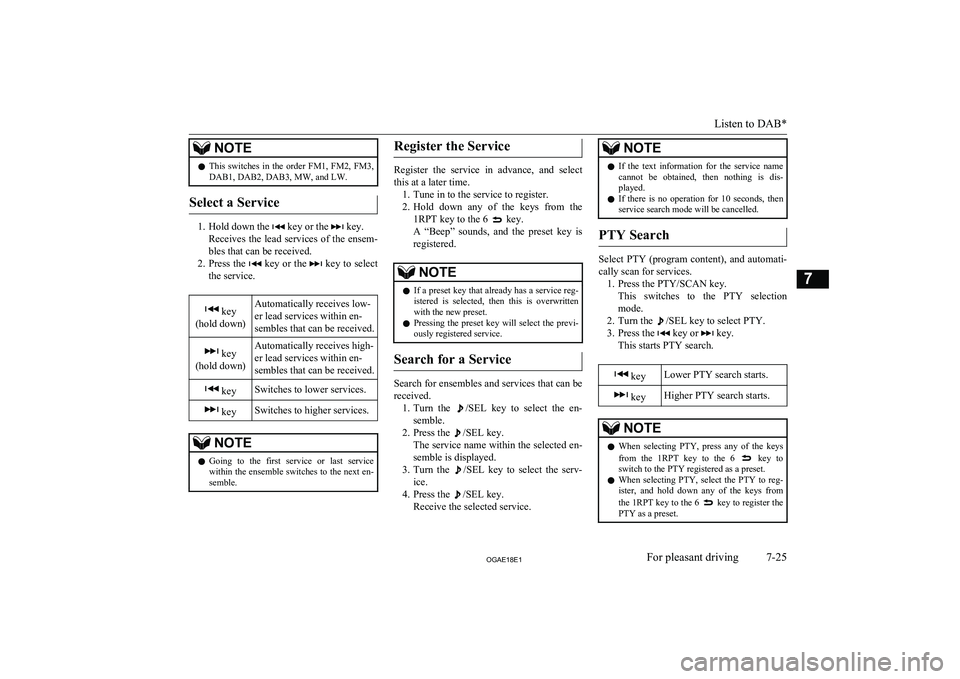
Select a Service
1. Hold down the key or the key.
Receives the lead services of the ensem-
bles that can be received.
2. Press the
key or the key to select
the service.
key
(hold down)Automatically receives low-
er lead services within en-
sembles that can be received. key
(hold down)Automatically receives high-
er lead services within en-
sembles that can be received. keySwitches to lower services. keySwitches to higher services.NOTEl Going to the first service or last service
within the ensemble switches to the next en-
semble.Register the Service
Register the service in advance, and select
this at a later time. 1. Tune in to the service to register.
2. Hold down any of the keys from the
1RPT key to the 6
key.
A “Beep” sounds, and the preset key is registered.
NOTEl If a preset key that already has a service reg-
istered is selected, then this is overwrittenwith the new preset.
l Pressing the preset key will select the previ-
ously registered service.
Search for a Service
Search for ensembles and services that can be
received. 1. Turn the
/SEL key to select the en-
semble.
2. Press the
/SEL key.
The service name within the selected en-
semble is displayed.
3. Turn the
/SEL key to select the serv-
ice.
4. Press the
/SEL key.
Receive the selected service.
NOTEl If the text information for the service name
cannot be obtained, then nothing is dis-
played.
l If there is no operation for 10 seconds, then
service search mode will be cancelled.
PTY Search
Select PTY (program content), and automati-
cally scan for services. 1. Press the PTY/SCAN key. This switches to the PTY selection
mode.
2. Turn the
/SEL key to select PTY.
3. Press the
key or key.
This starts PTY search.
keyLower PTY search starts. keyHigher PTY search starts.NOTEl When selecting PTY, press any of the keys
from the 1RPT key to the 6 key to
switch to the PTY registered as a preset.
l When selecting PTY, select the PTY to reg-
ister, and hold down any of the keys from
the 1RPT key to the 6
key to register the
PTY as a preset.
Listen to DAB*
7-25OGAE18E1For pleasant driving7
Page 289 of 514
NOTElDepending on the generation, model, or soft-
ware version of the iPod/iPhone, playback
on this product may not be possible. (→7-12 ) Additionally, playback as ex-
plained in this document may not be possi- ble.
l For vehicles with a Bluetooth ®
2.0 interface,
the types of devices that can be connected
may vary.
For details, access the MITSUBISHI
MOTORS website.
Please read and agree to the “Warning about
Links to the Web Sites of Other Compa- nies”. The websites mentioned above may
connect you to websites other than the MITSUBISHI MOTORS website.
http://www.mitsubishi-motors.com/en/prod-
ucts/index.html
l Usage of iPod/iPhone hardware with the lat-
est software version is recommended.
l Regarding how to connect the iPod/iPhone,
refer to “How to connect an iPod” on page
7-68.
l When connecting the iPod/iPhone, use a
commerciallyavailable iPod connection ca- ble.
l Set up the device in order that no unsafe ac-
tions, such as plugging in the connection ca-ble are taken while driving.
l When inserting and removing the iPod/
iPhone, for safety’s sake first stop the vehi- cle.
l Depending on the status of the iPod/iPhone,
it may take some time until the device is rec-
ognized, or playback starts.NOTEl Buttons on the product will not operate
while iPod/iPhone is connected.
l iPod/iPhone specifications and settings may
mean that connection is not possible, or re- sult in differences in operation or display.
l Depending on audio data in the iPod/iPhone,
track information may not be displayed cor- rectly.
l Depending on the status of the vehicle and
device, the iPod/iPhone may not play back
after starting the engine.
l Data containing copyright information may
not play back.
l It is recommended that the iPod/iPhone
equaliser settings be set to flat.
l Operate the iPod/iPhone while connected to
this product.
l If the iPod/iPhone is connected via Blue-
tooth as a Bluetooth- capable audio device,
then do not connect the iPod/iPhone using
an iPod cable. Connection using both meth- ods will result in erroneous operation.
l If an iPod/iPhone does not operate correctly,
then remove the iPod/iPhone from the prod-
uct, reset, then reconnect.
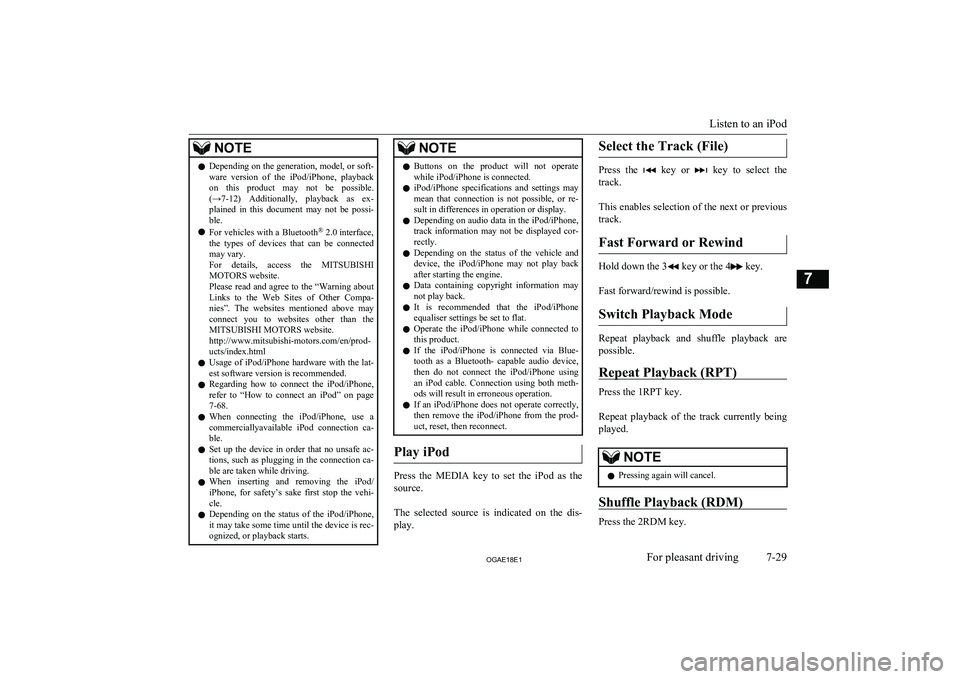
Play iPod
Press the MEDIA key to set the iPod as the
source.
The selected source is indicated on the dis-
play.
Select the Track (File)
Press the key or key to select the
track.
This enables selection of the next or previous
track.
Fast Forward or Rewind
Hold down the 3 key or the 4 key.
Fast forward/rewind is possible.
Switch Playback Mode
Repeat playback and shuffle playback are
possible.
Repeat Playback (RPT)
Press the 1RPT key.
Repeat playback of the track currently being
played.
NOTEl Pressing again will cancel.
Shuffle Playback (RDM)
Press the 2RDM key.
Listen to an iPod
7-29OGAE18E1For pleasant driving7
Page 301 of 514
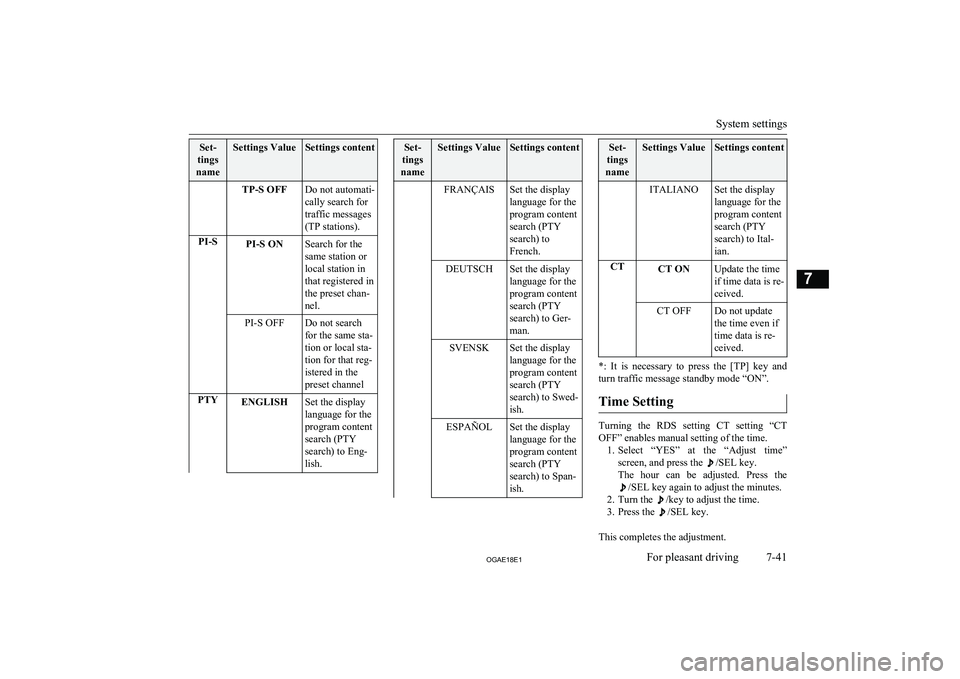
Set-
tings
nameSettings ValueSettings contentTP-S OFFDo not automati-
cally search for
traffic messages
(TP stations).PI-SPI-S ONSearch for the
same station or
local station in
that registered in
the preset chan-
nel.PI-S OFFDo not search
for the same sta-
tion or local sta-
tion for that reg-
istered in the
preset channelPTYENGLISHSet the display
language for the
program content
search (PTY
search) to Eng-
lish.Set-
tings
nameSettings ValueSettings contentFRANÇAISSet the display
language for the
program content
search (PTY
search) to
French.DEUTSCHSet the display
language for the
program content
search (PTY
search) to Ger-
man.SVENSKSet the display
language for the
program content
search (PTY
search) to Swed-
ish.ESPAÑOLSet the display
language for the
program content
search (PTY
search) to Span-
ish.Set-
tings
nameSettings ValueSettings contentITALIANOSet the display
language for the
program content
search (PTY
search) to Ital-
ian.CTCT ONUpdate the time
if time data is re-
ceived.CT OFFDo not update
the time even if
time data is re-
ceived.
*: It is necessary to press the [TP] key and
turn traffic message standby mode “ON”.
Time Setting
Turning the RDS setting CT setting “CT
OFF” enables manual setting of the time. 1. Select “YES” at the “Adjust time”
screen, and press the
/SEL key.
The hour can be adjusted. Press the
/SEL key again to adjust the minutes.
2. Turn the
/key to adjust the time.
3. Press the
/SEL key.
This completes the adjustment.
System settings
7-41OGAE18E1For pleasant driving7
Page 302 of 514
NOTElIn order to finish adjusting the time, hold
down the /SEL key until the seconds are
reset to “00”.
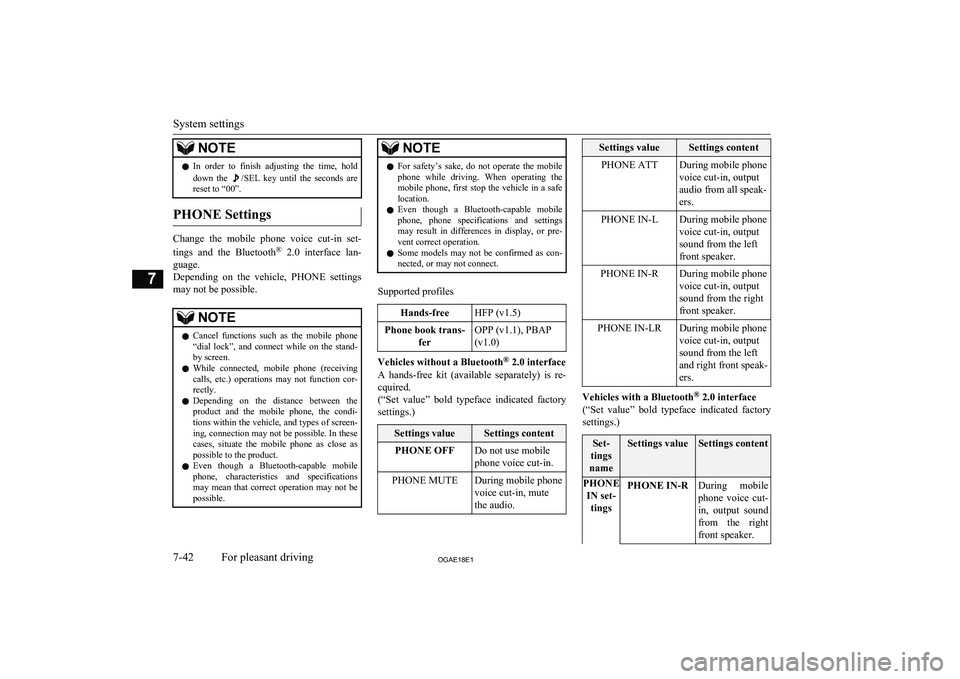
PHONE Settings
Change the mobile phone voice cut-in set-
tings and the Bluetooth ®
2.0 interface lan-
guage.
Depending on the vehicle, PHONE settings
may not be possible.
NOTEl Cancel functions such as the mobile phone
“dial lock”, and connect while on the stand- by screen.
l While connected, mobile phone (receiving
calls, etc.) operations may not function cor- rectly.
l Depending on the distance between the
product and the mobile phone, the condi- tions within the vehicle, and types of screen-ing, connection may not be possible. In thesecases, situate the mobile phone as close as
possible to the product.
l Even though a Bluetooth-capable mobile
phone, characteristics and specifications
may mean that correct operation may not be possible.NOTEl For safety’s sake, do not operate the mobile
phone while driving. When operating themobile phone, first stop the vehicle in a safe
location.
l Even though a Bluetooth-capable mobile
phone, phone specifications and settings
may result in differences in display, or pre- vent correct operation.
l Some models may not be confirmed as con-
nected, or may not connect.
Supported profiles
Hands-freeHFP (v1.5)Phone book trans-
ferOPP (v1.1), PBAP
(v1.0)
Vehicles without a Bluetooth ®
2.0 interface
A hands-free kit (available separately) is re- cquired.
(“Set value” bold typeface indicated factory
settings.)
Settings valueSettings contentPHONE OFFDo not use mobile
phone voice cut-in.PHONE MUTEDuring mobile phone
voice cut-in, mute
the audio.Settings valueSettings contentPHONE ATTDuring mobile phone
voice cut-in, output
audio from all speak-
ers.PHONE IN-LDuring mobile phone
voice cut-in, output
sound from the left
front speaker.PHONE IN-RDuring mobile phone
voice cut-in, output
sound from the right
front speaker.PHONE IN-LRDuring mobile phone
voice cut-in, output
sound from the left
and right front speak-
ers.
Vehicles with a Bluetooth ®
2.0 interface
(“Set value” bold typeface indicated factory
settings.)
Set-
tings
nameSettings valueSettings contentPHONE IN set- tingsPHONE IN-RDuring mobile
phone voice cut- in, output sound from the right
front speaker.
System settings
7-42OGAE18E1For pleasant driving7