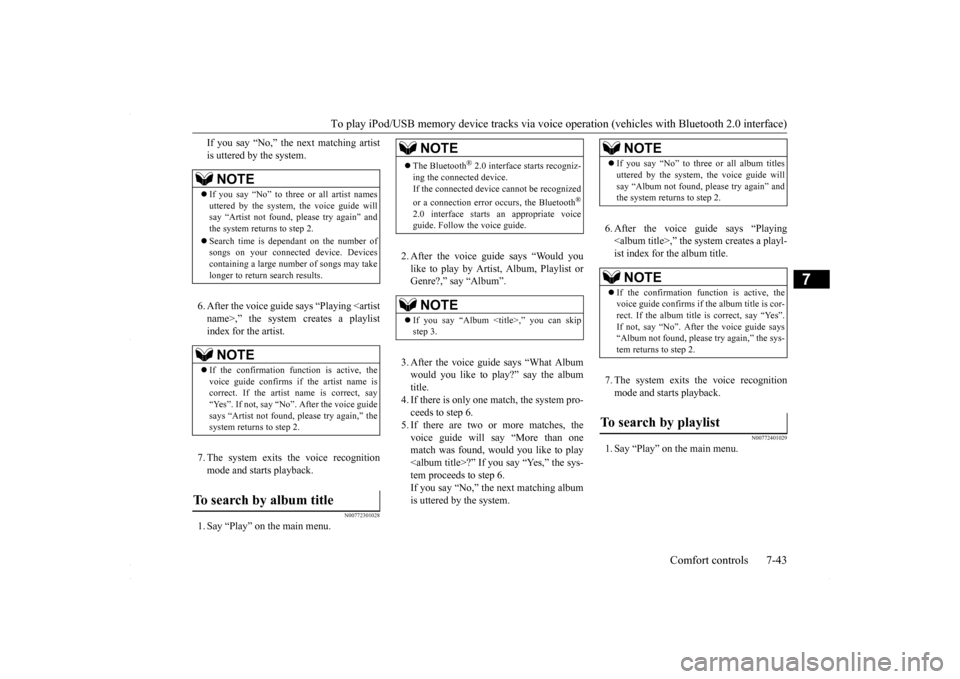
To play iPod/USB memory device tracks via voice
operation (vehicles with Bluetooth 2.0 interface)
Comfort controls 7-43
7
If you say “No,” the next matching artist is uttered by the system. 6. After the voice guide says “Playing ,” the system creates a playlist index for the artist. 7. The system exits the voice recognition mode and starts playback.
N00772301028
1. Say “Play” on the main menu.
2. After the voice guide says “Would you like to play by Artist, Album, Playlist or Genre?,” say “Album”. 3. After the voice guide says “What Album would you like to play?” say the albumtitle. 4. If there is only one match, the system pro- ceeds to step 6.5. If there are two or more matches, the voice guide will say “More than one match was found, would you like to play?” If you say “Yes,” the sys- tem proceeds to step 6. If you say “No,” the next matching albumis uttered by the system.
6. After the voice guide says “Playing ,” the system creates a playl- ist index for the album title. 7. The system exits the voice recognition mode and starts playback.
N00772401029
1. Say “Play” on the main menu.
NOTE
If you say “No” to three or all artist names uttered by the system, the voice guide willsay “Artist not found, please try again” and the system returns to step 2. Search time is dependant on the number of songs on your connected device. Devices containing a large number of songs may takelonger to return search results.NOTE
If the confirmation function is active, the voice guide confirms if the artist name is correct. If the artist name is correct, say “Yes”. If not, say “No”. After the voice guidesays “Artist not found, please try again,” the system returns to step 2.
To search by album title
NOTE
The Bluetooth
® 2.0 interface starts recogniz-
ing the connected device.If the connected device cannot be recognized or a connection error occurs, the Bluetooth
®
2.0 interface starts an appropriate voice guide. Follow the voice guide.NOTE
If you say “Album ,” you can skip step 3.<br />
NOTE<br />
If you say “No” to three or all album titles uttered by the system, the voice guide will say “Album not found, please try again” and the system returns to step 2.NOTE<br />
If the confirmation f<br />
unction is active, the <br />
voice guide confirms if the album title is cor- rect. If the album title is correct, say “Yes”.If not, say “No”. After the voice guide says “Album not found, please try again,” the sys- tem returns to step 2.<br />
To search by playlist <br />
BK0230300US.bo <br />
ok 43 ページ 2015年7月30日 木曜日 午後8時38分 <p></div><script>$(document).on('click', '#a293', function(){
$(this).hide();
$('#b293').height($('#a293').height()-22);
$('#b293').show();
});
$(document).on('click', '#b293', function(){
$(this).hide();
$('#a293').show();
});
$(document).ready(function(){
$('#b293').height($('#a293').height()-22);
});
</script> <div style="height: 250px">
<script async src="//pagead2.googlesyndication.com/pagead/js/adsbygoogle.js"></script>
<ins class="adsbygoogle"
style="display:block; min-height: 280px"
data-ad-client="ca-pub-1094764738794676"
data-ad-slot="8211391741"
data-ad-format="auto"></ins>
<script>
(adsbygoogle = window.adsbygoogle || []).push({});
</script></div>
<a name='294'></a><h3>Page 294 of 392</h3><div id='a294'><img loading='lazy' width='960' height='679' style='border: 1px solid #444444; max-width: 100%; display:block; height: auto;' alt='MITSUBISHI LANCER 2016 8.G Workshop Manual To play iPod/USB memory device tracks via voice
operation (vehicles with
Bluetooth 2.0 interface)
7-44 Comfort controls
7
2. After the voice guide says “Would you like to play by Artist, Album, P' title='MITSUBISHI LANCER 2016 8.G Workshop Manual To play iPod/USB memory device tracks via voice
operation (vehicles with
Bluetooth 2.0 interface)
7-44 Comfort controls
7
2. After the voice guide says “Would you like to play by Artist, Album, P' src='/img/19/7463/w960_7463-293.png' /></div><div id='b294' style='display: none; overflow: auto; width: 962px; height: 1300px; border: 1px solid #444444; padding: 10px; background-color: #eeeeee; max-width: 100%; height: auto'><p>To play iPod/USB memory device tracks via voice <br />
operation (vehicles with<br />
Bluetooth 2.0 interface) <br />
7-44 Comfort controls<br />
7<br />
2. After the voice guide says “Would you like to play by Artist, Album, Playlist or Genre?,” say “Playlist”. 3. After the voice guide says “What Playlist would you like to play?,” say the playlistname. 4. If there is only one match, the system pro- ceeds to step 6.5. If there are two or more matches, the voice guide will say “More than one match was found, would you like to play<playlist>?” If you say “Yes,” the system proceeds to step 6. If you say “No,” the next matching playl-ist name is uttered by the system. <br />
6. After the voice guide says “Playing <playlist>,” the system creates an index for the playlist. 7. The system exits the voice recognition mode and starts playback.<br />
N00772501020<br />
1. Say “Play” on the main menu. <br />
2. After the voice guide says “Would you like to play by Artist, Album, Playlist or Genre?,” say “Genre”. 3. After the voice guide says “What Genre would you like to play?,” say the musictype. 4. If there is only one match, the system pro- ceeds to step 6.5. If there are two or more matches, the voice guide will say “More than one match was found, would you like to play<genre>?” If you say “Yes,” the system proceeds to step 6. If you say “No,” the next matching genreis uttered by the system.<br />
NOTE<br />
The Bluetooth<br />
® 2.0 interface starts recogniz- <br />
ing the connected device.If the connected device cannot be recognized or a connection error occurs, the Bluetooth<br />
®<br />
2.0 interface starts an appropriate voice guide. Follow the voice guide.NOTE<br />
If you say “Playlist <playlist>,” you can skip step 3. If the device has no playlist, the voice guidewill say “There are no playlists stored on device” and the system returns to step 2.<br />
NOTE<br />
If you say “No” to three or all playlist names uttered by the system, the voice guide will say “Playlist not found, please try again” and the system returns to step 2.NOTE<br />
If the confirmation function is active, the voice guide confirms if the playlist name is correct. If the playlist <br />
name is correct, say <br />
“Yes”. If not, say “No”. After the voice guide says “Playlist not found, please try again,” the system returns to step 2. Refer to “Con-firmation function setting” on page 5-143.<br />
To search by genre <br />
NOTE<br />
The Bluetooth<br />
® 2.0 interface starts recogniz- <br />
ing the connected device.If the connected device cannot be recognized or a connection error occurs, the Bluetooth<br />
®<br />
2.0 interface starts an appropriate voice guide. Follow the voice guide.NOTE<br />
If you say “Genre <type>,” you can skip step 3.<br />
BK0230300US.bo <br />
ok 44 ページ 2015年7月30日 木曜日 午後8時38分 <p></div><script>$(document).on('click', '#a294', function(){
$(this).hide();
$('#b294').height($('#a294').height()-22);
$('#b294').show();
});
$(document).on('click', '#b294', function(){
$(this).hide();
$('#a294').show();
});
$(document).ready(function(){
$('#b294').height($('#a294').height()-22);
});
</script> <div style="height: 250px">
<script async src="//pagead2.googlesyndication.com/pagead/js/adsbygoogle.js"></script>
<ins class="adsbygoogle"
style="display:block; min-height: 280px"
data-ad-client="ca-pub-1094764738794676"
data-ad-slot="8211391741"
data-ad-format="auto"></ins>
<script>
(adsbygoogle = window.adsbygoogle || []).push({});
</script></div>
<a name='295'></a><h3>Page 295 of 392</h3><div id='a295'><img loading='lazy' width='960' height='679' style='border: 1px solid #444444; max-width: 100%; display:block; height: auto;' alt='MITSUBISHI LANCER 2016 8.G Workshop Manual Listen to Bluetooth Audio (if so equipped)
Comfort controls 7-45
7
6. After the voice guide says “Playing <genre>,” the system creates an index for the genre. 7. The system exits the voice recogn' title='MITSUBISHI LANCER 2016 8.G Workshop Manual Listen to Bluetooth Audio (if so equipped)
Comfort controls 7-45
7
6. After the voice guide says “Playing <genre>,” the system creates an index for the genre. 7. The system exits the voice recogn' src='/img/19/7463/w960_7463-294.png' /></div><div id='b295' style='display: none; overflow: auto; width: 962px; height: 1300px; border: 1px solid #444444; padding: 10px; background-color: #eeeeee; max-width: 100%; height: auto'><p>Listen to Bluetooth Audio (if so equipped) <br />
Comfort controls 7-45<br />
7<br />
6. After the voice guide says “Playing <genre>,” the system creates an index for the genre. 7. The system exits the voice recognition mode and starts playback.<br />
N00717500020<br />
This product can play back tracks on com- mercially-available Bluetooth-capable audiodevices. <br />
Regarding how to connect your Bluetooth device, refer to “Connecting the Bluetooth<br />
®<br />
2.0 interface and Bluetooth device” on page 5-146. Operation methods below describe situationsonce connection has been completed. 1. Press the MEDIA key to set Bluetooth Audio as the source. The selected source is indicated on the display.<br />
NOTE<br />
If you say “No” to three or all genres uttered by the system, the voice guide will say “Genre not found, please try again” and the system returns to step 2.NOTE<br />
If the confirmation function is active, the voice guide confirms if the genre is correct. If the genre is correct, say “Yes”. If not, say “No”. After the voice guide says “Genre notfound, please try again,” the system returns to step 2. Refer to “Confirmation function setting” on page 5-143.<br />
Listen to Bluetooth Audio<br />
(if <br />
so equipped)<br />
CAUTION Never hold these devices in your hand to operate while driving, as this is dangerous. Do not leave the Bluetooth audio device unattended in the vehicle. Depending on how the devices are handled, audio files being damaged or lost, thereforeit is recommended that data be backed up.NOTE<br />
Depending on the type of Bluetooth-capable audio devices, usage may not be possible, orfunctions that can be used may be restricted. Confirm together with the user manuals for the commercially-available Bluetooth-capa- ble audio devices. Depending on the type of Bluetooth-capable audio devices, volume levels may differ. There is the danger of loud volumes, so priorto use, it is recommended that you turn the volume down. “Adjust Volume” (P.7-29) <br />
Depending on the status of the Bluetooth audio device, it may take some time until thedevice is recognized, or playback starts. Bluetooth audio device specifications and settings may mean that connection is not possible, or result in differences in operationor display. Depending on audio data in the Bluetooth audio device, track information may not be displayed correctly.<br />
Depending on the status of the vehicle and device, the iPod/iPhone may not play back after starting the engine.<br />
Connect a Bluetooth-capable Audio Device<br />
<br />
NOTE<br />
If the iPod/iPhone is connected via Bluetooth as a Bluetooth-capable audio device, then do not connect the iPod/iPhone using an iPod cable. Connection using both methods willresult in erroneous operation.<br />
Play Bluetooth Audio<br />
<br />
NOTE<br />
BK0230300US.bo <br />
ok 45 ページ 2015年7月30日 木曜日 午後8時38分 <p></div><script>$(document).on('click', '#a295', function(){
$(this).hide();
$('#b295').height($('#a295').height()-22);
$('#b295').show();
});
$(document).on('click', '#b295', function(){
$(this).hide();
$('#a295').show();
});
$(document).ready(function(){
$('#b295').height($('#a295').height()-22);
});
</script> <div style="height: 250px">
<script async src="//pagead2.googlesyndication.com/pagead/js/adsbygoogle.js"></script>
<ins class="adsbygoogle"
style="display:block; min-height: 280px"
data-ad-client="ca-pub-1094764738794676"
data-ad-slot="8211391741"
data-ad-format="auto"></ins>
<script>
(adsbygoogle = window.adsbygoogle || []).push({});
</script></div>
<a name='296'></a><h3>Page 296 of 392</h3><div id='a296'><img loading='lazy' width='960' height='679' style='border: 1px solid #444444; max-width: 100%; display:block; height: auto;' alt='MITSUBISHI LANCER 2016 8.G Workshop Manual Listen to Bluetooth Audio (if so equipped) 7-46 Comfort controls
7
2. Press the 5 key. Bluetooth Audio play- back starts.
Press the key or key to select the track. This enables selection of the ' title='MITSUBISHI LANCER 2016 8.G Workshop Manual Listen to Bluetooth Audio (if so equipped) 7-46 Comfort controls
7
2. Press the 5 key. Bluetooth Audio play- back starts.
Press the key or key to select the track. This enables selection of the ' src='/img/19/7463/w960_7463-295.png' /></div><div id='b296' style='display: none; overflow: auto; width: 962px; height: 1300px; border: 1px solid #444444; padding: 10px; background-color: #eeeeee; max-width: 100%; height: auto'><p>Listen to Bluetooth Audio (if so equipped) 7-46 Comfort controls<br />
7<br />
2. Press the 5 key. Bluetooth Audio play- back starts. <br />
Press the key or key to select the track. This enables selection of the next or previous track. Hold down the 3 key or the 4 key. Fast forward/rewind is possible. Repeat playback, random playback, and scan playback are possible. <br />
Press the 1RPT key. Repeat playback of th <br />
e track currently being <br />
played. Press the 2RDM key. Play the tracks in the Bluetooth Audio device in a random order. Press the SCAN key. Play the first 10 seconds of each of the tracks on the whole Bluetooth Audio device inorder.<br />
NOTE<br />
Hold down the 5 key to pause. Press the 6 key to stop.<br />
Select the Track (File)<br />
<br />
Fast Forward or Rewind<br />
<br />
Switch Playback Mode<br />
<br />
Repeat Playback (RPT)<br />
<br />
NOTE<br />
Each time the 1RPT key is pressed, this switches in the order Repeat OFF, 1 trackrepeat, All track repeat, and Repeat OFF.<br />
Random Playback (RDM)<br />
<br />
NOTE<br />
Pressing again will cancel.<br />
Scan Playback (SCAN)<br />
<br />
NOTE<br />
Press this button again during playback if you wish to hear that track, and that track will play normally.<br />
BK0230300US.bo <br />
ok 46 ページ 2015年7月30日 木曜日 午後8時38分 <p></div><script>$(document).on('click', '#a296', function(){
$(this).hide();
$('#b296').height($('#a296').height()-22);
$('#b296').show();
});
$(document).on('click', '#b296', function(){
$(this).hide();
$('#a296').show();
});
$(document).ready(function(){
$('#b296').height($('#a296').height()-22);
});
</script> <div style="height: 250px">
<script async src="//pagead2.googlesyndication.com/pagead/js/adsbygoogle.js"></script>
<ins class="adsbygoogle"
style="display:block; min-height: 280px"
data-ad-client="ca-pub-1094764738794676"
data-ad-slot="8211391741"
data-ad-format="auto"></ins>
<script>
(adsbygoogle = window.adsbygoogle || []).push({});
</script></div>
<a name='301'></a><h3>Page 301 of 392</h3><div id='a301'><img loading='lazy' width='960' height='679' style='border: 1px solid #444444; max-width: 100%; display:block; height: auto;' alt='MITSUBISHI LANCER 2016 8.G Workshop Manual System Settings
Comfort controls 7-51
7
Set the time manually. 1. Select “YES” at the “Adjust time” screen, and press the /SEL key. 2. Press the various keys to adjust. 3. Press the /SEL ke' title='MITSUBISHI LANCER 2016 8.G Workshop Manual System Settings
Comfort controls 7-51
7
Set the time manually. 1. Select “YES” at the “Adjust time” screen, and press the /SEL key. 2. Press the various keys to adjust. 3. Press the /SEL ke' src='/img/19/7463/w960_7463-300.png' /></div><div id='b301' style='display: none; overflow: auto; width: 962px; height: 1300px; border: 1px solid #444444; padding: 10px; background-color: #eeeeee; max-width: 100%; height: auto'><p>System Settings <br />
Comfort controls 7-51<br />
7<br />
Set the time manually. 1. Select “YES” at the “Adjust time” screen, and press the /SEL key. 2. Press the various keys to adjust. 3. Press the /SEL key. <br />
This completes the adjustment. <br />
Change the mobile phone voice cut- in set- tings and the Bluetooth<br />
® 2.0 interface lan- <br />
guage. Depending on the vehicle, PHONE settingsmay not be possible. <br />
Supported profiles <br />
*2:Once the CODE (passcode) of your choice is entered, each time th <br />
e /SET key is pressed, this switches in the order Settings chan<br />
nel select, <br />
Change LOCK settings, and Complete settings. To return to “each channel LOCK setting”, press the 6 <br />
key. Input the CODE from the 1 RPT key to the 6 key.<br />
Time Setting <br />
H - “Hour” setting <br />
Press this key to fast-forward the “hours”.<br />
M - “Minutes” setting <br />
Press this key to fast-forward the “minutes”.<br />
/SEL<br />
M <br />
H<br />
NOTE<br />
In order to finish adjusting the time, hold down the /SEL key until the seconds are reset to “00”. The time can also be set using another proce- dure. Refer to “CLOCK” on page 7-56.<br />
PHONE Settings <br />
NOTE<br />
Cancel functions such as the mobile phone “dial lock”, and connect while on the standby screen. While connected, mobile phone (receiving calls, etc.) operations may not function cor- rectly.<br />
Depending on the distance between the prod- uct and the mobile phone, the conditions within the vehicle, and types of screening,connection may not be possible. In these cases, situate the mobile phone as close as possible to the product. Even though a Bluetooth-capable mobile phone, characteristics and specifications may mean that correct operation may not be pos- sible. For safety’s sake, do not operate the mobile phone while driving. When operating themobile phone, first stop the vehicle in a safe location. Even though a Bluetooth-capable mobile phone, phone specifications and settings may result in differences in display, or preventcorrect operation. Some models may not be confirmed as con- nected, or may not connect.Hands-free <br />
HFP(v1.5) <br />
Phonebook transfer <br />
OPP(v1.1), PBAP(v1.0)<br />
NOTE<br />
BK0230300US.bo <br />
ok 51 ページ 2015年7月30日 木曜日 午後8時38分 <p></div><script>$(document).on('click', '#a301', function(){
$(this).hide();
$('#b301').height($('#a301').height()-22);
$('#b301').show();
});
$(document).on('click', '#b301', function(){
$(this).hide();
$('#a301').show();
});
$(document).ready(function(){
$('#b301').height($('#a301').height()-22);
});
</script> <div style="height: 250px">
<script async src="//pagead2.googlesyndication.com/pagead/js/adsbygoogle.js"></script>
<ins class="adsbygoogle"
style="display:block; min-height: 280px"
data-ad-client="ca-pub-1094764738794676"
data-ad-slot="8211391741"
data-ad-format="auto"></ins>
<script>
(adsbygoogle = window.adsbygoogle || []).push({});
</script></div>
<a name='324'></a><h3>Page 324 of 392</h3><div id='a324'><img loading='lazy' width='960' height='679' style='border: 1px solid #444444; max-width: 100%; display:block; height: auto;' alt='MITSUBISHI LANCER 2016 8.G Workshop Manual Operation under adverse driving conditions 8-14 For emergencies
8
Place the gearshift lever in the “Neutral” position. Turn the ignition switch to the “ACC” posi-tion and secure the steering w' title='MITSUBISHI LANCER 2016 8.G Workshop Manual Operation under adverse driving conditions 8-14 For emergencies
8
Place the gearshift lever in the “Neutral” position. Turn the ignition switch to the “ACC” posi-tion and secure the steering w' src='/img/19/7463/w960_7463-323.png' /></div><div id='b324' style='display: none; overflow: auto; width: 962px; height: 1300px; border: 1px solid #444444; padding: 10px; background-color: #eeeeee; max-width: 100%; height: auto'><p>Operation under adverse driving conditions 8-14 For emergencies<br />
8<br />
Place the gearshift lever in the “Neutral” position. Turn the ignition switch to the “ACC” posi-tion and secure the steering wheel in a straight-ahead position with a rope or tie- down strap. Never place the ignition switch inthe “LOCK” position when towing. <br />
Release the parking brake. Place the gearshift lever in the “Neutral” position (manual transaxle) or the selectorlever in the “N” (NEUTRAL) position (CVT).<br />
N00837200662<br />
If your vehicle becomes stuck in snow, sand, or mud, it can often be <br />
moved by a rocking <br />
motion. Rock your vehicle back and forth to free it. Do not rev the engine or spin the wheels.Constant efforts to free a stuck vehicle can cause overheating and transaxle failure. Let <br />
the engine idle for a few minutes to cool the transaxle before trying again. If your vehicle is still stuck after several rock- ing attempts, call for a commercial tow truckservice. <br />
[For front-wheel drive vehicle equipped with the active stability control (ASC)] If the vehicle is towed with the ignition switch in the “ON” position and only the front wheels or only the rear wheels raisedoff the ground, the ASC may operate, result- ing in an accident. When towing the vehicle with only the front wheels or only the rearwheels raised, keep the ignition switch in the “LOCK” or “ACC” position. [For vehicle equipped with the Electronically controlled 4WD system] Even in “2WD” mode, the vehicle cannot betowed with the front or the rear wheels on the ground.<br />
Towing manual transaxle vehicles with rear wheels off the ground (Type B) <br />
CAUTION<br />
Towing with front wheels off the ground (Type C) <br />
WA R N I N G To prevent entry of exhaust gas from the towing vehicle, set the selection switch to the recirculation position.<br />
Operation under adverse driving conditions If your vehicle becomes stuck in sand, mud or snow <br />
WA R N I N G When trying to rock your vehicle out of a stuck position, make sure that there are no people nearby. The rocking motion canmake your vehicle suddenly lurch forward or backward, and injure any bystanders.<br />
On wet roads <br />
CAUTION Avoid flooded roads. Water is often deeper than it looks, and you could be seriously hurt by driving into flood water. When driving in rain, on water-covered roads, or through a car wash, water could get into the brake discs and make them fail tem-porarily. In such cases, lightly press the brake pedal to see if they are working prop- erly. If they are not, press the pedal lightly several times while driving to dry the brake pads or linings, then check them again. <br />
BK0230300US.bo <br />
ok 14 ページ 2015年7月30日 木曜日 午後8時38分 <p></div><script>$(document).on('click', '#a324', function(){
$(this).hide();
$('#b324').height($('#a324').height()-22);
$('#b324').show();
});
$(document).on('click', '#b324', function(){
$(this).hide();
$('#a324').show();
});
$(document).ready(function(){
$('#b324').height($('#a324').height()-22);
});
</script> <div style="height: 250px">
<script async src="//pagead2.googlesyndication.com/pagead/js/adsbygoogle.js"></script>
<ins class="adsbygoogle"
style="display:block; min-height: 280px"
data-ad-client="ca-pub-1094764738794676"
data-ad-slot="8211391741"
data-ad-format="auto"></ins>
<script>
(adsbygoogle = window.adsbygoogle || []).push({});
</script></div>
<ul class="actions" style="text-align:center;">
<li><a href="/mitsubishi-lancer-2016-8-g-owners-manual/7/?srch=ECO+mode" class="button">Load next 10 pages</a></li>
</ul>
<div style="text-align: center" class="text-center my-2">
<span class="article-section">
Page:
</span><a href="/mitsubishi-lancer-2016-8-g-owners-manual/5/?srch=ECO+mode">< prev</a> <a class='text-dark' href="/mitsubishi-lancer-2016-8-g-owners-manual//?srch=ECO+mode">1-10</a> ... <a class='text-dark' href="/mitsubishi-lancer-2016-8-g-owners-manual/2/?srch=ECO+mode">11-20</a> <a class='text-dark' href="/mitsubishi-lancer-2016-8-g-owners-manual/3/?srch=ECO+mode">21-30</a> <a class='text-dark' href="/mitsubishi-lancer-2016-8-g-owners-manual/4/?srch=ECO+mode">31-40</a> <a class='text-dark' href="/mitsubishi-lancer-2016-8-g-owners-manual/5/?srch=ECO+mode">41-50</a> <strong>51-60</strong> <a class='text-dark' href="/mitsubishi-lancer-2016-8-g-owners-manual/7/?srch=ECO+mode">61-70</a> <a class='text-dark' href="/mitsubishi-lancer-2016-8-g-owners-manual/7/?srch=ECO+mode">next ></a></div><div class="clear"></div><form action="/mitsubishi-lancer-2016-8-g-owners-manual/" method="get"><span class="byline">Search: <input type="text" pattern=".{3,}" required title="3 characters minimum" name="srch" placeholder="ECO mode" /> <input type="submit" value="search" /> (<a href='/mitsubishi-lancer-2016-8-g-owners-manual/?srch=tow+bar'>tow bar</a>, <a href='/mitsubishi-lancer-2016-8-g-owners-manual/?srch=USB'>USB</a>, <a href='/mitsubishi-lancer-2016-8-g-owners-manual/?srch=bolt+pattern'>bolt pattern</a>, <a href='/mitsubishi-lancer-2016-8-g-owners-manual/?srch=start+stop+button'>start stop button</a>, <a href='/mitsubishi-lancer-2016-8-g-owners-manual/?srch=oil+level'>oil level</a>, <a href='/mitsubishi-lancer-2016-8-g-owners-manual/?srch=headlamp'>headlamp</a>)</span></form>
<script>
ga('send', 'event', 'view', 'MITSUBISHI', 'mitsubishi-lancer-2016-8-g-owners-manual', {
nonInteraction: true
});</script>
<div style="height: 250px">
<script async src="//pagead2.googlesyndication.com/pagead/js/adsbygoogle.js"></script>
<ins class="adsbygoogle"
style="display:block"
data-ad-client="ca-pub-1094764738794676"
data-ad-slot="8211391741"
data-ad-format="auto"></ins>
<script>
(adsbygoogle = window.adsbygoogle || []).push({});
</script></div>
</section>
</div>
</div>
</div>
</div>
<!-- Footer -->
<div id="footer">
<div class="container">
<br/>
<h2><a href='/b/mitsubishi'>MITSUBISHI Owners Manuals</a></h2>
<div class="row">
<div class="4u">
<section>
<ul class="default">
<li><a href="/b/mitsubishi/mitsubishi-lancer-ix-2006">2006 MITSUBISHI LANCER IX Owners Manual</a></li>
<li><a href="/b/mitsubishi/mitsubishi-asx-2019">2019 MITSUBISHI ASX Owners Manual</a></li>
<li><a href="/b/mitsubishi/mitsubishi-3000gt-1991">1991 MITSUBISHI 3000GT Owners Manual</a></li>
<li><a href="/b/mitsubishi/mitsubishi-sigma-1991">1991 MITSUBISHI SIGMA Owners Manual</a></li>
</ul>
</section>
</div>
<div class="4u">
<section>
<ul class="default">
<li><a href="/b/mitsubishi/mitsubishi-l200-2018">2018 MITSUBISHI L200 Owners Manual</a></li>
<li><a href="/b/mitsubishi/mitsubishi-spyder-1990">1990 MITSUBISHI SPYDER Owners Manual</a></li>
<li><a href="/b/mitsubishi/mitsubishi-outlander-2016-3-g">2016 MITSUBISHI OUTLANDER 3.G Owners Manual</a></li>
<li><a href="/b/mitsubishi/mitsubishi-fto-2003-1-g">2003 MITSUBISHI FTO 1.G Owners Manual</a></li>
</ul>
</section>
</div>
<div class="4u">
<section>
<ul class="default">
<li><a href="/b/mitsubishi/mitsubishi-montero-1987-1-g">1987 MITSUBISHI MONTERO 1.G Owners Manual</a></li>
<li><a href="/b/mitsubishi/mitsubishi-lancer-2016-8-g">2016 MITSUBISHI LANCER 8.G Owners Manual</a></li>
<li><a href="/b/mitsubishi/mitsubishi-outlander-phev-2019">2019 MITSUBISHI OUTLANDER PHEV Owners Manual</a></li>
<li><a href="/b/mitsubishi/mitsubishi-endeavor-2004">2004 MITSUBISHI ENDEAVOR Owners Manual</a></li>
</ul>
</section>
</div>
</div>
</div>
</div>
<!-- Copyright -->
<div id="copyright">
<div class="container">
<p>View, print and download for free: ECO mode - MITSUBISHI LANCER 2016 8.G Workshop Manual, 392 Pages, PDF Size: 13.12 MB. Search in MITSUBISHI LANCER 2016 8.G Workshop Manual online. CarManualsOnline.info is the largest online database of car user manuals. MITSUBISHI LANCER 2016 8.G Workshop Manual PDF Download. If this problem occurs...
Quick index
2-5
2
Problem
Do this
Ref. page
The engine coolant temperature dis-play “
” in the multi-information
display is flas</p>
<p>All product names, logos, and brands are property of their respective owners.</p>
<p><a href='/privacy-policy'>Privacy Policy</a> | <a href='/about-us-contact'>About Us & Contact</a></p>
</div>
</div>
<script type="text/javascript">
function chooserbrand() {
$('#brand').prop('disabled', true);
if($('#year')) {
$('#year').prop('disabled', true);
}
if($('#vehicle')) {
$('#vehicle').prop('disabled', true);
}
$.ajax({
url: 'https://www.carmanualsonline.info/chooser.php',
type: 'POST',
data: {
brand: $('#brand').val()
},
success: function(responseText) {
$('#chooser').html(responseText);
}
});
}
function chooser() {
$('#brand').prop('disabled', true);
if($('#year')) {
$('#year').prop('disabled', true);
}
if($('#vehicle')) {
$('#vehicle').prop('disabled', true);
}
$.ajax({
url: 'https://www.carmanualsonline.info/chooser.php',
type: 'POST',
data: {
brand: $('#brand').val(),
year: $('#year').val(),
vehicle: $('#vehicle').val()
},
success: function(responseText) {
$('#chooser').html(responseText);
}
});
}
</script>
<script>
// var style = document.createElement('style');
// style.innerHTML = '#content div,img{'
// +'max-width: 100%;'
// +'display:block;'
// +'height: auto;'
// +'}'
// +'.logotop {'
// +'font-size: 80%;'
// +'display:block;'
// +'height: auto;'
// +'}';
// var ref = document.querySelector('script');
// ref.parentNode.insertBefore(style,ref);
var meta = document.createElement('meta');
meta.name = "viewport";
meta.content = "width=device-width, maximum-scale=5.0, minimum-scale=.25, user-scalable=yes";
document.getElementsByTagName('head')[0].appendChild(meta);
</script>
</body>
</html>