radio MITSUBISHI LANCER EVOLUTION 2015 10.G MMCS Manual
[x] Cancel search | Manufacturer: MITSUBISHI, Model Year: 2015, Model line: LANCER EVOLUTION, Model: MITSUBISHI LANCER EVOLUTION 2015 10.GPages: 229, PDF Size: 58.35 MB
Page 102 of 229
102 Listen to Satellite Radio Canceling a Scan
1During the scan, touch Scan
or
Scan List again.
▼
The scan is canceled.
ADVICE
• Channel operations will also cancel scan.
Register Your Favorite
Channel
You can save up to 6 of your favorite channels
for each band (1, 2, 3, 4).
1Receive the “channel” you
want.
→ “Search for Your Favorite Channel.” (P101)
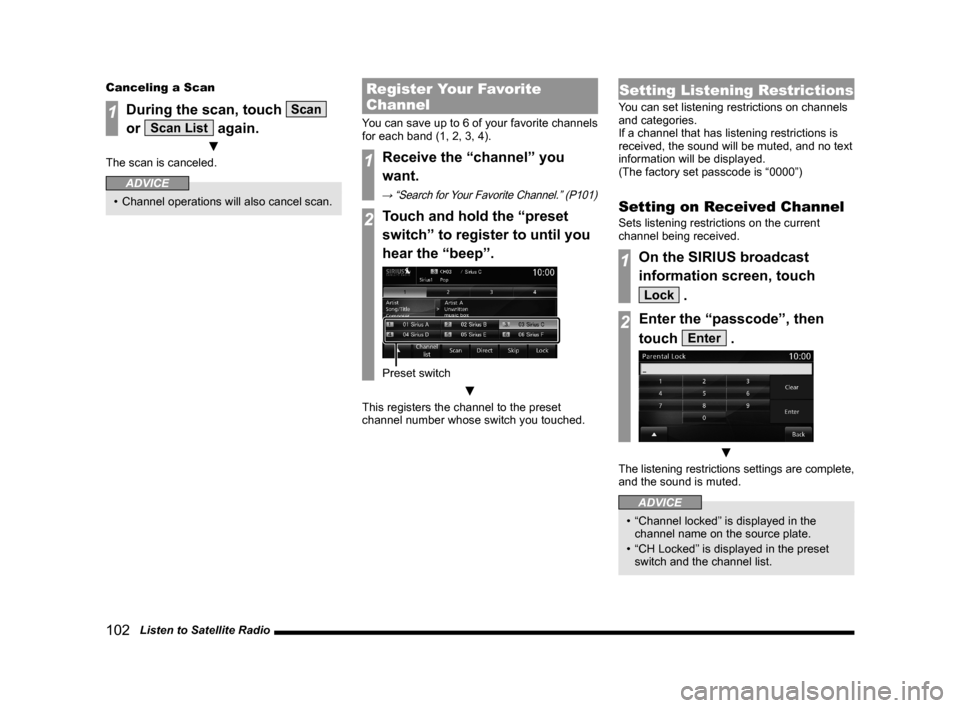
2Touch and hold the “preset
switch” to register to until you
hear the “beep”.
Preset switch
▼
This registers the channel to the preset
channel number whose switch you touched.
Setting Listening Restrictions
You can set listening restrictions on channels
and categories.
If a channel that has listening restrictions is
received, the sound will be muted, and no text
information will be displayed.
(The factory set passcode is “0000”)
Setting on Received Channel
Sets listening restrictions on the current
channel being received.
1On the SIRIUS broadcast
information screen, touch
Lock .
2Enter the “passcode”, then
touch
Enter .
▼
The listening restrictions settings are complete,
and the sound is muted.
ADVICE
• “Channel locked” is displayed in the
channel name on the source plate.
• “CH Locked” is displayed in the preset
switch and the channel list.
Page 103 of 229
Listen to Satellite Radio
103
AV Radio
Setting from Channel List
Sets listening restrictions from the channel list.
1On the SIRIUS broadcast
information screen, touch
Channel List .
The channel list screen is displayed.
2Touch CH Lock .
3Enter the “passcode”, then
touch
Enter .
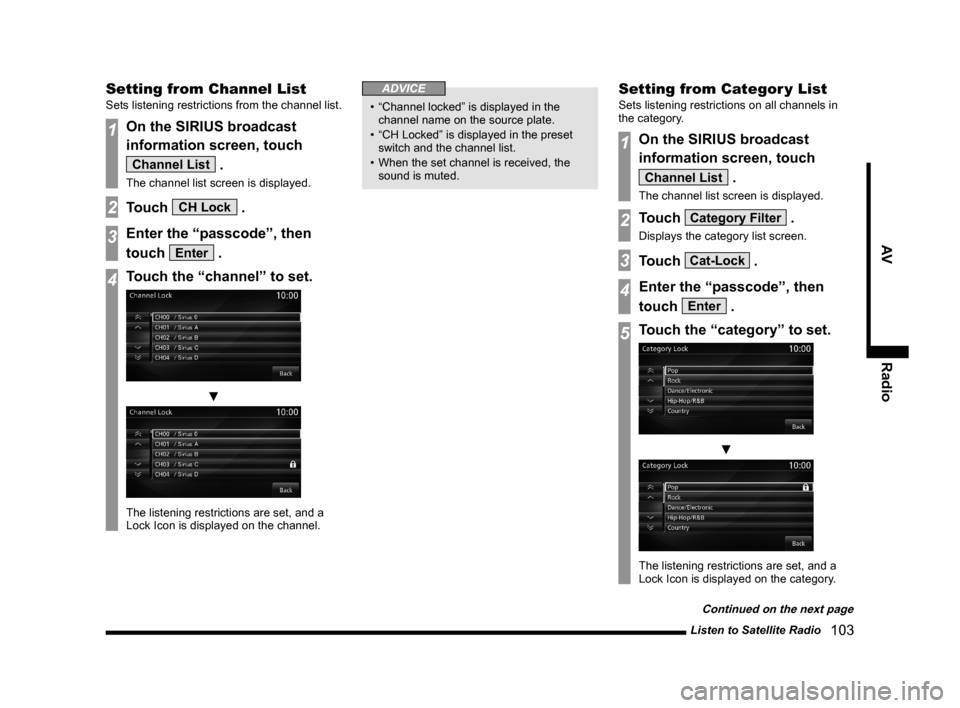
4Touch the “channel” to set.
▼
The listening restrictions are set, and a
Lock Icon is displayed on the channel.
ADVICE
• “Channel locked” is displayed in the
channel name on the source plate.
• “CH Locked” is displayed in the preset
switch and the channel list.
• When the set channel is received, the
sound is muted.
Setting from Categor y List
Sets listening restrictions on all channels in
the category.
1On the SIRIUS broadcast
information screen, touch
Channel List .
The channel list screen is displayed.
2Touch Category Filter .
Displays the category list screen.
3Touch Cat-Lock .
4Enter the “passcode”, then
touch
Enter .
5Touch the “category” to set.
▼
The listening restrictions are set, and a
Lock Icon is displayed on the category.
Continued on the next page
Page 104 of 229
104 Listen to Satellite Radio
ADVICE
• “Channel locked” is displayed in the
channel name on the source plate.
• “CH Locked” is displayed in the preset
switch and the channel list.
• When the set channel is received, the
sound is muted.
Unlocking All Locked
Channels
Cancels the listening restrictions on all
channels.
1On the SIRIUS broadcast
information screen, touch
Channel List .
The channel list screen is displayed.
2Touch Category Filter .
Displays the category list screen.
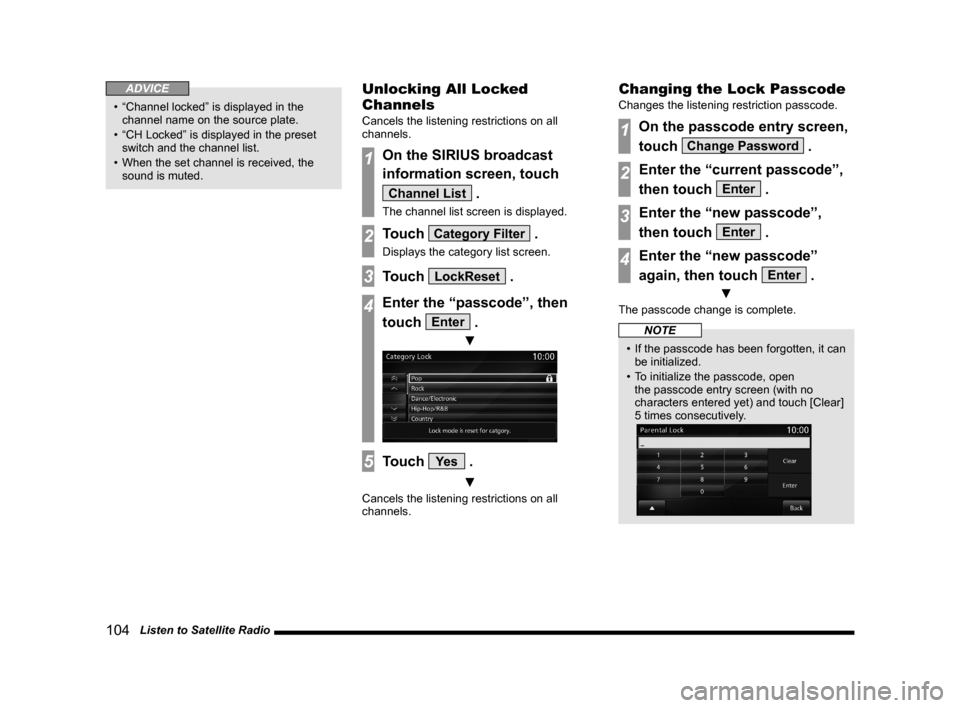
3Touch LockReset .
4Enter the “passcode”, then
touch
Enter .
▼
5Touch Ye s .
▼
Cancels the listening restrictions on all
channels.
Changing the Lock Passcode
Changes the listening restriction passcode.
1On the passcode entry screen,
touch
Change Password .
2Enter the “current passcode”,
then touch
Enter .
3Enter the “new passcode”,
then touch
Enter .
4Enter the “new passcode”
again, then touch
Enter .
▼
The passcode change is complete.
NOTE
• If the passcode has been forgotten, it can
be initialized.
• To initialize the passcode, open
the passcode entry screen (with no
characters entered yet) and touch [Clear]
5 times consecutively.
Page 105 of 229
Listen to Satellite Radio
105
AV Radio
Set the channel skip.
You can set Skip on channels and categories.
Channels in which Skip is set will be skipped
and not received when cycling up and down
through channels and during scans.
Setting on Received Channel
Sets Skip on the current channel being
received.
1On the SIRIUS broadcast
information screen, touch
Skip .
▼
The Skip setting is complete.
ADVICE
• “Skip” is displayed on preset channels.
• No text information is displayed.
• Skip cannot be set for channels that have
listening restrictions set on them.
Setting from Channel List
Sets Skip from the channel list.
1On the SIRIUS broadcast
information screen, touch
Channel List .
The channel list screen is displayed.
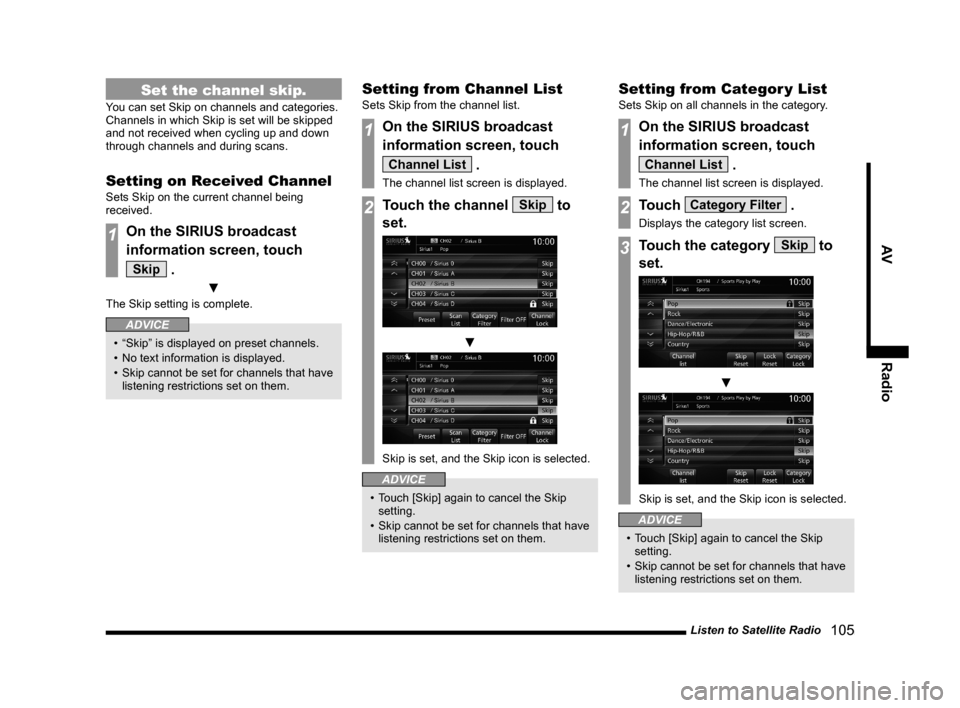
2Touch the channel Skip to
set.
▼
Skip is set, and the Skip icon is selected.
ADVICE
• Touch [Skip] again to cancel the Skip
setting.
• Skip cannot be set for channels that have
listening restrictions set on them.
Setting from Categor y List
Sets Skip on all channels in the category.
1On the SIRIUS broadcast
information screen, touch
Channel List .
The channel list screen is displayed.
2Touch Category Filter .
Displays the category list screen.
3Touch the category Skip to
set.
▼
Skip is set, and the Skip icon is selected.
ADVICE
• Touch [Skip] again to cancel the Skip
setting.
• Skip cannot be set for channels that have
listening restrictions set on them.
Page 106 of 229
106 Listen to Satellite Radio
Canceling Skip on All
Channels
Cancels the Skip setting on all channels.
1On the SIRIUS broadcast
information screen, touch
Channel List .
The channel list screen is displayed.
2Touch Category Filter .
Displays the category list screen.
3Touch Skip Reset .
4Touch Ye s .
▼
Cancels the Skip setting on all channels.
The SIRIUS ID is displayed.
1On the SIRIUS broadcast
information screen, touch
▲ .
This displays the sub-menu.
2Touch SIRIUS ID .
▼
The SIRIUS ID is displayed.
ADVICE
• If you connect your mobile phone to
this product via Bluetooth, Dial will
be displayed on the SIRIUS ID display
screen.
You can make a call to Sirius by touching
Dial .
Updating Broadcast
Information
NOTE
• If the broadcast information is changed,
it will switch to the update screen
automatically and begin an update.
Please wait until the update reaches
100%.
• Even if it is not in SIRIUS radio mode, the
update will be performed automatically.
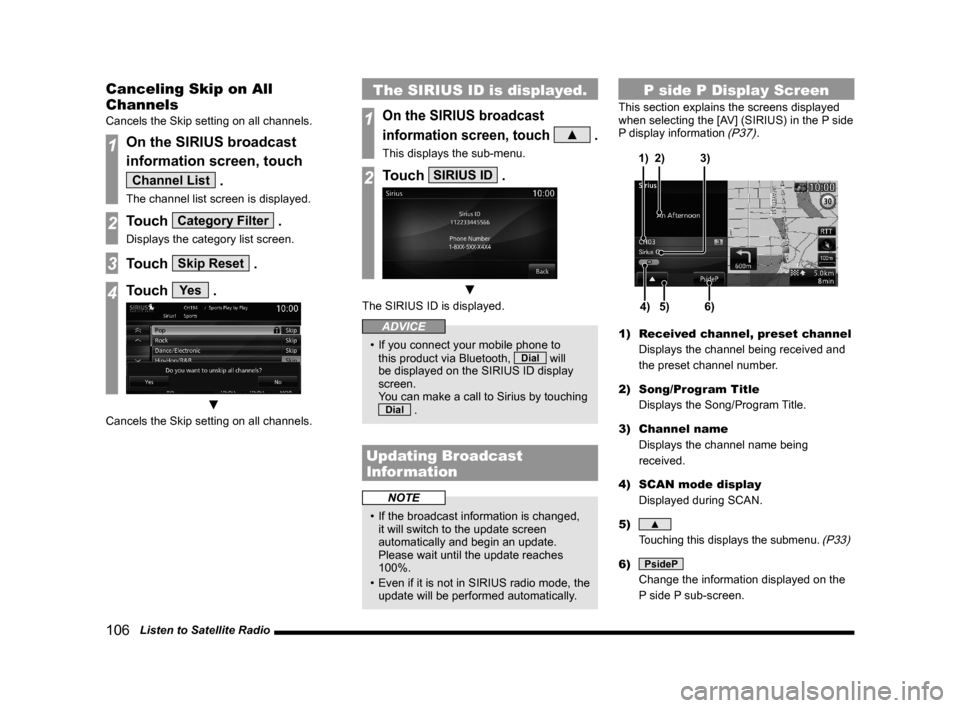
P side P Display Screen
This section explains the screens displayed
when selecting the [AV] (SIRIUS) in the P side
P display information
(P37).
5)4)6) 3) 2) 1)
1) Received channel, preset channel
Displays the channel being received and
the preset channel number.
2) Song/Program Title
Displays the Song/Program Title.
3) Channel name
Displays the channel name being
received.
4) SCAN mode display
Displayed during SCAN.
5)
▲
Touching this displays the submenu. (P33)
6) PsideP
Change the information displayed on the
P side P sub-screen.
Page 143 of 229
GPS Information
143
INFO/SETTINGS INFO
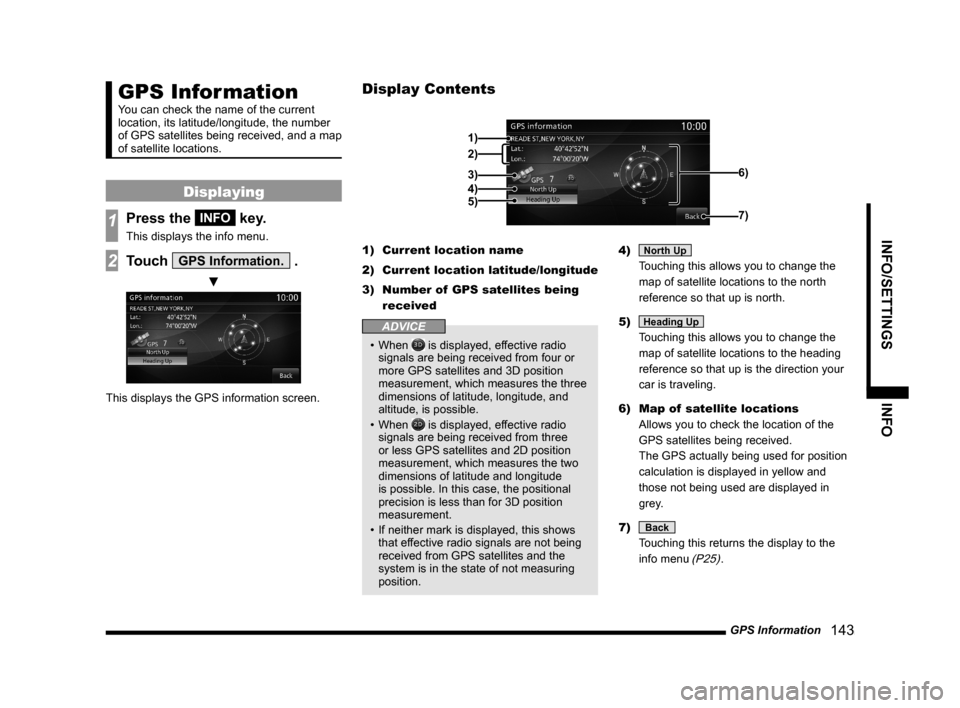
GPS Information
You can check the name of the current
location, its latitude/longitude, the number
of GPS satellites being received, and a map
of satellite locations.
Displaying
1Press the INFO key.
This displays the info menu.
2Touch GPS Information. .
▼
This displays the GPS information screen.1) Current location name
2) Current location latitude/longitude
3) Number of GPS satellites being
received
ADVICE
• When is displayed, effective radio
signals are being received from four or
more GPS satellites and 3D position
measurement, which measures the three
dimensions of latitude, longitude, and
altitude, is possible.
• When
is displayed, effective radio
signals are being received from three
or less GPS satellites and 2D position
measurement, which measures the two
dimensions of latitude and longitude
is possible. In this case, the positional
precision is less than for 3D position
measurement.
• If neither mark is displayed, this shows
that effective radio signals are not being
received from GPS satellites and the
system is in the state of not measuring
position.4)
North Up
Touching this allows you to change the
map of satellite locations to the north
reference so that up is north.
5)
Heading Up
Touching this allows you to change the
map of satellite locations to the heading
reference so that up is the direction your
car is traveling.
6) Map of satellite locations
Allows you to check the location of the
GPS satellites being received.
The GPS actually being used for position
calculation is displayed in yellow and
those not being used are displayed in
grey.
7)
Back
Touching this returns the display to the
info menu
(P25).
Display Contents
2)
3)
4)
5)
1)
6)
7)
Page 159 of 229
HD Radio Data Information
159
INFO/SETTINGS INFO
HD Radio Data
Information
You can check Fuel price and weather
information.
NOTE
• Depending on the region, it may not be
possible to acquire information.
Displaying
1Press the INFO key.
This displays the info menu.
2Touch Fuel/Weather .
▼
This displays the HD Radio Data
Information screen.
NOTE
• [Fuel/Weather] may change to [HD
Information] depending on the model.
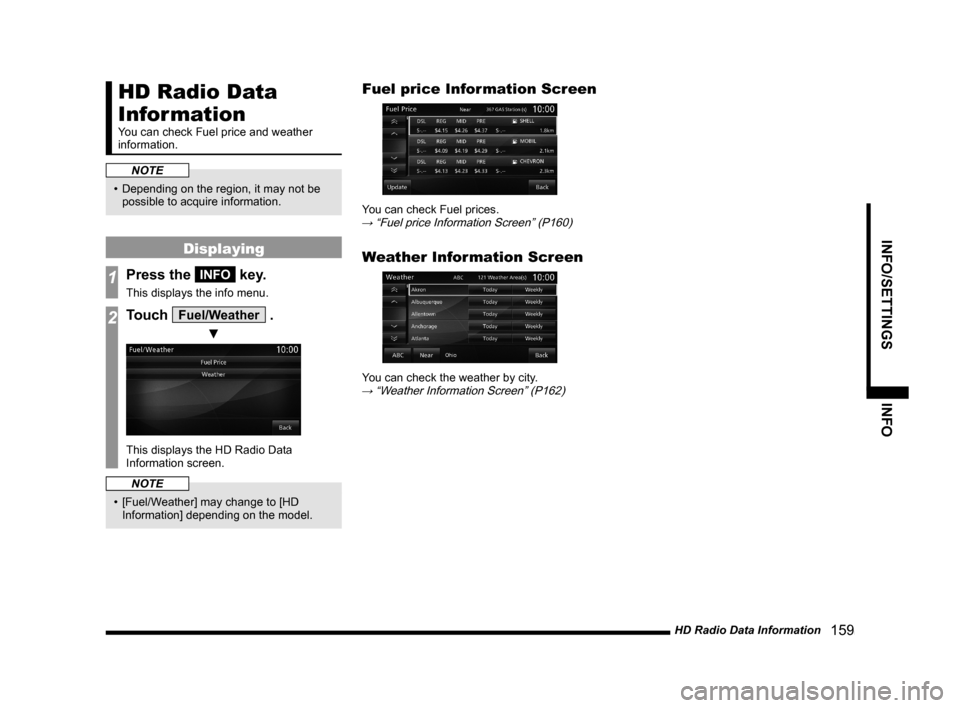
Fuel price Information Screen
You can check Fuel prices.→ “Fuel price Information Screen” (P160)
Weather Information Screen
You can check the weather by city.→ “Weather Information Screen” (P162)
Page 160 of 229
160 HD Radio Data Information
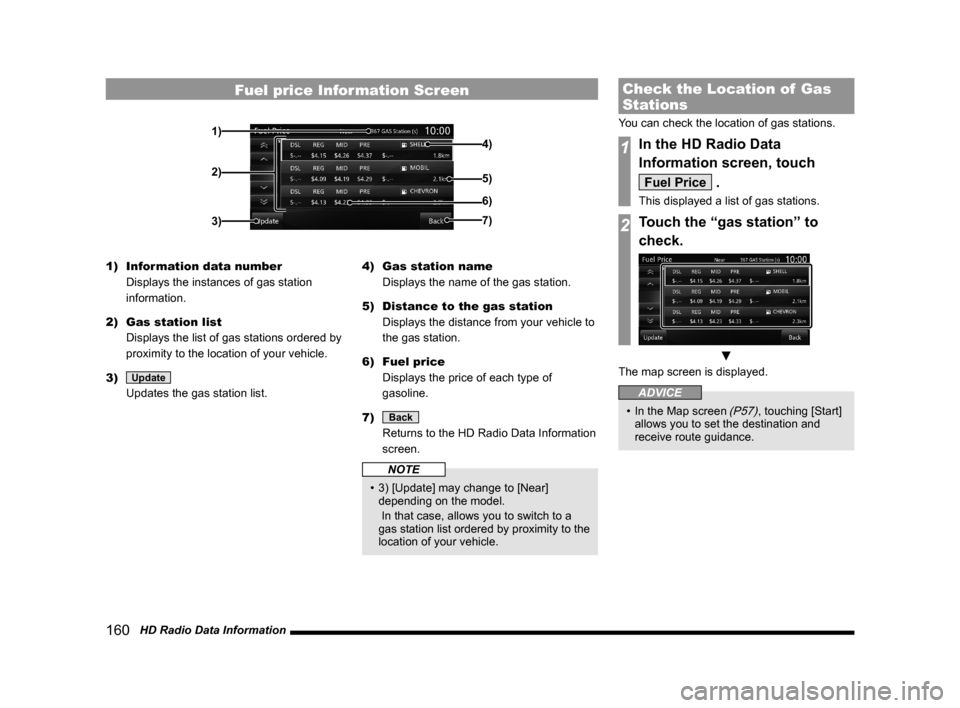
Fuel price Information Screen
2)
3)7)
6)
4)
5)1)
1) Information data number
Displays the instances of gas station
information.
2) Gas station list
Displays the list of gas stations ordered by
proximity to the location of your vehicle.
3)
Update
Updates the gas station list.4) Gas station name
Displays the name of the gas station.
5) Distance to the gas station
Displays the distance from your vehicle to
the gas station.
6) Fuel price
Displays the price of each type of
gasoline.
7)
Back
Returns to the HD Radio Data Information
screen.
NOTE
• 3) [Update] may change to [Near]
depending on the model.
In that case, allows you to switch to a
gas station list ordered by proximity to the
location of your vehicle.
Check the Location of Gas
Stations
You can check the location of gas stations.
1In the HD Radio Data
Information screen, touch
Fuel Price .
This displayed a list of gas stations.
2Touch the “gas station” to
check.
▼
The map screen is displayed.
ADVICE
• In the Map screen (P57), touching [Start]
allows you to set the destination and
receive route guidance.
Page 161 of 229
HD Radio Data Information
161
INFO/SETTINGS INFO
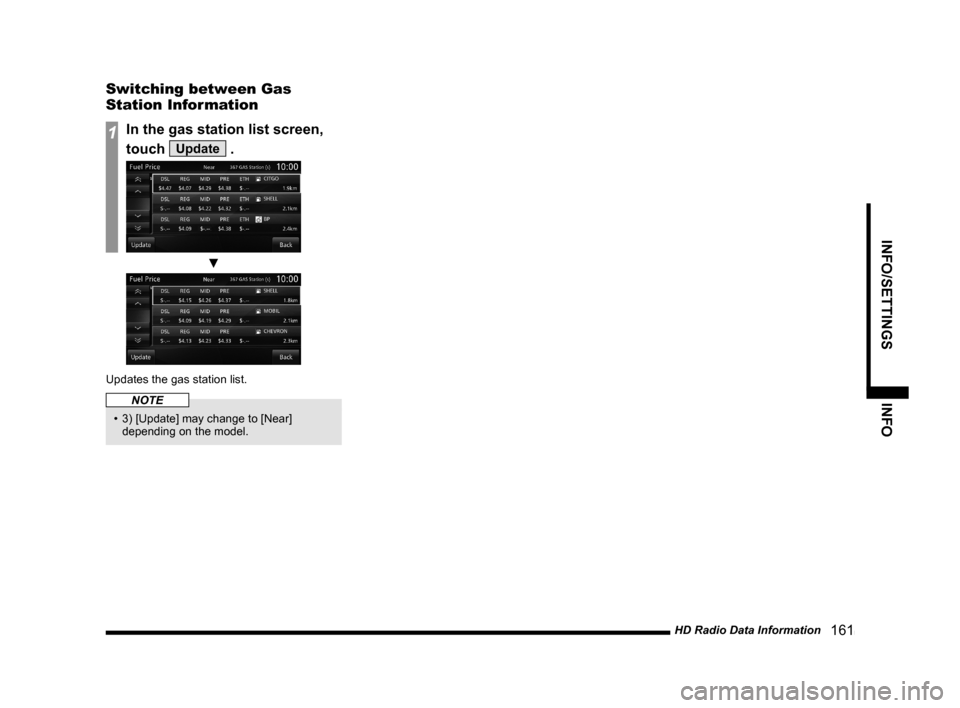
Switching between Gas
Station Information
1In the gas station list screen,
touch
Update .
▼
Updates the gas station list.
NOTE
• 3) [Update] may change to [Near]
depending on the model.
Page 162 of 229
162 HD Radio Data Information
Weather Information Screen
2)
3)6)
4)
5)
1)
8)
7)
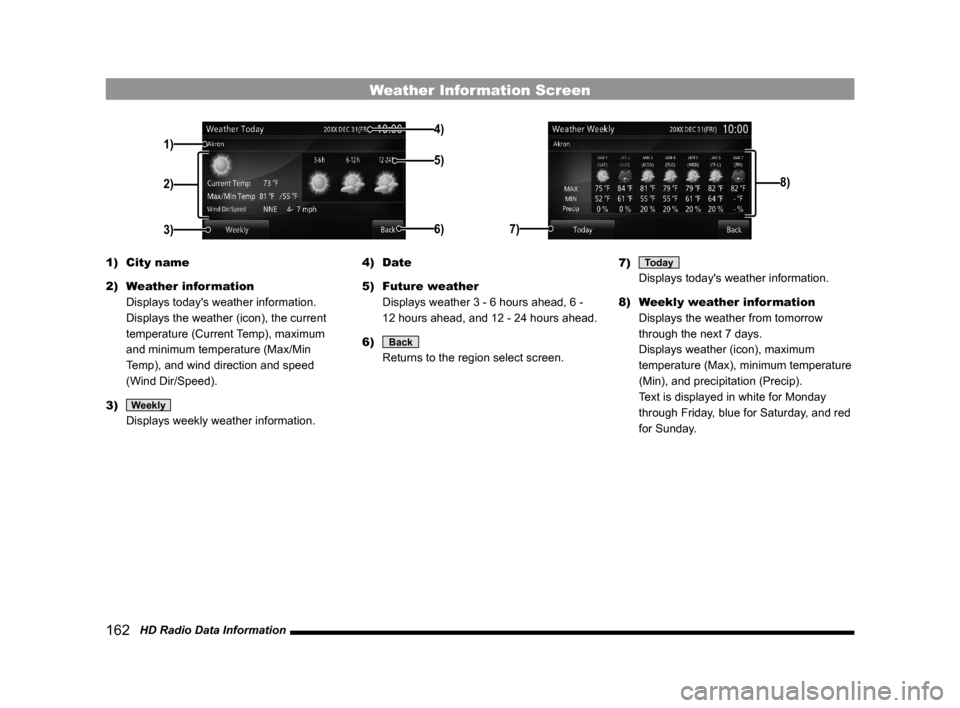
1) City name
2) Weather information
Displays today's weather information.
Displays the weather (icon), the current
temperature (Current Temp), maximum
and minimum temperature (Max/Min
Temp), and wind direction and speed
(Wind Dir/Speed).
3)
Weekly
Displays weekly weather information.4) Date
5) Future weather
Displays weather 3 - 6 hours ahead, 6 -
12 hours ahead, and 12 - 24 hours ahead.
6)
Back
Returns to the region select screen.7)
Today
Displays today's weather information.
8) Weekly weather information
Displays the weather from tomorrow
through the next 7 days.
Displays weather (icon), maximum
temperature (Max), minimum temperature
(Min), and precipitation (Precip).
Text is displayed in white for Monday
through Friday, blue for Saturday, and red
for Sunday.