audio MITSUBISHI MIRAGE 2014 6.G MMCS Manual
[x] Cancel search | Manufacturer: MITSUBISHI, Model Year: 2014, Model line: MIRAGE, Model: MITSUBISHI MIRAGE 2014 6.GPages: 135, PDF Size: 26.9 MB
Page 96 of 135
96
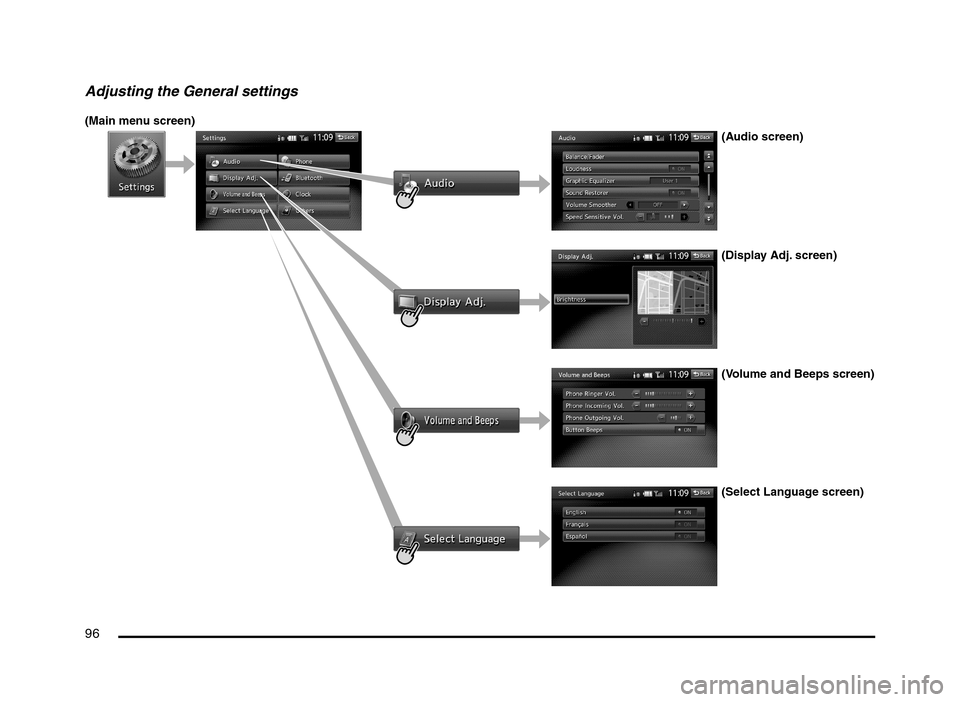
Adjusting the General settings
(Main menu screen)
(Audio screen)
(Display Adj. screen)
(Volume and Beeps screen)
(Select Language screen)
205-0010-00_QY-7375M-A_EN.indb 96205-0010-00_QY-7375M-A_EN.indb 963/12/2013 9:57:27 AM3/12/2013 9:57:27 AM
Page 98 of 135
98
11. BASIC
OPERATIONS
Note:
Be sure to read this chapter while referring to
“Controls” (page 91).
Turning the Power On/Off
Note:
Start the engine before using this unit.
Be careful about using this unit for a long time
without running the engine. If you drain the
vehicle’s battery too far, you may not be able to
start the engine and this can reduce the service
life of the battery.
qTurning the power on
1. Start the engine. The power is
automatically turned on and the startup
screen is displayed.
Note:
The power is turned on even when the ignition
switch is set to the ACC ON position.
2. The startup screen automatically changes
to the caution screen. Touch the [OK] key.
The system resumes from its status when
the power was turned off.
The navigation system does not operate until
the [OK] key is touched.
Some audio features are available even if
the [OK] key is not touched.
qTurning the power off
1. Turn the ignition switch to the OFF position.
Opening the Operation
Panel and Adjusting the
Angle
The operation panel can be opened/closed to
insert/eject a disc or memory card. The angle
of the operation panel can be adjusted to suit
the mounting angle of the unit or light coming
into the vehicle.
WARNING
To prevent the battery from going
dead, operate this unit with the engine
running if possible.
When the operation panel is operating,
be careful not to get your hand or
finger caught between the panel and
main unit or the instrument panel of
the vehicle.
Do not move the operation panel by
hand.
qOpening/closing the
operation panel
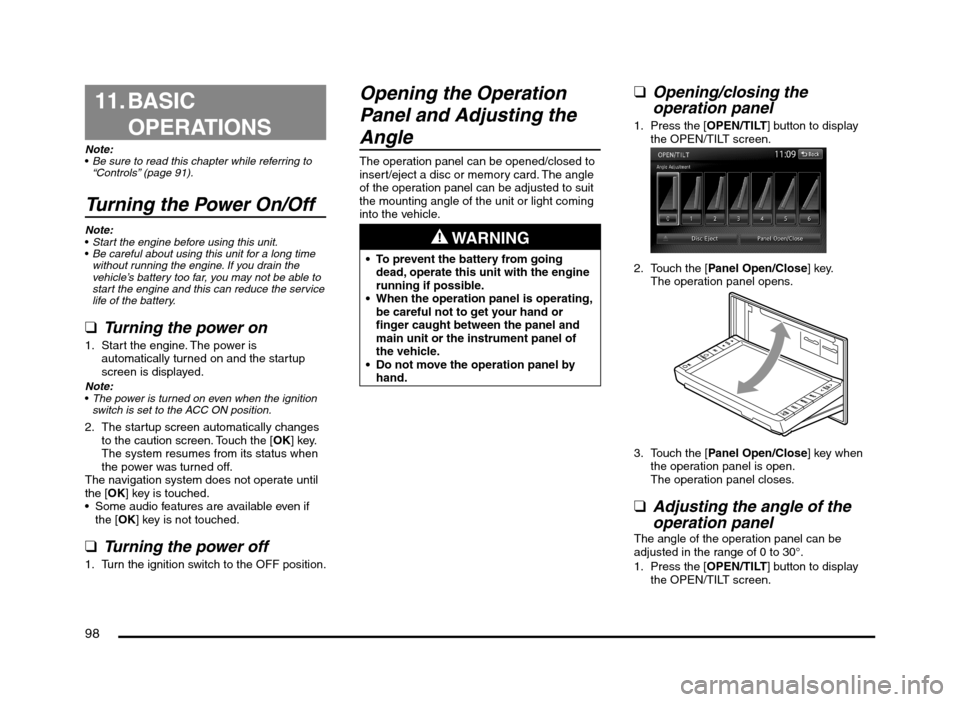
1. Press the [OPEN/TILT] button to display
the OPEN/TILT screen.
2. Touch the [Panel Open/Close] key.
The operation panel opens.
3. Touch the [Panel Open/Close] key when
the operation panel is open.
The operation panel closes.
qAdjusting the angle of the
operation panel
The angle of the operation panel can be
adjusted in the range of 0 to 30°.
1. Press the [OPEN/TILT] button to display
the OPEN/TILT screen.
205-0010-00_QY-7375M-A_EN.indb 98205-0010-00_QY-7375M-A_EN.indb 983/12/2013 9:57:27 AM3/12/2013 9:57:27 AM
Page 99 of 135
![MITSUBISHI MIRAGE 2014 6.G MMCS Manual 99
2. Select the angle from [0] to [6] in Angle
Adjustment.
The selected angle is stored in memory.
Once you select the angle of the operation
panel, the operation panel returns to the
selected an](/img/19/7509/w960_7509-98.png "MITSUBISHI MIRAGE 2014 6.G MMCS Manual 99
2. Select the angle from [0] to [6] in Angle
Adjustment.
The selected angle is stored in memory.
Once you select the angle of the operation
panel, the operation panel returns to the
selected an")
99
2. Select the angle from [0] to [6] in Angle
Adjustment.
The selected angle is stored in memory.
Once you select the angle of the operation
panel, the operation panel returns to the
selected angle even after it is opened/
closed.
Returning the operation panel to
the original angle
1. Press the [OPEN/TILT] button to display
the OPEN/TILT screen.
2. Touch the [0] key in Angle Adjustment.
The operation panel moves and stops at
0°.
Adjusting the Display and
Audio
qTurning the Monitor Display
Off
You can turn off the monitor display, and
change it to a black screen.
1. Press the [MENU] button and touch the
[Display] key to display the Display screen.
2. Touch the [Screen Display OFF] key.
The monitor display turns off.
Turning the monitor display on
1. Touch the monitor display.
You can also turn on the monitor display
by pressing the [AV], [MAP], [MENU],
[DEST], or [OPEN/TILT] button, or any
button on the Steering Wheel Audio
Remote Control (if so equipped).
q
Switching between day and
night modes
You can switch the screen brightness setting
between day and night modes.
1. Press the [MENU] button and touch the
[Day/Night] key.
The display dims or brightens.
qAdjusting the Volume
1. Press the [{], [
}] (Volume) buttons to
adjust the volume.
[{] button: Increases the volume.
[
}] button: Decreases the volume.
The volume level has a range of 0 (min.)
to 31 (max.).
qTurning the Audio Off
1. Press the [POWER] button.Note:
You can also turn off the audio features by
pressing the [AV] button once or twice until the
Source screen is displayed, and then touching
the [Audio OFF] key.
Turning the Audio features on
1. Press the [POWER] button.Note:
You can also turn on the audio features by
pressing the [AV] button once or twice until the
Source screen is displayed, and then touching
one of the source keys.
CAUTION
While driving, keep the volume at a level at
which external sounds can be heard.
205-0010-00_QY-7375M-A_EN.indb 99205-0010-00_QY-7375M-A_EN.indb 993/12/2013 9:57:27 AM3/12/2013 9:57:27 AM
Page 100 of 135
![MITSUBISHI MIRAGE 2014 6.G MMCS Manual 100
Switching the Operation
Mode
qSwitching to the Source
screen, Navigation screen,
and Main Menu screen
To switch to the Source screen from the
Navigation screen, press the [AV] button once
o](/img/19/7509/w960_7509-99.png "MITSUBISHI MIRAGE 2014 6.G MMCS Manual 100
Switching the Operation
Mode
qSwitching to the Source
screen, Navigation screen,
and Main Menu screen
To switch to the Source screen from the
Navigation screen, press the [AV] button once
o")
100
Switching the Operation
Mode
qSwitching to the Source
screen, Navigation screen,
and Main Menu screen
To switch to the Source screen from the
Navigation screen, press the [AV] button once
or twice. To switch to the Navigation screen
from the Source screen, press the [MAP]
button.
Note:
You can also access the Navigation screen from
the Main Menu screen.
É “Main Menu Operations” (page 100)
qSelecting a Media SourceYou can change the media source to be
played from the Source screen.
1. Press the [AV] button once or twice to
display the Source screen.
2. Touch the corresponding key for the
desired Source.
The system switches to the corresponding
source mode.
When [Audio OFF] is not enabled,
pressing the [AV] button from the Source
screen displays the current mode screen.
Note:
You can also change the source mode by using
the Steering Wheel Audio Remote Control (if so
equipped).
É “Steering Wheel Audio Remote Control
Operations” (page 103)
Available media sources
Key name Corresponding
source modeRefer to
FM/AM Tuner mode P. 105
DVD/CD*
1Audio CD mode P. 111
MP3/WMA/AAC
modeP. 112
DVD Video mode P. 106
SD Memory
CARDSD memory card
modeP. 115
USB/iPod*
2USB memory
modeP. 115
iPod mode P. 117
Bluetooth Bluetooth Audio
modeP. 120
*1 The source mode differs depending on the
data format of the disc inserted into the CD
player.
When no disc is inserted into the CD
player, “No disc.” is displayed.
*2 The source mode differs depending on
the device connected. When no device
is connected, “No USB memory.” is
displayed.
q
Main Menu Operations
Selecting Navigation Mode
1. Press the [MENU] button and touch the
[Navigation] key to display the Navigation
screen.
Selecting Telephone mode
1. Press the [MENU] button and touch the
[Phone] key to display the Phone screen.
Note:
Even in Telephone mode, the previous Source
mode continues operating.
É “Telephone Operations” (page 122)
Displaying the Clock ScreenYou can change the screen to display only the
digital clock on a dark background.
1. Press the [MENU] button and touch the
[Display] key to display the Display screen.
2. Touch the [Clock Screen Display] key.
The Clock screen is displayed.
To return to the mode you were previously
using, touch the monitor screen.
You can also exit the Clock screen by
pressing the [AV], [MAP], [MENU],
[DEST], or [OPEN/TILT] button.
205-0010-00_QY-7375M-A_EN.indb 100205-0010-00_QY-7375M-A_EN.indb 1003/12/2013 9:57:27 AM3/12/2013 9:57:27 AM
Page 101 of 135
101
Media and Device
Operations
q
Inserting/Ejecting a Disc
Notes on handling discs
Handling New discs may have some roughness
around the edges. If such discs are used, the
player may not work or the sound may skip.
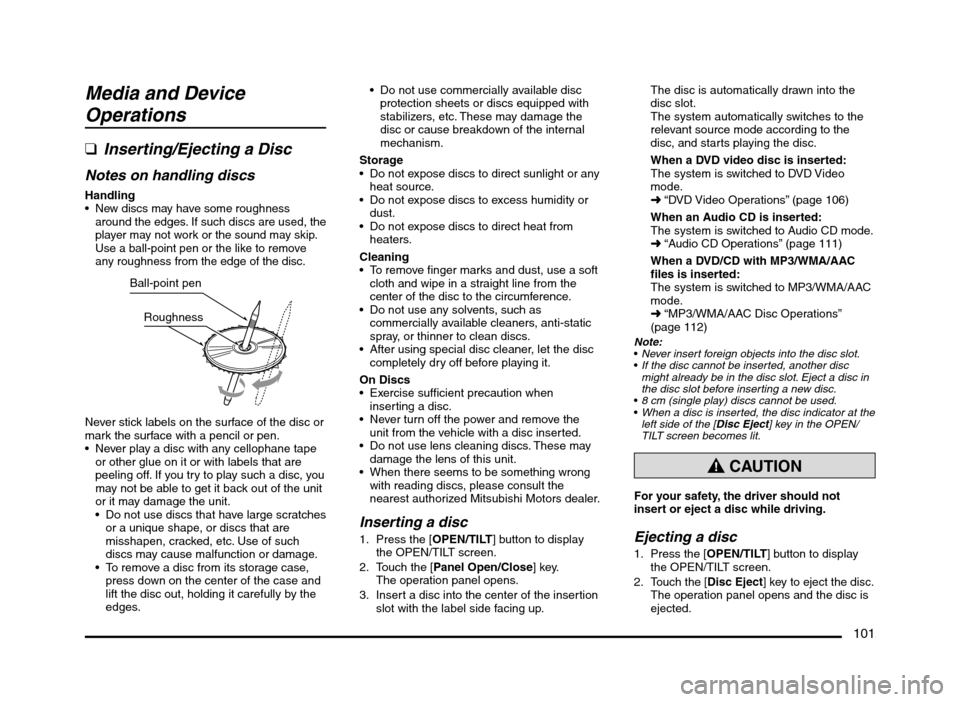
Use a ball-point pen or the like to remove
any roughness from the edge of the disc.
Ball-point pen
Roughness
Never stick labels on the surface of the disc or
mark the surface with a pencil or pen.
Never play a disc with any cellophane tape
or other glue on it or with labels that are
peeling off. If you try to play such a disc, you
may not be able to get it back out of the unit
or it may damage the unit.
Do not use discs that have large scratches
or a unique shape, or discs that are
misshapen, cracked, etc. Use of such
discs may cause malfunction or damage.
To remove a disc from its storage case,
press down on the center of the case and
lift the disc out, holding it carefully by the
edges. Do not use commercially available disc
protection sheets or discs equipped with
stabilizers, etc. These may damage the
disc or cause breakdown of the internal
mechanism.
Storage
Do not expose discs to direct sunlight or any
heat source.
Do not expose discs to excess humidity or
dust.
Do not expose discs to direct heat from
heaters.
Cleaning
To remove finger marks and dust, use a soft
cloth and wipe in a straight line from the
center of the disc to the circumference.
Do not use any solvents, such as
commercially available cleaners, anti-static
spray, or thinner to clean discs.
After using special disc cleaner, let the disc
completely dry off before playing it.
On Discs
Exercise sufficient precaution when
inserting a disc.
Never turn off the power and remove the
unit from the vehicle with a disc inserted.
Do not use lens cleaning discs. These may
damage the lens of this unit.
When there seems to be something wrong
with reading discs, please consult the
nearest authorized Mitsubishi Motors dealer.
Inserting a disc
1. Press the [OPEN/TILT] button to display
the OPEN/TILT screen.
2. Touch the [Panel Open/Close] key.
The operation panel opens.
3. Insert a disc into the center of the insertion
slot with the label side facing up.The disc is automatically drawn into the
disc slot.
The system automatically switches to the
relevant source mode according to the
disc, and starts playing the disc.
When a DVD video disc is inserted:
The system is switched to DVD Video
mode.
É “DVD Video Operations” (page 106)
When an Audio CD is inserted:
The system is switched to Audio CD mode.
É “Audio CD Operations” (page 111)
When a DVD/CD with MP3/WMA/AAC
files is inserted:
The system is switched to MP3/WMA/AAC
mode.
É “MP3/WMA/AAC Disc Operations”
(page 112)
Note:
Never insert foreign objects into the disc slot.
If the disc cannot be inserted, another disc
might already be in the disc slot. Eject a disc in
the disc slot before inserting a new disc.
8 cm (single play) discs cannot be used.
When a disc is inserted, the disc indicator at the
left side of the [Disc Eject] key in the OPEN/
TILT screen becomes lit.
CAUTION
For your safety, the driver should not
insert or eject a disc while driving.
Ejecting a disc
1. Press the [OPEN/TILT] button to display
the OPEN/TILT screen.
2. Touch the [Disc Eject] key to eject the disc.The operation panel opens and the disc is
ejected.
205-0010-00_QY-7375M-A_EN.indb 101205-0010-00_QY-7375M-A_EN.indb 1013/12/2013 9:57:27 AM3/12/2013 9:57:27 AM
Page 103 of 135
103
It may take a long time to recognise the
connected device.
Note:
If USB memory mode is already selected, the
system switches to the relevant source media
mode, and playback starts.
Never insert unrelated objects into the USB
connector.
Always insert the USB memory fully into the
connector. Incomplete connections may cause
the device not to be recognised.
Disconnecting a USB memory
CAUTION
For your safety, the driver should not
connect or disconnect a USB memory.
Do not turn off your vehicle or disconnect
a USB memory while accessing a file from
the USB memory. Before disconnecting
the USB memory, change to a source
mode other than USB memory mode,
press the [POWER] button, or press the
[AV] button and touch the [Audio OFF] key.
1. Confirm that data is not being transferred
to or from the USB memory.
For how to confirm this, refer to the
operation manual of your USB memory.
2. Remove the USB memory from the USB
connector.
Note:
When turning on the ACC power with no USB
memory connected, “No USB memory.” may
be displayed on the screen if USB memory
mode is selected.
qConnecting/Disconnecting
an iPod
An iPod can be used for playing audio data
with this system.
É “iPod Operations” (page 117)
To connect your iPod to this unit, use a USB
cable (if so equipped).
For details, consult your Mitsubishi Motors
dealer.
Connecting an iPod
CAUTION
For your safety, the driver should not
connect or disconnect an iPod.
Do not turn off your vehicle or disconnect
an iPod while accessing a file from the iPod.
1. Turn on the power of your iPod.
2. Confirm the orientation of the connectors,
and connect the iPod to the USB cable.
It may take a long time to recognise the
iPod.
Note:
If iPod mode is already selected, the system
switches to the relevant source media mode,
and playback starts.
Never insert unrelated objects into the iPod
USB connector.
Always insert the cable connector fully into the
iPod. Incomplete connections may cause the
iPod not to be recognised.
Disconnecting an iPod
CAUTION
For your safety, the driver should not
connect or disconnect an iPod.
Do not turn off your vehicle or
disconnect an iPod while accessing a
file from the iPod. Before disconnecting
the iPod, change to a source mode other
than iPod mode, press the [POWER]
button, or press the [AV] button and
touch the [Audio OFF] key.
1. Confirm that data is not being transferred
to or from the iPod.
For how to confirm this, refer to the
operation manual of your iPod.
2. Remove the iPod from the iPod USB
connector.
Note:
When turning on the ACC power with no
iPod connected, “No USB memory.” may
be displayed on the screen if iPod mode is
selected.
Steering Wheel Audio
Remote Control Operations
You can use the Steering Wheel Audio
Remote Control (if so equipped) to perform
various audio operations.
These operations can be used only when your
vehicle is equipped with a Steering Wheel
Audio Remote Control.
Note:
While driving, be sure that audio control
operations do not interfere with your driving.
205-0010-00_QY-7375M-A_EN.indb 103205-0010-00_QY-7375M-A_EN.indb 1033/12/2013 9:57:27 AM3/12/2013 9:57:27 AM
Page 104 of 135
![MITSUBISHI MIRAGE 2014 6.G MMCS Manual 104
The buttons on the Steering Wheel Audio Remote
Control are effective only when the Audio features
are turned on. On the unit, press the [AV] button
once or twice until the Source screen is disp](/img/19/7509/w960_7509-103.png "MITSUBISHI MIRAGE 2014 6.G MMCS Manual 104
The buttons on the Steering Wheel Audio Remote
Control are effective only when the Audio features
are turned on. On the unit, press the [AV] button
once or twice until the Source screen is disp")
104
The buttons on the Steering Wheel Audio Remote
Control are effective only when the Audio features
are turned on. On the unit, press the [AV] button
once or twice until the Source screen is displayed
and select a source before you operate the
Steering Wheel Audio Remote Control.
Function of controls
The operations differ depending on the type
of Steering Wheel Audio Remote Control that
you use.
[VOL UP], [VOL DOWN] buttons:
Press these buttons to increase/decrease
the volume.
[MODE/SOURCE] button:
Press this button to switch between the
source mode. Switching is performed in the
following order:
FM/AM (Tuner mode) É SD memory card
mode* É Bluetooth Audio mode* É DVD/
CD mode* É USB memory/iPod mode* É
FM/AM (Tuner mode) ...
* When a corresponding media is not
inserted or connected, the unit will skip
SD memory card mode, Bluetooth Audio
mode, DVD/CD mode, and USB memory/
iPod mode.
Press and hold this button to turn the power
off. When the power is turned off, press this
button to turn the power on.
[TRACK/CH UP], [TRACK/CH DOWN]
buttons:
Other than when in Tuner mode, these
buttons have the same function as the [
]
and [] (TUNE/TRACK) buttons on the unit.
É “Functions of Buttons” (page 91)
In Tuner mode, press these buttons to
change to the next/previous preset station.
Continue pressing these buttons to
automatically seek a station.
In Audio CD, MP3/WMA/AAC, SD memory
card, USB memory, iPod, and Bluetooth
Audio modes, press these buttons to select
a track to be played.
Other than when in Tuner mode, press and
hold these buttons to fast forward or fast
backward.
Using a Rear View Camera
When an optional Rear View Camera (if so
equipped) is connected to this unit, the rear
view video from the camera is displayed on
the screen when the vehicle’s gear lever is set
to the reverse position.
WARNING
Do not look only at the screen when
driving the vehicle in reverse. Always
inspect your surroundings by looking
at them directly, and slowly move the
vehicle.
CAUTION
Use the Rear View Camera only to assist
you when driving the vehicle in reverse.
Raindrops may get on the camera area
and obscure video.
Always perform adjustments to the video
settings when the vehicle is stopped and
in a safe location.
Note:
The Rear View Camera uses a wide-angle lens,
so objects in the screen may appear closer or
farther than they appear.Video from the Rear View Camera is inverted,
so it appears the same as it would from the
vehicle’s rear-view mirror.
Video from the Rear View Camera may be
difficult to see or impossible to see in dark
places or at night.
The lens features a splash-proof construction to
prevent fogging.
Do not loosen the Rear View Camera screws
or disassemble the Rear View Camera. The
splash-proofing may be affected, and the
camera may be damaged.
If the front cover of the lens is dirty, video will
not be clear. If raindrops, snow, or dirt gets on
the front cover of the lens, wipe it off with a soft
cloth moistened with water. If you use a dry
cloth to wipe the cover of the lens, dirt on the
cover of the lens may be damaged.
qDisplaying video from the
Rear View Camera
Set the gear lever to the reverse position while
the vehicle’s engine is turned on.
The display changes to the video from the
Rear View Camera. This video is preferentially
displayed even if you are watching a DVD
video, etc.
F
AB
C
D
E
A: This position is approximately 3 m from the
rear of the vehicle.
B: This position is approximately 2 m from the
rear of the vehicle.
205-0010-00_QY-7375M-A_EN.indb 104205-0010-00_QY-7375M-A_EN.indb 1043/12/2013 9:57:27 AM3/12/2013 9:57:27 AM
Page 105 of 135
105
C: This position is approximately 1 m from the
rear of the vehicle.
D: This position is approximately 50 cm from
the rear of the vehicle.
E: This position is approximately aligned with
the position directly below the vehicle’s rear
bumper.
F: These positions are approximately 20 cm
from the sides of the vehicle.
qAdjusting the video of the
Rear View Camera
Note:
Adjustments can only be made when the gear
lever is set to the reverse position.
1. Touch the screen while video from the
Rear View Camera is being displayed.
2. Touch the [Display Adj.] key.
Display settings are the same as those for
a DVD/CD.
3. Touch the key for the item you want to
adjust.
To adjust the brightness, touch the
[Brightness] key.
To adjust the lightness, touch the [Tint]
key.
To adjust the color, touch the [Color] key.
To adjust the black level, touch the
[Black Level] key.
4. To increase the setting, touch the [+] key.
To decrease the setting, touch the [–] key.
12. SOURCE
OPERATIONS
Radio Operations
This unit supports FM and AM radio reception.
This unit also has a built-in “Radio Broadcast
Data System” (RBDS) decoder system that
supports broadcast stations transmitting
Radio Broadcast Data System data.
Radio Broadcast Data System functions are
only available for the FM band.
Note:
When you store a station without broadcasting
Radio Broadcast Data System data to the
preset memory, store the station after receiving
it for more than 10 seconds. If you store such a
station within 10 seconds, it will be stored as an
Radio Broadcast Data System station, and the
Radio Broadcast Data System tracking function
will activate when you tune in.
q
Selecting Tuner mode
1. Press the [AV] button to display the Source
screen.
2. Touch the [FM/AM] key to select Tuner
mode.
The Tuner mode screen is displayed.
You can also select Tuner mode by
using the Steering Wheel Audio Remote
Control (if so equipped).
É “Steering Wheel Audio Remote
Control Operations” (page 103)
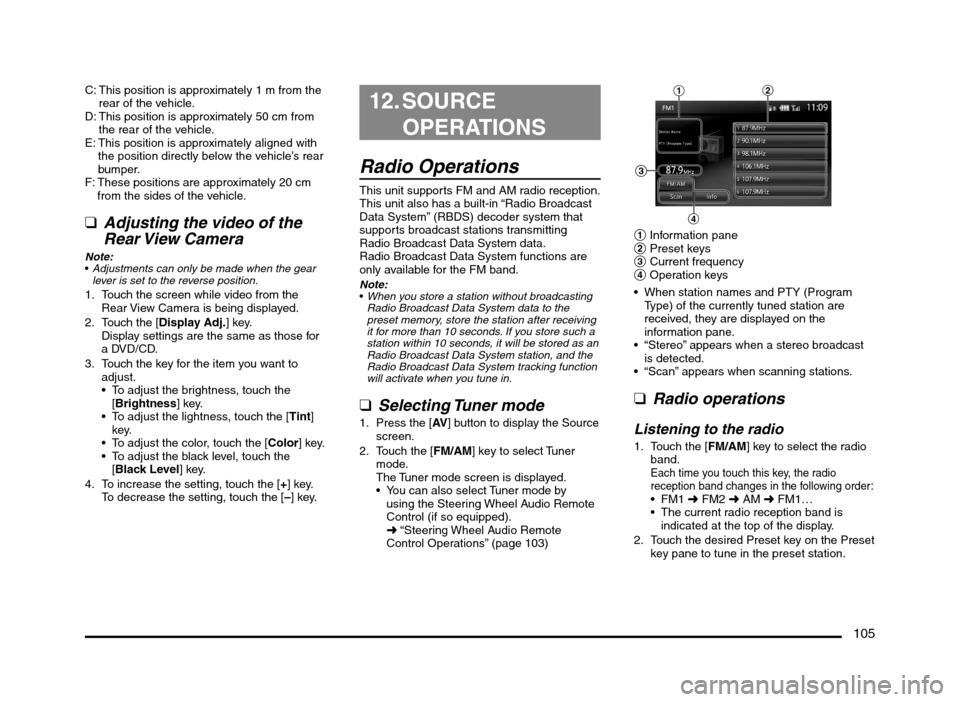
12
4
3
1 Information pane
2 Preset keys
3 Current frequency
4 Operation keys
When station names and PTY (Program
Type) of the currently tuned station are
received, they are displayed on the
information pane.
“Stereo” appears when a stereo broadcast
is detected.
“Scan” appears when scanning stations.
q
Radio operations
Listening to the radio
1. Touch the [FM/AM] key to select the radio
band.
Each time you touch this key, the radio
reception band changes in the following order:
É FM2 É AM É FM1…
The current radio reception band is
indicated at the top of the display.
2. Touch the desired Preset key on the Preset
key pane to tune in the preset station.
205-0010-00_QY-7375M-A_EN.indb 105205-0010-00_QY-7375M-A_EN.indb 1053/12/2013 9:57:27 AM3/12/2013 9:57:27 AM
Page 106 of 135
106
Manual tuningThere are 3 manual tuning methods: step
tuning, seek tuning, and fast tuning.
When you are in step tuning mode, the
frequency changes one step at a time. In seek
tuning and fast tuning modes, you can quickly
tune the desired frequency.
1. Select the desired band by touching the
[FM/AM] key.
2. Tune into a station.
Step tuning:
Press the [
] or [] (TUNE/TRACK) button
to manually tune in a station.
Seek tuning:
Press and hold the [
] or [] (TUNE/
TRACK) button for at least 0.5 seconds
and then release it to tune in a station.
Fast tuning:
Press and hold the [
] or [] (TUNE/
TRACK) button for more than about 1.5
seconds to step up or down continuously.
When the button is released, a station will
be tuned by seek tuning.
Recalling a preset stationThere are total of 18 preset positions (6
for FM1, 6 for FM2, and 6 for AM) to store
individual radio stations in memory.
1. Touch the [FM/AM] key to select the
desired band.
2. Touch the desired Preset key on the Preset
key pane to recall the preset station.
Manual memory
1. Touch the [FM/AM] key to select the
desired band.
2. Select the desired station with the manual
tuning or preset tuning.3. Touch and hold one of the Preset keys for
more than about 1.5 seconds to store the
current station into the preset memory.
Displaying radio text
Note:
This function is only available when using Radio
Broadcast Data System functions.
When the station receiving broadcasts text
data, you can display the data on the screen.
1. Touch the [Info] key on the Tuner mode
screen.
The received radio text is displayed on the
screen.
qUsing the Scan functionThe tuner can continuously scan for stations.
1. Touch the [Scan] key.
The tuner changes from low to high
frequencies and stops at each broadcasting
station for about 5 seconds.
If you do not touch the [Scan] key within
about 5 seconds, scan tuning moves to the
next station.
2. Touch the [Scan] key again during this 5
second period to stop scanning. The tuner
remains tuned to that station.
Note:You can also stop scanning by touching a preset
key, pressing the [] or [] (TUNE/TRACK)
button, or pressing the [TRACK/CH UP] or
[TRACK/CH DOWN] button on the Steering
Wheel Audio Remote Control (if so equipped).
DVD Video Operations
qSelecting DVD Video mode
1. Insert a DVD video disc into the unit.
The system will automatically read the disc
data, change to DVD mode (DVD Video
mode), and start playback after a short
time.
É “Inserting/Ejecting a Disc” (page 101)
WARNING
Some videos may be recorded at a
higher volume level than desired.
Increase the volume gradually from the
minimal setting when starting playback.
For your safety, the driver should
not watch the video or operate the
controls while driving. Please note that
watching the video and operating the
controls while driving are prohibited
by law in some countries.
When a DVD video disc is already inserted:
1. Press the [AV] button to display the Source
screen.
2. Touch the [DVD/CD] key to select DVD
Video mode.
The system changes to DVD mode (DVD
Video mode), and starts playback from the
previous position.
When you touch the screen, the DVD
Video mode screen is displayed.
205-0010-00_QY-7375M-A_EN.indb 106205-0010-00_QY-7375M-A_EN.indb 1063/12/2013 9:57:27 AM3/12/2013 9:57:27 AM
Page 108 of 135
![MITSUBISHI MIRAGE 2014 6.G MMCS Manual 108
Pausing playback
1. From the DVD Video mode screen, touch
the [p] key during playback.
Playback pauses.
2. To resume playback, touch the [p] key
again.
Playback resumes.
Slow playback
1. From](/img/19/7509/w960_7509-107.png "MITSUBISHI MIRAGE 2014 6.G MMCS Manual 108
Pausing playback
1. From the DVD Video mode screen, touch
the [p] key during playback.
Playback pauses.
2. To resume playback, touch the [p] key
again.
Playback resumes.
Slow playback
1. From")
108
Pausing playback
1. From the DVD Video mode screen, touch
the [p] key during playback.
Playback pauses.
2. To resume playback, touch the [p] key
again.
Playback resumes.
Slow playback
1. From the DVD Video mode screen, touch
the [p] key during playback to pause
playback.
2. Press and hold the [
] (TUNE/TRACK)
button.
While holding the button, slow playback
continues at 1/4 speed.
Releasing the button resumes the normal
playback.
Slow playback cannot be performed in
reverse. In addition, audio cannot be
reproduced during slow playback.
Fast forward and fast backward
1. From the DVD Video mode screen, press
and hold the [] or [] (TUNE/TRACK)
button during playback.
[
] (TUNE/TRACK) button: Fast forward
[] (TUNE/TRACK) button: Fast backward
The playback location moves forward/
backward quickly.
Releasing the button resumes normal
speed playback.
No audio is reproduced during fast
forward and fast backward operation.
The fast forward and fast backward
speed may differ depending on the disc.
Changing chapters“Chapter” means a small segment to divide
the “Title” (film) which is recorded on the disc.
1. From the DVD Video mode screen, press
the [
] or [] (TUNE/TRACK) button
during playback.
Chapters are skipped as many as the
times touching the button, and playback
starts.
Chapter Chapter ChapterCurrent
location
down up
Pressing the [] (TUNE/TRACK) button
starts playback from the beginning of the
next chapter.
Pressing the [
] (TUNE/TRACK) button
starts playback from the beginning of the
current chapter.
When pressing this button again within
about 2 seconds, playback starts from
the beginning of the previous chapter.
Repeat playbackThis operation plays the current chapter
repeatedly.
1. From the DVD Video mode screen, touch
the [Repeat] key.
“Repeat Chapter” is displayed.
2. Perform the same operation to turn off the
repeat playback.
qChanging the DVD System
Settings
Note:
If a Setup operation is performed during DVD
video playback, playback may restart from
beginning.
Displaying the DVD Setup screen
1. Touch the screen to display the DVD Video
mode screen.
2. Touch the [Settings] key to display the
Settings screen.
3. Configure the desired setting items.
See the following sections for details.
Perform the operations in the following
sections by continuing from this point.
Searching with a chapter/title
number
You can locate the beginning of a scene using
the chapter numbers or title numbers recorded
on the disc.
“Chapter” means a small segment to divide
the “Title” (film) which is recorded on the disc.
1. From the DVD Setup screen, touch the
[10Key Search] key to display the 10Key
Search screen.
The Key Pad screen appears.
205-0010-00_QY-7375M-A_EN.indb 108205-0010-00_QY-7375M-A_EN.indb 1083/12/2013 9:57:28 AM3/12/2013 9:57:28 AM