audio MITSUBISHI MIRAGE 2014 6.G MMCS Manual
[x] Cancel search | Manufacturer: MITSUBISHI, Model Year: 2014, Model line: MIRAGE, Model: MITSUBISHI MIRAGE 2014 6.GPages: 135, PDF Size: 26.9 MB
Page 2 of 135
2
‘More’ menu ........................................................................................................................................................................................63
Settings menu .....................................................................................................................................................................................64
Fuel Consumption ...............................................................................................................................................................................75
Trip Monitor .........................................................................................................................................................................................76
6. GLOSSARY ........................................................................................................................................................................................77
7. END USER LICENSE AGREEMENT .................................................................................................................................................79
8. COPYRIGHT NOTE ............................................................................................................................................................................85
Audio ................................................................................................................................................. 86
Playable Discs .....................................................................................................................................................................................87
DVD Video Features ...........................................................................................................................................................................87
9. PRECAUTIONS ..................................................................................................................................................................................89
Operation Panel/Generalities ..............................................................................................................................................................89
Cleaning ..............................................................................................................................................................................................90
About the Registered Marks, etc. ........................................................................................................................................................90
10. CONTROLS ........................................................................................................................................................................................91
Functions of Buttons ...........................................................................................................................................................................91
Outline of Button and Touchkey Operation .........................................................................................................................................92
11. BASIC OPERATIONS ........................................................................................................................................................................98
Turning the Power On/Off....................................................................................................................................................................98
Opening the Operation Panel and Adjusting the Angle ......................................................................................................................98
Adjusting the Display and Audio .........................................................................................................................................................99
Switching the Operation Mode ..........................................................................................................................................................100
Media and Device Operations ...........................................................................................................................................................101
Steering Wheel Audio Remote Control Operations ...........................................................................................................................103
Using a Rear View Camera ...............................................................................................................................................................104
Contents
205-0010-00_QY-7375M-A_EN.indb 2205-0010-00_QY-7375M-A_EN.indb 23/12/2013 9:57:13 AM3/12/2013 9:57:13 AM
Page 3 of 135
3
12. SOURCE OPERATIONS ..................................................................................................................................................................105
Radio Operations ..............................................................................................................................................................................105
DVD Video Operations ......................................................................................................................................................................106
Audio CD Operations ........................................................................................................................................................................111
MP3/WMA/AAC Disc Operations ......................................................................................................................................................112
SD Memory Card/USB Memory Operations .....................................................................................................................................115
iPod Operations ................................................................................................................................................................................117
Bluetooth Audio Operations ..............................................................................................................................................................120
13. TELEPHONE OPERATIONS ...........................................................................................................................................................122
Using your Bluetooth Mobile Phone with this Unit ............................................................................................................................122
14. SYSTEM SETTINGS ........................................................................................................................................................................125
Audio Settings ...................................................................................................................................................................................125
Display Adjustment ...........................................................................................................................................................................126
Volume and Beeps Settings ..............................................................................................................................................................126
Selecting a Language .......................................................................................................................................................................126
Phone Settings .................................................................................................................................................................................126
Bluetooth Settings .............................................................................................................................................................................129
Clock Settings ...................................................................................................................................................................................130
Other Settings ...................................................................................................................................................................................130
15. TROUBLESHOOTING......................................................................................................................................................................131
205-0010-00_QY-7375M-A_EN.indb 3205-0010-00_QY-7375M-A_EN.indb 33/12/2013 9:57:13 AM3/12/2013 9:57:13 AM
Page 6 of 135
6
Disclaimers
Mitsubishi Motors will in no way be held
responsible for losses resulting from fire,
earthquake, tsunami, flood, or other natural
disasters; from actions of third parties; from
other accidents; or from inappropriate or
abnormal usage conditions utilized by the
customer, be said conditions deliberate or
unintentional.
There will be no indemnification for
alteration or loss of any information stored
upon this product (address book etc.) by
the customer or a third party resulting from
improper use of this product, the influence
of static electricity or electric noise, or at
the time of malfunction or repair or similar
circumstances. We recommend that you
create backups of important information as
a precautionary measure.
Some personal information (addresses
in address book, telephone numbers
etc.) input into this product may remain in
memory even if this product is removed. The
customer is responsible for proper handling
and management (including deleting) of
personal information to protect privacy when
handing this product over to anyone else or
disposing of it. Mitsubishi Motors will in no
way be held responsible.
Mitsubishi Motors will in no way be held
responsible for any collateral losses (loss
of business profits, alteration or loss of
recorded data) resulting from the usage or
inability to use this product. Please be aware that the map displayed
is from when the data was prepared, so
it may differ from current conditions. Also,
Mitsubishi Motors will in no way be held
responsible for any losses resulting from
map data inadequacies.
This product contains data on traffic
regulations, but due to changes in traffic
rules, this data may differ from the actual
traffic rules. Always obey the actual traffic
regulations. Also, Mitsubishi Motors will in
no way be held responsible for any losses
resulting from traffic accidents or traffic
rule violations due to traffic regulation data
inadequacies.
Returns, refunds, exchange, or conversion
for reasons of map data inadequacy or the
like are not possible. There may be times
when the map data does not match the
specific objective of the user. The contents
of the map data are subject to change
without notice. The map data may contain
wrong or missing characters, incorrect
locations etc.
The rule guidance and audio guidance,
for example when to turn, may sometimes
differ from the actual traffic signs or traffic
regulations. Always obey the actual traffic
signs and actual traffic regulations.
For the purpose of product improvement,
specifications and external appearance
may be subject to change without advance
notice. Accordingly, while the contents
of the User Manual may differ, please be
aware that returns, refunds, exchange, or
conversion are not possible. This User Manual explains details for
multiple vehicle models together. Depending
on the vehicle model, there may be
functions that may be described but not
available, or requirements for separately
purchased-products. Thank you for your
understanding.
Images and illustrations used in the
User Manual are either those used in
development, or used for explanations.
Please be aware that these may differ from
the actual images and illustrations used in
the product.
Please be aware that Mitsubishi Motors,
including after-sales service departments,
will in no way be held responsible for any
losses or detriment resulting from alteration
or loss of any information stored in this
product, including customer registration
information.
Before Use
205-0010-00_QY-7375M-A_EN.indb 6205-0010-00_QY-7375M-A_EN.indb 63/12/2013 9:57:13 AM3/12/2013 9:57:13 AM
Page 61 of 135
61
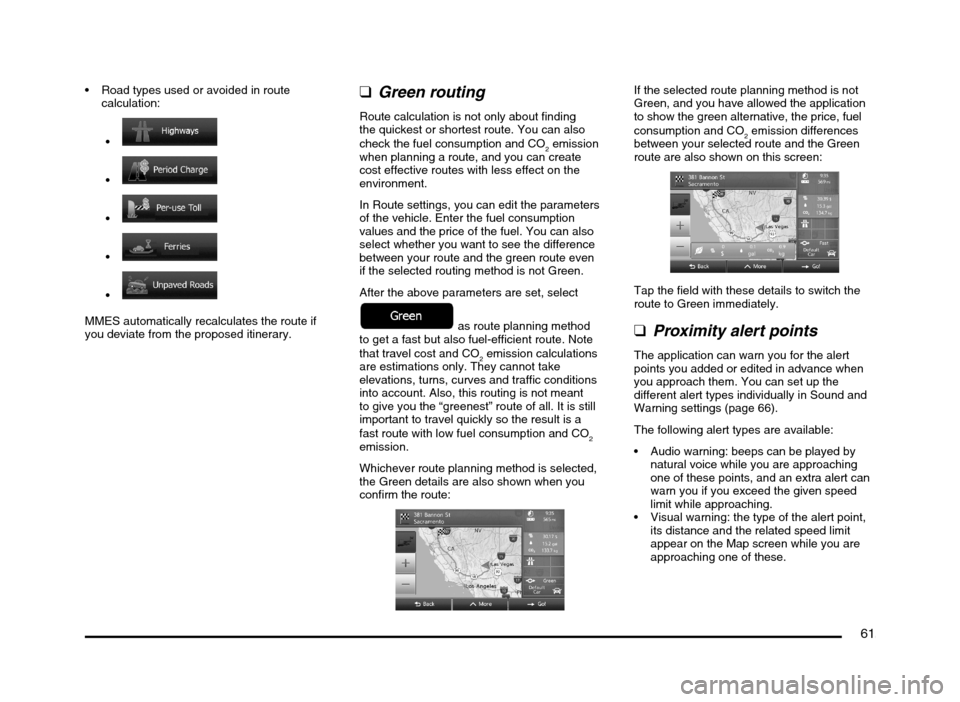
Road types used or avoided in route
calculation:
MMES automatically recalculates the route if
you deviate from the proposed itinerary.
qGreen routing
Route calculation is not only about finding
the quickest or shortest route. You can also
check the fuel consumption and CO
2 emission
when planning a route, and you can create
cost effective routes with less effect on the
environment.
In Route settings, you can edit the parameters
of the vehicle. Enter the fuel consumption
values and the price of the fuel. You can also
select whether you want to see the difference
between your route and the green route even
if the selected routing method is not Green.
After the above parameters are set, select
as route planning method
to get a fast but also fuel-efficient route. Note
that travel cost and CO
2 emission calculations
are estimations only. They cannot take
elevations, turns, curves and traffic conditions
into account. Also, this routing is not meant
to give you the “greenest” route of all. It is still
important to travel quickly so the result is a
fast route with low fuel consumption and CO
2
emission.
Whichever route planning method is selected,
the Green details are also shown when you
confirm the route:
If the selected route planning method is not
Green, and you have allowed the application
to show the green alternative, the price, fuel
consumption and CO
2 emission differences
between your selected route and the Green
route are also shown on this screen:
Tap the field with these details to switch the
route to Green immediately.
qProximity alert points
The application can warn you for the alert
points you added or edited in advance when
you approach them. You can set up the
different alert types individually in Sound and
Warning settings (page 66).
The following alert types are available:
Audio warning: beeps can be played by
natural voice while you are approaching
one of these points, and an extra alert can
warn you if you exceed the given speed
limit while approaching.
Visual warning: the type of the alert point,
its distance and the related speed limit
appear on the Map screen while you are
approaching one of these.
205-0010-00_QY-7375M-A_EN.indb 61205-0010-00_QY-7375M-A_EN.indb 613/12/2013 9:57:23 AM3/12/2013 9:57:23 AM
Page 62 of 135
62
For some of the alert points, the enforced or
expected speed limit is available. For these
points, the audio alert can be different if you
are below or above the given speed limit.
Only when speeding: The audio alert is
only played when you exceed the given
speed limit.
When approaching: The audio alert is
always played when approaching one of
these alert points. In order to draw your
attention, the alert is different when you
exceed the speed limit.
qSpeed limit warning
Maps may contain information about the
speed limits of the road segments. MMES is
able to warn you if you exceed the current
limit. This information may not be available for
your region, or may not be fully correct for all
roads in the map.
Speed warning can be fine-tuned in Sound
and Warning settings (page 66).
You can set the relative speed above which
the application initiates the warning.
The following alert types are available:
Audio warning: you receive a verbal
warning when you exceed the speed limit
with the given percentage.
Visual warning: the current speed limit is
shown on the map when you exceed it
(for example:
).
You can also choose to see the speed limit
sign on the map all the time.
Note:
The speed limit warning is an auxiliary function.
Check the speed in the vehicle’s speedometer
and observe the legal speed.
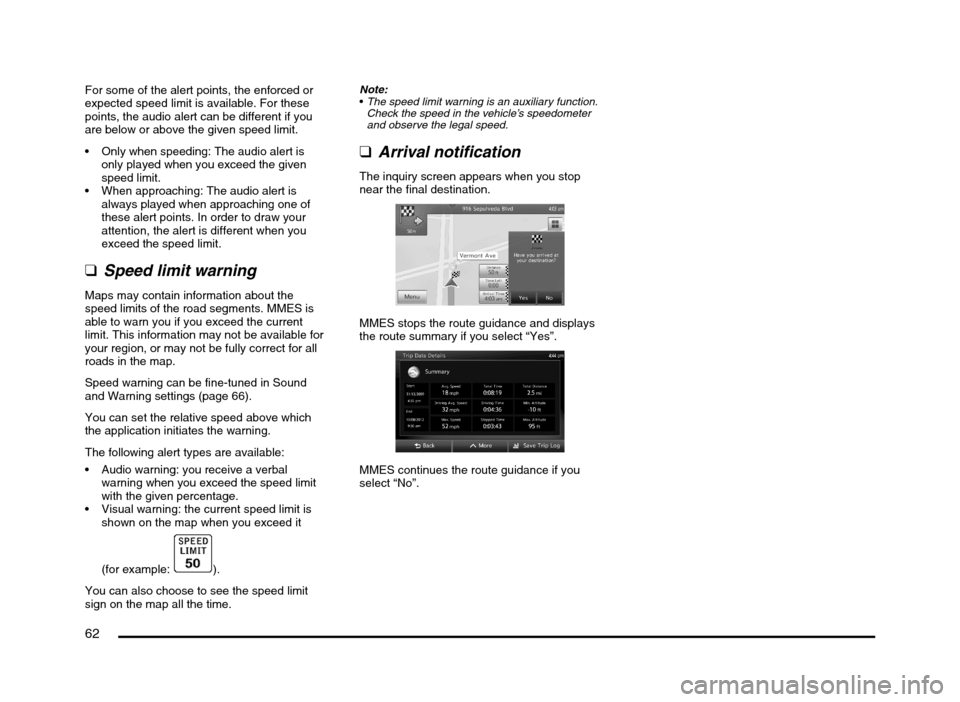
qArrival notification
The inquiry screen appears when you stop
near the final destination.
MMES stops the route guidance and displays
the route summary if you select “Yes”.
MMES continues the route guidance if you
select “No”.
205-0010-00_QY-7375M-A_EN.indb 62205-0010-00_QY-7375M-A_EN.indb 623/12/2013 9:57:24 AM3/12/2013 9:57:24 AM
Page 66 of 135
66
q
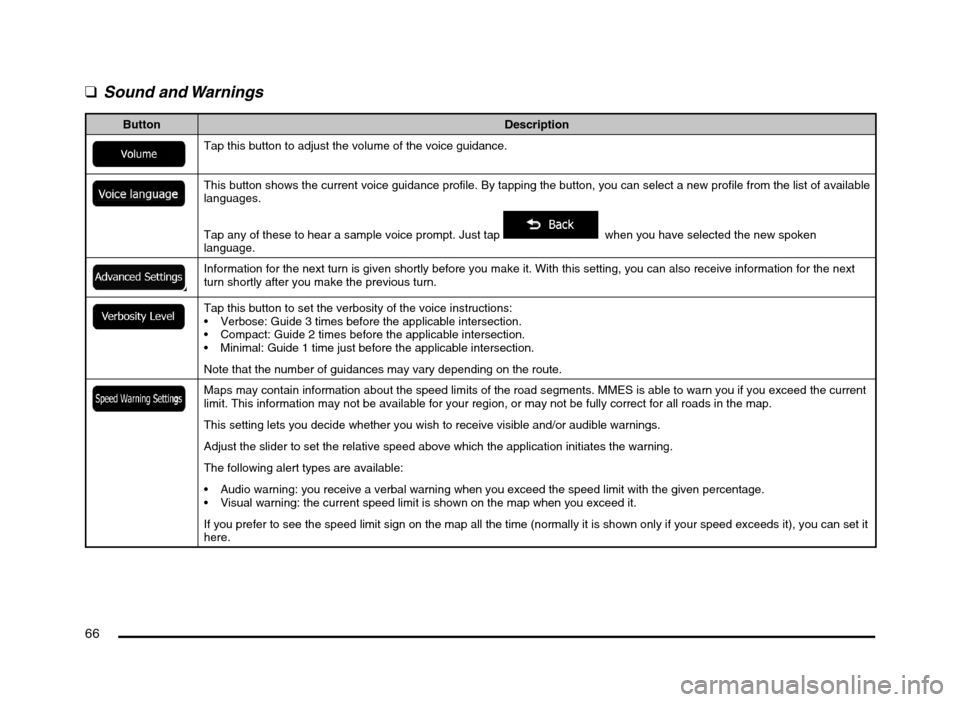
Sound and Warnings
Button Description
Tap this button to adjust the volume of the voice guidance.
This button shows the current voice guidance profile. By tapping the button, you can select a new profile from the list of available
languages.
Tap any of these to hear a sample voice prompt. Just tap
when you have selected the new spoken
language.
Information for the next turn is given shortly before you make it. With this setting, you can also receive information for the next
turn shortly after you make the previous turn.
Tap this button to set the verbosity of the voice instructions:
Verbose: Guide 3 times before the applicable intersection.
Compact: Guide 2 times before the applicable intersection.
Minimal: Guide 1 time just before the applicable intersection.
Note that the number of guidances may vary depending on the route.
Maps may contain information about the speed limits of the road segments. MMES is able to warn you if you exceed the current
limit. This information may not be available for your region, or may not be fully correct for all roads in the map.
This setting lets you decide whether you wish to receive visible and/or audible warnings.
Adjust the slider to set the relative speed above which the application initiates the warning.
The following alert types are available:
Audio warning: you receive a verbal warning when you exceed the speed limit with the given percentage.
Visual warning: the current speed limit is shown on the map when you exceed it.
If you prefer to see the speed limit sign on the map all the time (normally it is shown only if your speed exceeds it), you can set it
here.
205-0010-00_QY-7375M-A_EN.indb 66205-0010-00_QY-7375M-A_EN.indb 663/12/2013 9:57:24 AM3/12/2013 9:57:24 AM
Page 67 of 135
67
Button Description
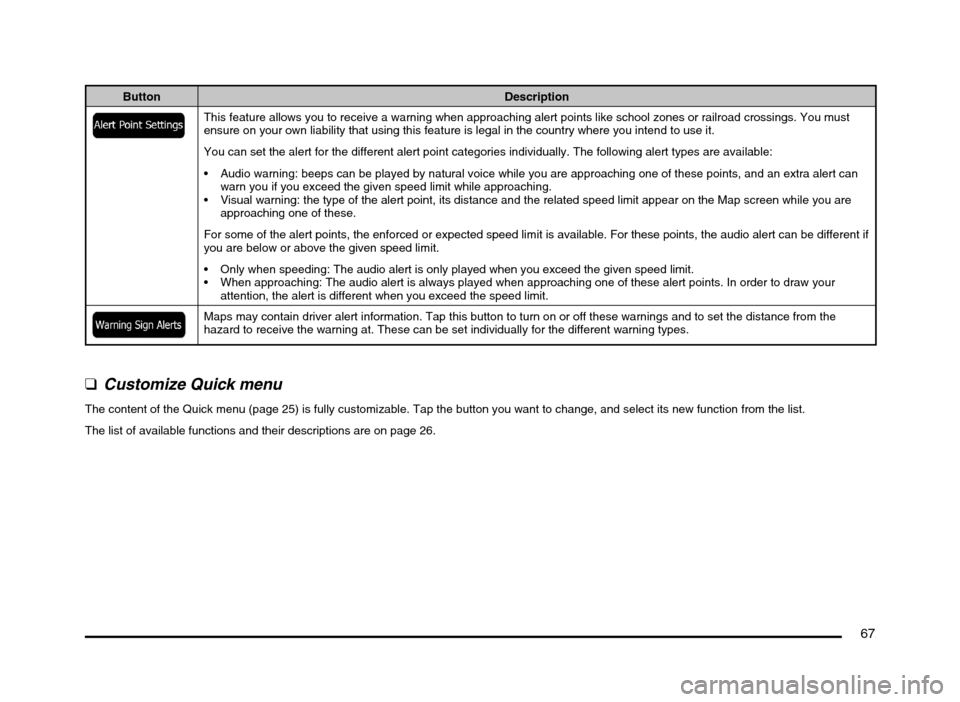
This feature allows you to receive a warning when approaching alert points like school zones or railroad crossings. You must
ensure on your own liability that using this feature is legal in the country where you intend to use it.
You can set the alert for the different alert point categories individually. The following alert types are available:
Audio warning: beeps can be played by natural voice while you are approaching one of these points, and an extra alert can
warn you if you exceed the given speed limit while approaching.
Visual warning: the type of the alert point, its distance and the related speed limit appear on the Map screen while you are
approaching one of these.
For some of the alert points, the enforced or expected speed limit is available. For these points, the audio alert can be different if
you are below or above the given speed limit.
Only when speeding: The audio alert is only played when you exceed the given speed limit.
When approaching: The audio alert is always played when approaching one of these alert points. In order to draw your
attention, the alert is different when you exceed the speed limit.
Maps may contain driver alert information. Tap this button to turn on or off these warnings and to set the distance from the
hazard to receive the warning at. These can be set individually for the different warning types.
q
Customize Quick menu
The content of the Quick menu (page 25) is fully customizable. Tap the button you want to change, and select its new function from the list.
The list of available functions and their descriptions are on page 26.
205-0010-00_QY-7375M-A_EN.indb 67205-0010-00_QY-7375M-A_EN.indb 673/12/2013 9:57:24 AM3/12/2013 9:57:24 AM
Page 86 of 135
86
Audio
205-0010-00_QY-7375M-A_EN.indb 86205-0010-00_QY-7375M-A_EN.indb 863/12/2013 9:57:25 AM3/12/2013 9:57:25 AM
Page 87 of 135
87
Playable Discs
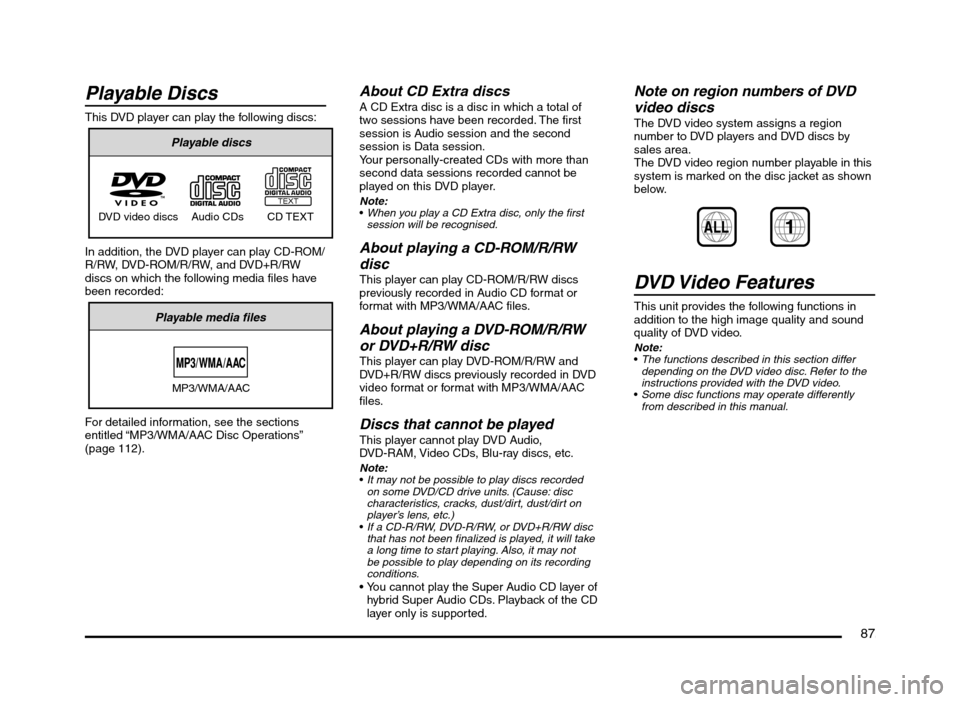
This DVD player can play the following discs:
Playable discs
DVD video discs Audio CDs CD TEXT
In addition, the DVD player can play CD-ROM/
R/RW, DVD-ROM/R/RW, and DVD+R/RW
discs on which the following media files have
been recorded:
Playable media files
MP3/WMA/AAC
For detailed information, see the sections
entitled “MP3/WMA/AAC Disc Operations”
(page 112).
About CD Extra discsA CD Extra disc is a disc in which a total of
two sessions have been recorded. The first
session is Audio session and the second
session is Data session.
Your personally-created CDs with more than
second data sessions recorded cannot be
played on this DVD player.
Note:
When you play a CD Extra disc, only the first
session will be recognised.
About playing a CD-ROM/R/RW
disc
This player can play CD-ROM/R/RW discs
previously recorded in Audio CD format or
format with MP3/WMA/AAC files.
About playing a DVD-ROM/R/RW
or DVD+R/RW disc
This player can play DVD-ROM/R/RW and
DVD+R/RW discs previously recorded in DVD
video format or format with MP3/WMA/AAC
files.
Discs that cannot be playedThis player cannot play DVD Audio,
DVD-RAM, Video CDs, Blu-ray discs, etc.
Note:
It may not be possible to play discs recorded
on some DVD/CD drive units. (Cause: disc
characteristics, cracks, dust/dirt, dust/dirt on
player’s lens, etc.)
If a CD-R/RW, DVD-R/RW, or DVD+R/RW disc
that has not been finalized is played, it will take
a long time to start playing. Also, it may not
be possible to play depending on its recording
conditions.
hybrid Super Audio CDs. Playback of the CD
layer only is supported.
Note on region numbers of DVD
video discs
The DVD video system assigns a region
number to DVD players and DVD discs by
sales area.
The DVD video region number playable in this
system is marked on the disc jacket as shown
below.
ALL1
DVD Video Features
This unit provides the following functions in
addition to the high image quality and sound
quality of DVD video.
Note:
The functions described in this section differ
depending on the DVD video disc. Refer to the
instructions provided with the DVD video.
Some disc functions may operate differently
from described in this manual.
205-0010-00_QY-7375M-A_EN.indb 87205-0010-00_QY-7375M-A_EN.indb 873/12/2013 9:57:25 AM3/12/2013 9:57:25 AM
Page 91 of 135
91
10. CONTROLS
CAUTION
When not updating the map data, do not
remove the map SD memory card. If you
remove the map SD memory card, the
unit will not start.
When removing the SD memory card
to update the map data, make sure the
vehicle is set to ACC-OFF.
Do not edit any data on the map SD
memory card or connect the map SD
memory card to a personal computer,
etc. This may cause errors.
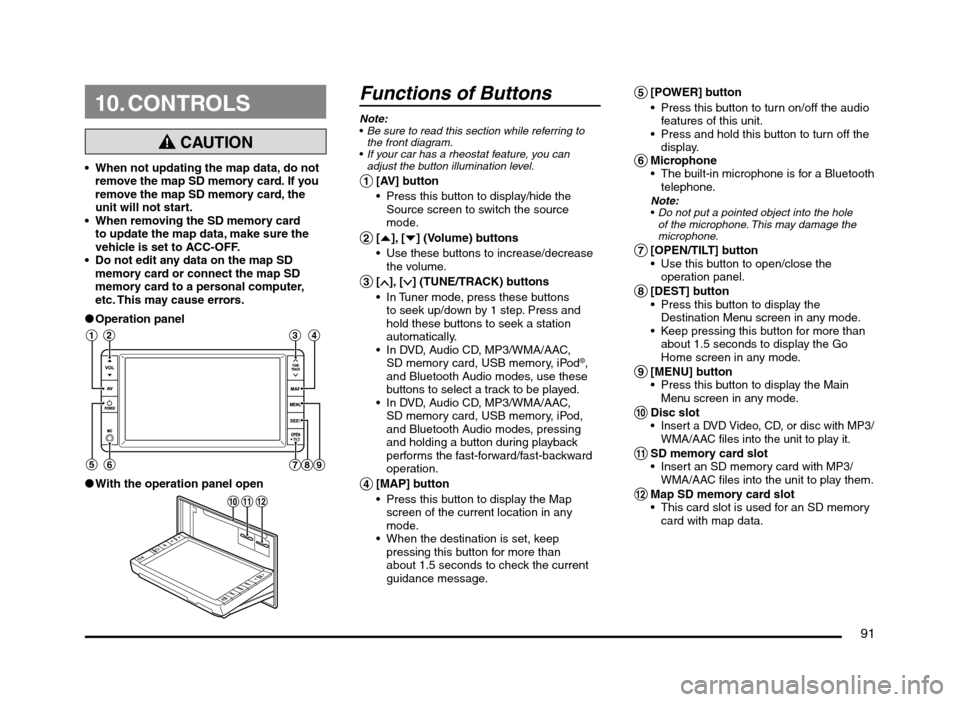
lOperation panel
12 3 4
56
789
lWith the operation panel open
!
@ 0
Functions of Buttons
Note:
Be sure to read this section while referring to
the front diagram.
If your car has a rheostat feature, you can
adjust the button illumination level.
1 [AV] button
Press this button to display/hide the
Source screen to switch the source
mode.
2 [{], [}] (Volume) buttons
Use these buttons to increase/decrease
the volume.
3 [], [] (TUNE/TRACK) buttons
In Tuner mode, press these buttons
to seek up/down by 1 step. Press and
hold these buttons to seek a station
automatically.
In DVD, Audio CD, MP3/WMA/AAC,
SD memory card, USB memory, iPod
®,
and Bluetooth Audio modes, use these
buttons to select a track to be played.
In DVD, Audio CD, MP3/WMA/AAC,
SD memory card, USB memory, iPod,
and Bluetooth Audio modes, pressing
and holding a button during playback
performs the fast-forward/fast-backward
operation.
4 [MAP] button
Press this button to display the Map
screen of the current location in any
mode.
When the destination is set, keep
pressing this button for more than
about 1.5 seconds to check the current
guidance message.
5 [POWER] button
Press this button to turn on/off the audio
features of this unit.
Press and hold this button to turn off the
display.
6 Microphone
The built-in microphone is for a Bluetooth
telephone.
Note:
Do not put a pointed object into the hole
of the microphone. This may damage the
microphone.
7 [OPEN/TILT] button
Use this button to open/close the
operation panel.
8 [DEST] button
Press this button to display the
Destination Menu screen in any mode.
Keep pressing this button for more than
about 1.5 seconds to display the Go
Home screen in any mode.
9 [MENU] button
Press this button to display the Main
Menu screen in any mode.
0 Disc slot Insert a DVD Video, CD, or disc with MP3/
WMA/AAC files into the unit to play it.
! SD memory card slot
Insert an SD memory card with MP3/
WMA/AAC files into the unit to play them.
@ Map SD memory card slot
This card slot is used for an SD memory
card with map data.
205-0010-00_QY-7375M-A_EN.indb 91205-0010-00_QY-7375M-A_EN.indb 913/12/2013 9:57:26 AM3/12/2013 9:57:26 AM