ECO mode MITSUBISHI MIRAGE 2015 6.G Workshop Manual
[x] Cancel search | Manufacturer: MITSUBISHI, Model Year: 2015, Model line: MIRAGE, Model: MITSUBISHI MIRAGE 2015 6.GPages: 300, PDF Size: 43.44 MB
Page 203 of 300
AM/FM electronically tuned radio with CD player (if so equipped) 7-22 Comfort controls
7
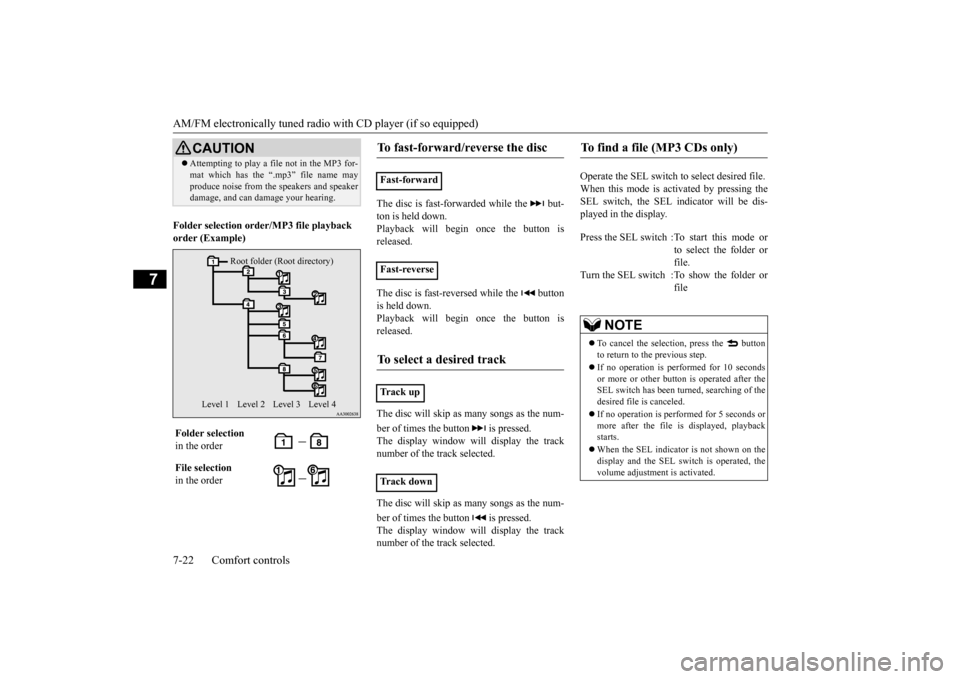
Folder selection orde
r/MP3 file playback
order (Example)
The disc is fast-forwarded while the but- ton is held down.Playback will begi
n once the button is
released. The disc is fast-reversed while the button is held down.Playback will begi
n once the button is
released. The disc will skip as
many songs as the num-
ber of times the but
ton is pressed.
The display window will display the track number of the track selected. The disc will skip as
many songs as the num-
ber of times the but
ton is pressed.
The display window will display the tracknumber of the track selected.
Operate the SEL switch to
select desired file.
When this mode is activated by pressing the SEL switch, the SEL i
ndicator will be dis-
played in the display.
CAUTION Attempting to play a file not in the MP3 for- mat which has the “.mp3” file name mayproduce noise from the speakers and speakerdamage, and can da
mage your hearing.
Folder selection in the order File selection in the order
Root folder (Root directory)
Level 1 Level 3 Level 4
Level 2
To fast-forward/reverse the disc
Fast-forward Fast-reverseTo select a desired track
Tr a c k u pTr a c k d o w n
To find a file (MP3 CDs only)
Press the SEL switch :To start this mode or
to select the folder or file.
Turn the SEL switch :To show the folder or
file
NOTE
To cancel the selecti
on, press the button
to return to the previous step. If no operation is perf
ormed for 10 seconds
or more or other butt
on is operated after the
SEL switch has been turned, searching of the desired file is canceled. If no operation is performed for 5 seconds or more after the file is
displayed, playback
starts. When the SEL indicato
r is not shown on the
display and the SEL switch is operated, thevolume adjustment is activated.
BK0212400US.book 22 ページ 2014年4月1日 火曜日 午後2時21分
Page 204 of 300

AM/FM electronically tuned radio with CD player (if so equipped)
Comfort controls 7-23
7
Press the RPT button to
repeat the same track.
If the RPT button is pressed, the RPT indica- tor will come on. To exit this mode, press the button again. While a song is playing,
press the RPT button
for 2 seconds or longer (until you hear abeep). The F-RPT indicator will come on and the disc will repeat all the songs in the folder that contains the s
ong currently playing.
To exit this mode, press the button again.
If the RDM button is pressed, the RDM indi- cator will come on and the tracks that are played will be selected at random. To exit this mode, press the button again. If the RDM button is pressed, the F-RDM indicator will come on and the tracks that areplayed will be select
ed at random from the
folder that is currently selected. To exit this mode, press the button again. Press the RDM button for 2 seconds or longer (until you hear a beep). The RDM indicator will come on and the tracks that are playedwill be selected at
random from all folders on
the disc currently selected. To exit this mode, press the button again.
N00752100179
This CD player can display CD text and MP3titles, including ID3 tag information. The CD player can display disc and track titles for discs with c
onverted disc and track
title information. Press the DISP buttonrepeatedly to make selections in the following sequence: disc name
track name
normal
display mode.
To r e p e a t t r a c k s
To repeat a track To repeat songs in the same folder (MP3 CDs only)
NOTE
With a disc that contains both CD-DA and MP3 files, the repeat
mode causes only files
of the same format (CD-DA only or MP3 files only) to be repeated.
To change the order of tracks for playback
Random playback for a disc (music CDs only) Random playback for a folder (MP3 CDs only) Random playback for all folders on a disc (MP3 CDs only)
NOTE
With a disc that contains both CD-DA and MP3 files, the random
mode causes only
files of the same format (CD-DA only orMP3 files only) to be played in a random sequence.
CD text and MP3 title display
CD text
NOTE
The display can show up to 11 characters. If a disc name or track name has more than 11 characters, press the PAGE button to view the next 11 characters. When there is no title information to be dis- played, the display
shows “NO TITLE”.
Characters that the CD
player cannot display
are shown as “•”.
BK0212400US.book 23 ページ 2014年4月1日 火曜日 午後2時21分
Page 205 of 300
AM/FM electronically tuned radio with CD player (if so equipped) 7-24 Comfort controls
7
The CD player can display folder and file titles for discs with c
onverted folder and file
information. Press th
e DISP button repeat-
edly to make selections in the following sequence: folder name
file name
nor-
mal display mode. The CD player can display ID3 tag informa- tion for files that have been recorded withID3 tag information. 1. Press the DISP button for 2 seconds or longer to switch to
the ID3 tag informa-
tion.2. Press the DISP button repeatedly to make selections in the following sequence: album TAG
track TAG
artist TAG
normal display mode.
N00702600010
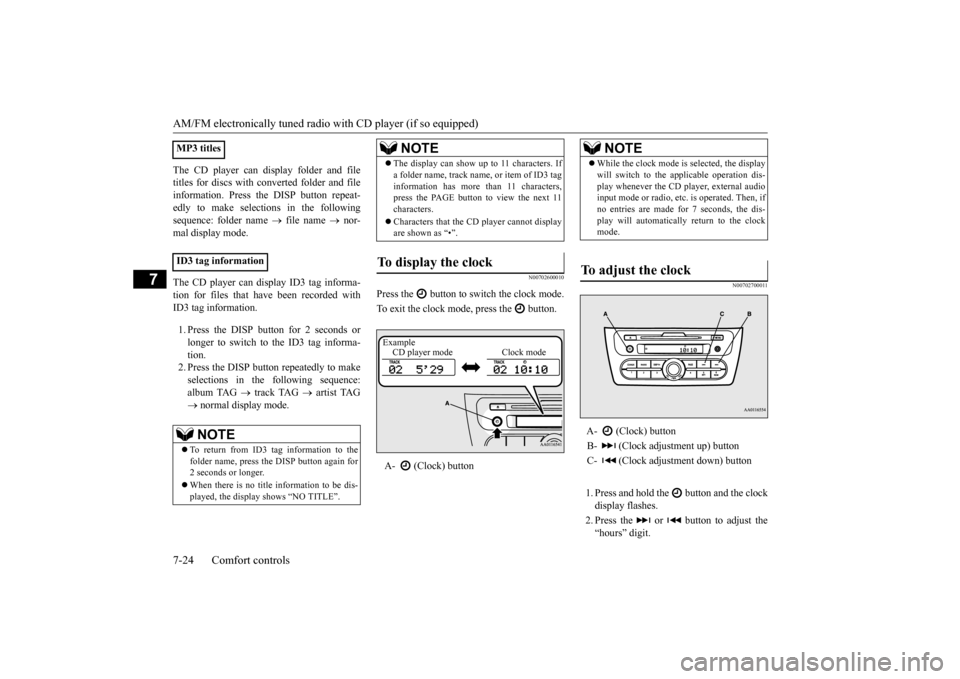
Press the button to switch the clock mode. To exit the clock mode, press the button.
N00702700011
1. Press and hold the button and the clock display flashes. 2. Press the or button to adjust the “hours” digit.
MP3 titles ID3 tag information
NOTE
To return from ID3 tag information to the folder name, press the
DISP button again for
2 seconds or longer. When there is no title information to be dis- played, the display shows “NO TITLE”.
The display can show up to 11 characters. If a folder name, track name
, or item of ID3 tag
information has more than 11 characters,press the PAGE button to view the next 11 characters. Characters that the CD
player cannot display
are shown as “•”.
To display the clock
A- (Clock) button
NOTE
Example CD player mode Clock mode
NOTE
While the clock mode is selected, the display will switch to the applicable operation dis-play whenever the CD player, external audioinput mode or radio, etc. is operated. Then, if no entries are made for 7 seconds, the dis- play will automatically return to the clockmode.
To adjust the clock
A- (Clock) button B- (Clock adjustment up) buttonC- (Clock adjustment down) button
BK0212400US.book 24 ページ 2014年4月1日 火曜日 午後2時21分
Page 208 of 300
To play tracks from USB device (if so equipped)
Comfort controls 7-27
7
N00762200056
You can connect your iPod or USB memory device to the USB input terminal and playmusic files stored in the iPod or USB mem- ory device. See the following section for the types ofconnectable devices
and supported files.
Refer to “Types of connectable devices and supported file specifications” on page 5-103.See the following sections for the connecting methods, “How to conne
ct an iPod” on page
5-102 and “How to connect a USB memorydevice” on page 5-101. If your vehicle is equipped with a Bluetooth
®
2.0 interface, you can play music files in your iPod or USB memory de
vice via voice opera-
tion. Refer to “To play iPod
tracks via voice opera-
tion” on page 7-29 and “To play USB mem-
ory device tracks via voice operation” on page 7-35.
N00762300060
N00762400087
1. Press the PWR switch to turn on the audio system. The system turns on in the lastmode used. 2. Connect your iPod to the USB input ter- minal.Refer to “How to connect an iPod” on page 5-102. 3. Press the CD button several times toswitch to the iPod mode. The input mode changes as follows every time the CD but- ton is pressed: CD mode
iPod mode
Bluetooth
® mode (if so equipped)
AUX mode
CD mode.
The iPod indicator are illuminated andthen the iPod mode will be activated. 4. Once the device is selected, playback starts and indicato
r appears on the dis-
play.
If the connection cord
alone is left connected
to the auxiliary audi
o connector, noise may
be produced from the speakers. For information on how to connect and oper- ate the commercially av
ailable audio equip-
ment, refer to the ow
ner’s manual for the
commercially availabl
e audio equipment.
To play tracks from USB device
(if so equipped)
NOTE
NOTE
A file protected by c
opyright might not be
able to playback. It is recommended to adjust the equalizer of the connected device to 0 db or neutral.
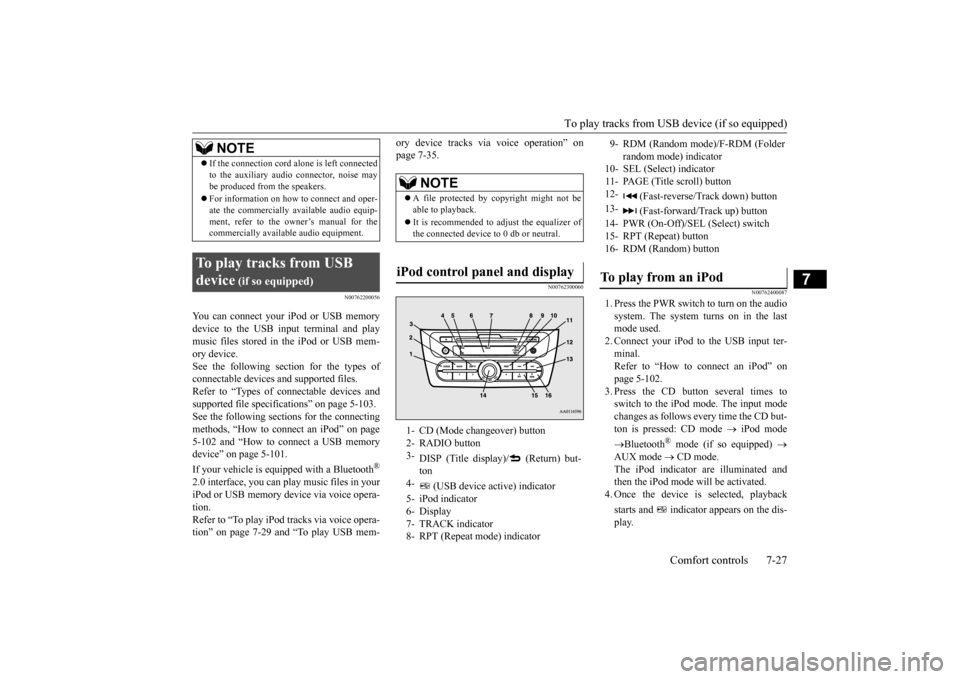
iPod control panel and display
1- CD (Mode changeover) button 2- RADIO button 3-
DISP (Title display)/ (Return) but- ton
4-
(USB device active) indicator
5- iPod indicator 6- Display 7- TRACK indicator8- RPT (Repeat mode) indicator
9- RDM (Random mode)/F-RDM (Folder
random mode) indicator
10- SEL (Select)
indicator
11- PAGE (Title scroll) button 12-
(Fast-reverse/Track down) button
13-
(Fast-forward/Track up) button
14- PWR (On-Off)/SEL (Select) switch 15- RPT (Repeat) button 16- RDM (Random) buttonTo play from an iPod
BK0212400US.book 27 ページ 2014年4月1日 火曜日 午後2時21分
Page 209 of 300

To play tracks from USB device (if so equipped) 7-28 Comfort controls
7
5. To stop the playback, press the RADIO button or CD button to switch to a differ-ent mode.
N00762500033
To fast-forward/reverse the current track, press the button or button. To fast-forward the current track, press the
button. While the button is kept pressed,
the track will be fast-forwarded.
To fast-reverse the current track, press the button. While the button is kept pressed, the track will be fast-reversed.
N00762600034
Press the button repeatedly until the desired track number appears on the display. Press the button repeatedly until the desired track number appears on the display.
N00762700077
You can select desired tracks from the “Playl- ists”, “Artists”,
“Albums”, “Songs” or
“Genre” (vehicles with Bluetooth
® 2.0 inter-
face) menus on your iPod. Operate the SEL switch to select desired tracks. The selected menu or category or track is shown in the display.When this mode is activated by pressing the SEL switch, the SEL i
ndicator will be dis-
played in the display.
NOTE
Depending on the condition of your iPod, it may take a longer time
before the playback
starts.NOTE
Buttons on the iPod are disabled while the iPod is connected to the audio system. To adjust the volume and tone, refer to “To adjust the volume” on page 7-18 and “To adjust the tone” on page 7-19.
To fast-forward/reverse the track
Fast-forward
Fast-reverseTo select a desired track
Tr a c k u p Tr a c k d o w n
NOTE
Pressing the button once during the song will cause the audio system to restart play- back from the beginning of the song.
To find a track from the iPod menu
Press the SEL switch :To start this mode or
to select the menu or category or track.
Turn the SEL switch :To show the menu or
category or track.
NOTE
To cancel the selecti
on, press the button
to return to the previous step. If no operation is perf
ormed for 10 seconds
or more or other butt
on is operated after the
SEL switch has been pressed, searching of the desired tracks is canceled. If no operation is performed for 5 seconds or more after the track is
displayed, playback
starts. When the SEL indicato
r is not shown on the
display and the SEL switch is operated, the volume adjustment is activated.
BK0212400US.book 28 ページ 2014年4月1日 火曜日 午後2時21分
Page 210 of 300
To play tracks from USB device (if so equipped)
Comfort controls 7-29
7
N00762800023
Press the RPT button during playback to show “RPT” in the display. To exit this mode, press the button again.
N00762900024
Press the RDM button to show “RDM” in thedisplay. The iPod randomly select
s tracks from the
current category and plays the selected tracks.To exit this mode, press the button again.
N00763000035
Press and hold the RDM button until you heara beep to show “F-RDM” in the display.The iPod randomly sele
cts tracks in the
album from the current category and play the selected tracks.To exit this mode, press the button again.
N00763100049
You can display the track titles, artist names,genre and album titles recorded in the iPod. The display changes as follows every time the DISP button is pressed during playback:
Album title
Track name
Artist name
Genre (vehicles with Bluetooth
® 2.0 inter-
face)
Normal display.
N00763200040
Desired tracks can be
selected and played
from your iPod by “Artis
t”, “Album”,
“Playl-
ist” and “Genre” us
ing voice commands.
For information concerning the voice recog- nition function or spea
ker registration func-
tion, refer to “Bluetooth
® 2.0 interface” on
page 5-81. The following explains how to prepare forvoice operation and play the tracks.
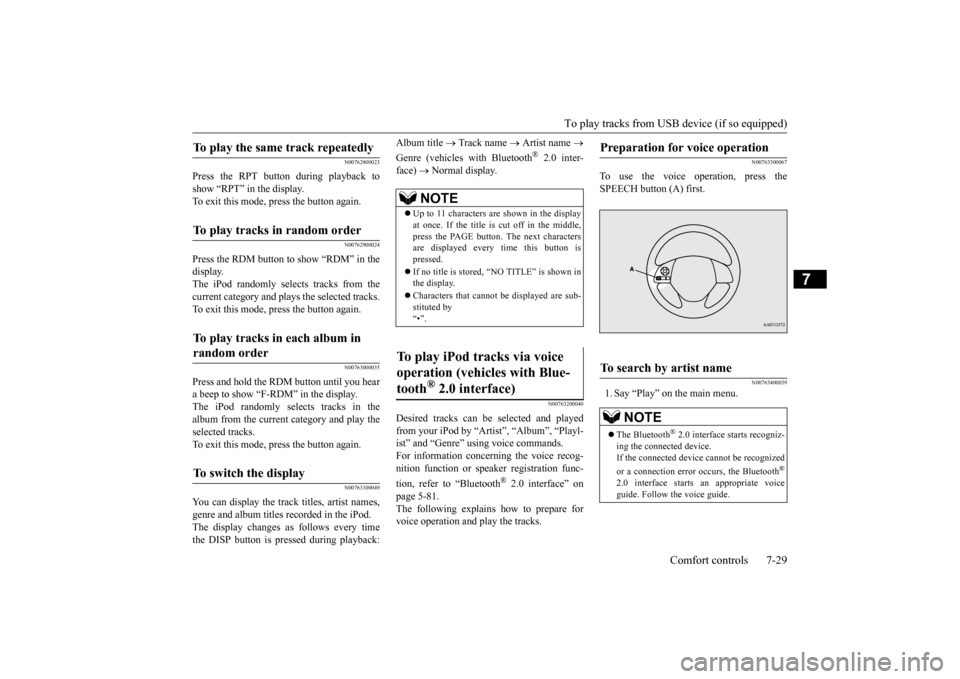
N00763300067
To use the voice operation, press the SPEECH button (A) first.
N00763400039
1. Say “Play” on the main menu.
To play the same track repeatedly
To play tracks in random order
To play tracks in each album in random order
To switch the display
NOTE
Up to 11 characters are shown in the display at once. If the title is cut off in the middle,press the PAGE button. The next characters are displayed every time this button is pressed. If no title is stored, “NO TITLE” is shown in the display. Characters that cannot
be displayed are sub-
stituted by “•”.
To play iPod tracks via voice operation (vehicles with Blue- tooth
® 2.0 interface)
Preparation for voice operation
To search by artist name
NOTE
The Bluetooth
® 2.0 interface
starts recogniz-
ing the connected device. If the connected device
cannot be recognized
or a connection error
occurs, the Bluetooth
®
2.0 interface starts an appropriate voice guide. Follow th
e voice guide.
BK0212400US.book 29 ページ 2014年4月1日 火曜日 午後2時21分
Page 211 of 300

To play tracks from USB device (if so equipped) 7-30 Comfort controls
7
2. After the voice guide says “Would you like to play by Artist, Album, Playlist orGenre?,” say “Artist”. 3. After the voice guide
says “What Artist
would you like to play?,” say the artist name.4. If there is only one ma
tch, the system pro-
ceeds to step 6. 5. If there are two or more matches, thevoice guide will say “More than one match was found, would you like to play
say “Yes,” the sys-
tem proceeds to step 6. If you say “No,” the next matching artist is uttered by the system.
6. After the voice guide
says “Playing
the voice recognition
mode and starts playback.
N00763500030
1. Say “Play” on the main menu. 2. After the voice guide says “Would you like to play by Artist, Album, Playlist orGenre?,” say “Album”.
3. After the voice gui
de says “What Album
would you like to play?” say the album title. 4. If there is only one ma
tch, the system pro-
ceeds to step 6. 5. If there are two or more matches, the voice guide will say “More than onematch was found, would you like to play
u say “Yes,” the sys-
tem proceeds to step 6.If you say “No,” the name of the next matching album is uttered by the system. 6. After the voice gui
de says “Playing
NOTE
If you say “Artist
If you say “No” to three or all artist names uttered by the system, the voice guide willsay “Artist not found, please try again” andthe system returns to step 2. Search time depends
on the number of songs
on your connected devi
ce. Devices contain-
ing a large number of songs may take longer to return search results.
NOTE
If the confirmation function is active, the voice guide confirms if
the artist name is
correct. If the artist name is correct, say “Yes”. If not, say “No”. After the voice guidesays “Artist not found, please try again,” the system returns to step 2.
To search by album title
NOTE
The Bluetooth
® 2.0 interface
starts recogniz-
ing the connected device. If the connected device
cannot be recognized
or a connection error
occurs, the Bluetooth
®
2.0 interface starts an appropriate voice guide. Follow the voice guide.
NOTE
If you say “Album