phone MITSUBISHI MIRAGE 2017 6.G Owner's Manual
[x] Cancel search | Manufacturer: MITSUBISHI, Model Year: 2017, Model line: MIRAGE, Model: MITSUBISHI MIRAGE 2017 6.GPages: 305, PDF Size: 8.67 MB
Page 162 of 305
Bluetooth® 2.0 interface (if so equipped)
Features and controls 5-99
5
Answer “No,” the system will return to Step 4.6. The voice guide will say “Name please.” Say the new name you
want to register.
7. The registered name will be changed.When the change is complete, the system will return to the main menu.
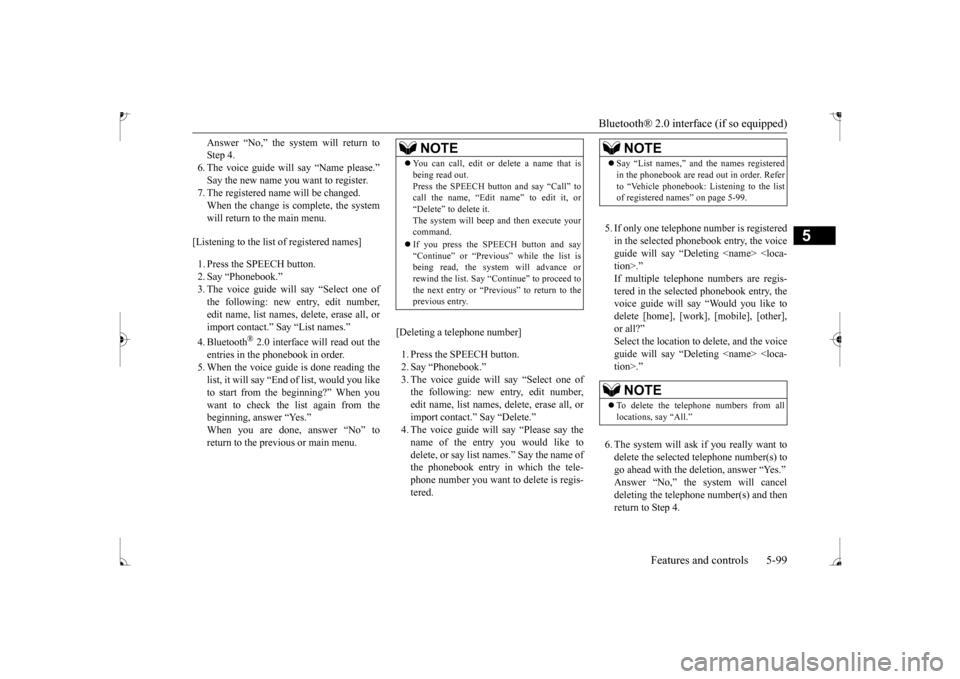
[Listening to the list of registered names] 1. Press the SPEECH button. 2. Say “Phonebook.” 3. The voice guide will
say “Select one of
the following: new entry, edit number,edit name, list names, delete, erase all, or import contact.” Sa
y “List names.”
4. Bluetooth
® 2.0 interface will read out the
entries in the phonebook in order. 5. When the voice guide
is done reading the
list, it will say “End
of list, would you like
to start from the beginning?” When you want to check the list again from the beginning, answer “Yes.”When you are done, answer “No” to return to the previous or main menu.
[Deleting a telephone number] 1. Press the SPEECH button. 2. Say “Phonebook.” 3. The voice guide will say “Select one of the following: new entry, edit number,edit name, list names, delete, erase all, or import contact.” Say “Delete.”name of the entry you would like to delete, or say list names.” Say the name of the phonebook entry in which the tele-phone number you want to
delete is regis-
tered.
5. If only one telephone
number is registered
in the selected phonebook entry, the voice guide will say “Delet
ing
ed phonebook entry, the
voice guide will say “Would you like to delete [home], [work]
, [mobile], [other],
or all?”Select the location to delete, and the voice guide will say “Delet
ing
NOTE
You can call, edit or
delete a name that is
being read out.Press the SPEECH button and say “Call” tocall the name, “Edit name” to edit it, or “Delete” to delete it. The system will beep and then execute yourcommand. If you press the SPEECH button and say “Continue” or “Previous” while the list is being read, the system will advance or rewind the list. Say “C
ontinue” to proceed to
the next entry or “Previous” to return to the previous entry.
NOTE
Say “List names,” and the names registered in the phonebook are read out in order. Referto “Vehicle phonebook: Listening to the listof registered names” on page 5-99.NOTE
To delete the telephone
numbers from all
locations, say “All.”
BK0235100US.book 99 ページ 2015年11月20日 金曜日 午後3時12分
Page 163 of 305
Bluetooth® 2.0 interface (if so equipped) 5-100 Features and controls
5
7. When the telephone number deletion is complete, the voice guide will say“
deleted” and then
the system will return to the main menu. If all locations are deleted, the system willsay “
removed from the
phonebook. If numbers
still remain under
the entry, the name will retain the other associated numbers.
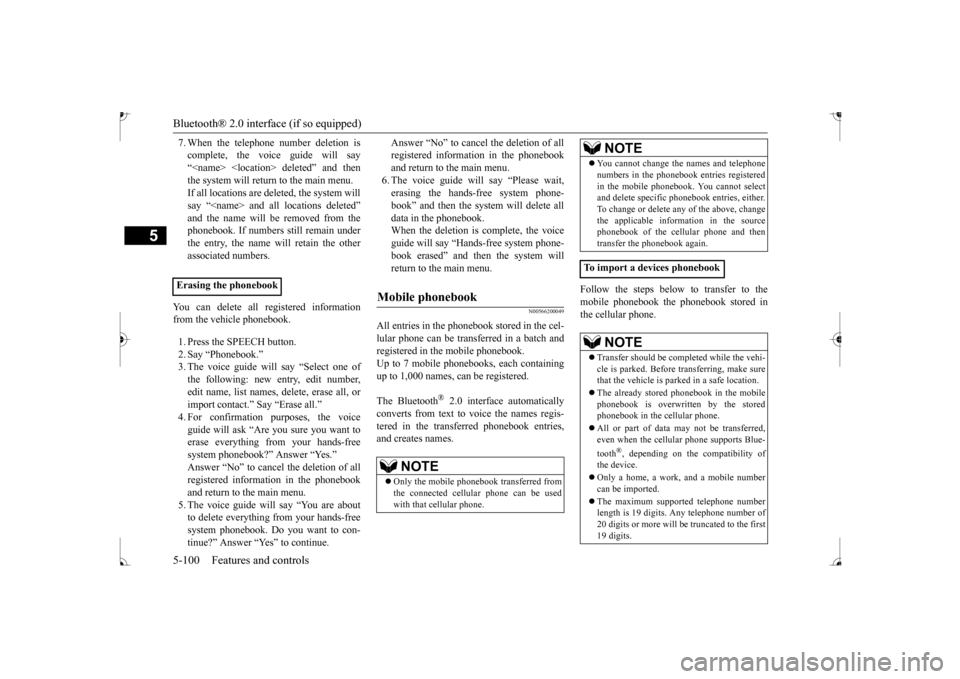
You can delete all registered information from the vehicle phonebook. 1. Press the SPEECH button. 2. Say “Phonebook.” 3. The voice guide will say “Select one ofthe following: new entry, edit number, edit name, list names, delete, erase all, or import contact.” Say “Erase all.” guide will ask “Are
you sure you want to
erase everything from your hands-freesystem phonebook?” Answer “Yes.” Answer “No” to cancel the deletion of all registered information in the phonebookand return to the main menu. 5. The voice guide will say “You are about to delete everything from your hands-freesystem phonebook. Do you want to con- tinue?” Answer “Yes” to continue.
Answer “No” to cancel the deletion of all registered information in the phonebookand return to the main menu. 6. The voice guide wi
ll say “Please wait,
erasing the hands-free system phone-book” and then the syst
em will de
lete all
data in the phonebook. When the deletion is complete, the voiceguide will say “Ha
nds-free system phone-
book erased” and then the system will return to the main menu.
N00566200049
All entries in the phonebook stored in the cel-lular phone can be transferred in a batch and registered in the mobile phonebook. Up to 7 mobile phonebooks, each containingup to 1,000 names, can be registered. The Bluetooth
® 2.0 interface automatically
converts from text to voice the names regis- tered in the transferred phonebook entries,and creates names.
Follow the steps below to transfer to the mobile phonebook the phonebook stored in the cellular phone.
Erasing the phonebook
Mobile phonebook
NOTE
Only the mobile phonebook transferred from the connected cellular phone can be used with that cellular phone.
You cannot change the names and telephone numbers in the phonebook entries registeredin the mobile phonebook. You cannot selectand delete spec
ific phonebook entries, either.
To change or delete any of the above, change the applicable information in the sourcephonebook of the cellular phone and then transfer the phonebook again.
To import a devices phonebook
NOTE
Transfer should be completed while the vehi- cle is parked. Before transferring, make surethat the vehicle is parked in a safe location. The already stored phonebook in the mobile phonebook is overwritten by the stored phonebook in the cellular phone. All or part of data
may not be transferred,
even when the cellular phone supports Blue- tooth
®, depending on the compatibility of
the device. Only a home, a work, and a mobile number can be imported. The maximum supporte
d telephone number
length is 19 digits.
Any telephone number of
20 digits or more will be
truncated to the first
19 digits.NOTE
BK0235100US.book 100 ページ 2015年11月20日 金曜日 午後3時12分
Page 164 of 305
Bluetooth® 2.0 interface (if so equipped)
Features and controls 5-101
5
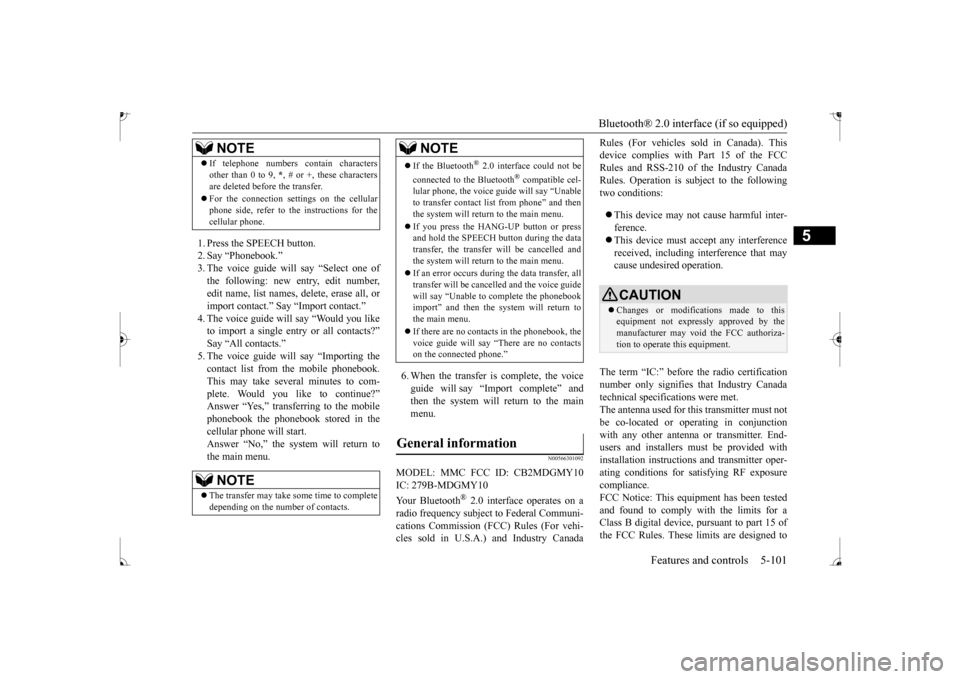
1. Press the SPEECH button. 2. Say “Phonebook.” 3. The voice guide will
say “Select one of
the following: new entry, edit number,edit name, list names, delete, erase all, or import contact.
” Say “Import contact.”
to import a single entr
y or all contacts?”
Say “All contacts.” 5. The voice guide will say “Importing thecontact list from the mobile phonebook. This may take several minutes to com- plete. Would you like to continue?” phonebook the phonebook stored in the cellular phone will start.Answer “No,” the system will return to the main menu.
6. When the transfer is complete, the voice guide will say “Import complete” and then the system will return to the main menu.
N00566301092
MODEL: MMC FCC ID: CB2MDGMY10IC: 279B-MDGMY10 Your Bluetooth
® 2.0 interface operates on a
radio frequency subject
to Federal Communi-
cations Commission (FCC) Rules (For vehi-cles sold in U.S.A.) and Industry Canada
Rules (For vehicles so
ld in Canada). This
device complies with Part 15 of the FCCRules and RSS-210 of the Industry Canada Rules. Operation is subject to the following two conditions: This device may not
cause harmful inter-
ference. This device must ac
cept any interference
received, including interference that maycause undesired operation.
The term “IC:” before the radio certification number only signifies that Industry Canada technical specifications were met.The antenna used for this transmitter must not be co-located or operating in conjunction with any other antenn
a or transmitter. End-
users and installers
must be provided with
installation instructions
and transmitter oper-
ating conditions for sa
tisfying RF exposure
compliance. FCC Notice: This equi
pment has been tested
and found to comply with the limits for aClass B digital device,
pursuant to part 15 of
the FCC Rules. These limits are designed to
If telephone numbers
contain characters
other than 0 to 9,
*, # or +, these characters
are deleted before the transfer. For the connection set
tings on the cellular
phone side, refer to the instructions for thecellular phone.NOTE
The transfer may take some time to complete depending on the number of contacts.NOTE
If the Bluetooth
® 2.0 interface could not be
connected to the Bluetooth
® compatible cel-
lular phone, the voice gui
de will sa
y “Unable
to transfer contact list from phone” and then the system will return to the main menu. If you press the HANG-UP button or press and hold the SPEECH button during the data transfer, the transfer will be cancelled andthe system will return to the main menu. If an error occurs during the data transfer, all transfer will be canc
elled and the voice guide
will say “Unable to complete the phonebook import” and then the system will return tothe main menu. If there are no contacts in the phonebook, the voice guide will say
“There are no contacts
on the connected phone.”
General information
NOTE
CAUTION Changes or modifica
tions made to this
equipment not expressly approved by themanufacturer may void the FCC authoriza- tion to operate this equipment.
BK0235100US.book 101 ページ 2015年11月20日 金曜日 午後3時12分
Page 168 of 305
USB input terminal (if so equipped)
Features and controls 5-105
5
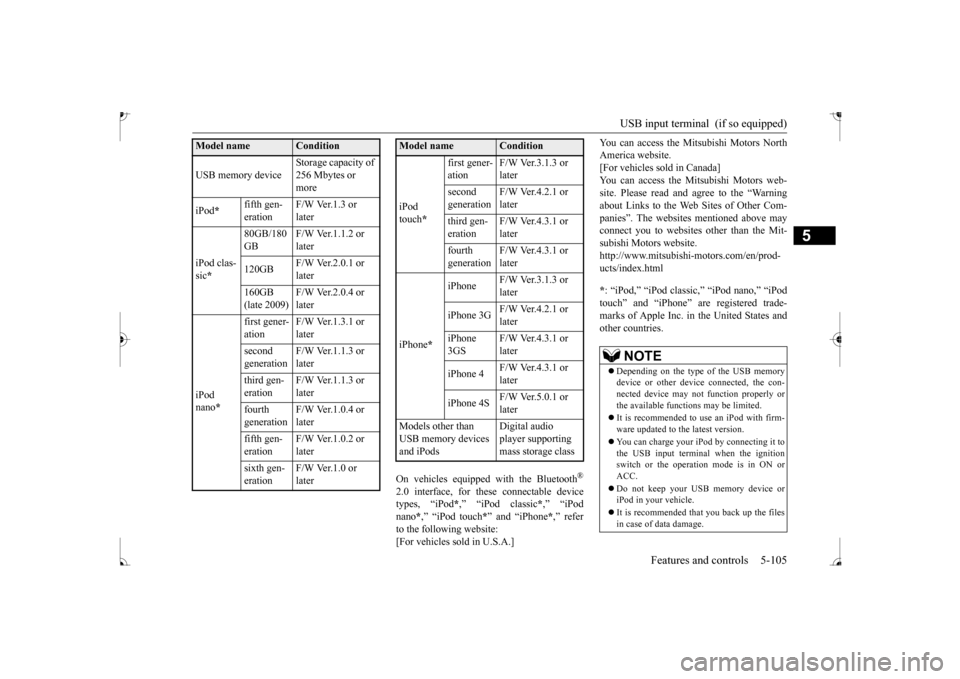
On vehicles equipped
with the Bluetooth
®
2.0 interface, for th
ese connectable device
types, “iPod
*,” “iPod classic
*,” “iPod
nano
*,” “iPod touch
*” and “iPhone
*,” refer
to the following website:[For vehicles sold in U.S.A.]
You can access the Mitsubishi Motors North America website.[For vehicles sold in Canada] You can access the Mi
tsubishi Motors web-
site. Please read and agree to the “Warningabout Links to the Web Sites of Other Com- panies”. The websites
mentioned above may
connect you to websites
other than the Mit-
subishi Motors website. http://www.mitsubishi-
motors.com/en/prod-
ucts/index.html * : “iPod,” “iPod classi
c,” “iPod nano,” “iPod
touch” and “iPhone” ar
e registered trade-
marks of Apple Inc. in the United States andother countries.
Model name
Condition
USB memory device
Storage capacity of 256 Mbytes or more
iPod
*
fifth gen- eration
F/W Ver.1.3 or later
iPod clas- sic *
80GB/180 GB
F/W Ver.1.1.2 or later
120GB
F/W Ver.2.0.1 or later
160GB (late 2009)
F/W Ver.2.0.4 or later
iPod nano
*
first gener- ation
F/W Ver.1.3.1 or later
second generation
F/W Ver.1.1.3 or later
third gen- eration
F/W Ver.1.1.3 or later
fourth generation
F/W Ver.1.0.4 or later
fifth gen- eration
F/W Ver.1.0.2 or later
sixth gen- eration
F/W Ver.1.0 or later
iPod touch
*
first gener- ation
F/W Ver.3.1.3 or later
second generation
F/W Ver.4.2.1 or later
third gen- eration
F/W Ver.4.3.1 or later
fourth generation
F/W Ver.4.3.1 or later
iPhone
*
iPhone
F/W Ver.3.1.3 or later
iPhone 3G
F/W Ver.4.2.1 or later
iPhone 3GS
F/W Ver.4.3.1 or later
iPhone 4
F/W Ver.4.3.1 or later
iPhone 4S
F/W Ver.5.0.1 or later
Models other than USB memory devices and iPods
Digital audio player supporting mass storage class
Model name
Condition
NOTE
Depending on the type of the USB memory device or other devi
ce connected, the con-
nected device may not
function properly or
the available functi
ons may be limited.
It is recommended to use an iPod with firm- ware updated to th
e latest version.
You can charge your iP
od by connecting it to
the USB input terminal
when the ignition
switch or the operation mode is in ON or ACC. Do not keep your USB memory device or iPod in your vehicle. It is recommended that you back up the files in case of data damage.
BK0235100US.book 105 ページ 2015年11月20日 金曜日 午後3時12分
Page 206 of 305
Air purifier (if so equipped) Comfort controls 7-19
7
Have the system inspected by your authorized Mitsubishi Motors dealer or a repair facilityof your choice. The air conditioning should be operated for at least five minutes each week, even in cold weather. This includes the quick defrosting mode. Operating the
air condition system
weekly maintains lubrication of the compres- sor internal parts to keep the air conditioning in the best operating condition.
N00733800180
The air conditioning system is equipped withan air filter to re
move pollen
and dust.
The air filter’s ability to collect pollen and dirt is reduced as it be
comes dirty, so replace
it periodically. For the maintenance interval,refer to the “WARRANTY AND MAINTE- NANCE MANUAL”.
N00734302131
The audio system can only be used when the ignition switch or the
operation mode is in
ON or ACC.
CAUTION The air conditioning system in your vehicle must be charged with the refrigerant HFC-134a and the lubricant ZXL 200PG. Use of any other refrigerant or lubricant will cause severe damage a
nd may require replac-
ing your vehicle’s en
tire air conditioning
system. The release of refrigerant into the atmo-sphere is not recommended. The new refrigerant HFC-134a in your vehi- cle is designed not to harm the earth’s ozonelayer. However, it may contribute slightly to global warming. It is recommended that the old refrigerant besaved and recycled for future use.
During a long period of disuse
Air purifier
(if so equipped)
NOTE
Operation in certain conditions such as driv- ing on a dusty road and frequent use of the air conditioning ca
n lead to reduction of ser-
vice life of the filter. When you feel that the air flow is lower than normal or when the windshield or windows st
art to fog up easily,
replace the air filter. Contact your Mitsubishi
Motors dealer or a
repair facility of your
choice for assistance.
AM/FM electronically tuned radio with CD player
(if so
equipped)
To listen to the audio system while the engine is not running, turn the ignitionswitch to the “ACC” pos
ition or put the oper-
ation mode in ACC. For vehicles equipped with the F.A.S.T.-key, if the operation mode is left in ACC, theaccessory power will automatically turn off after a certain period
of time and you will no
longer be able to use the audio system. Theaccessory power comes on again if the engine switch is operated with it in the “ACC” position. Refer
to “ACC power auto-
cutout function” on page 5-14. If a cellular phone is
used inside the vehicle,
it may create noise in the audio equipment. This does not mean that anything is wrong with your audio equipment. In such a case,use the cellular phone at
a place as
far away
as possible from the audio equipment. If foreign objects or wa
ter get into the audio
equipment, or if smoke or a strange odor comes from it, immediately turn off theaudio system and have
it checked at an
authorized Mitsubishi Motors dealer or a repair facility of your choice. Never try torepair it yourself. Avoid using the audio sys- tem until it is inspected by a qualified per- son. If the audio system is damaged by foreign objects, water, or fire, have the systemchecked by a qualified Mitsubishi Motors technician.
BK0235100US.book 19 ページ 2015年11月20日 金曜日 午後3時12分
Page 214 of 305
AM/FM electronically tuned radio with CD player (if so equipped)
Comfort controls 7-27
7
N00702901036
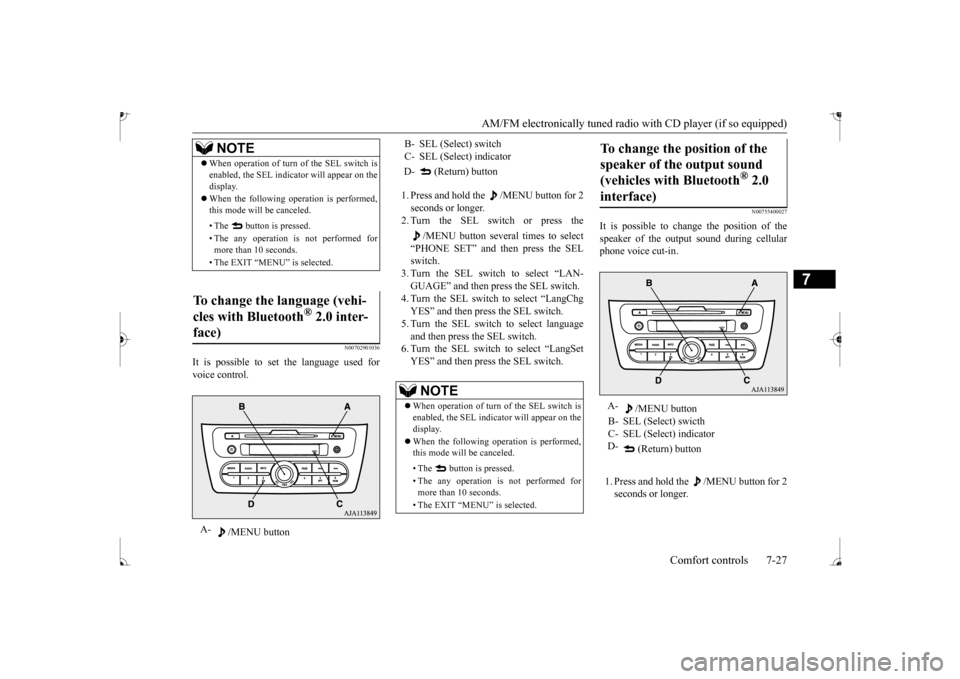
It is possible to set the language used for voice control.
1. Press and hold the /MENU button for 2 seconds or longer. 2. Turn the SEL switch or press the
/MENU button several times to select
“PHONE SET” and then press the SELswitch. 3. Turn the SEL switch to select “LAN- GUAGE” and then press the SEL switch.4. Turn the SEL switch to select “LangChg YES” and then press the SEL switch. 5. Turn the SEL switch to select language and then press the SEL switch. 6. Turn the SEL switch to select “LangSetYES” and then press the SEL switch.
N00755400027
It is possible to cha
nge the position of the
speaker of the output sound during cellular phone voice cut-in. 1. Press and hold the /MENU button for 2 seconds or longer.
NOTE
When operation of turn
of the SEL switch is
enabled, the SEL indica
tor will appear on the
display. When the following operation is performed, this mode will be canceled. • The button is pressed. • The any operation is not performed for more than 10 seconds. • The EXIT “MENU” is selected.
To change the language (vehi- cles with Bluetooth
® 2.0 inter-
face)A-
/MENU button
B- SEL (Select) switch C- SEL (Select) indicator D- (Return) button
NOTE
When operation of turn
of the SEL switch is
enabled, the SEL indica
tor will appear on the
display. When the following ope
ration is performed,
this mode will be canceled. • The button is pressed. • The any operation is
not performed for
more than 10 seconds. • The EXIT “MENU” is selected.
To change the position of the speaker of the output sound (vehicles with Bluetooth
® 2.0
interface)
A-
/MENU button
B- SEL (Select) swicth C- SEL (Select) indicator D-
(Return) button
BK0235100US.book 27 ページ 2015年11月20日 金曜日 午後3時12分
Page 215 of 305
AM/FM electronically tuned radio with CD player (if so equipped) 7-28 Comfort controls
7
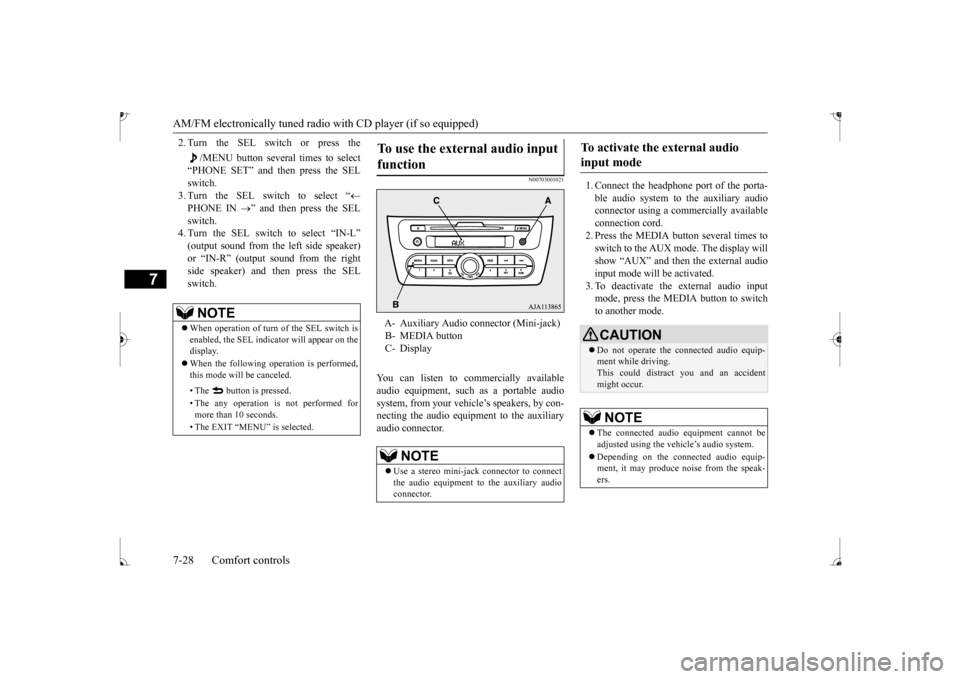
2. Turn the SEL switch or press the
/MENU button several times to select
“PHONE SET” and then press the SEL switch. 3. Turn the SEL switch to select “
PHONE IN
” and then press the SEL
switch. 4. Turn the SEL switch to select “IN-L” or
Page 224 of 305
To play tracks from a Bluetooth® device (vehicles with Bluetooth® 2.0 interface)
Comfort controls 7-37
7
To exit this mode, press the button again.
N00765101053
You can displays titles with tag information. The display changes as follows every time the INFO button is pressed during playback:Folder name
File name
Normal display.
1. Press and hold the INFO button until you hear a beep.2. The display changes as follows every time the INFO button is pressed briefly: Album TAG
Track TAG
Artist TAG
Genre TAG (vehicles with Bluetooth
® 2.0
interface)
Normal display.
N00765200073
Desired tracks can be
selected and played
from your USB memory device by “Artist”, “Album”, “Playlist”
and “Genre” using voice
commands.For information concerning the voice recog- nition function or spea
ker registration func-
tion, refer to “Bluetooth
® 2.0 interface” on
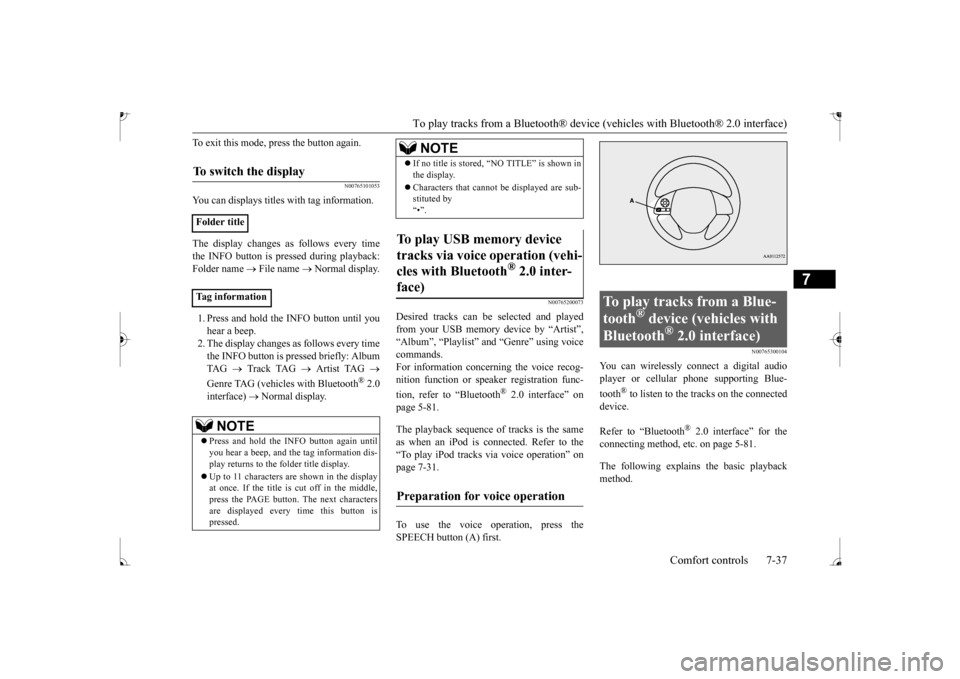
page 5-81. The playback sequence of tracks is the same as when an iPod is connected. Refer to the “To play iPod tracks via voice operation” onpage 7-31. To use the voice operation, press the SPEECH button (A) first.
N00765300104
You can wirelessly connect a digital audioplayer or cellular phone supporting Blue- tooth
® to listen to the tracks on the connected
device. Refer to “Bluetooth
® 2.0 interface” for the
connecting method, et
c. on page 5-81.
The following explains the basic playback method.
To switch the display
Folder title Tag information
NOTE
Press and hold the INFO button again until you hear a beep, and the tag information dis-play returns to the folder title display. Up to 11 characters are shown in the display at once. If the title is cut off in the middle, press the PAGE button. The next characters are displayed every
time this button is
pressed.
If no title is stored, “NO TITLE” is shown in the display. Characters that cannot
be displayed are sub-
stituted by “•”.
To play USB memory device tracks via voice operation (vehi- cles with Bluetooth
® 2.0 inter-
face)
Preparation for voice operation
NOTE
To play tracks from a Blue- tooth
® device (vehicles with
Bluetooth
® 2.0 interface)
BK0235100US.book 37 ページ 2015年11月20日 金曜日 午後3時12分
Page 227 of 305
Steering wheel audio remote cont
rol switches (if so equipped)
7-40 Comfort controls
7
N00714800484
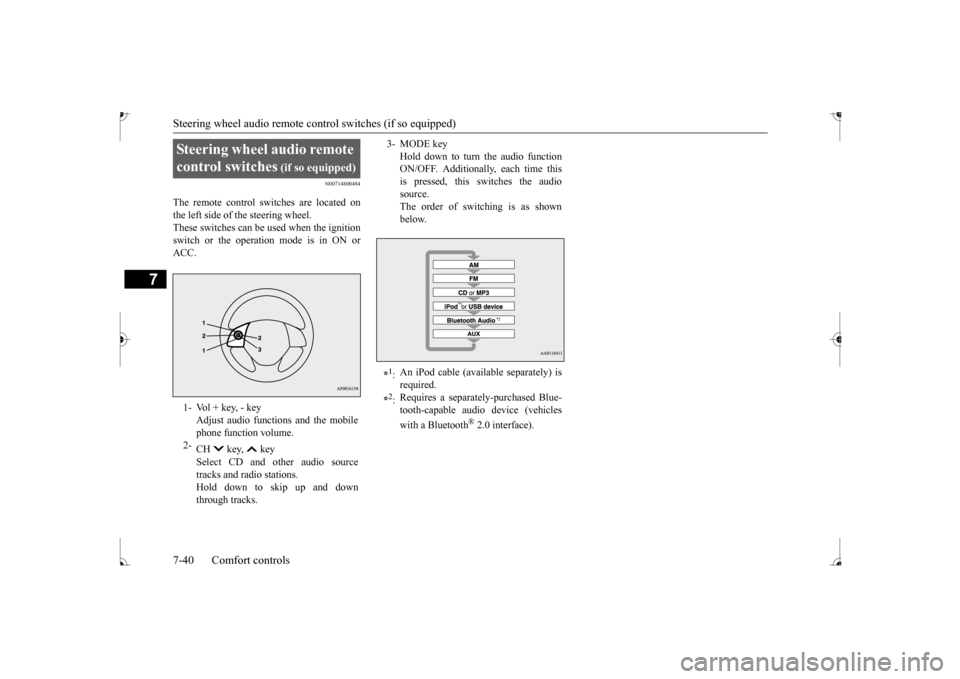
The remote control switches are located on the left side of the steering wheel.These switches can be used when the ignition switch or the operation mode is in ON or ACC.Steering wheel audio remote control switches
(if so equipped)
1- Vol + key, - key
Adjust audio functions and the mobile phone function volume.
2-
CH key, key Select CD and other audio source tracks and radio stations. Hold down to skip up and downthrough tracks.
3- MODE key
Hold down to turn the audio function ON/OFF. Additionally, each time thisis pressed, this switches the audio source. The order of switching is as shownbelow.
*1: An iPod cable (avail
able separately) is
required.
*2: Requires a separately-purchased Blue- tooth-capable audio device (vehicles with a Bluetooth
® 2.0 interface).
BK0235100US.book 40 ページ 2015年11月20日 金曜日 午後3時12分