radio MITSUBISHI MIRAGE 2017 6.G Owner's Manual
[x] Cancel search | Manufacturer: MITSUBISHI, Model Year: 2017, Model line: MIRAGE, Model: MITSUBISHI MIRAGE 2017 6.GPages: 305, PDF Size: 8.67 MB
Page 212 of 305
AM/FM electronically tuned radio with CD player (if so equipped)
Comfort controls 7-25
7
The CD player can display disc and track titles for discs with c
onverted disc and track
title information. Press the INFO button repeatedly to make selections in the following sequence: disc name
track name
normal
display mode. The CD player can display folder and file titles for discs with converted folder and fileinformation. Press the INFO button repeat- edly to make selections in the following sequence: folder name
file name
nor-
mal display mode. The CD player can display ID3 tag informa- tion for files that have been recorded with ID3 tag information.
1. Press the INFO button for 2 seconds or longer to switch to
the ID3 tag informa-
tion. 2. Press the INFO button repeatedly to make selections in the following sequence:album TAG
track TAG
artist TAG
normal display mode.
N00702600010
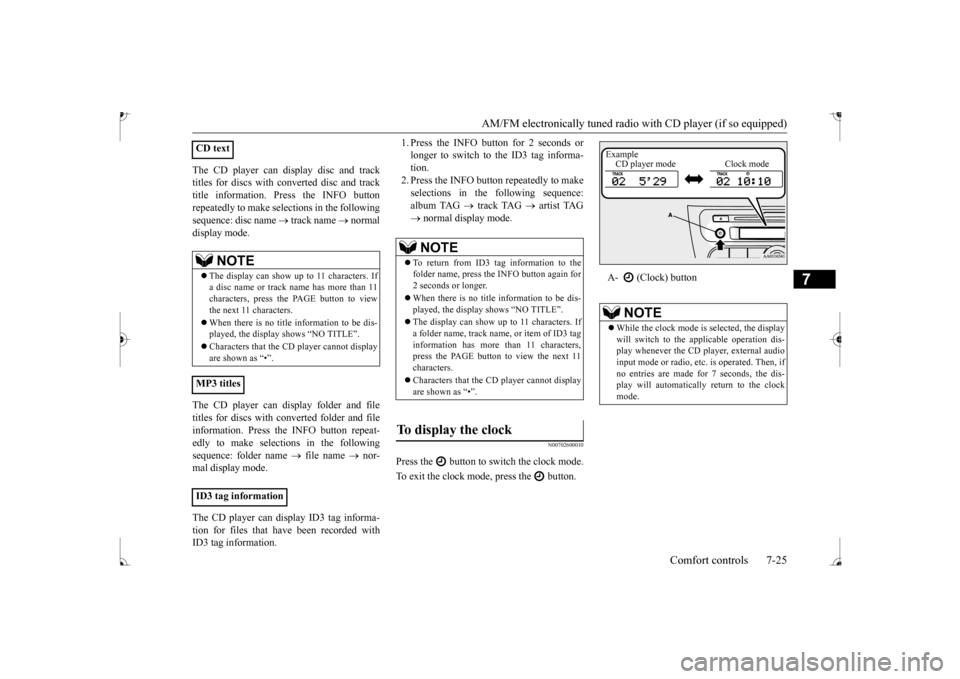
Press the button to switch the clock mode. To exit the clock mode, press the button.
CD text
NOTE
The display can show up to 11 characters. If a disc name or track name has more than 11characters, press the PAGE button to view the next 11 characters. When there is no title information to be dis- played, the display
shows “NO TITLE”.
player cannot display
are shown as “•”.
MP3 titles ID3 tag information
NOTE
To return from ID3 tag information to the folder name, press the INFO button again for 2 seconds or longer. When there is no title information to be dis- played, the display shows “NO TITLE”. The display can show up to 11 characters. If a folder name, track name
, or item of ID3 tag
information has more than 11 characters, press the PAGE button to view the next 11 characters. Characters that the CD
player cannot display
are shown as “•”.
To display the clock
A- (Clock) button
NOTE
While the clock mode is
selected, the display
will switch to the a
pplicable operation dis-
play whenever the CD player, external audioinput mode or radio, et
c. is operated. Then, if
no entries are made for 7 seconds, the dis- play will automatically return to the clockmode.Example CD player mode Clock mode
BK0235100US.book 25 ページ 2015年11月20日 金曜日 午後3時12分
Page 213 of 305
AM/FM electronically tuned radio with CD player (if so equipped) 7-26 Comfort controls
7
N00702701034
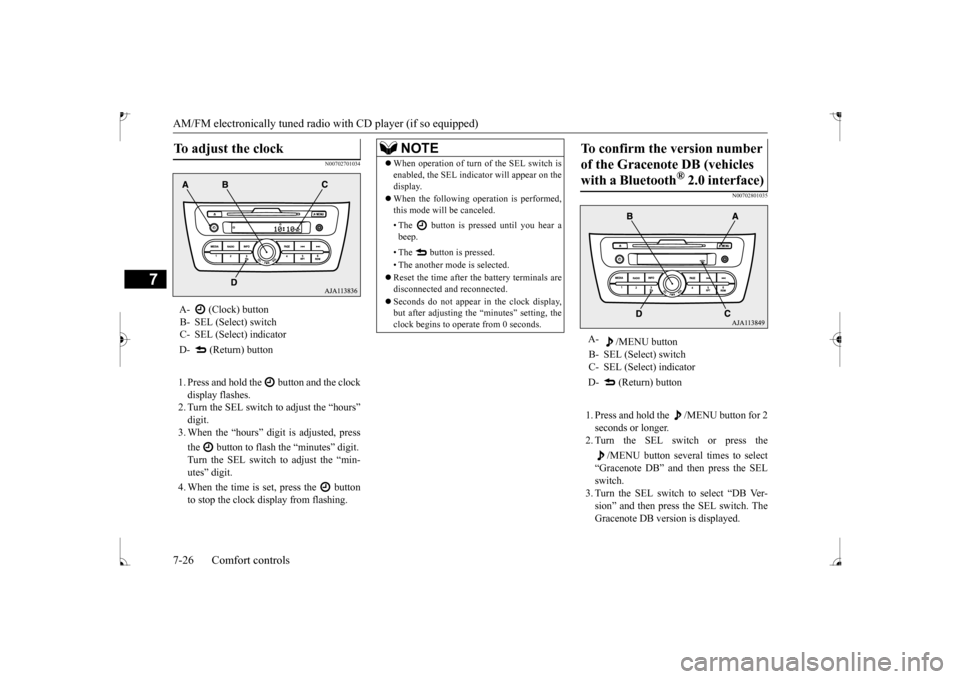
1. Press and hold the button and the clock display flashes. 2. Turn the SEL switch to adjust the “hours”digit. 3. When the “hours” digit is adjusted, press the button to flash
the “minutes” digit.
Turn the SEL switch to adjust the “min- utes” digit. 4. When the time is set, press the button to stop the clock display from flashing.
N00702801035
1. Press and hold the /MENU button for 2 seconds or longer. 2. Turn the SEL switch or press the
/MENU button several times to select
“Gracenote DB” and then press the SEL switch. 3. Turn the SEL switch to select “DB Ver-sion” and then press the SEL switch. The Gracenote DB vers
ion is displayed.
To adjust the clock
A- (Clock) button B- SEL (Select) switch C- SEL (Select) indicator D- (Return) button
NOTE
When operation of turn of the SEL switch is enabled, the SEL indica
tor will appear on the
display. When the following operation is performed, this mode will be canceled. • The button is pressed until you hear a beep. • The button is pressed. • The another mode is selected. Reset the time after the battery terminals are disconnected an
d reconnected.
Seconds do not appear
in the clock display,
but after adjusting the
“minutes” setting, the
clock begins to operate from 0 seconds.
To confirm the version number of the Gracenote DB (vehicles with a Bluetooth
® 2.0 interface)
A-
/MENU button
B- SEL (Select) switch C- SEL (Select) indicator D- (Return) button
BK0235100US.book 26 ページ 2015年11月20日 金曜日 午後3時12分
Page 214 of 305
AM/FM electronically tuned radio with CD player (if so equipped)
Comfort controls 7-27
7
N00702901036
It is possible to set the language used for voice control.
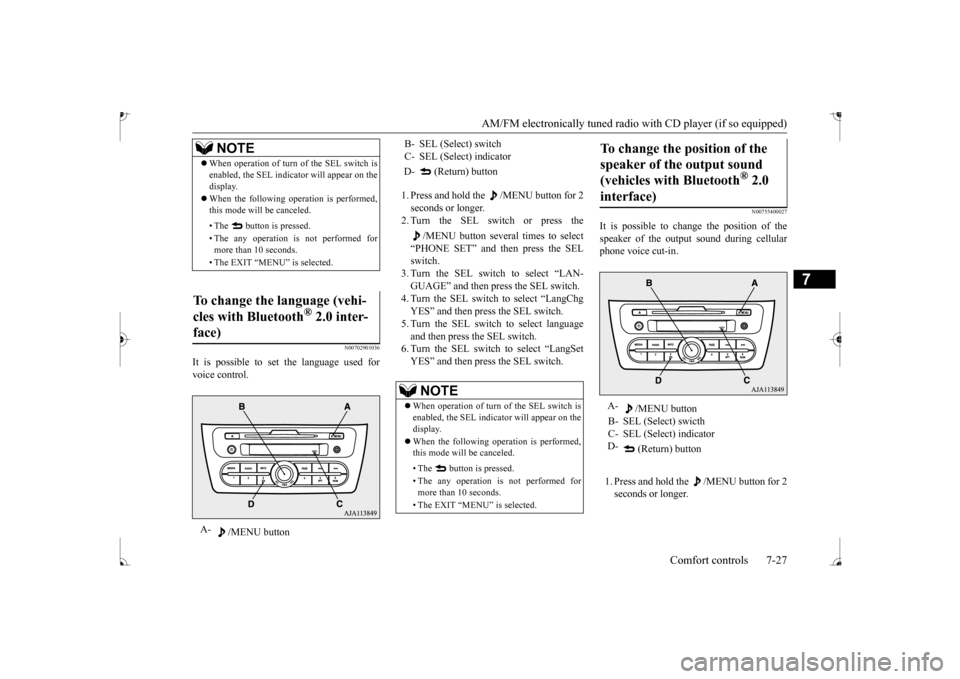
1. Press and hold the /MENU button for 2 seconds or longer. 2. Turn the SEL switch or press the
/MENU button several times to select
“PHONE SET” and then press the SELswitch. 3. Turn the SEL switch to select “LAN- GUAGE” and then press the SEL switch.4. Turn the SEL switch to select “LangChg YES” and then press the SEL switch. 5. Turn the SEL switch to select language and then press the SEL switch. 6. Turn the SEL switch to select “LangSetYES” and then press the SEL switch.
N00755400027
It is possible to cha
nge the position of the
speaker of the output sound during cellular phone voice cut-in. 1. Press and hold the /MENU button for 2 seconds or longer.
NOTE
When operation of turn
of the SEL switch is
enabled, the SEL indica
tor will appear on the
display. When the following operation is performed, this mode will be canceled. • The button is pressed. • The any operation is not performed for more than 10 seconds. • The EXIT “MENU” is selected.
To change the language (vehi- cles with Bluetooth
® 2.0 inter-
face)A-
/MENU button
B- SEL (Select) switch C- SEL (Select) indicator D- (Return) button
NOTE
When operation of turn
of the SEL switch is
enabled, the SEL indica
tor will appear on the
display. When the following ope
ration is performed,
this mode will be canceled. • The button is pressed. • The any operation is
not performed for
more than 10 seconds. • The EXIT “MENU” is selected.
To change the position of the speaker of the output sound (vehicles with Bluetooth
® 2.0
interface)
A-
/MENU button
B- SEL (Select) swicth C- SEL (Select) indicator D-
(Return) button
BK0235100US.book 27 ページ 2015年11月20日 金曜日 午後3時12分
Page 215 of 305
AM/FM electronically tuned radio with CD player (if so equipped) 7-28 Comfort controls
7
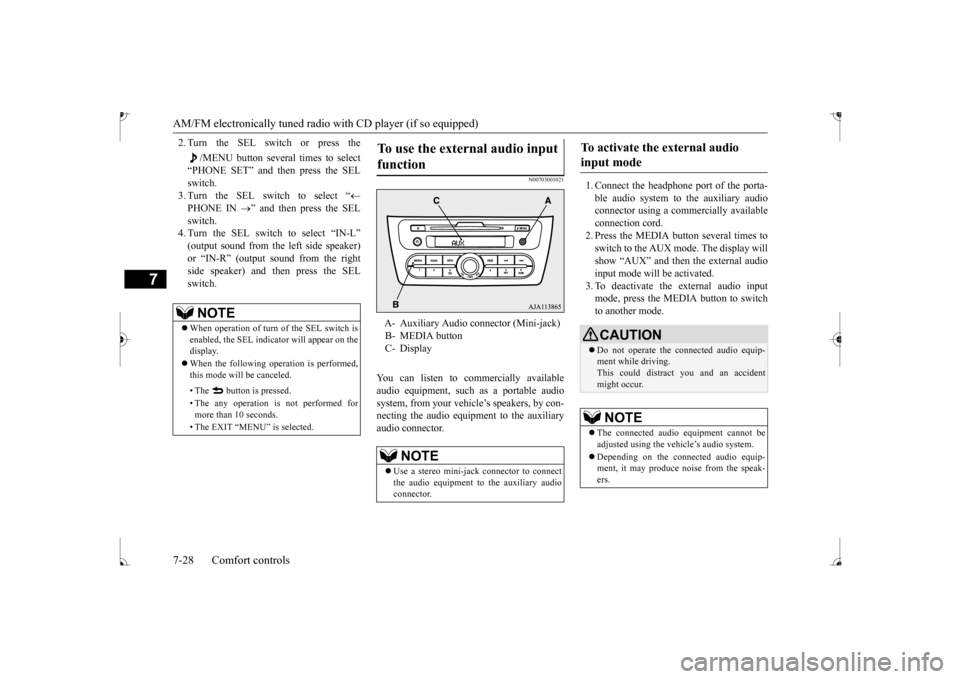
2. Turn the SEL switch or press the
/MENU button several times to select
“PHONE SET” and then press the SEL switch. 3. Turn the SEL switch to select “
PHONE IN
” and then press the SEL
switch. 4. Turn the SEL switch to select “IN-L” or
Page 216 of 305
To play tracks from USB device (if so equipped)
Comfort controls 7-29
7
N00762200056
You can connect your
iPod or USB memory
device to the USB input terminal and play music files stored in the iPod or USB mem- ory device.See the following section for the types of connectable devices
and supported files.
Refer to “Types of c
onnectable devices and
supported file specific
ations” on page 5-104.
See the following sections for the connecting methods, “How to connect an iPod” on page5-103 and “How to connect a USB memory device” on page 5-102. If your vehicle is equipped with a Bluetooth
®
2.0 interface, you can play music files in your iPod or USB memory de
vice via voice opera-
tion.Refer to “To play iPod tracks via voice opera- tion” on page 7-31 and “To play USB mem- ory device tracks via voice operation” onpage 7-37.
N00762301070
Use the connected a
udio equipment’s own
power source, such as its battery.Noise may be produced from the speakers ifthe connected audio equipment is used while charging it using the accessory socket of the vehicle. Do not activate the
external audio input
mode when no audio equipment is con-nected. Otherwise, noise may be produced from the speakers. Connect audio equipmen
t when the external
audio input mode is de
activated or lower the
vehicle’s speaker volum
e before connecting
it. Noise may be produced from the speakers ifaudio equipment is conne
cted after the exter-
nal audio input m
ode is activated.
Compared to the CD player mode and radio mode, the vehicle’s speaker volume will be lower in the external audio input mode.Therefore, be careful when switching from the external audio input mode to the CD player mode or radio mode since the speakervolume will be higher. Do not use excessive
force on the connection
cord. Otherwise, the cord and connectors may be damaged. If the connection cord
alone is left connected
to the auxiliary audi
o connector, noise may
be produced from the speakers.NOTE
For information on how to connect and oper- ate the commercially av
ailable audio equip-
ment, refer to the owner’s manual for thecommercially availabl
e audio equipment.
To play tracks from USB device
(if so equipped)
NOTE
NOTE
A file protected by c
opyright might not be
able to playback. It is recommended to adjust the equalizer of the connected device to 0 db or neutral.
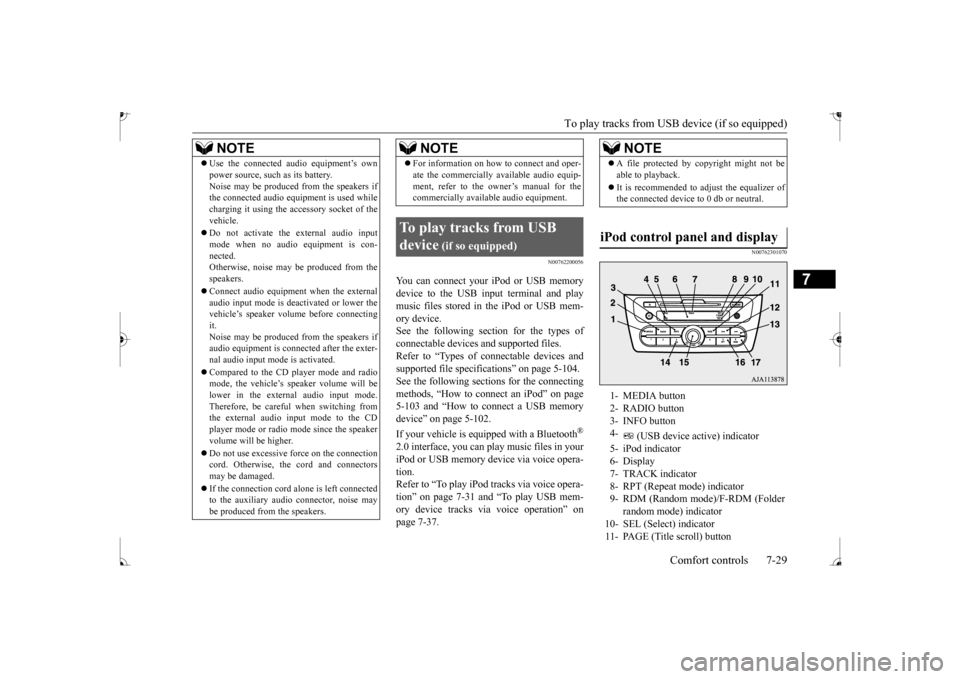
iPod control panel and display
1- MEDIA button 2- RADIO button 3- INFO button 4-
(USB device ac
tive) indicator
5- iPod indicator6- Display 7- TRACK indicator 8- RPT (Repeat mode) indicator9- RDM (Random mode)/F-RDM (Folder
random mode) indicator
10- SEL (Select)
indicator
11- PAGE (Title scroll) button
BK0235100US.book 29 ページ 2015年11月20日 金曜日 午後3時12分
Page 217 of 305
To play tracks from USB device (if so equipped)
7
N00762401097
1. Press the PWR switch to turn on the audio system. The system turns on in the last mode used.2. Connect your iPod to the USB input ter- minal. Refer to “How to connect an iPod” onpage 5-103. 3. Press the MEDIA button several times to switch to the iPod mode. The input modechanges as follows every time the MEDIA button is pressed: CD mode
iPod mode
Bluetooth
® mode (if so
equipped)
AUX mode
CD mode.
The iPod indicator are illuminated and then the iPod mode will be activated.4. Once the device is
selected, playback
starts and indicator appears on the dis- play.
5. To stop the playback, press the RADIO button or MEDIA button to switch to adifferent mode.
N00762500033
To fast-forward/revers
e the current track,
press the button or button. To fast-forward the current track, press the
button. While the button is kept pressed,
the track will be fast-forwarded.
To fast-reverse the current track, press the button. While the button is kept pressed, the track will be fast-reversed.
N00762600034
Press the button repeatedly until the desired track number appears on the display. Press the button repeatedly until the desired track number appears on the display.
N00762701087
You can select desired
tracks from the “Playl-
ists”, “Artists”,
“Albums”, “Songs” or
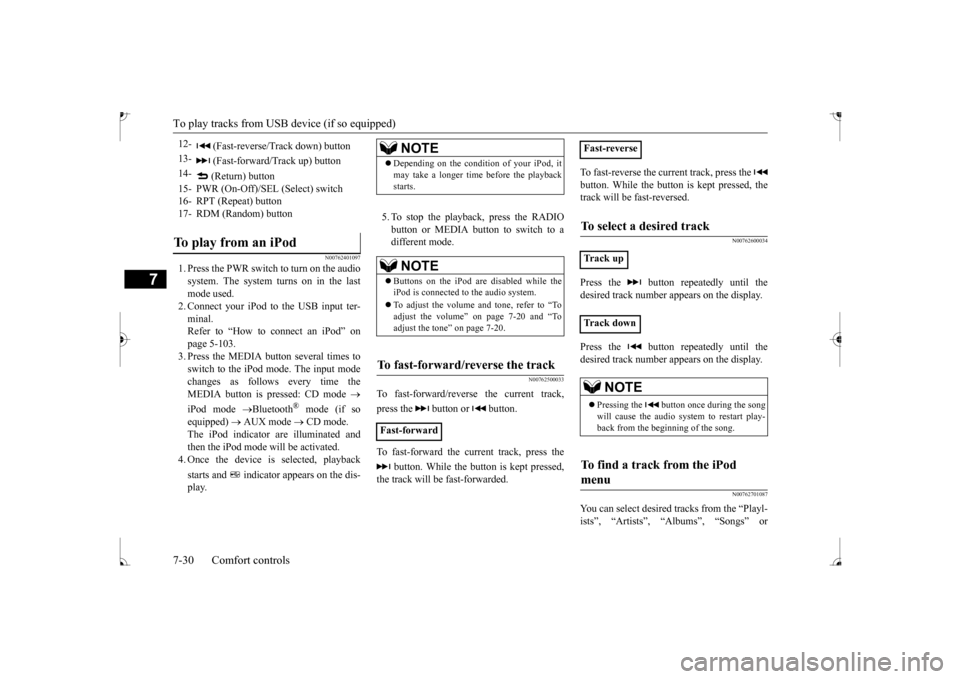
12-
(Fast-reverse/Track down) button
13-
(Fast-forward/Track up) button
14-
(Return) button
15- PWR (On-Off)/SE
L (Select) switch
16- RPT (Repeat) button17- RDM (Random) buttonTo play from an iPod
NOTE
Depending on the conditi
on of your iPod, it
may take a longer time
before the playback
starts.NOTE
Buttons on the iPod are disabled while the iPod is connected to
the audio system.
To adjust the volume and tone, refer to “To adjust the volume” on page 7-20 and “To adjust the tone” on page 7-20.
To fast-forward/reverse the track
Fast-forward
Fast-reverseTo select a desired track
Track up Track down
NOTE
Pressing the button once during the song will cause the audio system to restart play- back from the beginning of the song.
To find a track from the iPod menu
BK0235100US.book 30 ページ 2015年11月20日 金曜日 午後3時12分
Page 221 of 305
To play tracks from USB device (if so equipped)
7
7. The system exits the voice recognition mode and starts playback.
N00763700032
1. Say “Play” on the main menu. 2. After the voice guide says “Would you like to play by Artist, Album, Playlist or Genre?,” say “Genre”.
would you like to play?,” say the musictype. 4. If there is only one match, the system pro- ceeds to step 6.5. If there are two or more matches, the voice guide will say “More than one match was found, would you like to play
de says “Playing
7. The system exits the voice recognition mode and starts playback.
N00763901073
NOTE
If the confirmation function is active, the voice guide confirms if
the playlist name is
correct. If the playlist name is correct, say“Yes”. If not, say “No”. After the voice guide says “Playlist not foun
d, please try again,”
the system returns to step 2. Refer to “Con-firmation function se
tting” on page 5-84.
To search by genre
NOTE
The Bluetooth
® 2.0 interface starts recogniz-
ing the connected device.If the connected device
cannot be recognized
or a connection error
occurs, the Bluetooth
®
2.0 interface starts
an appropriate voice
guide. Follow the voice guide.NOTE
If you say “Genre
NOTE
If you say “No” to three
or all genres uttered
by the system, the voi
ce guide will say
“Genre not found, please try again” and the system returns to step 2.NOTE
If the confirmation function is active, the voice guide confirms if
the genre is correct.
If the genre is correct, say “Yes”. If not, say “No”. After the voice
guide says “Genre not
found, please try again,” the system returnsto step 2. Refer to “Confirmation function setting” on page 5-84.
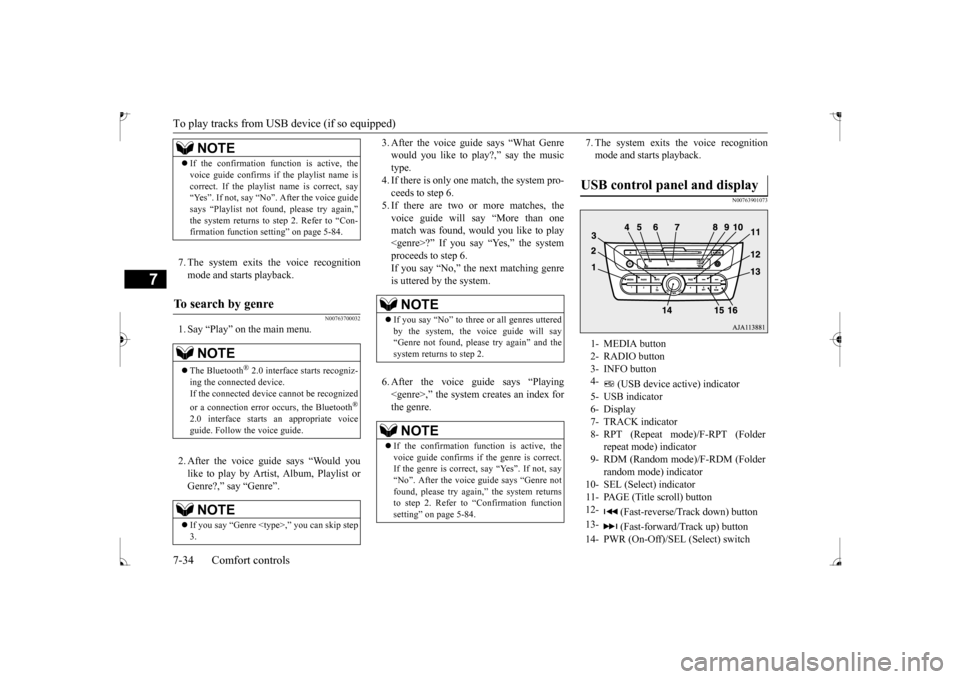
USB control panel and display
1- MEDIA button 2- RADIO button 3- INFO button 4-
(USB device active) indicator
5- USB indicator6- Display 7- TRACK indicator 8- RPT (Repeat mode)/F-RPT (Folder
repeat mode) indicator
9- RDM (Random mode)/F-RDM (Folder
random mode) indicator
10- SEL (Select) indicator 11- PAGE (Title scroll) button12-
(Fast-reverse/Tr
ack down) button
13-
(Fast-forward/Track up) button
14- PWR (On-Off)/SEL
(Select) switch
BK0235100US.book 34 ページ 2015年11月20日 金曜日 午後3時12分
Page 222 of 305
To play tracks from USB device (if so equipped)
Comfort controls 7-35
7
N00764001097
1. Press the PWR switch to turn on the audio system. The system turns on in the last mode used. 2. Connect your USB memory device to the USB input terminal. Refer to “How to connect a USB memorydevice” on page 5-102. 3. Press the MEDIA button several times to switch to the USB mode. The input modechanges as follow
s every time the
MEDIA button is pressed: CD mode
USB mode
Bluetooth
® mode (if so
equipped)
AUX mode
CD mode.
The USB indicator are illuminated and then the USB mode will be activated. 4. Once the device is selected, playback starts and indicator appears on the dis- play.
5. To stop the playback, press the RADIO button or MEDIA button to switch to adifferent mode.
N00764100105
This audio can play
MP3, WMA and AAC
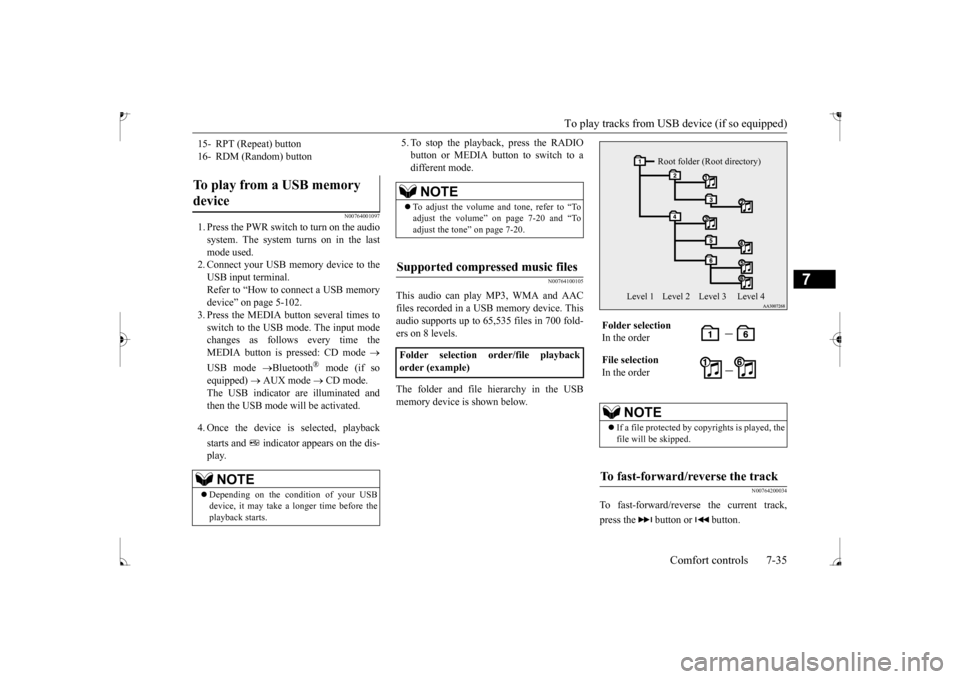
files recorded in a USB memory device. Thisaudio supports up to 65,535 files in 700 fold- ers on 8 levels. The folder and file hierarchy in the USB memory device is shown below.
N00764200034
To fast-forward/revers
e the current track,
press the button or button.
15- RPT (Repeat) button 16- RDM (Random) buttonTo play from a USB memory device
NOTE
Depending on the condition of your USB device, it may take a longer time before the playback starts.
NOTE
To adjust the volume and tone, refer to “To adjust the volume” on page 7-20 and “To adjust the tone” on page 7-20.
Supported compressed music files
Folder selection order/file playback order (example)
Folder selection In the order File selection In the order
NOTE
If a file protected by c
opyrights is played, the
file will be skipped.
To fast-forward/reverse the track
Root folder (Root directory)
Level 1 Level 2 Level 3 Level 4
BK0235100US.book 35 ページ 2015年11月20日 金曜日 午後3時12分
Page 227 of 305
Steering wheel audio remote cont
rol switches (if so equipped)
7-40 Comfort controls
7
N00714800484
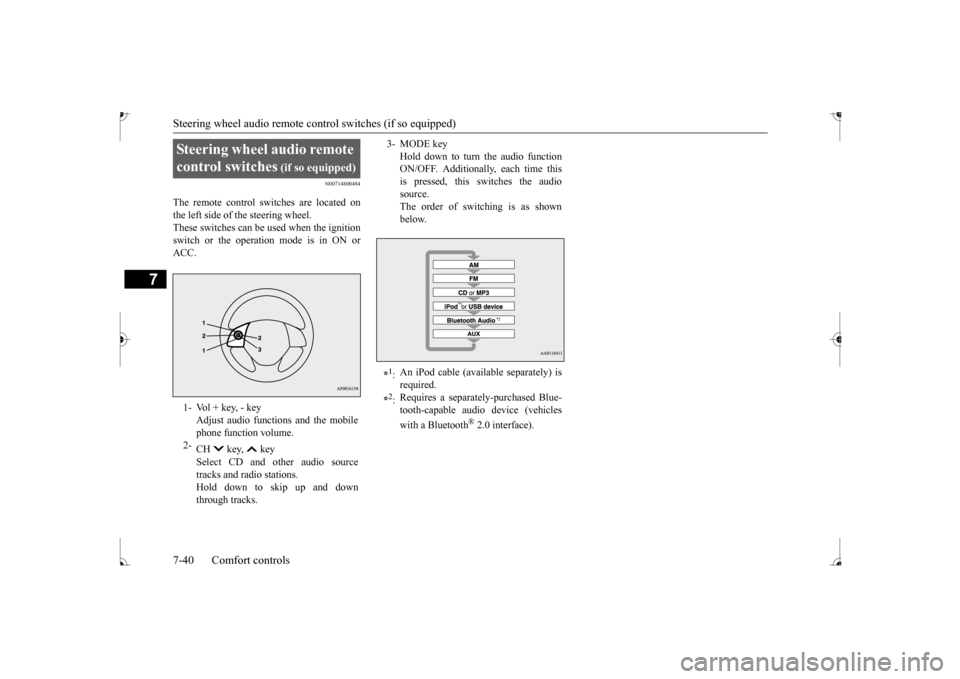
The remote control switches are located on the left side of the steering wheel.These switches can be used when the ignition switch or the operation mode is in ON or ACC.Steering wheel audio remote control switches
(if so equipped)
1- Vol + key, - key
Adjust audio functions and the mobile phone function volume.
2-
CH key, key Select CD and other audio source tracks and radio stations. Hold down to skip up and downthrough tracks.
3- MODE key
Hold down to turn the audio function ON/OFF. Additionally, each time thisis pressed, this switches the audio source. The order of switching is as shownbelow.
*1: An iPod cable (avail
able separately) is
required.
*2: Requires a separately-purchased Blue- tooth-capable audio device (vehicles with a Bluetooth
® 2.0 interface).
BK0235100US.book 40 ページ 2015年11月20日 金曜日 午後3時12分
Page 228 of 305
Error codes
Comfort controls 7-41
7
N00736100780
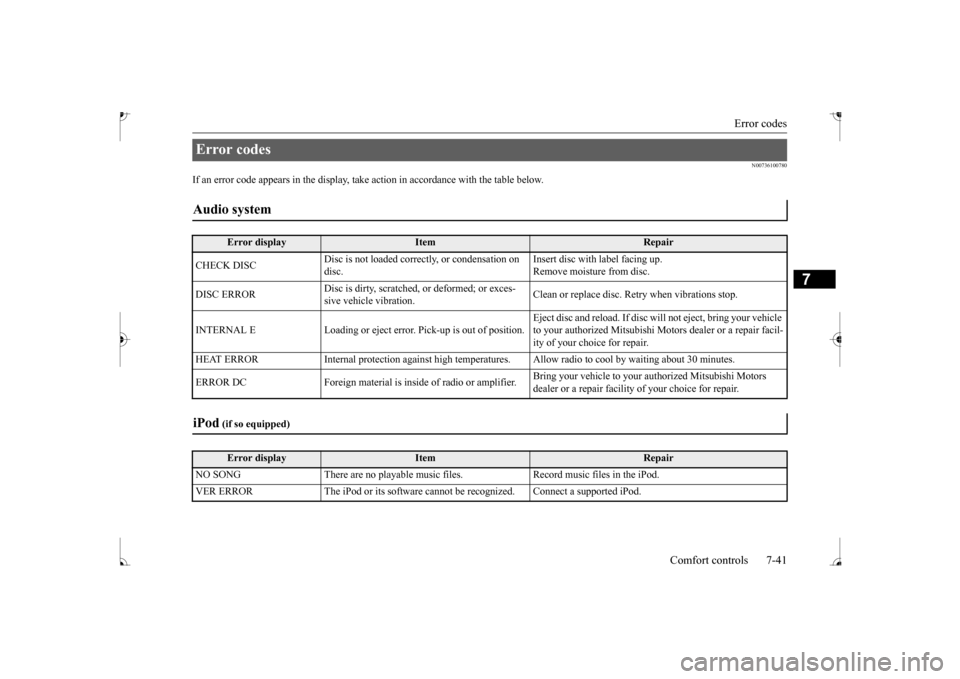
If an error code appears in the display, ta
ke action in accordance
with the table below.
Error codes Audio system
Error display
Item
Repair
CHECK DISC
Disc is not loaded correctly, or condensation on disc.
Insert disc with
label facing up.
Remove moisture from disc.
DISC ERROR
Disc is dirty, scratched,
or deformed; or exces-
sive vehicle vibration.
Clean or replace disc. Re
try when vibrations stop.
INTERNAL E Loading or eject erro
r. Pick-up is out of position.
Eject disc and reload.
If disc will not ejec
t, bring your vehicle
to your authorized Mitsubishi Moto
rs dealer or a repair facil-
ity of your choice for repair.
HEAT ERROR Internal protection against high temperatur
es. Allow radio to cool by
waiting about 30 minutes.
ERROR DC Foreign material is in
side of radio or amplifier.
Bring your vehicle to your authorized Mitsubishi Motors dealer or a repair facility
of your choice for repair.
iPod
(if so equipped)Error display
Item
Repair
NO SONG There are no playable music files. Record music files in the iPod. VER ERROR The iPod or its
software cannot be recogniz
ed. Connect a supported iPod.
BK0235100US.book 41 ページ 2015年11月20日 金曜日 午後3時12分