Can MITSUBISHI OUTLANDER 2014 3.G Display Audio Manual
[x] Cancel search | Manufacturer: MITSUBISHI, Model Year: 2014, Model line: OUTLANDER, Model: MITSUBISHI OUTLANDER 2014 3.GPages: 88, PDF Size: 11.63 MB
Page 82 of 88
82 Other Settings
ADVICE
• If the pass key is incorrect, redo the Bluetooth device side operations from the
start.
• Some Bluetooth devices require a special
passcode.
• Depending on the Bluetooth device settings, it may be necessary to enter
the passcode each time the device is
connected.
• Carry out the procedure for entering the passcode to the Bluetooth device
according to its user manual.
Selecting a Bluetooth Device
If you have registered multiple Bluetooth
devices, you must select the one to connect.
(From then on, the Bluetooth device you set
with this function is connected automatically
when it is detected by this product.)
1Press the MENU key.
The top menu is displayed.
2Touch Setting , and then
Bluetooth Setting .
3Touch Select Device to Connect .
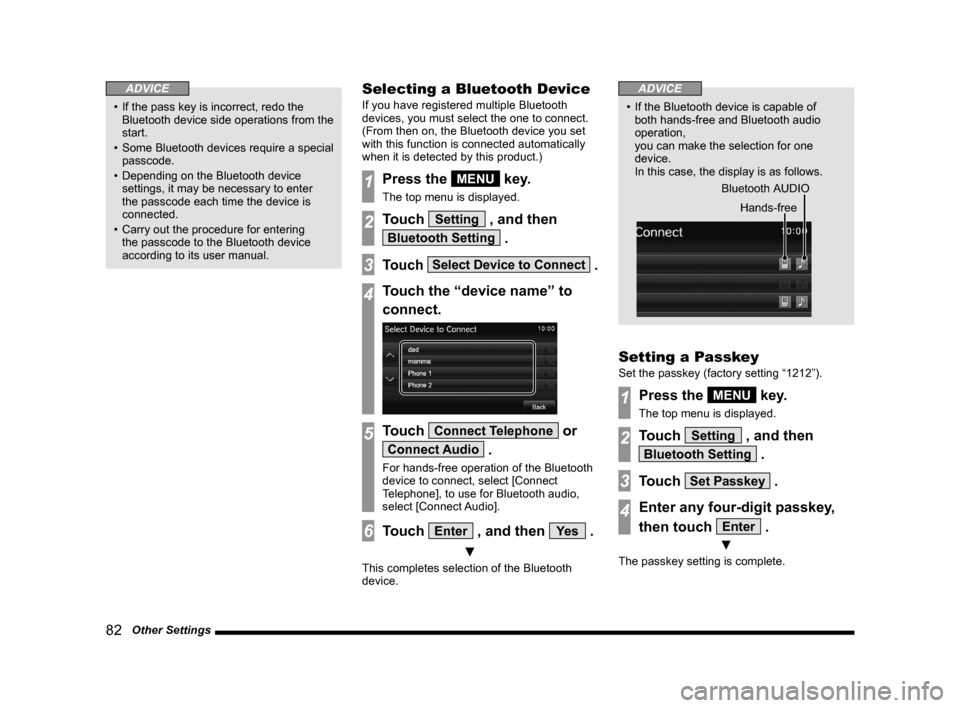
4Touch the “device name” to
connect.
5Touch Connect Telephone or
Connect Audio .
For hands-free operation of the Bluetooth
device to connect, select [Connect
Telephone], to use for Bluetooth audio,
select [Connect Audio].
6Touch Enter , and then Ye s .
▼
This completes selection of the Bluetooth
device.
ADVICE
• If the Bluetooth device is capable of both hands-free and Bluetooth audio
operation,
you can make the selection for one
device.
In this case, the display is as follows.
Bluetooth AUDIO Hands-free
Setting a Passkey
Set the passkey (factory setting “1212”).
1Press the MENU key.
The top menu is displayed.
2Touch Setting , and then
Bluetooth Setting .
3Touch Set Passkey .
4Enter any four-digit passkey,
then touch
Enter .
▼
The passkey setting is complete.
13MY_AVC(NAS).indb 822013/02/14 10:58:08
Page 83 of 88

Troubleshooting 83
Other
Other
Troubleshooting
Please check these items if a message appears on the screen, or if you t\
hink something is not working properly.
If This Message Appears...
A message is displayed on the screen of this product according to the sit\
uation.
Message CauseResponse
Play is impossible due to a mechanism error. The drive has malfunctioned for some reason.Check that there is no problem with the disc, and insert
the disc again. If the problem persists, consult an
authorized Mitsubishi Motors dealer or a repair facility
of your choice.
The disc is damaged or warped. Do not insert a damaged or warped disc.
Play is impossible due to low battery voltage. The vehicle's battery voltage has dropped.Check the battery.
Cannot be played.
Check the disc. A disc is inserted that cannot be played.
Insert a disc that can be played.
→“Types of Disc That Can Be Played Back”(P19)
The disc is inserted upside down. Insert with the label side up.
The disc has condensation on it. Wait a while before inserting again.
The disc is dirty. Clean the read surface of the disc.
Play is impossible due to high temperatures. The temperature inside the product is high.Remove the disc, and wait for the internal temperature
to return to normal.
This iPod cannot be played. Authentication failed.Reconnect your iPod.
The connected iPod has an unsupported format and
cannot be recognized. Use an iPod that supports this product.
(P7)
This iPod software version is not correct.
Please change to a supported software version.
This USB memory cannot be played. An unsupported USB device has been connected.Reconnect a supported USB device.
→“Listen to Audio Files on a USB Device” (P57)
13MY_AVC(NAS).indb 832013/02/14 10:58:08
Page 84 of 88
84 Troubleshooting
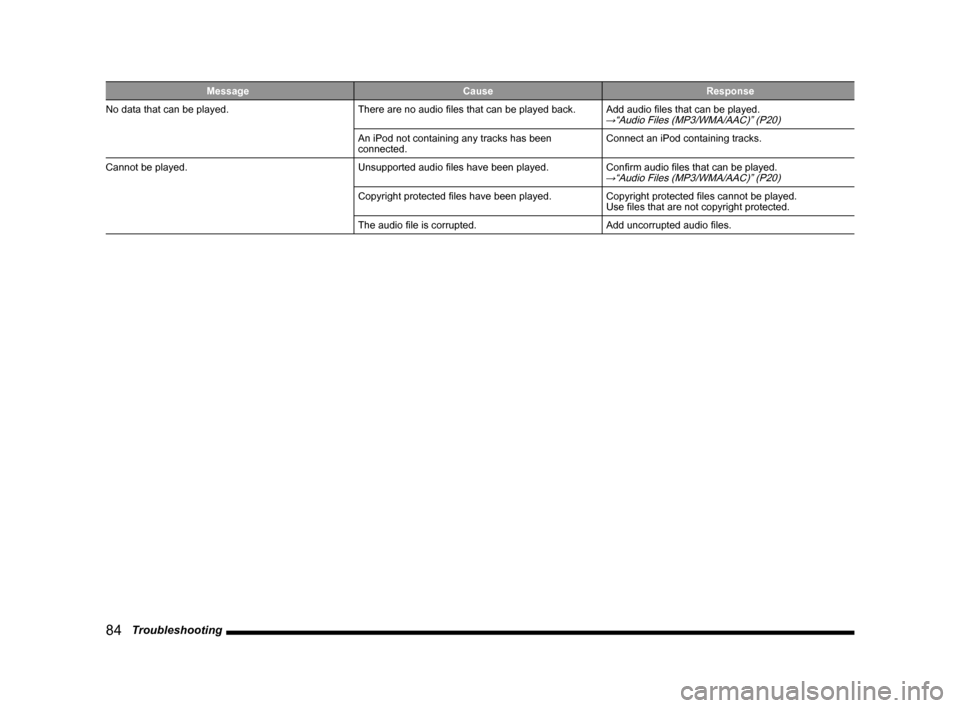
MessageCauseResponse
No data that can be played. There are no audio files that can be played back.Add audio files that can be played.
→“Audio Files (MP3/WMA/AAC)” (P20)
An iPod not containing any tracks has been
connected.Connect an iPod containing tracks.
Cannot be played. Unsupported audio files have been played.Confirm audio files that can be played.
→“Audio Files (MP3/WMA/AAC)” (P20)
Copyright protected files have been played.Copyright protected files cannot be played.
Use files that are not copyright protected.
The audio file is corrupted. Add uncorrupted audio files.
13MY_AVC(NAS).indb 842013/02/14 10:58:08
Page 85 of 88

Troubleshooting 85
Other
If You Think Something Is Not Working Properly...
Here is a list of symptoms, causes and responses if you think something \
is not working properly.
Symptoms CauseResponse
Cannot operate. For safety, some operations are restricted while the
vehicle is moving.The driver should refrain from operating this product
while the vehicle is moving. First stop the vehicle in a
safe location, then operate this product.
The operation sound is not made. The operation sound is set to [Off].Set the [Sound] “Operation Volume”to [1] to [3].
→“Sound” (P75)
Nothing is displayed on the screen. The screen is turned OFF.Stop the vehicle in a safe location, apply the parking
brakes, then perform the operation to turn the screen
back ON
(P78).
The vehicle's battery voltage has dropped. Charge or replace the battery.
The temperature inside the product is high. Please wait for the temperature to drop.
The monitor screen is dark. The monitor brightness is not correctly adjusted.Adjust the monitor brightness.
→“Color Contrast” (P78)
There is no sound or quiet sound. The volume is turned to its minimum.Adjust the volume.→“Adjust Volume” (P14)
The balance or fader is turned to one side.Adjust the balance or fader.→“Adjust the Sound Quality” (P73)
“Audio OFF”.Switch to “Audio ON”.→“Switch Audio ON/OFF” (P14)
The disc cannot be played. The disc is inserted upside down.Insert with the label side up.
The disc has condensation on it. Wait a while before inserting.
The disc is dirty. Clean the read surface of the disc.
13MY_AVC(NAS).indb 852013/02/14 10:58:08