radio controls MITSUBISHI OUTLANDER 2015 3.G User Guide
[x] Cancel search | Manufacturer: MITSUBISHI, Model Year: 2015, Model line: OUTLANDER, Model: MITSUBISHI OUTLANDER 2015 3.GPages: 446, PDF Size: 59.52 MB
Page 316 of 446
7
Comfort controlsVents ................................................................................................7-2 Automatic climate control air conditioner
..............
...........
.........
.....7-5
Important air conditioning operating tips ..
...........
...........
.........
.....7-14
Air purifier .....................................................................................7-14 AM/FM radio/CD player (if so equipped) .....................................7-15 Handling of Discs ..........................................................................7-18Audio Files (MP3/WMA/AAC) ....................................................7-20 Important Points on Safety for the Customer ................................7-24 Operation Keys ..............................................................................7-24Listen to Radio ...............................................................................7-28 Listen to Satellite Radio (if so equipped) .......................................7-29 Listen to CDs .................................................................................7-31Listen to MP3s ...............................................................................7-32 Listen to an iPod ............................................................................7-33 Listen to Audio Files on a USB Device .........................................7-35Listen to Bluetooth Audio (if so equipped) ....................................7-38 Display Indicator ...........................................................................7-40 Audio Quality and Volume Balance Adjustment ...........................7-41System Settings ..............................................................................7-42 Troubleshooting ..........
...........
...........
...........
...........
.........
.........
.....7-45
Antenna ..........................................................................................7-47General information about your radio .....
...........
...........
...........
.....7-48
BK0211800US.book 1 ページ 2014年3月12日 水曜日 午後2時42分
Page 330 of 446
AM/FM radio/CD player (if so equipped)
Comfort controls 7-15
7
N00734302102
The audio system can only be used when the ignition switch or the
operation mode is in
ON or ACC.
N00715000021
This product supports audio playback from iPod/iPhone devices, however dif- fering versions mean
that playback cannot
be guaranteed. Please be aware that depending on the iPod/iPhone model or
version, operation
may differ.
N00715200023
If the product becomes dirty, wipe with a soft cloth. If very dirty, use a soft cloth dipped in neutral detergent diluted in water, and then wrung out. Do not use benzene, thin- ners, or other chemic
al wipes. This may
harm the surface.
N00715300053
Product names and other proper names are the trademarks or registered trade- marks of their respective owners. Furthermore, even if there is no specific denotation of trademarks or registered trademarks, these are to be observed intheir entirety. “Made for iPod”, “Made for iPhone” mean that an electronic accessory has been designed to conne
ct specifically to
iPod or iPhone, respectively, and has beencertified by the deve
loper to meet Apple
performance standards. iPhone, iPod, iPod cla
ssic, iPod nano, and
iPod touch are trademarks of Apple Inc., registered in the U.S.
and other countries.
AM/FM radio/CD player
(if
so equipped)
NOTE
To listen to the audio system while the engine is not running, turn the ignitionswitch to the “ACC” position or put the oper- ation mode in ACC. If the ignition switch
or the operation mode
is left in ACC, the accessory power will automatically turn off after a certain period of time and you will no longer be able to usethe audio system. The accessory power comes on again if the ignition switch or the engine switch is operated with it in the“ACC” position. Refer
to “ACC power auto-
cutout function” on page 5-18 and 5-56. If a cellular phone is
used inside the vehicle,
it may create noise in the audio equipment. This does not mean that anything is wrongwith your audio equipment. In such a case, use the cellular phone at
a place as far away
as possible from the audio equipment.
If foreign objects or water get into the audio equipment, or if smoke or a strange odorcomes from it, immediately turn off theaudio system and have it checked at an authorized Mitsubishi
Motors dealer or a
repair facility of your
choice. Never try to
repair it yourself. Avoid using the audio sys- tem until it is insp
ected by a qualified per-
son. If the audio system is damaged by foreign objects, water, or fi
re, have the system
checked by a qualified Mitsubishi Motors technician.
Important Points on Usage
iPod/iPhone Playback Function
(if
so equipped)
NOTE
How to Clean
Trademarks
BK0211800US.book 15 ページ 2014年3月12日 水曜日 午後2時42分
Page 331 of 446

AM/FM radio/CD player (if so equipped) 7-16 Comfort controls
7
Apple is not responsib
le for the operation
of this device or its compliance withsafety and regulatory standards.NOTE
iPod and iTunes licensi
ng allows individual
users to privately re
produce and play back
non- copyrighted
material as we
ll as material
that may be legally
copied and reproduced.
Infringement of copyright is prohibited. For vehicles with a Bluetooth
® 2.0 interface,
the types of devices
that can be connected
may vary.[For vehicles sold in U.S.A.] For details, access the Mitsubishi Motors North America website.[For vehicles sold in
Canada and Mexico]
For details, access the Mitsubishi Motors website. Please read and agree to the “Warn-ing about Links to the Web Sites of OtherCompanies”. The webs
ites mentioned above
may connect you to websites other than the Mitsubishi Motors website.http://www.mitsubishi
-motors.com/en/prod-
ucts/index.html
BK0211800US.book 16 ページ 2014年3月12日 水曜日 午後2時42分
Page 332 of 446
AM/FM radio/CD player (if so equipped)
Comfort controls 7-17
7
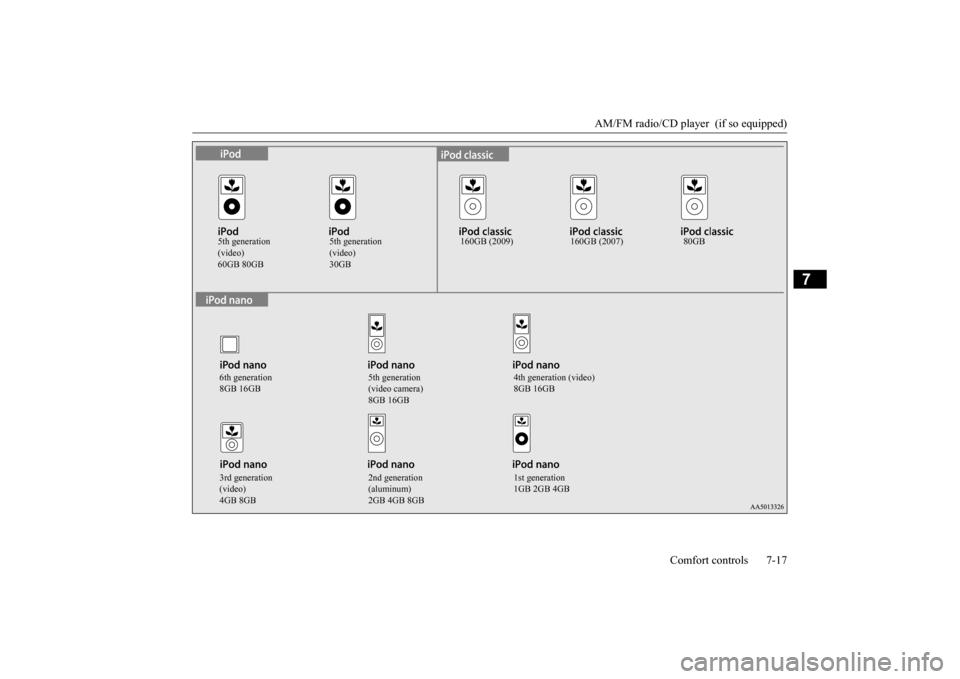
5th generation (video)60GB 80GB
5th generation (video)30GB
160GB (2009) 160GB (2007) 80GB
6th generation 8GB 16GB
5th generation (video camera) 8GB 16GB
4th generation (video) 8GB 16GB
3rd generation (video)4GB 8GB
2nd generation (aluminum)2GB 4GB 8GB
1st generation 1GB 2GB 4GB
BK0211800US.book 17 ページ 2014年3月12日 水曜日 午後2時42分
Page 341 of 446
Operation Keys 7-26 Comfort controls
7
N00716700038
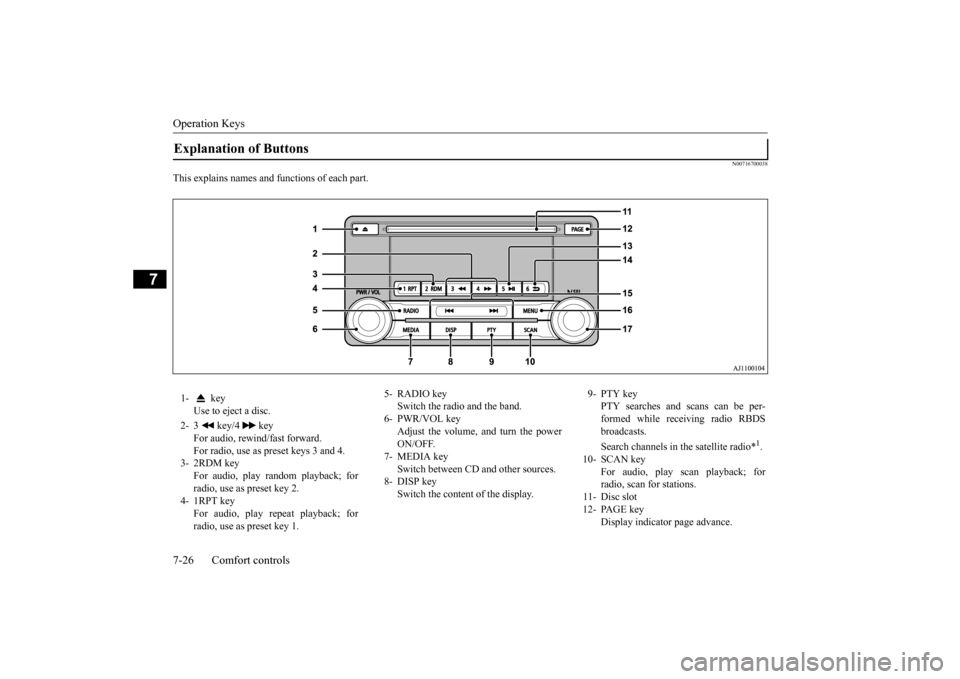
This explains names and functions of each part.Explanation of Buttons 1- key
Use to eject a disc.
2- 3 key/4 key
For audio, rewind/fast forward. For radio, use as preset keys 3 and 4.
3- 2RDM key
For audio, play random playback; for radio, use as preset key 2.
4- 1RPT key
For audio, play repeat playback; for radio, use as preset key 1.
5- RADIO key
Switch the radio and the band.
6- PWR/VOL key
Adjust the volume, and turn the powerON/OFF.
7- MEDIA key
Switch between CD
and other sources.
8- DISP key
Switch the content of the display.
9- PTY key
PTY searches and scans can be per- formed while receiving radio RBDS broadcasts. Search channels in the satellite radio*
1.
10- SCAN key
For audio, play scan playback; forradio, scan for stations.
11- Disc slot 12- PAGE key
Display indicator page advance.
BK0211800US.book 26 ページ 2014年3月12日 水曜日 午後2時42分
Page 342 of 446
Operation Keys
Comfort controls 7-27
7
N00716800042
13-
5 key Play/Pause Bluetooth Audio
*2, and use
as preset key 5 for radio.
14-
6 key Return during audio track search, and stop Bluetooth Audio
*2.
For radio, use as preset key 6.
15-
key/ key
For audio, select a
udio track/file; for
radio, perform auto
matic station selec-
tion. Select channels in the satellite radio*
1.
16- MENU key
Switch to Menu mode.
17- /SEL key
Adjust audio quality
and select items.
For radio, manually select stations. Select channels in the satellite radio*
1.
*1: Requires a satellite
tuner connection.
*2: Requires a separately
-purchased Blue-
tooth-capable audio
device in equip-
ment by type (vehicles with a Bluetooth
® 2.0 interface).
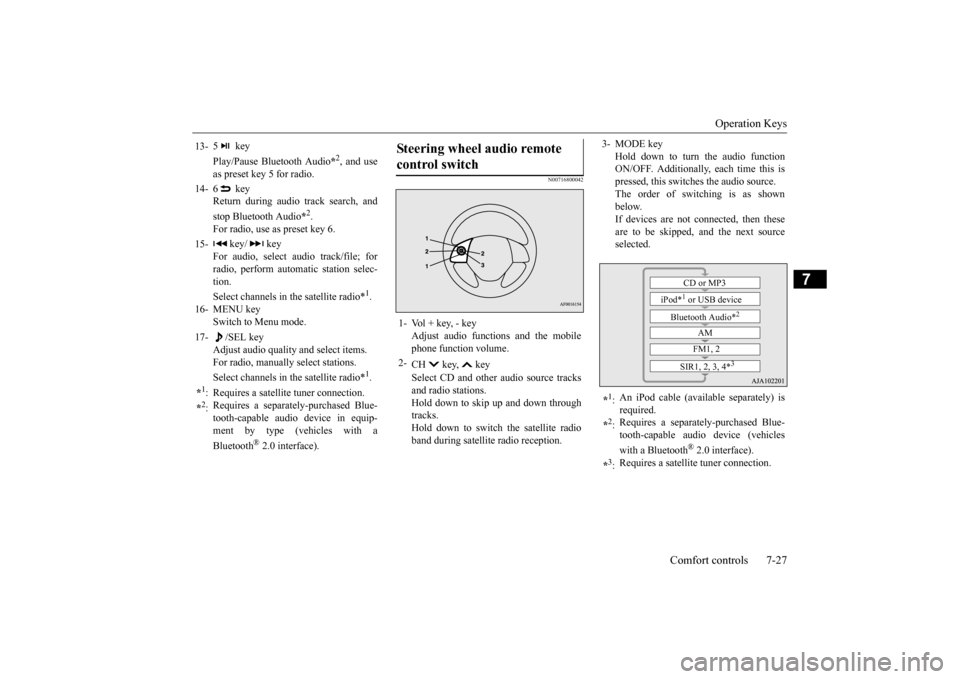
Steering wheel audio remote control switch 1- Vol + key, - key
Adjust audio functions and the mobile phone function volume.
2-
CH key, key Select CD and other
audio source tracks
and radio stations. Hold down to skip up and down through tracks.Hold down to switch the satellite radio band during satellit
e radio reception.
3- MODE key
Hold down to turn the audio function ON/OFF. Additionally, each time this ispressed, this switches the audio source. The order of switching is as shown below.If devices are not connected, then these are to be skipped, and the next source selected.
*1: An iPod cable (availa
ble separately) is
required.
*2: Requires a separately
-purchased Blue-
tooth-capable audio device (vehicles with a Bluetooth
® 2.0 interface).
*3: Requires a satellit
e tuner connection.CD or MP3
iPod*
1 or USB device
Bluetooth Audio*
2
AM FM1, 2
SIR1, 2, 3, 4*
3
BK0211800US.book 27 ページ 2014年3月12日 水曜日 午後2時42分
Page 343 of 446
Listen to Radio 7-28 Comfort controls
7
N00716900027
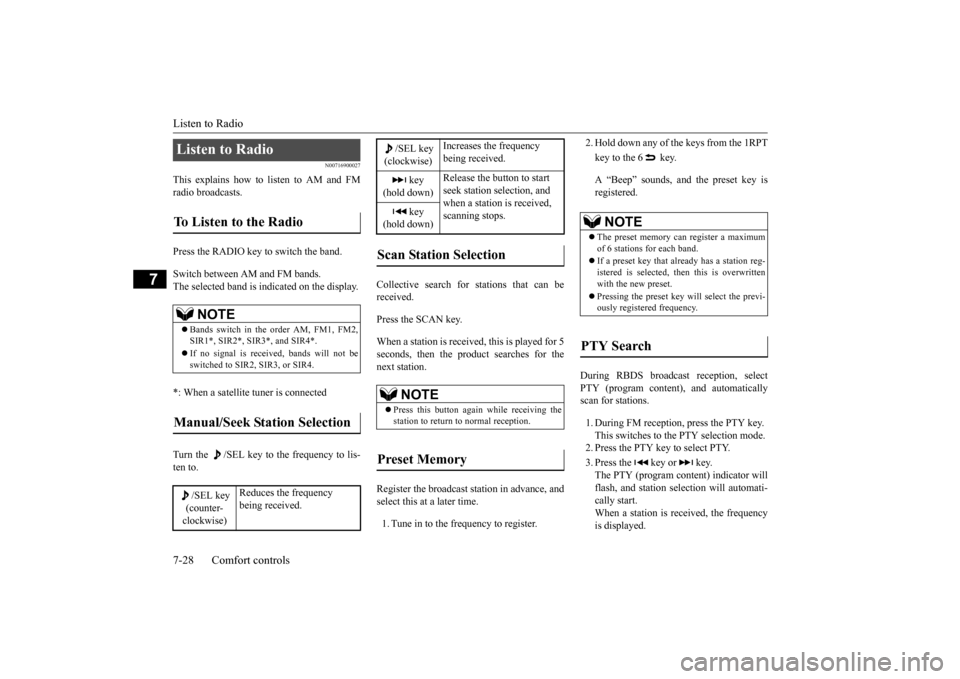
This explains how to listen to AM and FM radio broadcasts. Press the RADIO key to switch the band. Switch between AM and FM bands. The selected band is indicated on the display. *: When a satellite
tuner is connected
Turn the /SEL key to the frequency to lis- ten to.
Collective search for stations that can be received. Press the SCAN key.When a station is received, this is played for 5 seconds, then the product searches for the next station. Register the broadcast st
ation in advance, and
select this at a later time. 1. Tune in to the frequency to register.
2. Hold down any of the keys from the 1RPT key to the 6 key. A “Beep” sounds, and the preset key is registered.
During RBDS broadcast
reception,
select
PTY (program conten
t), and automatically
scan for stations. 1. During FM reception,
press the PTY key.
This switches to the PTY selection mode. 2. Press the PTY key to select PTY. 3. Press the key or key. The PTY (program cont
ent) indicator will
flash, and station selection will automati- cally start.When a station is received, the frequency is displayed.
Listen to Radio To Listen to the Radio
NOTE
Bands switch in the order AM, FM1, FM2, SIR1*, SIR2*, SIR3*, and SIR4*. If no signal is receiv
ed, bands will not be
switched to SIR2, SIR3, or SIR4.
Manual/Seek Station Selection
/SEL key (counter- clockwise)
Reduces the frequency being received.
/SEL key (clockwise)
Increases the frequency being received.
key
(hold down)
Release the button to start seek station selection, and when a station is received, scanning stops.
key
(hold down)Scan Station Selection
NOTE
Press this button again while receiving the station to return
to normal reception.
Preset Memory
NOTE
The preset memory can register a maximum of 6 stations for each band. If a preset key that al
ready has a station reg-
istered is selected, then this is overwritten with the new preset. Pressing the preset ke
y will select the previ-
ously registered frequency.
PTY Search
BK0211800US.book 28 ページ 2014年3月12日 水曜日 午後2時42分
Page 344 of 446
Listen to Satellite Radio (if so equipped)
Comfort controls 7-29
7
During RBDS broadcast
reception, select
PTY (program content) to perform a collec- tive search for stations. 1. During FM reception, press the PTY key. This switches to the PTY selection mode. 2. Press the PTY key to select PTY.3. Press the SCAN key. When a broadcast station is received, this is played for 5 seconds, then the productsearches for the next station.
N00717000025
This section explains how
to listen to satellite
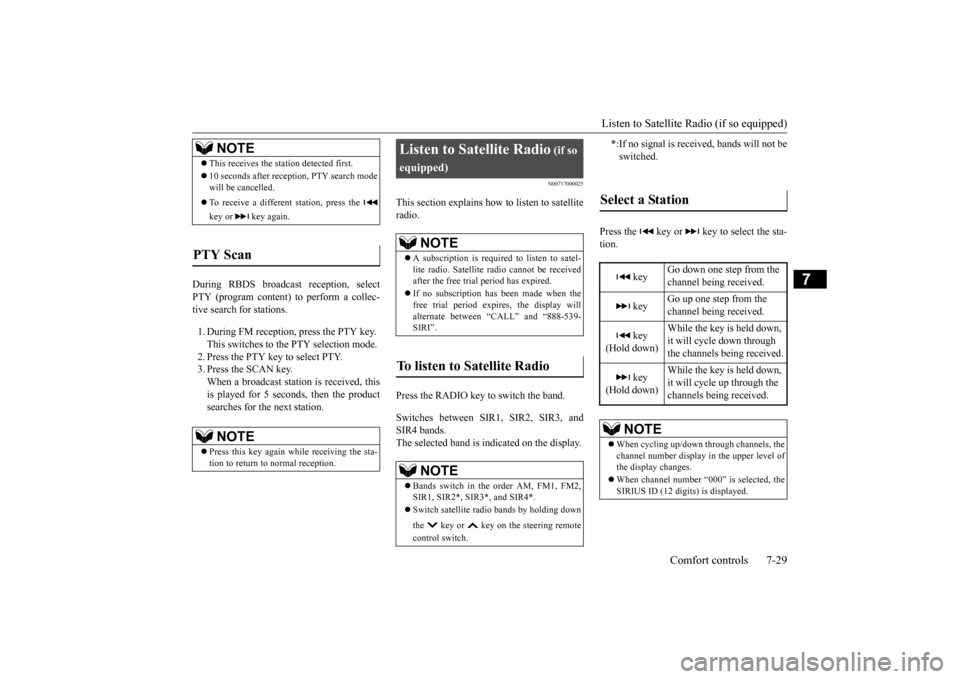
radio. Press the RADIO key to switch the band. Switches between SIR1, SIR2, SIR3, and SIR4 bands. The selected band is indicated on the display.
Press the key or ke
y to select the sta-
tion.
NOTE
This receives the station detected first. 10 seconds after reception, PTY search mode will be cancelled. To receive a different station, press the key or key again.
PTY Scan
NOTE
Press this key again while receiving the sta- tion to return to normal reception.
Listen to Satellite Radio
(if so
equipped)
NOTE
A subscription is require
d to listen to satel-
lite radio. Satellite
radio cannot be received
after the free tria
l period has expired.
If no subscription has been made when the free trial period expire
s, the display will
alternate between “CALL” and “888-539-SIRI”.
To listen to Satellite Radio
NOTE
Bands switch in the order AM, FM1, FM2, SIR1, SIR2*, SIR3*, and SIR4*. Switch satellite radi
o bands by holding down
the key or key on the steering remote control switch.
*:If no signal is received, bands will not be switched.
Select a Station
key
Go down one step from the channel being received.
key
Go up one step from the channel being received.
key
(Hold down)
While the key is held down, it will cycle down through the channels being received.
key
(Hold down)
While the key is held down, it will cycle up through the channels being received.
NOTE
When cycling up/down through channels, the channel number display
in the upper level of
the display changes. When channel number “
000” is selected, the
SIRIUS ID (12 digi
ts) is displayed.
BK0211800US.book 29 ページ 2014年3月12日 水曜日 午後2時42分
Page 345 of 446

Listen to Satellite Radio (if so equipped) 7-30 Comfort controls
7
Channels are received in order and take 10 seconds each. Press the SCAN key. All of the channels are scanned. 1. Press the PTY key. Switches to the category search mode, and the category name is indicated on thedisplay. 2. Turn the /SEL key to select the cate- gory.3. Press the SCAN key. The channels in the selected category are scanned.
Register the channel in
advance, and select
this at a later time. 1. Tune in to the channel to register. 2. Hold down any of the keys from the 1RPT key to the 6 key. A “Beep” sounds, and the preset key isregistered.
Other channels can be
selected while listen-
ing to a channel. 1. Press the PTY key. Switches to the category search mode,and the category name is indicated on the display. 2. Turn the /SEL key to select the cate- gory. 3. Press the /SEL key. Switches to channe
l search mode.
4. Turn the /SEL key to select the chan- nel. 5. Press the /SEL key. A “Beep” sounds, and the selected chan- nel is received. (Channel preliminary set-ting mode) The channel name shown on the display flashes. Press the /SEL key again to cancel the search mode and retu
rn to normal recep-
tion. 6. To continue the search, turn the /SEL key to select the channel. The selected channel is received. 7. Press the /SEL key. Cancels the search mode and returns tonormal reception.
Scan Station Selection
Scan All Channels
NOTE
Press this key again while receiving the channel to return to normal reception. Selecting a channel will cancel this.
Scan Category Channels
NOTE
Press the SCAN key or PTY key again while receiving the channel to return to normalreception. Turning the /SET key will cancel.
Preset Memory
NOTE
The preset memory can register a maximum of 6 stations per band. If a preset key that already has a channel reg- istered is selected, then this is overwritten with the new preset. Pressing the preset key will select the previ- ously registered channel. The preset channels on the display are shownas “P1” though “P6”.
Channel Search
BK0211800US.book 30 ページ 2014年3月12日 水曜日 午後2時42分
Page 355 of 446
Display Indicator 7-40 Comfort controls
7
N00717700022
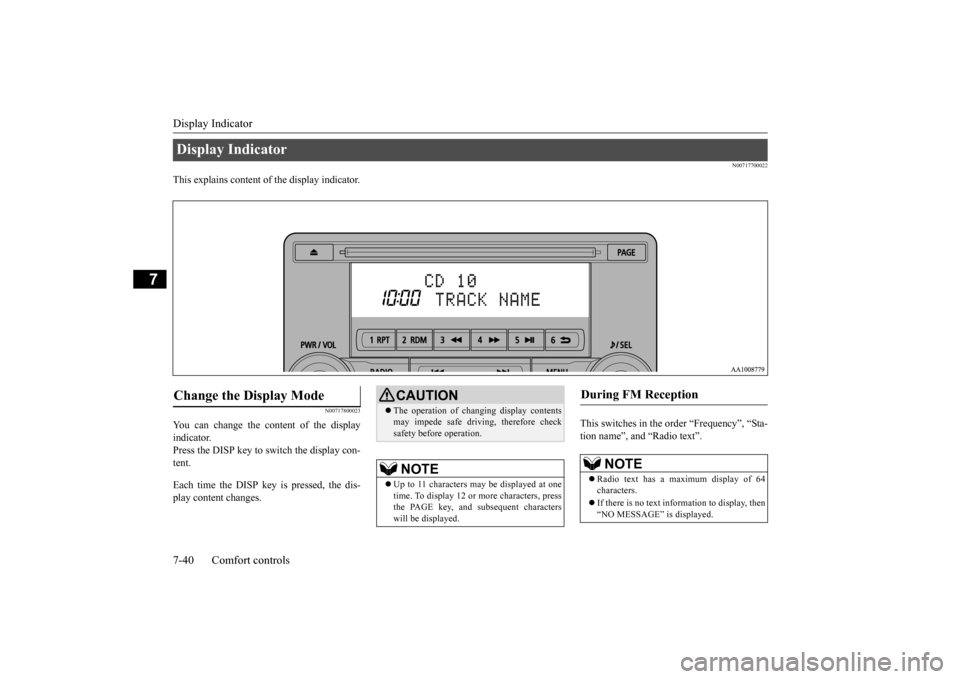
This explains content of the display indicator.
N00717800023
You can change the content of the display indicator. Press the DISP key to switch the display con-tent. Each time the DISP ke
y is pressed, the dis-
play content changes.
This switches in the order “Frequency”, “Sta- tion name”, and “Radio text”.
Display Indicator Change the Display Mode
CAUTION The operation of changing display contents may impede safe driving, therefore checksafety before operation.NOTE
Up to 11 characters
may be displayed at one
time. To display 12 or more characters, press the PAGE key, and s
ubsequent characters
will be displayed.
During FM Reception
NOTE
Radio text has a ma
ximum display of 64
characters. If there is no text information to display, then “NO MESSAGE” is displayed.
BK0211800US.book 40 ページ 2014年3月12日 水曜日 午後2時42分