phone MITSUBISHI OUTLANDER PHEV 2018 (in English) Workshop Manual
[x] Cancel search | Manufacturer: MITSUBISHI, Model Year: 2018, Model line: OUTLANDER PHEV, Model: MITSUBISHI OUTLANDER PHEV 2018Pages: 538, PDF Size: 25.01 MB
Page 379 of 538
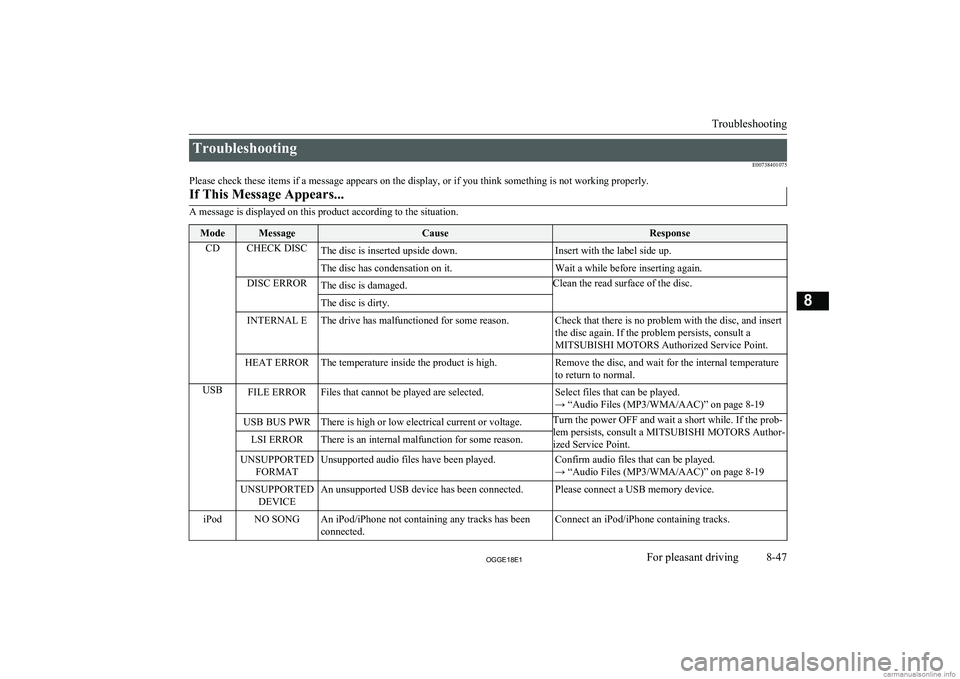
TroubleshootingE00738401075
Please check these items if a message appears on the display, or if you think something is not working properly.If This Message Appears...
A message is displayed on this product according to the situation.
ModeMessageCauseResponseCDCHECK DISCThe disc is inserted upside down.Insert with the label side up.The disc has condensation on it.Wait a while before inserting again.DISC ERRORThe disc is damaged.Clean the read surface of the disc.The disc is dirty.INTERNAL EThe drive has malfunctioned for some reason.Check that there is no problem with the disc, and insert
the disc again. If the problem persists, consult a
MITSUBISHI MOTORS Authorized Service Point.HEAT ERRORThe temperature inside the product is high.Remove the disc, and wait for the internal temperature
to return to normal.USBFILE ERRORFiles that cannot be played are selected.Select files that can be played.
→ “Audio Files (MP3/WMA/AAC)” on page 8-19USB BUS PWRThere is high or low electrical current or voltage.Turn the power OFF and wait a short while. If the prob-
lem persists, consult a MITSUBISHI MOTORS Author- ized Service Point.LSI ERRORThere is an internal malfunction for some reason.UNSUPPORTED FORMATUnsupported audio files have been played.Confirm audio files that can be played.
→ “Audio Files (MP3/WMA/AAC)” on page 8-19UNSUPPORTED DEVICEAn unsupported USB device has been connected.Please connect a USB memory device.iPodNO SONGAn iPod/iPhone not containing any tracks has been
connected.Connect an iPod/iPhone containing tracks.
Troubleshooting
8-47OGGE18E1For pleasant driving8
Page 380 of 538
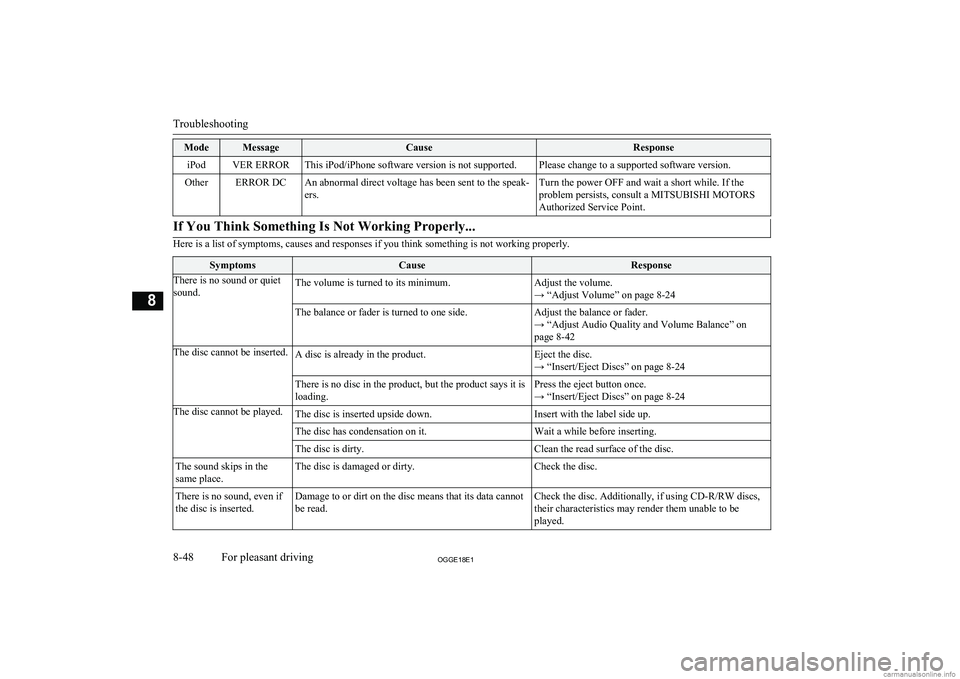
ModeMessageCauseResponseiPodVER ERRORThis iPod/iPhone software version is not supported.Please change to a supported software version.OtherERROR DCAn abnormal direct voltage has been sent to the speak-
ers.Turn the power OFF and wait a short while. If the
problem persists, consult a MITSUBISHI MOTORS Authorized Service Point.If You Think Something Is Not Working Properly...
Here is a list of symptoms, causes and responses if you think something is not working properly.
SymptomsCauseResponseThere is no sound or quiet
sound.The volume is turned to its minimum.Adjust the volume.
→ “Adjust Volume” on page 8-24The balance or fader is turned to one side.Adjust the balance or fader.
→ “Adjust Audio Quality and Volume Balance” on
page 8-42The disc cannot be inserted.A disc is already in the product.Eject the disc.
→ “Insert/Eject Discs” on page 8-24There is no disc in the product, but the product says it is
loading.Press the eject button once.
→ “Insert/Eject Discs” on page 8-24The disc cannot be played.The disc is inserted upside down.Insert with the label side up.The disc has condensation on it.Wait a while before inserting.The disc is dirty.Clean the read surface of the disc.The sound skips in the
same place.The disc is damaged or dirty.Check the disc.There is no sound, even if
the disc is inserted.Damage to or dirt on the disc means that its data cannot
be read.Check the disc. Additionally, if using CD-R/RW discs, their characteristics may render them unable to beplayed.
Troubleshooting
8-48OGGE18E1For pleasant driving8
Page 381 of 538
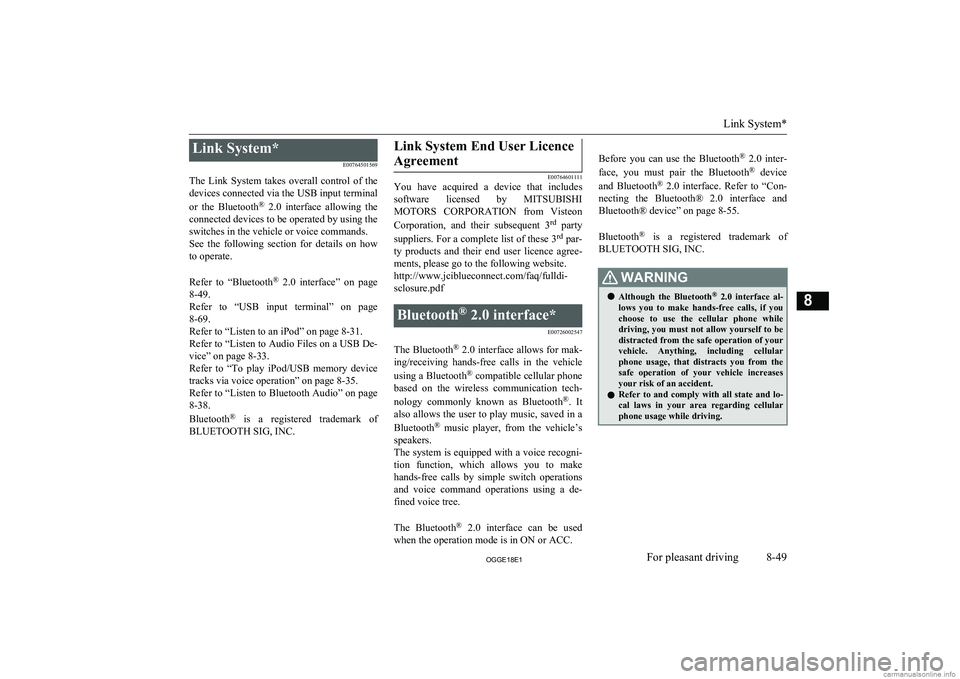
Link System*E00764501569
The Link System takes overall control of the devices connected via the USB input terminal
or the Bluetooth ®
2.0 interface allowing the
connected devices to be operated by using the
switches in the vehicle or voice commands.
See the following section for details on how
to operate.
Refer to “Bluetooth ®
2.0 interface” on page
8-49.
Refer to “USB input terminal” on page
8-69.
Refer to “Listen to an iPod” on page 8-31.
Refer to “Listen to Audio Files on a USB De-
vice” on page 8-33.
Refer to “To play iPod/USB memory device
tracks via voice operation” on page 8-35.
Refer to “Listen to Bluetooth Audio” on page 8-38.
Bluetooth ®
is a registered trademark of
BLUETOOTH SIG, INC.Link System End User Licence
Agreement
E00764601111
You have acquired a device that includes
software licensed by MITSUBISHI
MOTORS CORPORATION from Visteon
Corporation, and their subsequent 3 rd
party
suppliers. For a complete list of these 3 rd
par-
ty products and their end user licence agree-
ments, please go to the following website. http://www.jciblueconnect.com/faq/fulldi-
sclosure.pdf
Bluetooth ®
2.0 interface*
E00726002547
The Bluetooth®
2.0 interface allows for mak-
ing/receiving hands-free calls in the vehicle
using a Bluetooth ®
compatible cellular phone
based on the wireless communication tech-
nology commonly known as Bluetooth ®
. It
also allows the user to play music, saved in a
Bluetooth ®
music player, from the vehicle’s
speakers.
The system is equipped with a voice recogni-
tion function, which allows you to make hands-free calls by simple switch operations
and voice command operations using a de-
fined voice tree.
The Bluetooth ®
2.0 interface can be used
when the operation mode is in ON or ACC.
Before you can use the Bluetooth ®
2.0 inter-
face, you must pair the Bluetooth ®
device
and Bluetooth ®
2.0 interface. Refer to “Con-
necting the Bluetooth® 2.0 interface and Bluetooth® device” on page 8-55.
Bluetooth ®
is a registered trademark of
BLUETOOTH SIG, INC.WARNINGl Although the Bluetooth ®
2.0 interface al-
lows you to make hands-free calls, if you choose to use the cellular phone while
driving, you must not allow yourself to be
distracted from the safe operation of your vehicle. Anything, including cellularphone usage, that distracts you from the safe operation of your vehicle increasesyour risk of an accident.
l Refer to and comply with all state and lo-
cal laws in your area regarding cellular phone usage while driving.
Link System*
8-49OGGE18E1For pleasant driving8
Page 382 of 538
NOTElIf the operation mode is left in ACC, the ac-
cessory power will automatically turn off af-ter a certain period of time and you will no
longer be able to use the Bluetooth ®
2.0 in-
terface. The accessory power comes on again if the power switch is operated.
Refer to “ACC power auto-cutout function”
on page 7-13.
l The Bluetooth ®
2.0 interface cannot be used
if the Bluetooth ®
device has a flat battery or
the device power is turned off.
l Hands-free calls will not be possible if your
phone does not have service available.
l If you place the Bluetooth ®
device in the
luggage compartment, you may not be able
to use the Bluetooth ®
2.0 interface.
l Some Bluetooth ®
devices are not compatible
with the Bluetooth ®
2.0 interface.
l You can confirm the Link System software
version by pressing the HANG-UP button 3
times (press and hold 2 times and then press briefly) within 10 seconds.
l For details on the Bluetooth ®
2.0 interface,
you can see them by accessing the MITSUBISHI MOTORS website.
Please read and agree on the “Warning about
Links to the Web Sites of Other Companies”
because it connects to other than MITSUBISHI MOTORS website.
http://www.mitsubishi-motors.com/en/prod-
ucts/index.htmlNOTEl Software updates by cellular phone/digital
audio device manufacturers may change/
alter device connectivity.
Steering control switch and microphone
® p. 8-50
Voice recognition function ® p. 8-51
Useful voice commands ® p. 8-52
Speaker enrollment function ® p. 8-54
Connecting the Bluetooth® 2.0 interface and Bluetooth® device ® p. 8-55
Operating a music player connected via Blue-
tooth® ® p. 8-60
How to make or receive hands-free calls ® p. 8-60
Phone book function ® p. 8-63
Steering control switch and mi-
crophone
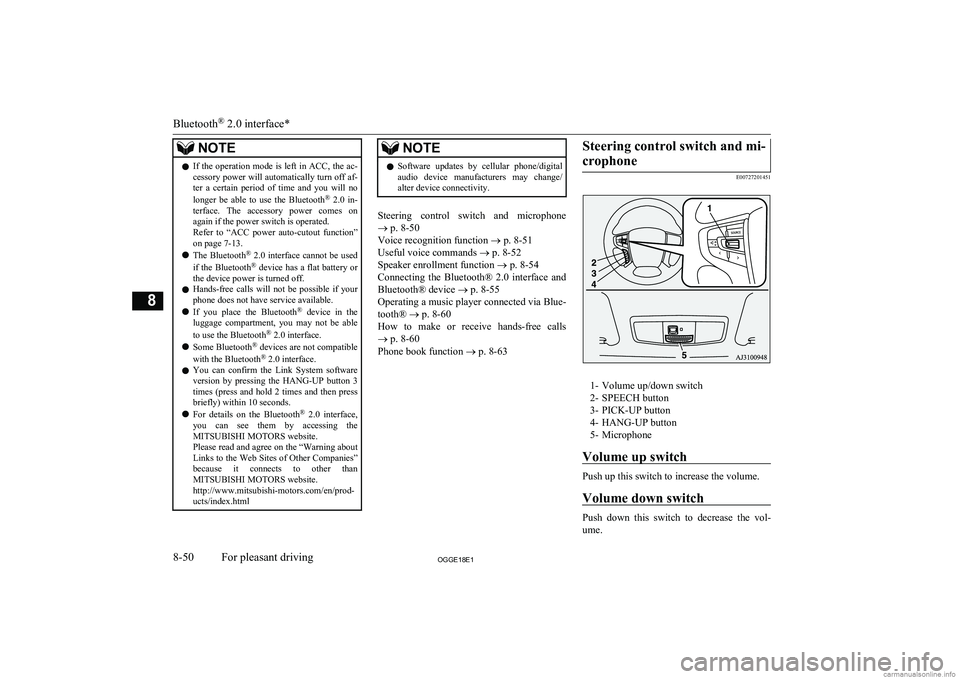
E00727201451
1- Volume up/down switch2- SPEECH button
3- PICK-UP button
4- HANG-UP button
5- Microphone
Volume up switch
Push up this switch to increase the volume.
Volume down switch
Push down this switch to decrease the vol- ume.
Bluetooth ®
2.0 interface*
8-50OGGE18E1For pleasant driving8
Page 383 of 538
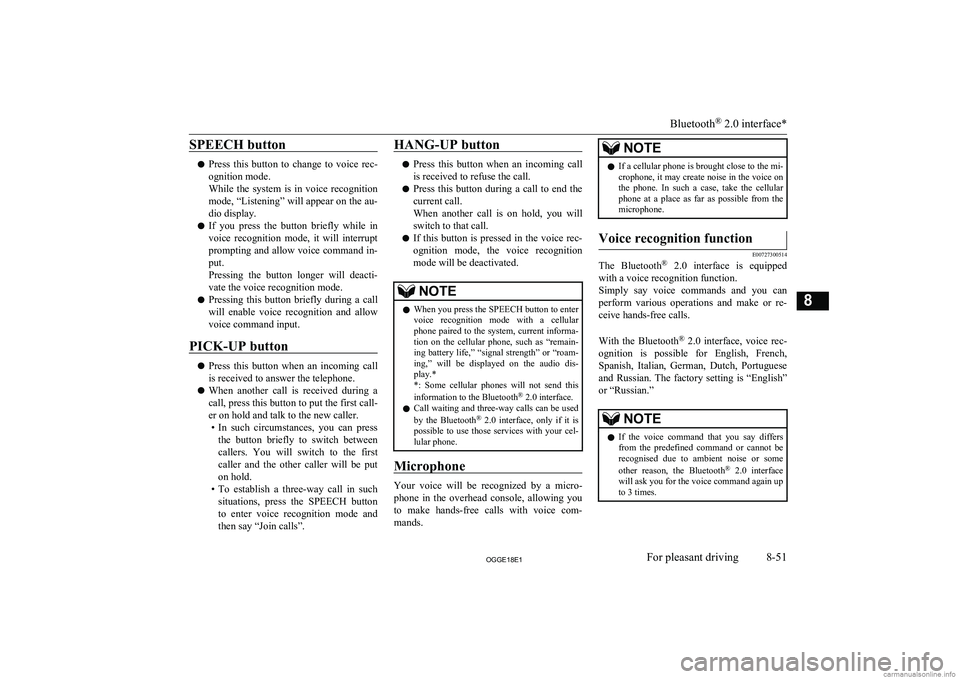
SPEECH button
lPress this button to change to voice rec-
ognition mode.
While the system is in voice recognition
mode, “Listening” will appear on the au- dio display.
l If you press the button briefly while in
voice recognition mode, it will interrupt prompting and allow voice command in-
put.
Pressing the button longer will deacti-
vate the voice recognition mode.
l Pressing this button briefly during a call
will enable voice recognition and allow voice command input.
PICK-UP button
l Press this button when an incoming call
is received to answer the telephone.
l When another call is received during a
call, press this button to put the first call-
er on hold and talk to the new caller. • In such circumstances, you can press
the button briefly to switch between
callers. You will switch to the first
caller and the other caller will be put on hold.
• To establish a three-way call in such
situations, press the SPEECH button
to enter voice recognition mode and then say “Join calls”.
HANG-UP button
l Press this button when an incoming call
is received to refuse the call.
l Press this button during a call to end the
current call.
When another call is on hold, you will switch to that call.
l If this button is pressed in the voice rec-
ognition mode, the voice recognition
mode will be deactivated.
NOTEl When you press the SPEECH button to enter
voice recognition mode with a cellular
phone paired to the system, current informa- tion on the cellular phone, such as “remain- ing battery life,” “signal strength” or “roam-
ing,” will be displayed on the audio dis-
play.*
*: Some cellular phones will not send this
information to the Bluetooth ®
2.0 interface.
l Call waiting and three-way calls can be used
by the Bluetooth ®
2.0 interface, only if it is
possible to use those services with your cel- lular phone.
Microphone
Your voice will be recognized by a micro-
phone in the overhead console, allowing you to make hands-free calls with voice com-
mands.
NOTEl If a cellular phone is brought close to the mi-
crophone, it may create noise in the voice on
the phone. In such a case, take the cellular phone at a place as far as possible from the
microphone.Voice recognition function
E00727300514
The Bluetooth ®
2.0 interface is equipped
with a voice recognition function.
Simply say voice commands and you can
perform various operations and make or re- ceive hands-free calls.
With the Bluetooth ®
2.0 interface, voice rec-
ognition is possible for English, French,
Spanish, Italian, German, Dutch, Portuguese and Russian. The factory setting is “English” or “Russian.”
NOTEl If the voice command that you say differs
from the predefined command or cannot be recognised due to ambient noise or some
other reason, the Bluetooth ®
2.0 interface
will ask you for the voice command again up
to 3 times.
Bluetooth ®
2.0 interface*
8-51OGGE18E1For pleasant driving8
Page 384 of 538
NOTElFor best performance and further reduction
of ambient noise, close the vehicle windows,lower the blower speed and refrain from
conversation with your passengers while en- gaging the voice recognition function.
l Some voice commands have alternative
commands.
l Depending on the selected language, some
functions may not be available.
Selecting the Language
1. Press the SPEECH button.
2. Say “Setup”.
3. Say “Language.”
4. The voice guide will say “Select a lan-
guage: English, French, Spanish, Italian,
German, Dutch, Portuguese or Russian” Say the desired language. (Example: Say“English.”)
5. The voice guide will say “English
(French, Spanish, Italian, German, Dutch, Portuguese or Russian) selected.
Is this correct?” Say “Yes.”
Answer “No” to return to Step 4.
NOTEl The voice guide will repeat the same mes-
sage twice. The first message is in the cur-rent language, and the second message is in the selected language.NOTEl If many entries are registered in the vehicle
phone book, changing the language will take
longer.
l Changing the language deletes the mobile
phone book imported to the Bluetooth ®
2.0
interface. If you wish to use it, you will have
to import it again.
6. When the voice guide says “English
(French, Spanish, Italian, German, Dutch, Portuguese or Russian) selected,”the language change process will be
completed and the system will return to the main menu.
Useful voice commands
E00760000019
Help function
E00760100010
The Bluetooth ®
2.0 interface is equipped
with a help function.
If you say “Help” when the system is waiting for a voice command input, the system will
tell you a list of the commands that can be used under the circumstances.
Cancelling
E00760201021
There are two cancel functions.
If you are at the main menu, say “Cancel” to
exit from the Bluetooth ®
2.0 interface.
If you are anywhere else within the system,
say “Cancel” to return to the main menu.NOTEl You can return to the previous menu by say-
ing “Go Back.” (if so equipped)Confirmation function setting
E00760400013
The Bluetooth ®
2.0 interface is equipped
with a confirmation function.
With the confirmation function activated, you are given more opportunities than normal to
confirm a command when making various
settings to the Bluetooth ®
2.0 interface. This
allows you to decrease the possibility that a setting is accidentally changed.
The confirmation function can be turned on
or off by following the steps below. 1. Press the SPEECH button.
2. Say “Setup”.
3. Say “Confirmation prompts”.
4. The voice guide will say “Confirmation
prompts are
turn confirmation prompts
5. The voice guide will say “Confirmation
prompts are
Bluetooth ®
2.0 interface*
8-52OGGE18E1For pleasant driving8
Page 386 of 538
Speaker enrollment function
E00727400209
The Bluetooth ®
2.0 interface can use the
speaker enrollment function to create a voice model for one person per language.
This makes it easier for the Bluetooth ®
2.0
interface to recognise voice commands said
by you.
You can turn a voice model registered with the speaker enrollment function on and off
whenever you want.
Speaker enrollment
E00727501294
It takes about 2 to 3 minutes to complete the speaker enrollment process.
To ensure the best results, run through the
process while in the driver’s seat, in an envi- ronment that is as quiet as possible (whenthere is no rain or strong winds and the vehi-cle windows are closed). Please turn off your
phone while in speaker enrollment to prevent
interruption of the process.
Use the following procedure for speaker en- rollment. 1. Stop your vehicle in a safe area, firmly
apply the parking brake and push the
electrical parking switch.
NOTEl Speaker enrollment is not possible unless the
vehicle is parked. Make sure you park the
vehicle in a safe area before attempting speaker enrollment.
2. Press the SPEECH button.
3. Say “Voice training”.
4. The voice guide will say “This operation
must be performed in a quiet environ- ment while the vehicle is stopped. See
the owner’s manual for the list of re- quired training phrases. Press and re-
lease the SPEECH button when you are ready to begin. Press the HANG-UP but-
ton to cancel at any time”.
Press the SPEECH button to start the
speaker enrollment process.
NOTEl If you do not start the speaker enrollment
process within 3 minutes of pressing the SPEECH button, the speaker enrollment function will time out.
The voice guide will say “Speaker Enroll-
ment has timed out”. The system will then beep and the voice recognition mode will be
deactivated.
5. The voice guide will prompt for phrase
1. Repeat the corresponding phrase lis-
ted in table “Enrollment commands” on
page 8-69.
The system will register your voice and
then move on to the registration of the next command. Continue the process un-
til all phrases have been registered.NOTEl To repeat the most recent voice training
command, press and release the SPEECH button.
l If you press the HANG-UP button anytime
during the process, the system will beep and
stop the speaker enrollment process.
6. When all enrollment commands have
been read out, the voice guide will say “Speaker enrollment is complete”. The
system will then end the speaker enroll-
ment process and return to the main
menu.
NOTEl Completing the speaker enrollment process
will turn on the voice model automatically.
l The commands “Help” and “Cancel” will
not work in this mode.
Bluetooth ®
2.0 interface*
8-54OGGE18E1For pleasant driving8
Page 387 of 538
Enabling and disabling thevoice model and retraining
E00727600096
You can turn a voice model registered with
the speaker enrollment function on and off whenever you want.
You can also retrain the system.
Use the following procedure to perform these
actions. 1. Press the SPEECH button.
2. Say “Voice training”.
3. If you have completed a speaker enroll-
ment process once already, the voice guide will say either “Enrollment is ena-
bled. Would you like to disable or re-
train?” or “Enrollment is disabled. Would you like to enable or retrain?”
4. When enrollment is “enabled”, the voice
model is on; when enrollment is “disa-
bled”, the voice model is off. Say the command that fits your needs.
Say “Retrain” to start the speaker enroll- ment process and recreate a new voice
model. (Refer to “Speaker enrollment”
on page 8-54.)
Connecting the Bluetooth ®
2.0
interface and Bluetooth ®
de-
vice
E00760601663
Before you can make or receive hands-free
calls or play music using the Bluetooth ®
2.0
interface function, you must pair the Blue-
tooth ®
device and Bluetooth ®
2.0 interface.
NOTEl Pairing is required only when the device is
used for the first time. Once the device has
been paired with the Bluetooth ®
2.0 inter-
face, all you need is to bring the device into the vehicle next time and the device will
connect to the Bluetooth ®
2.0 interface auto-
matically (if supported by the device). The
device must have Bluetooth ®
turned ON to
connect.
Up to 7 Bluetooth ®
devices can be paired
with the Bluetooth ®
2.0 interface.
If multiple paired Bluetooth ®
devices are
available in the vehicle, the cellular phone or music player most recently connected is auto-
matically connected to the Bluetooth ®
2.0 in-
terface.
You can also change a Bluetooth ®
device to
be connected.
To pair
To pair a Bluetooth ®
device with the Blue-
tooth ®
2.0 interface, use either one of the fol-
lowing 2 methods (Type 1 or Type 2).
Pairing procedure - Type 1*
1. Stop your vehicle in a safe area, firmly
apply the parking brake and push the
electrical parking switch.
NOTEl You cannot pair any Bluetooth ®
device with
the Bluetooth ®
2.0 interface unless the vehi-
cle is parked. Before pairing a Bluetooth ®
device with the Bluetooth ®
2.0 interface,
confirm that the vehicle is parked in a safe
location.
2. Press the SPEECH button.
3. Say “Setup”.
4. Say “Pairing Options.”
5. The voice guide will say “Select one of
the following: pair, edit, delete, or list.” Say “Pair.”
Bluetooth ®
2.0 interface*
8-55OGGE18E1For pleasant driving8
Page 390 of 538
7.The voice guide will say “Pairing Com-
plete. Would you like to import the con-
tacts from your mobile device now?”
Answer “Yes,” and the voice guide will say “Please wait while the contacts areimported. This may take several mi-
nutes.” Answer “No” to end the pairing process.
If your device requires a specific pairing
code
If your device requires a specific pairing code, you need to set the pairing code. Fol-
low the procedures below. 1. Press the SPEECH button.
2. Say “Setup.”
3. Say “Pairing Options.”
4. Say “Set Code.”
5. The voice guide will say “Do you want
the pairing code to be random or fixed?” Say “Fixed.”
6. The voice guide will say “Please say a 4-
digit pairing code.” Say a 4-digit num- ber.
7. The voice guide will say “Pairing code
set to
When the confirmation function is on, the system will confirm whether the number said is acceptable. Answer
“Yes.”
Answer “No” to return to Step 6.
8. The voice guide will say “Do you want
to pair a device now?” Answer “Yes,”the system will proceed to Step 3 in thepairing process. Refer to the “Pairing
procedure- Type 2.”Selecting a device
E00760700104
If multiple paired Bluetooth ®
devices are
available in the vehicle, the cellular phone or
music player most recently connected is auto-
matically connected to the Bluetooth ®
2.0 in-
terface.
You can connect to the other paired cellular
phone or music player by following setting change procedures.
To select a cellular phone
1. Press the SPEECH button.
2. Say “Setup”.
3. Say “Select phone.”
4. After the voice guide says “Please say,”
the numbers of the cellular phones and
device tags of corresponding cellular
phones will be read out in order, starting with the cellular phone that has been
most recently connected.
Say the number of the cellular phone
that you want to connect to.
When the confirmation function is on, the system will ask you again whether the phone that you want to connect to is
correct. Answer “Yes” to continue and
connect to the cellular phone.
Answer “No,” and the voice guide will say “Please say.” Say the number of the phone that you want to connect to.NOTEl You can connect to a phone at any time by
pressing the SPEECH button and saying thenumber, even before all of the paired num- bers and device tags of corresponding cellu-
lar phones are read out by the system.
5. The selected phone will be connected to
the Bluetooth ®
2.0 interface. The voice
guide will say “
and then the system will return to the main menu.
To select a music player
1. Press the SPEECH button.
2. Say “Setup”.
3. Say “Select music player.”
4. After the voice guide says “Please say,”
the numbers of the music players and de-
vice tags of corresponding music players
will be read out in order, starting with
the music player that has been most re- cently connected.
Say the number of the music player that you want to connect to.
Bluetooth ®
2.0 interface*
8-58OGGE18E1For pleasant driving8
Page 391 of 538
When the confirmation function is on,the system will ask you again whether
the music player that you want to con- nect to is correct. Answer “Yes” to con- tinue and connect to the music player.
Answer “No,” and the voice guide will say “Please say.” Say the number of the
music player that you want to connect to.NOTEl You can connect to a music player at any
time by pressing the SPEECH button andsaying the number, even before all of thepaired numbers and device tags of corre-
sponding music players are read out by the
system.
5. The selected music player will be con-
nected to the Bluetooth ®
2.0 interface.
The voice guide will say “
selected” and then the system will return to the main menu.
Deleting a device
Use the following procedure to delete a
paired Bluetooth ®
device from the Blue-
tooth ®
2.0 interface.
1. Press the SPEECH button.
2. Say “Setup”.
3. Say “Pairing options.”
4. The voice guide will say “Select one of
the following: pair, edit, delete, or list.”
Say “Delete.”
5. After the voice guide says “Please say,”
the numbers of the devices and device
tags of corresponding devices will be read out in order, starting with the de-
vice that has been most recently connec- ted. After it completes reading all pairs,
the voice guide will say “or all.”
Say the number of the device that you
want to delete from the system.
If you want to delete all paired phones
from the system, say “All.”
6. For confirmation purposes, the voice
guide will say “Deleting
Answer “Yes” to delete the phone(s). Answer “No” to return to Step 4.
7. The voice guide will say “Deleted,” and
then the system will end the device dele-
tion process.NOTEl If the device deletion process fails for some
reason, the voice guide will say “Delete failed” and then the system will cancel delet- ing the device.To check a paired Bluetooth ®
device
E00760800017
You can check a paired Bluetooth ®
device by
following the steps below. 1. Press the SPEECH button.
2. Say “Setup”.
3. Say “Pairing options.”
4. The voice guide will say “Select one of
the following: pair, edit, delete, or list.”
Say “List.”
5. The voice guide will read out device tags of corresponding devices in order, start-
ing with the Bluetooth ®
device that has
been connected most recently.
6. After the device tags of all paired Blue-
tooth ®
devices have been read, the sys-
tem will say “End of list, would you like
to start from the beginning?”
To hear the list again from the begin- ning , answer “Yes.”
When you are done, answer “No” to re- turn to the main menu.Bluetooth ®
2.0 interface*
8-59OGGE18E1For pleasant driving8