Key code MITSUBISHI OUTLANDER SPORT 2014 3.G User Guide
[x] Cancel search | Manufacturer: MITSUBISHI, Model Year: 2014, Model line: OUTLANDER SPORT, Model: MITSUBISHI OUTLANDER SPORT 2014 3.GPages: 384, PDF Size: 46.94 MB
Page 87 of 384
Free-hand Advanced Security Transmitte
r (F.A.S.T.-key) (if so equipped)
5-24 Features and controls
5
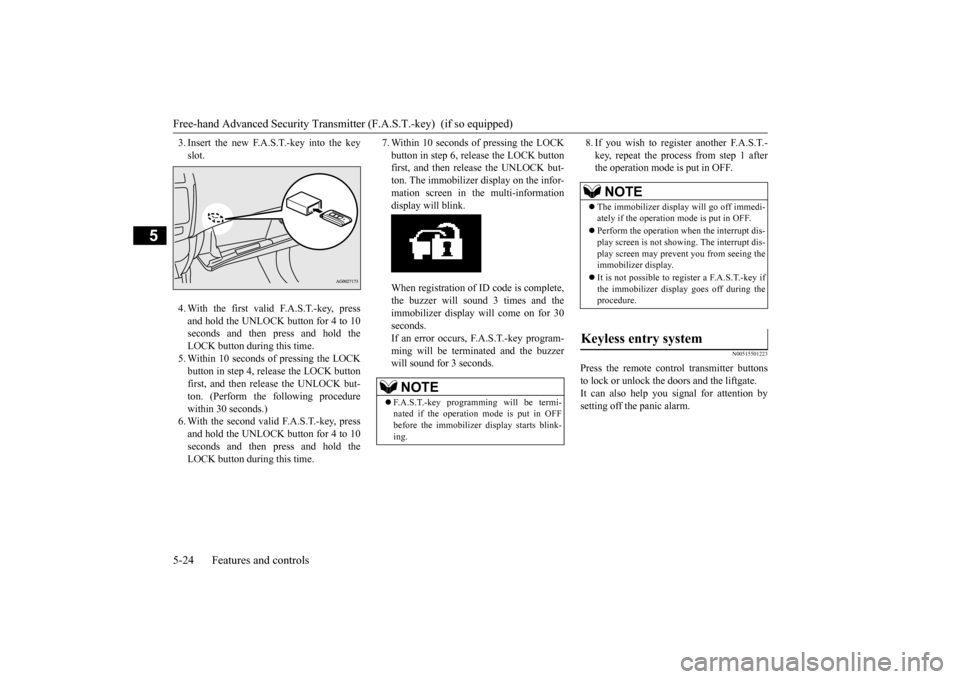
3. Insert the new F.A.S.T.-key into the key slot. 4. With the first valid F.A.S.T.-key, press and hold the UNLOCK button for 4 to 10 seconds and then press and hold the LOCK button during this time.5. Within 10 seconds of pressing the LOCKbutton in step 4, release the LOCK button first, and then release the UNLOCK but- ton. (Perform the following procedurewithin 30 seconds.) 6. With the second valid F.A.S.T.-key, press and hold the UNLOCK button for 4 to 10seconds and then press and hold the LOCK button during this time.
7. Within 10 seconds of pressing the LOCK button in step 6, release the LOCK button first, and then release the UNLOCK but- ton. The immobilizer display on the infor-mation screen in the multi-information display will blink. When registration of ID code is complete, the buzzer will sound 3 times and theimmobilizer display will come on for 30 seconds. If an error occurs, F.A.S.T.-key program-ming will be terminated and the buzzer will sound for 3 seconds.
8. If you wish to register another F.A.S.T.- key, repeat the process from step 1 after the operation mode is put in OFF.
N00515501223
Press the remote control transmitter buttonsto lock or unlock the doors and the liftgate. It can also help you signal for attention bysetting off the panic alarm.
NOTE
F.A.S.T.-key programming will be termi- nated if the operation mode is put in OFF before the immobilizer display starts blink- ing.
NOTE
The immobilizer display will go off immedi- ately if the operation mode is put in OFF. Perform the operation when the interrupt dis- play screen is not showing. The interrupt dis- play screen may prevent you from seeing theimmobilizer display. It is not possible to register a F.A.S.T.-key if the immobilizer display goes off during the procedure.
Keyless entry system
BK0202700US.bo
ok 24 ページ 2013年3月28日 木曜日 午前11時54分
Page 108 of 384
Starting the engine
Features and controls 5-45
5
Engages the starter. Release the key when the engine starts.It will auto
matically back to the
“ON” position.
N00539601084
After about 30 minutes has elapsed with the ignition switch in the “ACC” position, the function automatically cuts out the power forthe audio system and other electric devices that can be operated with that position. When the ignition switch is turned from the“ACC” position, the power is supplied again to those devices.
N00550900197
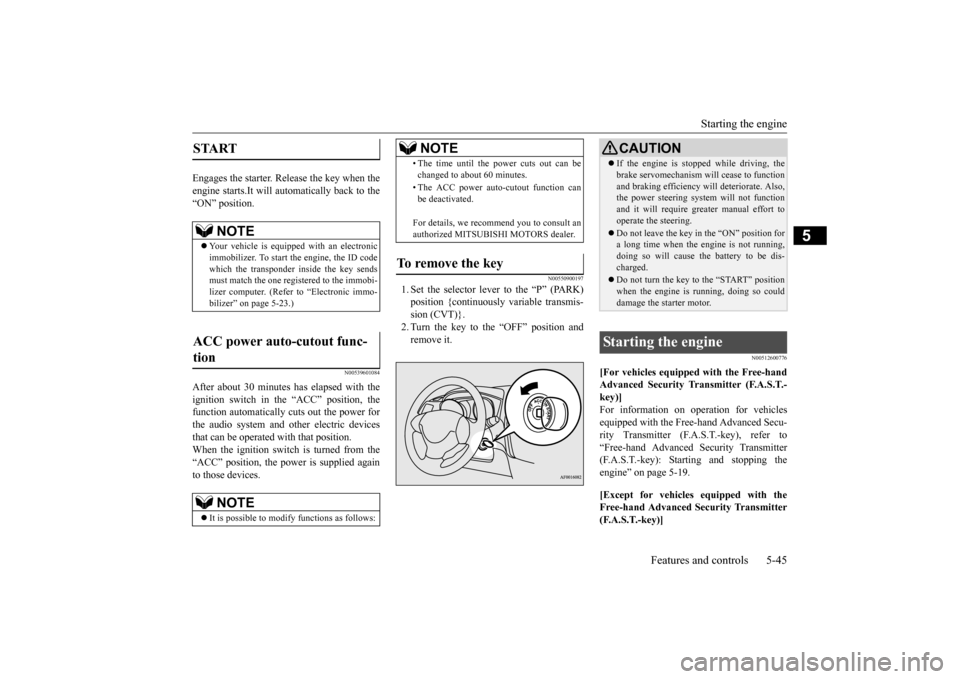
1. Set the selector lever to the “P” (PARK)position {continuously variable transmis- sion (CVT)}.2. Turn the key to the “OFF” position and remove it.
N00512600776
[For vehicles equipped with the Free-hand Advanced Security Transmitter (F.A.S.T.-key)] For information on operation for vehicles equipped with the Free-hand Advanced Secu-rity Transmitter (F.A.S.T.-key), refer to “Free-hand Advanced Security Transmitter (F.A.S.T.-key): Starting and stopping theengine” on page 5-19. [Except for vehicles equipped with the Free-hand Advanced Security Transmitter (F.A.S.T.-key)]
START
NOTE
Your vehicle is equipped with an electronic immobilizer. To start the engine, the ID code which the transponder inside the key sendsmust match the one registered to the immobi- lizer computer. (Refer to “Electronic immo- bilizer” on page 5-23.)
ACC power auto-cutout func- tion
NOTE
It is possible to modify functions as follows:
• The time until the power cuts out can be changed to about 60 minutes. • The ACC power auto-cutout function can be deactivated. For details, we recommend you to consult an authorized MITSUBISHI MOTORS dealer.
To remove the key
NOTE
CAUTION If the engine is stopped while driving, the brake servomechanism will cease to function and braking efficiency will deteriorate. Also, the power steering system will not function and it will require greater manual effort tooperate the steering. Do not leave the key in the “ON” position for a long time when the engine is not running, doing so will cause the battery to be dis- charged. Do not turn the key to the “START” position when the engine is running, doing so coulddamage the starter motor.
Starting the engine
BK0202700US.bo
ok 45 ページ 2013年3月28日 木曜日 午前11時54分
Page 204 of 384

Bluetooth® 2.0 interface (if so equipped)
Features and controls 5-141
5
To pair a Bluetooth
® device with the Blue-
tooth
® 2.0 interface, follow the steps below.
1. Stop your vehicle in a safe area, put the gearshift lever in the “N” (Neutral) posi- tion (manual transaxle), or the selector lever in the “P” (PARK) position (contin-uously variable transmission (CVT)), and pull the parking brake lever. 2. Press the SPEECH button (except for vehicles with Mitsubishi Multi-Commu- nication System) or PICK-UP button (for vehicles with Mitsubishi Multi-Commu-nication System).3. Say “Setup.” 4. Say “Pairing Options.”
5. The voice guide will say “Select one of the following: pair, edit, delete, or list.” Say “Pair.” 6. The voice guide will say “Please say a 4- digit pairing code.” Say a 4-digit number. When the confirmation function is on, the system will confirm whether the numbersaid is acceptable. Answer “Yes.” Answer “No” to return to pairing code selection.
7. The voice guide will say “Start pairing procedure on the device. See the device manual for instructions.” Enter in the Bluetooth
® device the 4-digit number you
have registered in Step 6.
To p a i r
NOTE
You cannot pair any Bluetooth
® device with
the Bluetooth
® 2.0 interface unless the vehi-
cle is parked. Before pairing a Bluetooth
®
device with the Bluetooth
® 2.0 interface,
confirm that the vehicle is parked in a safe location.
NOTE
If 7 devices have already been paired, the voice guide will say “Maximum devices paired” and then the system will end thepairing process. To register a new device, delete one device and then repeat the pairing process.(Refer to “Selecting a device: Deleting a device” on page 5-142.)NOTE
Some Bluetooth
® devices require a specific
pairing code. Please refer to the device man- ual for pairing code requirements.
The pairing code entered here is only used for the Bluetooth
® connection certification.
It is any 4-digit number the user would like to select. Remember the pairing code as it needs to be keyed into the Bluetooth
® device later in the
pairing process. Depending on the connection settings of the Bluetooth
® device, this code may have to be
entered each time you connect the Blue- tooth
® device to the Bluetooth
® 2.0 inter-
face. For the default connection settings, refer to the instructions for the device.NOTE
Depending on the Bluetooth
® device, it may
take a few minutes to pair it with the Blue- tooth
® 2.0 interface.
If the Bluetooth
® 2.0 interface cannot recog-
nize the Bluetooth
® device, the voice guide
will say “Pairing has timed out” and the pair-ing process will be cancelled. Confirm that the device you are pairing sup- ports Bluetooth
®, and try pairing it again.
NOTE
BK0202700US.book
141 ページ 2013年3月28日 木曜日 午前11時54分
Page 287 of 384

Listen to CDs 7-42 Comfort controls
7
The CODE required for changing the LOCK settings in the satellite settings is initialized.(The factory setting is “1111”.) When the power is off, press the PWR/VOL key while holding down the /SEL key. “Turn the Power ON/OFF” (P7-36)
N00717100039
This explains how to listen to audio CDs (CD-DA/CD-TEXT). Insert the disc. Insert a disc to automatically start playback. “Insert/Eject Discs” (P.7-36)
If a disc is already within the product, press the MEDIA key to switch to CD as the source. Press the key or key to select the track. This enables selection of the next or previous track. Hold down the 3 key or the 4 key. Fast forward/rewind is possible. Repeat playback, random playback, and scan playback are possible. Press the 1RPT key. Repeat playback of th
e track currently being
played.
Press the 2RDM key. Play the tracks on the disc in a random order. Press the SCAN key. Play the first 10 seconds of each track on the disc in order.
In the channel preliminary setting mode, press the 6 key to return to the category search mode without returning to the previ- ous channel search mode. If there is no operation for 10 seconds, the search mode will be cancelled.
Initialize the CODE (Passcode)
Listen to CDs Play CDs
NOTE
Select the Track Fast Forward or Rewind Switch Playback Mode Repeat Playback (RPT)
NOTE
Pressing again will cancel. Selecting a track, ejecting, fast forwarding, or rewinding will cancel.
Random Playback (RDM)
NOTE
Pressing again will cancel. Ejecting will cancel this.
Scan Playback (SCAN)
NOTE
Press this button again during playback if you wish to hear that track, and that track will play normally.
BK0202700US.bo
ok 42 ページ 2013年3月28日 木曜日 午前11時54分
Page 299 of 384
System Settings 7-54 Comfort controls
7
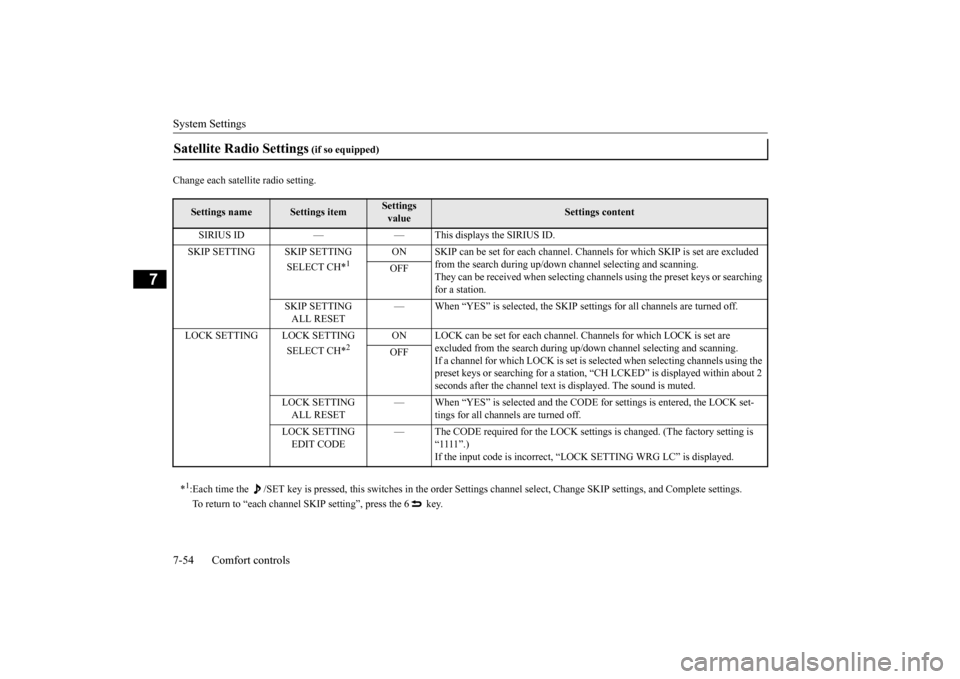
Change each satellite radio setting.Satellite Radio Settings
(if so equipped)
Settings name
Settings item
Settings value
Settings content
SIRIUS ID — — This displays the SIRIUS ID. SKIP SETTING SKIP SETTING
SELECT CH*
1
ON SKIP can be set for each channel. Channe
ls for which SKIP is set are excluded
from the search during up/down channel selecting and scanning.They can be received when selecting chan
nels using the preset keys or searching
for a station.
OFF
SKIP SETTING ALL RESET
— When “YES” is selected, the SKIP settings for all channels are turned off.
LOCK SETTING LOCK SETTING
SELECT CH*
2
ON LOCK can be set for each channel. Channels for which LOCK is set are
excluded from the search during up/do
wn channel selecting and scanning.
If a channel for which LOCK is set is sel
ected when selecting channels using the
preset keys or searching for a station, “CH LCKED” is displayed within about 2 seconds after the channel text is displayed. The sound is muted.
OFF
LOCK SETTING ALL RESET
— When “YES” is selected and the CODE
for settings is entered, the LOCK set-
tings for all channels are turned off.
LOCK SETTING EDIT CODE
— The CODE required for the LOCK settings is changed. (The factory setting is
“1111”.)If the input code is incorrect, “LOCK SETTING WRG LC” is displayed.
*1: Each time the /SET key is pressed, this switches in the order Sett
ings channel select, Change SKIP settings, and Complete setti
ngs.
To return to “each channel SKIP setting”, press the 6 key.
BK0202700US.bo
ok 54 ページ 2013年3月28日 木曜日 午前11時54分
Page 300 of 384
System Settings
Comfort controls 7-55
7
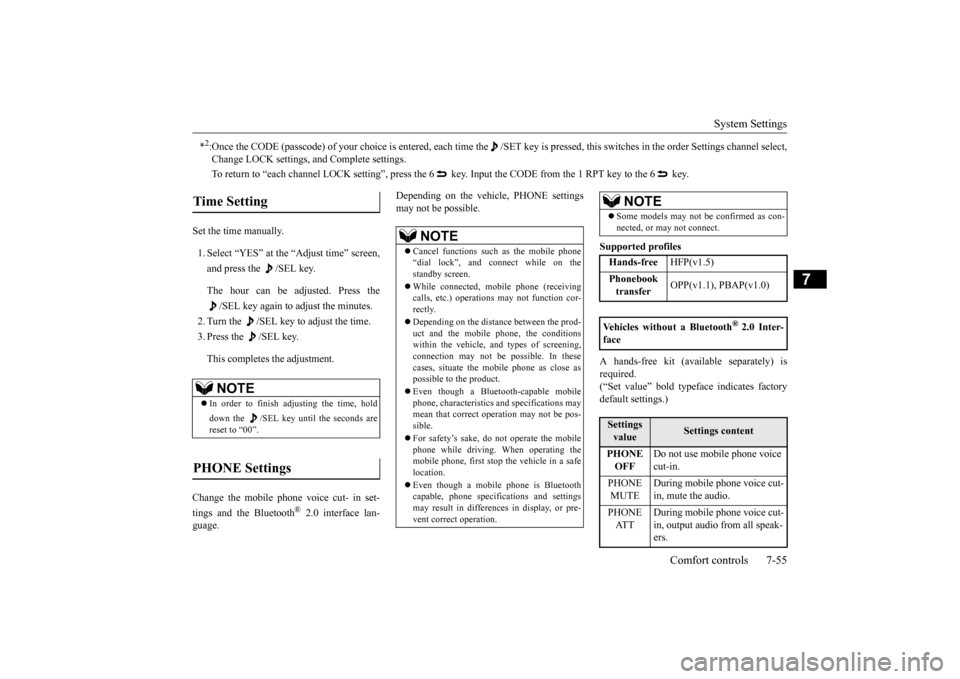
Set the time manually. 1. Select “YES” at the “Adjust time” screen, and press the /SEL key. The hour can be adjusted. Press the
/SEL key again to adjust the minutes.
2. Turn the /SEL key to adjust the time.3. Press the /SEL key. This completes the adjustment.
Change the mobile phone voice cut- in set- tings and the Bluetooth
® 2.0 interface lan-
guage.
Depending on the vehicle, PHONE settings may not be possible.
Supported profiles A hands-free kit (available separately) is required.(“Set value” bold typeface indicates factory default settings.)
*2:Once the CODE (passcode) of your choice is entered, each time th
e /SET key is pressed, this switches in the order Settings chan
nel select,
Change LOCK settings, and Complete settings. To return to “each channel LOCK setting”, press the 6
key. Input the CODE from the 1 RPT key to the 6 key.
Time Setting
NOTE
In order to finish adjusting the time, hold down the /SEL key until the seconds are reset to “00”.
PHONE Settings
NOTE
Cancel functions such as the mobile phone “dial lock”, and connect while on the standby screen. While connected, mobile phone (receiving calls, etc.) operations may not function cor- rectly. Depending on the distance between the prod- uct and the mobile phone, the conditions within the vehicle, and types of screening, connection may not be possible. In thesecases, situate the mobile phone as close as possible to the product. Even though a Bluetooth-capable mobile phone, characteristics and specifications may mean that correct operation may not be pos-sible. For safety’s sake, do not operate the mobile phone while driving. When operating the mobile phone, first stop the vehicle in a safe location. Even though a mobile phone is Bluetooth capable, phone specifications and settingsmay result in differences in display, or pre- vent correct operation.
Some models may not be confirmed as con- nected, or may not connect.Hands-free
HFP(v1.5)
Phonebook transfer
OPP(v1.1), PBAP(v1.0)
Vehicles without a Bluetooth
® 2.0 Inter-
faceSettings value
Settings content
PHONE OFF
Do not use mobile phone voice cut-in.
PHONE MUTE
During mobile phone voice cut- in, mute the audio.
PHONE AT T
During mobile phone voice cut- in, output audio from all speak- ers.
NOTE
BK0202700US.bo
ok 55 ページ 2013年3月28日 木曜日 午前11時54分