display MITSUBISHI PAJERO IV 2011 Manual PDF
[x] Cancel search | Manufacturer: MITSUBISHI, Model Year: 2011, Model line: PAJERO IV, Model: MITSUBISHI PAJERO IV 2011Pages: 377, PDF Size: 29.43 MB
Page 237 of 377

Bluetooth
®
device control panel and display
E007626000351- PWR (On-Off) button
2- DISP (Title display) button
3-
CD (Mode change) button
4-
RPT (Repeat) button
5- RDM (Random) button
6- PAGE (Title scroll) button
7- TRACK (Track up/down) button 8- SCAN button
9- Play button
10- Pause/Stop button
11- BT-A (Bluetooth ®
) indicator
12-
TRACK indicator
13- RPT/RDM/SCAN indicator For pleasant driving
5-54
5
OBKE12E1
Page 238 of 377
To listen to tracks from a device con-
nected via Bluetooth
®
E00762700195
1. Press the PWR
button (1) to turn on the au-
dio system. The system turns on in the last
mode used.
2. Press the CD button (3) several times to
switch to the BT-A (Bluetooth ®
) mode. The
input mode changes as follows every time
the CD button is pressed.
CD mode → USB (iPod) mode → Blue-
tooth ®
mode → Rear-seat display mode*
NOTE l For vehicles equipped with audio/video input
RCA terminals, pressing and holding the CD
button for 2 seconds or more switches the sys-
tem to the AUX mode.
3. Connect your Bluetooth ®
device. Refer to
“Connecting the Bluetooth® 2.0 interface
and Bluetooth® device” on page 5-71.
4. Playback starts automatically.
NOTE l Depending on the connected device, the play-
back may not start automatically.
In this case, operate the connected device to
start the playback.
To stop the playback (if supported by the device) E00762800011
To stop the playback, press the Stop button (10).
To restart the playback, press the Play button (9).
To pause the playback (if supported by the device) E00762900038
To pause the playback, press the Pause button (10). To restart the playback, press the Play button (9).
To select a track (if supported by the device)
E00763000078
Press the TRACK button (7) to select the desired
track number.
Press : The track number increases by
one.
Press : The track number decreases by
one.
Press for a
long period
(approx. 2 sec-
onds or more) : The track number increases
continuously while the button
is pressed.
Press for a
long period
(approx. 2 sec-
onds or more) : The track number decreases
continuouslywhile the button
is pressed.
If the side of the button is pressed once while a
track is playing,
playback returns to the start of that
track.
NOTE
l Every time the track selection button is press-
ed, the track number in the display changes.
To play the same track repeatedly (if supported by
the device) E00763100011
Press the RPT button (4) during playback to show
“RPT” in the display.
To exit this mode, press the button again. To play tracks in random order (if supported by
the device)
E00763200012
Press the RDM
button (5) to show “RDM” in the
display.
The system randomly selects and plays tracks from
all tracks in the Bluetooth ®
device.
To exit this mode, press the button again.
To find the start of each track for playback (if sup-
ported by the device) E00763300084
Press the SCAN button (8). “SCAN” is shown in
the display and
all tracks in the Bluetooth ®
device
are played for several seconds from the beginning.
To exit this mode, press the button again.
To switch the display (if supported by the device) E00763400014
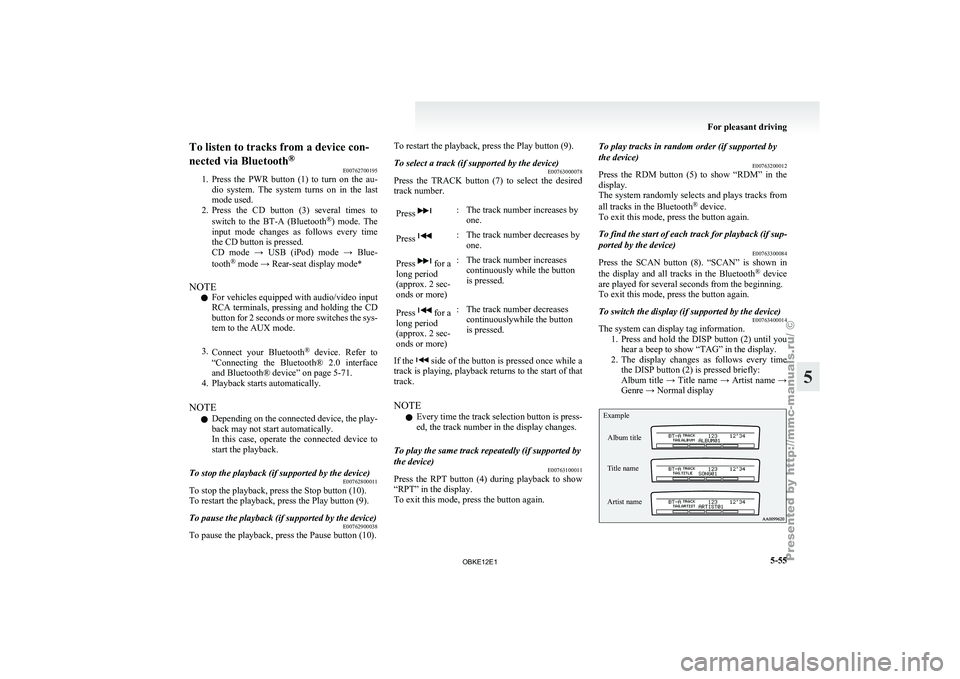
The system can display tag information.
1. Press and hold
the DISP button (2) until you
hear a beep to show “TAG” in the display.
2. The display changes as follows every time the DISP button (2) is pressed briefly:
Album title → Title name → Artist name →
Genre → Normal display
Example
Album title
Title name
Artist name For pleasant driving
5-55 5
OBKE12E1
Page 239 of 377

NOTE
l Press
and hold
the DISP button (2) again un-
til you hear a beep, and the tag information
disappears.
l Up to 16 characters are shown in the display
at once. If the title is cut off in the middle,
press the PAGE button (6).
The next characters are displayed every time
this button is pressed.
l If no title is stored, “NO TITLE” is shown in
the display.
l Characters that cannot be displayed are sub-
stituted by “ ”. To use the external audio input
function* E00732200609
Auxiliary Video connector (RCA)
Auxiliary Audio connector (RCA) Auxiliary Audio connector (RCA)
A- Left audio input connector (white)B- Right audio input connector (red)
Auxiliary Video connector (RCA) A-
Left audio input connector (white)
B- Right audio input connector (red)
C- Video input connector (yellow)
You can listen to commercially available audio
equipment, such as a portable audio system, from
your vehicle’s speakers, by connecting the audio
equipment to the audio input connectors, which are
external input connectors (pin jacks).
NOTE l For information on using the Auxiliary Vid-
eo connector (RCA), refer to the separate own-
er’s manual for the rear-seat display or the
MITSUBISHI Multi Communication System. To activate the external audio input
mode
1. Use a commercially available audio cable to
connect the
audio equipment to the internal
audio input connector.
2. [Except for vehicles with a rear-seat display] Press the CD button (D) for more than 2 sec-
onds.
The display (E) will show “AUX” and then
the external audio input mode will be activa-
ted.
[Vehicles with a rear-seat display]
Press the CD button (D) for more than 2 sec-
onds.
The display (E) will show “REAR AUX”
and then the external audio input mode will
be activated.
When the power of the rear-seat display is
on, press the SOURCE button of the rear-
seat display to activate VIDEO mode. (For de-
tails, refer to the separate rear-seat display
owner’s manual.)
3. To deactivate the external audio input mode, press the AM/FM button (F) or the CD but-
ton (D) to switch to another mode. For pleasant driving
5-56
5
OBKE12E1
Page 240 of 377

CAUTION
l
Do not operate the connected audio equip-
ment while driving.
This could distract you and an accident
might occur.
NOTE l The
connected audio
equipment cannot be op-
erated with the vehicle’s audio system.
l Depending on the connected audio equip-
ment, it may produce noise from the speakers.
l Use the connected audio equipment’s own
power source, such as its battery.
Noise may be produced from the speakers if
the connected audio equipment is used while
charging it using the accessory socket of the
vehicle.
l Do not activate the external audio input
mode when no audio equipment is connected.
Otherwise, noise may be produced from the
speakers.
l Connect audio equipment when the external
audio input mode is deactivated or lower the
vehicle’s speaker volume before connecting it.
Noise may be produced from the speakers if
audio equipment is connected after the exter-
nal audio input mode is activated.
l For information on how to connect and oper-
ate the audio equipment, refer to the owner’s
manual for the equipment. To listen to a disc in the rear-seat
display (vehicles with rear-seat display) E00755100096
It is possible
to listen to the audio from the rear-
seat display using the vehicle’s speakers.
Press the CD button to select the rear-seat display
mode. The word “REAR” will appear at the top-
left of the display.
Each push of the CD button changes the mode to
the next one in the following sequence: CD mode
→ Rear-seat display mode → CD mode.
The following operation of the rear-seat display is
possible from the audio system. Source Operation
CD Track selection
MP3/WMA Folder/Track selection Video CD Track/Scene selection
DVD video Title/Chapter selection
DVD audio Group/Track selection To make your desired selection, use the TRACK
button or the FOLDER button on the audio system.Steering wheel remote control
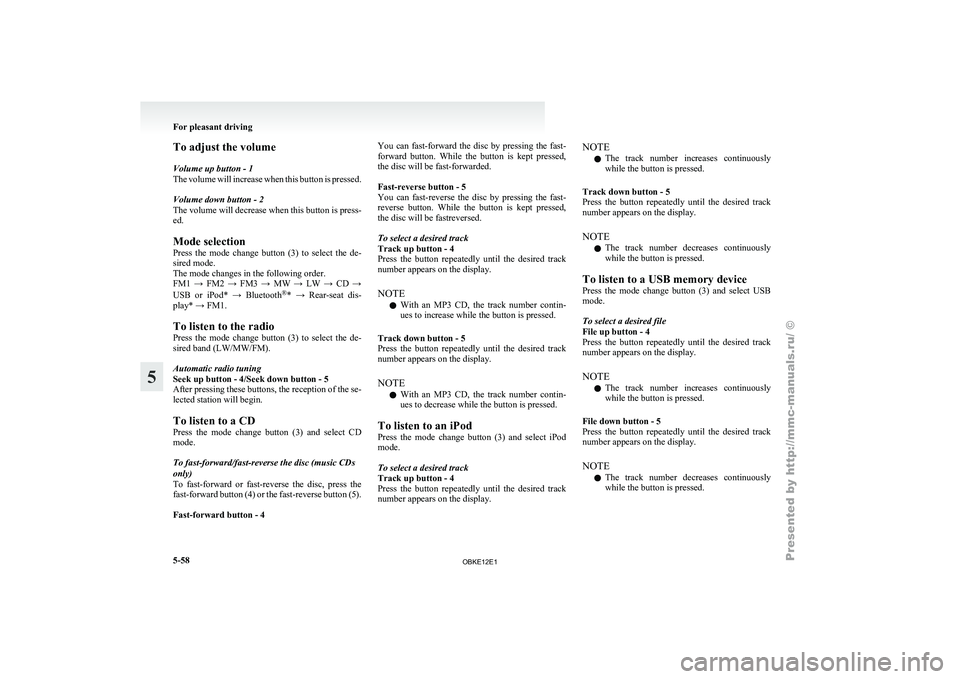
switch* E00710000665
The remote control
switches are located on the left
side of the steering wheel.
These switches can be used when the ignition
switch is in the “ON” or “ACC” position. 1- Volume up button
2- Volume down button
3-
PWR (ON-OFF)/Mode change button
4-
Seek up/Track up/File up/Fast-forward button
5- Seek down/Track down/File down/Fast-re- verse button
NOTE l Do not push two or more of the steering
wheel remote control switches at the same
time.
To turn on the power
PWR (ON-OFF) button - 3
When the power is off, press this button to turn the
power on. To turn the power off, press this button
for 2 seconds or longer. For pleasant driving
5-57 5
OBKE12E1
Page 241 of 377
To adjust the volume
Volume up button - 1
The volume
will
increase when this button is pressed.
Volume down button - 2
The volume will decrease when this button is press-
ed.
Mode selection
Press the mode change button (3) to select the de-
sired mode.
The mode changes in the following order.
FM1 → FM2 → FM3 → MW → LW → CD →
USB or iPod* → Bluetooth ®
* → Rear-seat dis-
play* → FM1.
To listen to the radio
Press the mode change button (3) to select the de-
sired band (LW/MW/FM).
Automatic radio tuning
Seek up button - 4/Seek down button - 5
After pressing these buttons, the reception of the se-
lected station will begin.
To listen to a CD
Press the mode change button (3) and select CD
mode.
To fast-forward/fast-reverse the disc (music CDs
only)
To fast-forward or fast-reverse the disc, press the
fast-forward button (4) or the fast-reverse button (5).
Fast-forward button - 4 You can fast-forward the disc by pressing the fast-
forward
button.
While
the button is kept pressed,
the disc will be fast-forwarded.
Fast-reverse button - 5
You can fast-reverse the disc by pressing the fast-
reverse button. While the button is kept pressed,
the disc will be fastreversed.
To select a desired track
Track up button - 4
Press the button repeatedly until the desired track
number appears on the display.
NOTE
l With an MP3 CD, the track number contin-
ues to increase while the button is pressed.
Track down button - 5
Press the button repeatedly until the desired track
number appears on the display.
NOTE l With an MP3 CD, the track number contin-
ues to decrease while the button is pressed.
To listen to an iPod
Press the mode change button (3) and select iPod
mode.
To select a desired track
Track up button - 4
Press the button repeatedly until the desired track
number appears on the display. NOTE
l The
track number
increases continuously
while the button is pressed.
Track down button - 5
Press the button repeatedly until the desired track
number appears on the display.
NOTE l The track number decreases continuously
while the button is pressed.
To listen to a USB memory device
Press the mode change button (3) and select USB
mode.
To select a desired file
File up button - 4
Press the button repeatedly until the desired track
number appears on the display.
NOTE l The track number increases continuously
while the button is pressed.
File down button - 5
Press the button repeatedly until the desired track
number appears on the display.
NOTE l The track number decreases continuously
while the button is pressed. For pleasant driving
5-58
5
OBKE12E1
Page 242 of 377
Error codes
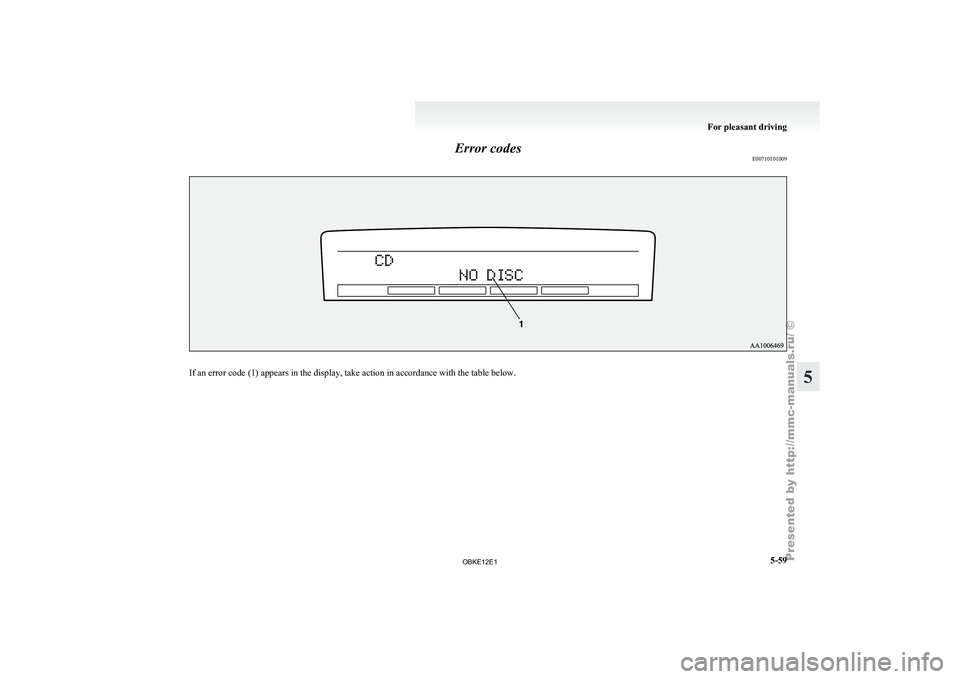
E00710101009If an error code (1) appears in the display, take action in accordance with the table below. For pleasant driving
5-59 5
OBKE12E1
Page 243 of 377

Error display Problem Item Repair
NO DISC No disc inserted Disc is not in CD player.Insert disc.
ERROR 01 Focus error Disc is not loaded correctly, or condensation on
disc.Insert disc with label facing up. Remove
moisture from disc.
ERROR 02 Disc error Disc is dirty, scratched, or deformed; or exces-
sive vehicle vibration.Clean or replace disc. Retry when vibra-
tions stop.
ERROR 03 Mechanism error Loading or eject error. Pick-up is out of position.Eject disc and reload. If disc will not eject,
have the equipment inspected.
ERROR HOT Inside of audio system is hot. Internal protection against high temperatures. Allow radio to cool by waiting about
30 minutes.
ERROR Communication or power supply
error Communication error between external device
and audio equipment.
Power supply error of ex-
ternal device. Consult a MITSUBISHI MOTORS Author-
ized Service Point.For pleasant driving
5-60
5
OBKE12E1
Page 244 of 377

Error codes (iPod)
E00763500028If an error code (1) appears in the display, take action in accordance with the table below. For pleasant driving
5-61 5
OBKE12E1
Page 245 of 377
Error display Item Repair
NO SONG There are no playable music files. Record music files in the iPod.
VERSION ERROR (Blink) The iPod or its software cannot be recognized. Connect a supported iPod.
USB BUS POWER (Blink) An overcurrent or other power-supply error has occurred. Remove the iPod.
Have the vehicle inspected at a MITSUBISHI MOTORS
Authorized Service Point.
USB LSI ERROR (Blink) Internal device errors Have the vehicle inspected at a
MITSUBISHI MOTORS
Authorized Service Point.
CONNECT RETRY (Blink) If the iPod indicator illuminates, the iPod cannot be authentica-
ted.
Reconnect the iPod.
If the iPod indicator goes out, it shows the USB communica-
tion error. Reconnect the iPod correctly.
If this error
is displayed again, have the vehicle inspec-
ted at a MITSUBISHI MOTORS Authorized Service
Point. For pleasant driving
5-62
5
OBKE12E1
Page 246 of 377
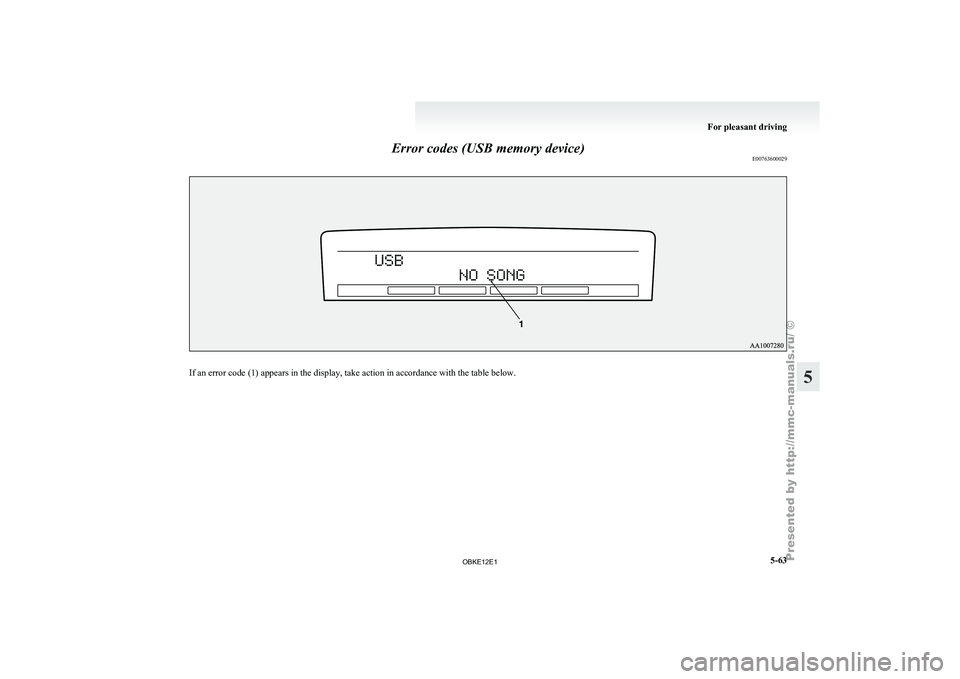
Error codes (USB memory device)
E00763600029If an error code (1) appears in the display, take action in accordance with the table below. For pleasant driving
5-63 5
OBKE12E1