display MITSUBISHI PAJERO IV 2011 Service Manual
[x] Cancel search | Manufacturer: MITSUBISHI, Model Year: 2011, Model line: PAJERO IV, Model: MITSUBISHI PAJERO IV 2011Pages: 377, PDF Size: 29.43 MB
Page 203 of 377
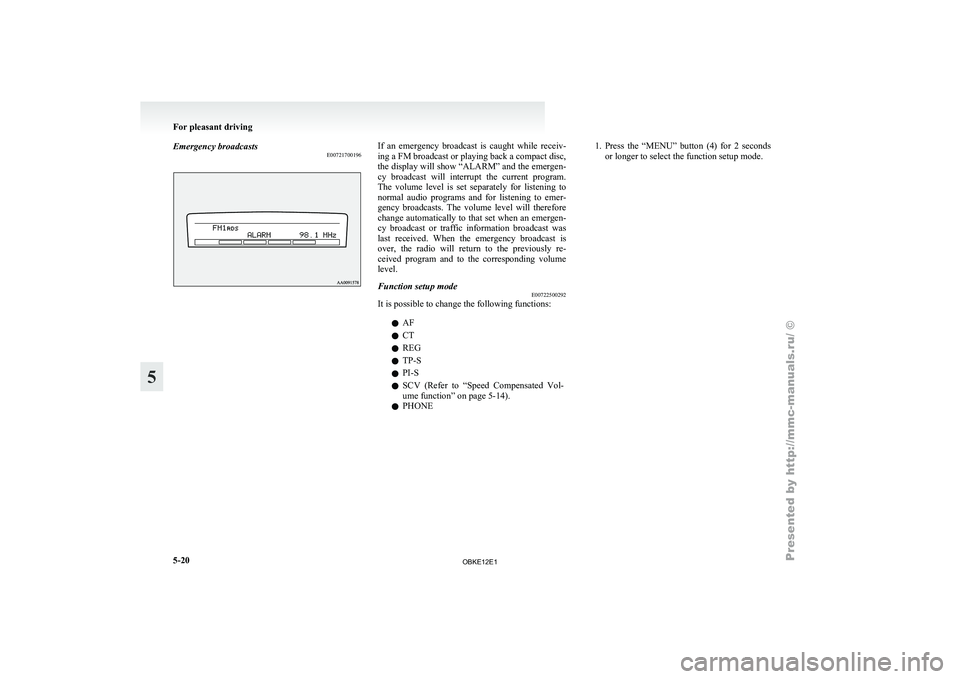
Emergency broadcasts
E00721700196 If an emergency broadcast is caught while receiv-
ing a FM broadcast or playing back a compact disc,
the display will
show “ALARM” and the emergen-
cy broadcast will interrupt the current program.
The volume level is set separately for listening to
normal audio programs and for listening to emer-
gency broadcasts. The volume level will therefore
change automatically to that set when an emergen-
cy broadcast or traffic information broadcast was
last received. When the emergency broadcast is
over, the radio will return to the previously re-
ceived program and to the corresponding volume
level.
Function setup mode E00722500292
It is possible to change the following functions:
lAF
l CT
l REG
l TP-S
l PI-S
l SCV (Refer
to
“Speed Compensated Vol-
ume function” on page 5-14).
l PHONE 1. Press
the “MENU” button (4) for 2 seconds
or longer to select the function setup mode. For pleasant driving
5-20
5
OBKE12E1
Page 204 of 377
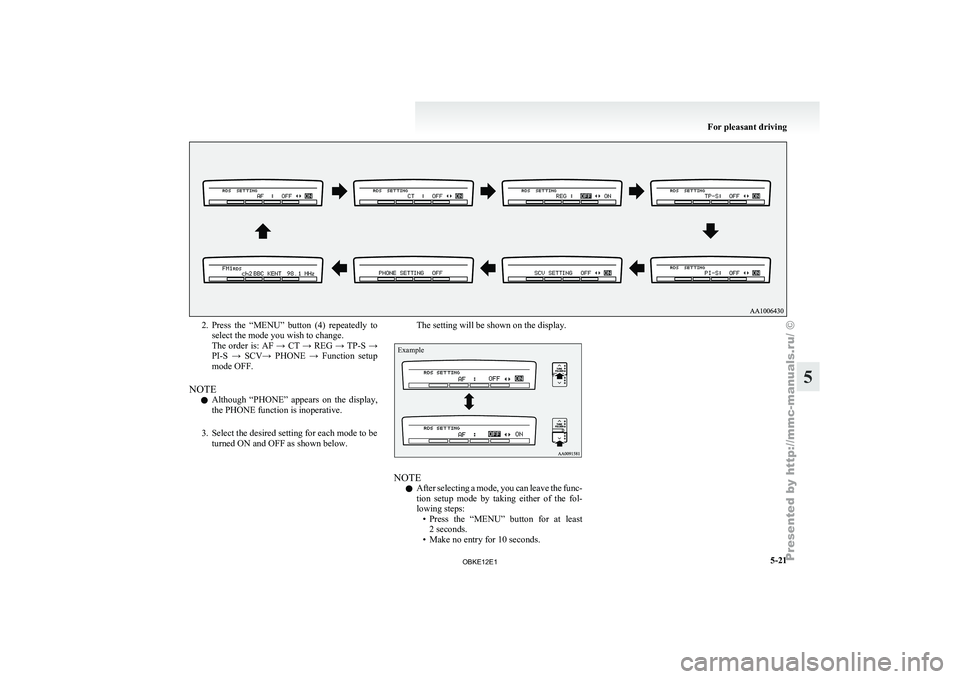
2. Press the “MENU” button (4) repeatedly to
select the mode you wish to change.
The order
is: AF → CT → REG → TP-S →
PI-S → SCV→ PHONE → Function setup
mode OFF.
NOTE l Although “PHONE” appears on the display,
the PHONE function is inoperative.
3. Select the desired setting for each mode to be turned ON and OFF as shown below. The setting will be shown on the display.
Example
NOTE
l After
selecting a
mode, you can leave the func-
tion setup mode by taking either of the fol-
lowing steps: • Press the “MENU” button for at least2 seconds.
• Make no entry for 10 seconds. For pleasant driving
5-21 5
OBKE12E1
Page 205 of 377
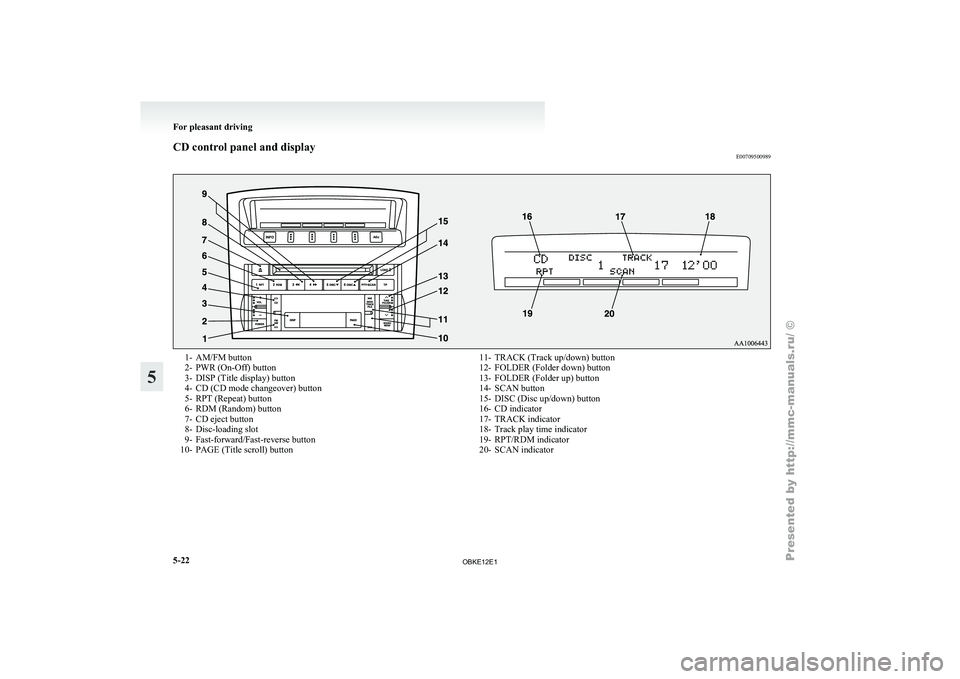
CD control panel and display
E007095009891- AM/FM button
2- PWR (On-Off) button
3-
DISP (Title display) button
4-
CD (CD mode changeover) button
5- RPT (Repeat) button
6- RDM (Random) button
7- CD eject button
8- Disc-loading slot
9- Fast-forward/Fast-reverse button
10- PAGE (Title scroll) button 11- TRACK (Track up/down) button
12- FOLDER (Folder down) button
13- FOLDER (Folder up) button
14-
SCAN button
15- DISC (Disc up/down) button
16- CD indicator
17- TRACK indicator
18- Track play time indicator
19- RPT/RDM indicator
20- SCAN indicator For pleasant driving
5-22
5
OBKE12E1
Page 206 of 377
To listen to a CD
E00709601958
1. Insert a disc
with the label facing up, and the
CD player will begin playing even if the ra-
dio is being used. The CD indicator (16), the
track number and the playing time will ap-
pear on the display. The CD player will also
start playback when the CD button (4) is press-
ed with a disc in the player.
2. To stop the CD, turn off the power by press- ing the PWR button (2) or change over to ra-
dio mode by pressing the AM/FM button (1),
or eject the disc by pressing the eject button
(7).
NOTE l To adjust the volume and tone, refer to “To
adjust the volume” on page 5-13 and “To ad-
just the tone” on page 5-13.
l For information concerning the handling of
compact discs, refer to “Handling of compact
discs” on page 5-65. To listen to an MP3 CD
This
CD player
allows you to play MP3 (MPEG Au-
dio Layer- 3) files recorded on CD-ROMs, CD-Rs
(recordable CDs), and CD-RWs (rewritable CDs)
in ISO9660 Level 1/Level 2, Joliet, and Romeo for-
mats. Each disc may have a maximum of 16 trees,
100 folders, and 255 files per disc. During MP3
playback, the unit can display ID3 tag information.
For information concerning ID3 tag, refer to “CD
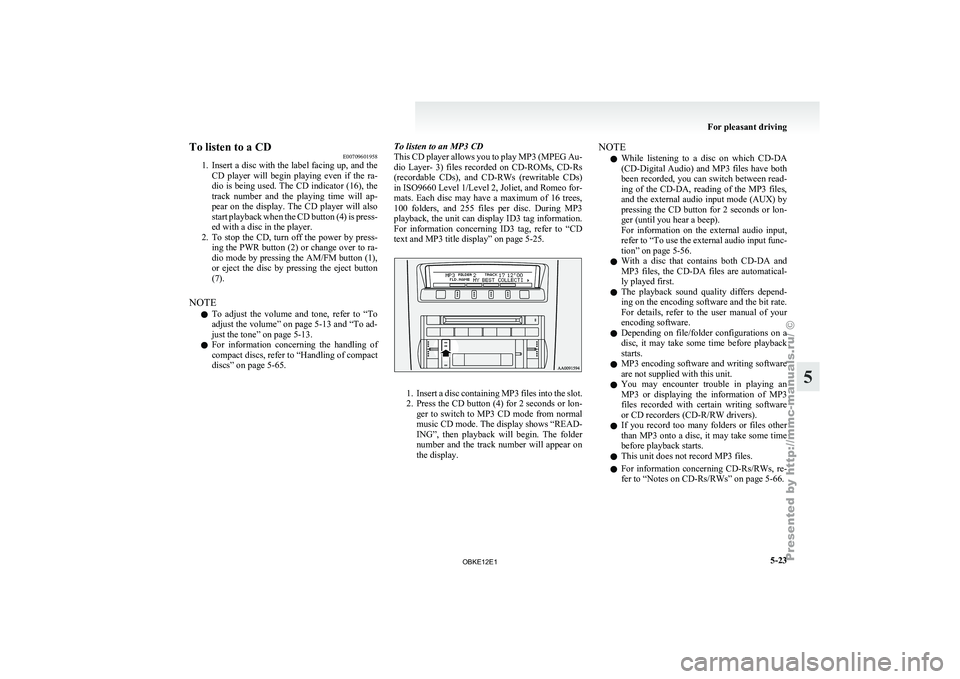
text and MP3 title display” on page 5-25. 1. Insert
a disc containing MP3 files into the slot.
2. Press
the CD button (4) for 2 seconds or lon-
ger to switch to MP3 CD mode from normal
music CD mode. The display shows “READ-
ING”, then playback will begin. The folder
number and the track number will appear on
the display. NOTE
l While
listening to
a disc on which CD-DA
(CD-Digital Audio) and MP3 files have both
been recorded, you can switch between read-
ing of the CD-DA, reading of the MP3 files,
and the external audio input mode (AUX) by
pressing the CD button for 2 seconds or lon-
ger (until you hear a beep).
For information on the external audio input,
refer to “To use the external audio input func-
tion” on page 5-56.
l With a disc that contains both CD-DA and
MP3 files, the CD-DA files are automatical-
ly played first.
l The playback sound quality differs depend-
ing on the encoding software and the bit rate.
For details, refer to the user manual of your
encoding software.
l Depending on file/folder configurations on a
disc, it may take some time before playback
starts.
l MP3 encoding software and writing software
are not supplied with this unit.
l You may encounter trouble in playing an
MP3 or displaying the information of MP3
files recorded with certain writing software
or CD recorders (CD-R/RW drivers).
l If you record too many folders or files other
than MP3 onto a disc, it may take some time
before playback starts.
l This unit does not record MP3 files.
l For information concerning CD-Rs/RWs, re-
fer to “Notes on CD-Rs/RWs” on page 5-66. For pleasant driving
5-23 5
OBKE12E1
Page 207 of 377
CAUTION
l
Attempting to play a file not in the MP3
format which has a “.mp3” file name may
produce noise from the speakers and
speaker damage, and can damage your
hearing.
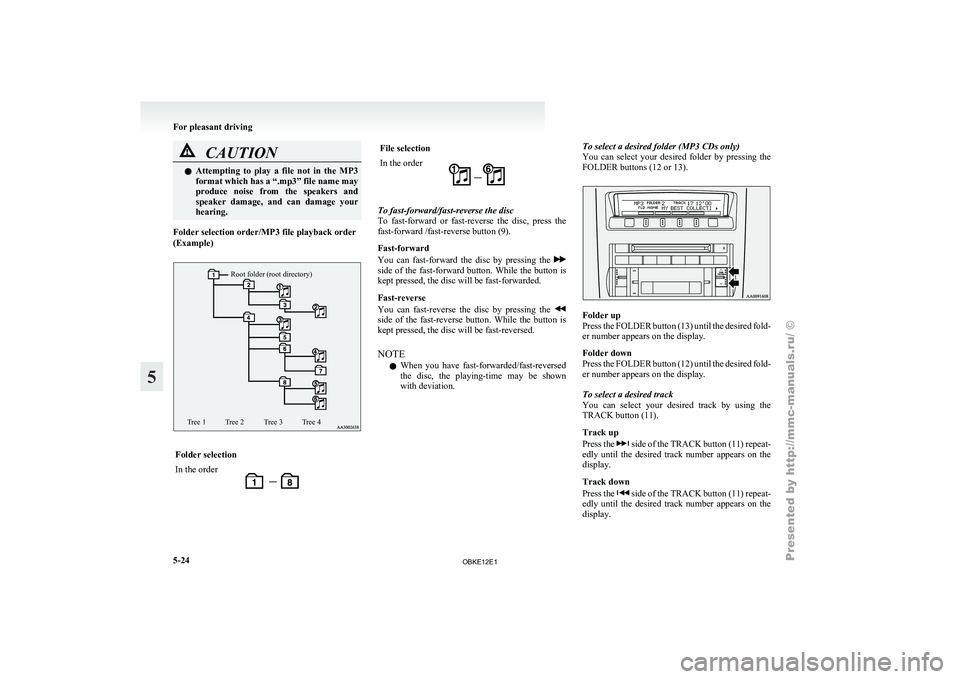
Folder selection order/MP3 file playback order
(Example)
Root folder (root directory)
Tree 1 Tree 2 Tree 3 Tree 4 Folder selection
In the order File selection
In the order
To fast-forward/fast-reverse the disc
To fast-forward
or
fast-reverse the disc, press the
fast-forward /fast-reverse button (9).
Fast-forward
You can fast-forward the disc by pressing the side of the fast-forward button. While the button is
kept pressed, the disc will be fast-forwarded.
Fast-reverse
You can
fast-reverse
the disc by pressing the side of the fast-reverse button. While the button is
kept pressed, the disc will be fast-reversed.
NOTE
l When
you have
fast-forwarded/fast-reversed
the disc, the playing-time may be shown
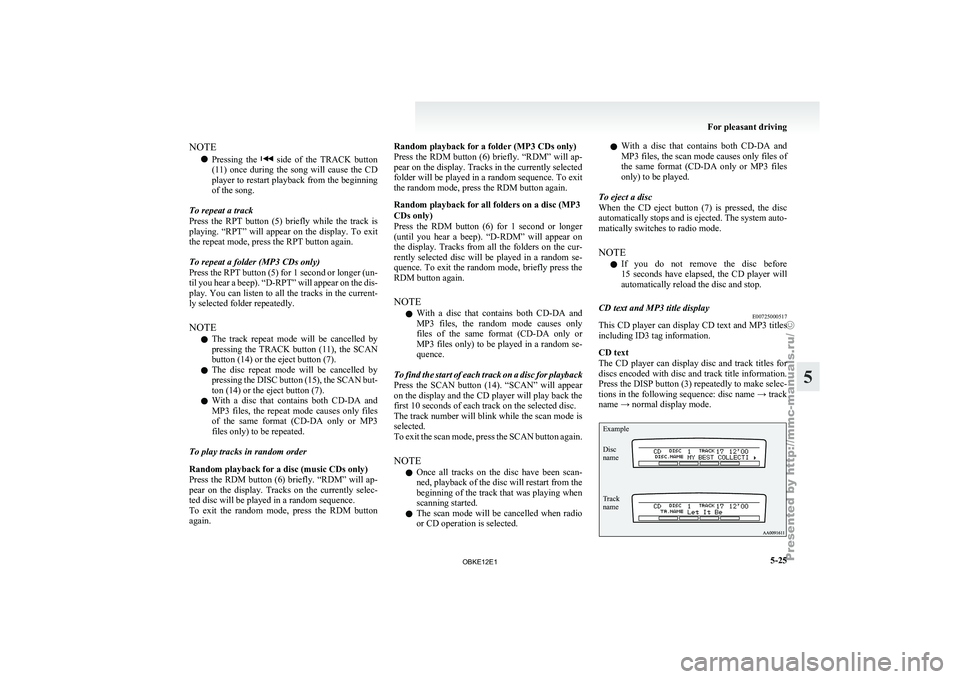
with deviation. To select a desired folder (MP3 CDs only)
You
can
select
your desired folder by pressing the
FOLDER buttons (12 or 13). Folder up
Press the
FOLDER
button (13) until the desired fold-
er number appears on the display.
Folder down
Press the FOLDER button (12) until the desired fold-
er number appears on the display.
To select a desired track
You can select your desired track by using the
TRACK button (11).
Track up
Press the side of the TRACK button (11) repeat-
edly until the
desired track number appears on the
display.
Track down
Press the side of the TRACK button (11) repeat-
edly until the
desired track number appears on the
display. For pleasant driving
5-24
5
OBKE12E1
Page 208 of 377
NOTE
l Pressing
the side of the TRACK button
(11) once during the song will cause the CD
player to restart playback from the beginning
of the song.
To repeat a track
Press the RPT button (5) briefly while the track is
playing. “RPT” will appear on the display. To exit
the repeat mode, press the RPT button again.
To repeat a folder (MP3 CDs only)
Press the RPT button (5) for 1 second or longer (un-
til you hear a beep). “D-RPT” will appear on the dis-
play. You can listen to all the tracks in the current-
ly selected folder repeatedly.
NOTE l The track repeat mode will be cancelled by
pressing the TRACK button (11), the SCAN
button (14) or the eject button (7).
l The disc repeat mode will be cancelled by
pressing the DISC button (15), the SCAN but-
ton (14) or the eject button (7).
l With a disc that contains both CD-DA and
MP3 files, the repeat mode causes only files
of the same format (CD-DA only or MP3
files only) to be repeated.
To play tracks in random order
Random playback for a disc (music CDs only)
Press the RDM button (6) briefly. “RDM” will ap-
pear on the display. Tracks on the currently selec-
ted disc will be played in a random sequence.
To exit the random mode, press the RDM button
again. Random playback for a folder (MP3 CDs only)
Press
the RDM
button (6) briefly. “RDM” will ap-
pear on the display. Tracks in the currently selected
folder will be played in a random sequence. To exit
the random mode, press the RDM button again.
Random playback for all folders on a disc (MP3
CDs only)
Press the RDM button (6) for 1 second or longer
(until you hear a beep). “D-RDM” will appear on
the display. Tracks from all the folders on the cur-
rently selected disc will be played in a random se-
quence. To exit the random mode, briefly press the
RDM button again.
NOTE
l With a disc that contains both CD-DA and
MP3 files, the random mode causes only
files of the same format (CD-DA only or
MP3 files only) to be played in a random se-
quence.
To find the start of each track on a disc for playback
Press the SCAN button (14). “SCAN” will appear
on the display and the CD player will play back the
first 10 seconds of each track on the selected disc.
The track number will blink while the scan mode is
selected.
To exit the scan mode, press the SCAN button again.
NOTE l Once all tracks on the disc have been scan-
ned, playback of the disc will restart from the
beginning of the track that was playing when
scanning started.
l The scan mode will be cancelled when radio
or CD operation is selected. l
With
a disc that contains both CD-DA and
MP3 files, the scan mode causes only files of
the same format (CD-DA only or MP3 files
only) to be played.
To eject a disc
When the CD eject button (7) is pressed, the disc
automatically stops and is ejected. The system auto-
matically switches to radio mode.
NOTE l If you do not remove the disc before
15 seconds have elapsed, the CD player will
automatically reload the disc and stop.
CD text and MP3 title display E00725000517
This CD player can display CD text and MP3 titles
including ID3 tag information.
CD text
The CD player
can display disc and track titles for
discs encoded with disc and track title information.
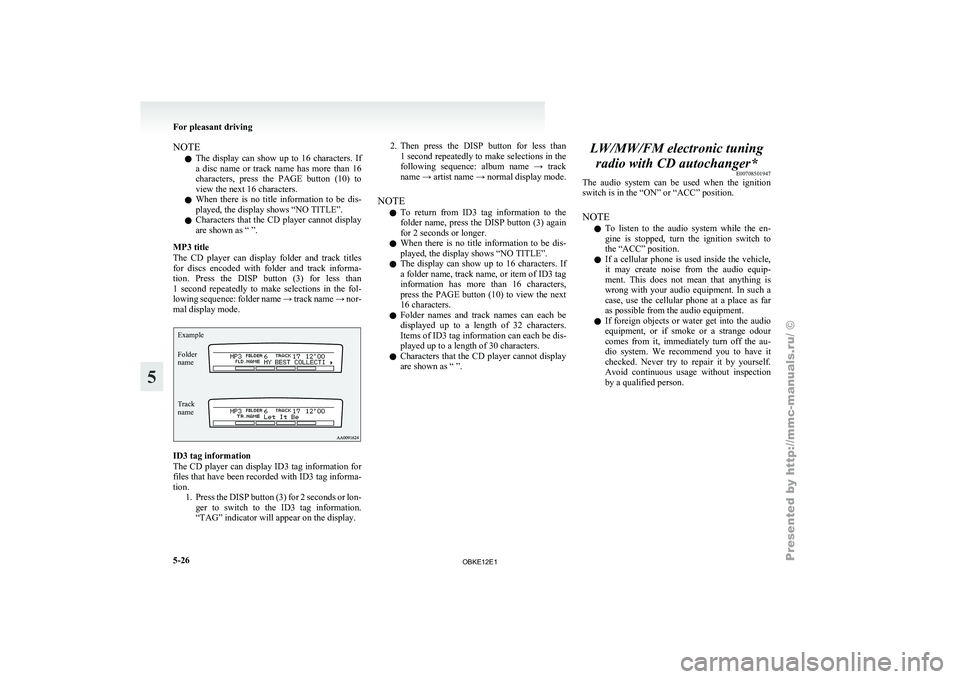
Press the DISP button (3) repeatedly to make selec-
tions in the following sequence: disc name → track
name → normal display mode.
Example
Disc
name
Track
name For pleasant driving
5-25 5
OBKE12E1
Page 209 of 377
NOTE
l The
display can
show up to 16 characters. If
a disc name or track name has more than 16
characters, press the PAGE button (10) to
view the next 16 characters.
l When there is no title information to be dis-
played, the display shows “NO TITLE”.
l Characters that the CD player cannot display
are shown as “ ”.
MP3 title
The CD player can display folder and track titles
for discs encoded with folder and track informa-
tion. Press the DISP button (3) for less than
1 second repeatedly to make selections in the fol-
lowing sequence: folder name → track name → nor-
mal display mode.
Track
name Folder
name Example ID3 tag information
The CD
player
can display ID3 tag information for
files that have been recorded with ID3 tag informa-
tion. 1. Press the DISP button (3) for 2 seconds or lon-ger to switch to the ID3 tag information.
“TAG” indicator will appear on the display. 2. Then press the DISP button for less than
1 second
repeatedly to make selections in the
following sequence: album name → track
name → artist name → normal display mode.
NOTE l To return from ID3 tag information to the
folder name, press the DISP button (3) again
for 2 seconds or longer.
l When there is no title information to be dis-
played, the display shows “NO TITLE”.
l The display can show up to 16 characters. If
a folder name, track name, or item of ID3 tag
information has more than 16 characters,
press the PAGE button (10) to view the next
16 characters.
l Folder names and track names can each be
displayed up to a length of 32 characters.
Items of ID3 tag information can each be dis-
played up to a length of 30 characters.
l Characters that the CD player cannot display
are shown as “ ”. LW/MW/FM electronic tuning
radio with CD autochanger* E00708501947
The audio system
can be used when the ignition
switch is in the “ON” or “ACC” position.
NOTE
l To listen to the audio system while the en-
gine is stopped, turn the ignition switch to
the “ACC” position.
l If a cellular phone is used inside the vehicle,
it may create noise from the audio equip-
ment. This does not mean that anything is
wrong with your audio equipment. In such a
case, use the cellular phone at a place as far
as possible from the audio equipment.
l If foreign objects or water get into the audio
equipment, or if smoke or a strange odour
comes from it, immediately turn off the au-
dio system. We recommend you to have it
checked. Never try to repair it by yourself.
Avoid continuous usage without inspection
by a qualified person. For pleasant driving
5-26
5
OBKE12E1
Page 210 of 377
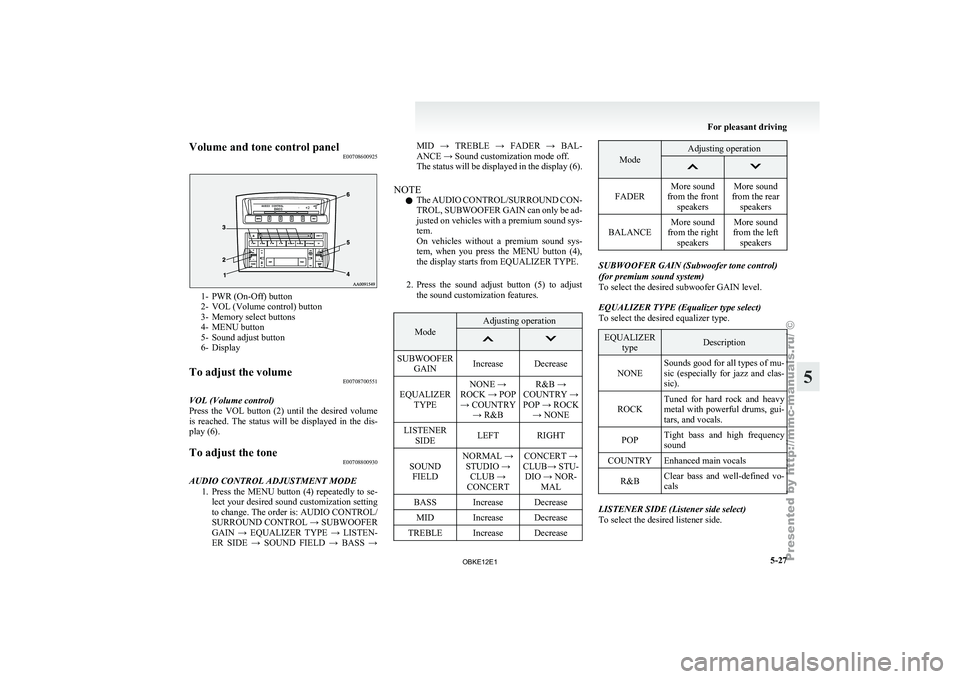
Volume and tone control panel
E007086009251- PWR (On-Off) button
2- VOL (Volume control) button
3-
Memory select buttons
4-
MENU button
5- Sound adjust button
6- Display
To adjust the volume E00708700551
VOL (Volume control)
Press the VOL
button (2) until the desired volume
is reached. The status will be displayed in the dis-
play (6).
To adjust the tone E00708800930
AUDIO CONTROL ADJUSTMENT MODE 1. Press the MENU
button (4) repeatedly to se-
lect your desired sound customization setting
to change. The order is: AUDIO CONTROL/
SURROUND CONTROL → SUBWOOFER
GAIN → EQUALIZER TYPE → LISTEN-
ER SIDE → SOUND FIELD → BASS → MID → TREBLE → FADER → BAL-
ANCE → Sound customization mode off.
The
status
will
be displayed in the display (6).
NOTE l The AUDIO CONTROL/SURROUND CON-
TROL, SUBWOOFER GAIN can only be ad-
justed on vehicles with a premium sound sys-
tem.
On vehicles without a premium sound sys-
tem, when you press the MENU button (4),
the display starts from EQUALIZER TYPE.
2. Press the sound adjust button (5) to adjust the sound customization features. Mode Adjusting operation
SUBWOOFER
GAIN Increase Decrease
EQUALIZER TYPE NONE →
ROCK → POP → COUNTRY → R&B R&B →
COUNTRY →
POP → ROCK → NONE
LISTENER SIDE LEFT RIGHT
SOUND FIELD NORMAL →
STUDIO → CLUB →
CONCERT CONCERT →
CLUB→ STU- DIO → NOR- MAL
BASS Increase Decrease MID Increase Decrease
TREBLE Increase Decrease Mode Adjusting operation
FADER
More sound
from the front speakers More sound
from the rear speakers
BALANCE More sound
from the right speakers More sound
from the left speakers SUBWOOFER GAIN (Subwoofer tone control)
(for premium sound system)
To select the desired subwoofer GAIN level.
EQUALIZER TYPE (Equalizer type select)
To select the desired equalizer type.
EQUALIZER
type Description
NONE Sounds good for all types of mu-
sic (especially
for
jazz and clas-
sic).
ROCK Tuned for hard rock and heavy
metal with powerful
drums, gui-
tars, and vocals.
POP Tight bass and high frequency
sound
COUNTRY Enhanced main vocals
R&B Clear bass and well-defined vo-
cals LISTENER SIDE (Listener side select)
To select the desired listener side. For pleasant driving
5-27 5
OBKE12E1
Page 211 of 377

SOUND FIELD (Sound field type select)
To select the desired sound field.
Sound field
type Description
NORMAL Optimized for accurate vocal
and instrument reality.
STUDIO Places the listener in the control
room of
a
recording studio with
a crisp and accurate forward
placed sound stage.
CLUB Places the listener in the music
at a dance
or jazz club with
sound coming from all directions.
CONCERT Utilizing sound reflections in the
Digital Signal Processor,
CON-
CERT gives the impression that
the listener is at concert hall per-
formance. BASS (Bass tone control)
To select the desired bass level.
MID (Midrange tone control)
To select the desired midrange level.
TREBLE (Treble tone control)
To select the desired treble level.
FADER (Front/Rear balance control)
To balance
the
volume from the F (front) and the R
(rear) speakers.
BALANCE (Left/Right balance control)
To balance the volume from the L (left) and the R
(right) speakers. SURROUND CONTROL ADJUSTMENT MODE
(for premium sound system)
1. Press the MENU
button (4). The display will
show “AUDIO CONTROL/SURROUND
CONTROL”.
2. Press the sound adjust button (5) to align the cursor with “SURROUND CONTROL”.
Then press the MENU button (4) to select
the surround control adjustment mode.
Cursor 3. Press the MENU button (4) repeatedly to se-
lect your
desired sound customization setting
to change. The order is: SURROUND CON-
TROL → SURROUND MODE → SOUND
TYPE → LISTENING POSITION → Sound
customization mode off.
The status will be displayed in the display (6).
4. Press the sound adjust button (5) to adjust the sound customization features.
SURROUND MODE (Surround mode select) (for
premium sound system)
To select the desired surround mode. SURROUND MODE Description
5.1ch DOLBY DIGI- TAL · DTS Creates a realistic three-
dimensional sound field
using
5.1ch technology.
Gives clear surround-
sound with rich pres-
ence from digital sound
sources.
DOLBY PRO LOGIC II Creates a three-dimen-
sional listening environ-
ment from CDs and oth-
er
typical sound sour-
ces. Gives surround-
sound with rich pres-
ence.
2CH STEREO SOUND Gives high-quality ster-
eo sound using
a 12-
speaker system. NOTE
l 5.1ch
DOLBY DIGITAL
· DTS can be selec-
ted only when DVDs recorded with Dolby
Digital or DTS 5.1- channel surround are
played in the rear-seat display. With such
DVDs, DOLBY PRO LOGIC II cannot be se-
lected.
l Dolby Digital systems are manufactured un-
der licence from Dolby Laboratories Licens-
ing Corporation. “Dolby” and the double-D
symbol are trademarks of Dolby Laborato-
ries Licensing Corporation. DTS systems are
manufactured under licence from Digital The-
ater Systems. “DTS” and “Digital Surround”
are trademarks of Digital Theater Systems. For pleasant driving
5-28
5
OBKE12E1
Page 213 of 377
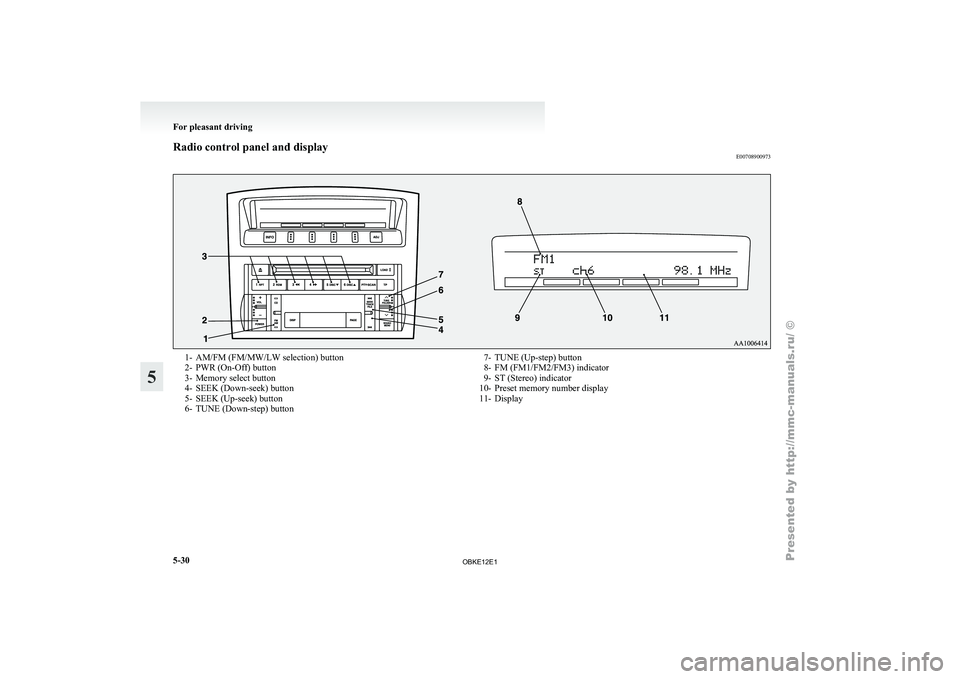
Radio control panel and display
E007089009731- AM/FM (FM/MW/LW selection) button
2- PWR (On-Off) button
3-
Memory select button
4-
SEEK (Down-seek) button
5- SEEK (Up-seek) button
6- TUNE (Down-step) button 7- TUNE (Up-step) button
8- FM (FM1/FM2/FM3) indicator
9- ST (Stereo) indicator
10-
Preset memory number display
11- Display For pleasant driving
5-30
5
OBKE12E1