set NISSAN ALTIMA 2015 L33 / 5.G Quick Reference Guide
[x] Cancel search | Manufacturer: NISSAN, Model Year: 2015, Model line: ALTIMA, Model: NISSAN ALTIMA 2015 L33 / 5.GPages: 28, PDF Size: 2.52 MB
Page 19 of 28
17
SYSTEM GUIDE
VEHICLE INFORMATION DISPLAY
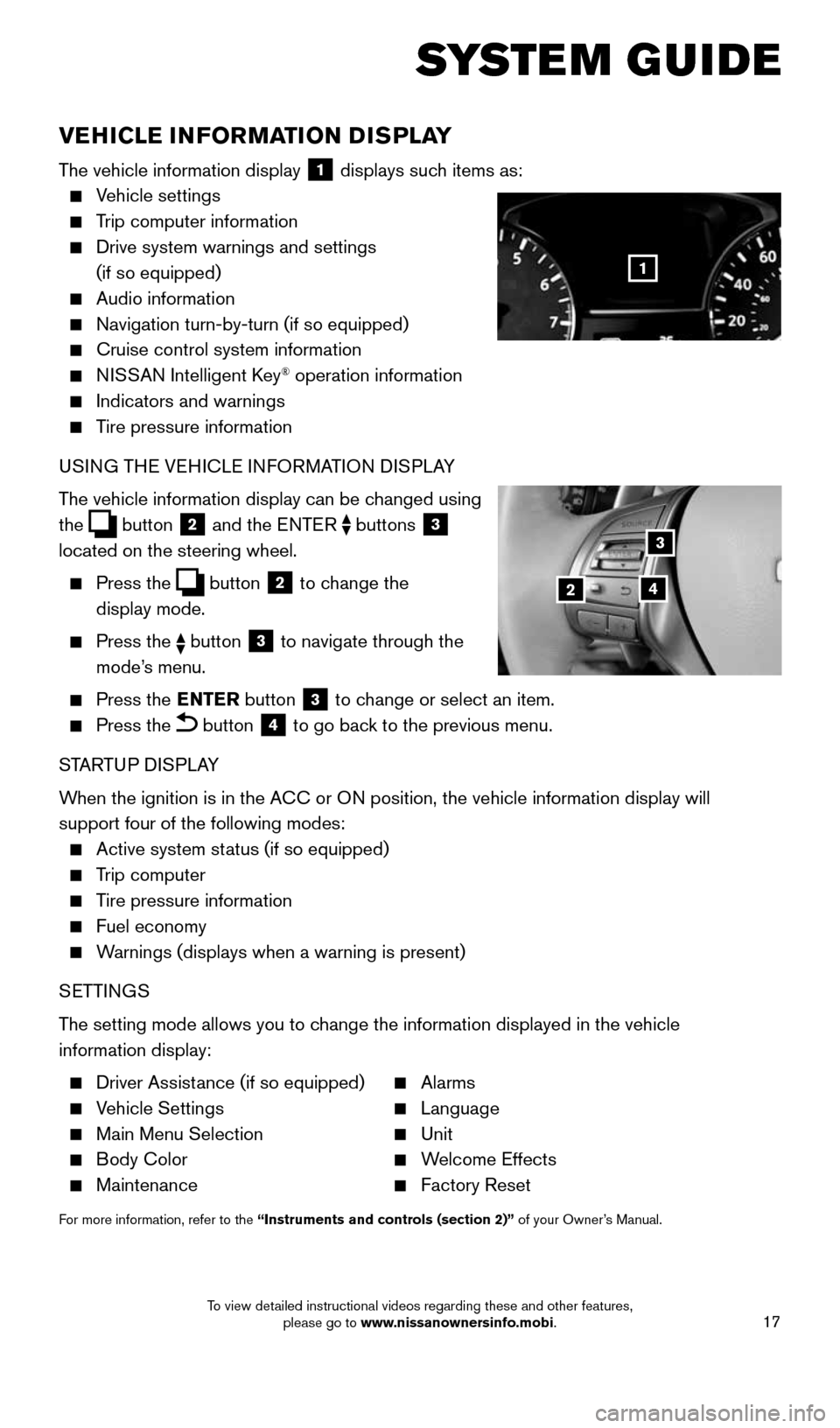
The vehicle information display 1 displays such items as:
Vehicle settings
Trip computer information
Drive system warnings and settings
(if so equipped)
Audio information
Navigation turn-by-turn (if so equipped)
Cruise control system information
NISSAN Intelligent Key® operation information
Indicators and warnings
Tire pressure information
USING THE VEHICLE INFORMATION DISPLAY
The vehicle information display can be changed using
the
button
2 and the ENTER
buttons
3
located on the steering wheel.
Press the button
2 to change the
display mode.
Press the button 3 to navigate through the
mode’s menu.
Press the ENTER
button
3 to change or select an item.
Press the button 4 to go back to the previous menu.
STARTUP DISPLAY
When the ignition is in the ACC or ON position, the vehicle information display will
support four of the following modes:
Active system status (if so equipped)
Trip computer
Tire pressure information
Fuel economy
Warnings (displays when a warning is present)
SETTINGS
The setting mode allows you to change the information displayed in the vehicle
information display:
Driver Assistance (if so equipped) Alarms
Vehicle Settings Language
Main Menu Selection Unit
Body Color Welcome Effects
Maintenance Factory Reset
For more information, refer to the “Instruments and controls (section 2)” of your Owner’s Manual.
1
3
42
1911097_15d_AltimaSedan_QRG_011915.indd 171/19/15 4:25 PM
To view detailed instructional videos regarding these and other features, please go to www.nissanownersinfo.mobi.
Page 20 of 28
18
BLUETOOTH® HANDS-FREE PHONE SYSTEM
A cellular telephone should not be used
while driving so full attention may be given to
vehicle operation*.
SYSTEM OPERATING TIPS
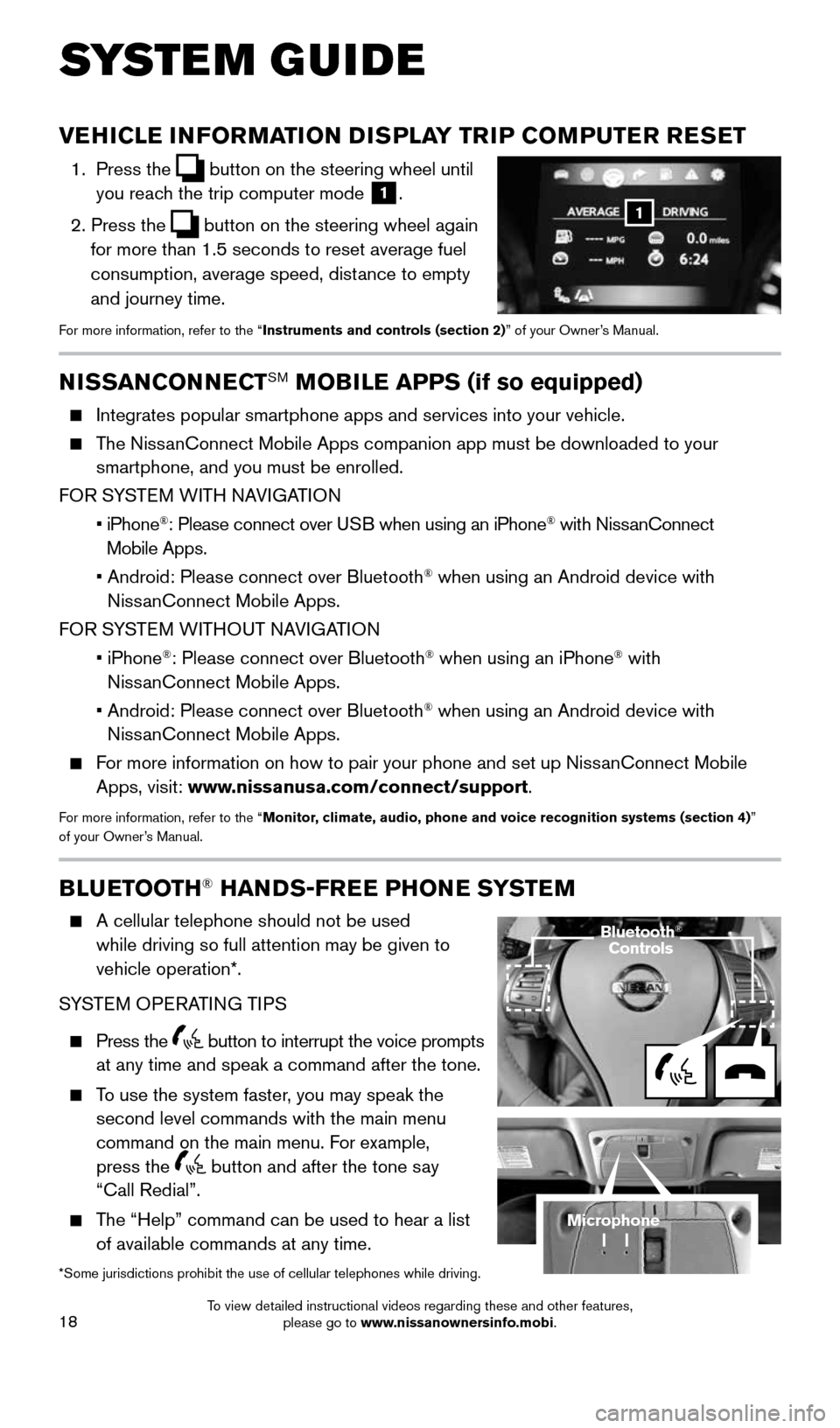
Press the button to interrupt the voice prompts
at any time and speak a command after the tone.
To use the system faster, you may speak the
second level commands with the main menu
command on the main menu. For example,
press the
button and after the tone say
“Call Redial”.
The “Help” command can be used to hear a list
of available commands at any time.
*Some jurisdictions prohibit the use of cellular telephones while drivin\
g.
SYSTEM GUIDE
NISSANCONNECTSM MOBILE APPS (if so equipped)
Integrates popular smartphone apps and services into your vehicle.
The NissanConnect Mobile Apps companion app must be downloaded to your
smartphone, and you must be enrolled.
FOR SYSTEM WITH NAVIGATION
• iPhone
®: Please connect over USB when using an iPhone® with NissanConnect
Mobile Apps.
• Android: Please connect over Bluetooth
® when using an Android device with
NissanConnect Mobile Apps.
FOR SYSTEM WITHOUT NAVIGATION
• iPhone
®: Please connect over Bluetooth® when using an iPhone® with
NissanConnect Mobile Apps.
• Android: Please connect over Bluetooth
® when using an Android device with
NissanConnect Mobile Apps.
For more information on how to pair your phone and set up NissanConnect Mobile
Apps, visit: www.nissanusa.com/connect/support.
For more information, refer to the “Monitor, climate, audio, phone and voice recognition systems (section 4) ”
of your Owner’s Manual.
Microphone
VEHICLE INFORMATION DISPLAY TRIP COMPUTER RESET
1. Press the button on the steering wheel until
you reach the trip computer mode 1.
2. Press the
button on the steering wheel again
for more than 1.5 seconds to reset average fuel
consumption, average speed, distance to empty
and journey time.
For more information, refer to the “Instruments and controls (section 2)” of your Owner’s Manual.
1
Bluetooth®
Controls
1911097_15d_AltimaSedan_QRG_011915.indd 181/19/15 4:25 PM
To view detailed instructional videos regarding these and other features, please go to www.nissanownersinfo.mobi.
Page 21 of 28

19
*Some jurisdictions prohibit the use of cellular telephones while drivin\
g.
Reduce background noise as much as possible by closing windows and pointing
HVAC vents away from the ceiling.
Speak naturally without long pauses and without raising your voice.
When speaking phonebook names, please be aware some phones require the la\
st
name to be spoken before the first name. For example, “Michael Smith” may be
spoken as “Smith Michael”.
To cancel a Voice Recognition session, say “Exit” or press and hold the button.
To decrease or increase the volume of the voice prompts, push the volume \
control
switches
or
on the steering wheel or turn the VOL (volume) control knob on the
audio system while the system is responding.
Voice commands can be used to operate various Bluetooth® system features using the
NISSAN Voice Recognition system. See your Owner’s Manual for detailed information.
If the Voice Recognition system does not recognize your voice commands, train th\
e
system using the Voice Adaptation Mode.
For more detailed information and instructions, refer to your cellular phone’s Owner’s
Manual and visit www.nissanusa.com/bluetooth.
BLUETOOTH® SYSTEM WITHOUT NAVIGATION* (if so equipped)
CONNECTING PROCEDURE WITHOUT NAVIGATION* (Type A) (if so equipped)
1. Press the
button on the steering wheel.
2. After the command, say “Connect Phone”.
3. The system will confirm your command. After the tone, say “Add Phone”, and then
follow the voice prompts to complete the connecting procedure from your \
handset.
• The connecting procedure varies according to each cellular phone. See your cellular
phone’s Owner’s Manual for details and also visit www.nissanusa.com/bluetooth.
CONNECTING PROCEDURE WITHOUT NAVIGATION* (Type B) (if so equipped)
The vehicle must be stationary when connecting
the phone.
1. Press the SETTING button on the control panel.
2. Use the TUNE/SCROLL knob to select
“Bluetooth” and then press the ENTER button.
3. Use the TUNE/SCROLL knob to select
“Add phone or Device” and then press the
ENTER button.
4. Follow the instructions on the screen to complete
the connecting procedure from your handset.
• The connecting procedure varies according to
each cellular phone. See your cellular phone’s
Owner’s Manual for details and also visit www.nissanusa.com/bluetooth.
Bluetooth
Bass
Treble
Balance L
F
R R
Fade
Setting
LHA2257Setting Bluetooth
Bluetooth
Add phone or DeviceON
Delete Phone or Device
Replace phone
Select phone or Device
1911097_15d_AltimaSedan_QRG_011915.indd 191/19/15 4:25 PM
To view detailed instructional videos regarding these and other features, please go to www.nissanownersinfo.mobi.
Page 22 of 28

20
SYSTEM GUIDE
PHONEBOOK SETUP
Depending on your cellular phone, the system may automatically download \
your cellular
phone’s entire phonebook to the vehicle’s Bluetooth® system.
If the phonebook does not download automatically, follow this procedure to manually
download entries:
1. Using the SETTING button and TUNE/SCROLL knob, change the “Phonebook
Download” setting to OFF.
2. Press the
button on the steering wheel.
3. After the tone, say “Phonebook”.
4. After the next tone, say “Transfer Entry”. The system acknowledges the command
and asks you to initiate the transfer from the phone handset. The new contact phone
number will be transferred from the cellular phone to the vehicle.
MAKING A CALL FROM THE PHONEBOOK
1. Press the
button.
2. After the tone, say “Call
your phonebook.
3. The system will confirm the name. If correct, say “Yes”. Otherwise, say “No”.
. • Please note that some cellular phones require the name to be spoken in a\
MAKING A CALL BY PHONE NUMBER
1. Press the
button.
2. After the tone, say “Call
3. The system will confirm the command. After the tone, say “Phone Number”.
4. The system will prompt you to speak the phone number. Say the 7-10 digit
phone number.
5. The system will confirm the phone number. If correct, say “Dial”. Otherwise,
say “Correction”.
1911097_15d_AltimaSedan_QRG_011915.indd 201/19/15 4:25 PM
To view detailed instructional videos regarding these and other features, please go to www.nissanownersinfo.mobi.
Page 23 of 28
21
RECEIVING/ENDING A CALL
When you receive a phone call, a ring tone
sounds through the audio system.
To accept a call, press the
button.
To reject a call, press the button.
To hang-up the phone at the end of a call or to
disconnect during call placement, press the
button.
BLUETOOTH® SYSTEM WITH NAVIGATION (if so equipped)
Send predefined or custom text messages* through your vehicle’s Bluetooth® system.
Receive texts through your vehicle’s Bluetooth® system that can be read to you.
Bluetooth® Streaming Audio allows you to use a compatible Bluetooth® phone to play
audio files from your device through your vehicle’s audio system. Once your compatible
cellular phone is connected to the vehicle’s audio system, the audio files will play
through the vehicle’s speakers.
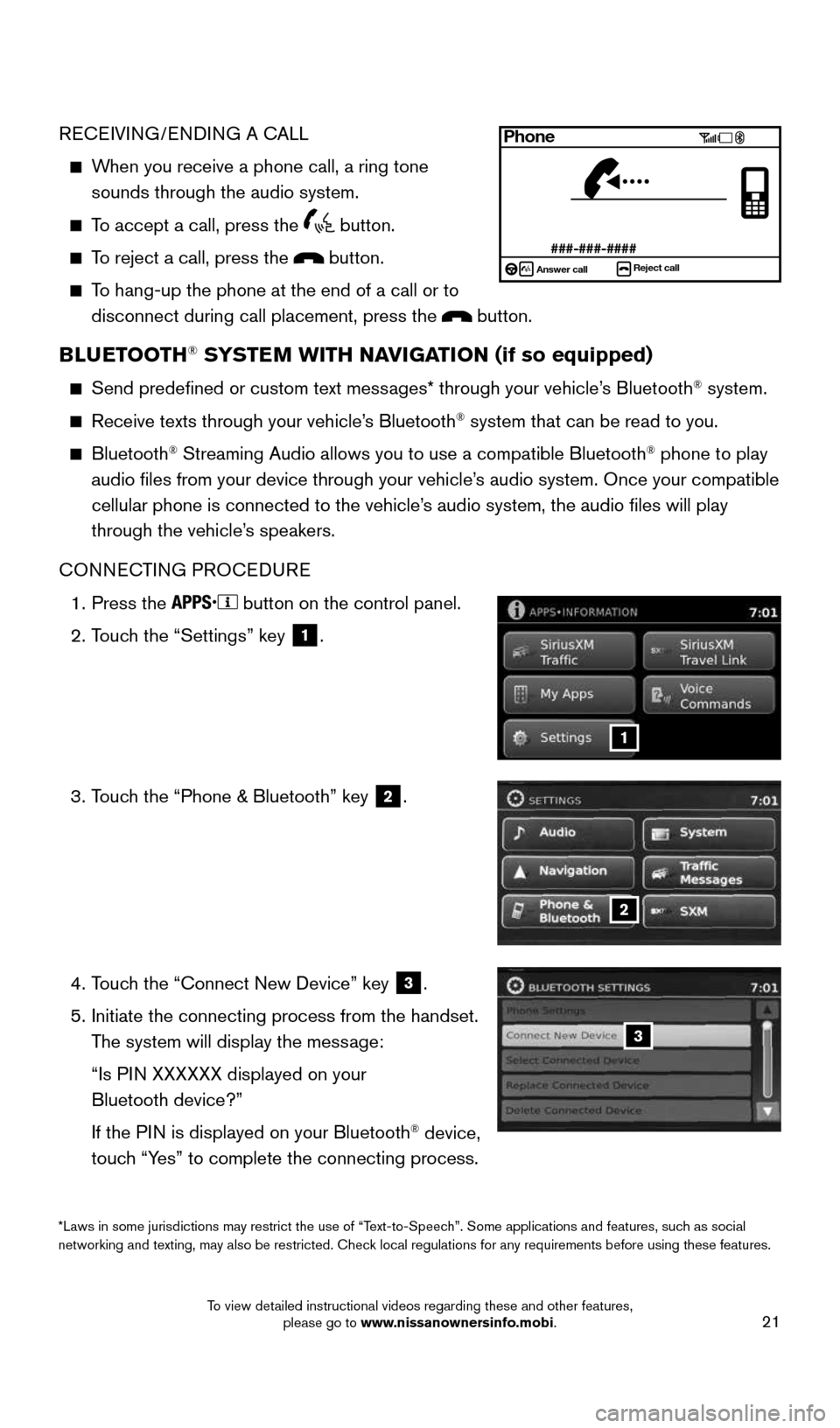
CONNECTING PROCEDURE
1. Press the
button on the control panel.
2. Touch the “Settings” key
1.
3. Touch the “Phone & Bluetooth” key
2.
4. Touch the “Connect New Device” key
3.
5. Initiate the connecting process from the handset.
The system will display the message:
“Is PIN XXXXXX displayed on your
Bluetooth device?”
If the PIN is displayed on your Bluetooth
® device,
touch “Yes” to complete the connecting process.
2
3
1
Phone
###-###-####Answer call Reject call
*Laws in some jurisdictions may restrict the use of “Text-to-Speech”. Some applications and features, such as social
networking and texting, may also be restricted. Check local regulations for any requirements before using these features.
1911097_15d_AltimaSedan_QRG_011915.indd 211/19/15 4:25 PM
To view detailed instructional videos regarding these and other features, please go to www.nissanownersinfo.mobi.
Page 25 of 28

Your Navigation System can calculate a route from the current location to\
a preferred
destination. The real-time map display and turn-by-turn voice guidanc")
23
NAVIGATION SYSTEM (if so equipped)
Your Navigation System can calculate a route from the current location to\
a preferred
destination. The real-time map display and turn-by-turn voice guidance will lead you
along the route.
The Navigation System will continually update your vehicle’s position. If you have
deviated from the original route, it will recalculate the route from you\
r current location.
To help promote safe driving, some functions cannot be operated or have limited
operation when the vehicle driving speed is above 5 mph (8 km/h). The on-screen text
and keys for these restricted functions will be “grayed-out” or mu\
ted and cannot be
selected while driving. These functions will become available again when the vehicle
speed is reduced to 5 mph (8 km/h). Voice commands may be available for some of
the restricted functions. For more information, refer to the “Monitor, climate, audio,
phone and voice recognition systems (section 4)” of your Owner’s Manual.
1 POWE R
button/VOL (volume) control knob – Press the button to turn the system
on or off. Rotate the dial clockwise to increase the volume or counterclockwise to
decrease the volume.
2 Options key – Select to access features such as “Show Destination Information”,
“Store Current Position”, “Show Position/GPS Information” and “Map Setup”.
3 - Zoom in key – Select to zoom the map in.4 - Zoom out key – Select to zoom the map out.5 N AV
button – Press to access the functions of the Navigation System.6 MAP button – Press to display the current location map screen.7 TUNE•SCROLL control knob / ENTER•AUDIO button – Turn to navigate the items in
a list. Press to select a menu item.
8 BACK
button – Press to return to the previous screen.
9 button – Press to access the system settings key.
10 button – Press to change the display brightness between day and night
modes. While the mode is being displayed, the brightness can be adjusted using t\
he
TUNE/SCROLL control knob. Press and hold to turn the display off. Press again to
turn the display on.
For more information, refer to your Navigation System Owner’s Manual.
17
2
8
9
10
5
34
6
1911097_15d_AltimaSedan_QRG_011915.indd 231/19/15 4:25 PM
To view detailed instructional videos regarding these and other features, please go to www.nissanownersinfo.mobi.