key NISSAN ALTIMA COUPE 2009 D32 / 4.G Workshop Manual
[x] Cancel search | Manufacturer: NISSAN, Model Year: 2009, Model line: ALTIMA COUPE, Model: NISSAN ALTIMA COUPE 2009 D32 / 4.GPages: 373, PDF Size: 4.79 MB
Page 206 of 373
MP3 CD:
1 DISC RPT!1 FOLDER RPT!1 TRACK
RPT
1 DISC RPT: The disc that is currently playing will
be repeated.
1 TRACK RPT: The track that is currently playing
will be repeated
1 FOLDER RPT: The folder that is currently play-
ing will be repeated.
“Random” key:
When the “Random” key is touched while a com-
pact disc is played, the play pattern can be
changed as follows:
CD:
ALL DISC RDM!1 DISC RDM
MP3 CD:
ALL DISC RDM!1 DISC RDM!1 FOLDER
RDM
ALL DISC RDM: Tracks from all discs will be
played randomly.
1 DISC RDM: Tracks from the disc that is cur-
rently playing will be played randomly.
1 FOLDER RDM: Folders from that disc that is
currently playing will be played randomly.CD EJECT:
Current/Selected disc:
cPress the
button. The loaded com-
pact disc will be ejected. Also, if the ejected
disc is not removed within 15 seconds, the
disc will reload.
All discs:
cPress and hold the
button for more
than 1.5 seconds. The compact discs will be
ejected one by one. If a disc is not removed
within 15 seconds, or the
button is
pressed again during the eject sequence,
the entire disc eject sequence will be can-
celed.
When this button is pressed while the compact
disc is being played, the compact disc will eject
and the next compact disc will be loaded. If no
disc is loaded, the system will stay on the com-
pact disc screen.
CD IN indicator:
The slot numbers (1 – 6) will illuminate if CDs
have been loaded into the changer in CD mode
only.CD/AUX (Auxiliary) button:
The AUX jack is located above the CD changer.
The AUX audio input jack accepts any standard
analog audio input such as from a portable cas-
sette tape/CD player, MP3 player or a laptop
computer.
Press the CD/AUX button to play a compatible
device when it is plugged into the AUX jack.
4-42Monitor, climate, audio, phone and voice recognition systems
ZREVIEW COPYÐ2009 Altima(alt)
Owners Manual(owners)ÐUSA_English(nna)
02/03/09Ðdebbie
X
Page 216 of 373
4. Say: “New phone”sC. The system acknowl-
edges the command and asks you to initiate
pairing from the phone handset
sD.
The pairing procedure of the cellular phone
varies according to each cellular phone
model. See the cellular phone Owner’s
Manual for details. You can also visit
www.nissanusa.com/bluetooth for instruc-
tions on pairing NISSAN recommended cel-
lular phones.
When prompted for a Passkey code, enter
“1234” from the handset. The Passkey code
“1234” has been assigned by NISSAN and
cannot be changed.
5. The system asks you to say a name for the
phone
sE.
If the name is too long or too short, the
system tells you, then prompts you for a
name again.
Also, if more than one phone is paired and
the name sounds too much like a name
already used, the system tells you, then
prompts you for a name again.
6. The system asks you to assign a priority level
sF. The priority level determines which
phone is active when more than one paired
BluetoothTphone is in the vehicle. Follow
the instructions provided by the system orrefer to “Setup” later in this section for more
information on changing priorities.
7. The system will ask if you would like to select
a custom ring tone
sG. Follow the instruc-
tions provided by the system or refer to
“Setup” later in this section for more infor-
mation on selecting ringtones.
Making a call by entering a phone
number
Main Menu
“Call”
sA
Number (speak digits)sB
“Dial”sC
1. Press thebutton on steering wheel. A
tone will sound.
2. Say: “Call”
sA. The system acknowledges
the command and announces the next set of
available commands.
Say: “Call International” to dial more than 10
digits or any special characters.
3. Say the number you wish to call starting with
the area code in single digit format
sB.Ifthe
system has trouble recognizing the correct
phone number, try entering the number in
the following groups: 3-digit area code,3-digit prefix and the last 4-digits. For ex-
ample, 555-121-3354 can be said as “five
five five” as the 1st group, then “one two
one” as the 2nd group, and “three three five
four” as the 3rd group. For dialing more than
10 digits or any special characters, say “In-
ternational”. See “How to say numbers” ear-
lier in this section, for more information.
4. When you have finished speaking the phone
number, the system repeats it back and an-
nounces the available commands.
5. Say: “Dial”
sC. The system acknowledges
the command and makes the call.
For additional command options, see “List of
voice commands” later in this section.
Receiving a call
When you hear the ring tone, press thebutton on the steering wheel.
Once the call has ended, press the
button
on the steering wheel.
NOTE:
If you do not wish to take the call when you
hear the ring tone, press the
button
on the steering wheel.
4-52Monitor, climate, audio, phone and voice recognition systems
ZREVIEW COPYÐ2009 Altima(alt)
Owners Manual(owners)ÐUSA_English(nna)
02/03/09Ðdebbie
X
Page 217 of 373
For additional command options, see “List of
voice commands” later in this section.
LIST OF VOICE COMMANDS
Main Menu
“Call” or “Call International”
“Phone Book”
“Memo Pad”
“Setup”
When you press and release thebutton on
the steering wheel, you can choose from the
commands on the Main Menu. The following
pages describe these commands and the com-
mands in each sub-menu.
Remember to wait for the tone before
speaking.
You can say “Help” to hear the list of commands
currently available any time the system is waiting
for a response.
If you want to end an action without completing it,
you can say “Cancel” or “Quit” at any time the
system is waiting for a response. The system will
end the VR session. Whenever the VR session is
cancelled, a double beep is played to indicate
you have exited the system.If you want to go back to the previous command,
you can say “Go back” or “Correction” any time
the system is waiting for a response.
When you get used to the menus in the system,
you can talk ahead by saying more than one
command at a time. For example, say, “Call five
five five one two one two” or “Memo pad record.”
Also, when you get used to the system re-
sponses, you can skip ahead to the tone by
pressing the
button on the steering wheel.
However, if you press the
button when the
system is waiting for a response from you it will
end the VR session.
“Call”
Main Menu
“Call” or “Call International”
Name (speak name)
sA
Number (speak digits)sB
“Redial”sC
“Call Back”sD
Name (speak name)sA
If you have stored entries in the Phone Book, you
can dial a number associated with a name and
location.See “Phone book” later in this section to learn
how to store entries.
When prompted by the system, say the name of
the phone book entry you wish to call. The system
acknowledges the name.
If there are multiple locations associated with the
name, the system asks you to choose the loca-
tion.
Once you have confirmed the name and location,
the system begins the call.
Number (speak digits)
sB
When prompted by the system, say the number
you wish to call. Refer to “How to say numbers”
and “Making a call by entering a phone number”
earlier in this section for more details.
“Redial”
sC
Use the Redial command to call the last number
that was dialed within the vehicle.
NOTE:
The system will not redial the last number
dialed by the handset keypad.
The system acknowledges the command, re-
peats the number and begins dialing.
Monitor, climate, audio, phone and voice recognition systems4-53
ZREVIEW COPYÐ2009 Altima(alt)
Owners Manual(owners)ÐUSA_English(nna)
02/03/09Ðdebbie
X
Page 227 of 373
2. this device must accept any interference,
including interference that may cause un-
desired operation of the device.
IC Regulatory information
– Operation is subject to the following two con-
ditions: (1) this device may not cause interfer-
ence, and (2) this device must accept any
interference, including interference that may
cause undesired operation of the device.
– This Class B digital apparatus meets all re-
quirements of the Canadian Interference-
Causing Equipment Regulations.
BLUETOOTHtis a
trademark owned by
Bluetooth SIG, Inc.,
U.S.A. and licensed to
Xanavi Informatics
Corporation.
VOICE COMMANDS
You can use voice commands to operate various
BluetoothTHands-Free Phone System features
using the NISSAN Voice Recognition system. For
more details, see “NISSAN Voice Recognition
System” later in this section.
PAIRING PROCEDURE
1. Press the SETUP button, then touch the
“Phone” key.
2. Scroll to the bottom of the list and touch the
“Bluetooth Setup” key.
3. Touch the “Pair Phone” key, then touch one
of the “None (Add New)” keys.
4. When a PIN code appears on the screen,
operate the BluetoothTcellular phone to
enter the PIN code. The pairing procedure of
the cellular phone varies according to each
cellular phone manufacturer. See the cellular
phone Owner’s Manual for the details.5. When the pairing is completed, the screen
will return to the BluetoothTsetup display.
LHA0747WHA0788
Monitor, climate, audio, phone and voice recognition systems4-63
ZREVIEW COPYÐ2009 Altima(alt)
Owners Manual(owners)ÐUSA_English(nna)
02/03/09Ðdebbie
X
Page 228 of 373
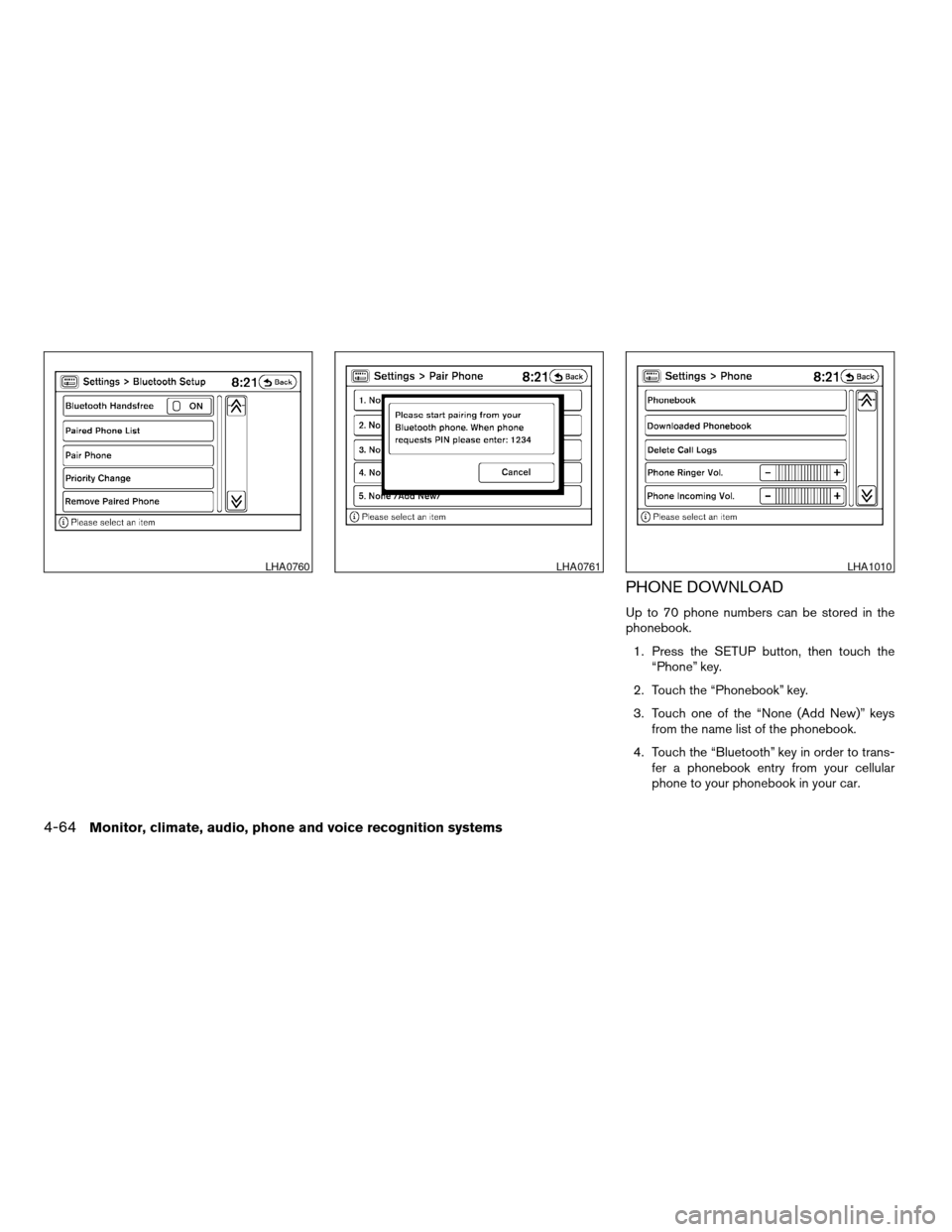
PHONE DOWNLOAD
Up to 70 phone numbers can be stored in the
phonebook.
1. Press the SETUP button, then touch the
“Phone” key.
2. Touch the “Phonebook” key.
3. Touch one of the “None (Add New)” keys
from the name list of the phonebook.
4. Touch the “Bluetooth” key in order to trans-
fer a phonebook entry from your cellular
phone to your phonebook in your car.
LHA0760LHA0761LHA1010
4-64Monitor, climate, audio, phone and voice recognition systems
ZREVIEW COPYÐ2009 Altima(alt)
Owners Manual(owners)ÐUSA_English(nna)
02/03/09Ðdebbie
X
Page 229 of 373
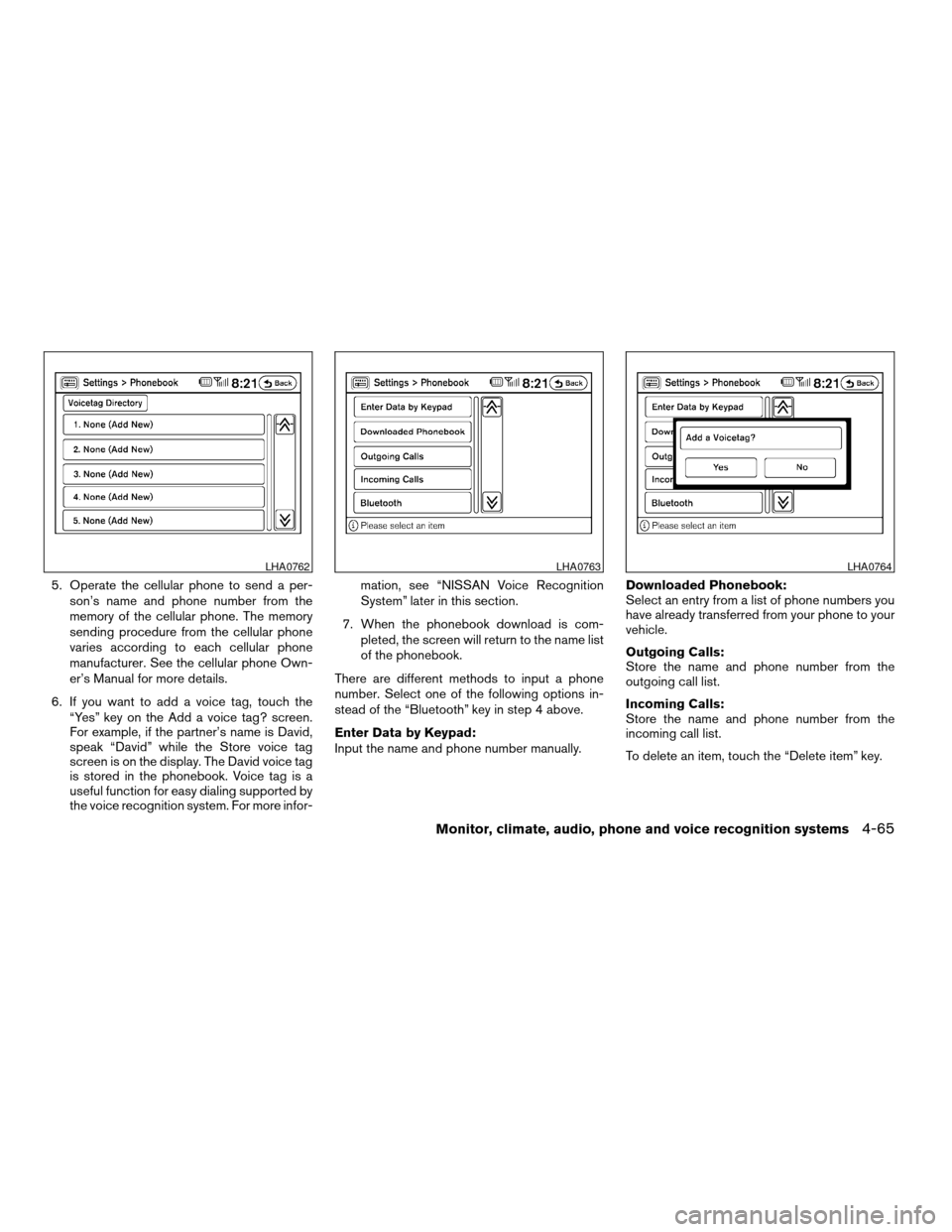
5. Operate the cellular phone to send a per-
son’s name and phone number from the
memory of the cellular phone. The memory
sending procedure from the cellular phone
varies according to each cellular phone
manufacturer. See the cellular phone Own-
er’s Manual for more details.
6. If you want to add a voice tag, touch the
“Yes” key on the Add a voice tag? screen.
For example, if the partner’s name is David,
speak “David” while the Store voice tag
screen is on the display. The David voice tag
is stored in the phonebook. Voice tag is a
useful function for easy dialing supported by
the voice recognition system. For more infor-mation, see “NISSAN Voice Recognition
System” later in this section.
7. When the phonebook download is com-
pleted, the screen will return to the name list
of the phonebook.
There are different methods to input a phone
number. Select one of the following options in-
stead of the “Bluetooth” key in step 4 above.
Enter Data by Keypad:
Input the name and phone number manually.Downloaded Phonebook:
Select an entry from a list of phone numbers you
have already transferred from your phone to your
vehicle.
Outgoing Calls:
Store the name and phone number from the
outgoing call list.
Incoming Calls:
Store the name and phone number from the
incoming call list.
To delete an item, touch the “Delete item” key.
LHA0762LHA0763LHA0764
Monitor, climate, audio, phone and voice recognition systems4-65
ZREVIEW COPYÐ2009 Altima(alt)
Owners Manual(owners)ÐUSA_English(nna)
02/03/09Ðdebbie
X
Page 230 of 373
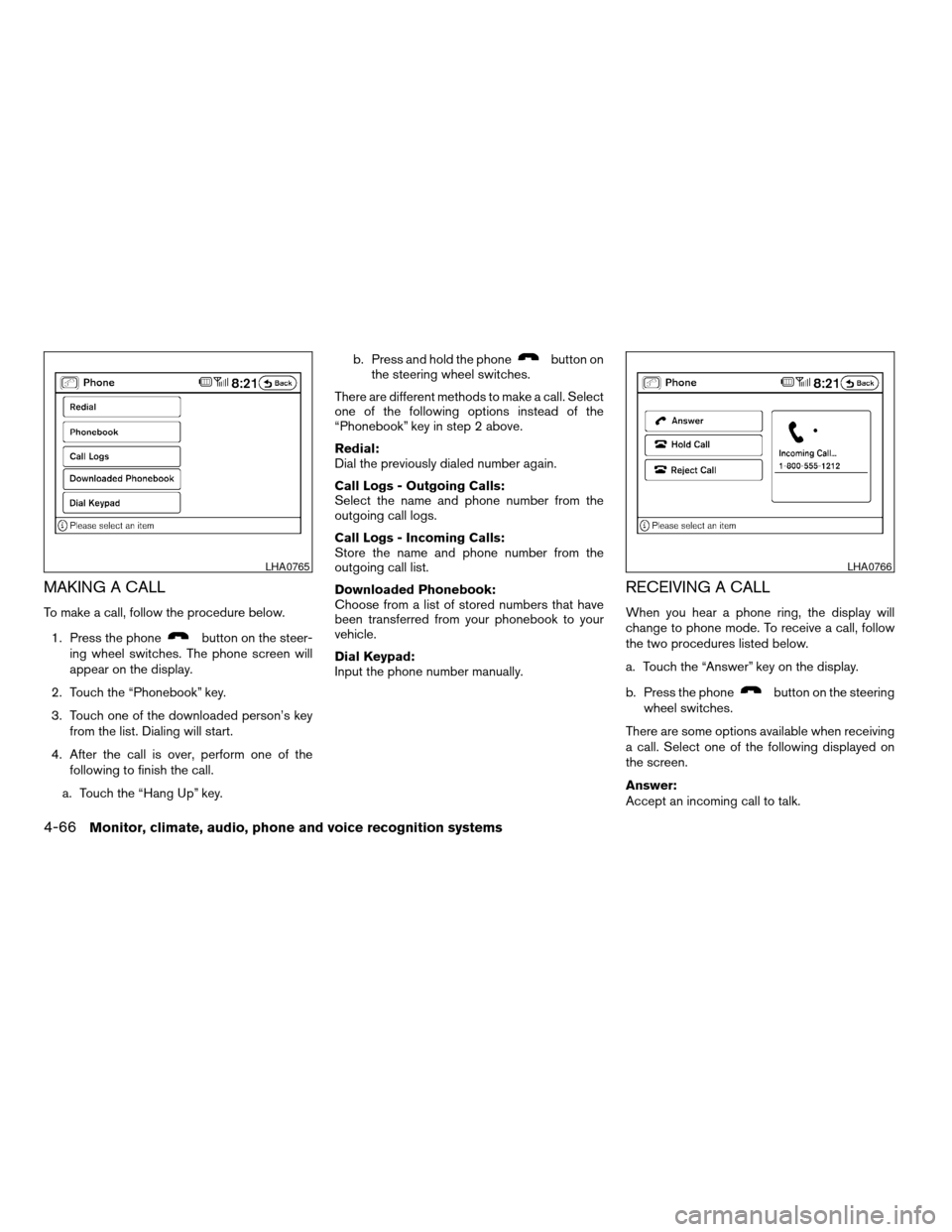
MAKING A CALL
To make a call, follow the procedure below.
1. Press the phone
button on the steer-
ing wheel switches. The phone screen will
appear on the display.
2. Touch the “Phonebook” key.
3. Touch one of the downloaded person’s key
from the list. Dialing will start.
4. After the call is over, perform one of the
following to finish the call.
a. Touch the “Hang Up” key.b. Press and hold the phone
button on
the steering wheel switches.
There are different methods to make a call. Select
one of the following options instead of the
“Phonebook” key in step 2 above.
Redial:
Dial the previously dialed number again.
Call Logs - Outgoing Calls:
Select the name and phone number from the
outgoing call logs.
Call Logs - Incoming Calls:
Store the name and phone number from the
outgoing call list.
Downloaded Phonebook:
Choose from a list of stored numbers that have
been transferred from your phonebook to your
vehicle.
Dial Keypad:
Input the phone number manually.
RECEIVING A CALL
When you hear a phone ring, the display will
change to phone mode. To receive a call, follow
the two procedures listed below.
a. Touch the “Answer” key on the display.
b. Press the phone
button on the steering
wheel switches.
There are some options available when receiving
a call. Select one of the following displayed on
the screen.
Answer:
Accept an incoming call to talk.
LHA0765LHA0766
4-66Monitor, climate, audio, phone and voice recognition systems
ZREVIEW COPYÐ2009 Altima(alt)
Owners Manual(owners)ÐUSA_English(nna)
02/03/09Ðdebbie
X
Page 231 of 373
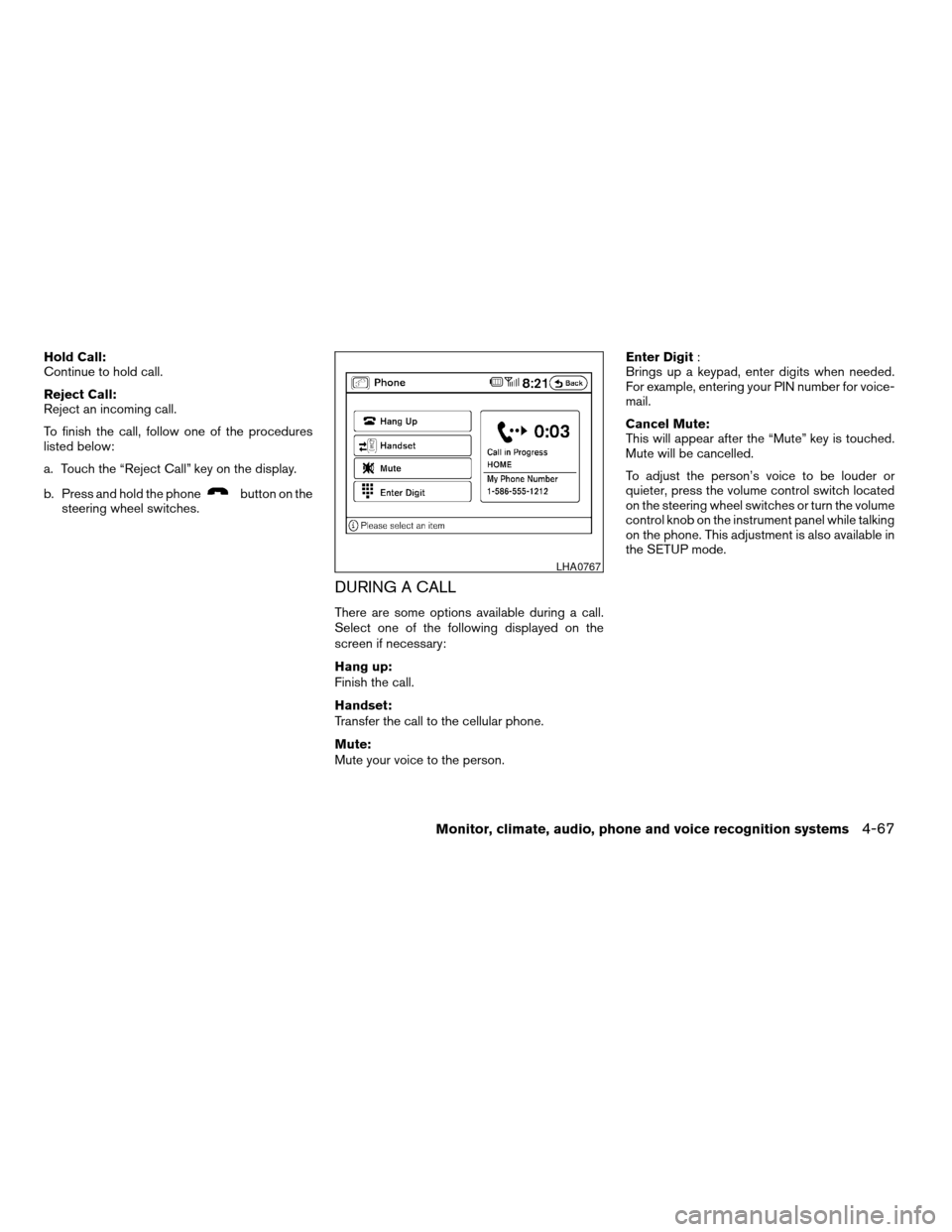
Hold Call:
Continue to hold call.
Reject Call:
Reject an incoming call.
To finish the call, follow one of the procedures
listed below:
a. Touch the “Reject Call” key on the display.
b. Press and hold the phone
button on the
steering wheel switches.
DURING A CALL
There are some options available during a call.
Select one of the following displayed on the
screen if necessary:
Hang up:
Finish the call.
Handset:
Transfer the call to the cellular phone.
Mute:
Mute your voice to the person.Enter Digit:
Brings up a keypad, enter digits when needed.
For example, entering your PIN number for voice-
mail.
Cancel Mute:
This will appear after the “Mute” key is touched.
Mute will be cancelled.
To adjust the person’s voice to be louder or
quieter, press the volume control switch located
on the steering wheel switches or turn the volume
control knob on the instrument panel while talking
on the phone. This adjustment is also available in
the SETUP mode.
LHA0767
Monitor, climate, audio, phone and voice recognition systems4-67
ZREVIEW COPYÐ2009 Altima(alt)
Owners Manual(owners)ÐUSA_English(nna)
02/03/09Ðdebbie
X
Page 232 of 373
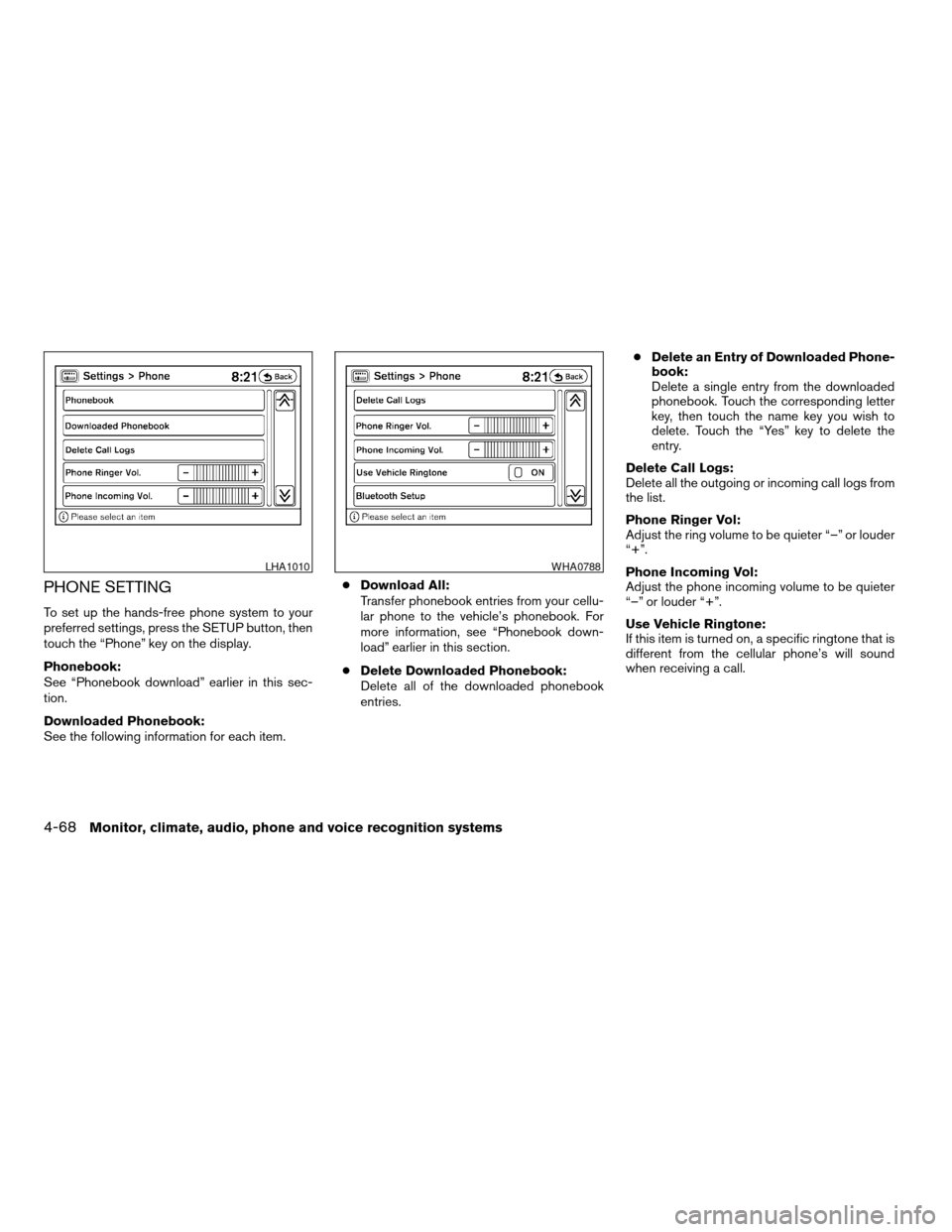
PHONE SETTING
To set up the hands-free phone system to your
preferred settings, press the SETUP button, then
touch the “Phone” key on the display.
Phonebook:
See “Phonebook download” earlier in this sec-
tion.
Downloaded Phonebook:
See the following information for each item.cDownload All:
Transfer phonebook entries from your cellu-
lar phone to the vehicle’s phonebook. For
more information, see “Phonebook down-
load” earlier in this section.
cDelete Downloaded Phonebook:
Delete all of the downloaded phonebook
entries.cDelete an Entry of Downloaded Phone-
book:
Delete a single entry from the downloaded
phonebook. Touch the corresponding letter
key, then touch the name key you wish to
delete. Touch the “Yes” key to delete the
entry.
Delete Call Logs:
Delete all the outgoing or incoming call logs from
the list.
Phone Ringer Vol:
Adjust the ring volume to be quieter “–” or louder
“+”.
Phone Incoming Vol:
Adjust the phone incoming volume to be quieter
“–” or louder “+”.
Use Vehicle Ringtone:
If this item is turned on, a specific ringtone that is
different from the cellular phone’s will sound
when receiving a call.
LHA1010WHA0788
4-68Monitor, climate, audio, phone and voice recognition systems
ZREVIEW COPYÐ2009 Altima(alt)
Owners Manual(owners)ÐUSA_English(nna)
02/03/09Ðdebbie
X
Page 233 of 373
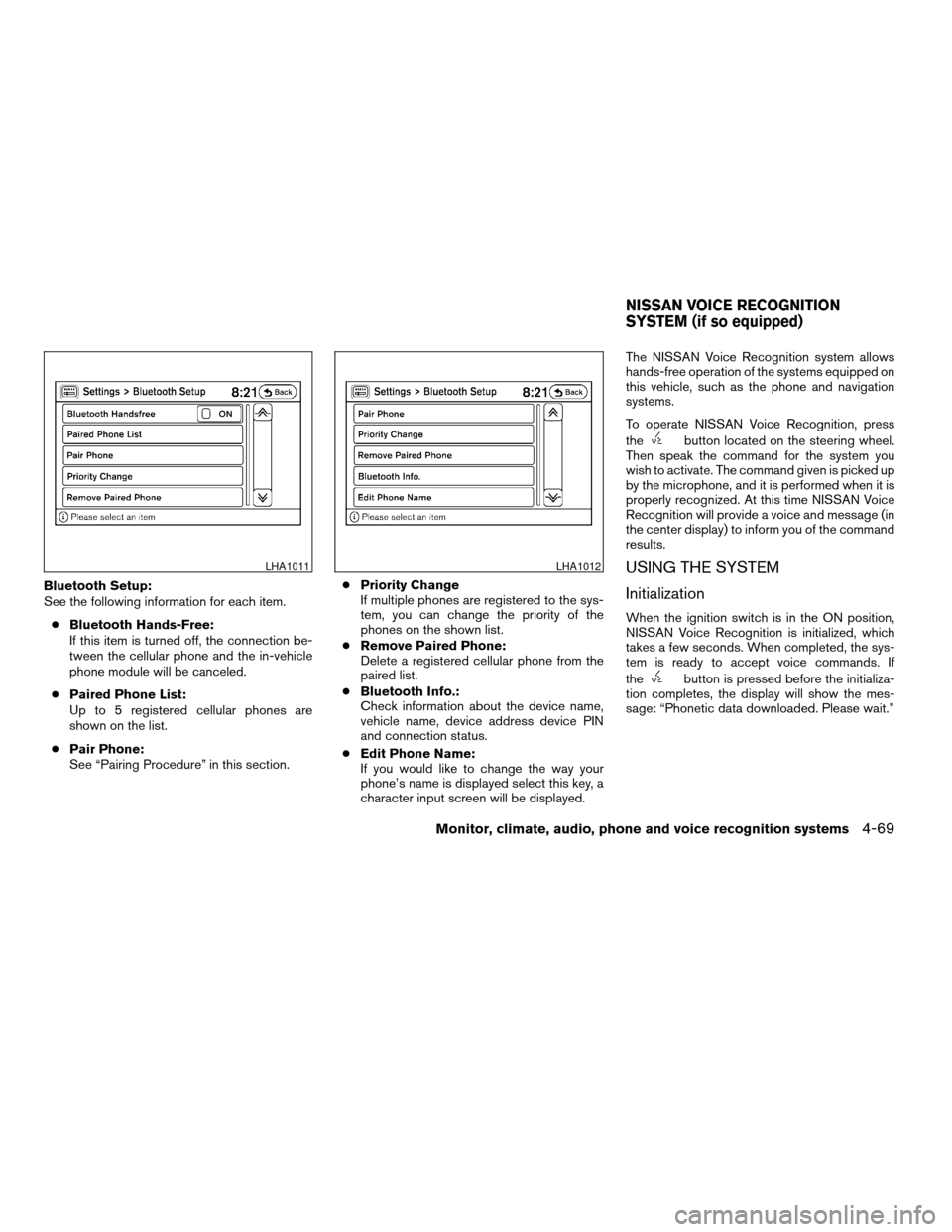
Bluetooth Setup:
See the following information for each item.
cBluetooth Hands-Free:
If this item is turned off, the connection be-
tween the cellular phone and the in-vehicle
phone module will be canceled.
cPaired Phone List:
Up to 5 registered cellular phones are
shown on the list.
cPair Phone:
See “Pairing Procedure” in this section.cPriority Change
If multiple phones are registered to the sys-
tem, you can change the priority of the
phones on the shown list.
cRemove Paired Phone:
Delete a registered cellular phone from the
paired list.
cBluetooth Info.:
Check information about the device name,
vehicle name, device address device PIN
and connection status.
cEdit Phone Name:
If you would like to change the way your
phone’s name is displayed select this key, a
character input screen will be displayed.The NISSAN Voice Recognition system allows
hands-free operation of the systems equipped on
this vehicle, such as the phone and navigation
systems.
To operate NISSAN Voice Recognition, press
the
button located on the steering wheel.
Then speak the command for the system you
wish to activate. The command given is picked up
by the microphone, and it is performed when it is
properly recognized. At this time NISSAN Voice
Recognition will provide a voice and message (in
the center display) to inform you of the command
results.
USING THE SYSTEM
Initialization
When the ignition switch is in the ON position,
NISSAN Voice Recognition is initialized, which
takes a few seconds. When completed, the sys-
tem is ready to accept voice commands. If
the
button is pressed before the initializa-
tion completes, the display will show the mes-
sage: “Phonetic data downloaded. Please wait.”
LHA1011LHA1012
NISSAN VOICE RECOGNITION
SYSTEM (if so equipped)
Monitor, climate, audio, phone and voice recognition systems4-69
ZREVIEW COPYÐ2009 Altima(alt)
Owners Manual(owners)ÐUSA_English(nna)
02/03/09Ðdebbie
X