light NISSAN ARMADA 2020 Owner´s Manual
[x] Cancel search | Manufacturer: NISSAN, Model Year: 2020, Model line: ARMADA, Model: NISSAN ARMADA 2020Pages: 528, PDF Size: 2.1 MB
Page 221 of 528
.Use the displayed lines as a re-
ference. The lines are highly af-
fected by the number of
occupants, fuel level, vehicle po-
sition, road conditions and road
grade.
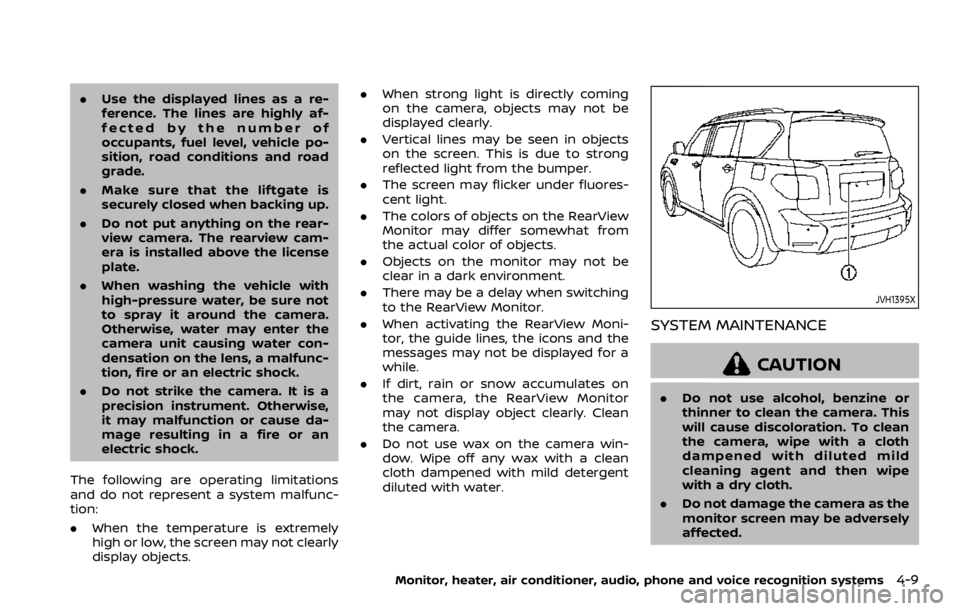
. Make sure that the liftgate is
securely closed when backing up.
. Do not put anything on the rear-
view camera. The rearview cam-
era is installed above the license
plate.
. When washing the vehicle with
high-pressure water, be sure not
to spray it around the camera.
Otherwise, water may enter the
camera unit causing water con-
densation on the lens, a malfunc-
tion, fire or an electric shock.
. Do not strike the camera. It is a
precision instrument. Otherwise,
it may malfunction or cause da-
mage resulting in a fire or an
electric shock.
The following are operating limitations
and do not represent a system malfunc-
tion:
. When the temperature is extremely
high or low, the screen may not clearly
display objects. .
When strong light is directly coming
on the camera, objects may not be
displayed clearly.
. Vertical lines may be seen in objects
on the screen. This is due to strong
reflected light from the bumper.
. The screen may flicker under fluores-
cent light.
. The colors of objects on the RearView
Monitor may differ somewhat from
the actual color of objects.
. Objects on the monitor may not be
clear in a dark environment.
. There may be a delay when switching
to the RearView Monitor.
. When activating the RearView Moni-
tor, the guide lines, the icons and the
messages may not be displayed for a
while.
. If dirt, rain or snow accumulates on
the camera, the RearView Monitor
may not display object clearly. Clean
the camera.
. Do not use wax on the camera win-
dow. Wipe off any wax with a clean
cloth dampened with mild detergent
diluted with water.
JVH1395X
SYSTEM MAINTENANCE
CAUTION
.Do not use alcohol, benzine or
thinner to clean the camera. This
will cause discoloration. To clean
the camera, wipe with a cloth
dampened with diluted mild
cleaning agent and then wipe
with a dry cloth.
. Do not damage the camera as the
monitor screen may be adversely
affected.
Monitor, heater, air conditioner, audio, phone and voice recognition systems4-9
Page 224 of 528
4-12Monitor, heater, air conditioner, audio, phone and voice recognition systems
JVH1397X
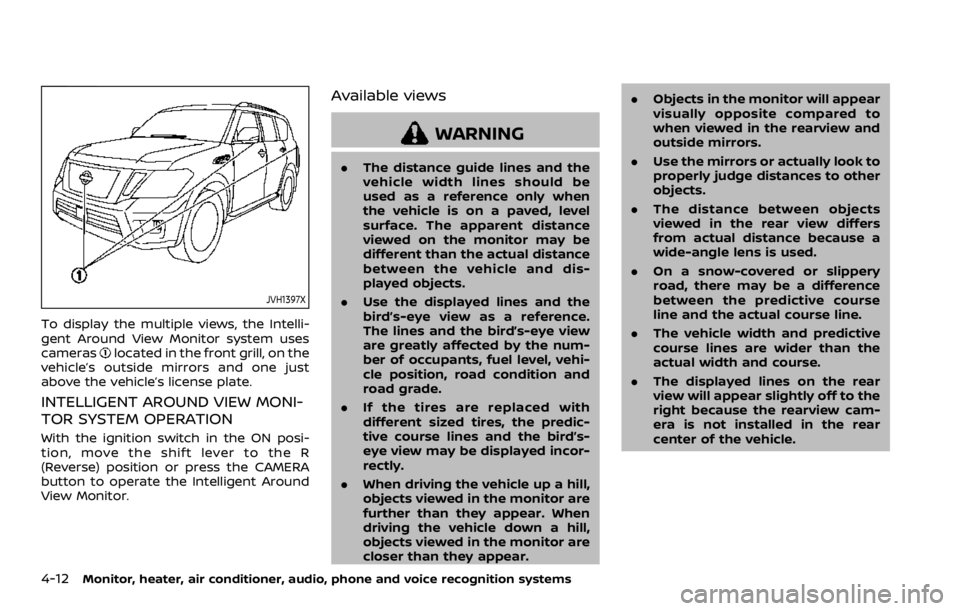
To display the multiple views, the Intelli-
gent Around View Monitor system uses
cameras
located in the front grill, on the
vehicle’s outside mirrors and one just
above the vehicle’s license plate.
INTELLIGENT AROUND VIEW MONI-
TOR SYSTEM OPERATION
With the ignition switch in the ON posi-
tion, move the shift lever to the R
(Reverse) position or press the CAMERA
button to operate the Intelligent Around
View Monitor.
Available views
WARNING
. The distance guide lines and the
vehicle width lines should be
used as a reference only when
the vehicle is on a paved, level
surface. The apparent distance
viewed on the monitor may be
different than the actual distance
between the vehicle and dis-
played objects.
. Use the displayed lines and the
bird’s-eye view as a reference.
The lines and the bird’s-eye view
are greatly affected by the num-
ber of occupants, fuel level, vehi-
cle position, road condition and
road grade.
. If the tires are replaced with
different sized tires, the predic-
tive course lines and the bird’s-
eye view may be displayed incor-
rectly.
. When driving the vehicle up a hill,
objects viewed in the monitor are
further than they appear. When
driving the vehicle down a hill,
objects viewed in the monitor are
closer than they appear. .
Objects in the monitor will appear
visually opposite compared to
when viewed in the rearview and
outside mirrors.
. Use the mirrors or actually look to
properly judge distances to other
objects.
. The distance between objects
viewed in the rear view differs
from actual distance because a
wide-angle lens is used.
. On a snow-covered or slippery
road, there may be a difference
between the predictive course
line and the actual course line.
. The vehicle width and predictive
course lines are wider than the
actual width and course.
. The displayed lines on the rear
view will appear slightly off to the
right because the rearview cam-
era is not installed in the rear
center of the vehicle.
Page 226 of 528
4-14Monitor, heater, air conditioner, audio, phone and voice recognition systems
WAE0224X
Bird’s-eye view:
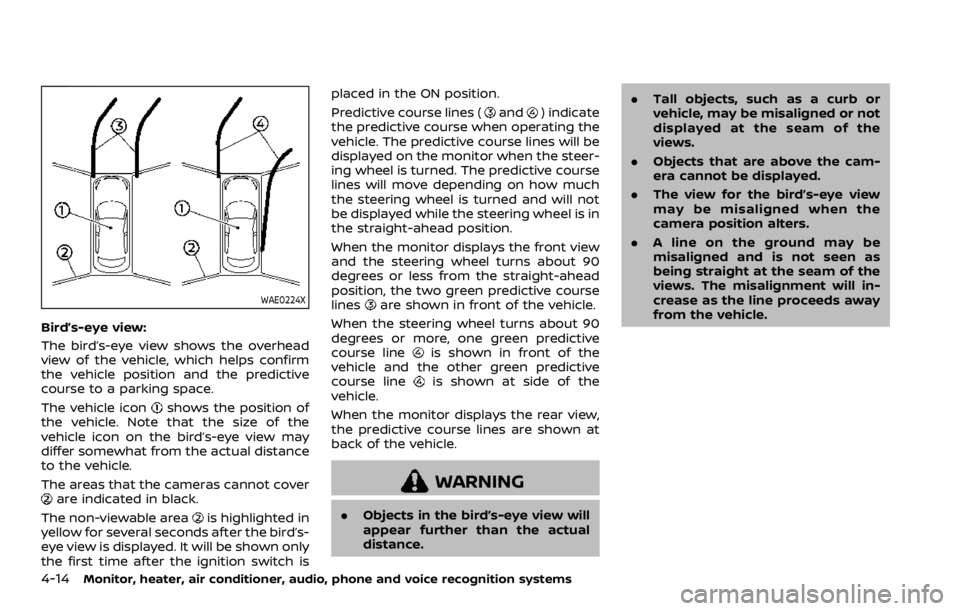
The bird’s-eye view shows the overhead
view of the vehicle, which helps confirm
the vehicle position and the predictive
course to a parking space.
The vehicle icon
shows the position of
the vehicle. Note that the size of the
vehicle icon on the bird’s-eye view may
differ somewhat from the actual distance
to the vehicle.
The areas that the cameras cannot cover
are indicated in black.
The non-viewable area
is highlighted in
yellow for several seconds after the bird’s-
eye view is displayed. It will be shown only
the first time after the ignition switch is placed in the ON position.
Predictive course lines (
and) indicate
the predictive course when operating the
vehicle. The predictive course lines will be
displayed on the monitor when the steer-
ing wheel is turned. The predictive course
lines will move depending on how much
the steering wheel is turned and will not
be displayed while the steering wheel is in
the straight-ahead position.
When the monitor displays the front view
and the steering wheel turns about 90
degrees or less from the straight-ahead
position, the two green predictive course
lines
are shown in front of the vehicle.
When the steering wheel turns about 90
degrees or more, one green predictive
course line
is shown in front of the
vehicle and the other green predictive
course line
is shown at side of the
vehicle.
When the monitor displays the rear view,
the predictive course lines are shown at
back of the vehicle.
WARNING
. Objects in the bird’s-eye view will
appear further than the actual
distance. .
Tall objects, such as a curb or
vehicle, may be misaligned or not
displayed at the seam of the
views.
. Objects that are above the cam-
era cannot be displayed.
. The view for the bird’s-eye view
may be misaligned when the
camera position alters.
. A line on the ground may be
misaligned and is not seen as
being straight at the seam of the
views. The misalignment will in-
crease as the line proceeds away
from the vehicle.
Page 227 of 528
JVH1141X
Front-side view:
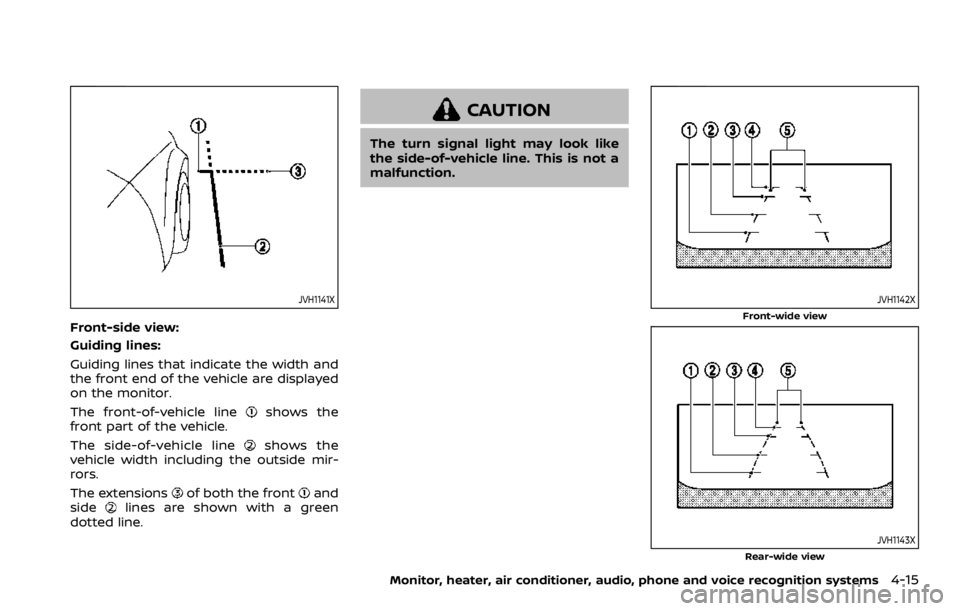
Guiding lines:
Guiding lines that indicate the width and
the front end of the vehicle are displayed
on the monitor.
The front-of-vehicle line
shows the
front part of the vehicle.
The side-of-vehicle line
shows the
vehicle width including the outside mir-
rors.
The extensions
of both the frontand
sidelines are shown with a green
dotted line.
CAUTION
The turn signal light may look like
the side-of-vehicle line. This is not a
malfunction.
JVH1142X
Front-wide view
JVH1143XRear-wide view
Monitor, heater, air conditioner, audio, phone and voice recognition systems4-15
Page 233 of 528

Available setting items:
Setting itemAction
Camera Back-up Collision Intervention Intelligent Back-up Intervention (I-BI) system on/off. See “Intelligent Back-up
Intervention (I-BI)” (P.5-53).
Moving Object Detection Turn the MOD system on/off. See “Moving Object Detection (MOD)” (P.4-29).
Non-viewable Area Reminder When this item is turned on, the non-viewable area is highlighted in yellow for
several seconds after the bird’s-eye view is displayed. It will be shown only the
first time after the ignition switch is placed in the ON position.
Predictive Course Lines When this item is turned on, the predictive course lines are displayed in the
front and the rear view and bird’s-eye view.
Automatic Display with Sonar The automatic sonar display can be turned on/off.
Sonar For the information about the sonar, see “Camera aiding sonar function
(models with Intelligent Around View Monitor)” (P.4-25).
Display Brightness Adjust display settings by touching the “+”/“-” key.
Contrast
Black Level
Tint
Color
Reset Settings Return all the settings to default.
Monitor, heater, air conditioner, audio, phone and voice recognition systems4-21
Page 234 of 528
4-22Monitor, heater, air conditioner, audio, phone and voice recognition systems
INTELLIGENT AROUND VIEW MONI-
TOR SYSTEM LIMITATIONS
WARNING
Listed below are the system limita-
tions for Intelligent Around View
Monitor. Failure to operate the vehi-
cle in accordance with these system
limitations could result in serious
injury or death.
.Do not use the Intelligent Around
View Monitor with the outside
mirrors in the stored position,
and make sure that the liftgate
is securely closed when operating
the vehicle using the Intelligent
Around View Monitor.
. The apparent distance between
objects viewed on the Intelligent
Around View Monitor differs from
the actual distance.
. The cameras are installed on the
front grille, the outside mirrors
and above the rear license plate.
Do not put anything on the vehi-
cle that covers the cameras.
. When washing the vehicle with
high pressure water, be sure not
to spray it around the cameras. Otherwise, water may enter the
camera unit causing water con-
densation on the lens, a malfunc-
tion, fire or an electric shock.
. Do not strike the cameras. They
are precision instruments. Doing
so could cause a malfunction or
cause damage resulting in a fire
or an electric shock.
The following are operating limitations
and do not represent a system malfunc-
tion:
. The screen displayed on the Intelligent
Around View Monitor will automati-
cally return to the previous screen 3
minutes after the CAMERA button has
been pushed while the shift lever is in
a position other than the R (Reverse)
position.
. There may be a delay when switching
between views.
. When the temperature is extremely
high or low, the screen may not
display objects clearly.
. When strong light directly shines on
the camera, objects may not be dis-
played clearly.
. The screen may flicker under fluores-
cent light. .
The colors of objects on the Intelligent
Around View Monitor may differ
somewhat from the actual color of
objects.
. Objects on the monitor may not be
clear and the color of the object may
differ in a dark environment.
. There may be differences in sharpness
between each camera view of the
bird’s-eye view.
. When activating the Intelligent Around
View Monitor, the icons and the mes-
sages may not be displayed for a
while.
. If dirt, rain or snow accumulates on
the camera, the Intelligent Around
View Monitor may not display objects
clearly. Clean the camera.
. Do not use wax on the camera lens.
Wipe off any wax with a clean cloth
that has been dampened with a
diluted mild cleaning agent, then wipe
with a dry cloth.
Page 244 of 528

4-32Monitor, heater, air conditioner, audio, phone and voice recognition systems
MOD function setting
To set up the MOD function to your
preferred settings, push the SETTING
button, select “Camera/Sonar” key, and
then select the “Camera” key on the
center display.
JVH1713X
Moving Object Detection:
When this item is turned on, the MOD is
activated. When this item is turned off
(indicator turns off), the MOD system is
deactivated. When the MOD system is
deactivated, “MOD”
will disappear on
the Sonar/MOD keyand the MOD iconwill disappear as well.
When the sonar is turned off on the
setting menu as well, the Sonar/MOD
key
will disappear.
MOD SYSTEM LIMITATIONS
WARNING
Listed below are the system limita-
tions for MOD. Failure to operate the
vehicle in accordance with these
system limitations could result in
serious injury or death.
. Do not use the MOD system when
towing a trailer. The system may
not function properly.
. Excessive noise (for example,
audio system volume or open
vehicle window) will interfere
with the chime sound, and it
may not be heard.
. The MOD system performance
will be limited according to en-
vironmental conditions and sur-
rounding objects such as:
— When there is low contrast
between background and the
moving objects.
— When there is blinking source of light.
— When strong light such as another vehicle’s headlight or
sunlight is present.
Page 249 of 528

4. To turn off the heater and air condi-tioner system, push the “OFF” button.
A visible mist may be seen coming from
the ventilators in hot, humid conditions as
the air is cooled rapidly. This does not
indicate a malfunction.
Dehumidified defrosting or defogging:
1. Push the “
” front defroster button.
(The indicator light on the button will
illuminate.)
2. Turn the temperature control dial to set the desired temperature.
. To quickly remove ice from the out-
side of the windows, push the fan
speed increase button “
” and set it
to the maximum position.
. As soon as possible after the wind-
shield is clean, push the “AUTO” button
to return to the auto mode.
. When the “
” front defroster button
is pushed, the air conditioner will
automatically be turned on at outside
temperatures above 23°F (−5°C) to
defog the windshield, and the air
recirculate mode will automatically
be turned off.
Outside air is drawn into the passen-
ger compartment to improve the
defogging performance.
Manual operation
Fan speed control:
Push the fan speed increase “
”or
decrease “” buttons to manually con-
trol the fan speed.
Push the “AUTO” button to return to
automatic control of the fan speed.
Temperature control:
Turn the temperature control dial to set
the desired temperature.
Air flow control:
Pushing the “MODE” manual air flow
control button selects the air outlet to:
: Air flows from center and side ventila-
tors.
: Air flows from center and side ventila-tors and foot outlets.
: Air flows mainly from foot outlets.
: Air flows from defroster and foot outlets.
Air intake control:
. Push the “
” air recirculation button
to recirculate interior air inside the
vehicle. The “
” indicator light on the
button will come on. The air recircula-
tion mode cannot be activated when
the air conditioner is in the front
defrosting mode “
”. .
Push the “
” outside air circulation
button to draw outside air into the
passenger compartment. The “
”
indicator light on the button will come
on.
. To control the air intake automatically,
push and hold either the “
” air
recirculation button or the “” out-
side air circulation button (whichever
indicator light is illuminated). The
indicator lights (both air recirculation
and outside air circulation buttons)
will flash twice, and then the air intake
will switch to automatic control.
Turning the system off
Push the OFF button.
Upper vent system
When the upper vent “” button is
pushed, the air flow against the driver’s
or passenger’s upper body becomes gen-
tle. The indicator light on the button will
illuminate.
In this mode, air from the upper ventilator
flows in order to control the cabin tem-
perature without blowing air directly on
the occupants.
Push the upper vent “
” button when
you want the air conditioner to work
quickly.
To turn the system off, push the upper
Monitor, heater, air conditioner, audio, phone and voice recognition systems4-37
Page 250 of 528
4-38Monitor, heater, air conditioner, audio, phone and voice recognition systems
vent “” button to turn the indicator
light off.
JVH1630X
Operations on touch panel screen
Heater and air conditioner can be oper-
ated on the touch panel screen. Push the
“CLIMATE” button on the center multi-
function control panel and turn the dis-
play to the Climate screen.
For details of the touch panel screen
operation, see the separate NissanCon-
nect® Owner’s Manual.
JVH1720X
The following operations are available
with the touch panel screen.
Availability of the item depends on the
model and specifications.
Available items:
.
Touch to change the air flow mode.
. -
/+
Touch to change the fan speed of the
air from the ventilators.
. Rear Climate
Touch to display the Rear Climate
screen. (See “Rear automatic air con-
ditioning system” (P.4-39).)
Page 251 of 528
.A/C
Touch to turn the air conditioner on/
off.
. DUAL
Touch to turn the DUAL mode (pas-
senger’s side temperature control)
on/off.
. Upper Vent
Touch to turn the upper vent system
on/off. (See “Upper vent system” (P.4-
37).)
JVH1621X
REAR AUTOMATIC AIR CONDITION-
ING SYSTEM
Push the “REAR” button on the front air
conditioner control panel to turn on the
rear automatic air conditioning system.
(The REAR indicator light will illuminate.)
To control the rear automatic air con-
ditioning system with the front air condi-
tioner control panel, push the “CLIMATE”
button on the center multi-function con-
trol panel and touch “Rear Climate” key.
The display will switch to the Rear Climate
screen.
The rear automatic air conditioning sys-
tem can be adjusted with the front air
conditioner control panel when the Rear Climate screen is displayed.
Push the “CLIMATE” button one more
time, the display will return to the Climate
screen.
The rear automatic air conditioning sys-
tem can also be adjusted by using the
rear air conditioner control panel located
on the rear of the center console. (See
“Rear air conditioner control panel opera-
tion” (P.4-42).)
This table shows the relation between the
front air conditioner control panel and
the rear air conditioner control panel.
Display status
Rear Climate
screen is dis-
played Rear Climate
screen is not
displayed (Cli-
mate screen)
Front air
condition-
er control
panel Only the rear
automatic air
conditioning
system can be
operated Only the front
air conditioner
can be operated
Rear air
condition-
er control
panel Cannot be op-
erated Only the rear
automatic air
conditioning
system can be
operated
Monitor, heater, air conditioner, audio, phone and voice recognition systems4-39