warning NISSAN ARMADA 2020 Owner´s Manual
[x] Cancel search | Manufacturer: NISSAN, Model Year: 2020, Model line: ARMADA, Model: NISSAN ARMADA 2020Pages: 528, PDF Size: 2.1 MB
Page 208 of 528
3-38Pre-driving checks and adjustments
.The color of an object in the distance
or in the dark may be difficult to be
recognized. This is not a malfunc-
tion.
System maintenance (Intelligent Rear
View Mirror):
. Always keep the mirror and camera
area of the rear window clean.
. Clean the mirror and the camera lens
with a dry soft cloth.
. When clean the camera area of the
rear window, using a soft cloth dam-
pend with water and a few neutral
detergent. And after, the dry it up with
dry soft cloth.
. If the image on the Intelligent Rear
View Mirror display screen is still un-
clear even after cleaning the camera
area of the rear window, an oil film
may be adhering to the rear window
glass. Clean the rear window glass
with an oil film remover.
. Never use alcohol, benzine, thinner, or
any similar material to clean the
mirror or camera lens. It will cause a
discoloration, deterioration or a sys-
tem malfunction.
. Do not attach a sticker (including
transparent material) on the camera
area of the rear window.
OUTSIDE MIRRORS
WARNING
.Objects viewed in the outside
mirror on the passenger side are
closer than they appear. Be care-
ful when moving to the right.
Using only this mirror could cause
an accident. Use the inside mirror
or glance over your shoulder to
properly judge distances to other
objects.
. Do not adjust the mirrors while
driving. You could lose control of
your vehicle and cause an acci-
dent.
SPA2739
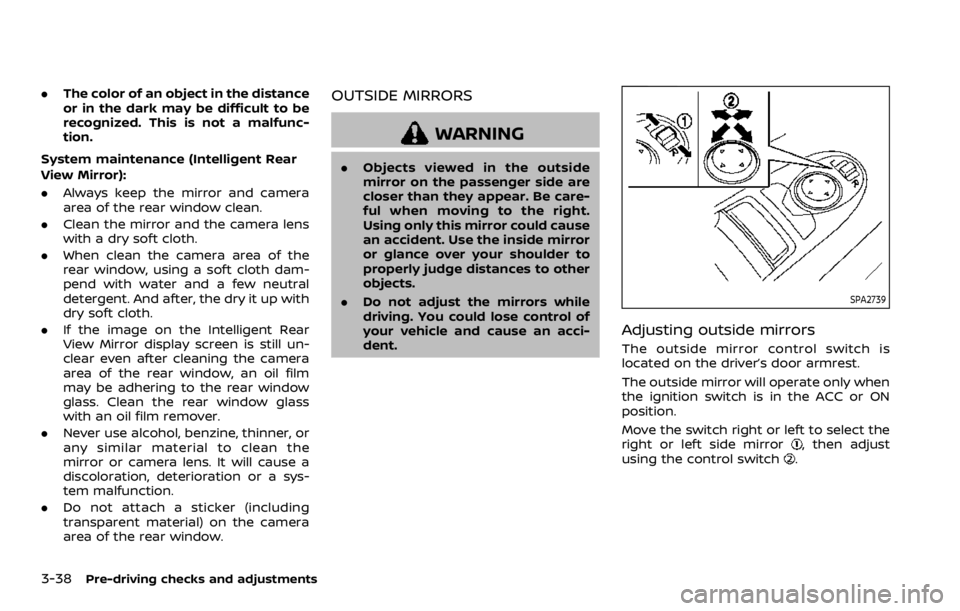
Adjusting outside mirrors
The outside mirror control switch is
located on the driver’s door armrest.
The outside mirror will operate only when
the ignition switch is in the ACC or ON
position.
Move the switch right or left to select the
right or left side mirror
, then adjust
using the control switch.
Page 214 of 528
4-2Monitor, heater, air conditioner, audio, phone and voice recognition systems
For models with NissanConnect® with
Navigation (if so equipped) and Services
(if so equipped), refer to the NissanCon-
nect® Owner’s Manual regarding the fol-
lowing information.
.Audio system
. Bluetooth® Hands-Free Phone
. NissanConnect® Services
. SiriusXM Traffic
TM
.SiriusXM® Travel Link
. SiriusXM® Radio
. Navigation system
. Voice Recognition System
. Information and settings viewable on
NissanConnect®
WARNING
.Do not disassemble or modify
this system. If you do, it may
result in accidents, fire, or electric
shock.
. Do not use this system if you
notice any abnormality, such as
a frozen screen or lack of sound.
Continued use of the system may
result in accident, fire or electric
shock.
. In case you notice any foreign
object in the system hardware,
spill liquid on it, or notice smoke
or smell coming from it, stop
using the system immediately. It
is recommended you visit a
NISSAN dealer for servicing.
Ignoring such conditions may
lead to accidents, fire, or electric
shock.
. Park the vehicle in a safe location
and apply the parking brake to
view the images on the front
center display screen.
CAUTION
Do not use the system when the
engine is not running for extended
periods of time to prevent battery
discharge.
Do not attempt to operate the system in
extreme temperature conditions [below
−4°F (−20°C) and above 158°F (70°C)].
Operating this system under these con-
ditions may result in system malfunc-
tions.
NISSANCONNECT® OWNER’S MANUALSAFETY NOTE
Page 215 of 528

JVH1688X
1. SETTING button
WARNING
Failure to follow the warnings and
instructions for proper use of the
RearView Monitor system could re-
sult in serious injury or death.
.The RearView Monitor is a conve-
nience but it is not a substitute
for proper backing. Always turn
and look out the windows, and
check mirrors to be sure that it is
safe to move before operating
the vehicle. Always back up
slowly.
. The system is designed as an aid
to the driver in showing large
stationary objects directly behind
the vehicle, to help avoid dama-
ging the vehicle.
. The distance guide line and the
vehicle width line should be used
as a reference only when the
vehicle is on a level paved sur-
face. The distance viewed on the
monitor is for reference only and
may be different than the actual
distance between the vehicle and
displayed objects.
Monitor, heater, air conditioner, audio, phone and voice recognition systems4-3
REARVIEW MONITOR (if so equipped)
Page 218 of 528

4-6Monitor, heater, air conditioner, audio, phone and voice recognition systems
SAA1923
Backing up near a projecting object
The predictive course linesdo not
touch the object in the display. However,
the vehicle may hit the object if it projects
over the actual backing up course.
JVH1216X
Backing up behind a projecting
object
The positionis shown farther than the
positionin the display. However, the
positionis actually at the same dis-
tance as the position. The vehicle may
hit the object when backing up to the position
if the object projects over the
actual backing up course.
HOW TO PARK WITH PREDICTIVE
COURSE LINES
WARNING
. If the tires are replaced with
different sized tires, the predic-
tive course line may not be dis-
played correctly.
. On a snow-covered or slippery
road, there may be a difference
between the predictive course
line and the actual course line.
. The displayed lines will appear
slightly off to the right because
the rearview camera is not in-
stalled in the rear center of the
vehicle.
Page 220 of 528

4-8Monitor, heater, air conditioner, audio, phone and voice recognition systems
JVH1690X
ADJUSTING THE SCREEN
The display settings such as Brightness,
Contrast, Black Level, Tint and Color of
the RearView Monitor can be adjusted.
1. Push the SETTING button while theRearView Monitor screen is displayed.
2. The Display settings menu is dis- played. Select an item you wish to
adjust.
3. Adjust the selected item by touching the “+” or “-” key.
Select “Reset Settings” key to return all
settings to default.
Display settings menu can also be ac-
cessed while the RearView Monitor screen is not displayed. Push the SETTING
button and select “Camera/Sonar” key,
and then select “Display” key.
NOTE:
Do not adjust any of the display settings
of the RearView Monitor while the
vehicle is moving. Make sure the park-
ing brake is firmly applied.
PREDICTIVE COURSE LINE SET-
TINGS
To toggle on and off the predictive course
lines:
1. Push the SETTING button while the
RearView Monitor screen is not dis-
played.
2. Select “Camera/Sonar” key.
3. Select “Camera” key.
4. Select “Predictive Course Lines” key to turn the feature on or off. When this
item is turned on, the predictive
course lines will be displayed on the
monitor.
REARVIEW MONITOR SYSTEM LIM-
ITATIONS
WARNING
Listed below are the system limita-
tions for RearView Monitor. Failure to
operate the vehicle in accordance
with these system limitations could
result in serious injury or death.
.The system cannot completely
eliminate blind spots and may
not show every object.
. Underneath the bumper and the
corner areas of the bumper can-
not be viewed on the RearView
Monitor because of its monitoring
range limitation. The system will
not show small objects below the
bumper, and may not show ob-
jects close to the bumper or on
the ground.
. Objects viewed in the RearView
Monitor differ from actual dis-
tance because a wide-angle lens
is used.
. Objects in the RearView Monitor
will appear visually opposite
compared to when viewed in the
rearview and outside mirrors.
Page 223 of 528
WARNING
Failure to follow the warnings and
instructions for the proper use of the
Intelligent Around View Monitor sys-
tem could result in serious injury or
death.
.The Intelligent Around View Moni-
tor is a convenience feature and
is not a substitute for proper
vehicle operation because it has
areas where objects cannot be
viewed. The four corners of the
vehicle in particular, are areas
where objects do not always ap-
pear in the bird’s-eye, front, or
rear views. Always check your
surroundings to be sure that it is
safe to move before operating
the vehicle. Always operate the
vehicle slowly.
. The driver is always responsible
for safety during parking and
other maneuvers.
CAUTION
Do not scratch the lens when clean-
ing dirt or snow from the front of the
camera.
The Intelligent Around View Monitor sys-
tem is designed as an aid to the driver in
situations such as slot parking or parallel
parking.
The monitor displays various views of the
position of the vehicle in a split screen
format. All views are not available at all
times.
Available views:
. Front view
An approximately 150-degree view of
the front of the vehicle.
. Rear view
An approximately 150-degree view of
the rear of the vehicle.
. Bird’s-eye view
The surrounding view of the vehicle
from above.
. Front-side view
The view around and ahead of the
front passenger’s side wheel.
. Front-wide view
An approximately 180-degree view of the front of the vehicle.
. Rear-wide view
An approximately 180-degree view of
the rear of the vehicle.
Monitor, heater, air conditioner, audio, phone and voice recognition systems4-11
Page 224 of 528
4-12Monitor, heater, air conditioner, audio, phone and voice recognition systems
JVH1397X
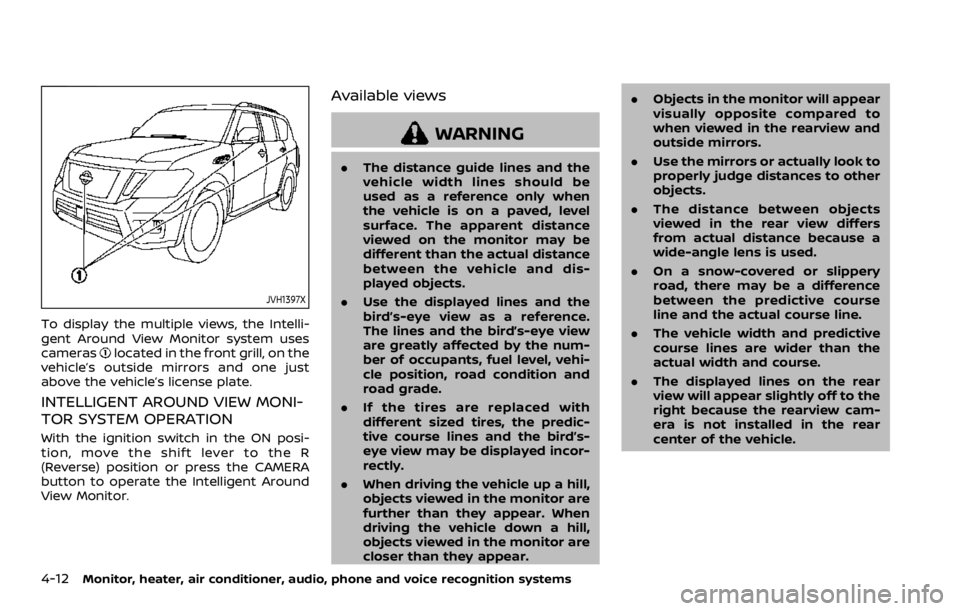
To display the multiple views, the Intelli-
gent Around View Monitor system uses
cameras
located in the front grill, on the
vehicle’s outside mirrors and one just
above the vehicle’s license plate.
INTELLIGENT AROUND VIEW MONI-
TOR SYSTEM OPERATION
With the ignition switch in the ON posi-
tion, move the shift lever to the R
(Reverse) position or press the CAMERA
button to operate the Intelligent Around
View Monitor.
Available views
WARNING
. The distance guide lines and the
vehicle width lines should be
used as a reference only when
the vehicle is on a paved, level
surface. The apparent distance
viewed on the monitor may be
different than the actual distance
between the vehicle and dis-
played objects.
. Use the displayed lines and the
bird’s-eye view as a reference.
The lines and the bird’s-eye view
are greatly affected by the num-
ber of occupants, fuel level, vehi-
cle position, road condition and
road grade.
. If the tires are replaced with
different sized tires, the predic-
tive course lines and the bird’s-
eye view may be displayed incor-
rectly.
. When driving the vehicle up a hill,
objects viewed in the monitor are
further than they appear. When
driving the vehicle down a hill,
objects viewed in the monitor are
closer than they appear. .
Objects in the monitor will appear
visually opposite compared to
when viewed in the rearview and
outside mirrors.
. Use the mirrors or actually look to
properly judge distances to other
objects.
. The distance between objects
viewed in the rear view differs
from actual distance because a
wide-angle lens is used.
. On a snow-covered or slippery
road, there may be a difference
between the predictive course
line and the actual course line.
. The vehicle width and predictive
course lines are wider than the
actual width and course.
. The displayed lines on the rear
view will appear slightly off to the
right because the rearview cam-
era is not installed in the rear
center of the vehicle.
Page 226 of 528
4-14Monitor, heater, air conditioner, audio, phone and voice recognition systems
WAE0224X
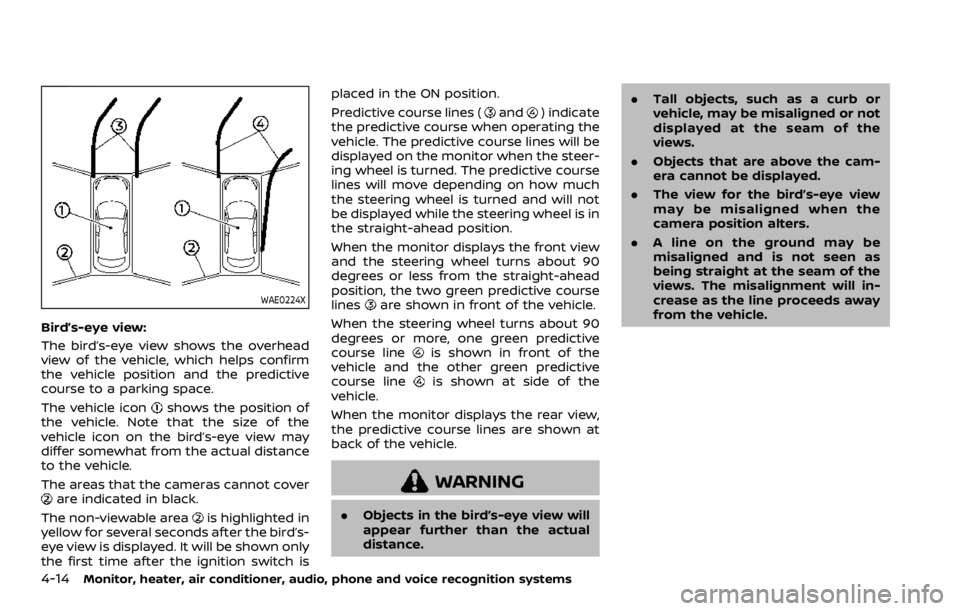
Bird’s-eye view:
The bird’s-eye view shows the overhead
view of the vehicle, which helps confirm
the vehicle position and the predictive
course to a parking space.
The vehicle icon
shows the position of
the vehicle. Note that the size of the
vehicle icon on the bird’s-eye view may
differ somewhat from the actual distance
to the vehicle.
The areas that the cameras cannot cover
are indicated in black.
The non-viewable area
is highlighted in
yellow for several seconds after the bird’s-
eye view is displayed. It will be shown only
the first time after the ignition switch is placed in the ON position.
Predictive course lines (
and) indicate
the predictive course when operating the
vehicle. The predictive course lines will be
displayed on the monitor when the steer-
ing wheel is turned. The predictive course
lines will move depending on how much
the steering wheel is turned and will not
be displayed while the steering wheel is in
the straight-ahead position.
When the monitor displays the front view
and the steering wheel turns about 90
degrees or less from the straight-ahead
position, the two green predictive course
lines
are shown in front of the vehicle.
When the steering wheel turns about 90
degrees or more, one green predictive
course line
is shown in front of the
vehicle and the other green predictive
course line
is shown at side of the
vehicle.
When the monitor displays the rear view,
the predictive course lines are shown at
back of the vehicle.
WARNING
. Objects in the bird’s-eye view will
appear further than the actual
distance. .
Tall objects, such as a curb or
vehicle, may be misaligned or not
displayed at the seam of the
views.
. Objects that are above the cam-
era cannot be displayed.
. The view for the bird’s-eye view
may be misaligned when the
camera position alters.
. A line on the ground may be
misaligned and is not seen as
being straight at the seam of the
views. The misalignment will in-
crease as the line proceeds away
from the vehicle.
Page 230 of 528
4-18Monitor, heater, air conditioner, audio, phone and voice recognition systems
How to park with predictive course
lines
WARNING
.If the tires are replaced with
different sized tires, the predic-
tive course lines may be dis-
played incorrectly.
. On a snow-covered or slippery
road, there may be a difference
between the predictive course
line and the actual course line.
. If the battery is disconnected or
becomes discharged, the predic-
tive course lines may be dis-
played incorrectly. If this occurs,
drive the vehicle on a straight
road for more than 5 minutes.
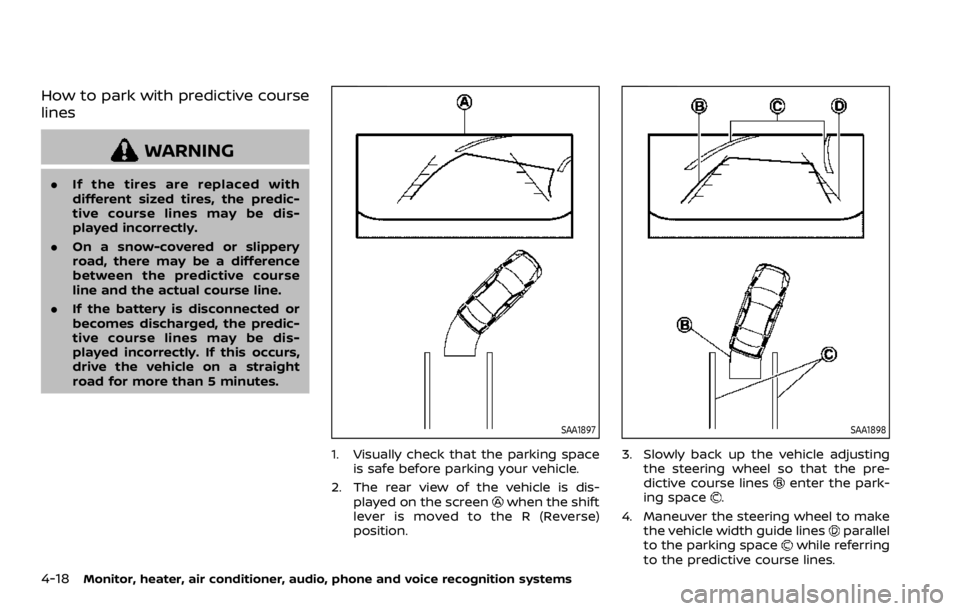
SAA1897
1. Visually check that the parking space
is safe before parking your vehicle.
2. The rear view of the vehicle is dis- played on the screen
when the shift
lever is moved to the R (Reverse)
position.
SAA1898
3. Slowly back up the vehicle adjusting the steering wheel so that the pre-
dictive course lines
enter the park-
ing space.
4. Maneuver the steering wheel to make the vehicle width guide lines
parallel
to the parking spacewhile referring
to the predictive course lines.
Page 234 of 528
4-22Monitor, heater, air conditioner, audio, phone and voice recognition systems
INTELLIGENT AROUND VIEW MONI-
TOR SYSTEM LIMITATIONS
WARNING
Listed below are the system limita-
tions for Intelligent Around View
Monitor. Failure to operate the vehi-
cle in accordance with these system
limitations could result in serious
injury or death.
.Do not use the Intelligent Around
View Monitor with the outside
mirrors in the stored position,
and make sure that the liftgate
is securely closed when operating
the vehicle using the Intelligent
Around View Monitor.
. The apparent distance between
objects viewed on the Intelligent
Around View Monitor differs from
the actual distance.
. The cameras are installed on the
front grille, the outside mirrors
and above the rear license plate.
Do not put anything on the vehi-
cle that covers the cameras.
. When washing the vehicle with
high pressure water, be sure not
to spray it around the cameras. Otherwise, water may enter the
camera unit causing water con-
densation on the lens, a malfunc-
tion, fire or an electric shock.
. Do not strike the cameras. They
are precision instruments. Doing
so could cause a malfunction or
cause damage resulting in a fire
or an electric shock.
The following are operating limitations
and do not represent a system malfunc-
tion:
. The screen displayed on the Intelligent
Around View Monitor will automati-
cally return to the previous screen 3
minutes after the CAMERA button has
been pushed while the shift lever is in
a position other than the R (Reverse)
position.
. There may be a delay when switching
between views.
. When the temperature is extremely
high or low, the screen may not
display objects clearly.
. When strong light directly shines on
the camera, objects may not be dis-
played clearly.
. The screen may flicker under fluores-
cent light. .
The colors of objects on the Intelligent
Around View Monitor may differ
somewhat from the actual color of
objects.
. Objects on the monitor may not be
clear and the color of the object may
differ in a dark environment.
. There may be differences in sharpness
between each camera view of the
bird’s-eye view.
. When activating the Intelligent Around
View Monitor, the icons and the mes-
sages may not be displayed for a
while.
. If dirt, rain or snow accumulates on
the camera, the Intelligent Around
View Monitor may not display objects
clearly. Clean the camera.
. Do not use wax on the camera lens.
Wipe off any wax with a clean cloth
that has been dampened with a
diluted mild cleaning agent, then wipe
with a dry cloth.