ECO mode NISSAN ARMADA 2022 Owner´s Manual
[x] Cancel search | Manufacturer: NISSAN, Model Year: 2022, Model line: ARMADA, Model: NISSAN ARMADA 2022Pages: 604, PDF Size: 2.97 MB
Page 274 of 604
4-44Monitor, heater, air conditioner, audio, phone and voice recognition systems
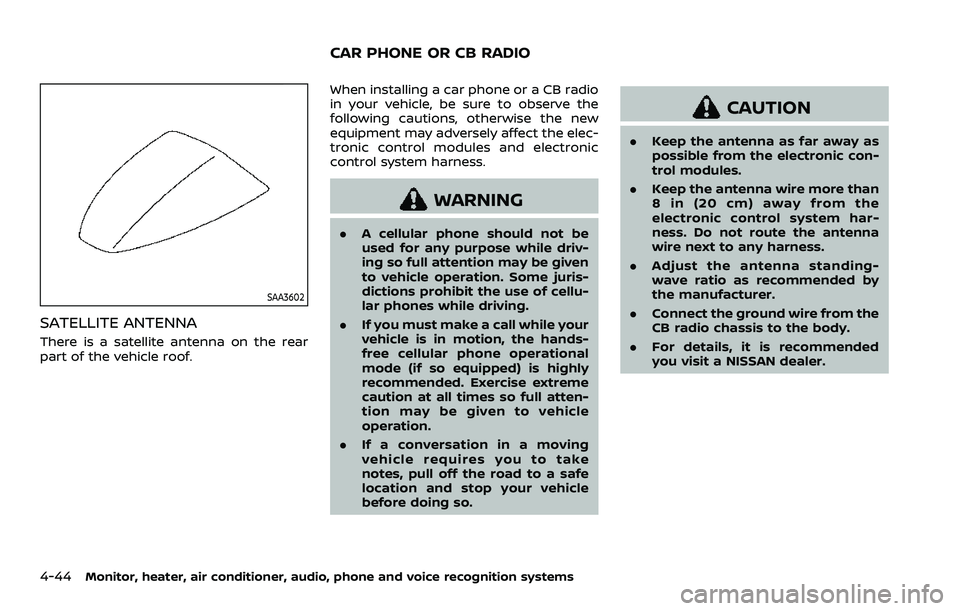
SAA3602
SATELLITE ANTENNA
There is a satellite antenna on the rear
part of the vehicle roof.When installing a car phone or a CB radio
in your vehicle, be sure to observe the
following cautions, otherwise the new
equipment may adversely affect the elec-
tronic control modules and electronic
control system harness.
WARNING
.
A cellular phone should not be
used for any purpose while driv-
ing so full attention may be given
to vehicle operation. Some juris-
dictions prohibit the use of cellu-
lar phones while driving.
. If you must make a call while your
vehicle is in motion, the hands-
free cellular phone operational
mode (if so equipped) is highly
recommended. Exercise extreme
caution at all times so full atten-
tion may be given to vehicle
operation.
. If a conversation in a moving
vehicle requires you to take
notes, pull off the road to a safe
location and stop your vehicle
before doing so.
CAUTION
.Keep the antenna as far away as
possible from the electronic con-
trol modules.
. Keep the antenna wire more than
8 in (20 cm) away from the
electronic control system har-
ness. Do not route the antenna
wire next to any harness.
. Adjust the antenna standing-
wave ratio as recommended by
the manufacturer.
. Connect the ground wire from the
CB radio chassis to the body.
. For details, it is recommended
you visit a NISSAN dealer.
CAR PHONE OR CB RADIO
Page 288 of 604
4-58Monitor, heater, air conditioner, audio, phone and voice recognition systems
NOTE:
When inserting a USB storage device
with a large library of content, there
may be a delay before the content is
accessible.
WAE0724X
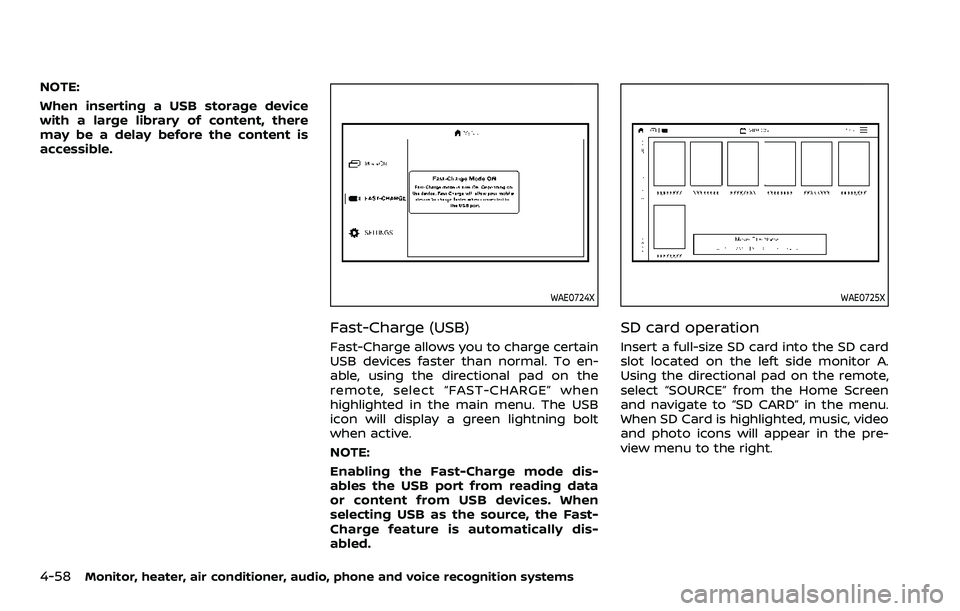
Fast-Charge (USB)
Fast-Charge allows you to charge certain
USB devices faster than normal. To en-
able, using the directional pad on the
remote, select “FAST-CHARGE” when
highlighted in the main menu. The USB
icon will display a green lightning bolt
when active.
NOTE:
Enabling the Fast-Charge mode dis-
ables the USB port from reading data
or content from USB devices. When
selecting USB as the source, the Fast-
Charge feature is automatically dis-
abled.
WAE0725X
SD card operation
Insert a full-size SD card into the SD card
slot located on the left side monitor A.
Using the directional pad on the remote,
select “SOURCE” from the Home Screen
and navigate to “SD CARD” in the menu.
When SD Card is highlighted, music, video
and photo icons will appear in the pre-
view menu to the right.
Page 291 of 604
WAE0728X
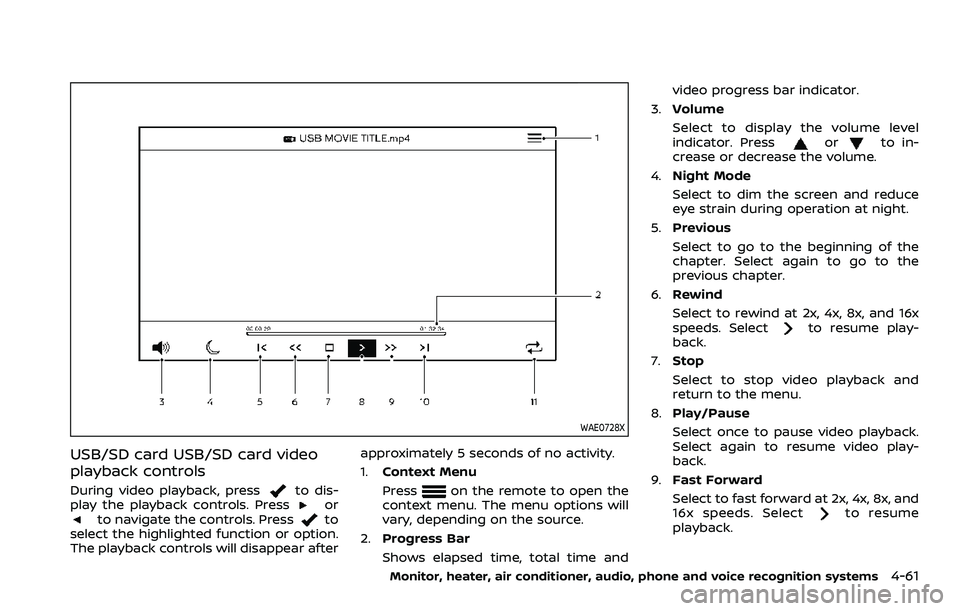
USB/SD card USB/SD card video
playback controls
During video playback, pressto dis-
play the playback controls. Pressorto navigate the controls. Pressto
select the highlighted function or option.
The playback controls will disappear after approximately 5 seconds of no activity.
1.
Context Menu
Press
on the remote to open the
context menu. The menu options will
vary, depending on the source.
2. Progress Bar
Shows elapsed time, total time and video progress bar indicator.
3. Volume
Select to display the volume level
indicator. Press
orto in-
crease or decrease the volume.
4. Night Mode
Select to dim the screen and reduce
eye strain during operation at night.
5. Previous
Select to go to the beginning of the
chapter. Select again to go to the
previous chapter.
6. Rewind
Select to rewind at 2x, 4x, 8x, and 16x
speeds. Select
to resume play-
back.
7. Stop
Select to stop video playback and
return to the menu.
8. Play/Pause
Select once to pause video playback.
Select again to resume video play-
back.
9. Fast Forward
Select to fast forward at 2x, 4x, 8x, and
16x speeds. Select
to resume
playback.
Monitor, heater, air conditioner, audio, phone and voice recognition systems4-61
Page 292 of 604
4-62Monitor, heater, air conditioner, audio, phone and voice recognition systems
10.Next
Select to go to the next chapter.
11. Repeat
Select once to repeat the entire video.
Select again to repeat the currently
playing chapter one time.
WAE0725X
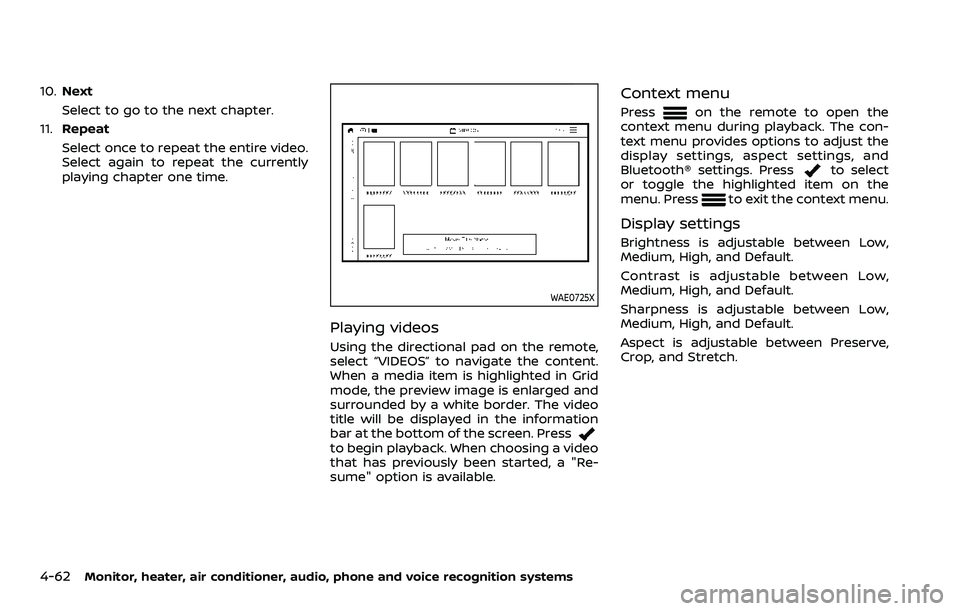
Playing videos
Using the directional pad on the remote,
select “VIDEOS” to navigate the content.
When a media item is highlighted in Grid
mode, the preview image is enlarged and
surrounded by a white border. The video
title will be displayed in the information
bar at the bottom of the screen. Press
to begin playback. When choosing a video
that has previously been started, a "Re-
sume" option is available.
Context menu
Presson the remote to open the
context menu during playback. The con-
text menu provides options to adjust the
display settings, aspect settings, and
Bluetooth® settings. Press
to select
or toggle the highlighted item on the
menu. Press
to exit the context menu.
Display settings
Brightness is adjustable between Low,
Medium, High, and Default.
Contrast is adjustable between Low,
Medium, High, and Default.
Sharpness is adjustable between Low,
Medium, High, and Default.
Aspect is adjustable between Preserve,
Crop, and Stretch.
Page 293 of 604
WAE0729X
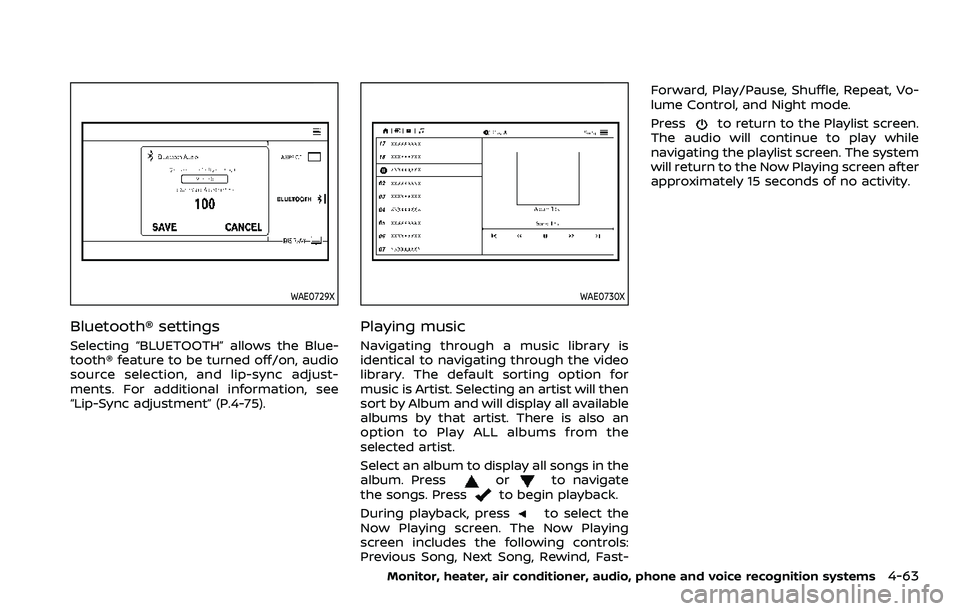
Bluetooth® settings
Selecting “BLUETOOTH” allows the Blue-
tooth® feature to be turned off/on, audio
source selection, and lip-sync adjust-
ments. For additional information, see
“Lip-Sync adjustment” (P.4-75).
WAE0730X
Playing music
Navigating through a music library is
identical to navigating through the video
library. The default sorting option for
music is Artist. Selecting an artist will then
sort by Album and will display all available
albums by that artist. There is also an
option to Play ALL albums from the
selected artist.
Select an album to display all songs in the
album. Press
orto navigate
the songs. Pressto begin playback.
During playback, press
to select the
Now Playing screen. The Now Playing
screen includes the following controls:
Previous Song, Next Song, Rewind, Fast- Forward, Play/Pause, Shuffle, Repeat, Vo-
lume Control, and Night mode.
Press
to return to the Playlist screen.
The audio will continue to play while
navigating the playlist screen. The system
will return to the Now Playing screen after
approximately 15 seconds of no activity.
Monitor, heater, air conditioner, audio, phone and voice recognition systems4-63
Page 294 of 604
4-64Monitor, heater, air conditioner, audio, phone and voice recognition systems
WAE0731X
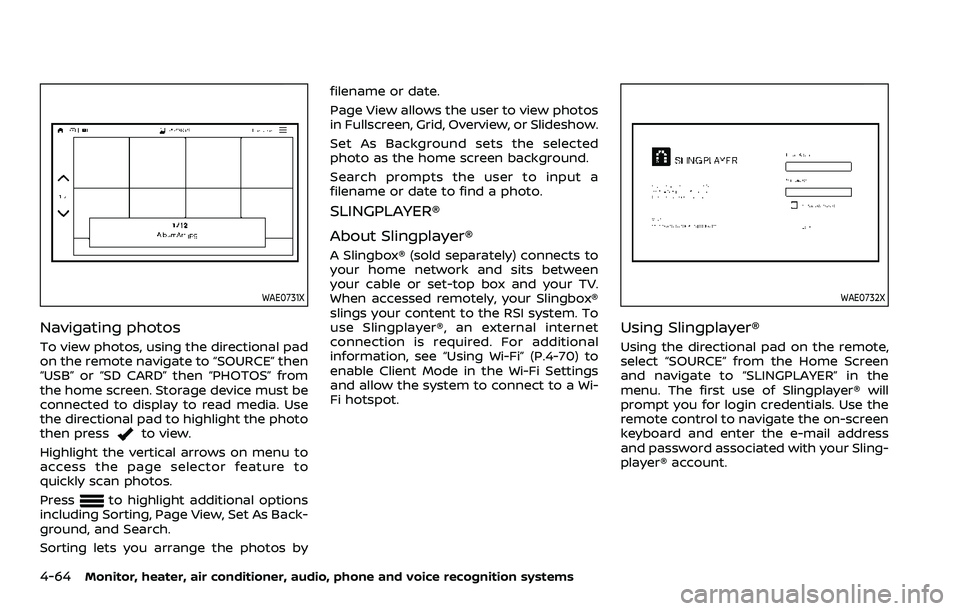
Navigating photos
To view photos, using the directional pad
on the remote navigate to “SOURCE” then
“USB” or “SD CARD” then “PHOTOS” from
the home screen. Storage device must be
connected to display to read media. Use
the directional pad to highlight the photo
then press
to view.
Highlight the vertical arrows on menu to
access the page selector feature to
quickly scan photos.
Press
to highlight additional options
including Sorting, Page View, Set As Back-
ground, and Search.
Sorting lets you arrange the photos by filename or date.
Page View allows the user to view photos
in Fullscreen, Grid, Overview, or Slideshow.
Set As Background sets the selected
photo as the home screen background.
Search prompts the user to input a
filename or date to find a photo.
SLINGPLAYER®
About Slingplayer®
A Slingbox® (sold separately) connects to
your home network and sits between
your cable or set-top box and your TV.
When accessed remotely, your Slingbox®
slings your content to the RSI system. To
use Slingplayer®, an external internet
connection is required. For additional
information, see “Using Wi-Fi” (P.4-70) to
enable Client Mode in the Wi-Fi Settings
and allow the system to connect to a Wi-
Fi hotspot.
WAE0732X
Using Slingplayer®
Using the directional pad on the remote,
select “SOURCE” from the Home Screen
and navigate to “SLINGPLAYER” in the
menu. The first use of Slingplayer® will
prompt you for login credentials. Use the
remote control to navigate the on-screen
keyboard and enter the e-mail address
and password associated with your Sling-
player® account.
Page 299 of 604
4. After selecting a content source, navi-gate through the folders, and select
the desired file to stream to the
monitor. Once the file is selected, it
will begin streaming to the monitor
that was selected in step 2 above.
5. Playback controls are available from the Now Playing screen in the UPnP
application and from the monitor.
Press
to display the playback
controls on the monitor.
NOTE:
. Content protected with DRM (Digital
Rights Management) cannot be
streamed using the SmartStream
feature.
. A wired connection (HDMI or MHL) is
required to stream protected con-
tent from a mobile device to the RSI
system. For additional information,
see “HDMI/MHL connection” (P.4-57).
WAE0740X
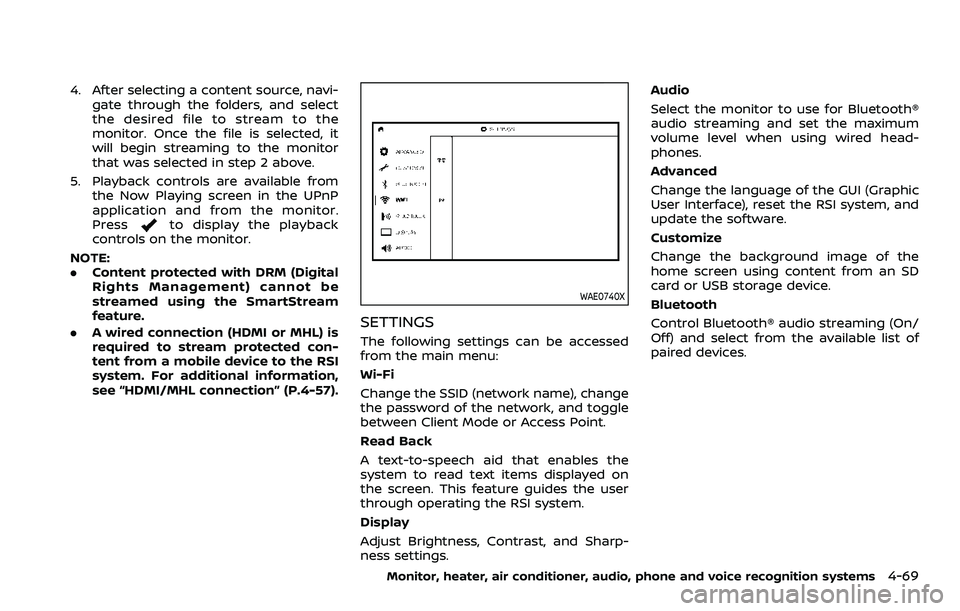
SETTINGS
The following settings can be accessed
from the main menu:
Wi-Fi
Change the SSID (network name), change
the password of the network, and toggle
between Client Mode or Access Point.
Read Back
A text-to-speech aid that enables the
system to read text items displayed on
the screen. This feature guides the user
through operating the RSI system.
Display
Adjust Brightness, Contrast, and Sharp-
ness settings. Audio
Select the monitor to use for Bluetooth®
audio streaming and set the maximum
volume level when using wired head-
phones.
Advanced
Change the language of the GUI (Graphic
User Interface), reset the RSI system, and
update the software.
Customize
Change the background image of the
home screen using content from an SD
card or USB storage device.
Bluetooth
Control Bluetooth® audio streaming (On/
Off) and select from the available list of
paired devices.
Monitor, heater, air conditioner, audio, phone and voice recognition systems4-69
Page 300 of 604
4-70Monitor, heater, air conditioner, audio, phone and voice recognition systems
WAE0741X
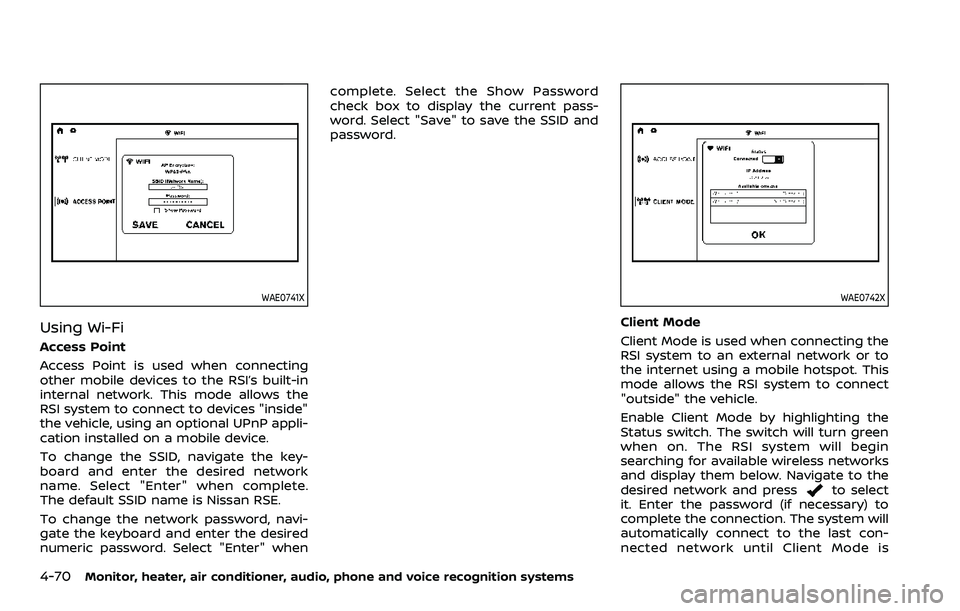
Using Wi-Fi
Access Point
Access Point is used when connecting
other mobile devices to the RSI’s built-in
internal network. This mode allows the
RSI system to connect to devices "inside"
the vehicle, using an optional UPnP appli-
cation installed on a mobile device.
To change the SSID, navigate the key-
board and enter the desired network
name. Select "Enter" when complete.
The default SSID name is Nissan RSE.
To change the network password, navi-
gate the keyboard and enter the desired
numeric password. Select "Enter" whencomplete. Select the Show Password
check box to display the current pass-
word. Select "Save" to save the SSID and
password.
WAE0742X
Client Mode
Client Mode is used when connecting the
RSI system to an external network or to
the internet using a mobile hotspot. This
mode allows the RSI system to connect
"outside" the vehicle.
Enable Client Mode by highlighting the
Status switch. The switch will turn green
when on. The RSI system will begin
searching for available wireless networks
and display them below. Navigate to the
desired network and press
to select
it. Enter the password (if necessary) to
complete the connection. The system will
automatically connect to the last con-
nected network until Client Mode is
Page 301 of 604
disabled.
NOTE:
Client Mode will use data from the
external Wi-Fi connection. Use with care
as additional data is consumed when
using mobile device data plans.
Using Read Back*
Enable the Read Back feature by high-
lighting the Status switch. The switch will
turn green when on. Highlight the Save
button and press
to enable Read
Back. When enabled, the RSI system will
read the text of menu items displayed on
the screen, providing audible guidance on
how to use the system. A blue bar will also
appear at the top of each screen indicat-
ing the Read Back feature is enabled.
Speech Volume
Speech Volume can be adjusted to match
the media volume (spoken text volume is
the same volume level as the content
being played). To reduce the Speech
Volume to be lower than the volume level
content being played, set it to 75%, 50%,
or 25% of the media volume.
Speech Rate
Speech Rate can be adjusted between
Normal, Fast, or Slow. This setting con-
trols how fast the spoken text is pro-
nounced. *Complies with FCC/Accessibility rule 21st
Century Communications and Video Ac-
cessibility Act (CVAA).
WAE0743X
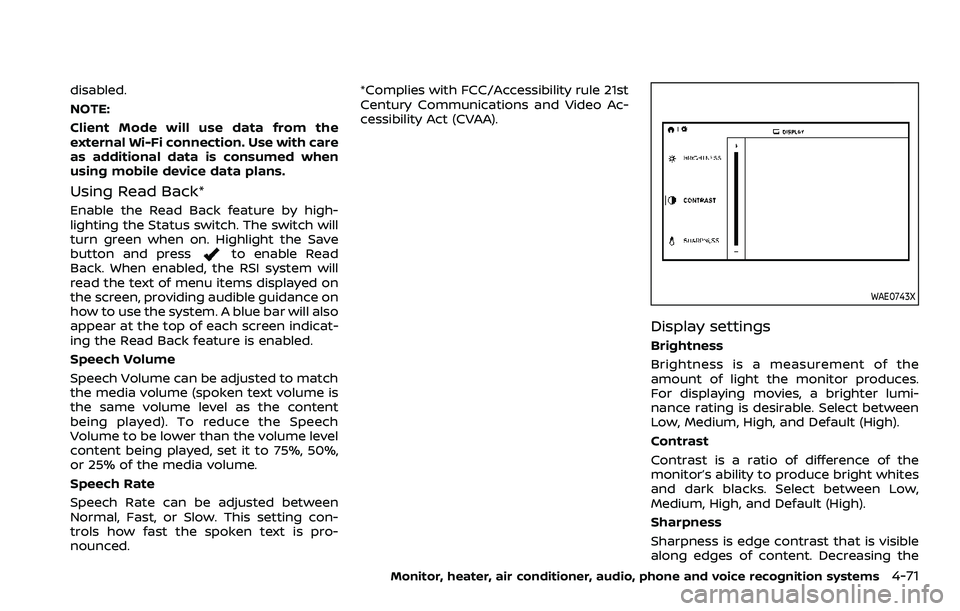
Display settings
Brightness
Brightness is a measurement of the
amount of light the monitor produces.
For displaying movies, a brighter lumi-
nance rating is desirable. Select between
Low, Medium, High, and Default (High).
Contrast
Contrast is a ratio of difference of the
monitor’s ability to produce bright whites
and dark blacks. Select between Low,
Medium, High, and Default (High).
Sharpness
Sharpness is edge contrast that is visible
along edges of content. Decreasing the
Monitor, heater, air conditioner, audio, phone and voice recognition systems4-71
Page 304 of 604
4-74Monitor, heater, air conditioner, audio, phone and voice recognition systems
WAE0747X
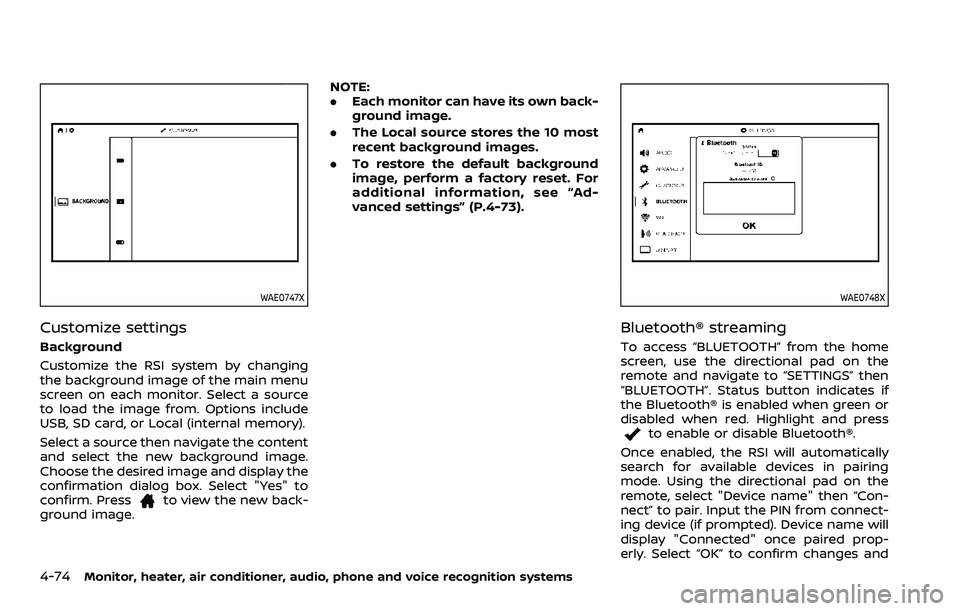
Customize settings
Background
Customize the RSI system by changing
the background image of the main menu
screen on each monitor. Select a source
to load the image from. Options include
USB, SD card, or Local (internal memory).
Select a source then navigate the content
and select the new background image.
Choose the desired image and display the
confirmation dialog box. Select "Yes" to
confirm. Press
to view the new back-
ground image. NOTE:
.
Each monitor can have its own back-
ground image.
. The Local source stores the 10 most
recent background images.
. To restore the default background
image, perform a factory reset. For
additional information, see “Ad-
vanced settings” (P.4-73).
WAE0748X
Bluetooth® streaming
To access “BLUETOOTH” from the home
screen, use the directional pad on the
remote and navigate to “SETTINGS” then
“BLUETOOTH”. Status button indicates if
the Bluetooth® is enabled when green or
disabled when red. Highlight and press
to enable or disable Bluetooth®.
Once enabled, the RSI will automatically
search for available devices in pairing
mode. Using the directional pad on the
remote, select "Device name" then “Con-
nect” to pair. Input the PIN from connect-
ing device (if prompted). Device name will
display "Connected" once paired prop-
erly. Select “OK” to confirm changes and