steering NISSAN FRONTIER 2018 Owner´s Manual
[x] Cancel search | Manufacturer: NISSAN, Model Year: 2018, Model line: FRONTIER, Model: NISSAN FRONTIER 2018Pages: 502, PDF Size: 4.85 MB
Page 120 of 502
15. Electronic locking rear differential(E-Lock) system switch
(if so equipped) (P. 2-37)
Heated seat switches
(if so equipped) (P. 2-34)
Rear sonar switch (if so equipped)
(P. 2-39)
Vehicle Dynamic Control (VDC)
OFF switch (P. 2-35)
16. Shif t lever (P. 5-14)
17. 4WD shif t switch (if so equipped)
(P. 5-26)
18. Climate controls (P. 4-17, P. 4-26)
19. Hazard warning flasher switch
(P. 6-2)
20. Ignition switch (P. 5-10)
21. Tilt steering wheel control
(if so equipped) (P. 3-14)
22. Cargo lamp switch (P. 2-34) Clutch interlock (clutch start)
switch (if so equipped) (P. 2-38)
Hill descent control switch
(if so equipped) (P. 2-36)
Outside mirror controls
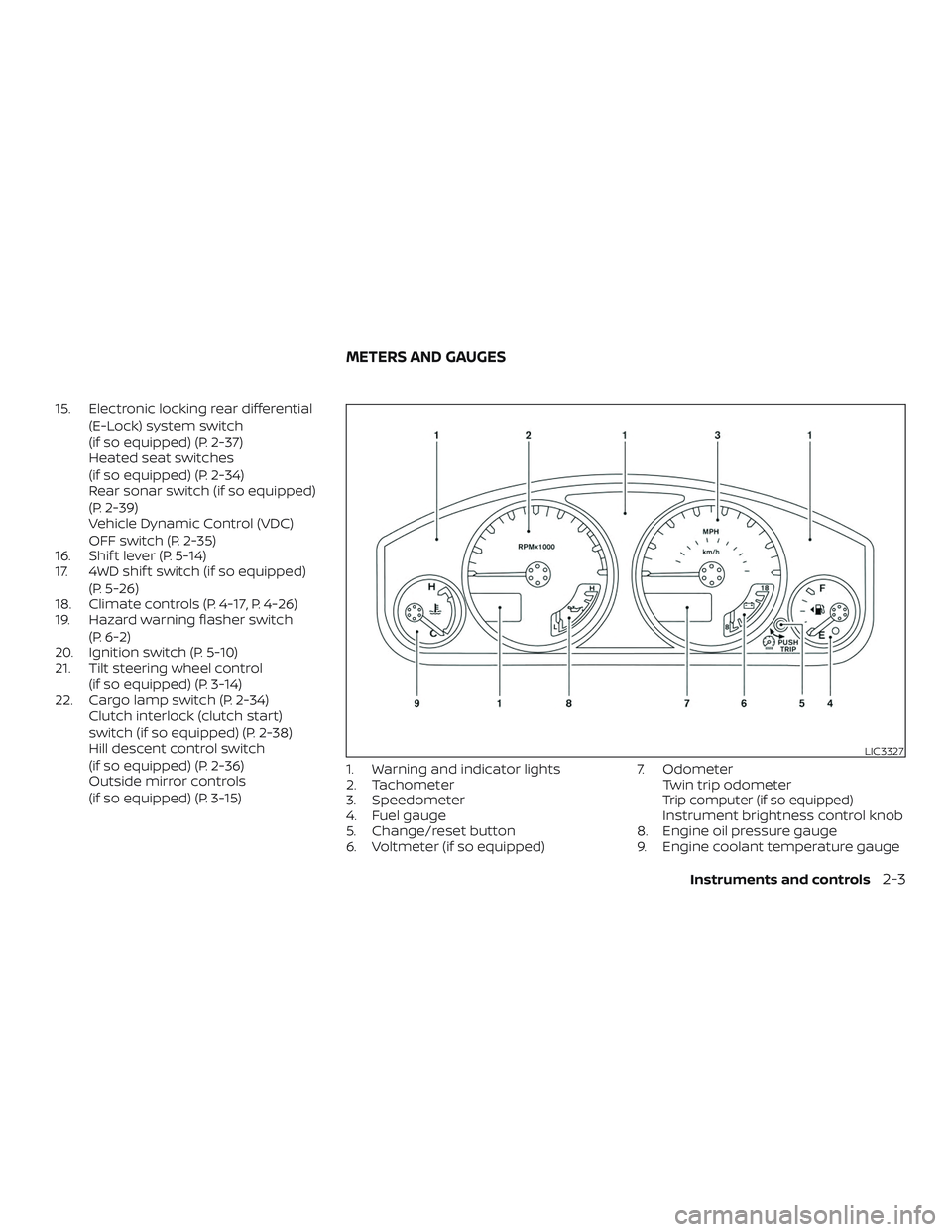
(if so equipped) (P. 3-15) 1. Warning and indicator lights
2. Tachometer
3. Speedometer
4. Fuel gauge
5. Change/reset button
6. Voltmeter (if so equipped) 7. Odometer
Twin trip odometer
Trip computer (if so equipped)Instrument brightness control knob
8. Engine oil pressure gauge
9. Engine coolant temperature gauge
LIC3327
METERS AND GAUGES
Instruments and controls2-3
Page 136 of 502
The "CHECK TIRE PRES" warning does not
appear if the low tire pressure warning light
illuminates to indicate a TPMS malfunction.
For additional information, refer to “Tire
Pressure Monitoring System (TPMS)” in the
“Starting and driving” section and “Tire
pressure” in the “Do-it-yourself ” section of
this manual.
WARNING
∙ Radio waves could adversely affectelectric medical equipment. Those
who use a pacemaker should contact
the electric medical equipment
manufacturer for the possible influ-
ences before use.
∙ If the light does not illuminate with the ignition switch placed in the ON
position, have the vehicle checked as
soon as possible. It is recommended
that you visit a NISSAN dealer for this
service. ∙ If the light illuminates while driving,
avoid sudden steering maneuvers or
abrupt braking, reduce vehicle speed,
pull off the road to a safe location and
stop the vehicle as soon as possible.
Driving with under-inflated tires may
permanently damage the tires and in-
crease the likelihood of tire failure. Se-
rious vehicle damage could occur and
may lead to an accident and could re-
sult in serious personal injury or
death. Check the tire pressure for all
four tires. Adjust the tire pressure to
the recommended COLD tire pressure
show on the Tire and Loading Infor-
mation label located in the driver’s
door opening to turn the low tire pres-
sure warning light off. If the light still
illuminates while driving af ter adjust-
ing the tire pressure, a tire may be flat
or the TPMS may be malfunctioning. If
you have a flat tire, replace it with a
spare tire as soon as possible. If no tire
is flat and all tires are properly in-
flated, have the vehicle checked. It is
recommended that you visit a NISSAN
dealer for this service. ∙ When replacing a wheel without the
TPMS such as the spare tire, the TPMS
will not function and the low tire pres-
sure warning light will flash for ap-
proximately 1 minute. The light will re-
main on af ter 1 minute. Have your
tires replaced and/or TPMS system
reset as soon as possible. It is recom-
mended that you visit a NISSAN dealer
for these services.
∙ Replacing tires with those not origi- nally specified by NISSAN could affect
the proper operation of the TPMS.
CAUTION
∙ The TPMS is not a substitute for theregular tire pressure check. Be sure to
check the tire pressure regularly.
∙ If the vehicle is being driven at speeds of less than 16 mph (25 km/h), the
TPMS may not operate correctly.
∙ Be sure to install the specified size of tires to the four wheels correctly.
Instruments and controls2-19
Page 150 of 502
FOG LIGHT SWITCH
(if so equipped)
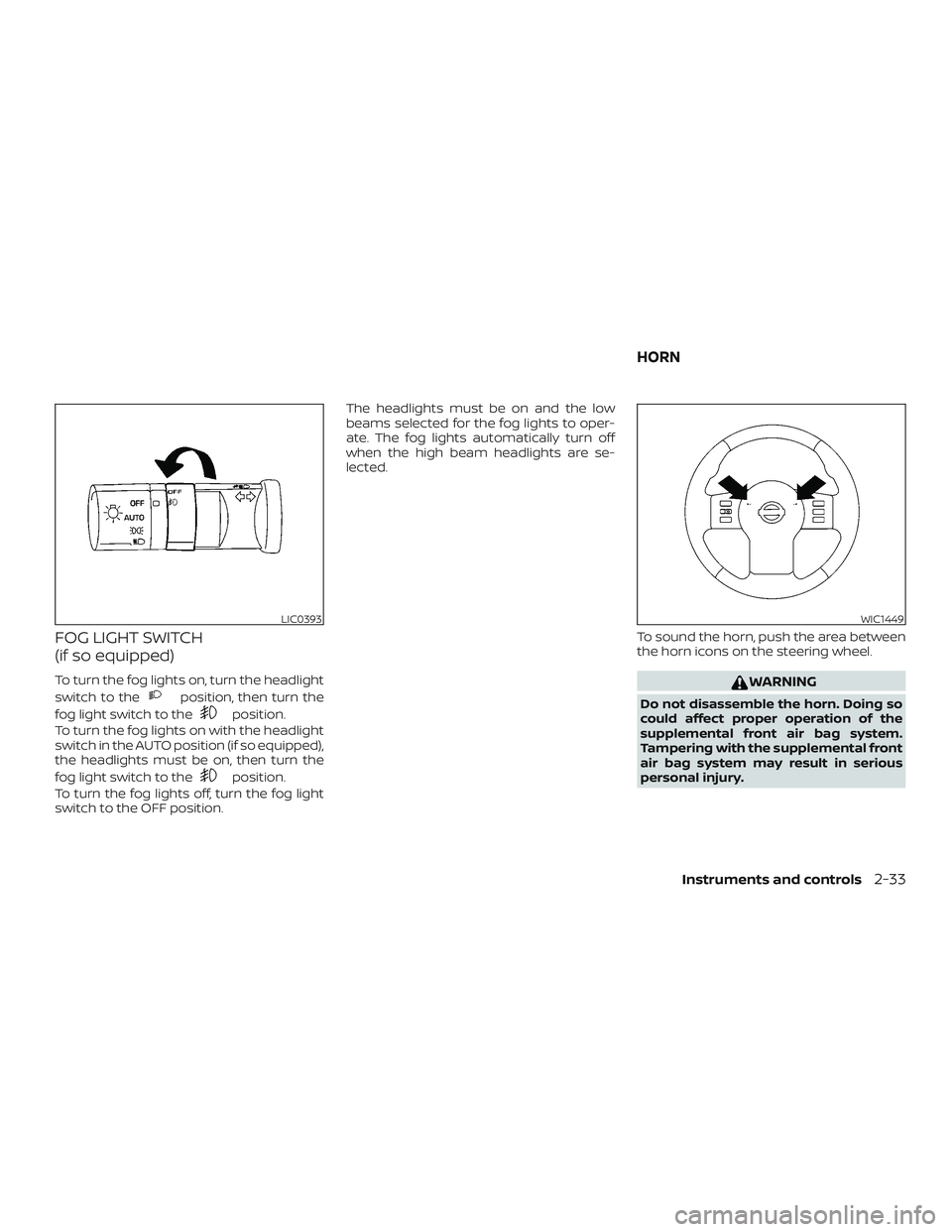
To turn the fog lights on, turn the headlight
switch to the
position, then turn the
fog light switch to the
position.
To turn the fog lights on with the headlight
switch in the AUTO position (if so equipped),
the headlights must be on, then turn the
fog light switch to the
position.
To turn the fog lights off, turn the fog light
switch to the OFF position. The headlights must be on and the low
beams selected for the fog lights to oper-
ate. The fog lights automatically turn off
when the high beam headlights are se-
lected.
To sound the horn, push the area between
the horn icons on the steering wheel.
WARNING
Do not disassemble the horn. Doing so
could affect proper operation of the
supplemental front air bag system.
Tampering with the supplemental front
air bag system may result in serious
personal injury.
LIC0393WIC1449
HORN
Instruments and controls2-33
Page 153 of 502
WARNING
∙ Never rely solely on the hill descentcontrol system to control vehicle
speed when driving on steep downhill
grades. Always drive carefully when
using the hill descent control system
and decelerate the vehicle speed by
depressing the brake pedal if neces-
sary. Be especially careful when driv-
ing on frozen, muddy or extremely
steep downhill roads. Failure to con-
trol vehicle speed may result in a loss
of control of the vehicle and possible
serious injury or death. ∙ The hill descent control may not con-
trol the vehicle speed on a hill under
all load or road conditions. Always be
prepared to depress the brake pedal
to control vehicle speed. Failure to do
so may result in a collision or serious
personal injury.
CAUTION
When the hill descent control system
operates continuously for a long time,
the temperature of the brake pads may
increase and the hill descent control
system may be temporarily disabled
(the indicator light will blink). If the indi-
cator light does not come on continu-
ously af ter blinking, stop using the
system.
The hill descent control system is designed
to reduce driver workload when going
down steep hills. The hill descent control
system helps to control vehicle speed so
the driver can concentrate on steering the
vehicle.
To activate the hill descent control system: ∙ The shif t lever must be in forward or reverse gear, ∙ The 4WD switch must be in the 4L posi-
tion and the vehicle speed must be un-
der 15 mph (25 km/h) or
∙ The 4WD switch must be in the 4H posi- tion and the vehicle speed must be un-
der 21 mph (35 km/h), and
∙ The hill descent control system switch must be ON.
The hill descent control system ON indica-
tor light will come on when the system is
activated. Also, the stop/tail lights illumi-
nate while the hill descent control system
applies the brakes to control vehicle speed.
If the accelerator or brake pedal is de-
pressed while the hill descent control sys-
tem is on, the system will stop operating
temporarily. As soon as the accelerator or
brake pedal is released, the hill descent
control system begins to function again if
the hill descent control operating condi-
tions are fulfilled.
The hill descent control system ON indica-
tor light blinks if the switch is on and all
conditions for system activation are not
met or if the system becomes disengaged
for any reason.
To turn off the hill descent control system,
push the switch to the OFF position.
LIC0743
HILL DESCENT CONTROL SWITCH
(if so equipped)
2-36Instruments and controls
Page 178 of 502
3 Pre-driving checks and adjustments
Keys.............................................3-2NISSAN Vehicle Immobilizer System
keys (if so equipped) ..........................3-2
Doors ...........................................3-3
Locking with key ..............................3-3
Locking with inside lock knob .................3-4
Locking with power door lock switch
(if so equipped) ...............................3-4
Rear doors (King Cab® models) ...............3-5
Automatic door locks (if so equipped) ........3-6
Child safety rear door lock
(if so equipped) ...............................3-6
Remote keyless entry system (if so equipped) . . . 3-6 How to use remote keyless entry
system ....................................... 3-7
Hood ........................................... 3-10Fuel-filler door
................................... 3-11
Fuel-filler cap ................................. 3-11
Steering wheel ................................. 3-14
Tilt operation (if so equipped) ................3-14
Sun visors ...................................... 3-14
Vanity mirrors (if so equipped) ...............3-15
Mirrors ......................................... 3-15
Manual anti-glare rearview mirror
(if so equipped) .............................. 3-15
Automatic anti-glare rearview mirror
(if so equipped) .............................. 3-16
Outside mirrors ............................. 3-17
Truck box ....................................... 3-18
Tailgate...................................... 3-18
Bed extender (if so equipped) ................3-22
Tie down hooks (if so equipped) .............3-23
Page 191 of 502
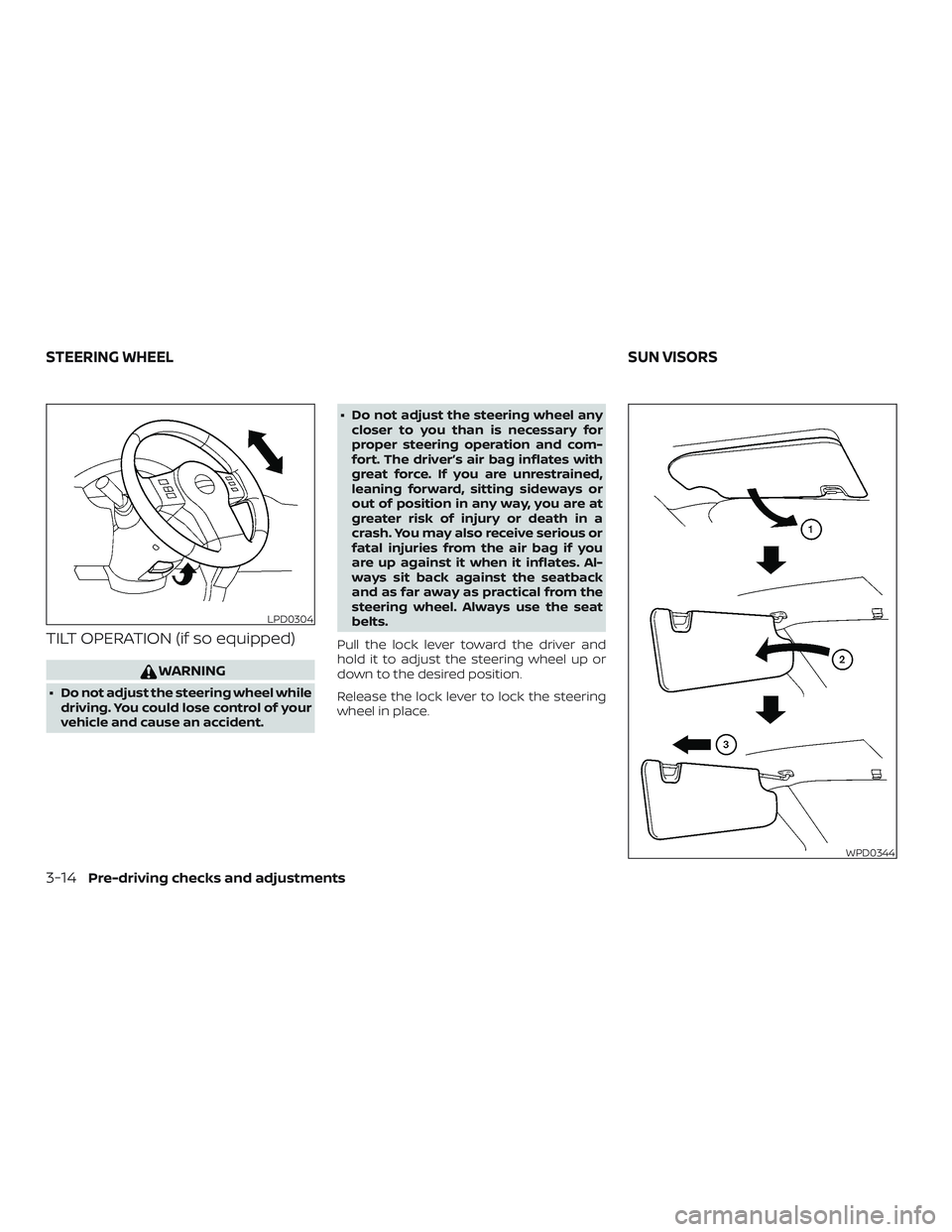
TILT OPERATION (if so equipped)
WARNING
∙ Do not adjust the steering wheel whiledriving. You could lose control of your
vehicle and cause an accident. ∙ Do not adjust the steering wheel any
closer to you than is necessary for
proper steering operation and com-
fort. The driver’s air bag inflates with
great force. If you are unrestrained,
leaning forward, sitting sideways or
out of position in any way, you are at
greater risk of injury or death in a
crash. You may also receive serious or
fatal injuries from the air bag if you
are up against it when it inflates. Al-
ways sit back against the seatback
and as far away as practical from the
steering wheel. Always use the seat
belts.
Pull the lock lever toward the driver and
hold it to adjust the steering wheel up or
down to the desired position.
Release the lock lever to lock the steering
wheel in place.
LPD0304
WPD0344
STEERING WHEEL SUN VISORS
3-14Pre-driving checks and adjustments
Page 203 of 502
USB (Universal Serial Bus) Connection
Port (models with Navigation System)
(if so equipped).............................. 4-61
iPod®* player operation without
Navigation System (if so equipped) ..........4-63
iPod®* player operation with Navigation
System (if so equipped) ......................4-65
Bluetooth® streaming audio without
Navigation System (if so equipped) ..........4-69
Bluetooth® streaming audio with
Navigation System (if so equipped) ..........4-70
CD care and cleaning ........................ 4-71
Steering wheel switch for audio control ......4-72
Antenna ..................................... 4-73
NissanConnect® Mobile Apps (if so equipped). . . 4-73 Registering with NissanConnect®
Mobile Apps ................................. 4-73
Connect Phone ..............................4-74
Application Download .......................4-74
Siri® Eyes Free ..................................4-74
Requirements ............................... 4-75
Siri® Activation ............................... 4-75
Operating Siri® Eyes Free ....................4-75Changing Siri® Eyes Free settings
(models without navigation system)
.........4-76
Changing Siri® Eyes Free settings
(models with navigation system) ............4-76
Troubleshooting guide ......................4-77
Car phone or CB radio .......................... 4-79
Bluetooth® Hands-Free Phone System
without Navigation System (if so equipped) .....4-80
Regulatory information ......................4-82
Using the system ............................ 4-82
Control buttons ............................. 4-83
Connecting procedure ......................4-84
Voice commands ........................... 4-85
Making a call ................................ 4-87
Receiving a call .............................. 4-87
During a call ................................. 4-87
Ending a call ................................. 4-88
Text messaging (if so equipped) .............4-88
Bluetooth® settings ......................... 4-90
Manual control .............................. 4-91
Bluetooth®
Hands-Free Phone System with
Navigation System (if so equipped) .............4-92
Regulatory information ......................4-94
Page 273 of 502
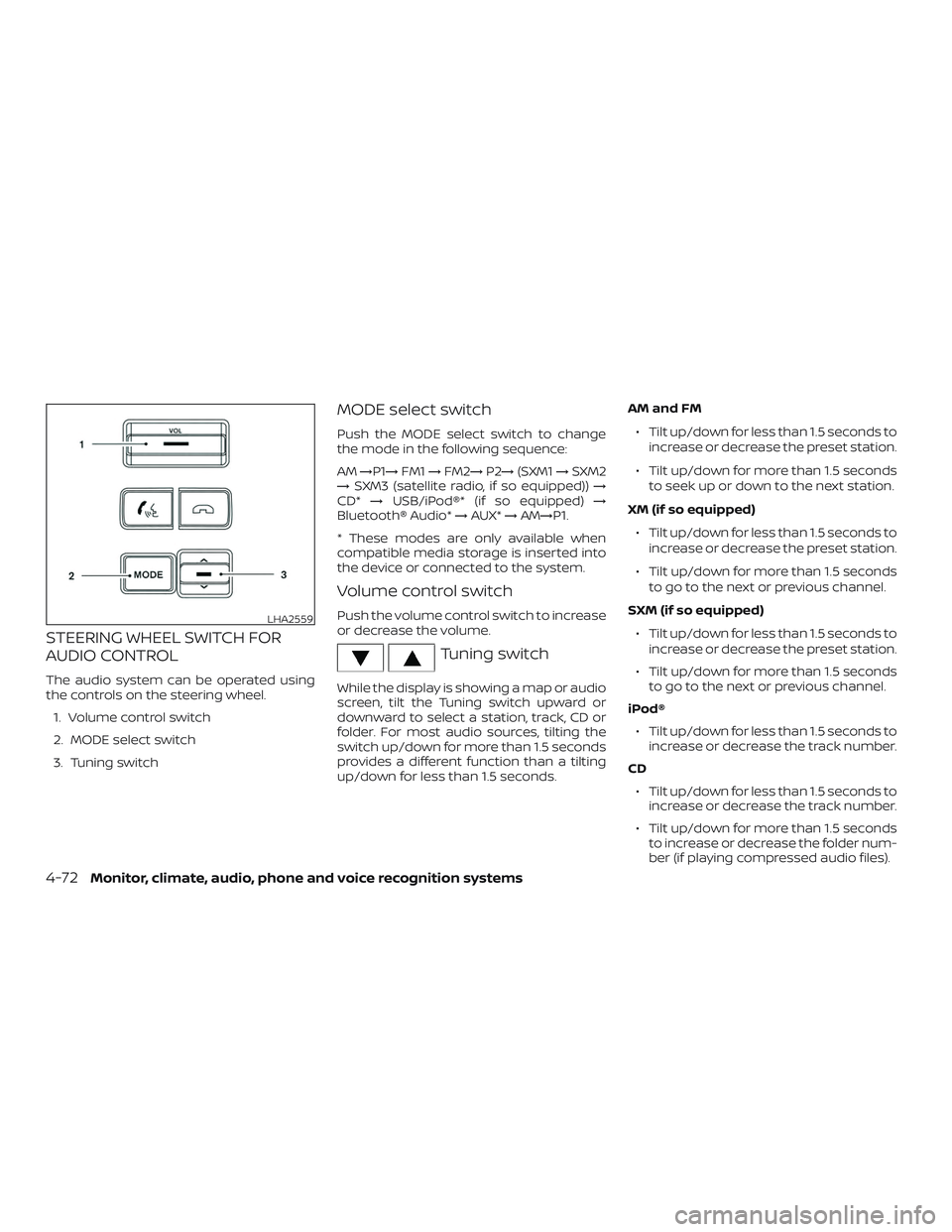
STEERING WHEEL SWITCH FOR
AUDIO CONTROL
The audio system can be operated using
the controls on the steering wheel.1. Volume control switch
2. MODE select switch
3. Tuning switch
MODE select switch
Push the MODE select switch to change
the mode in the following sequence:
AM →P1→ FM1→FM2→ P2→(SXM1 →SXM2
→ SXM3 (satellite radio, if so equipped)) →
CD* →USB/iPod®* (if so equipped) →
Bluetooth® Audio* →AUX* →AM→P1.
* These modes are only available when
compatible media storage is inserted into
the device or connected to the system.
Volume control switch
Push the volume control switch to increase
or decrease the volume.
Tuning switch
While the display is showing a map or audio
screen, tilt the Tuning switch upward or
downward to select a station, track, CD or
folder. For most audio sources, tilting the
switch up/down for more than 1.5 seconds
provides a different function than a tilting
up/down for less than 1.5 seconds. AM and FM
∙ Tilt up/down for less than 1.5 seconds to increase or decrease the preset station.
∙ Tilt up/down for more than 1.5 seconds to seek up or down to the next station.
XM (if so equipped) ∙ Tilt up/down for less than 1.5 seconds to increase or decrease the preset station.
∙ Tilt up/down for more than 1.5 seconds to go to the next or previous channel.
SXM (if so equipped) ∙ Tilt up/down for less than 1.5 seconds to increase or decrease the preset station.
∙ Tilt up/down for more than 1.5 seconds to go to the next or previous channel.
iPod® ∙ Tilt up/down for less than 1.5 seconds to increase or decrease the track number.
CD ∙ Tilt up/down for less than 1.5 seconds to increase or decrease the track number.
∙ Tilt up/down for more than 1.5 seconds to increase or decrease the folder num-
ber (if playing compressed audio files).
LHA2559
4-72Monitor, climate, audio, phone and voice recognition systems
Page 275 of 502
CONNECT PHONE
To use this feature, a compatible smart-
phone must be connected via Bluetooth®
or USB to the vehicle. For additional infor-
mation, refer to “Bluetooth® Hands-Free
Phone System with Navigation System” in
this section.
NOTE:
Apple iPhones® REQUIRE the phone to be
plugged in via USB for NissanConnect®
Mobile Apps to function.
For Android phones, NissanConnect®
Mobile Apps REQUIRES the phone to be
paired via Bluetooth®.
APPLICATION DOWNLOAD
Once connected, the NissanConnect® App
will search your phone to determine which
compatible applications are currently in-
stalled. The user will then choose which
apps they want to bring into their vehicle
from the list of apps within the “Manage My
Apps” section of the NissanConnect® App
on their smartphone. The vehicle will then
download the in-vehicle interface for each
of these compatible applications. Once
downloaded, the user can access their se-
lected smartphone applications through
the vehicle touch-screen.For additional information, refer to
www.nissanusa.com/connect or
www.nissan.ca/en/connect or
www.nissan.ca/fr/connect regarding
application availability.
Apple Siri® Eyes Free personal assistant
can be accessed from the vehicle. Siri Eyes
Free can be accessed in Siri Eyes Free
mode to reduce user distraction. In this
mode, Siri Eyes Free is available for interac-
tion by voice control. Af ter connecting a
compatible Apple device by using
Bluetooth®, Siri Eyes Free can be activated
from the
TALK switch on the steering
wheel.
Siri® is a trademark of Apple Inc., registered
in the U.S. and other countries.
∙ Some Siri Eyes Free functions, such as displaying pictures or opening apps,
may not be available while driving.
∙ For getting best results, always update your device to the latest sof tware ver-
sion.
∙ Keep the interior of the vehicle as quiet as possible. Close the windows to elimi-
nate the surrounding noises (traffic
noises, vibration sounds, etc.), which
may prevent the system from recogniz-
ing the voice commands correctly.
∙ For functions that can be used in Siri Eyes Free, please refer to the Apple
website.
SIRI® EYES FREE
4-74Monitor, climate, audio, phone and voice recognition systems
Page 276 of 502
REQUIREMENTS
Siri is only available on the iPhone® 4S or
later. Devices released before iPhone® 4S
are not supported by the Siri Eyes Free sys-
tem. Visit www.apple.com/ios/siri for de-
tails about device compatibility.
Siri must be enabled on the phone. Please
check phone settings.
If the device has a lock screen, Siri must be
accessible from the lock screen. Please
check phone settings.
For best results, always update your device
to the latest sof tware version.
SIRI® ACTIVATION
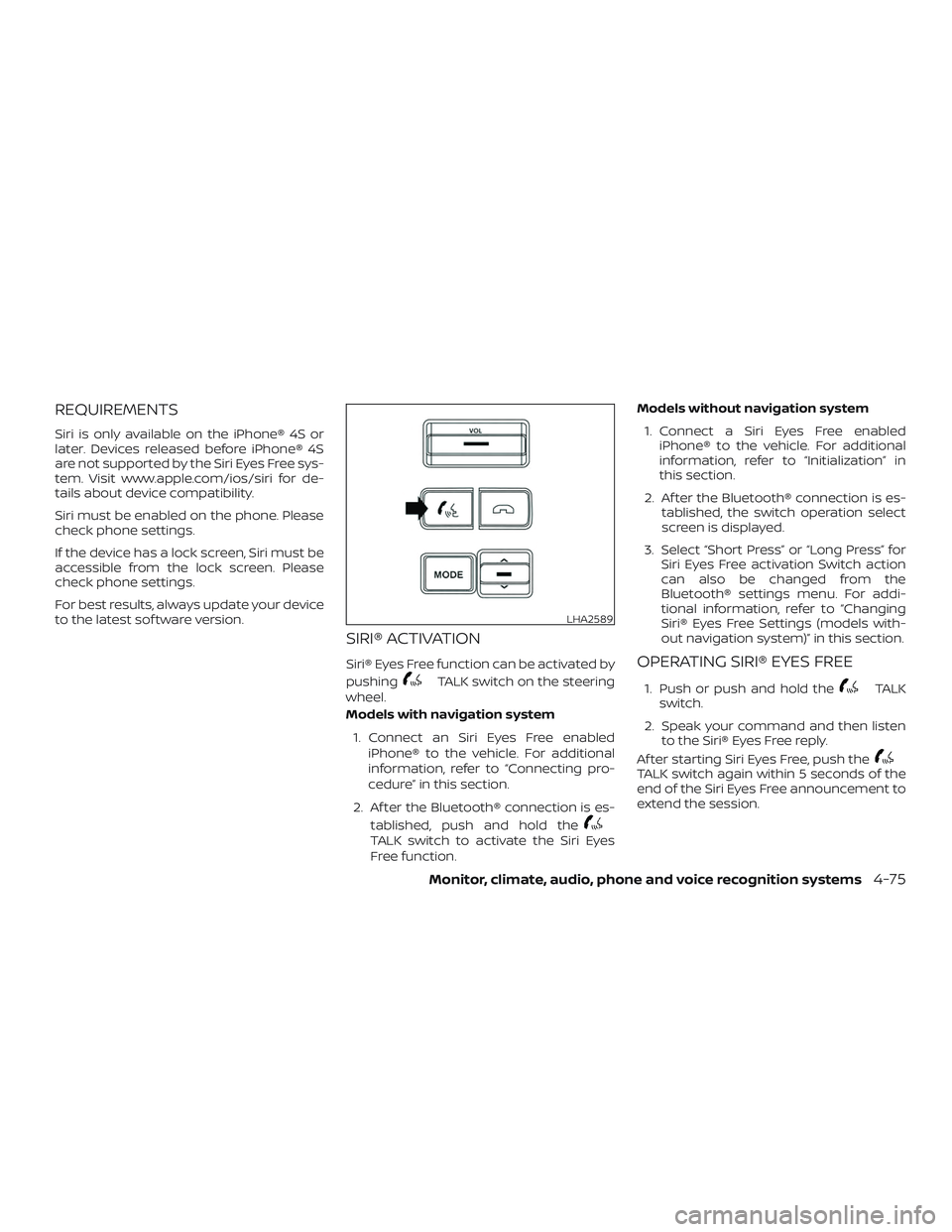
Siri® Eyes Free function can be activated by
pushing
TALK switch on the steering
wheel.
Models with navigation system
1. Connect an Siri Eyes Free enabled iPhone® to the vehicle. For additional
information, refer to “Connecting pro-
cedure” in this section.
2. Af ter the Bluetooth® connection is es- tablished, push and hold the
TALK switch to activate the Siri Eyes
Free function. Models without navigation system
1. Connect a Siri Eyes Free enabled iPhone® to the vehicle. For additional
information, refer to “Initialization” in
this section.
2. Af ter the Bluetooth® connection is es- tablished, the switch operation select
screen is displayed.
3. Select “Short Press” or “Long Press” for Siri Eyes Free activation Switch action
can also be changed from the
Bluetooth® settings menu. For addi-
tional information, refer to “Changing
Siri® Eyes Free Settings (models with-
out navigation system)” in this section.
OPERATING SIRI® EYES FREE
1. Push or push and hold theTALK
switch.
2. Speak your command and then listen to the Siri® Eyes Free reply.
Af ter starting Siri Eyes Free, push the
TALK switch again within 5 seconds of the
end of the Siri Eyes Free announcement to
extend the session.
LHA2589
Monitor, climate, audio, phone and voice recognition systems4-75