phone NISSAN FRONTIER 2018 Owner´s Manual
[x] Cancel search | Manufacturer: NISSAN, Model Year: 2018, Model line: FRONTIER, Model: NISSAN FRONTIER 2018Pages: 502, PDF Size: 4.85 MB
Page 11 of 502

NISSAN CARES . . .
Both NISSAN and your NISSAN dealer are dedicated to serving all your automotive needs. Your satisfaction with your vehicle and your
NISSAN dealer are our primary concerns. YourNISSAN dealer is always available to assist you with all your automobile sales and service
needs.
However, if there is something that your
NISSAN dealer cannot assist you with or
you would like to provide NISSAN directly
with comments or questions, please con-
tact the NISSAN Consumer Affairs Depart-
ment using our toll-free number:
For U.S. customers
1-800-NISSAN-1
(1-800-647-7261)
For Canadian customers 1-800-387-0122 The Consumer Affairs Department will ask
for the following information:
– Your name, address, and telephone
number
– Vehicle identification number (attached to the top of the instrument panel on the
driver’s side)
– Date of purchase
– Current odometer reading
– Your NISSAN dealer’s name
– Your comments or questions
OR You can write to NISSAN with the informa-
tion at:
For U.S. customers
Nissan North America, Inc.
Consumer Affairs Department
P.O. Box 685003
Franklin, TN 37068-5003
or via e-mail at:
[email protected]
For Canadian customers Nissan Canada Inc.
5290 Orbitor Drive
Mississauga, Ontario L4W 4Z5
or via e-mail at:
[email protected]
If you prefer, visit us at:
www.nissanusa.com (for U.S. customers)
or
www.nissan.ca (for Canadian customers)
We appreciate your interest in NISSAN and thank you for buying a quality NISSAN vehicle.
NISSAN CUSTOMER CARE PROGRAM
Page 12 of 502
Table of
ContentsIllustrated table of contents
Safety—Seats, seat belts and supplemental restraint system
Instruments and controls
Pre-driving checks and adjustments
Monitor, climate, audio, phone and voice recognition systems
Starting and driving
In case of emergency
Appearance and care
Do-it-yourself
Maintenance and schedules
Technical and consumer information
Index
0
1
2
3
4
5
6
7
8
9
10
11
Page 19 of 502
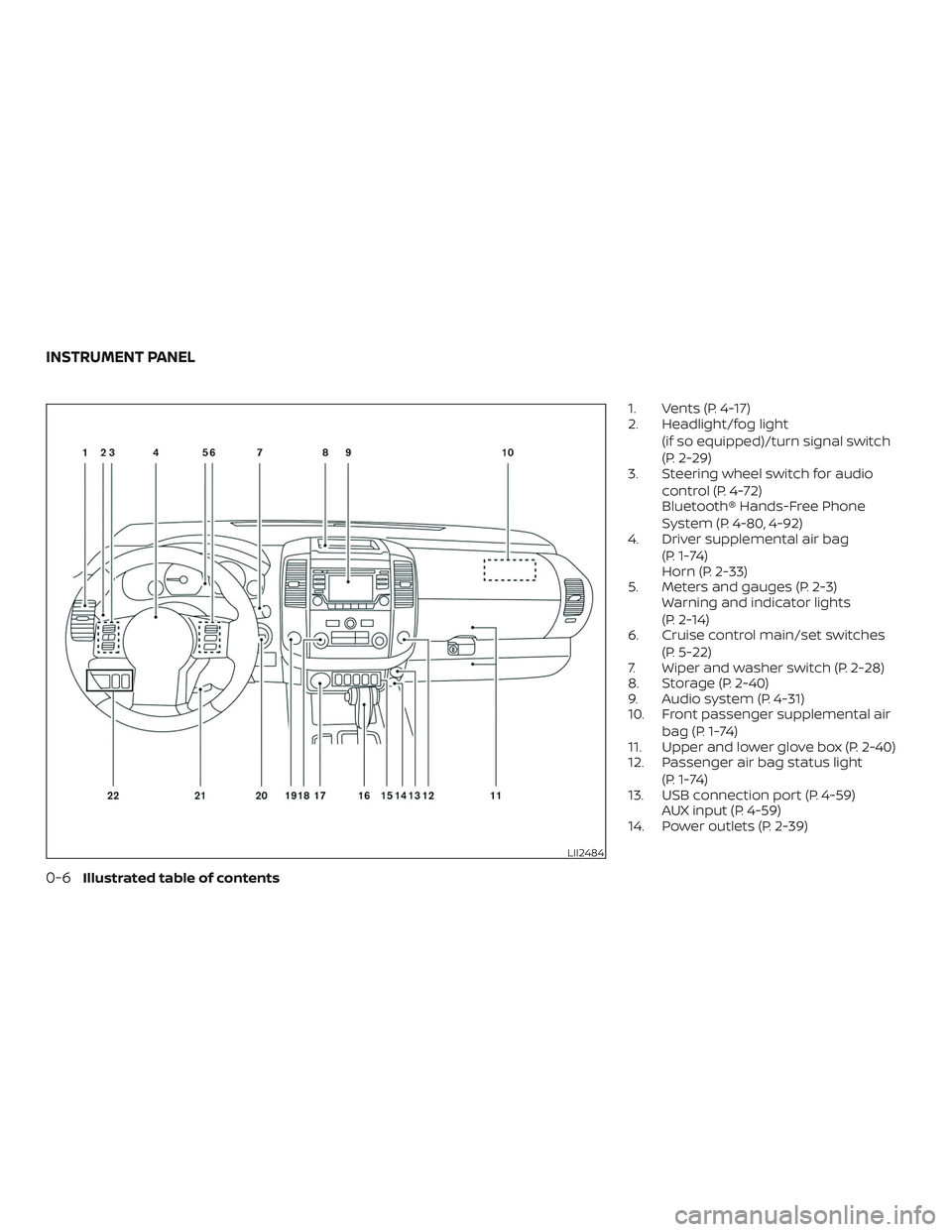
1. Vents (P. 4-17)
2. Headlight/fog light(if so equipped)/turn signal switch
(P. 2-29)
3. Steering wheel switch for audio
control (P. 4-72)
Bluetooth® Hands-Free Phone
System (P. 4-80, 4-92)
4. Driver supplemental air bag
(P. 1-74)
Horn (P. 2-33)
5. Meters and gauges (P. 2-3) Warning and indicator lights
(P. 2-14)
6. Cruise control main/set switches
(P. 5-22)
7. Wiper and washer switch (P. 2-28)
8. Storage (P. 2-40)
9. Audio system (P. 4-31)
10. Front passenger supplemental air
bag (P. 1-74)
11. Upper and lower glove box (P. 2-40)
12. Passenger air bag status light
(P. 1-74)
13. USB connection port (P. 4-59) AUX input (P. 4-59)
14. Power outlets (P. 2-39)
LII2484
INSTRUMENT PANEL
0-6Illustrated table of contents
Page 119 of 502
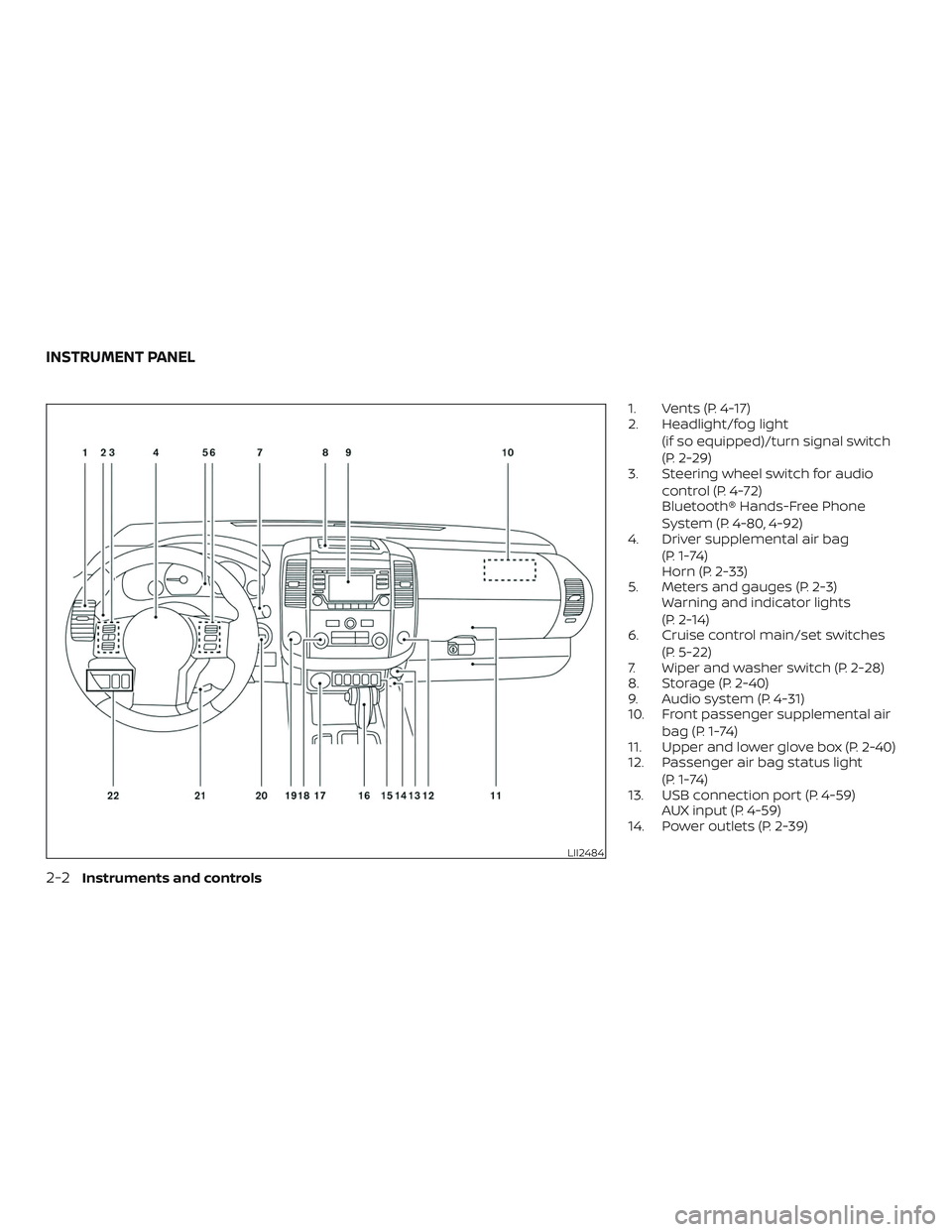
1. Vents (P. 4-17)
2. Headlight/fog light(if so equipped)/turn signal switch
(P. 2-29)
3. Steering wheel switch for audio
control (P. 4-72)
Bluetooth® Hands-Free Phone
System (P. 4-80, 4-92)
4. Driver supplemental air bag
(P. 1-74)
Horn (P. 2-33)
5. Meters and gauges (P. 2-3) Warning and indicator lights
(P. 2-14)
6. Cruise control main/set switches
(P. 5-22)
7. Wiper and washer switch (P. 2-28)
8. Storage (P. 2-40)
9. Audio system (P. 4-31)
10. Front passenger supplemental air
bag (P. 1-74)
11. Upper and lower glove box (P. 2-40)
12. Passenger air bag status light
(P. 1-74)
13. USB connection port (P. 4-59) AUX input (P. 4-59)
14. Power outlets (P. 2-39)
LII2484
INSTRUMENT PANEL
2-2Instruments and controls
Page 156 of 502
WARNING
The rear sonar system is a convenience
but it is not a substitute for proper
backing. Always turn and check that it is
safe to do so before backing up. Always
back up slowly.
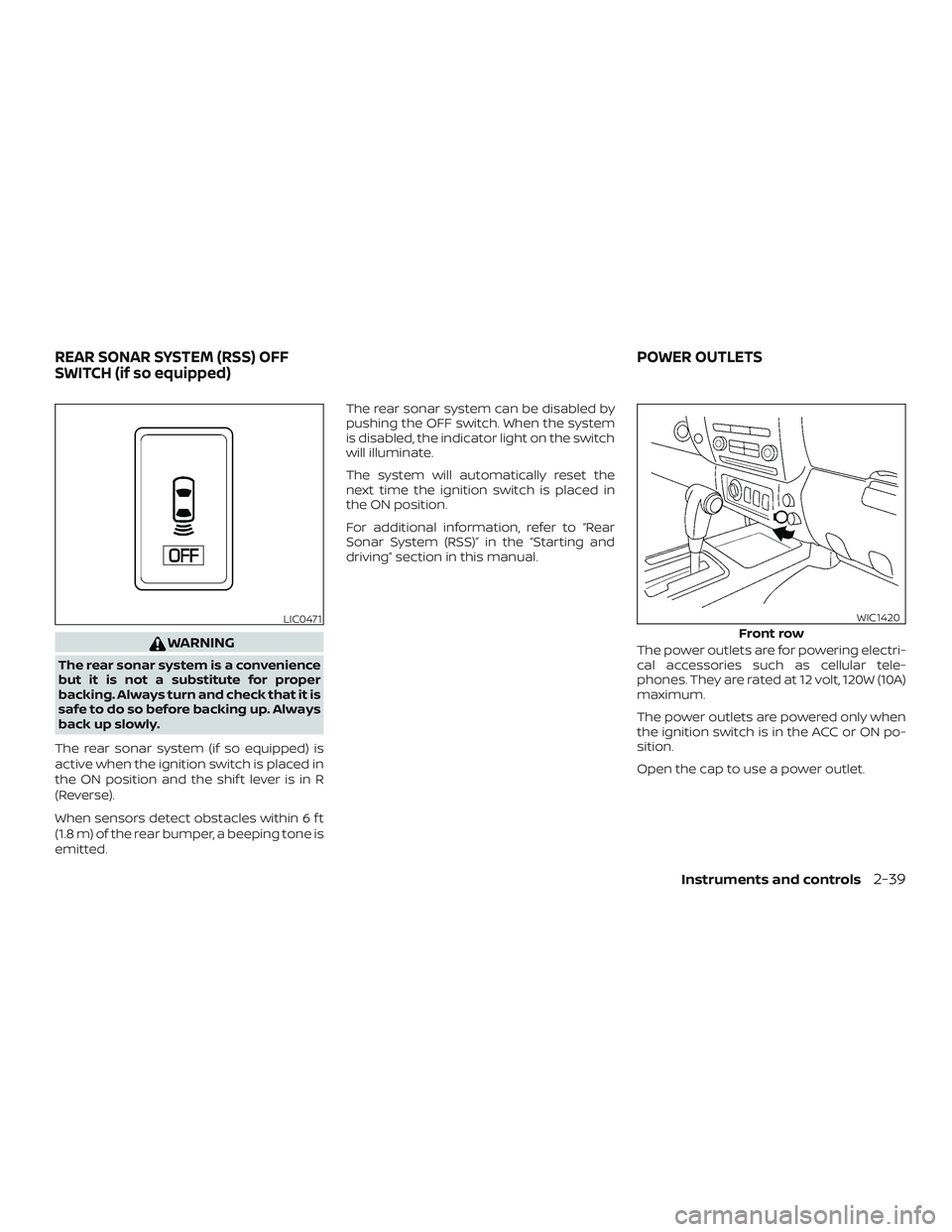
The rear sonar system (if so equipped) is
active when the ignition switch is placed in
the ON position and the shif t lever is in R
(Reverse).
When sensors detect obstacles within 6 f t
(1.8 m) of the rear bumper, a beeping tone is
emitted. The rear sonar system can be disabled by
pushing the OFF switch. When the system
is disabled, the indicator light on the switch
will illuminate.
The system will automatically reset the
next time the ignition switch is placed in
the ON position.
For additional information, refer to “Rear
Sonar System (RSS)” in the “Starting and
driving” section in this manual.
The power outlets are for powering electri-
cal accessories such as cellular tele-
phones. They are rated at 12 volt, 120W (10A)
maximum.
The power outlets are powered only when
the ignition switch is in the ACC or ON po-
sition.
Open the cap to use a power outlet.
LIC0471Front row
WIC1420
REAR SONAR SYSTEM (RSS) OFF
SWITCH (if so equipped) POWER OUTLETS
Instruments and controls2-39
Page 202 of 502
4 Monitor, climate, audio, phone and
voice recognition systems
Control panel buttons — color screen with
Navigation System (if so equipped)..............4-4
How to use the touch-screen .................4-5
HowtousetheBACKbutton .................4-7
How to use the
button.................4-7
button..................................4-9
How to use the ON-OFF button/
VOL (volume) control knob ...................4-9
How to use the CAMERA button ..............4-9
RearView Monitor .............................. 4-10
RearView Monitor system operation ..........4-11
How to read the displayed lines ..............4-12
Difference between predicted and
actual distances ............................. 4-12
Adjusting the screen ........................ 4-14
RearView Monitor system limitations ........4-15
System maintenance ........................ 4-16
Vents ........................................... 4-17
Heater and air conditioner (manual)
(if so equipped) ................................. 4-17
Controls ..................................... 4-18
Controls ..................................... 4-19
Heater operation ............................ 4-20Air conditioner operation
....................4-21
Air flow charts ............................... 4-22
Heater and air conditioner (automatic)
(if so equipped) ................................. 4-26
Automatic operation ........................ 4-29
Manual operation ........................... 4-30
Operating tips ............................... 4-31
Servicing air conditioner ........................4-31
Audio system ................................... 4-31
Radio ........................................ 4-31
FM radio reception .......................... 4-32
AM radio reception .......................... 4-32
Satellite radio reception (if so equipped) .....4-32
Audio operation precautions ................4-33
FM/AM radio with compact disc (CD)
player (if so equipped) .......................4-40
FM/AM/SAT radio with compact disc
(CD) player (Type A) (if so equipped) ..........4-46
FM/AM/SAT radio with compact disc
(CD) player (Type B) (if so equipped) ..........4-52
USB (Universal Serial Bus) Connection
Port (models without Navigation
System) (if so equipped) .....................4-59
Page 203 of 502
USB (Universal Serial Bus) Connection
Port (models with Navigation System)
(if so equipped).............................. 4-61
iPod®* player operation without
Navigation System (if so equipped) ..........4-63
iPod®* player operation with Navigation
System (if so equipped) ......................4-65
Bluetooth® streaming audio without
Navigation System (if so equipped) ..........4-69
Bluetooth® streaming audio with
Navigation System (if so equipped) ..........4-70
CD care and cleaning ........................ 4-71
Steering wheel switch for audio control ......4-72
Antenna ..................................... 4-73
NissanConnect® Mobile Apps (if so equipped). . . 4-73 Registering with NissanConnect®
Mobile Apps ................................. 4-73
Connect Phone ..............................4-74
Application Download .......................4-74
Siri® Eyes Free ..................................4-74
Requirements ............................... 4-75
Siri® Activation ............................... 4-75
Operating Siri® Eyes Free ....................4-75Changing Siri® Eyes Free settings
(models without navigation system)
.........4-76
Changing Siri® Eyes Free settings
(models with navigation system) ............4-76
Troubleshooting guide ......................4-77
Car phone or CB radio .......................... 4-79
Bluetooth® Hands-Free Phone System
without Navigation System (if so equipped) .....4-80
Regulatory information ......................4-82
Using the system ............................ 4-82
Control buttons ............................. 4-83
Connecting procedure ......................4-84
Voice commands ........................... 4-85
Making a call ................................ 4-87
Receiving a call .............................. 4-87
During a call ................................. 4-87
Ending a call ................................. 4-88
Text messaging (if so equipped) .............4-88
Bluetooth® settings ......................... 4-90
Manual control .............................. 4-91
Bluetooth®
Hands-Free Phone System with
Navigation System (if so equipped) .............4-92
Regulatory information ......................4-94
Page 204 of 502
Voice commands........................... 4-94
Connecting procedure ......................4-95
Vehicle phonebook .......................... 4-95
Making a call ................................ 4-95
Receiving a call .............................. 4-96
During a call ................................. 4-96
Ending a call ................................. 4-96
Text messaging (if so equipped) .............4-96
Bluetooth® settings ......................... 4-98
Phone settings .............................. 4-99
Troubleshooting guide .....................4-100NISSAN Voice Recognition System
(if so equipped)
................................ 4-101
Using the system ........................... 4-101
System features ............................ 4-102
Bluetooth® Hands-Free Phone System
voice commands ........................... 4-103
Navigation System voice commands .......4-104
Audio system voice commands ............4-104
Information voice commands ..............4-104
My Apps voice commands .................4-104
Help voice commands ......................4-105
Troubleshooting guide .....................4-105
Page 205 of 502
WARNING
∙ Positioning of the heating or air con-ditioning controls and display con-
trols should not be done while driving
in order that full attention may be
given to the driving operation.
∙ Do not disassemble or modif y this system. If you do, it may result in acci-
dents, fire, or electrical shock.
∙ Do not use this system if you notice any abnormality, such as a frozen
screen or lack of sound. Continued
use of the system may result in acci-
dent, fire or electric shock.
∙ In case you notice any foreign object in the system hardware, spill liquid on
it, or notice smoke or smell coming
from it, stop using the system imme-
diately. Ignoring such conditions may
lead to accidents, fire or electrical
shock. It is recommended that you
visit a NISSAN dealer for servicing.
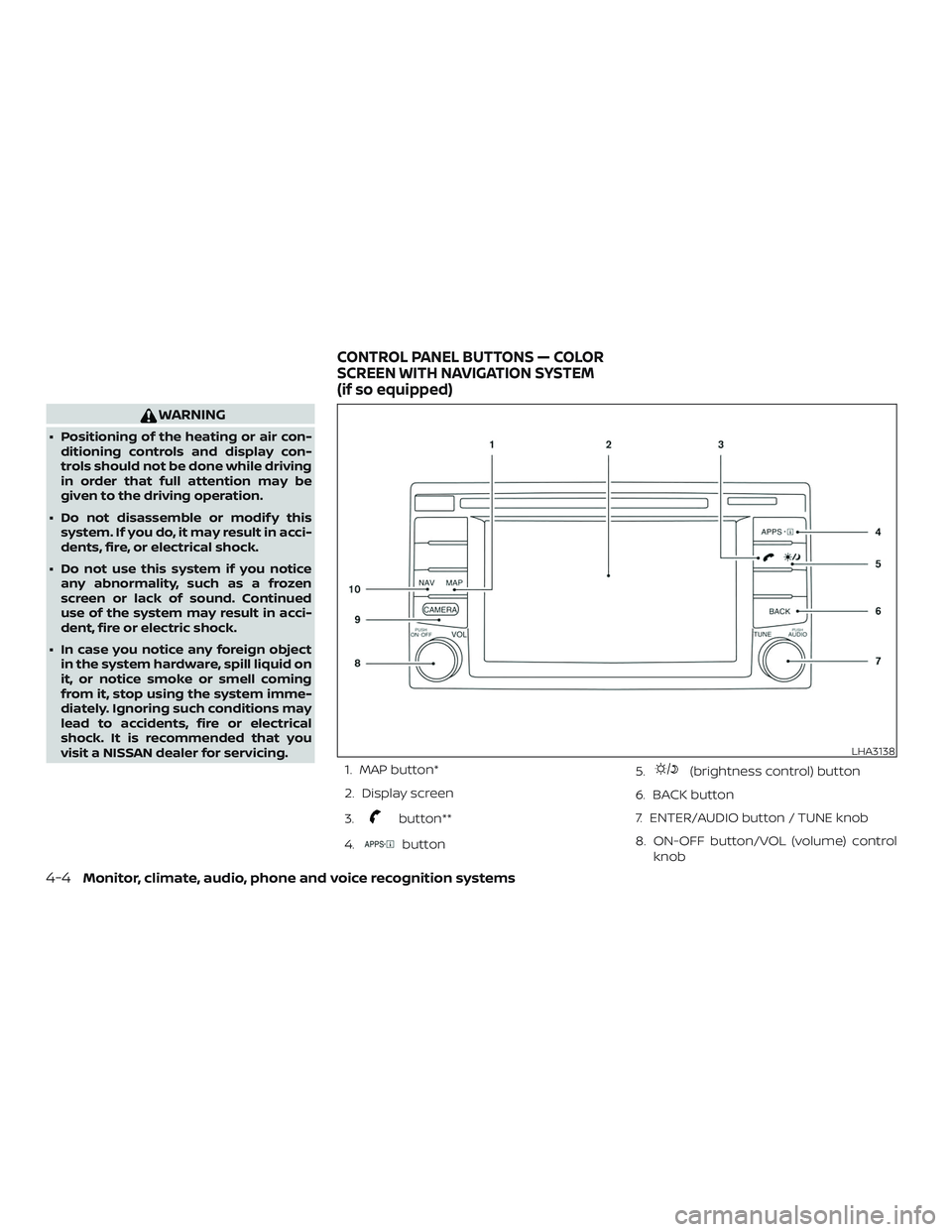
1. MAP button*
2. Display screen
3.
button**
4.
button 5.
(brightness control) button
6. BACK button
7. ENTER/AUDIO button / TUNE knob
8. ON-OFF button/VOL (volume) control knob
LHA3138
CONTROL PANEL BUTTONS — COLOR
SCREEN WITH NAVIGATION SYSTEM
(if so equipped)
4-4Monitor, climate, audio, phone and voice recognition systems
Page 206 of 502
9. CAMERA button
10. NAV button*
* For additional information, refer to the
separate NissanConnect® Owner’s Manual
regarding the Navigation system control
buttons.
** For additional information, refer to the
“Bluetooth® Hands-Free Phone System
with Navigation System” in this section.
When you use this system, make sure the
engine is running.
If you use the system with the engine not
running (ignition ON or ACC) for a long
time, it will discharge the battery, and
the engine will not start.
Reference symbols:
“Example” — Words marked in quotes refer
to a key shown only on the display. These
keys can be selected by touching the
screen.HOW TO USE THE TOUCH-SCREEN
CAUTION
∙ The glass display screen may break if it is hit with a hard or sharp object. If
the glass screen breaks, do not touch
it. Doing so could result in an injury.
∙ To clean the display, never use a rough cloth, alcohol, benzine, thinner or any
kind of solvent or paper towel with a
chemical cleaning agent. They will
scratch or deteriorate the panel.
∙ Do not splash any liquid such as water or car fragrance on the display. Con-
tact with liquid will cause the system
to malfunction.
To help ensure safe driving, some functions
cannot be operated while driving.
The on-screen functions that are not avail-
able while driving will be grayed out or
muted.
Park the vehicle in a safe location and then
operate the navigation system.
WARNING
∙ ALWAYS give your full attention to driving.
∙ Avoid using vehicle features that could distract you. If distracted, you
could lose control of your vehicle and
cause an accident.
Monitor, climate, audio, phone and voice recognition systems4-5