ECO mode NISSAN GT-R 2011 User Guide
[x] Cancel search | Manufacturer: NISSAN, Model Year: 2011, Model line: GT-R, Model: NISSAN GT-R 2011Pages: 312, PDF Size: 13.07 MB
Page 54 of 312
Black plate (52,1)
Model "R35-N" EDITED: 2009/ 10/ 30
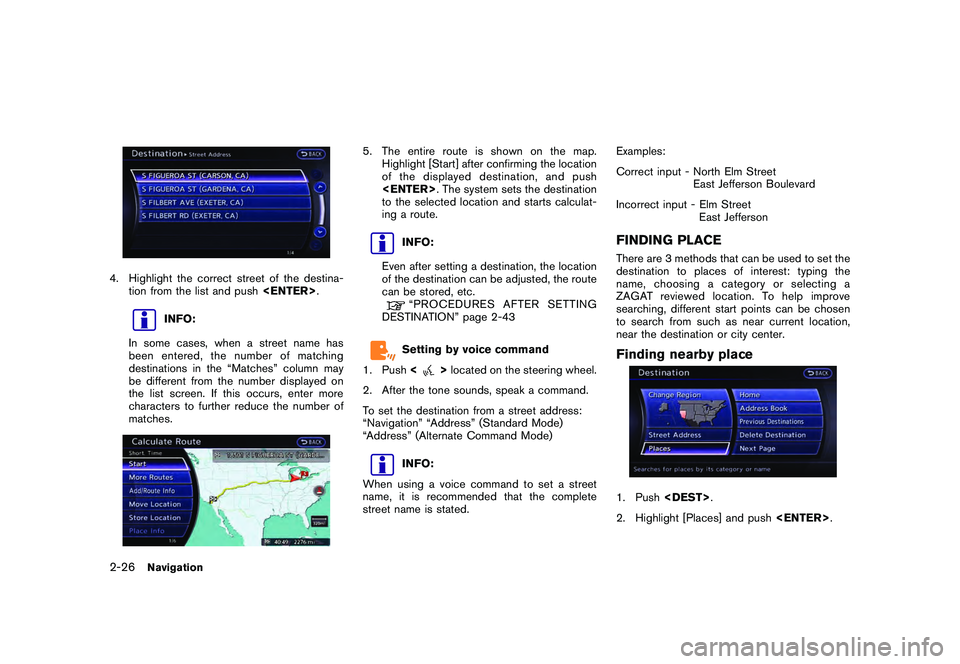
4. Highlight the correct street of the destina-tion from the list and push
INFO:
In some cases, when a street name has
been entered, the number of matching
destinations in the “Matches” column may
be different from the number displayed on
the list screen. If this occurs, enter more
characters to further reduce the number of
matches.
5. The entire route is shown on the map. Highlight [Start] after confirming the location
of the displayed dest ination, and push
to the selected location and starts calculat-
ing a route.
INFO:
Even after setting a destination, the location
of the destination can be adjusted, the route
can be stored, etc.“PROCEDURESAFTERSETTING
DESTINATION” page 2-43Setting by voice command
1. Push <
>located on the steering wheel.
2. After the tone sounds, speak a command.
To set the destination from a street address:
“Navigation” “Address” (Standard Mode)
“Address” (Alternate Command Mode)
INFO:
When using a voice command to set a street
name, it is recommended that the complete
street name is stated. Examples:
Correct input - North Elm Street
East Jefferson Boulevard
Incorrect input - Elm Street East Jefferson
FINDING PLACEThere are 3 methods that can be used to set the
destination to places of interest: typing the
name, choosing a category or selecting a
ZAGAT reviewed location. To help improve
searching, different start points can be chosen
to search from such as near current location,
near the destination or city center.Finding nearby place1. Push
2. Highlight [Places] and push
2-26
Navigation
Page 71 of 312
![NISSAN GT-R 2011 User Guide Black plate (69,1)
Model "R35-N" EDITED: 2009/ 10/ 30
2. Select [Delete Destination] and press<EN-
TER>.3. A confirmation message is displayed. Select [Yes] and press <ENTER>.
The destination and the](/img/5/58175/w960_58175-70.png "NISSAN GT-R 2011 User Guide Black plate (69,1)
Model \"R35-N\" EDITED: 2009/ 10/ 30
2. Select [Delete Destination] and press<EN-
TER>.3. A confirmation message is displayed. Select [Yes] and press <ENTER>.
The destination and the")
Black plate (69,1)
Model "R35-N" EDITED: 2009/ 10/ 30
2. Select [Delete Destination] and press
The destination and the waypoints are
deleted.
INFO:
The deleted destination and waypoints are not
able to be reactivated.Setting by voice command
1. Push <
>on the steering wheel.
2. After the tone sounds, speak a command.
To delete a destination and all waypoints:
“Delete Destination” (Alternate Command
Mode)
PROCEDURES AFTER SETTING
DESTINATIONAfter performing a route search, the route
guidance can be immediately started. Also, it is
possible to confirm or change a route.Available items after setting destination
. [Start]:
Starts route guidance to the selected
destination.
“Starting route guidance” page 2-44
. [More Routes]:
Displays 3 alternative routes.“Selecting route” page 2-44 .
[Add/Route Info]:
Displays the route information. A destination
or a waypoint can also be added.
“Confirming route” page 2-45
. [Move Location]:
Displays a map screen. The location of the
destination can be adjusted.“Moving location of destination” page
2-46
. [Store Location]:
Stores the location in the Address Book.“Storing location” page 2-47
. [Place Info]:
Displays information about the facility that
has been set as the destination, if it is
included in the map data.“Viewing information about searched
location” page 2-47INFO:
. If no operations have been performed on the
system for several seconds, [Start] is auto-
matically selected, and the system starts
route guidance.
. When using waypoints, [More Routes] is
disabled. After the route is started, push
Route] to change the route between each
waypoint.
Navigation
2-43
ROUTE GUIDANCE
Page 74 of 312
![NISSAN GT-R 2011 User Guide Black plate (72,1)
Model "R35-N" EDITED: 2009/ 10/ 30
3. Highlight [Add Destination] or [Add Way-point] and push <ENTER>.4. The system starts calculating a route that
includes the added destination or](/img/5/58175/w960_58175-73.png "NISSAN GT-R 2011 User Guide Black plate (72,1)
Model \"R35-N\" EDITED: 2009/ 10/ 30
3. Highlight [Add Destination] or [Add Way-point] and push <ENTER>.4. The system starts calculating a route that
includes the added destination or")
Black plate (72,1)
Model "R35-N" EDITED: 2009/ 10/ 30
3. Highlight [Add Destination] or [Add Way-point] and push
includes the added destination or waypoint.
When the calculation is finished, the route is
displayed.
INFO:
. If a waypoint was added, [More Routes]
cannot be selected. .
If a destination was added, the prior
destination becomes a waypoint.
Moving location of destinationThe location of the destination can be adjusted
by moving the cross pointer across the map.1. Highlight [Move Location] and push
INFO:
The screen for adjusting the location also
changes by touching the map screen dis-
played on the right side of the screen.
2. Adjust the location by moving the cross pointer across the map and push
modified.
INFO:
Even if the map screen is touched or the
directional buttons other than the up or down
button are operated, the same map screen as
when [Move Location] is selected is displayed.
2-46
Navigation
Page 79 of 312
Black plate (77,1)
Model "R35-N" EDITED: 2009/ 10/ 30
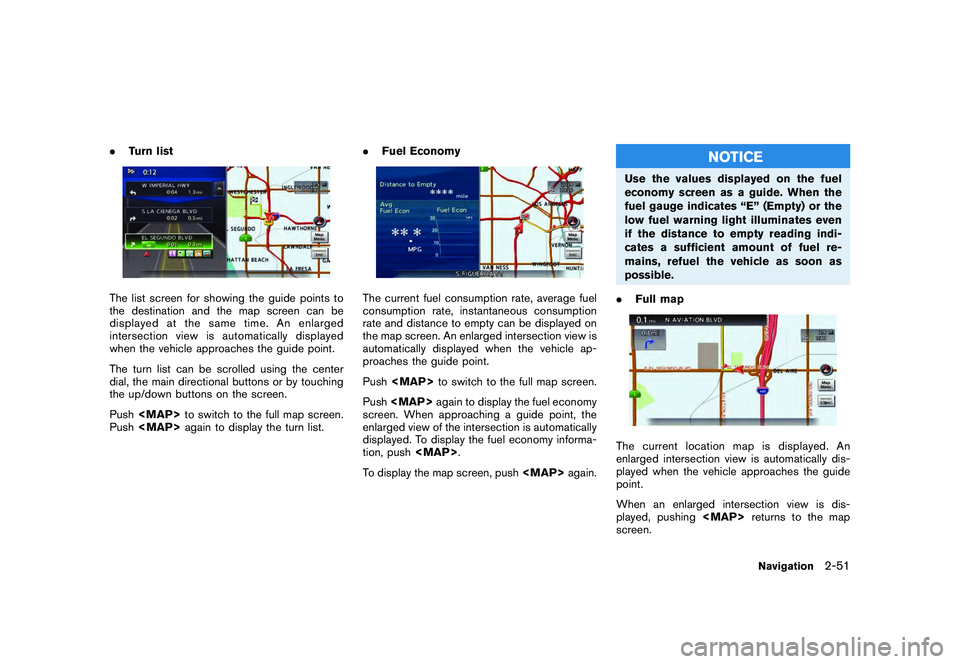
.Turn listThe list screen for showing the guide points to
the destination and the map screen can be
displayed at the same time. An enlarged
intersection view is automatically displayed
when the vehicle approaches the guide point.
The turn list can be scrolled using the center
dial, the main directional buttons or by touching
the up/down buttons on the screen.
Push
Page 86 of 312
Black plate (84,1)
Model "R35-N" EDITED: 2009/ 10/ 30
INFO:
. If the destination is deleted, the final
waypoint of the route becomes the destina-
tion.
. Even if the map screen is touched, the same
map screen as when [Move Dest.] is
selected is displayed.
Changing order of destination and way-
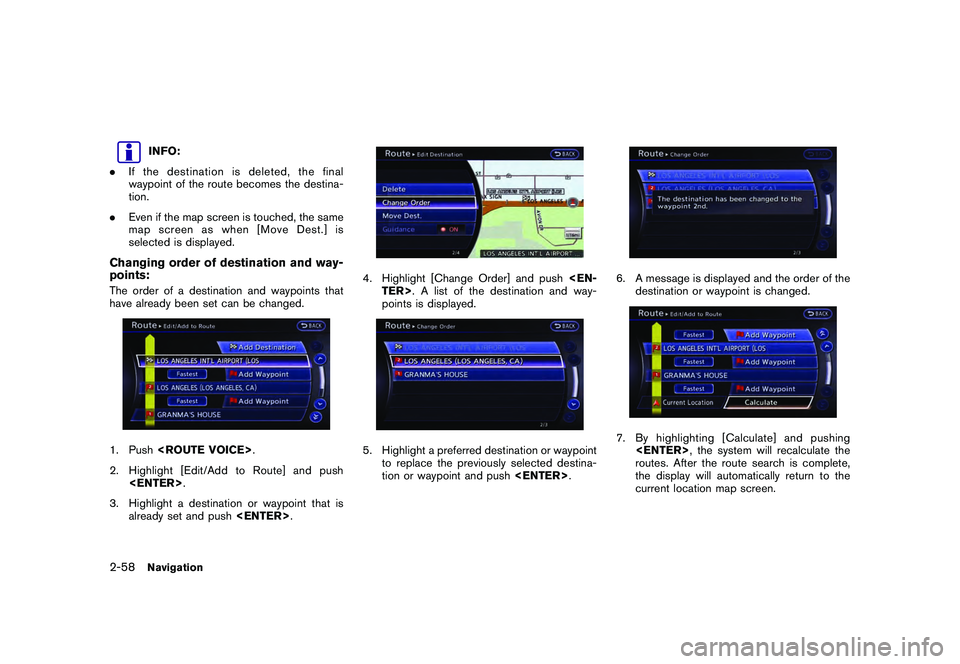
points:The order of a destination and waypoints that
have already been set can be changed.1. Push
2. Highlight [Edit/Add to Route] and push
3. Highlight a destination or waypoint that is already set and push
4. Highlight [Change Order] and push
points is displayed.5. Highlight a preferred destination or waypoint
to replace the previously selected destina-
tion or waypoint and push
6. A message is displayed and the order of the
destination or waypoint is changed.7. By highlighting [Calculate] and pushing
routes. After the route search is complete,
the display will automatically return to the
current location map screen.
2-58
Navigation
Page 108 of 312
![NISSAN GT-R 2011 User Guide Black plate (106,1)
Model "R35-N" EDITED: 2009/ 10/ 30
Name (only for stored locations):Changes the name of a stored location.1. Highlight [Name] and push<ENTER>.
A character input screen is displayed](/img/5/58175/w960_58175-107.png "NISSAN GT-R 2011 User Guide Black plate (106,1)
Model \"R35-N\" EDITED: 2009/ 10/ 30
Name (only for stored locations):Changes the name of a stored location.1. Highlight [Name] and push<ENTER>.
A character input screen is displayed")
Black plate (106,1)
Model "R35-N" EDITED: 2009/ 10/ 30
Name (only for stored locations):Changes the name of a stored location.1. Highlight [Name] and push
A character input screen is displayed.2. Enter the preferred name for the stored location.
“HOW TO INPUT LETTERS AND
NUMBERS” page 1-16
3. Highlight [OK] and push
The name is stored.
Voicetag (only for stored locations):1. Highlight [Voicetag] and push
3. A beep sounds, and the system enters the
voice command reception mode.
4. Speak the name/word to be used as Voicetag.
5. The Voicetag is stored, provided the system recognizes it.
INFO:
. A Voicetag cannot be stored, overwritten or
played while driving.
. The Address Book can store up to 100
Voicetags.
. Highlight [Play] to confirm the stored Voice-
tag.
. Highlight [Delete] to delete a stored Voice-
tag.
2-80
Navigation
Page 109 of 312
![NISSAN GT-R 2011 User Guide Black plate (107,1)
Model "R35-N" EDITED: 2009/ 10/ 30
.If a Voicetag is already stored, select
[Restore] to re-record the Voicetag.Icon:Changes the icon of the home or stored address
to the preferred](/img/5/58175/w960_58175-108.png "NISSAN GT-R 2011 User Guide Black plate (107,1)
Model \"R35-N\" EDITED: 2009/ 10/ 30
.If a Voicetag is already stored, select
[Restore] to re-record the Voicetag.Icon:Changes the icon of the home or stored address
to the preferred")
Black plate (107,1)
Model "R35-N" EDITED: 2009/ 10/ 30
.If a Voicetag is already stored, select
[Restore] to re-record the Voicetag.Icon:Changes the icon of the home or stored address
to the preferred one. By changing the icons, the
usage of the [By Icon] option of the sort function
can be optimized more effectively ([Sort] menu
situation) .1. Highlight [Icon] and push
A list of icons is displayed.
2. Highlight the preferred icon and push
3. The icon is changed.Sound:Sets the tone of the alarm that sounds when the
vehicle approaches the home or a stored
address.1. Highlight [Sound] and push
A sound list is displayed.2. Select the preferred alarm tone and push
.
The indicator of the selected alarm tone
illuminates.
Direction:Sets the alarm to sound when approaching from
a specific direction.1. Highlight [Direction] and push
A map screen with the home or stored
location located on the map center is
displayed.
Navigation
2-81
Page 121 of 312
Black plate (119,1)
Model "R35-N" EDITED: 2009/ 11/ 6
displayed. Once overwritten, the original data
cannot be recovered.
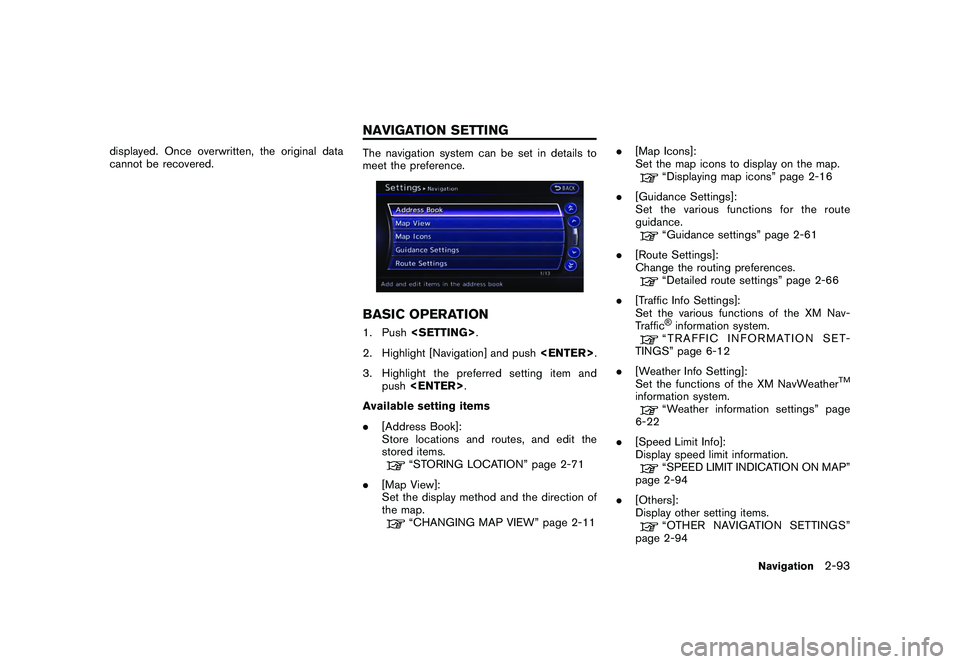
The navigation system can be set in details to
meet the preference.BASIC OPERATION1. Push
2. Highlight [Navigation] and push
3. Highlight the preferred setting item and push
Available setting items
. [Address Book]:
Store locations and routes, and edit the
stored items.
“STORING LOCATION” page 2-71
. [Map View]:
Set the display method and the direction of
the map.“CHANGING MAP VIEW” page 2-11 .
[Map Icons]:
Set the map icons to display on the map.
“Displaying map icons” page 2-16
. [Guidance Settings]:
Set the various functions for the route
guidance.“Guidance settings” page 2-61
. [Route Settings]:
Change the routing preferences.“Detailed route settings” page 2-66
. [Traffic Info Settings]:
Set the various functions of the XM Nav-
Traffic®information system.“TRAFFIC INFORMATION SET-
TINGS” page 6-12
. [Weather Info Setting]:
Set the functions of the XM NavWeather
TM
information system.
“Weather information settings” page
6-22
. [Speed Limit Info]:
Display speed limit information.“SPEED LIMIT INDICATION ON MAP”
page 2-94
. [Others]:
Display other setting items.“OTHER NAVIGATION SETTINGS”
page 2-94
Navigation
2-93
NAVIGATION SETTING
Page 129 of 312
Black plate (129,1)
Model "R35-N" EDITED: 2009/ 10/ 30
many tall buildings. It can also occur for several
seconds during ionospheric turbulence even in
areas where no obstacles exist.
Static: Caused by thunderstorms, electrical
power lines, electric signs and even traffic lights.Satellite radio reception:When the satellite radio is used for the first time
or the battery has been replaced, the satellite
radio may not work properly. This is not a
malfunction. Wait more than 10 minutes with the
satellite radio ON and the vehicle outside of any
metal or large building for the satellite radio to
receive all of the necessary data.
The satellite radio mode requires an active XM
®
Satellite Radio subscription. The satellite radio is
not available in Alaska, Hawaii and Guam.
The satellite radio performance may be affected
if cargo carried on the roof blocks the satellite
radio signal.
If possible, do not put cargo near the satellite
antenna.
A build up of ice on the satellite radio antenna
can affect satellite radio performance. Remove
the ice to restore satellite radio reception.
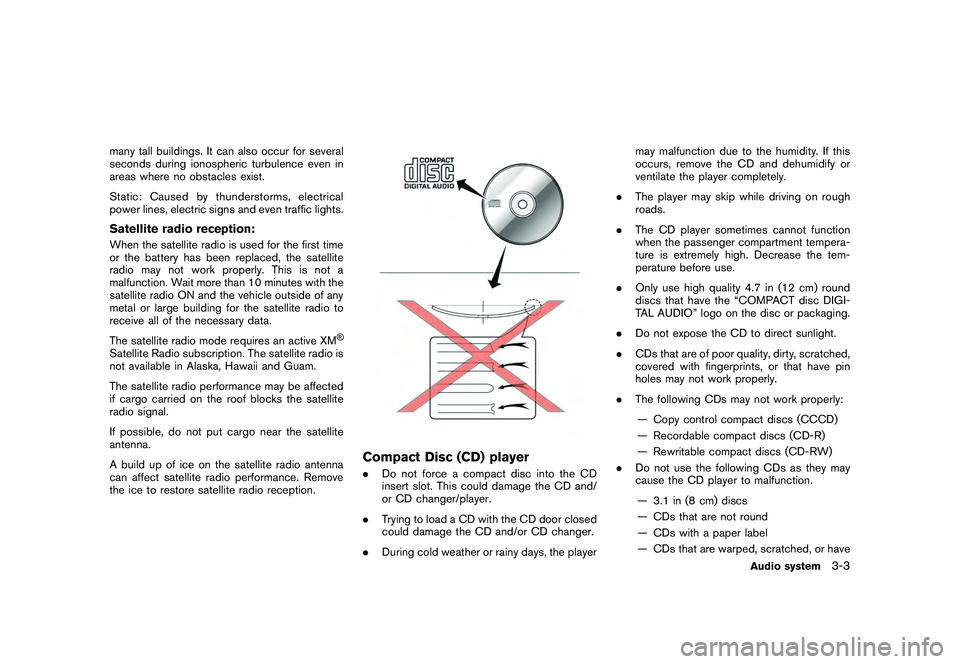
Compact Disc (CD) player.Do not force a compact disc into the CD
insert slot. This could damage the CD and/
or CD changer/player.
. Trying to load a CD with the CD door closed
could damage the CD and/or CD changer.
. During cold weather or rainy days, the player may malfunction due to the humidity. If this
occurs, remove the CD and dehumidify or
ventilate the player completely.
. The player may skip while driving on rough
roads.
. The CD player sometimes cannot function
when the passenger compartment tempera-
ture is extremely high. Decrease the tem-
perature before use.
. Only use high quality 4.7 in (12 cm) round
discs that have the “COMPACT disc DIGI-
TAL AUDIO” logo on the disc or packaging.
. Do not expose the CD to direct sunlight.
. CDs that are of poor quality, dirty, scratched,
covered with fingerprints, or that have pin
holes may not work properly.
. The following CDs may not work properly:
— Copy control compact discs (CCCD)
— Recordable compact discs (CD-R)
— Rewritable compact discs (CD-RW)
. Do not use the following CDs as they may
cause the CD player to malfunction.
— 3.1 in (8 cm) discs
— CDs that are not round
— CDs with a paper label
— CDs that are warped, scratched, or have
Audio system
3-3
Page 130 of 312
Black plate (130,1)
Model "R35-N" EDITED: 2009/ 10/ 30
abnormal edges
. This audio system can only play prerecorded
CDs. It has no capabilities to record or burn
CDs.
. If the CD cannot be played, one of the
following messages will be displayed.
CHECK DISC:
— Confirm that the CD is inserted correctly (the label side is facing up, etc.) .
— Confirm that the CD is not bent or warped and it is free of scratches.
PUSH EJECT:
This is an error due to the temperature inside
the player is too high. Remove the CD by
pushing the EJECT button, and after a short
time reinsert the CD. The CD can be played
when the temperature of the player returns
to normal.
UNPLAYABLE:
The file is unplayable in this audio system
(only MP3 or WMA CD) .
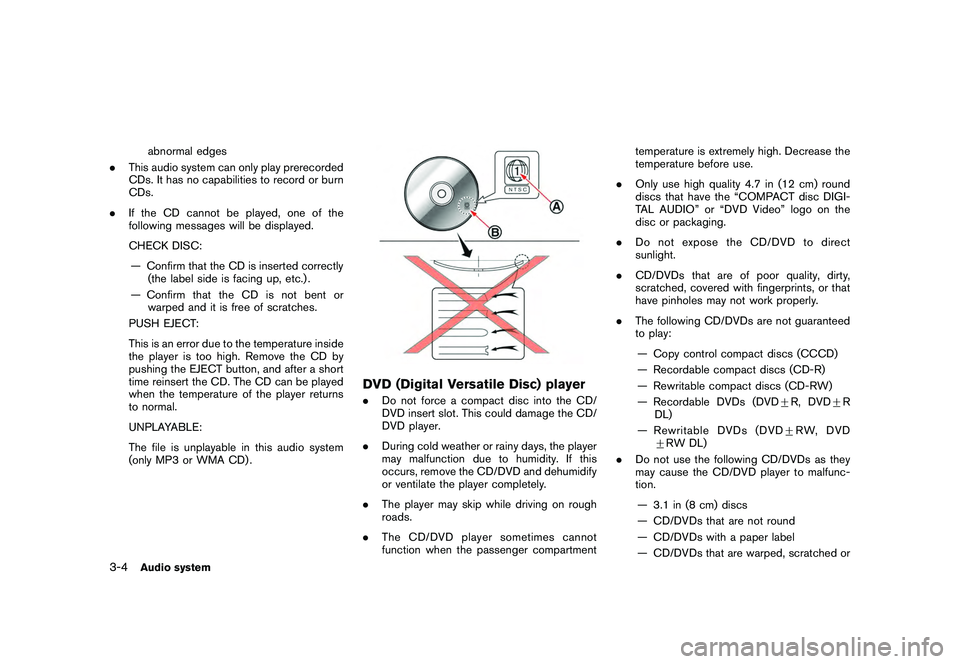
DVD (Digital Versatile Disc) player. Do not force a compact disc into the CD/
DVD insert slot. This could damage the CD/
DVD player.
. During cold weather or rainy days, the player
may malfunction due to humidity. If this
occurs, remove the CD/DVD and dehumidify
or ventilate the player completely.
. The player may skip while driving on rough
roads.
. The CD/DVD player sometimes cannot
function when the passenger compartment temperature is extremely high. Decrease the
temperature before use.
. Only use high quality 4.7 in (12 cm) round
discs that have the “COMPACT disc DIGI-
TAL AUDIO” or “DVD Video” logo on the
disc or packaging.
. Do not expose the CD/DVD to direct
sunlight.
. CD/DVDs that are of poor quality, dirty,
scratched, covered with fingerprints, or that
have pinholes may not work properly.
. The following CD/DVDs are not guaranteed
to play:
— Copy control compact discs (CCCD)
— Recordable compact discs (CD-R)
— Rewritable compact discs (CD-RW)
— Recordable DVDs (DVD +R, DVD +R
DL)
—Rewritable DVDs (DVD +RW, DVD
+ RW DL)
. Do not use the following CD/DVDs as they
may cause the CD/DVD player to malfunc-
tion.
— 3.1 in (8 cm) discs
— CD/DVDs that are not round
— CD/DVDs with a paper label
— CD/DVDs that are warped, scratched or
3-4
Audio system