ECO mode NISSAN GT-R 2011 Owner's Manual
[x] Cancel search | Manufacturer: NISSAN, Model Year: 2011, Model line: GT-R, Model: NISSAN GT-R 2011Pages: 312, PDF Size: 13.07 MB
Page 131 of 312
Black plate (131,1)
Model "R35-N" EDITED: 2009/ 10/ 30
have abnormal edges
— This audio system can only play pre- recorded CD/DVDs. It has no capabil-
ities to record or burn CD/DVDs.
. If the CD/DVD cannot be played, one of the
following messages will be displayed.
Disc Read Error:
— Confirm that the CD/DVD is inserted correctly (the label side is facing up,
etc.) .
— Confirm that the CD/DVD is not bent or warped and it is free of scratches.
Please Eject Disc:
— This may be an error due to the temperature inside the player being too
high. Remove the CD/DVD by pushing
the EJECT button, and after a short time
reinsert the CD/DVD. The CD/DVD can
be played when the temperature of the
player returns to normal. If the error
persists, consult your local retailership.
Unplayable File:
— The file may be copy protected.
— The file is not MP3, WMA, AAC, M4A or DivX
®type.
Region Invalid:
— The DVD is not for region 1 or all regions. Use DVDs with a region code
“1”, “ALL” or “1 included” for your DVD
entertainment system. (The region code
*A
is displayed as a small symbol
printed on the top of the DVD
*B
.)
This vehicle-installed DVD player cannot
play DVDs with a region code other than
“1” or “ALL”.
Copyright and trademark:. The technology protected by the U.S. patent
and other intellectual property rights owned
by Macrovision Corporation and other right
holders is adopted for this system.
. This copyright protected technology cannot
be used without a permit from Macrovision
Corporation. It is limited to be personal use,
etc., as long as the permit from Macrovision
Corporation is not issued.
. Modifying or disassembling is prohibited.
. Dolby digital is manufactured under license
from Dolby Laboratories, Inc.
. Dolby and the double D mark “
” are
trademarks of Dolby Laboratories, Inc.
. DTS and DTS Digital Surround “” are
registered trademarks of Digital Theater
Systems, Inc.
Parental level (parental control):DVDs with the parental control setting can be
played with this system. Please use your own
judgement to set the parental control with the
system.Disc selection:The following disc formats can be played with
the DVD drive.
. DVD-VIDEO
. DVD-AUDIO
. VIDEO-CD
. CD-DA (Conventional Compact Disc)
. DTS-CDUSB (Universal Serial Bus)This system supports various USB memory
sticks, USB hard drives and iPod
®
players.
There are some USB devices which may not be
supported with this system.
. Make sure that the USB device is connected
correctly into the USB connector.
. Do not force the memory stick or USB cable
into the USB connector. This could damage
the connector.
. During cold weather or rainy days, the player
may malfunction due to humidity. If this
occurs, remove the USB device and dehu-
Audio system
3-5
Page 132 of 312
Black plate (132,1)
Model "R35-N" EDITED: 2009/ 10/ 30
midify or ventilate the USB player comple-
tely.
. The USB player sometimes cannot function
when the passenger compartment tempera-
ture is extremely high. Decrease the tem-
perature before use.
. Do not leave USB memory in a place prone
to static electricity or where the air condi-
tioner blows directly. The data in the USB
memory may be damaged.
. The vehicle is not equipped with a USB
memory stick.
. A USB device cannot be formatted with this
system. To format a USB device, use a
personal computer.
. Partitioned USB devices may not be played
correctly.
. Some characters used in other languages
(Chinese, Japanese, etc.) are not displayed
properly on the vehicle center screen. Using
English language characters with a USB
device is recommended.
. Do not connect a USB device if a connector
or cable is wet. Allow the cable and/or
connectors to dry completely before con-
necting the USB device. If the connector is
exposed to fluids other than water, evapora-
tive residue may cause a short between the connector pins.
. Large video podcast files cause slow
responses in an iPod
®. The vehicle center
display may momentarily black out, but it will
soon recover.
. If an iPod
®automatically selects large video
podcast files while in the shuffle mode, the
vehicle center display may momentarily
black out, but it will soon recover.
. Audiobooks may not play in the same order
as they appear on an iPod
®.
. An iPod nano
®(1st Generation) may remain
in fast forward or rewind mode if it is
connected during a seek operation. In this
case, please manually reset the iPod
®.
. An iPod nano
®(2nd Generation) will con-
tinue to fast forward or rewind if it is
disconnected during a seek operation.
. An incorrect song title may appear when the
Play Mode is changed while using the iPod
nano
®(2nd Generation)
iPod
®is a trademark of Apple Inc., registered in
the U.S. and other countries.
Compressed Audio Files (MP3/
WMA/AAC/ATRAC3)Explanation of terms:. MP3 — MP3 is short for Moving Pictures
Experts Group Audio Layer 3. MP3 is the
most well known compressed digital audio
file format. This format allows for near “CD
quality” sound, but at a fraction of the size of
normal audio files. MP3 conversion of an
audio track can reduce the file size by
approximately a 10:1 ratio (Sampling: 44.1
kHz, Bit rate: 128 kbps) with virtually no
perceptible loss in quality. The compression
reduces certain parts of sound that seem
inaudible to most people.
. WMA — Windows Media Audio (WMA) is a
compressed audio format created by Micro-
soft as an alternative to MP3. The WMA
codec offers greater file compression than
the MP3 codec, enabling storage of more
digital audio tracks in the same amount of
space when compared to MP3s at the same
level of quality.
. AAC/M4A — Advanced Audio Coding
(AAC) is a lossy audio compression format.
Audio files that have been encoded with
AAC are generally smaller in size and deliver
a higher quality of sound than MP3.
. Bit rate — Bit rate denotes the number of
bits per second used by a digital music file.
3-6
Audio system
Page 133 of 312
Black plate (133,1)
Model "R35-N" EDITED: 2009/ 10/ 30
The size and quality of a compressed digital
audio file is determined by the bit rate used
when encoding the file.
. Sampling frequency — Sampling frequency
is the rate at which the samples of a signal
are converted from analog to digital (A/D
conversion) per second.
. Multisession — Multisession is one of the
methods for writing data to media. Writing
data once to the media is called a single
session, and writing more than once is
called a multisession.
. ID3/WMA Tag — The ID3/WMA tag is the
part of the encoded MP3 or WMA file that
contains information about the digital music
file such as song title, artist, album title,
encoding bit rate, track time duration, etc.
ID3 tag information is displayed on the
Album/Artist/Track title line on the display.
* Windows
®and Windows Media
®are regis-
tered trademarks or trademarks of Microsoft
Corporation in the United States of America
and/or other countries.
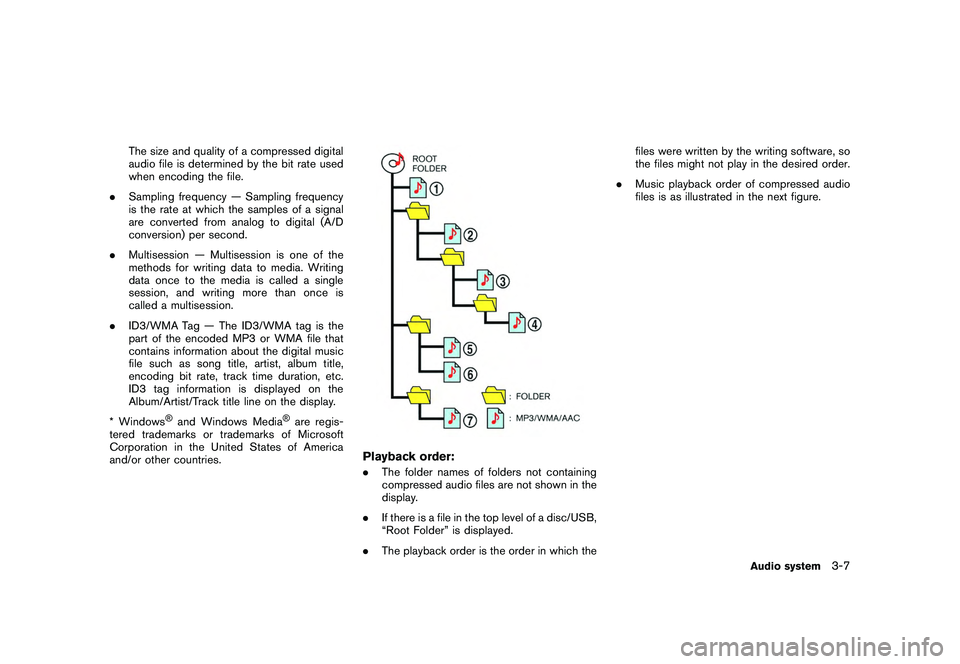
Playback order:. The folder names of folders not containing
compressed audio files are not shown in the
display.
. If there is a file in the top level of a disc/USB,
“Root Folder” is displayed.
. The playback order is the order in which the files were written by the writing software, so
the files might not play in the desired order.
. Music playback order of compressed audio
files is as illustrated in the next figure.
Audio system
3-7
Page 136 of 312
Black plate (136,1)
Model "R35-N" EDITED: 2009/ 10/ 30
Compressed Video FilesExplanation of terms:.DivX
®- DivX
®refers to the DivX
®codec
owned by DivX, Inc. used for a lossy
compression of video based on MPEG-4.
. AVI - AVI stands for Audio Video Interleave.
It is a standard file format originated by
Microsoft Corporation. A “.divx” encoded file
can be saved into the “.avi” file format for
playback on this system if it meets the
requirements stated in the table in this
section. However, not all the “.avi” files are
playable on this system since different
encodings can be used than the DivX
®
codec.
. ASF - ASF stands for Advanced Systems
Format. It is a file format owned by Microsoft
Corporation. Note: Only “.asf” files that meet
the requirements stated in the table in this
section can be played.
. Bit rate — Bit rate denotes the number of
bits per second used by a digital video file.
The size and quality of a compressed digital
audio file is determined by the bit rate used
when encoding the file.
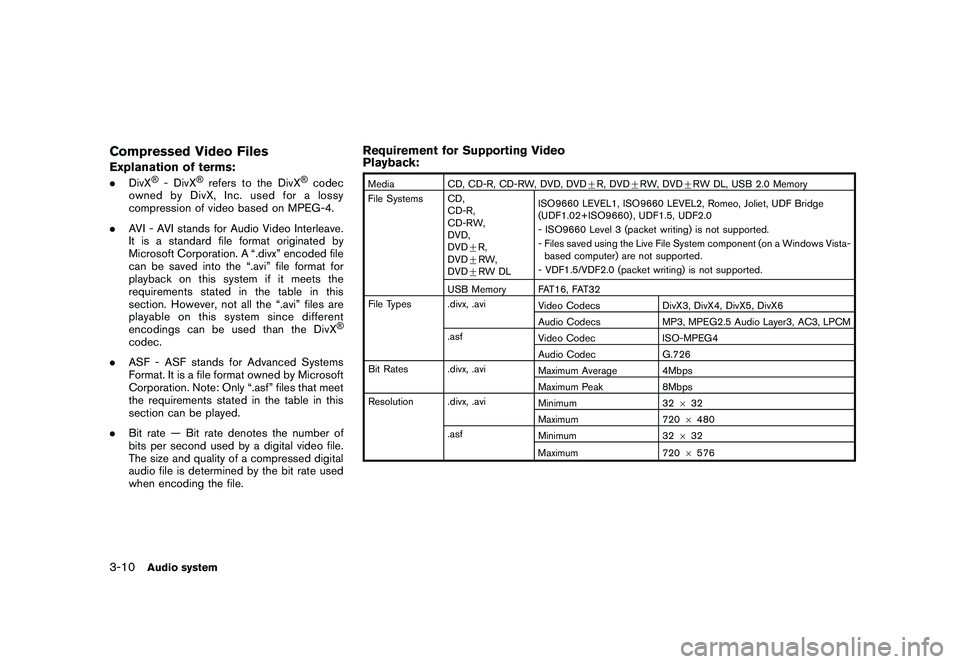
Requirement for Supporting Video
Playback:Media CD, CD-R, CD-RW, DVD, DVD+ R, DVD+RW, DVD +RW DL, USB 2.0 Memory
File Systems CD, CD-R,
CD-RW,
DVD,
DVD+R,
DVD +RW,
DVD +RW DL ISO9660 LEVEL1, ISO9660 LEVEL2, Romeo, Joliet, UDF Bridge
(UDF1.02+ISO9660) , UDF1.5, UDF2.0
- ISO9660 Level 3 (packet writing) is not supported.
- Files saved using the Live File System component (on a Windows Vista-
based computer) are not supported.
- VDF1.5/VDF2.0 (packet writing) is not supported.
USB Memory FAT16, FAT32
File Types .divx, .avi Video CodecsDivX3, DivX4, DivX5, DivX6
Audio Codecs MP3, MPEG2.5 Audio Layer3, AC3, LPCM
.asf Video Codec ISO-MPEG4
Audio Codec G.726
Bit Rates .divx, .avi Maximum Average 4Mbps
Maximum Peak8Mbps
Resolution .divx, .avi Minimum32632
Maximum 7206480
.asf Minimum 32632
Maximum 7206576
3-10
Audio system
Page 137 of 312
Black plate (137,1)
Model "R35-N" EDITED: 2009/ 10/ 30
Bluetooth streaming audio.Some Bluetooth
®audio devices may not be
recognized by the in-vehicle audio system.
. It is necessary to set up the wireless
connection between a compatible Blue-
tooth
®
audio device and the in-vehicle
Bluetooth®module before using the Blue-
tooth streaming audio.
. Operating procedure of the Bluetooth
streaming audio will vary depending on the
device. Make sure it is understood how to
operate an audio device before using it with
this system.
. The Bluetooth streaming audio may be
stopped under the following conditions:
— Receiving a hands-free call.
— Checking the connection to the hands- free phone.
. Do not place a Bluetooth
®audio device in
an area surrounded by metal or far away
from the in-vehicle Bluetooth®module to
prevent tone quality degradation and wire-
less connection disruption.
. While an audio device is connected through
a Bluetooth
®wireless connection, the bat-
tery power of the device may discharge
quicker than usual.
. This system supports the Bluetooth
®Audio Distribution Profile (A2DP, AVRCP) .
. Bluetooth
®is a trademark owned by Blue-
tooth SIG, Inc.
Music BoxRecording:. Note that data that is lost and not stored to
the in-vehicle memory due to system da-
mage, improper operation or malfunction is
not under warranty.
. Vehicle owners are not permitted to record
music without permission of the owner of
the copyright except for personal use.
. Check if the music is appropriately recorded
to the in-vehicle memory after recording
when the compact disc cannot be rere-
corded.
. Some music cannot be recorded depending
on the disc condition due to high-speed
recording.
. Jumping sounds may be recorded when a
compact disc is recorded while driving on
rough roads and excessive vibration occurs.
. A mark indicating jumping sounds is dis-
played if jumping sounds are recorded.
. No sounds may be recorded if jumping sounds occurs or the disc is in poor
condition.
. Tracks that include Serial Copy Manage-
ment System (SCMS) are not recorded.
. If a compact disc is scratched or dirty, it may
not be recorded, jumping sounds may occur
or it may take a long time to record.
Automatic title download:.The title information that is automatically
downloaded may differ from the actual title.
. When newly released compact discs are
recorded, their title information may not be
downloaded.
Audio system
3-11
Page 139 of 312
Black plate (139,1)
Model "R35-N" EDITED: 2009/ 10/ 30
XM satellite radio band select:
Pushing
follows:
XM1 ?XM2 ?XM3 ?XM1
When
the ignition switch is in the ACC or ON position,
the radio will come on at the channel last played.
The last channel played will also come on when
the ON·OFF button is pushed to ON.
The satellite radio is not available in Alaska,
Hawaii and Guam.
If another audio source is playing when
audio source will automatically be turned off and
the last radio channel played will come on.
When the stereo broadcast signal is weak, the
radio will automatically change from stereo to
monaural reception.TUNE (Tuning):. For AM and FM radio
Turn the radio TUNE knob for manual tuning.
. For XM Satellite Radio
Turn the radio TUNE knob to seek channels
from all of the categories when any category
is not selected.
SEEK tuning/CATEGORY (CAT):.For AM and FM radio
Push <
>or <
>to tune from low to
high or high to low frequencies and to stop
at the next broadcasting station.
. For XM Satellite Radio
Push <
>or <
>to tune to the first
channel of the next or previous category.
During satellite radio reception, the following
notices will be displayed under certain condi-
tions.
. NO SIGNAL (No signal is received while the
SAT tuner is connected.)
. OFF AIR (Broadcasting signed off)
. CHECK ANTENNA (Antenna connection
error)
. LOADING (When the initial setting is
performed)
. UPDATING (When the satellite radio sub-
scription is not active)
SCAN tuning:
Push
frequencies and stop at each broadcasting
station/channel for 5 seconds. Pushing the
button again during this 5 seconds period will stop SCAN tuning and the radio will remain
tuned to that station/channel.
If
SCAN tuning moves to the next station/channel.
*1
to
*6
Station memory operations:
12 stations/channels can be set for the FM band
(6 each for FM1 and FM2) , 18 for XM radio (6
each for XM1, XM2 and XM3) and 6 stations
can be set for the AM band.
1. Choose the radio band using the radio band select button.
2. Tune to the desired station/channel using <
>, <
>,
TUNE knob.
3. Push and hold the desired station preset button
*1
to*6
until the radio mutes.
4. The station indicator will then come on and the sound will resume. Memorizing is now
complete.
5. Other buttons can be set in the same manner.
If the battery cable is disconnected, or if the fuse
opens, the radio memory will be erased. In that
case, reset the desired stations/channels.
Audio system
3-13
Page 141 of 312
Black plate (141,1)
Model "R35-N" EDITED: 2009/ 10/ 30
— 1 Folder Repeat (for CD with com-pressed audio files)
— 1 Track Repeat
— 1 Disc Random
— 1 Folder Random (for CD with com- pressed audio files)
. Record to Music Box (for CD)
Select to choose specific songs on the CD
to record to the Music Box.
. Title Text Priority (for CD)
Set the priority to CDDB (Compact Disc
Data Base) to acquire track information from
the Gracenote Database, or set the priority
to CD-TEXT to acquire the information from
CDs.
. Automatic Recording (for CD)
When this item is turned to ON, the Music
Box automatically starts recording when a
CD is inserted.
. Recording Quality (for CD)
The larger number (132) will increase the
recorded sound quality while taking up more
space on the Music Box leaving less room
for more songs. CD:
.
Disc title
. Track title
CD with compressed audio files:
. Folder title
. File title
. Song title
. Album title
. Artist
Next/Previous Track and Fast Forward/
Rewind:When <
>(fast forward) or <
>(rewind)
is pushed for more than 1.5 seconds while the
CD is being played, the CD will play while fast
forwarding or rewinding. When the button is
released, the CD will return to normal play
speed.
When <
>or <
>is pushed for less
than 1.5 seconds while the CD is being played,
the next track or the beginning of the current
track on the CD will be played.
REPEAT (RPT) , RANDOM (RDM):
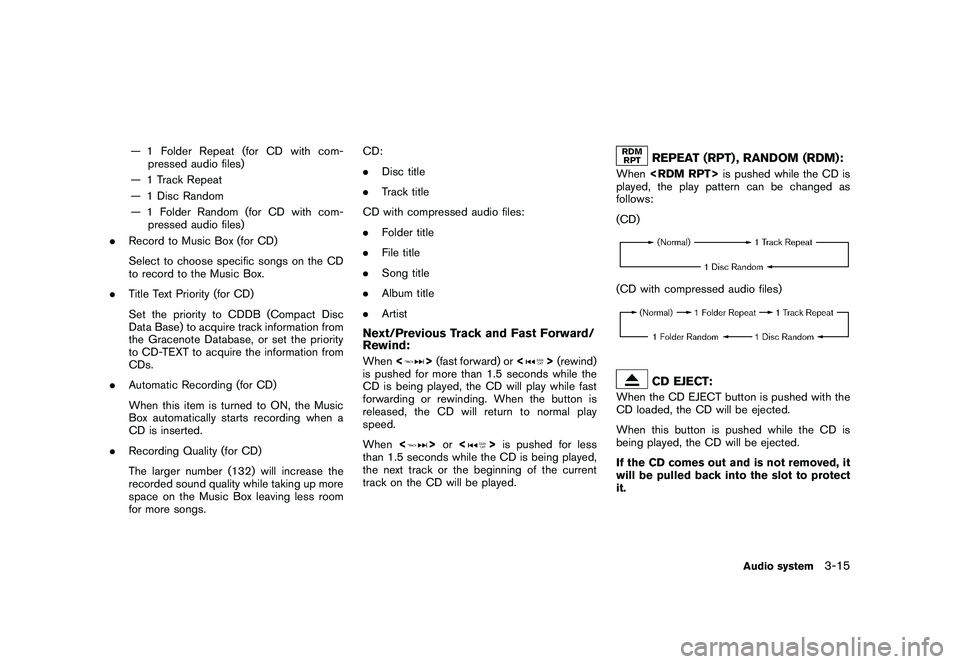
When
played, the play pattern can be changed as
follows:
(CD)(CD with compressed audio files)
CD EJECT:
When the CD EJECT button is pushed with the
CD loaded, the CD will be ejected.
When this button is pushed while the CD is
being played, the CD will be ejected.
If the CD comes out and is not removed, it
will be pulled back into the slot to protect
it.
Audio system
3-15
Page 144 of 312
Black plate (144,1)
Model "R35-N" EDITED: 2009/ 10/ 30
Angle (DVD-VIDEO):If the DVD contains different angles (such as
moving images) , the current image angle can be
switched to another one. Select [Angle]. The
angle will change each time the [+] side or []
side is selected.Angle Mark (DVD-VIDEO):When this item is turned on, an angle mark will
be shown on the bottom of the screen if the
scene can be seen from a different angle.Menu Skip (DVD-VIDEO):DVD menus are automatically configured and
the contents will be played directly when [Menu
Skip] is turned on. Note that some discs may not
be played directly even if this item is turned on.CM Skip (DVD-VIDEO):Select [CM Skip]. Choose the setting time from
15, 30 or 60 seconds by selecting the [+] side
or [ ] side.DRC (DVD-VIDEO, DVD-VR):DRC (Dynamic Range Compression) automati-
cally adjusts the soundtrack volume level to
maintain a more even sound to the speakers.DVD Language (DVD-VIDEO, VIDEO-
CD):Select [DVD Language] to open the number
entry screen. Input the number corresponding to
the preferred language and select [OK]. The DVD top menu language will be changed to the
one specified.
Display:To adjust the image quality of the screen, select
the preferred adjustment items.Audio:Select the preferred language for audio.Subtitle (DVD-VIDEO, DVD-VR):Select the preferred language for subtitles.Display Mode (DVD-VIDEO, VIDEO-CD,
DVD-VR):Select from the “Full”, “Wide”, “Normal” or
“Cinema” modes.Title List (DVD-VR):Select the preferred title from the list.Play Mode:Select the preferred play mode.PG/PL Mode (DVD-VR):Select the “PG” or “PL” mode.
USB MEMORY OPERATION
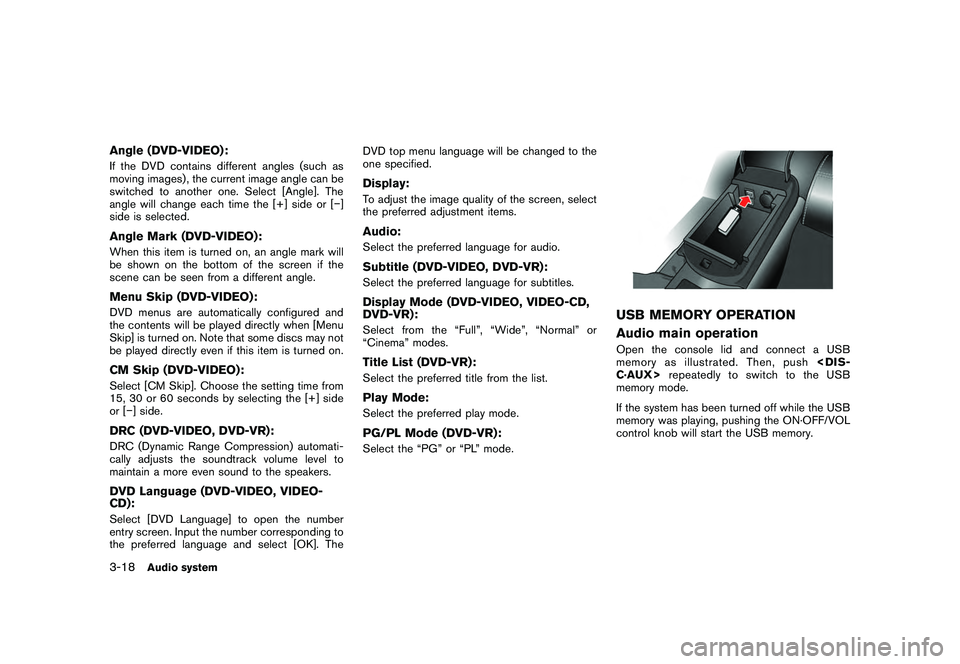
Audio main operationOpen the console lid and connect a USB
memory as illustrated. Then, push
memory mode.
If the system has been turned off while the USB
memory was playing, pushing the ON·OFF/VOL
control knob will start the USB memory.
3-18
Audio system
Page 145 of 312
Black plate (145,1)
Model "R35-N" EDITED: 2009/ 10/ 30
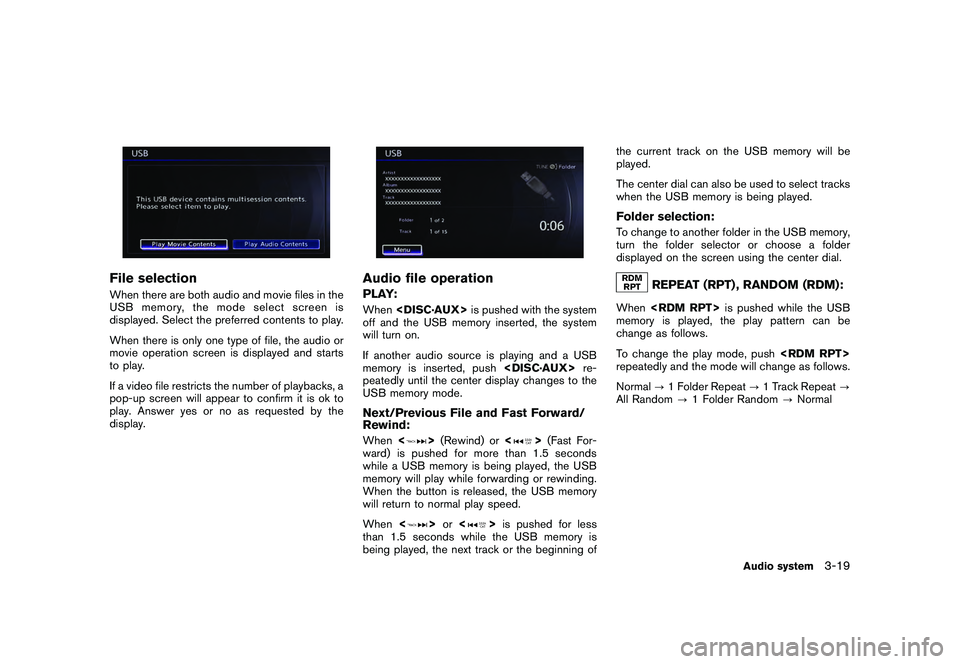
File selectionWhen there are both audio and movie files in the
USB memory, the mode select screen is
displayed. Select the preferred contents to play.
When there is only one type of file, the audio or
movie operation screen is displayed and starts
to play.
If a video file restricts the number of playbacks, a
pop-up screen will appear to confirm it is ok to
play. Answer yes or no as requested by the
display.
Audio file operationPLAY:When
off and the USB memory inserted, the system
will turn on.
If another audio source is playing and a USB
memory is inserted, push
peatedly until the center display changes to the
USB memory mode.Next/Previous File and Fast Forward/
Rewind:When <
>(Rewind) or <
>(Fast For-
ward) is pushed for more than 1.5 seconds
while a USB memory is being played, the USB
memory will play while forwarding or rewinding.
When the button is released, the USB memory
will return to normal play speed.
When <
>or <
>is pushed for less
than 1.5 seconds while the USB memory is
being played, the next track or the beginning of the current track on the USB memory will be
played.
The center dial can also be used to select tracks
when the USB memory is being played.
Folder selection:To change to another folder in the USB memory,
turn the folder selector or choose a folder
displayed on the screen using the center dial.
REPEAT (RPT) , RANDOM (RDM):
When
memory is played, the play pattern can be
change as follows.
To change the play mode, push
repeatedly and the mode will change as follows.
Normal ?1 Folder Repeat ?1 Track Repeat ?
All Random ?1 Folder Random ?Normal
Audio system
3-19
Page 147 of 312
![NISSAN GT-R 2011 Owners Manual Black plate (147,1)
Model "R35-N" EDITED: 2009/ 10/ 30
Example
Settings:Select[Settings] to adjust the following set-
tings.
. Audio File Playback
Switch to the audio playback mode. This
item is displ](/img/5/58175/w960_58175-146.png "NISSAN GT-R 2011 Owners Manual Black plate (147,1)
Model \"R35-N\" EDITED: 2009/ 10/ 30
Example
Settings:Select[Settings] to adjust the following set-
tings.
. Audio File Playback
Switch to the audio playback mode. This
item is displ")
Black plate (147,1)
Model "R35-N" EDITED: 2009/ 10/ 30
Example
Settings:Select[Settings] to adjust the following set-
tings.
. Audio File Playback
Switch to the audio playback mode. This
item is displayed only when the USB
memory contains the audio files.
. Play Mode
Select the “Normal” or “1 Track Repeat” play
mode.
. 10 Key Search
Select [10 Key Search] to open the number
entry screen.
Input the number to be searched and select
[OK].
The specified folder/file will be played. .
Display
To adjust the image quality of the screen,
select the preferred adjustment items.
. DRC
DRC (Dynamic Range Compression) auto-
matically adjusts the soundtrack volume
level to maintain a more even sound to the
speakers.
. Audio
Select the preferred language for audio.
. Subtitle
Select the preferred language for subtitle.
. Display Mode
Select the “Normal”, “Wide”, “Cinema” or
“Full” mode.
BLUETOOTH STREAMING AUDIOYour vehicle is equipped with Bluetooth
®
Streaming Audio. If you have a compatible
Bluetooth
®device with streaming audio (A2DP
profile) , you can set up the wireless connection
between your Bluetooth
®device and the in-
vehicle audio system. This connection allows
you to listen to the audio from the Bluetooth
®
device using your vehicle speakers. It also may
allow basic control of the device for playing and
skipping audio files using the AVRCP Bluetooth
profile. All Bluetooth
®Devices do not have the
same level of controls for AVRCP. Please
consult the manual for your Bluetooth
®Device
for more details.
Once your Bluetooth
®device is connected to
the in-vehicle audio system, it will automatically
reconnect whenever the device is present in the
vehicle and you select Bluetooth Audio from
your audio system. You do not need to manually
reconnect for each usage.Audio system
3-21