ECO mode NISSAN GT-R 2011 Workshop Manual
[x] Cancel search | Manufacturer: NISSAN, Model Year: 2011, Model line: GT-R, Model: NISSAN GT-R 2011Pages: 312, PDF Size: 13.07 MB
Page 176 of 312
Black plate (180,1)
Model "R35-N" EDITED: 2009/ 10/ 30
By pushing
screen with audio information that is always at
the top can be displayed.
Each time
part of the screen changes between air condi-
tioner, fuel economy and navigation directions.
INFO:
There are different status screens displayed
depending on various factors, such as the
currently active mode, whether a destination
has been set or not, etc.
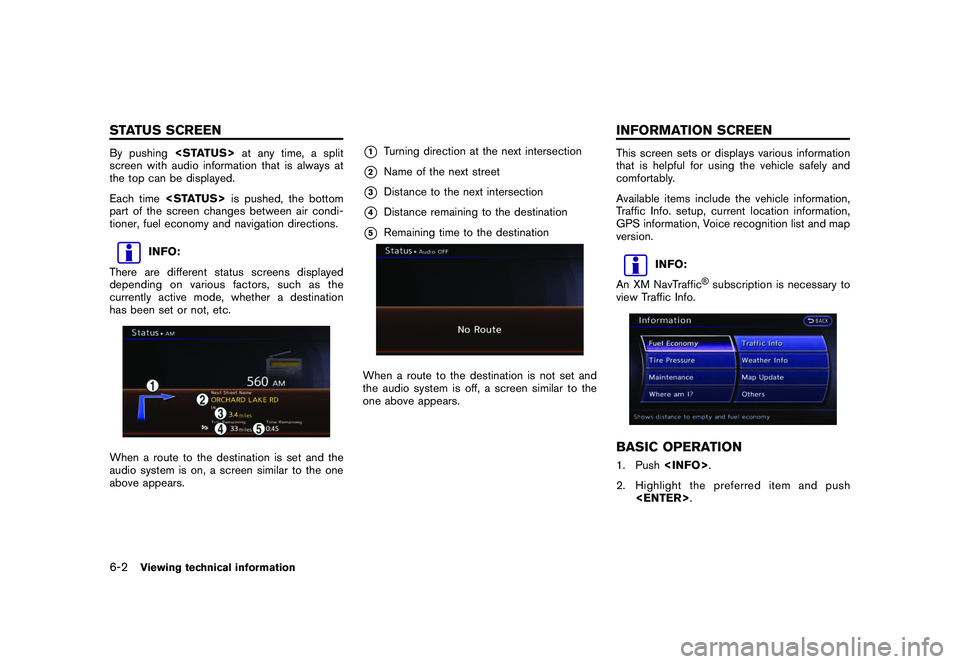
When a route to the destination is set and the
audio system is on, a screen similar to the one
above appears.
*1
Turning direction at the next intersection
*2
Name of the next street
*3
Distance to the next intersection
*4
Distance remaining to the destination
*5
Remaining time to the destination
When a route to the destination is not set and
the audio system is off, a screen similar to the
one above appears.
This screen sets or displays various information
that is helpful for using the vehicle safely and
comfortably.
Available items include the vehicle information,
Traffic Info. setup, current location information,
GPS information, Voice recognition list and map
version.
INFO:
An XM NavTraffic
®subscription is necessary to
view Traffic Info.
BASIC OPERATION1. Push
2. Highlight the preferred item and push
6-2
Viewing technical information
STATUS SCREEN INFORMATION SCREEN
Page 177 of 312
![NISSAN GT-R 2011 Workshop Manual Black plate (181,1)
Model "R35-N" EDITED: 2009/ 10/ 30
Available items
.[Fuel Economy]:
Displays the fuel economy information.
“FUEL ECONOMY INFORMATION”
page 6-4
. [Tire Pressure]:
Displays the t](/img/5/58175/w960_58175-176.png "NISSAN GT-R 2011 Workshop Manual Black plate (181,1)
Model \"R35-N\" EDITED: 2009/ 10/ 30
Available items
.[Fuel Economy]:
Displays the fuel economy information.
“FUEL ECONOMY INFORMATION”
page 6-4
. [Tire Pressure]:
Displays the t")
Black plate (181,1)
Model "R35-N" EDITED: 2009/ 10/ 30
Available items
.[Fuel Economy]:
Displays the fuel economy information.
“FUEL ECONOMY INFORMATION”
page 6-4
. [Tire Pressure]:
Displays the tire pressure information.“TIRE PRESSURE INFORMATION”
page 6-5
. [Maintenance]:
Displays the vehicle maintenance informa-
tion.“MAINTENANCE INFORMATION”
page 6-6
. [Where am I?]:
Displays information regarding the current
vehicle location.“VIEWING INFORMATION ABOUT
CURRENT VEHICLE LOCATION” page 6-3
. [Traffic Info]:
Allows Traffic Info. setup.“VIEWING AVAILABLE TRAFFIC IN-
FORMATION” page 6-7
. [Weather Info]:
Displays weather information.“VIEWING AVAILABLE WEATHER
INFORMATION” page 6-13 .
[Others]:
— [Map Update]: Display the map version and enable
updating of the map data.
“MAP UPDATE” page 6-23
— [Navigation Version]: Displays the current navigation system
version.“VIEWING NAVIGATION SYS-
TEM VERSION INFORMATION” page
6-24
— [GPS Position]: Displays GPS information regarding the
current vehicle location.“VIEWING GPS CURRENT LO-
CATION INFORMATION” page 6-24
— [Voice Recognition]: Displays the voice recognition list.“Voice recognition” page 8-1
This displays the information about the vehicle
location on the route when driving according to
route guidance.BASIC OPERATION1. Push
2. Highlight [Where am I?] and push
3. Push <
>to return to the previous
screen. Push
Page 178 of 312
Black plate (182,1)
Model "R35-N" EDITED: 2009/ 10/ 30
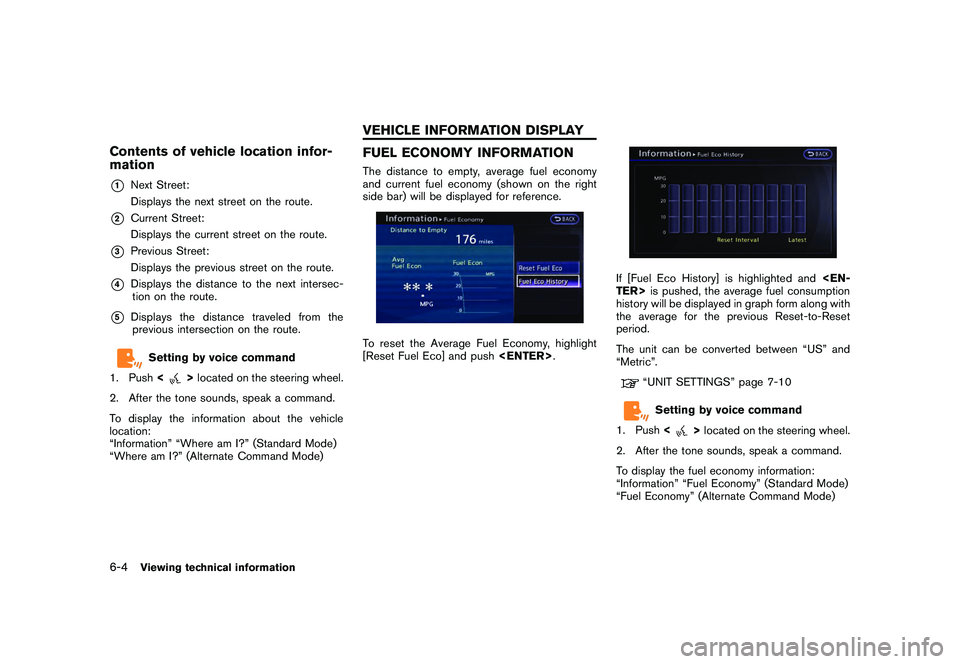
Contents of vehicle location infor-
mation*1
Next Street:
Displays the next street on the route.
*2
Current Street:
Displays the current street on the route.
*3
Previous Street:
Displays the previous street on the route.
*4
Displays the distance to the next intersec-tion on the route.
*5
Displays the distance traveled from theprevious intersection on the route.
Setting by voice command
1. Push <
>located on the steering wheel.
2. After the tone sounds, speak a command.
To display the information about the vehicle
location:
“Information” “Where am I?” (Standard Mode)
“Where am I?” (Alternate Command Mode)
FUEL ECONOMY INFORMATIONThe distance to empty, average fuel economy
and current fuel economy (shown on the right
side bar) will be displayed for reference.To reset the Average Fuel Economy, highlight
[Reset Fuel Eco] and push
If [Fuel Eco History] is highlighted and
history will be displayed in graph form along with
the average for the previous Reset-to-Reset
period.
The unit can be converted between “US” and
“Metric”.
“UNIT SETTINGS” page 7-10Setting by voice command
1. Push <
>located on the steering wheel.
2. After the tone sounds, speak a command.
To display the fuel economy information:
“Information” “Fuel Economy” (Standard Mode)
“Fuel Economy” (Alternate Command Mode)
6-4
Viewing technical information
VEHICLE INFORMATION DISPLAY
Page 180 of 312
Black plate (184,1)
Model "R35-N" EDITED: 2009/ 10/ 30
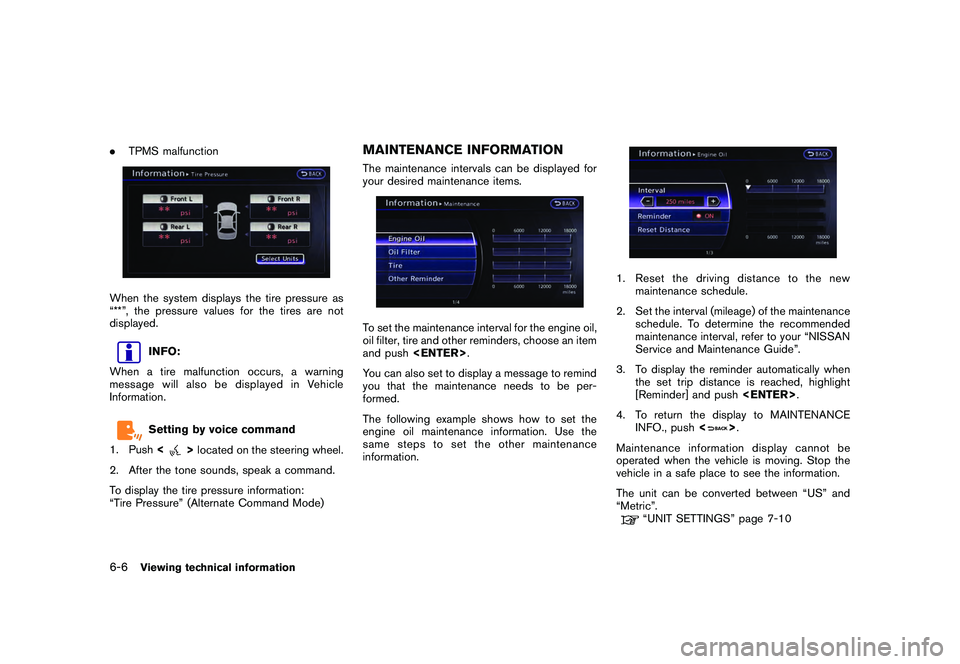
.TPMS malfunctionWhen the system displays the tire pressure as
“**”, the pressure values for the tires are not
displayed.
INFO:
When a tire malfunction occurs, a warning
message will also be displayed in Vehicle
Information.Setting by voice command
1. Push <
>located on the steering wheel.
2. After the tone sounds, speak a command.
To display the tire pressure information:
“Tire Pressure” (Alternate Command Mode)
MAINTENANCE INFORMATIONThe maintenance intervals can be displayed for
your desired maintenance items.To set the maintenance interval for the engine oil,
oil filter, tire and other reminders, choose an item
and push
You can also set to display a message to remind
you that the maintenance needs to be per-
formed.
The following example shows how to set the
engine oil maintenance information. Use the
same steps to set the other maintenance
information.
1. Reset the driving distance to the new maintenance schedule.
2. Set the interval (mileage) of the maintenance schedule. To determine the recommended
maintenance interval, refer to your “NISSAN
Service and Maintenance Guide”.
3. To display the reminder automatically when the set trip distance is reached, highlight
[Reminder] and push
4. To return the display to MAINTENANCE INFO., push <
>.
Maintenance information display cannot be
operated when the vehicle is moving. Stop the
vehicle in a safe place to see the information.
The unit can be converted between “US” and
“Metric”.
“UNIT SETTINGS” page 7-10
6-6
Viewing technical information
Page 182 of 312
Black plate (186,1)
Model "R35-N" EDITED: 2009/ 10/ 30
warning. Relying only on XM NavTraf-
fic®information may lead to a collision
and could result in serious personal
injury.
NOTICE
Flow information is provided only for
roads equipped with traffic sensors and
is not available in all markets covered
by the service. Flow data may not be
available on portions of a road that is
under construction.
XM NavTraffic
®information is available in limited
markets. To subscribe or to check if this service
is available in the area:
call 1-800-XM-RADIO (1-800-967-2346) or
see www.xmradio.com/navtraffic
INFO:
If a contract is not completed for XM NavTraffic
®
traffic information service, a message appears,
and it will not be possible to check the
information on the traffic information system.
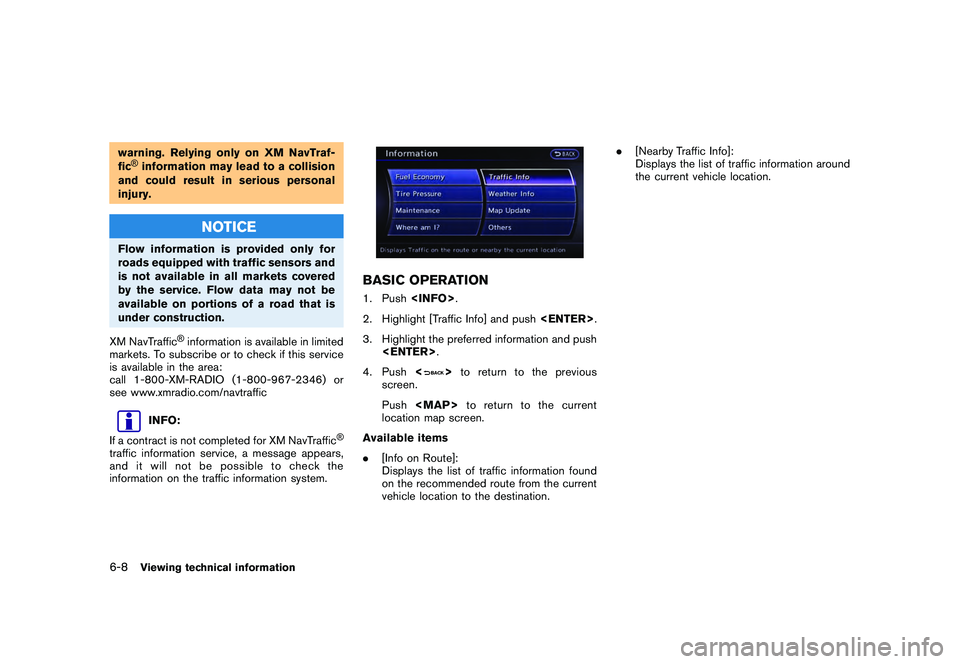
BASIC OPERATION1. Push
2. Highlight [Traffic Info] and push
3. Highlight the preferred information and push
4. Push <
>to return to the previous
screen.
Push
Page 183 of 312
Black plate (187,1)
Model "R35-N" EDITED: 2009/ 10/ 30
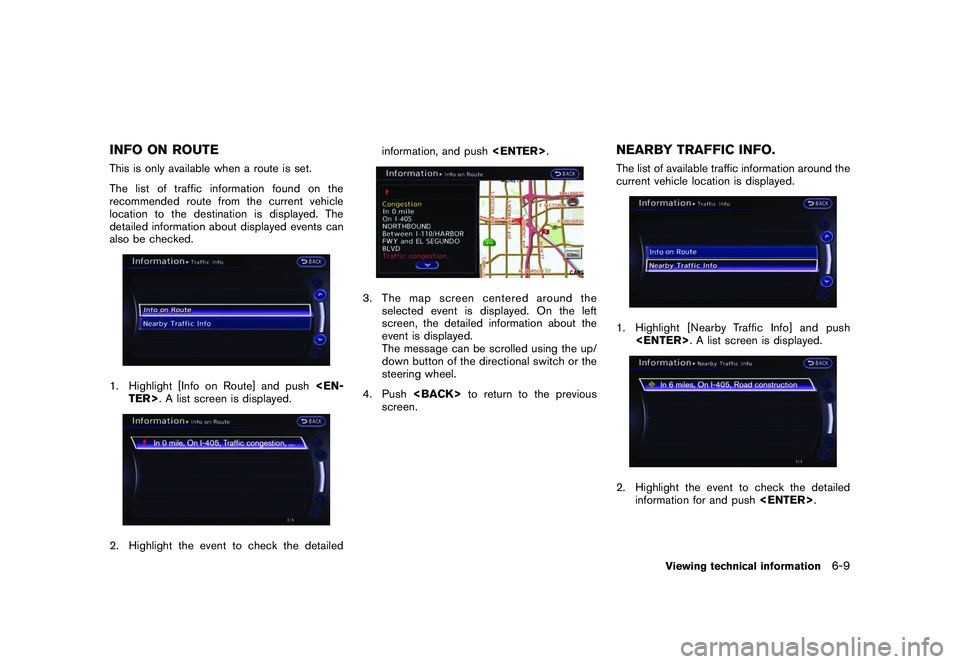
INFO ON ROUTEThis is only available when a route is set.
The list of traffic information found on the
recommended route from the current vehicle
location to the destination is displayed. The
detailed information about displayed events can
also be checked.1. Highlight [Info on Route] and push
3. The map screen centered around the
selected event is displayed. On the left
screen, the detailed information about the
event is displayed.
The message can be scrolled using the up/
down button of the directional switch or the
steering wheel.
4. Push
screen.
NEARBY TRAFFIC INFO.The list of available traffic information around the
current vehicle location is displayed.1. Highlight [Nearby Traffic Info] and push
information for and push
Viewing technical information
6-9
Page 184 of 312
Black plate (188,1)
Model "R35-N" EDITED: 2009/ 10/ 30
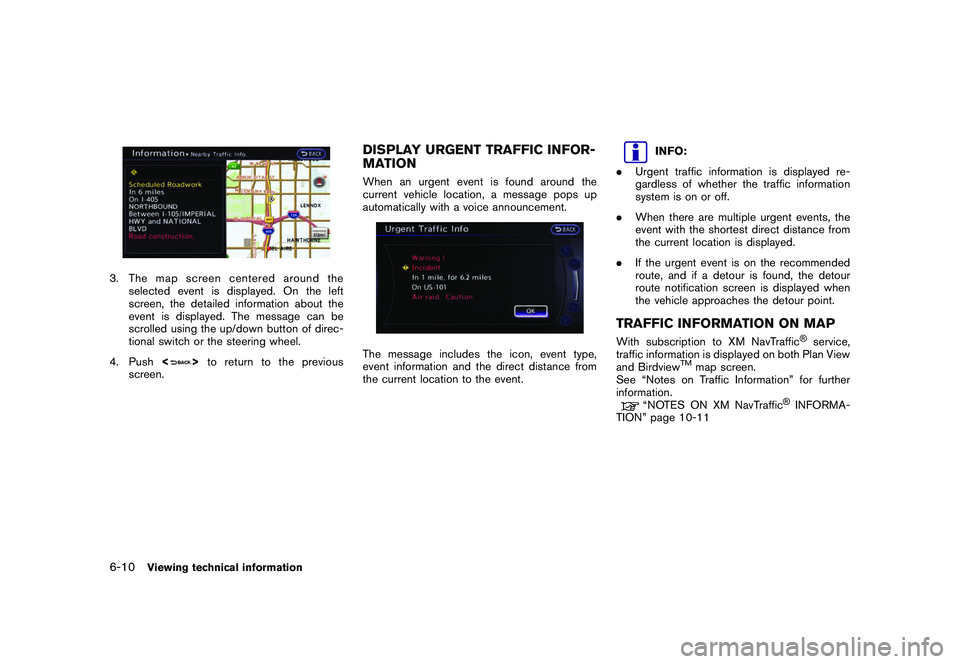
3. The map screen centered around theselected event is displayed. On the left
screen, the detailed information about the
event is displayed. The message can be
scrolled using the up/down button of direc-
tional switch or the steering wheel.
4. Push <
>to return to the previous
screen.
DISPLAY URGENT TRAFFIC INFOR-
MATIONWhen an urgent event is found around the
current vehicle location, a message pops up
automatically with a voice announcement.The message includes the icon, event type,
event information and the direct distance from
the current location to the event.
INFO:
. Urgent traffic information is displayed re-
gardless of whether the traffic information
system is on or off.
. When there are multiple urgent events, the
event with the shortest direct distance from
the current location is displayed.
. If the urgent event is on the recommended
route, and if a detour is found, the detour
route notification screen is displayed when
the vehicle approaches the detour point.
TRAFFIC INFORMATION ON MAPWith subscription to XM NavTraffic
®service,
traffic information is displayed on both Plan View
and Birdview
TM
map screen.
See “Notes on Traffic Information” for further
information.
“NOTES ON XM NavTraffic
®INFORMA-
TION” page 10-11
6-10
Viewing technical information
Page 200 of 312
Black plate (206,1)
Model "R35-N" EDITED: 2009/ 10/ 30
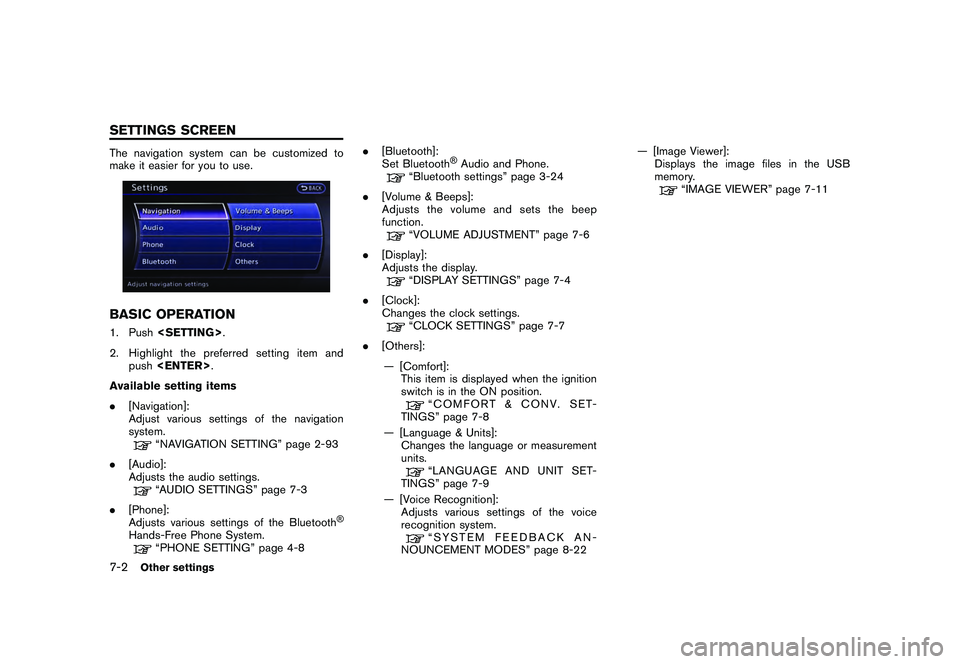
The navigation system can be customized to
make it easier for you to use.BASIC OPERATION1. Push
2. Highlight the preferred setting item and push
Available setting items
. [Navigation]:
Adjust various settings of the navigation
system.
“NAVIGATION SETTING” page 2-93
. [Audio]:
Adjusts the audio settings.“AUDIO SETTINGS” page 7-3
. [Phone]:
Adjusts various settings of the Bluetooth
®
Hands-Free Phone System.
“PHONE SETTING” page 4-8 .
[Bluetooth]:
Set Bluetooth
®Audio and Phone.
“Bluetooth settings” page 3-24
. [Volume & Beeps]:
Adjusts the volume and sets the beep
function.“VOLUME ADJUSTMENT” page 7-6
. [Display]:
Adjusts the display.“DISPLAY SETTINGS” page 7-4
. [Clock]:
Changes the clock settings.“CLOCK SETTINGS” page 7-7
. [Others]:
— [Comfort]: This item is displayed when the ignition
switch is in the ON position.
“COMFORT & CONV. SET-
TINGS” page 7-8
— [Language & Units]: Changes the language or measurement
units.“LANGUAGE AND UNIT SET-
TINGS” page 7-9
— [Voice Recognition]: Adjusts various settings of the voice
recognition system.“SYSTEM FEEDBACK AN-
NOUNCEMENT MODES” page 8-22 — [Image Viewer]:
Displays the image files in the USB
memory.
“IMAGE VIEWER” page 7-11
7-2
Other settings
SETTINGS SCREEN
Page 203 of 312
Black plate (209,1)
Model "R35-N" EDITED: 2009/ 10/ 30
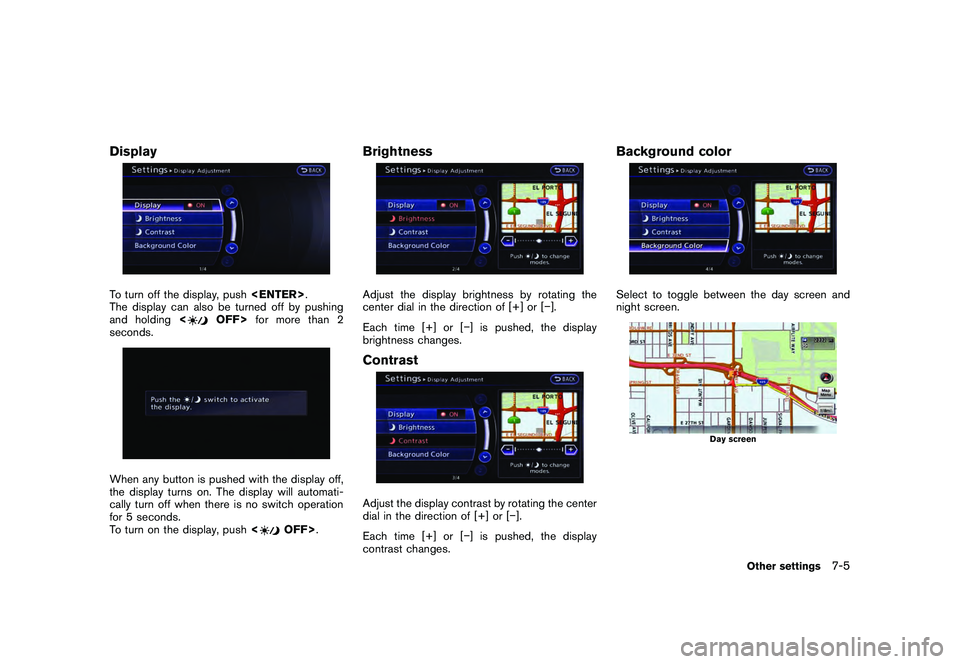
DisplayTo turn off the display, push
The display can also be turned off by pushing
and holding <
OFF>for more than 2
seconds.
When any button is pushed with the display off,
the display turns on. The display will automati-
cally turn off when there is no switch operation
for 5 seconds.
To turn on the display, push <
OFF>.
BrightnessAdjust the display brightness by rotating the
center dial in the direction of [+] or [ ].
Each time [+] or [] is pushed, the display
brightness changes.ContrastAdjust the display contrast by rotating the center
dial in the direction of [+] or [].
Each time [+] or [] is pushed, the display
contrast changes.
Background colorSelect to toggle between the day screen and
night screen.
Day screen
Other settings
7-5
Page 207 of 312
Black plate (213,1)
Model "R35-N" EDITED: 2009/ 10/ 30
.Speed Sensing Wiper Interval:
When this item is turned to ON, the wiper
interval is adjusted automatically according
to the vehicle speed.
. Selective Door Unlock:
When this item is turned to ON, only the
driver’s door is unlocked first after the door
unlock operation. When the door handle
request switch on the driver’s or front
passenger’s side door is pushed to be
unlocked, only the corresponding door is
unlocked first. All the doors can be unlocked
if the door unlock operation is performed
again within 60 seconds.
When this item is turned to OFF, all the
doors will be unlocked after the door unlock
operation is performed once.
. Intelligent Key Lock/Unlock:
When this item is turned to ON, door lock/
unlock function by pushing the door handle
request switch will be activated.
. Return All Settings to Default:
Select this item, push
choose “YES” if you want to return all
settings to the default.
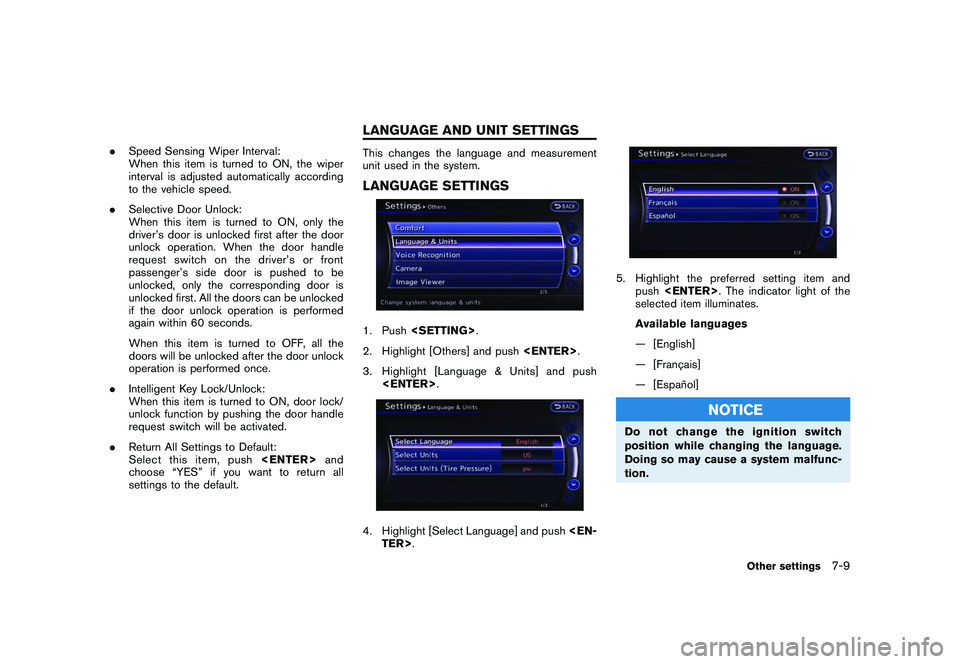
This changes the language and measurement
unit used in the system.LANGUAGE SETTINGS1. Push
2. Highlight [Others] and push
3. Highlight [Language & Units] and push
5. Highlight the preferred setting item and push
selected item illuminates.
Available languages
— [English]
— [Franc¸ ais]
— [Espan ˜
ol]
NOTICE
Do not change the ignition switch
position while changing the language.
Doing so may cause a system malfunc-
tion.
Other settings
7-9
LANGUAGE AND UNIT SETTINGS