set NISSAN GT-R 2015 R35 Multi Function Display User Guide
[x] Cancel search | Manufacturer: NISSAN, Model Year: 2015, Model line: GT-R, Model: NISSAN GT-R 2015 R35Pages: 298, PDF Size: 11.39 MB
Page 27 of 298
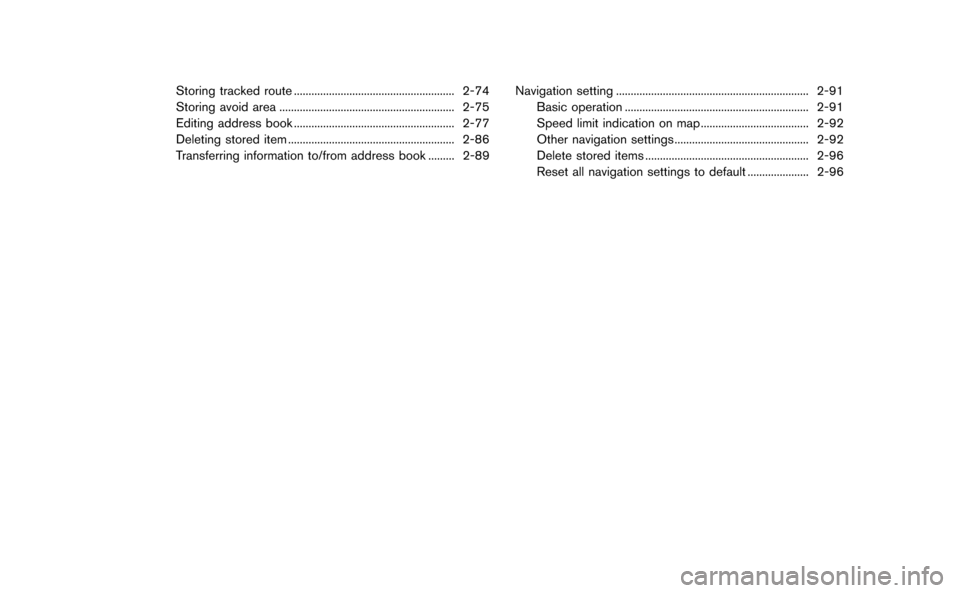
Storing tracked route....................................................... 2-74
Storing avoid area ............................................................ 2-75
Editing address book ....................................................... 2-77
Deleting stored item ......................................................... 2-86
Transferring information to/from address book ......... 2-89 Navigation setting .................................................................. 2-91
Basic operation ............................................................... 2-91
Speed limit indication on map..................................... 2-92
Other navigation settings.............................................. 2-92
Delete stored items ........................................................ 2-96
Reset all navigation settings to default ..................... 2-96
Page 28 of 298
ROUTE GUIDANCE
The main features of the NISSAN Navigation
System are visual guidance and voice guidance
in selected map coverage areas. Utilizing a
network of GPS (Global Positioning System)
satellites, the NISSAN Navigation System tracks
the location on the map and navigates to a
preferred location.
Once the destination is set in a map coverage
area, the NISSAN Navigation System will
calculate a route from the current location to
the destination. The real-time map display and
turn-by-turn voice guidance leads the driver
along the route. These features can be espe-
cially helpful when driving to unfamiliar locations.
The system may be unable to set a destination
and/or calculate a route when the destination is
outside the map coverage area. Additionally,
voice guidance may not be available if the
destination is outside the map coverage area.
For more information on how to set a destina-
tion, refer to section 4.
PLACES OF INTEREST (Places) DI-
RECTORY
The NISSAN Navigation System offers an
extensive places of interest (Places) directory
in map coverage areas. This directory includes a
wide variety of destinations ranging from gas
stations, ATMs, and restaurants to casinos, ski
resorts, shopping centers and businesses. A
point of interest can be searched by category,
name or phone number. After selecting a
destination, the NISSAN Navigation System will
calculate a route to that destination.
The Places directory has many uses. For
example, the directory can be sorted by the
various types of restaurants near the current
location. If an ATM or gas station is needed, the
NISSAN Navigation System can navigate to the
closest preferred location.
For more information on how to use the Places
directory, refer to section 4.
ADDRESS BOOK
The Address Book can store up to 300 locations
from map coverage areas into a personal
directory. This is especially useful for frequently
visited locations, such as clients, relatives and
friends. The Address Book function allows easy
access to frequently visited locations when
setting them as your destination.For more information on how to use the Address
Book, refer to section 6.
AVOID AREA
The Avoid Area function sets areas or freeways
that the NISSAN Navigation System does not
include in the suggested route when calculating
routes. For example, if a freeway or area that is
always congested with traffic.
For more information on the Avoid Area function,
refer to section 6.
XM NavTraffic®INFORMATION
When available, the NavTraffic Information
broadcast may help to avoid delays due to
traffic incidents. Traffic jams, roadwork, closed
roads around the current location, etc. are
represented graphically on the map by icons
depicting the nature of the event. Incidents on
the route are automatically brought to the
attention when they are approached.
The NavTraffic Information feature, via the
guidance mode, may help to detour around
traffic problems. For more information on the
NavTraffic Information feature, refer to section 6.
Navigation2-3
FEATURES OF THIS NAVIGATION
SYSTEM
Page 30 of 298
MAP TYPES
Two types of map views are available: 2D map
and BirdviewTM(3D) map.
2D map
The 2D map displays the map in a 2-dimensional
environment similar to a road map.
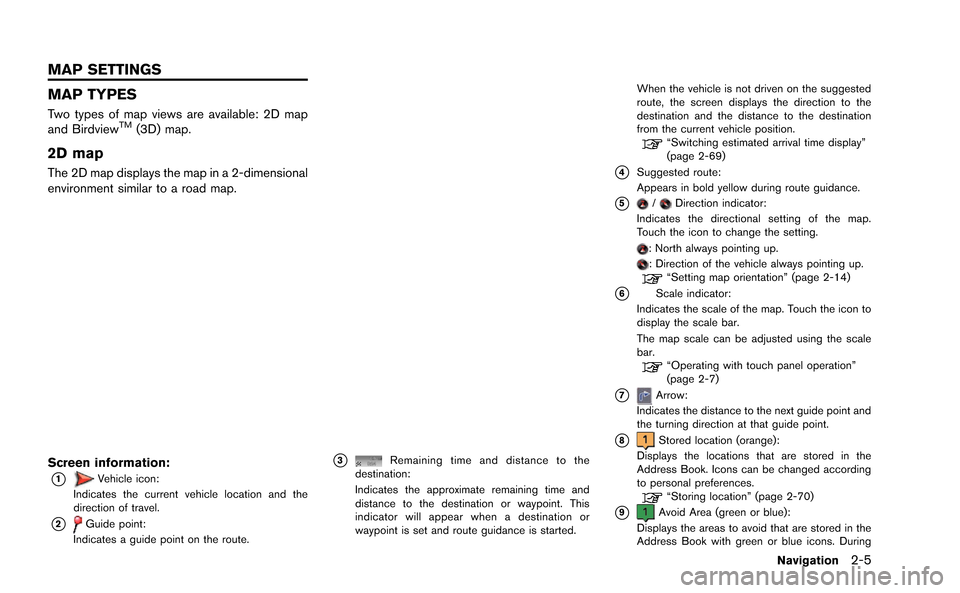
Screen information:
*1Vehicle icon:
Indicates the current vehicle location and the
direction of travel.
*2Guide point:
Indicates a guide point on the route.
*3Remaining time and distance to the
destination:
Indicates the approximate remaining time and
distance to the destination or waypoint. This
indicator will appear when a destination or
waypoint is set and route guidance is started. When the vehicle is not driven on the suggested
route, the screen displays the direction to the
destination and the distance to the destination
from the current vehicle position.
“Switching estimated arrival time display”
(page 2-69)
*4Suggested route:
Appears in bold yellow during route guidance.
*5/Direction indicator:
Indicates the directional setting of the map.
Touch the icon to change the setting.
: North always pointing up.: Direction of the vehicle always pointing up.“Setting map orientation” (page 2-14)
*6Scale indicator:
Indicates the scale of the map. Touch the icon to
display the scale bar.
The map scale can be adjusted using the scale
bar.
“Operating with touch panel operation”
(page 2-7)
*7Arrow:
Indicates the distance to the next guide point and
the turning direction at that guide point.
*8Stored location (orange):
Displays the locations that are stored in the
Address Book. Icons can be changed according
to personal preferences.
“Storing location” (page 2-70)
*9Avoid Area (green or blue):
Displays the areas to avoid that are stored in the
Address Book with green or blue icons. During
Navigation2-5
MAP SETTINGS
Page 32 of 298
DISPLAYING CURRENT VEHICLE LOCATION
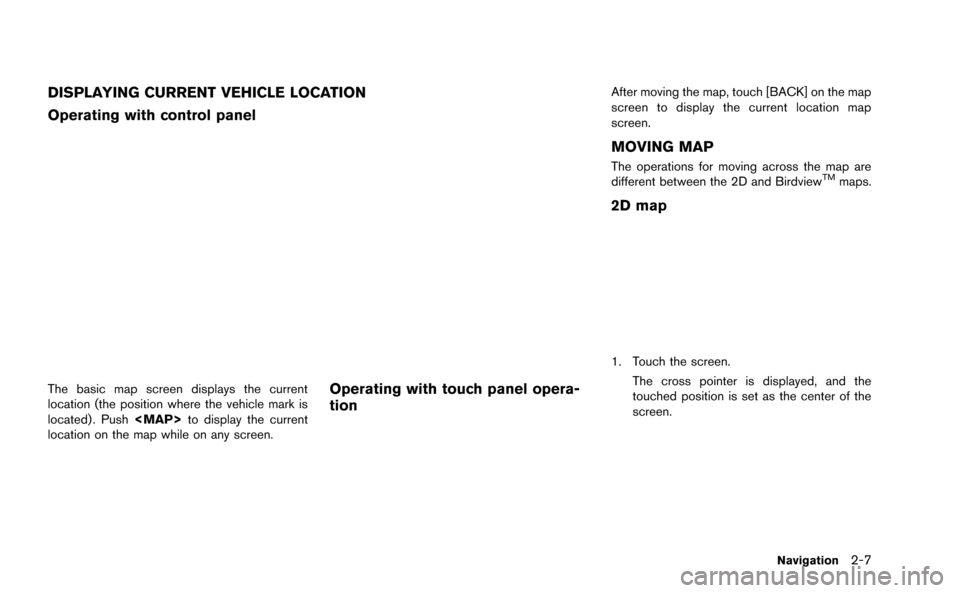
Operating with control panel
The basic map screen displays the current
location (the position where the vehicle mark is
located) . Push
Page 33 of 298
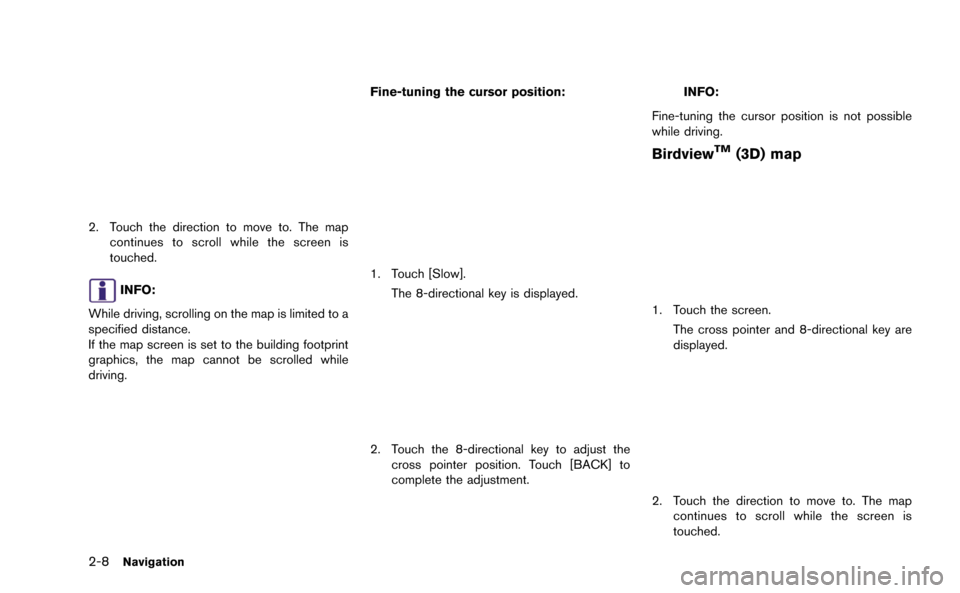
2-8Navigation
2. Touch the direction to move to. The mapcontinues to scroll while the screen is
touched.
INFO:
While driving, scrolling on the map is limited to a
specified distance.
If the map screen is set to the building footprint
graphics, the map cannot be scrolled while
driving. Fine-tuning the cursor position:
1. Touch [Slow].
The 8-directional key is displayed.
2. Touch the 8-directional key to adjust thecross pointer position. Touch [BACK] to
complete the adjustment.
INFO:
Fine-tuning the cursor position is not possible
while driving.
BirdviewTM(3D) map
1. Touch the screen. The cross pointer and 8-directional key are
displayed.
2. Touch the direction to move to. The mapcontinues to scroll while the screen is
touched.
Page 34 of 298
![NISSAN GT-R 2015 R35 Multi Function Display User Guide 3. Touch []or[] to change the direction of
the map.
: Rotates the map clockwise.
: Rotates the map counterclockwise.
INFO:
While driving, scrolling on the map is limited to a
specified distance.
CHANG](/img/5/423/w960_423-33.png "NISSAN GT-R 2015 R35 Multi Function Display User Guide 3. Touch []or[] to change the direction of
the map.
: Rotates the map clockwise.
: Rotates the map counterclockwise.
INFO:
While driving, scrolling on the map is limited to a
specified distance.
CHANG")
3. Touch []or[] to change the direction of
the map.
: Rotates the map clockwise.
: Rotates the map counterclockwise.
INFO:
While driving, scrolling on the map is limited to a
specified distance.
CHANGING SCALE OF MAP
Operating with center dial
1. Turn the center dial when the map screen is displayed. The map scale is displayed at the
right side of the screen.
2. Use the center dial to adjust the map scale.
&1Clockwise: Zoom in&2Counterclockwise: Zoom out
INFO:
Free zoom:
Depending on the setting, using the center dial
to change the map scale may adjust the scale
normally, or it may engage the free zoom (finer
scale adjustment in smaller steps) .
“Other navigation settings” (page 2-92)
Navigation2-9
Page 35 of 298
![NISSAN GT-R 2015 R35 Multi Function Display User Guide 2-10Navigation
Operating with touch panel opera-
tion
1. Touch [].
The scale is displayed.
2. Touch [ZOOM IN] or [ZOOM OUT] to change the scale.
INFO:
Free zoom:
Once the [Small Step Zoom by Dial] is](/img/5/423/w960_423-34.png "NISSAN GT-R 2015 R35 Multi Function Display User Guide 2-10Navigation
Operating with touch panel opera-
tion
1. Touch [].
The scale is displayed.
2. Touch [ZOOM IN] or [ZOOM OUT] to change the scale.
INFO:
Free zoom:
Once the [Small Step Zoom by Dial] is")
2-10Navigation
Operating with touch panel opera-
tion
1. Touch [].
The scale is displayed.
2. Touch [ZOOM IN] or [ZOOM OUT] to change the scale.
INFO:
Free zoom:
Once the [Small Step Zoom by Dial] is set to ON
in the setting screen, the scale can be changed
in smaller steps when [ZOOM IN] or [ZOOM
OUT] is pushed and held than when either
button is briefly pushed.
If briefly pushed, the operation returns to normal.
Setting by voice command
1. Push <
>located on the steering wheel.
2. After the tone sounds, speak a command.
To change the map scale:
“Zoom In <1 to 14>” (Alternate Command
Mode)
“Zoom Out <1 to 14>” (Alternate Command
Mode)
Map scale
Any required map scale (map coverage) be-
tween 320 miles (640 km) and 1/64 of a mile
(25 m) can be selected.
Scale level for 2D map and Birdview
TMmap
(3D) display:
Normal Map US Units Metric Units
320 miles 640 km
80 miles 160 km
32 miles 64 km8 miles 16 km
5 miles 10 km
2 miles 4 km
1 mile 2 km
1/2 mile 1 km
1/4 mile 500 m
1/8 mile 200 m
1/16 mile 100 m
1/32 mile 50 m
Shows build- ing footprint graphics 1/32 mile 50 m
1/64 mile 25 m
Page 36 of 298
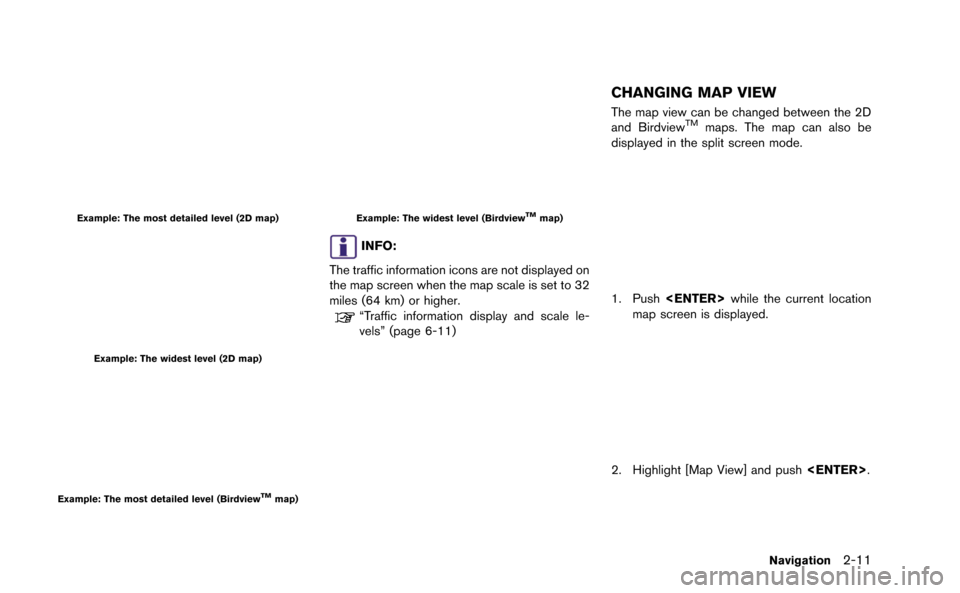
Example: The most detailed level (2D map)
Example: The widest level (2D map)
Example: The most detailed level (BirdviewTMmap)
Example: The widest level (BirdviewTMmap)
INFO:
The traffic information icons are not displayed on
the map screen when the map scale is set to 32
miles (64 km) or higher.
“Traffic information display and scale le-
vels” (page 6-11)
CHANGING MAP VIEW
The map view can be changed between the 2D
and BirdviewTMmaps. The map can also be
displayed in the split screen mode.
1. Push
map screen is displayed.
2. Highlight [Map View] and push
Navigation2-11
Page 37 of 298
![NISSAN GT-R 2015 R35 Multi Function Display User Guide 2-12Navigation
3. Highlight [Change View] and push<ENTER>.
4. Highlight the preferred map view and push <ENTER>. The indicator of the selected
map view illuminates.
5. The display automatically return](/img/5/423/w960_423-36.png "NISSAN GT-R 2015 R35 Multi Function Display User Guide 2-12Navigation
3. Highlight [Change View] and push<ENTER>.
4. Highlight the preferred map view and push <ENTER>. The indicator of the selected
map view illuminates.
5. The display automatically return")
2-12Navigation
3. Highlight [Change View] and push
4. Highlight the preferred map view and push
map view illuminates.
5. The display automatically returns to the map screen.
Available views
. [2D Map]:
Switches to the 2D map.
. [Birdview (3D)]:
Switches to the Birdview
TMmap.
. [Split: 2D Map]:
Changes to the split screen mode and both
halves display maps in 2D.
. [Split: Birdview Map]:
Changes to the split screen mode and the
left half displays the map in 2D and the right
half displays the map in Birdview
TM.
INFO:
. When the split screen mode is selected, the
map settings for the left screen can be
changed independently.
“Setting left screen display”
(page 2-16)
. If the split screen mode is selected, the
normal map scrolling and scale adjustment
are set in the right screen. However, if an
icon is touched before adjusting the map
direction or scale, then each screen can be
adjusted independently.
Split: 2D Map
Split: BirdviewTMMap
Other settings
The map view can also be set by performing the
following procedure.
1. Push
2. Highlight [Navigation] and push
3. Highlight [Map View] and push
4. Highlight [Change View] and push
Page 38 of 298
5. Highlight the preferred item and push
Setting by voice command
1. Push <
>located on the steering wheel.
2. After the tone sounds, speak a command.
. To display the 2D map:
“Plan View map” (Alternate Command
Mode)
. To display the Birdview
TMmap:
“Birdview map” (Alternate Command Mode)
MAP VIEW SETTINGS
Other settings are also available for the map
screen, such as changing the map direction,
map color, Birdview
TMangle, etc.
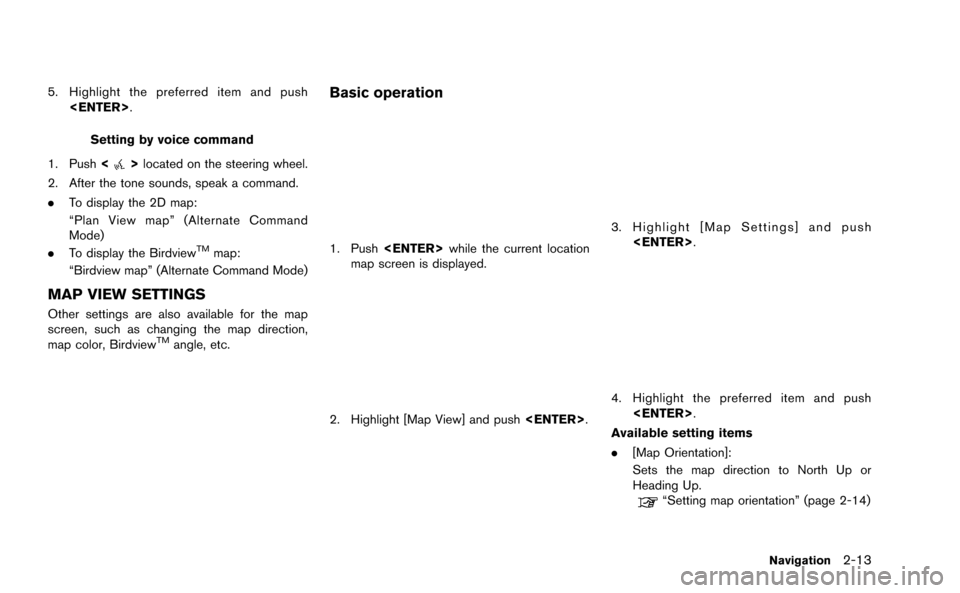
Basic operation
1. Push
map screen is displayed.
2. Highlight [Map View] and push
3. Highlight [Map Settings] and push
4. Highlight the preferred item and push
Available setting items
. [Map Orientation]:
Sets the map direction to North Up or
Heading Up.
“Setting map orientation” (page 2-14)
Navigation2-13