set NISSAN GT-R 2015 R35 Multi Function Display Owners Manual
[x] Cancel search | Manufacturer: NISSAN, Model Year: 2015, Model line: GT-R, Model: NISSAN GT-R 2015 R35Pages: 298, PDF Size: 11.39 MB
Page 2 of 298
Introduction0
About Multi function display system1
Navigation
Audio system
Bluetooth®Hands-Free Phone System
Heater and air conditioner
Viewing technical information
Other settings
Voice recognition
Monitor system
Multi function meter
2
3
4
5
6
7
8
9
10
Table of
Contents
General system information11
Troubleshooting guide12
Index13
Page 5 of 298
0-2Introduction
This manual uses special words, symbols and
icons, organized by function.
Please refer to the following items and familiarize
yourself with them.
FOR SAFE OPERATION
WARNING
This is used to indicate a hazard that
could cause death or serious personal
injury. To avoid or reduce the risk,
follow the information and instructions
exactly.
CAUTION
This is used to indicate a hazard that
could cause minor or moderate perso-
nal injury. To avoid or reduce the risk,
follow the information and instructions
carefully.
NOTICE
This is used to indicate a hazard that
could cause damage to your vehicle. To
avoid or reduce the risk, follow the
information and instructions.
REFERENCE SYMBOLS
INFO:
This indicates information that is necessary for
efficient use of your vehicle or accessories.
Reference page:
This indicates the title and page that you should
refer to.
<>:
This indicates a button on the control panel.
[]:
This indicates a key/item displayed on the
screen.
Voice Command:
This indicates an operation by voice command.
This system is primarily designed to help you
reach your destination, and it also performs
other functions as outlined in this manual.
However, you, the driver, must use the system
safely and properly. Information concerning road
conditions, traffic signs and the availability of
services may not always be up-to-date. The
system is not a substitute for safe, proper and
legal driving.
Before using the navigation system, please read
the following safety information. Always use the
system as outlined in this manual.
WARNING
. When the driver wants to operate
the navigation system or use the
center dial, first park the vehicle in a
safe location and set the parking
brake. Operating the system while
driving can distract the driver and
may result in a serious accident.
. Do not rely on route guidance alone.
Always be sure that all driving
maneuvers are legal and safe in
order to avoid accidents.
. Do not disassemble or modify this
system. If you do, it may result in
accidents, fire or electrical shock.
HOW TO USE THIS MANUAL SAFETY INFORMATION
Page 11 of 298
1-2About Multi function display system
NAVIGATION SYSTEM
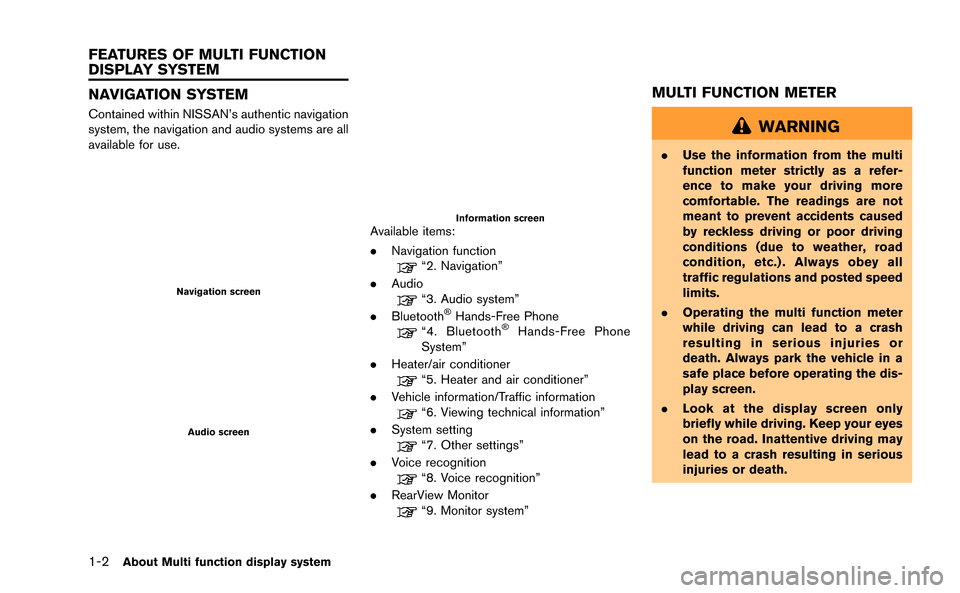
Contained within NISSAN’s authentic navigation
system, the navigation and audio systems are all
available for use.
Navigation screen
Audio screen
Information screenAvailable items:
.Navigation function
“2. Navigation”
. Audio
“3. Audio system”
. Bluetooth®Hands-Free Phone“4. Bluetooth®Hands-Free Phone
System”
. Heater/air conditioner
“5. Heater and air conditioner”
. Vehicle information/Traffic information
“6. Viewing technical information”
. System setting
“7. Other settings”
. Voice recognition
“8. Voice recognition”
. RearView Monitor
“9. Monitor system”
MULTI FUNCTION METER
WARNING
.Use the information from the multi
function meter strictly as a refer-
ence to make your driving more
comfortable. The readings are not
meant to prevent accidents caused
by reckless driving or poor driving
conditions (due to weather, road
condition, etc.) . Always obey all
traffic regulations and posted speed
limits.
. Operating the multi function meter
while driving can lead to a crash
resulting in serious injuries or
death. Always park the vehicle in a
safe place before operating the dis-
play screen.
. Look at the display screen only
briefly while driving. Keep your eyes
on the road. Inattentive driving may
lead to a crash resulting in serious
injuries or death.
FEATURES OF MULTI FUNCTION
DISPLAY SYSTEM
Page 13 of 298
1-4About Multi function display system
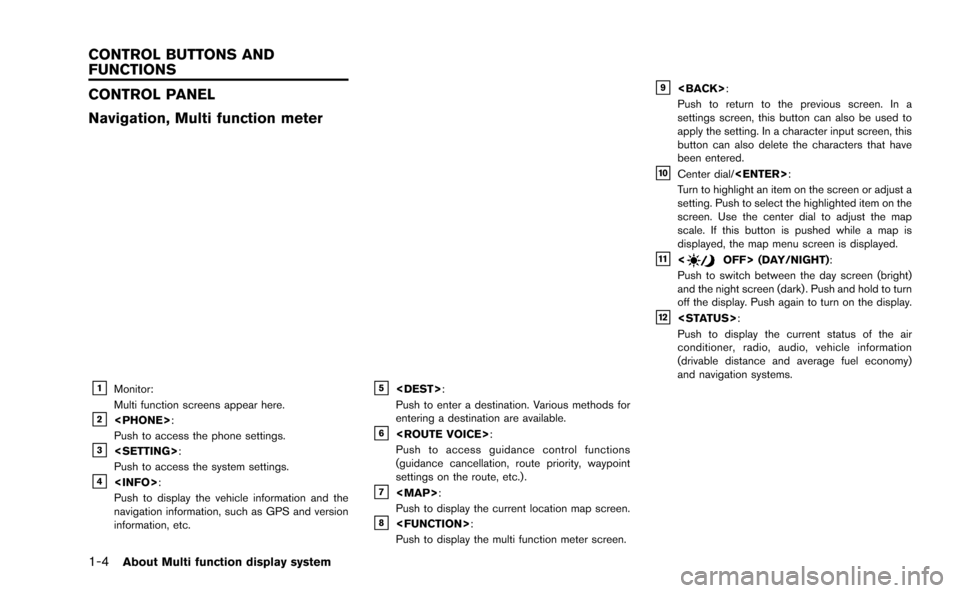
CONTROL PANEL
Navigation, Multi function meter
&1Monitor:
Multi function screens appear here.
&2
Push to access the phone settings.
&3
Push to access the system settings.
&4
Push to display the vehicle information and the
navigation information, such as GPS and version
information, etc.
&5
Push to enter a destination. Various methods for
entering a destination are available.
&6
Push to access guidance control functions
(guidance cancellation, route priority, waypoint
settings on the route, etc.) .
&7
Page 14 of 298
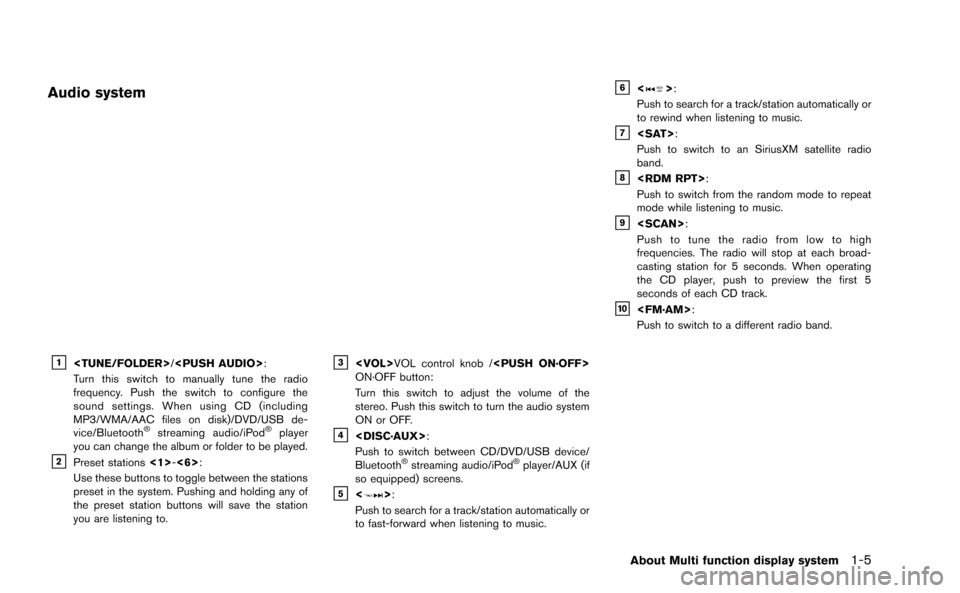
Audio system
&1
Turn this switch to manually tune the radio
frequency. Push the switch to configure the
sound settings. When using CD (including
MP3/WMA/AAC files on disk)/DVD/USB de-
vice/Bluetooth
®streaming audio/iPod®player
you can change the album or folder to be played.
&2Preset stations <1>-<6>:
Use these buttons to toggle between the stations
preset in the system. Pushing and holding any of
the preset station buttons will save the station
you are listening to.
&3
ON·OFF button:
Turn this switch to adjust the volume of the
stereo. Push this switch to turn the audio system
ON or OFF.
&4
Push to switch between CD/DVD/USB device/
Bluetooth
®streaming audio/iPod®player/AUX (if
so equipped) screens.
&5<>:
Push to search for a track/station automatically or
to fast-forward when listening to music.
&6<>:
Push to search for a track/station automatically or
to rewind when listening to music.
&7
Push to switch to an SiriusXM satellite radio
band.
&8
Push to switch from the random mode to repeat
mode while listening to music.
&9
Push to tune the radio from low to high
frequencies. The radio will stop at each broad-
casting station for 5 seconds. When operating
the CD player, push to preview the first 5
seconds of each CD track.
&10
Push to switch to a different radio band.
About Multi function display system1-5
Page 15 of 298
1-6About Multi function display system
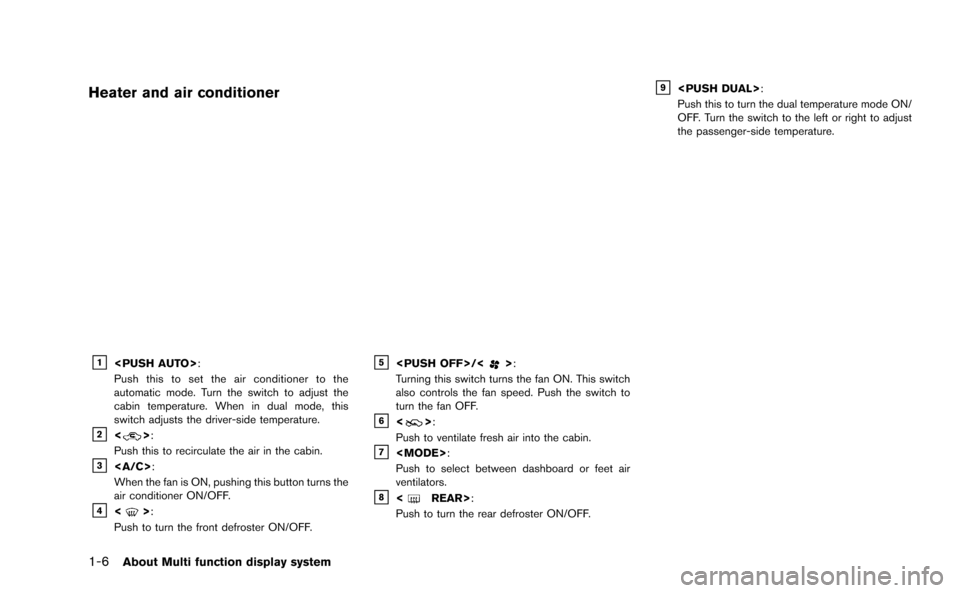
Heater and air conditioner
&1
Push this to set the air conditioner to the
automatic mode. Turn the switch to adjust the
cabin temperature. When in dual mode, this
switch adjusts the driver-side temperature.
&2<>:
Push this to recirculate the air in the cabin.
&3:
When the fan is ON, pushing this button turns the
air conditioner ON/OFF.
&4<>:
Push to turn the front defroster ON/OFF.
&5
Turning this switch turns the fan ON. This switch
also controls the fan speed. Push the switch to
turn the fan OFF.
&6<>:
Push to ventilate fresh air into the cabin.
&7
Push to select between dashboard or feet air
ventilators.
&8
Push to turn the rear defroster ON/OFF.
&9
Push this to turn the dual temperature mode ON/
OFF. Turn the switch to the left or right to adjust
the passenger-side temperature.
Page 19 of 298
1-10About Multi function display system
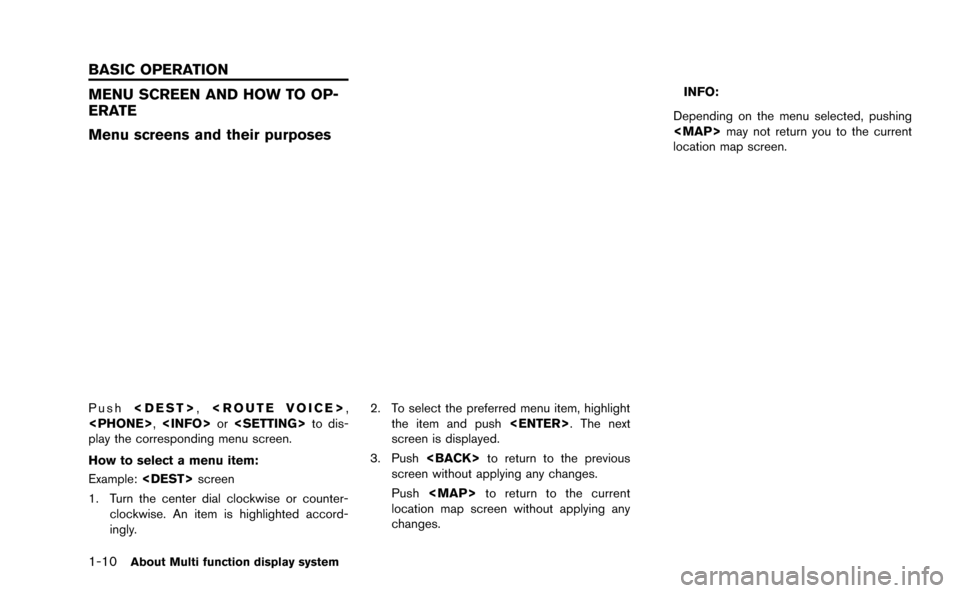
MENU SCREEN AND HOW TO OP-
ERATE
Menu screens and their purposes
Push
play the corresponding menu screen.
How to select a menu item:
Example:
1. Turn the center dial clockwise or counter- clockwise. An item is highlighted accord-
ingly. 2. To select the preferred menu item, highlight
the item and push
screen is displayed.
3. Push
screen without applying any changes.
Push
Page 20 of 298
Using controls to adjust values, levels, etc.
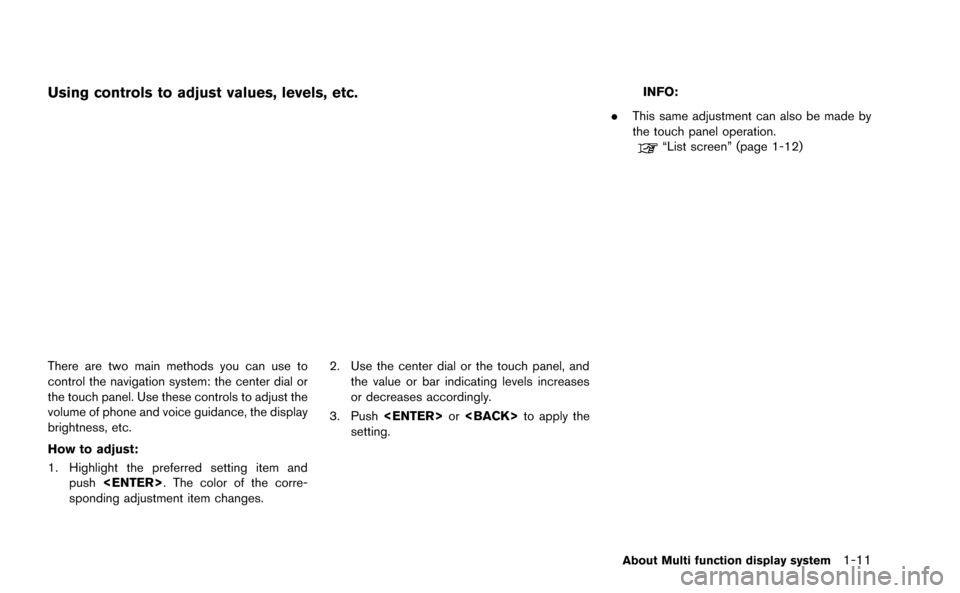
There are two main methods you can use to
control the navigation system: the center dial or
the touch panel. Use these controls to adjust the
volume of phone and voice guidance, the display
brightness, etc.
How to adjust:
1. Highlight the preferred setting item andpush
sponding adjustment item changes. 2. Use the center dial or the touch panel, and
the value or bar indicating levels increases
or decreases accordingly.
3. Push
setting.
INFO:
. This same adjustment can also be made by
the touch panel operation.
“List screen” (page 1-12)
About Multi function display system1-11
Page 23 of 298
1-14About Multi function display system
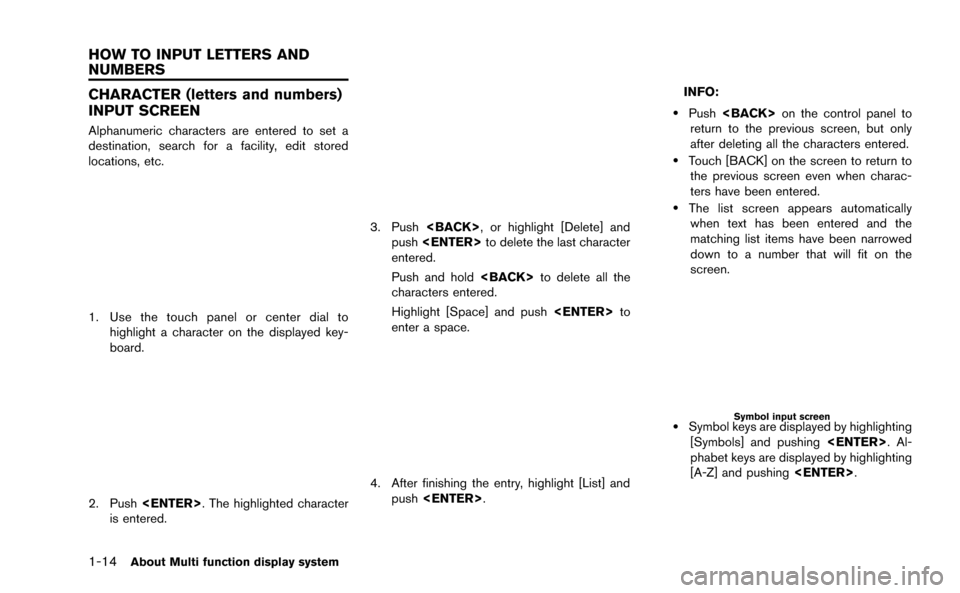
CHARACTER (letters and numbers)
INPUT SCREEN
Alphanumeric characters are entered to set a
destination, search for a facility, edit stored
locations, etc.
1. Use the touch panel or center dial tohighlight a character on the displayed key-
board.
2. Push
is entered.
3. Push
push
entered.
Push and hold
characters entered.
Highlight [Space] and push
enter a space.
4. After finishing the entry, highlight [List] and push
INFO:
.Push
return to the previous screen, but only
after deleting all the characters entered.
.Touch [BACK] on the screen to return to the previous screen even when charac-
ters have been entered.
.The list screen appears automaticallywhen text has been entered and the
matching list items have been narrowed
down to a number that will fit on the
screen.
Symbol input screen
.Symbol keys are displayed by highlighting
[Symbols] and pushing
phabet keys are displayed by highlighting
[A-Z] and pushing
HOW TO INPUT LETTERS AND
NUMBERS
Page 26 of 298
2 Navigation
Features of this navigation system ........................................ 2-3Route guidance .................................................................... 2-3
Places of interest (Places) directory ............................... 2-3
Address book........................................................................\
2-3
Avoid area ........................................................................\
...... 2-3
XM NavTraffic
®information ............................................... 2-3
Automatic reroute ................................................................ 2-4
Detour ........................................................................\
............. 2-4
Birdview
TM........................................................................\
..... 2-4
Voice guidance ..................................................................... 2-4
Map settings ........................................................................\
....... 2-5 Map types ........................................................................\
...... 2-5
Birdview
TM(3D) map .......................................................... 2-6
Building graphics ................................................................. 2-6
Displaying current vehicle location .................................. 2-7
Moving map ........................................................................\
... 2-7
Changing scale of map ...................................................... 2-9
Changing map view.......................................................... 2-11
Map view settings ............................................................. 2-13
Looking at information on map ...................................... 2-17
Map menu screen ............................................................. 2-19
Map symbols ...................................................................... 2-22 Setting destination ................................................................. 2-23
Destination screen .......................................................... 2-23
Finding address............................................................... 2-25
Finding place ................................................................... 2-27
Setting home as destination ........................................ 2-32
Searching from address book ..................................... 2-33
Setting previous destination ........................................ 2-34
Setting previous start point .......................................... 2-35
Setting from stored routes ........................................... 2-36
Setting by phone number ............................................. 2-37
Setting freeway entrance/exit ...................................... 2-38
Setting intersection ........................................................ 2-39
Setting city center .......................................................... 2-41
Setting point on map ..................................................... 2-42
Delete destination ........................................................... 2-43
Route guidance ...................................................................... 2-44
Procedures after setting destination .......................... 2-44
About route guidance .................................................... 2-48
Route screen ................................................................... 2-53
Route guidance settings ............................................... 2-67
Storing a location/route ........................................................ 2-70 Storing location ............................................................... 2-70
Storing route .................................................................... 2-73